Sales Quotation-Inbound Quotation
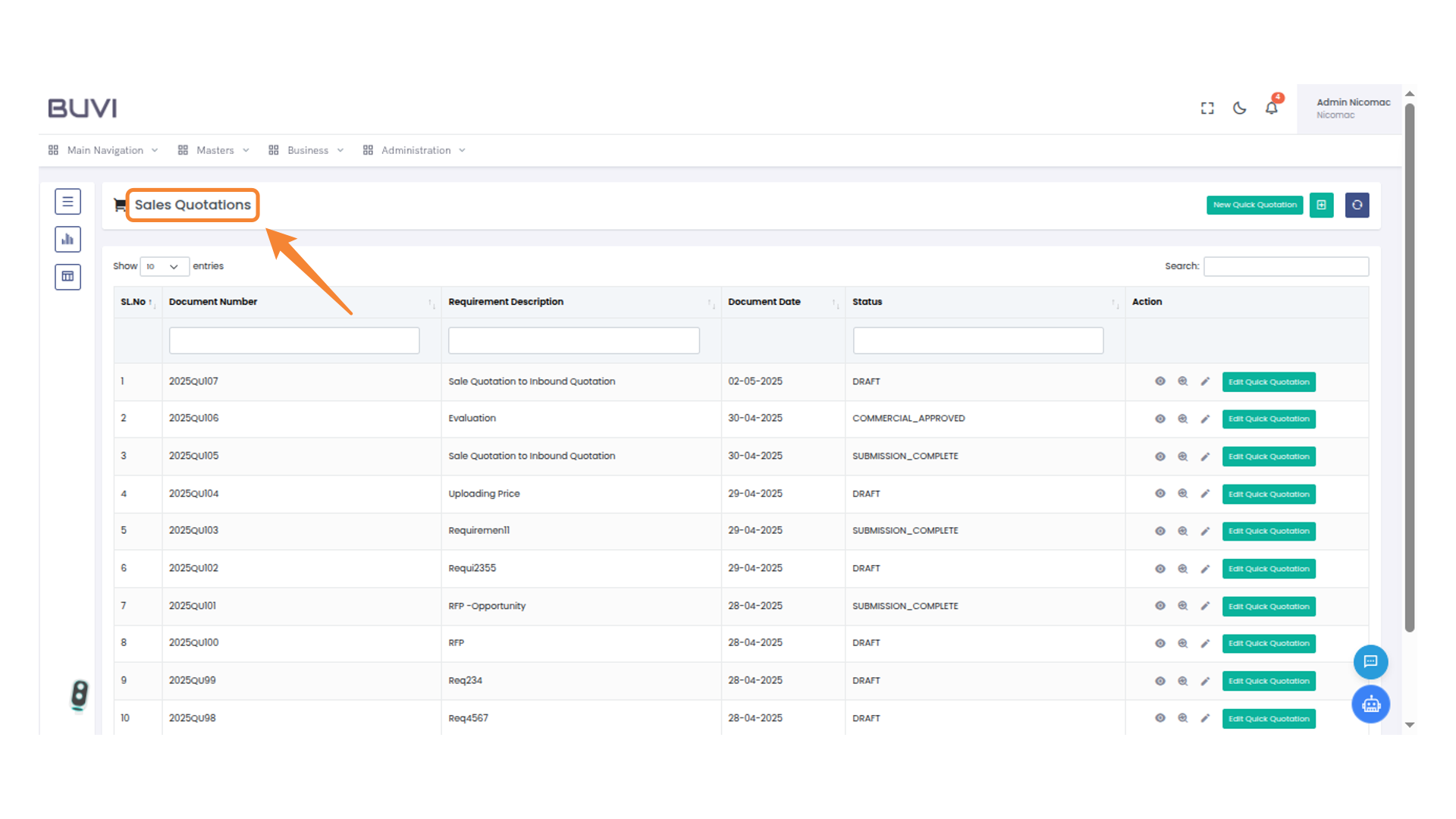
1. Sales Quotations Section
Go to Sales Quotation menu
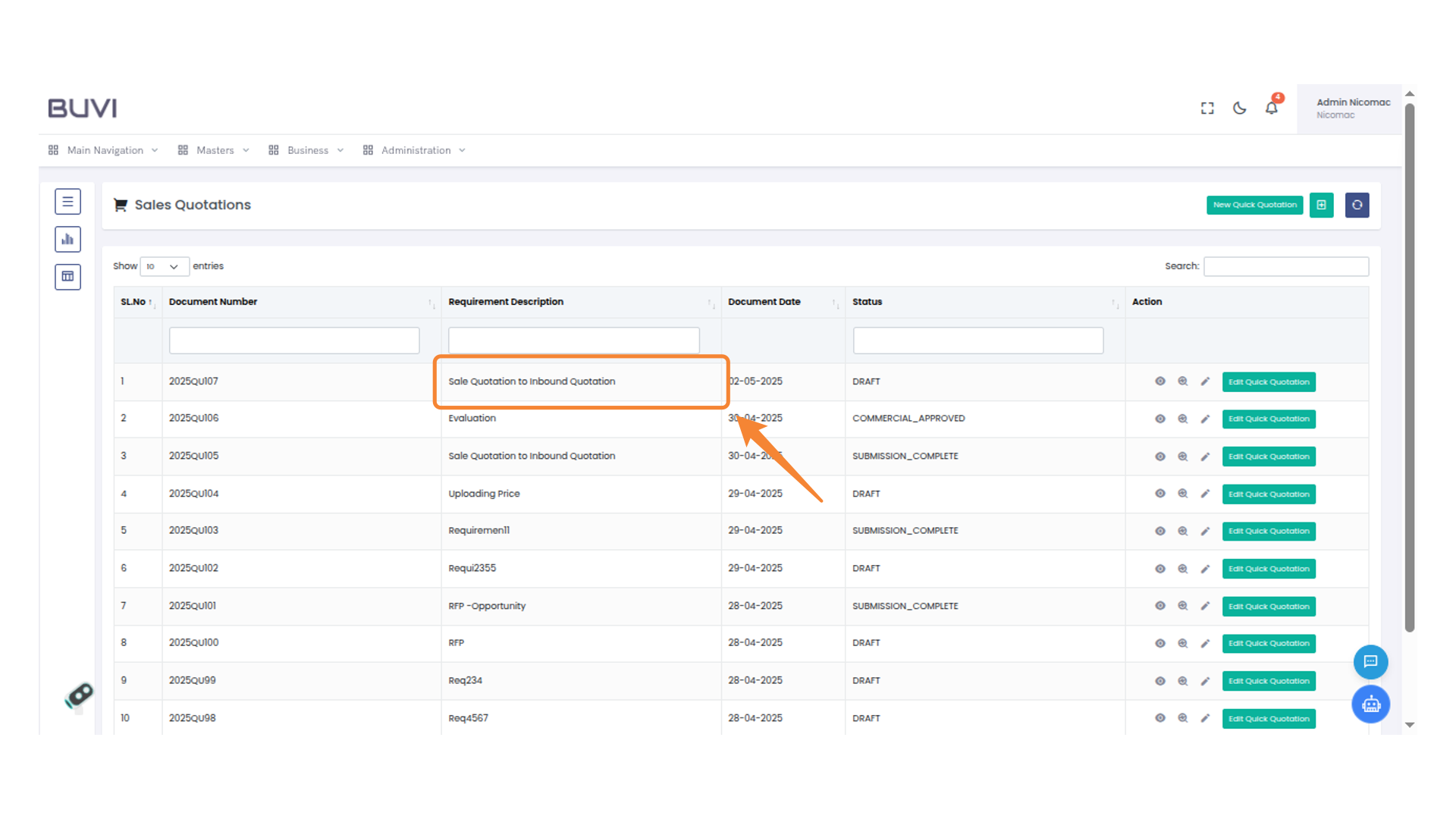
2. Highlighted Quotation in Sales List
Check for the Quotation which has been created from Opportunity
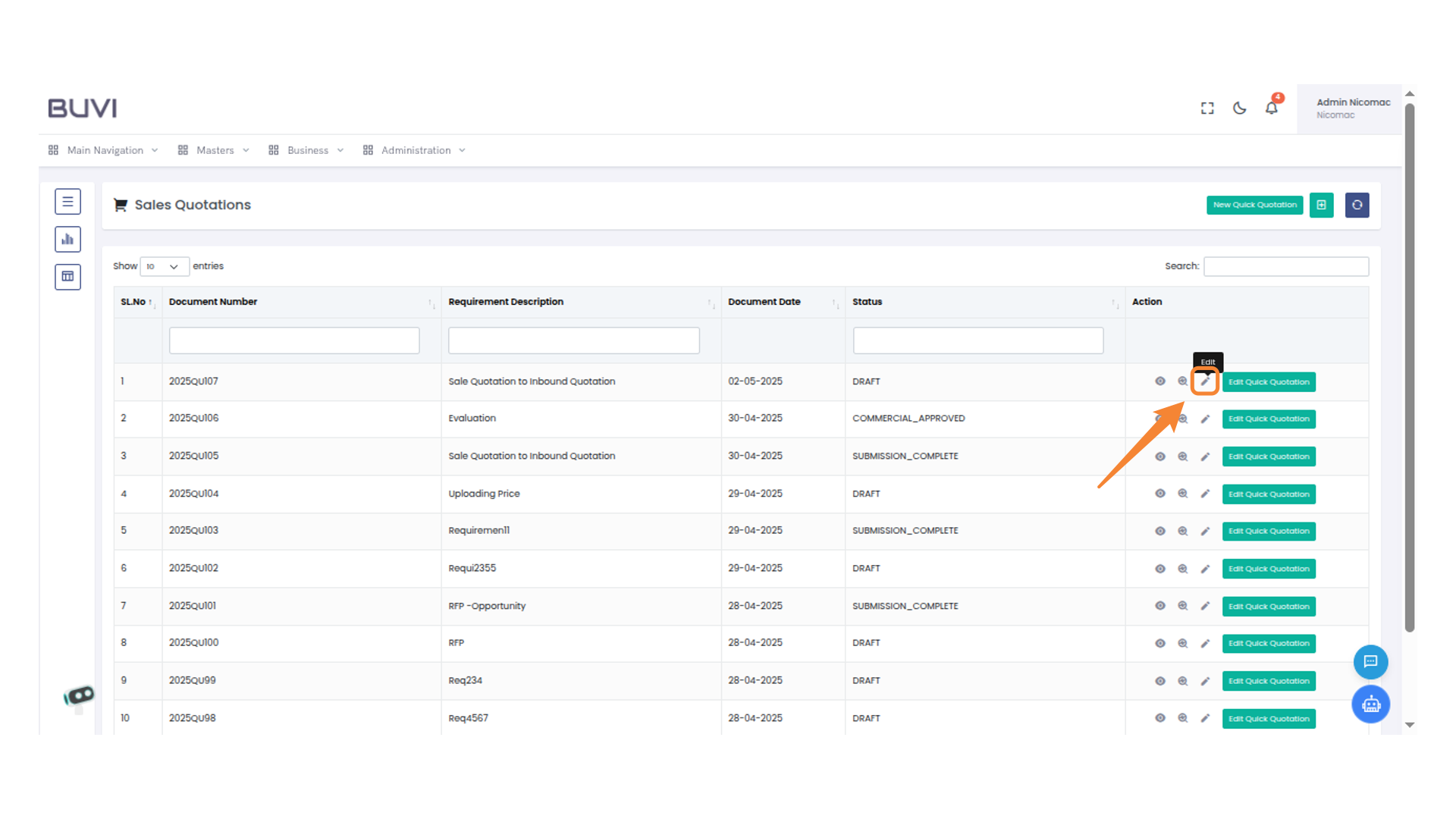
3. Edit Quotation Button
Click on edit icon
4. Sidebar Navigation Icon
click on Line item tab

5. Edit Action Icon
Click the icon to edit the selected line item.

6. Pricing Tab
Go to Pricing tab

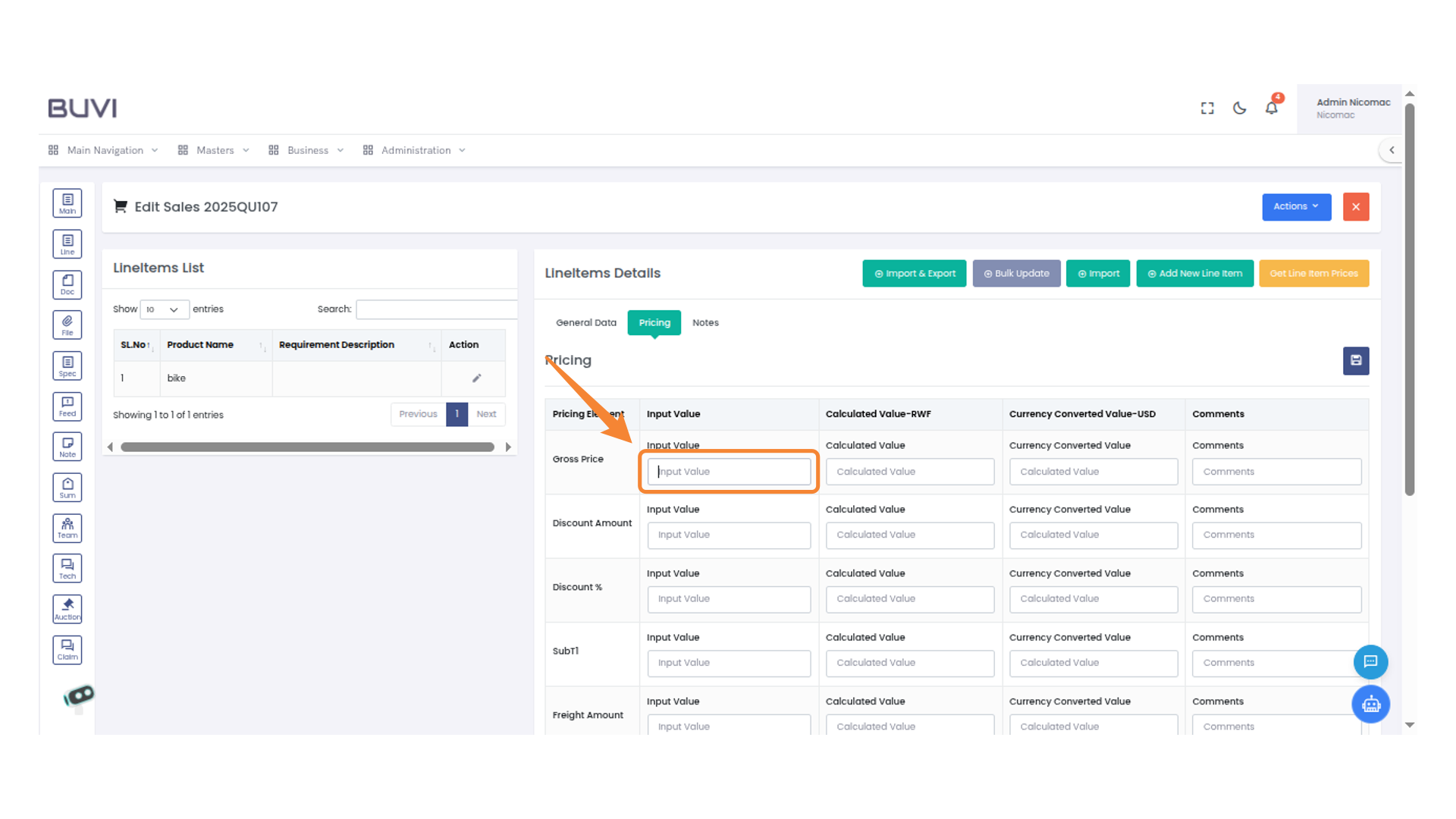
7. Gross Price Input Field
Add Pricing details
8. Save Button
Save it

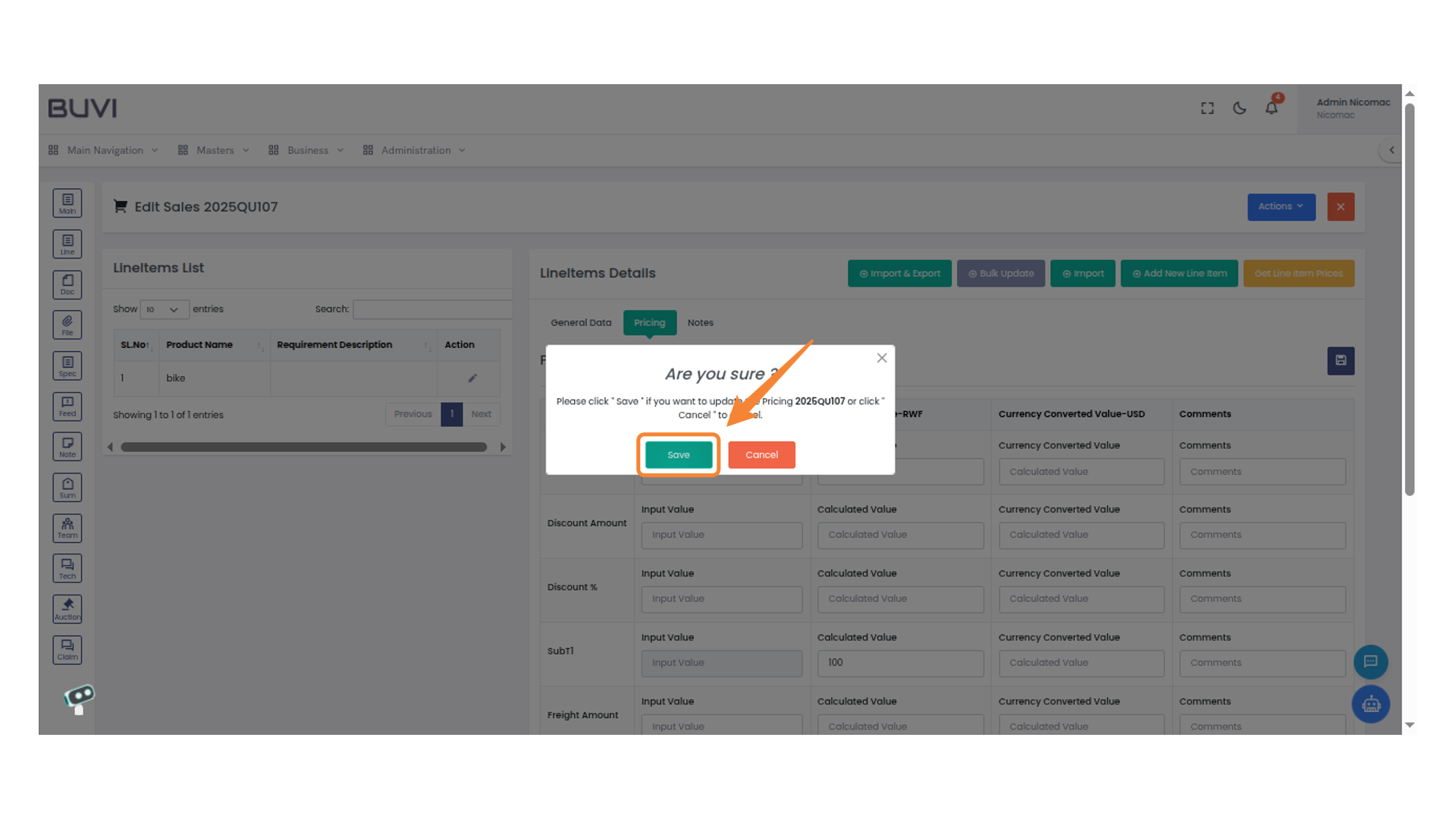
9. Confirmation Dialog
Click the 'Save' button to confirm and proceed with the operation.
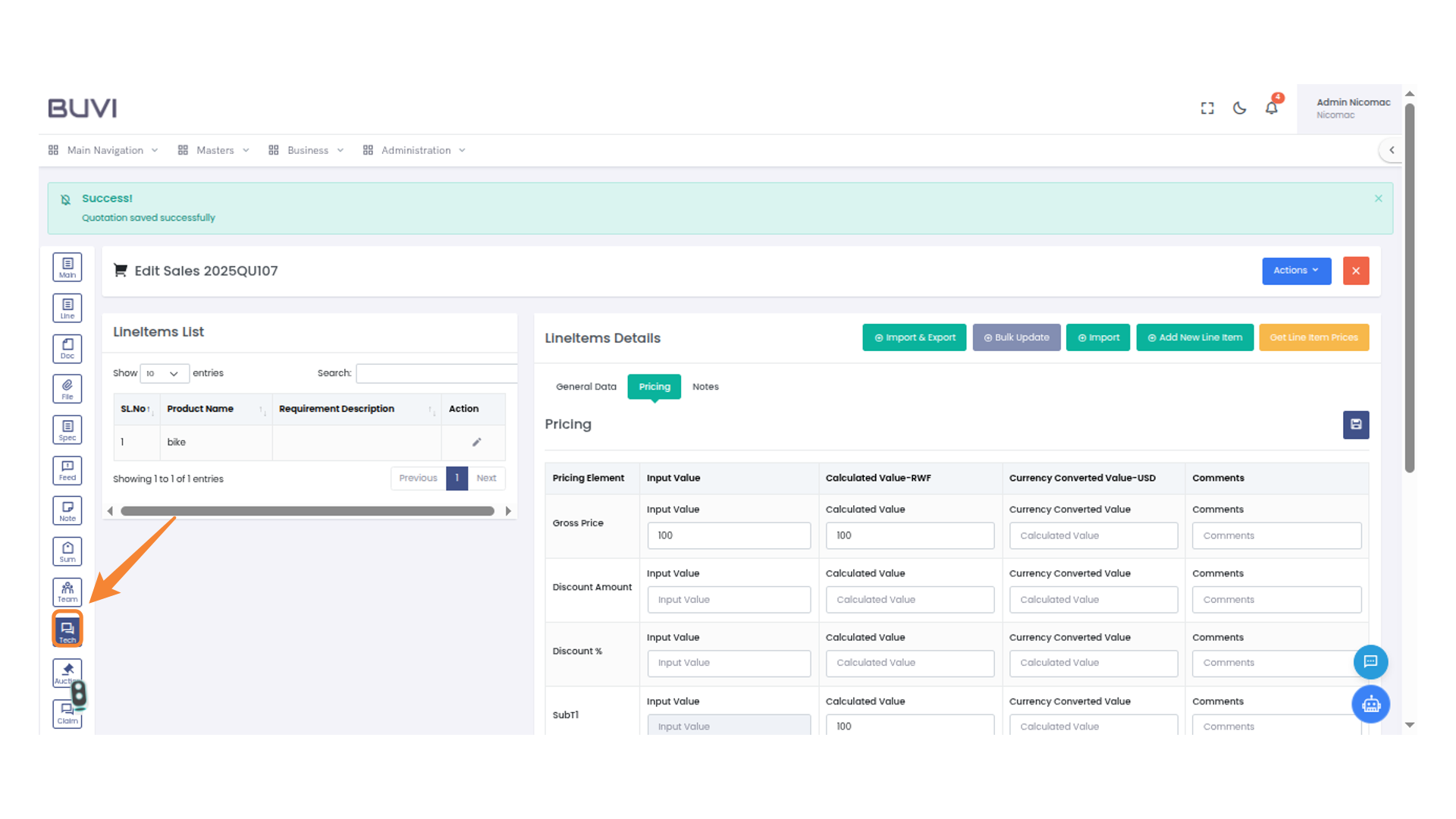
10. Tech Section Icon
Click on technical tab
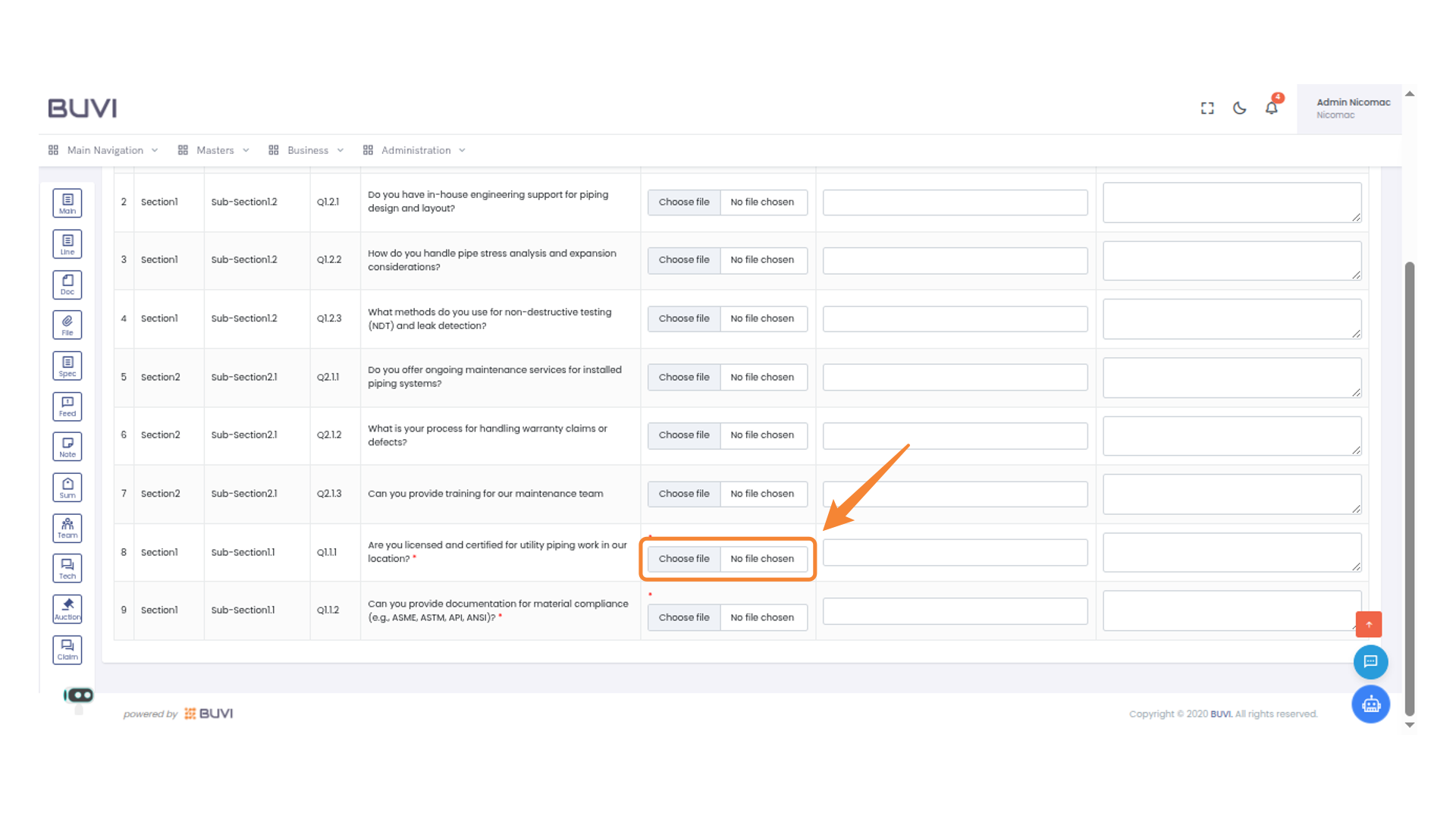
11. File Selection Interface
Select a file by clicking 'Choose file' to upload for the selected question.
12. File Selection Section
Select a file and confirm the file choice for documentation compliance.
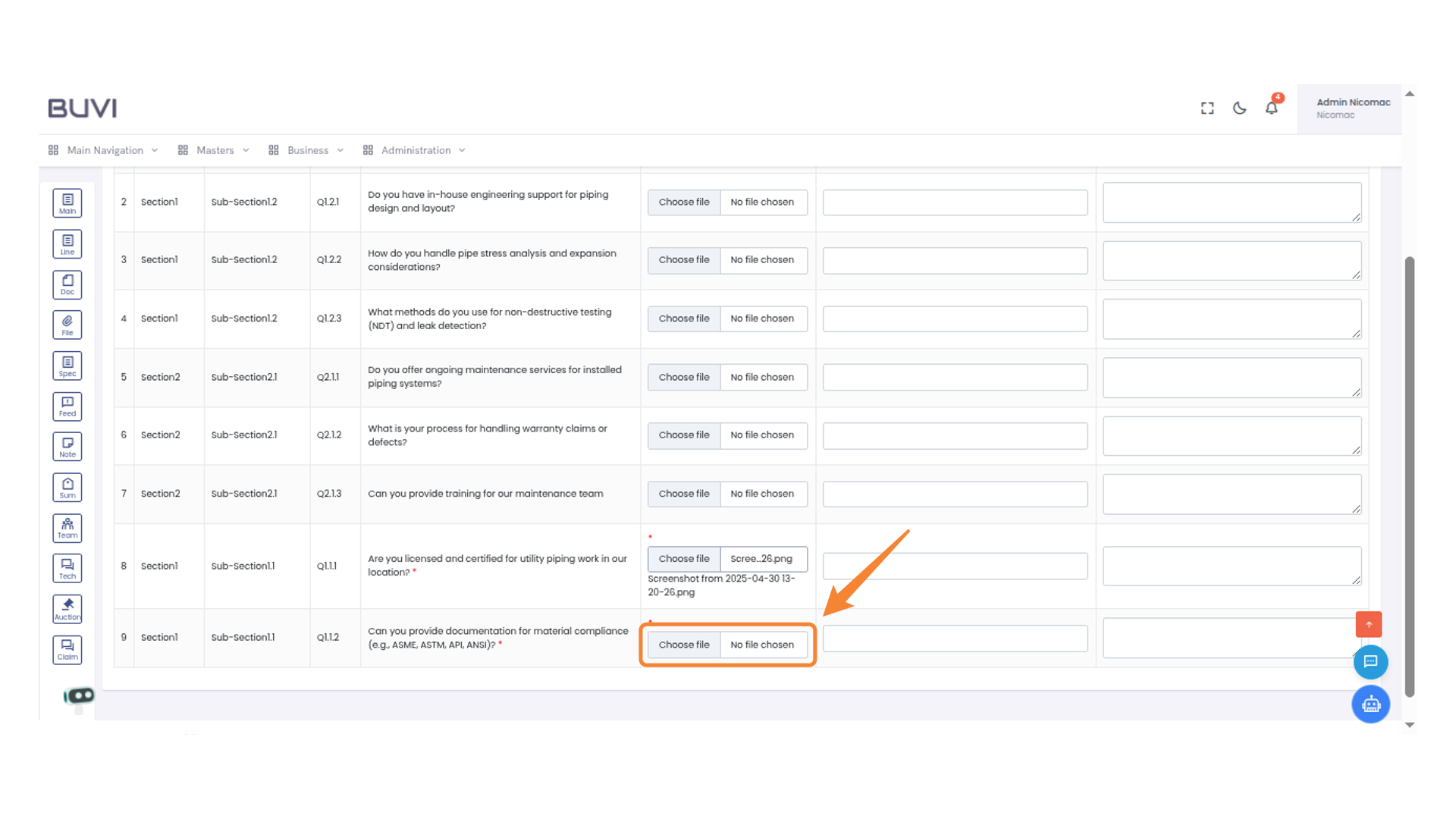
13. And Answer
Add Answer
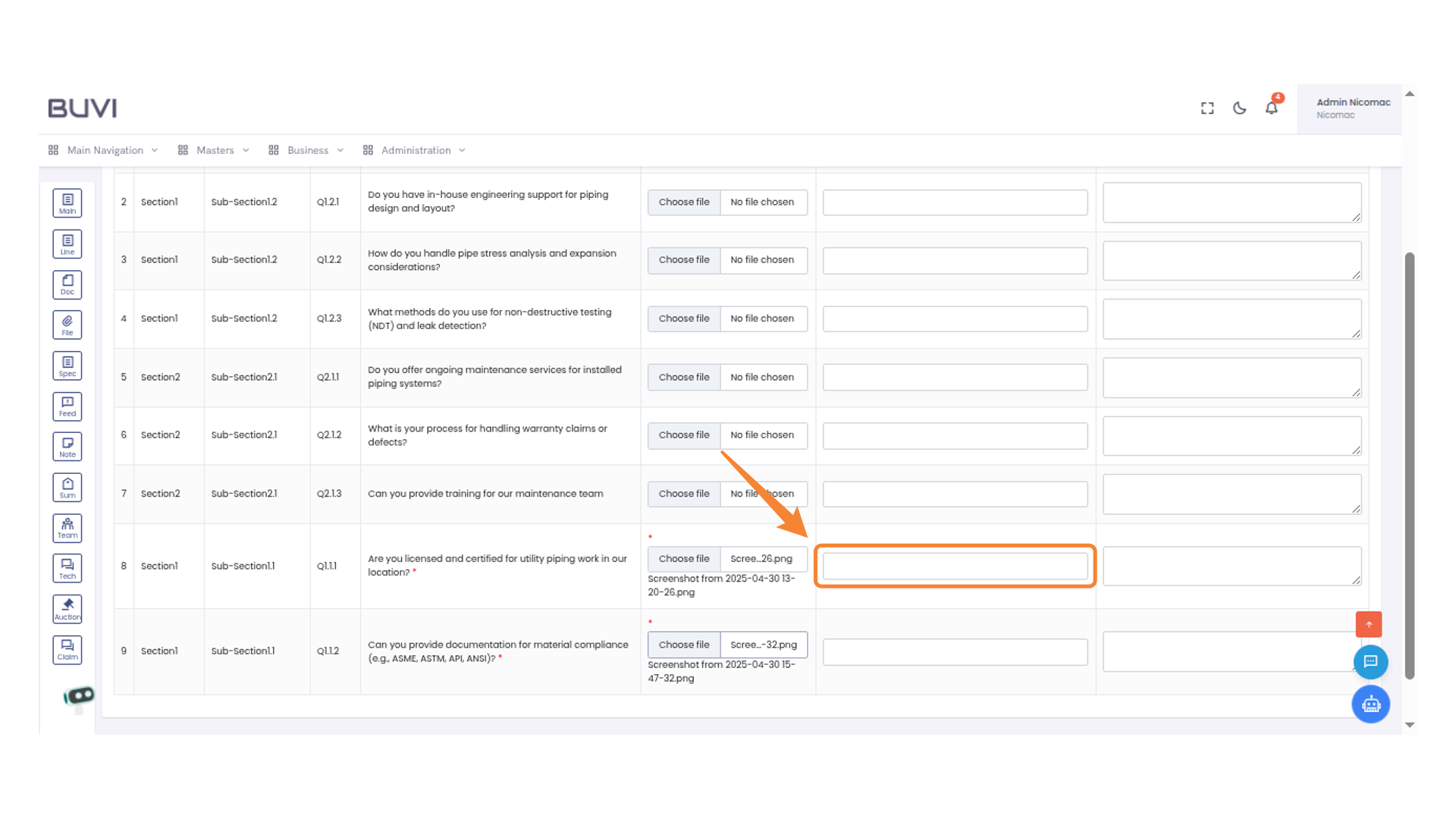
14. Save Technical Button
Click to save technical information entries.
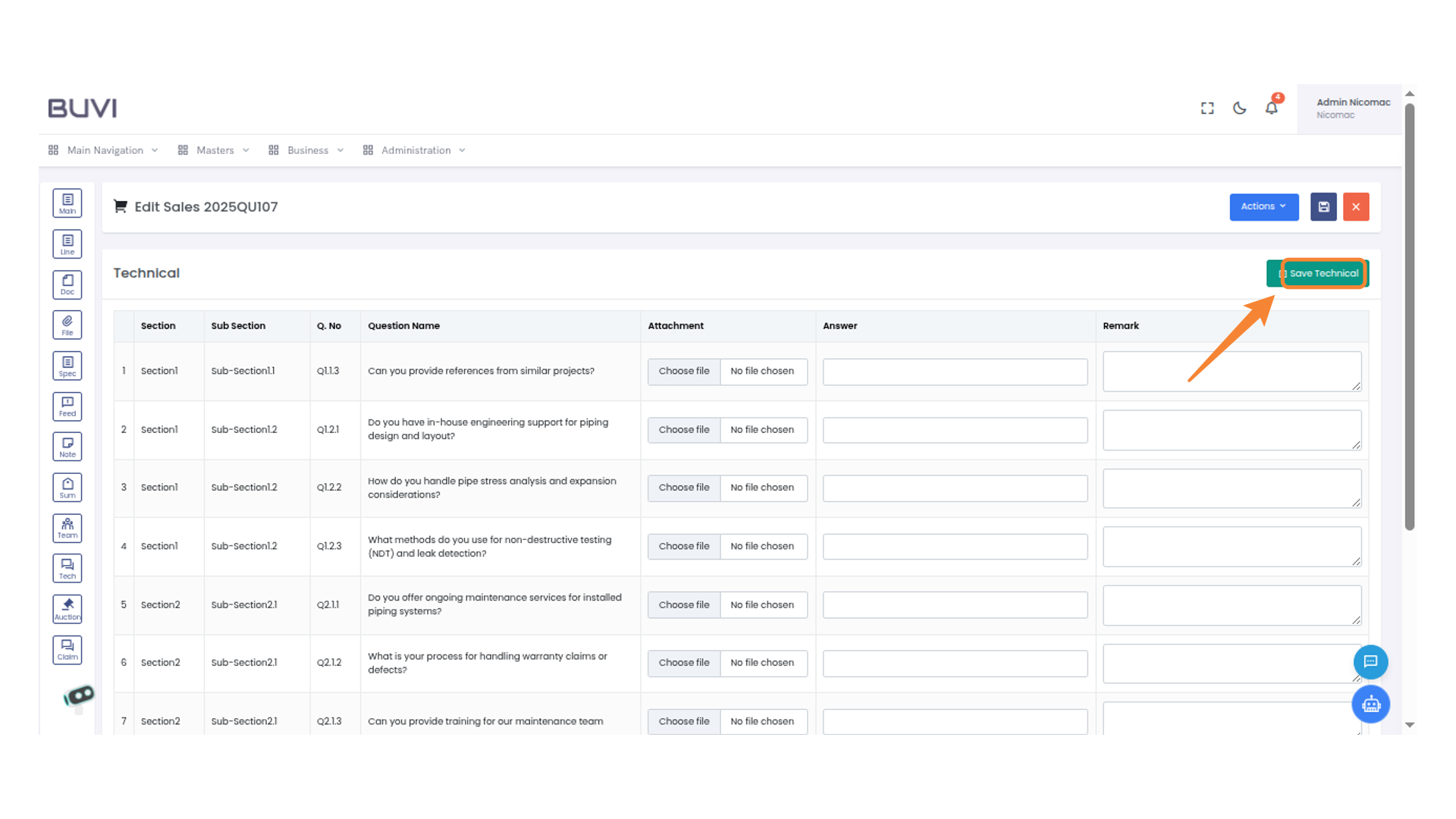
15. Main Navigation Button
Click on header tab
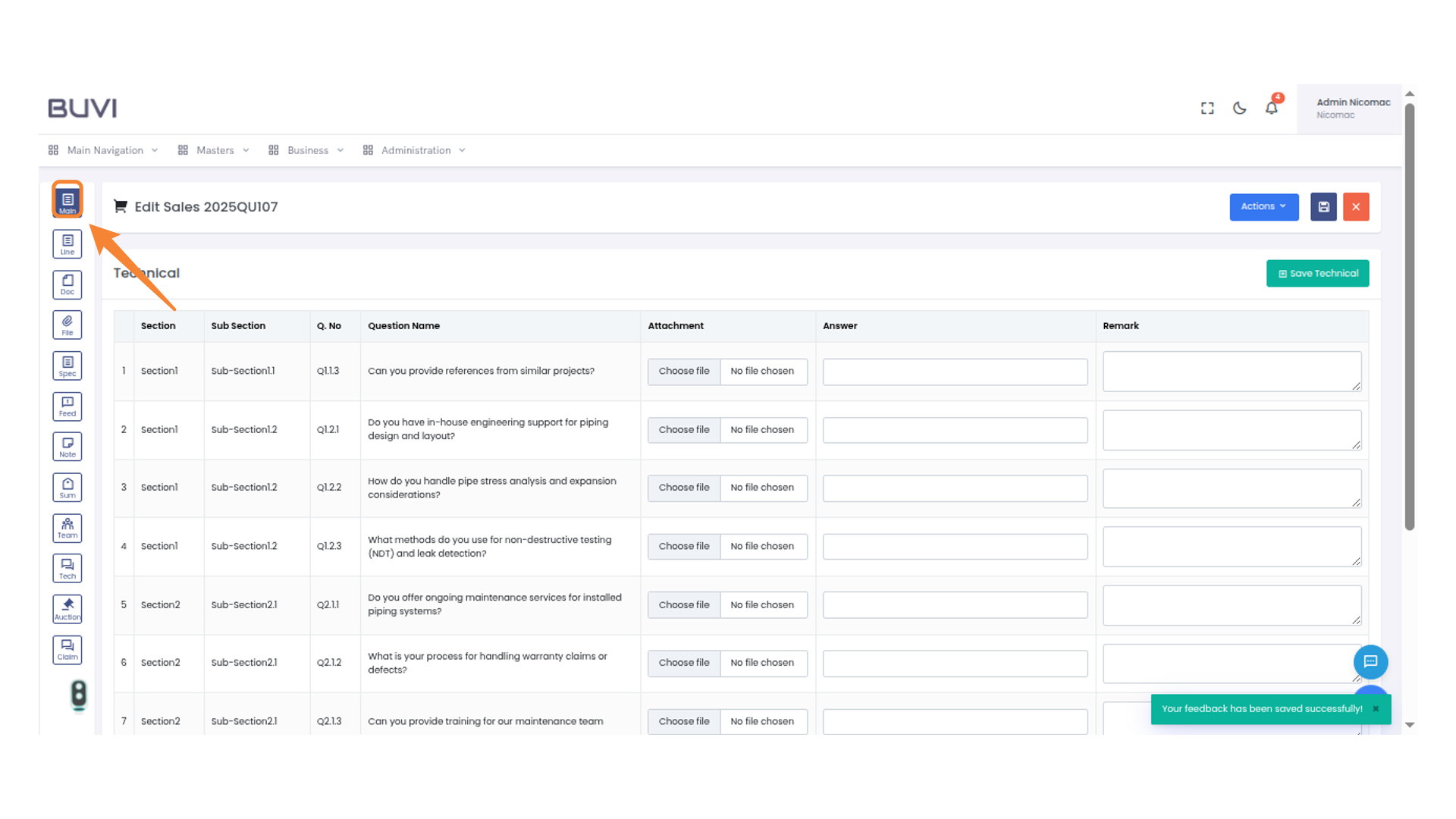
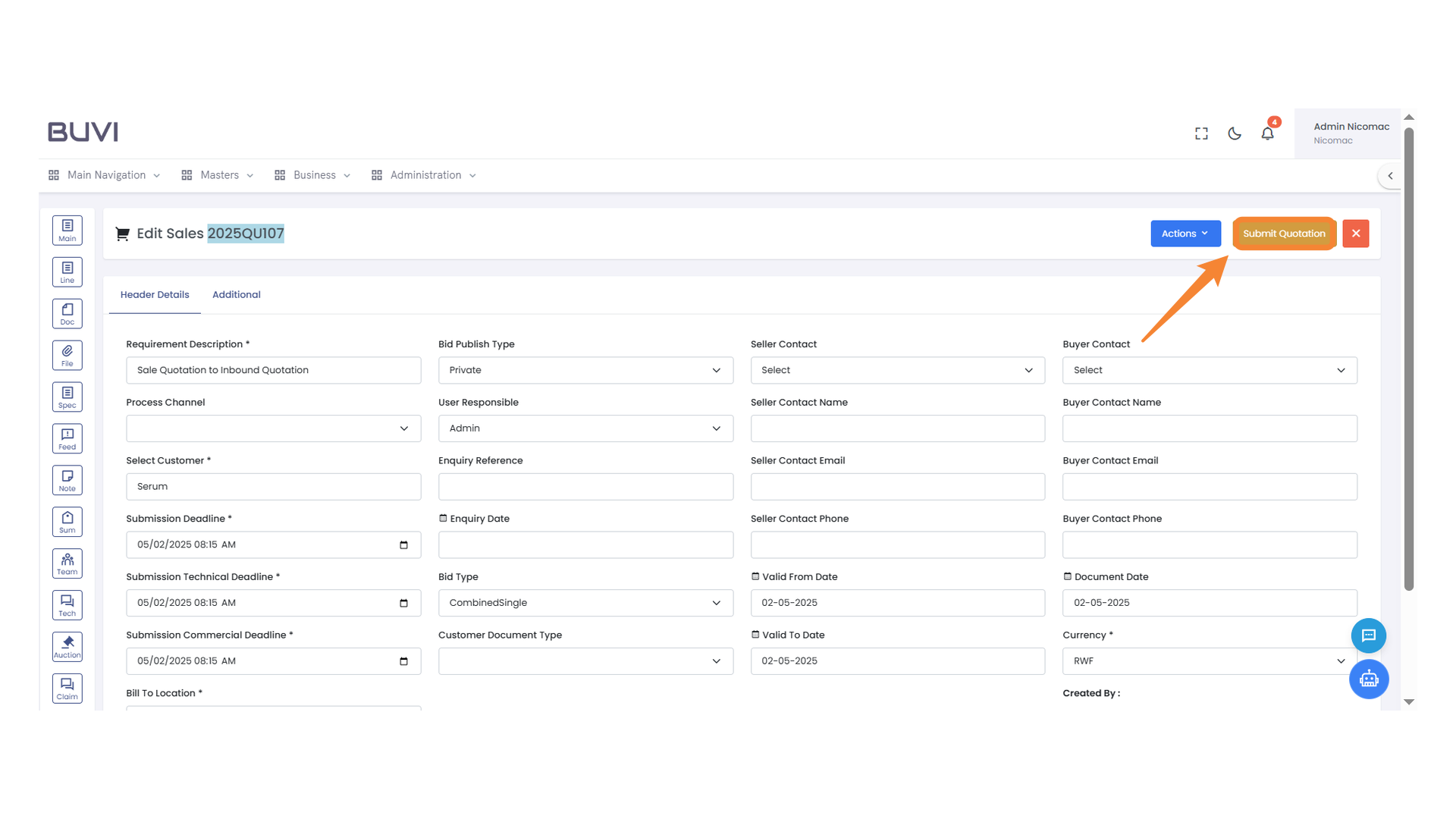
16. Submit Quotation Button
Click to submit the quotation for processing.
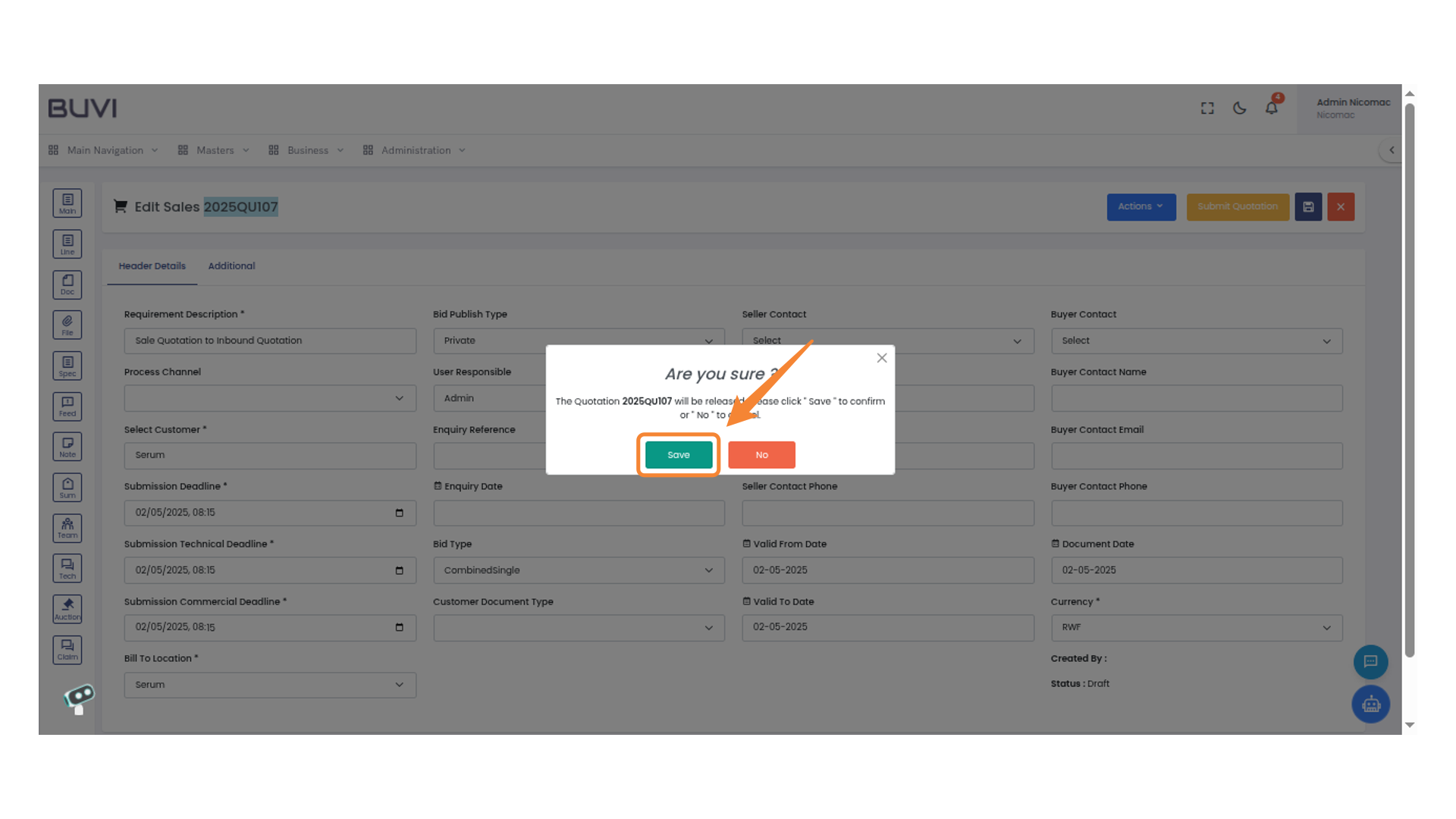
17. Confirmation Dialog Box
Click 'Save' to confirm your action.
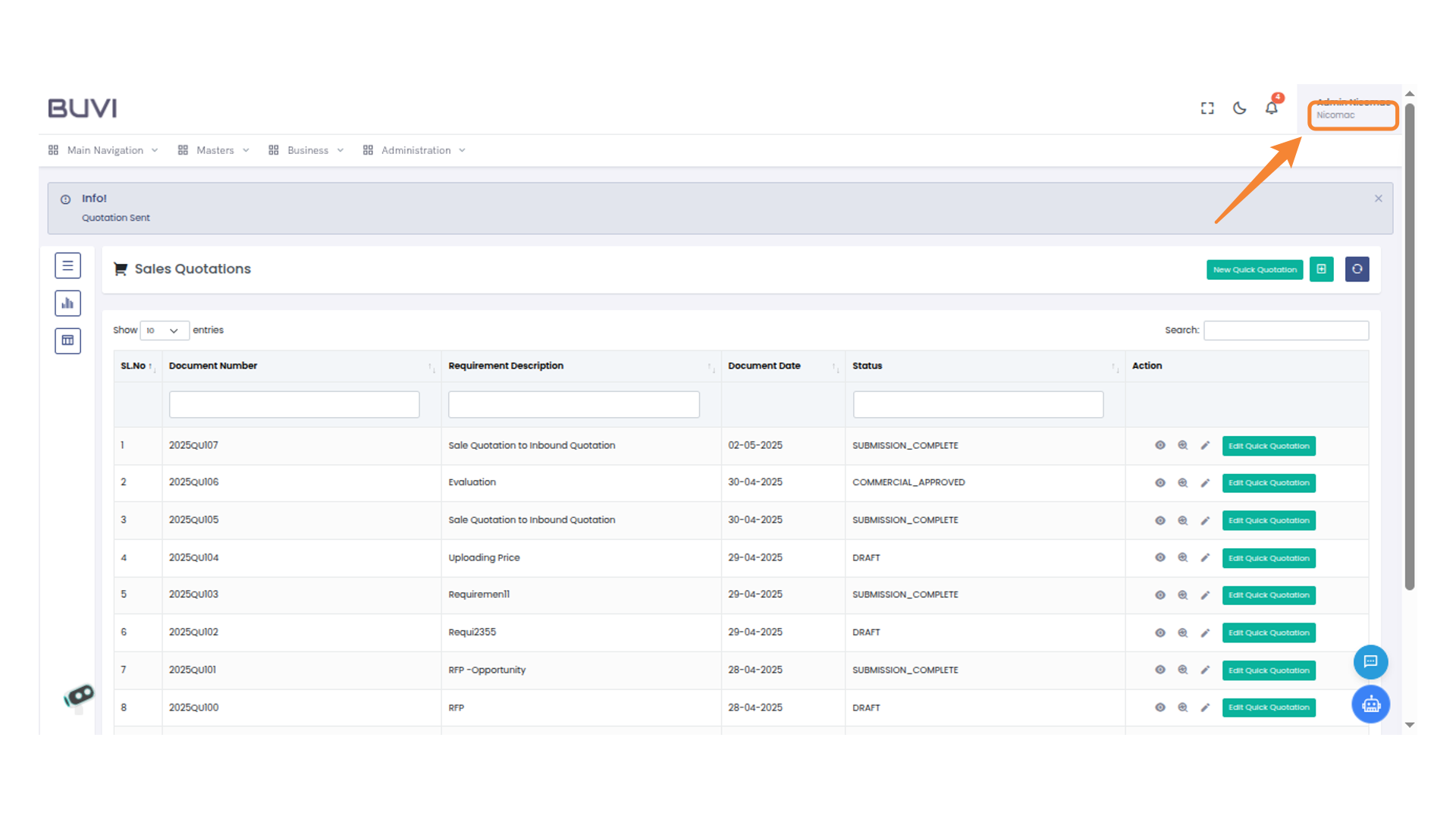
18. User Profile Menu
Log out from the application
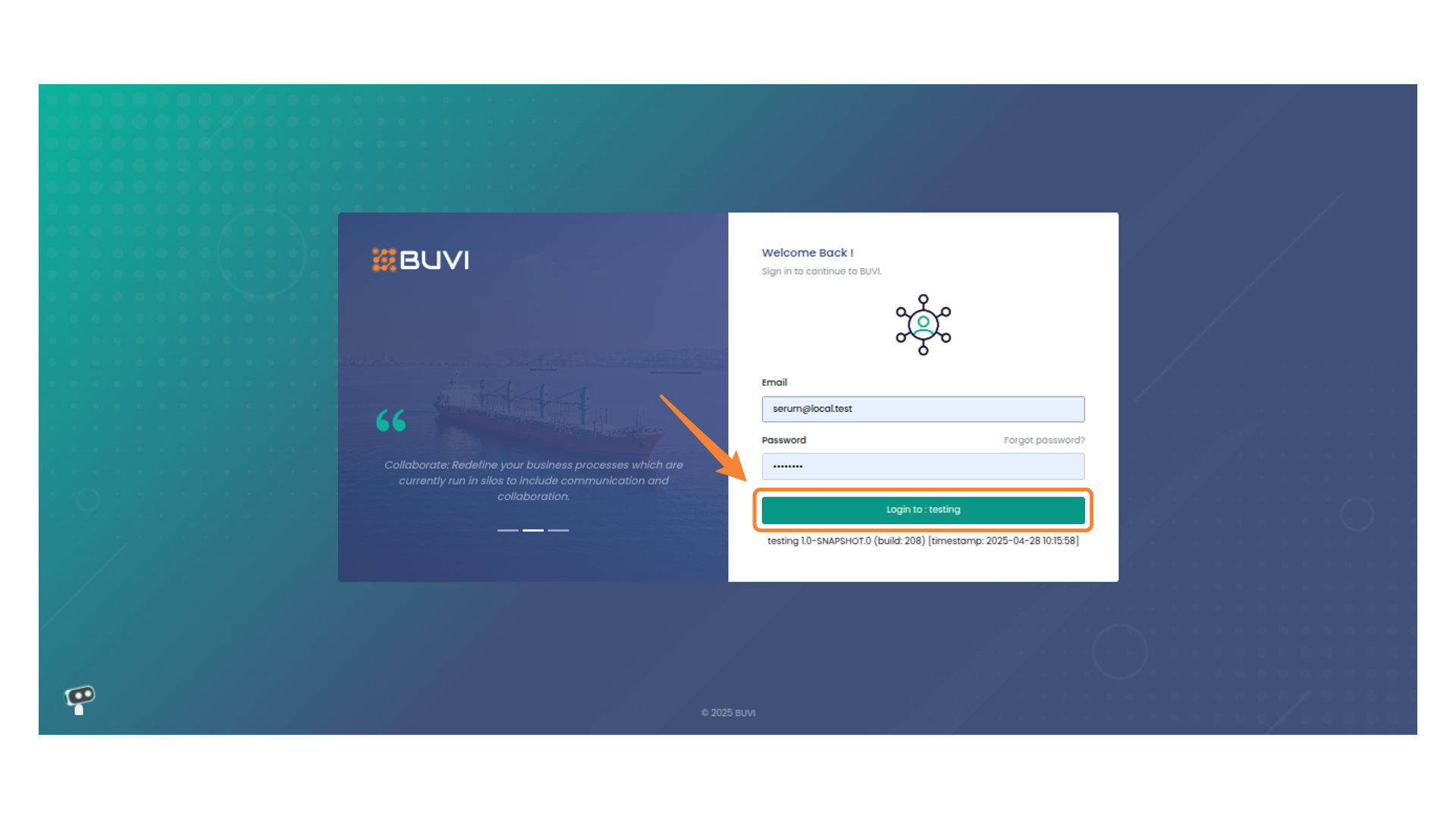
19. Login As Buyer
Click to log in
20. Business Menu Options
Click on Business Menu
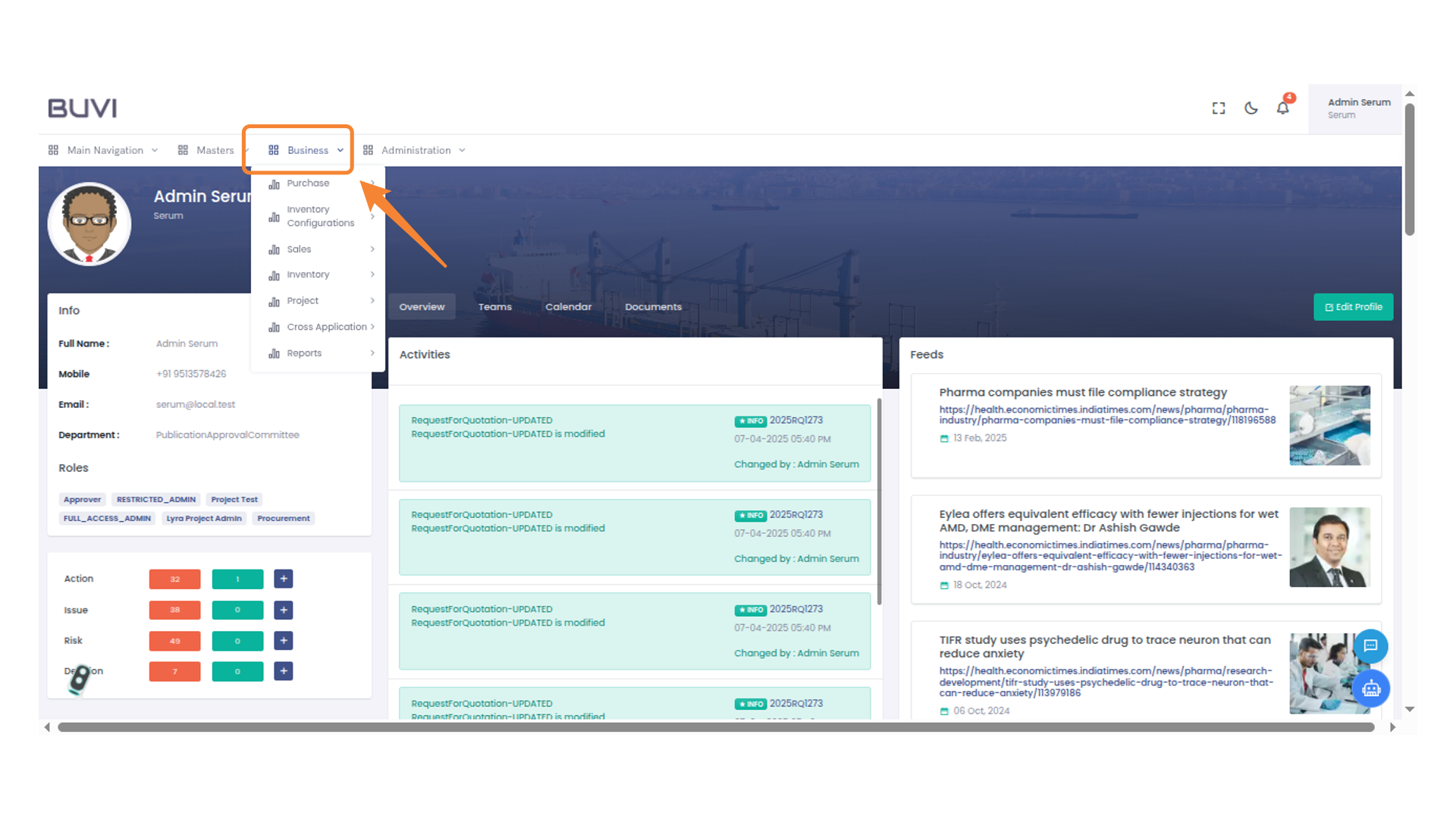
21. Business Purchase Menu
Click on purchase menu
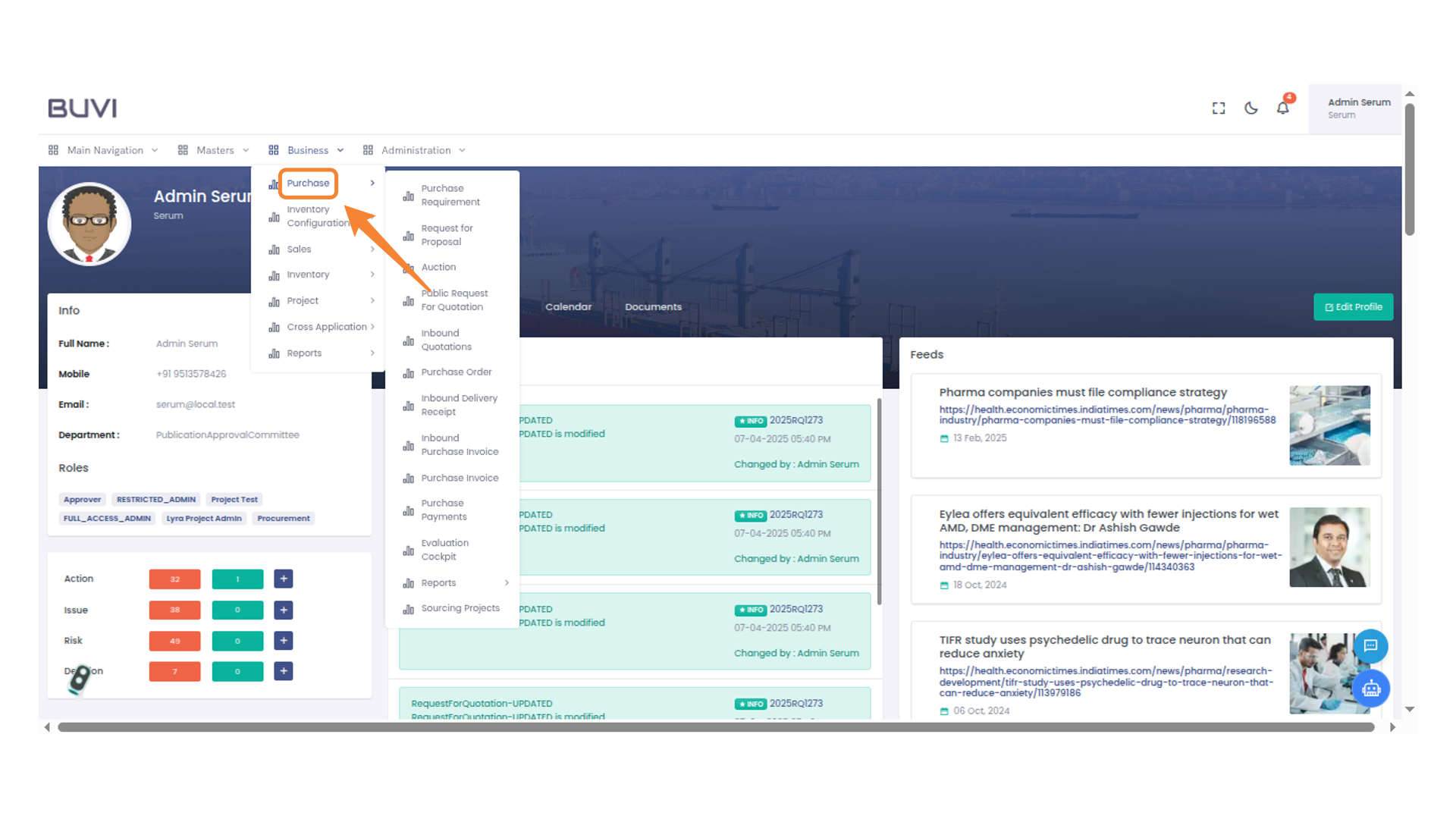
22. Access Inbound Quotations
Click on Inbound Quotation
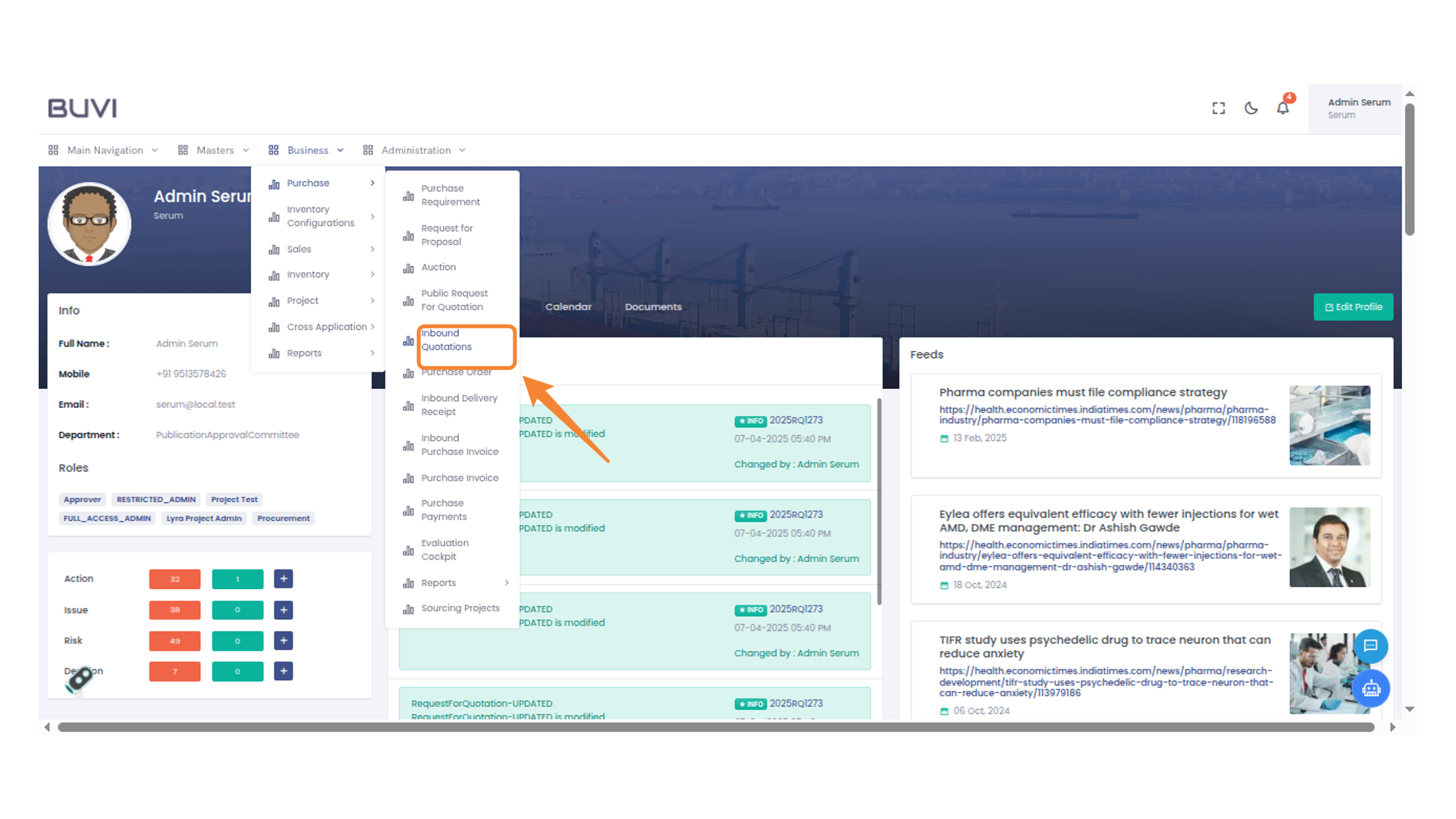
23. Check for the Quotion
Check for the Quotion
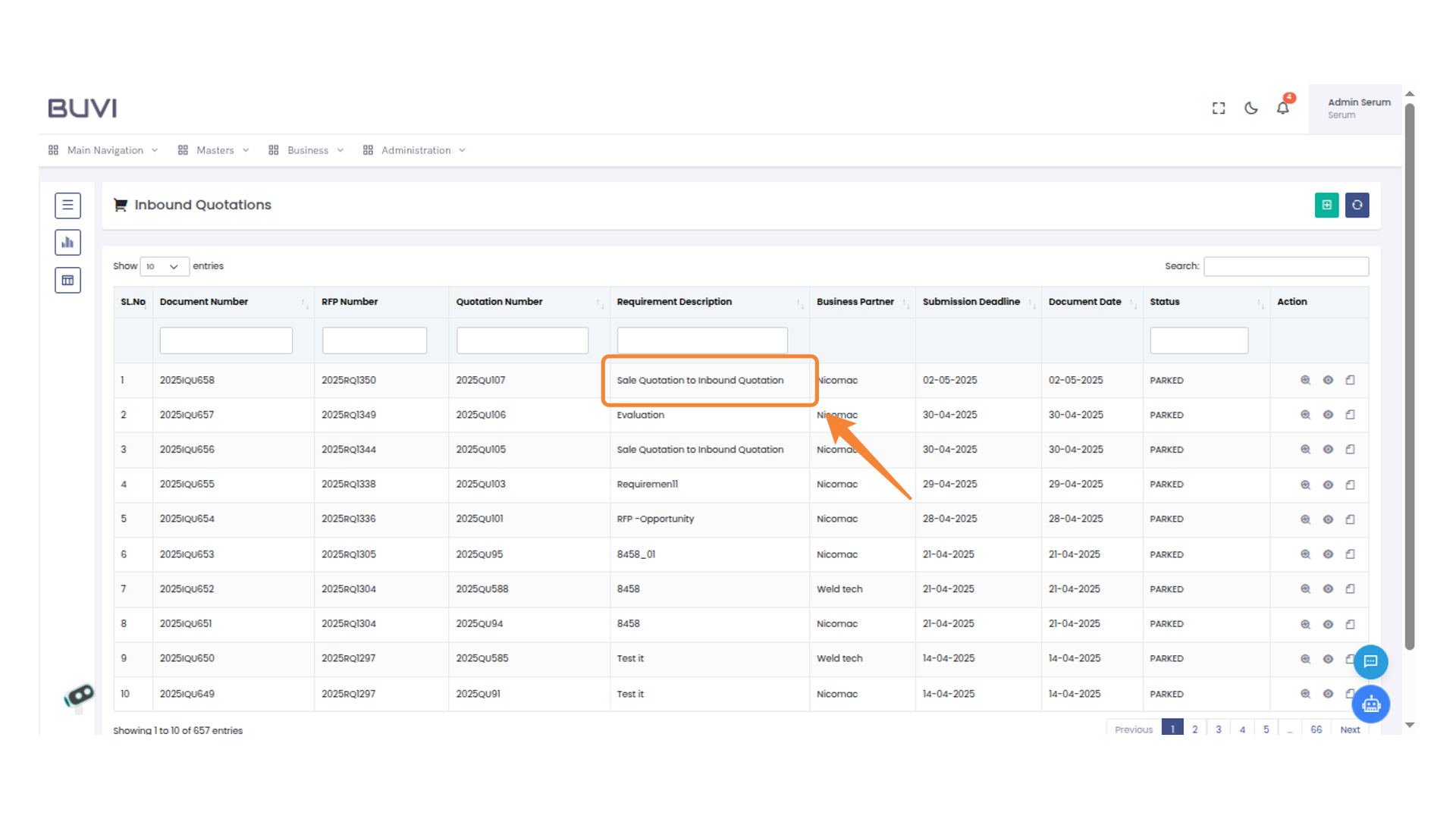
24. View Quotation Details
Click to view detailed information about the selected quotation.
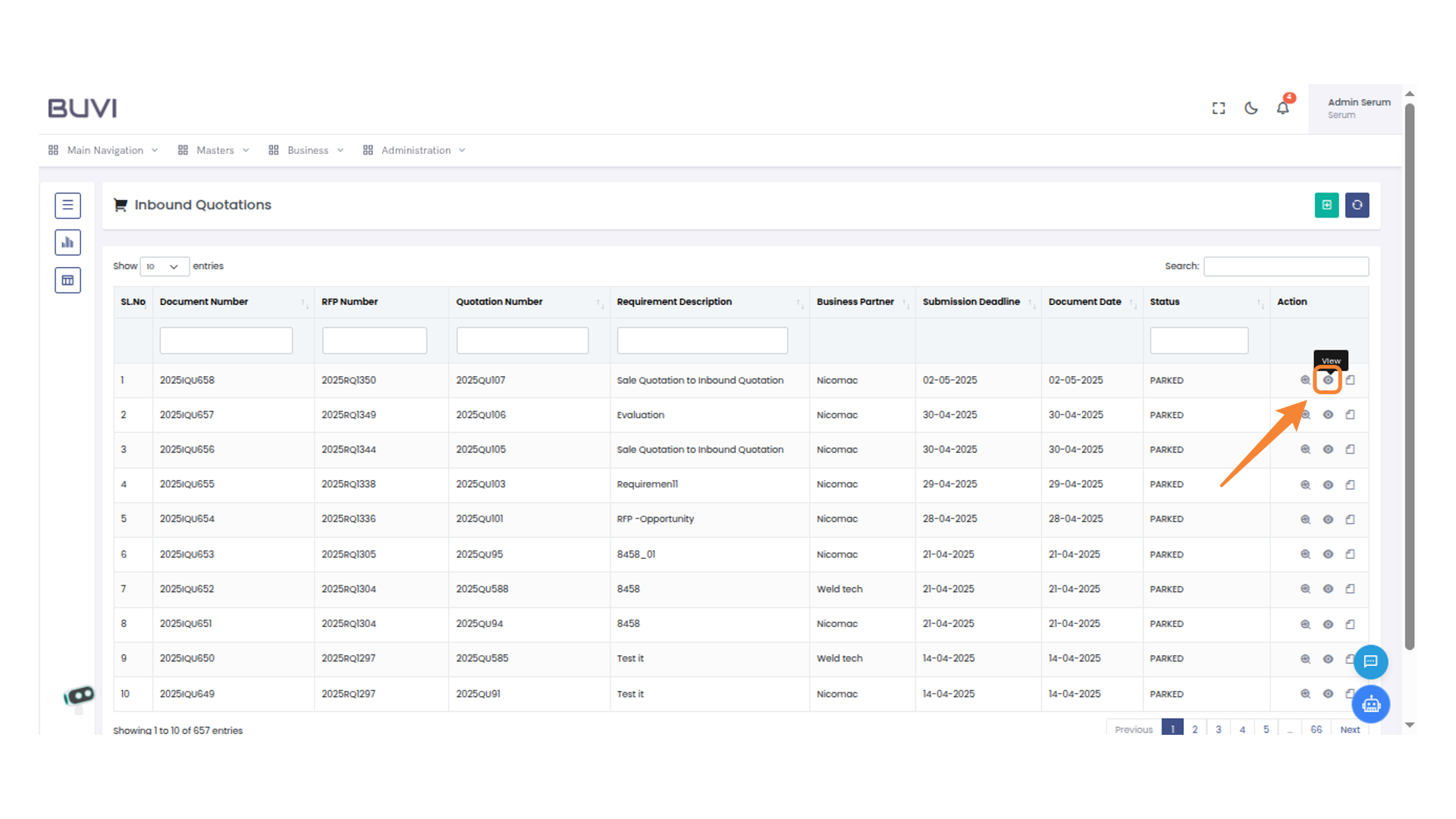
25. Line Icon
Select this icon to view line details.
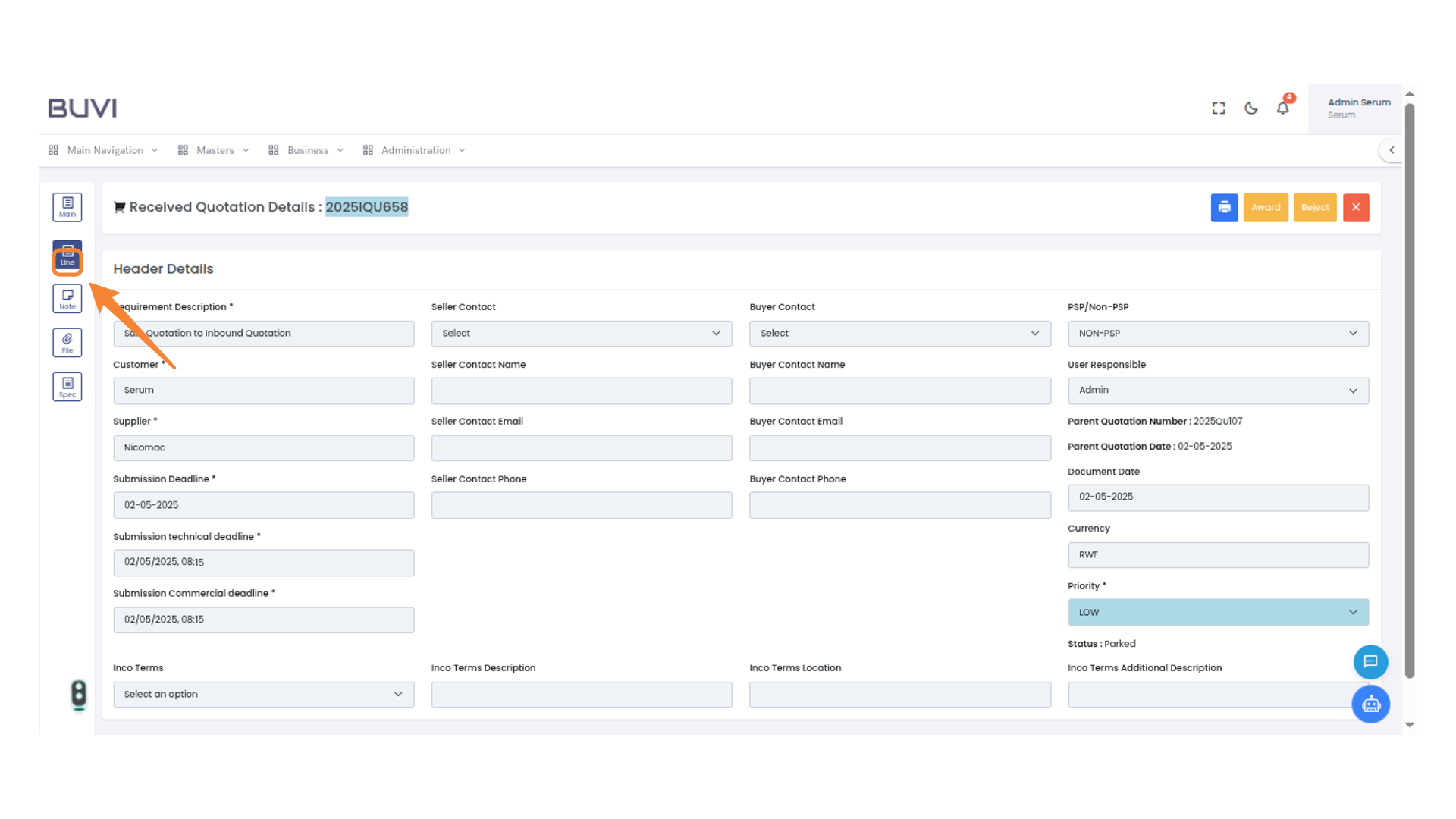
26. Action Icon in Quotation Details
Click the icon to view more options for this line item.
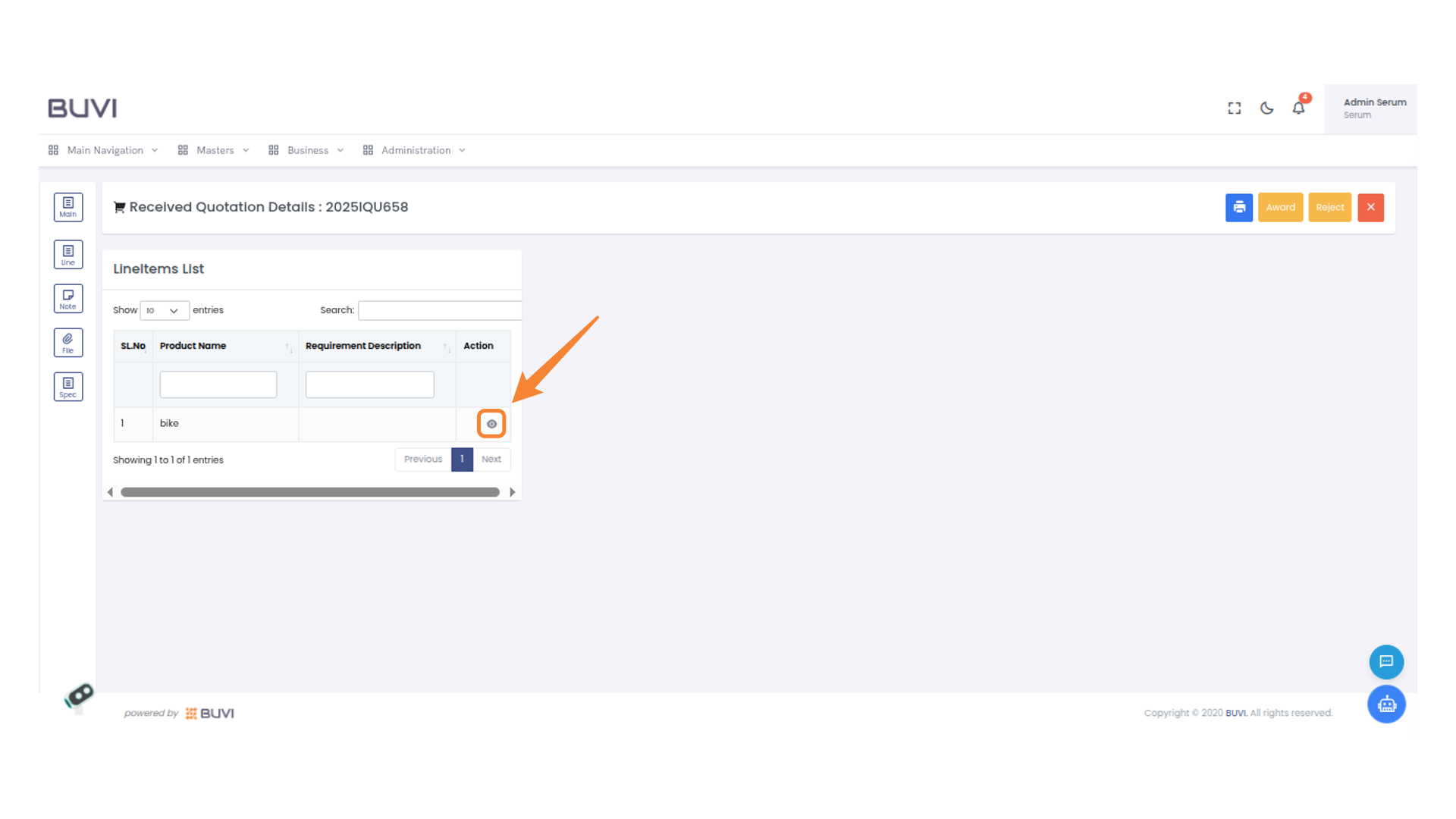
27. Business Menu Highlighted
Explore the business options available in the menu.
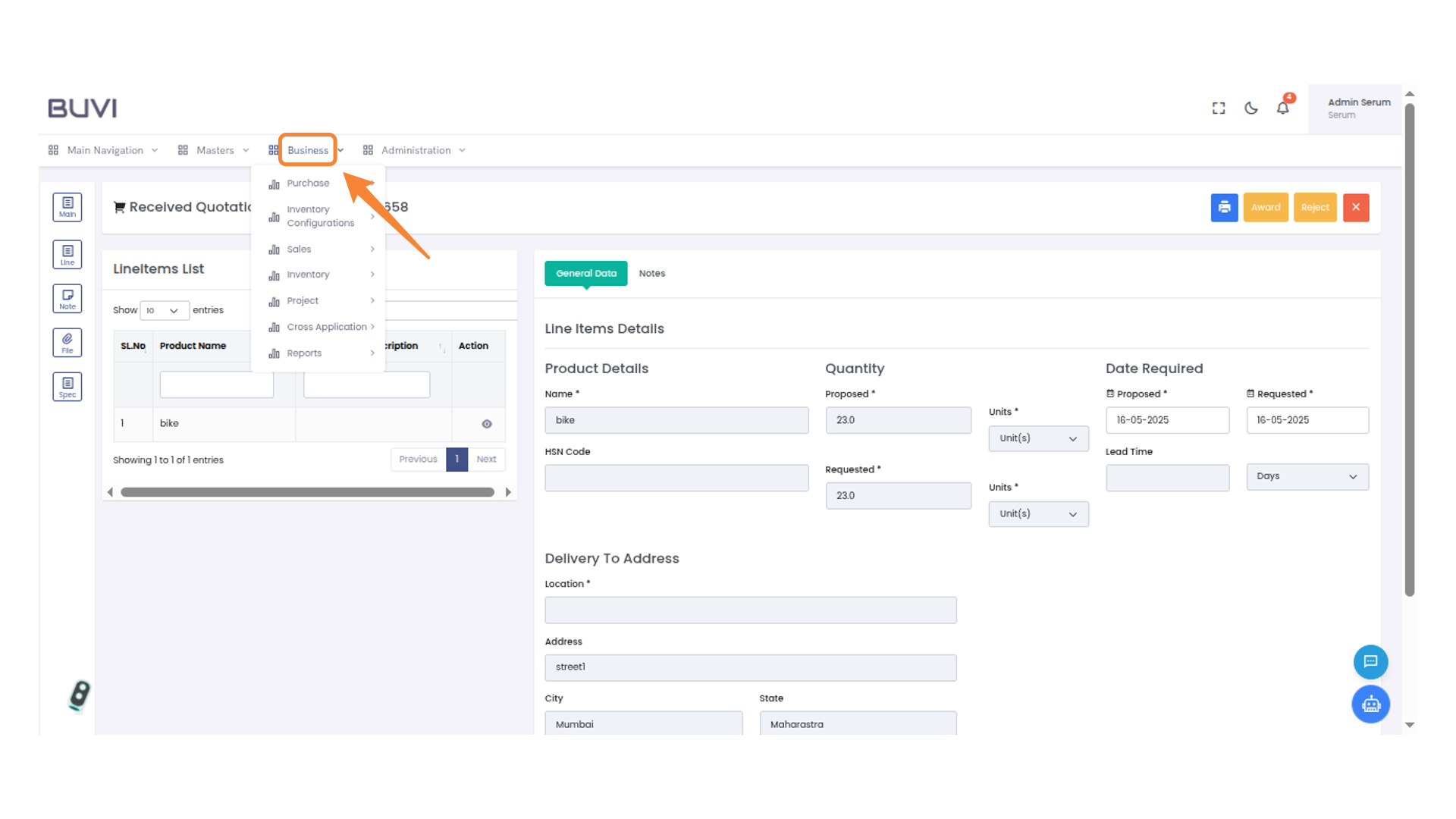
28. Request for Proposal Menu
Click on Request for Proposal Menu
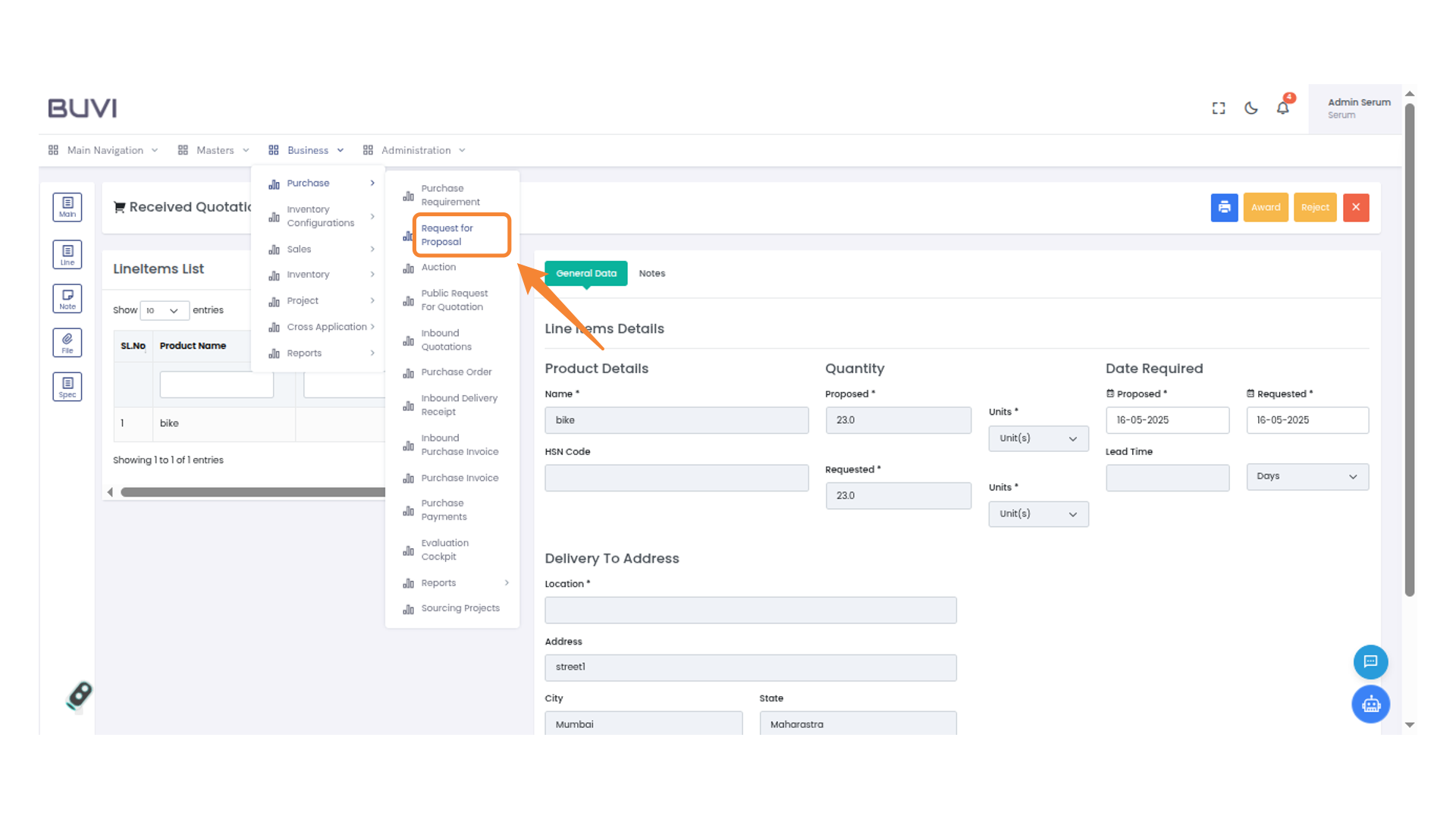
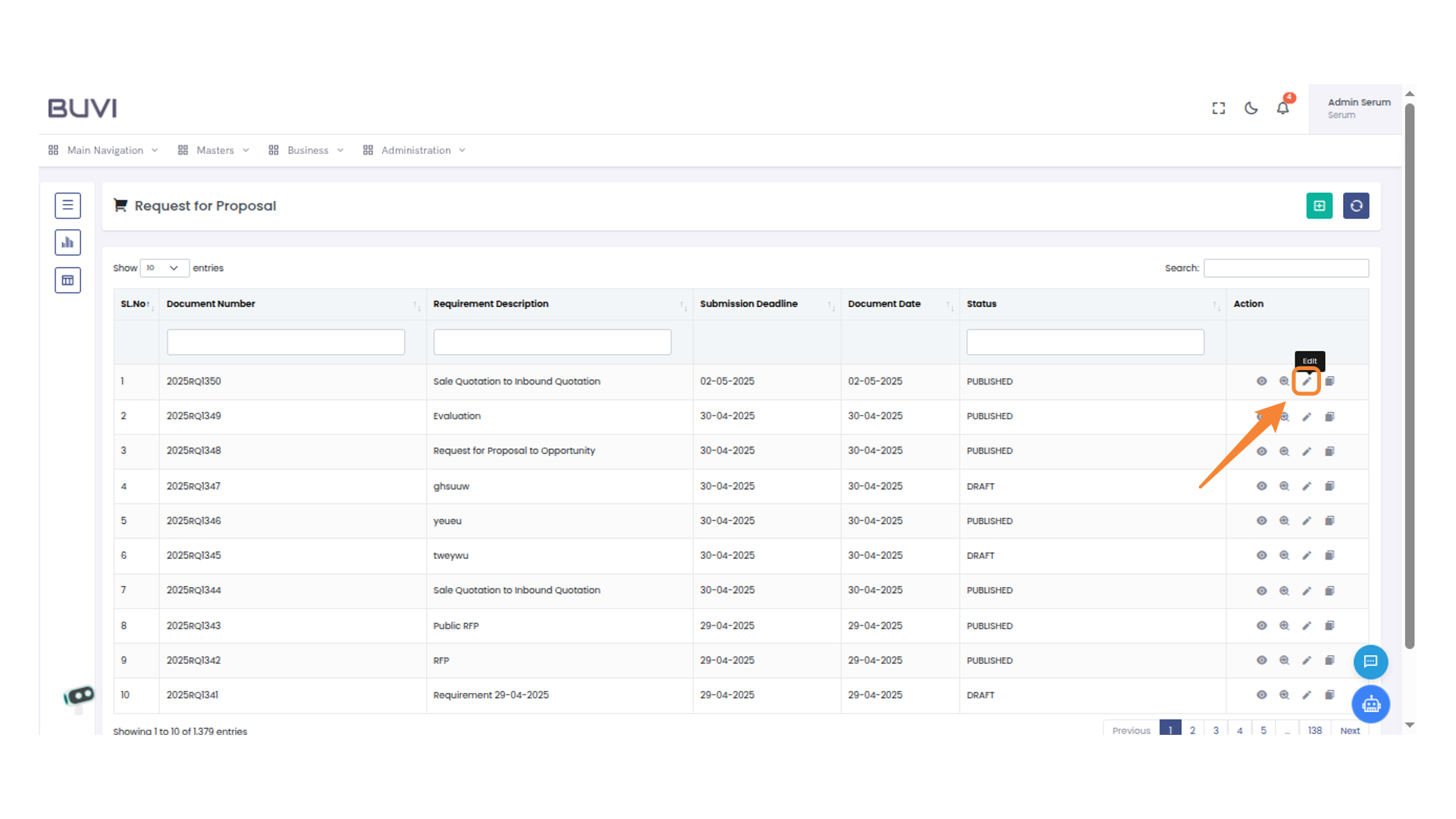
29. Edit Icon
Click to edit the selected entry.
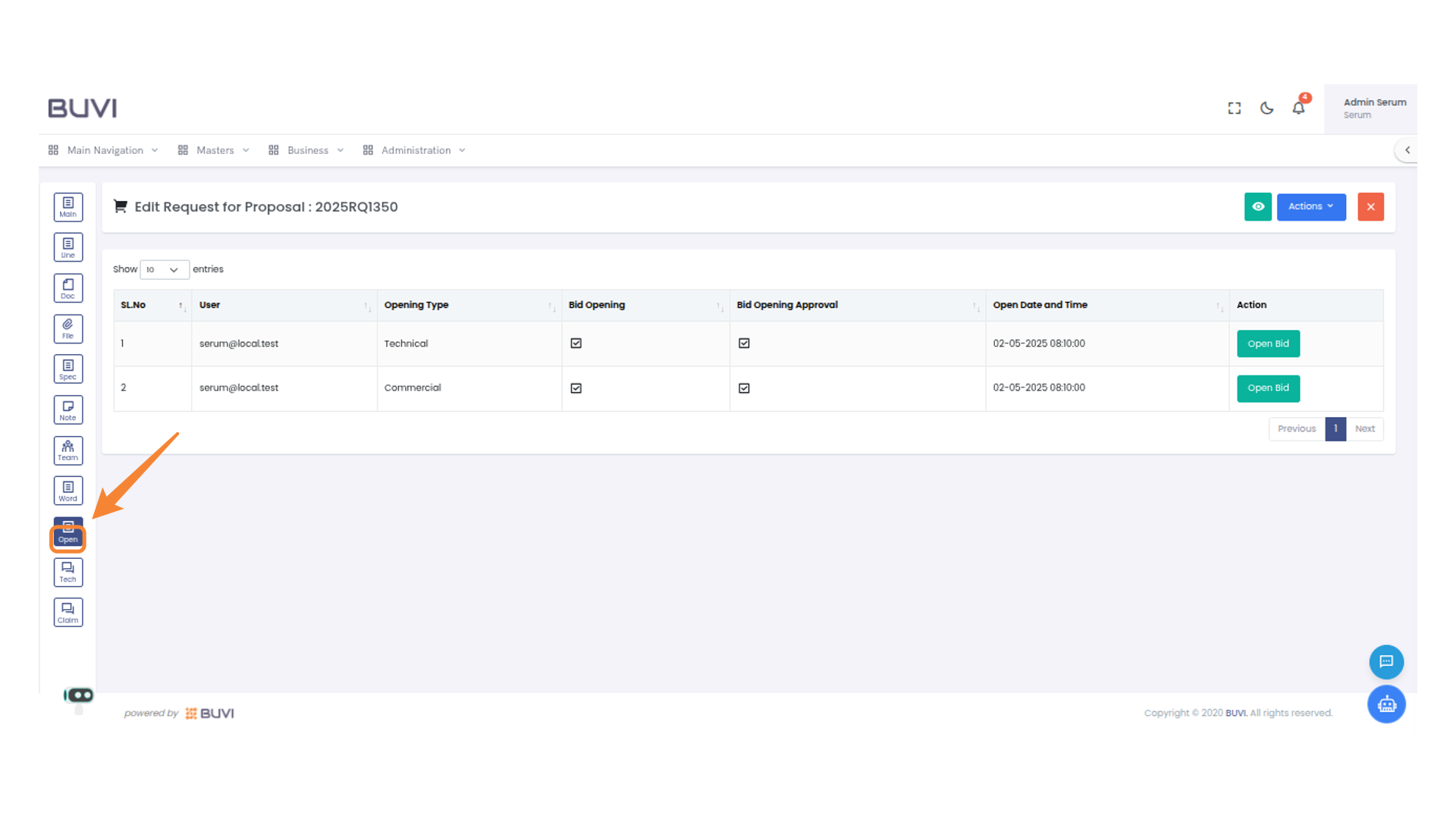
30. Open Button on Navigation Panel
Click to access the Open section within the application menu.
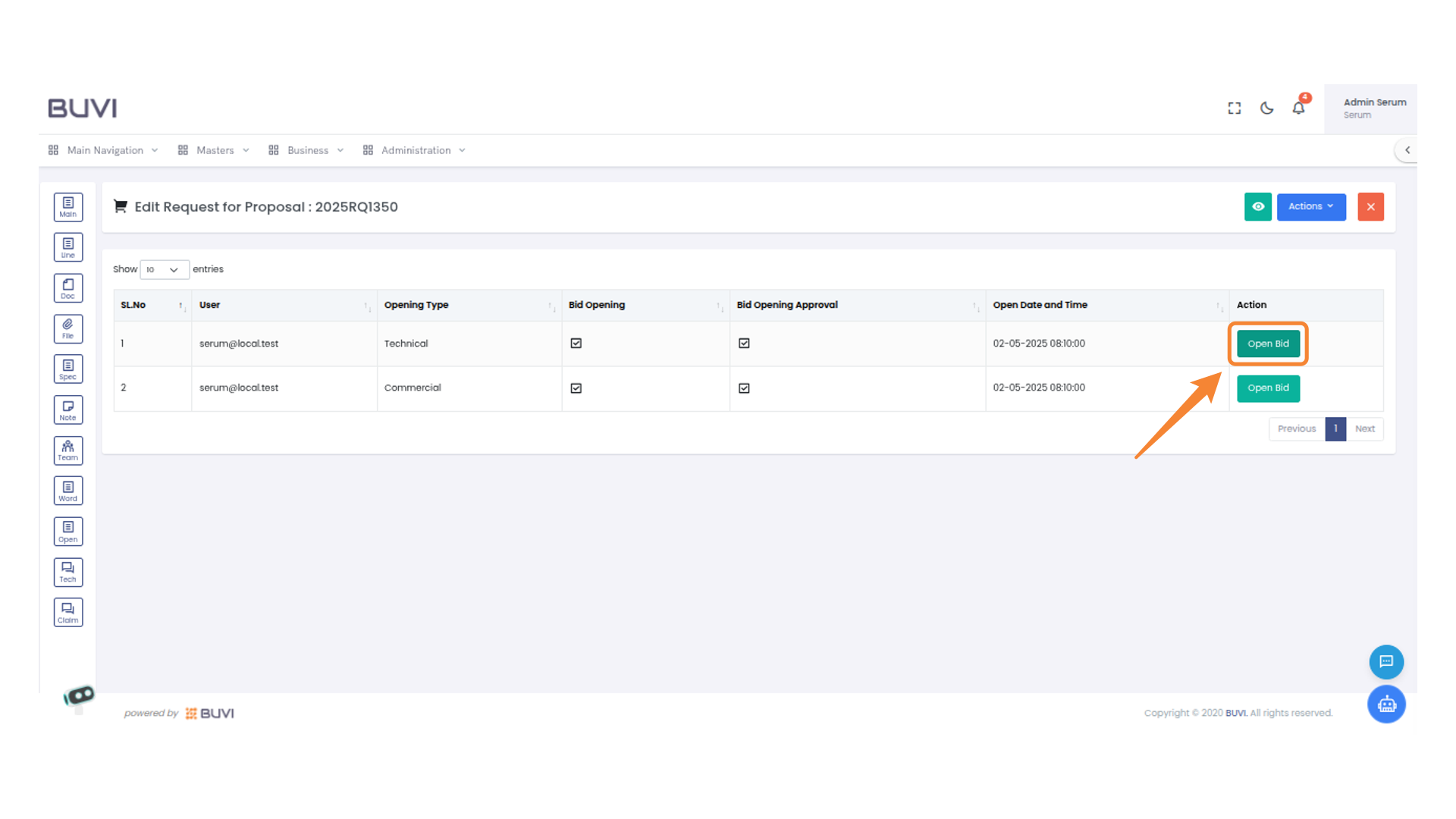
31. Open Bid Action Button
Click the button to initiate the bid opening process for Technical
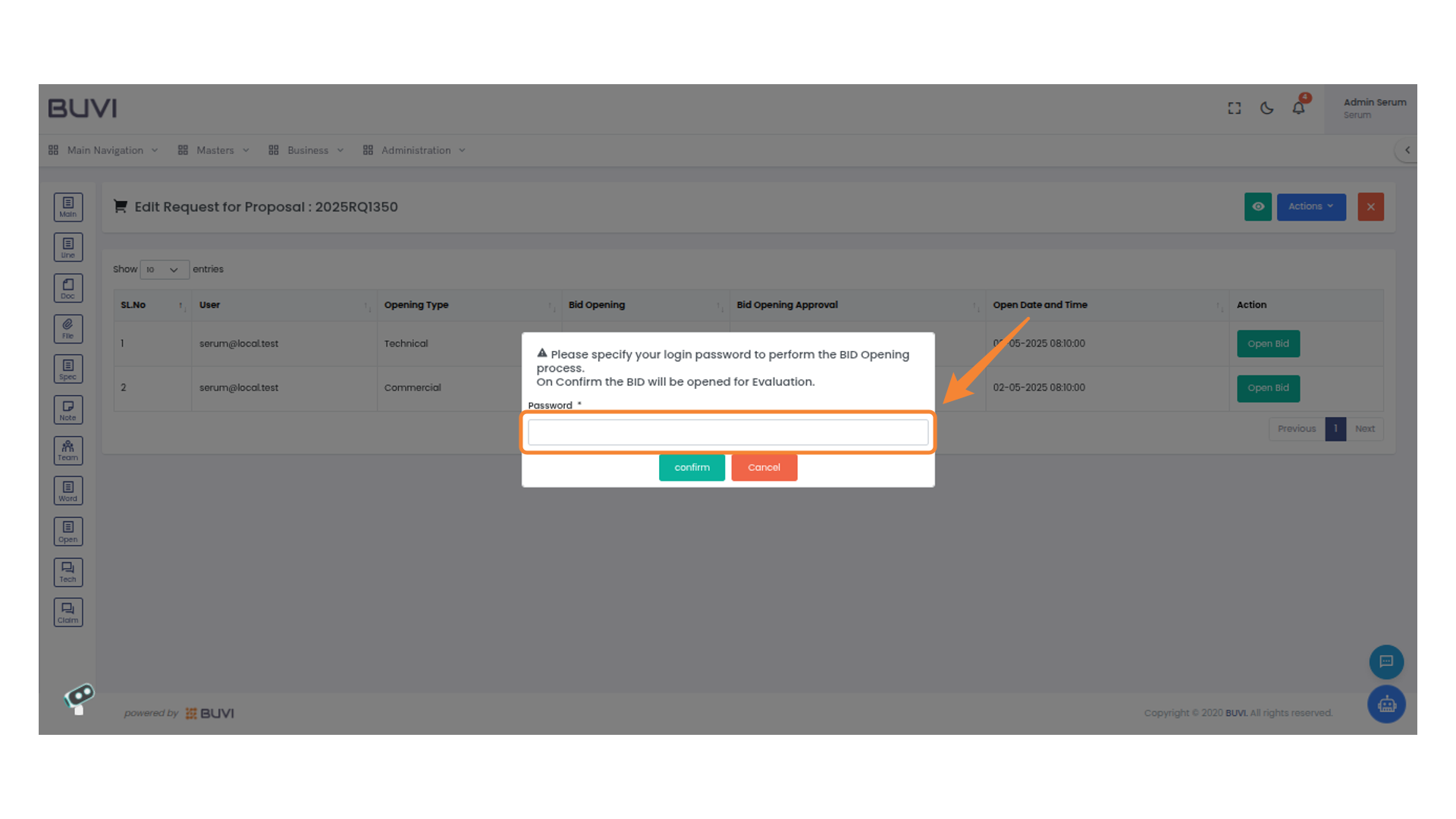
32. Password Entry Field
Enter your login password to proceed with the BID opening process.
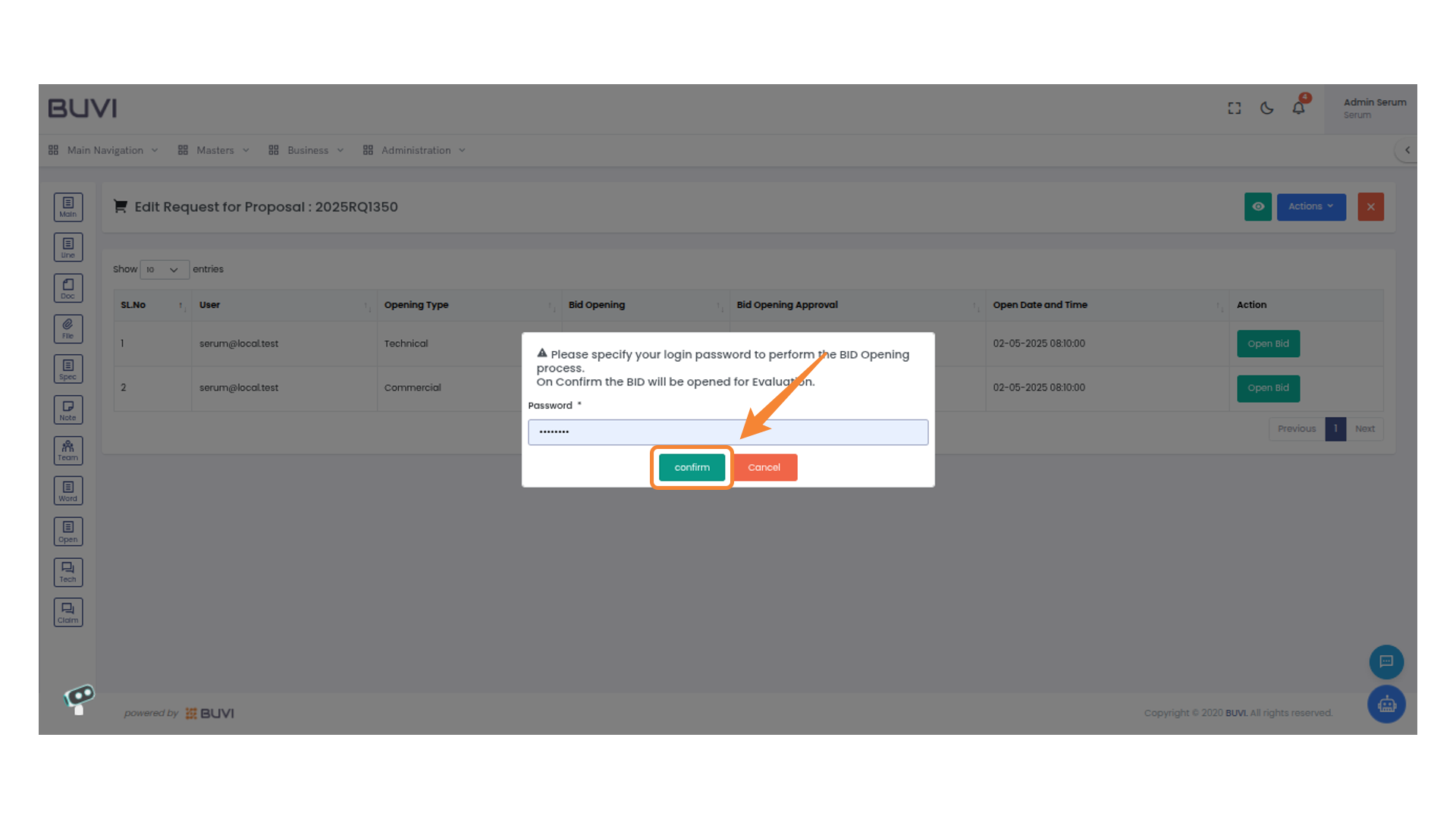
33. Confirmation Button
Press the button to confirm your action and proceed with the process.
34. Approve Bid Action Button
Click to approve the selected bid.

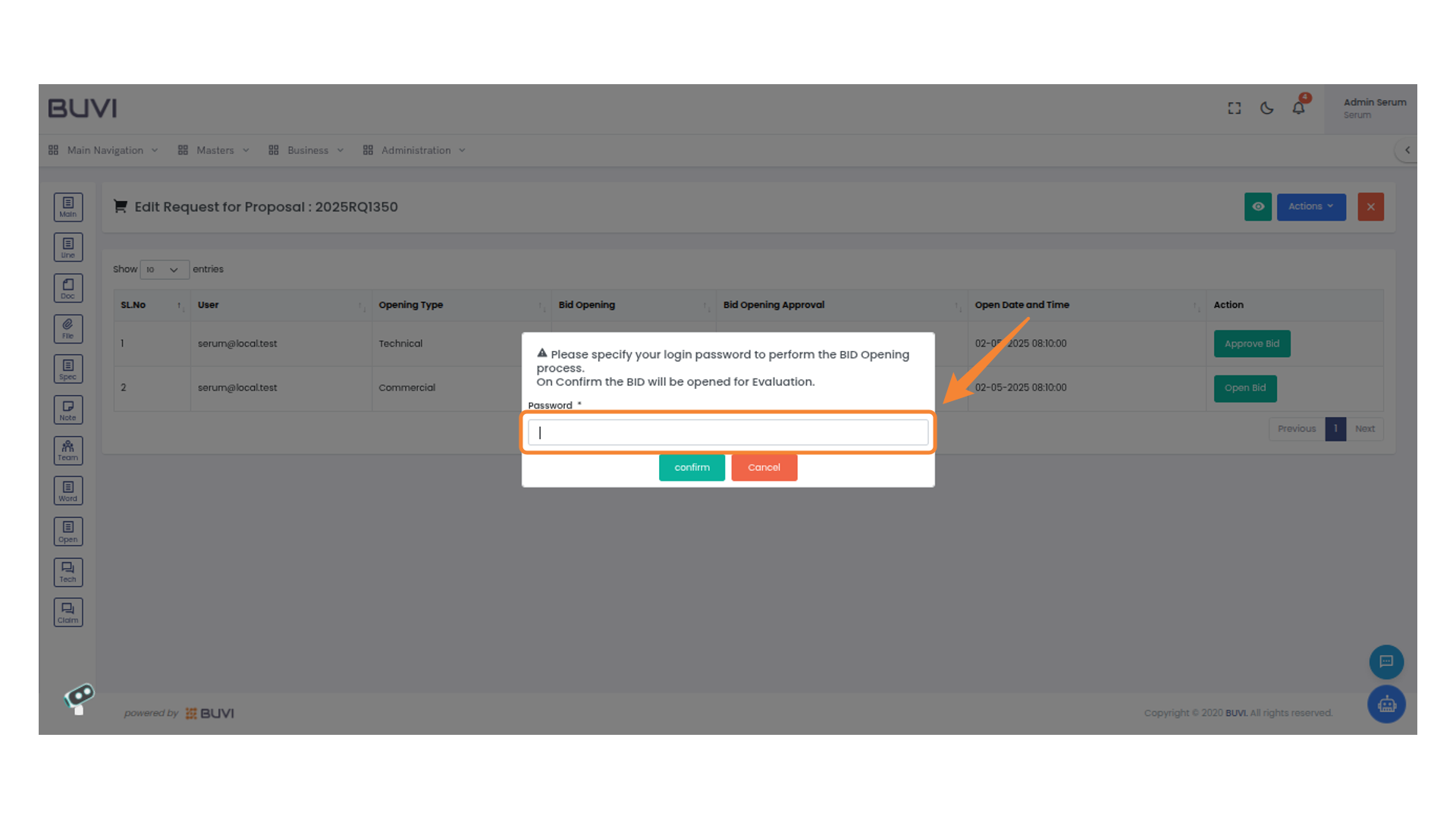
35. Password Entry Field
Enter your login password to proceed with the BID Opening process.
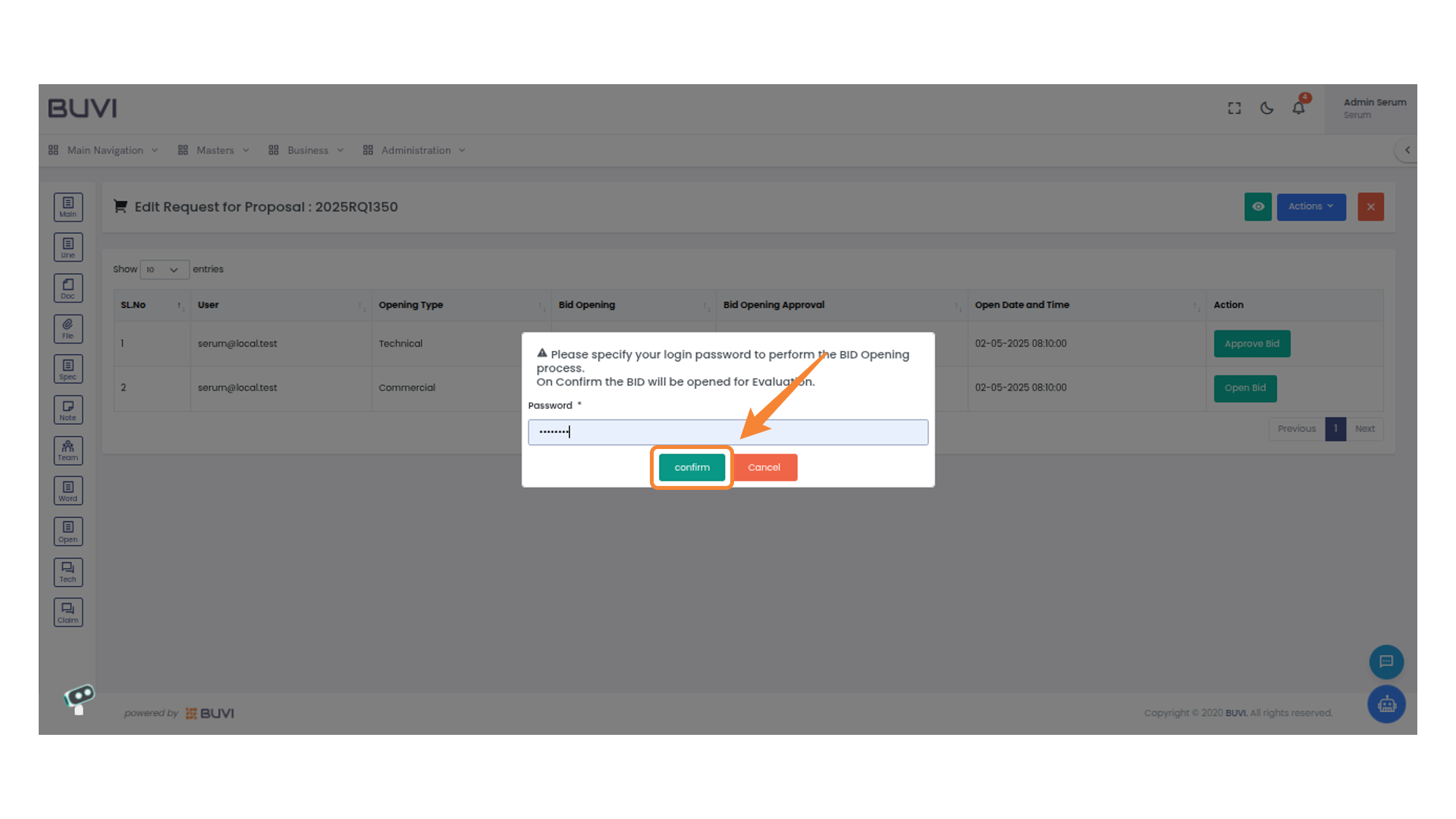
36. Confirm Button in Bid Opening Form
Click the confirm button to proceed with the BID opening process
37. Open Bid Button
Click this button to initiate the bid opening process for commercial
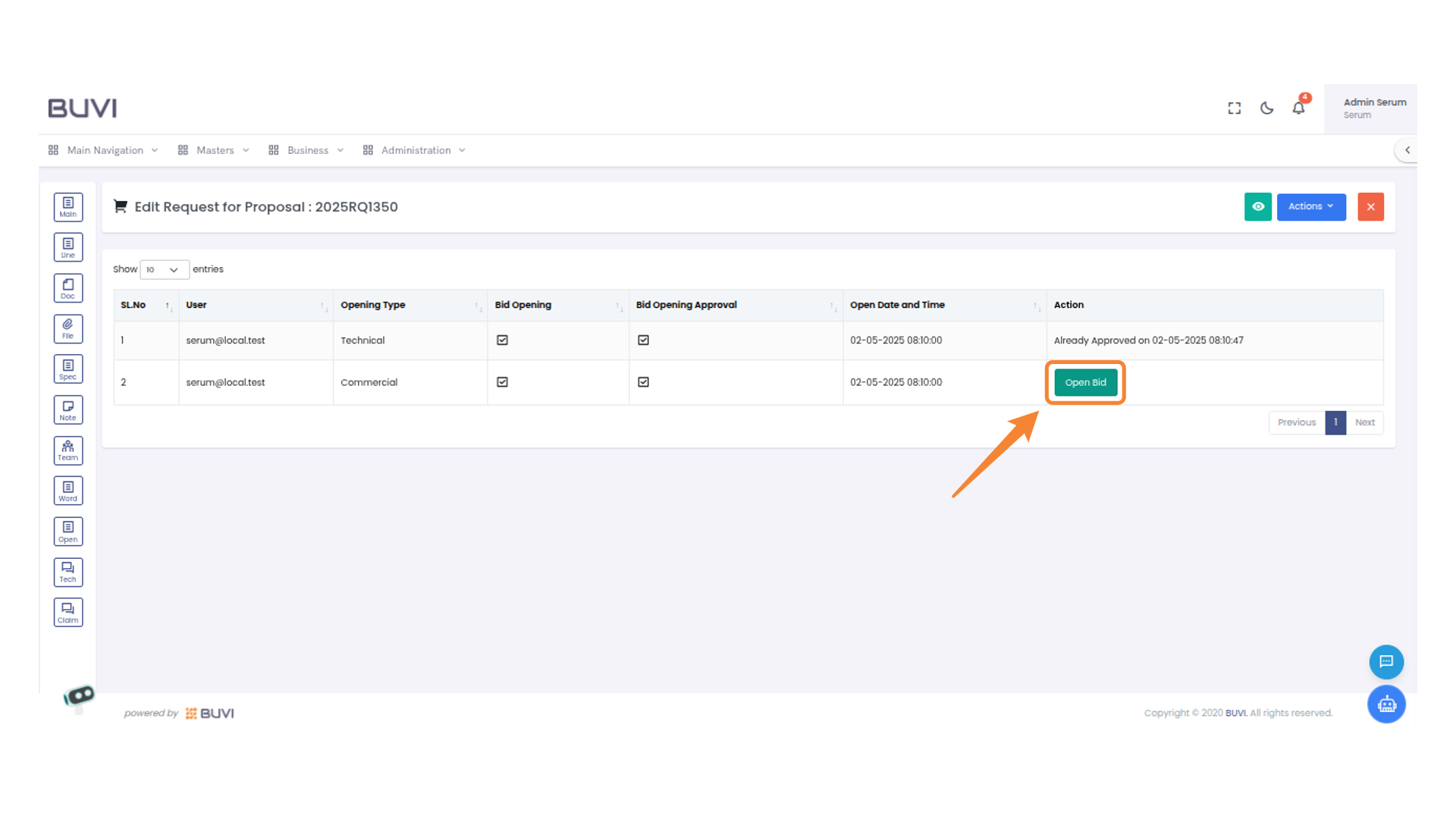
38. Password Confirmation Required
Enter your login password to proceed with the bid opening process.
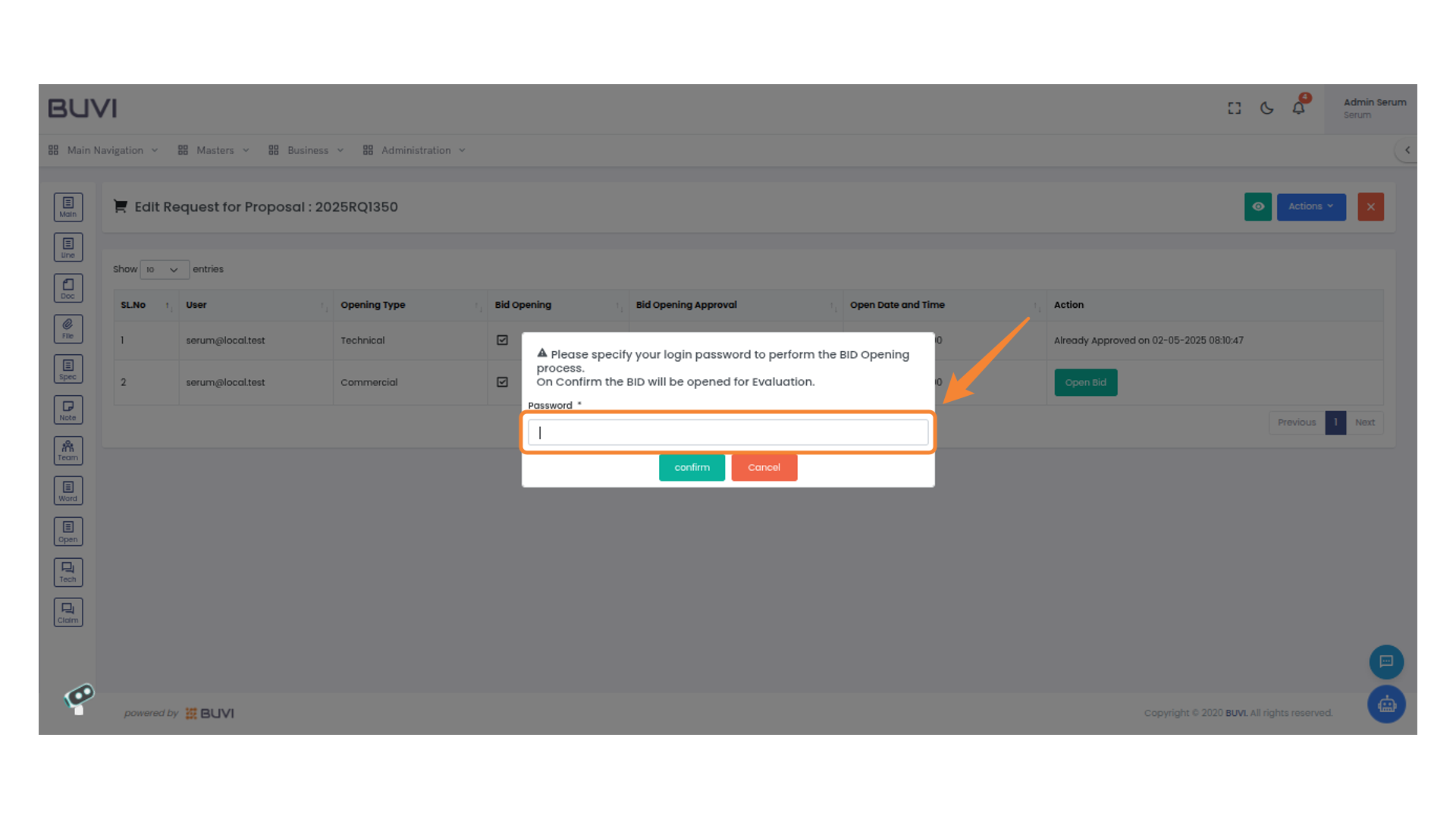
39. Bid Confirmation Prompt
Enter your login password to confirm and proceed with the bid opening.
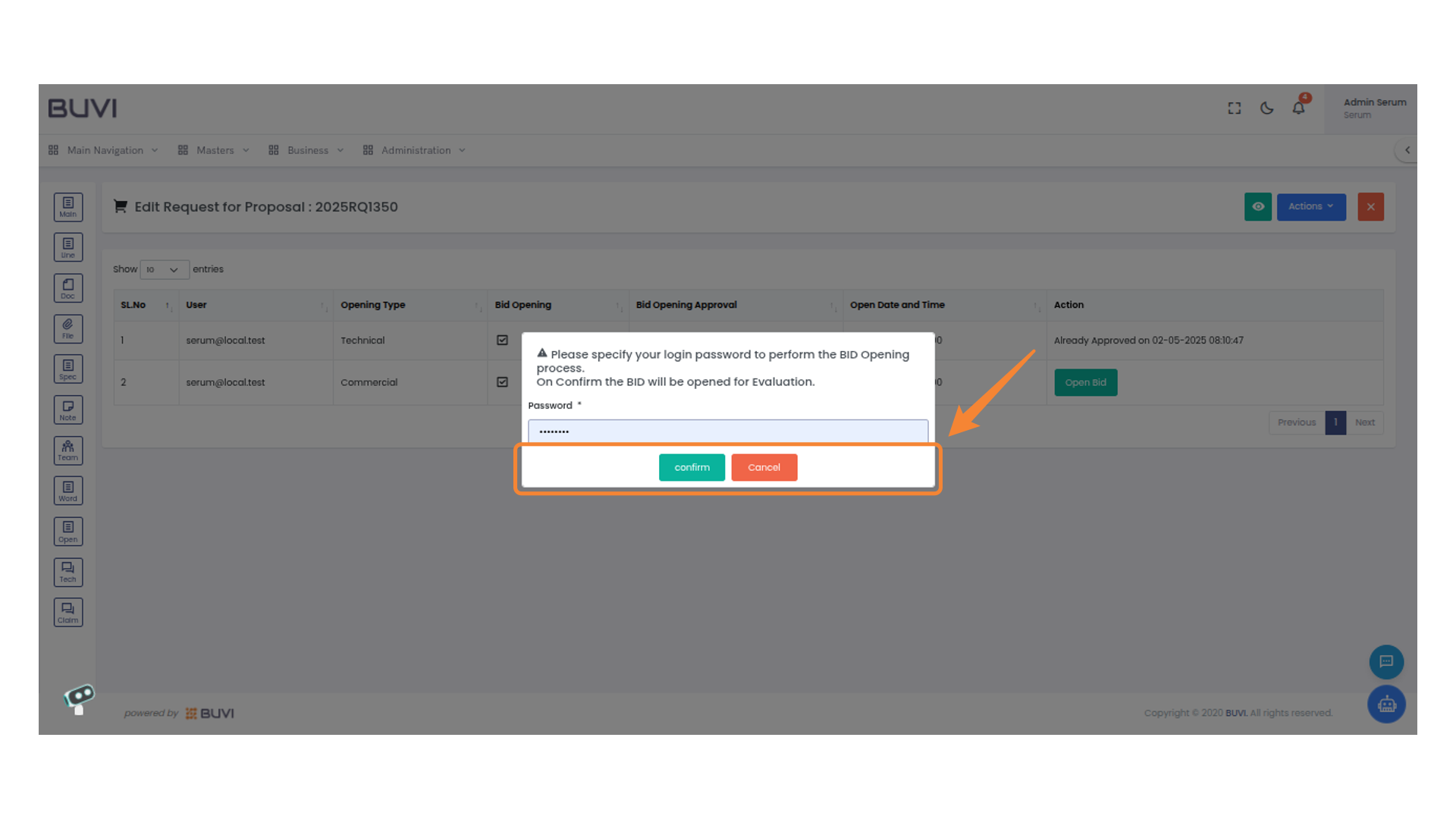
40. Confirm Button Activation
Click 'confirm' to proceed with the bid opening process.
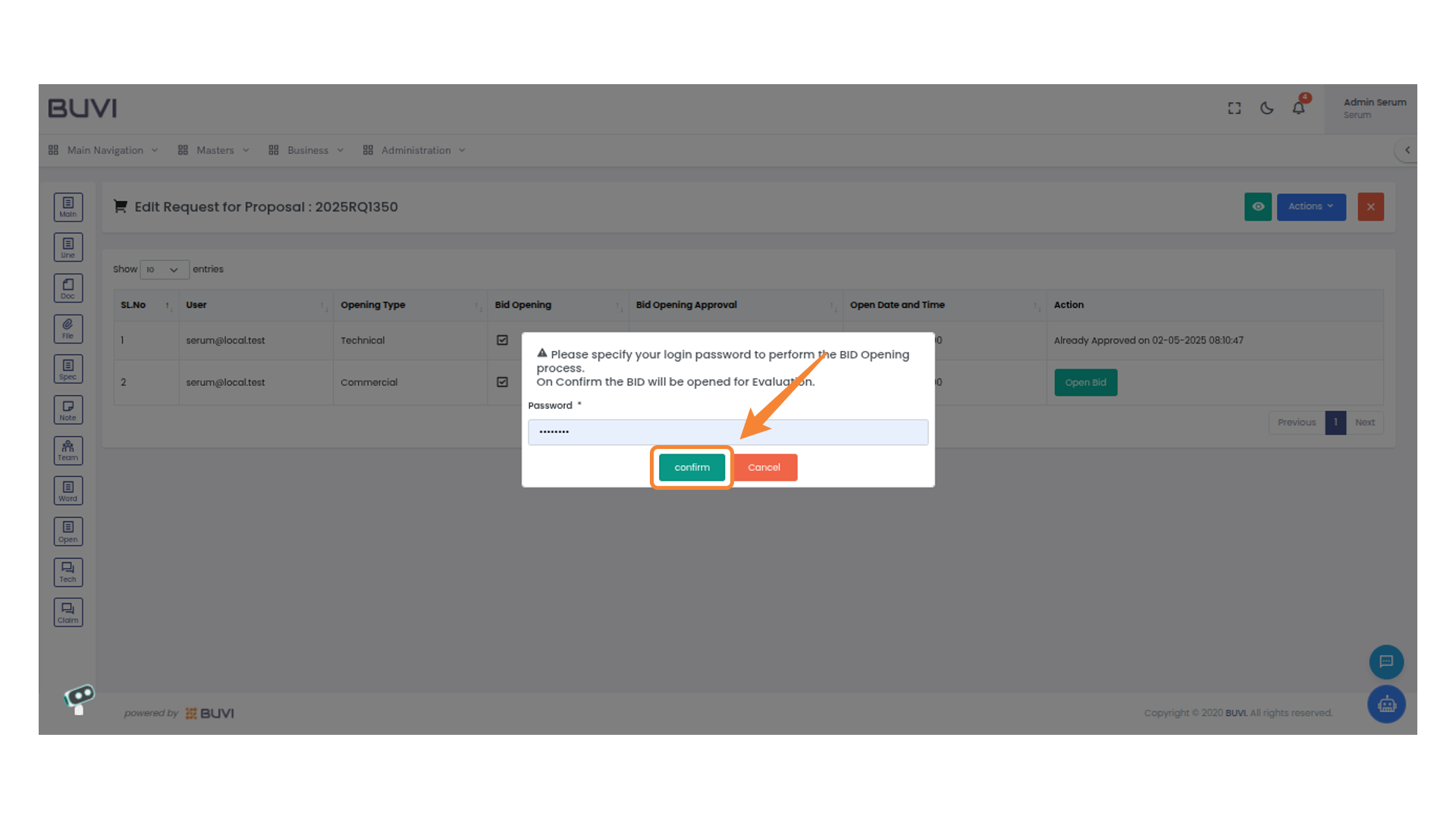
41. Bid Approval Button
Click the button to approve the bid.
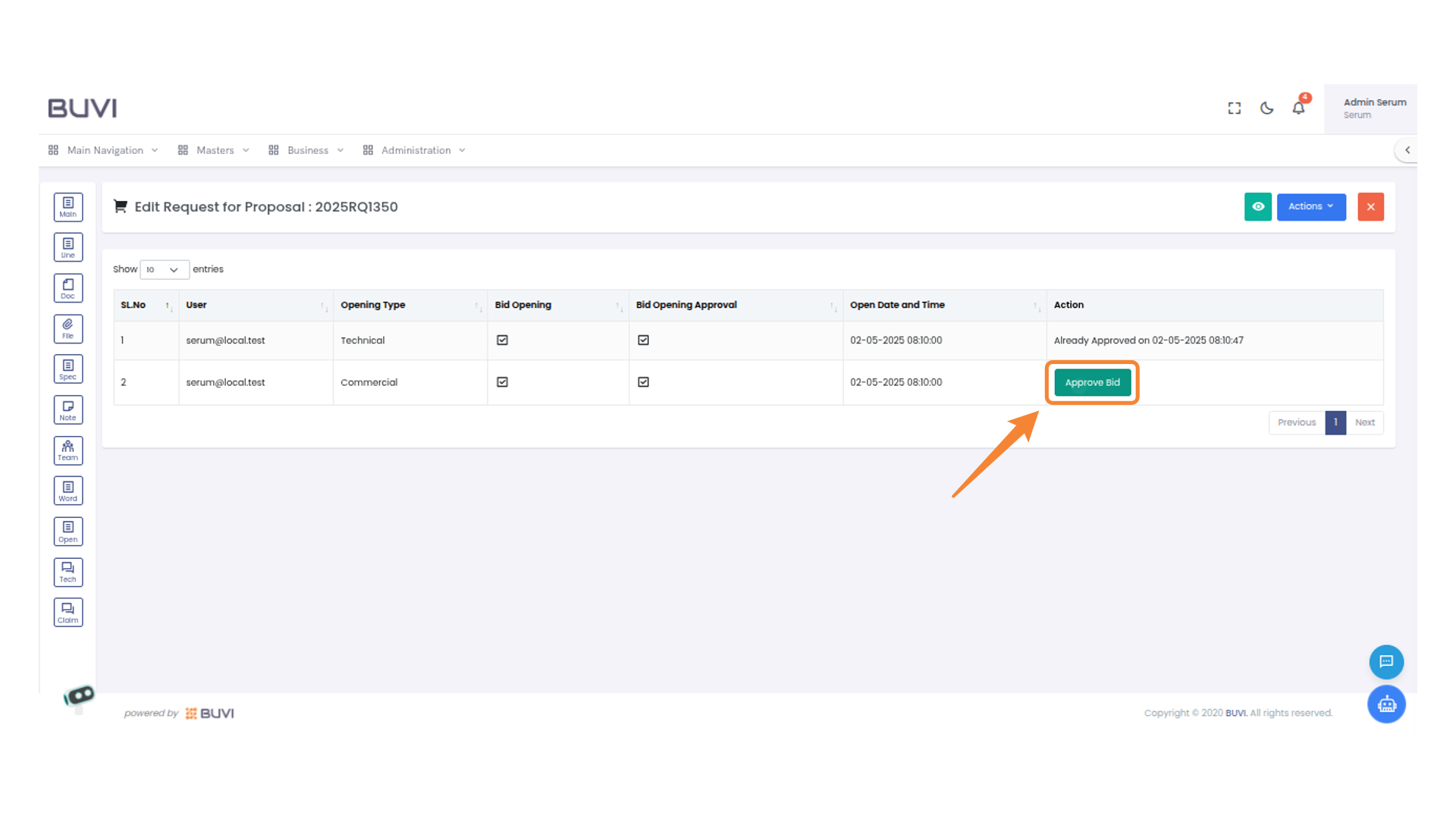
42. Password Input for Bid Opening
Enter your password to authorize the bid opening process.
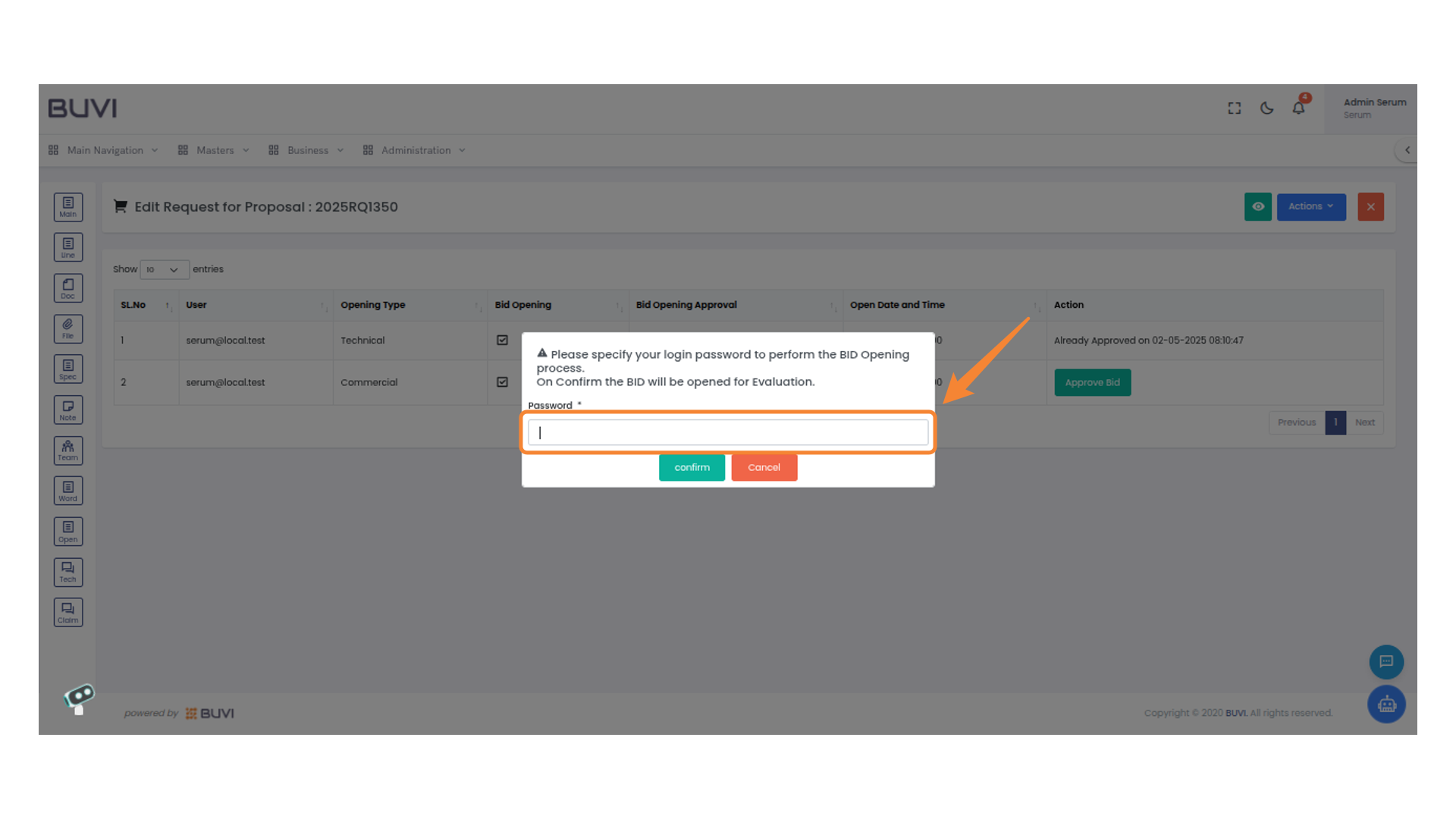
43. Confirmation Button
Press the button to confirm your action and proceed with the evaluation.
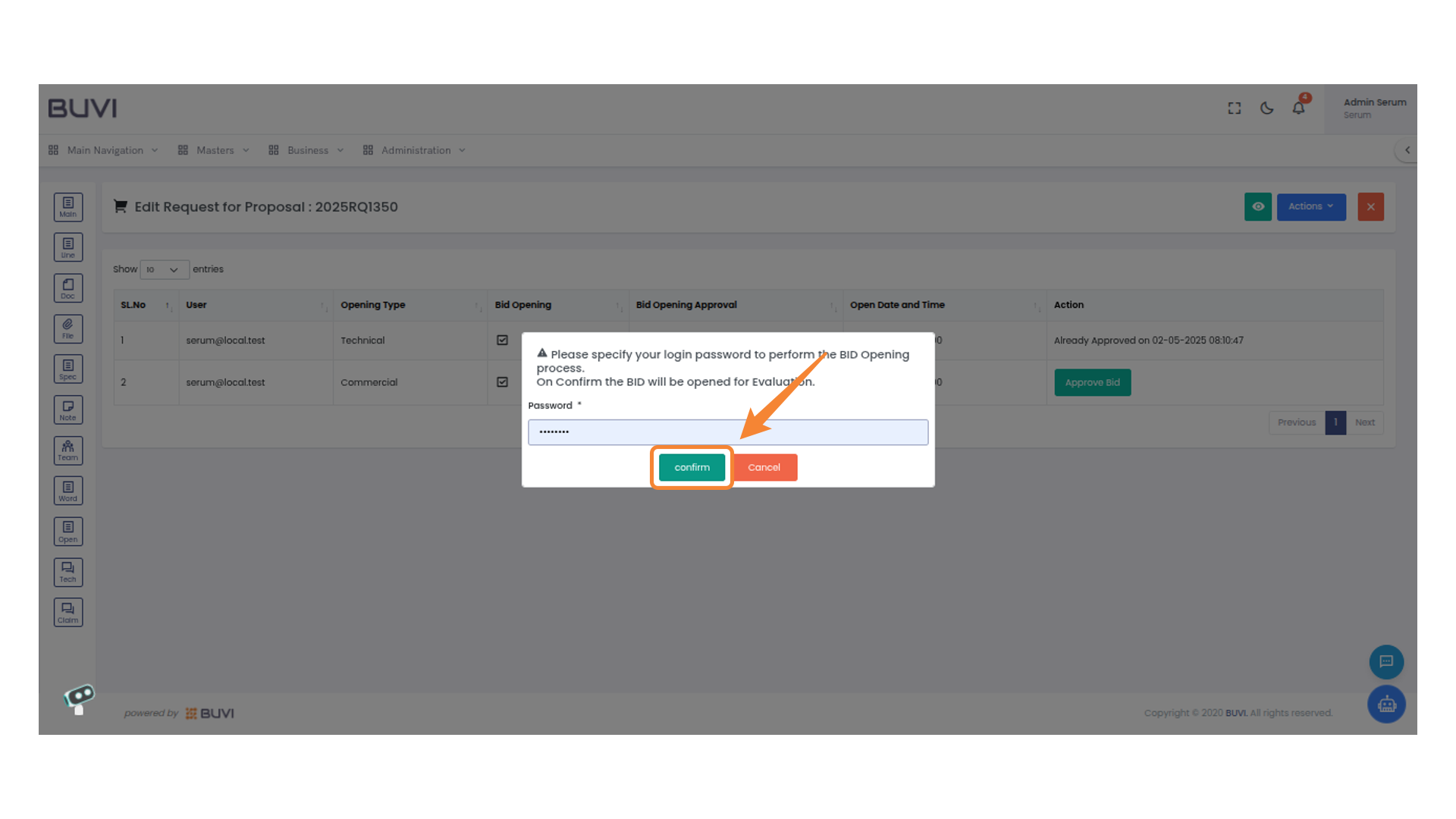
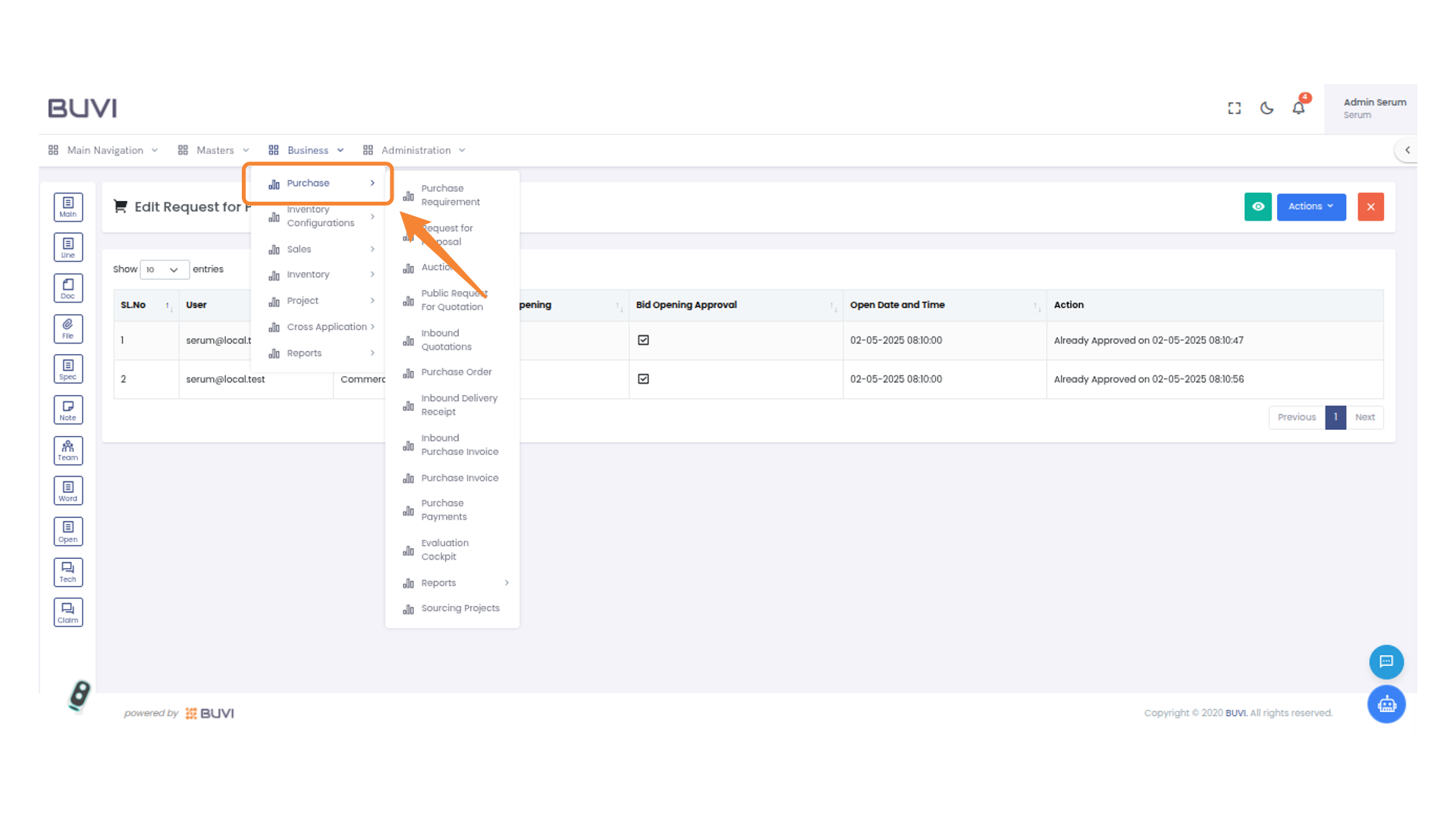
44. Business Dropdown Menu
Access various business-related options by clicking on this menu.
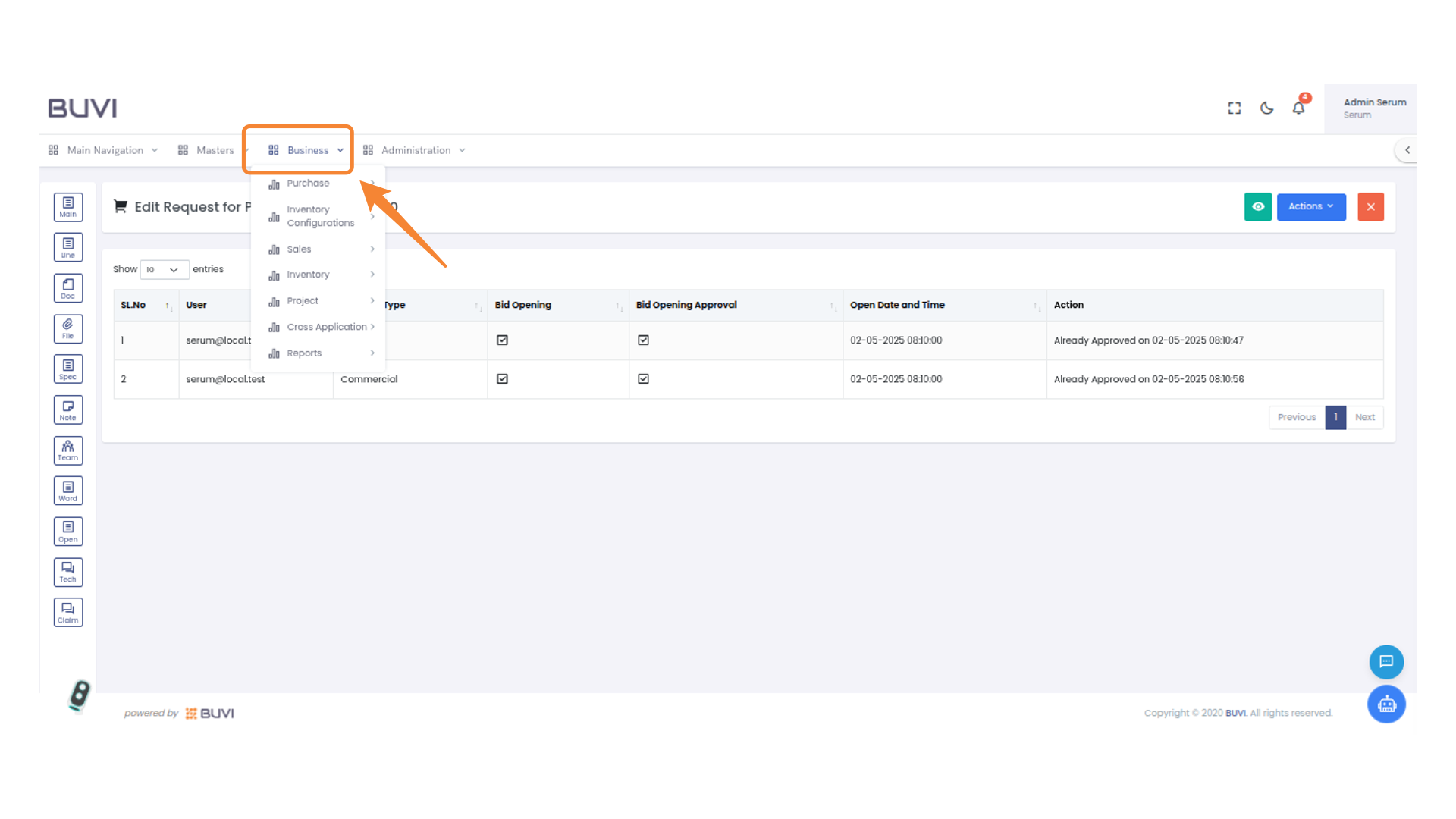
45. Purchase Menu
Select the 'Purchase' option to access procurement-related features.
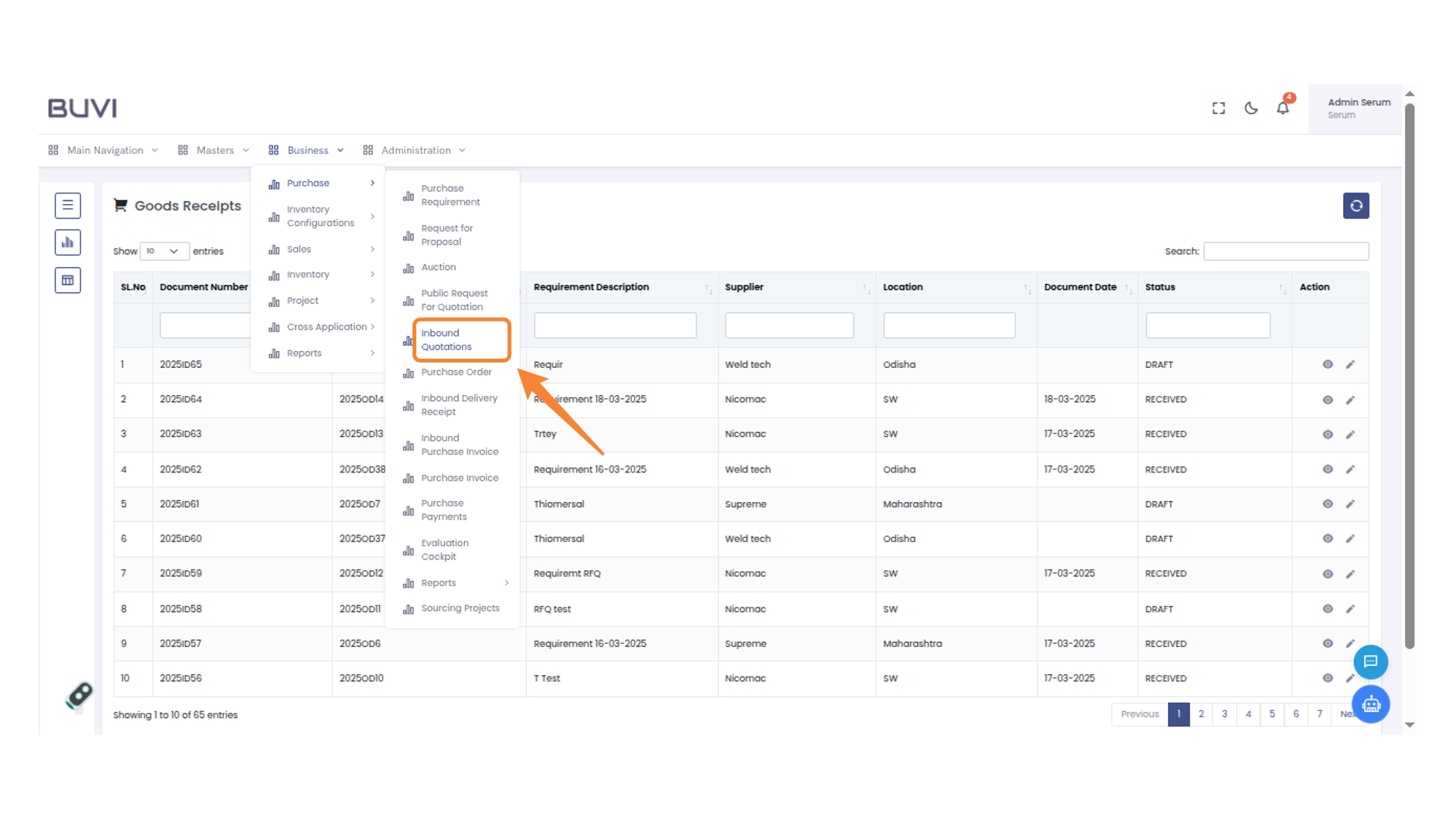
46. Inbound Quotations Section
Click on Inbound Quotation Menu
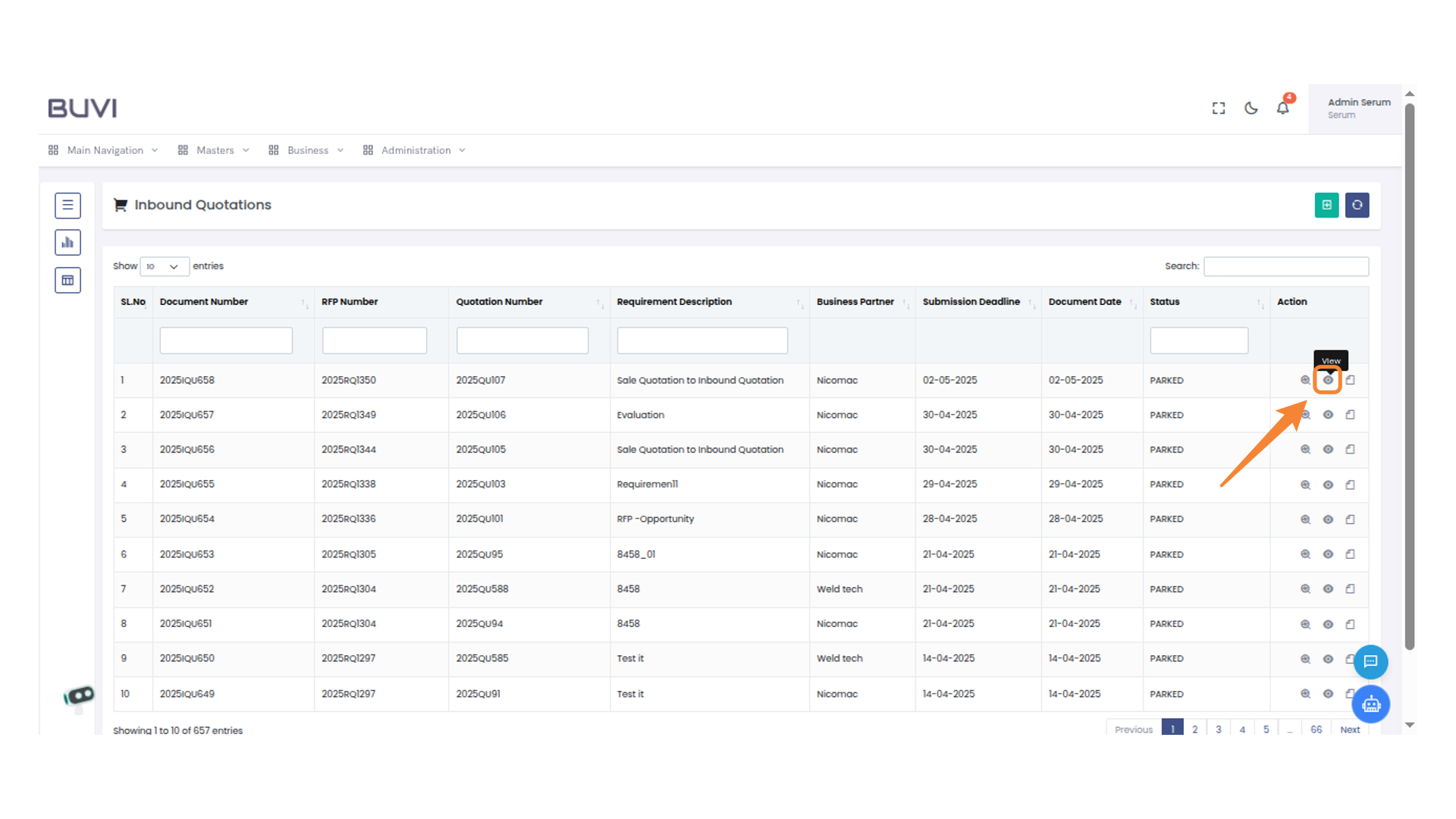
47. View Quotation Details
Click this button to view the details of the selected quotation.
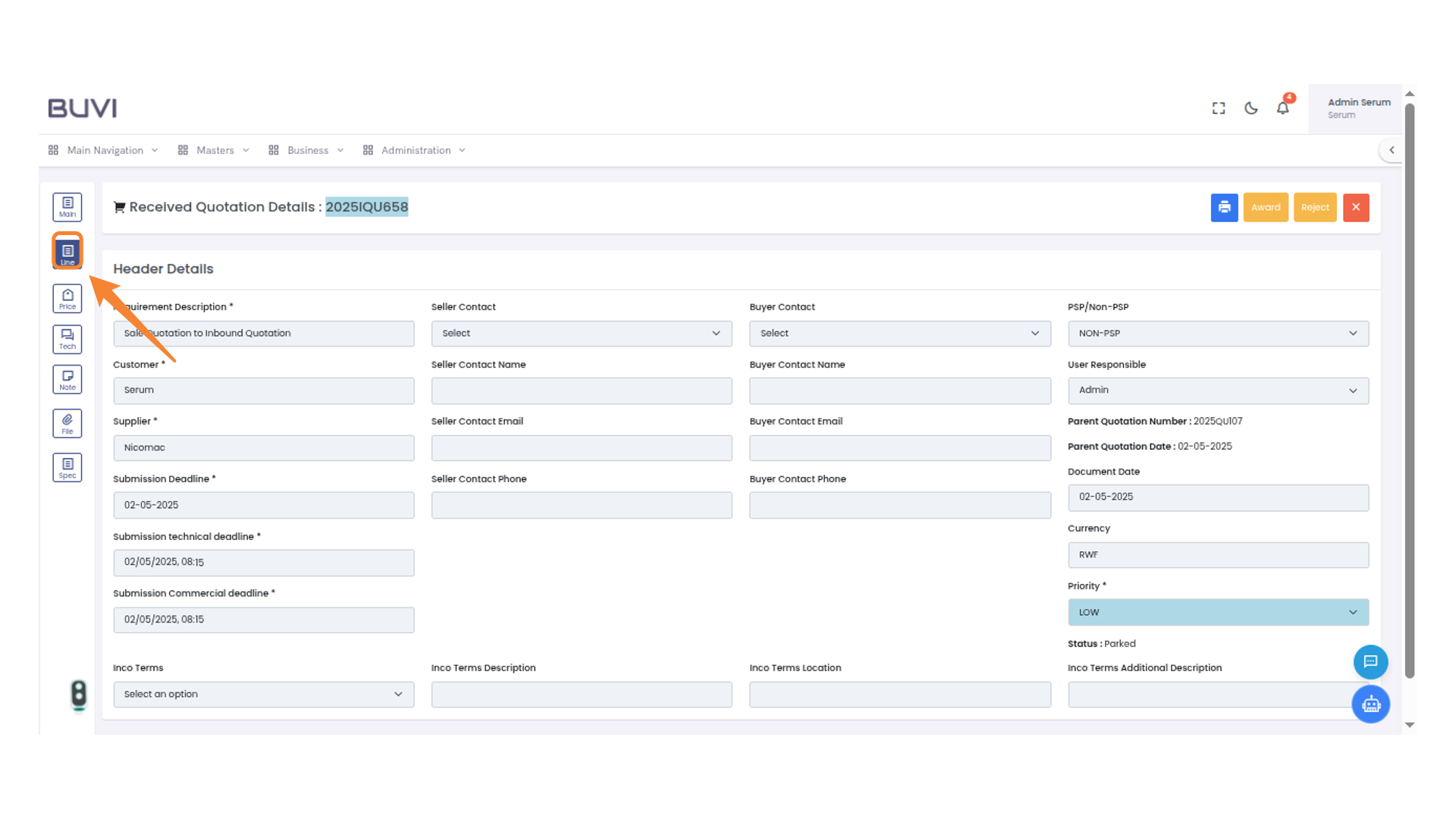
48. Line Icon
Select the line icon to navigate to the line details section.
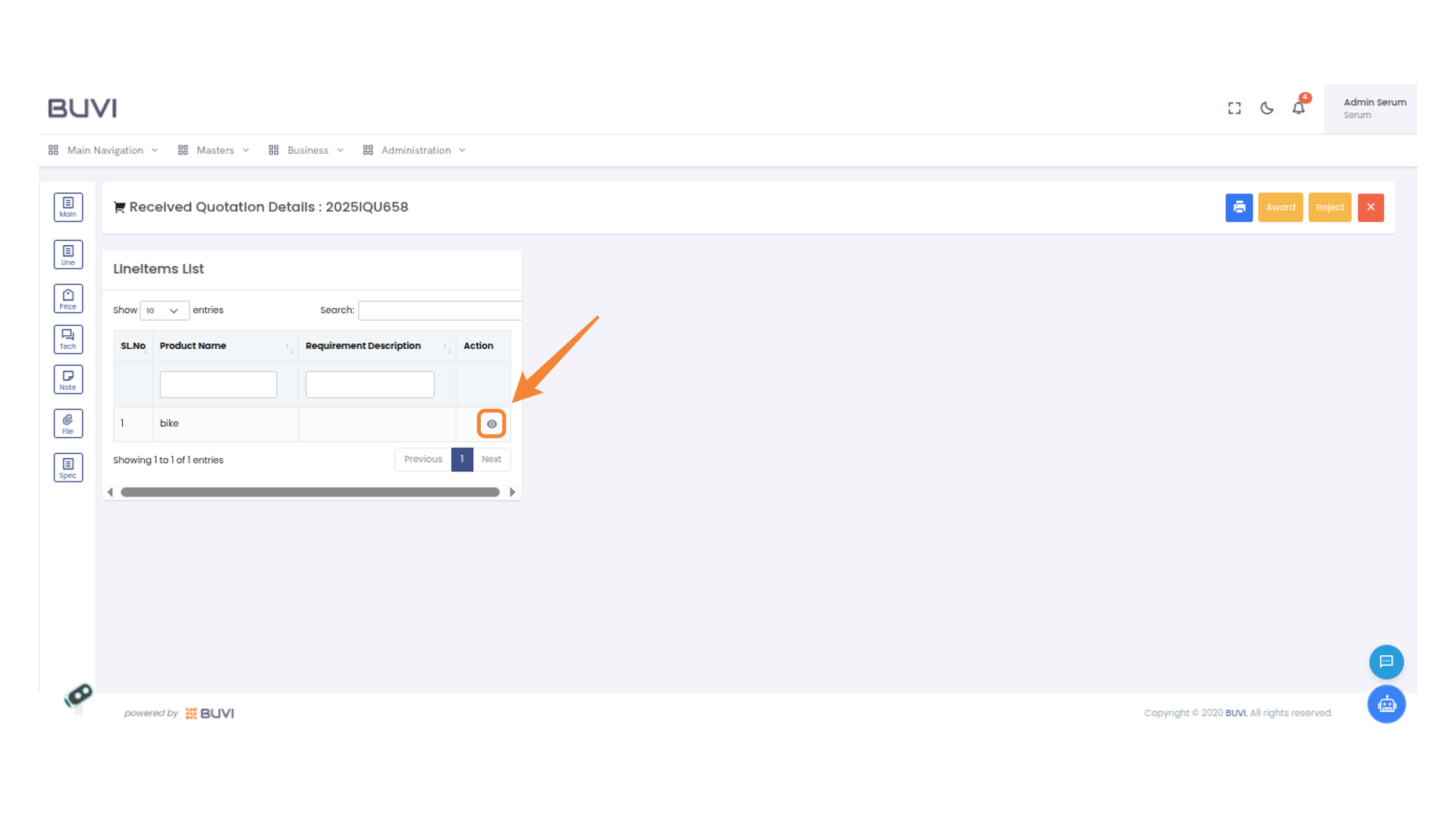
49. Click View Button
Click on View Button to verify line item details and Pricing details
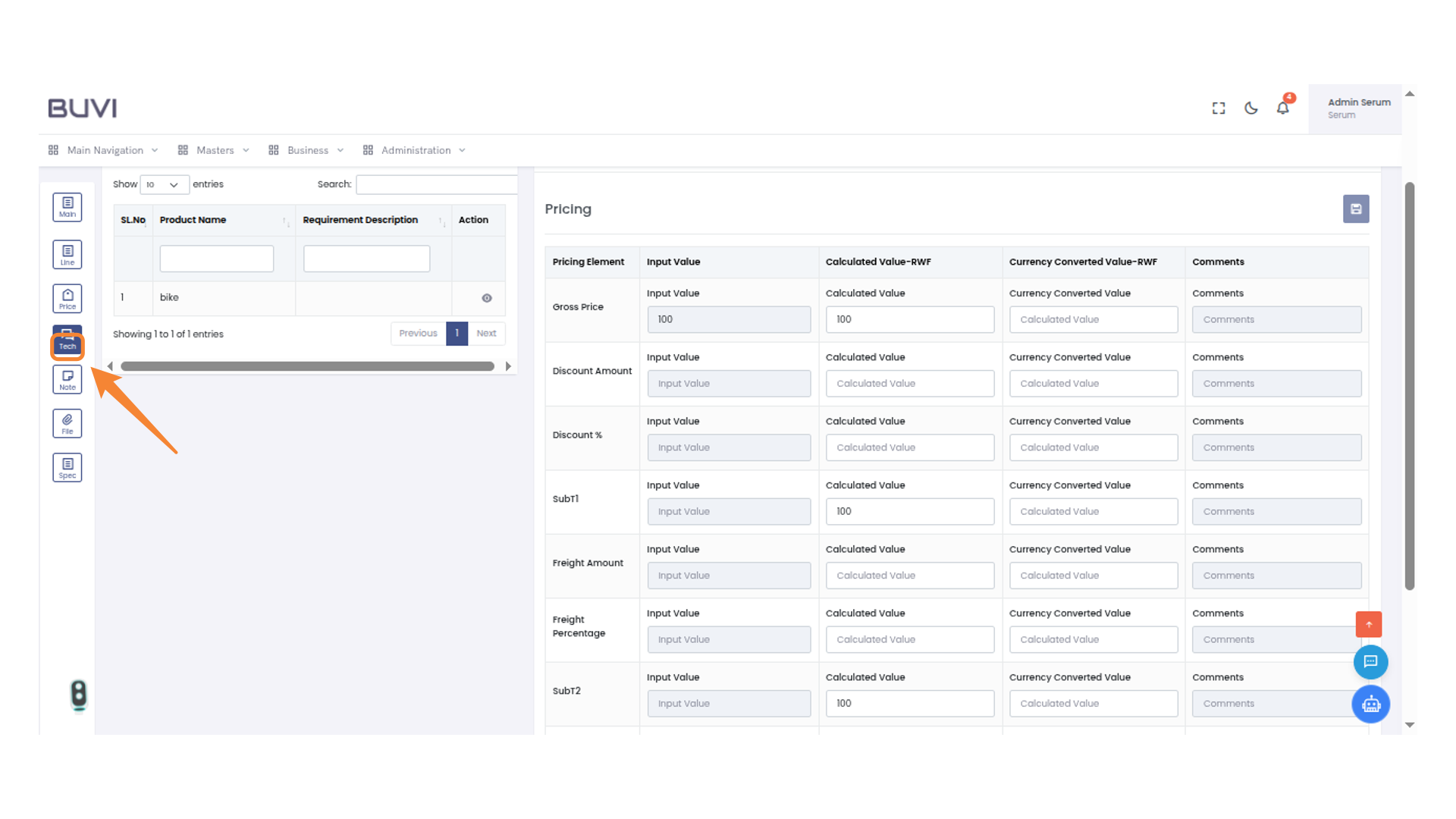
50. Tech Section Icon
Verify Pricing details and click on Tech tab
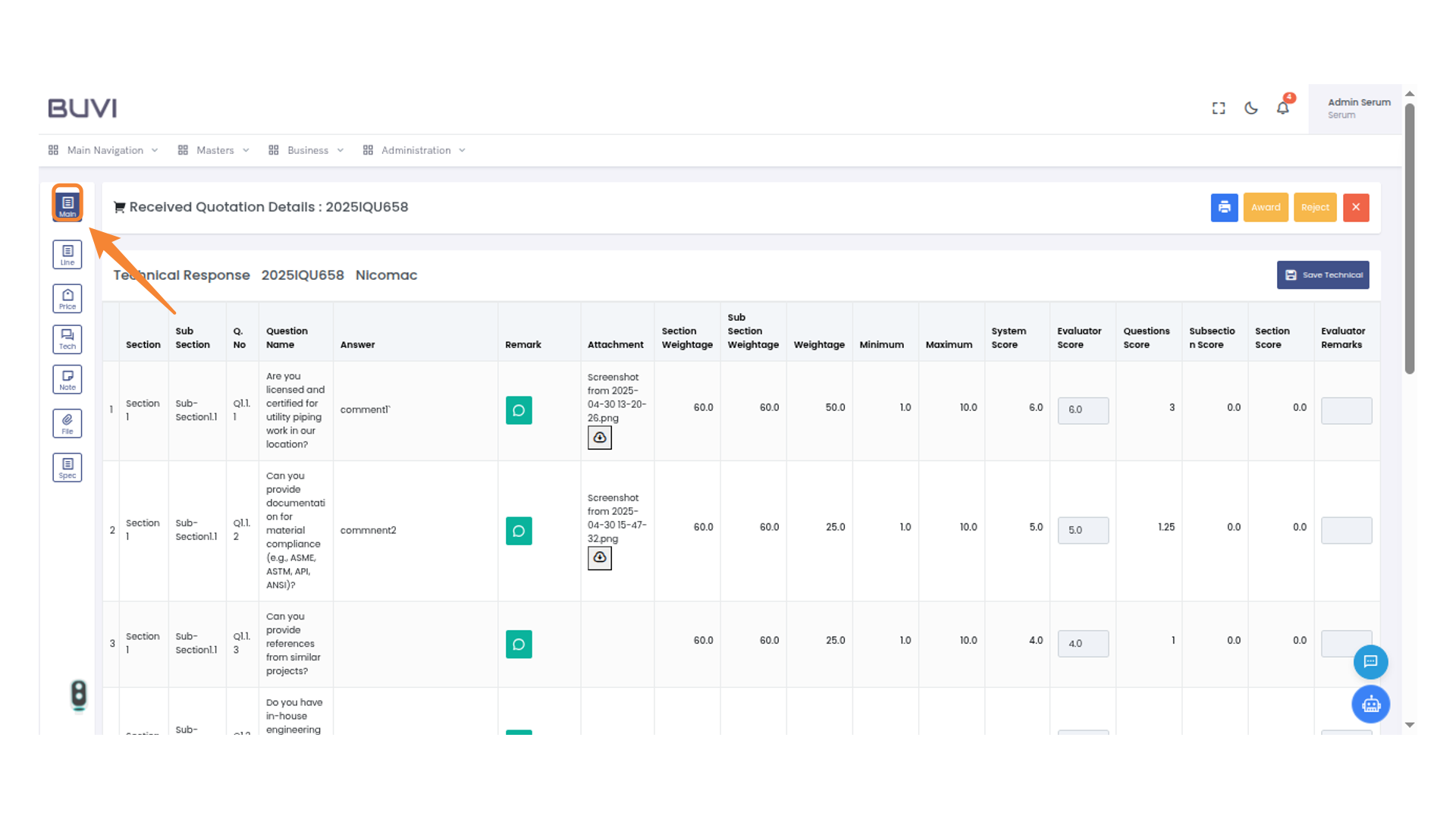
51. Main Menu Icon
Verify technical details and click on header menu
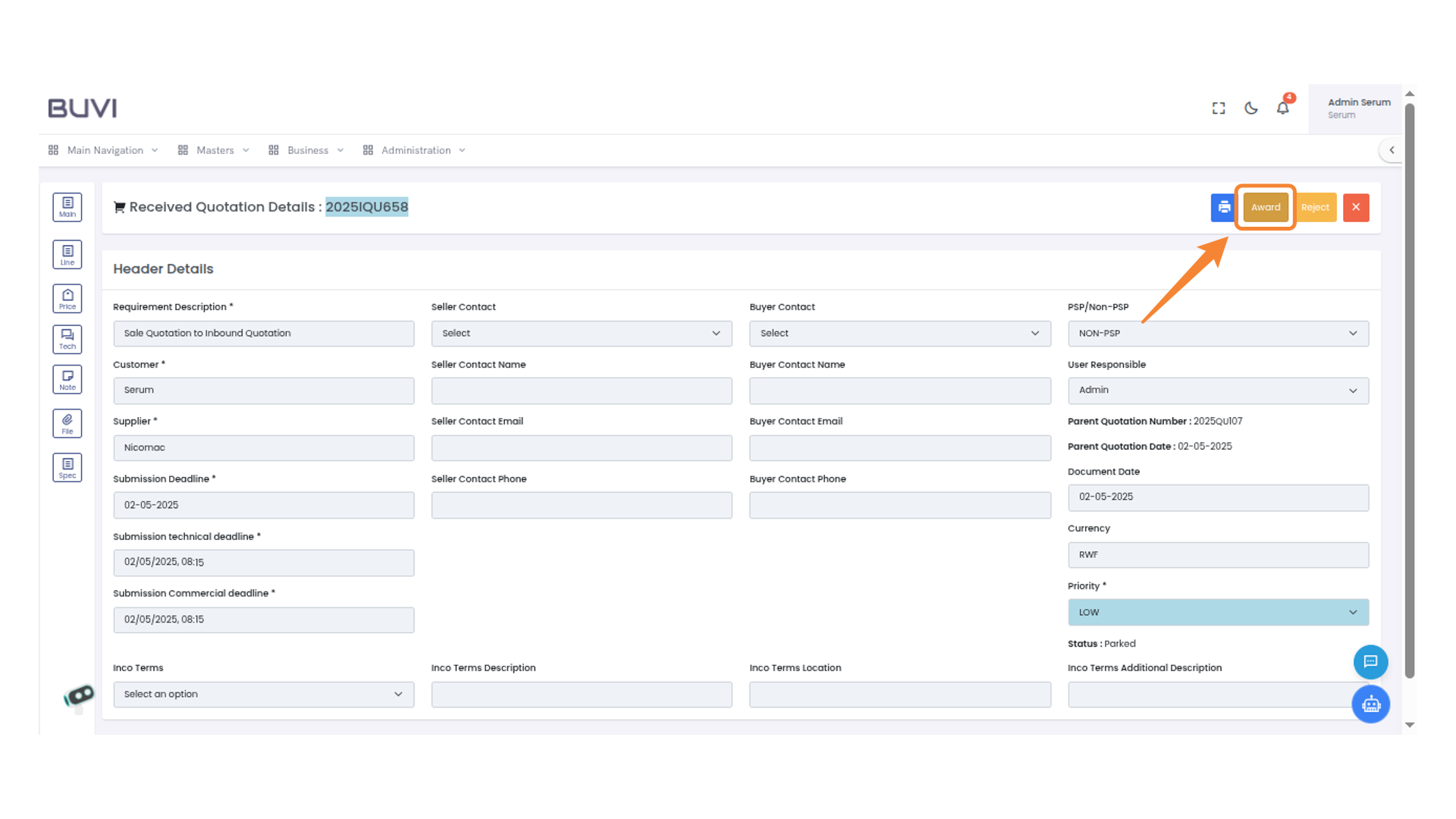
52. Award Button
Click this button to award the quotation.
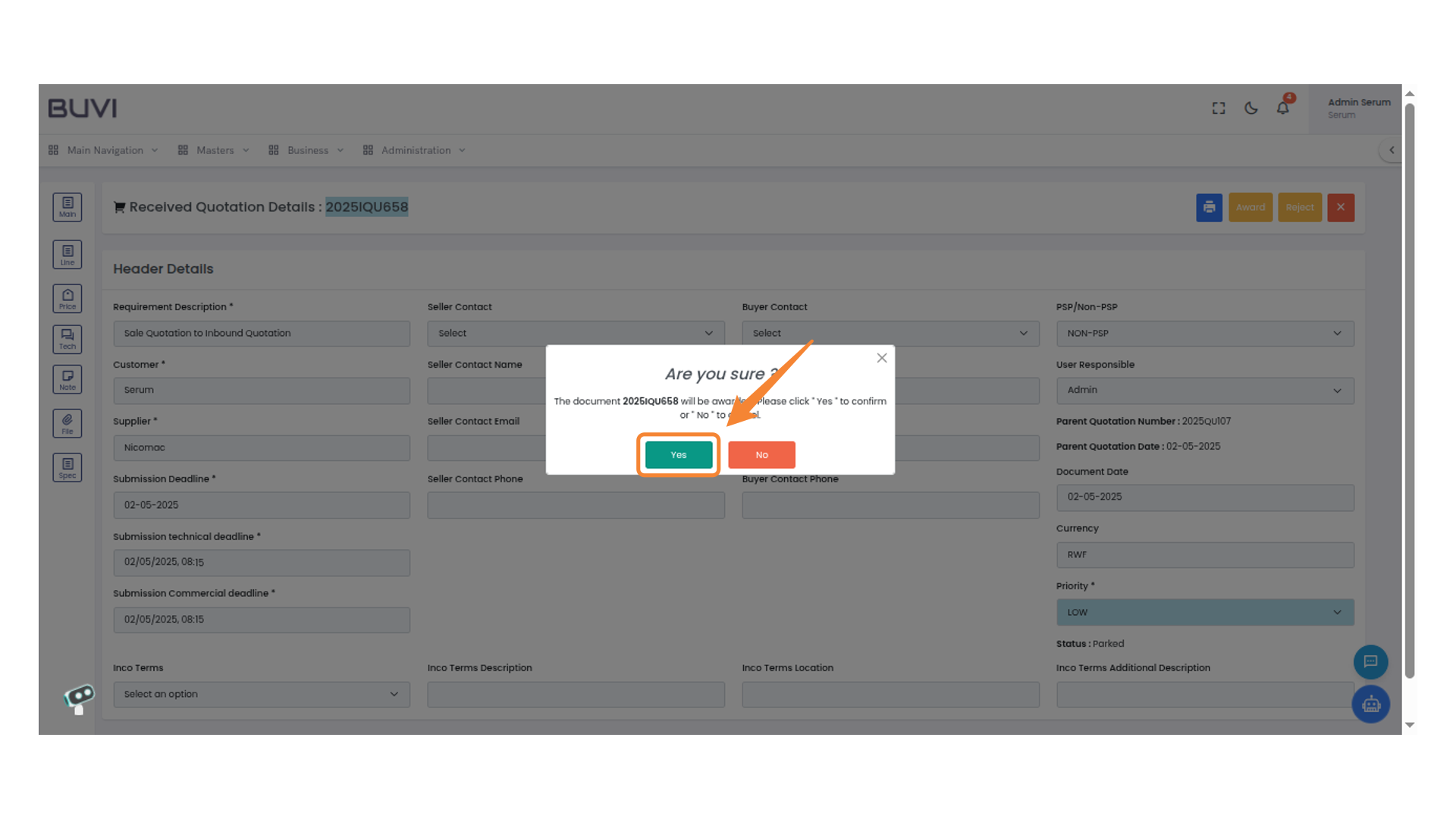
53. Confirmation Prompt Button
Select the 'Yes' button to confirm your action in the dialog box.
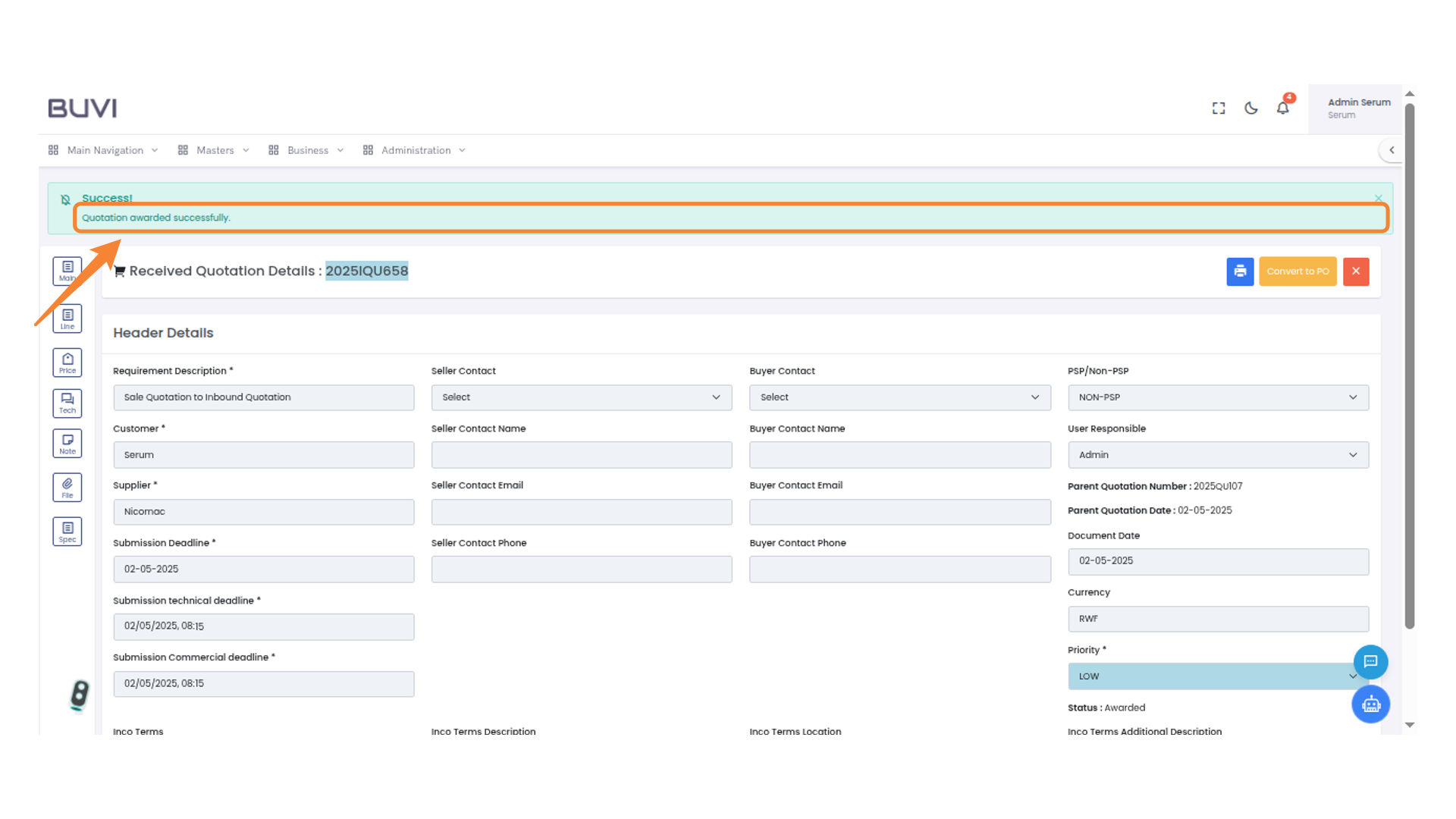
54. Quotation Award Notification
Acknowledge the successful awarding of a quotation.