Public RFP
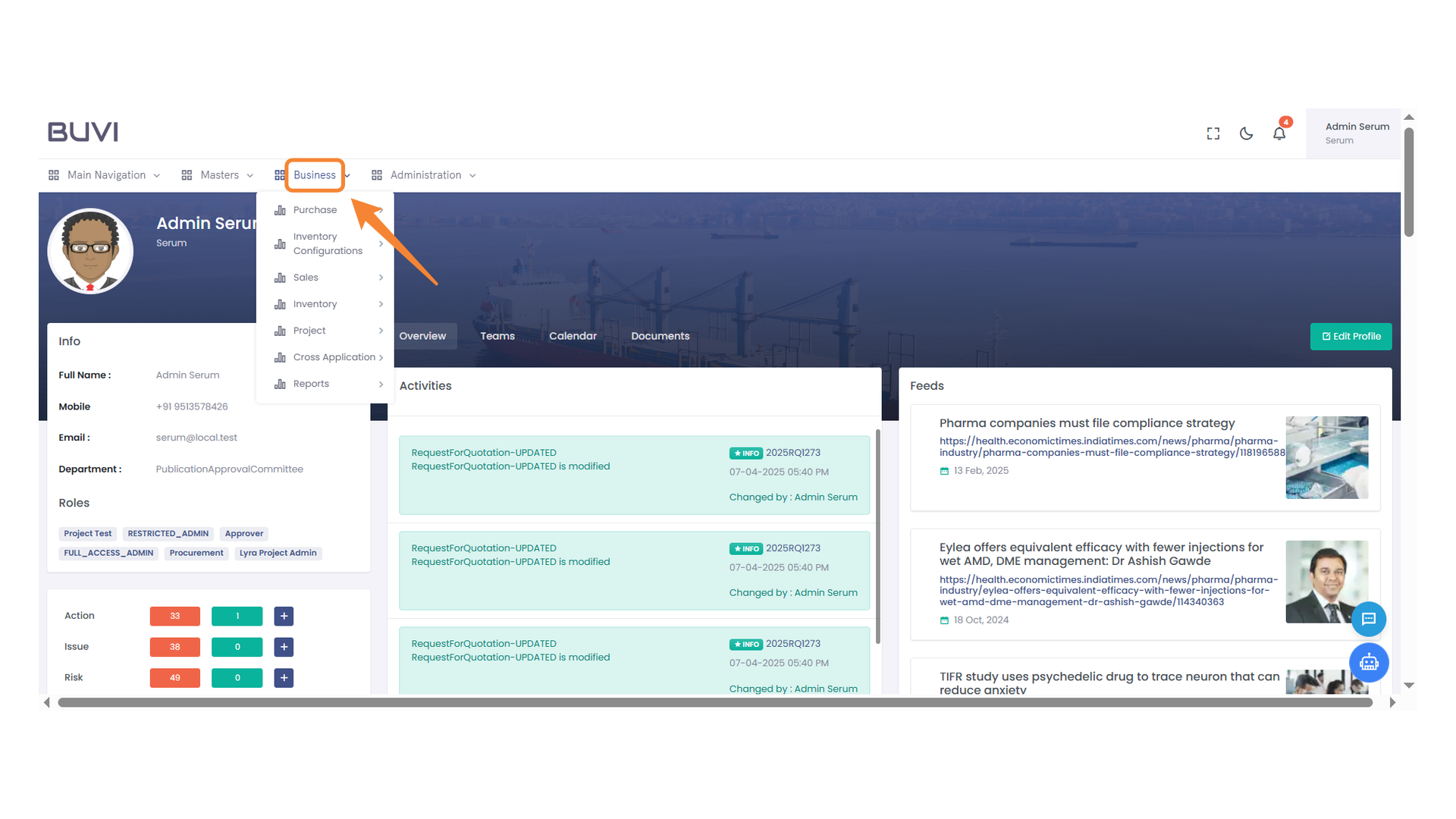
1. Business Menu
Access and manage business-related functions by selecting from the available options.
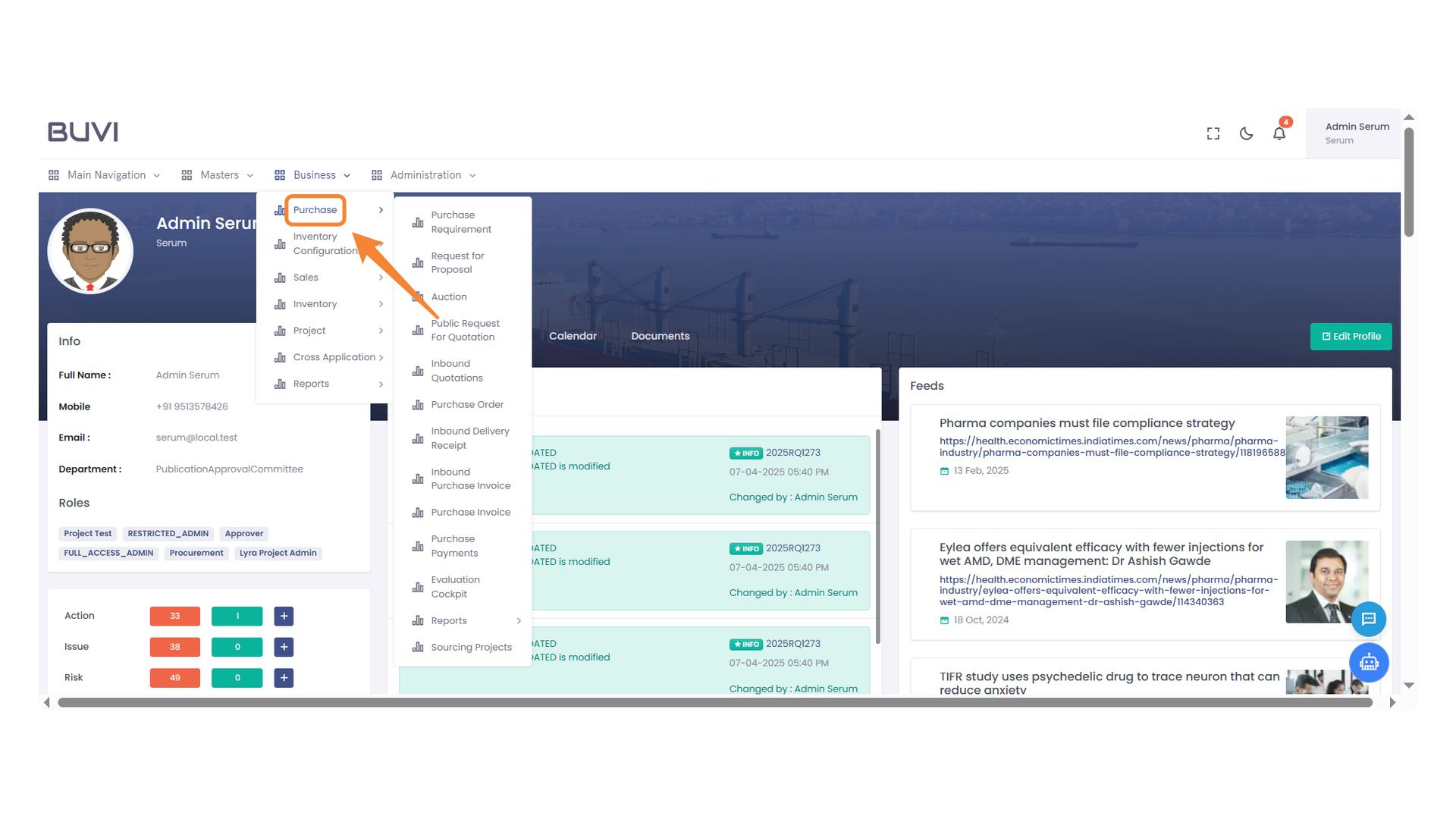
2. Purchase Menu
Access the purchase options and related features.
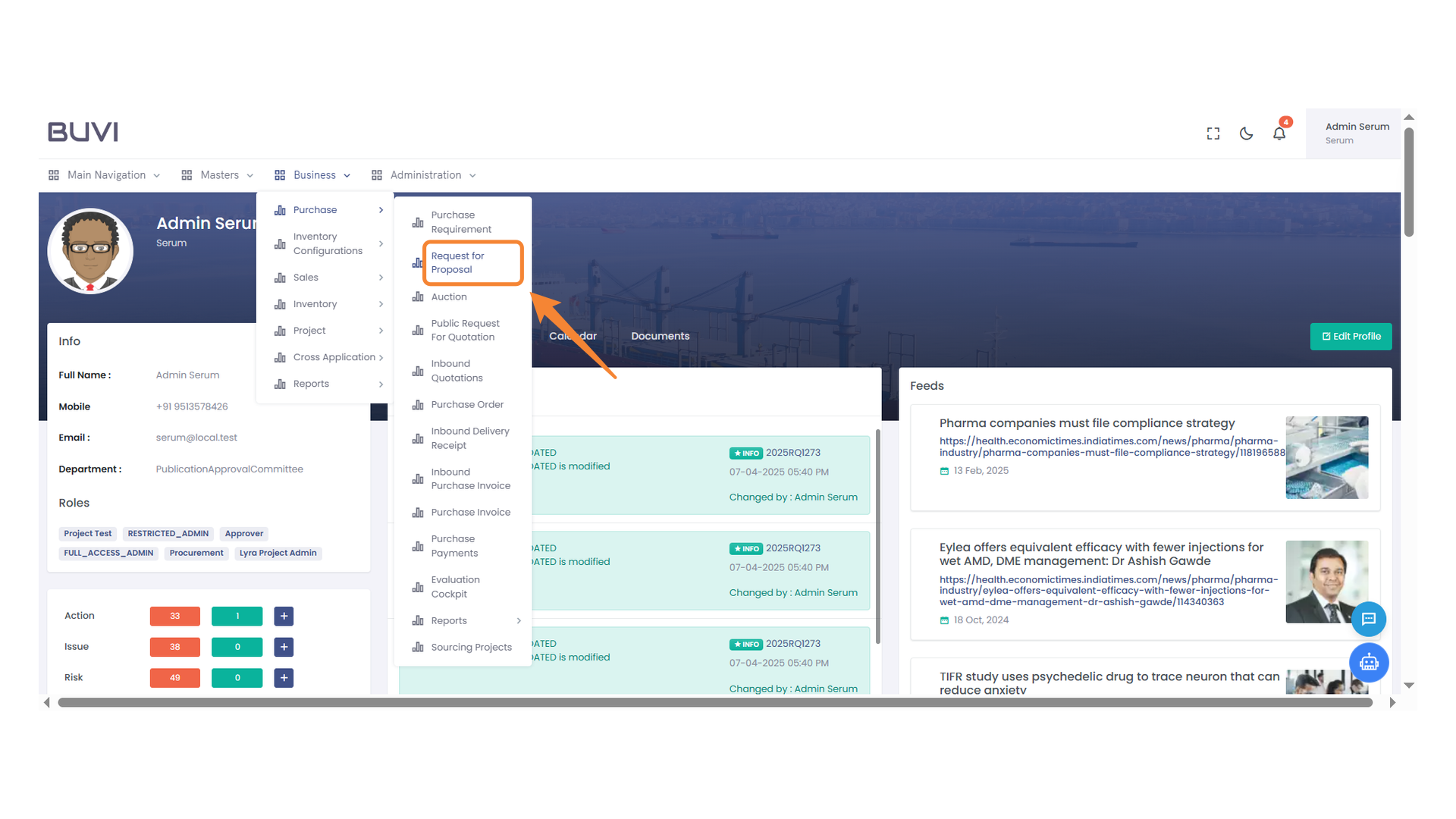
3. Request for Proposal Menu Highlight
Access the Request for Proposal section from the Business menu to oversee and engage in proposal requests efficiently.
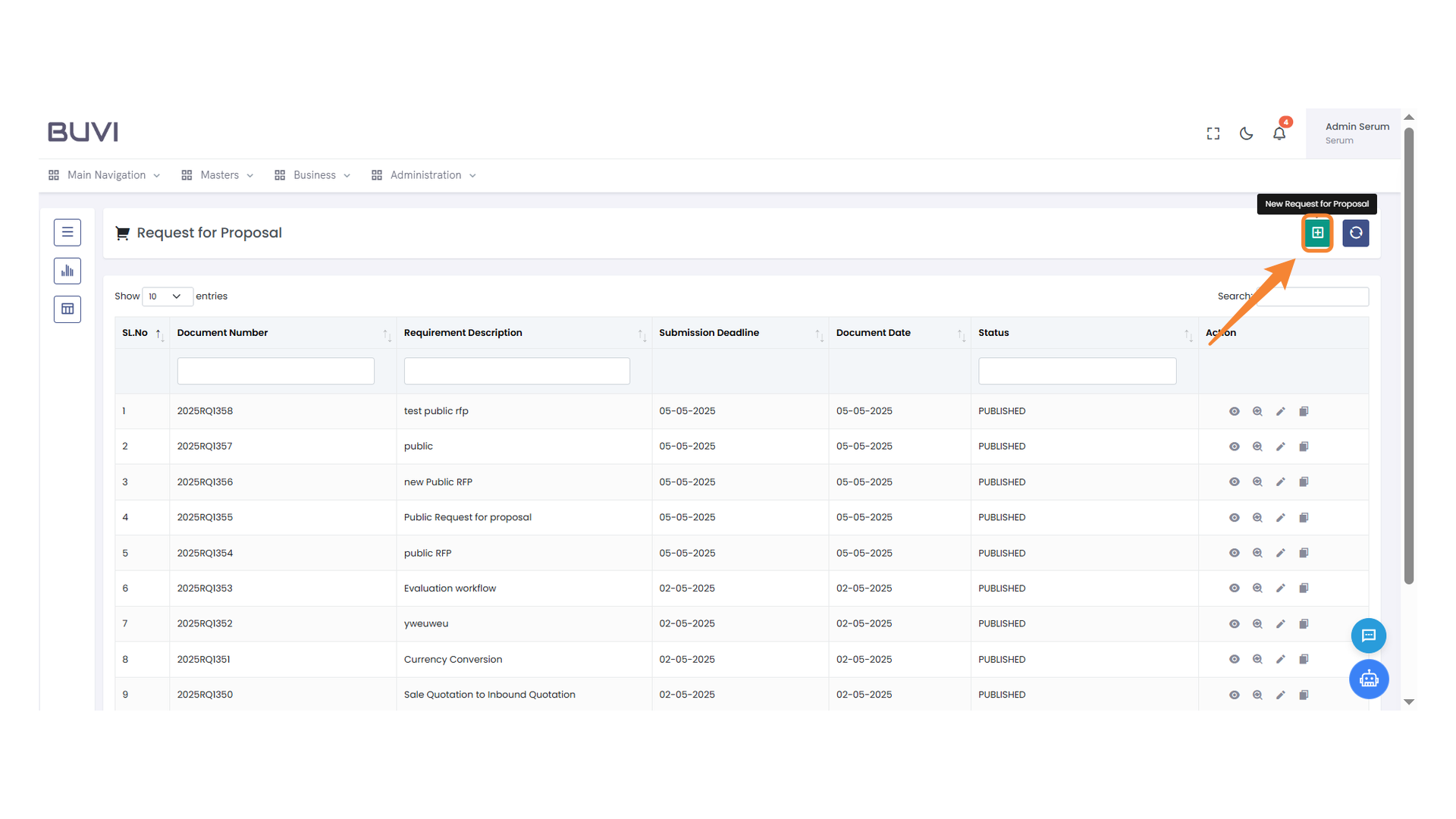
4. New Request for Proposal Button
Click to create a new request for proposal.
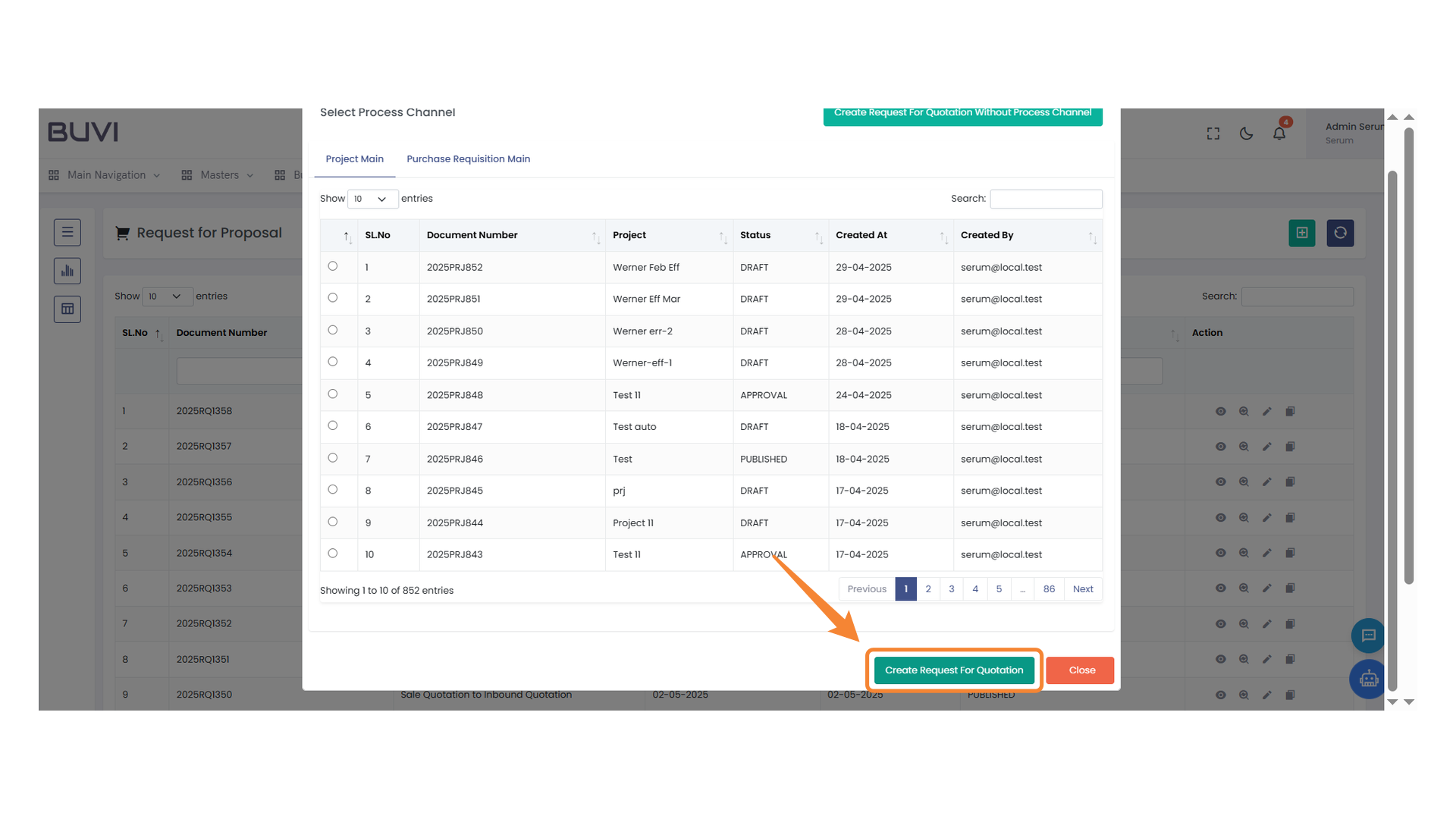
5. Button for Creating RFQ
Click to initiate a new request for quotation process.
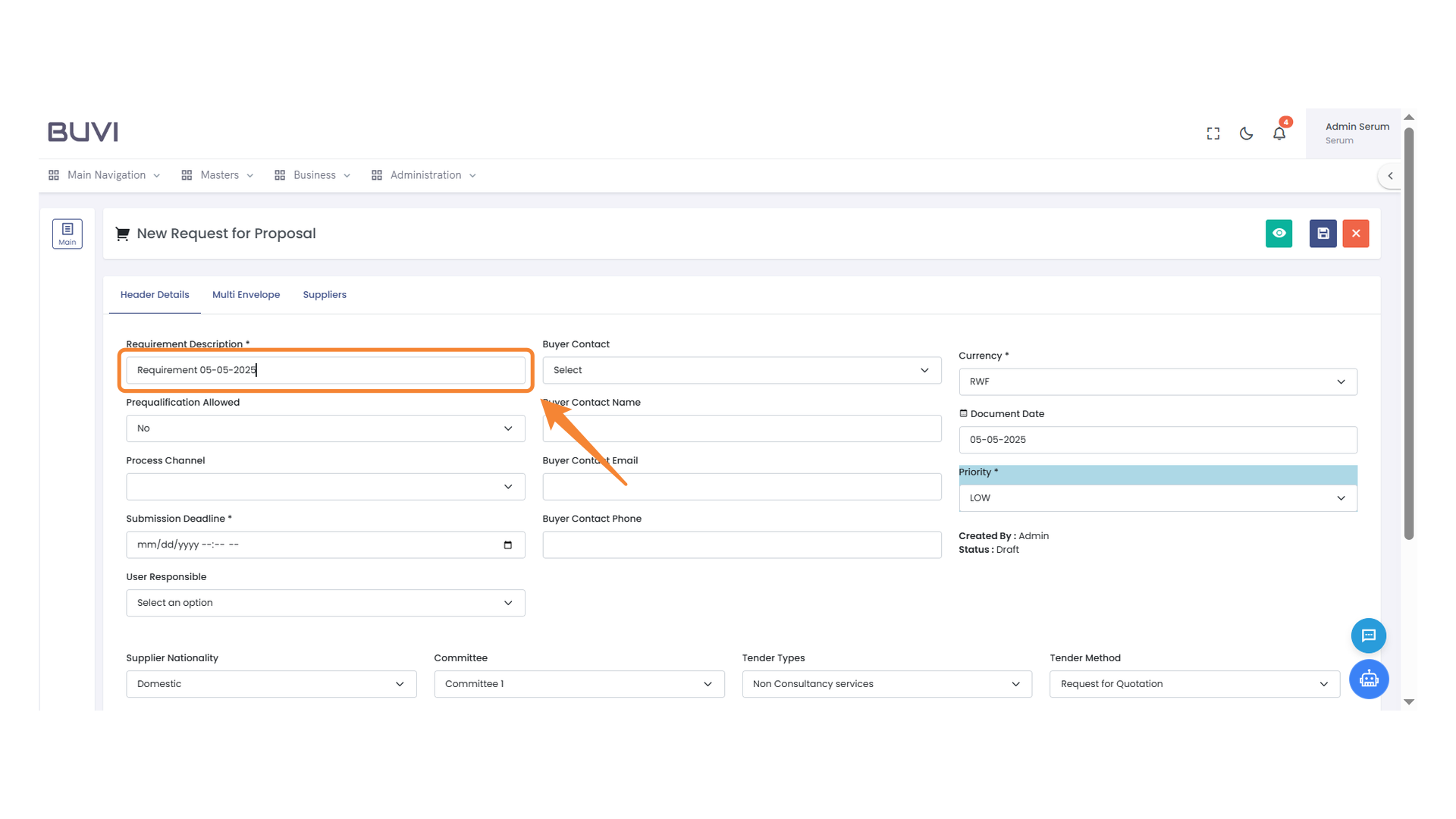
6. Requirement Description Entry
Enter the detailed requirement description for the proposal request.
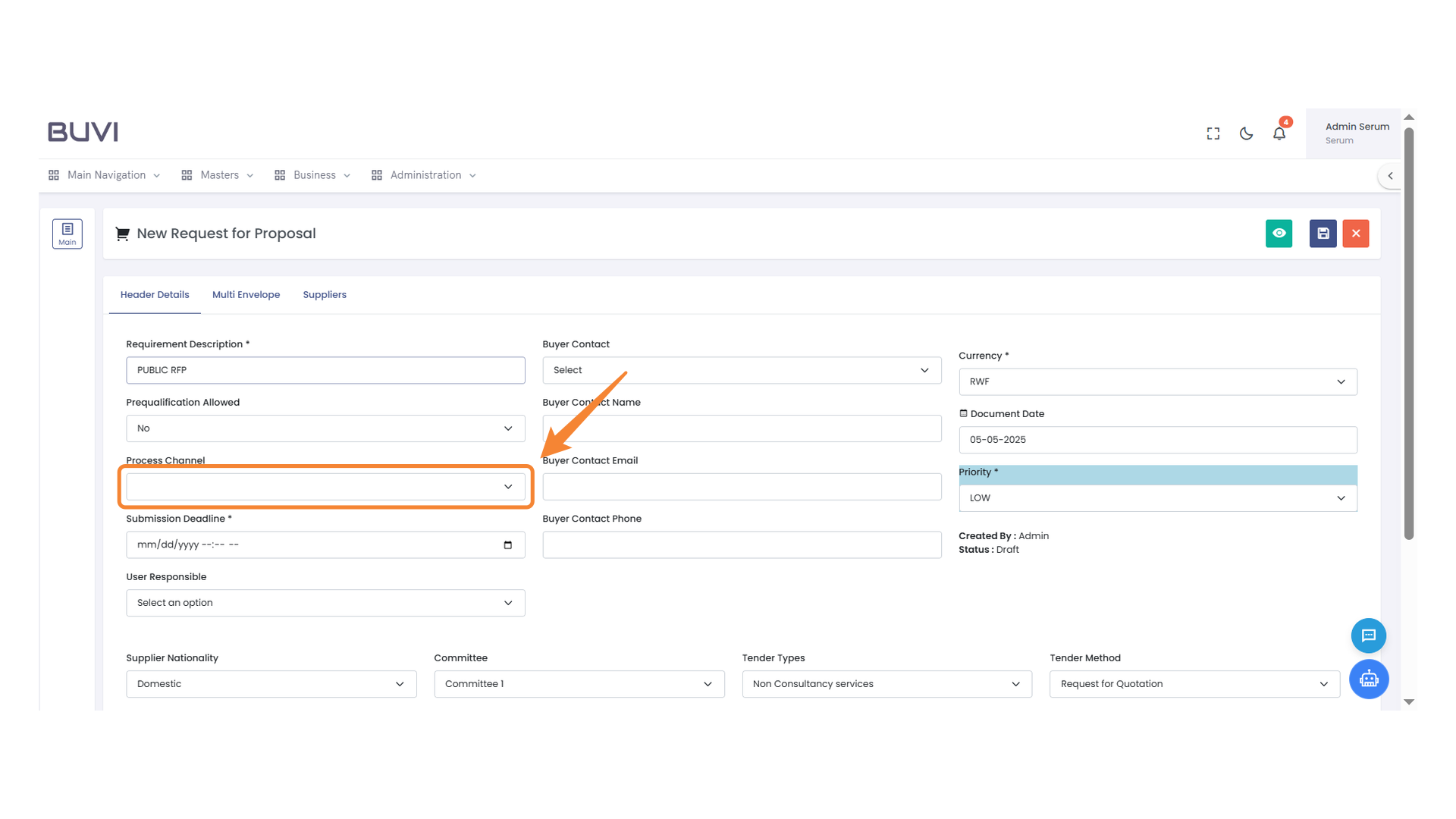
7. Process Channel Selection
Select an option from the dropdown to determine the process channel.
8. Submission Deadline Input Field
Enter the submission deadline date using the specified format.
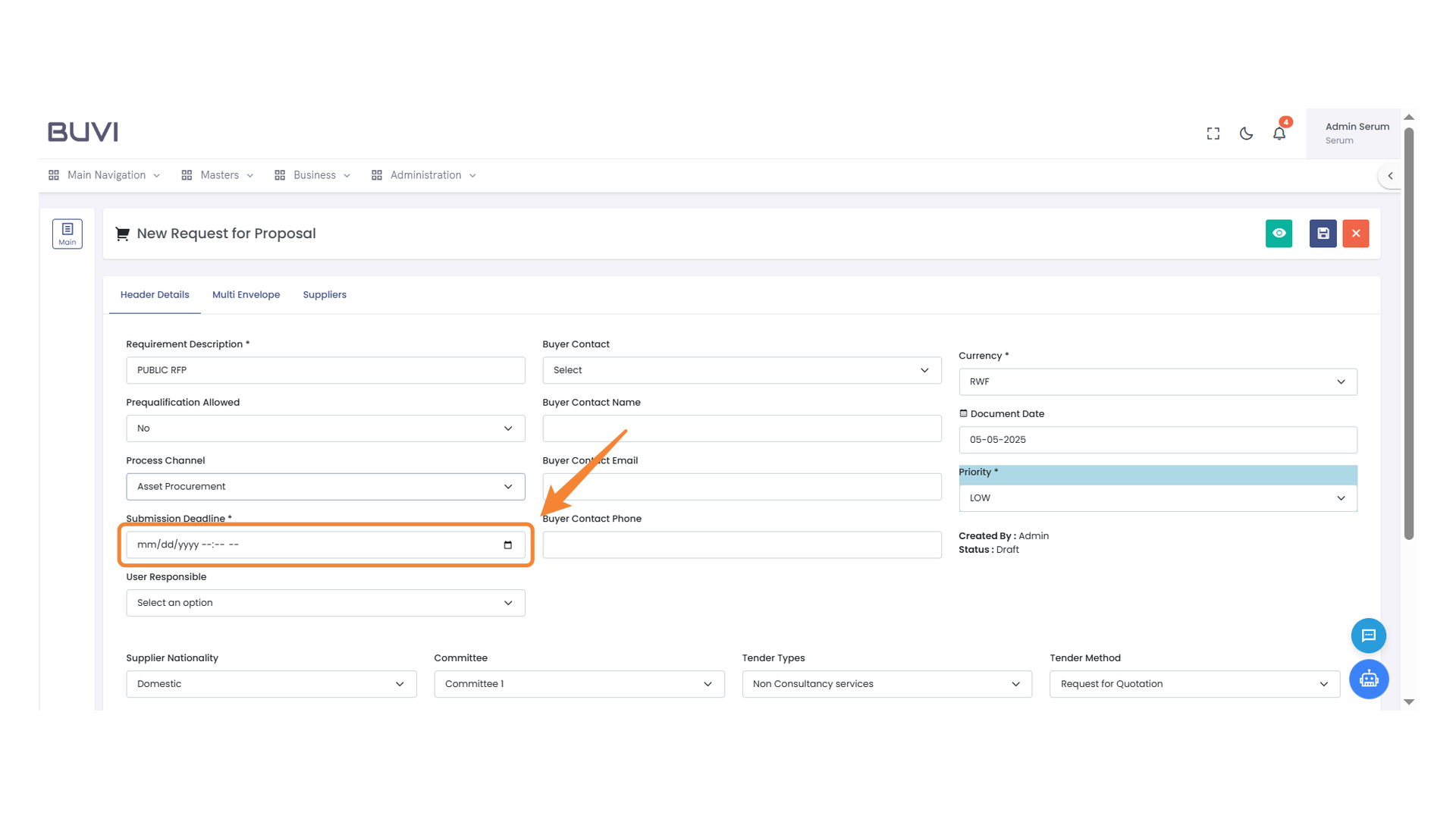
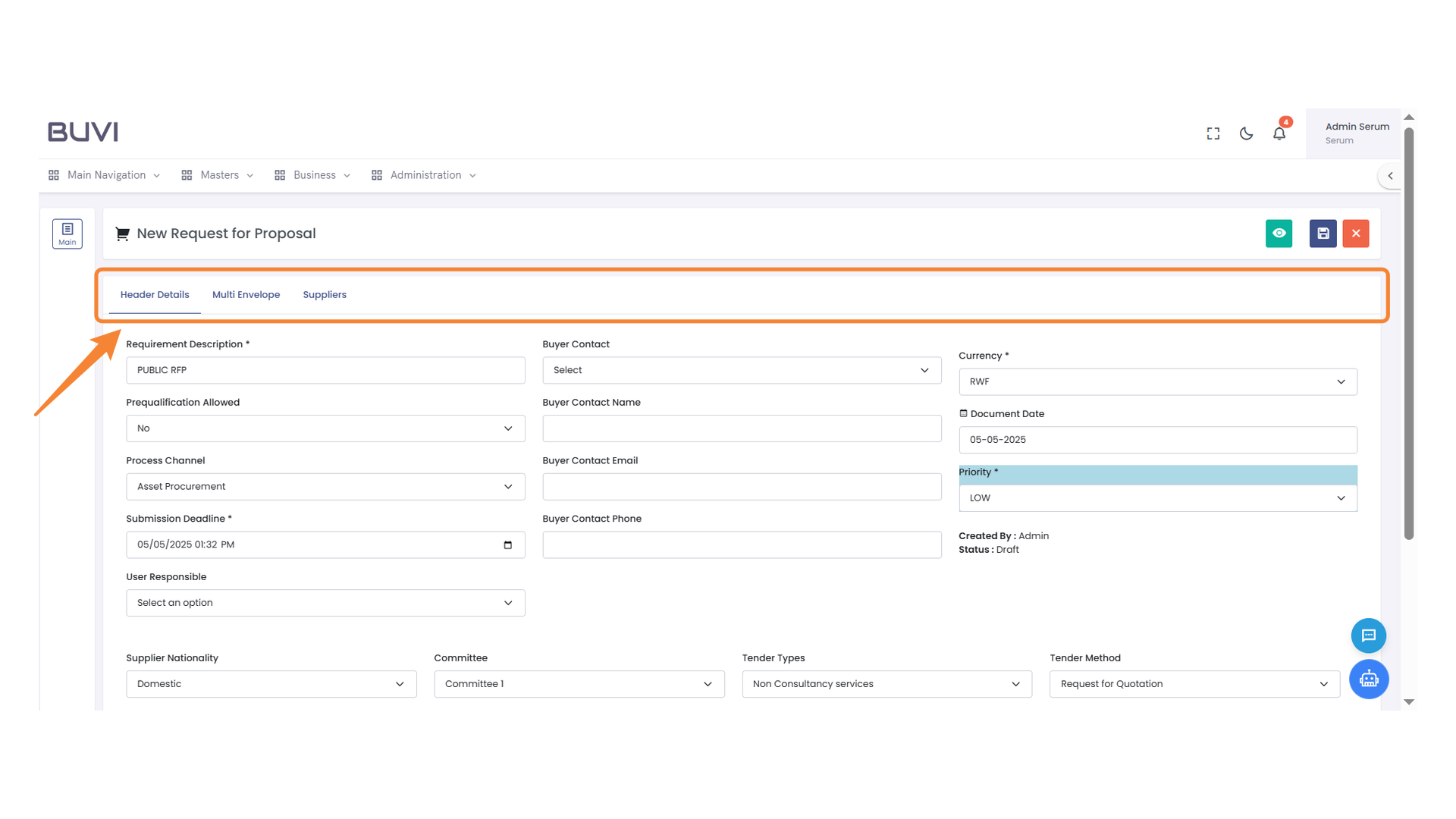
9. Section Tabs
Navigate through the tabs to access Header Details, Multi Envelope, or Suppliers.
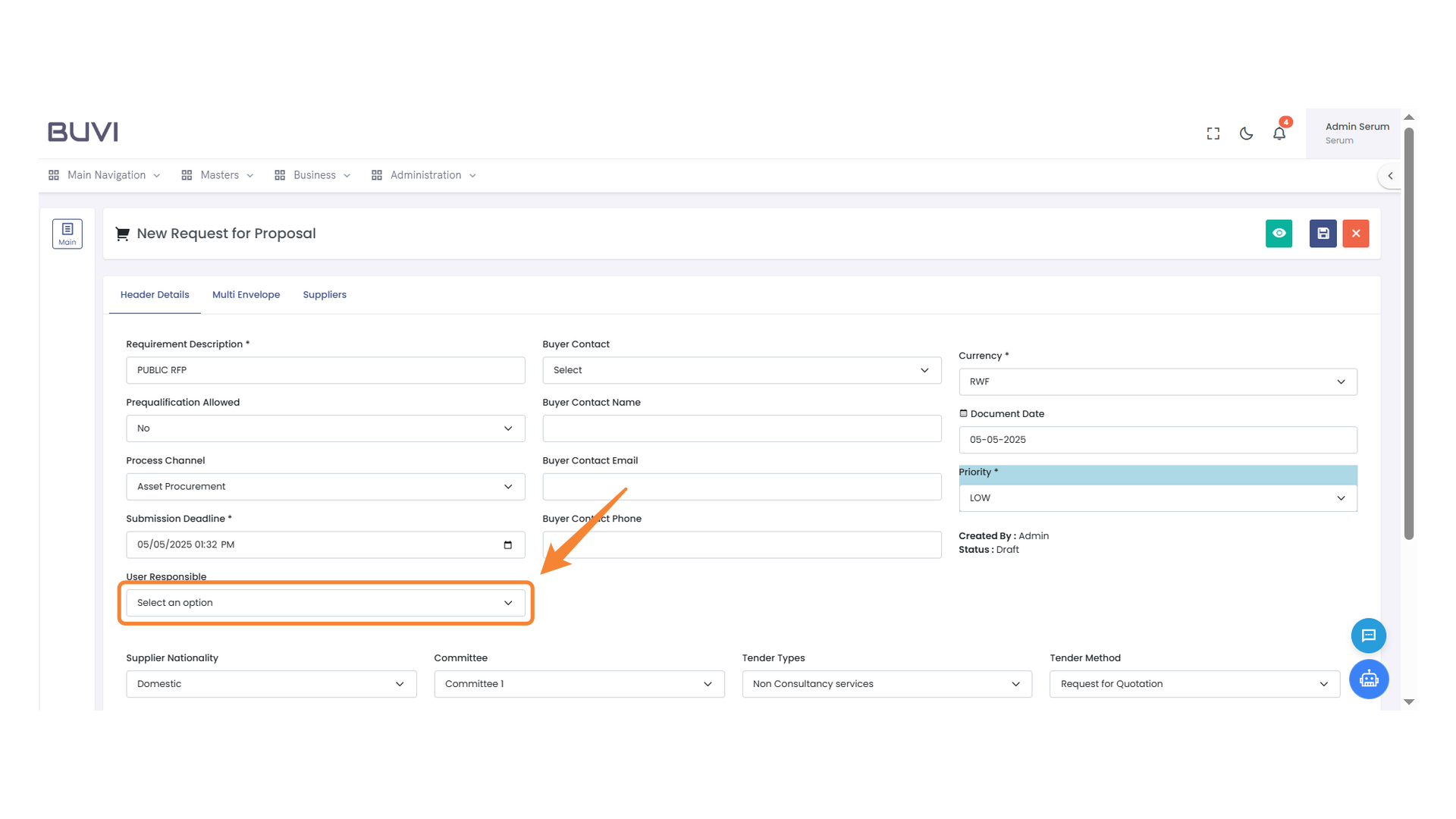
10. User Responsibility Selection
Choose a responsible user from the dropdown menu.
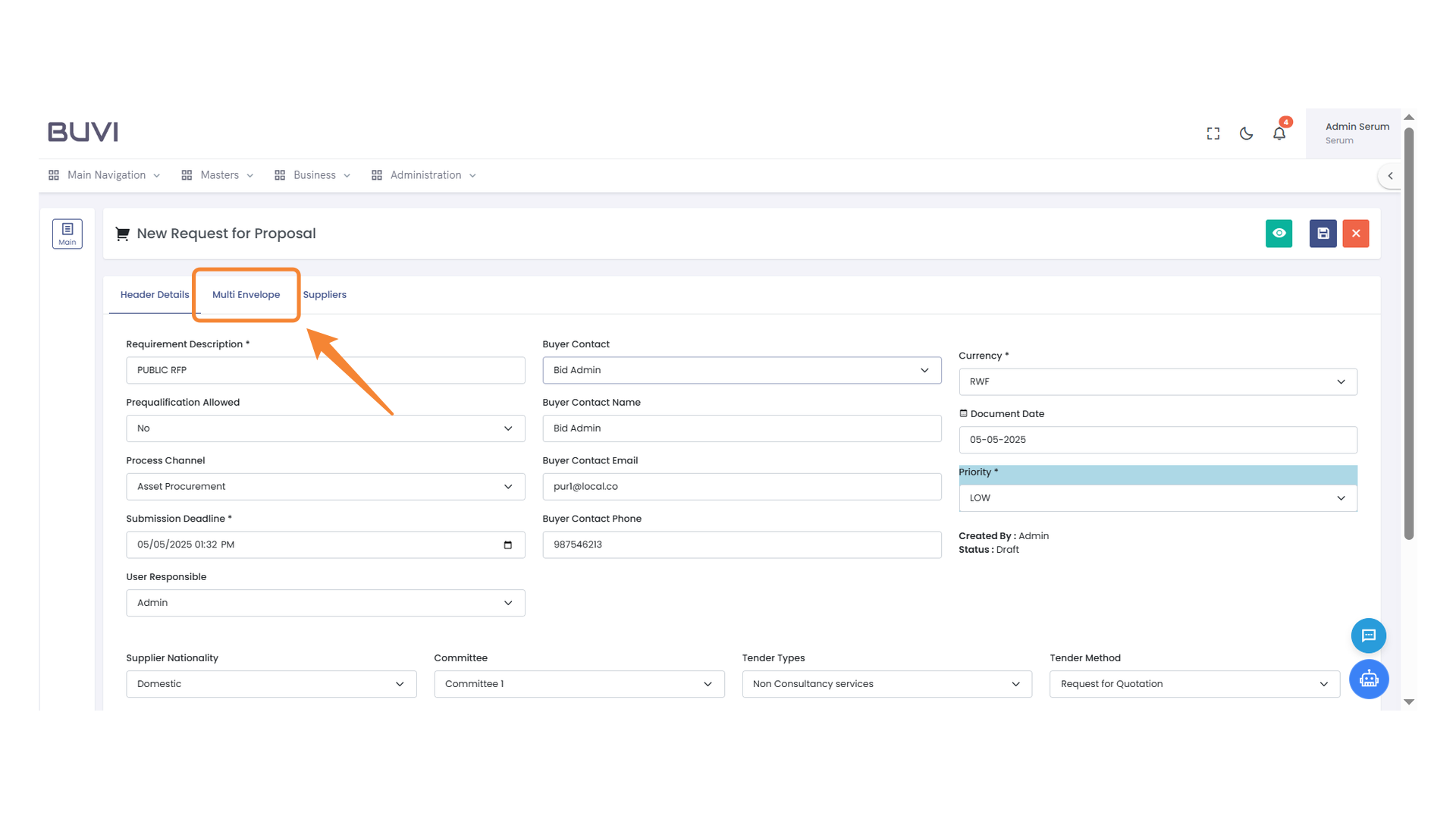
11. Select Buyer Contact
Choose a contact from the drop-down menu to assign a buyer to the request for proposal.

12. Multi Envelope Tab
Select this tab to manage the multi-envelope settings for the proposal.
13. Bid Type Selection
Select the appropriate bid type from the dropdown menu to proceed.
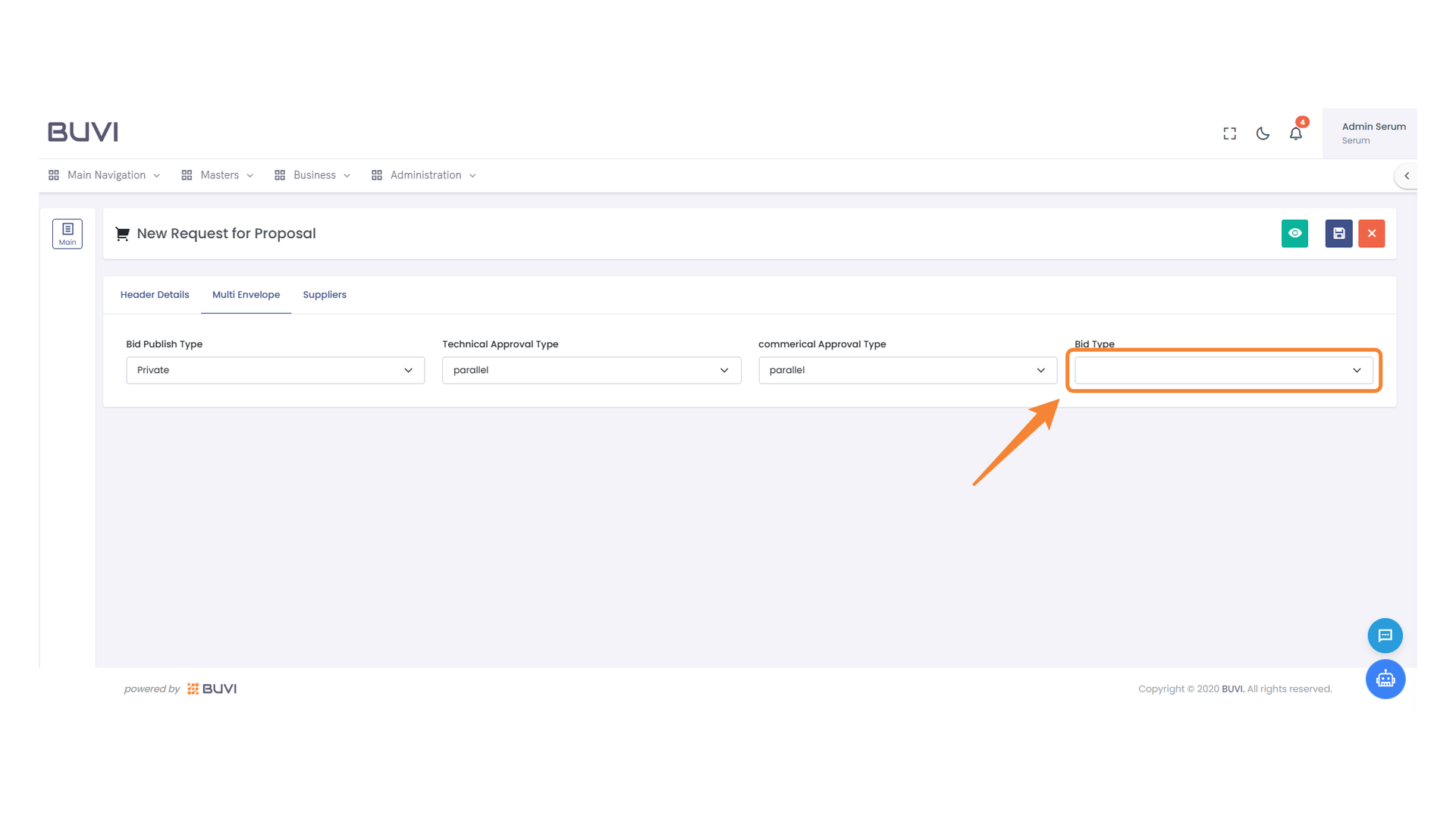
14. Bid Publish Type Selection
Choose the type of bid you want to publish from this dropdown menu to proceed with your proposal.

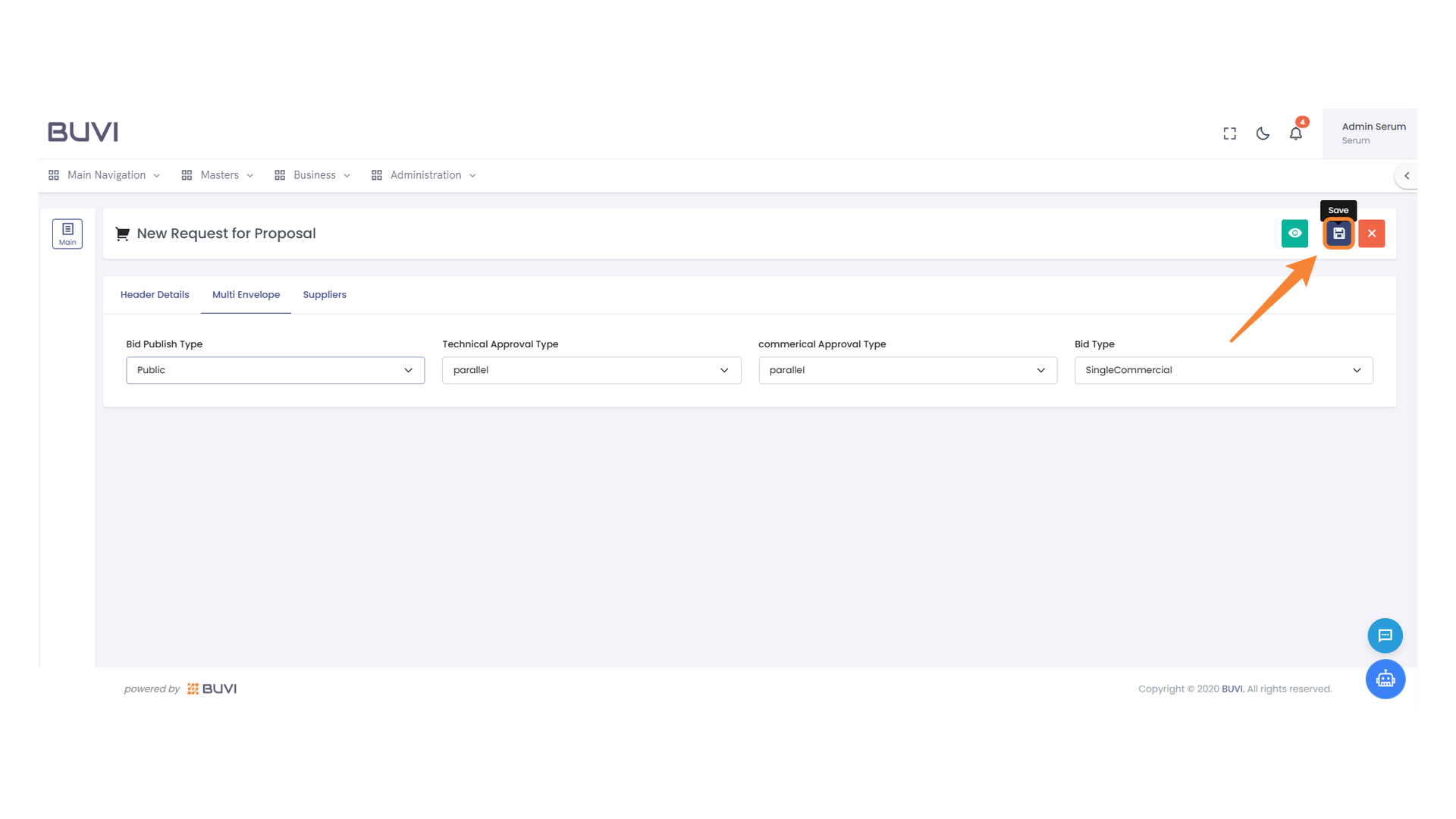
15. Save Button
Click the save icon to store your current progress.
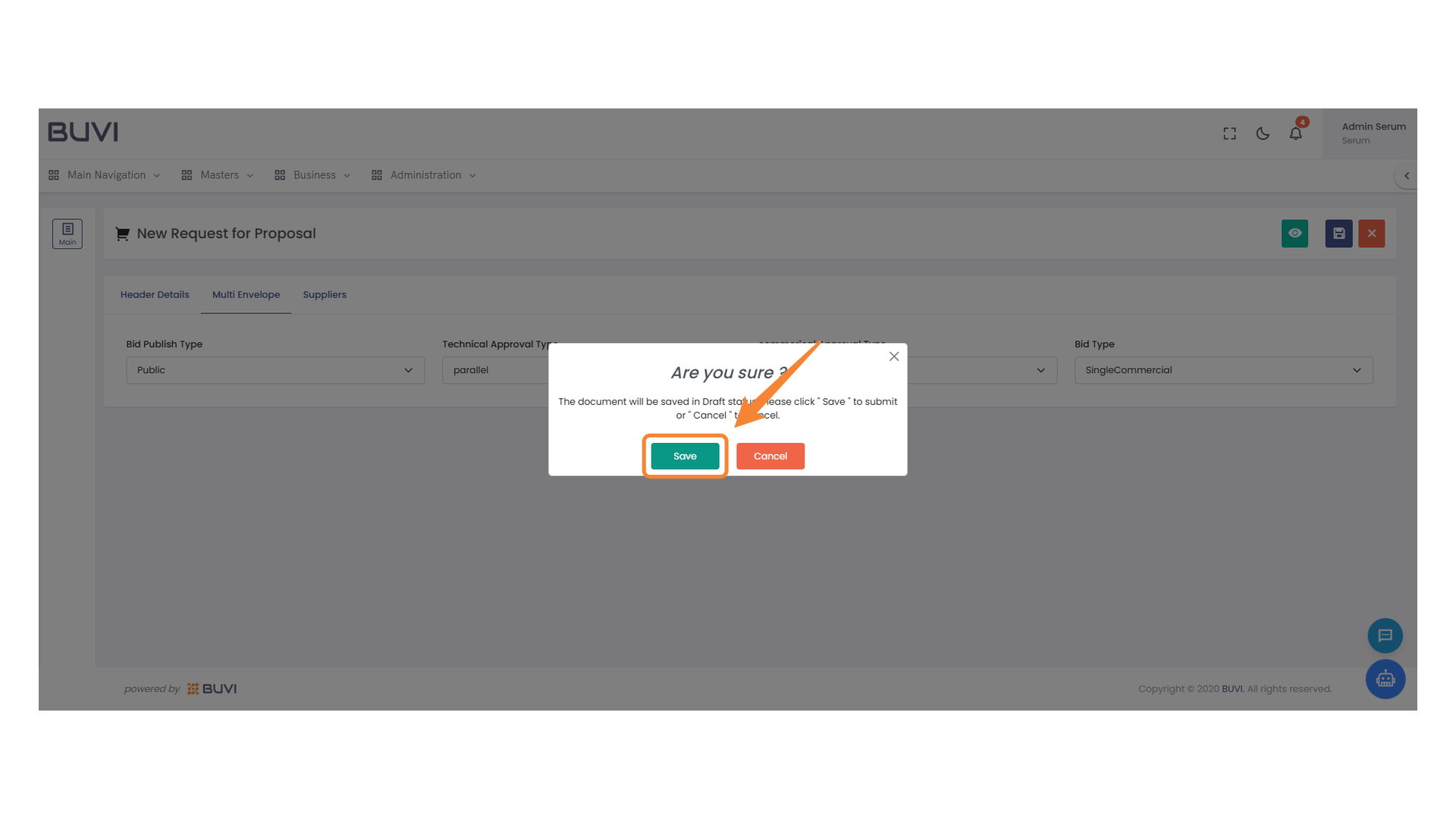
16. Confirmation Dialog
Click 'Save' to confirm and continue with the operation.
17. Commercial Opening Date Field
Enter the commercial opening date in the specified format.

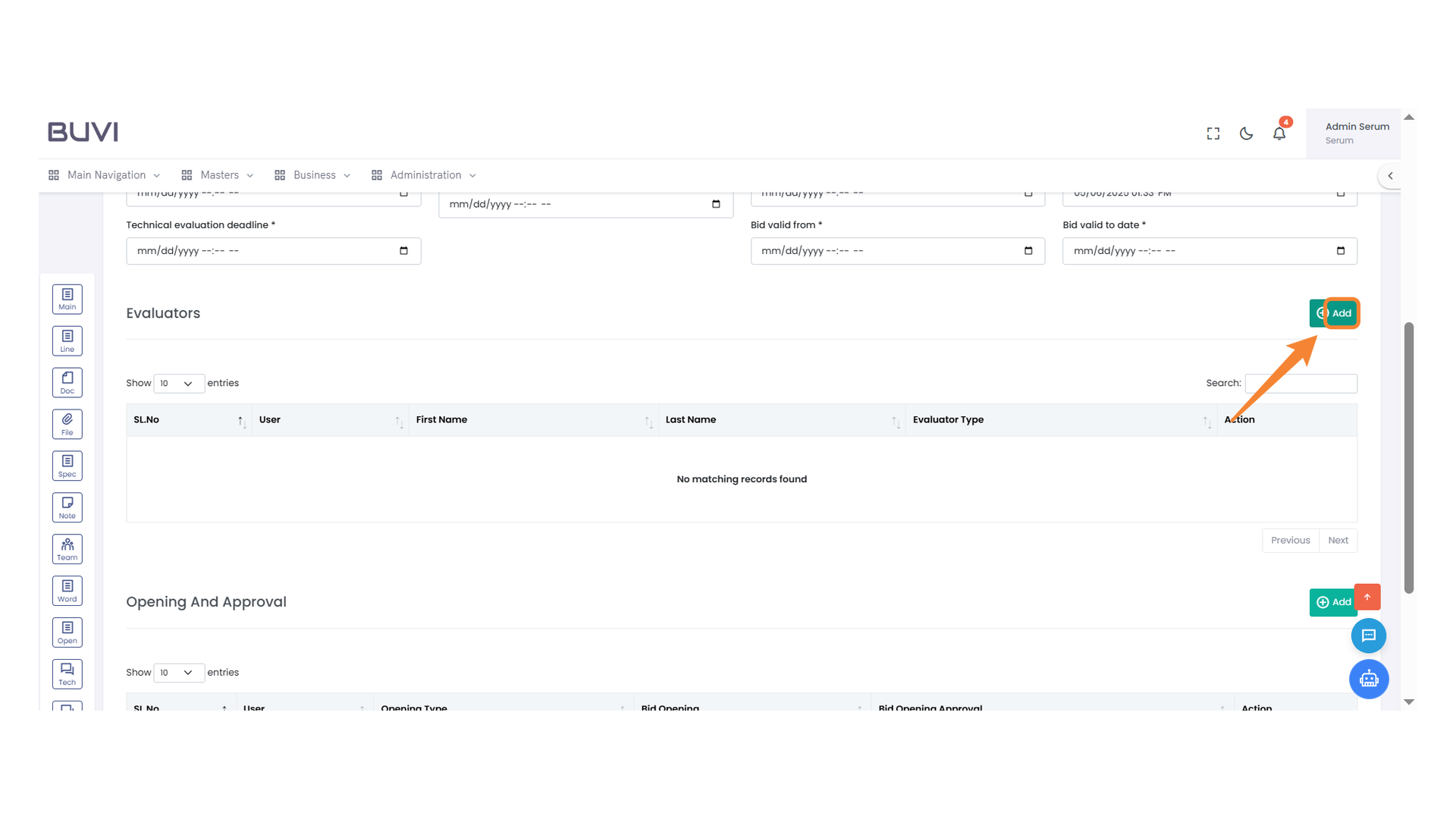
18. Add Button
Click to add a new entry to the list.
19. User Selection Dropdown
Choose a user from the dropdown menu to proceed with the evaluation process.
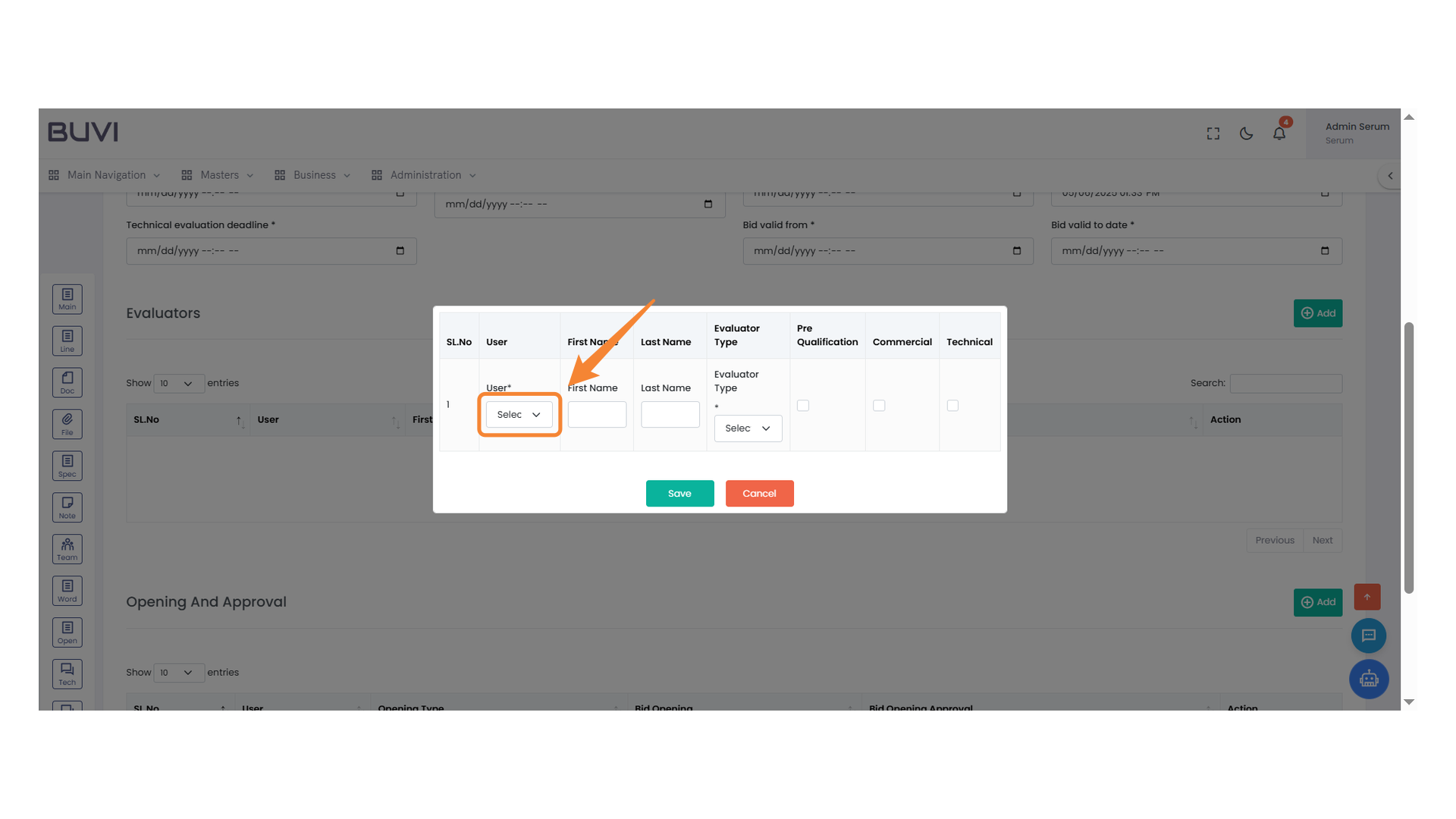
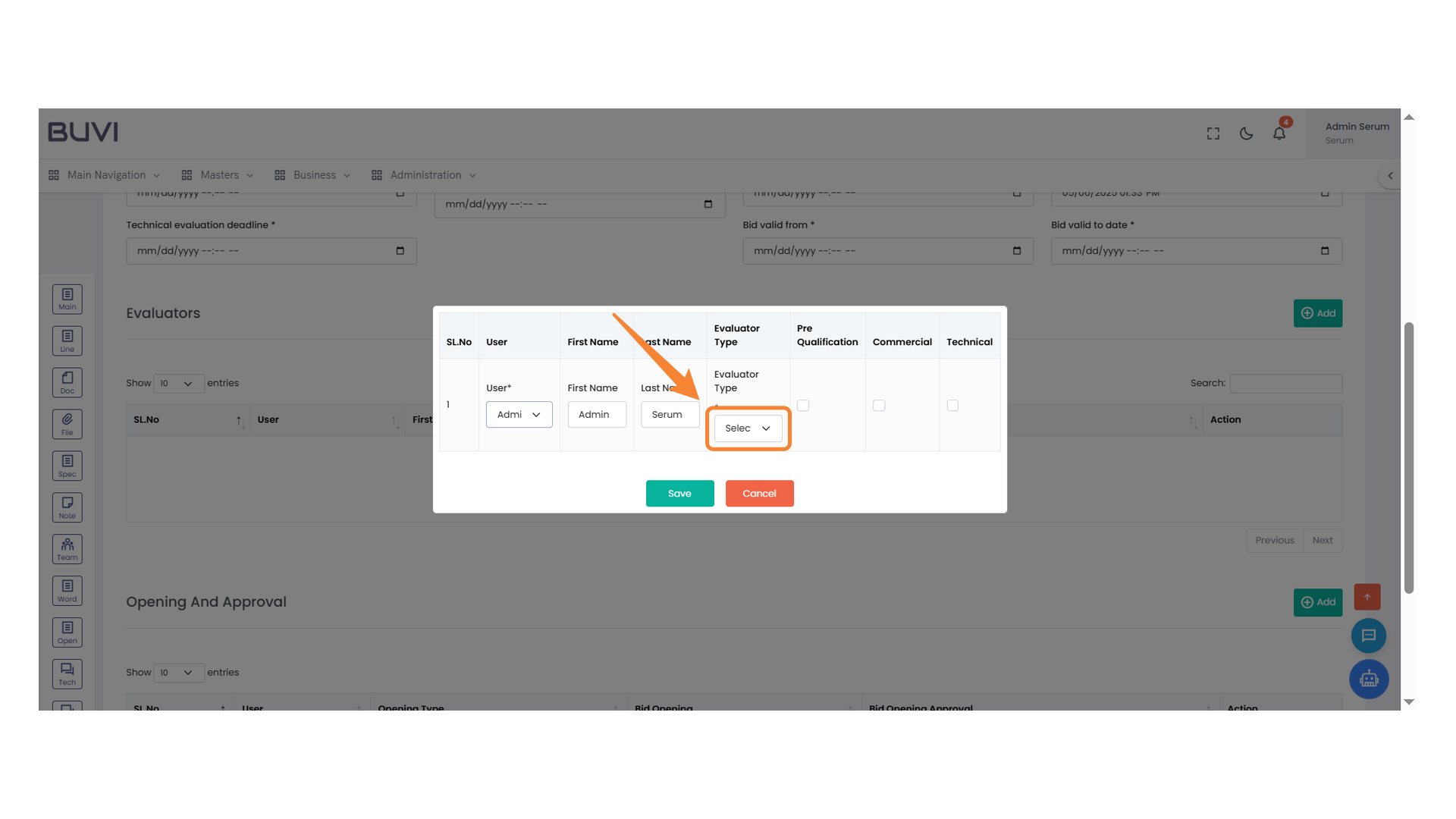
20. Evaluator Type Selection
Choose the appropriate evaluator type from the dropdown menu.
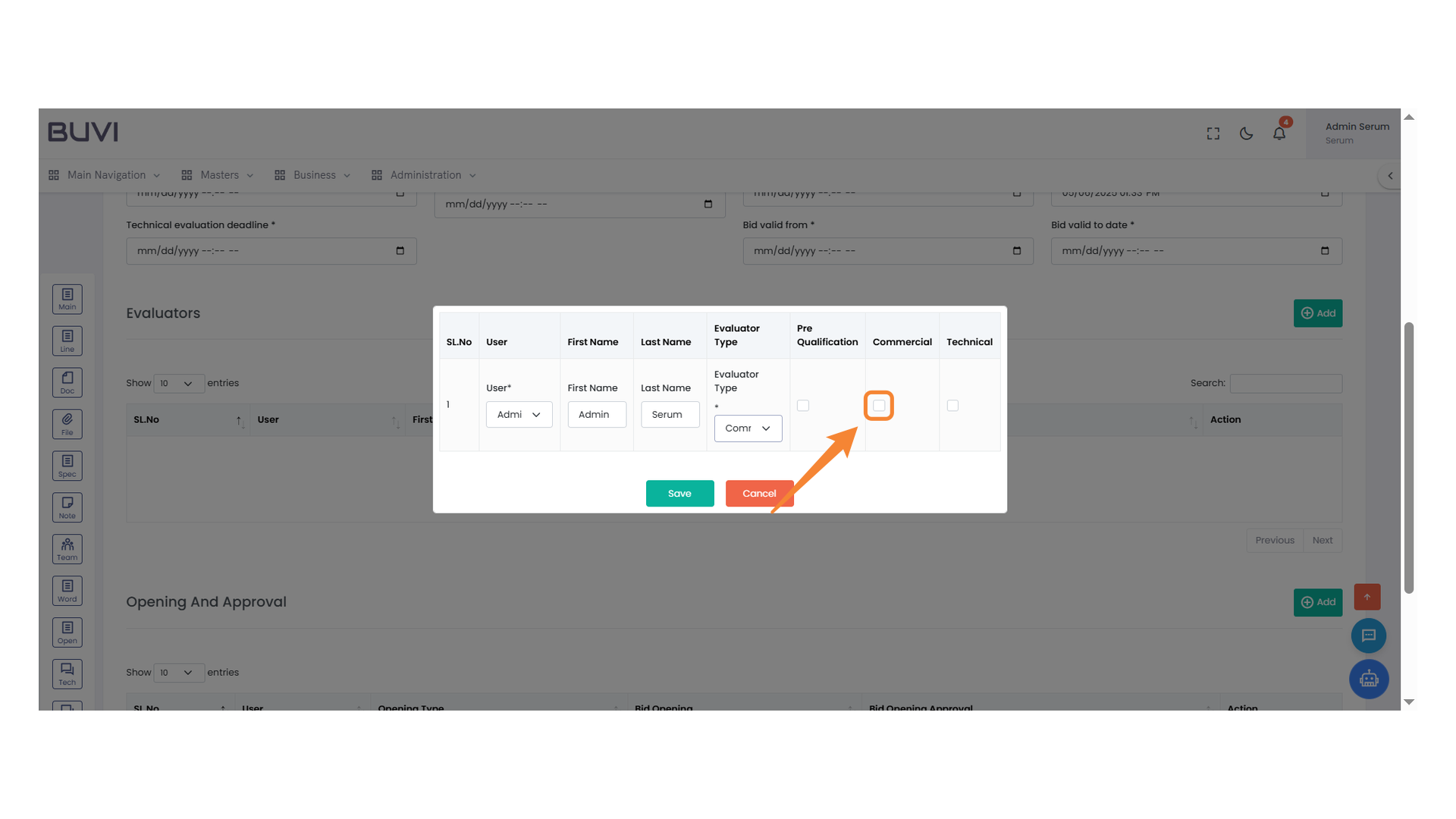
21. Checkbox for Commercial Evaluation
Select this checkbox to include the commercial aspect in the evaluation process.
22. Save Button Interface
Click the button to save your changes.

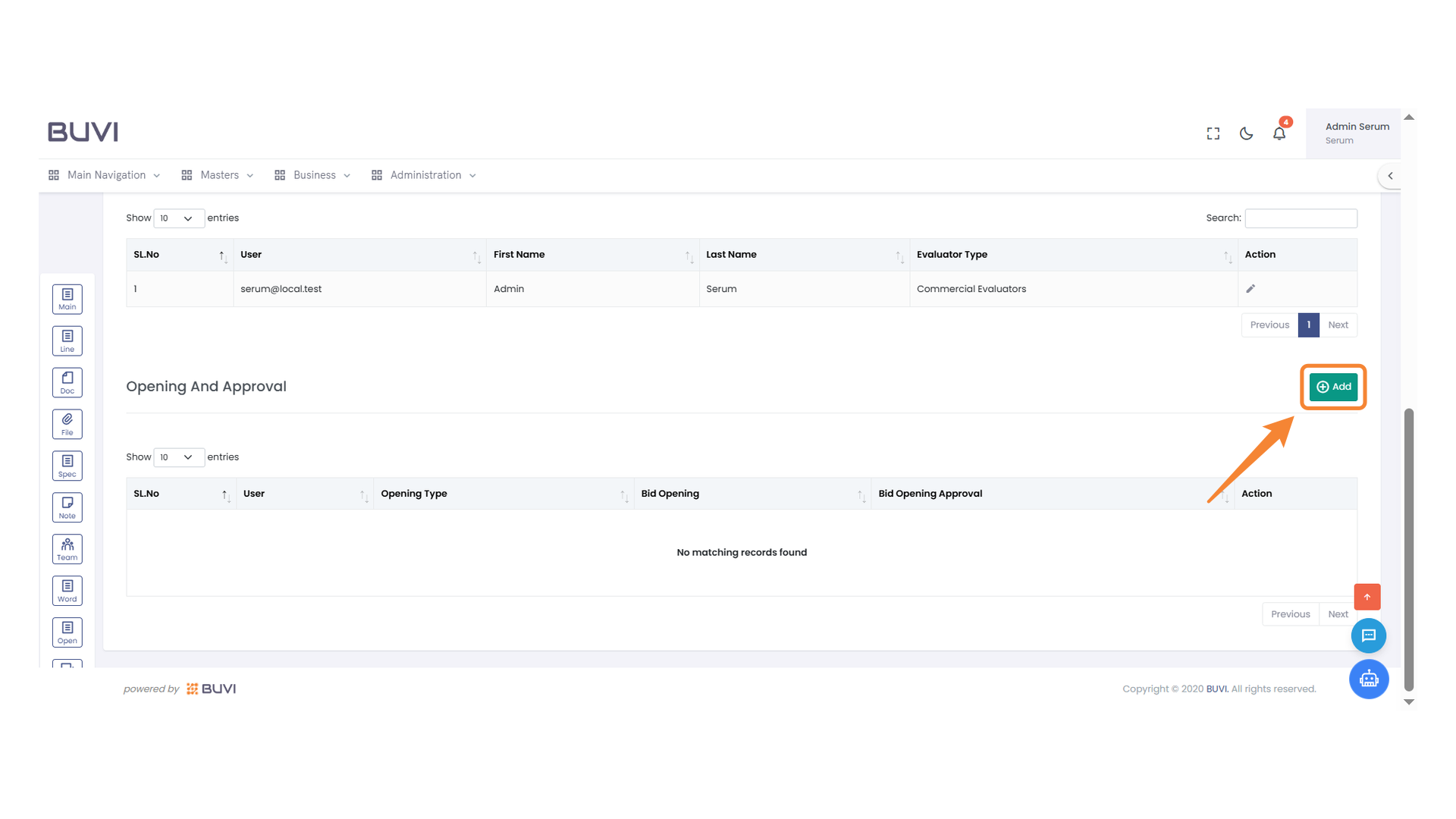
23. Add Button
Click to add a new entry or item to the list.
24. User Selection Dropdown
Choose a user from the dropdown menu to proceed.
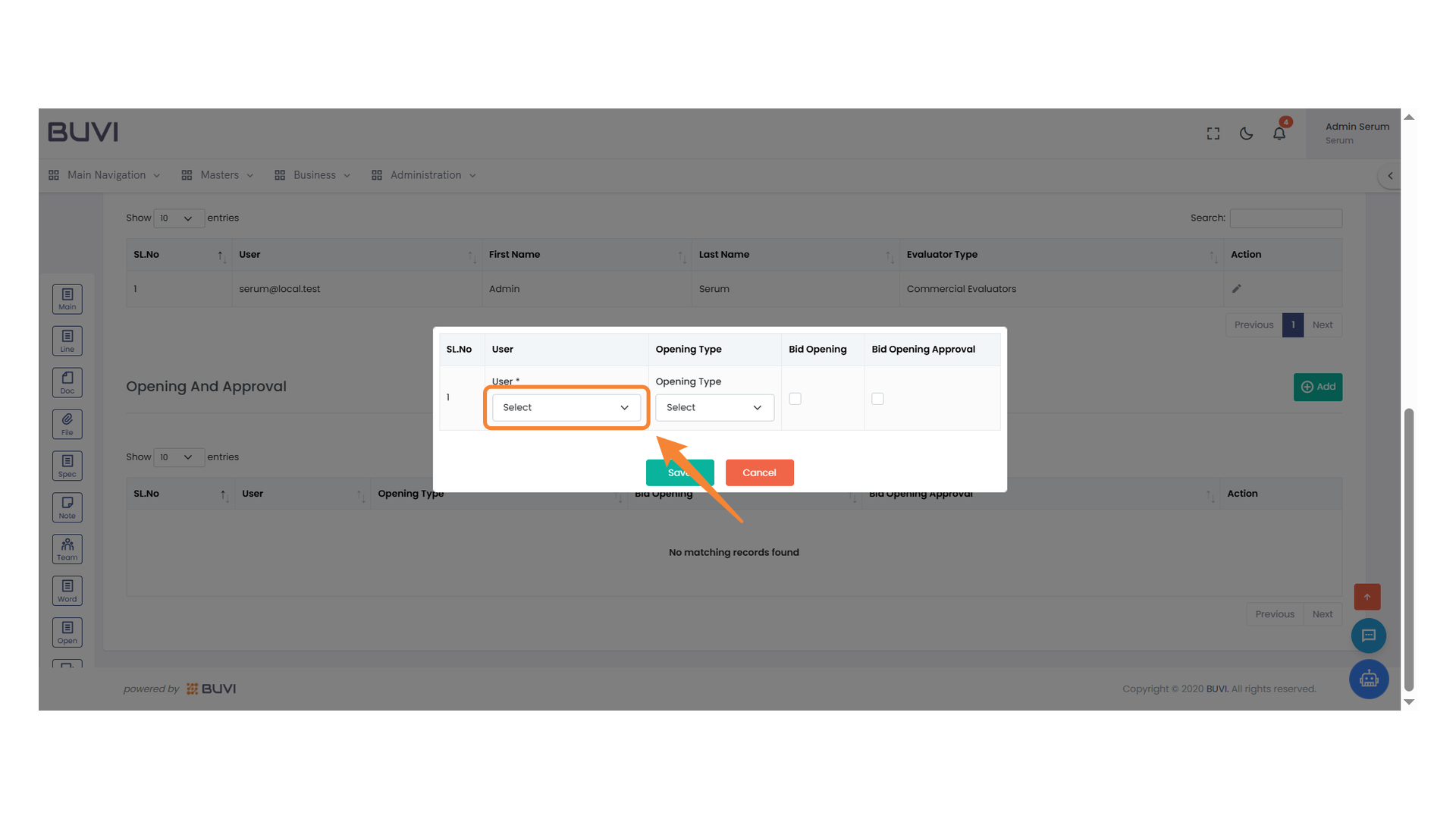
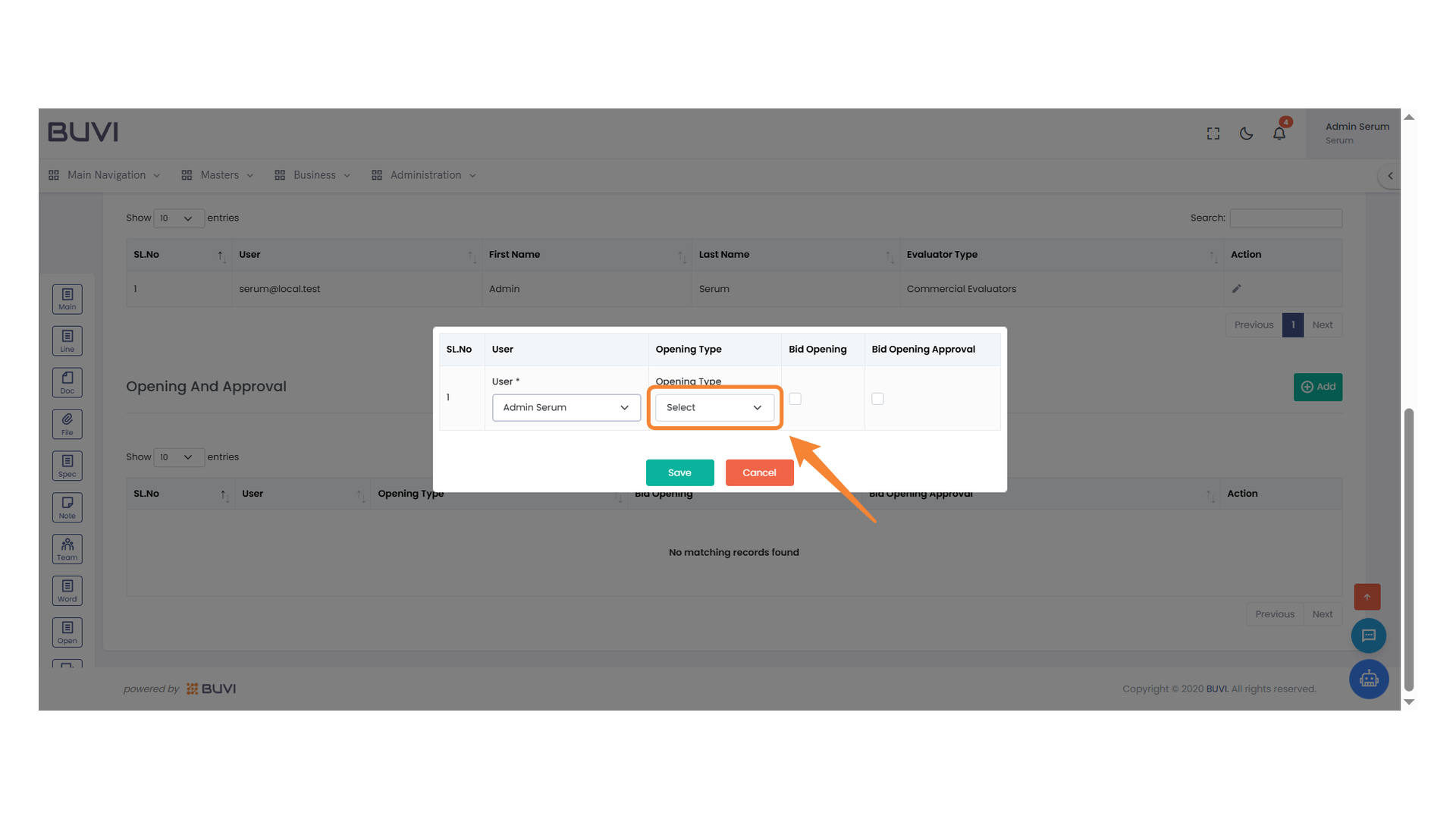
25. Dropdown Selection
Choose the appropriate option from the dropdown menu.
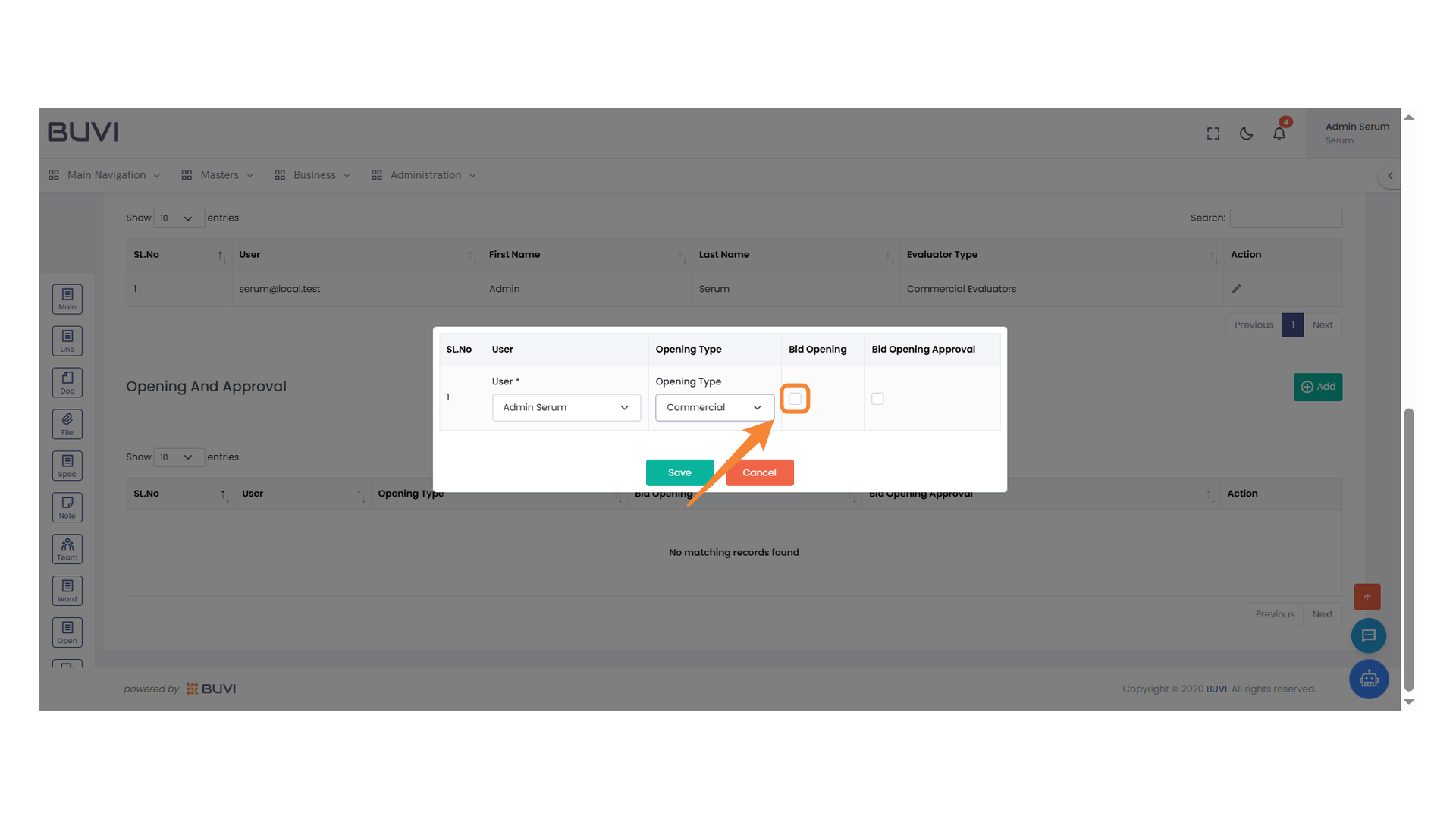
26. Bid Opening Checkbox
Select the checkbox to indicate bid opening status.
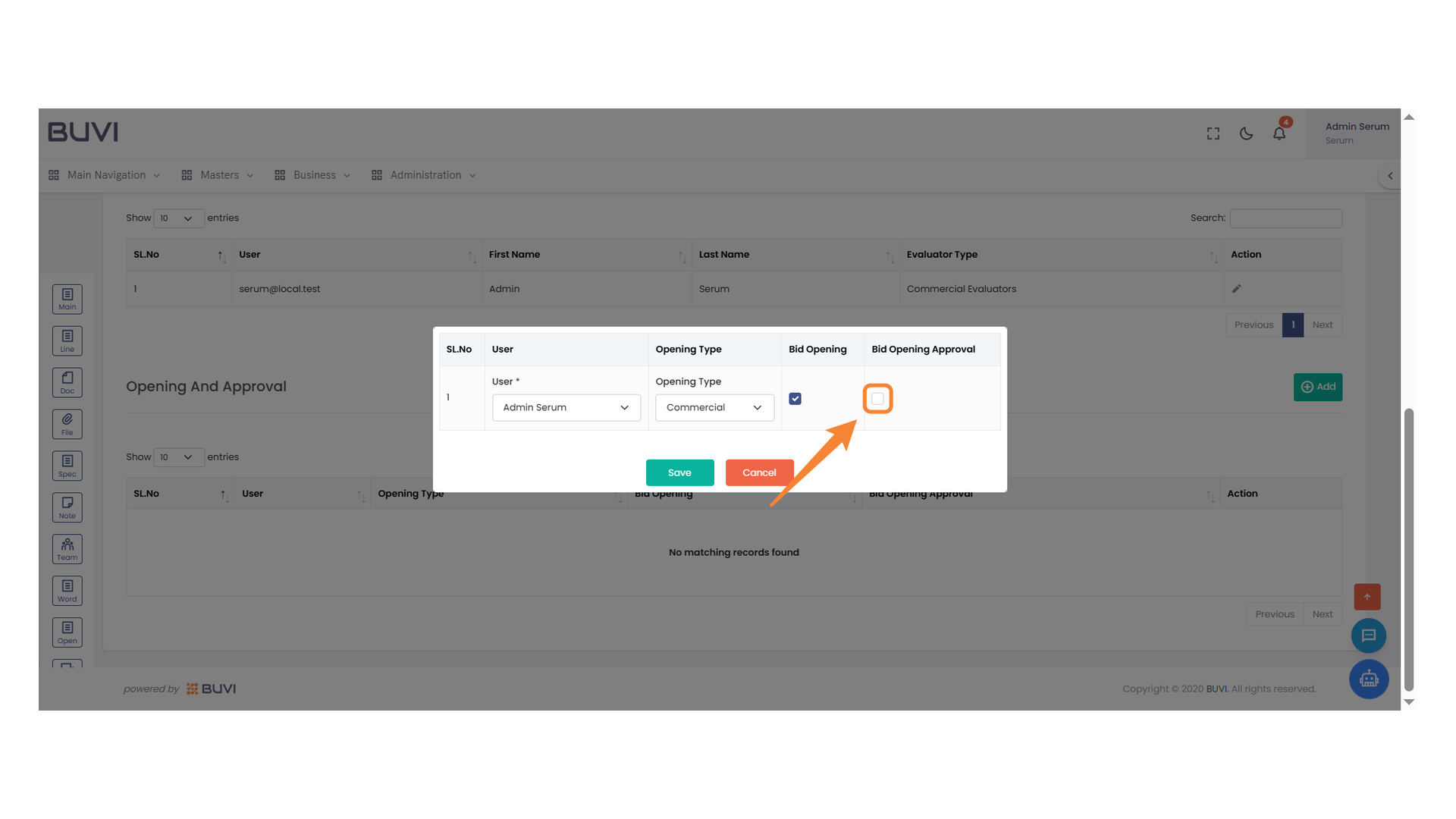
27. Bid Opening Approval Checkbox
Check this box to approve the bid opening process.
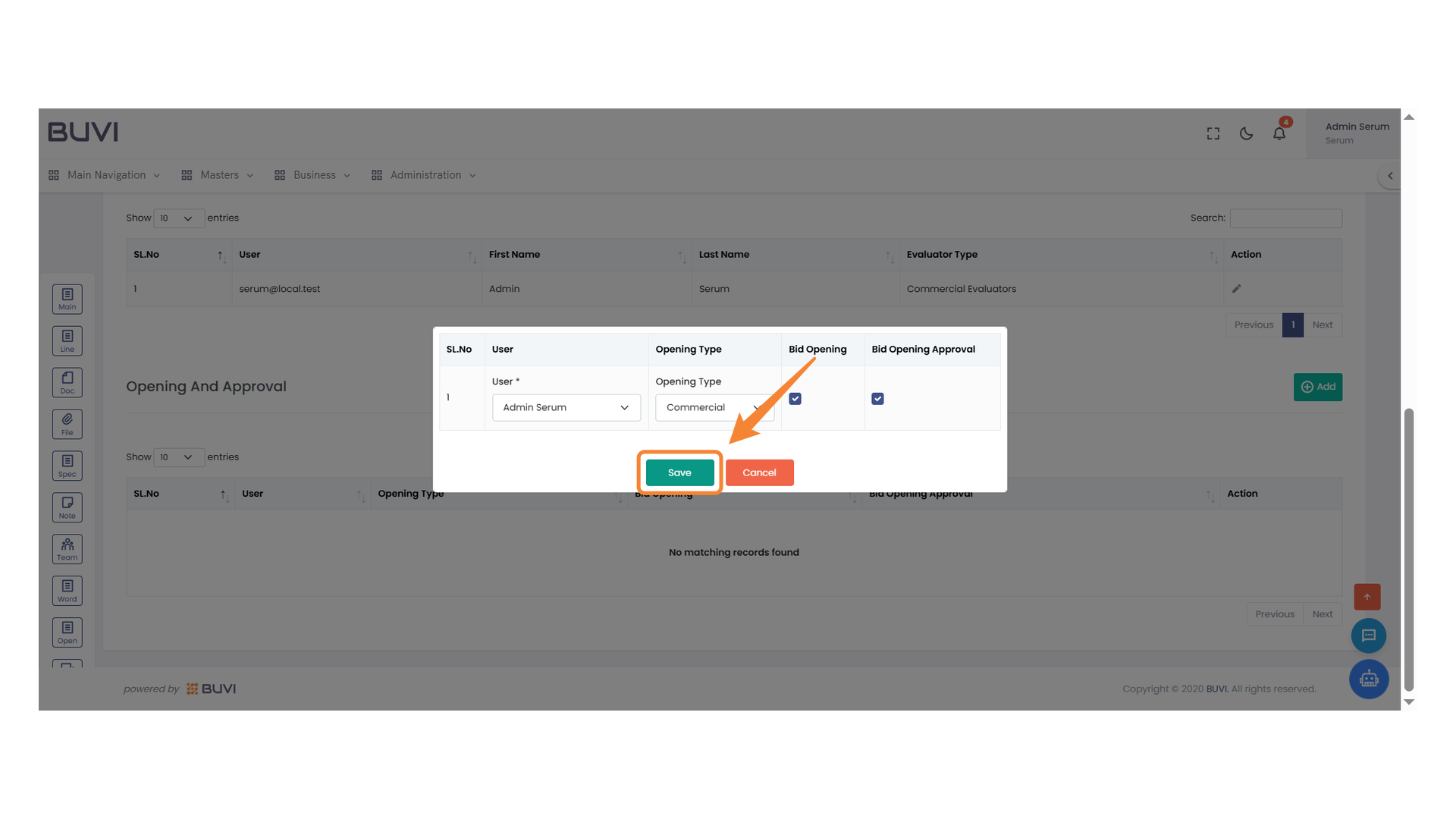
28. Save Button
Click to confirm and save your changes.
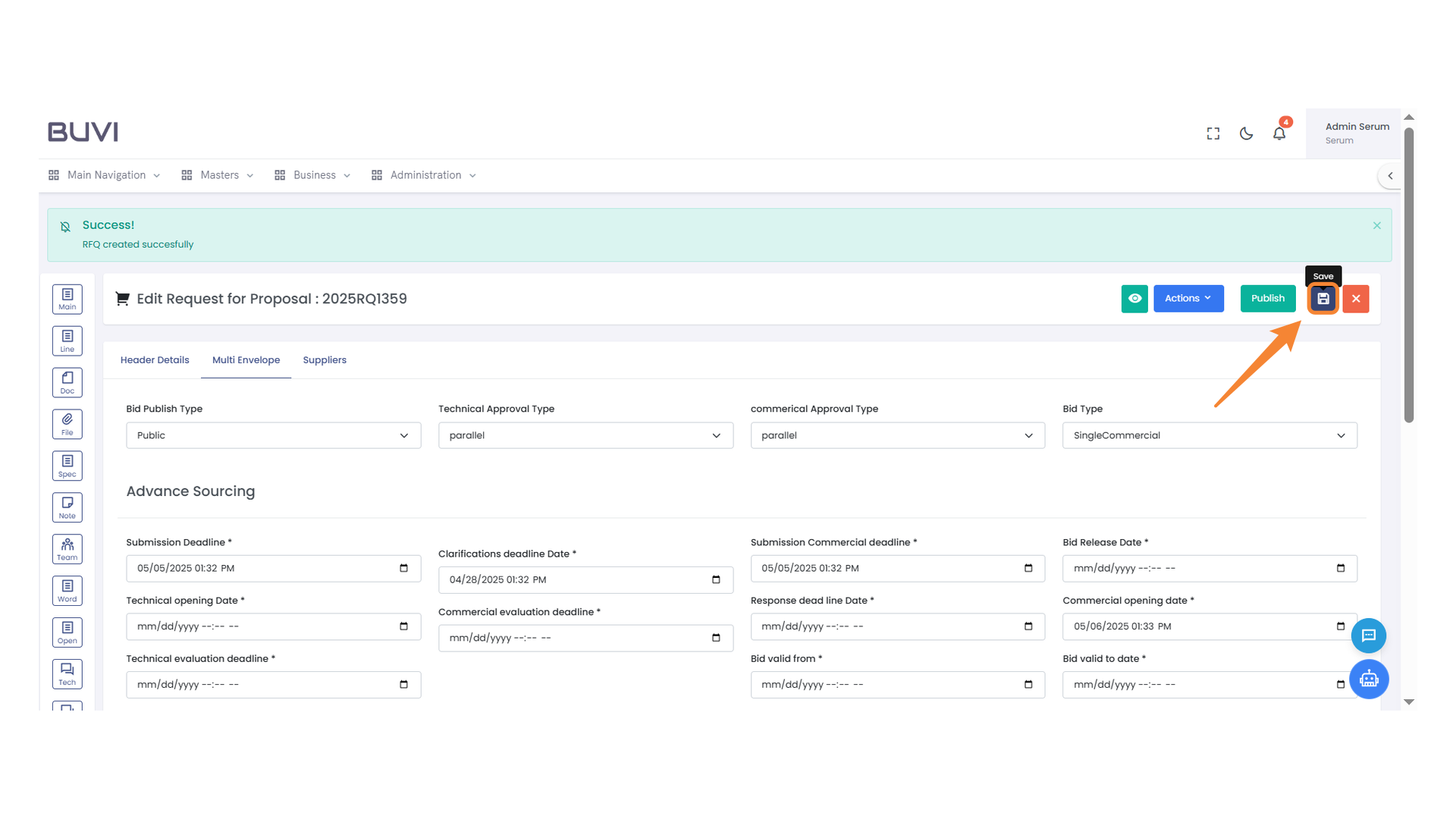
29. Save Changes Button
Click to save any modifications made to the proposal.
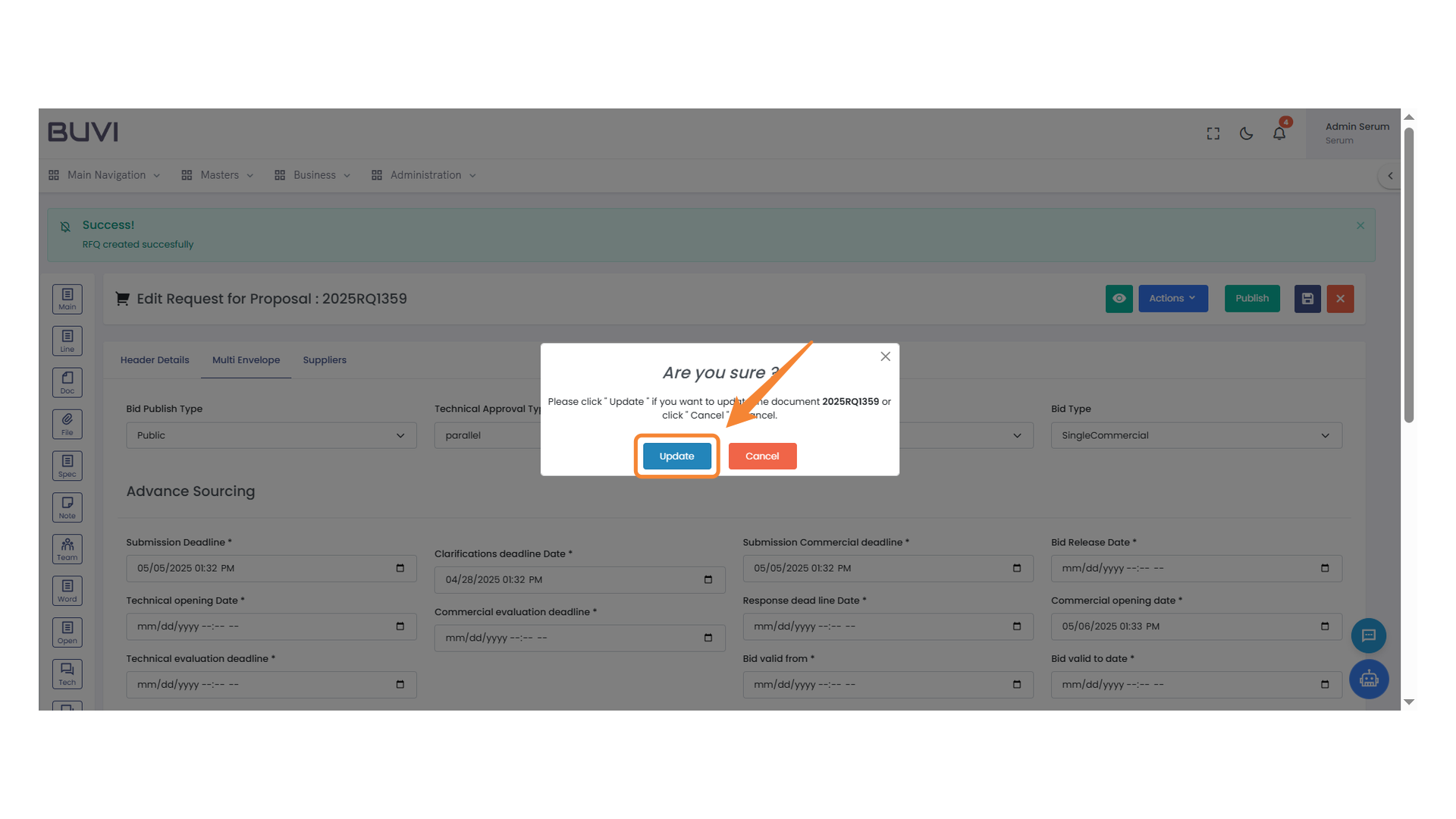
30. Confirmation Dialog
Press 'Update' to proceed with the changes or choose 'Cancel' to abort.
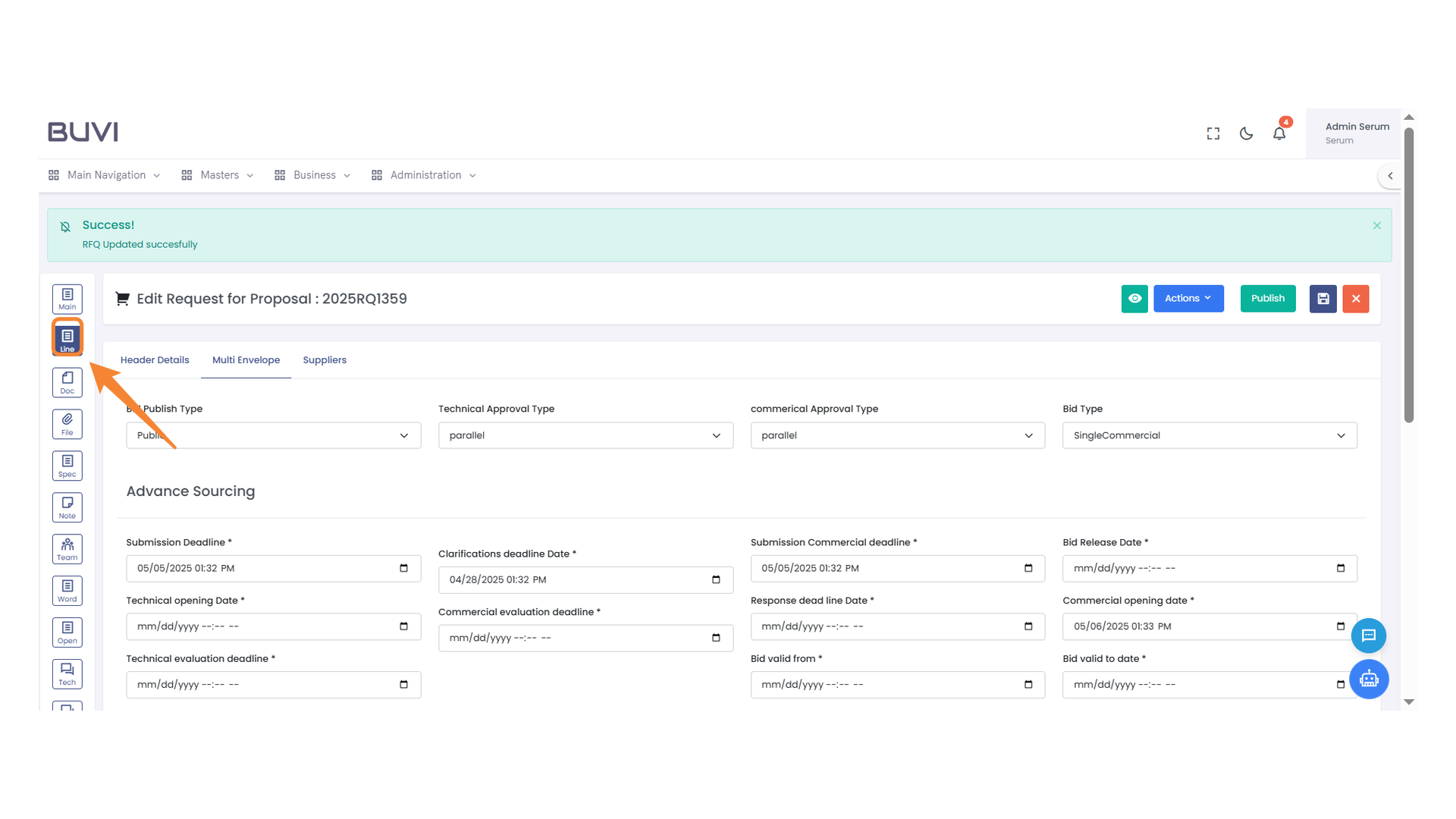
31. Line Section
Access the line details by clicking this section.
32. Add New Line Item Button
Click this button to add a new line item to the list.
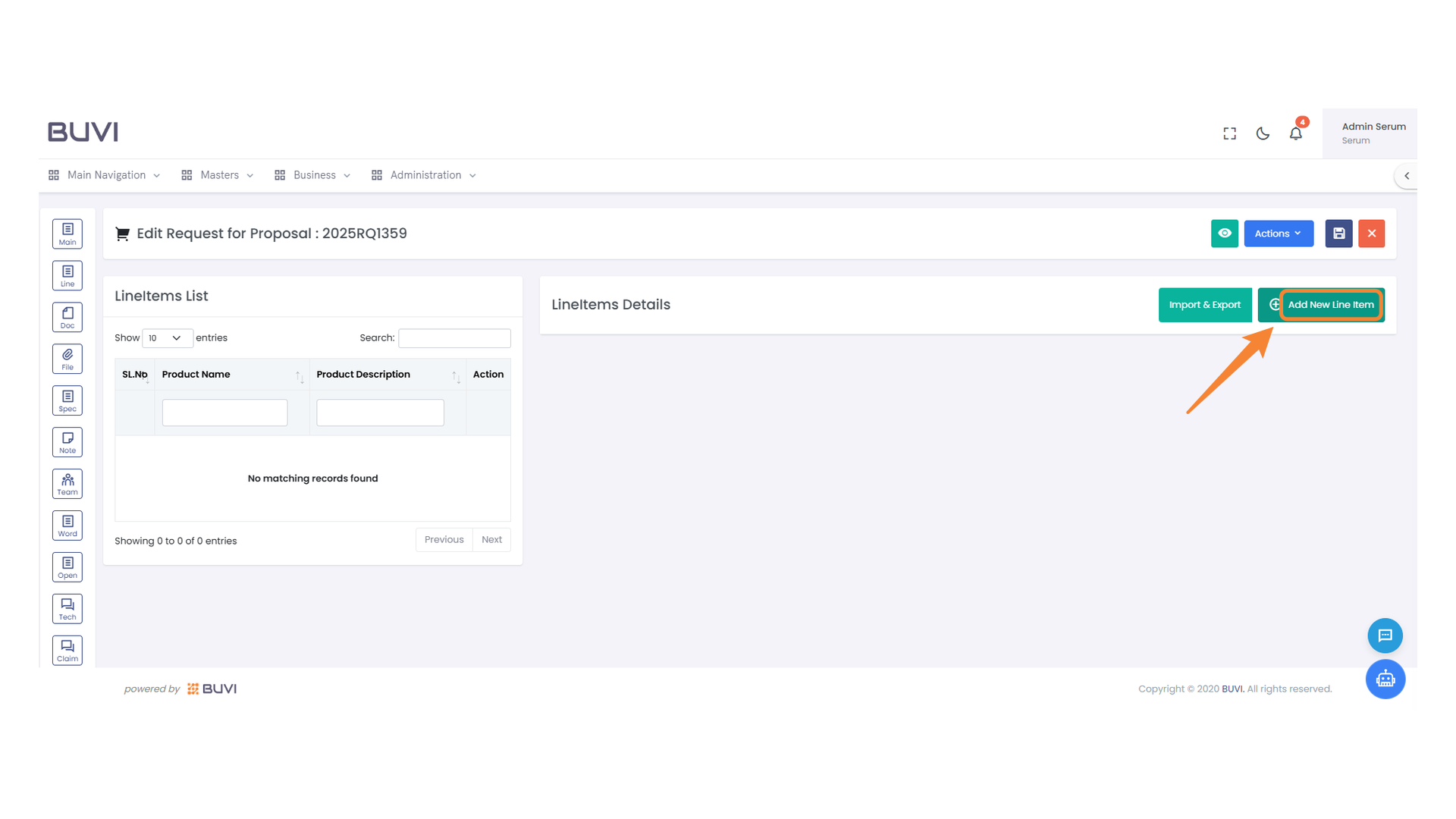
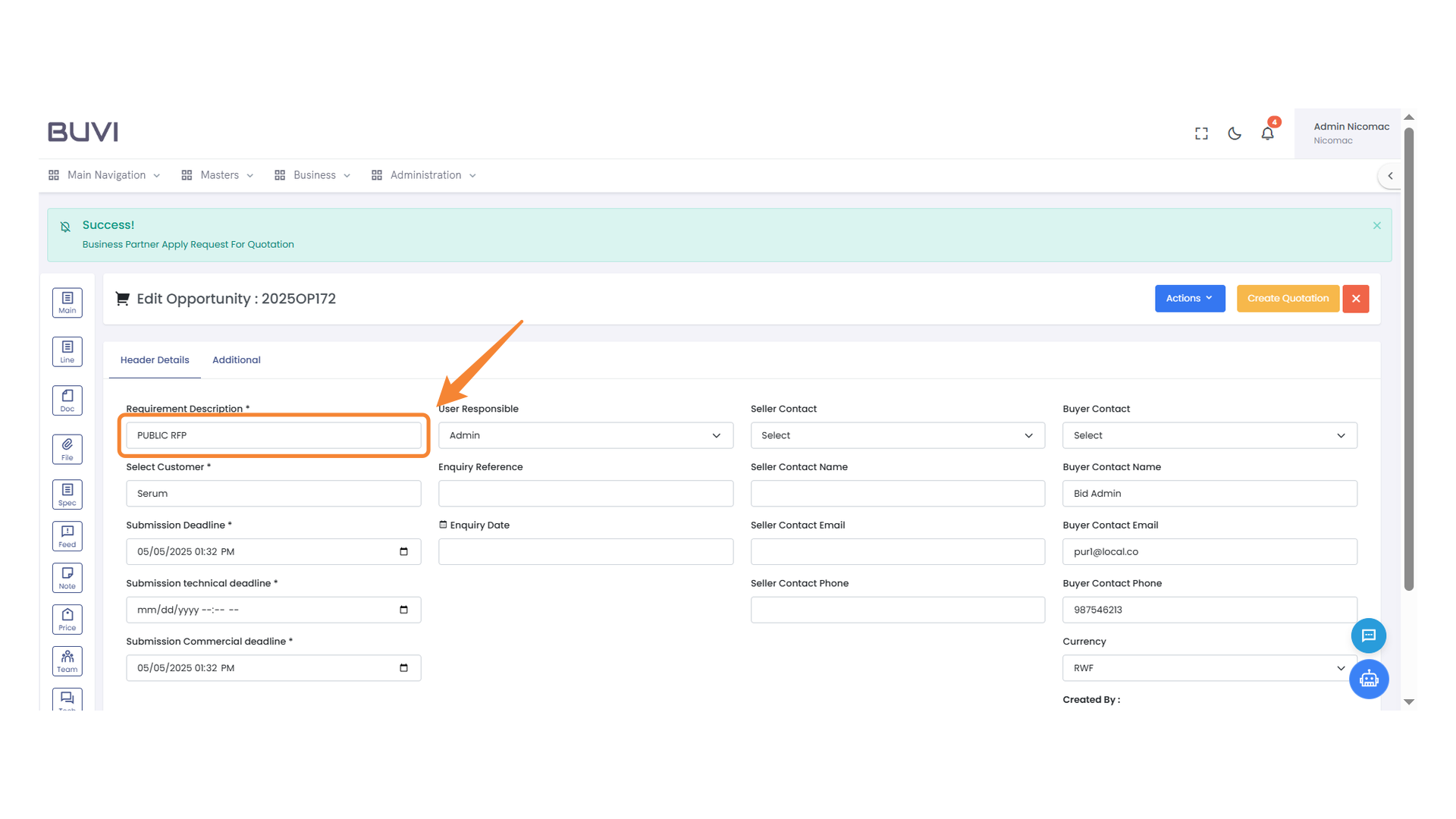
33. Name Field Input
Enter the item name in this field to proceed with the proposal.
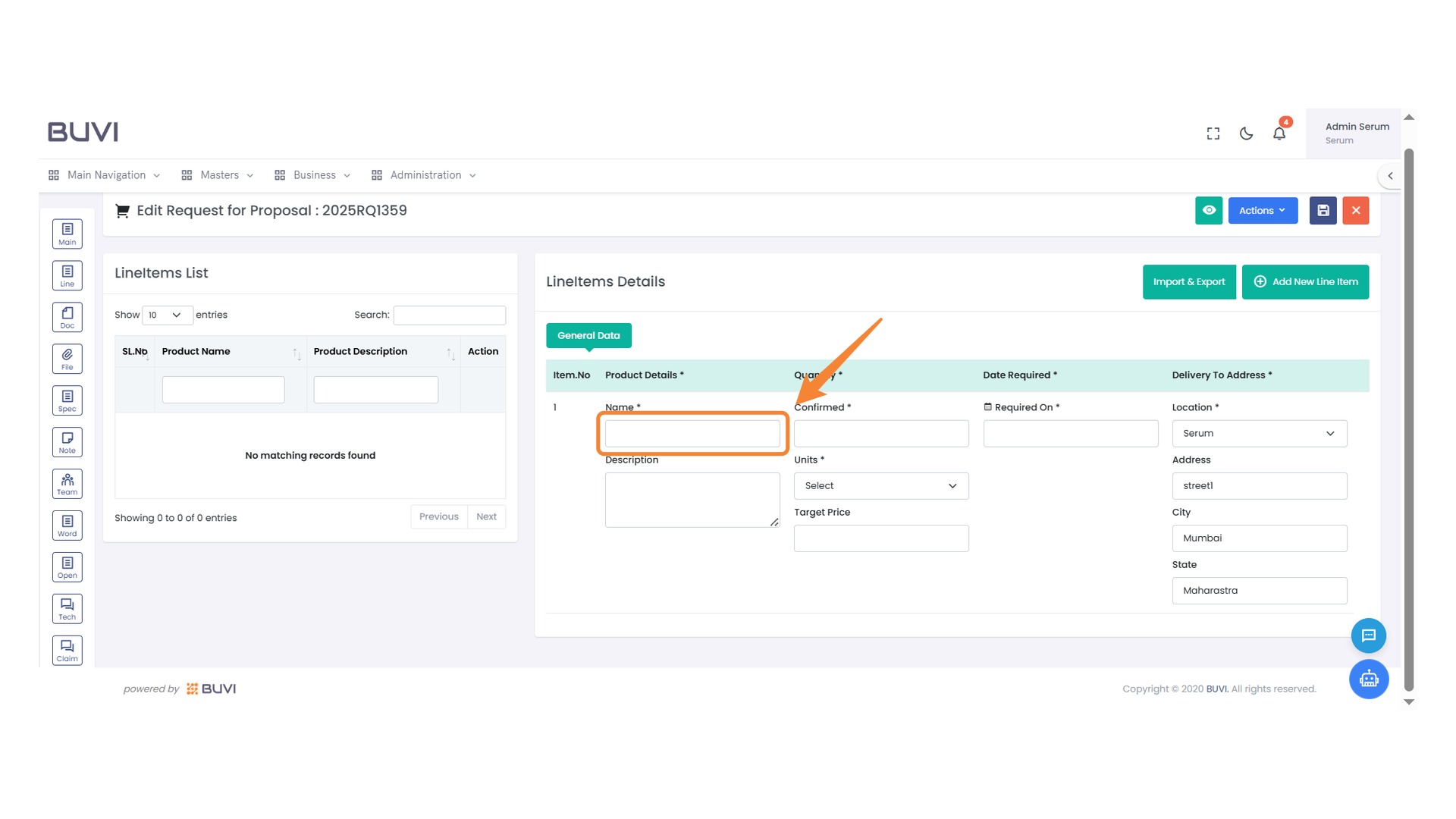
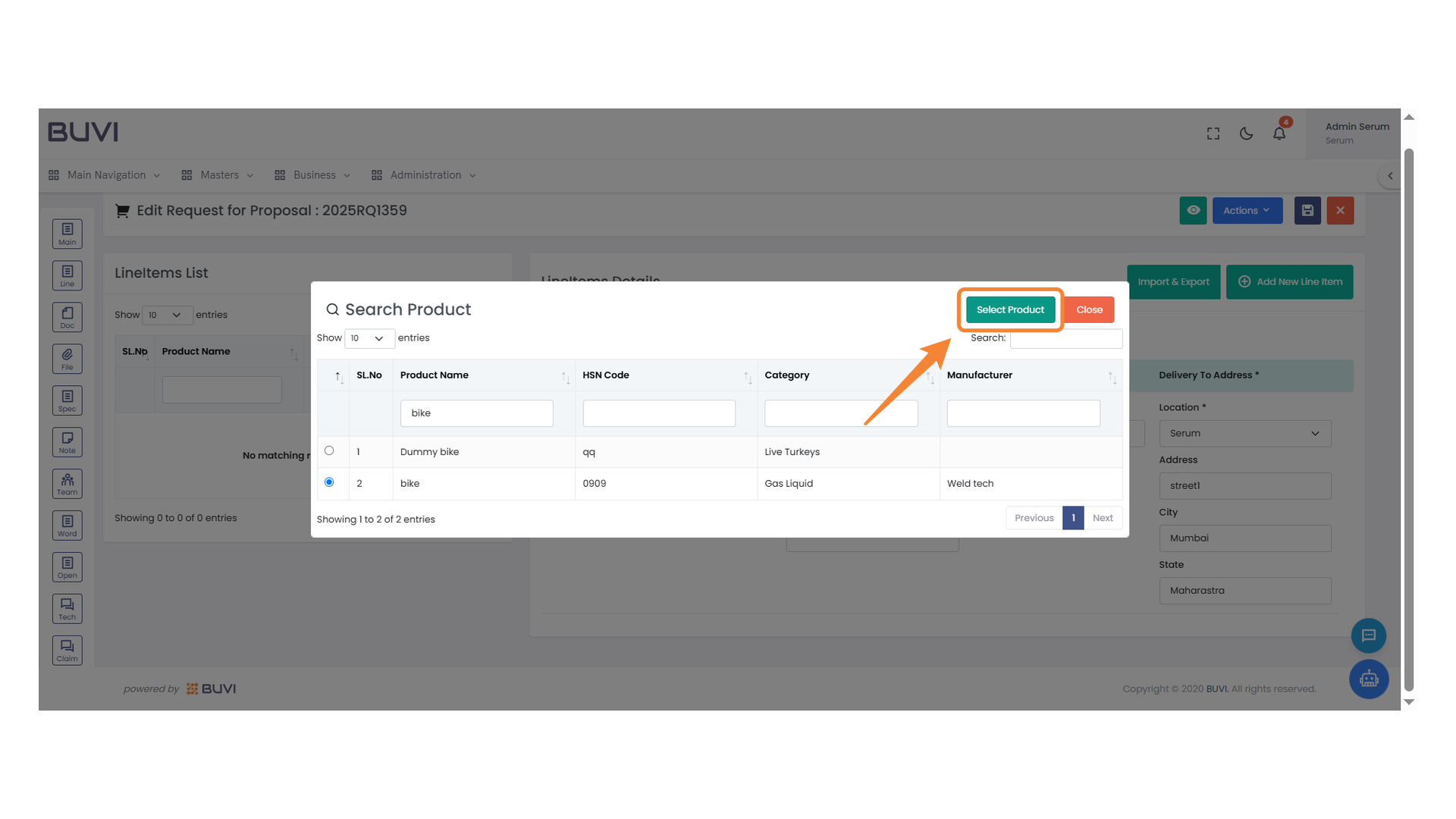
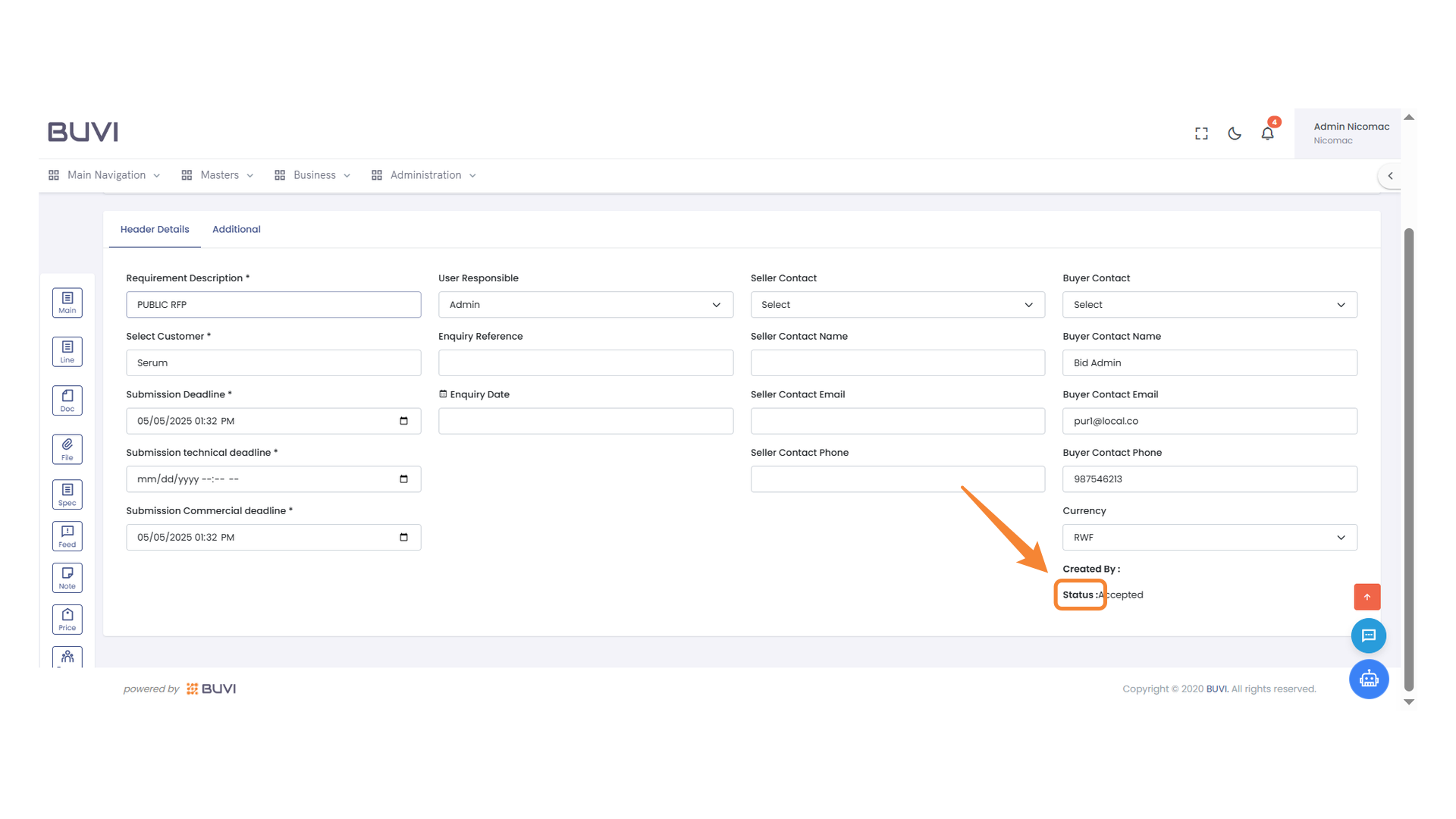
34. Product Name Input Field
Enter the name of the product you wish to search for.
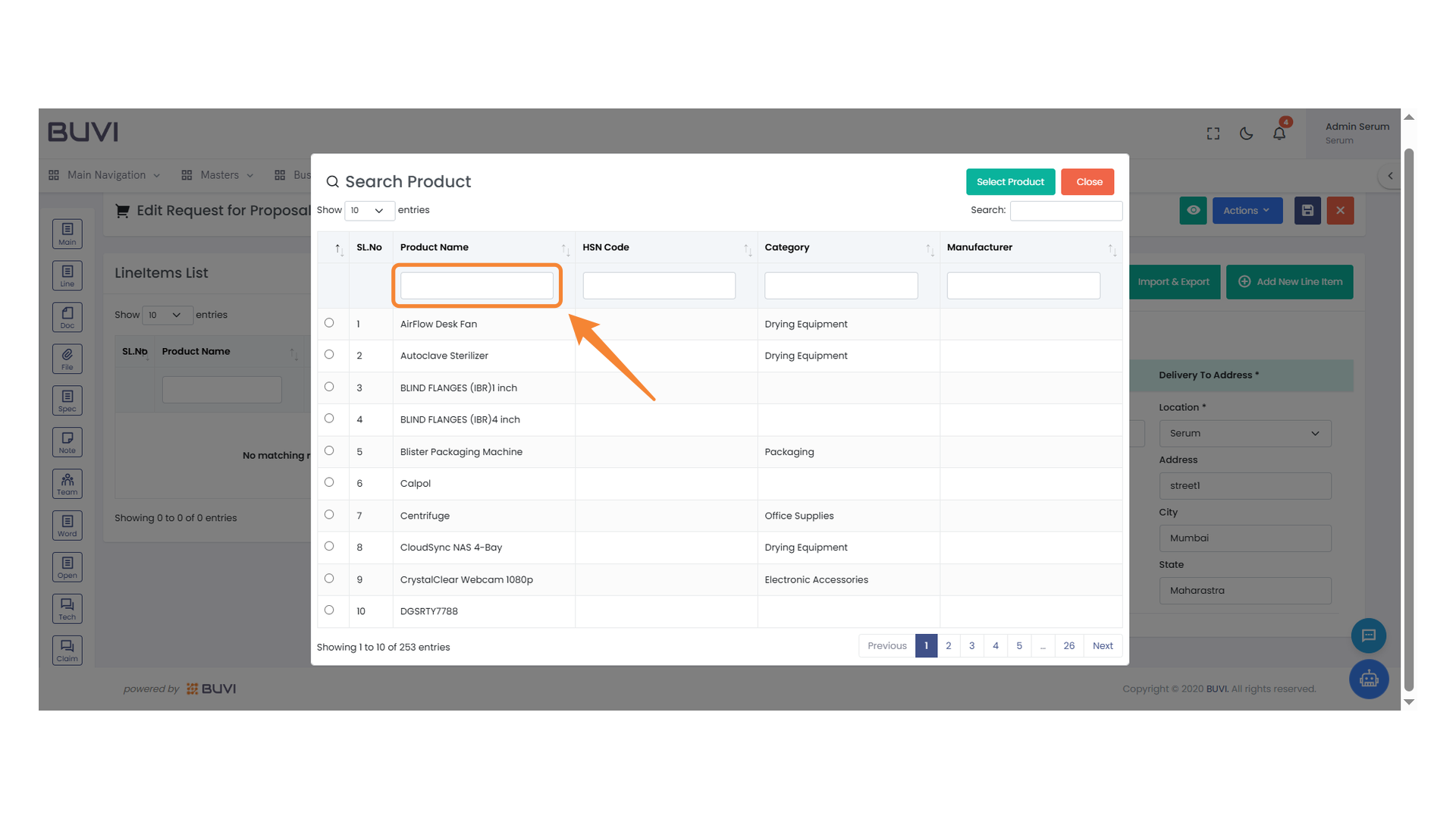
35. Select Product Row
Click the radio button to select this product row for further actions.
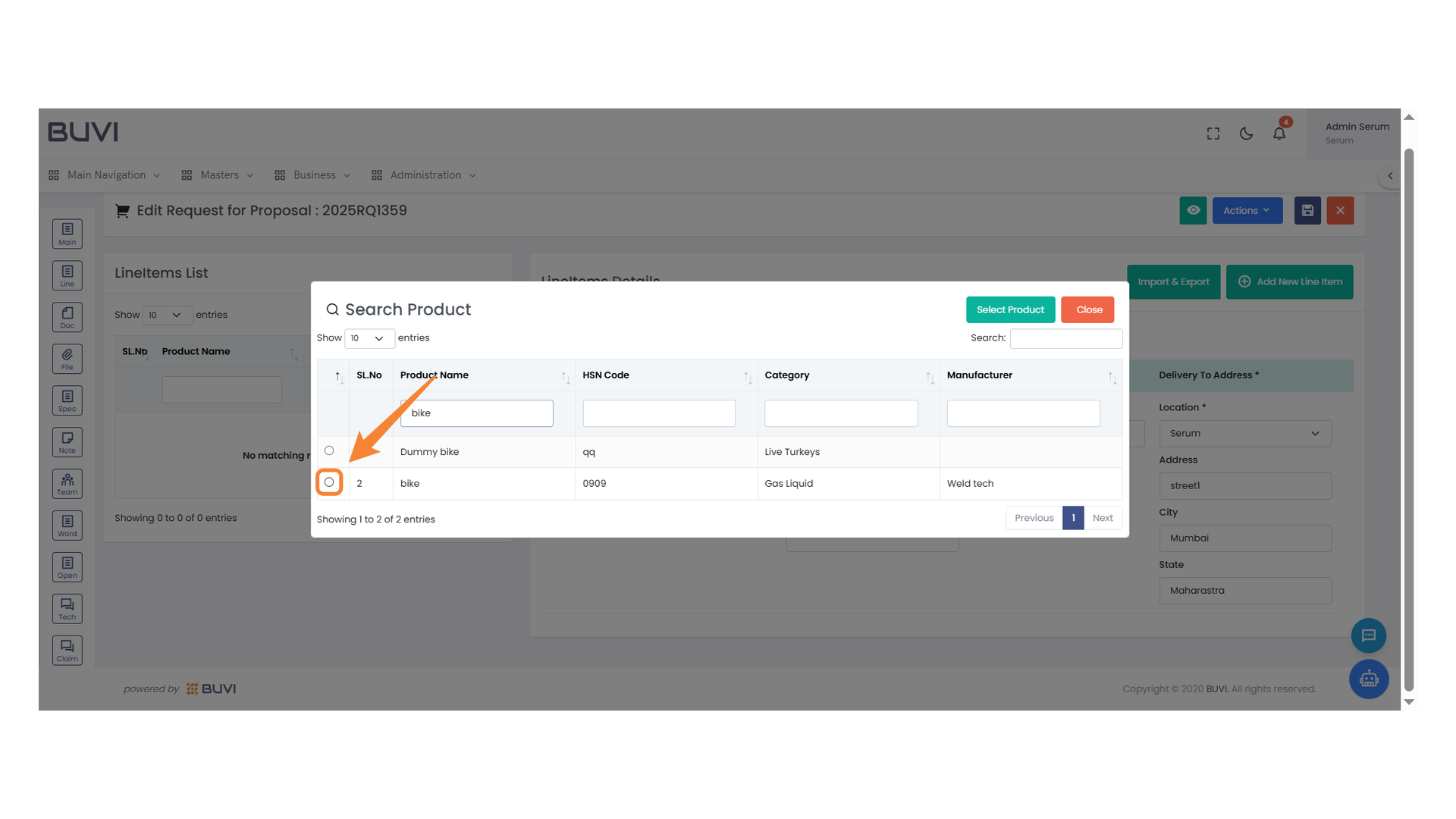
36. Select Product
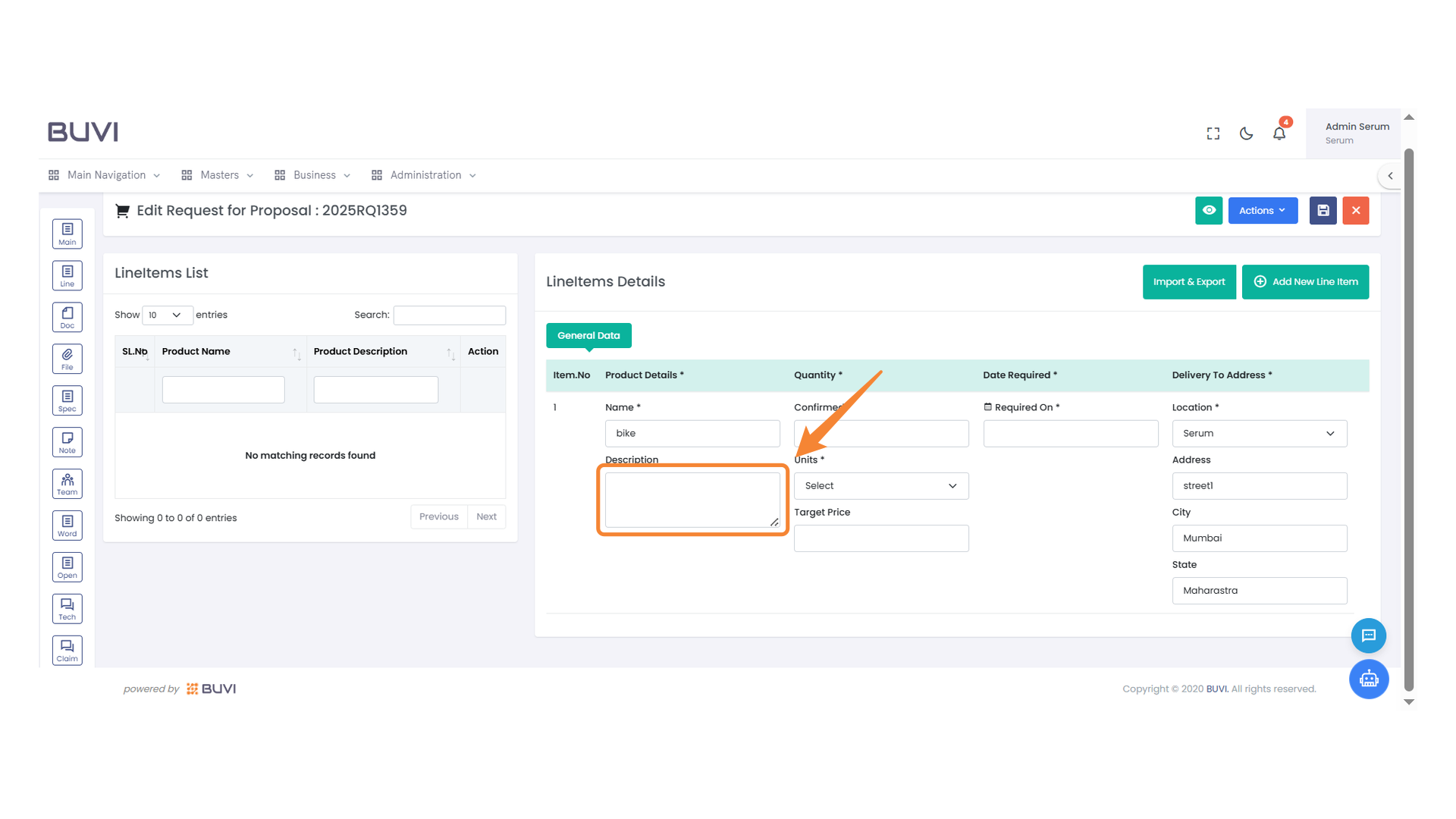
37. Product Description Input
Enter the detailed description of the product to provide more information.
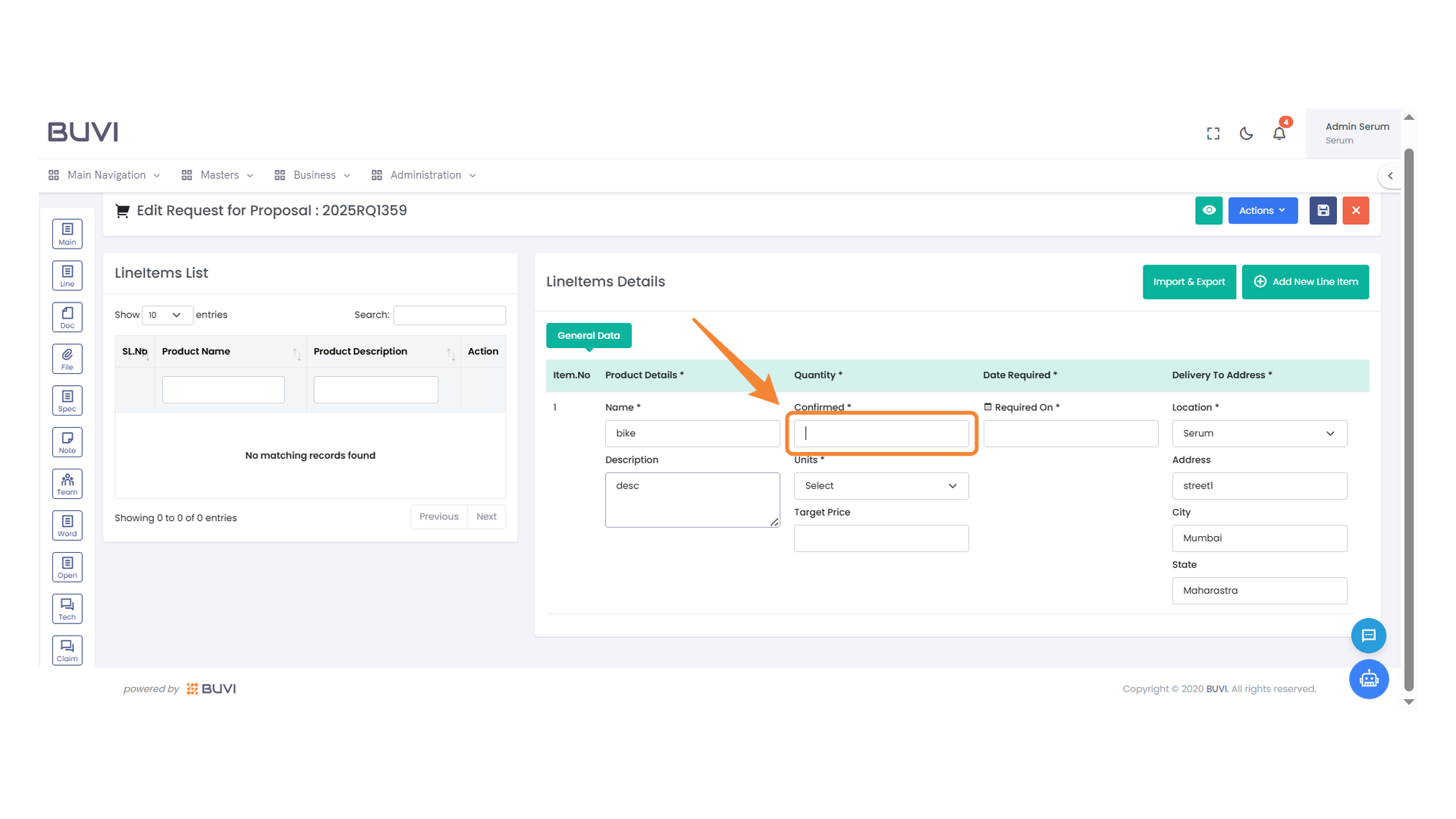
38. Confirmation Field
Enter the confirmation status for the item.
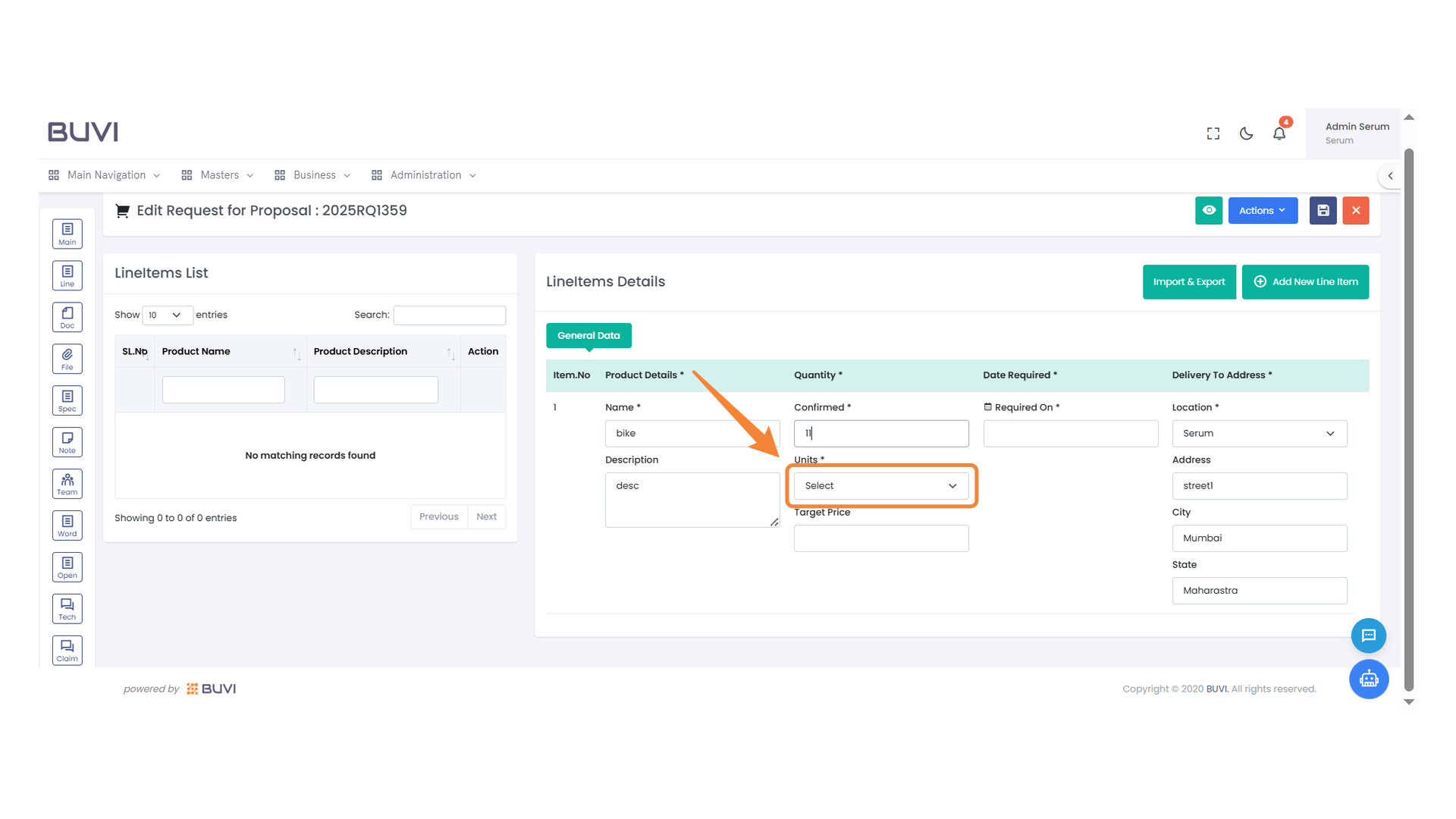
39. Unit Selection Dropdown
Choose the appropriate unit from the dropdown menu for the item.
40. Target Price Entry Field
Enter the desired target price for the item in this field.
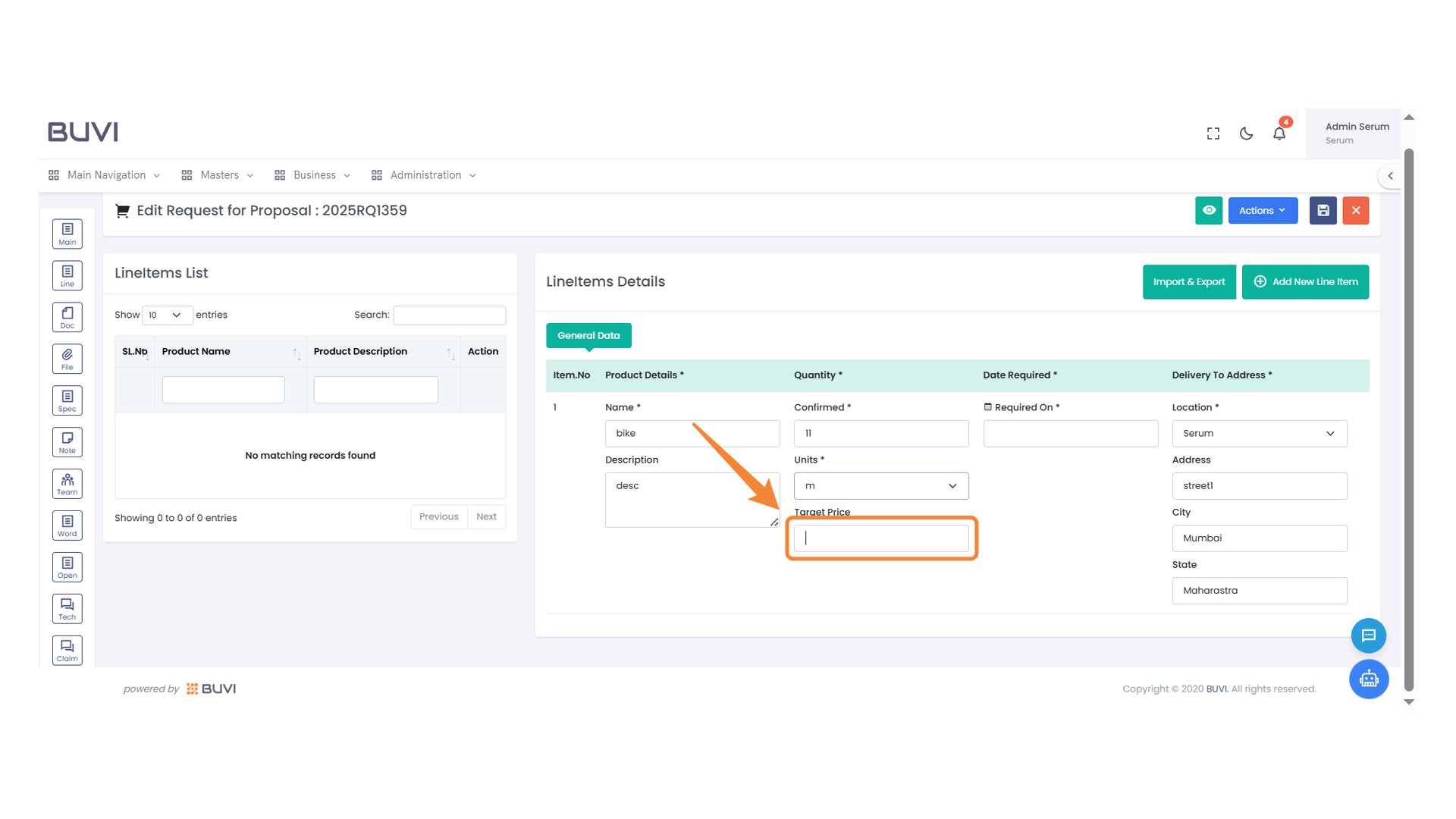
41. Date Field for Requirement
Enter the date when the item is needed by clicking on the calendar icon.
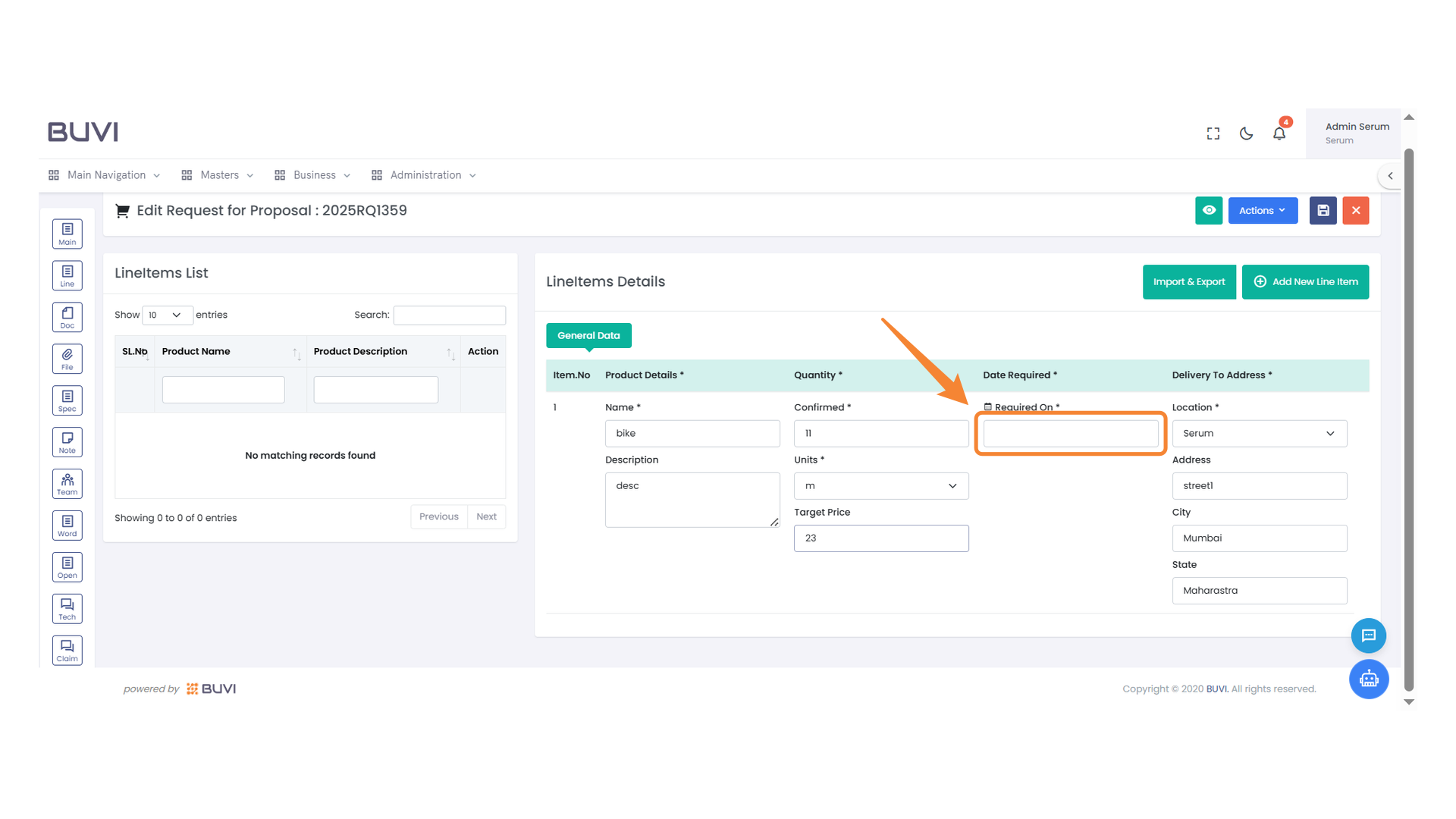
42. Date Selection
Select the fifth day of May 2025 from the calendar.
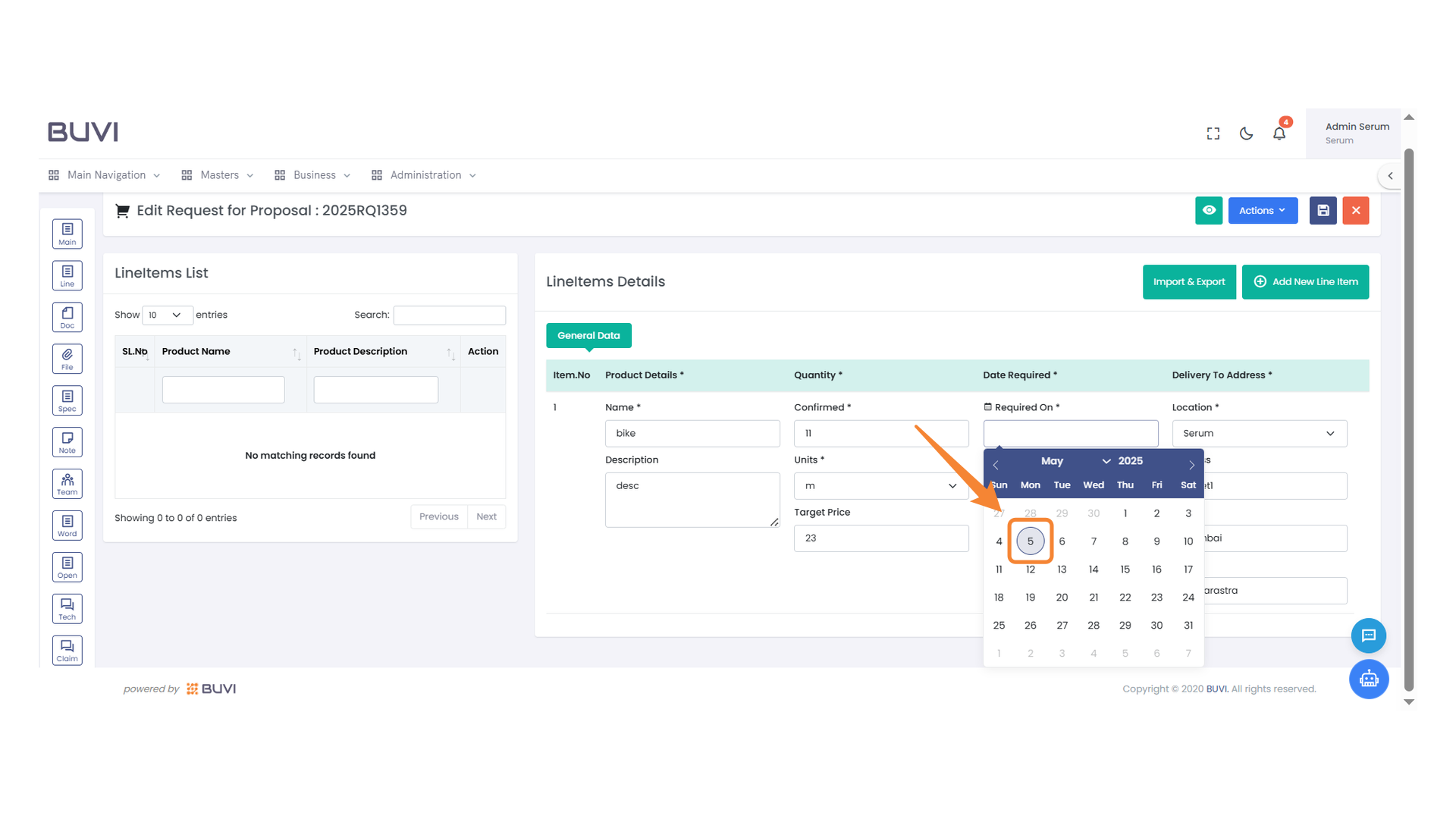
43. Save Button
Click to save your current progress on the form.
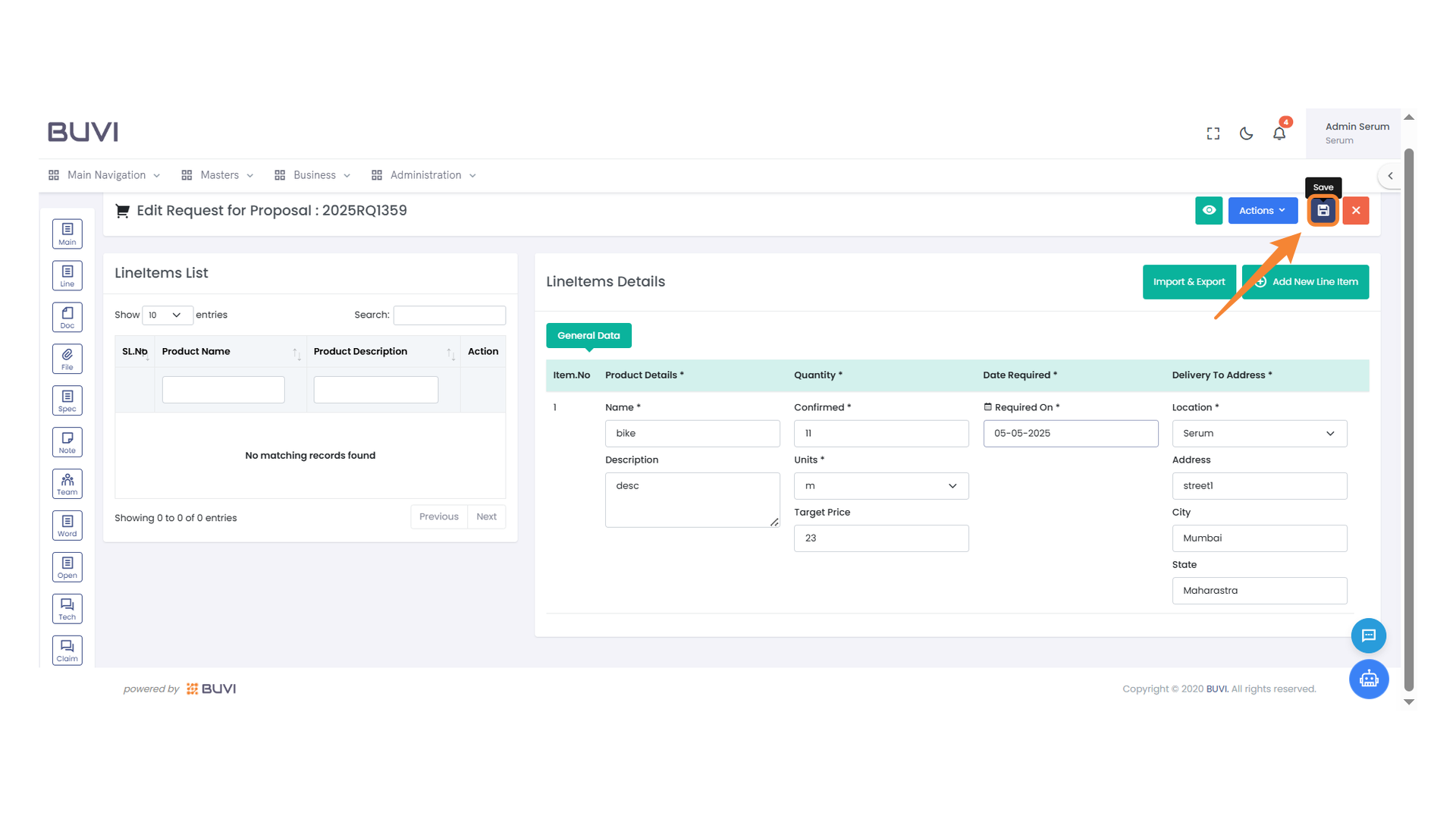
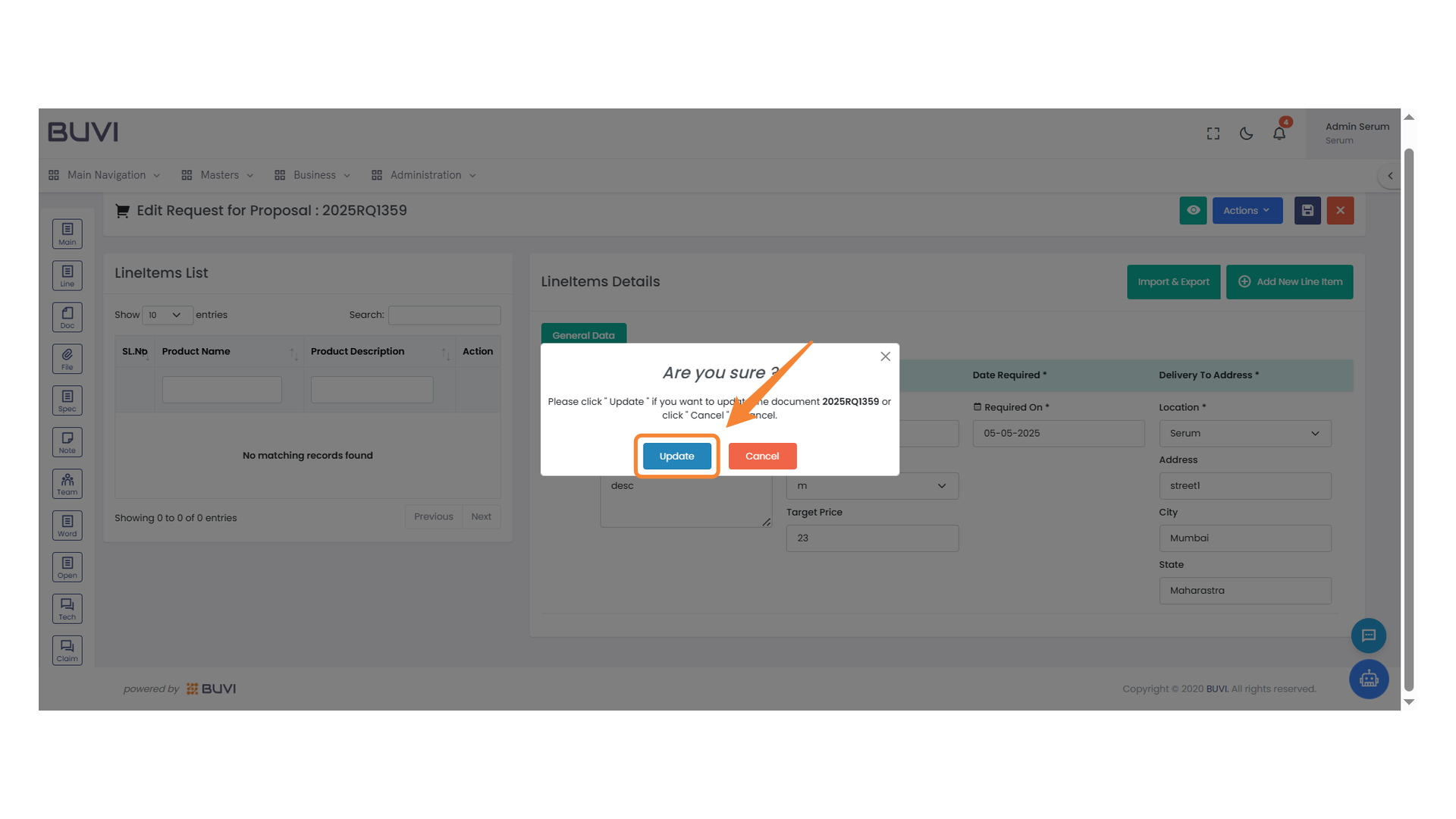
44. Confirmation Prompt
Click 'Update' to confirm changes to the document.
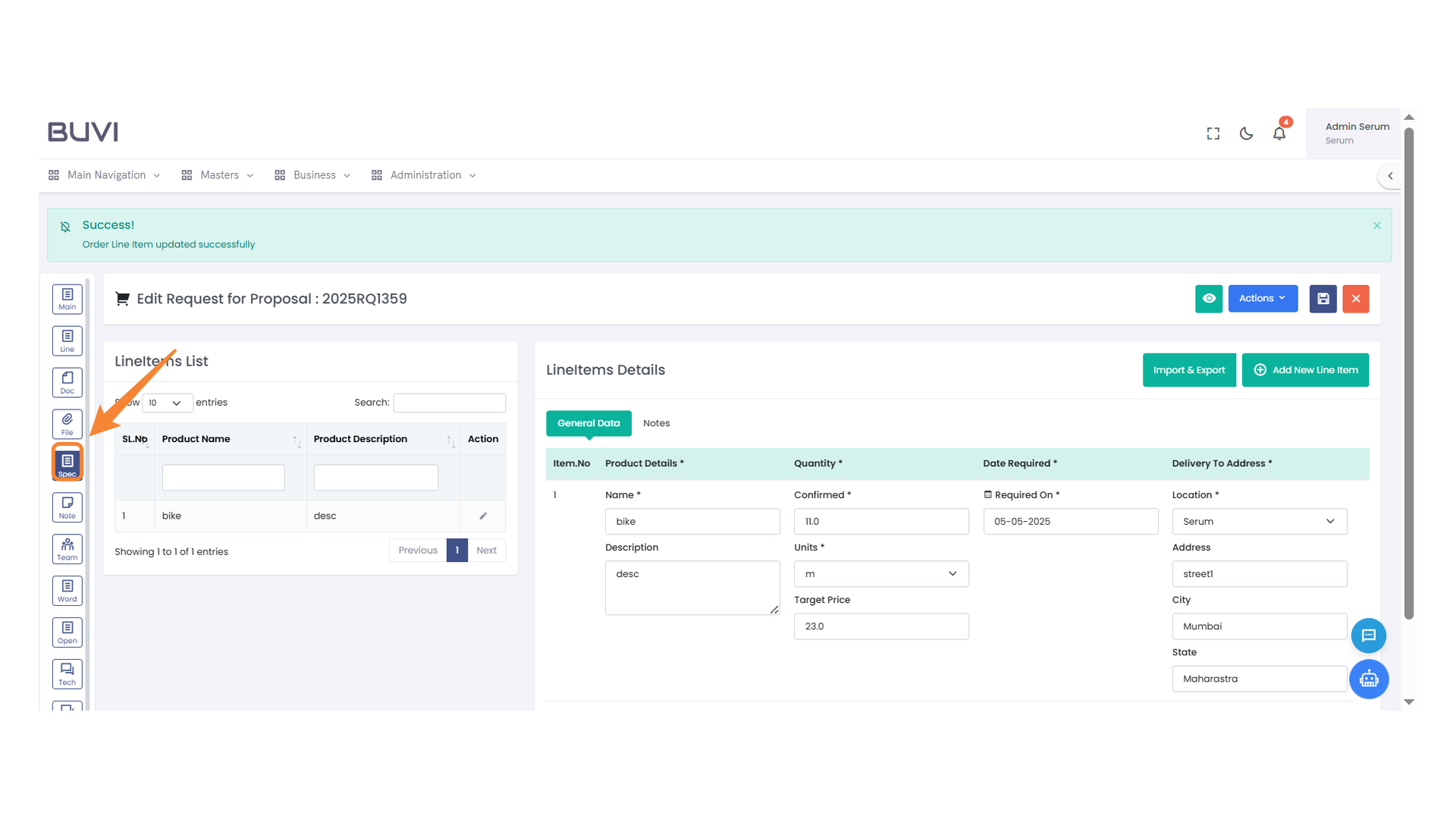
45. Sidebar Navigation Highlight
Select the specified icon on the sidebar to access space-related functionalities.
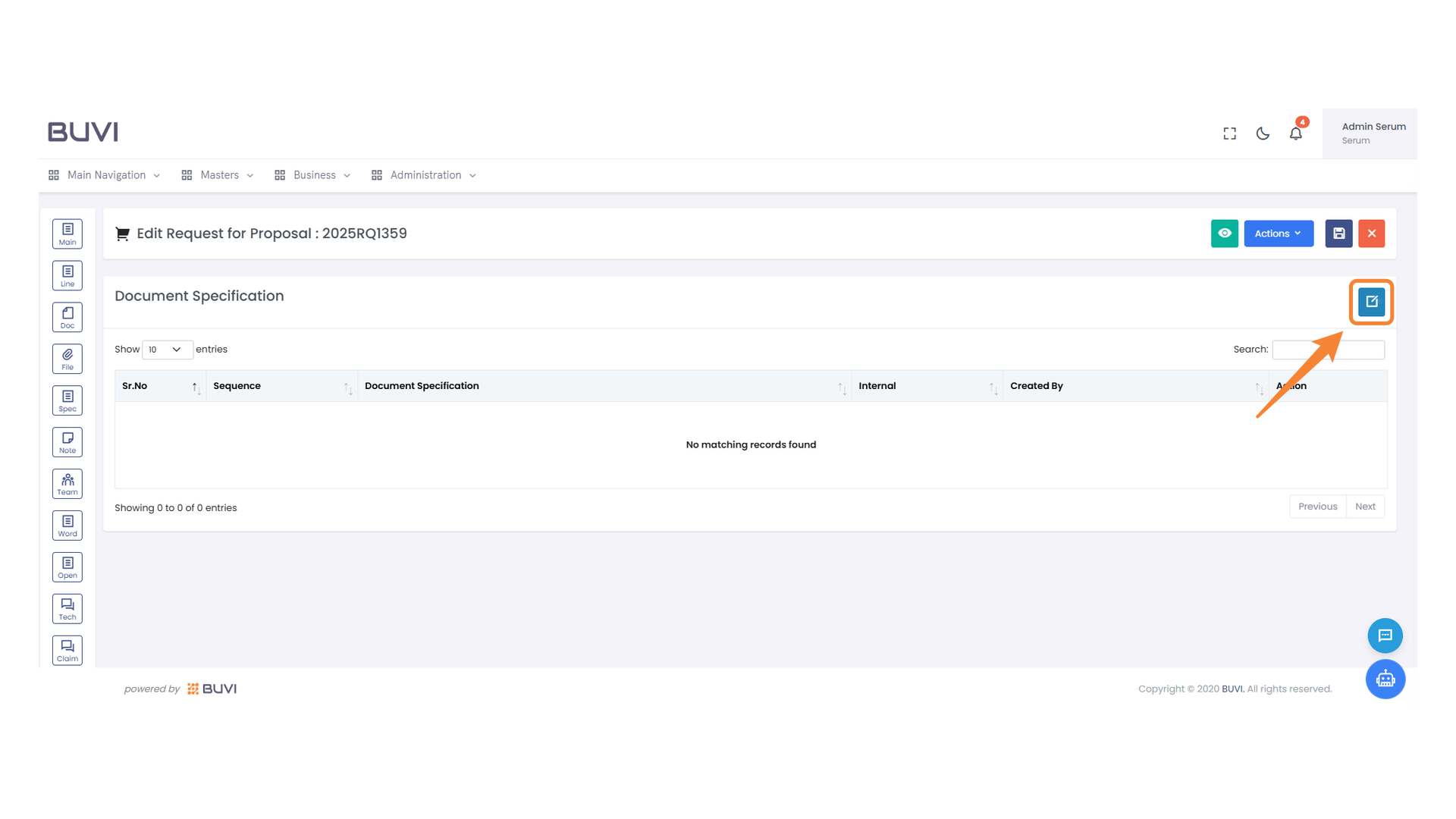
46. Edit Button
Click to edit the document specification.
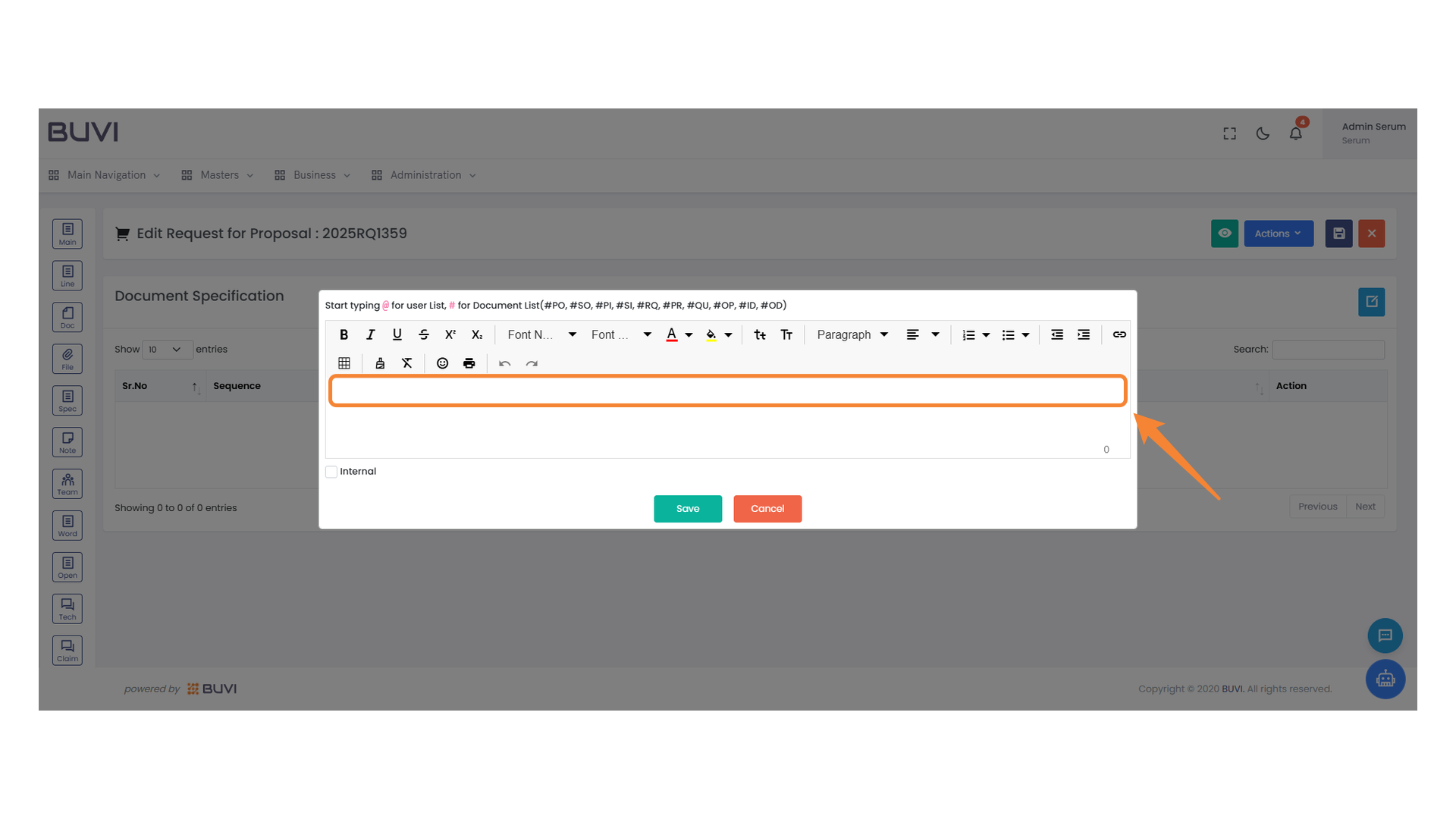
47. Document Editing Section
Enter the required text or data within the specified input area.
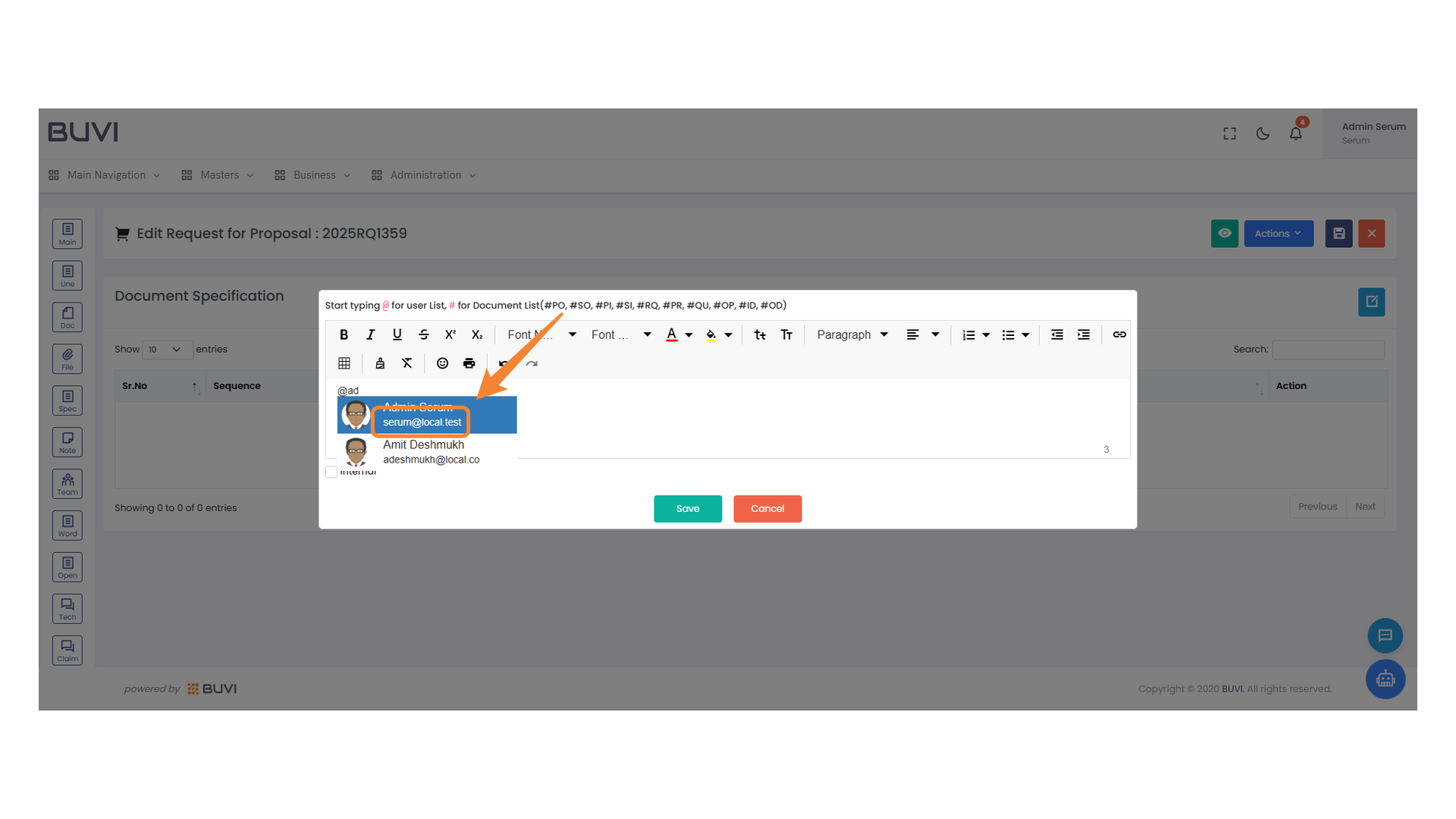
48. User Selection Highlighted in Input Field
Select the user from the dropdown list to enter their email automatically in the field.
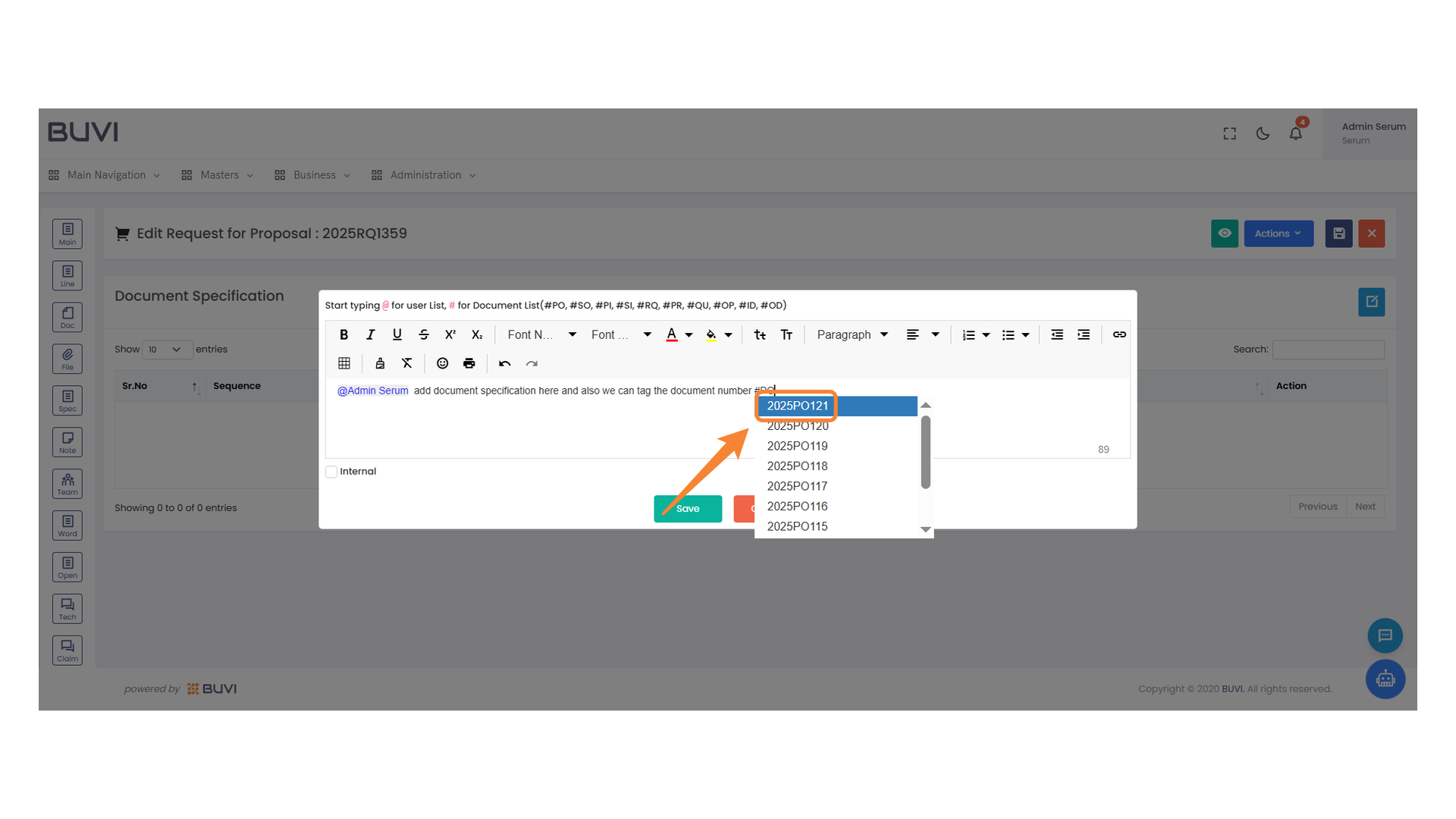
49. Document Number Selection
Select the highlighted document number from the dropdown list to tag it into the document specification.
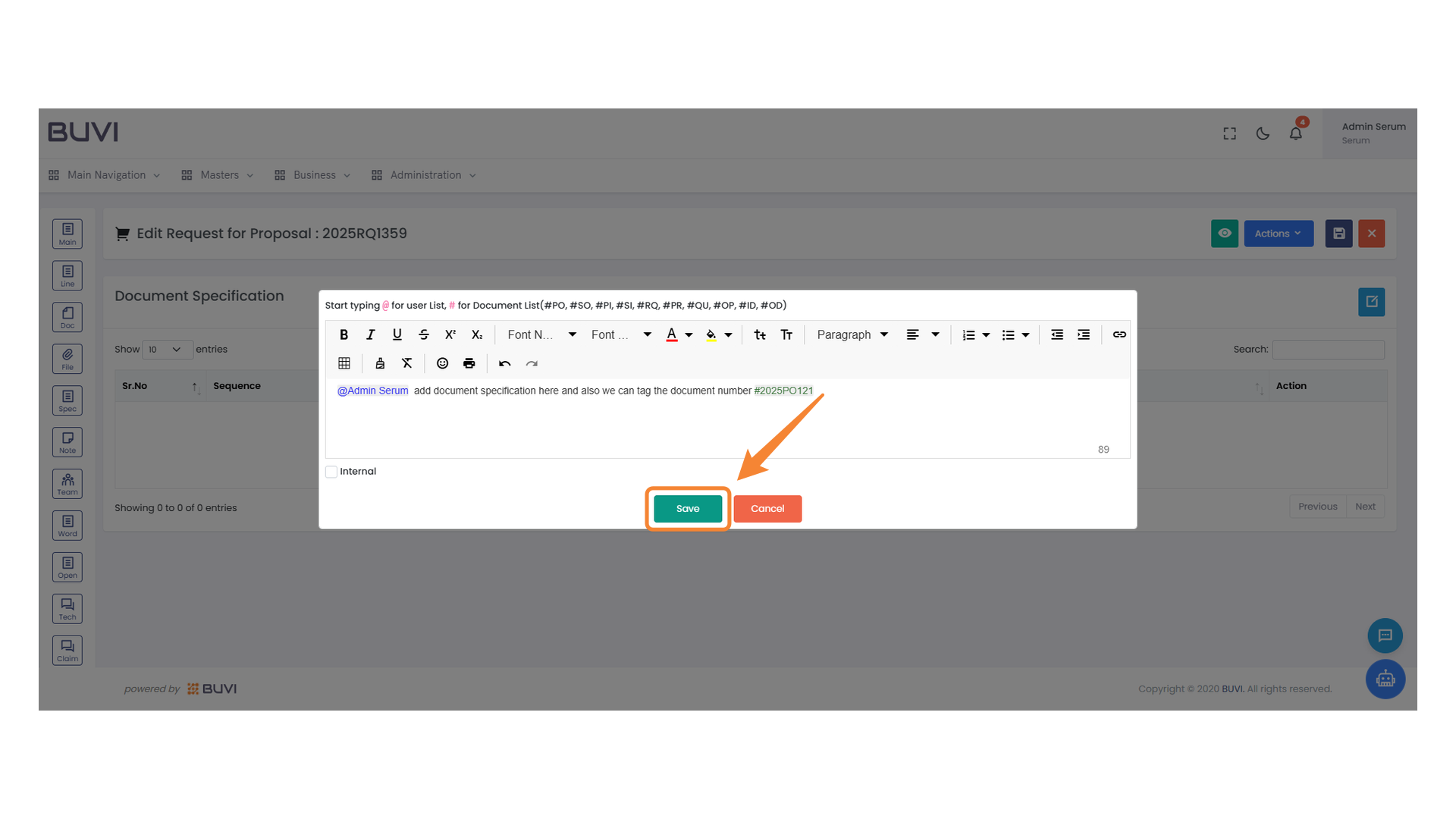
50. Save Button
Click to save your changes.
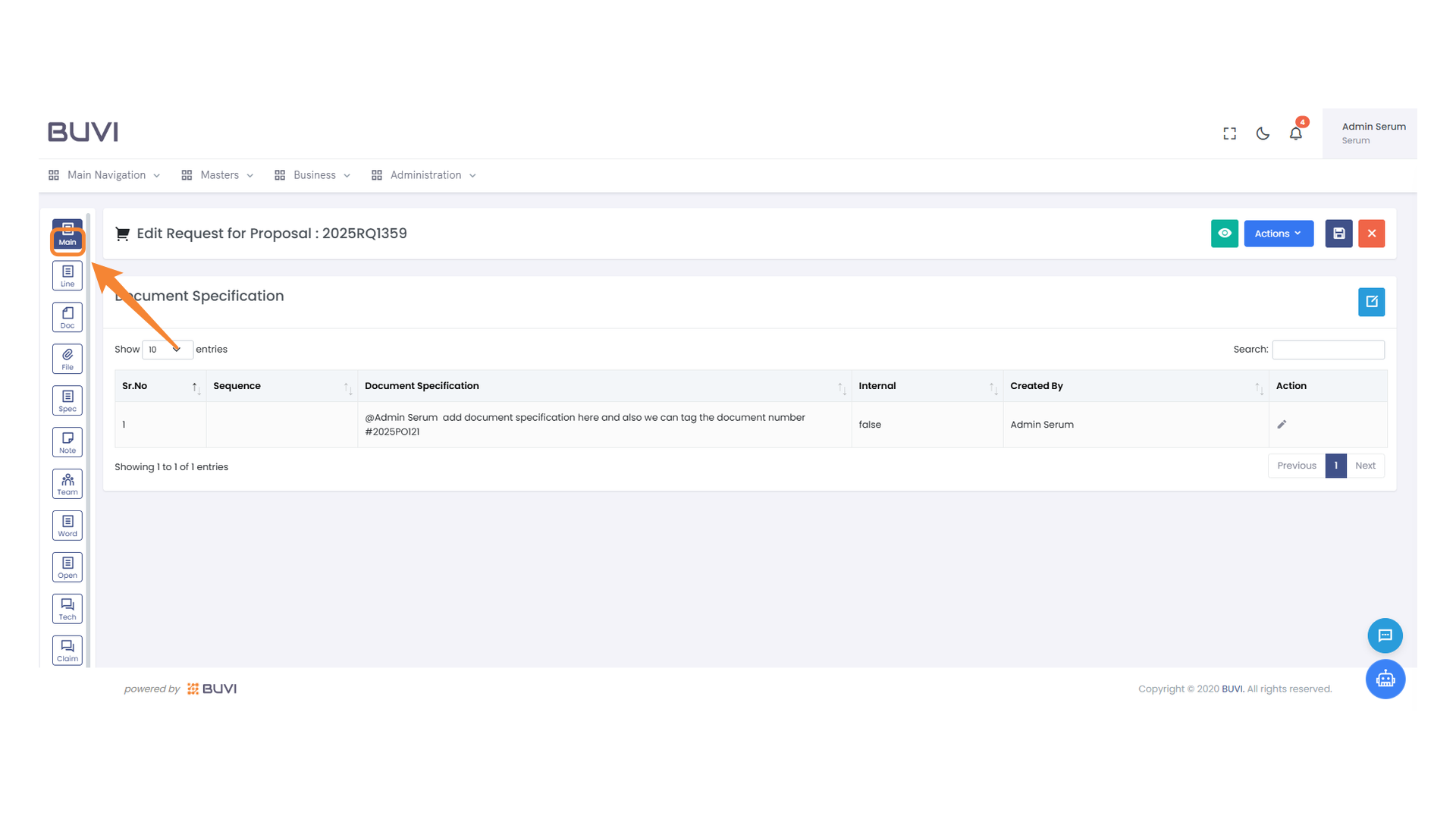
51. Main Navigation Button
Access the main section of the application by clicking this button.
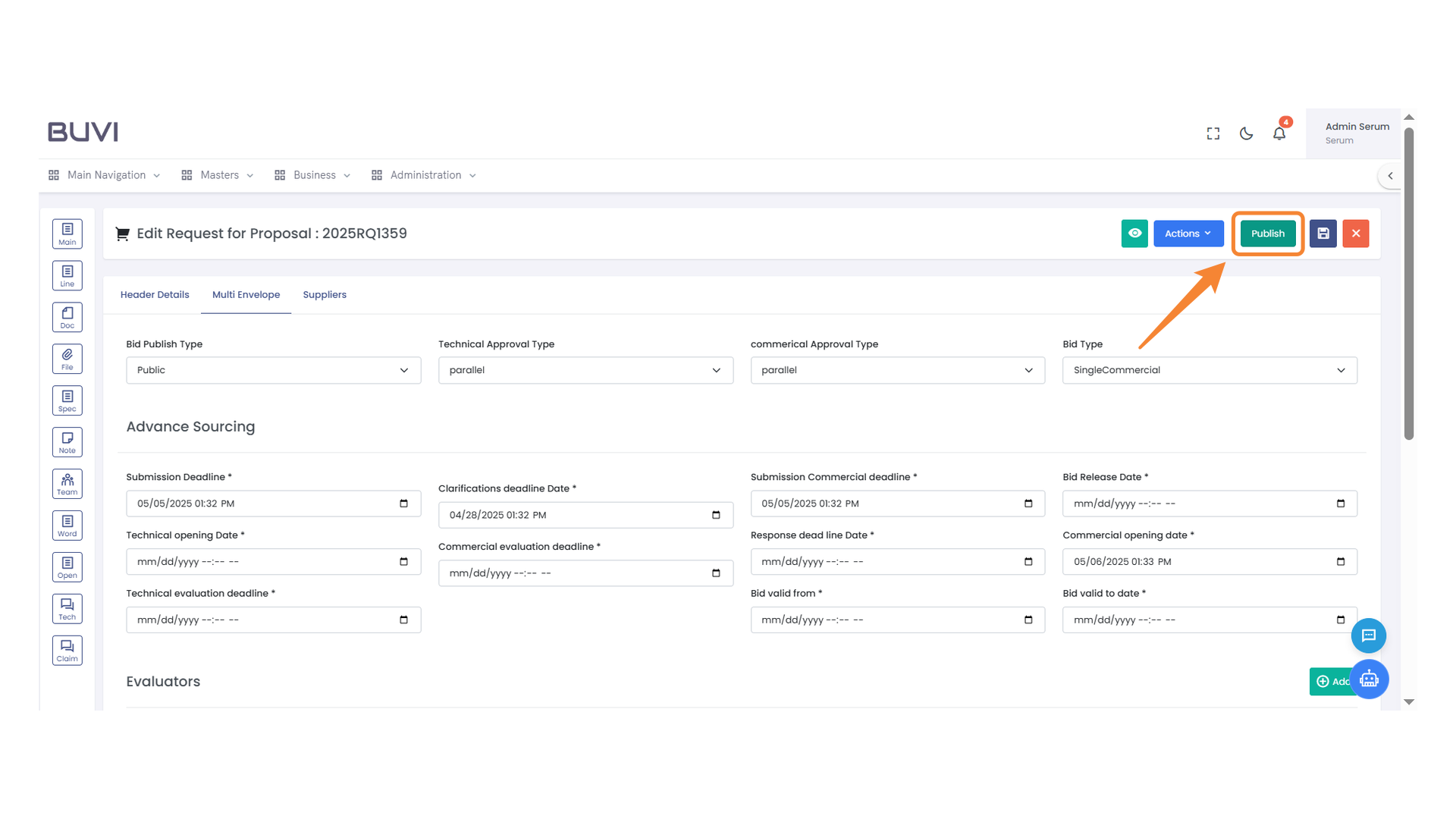
52. Publish Button
Click to publish the proposal request.
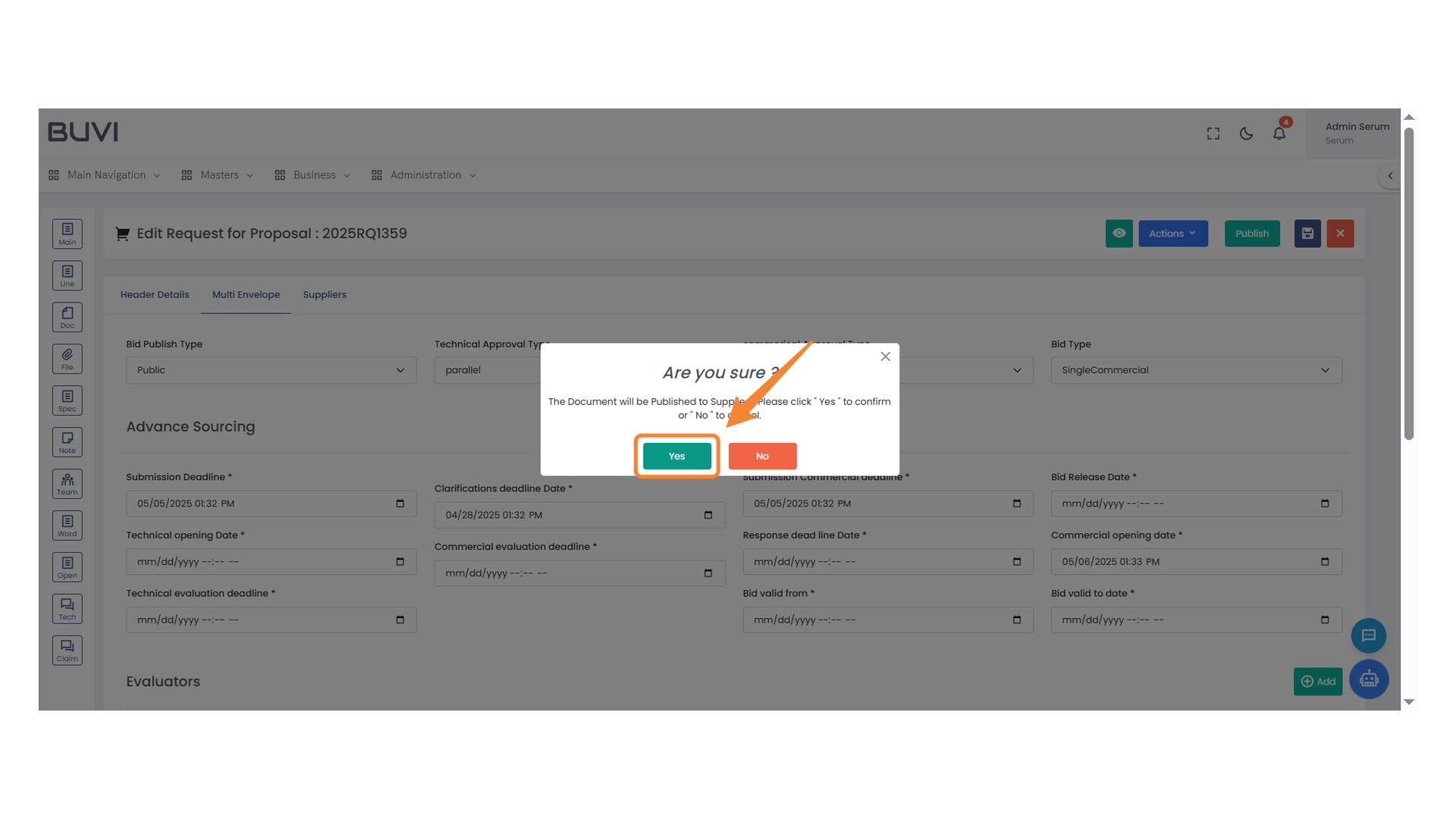
53. Confirmation Dialog
Select 'Yes' to confirm the document publication.
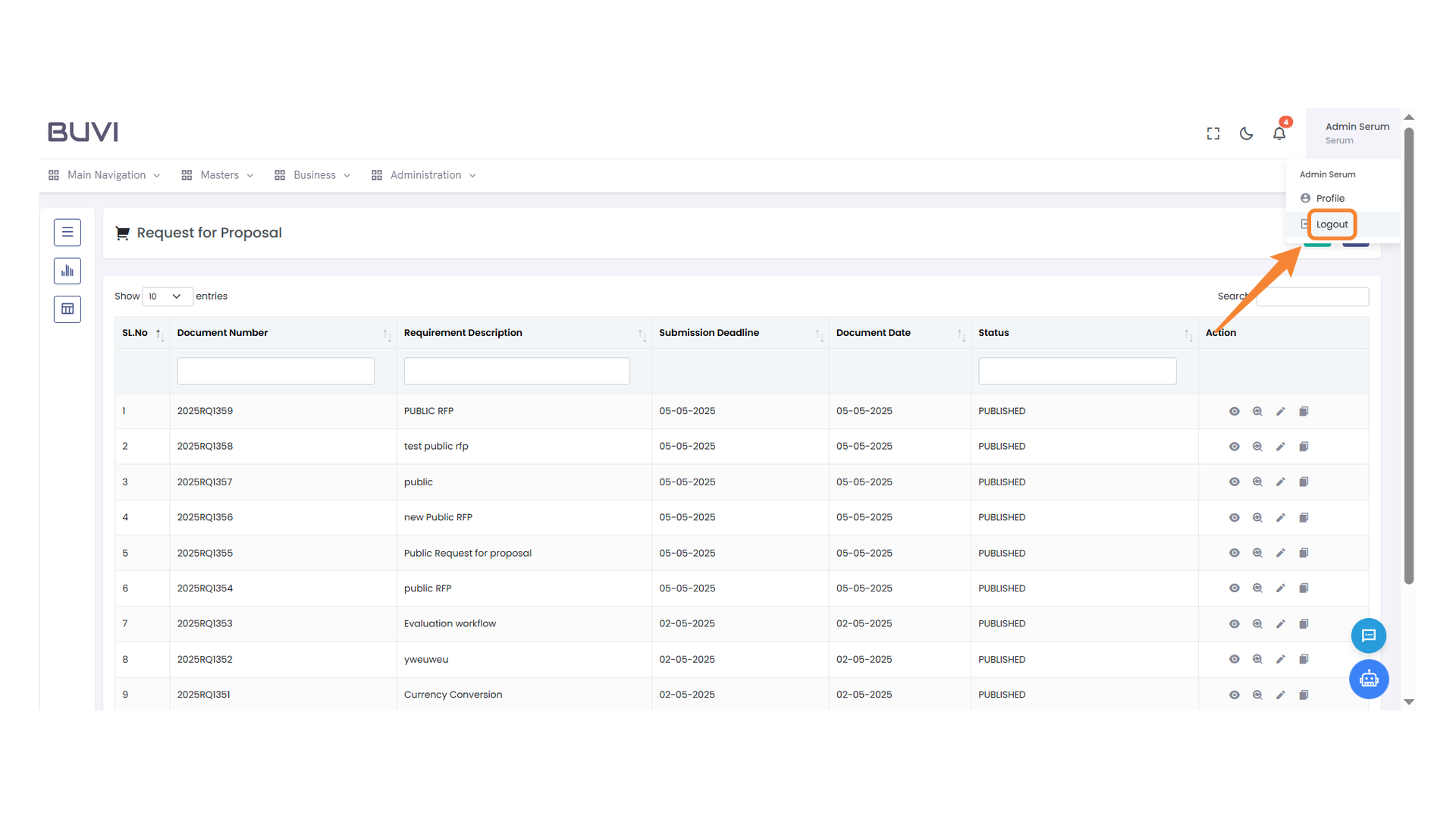
54. Logout Button
Click here to sign out of your account.
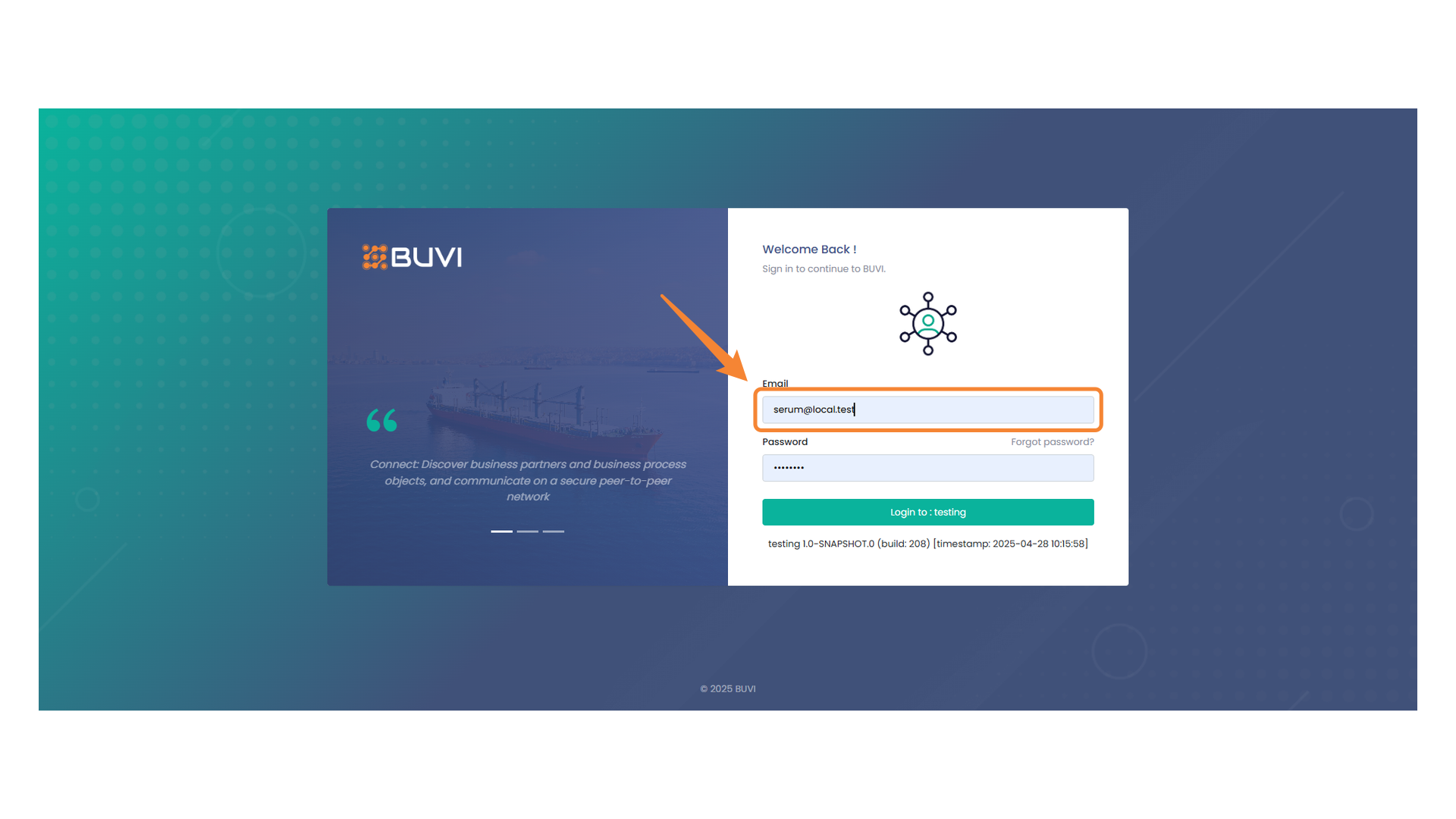
55. Email Input Field
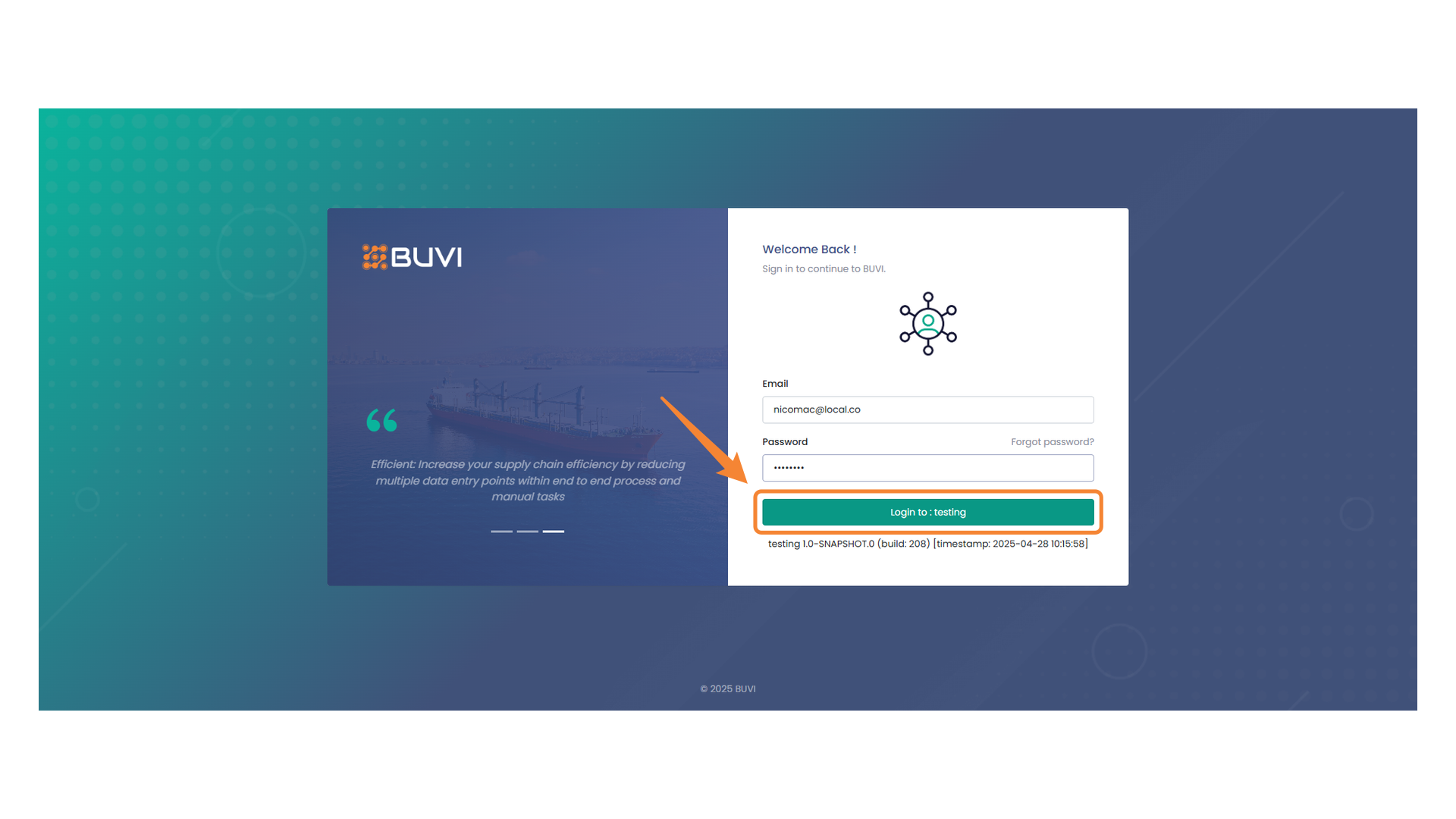
Enter your email address to proceed with logging in with supplier
56. Password Input Field
Enter your password to proceed with the login.

57. Login Button
Press to access the testing environment.
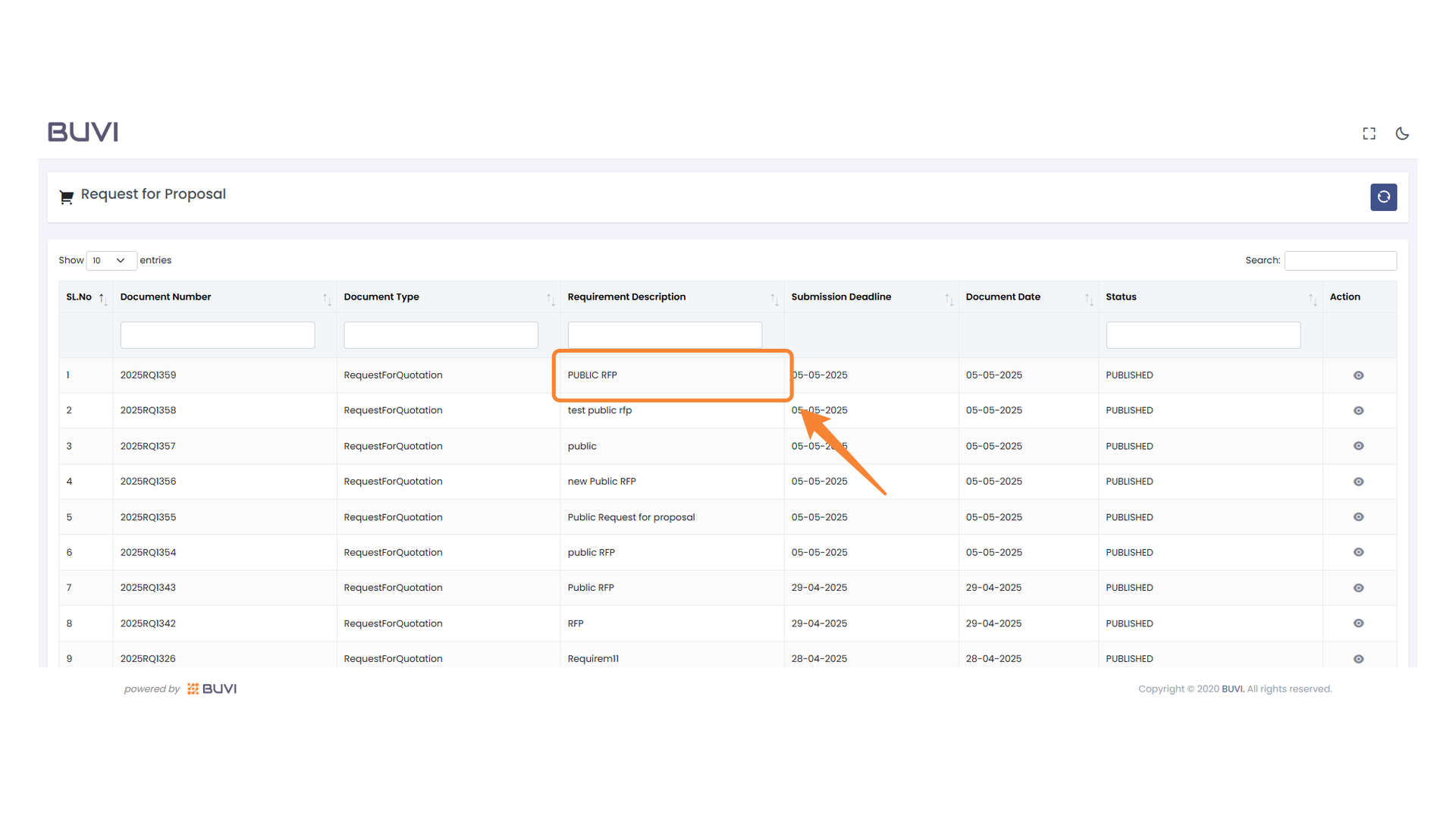
58. Open the PUBLIC RFP page
Focus on the 'PUBLIC RFP' entry within the table to review its details.
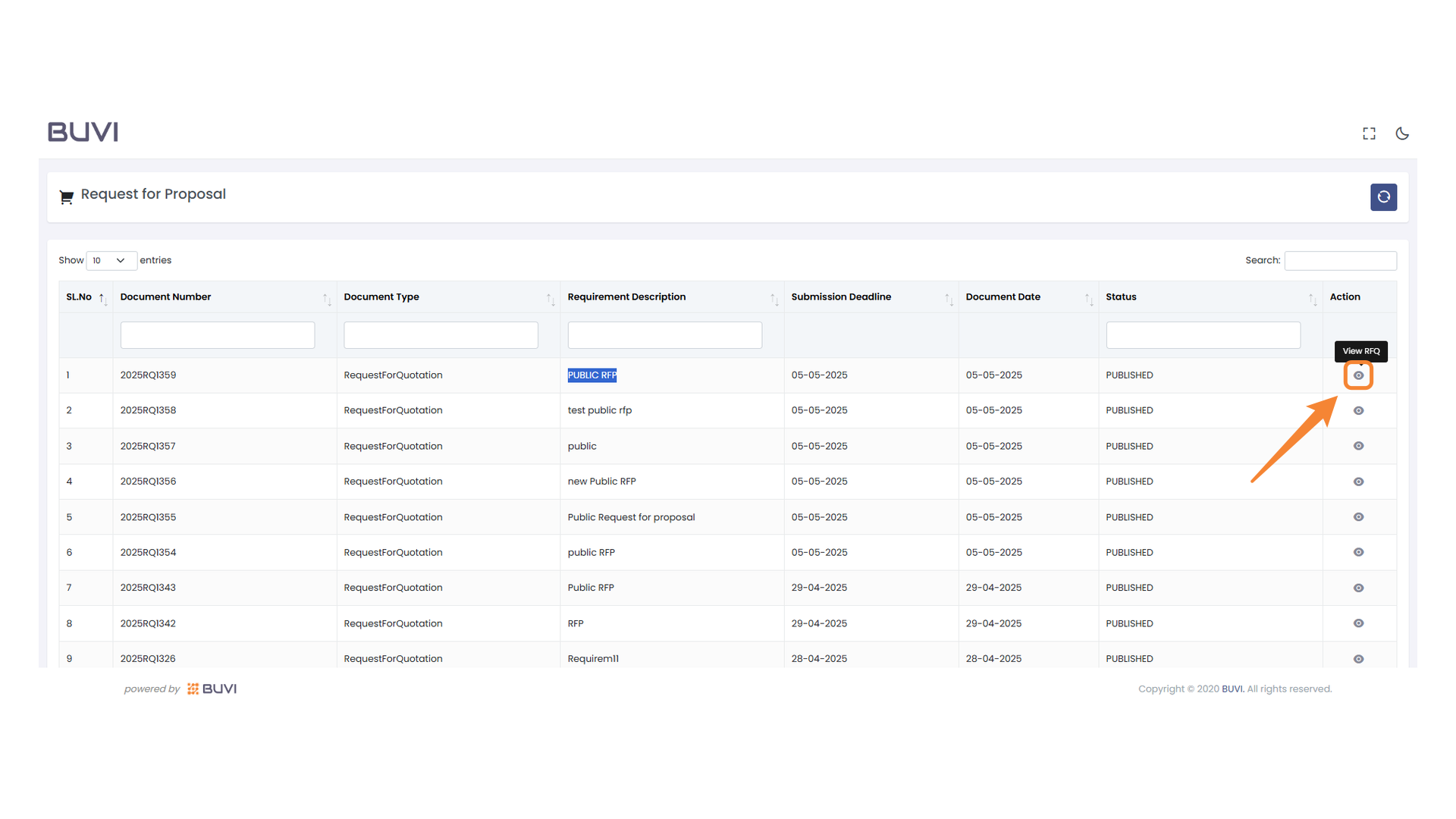
59. View Document Action
Click the eye icon to view the details of the Request for Quotation.
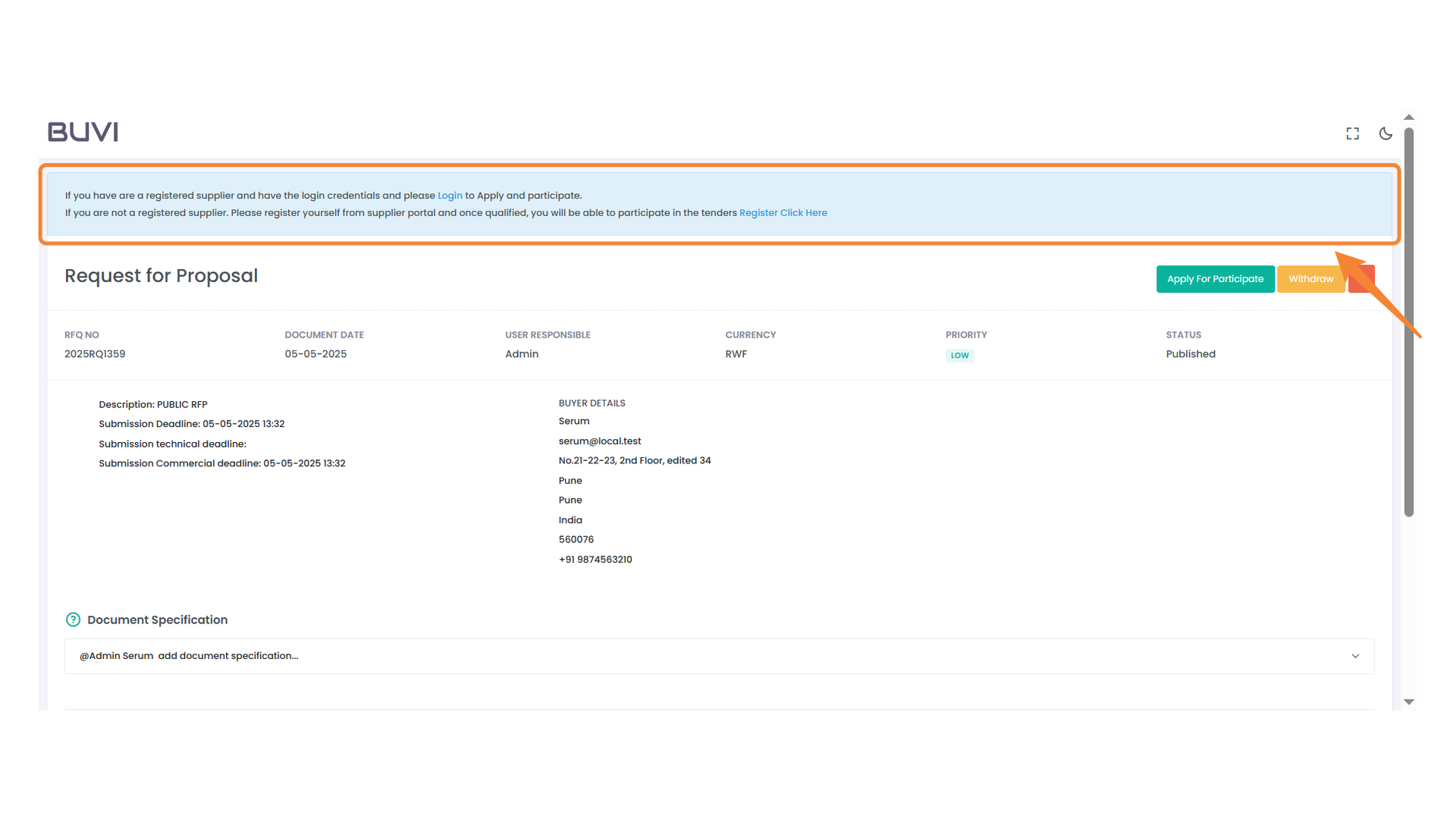
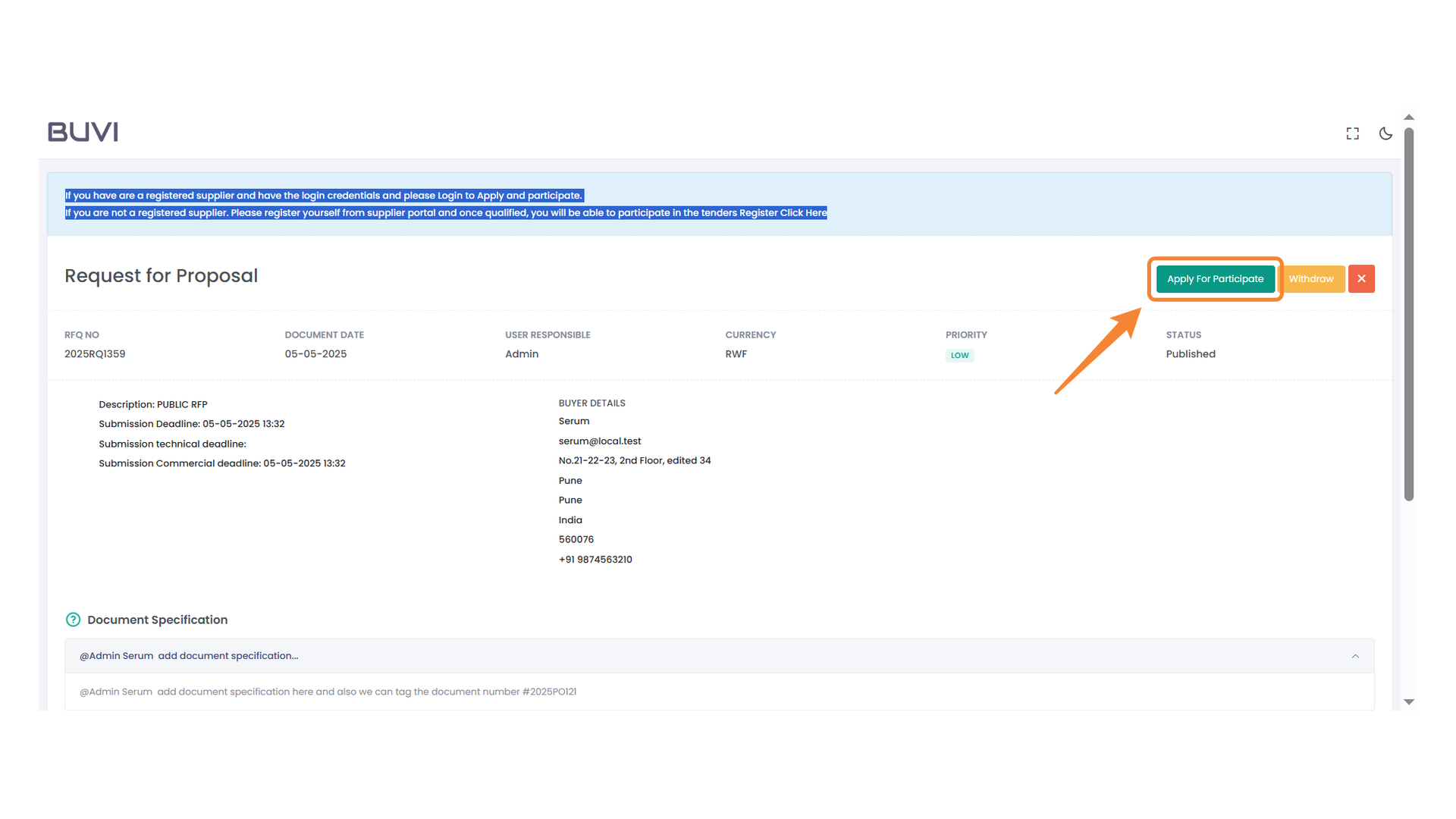
60. Supplier Registration and Login Instructions
Login if you are a registered supplier to participate. Register through the supplier portal if you're new, to qualify for tenders.
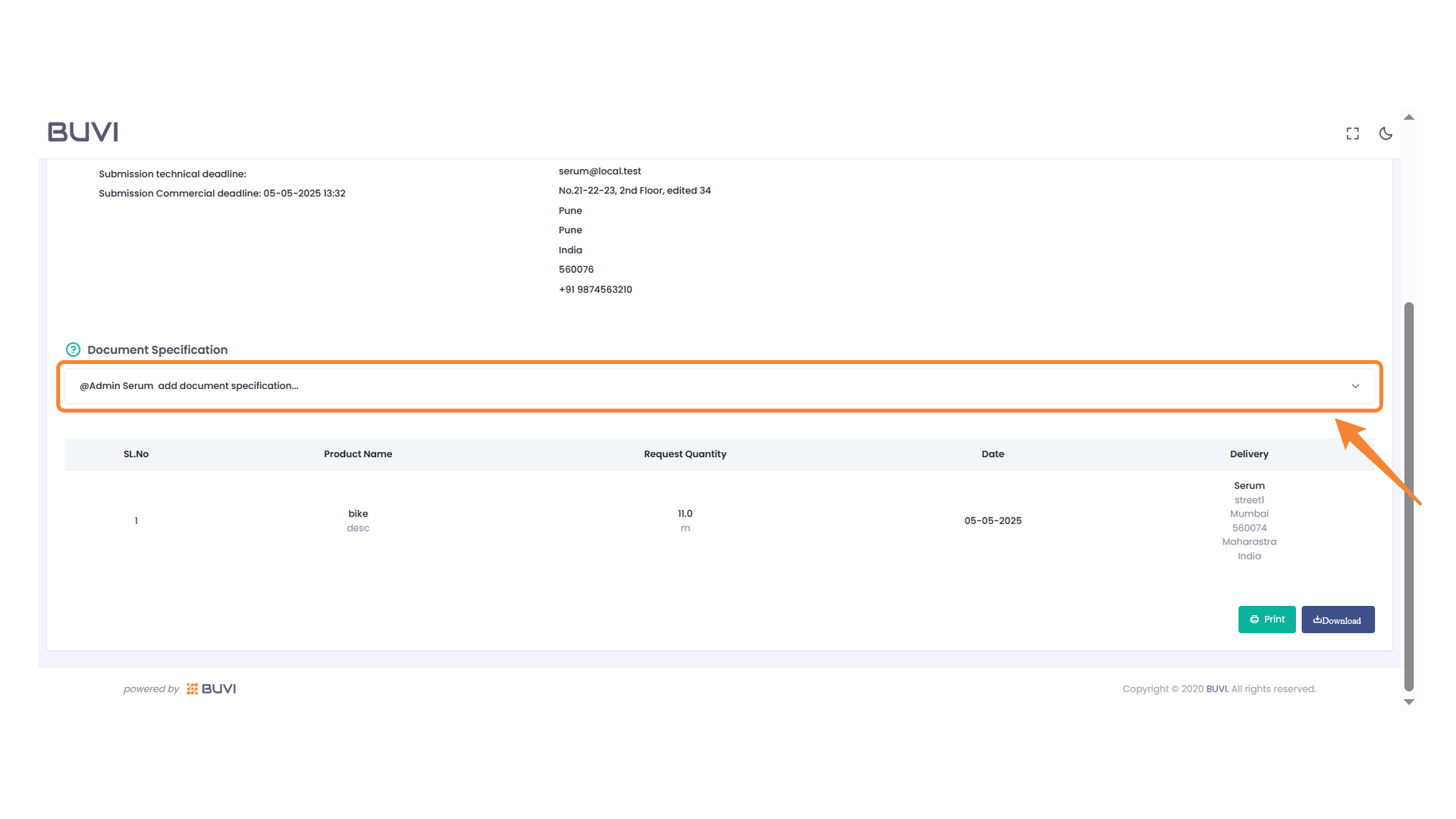
61. Document Specification Section
Add the required document details here for further processing.
62. Application Button for Participation
Click the button to apply for participation in the proposal process.
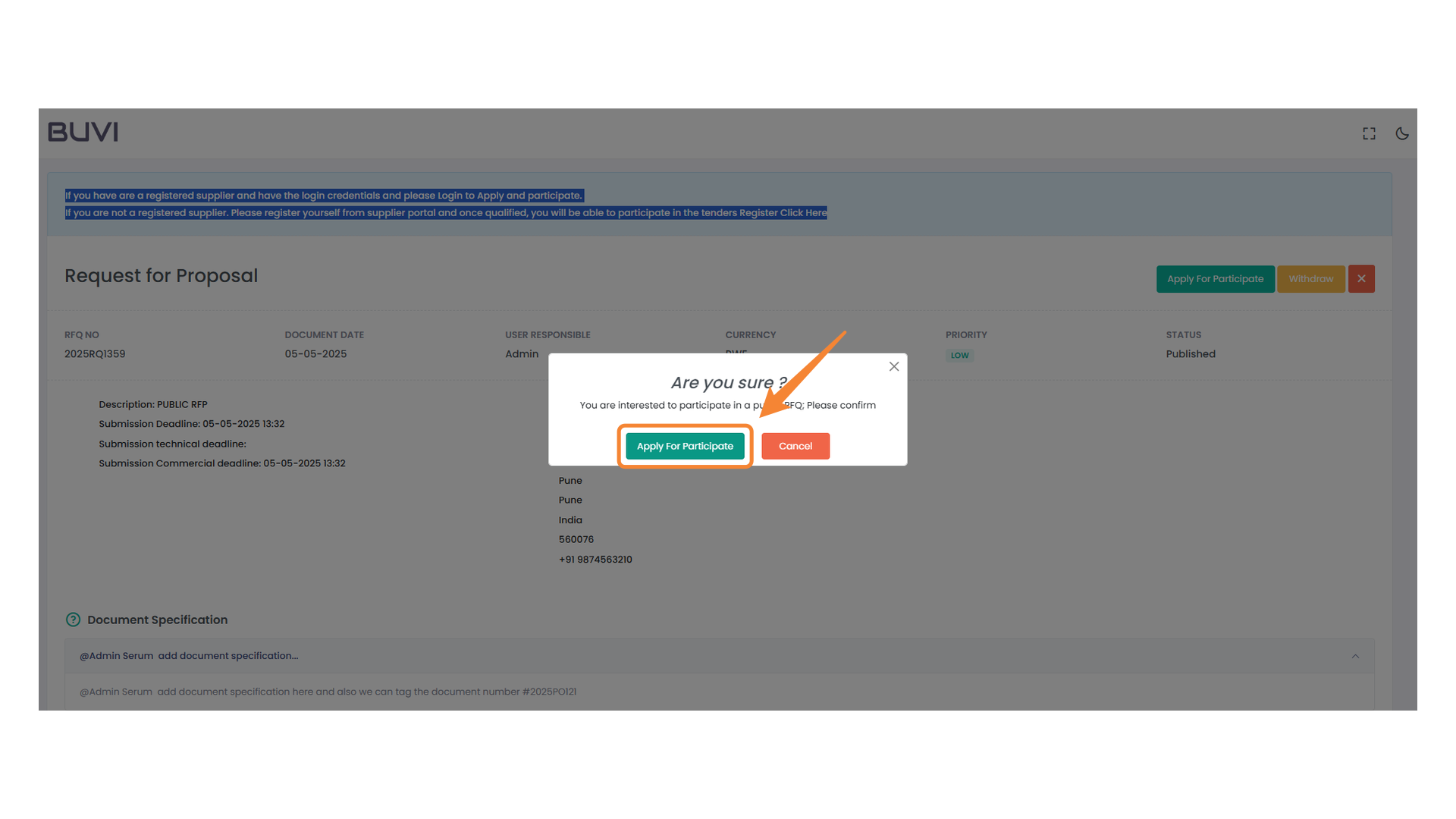
63. Confirmation Prompt for Participation
Click the button to confirm your participation in the request for proposal.
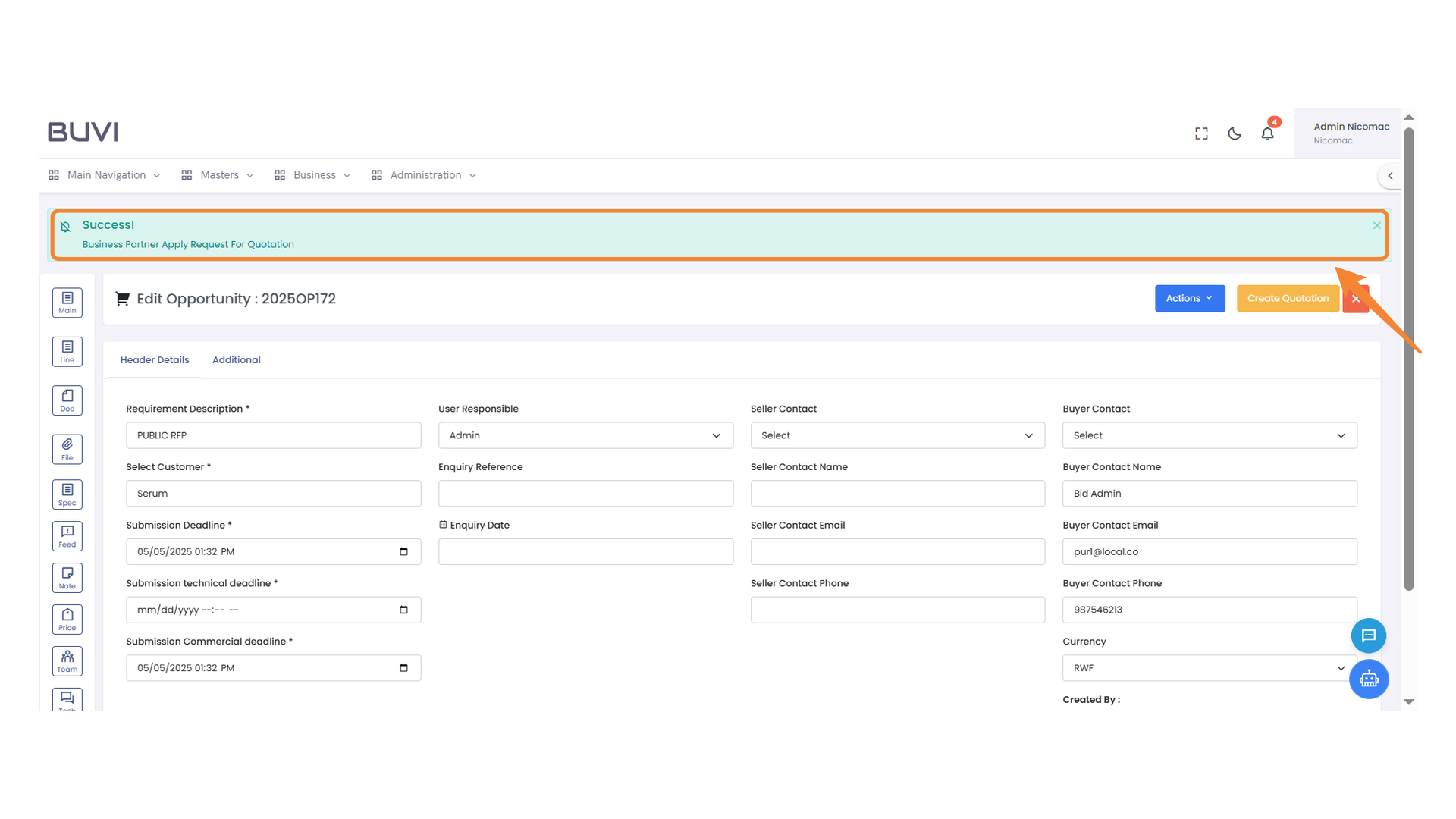
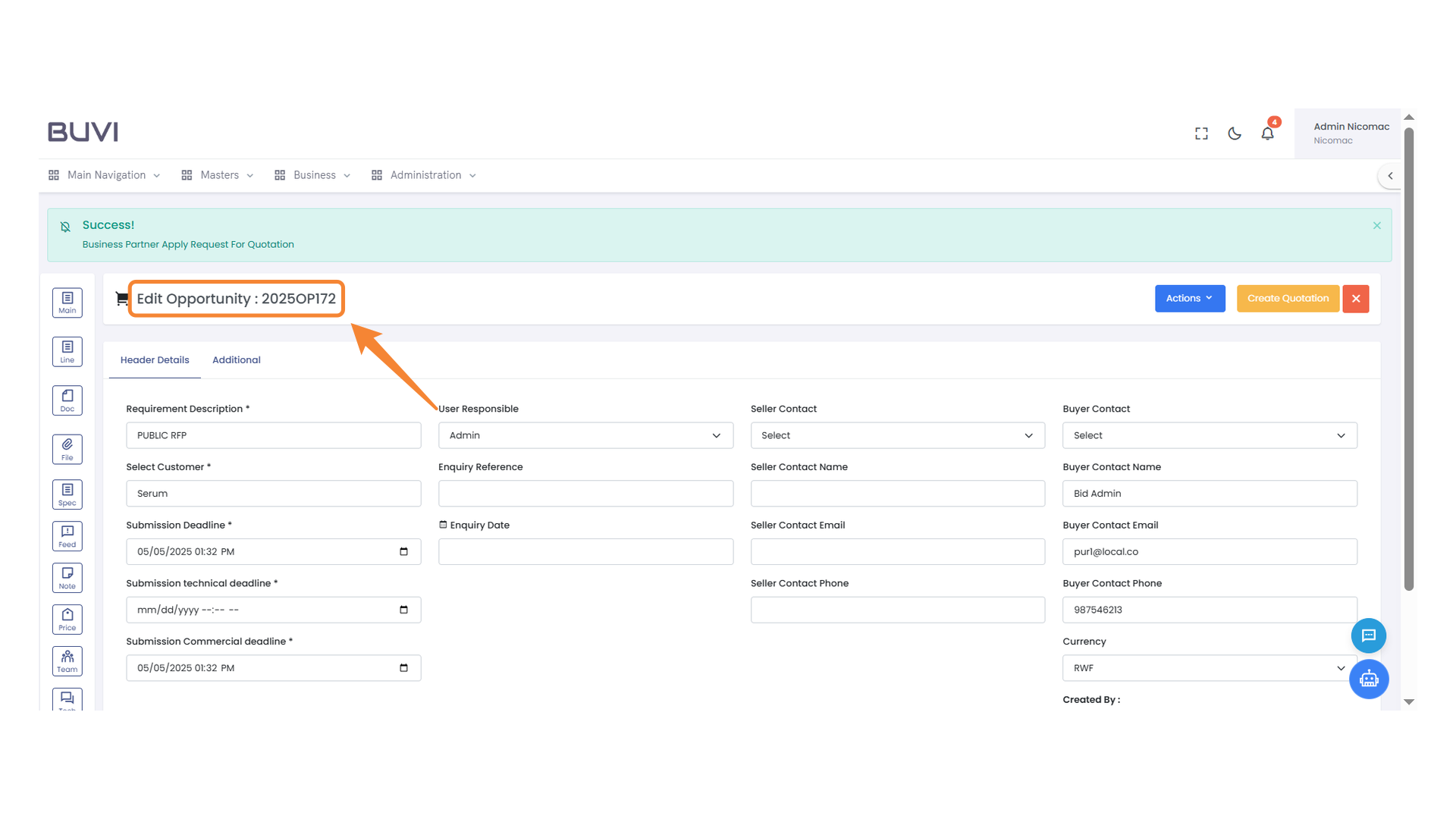
64. Opportunity created on Supplier side on applying the RFP
On Click on Apply for participation on Supplier side a New Opportunity is created with Accepted status

65. Edit Opportunity Information
View and modify the details of opportunity 2025OP172 in this section.
66. Requirement Description Field
Enter the required information for the Request for Proposal in this field.
67. Status Information
Observe the current status of the form, shown as 'Accepted'.
68. Confirmation of Successful Action
Acknowledge the successful application for a business partner's request for quotation.