Request for proposal
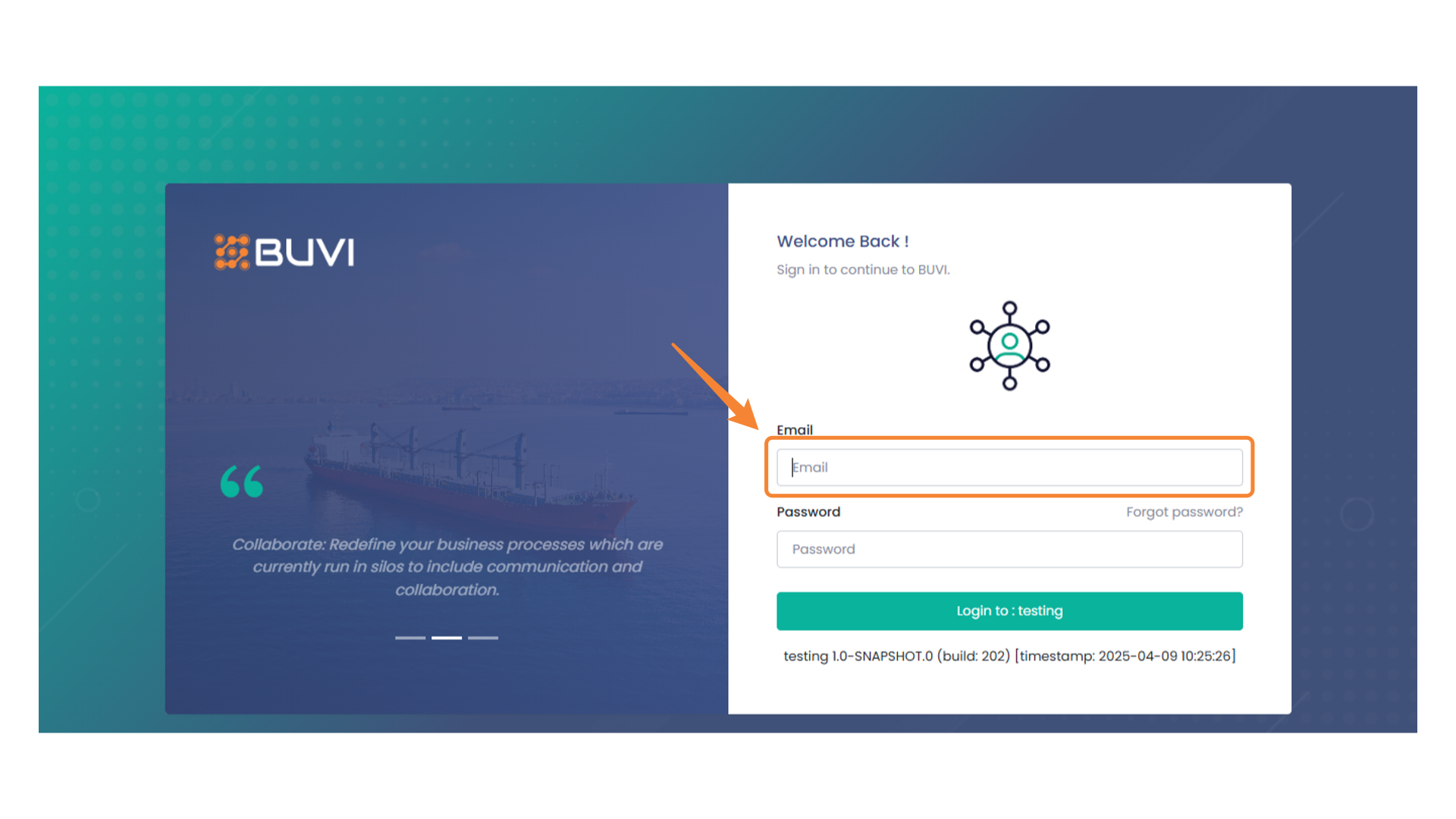
1. Email Input Field
Enter your email address in the designated input box to log in.
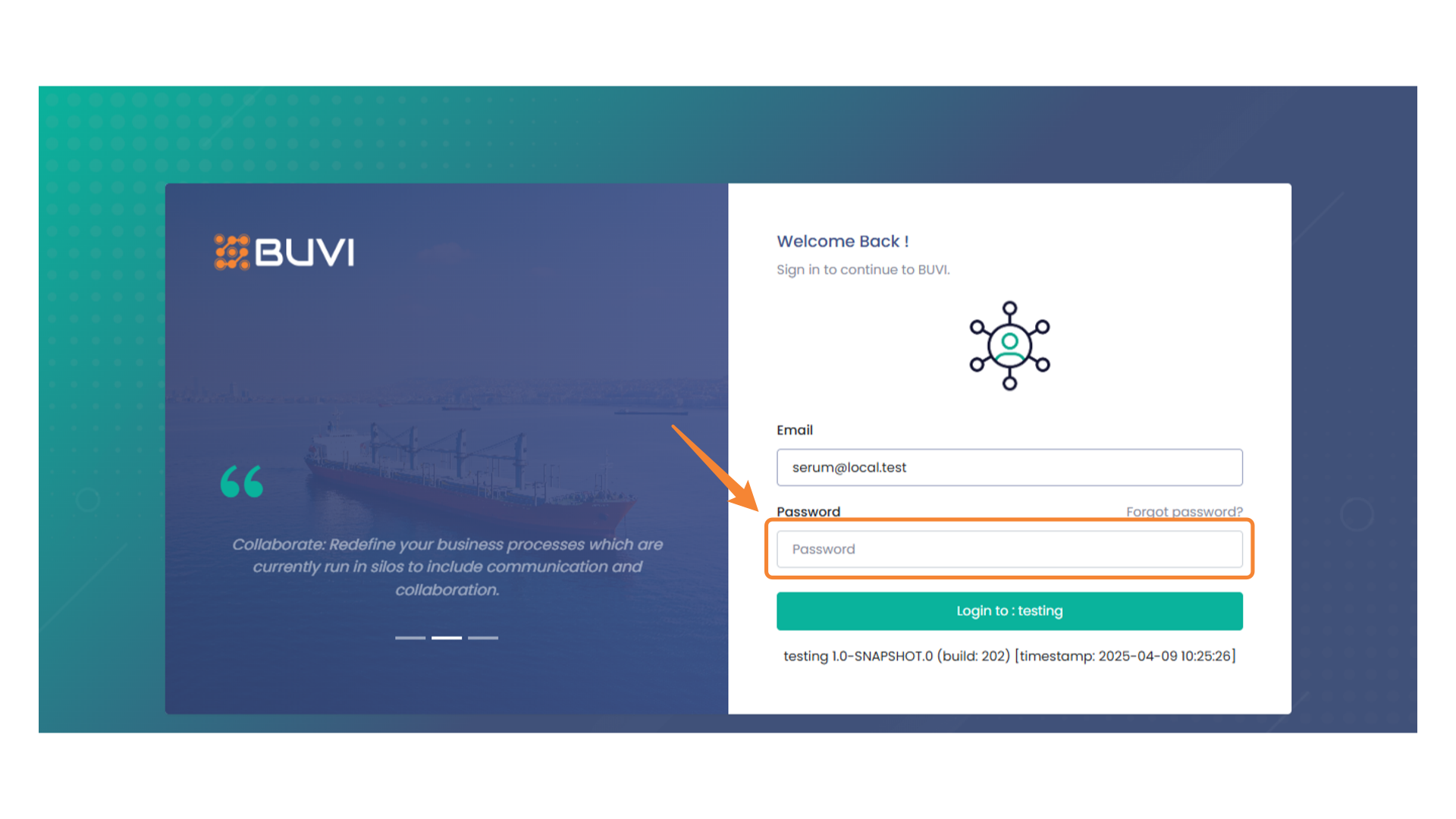
2. Password Input Field
Enter your password in the field provided.
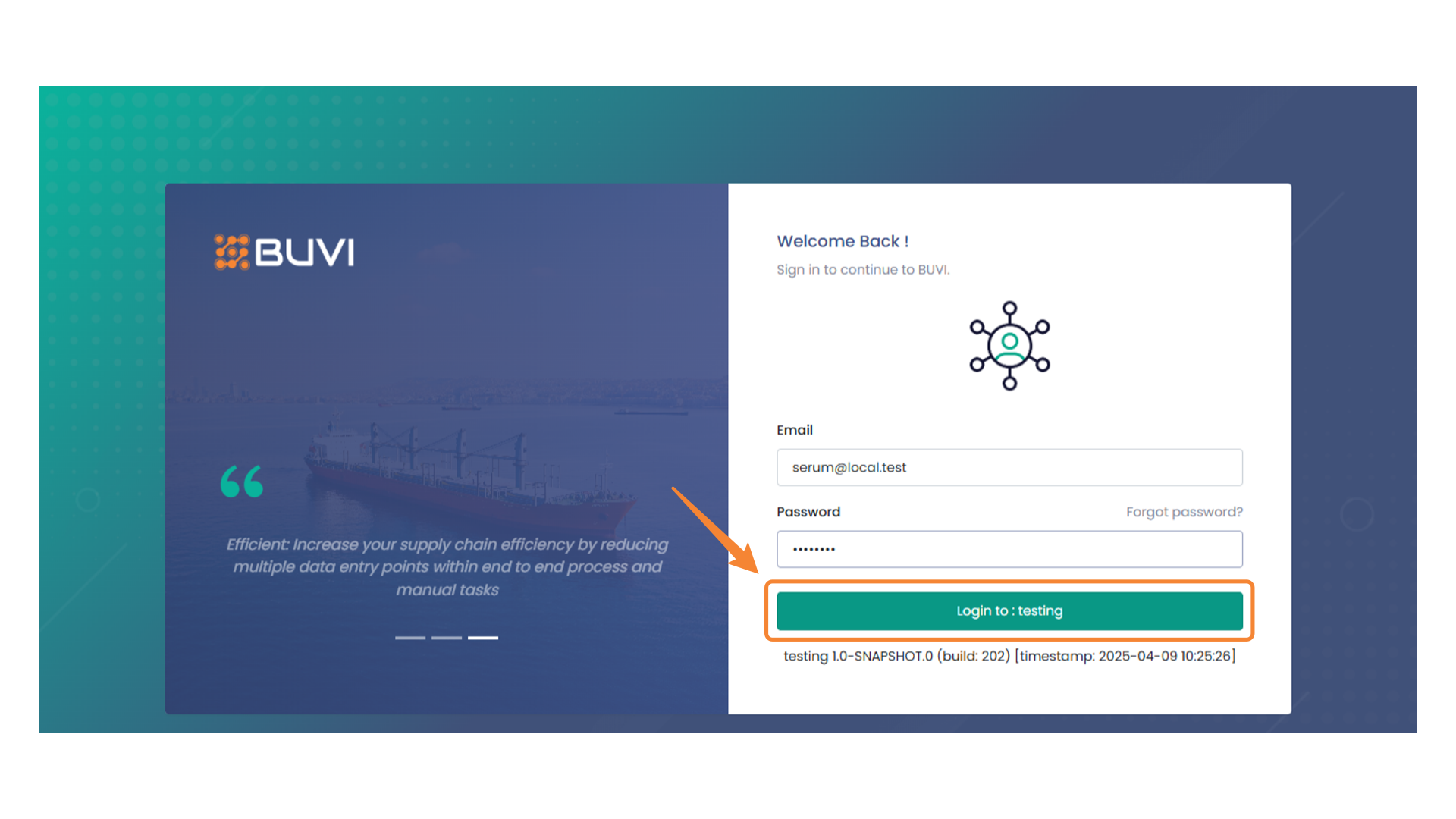
3. Login Button
Click to proceed with logging into the testing environment.
4. Business Menu Tab
Explore the business options available under this menu to access various functionalities such as purchase, inventory, sales, and reports.
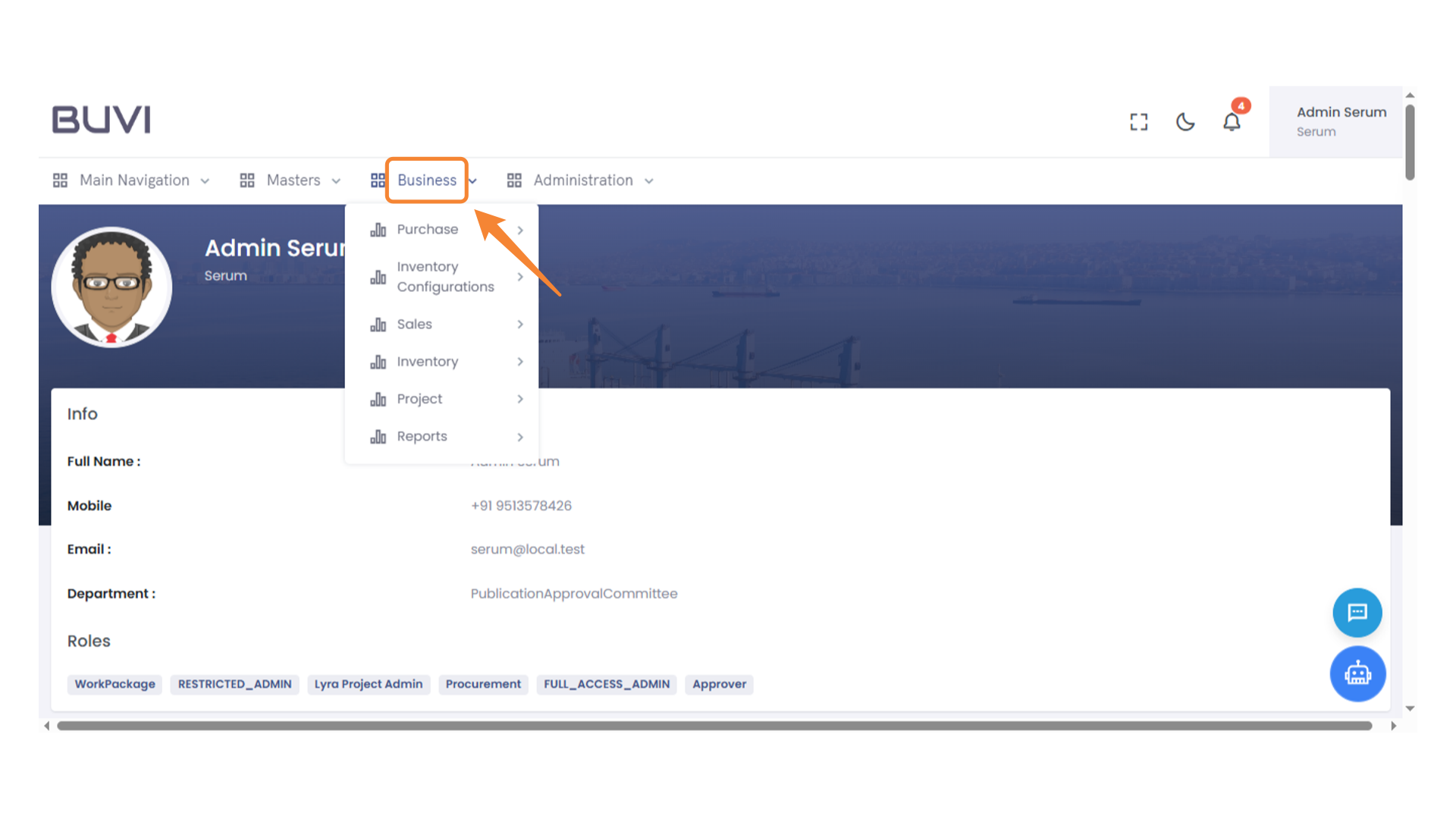
5. Access Purchase Menu
Select the 'Purchase' option to view related activities and options.
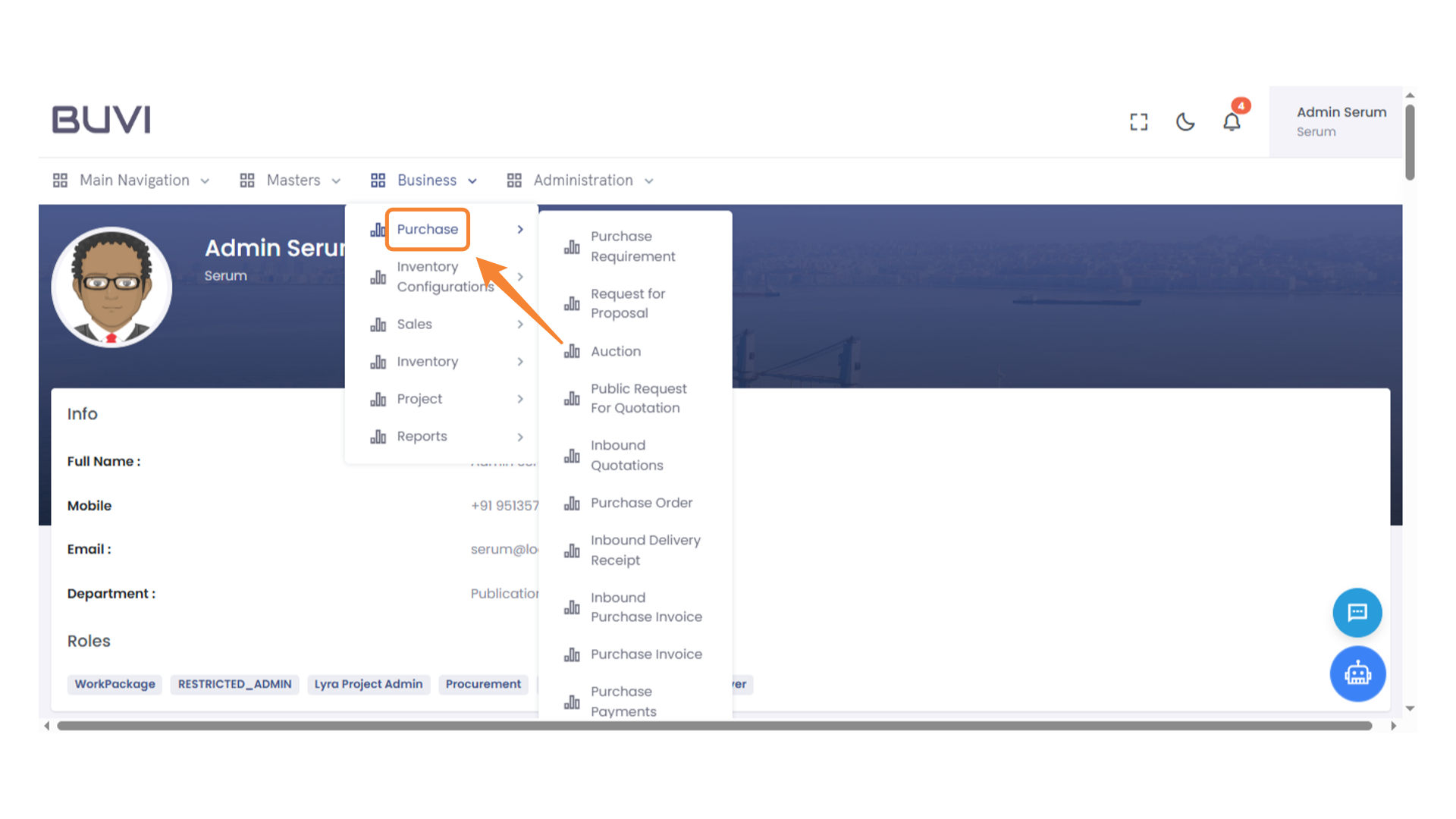
6. Request for Proposal Menu Item
Navigate to the 'Request for Proposal' option from the Business menu to initiate a proposal request.
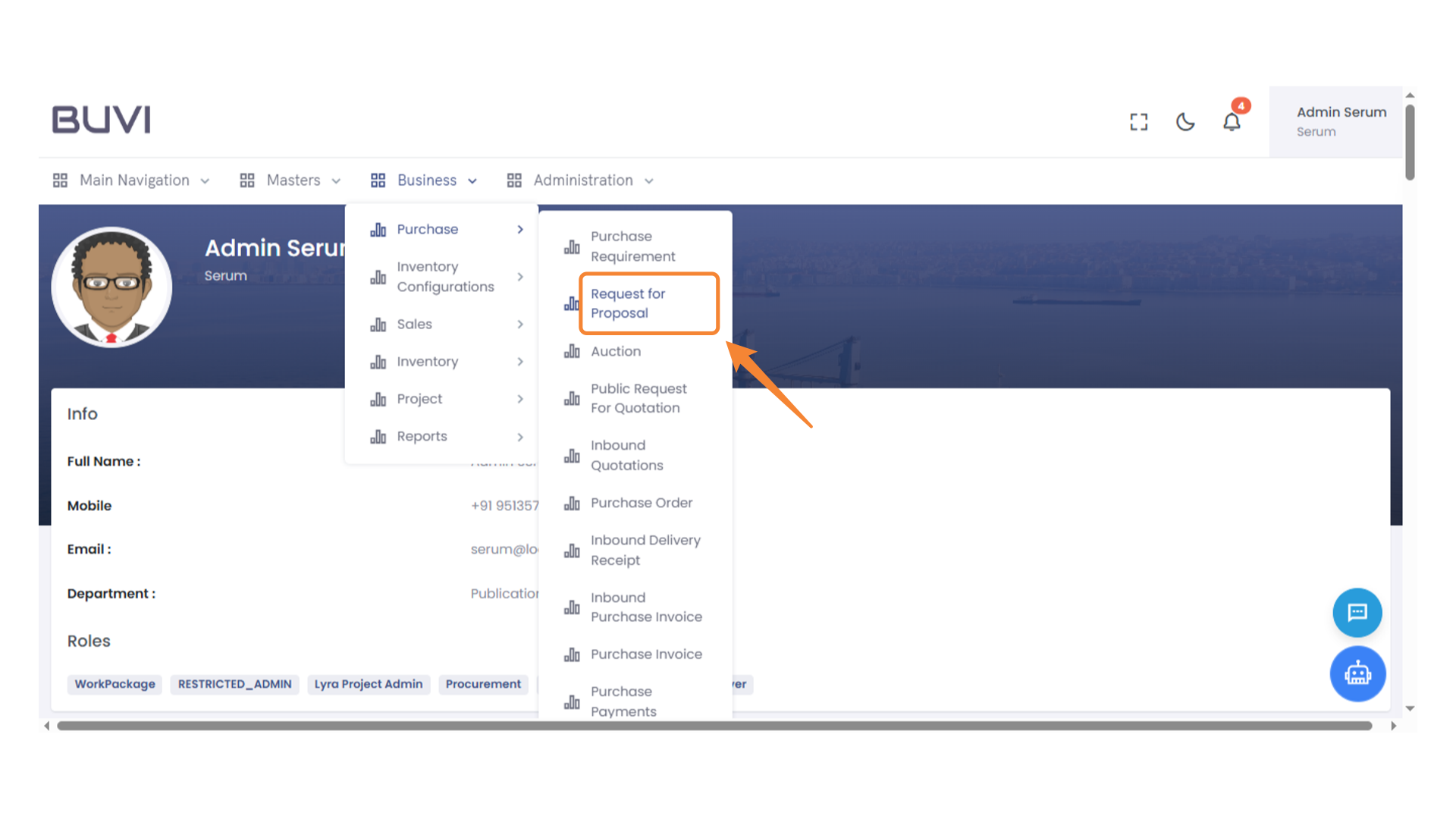
7. New Proposal Request
Click to create a new request for proposal.
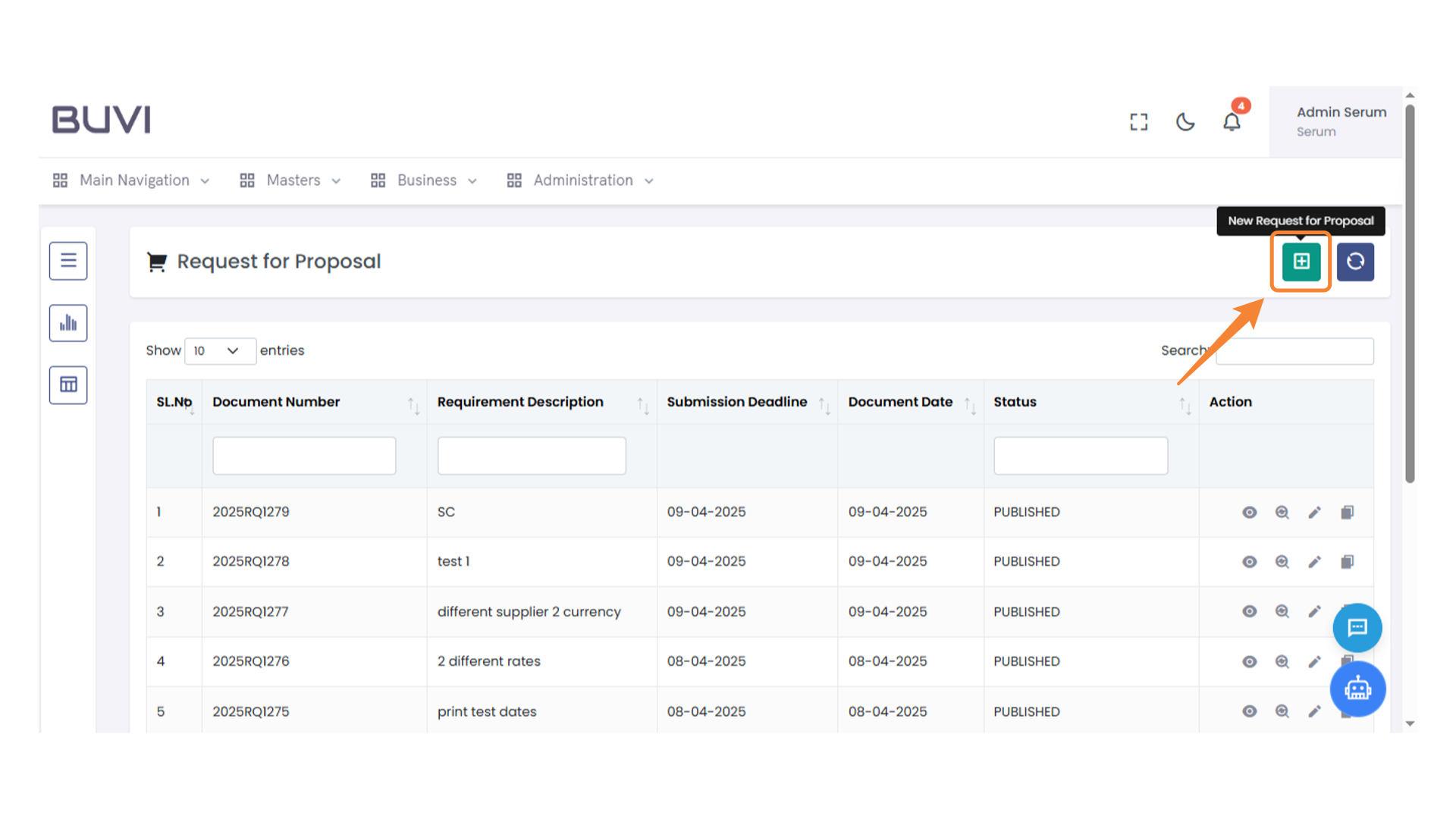
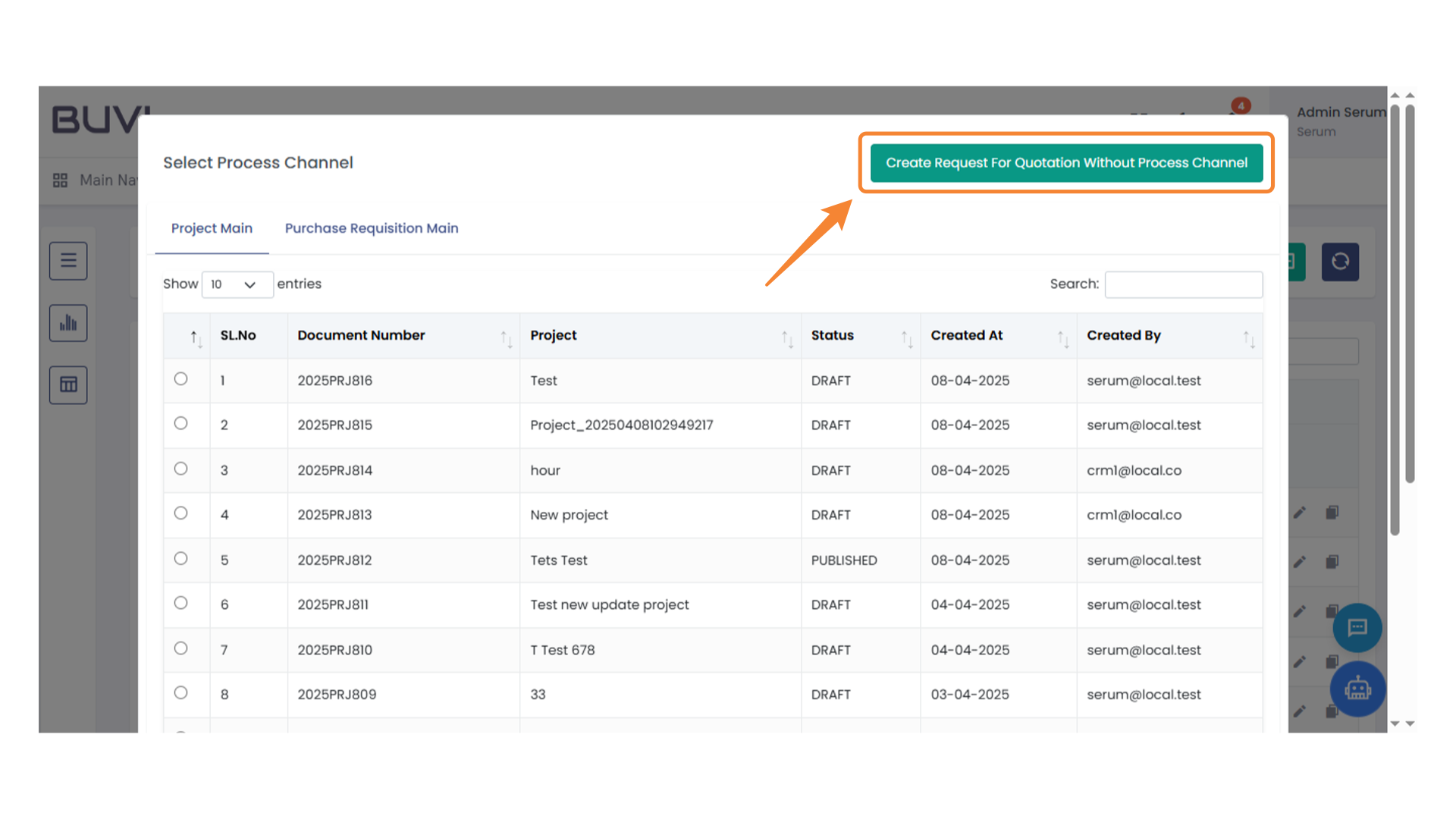
8. Create Request for Quotation Button
Click this button to initiate a new request for quotation without using a process channel.
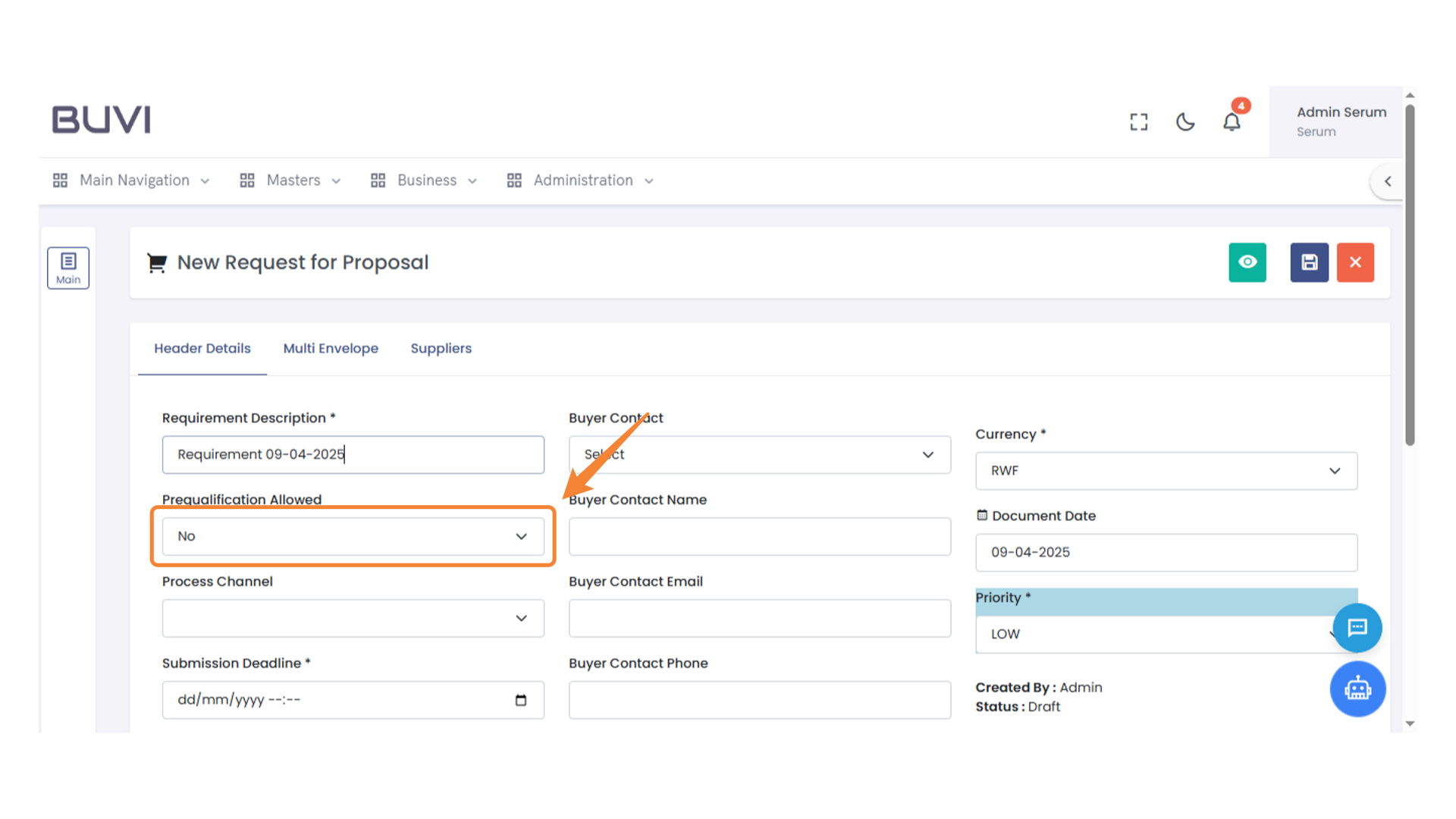
9. Prequalification Option
Select 'Yes' or 'No' to allow or disallow prequalification.
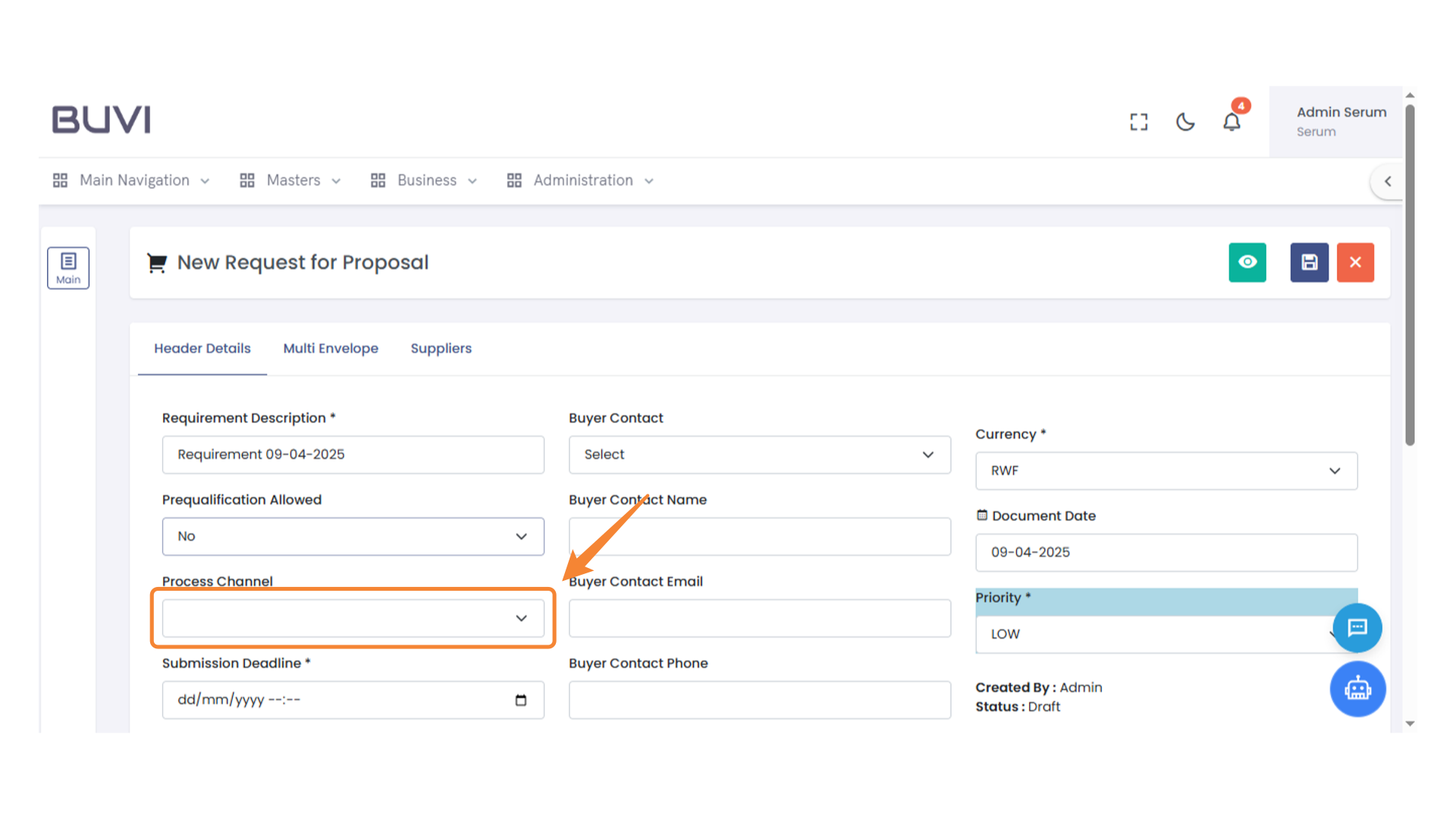
10. Process Channel Selection
Select an option from the dropdown menu to define the process channel.
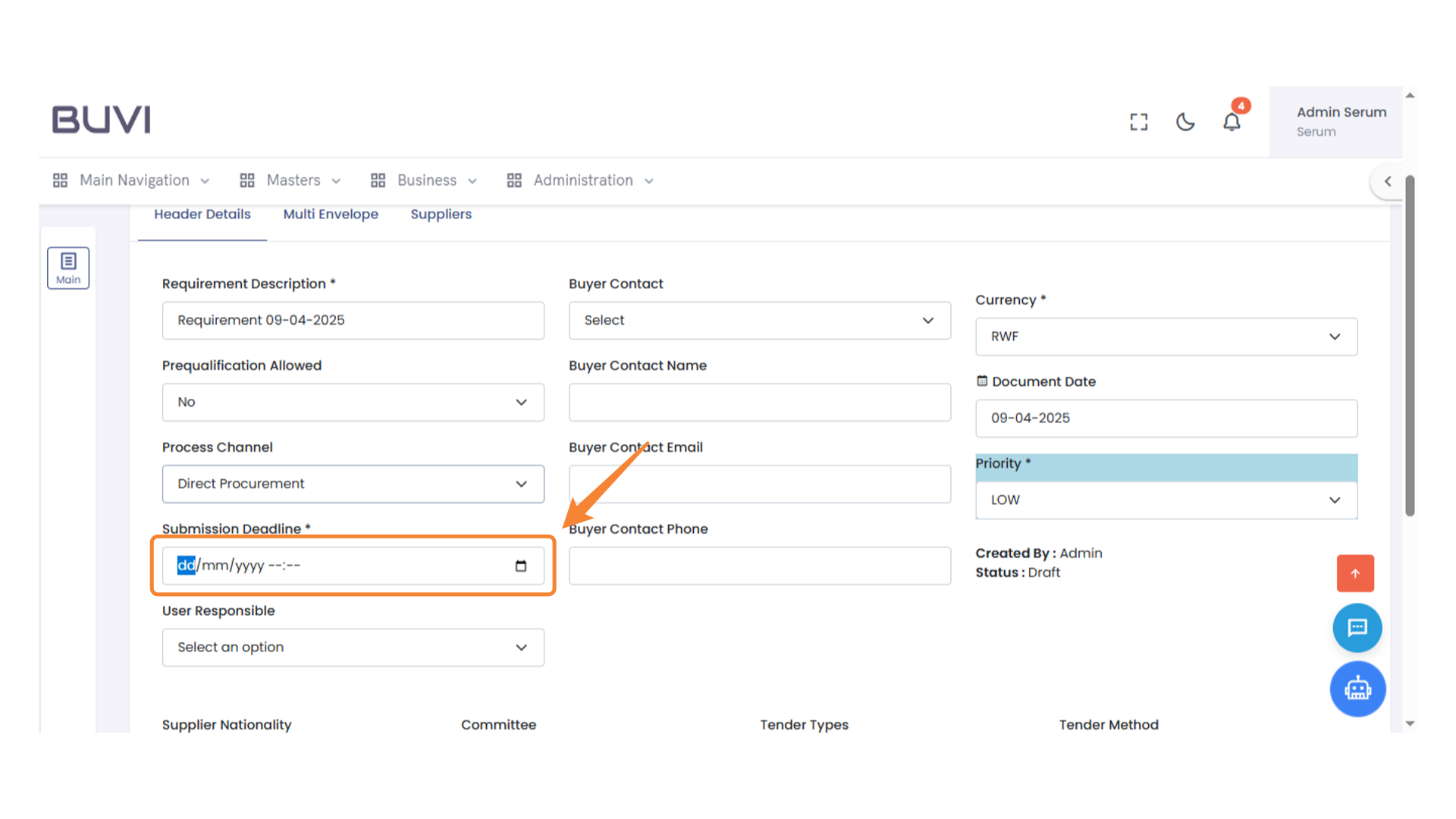
11. Submission Deadline Input
Enter the submission deadline date and time in the specified format.
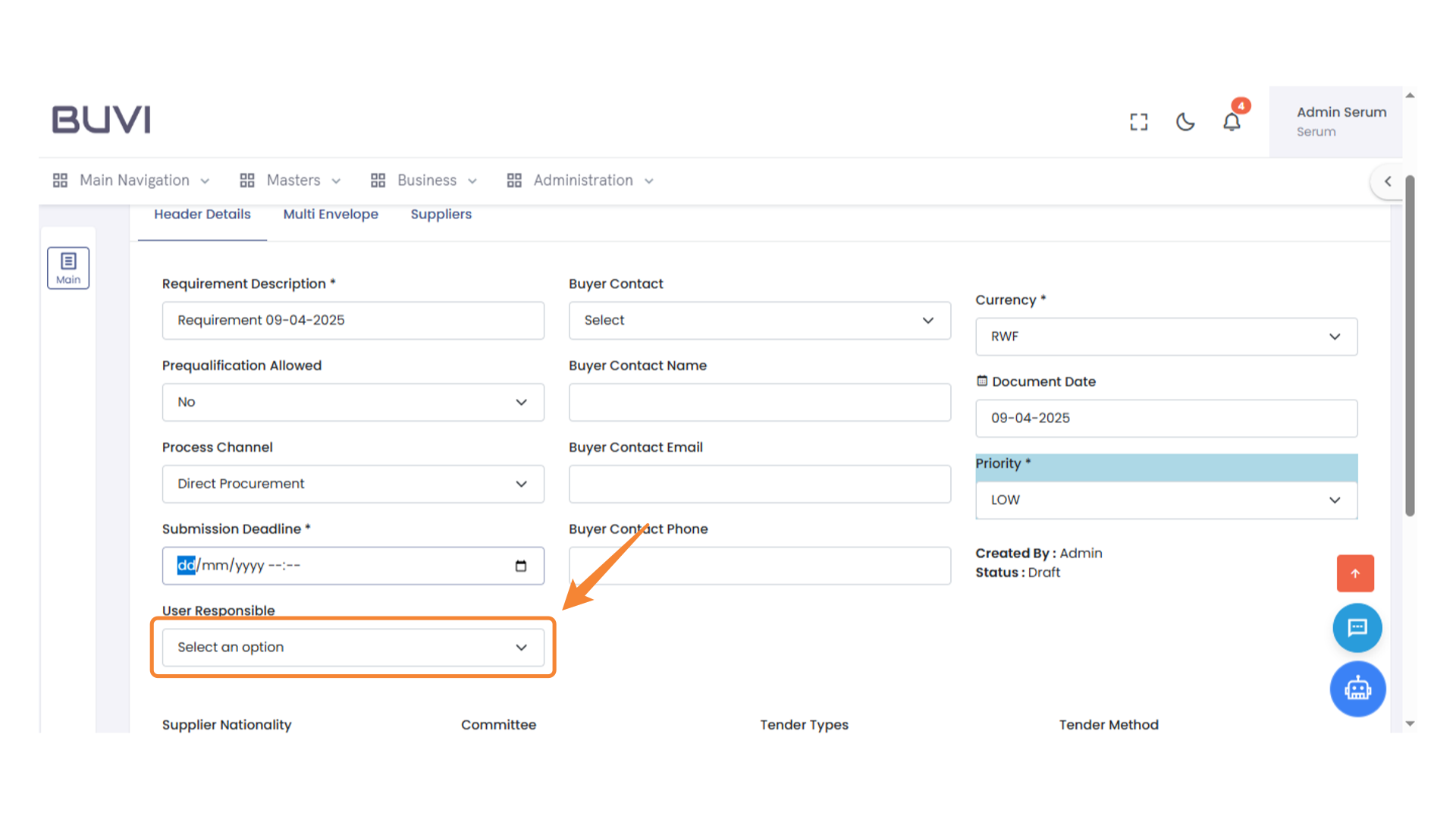
12. Dropdown Selection
Choose an option from the dropdown menu to assign user responsibility.
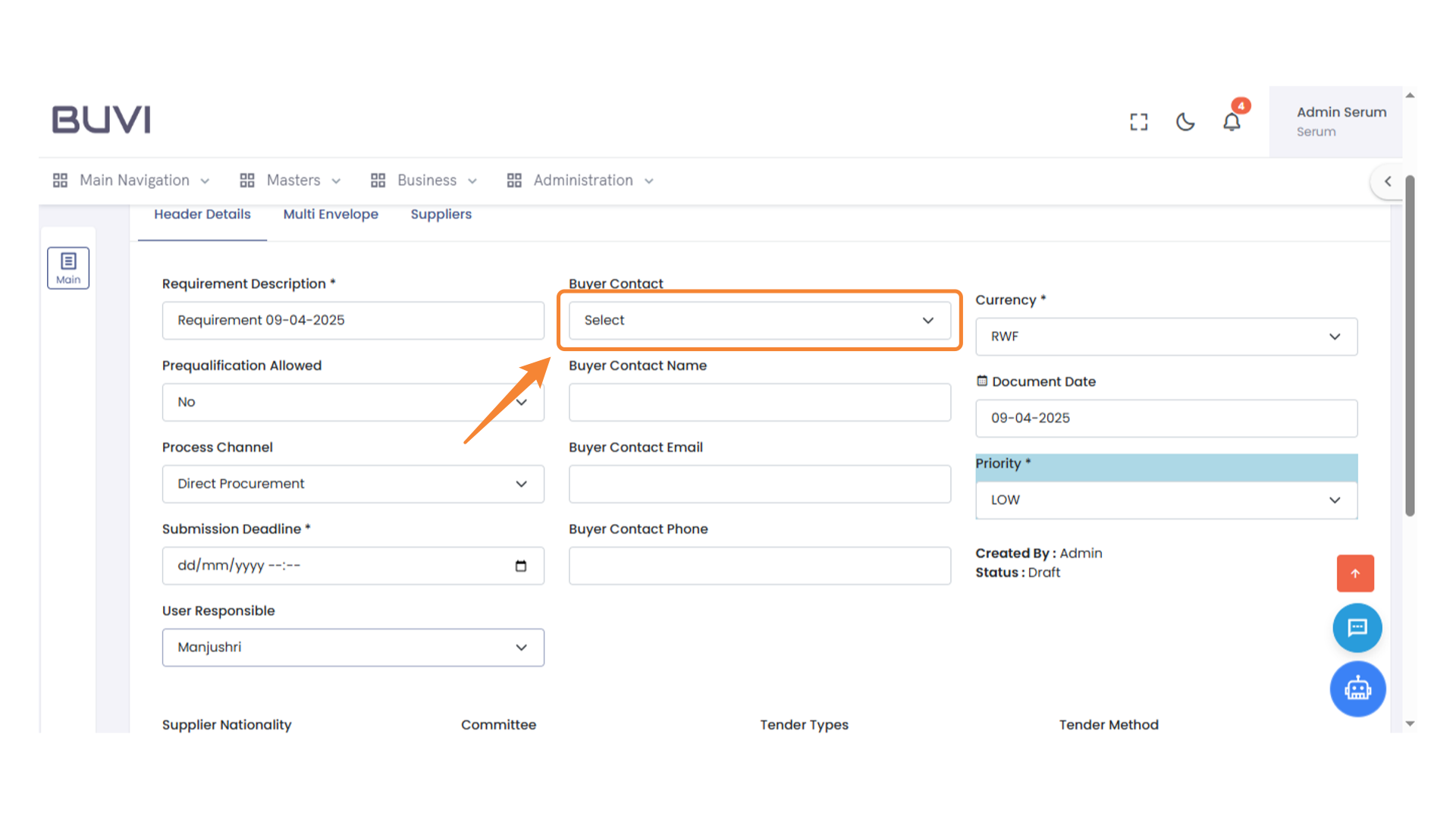
13. Buyer Contact Selection
Choose the appropriate buyer contact from the dropdown menu.
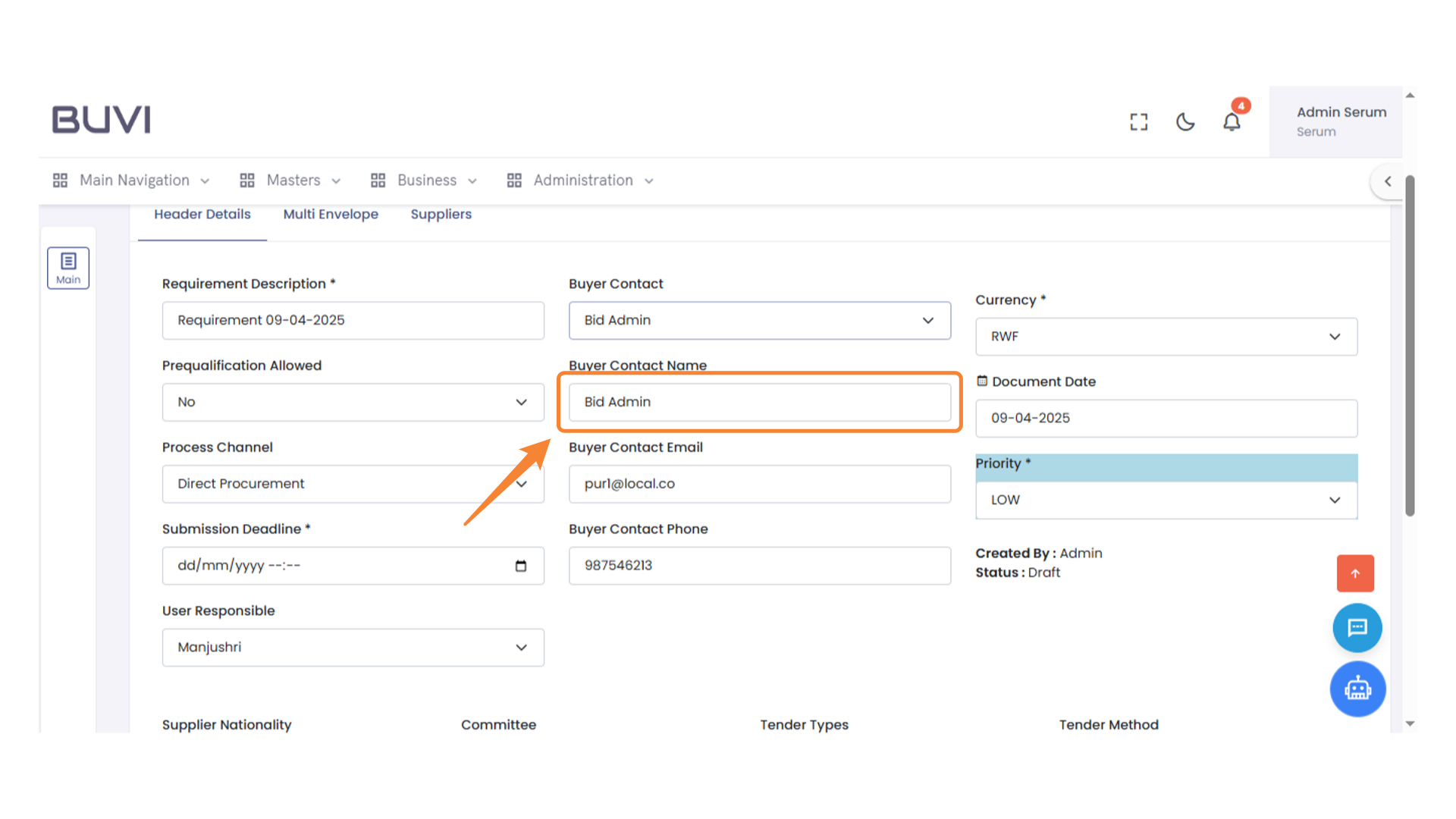
14. Buyer Contact Name
Enter the name of the buyer contact.
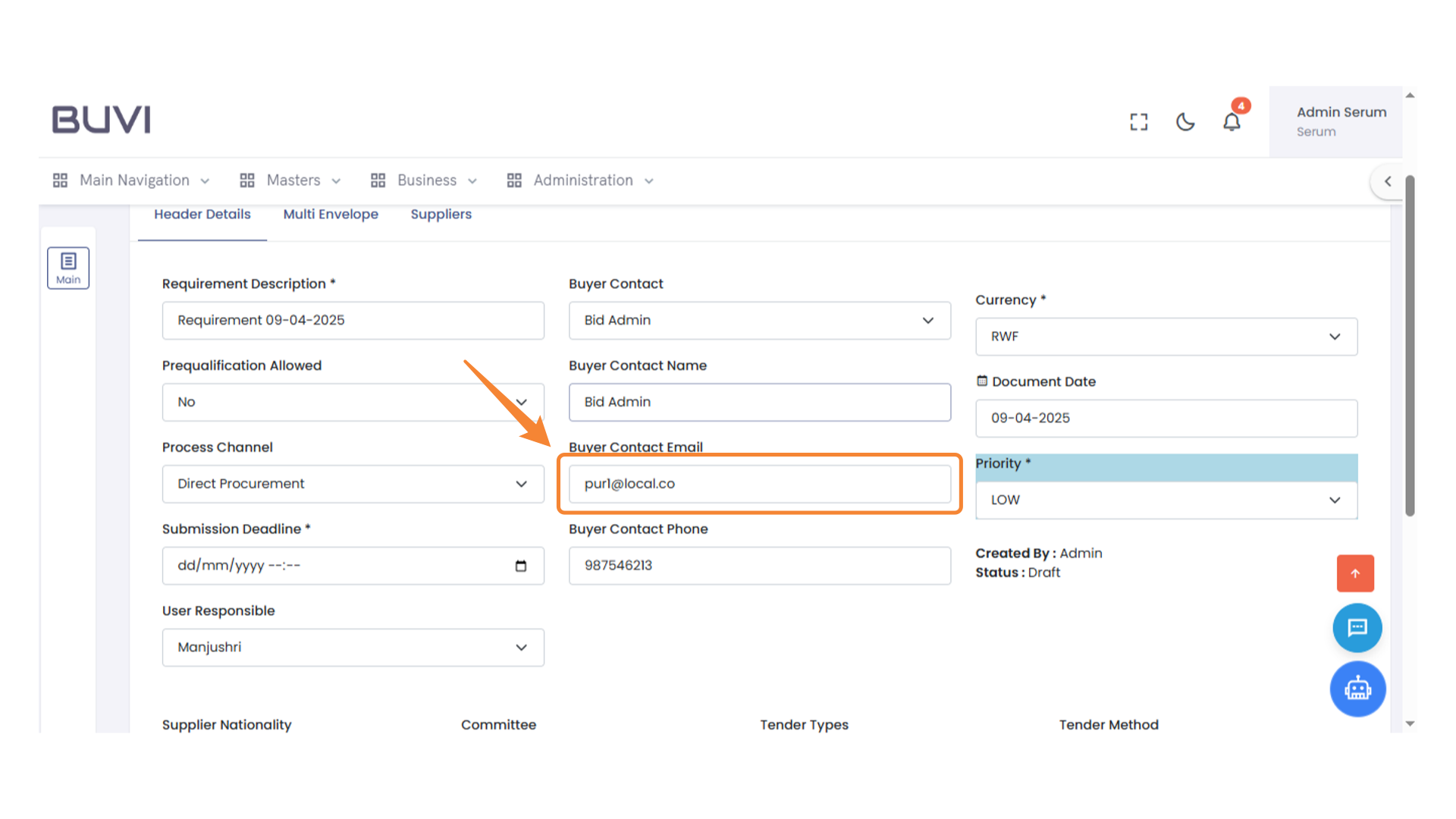
15. Buyer Contact Email
Enter the buyer's contact email address to ensure communication is directed correctly.
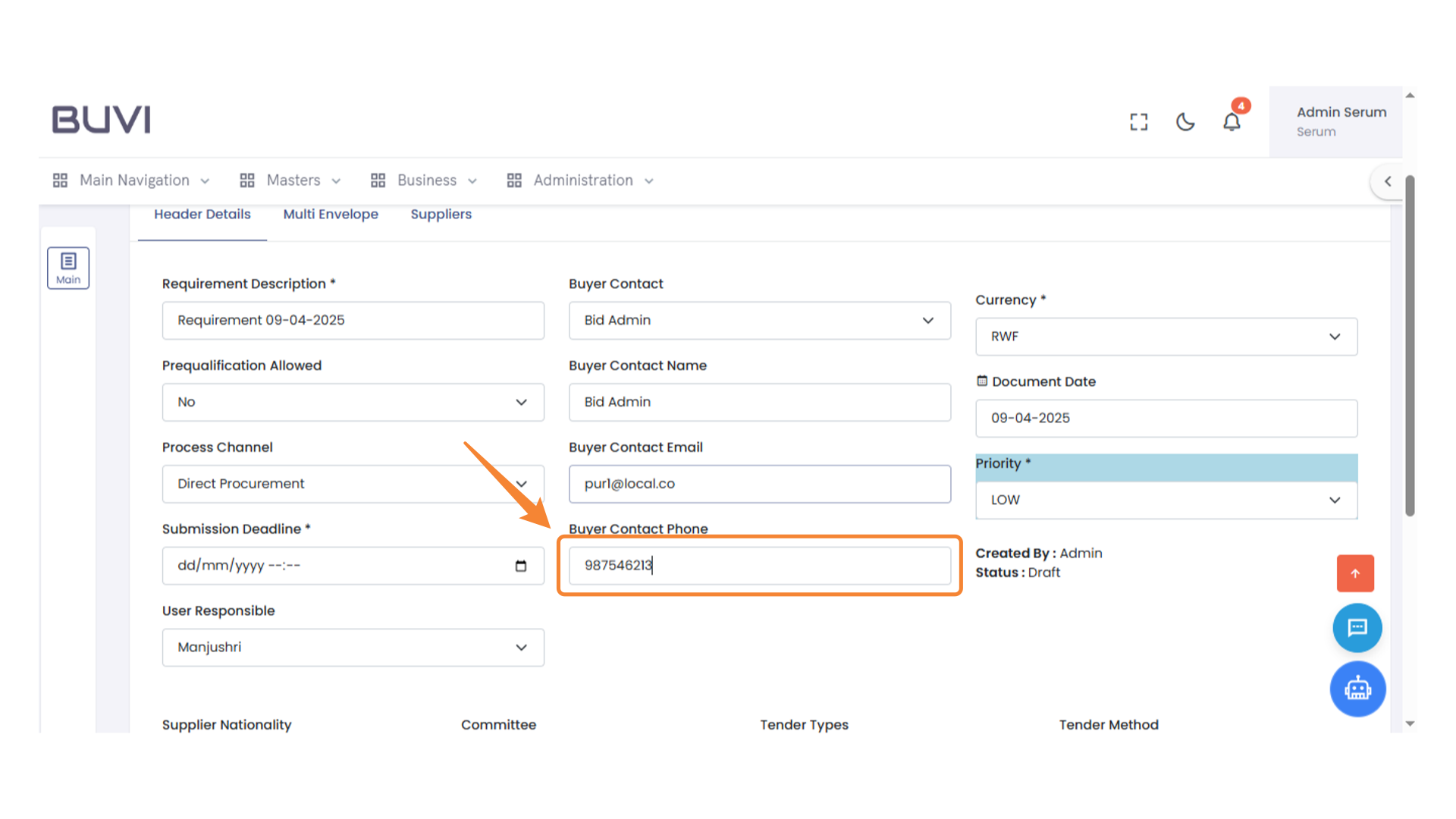
16. Buyer Contact Phone Field
Enter the phone number of the buyer contact in this input field.
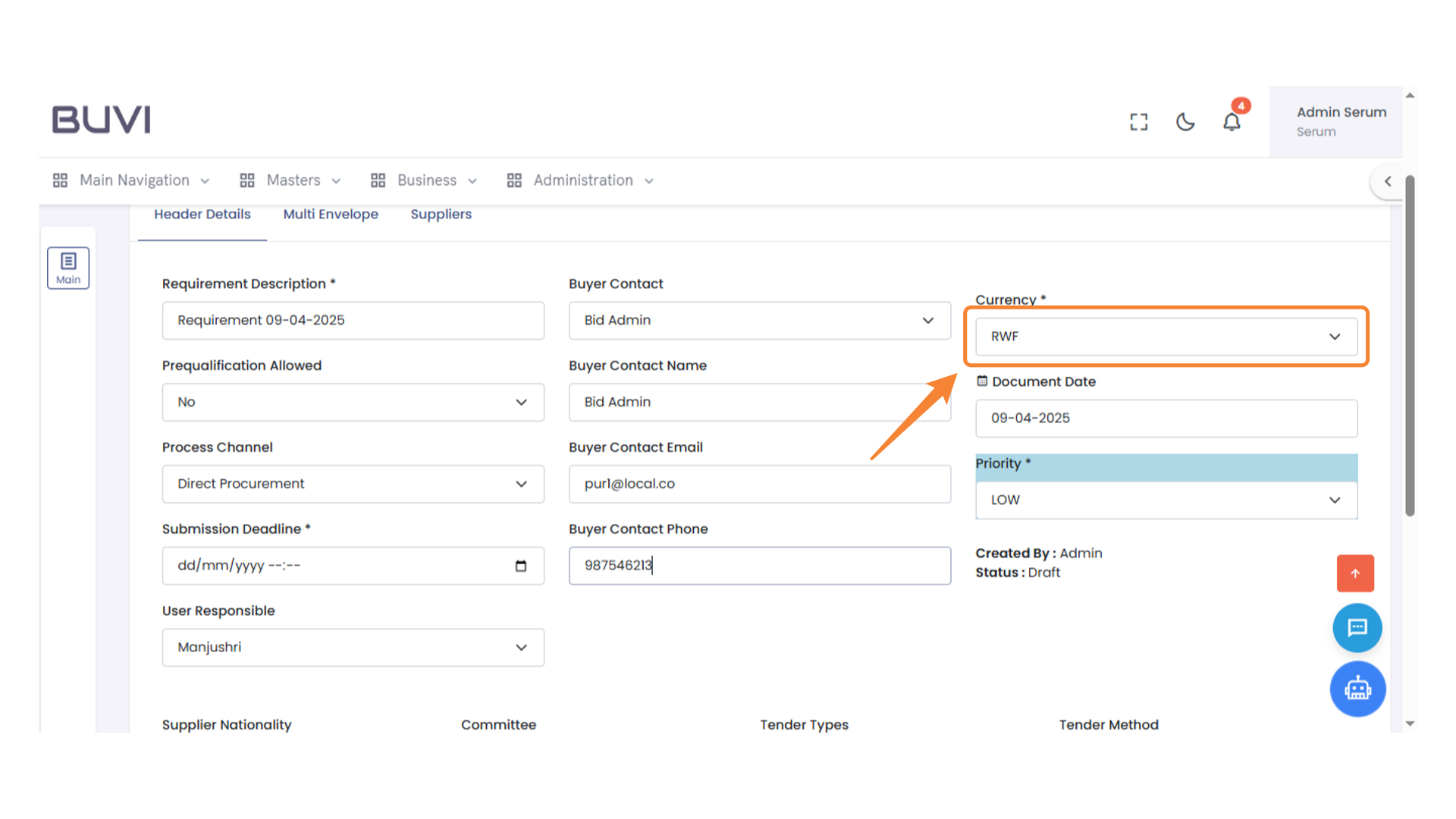
17. Currency Selection Field
Select the relevant currency from the dropdown menu to proceed with the transaction.
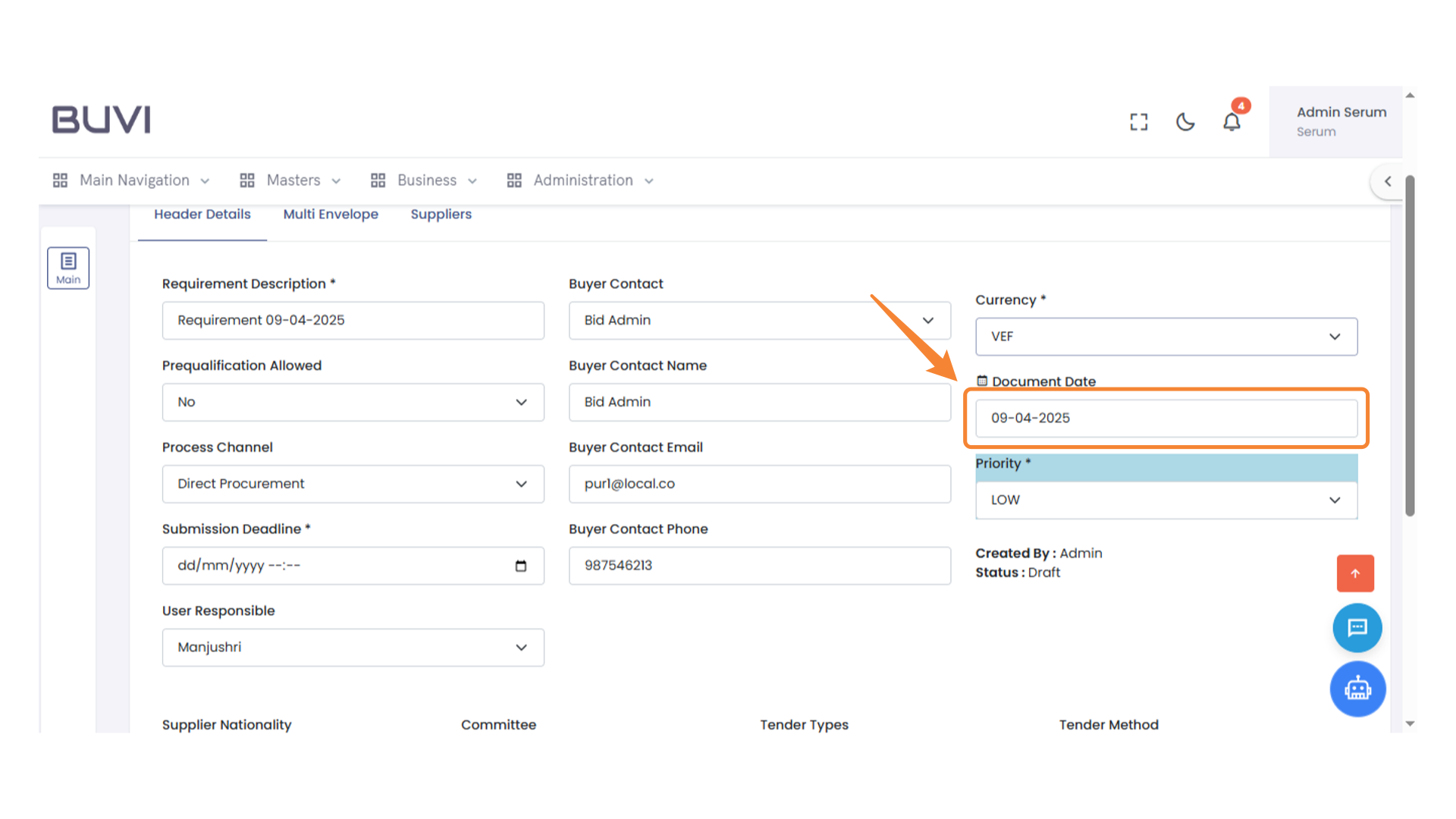
18. Document Date Field
Enter the document date in the given field.
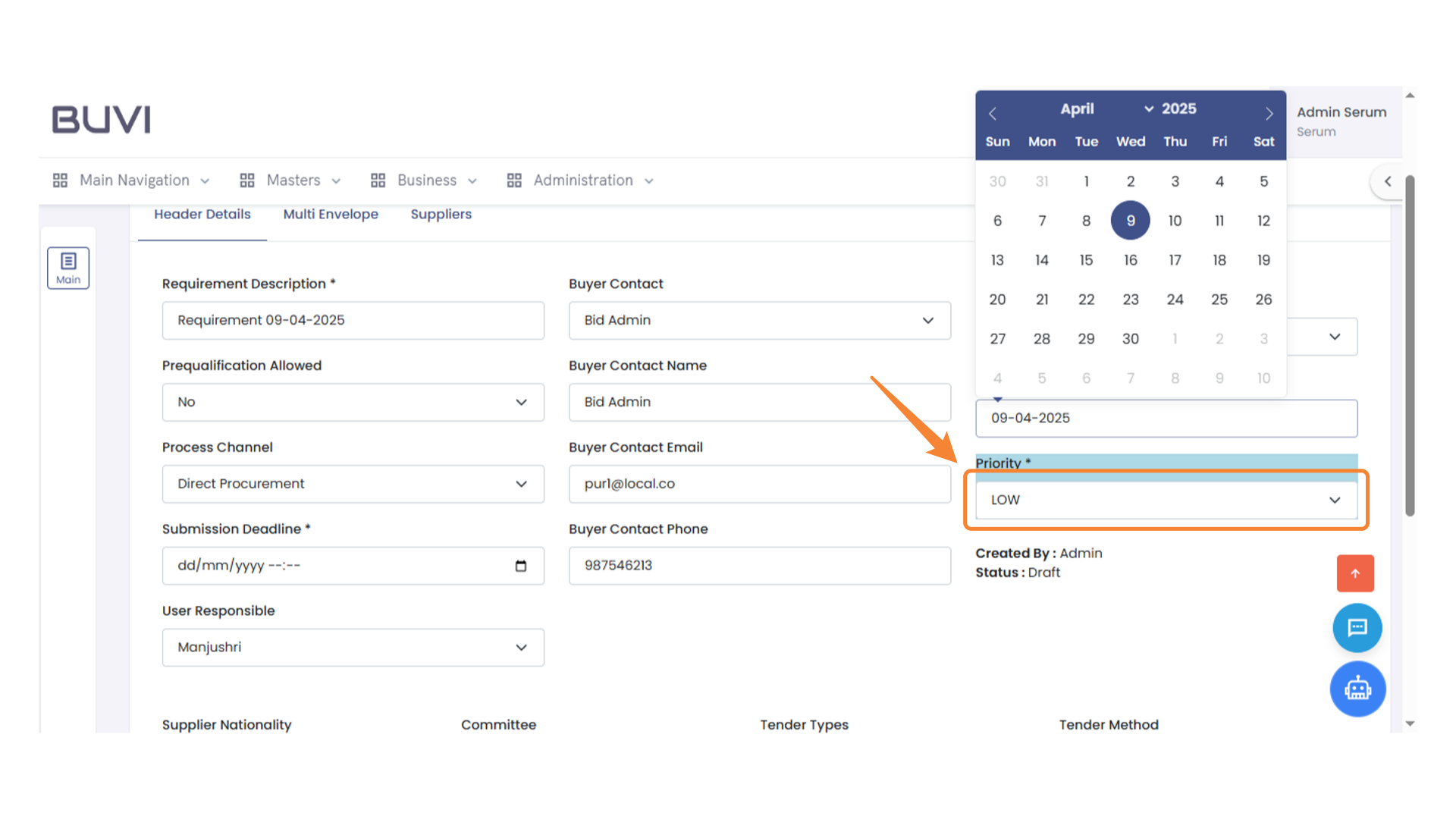
19. Priority Selection Dropdown
Select the desired priority level from the dropdown menu.
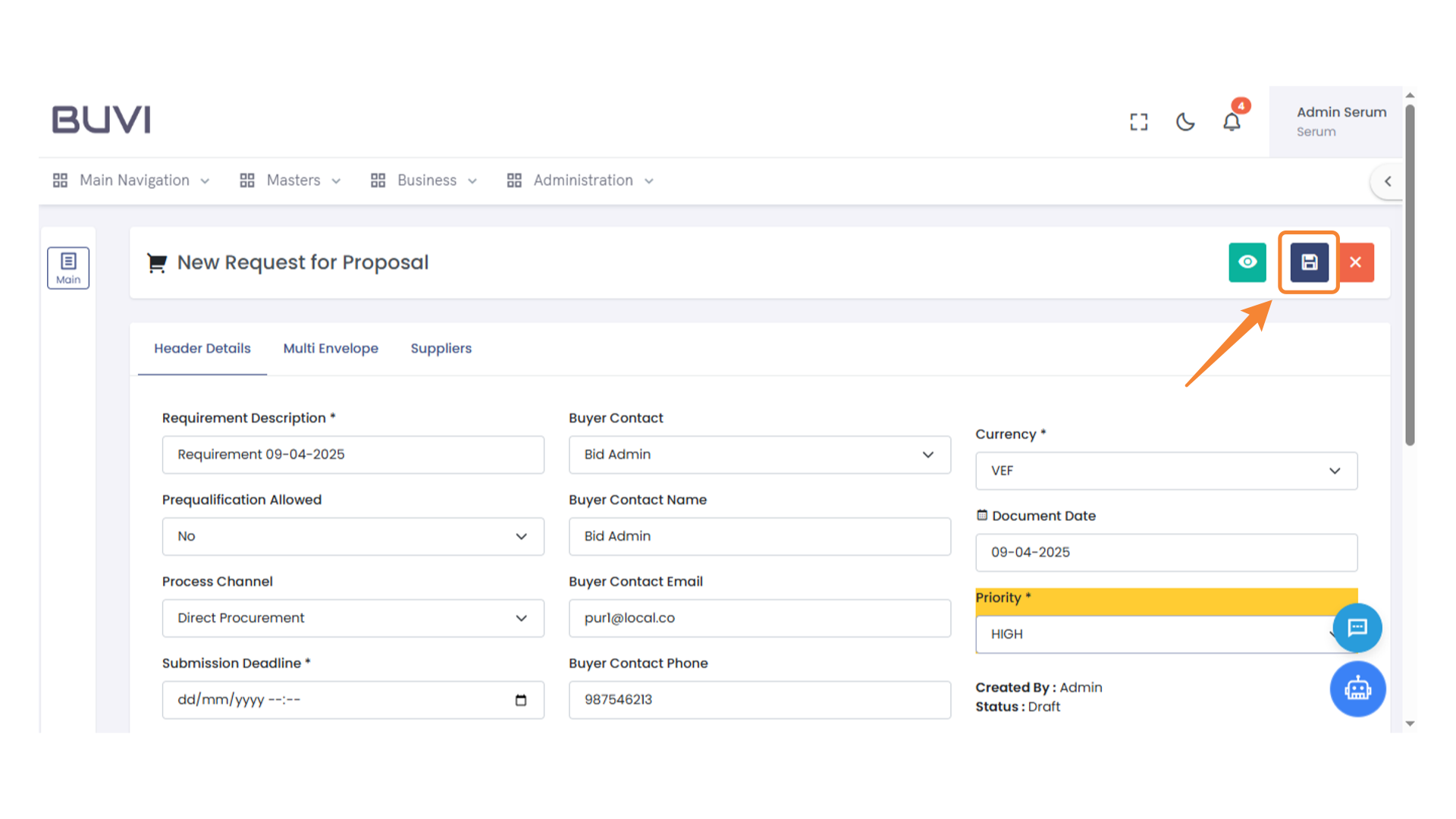
20. Save Button
Click to save the current request for proposal.
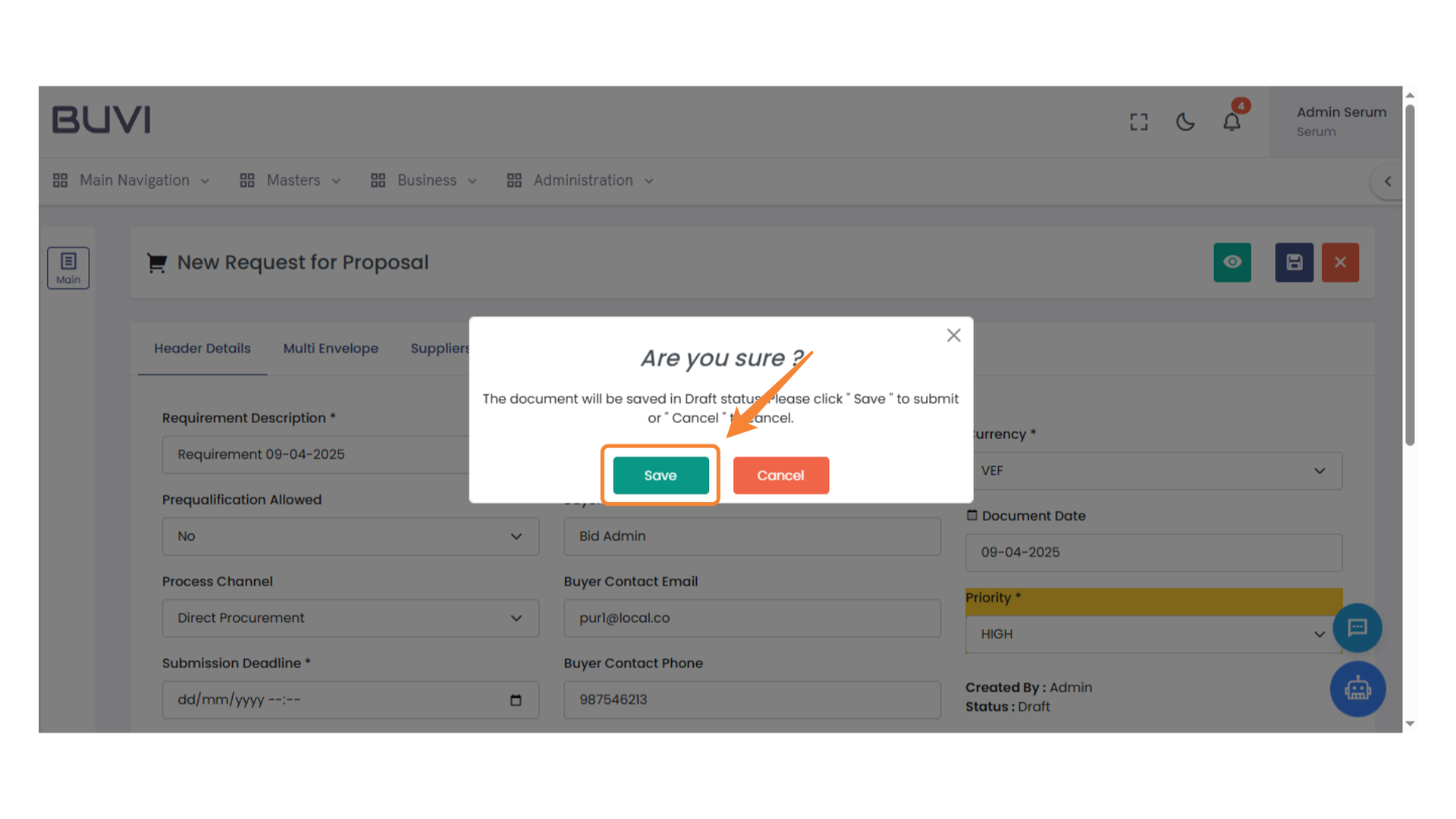
21. Confirmation Save Prompt
Click 'Save' to proceed with saving your document in draft status.