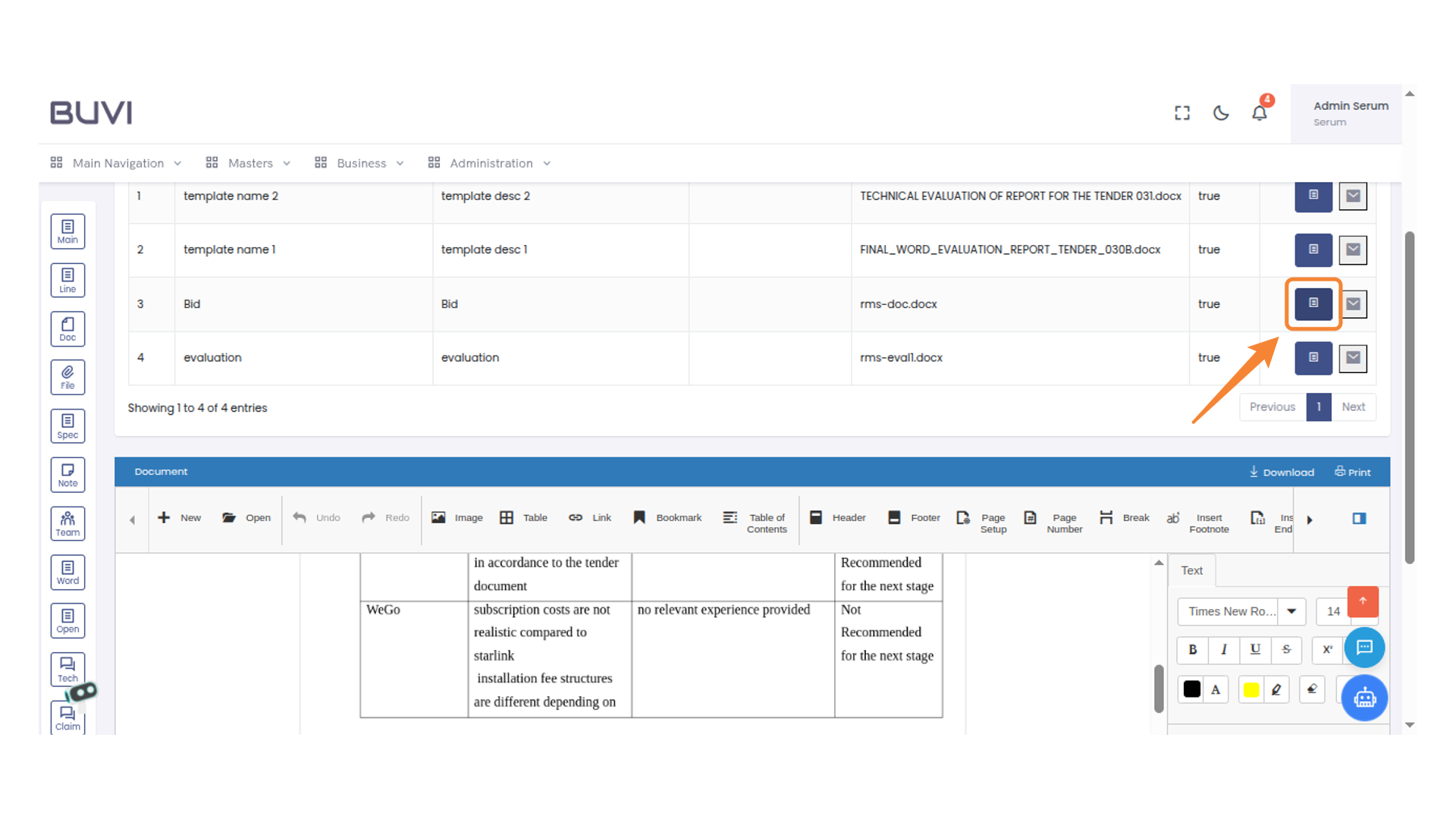
Print template
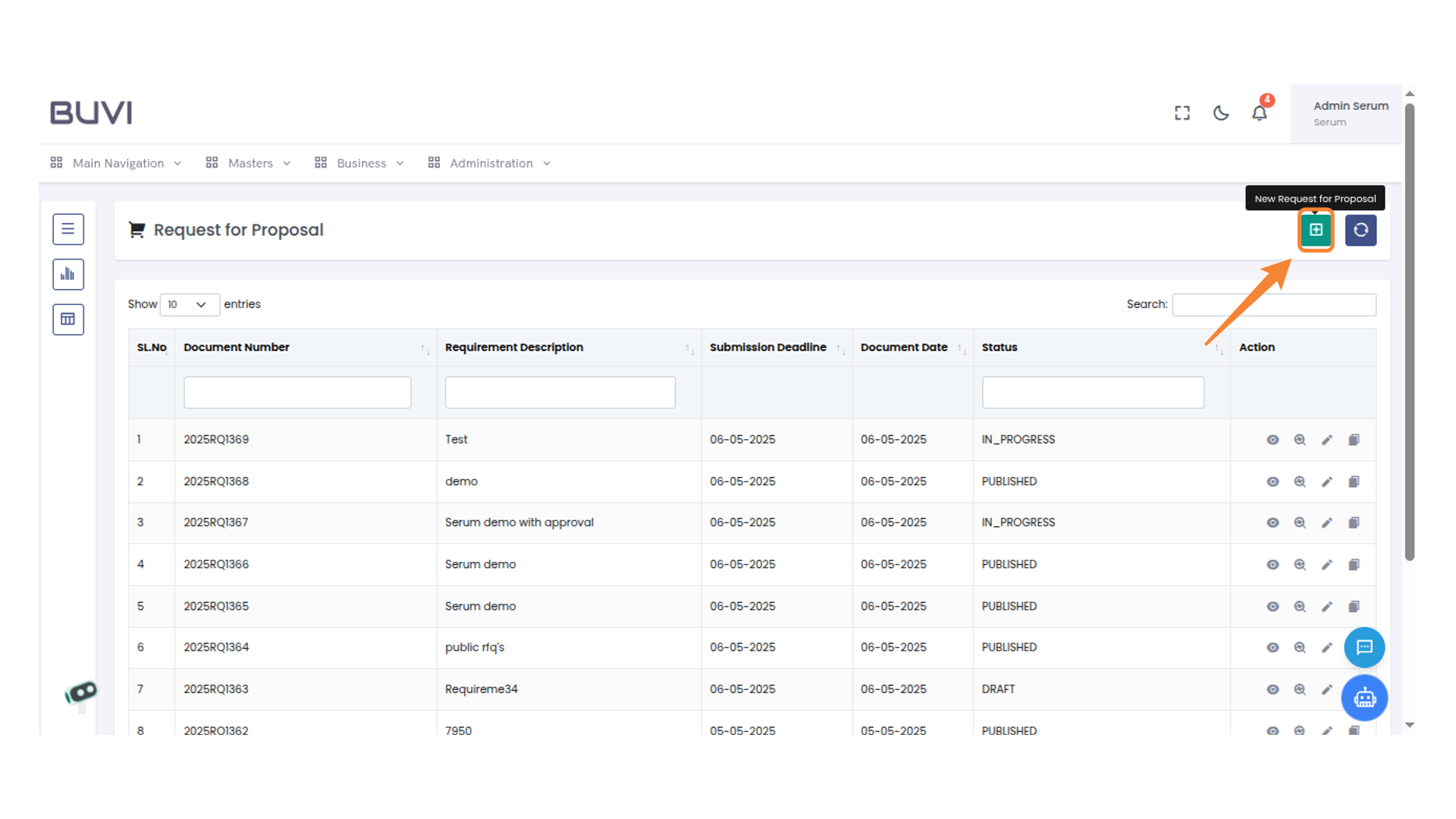
1. New Request for Proposal Button
Click to initiate a new request for proposal.
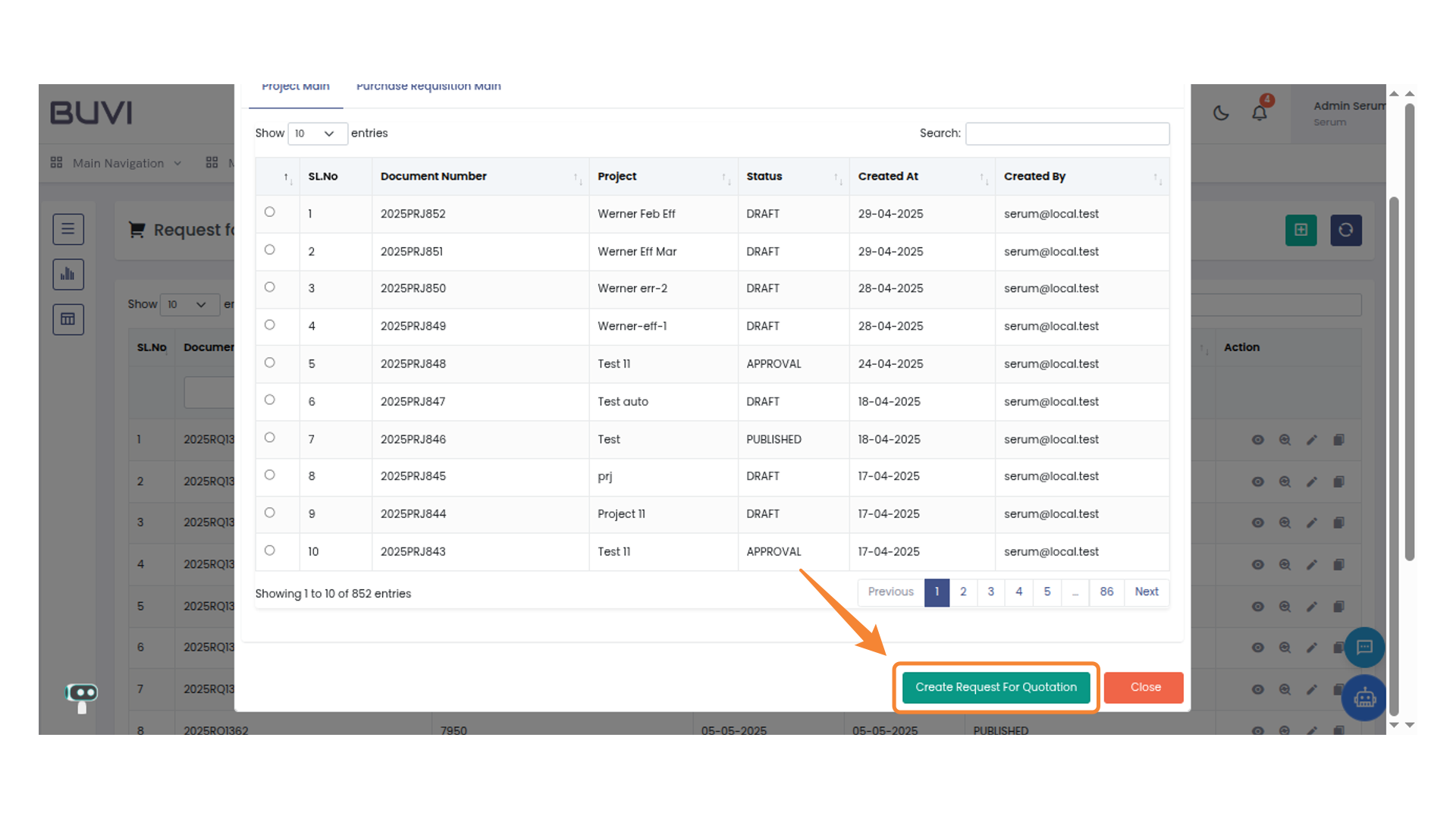
2. Create Request For Quotation Button
Click the button to initiate a new request for quotation.
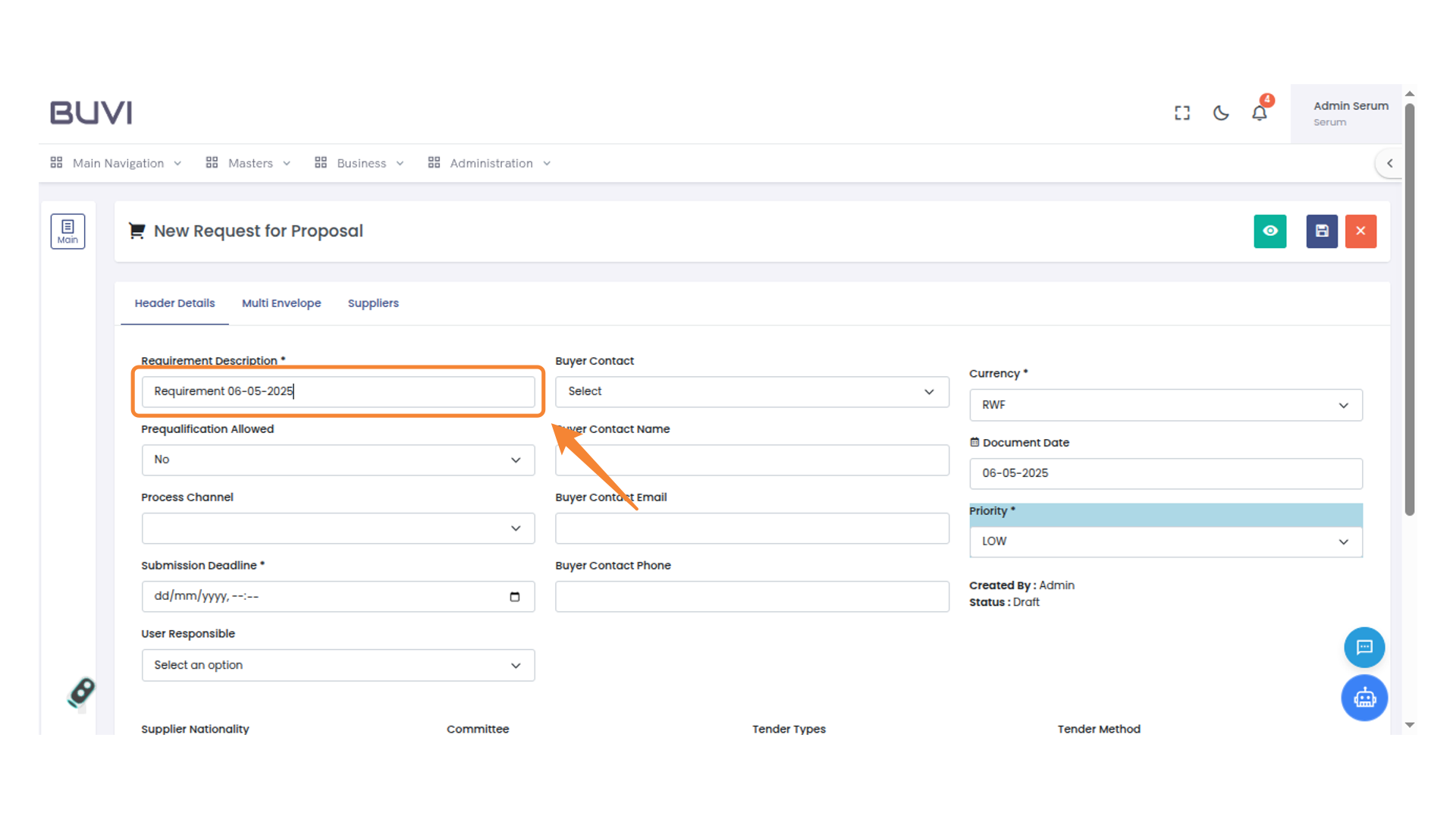
3. Requirement Description
Enter Requirement description
4. Submission Deadline Input
Enter submission deadline date

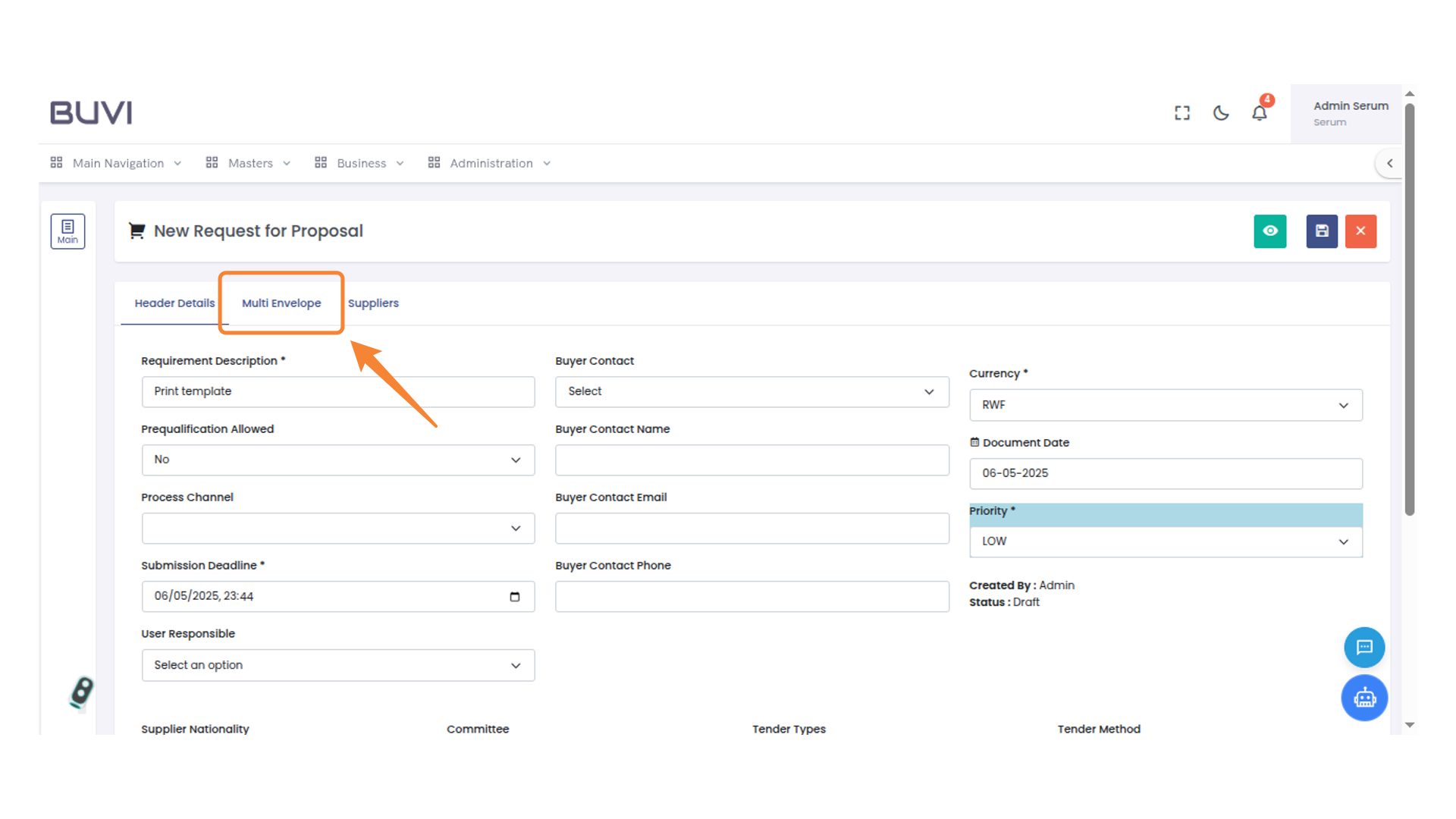
5. Multi Envelope Tab
Explore the options available in the Multi Envelope section.
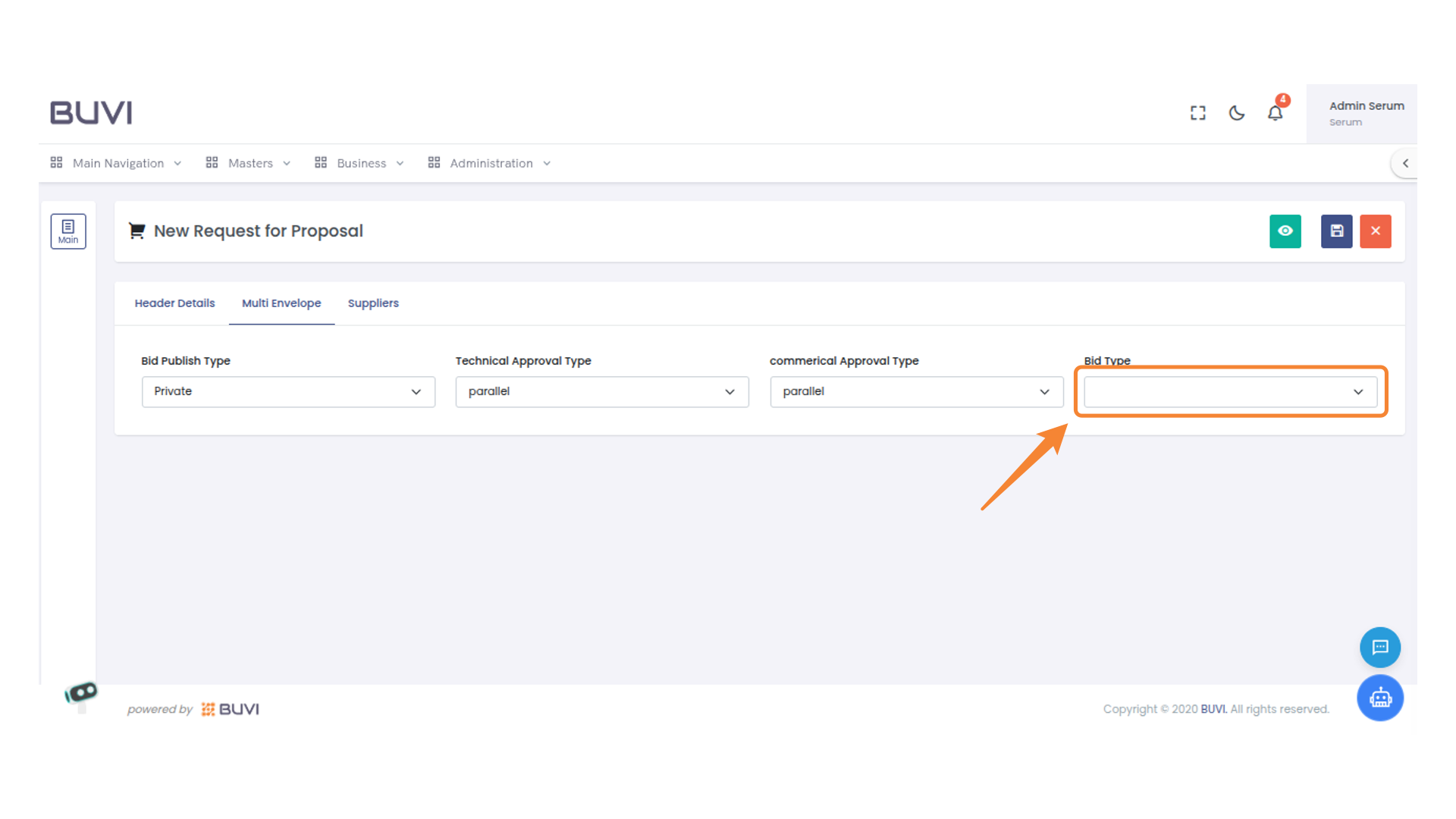
6. Bid Type Selection
Choose the appropriate type for the bid from the dropdown menu.
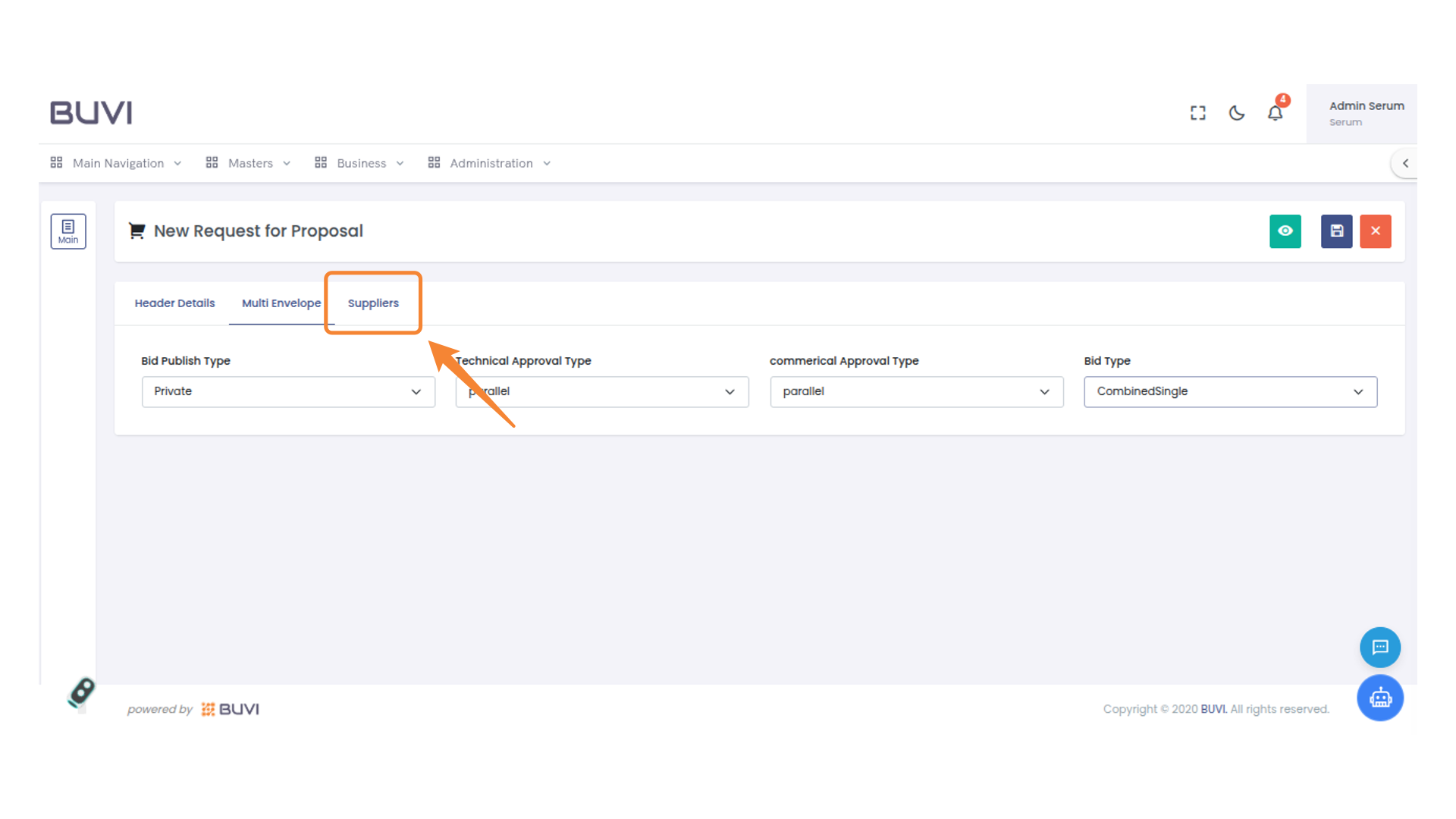
7. Suppliers Tab
Access the suppliers section to manage your supplier information.
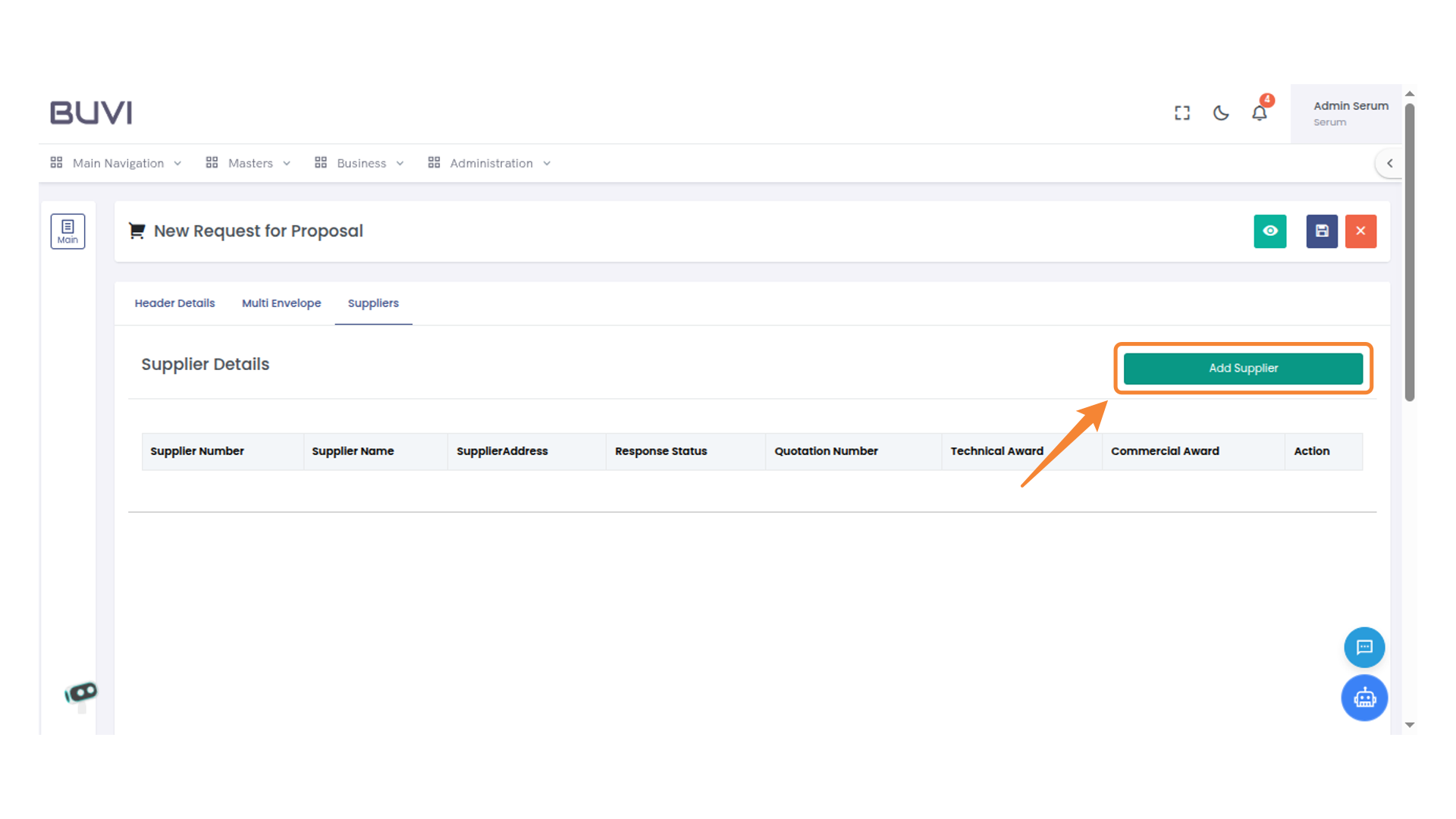
8. Add Supplier Button
Select this button to add a new supplier to the list.
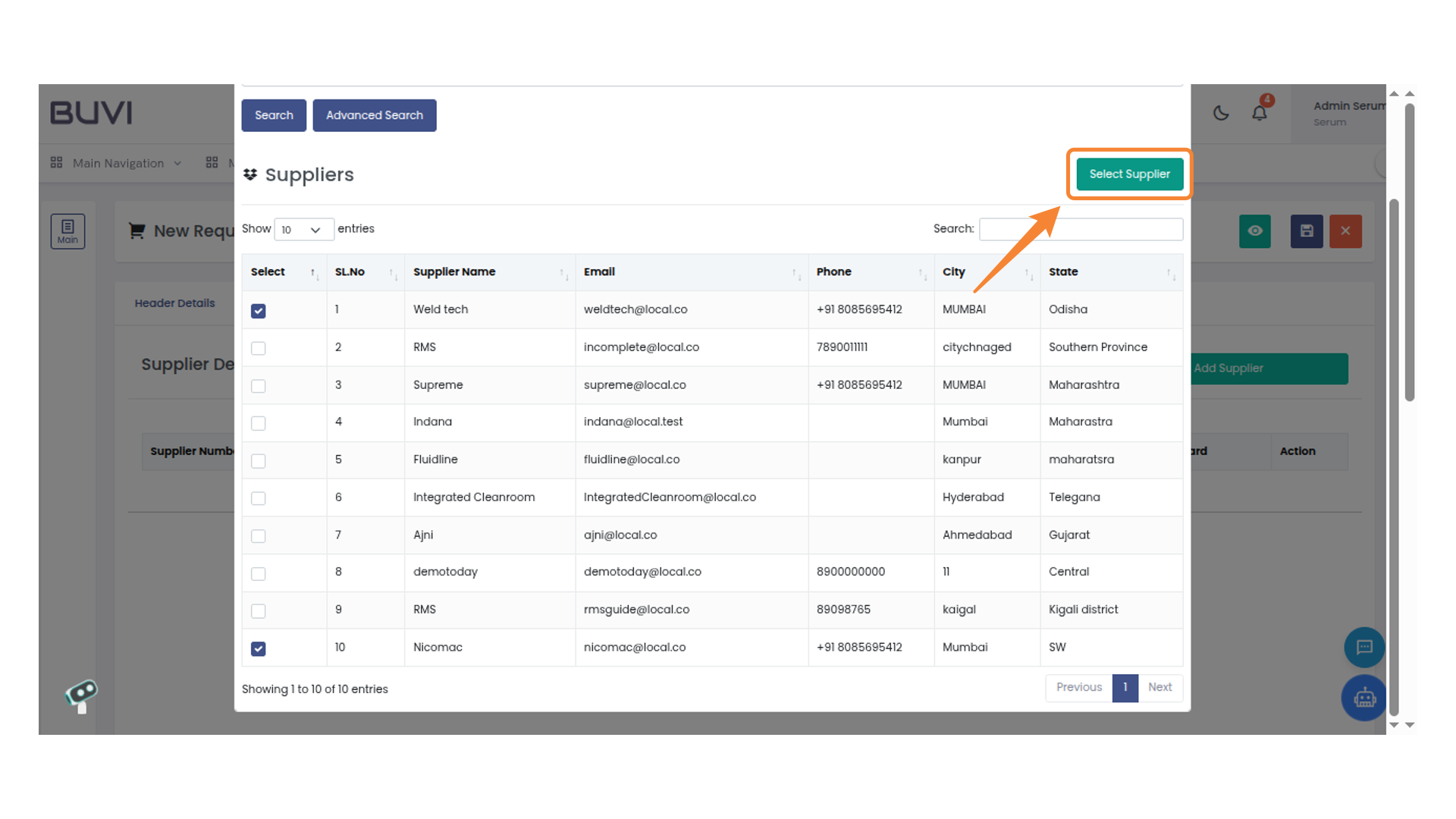
9. Supplier Selection Button
Click to choose a supplier from the list.
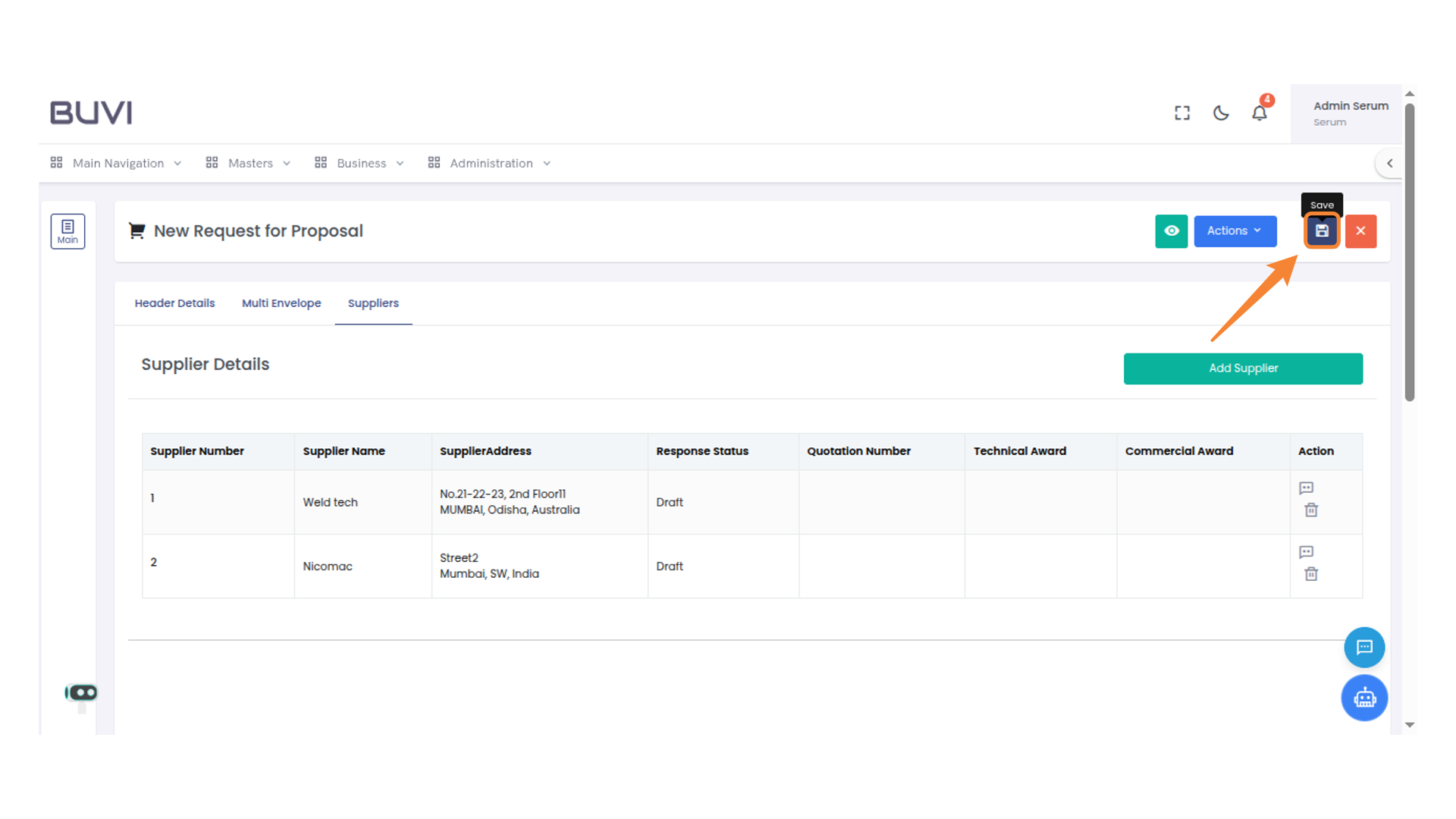
10. Save Button
Click to save your current changes.
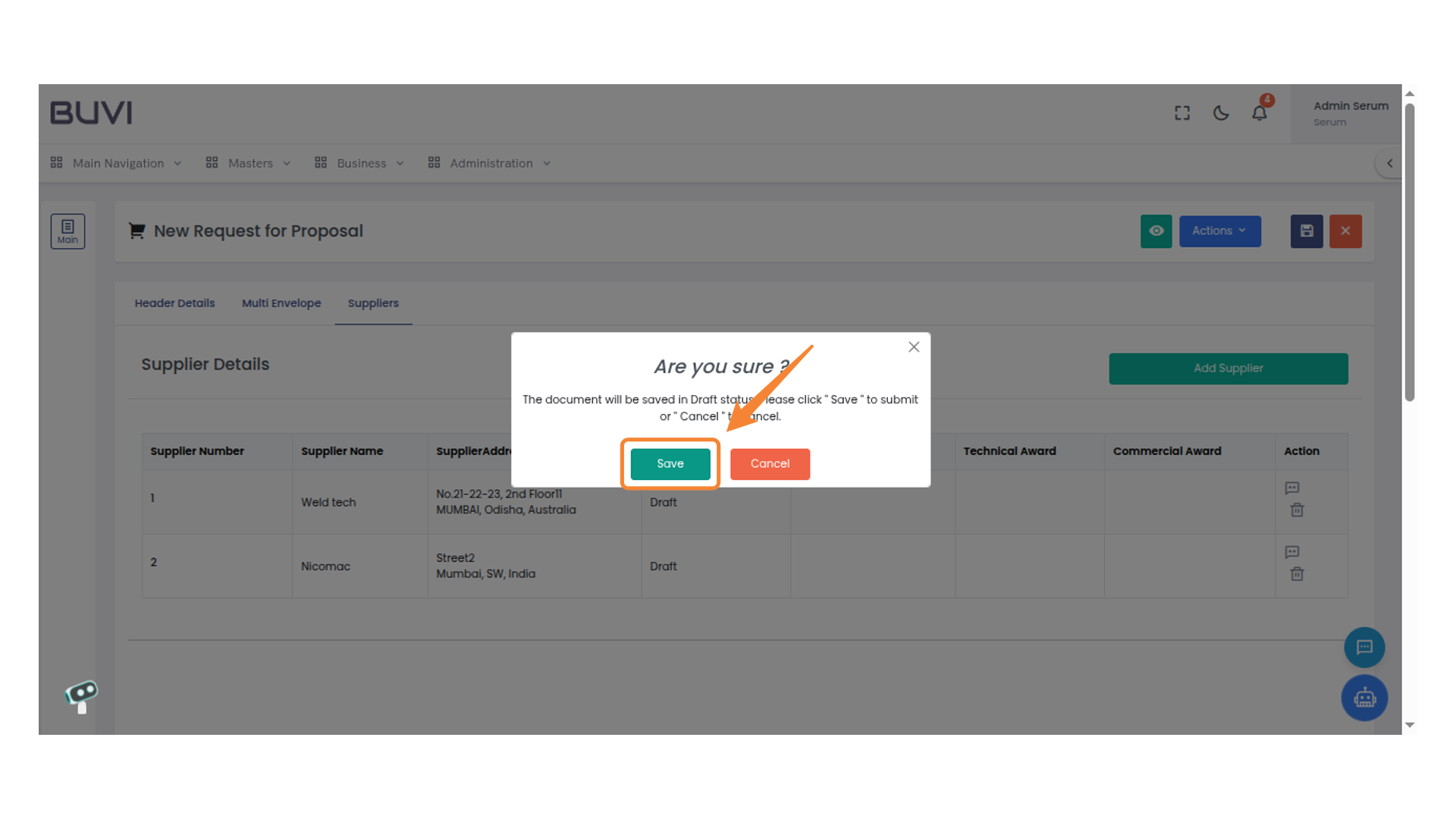
11. Confirmation Popup
Click 'Save' to confirm your changes and proceed.
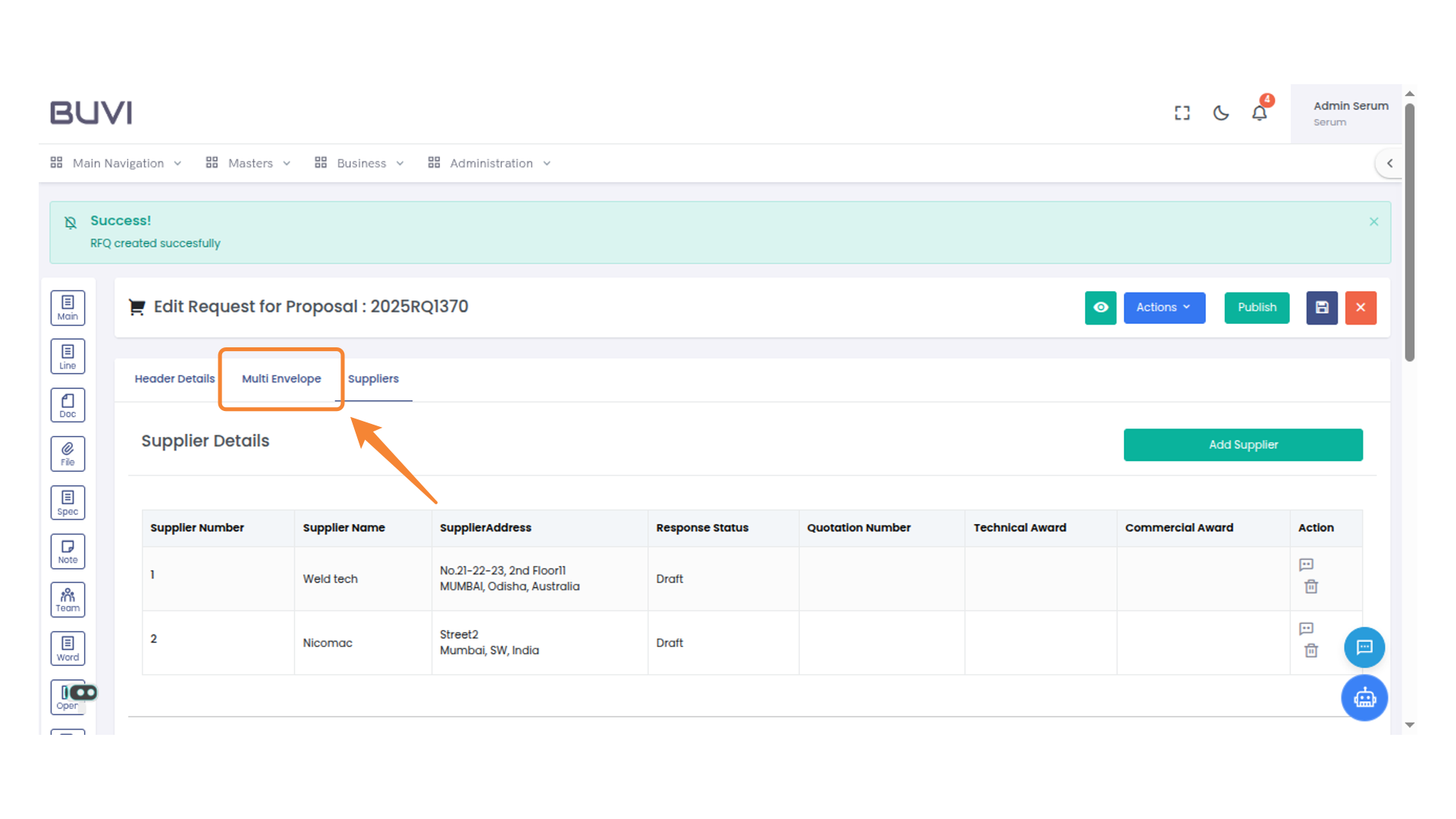
12. Multi Envelope Tab
Select this tab to view and manage multiple envelope options for the proposal.
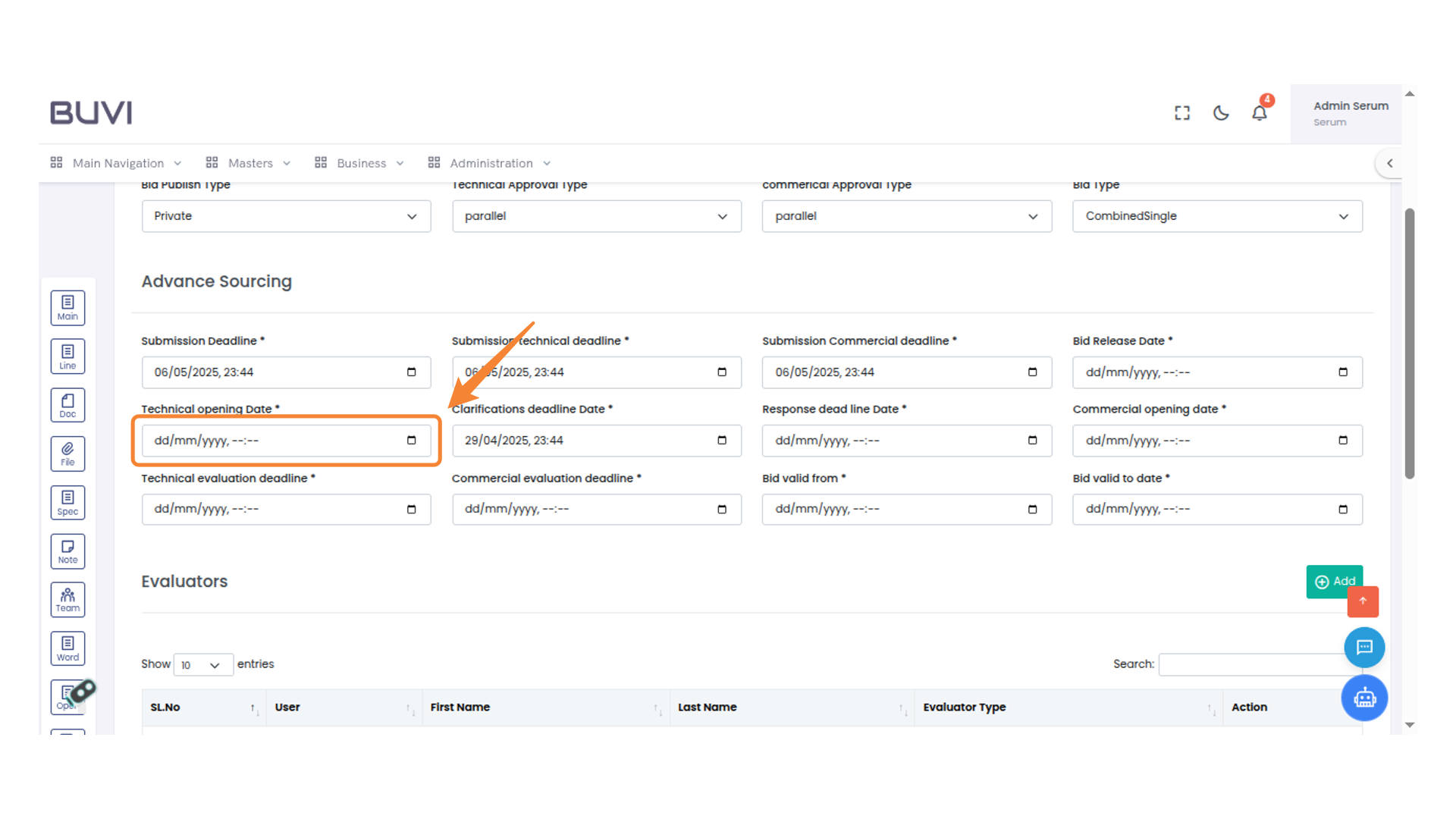
13. Specify Technical Opening Date
Enter the technical opening date
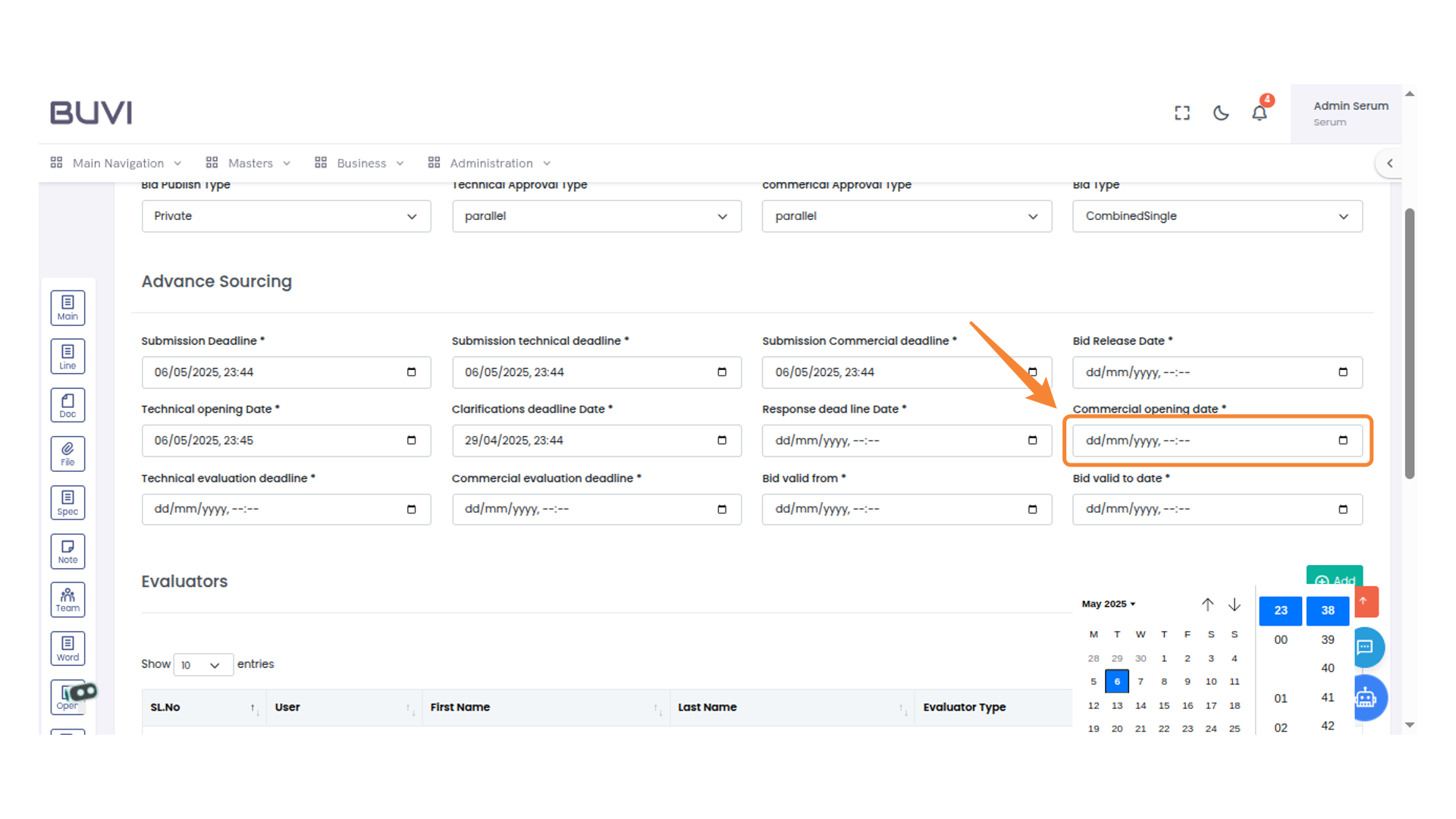
14. Commercial Opening Date
Enter the date for the commercial opening in the specified format.
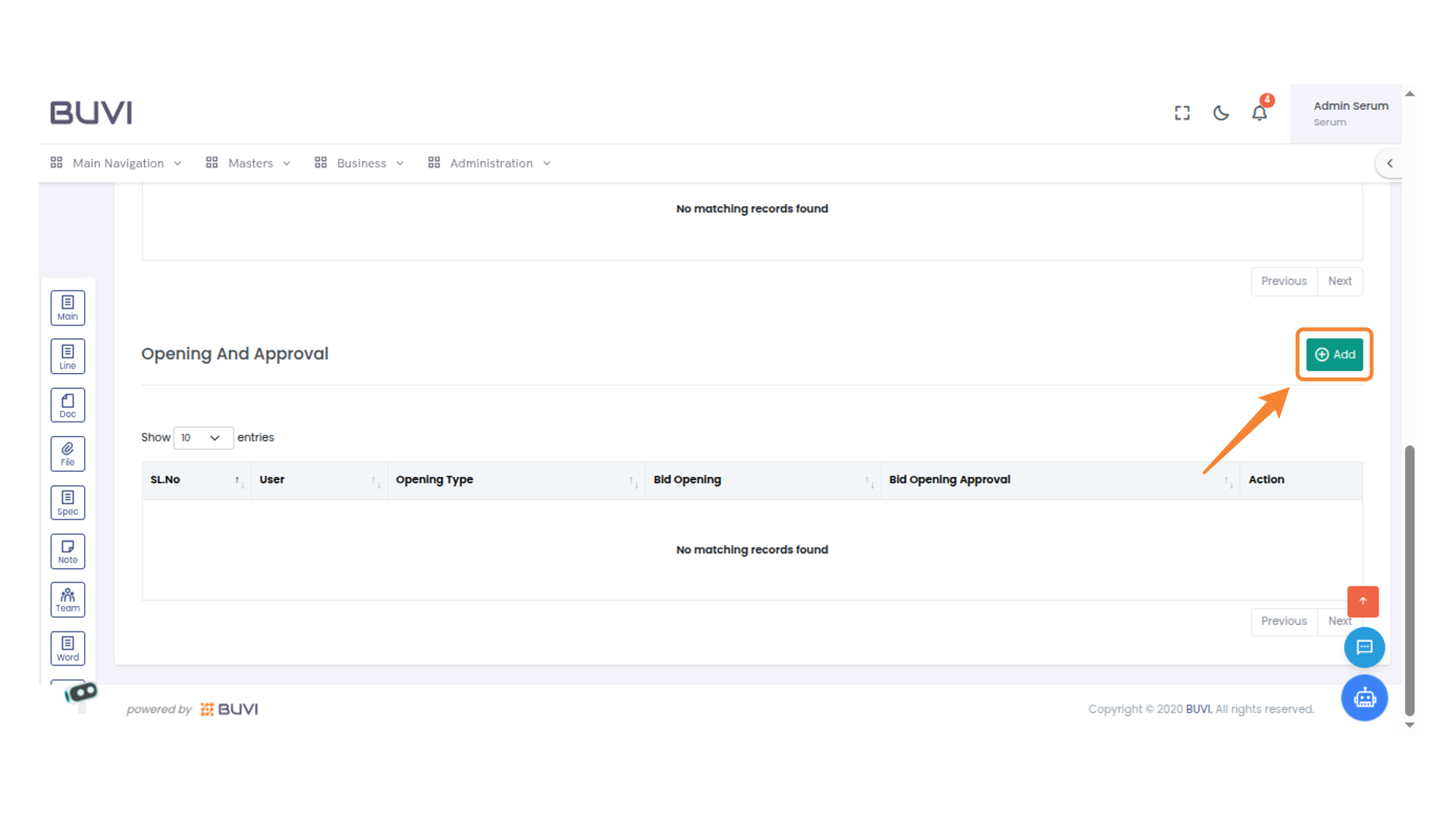
15. Add New Record
Click the 'Add' button to create a new entry in the table.
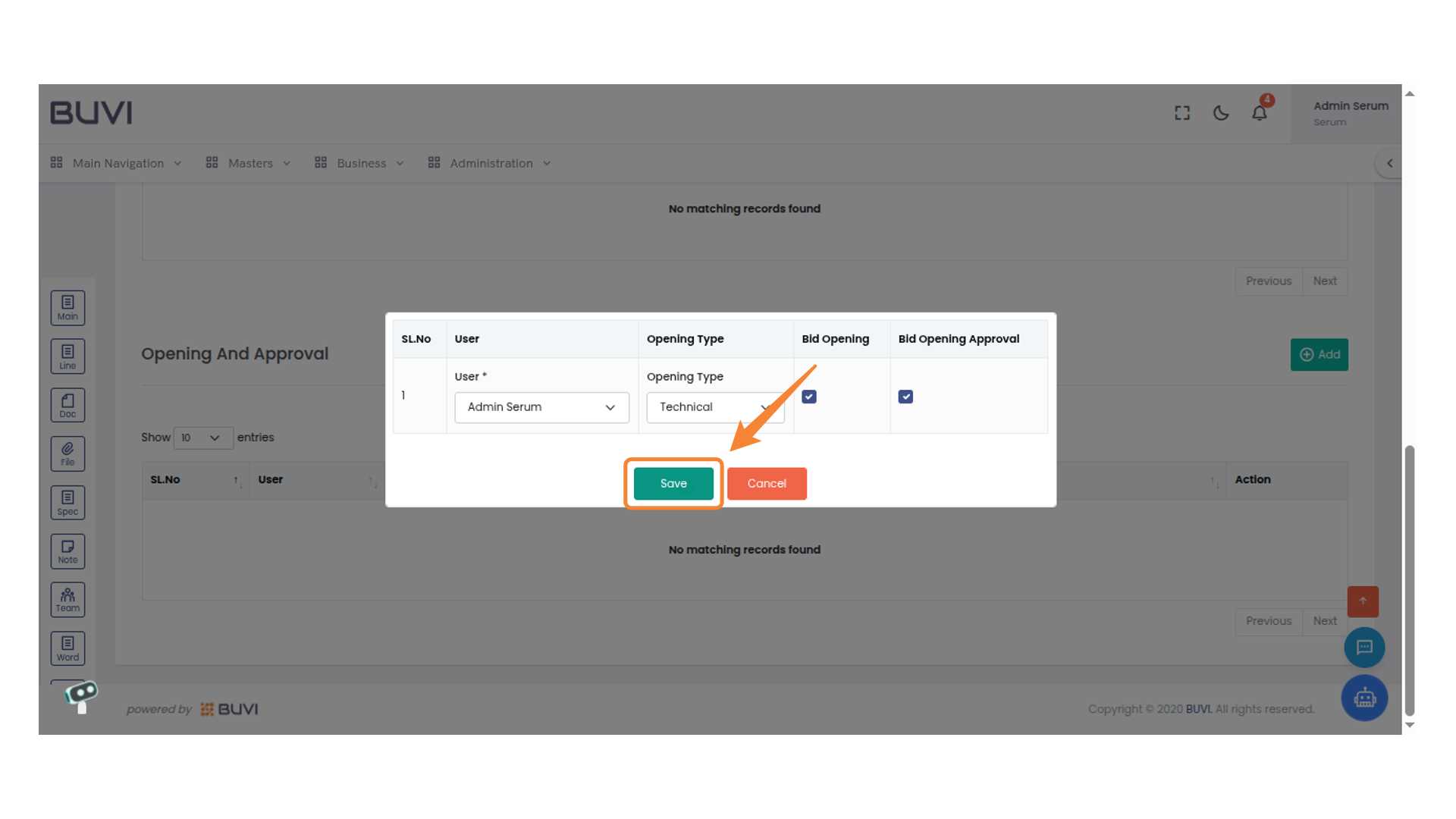
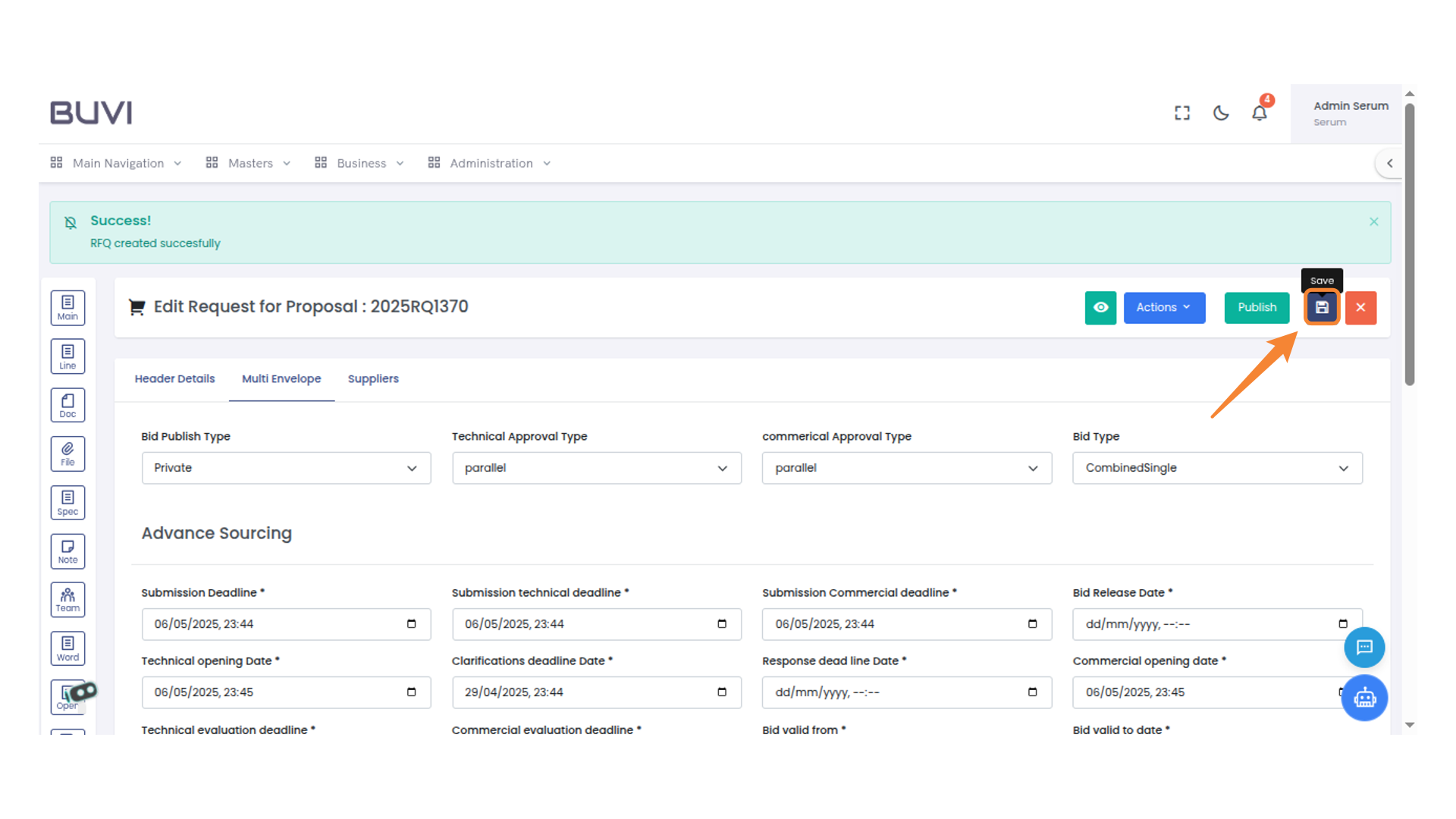
16. Save Button Highlighted
Click the save button to store your changes.
17. Save Button
Click to save the current changes.
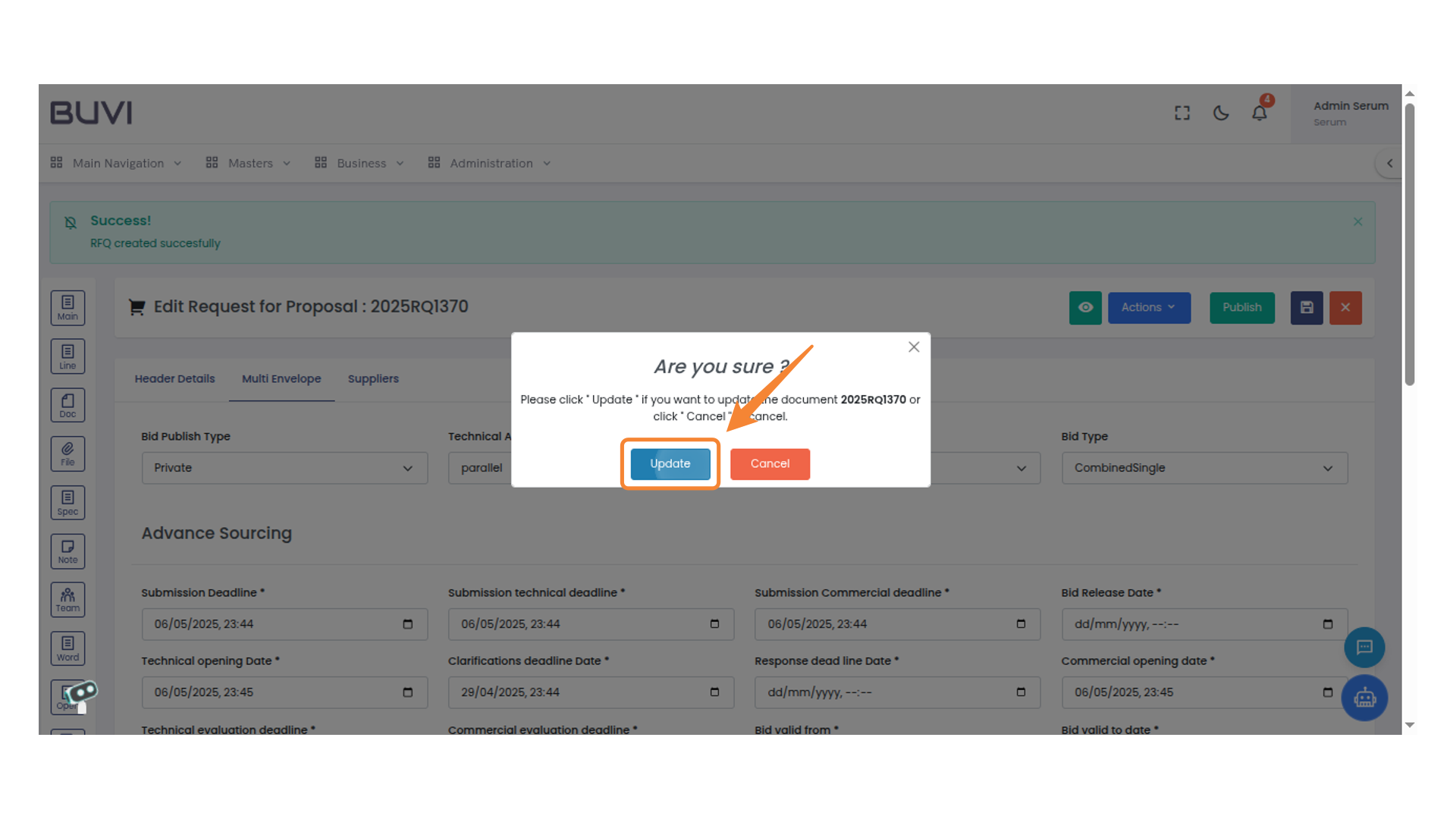
18. Confirmation Dialog
Click 'Update' to proceed with saving changes.
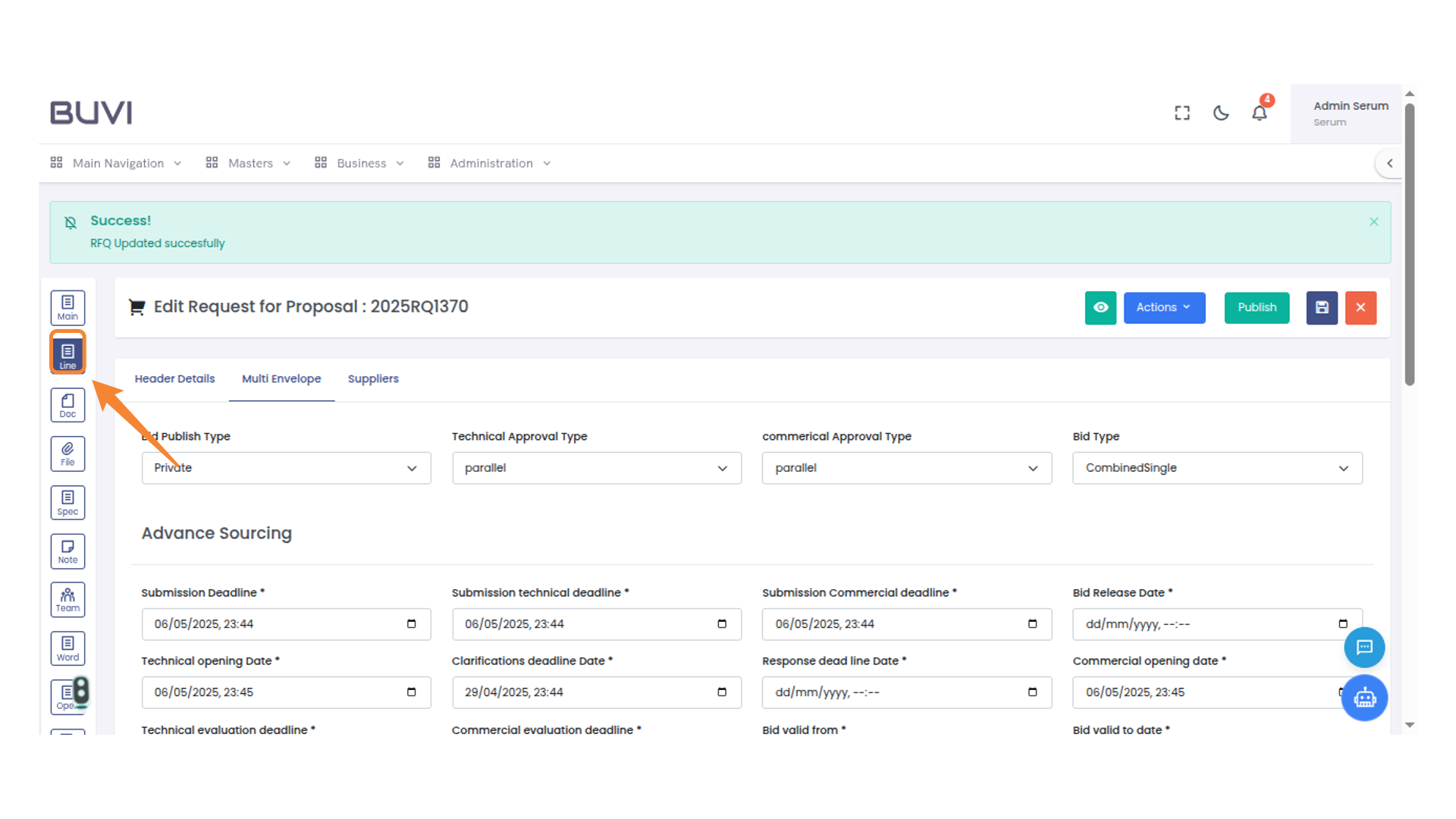
19. Navigation Line Icon
Click to access the line items section for detailed editing and management.
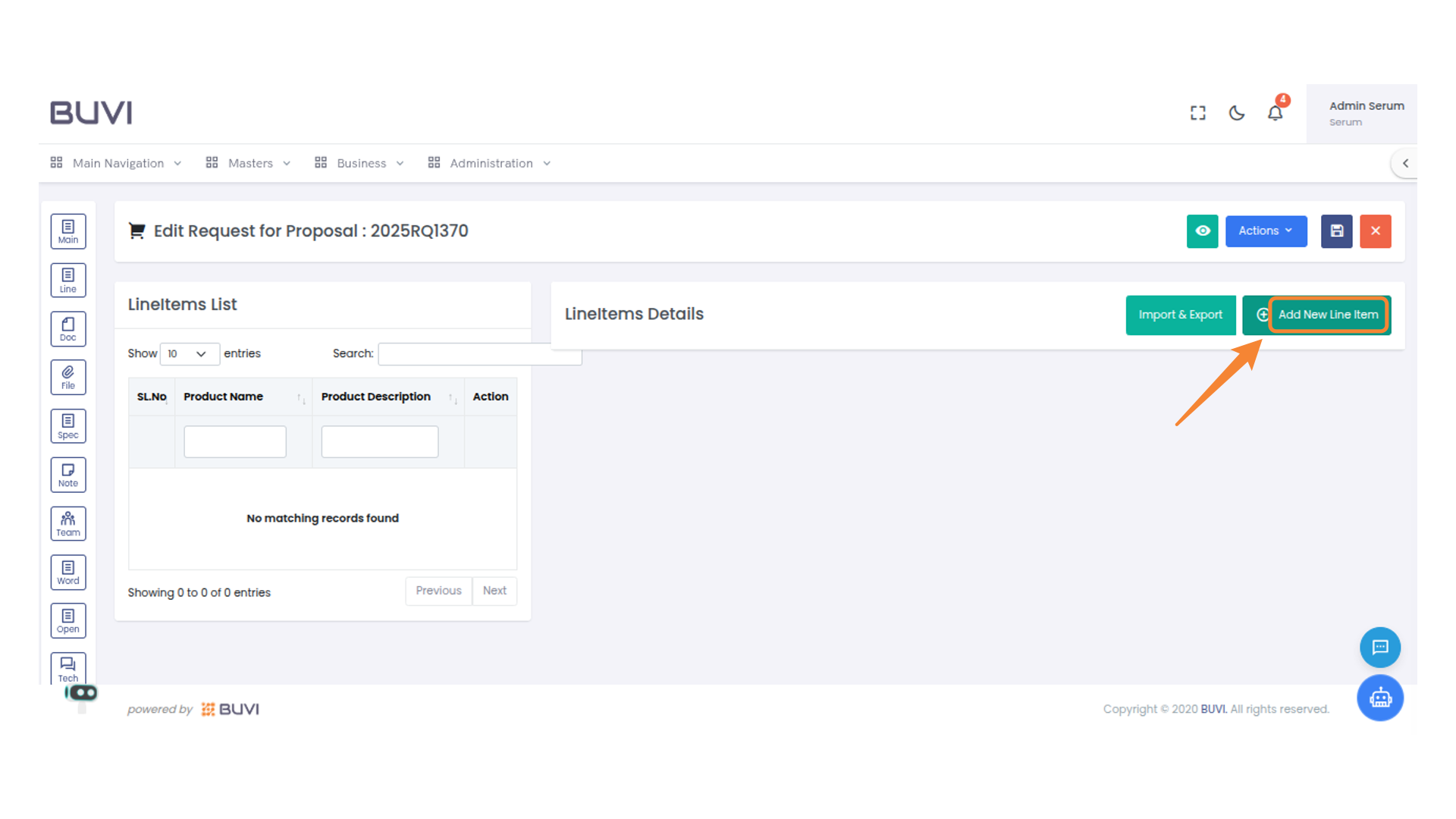
20. Add New Line Item Button
Click this button to add a new line item to the list.
21. Save Proposal
Click to save the current request for proposal changes.
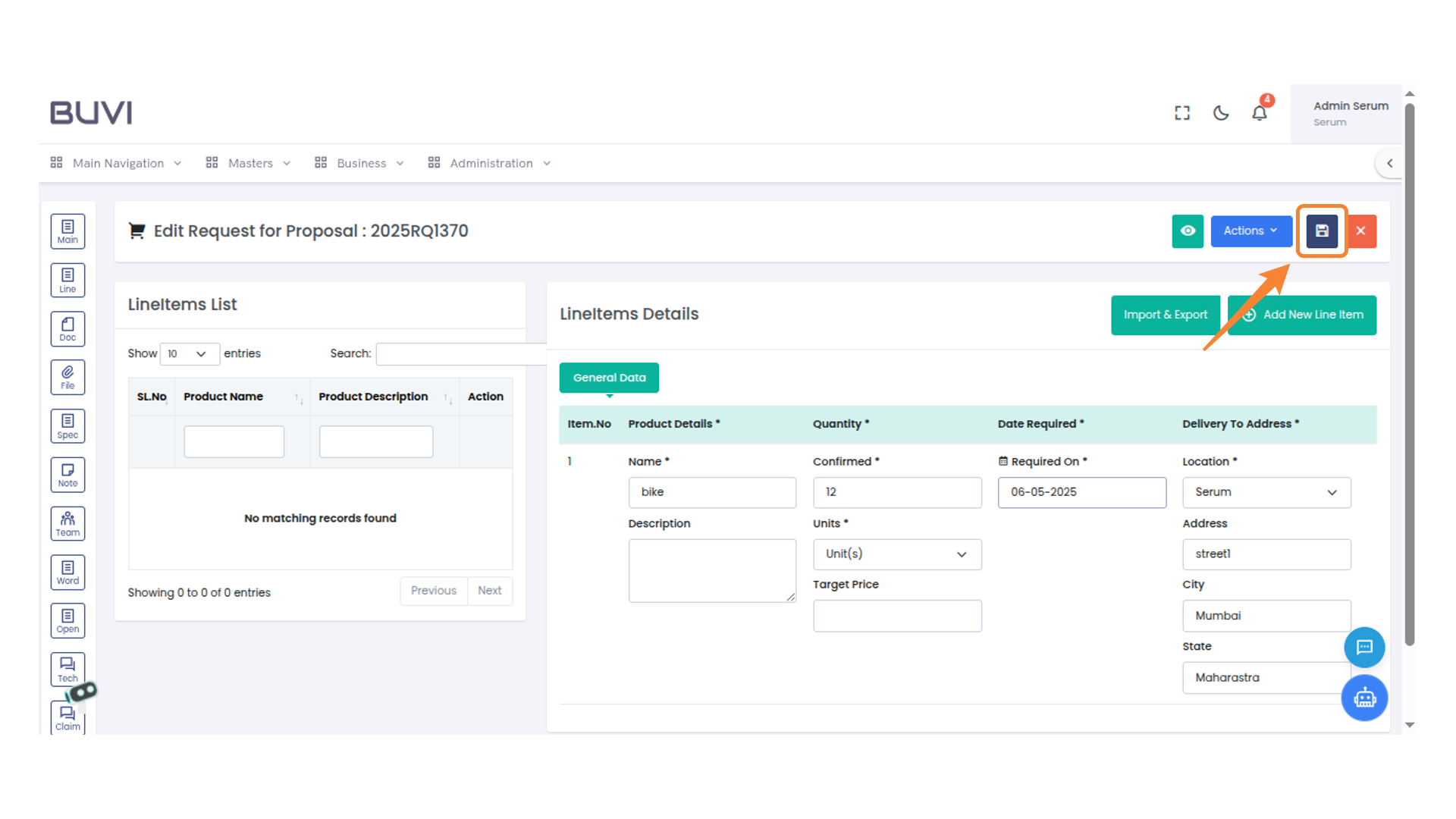
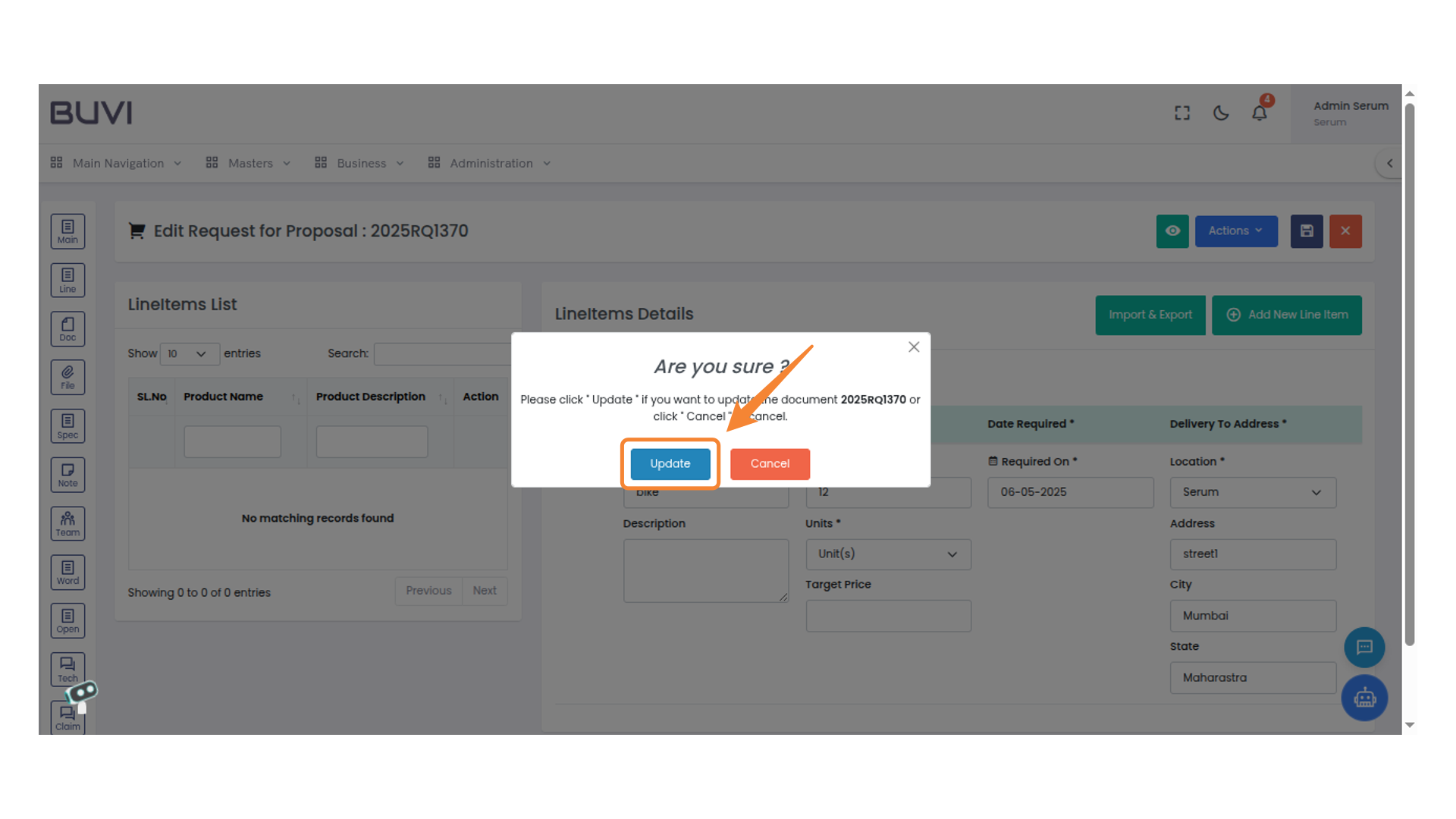
22. Confirmation Dialog Box
Click 'Update' to proceed with the document update or 'Cancel' to abort the action.
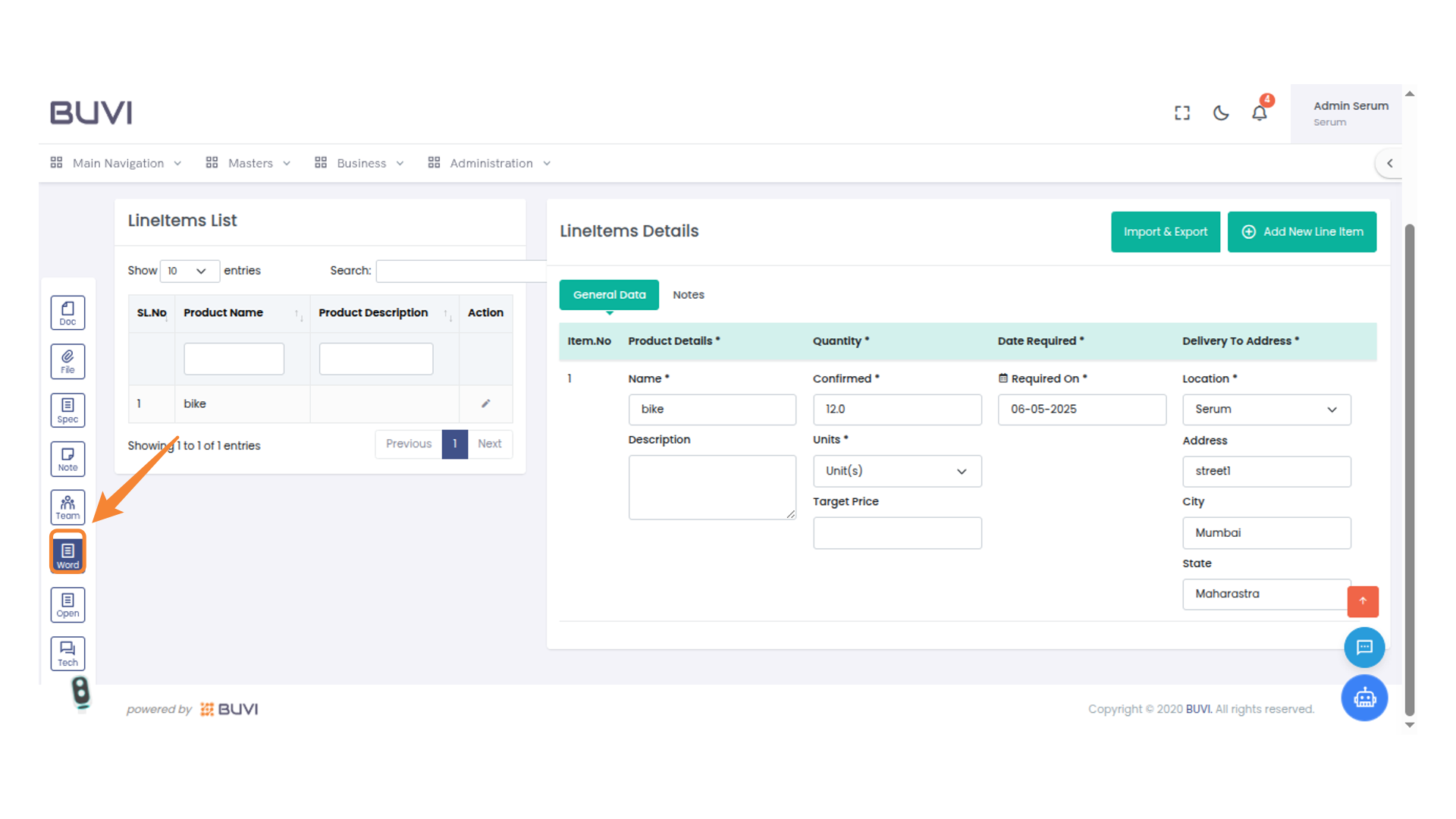
23. Word Icon in Sidebar
Select the Word icon to open document-related features.
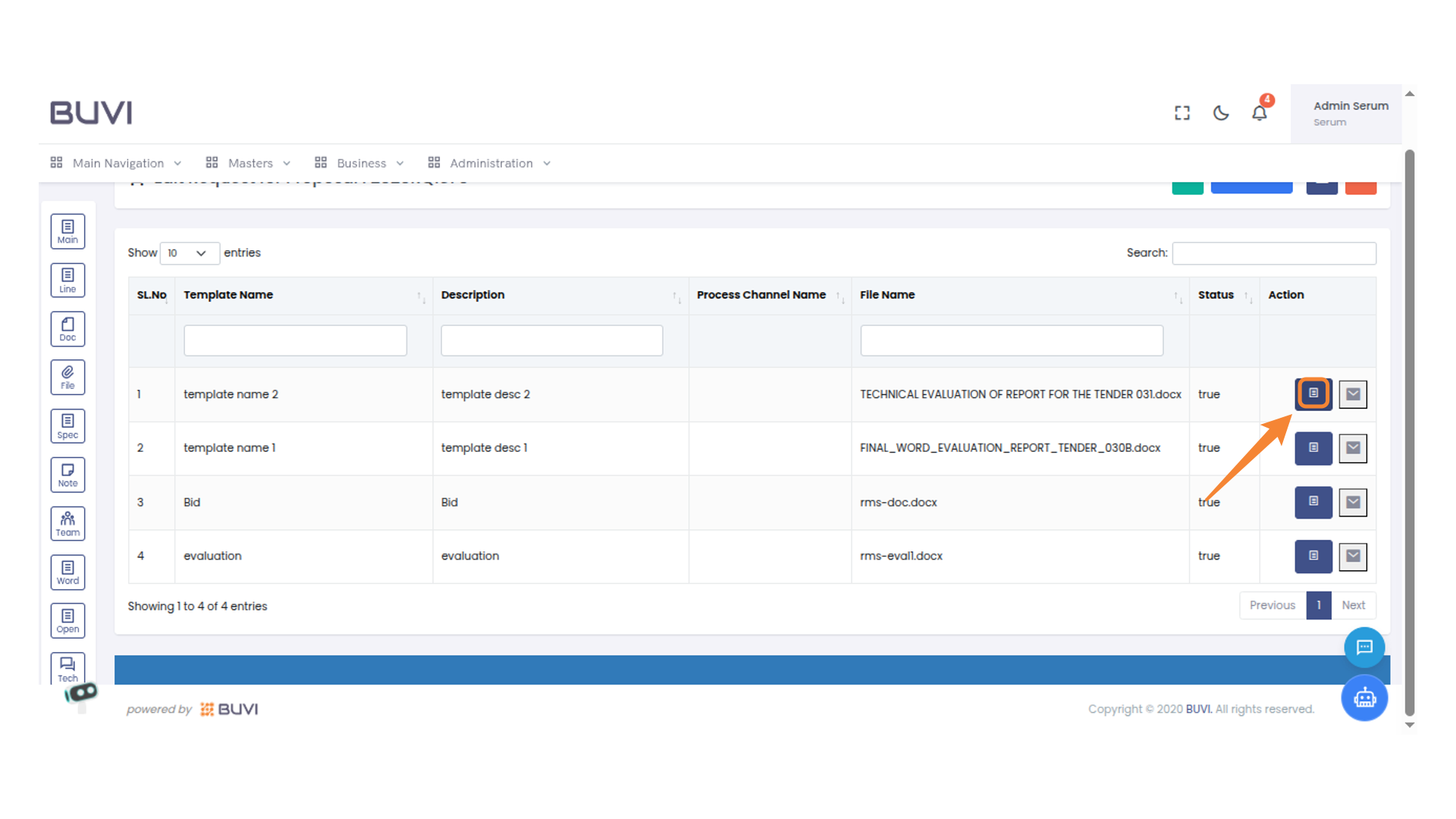
24. Action Button for Document
Click the button to check print
25. Bid Evaluation Table
Review the details
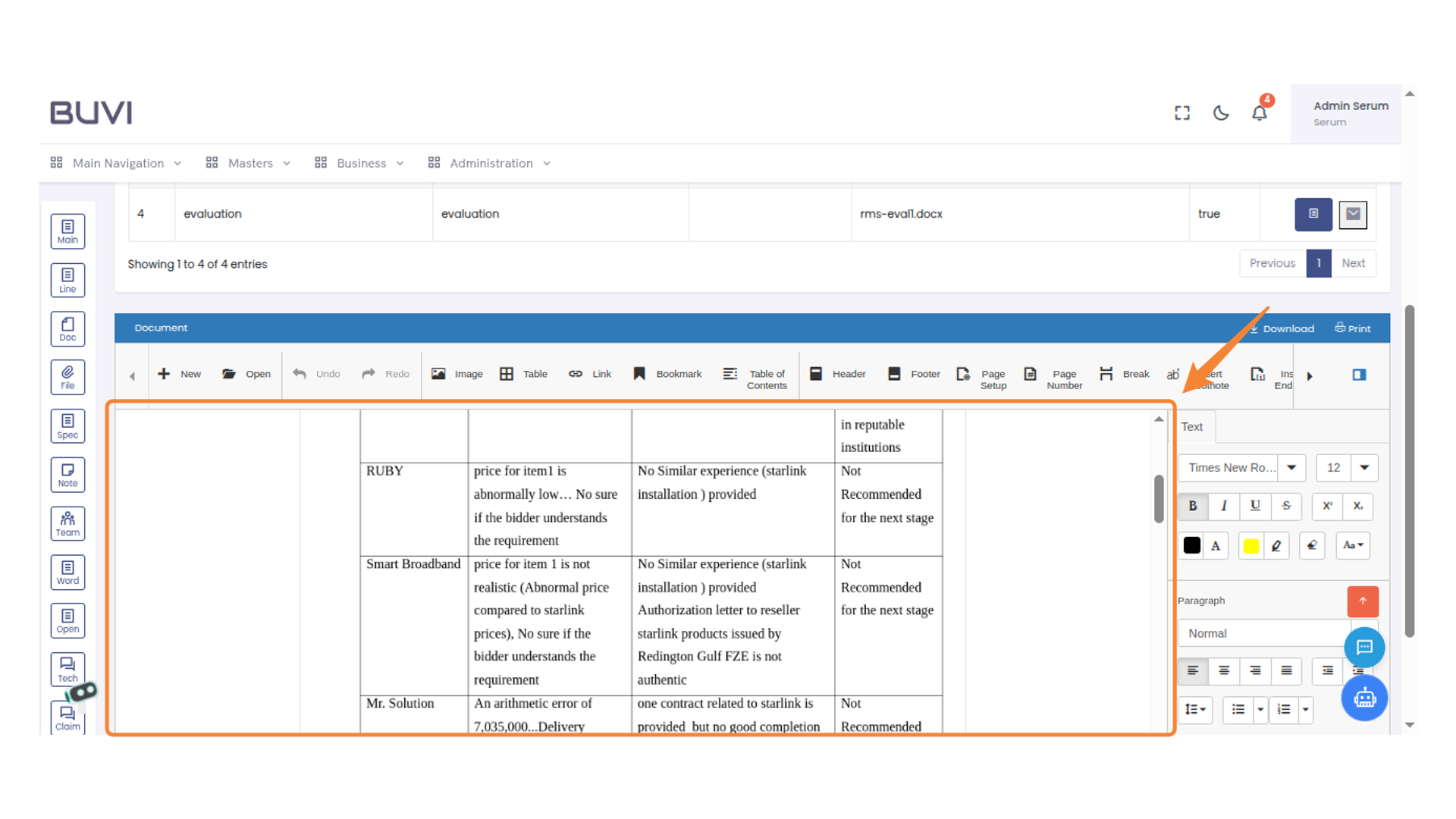
26. Click button
click this button to veriify document details