Evaluation workflow
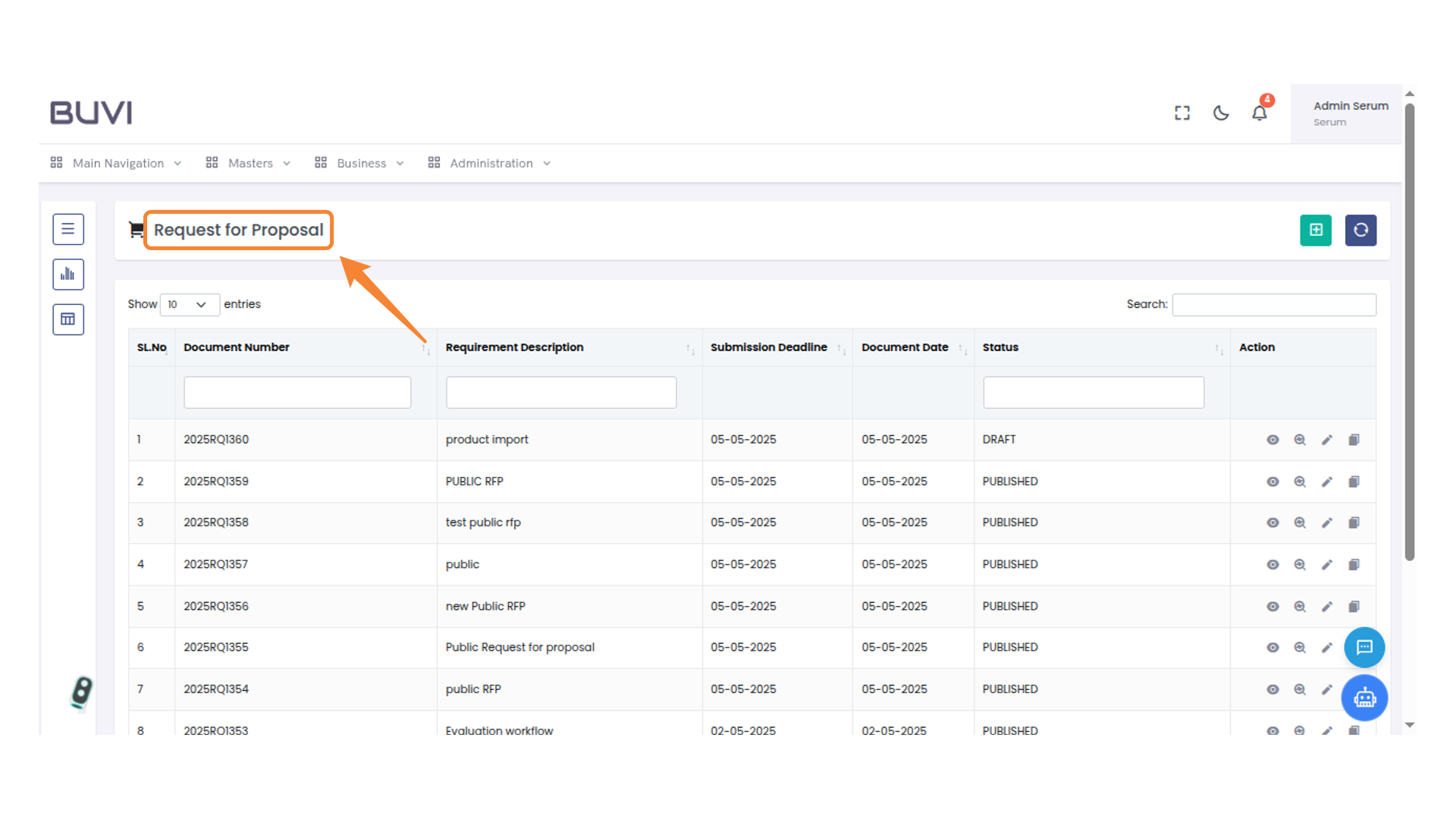
1. Request for Proposal Header
Go to Request for Proposal menu
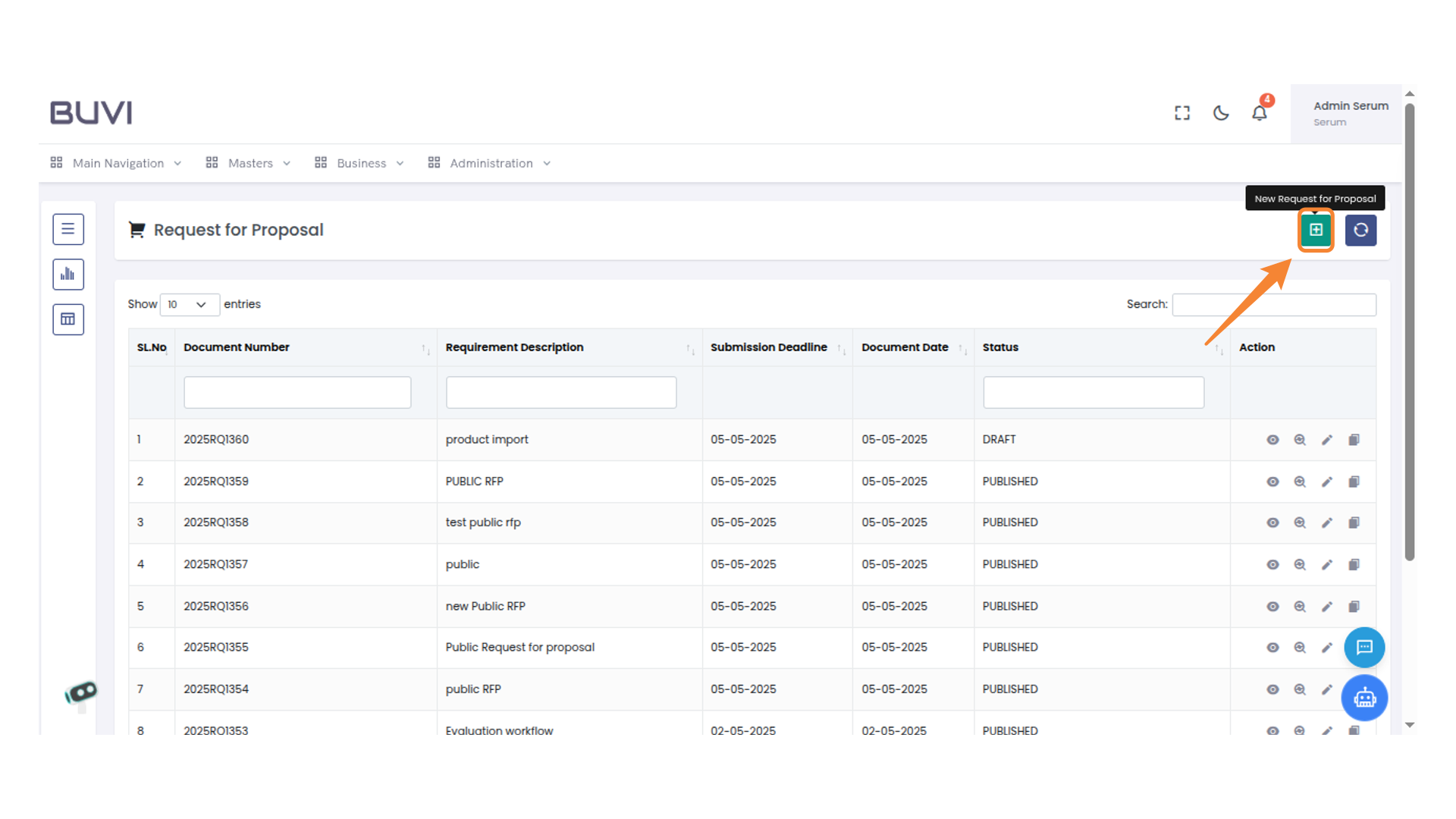
2. New Request for Proposal Button
Click the button to create a new request for proposal.
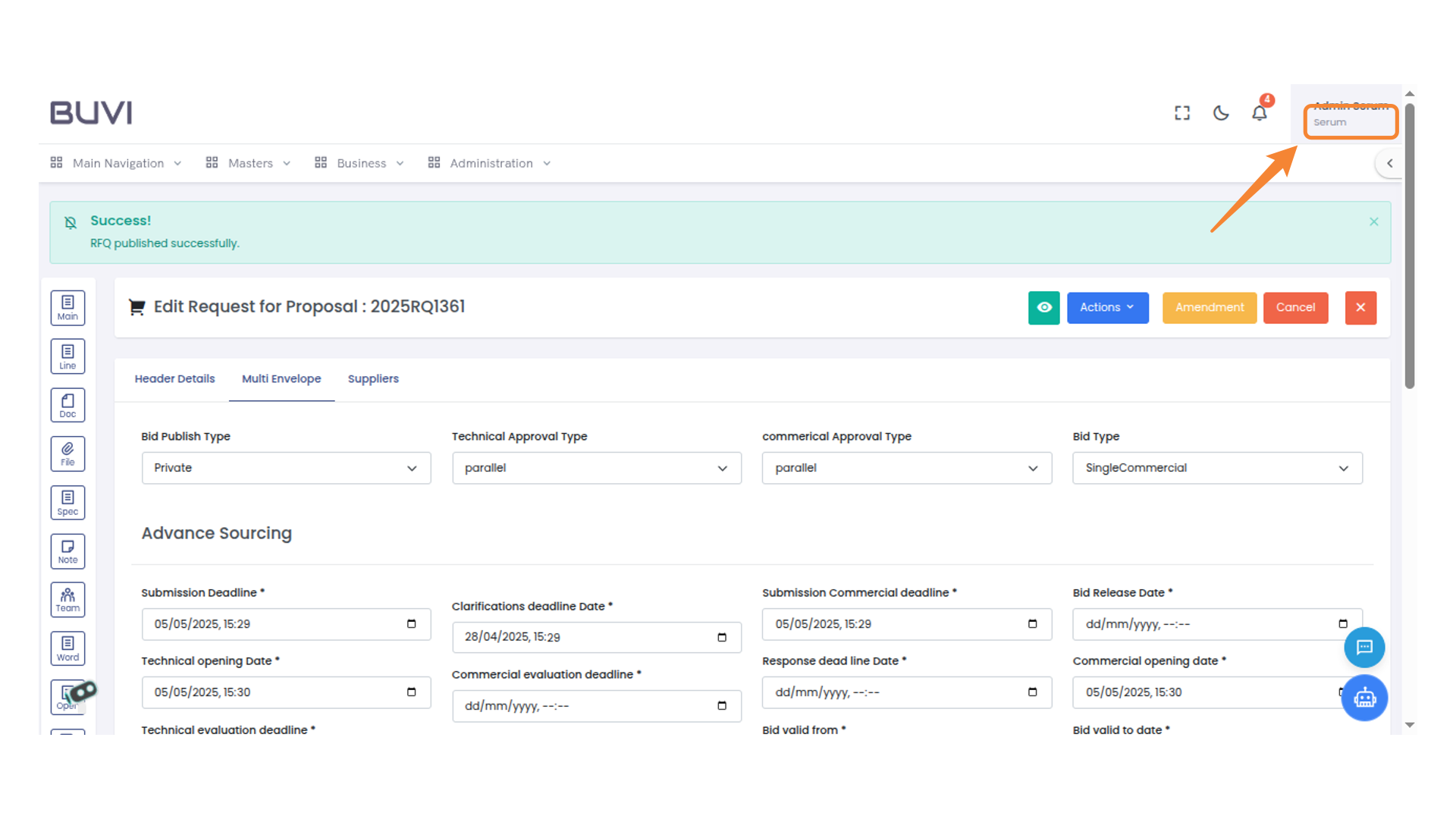
3. Log out from the application
Log out from the application
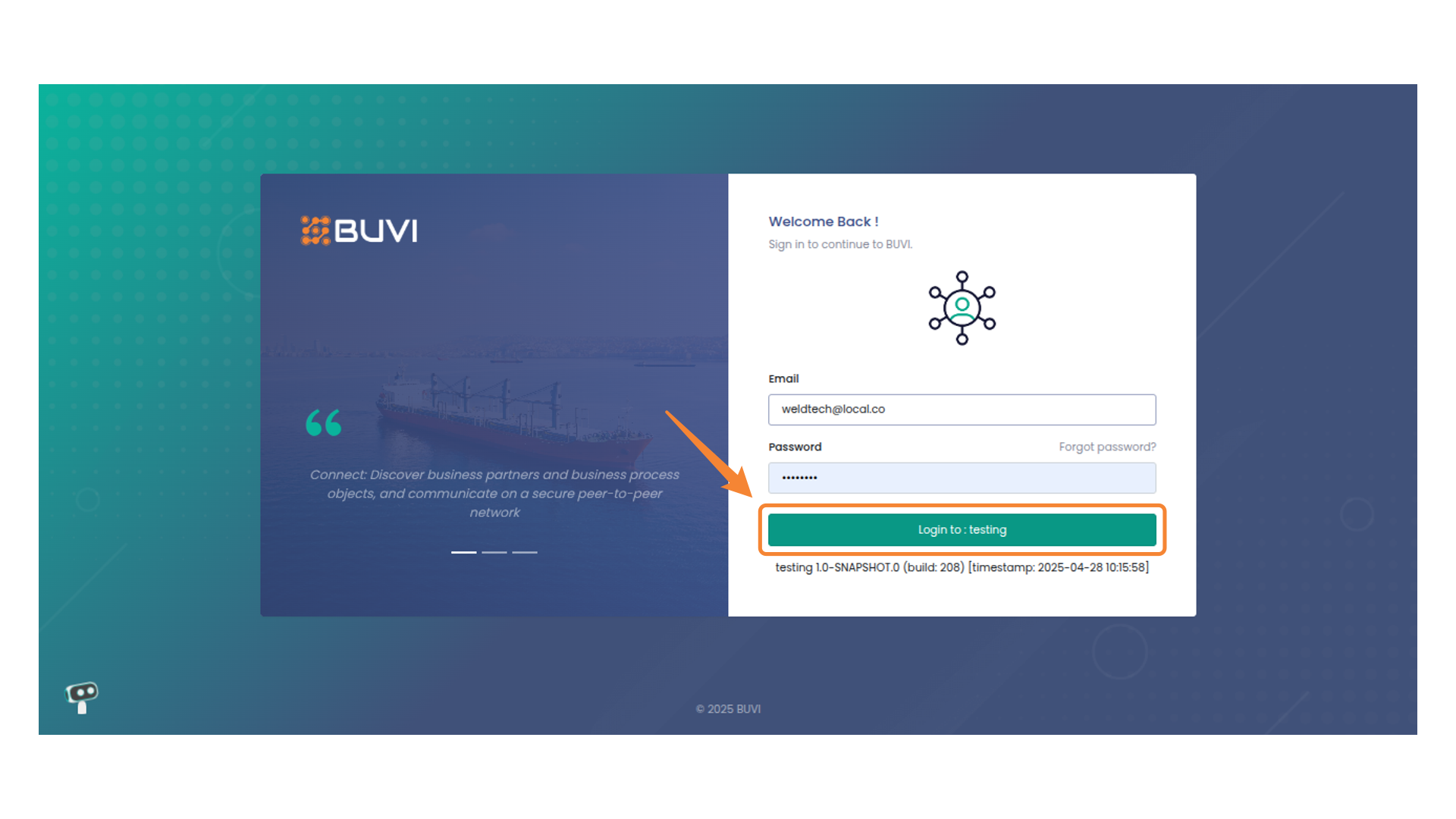
4. Login Button
Login to the application as a Supplier
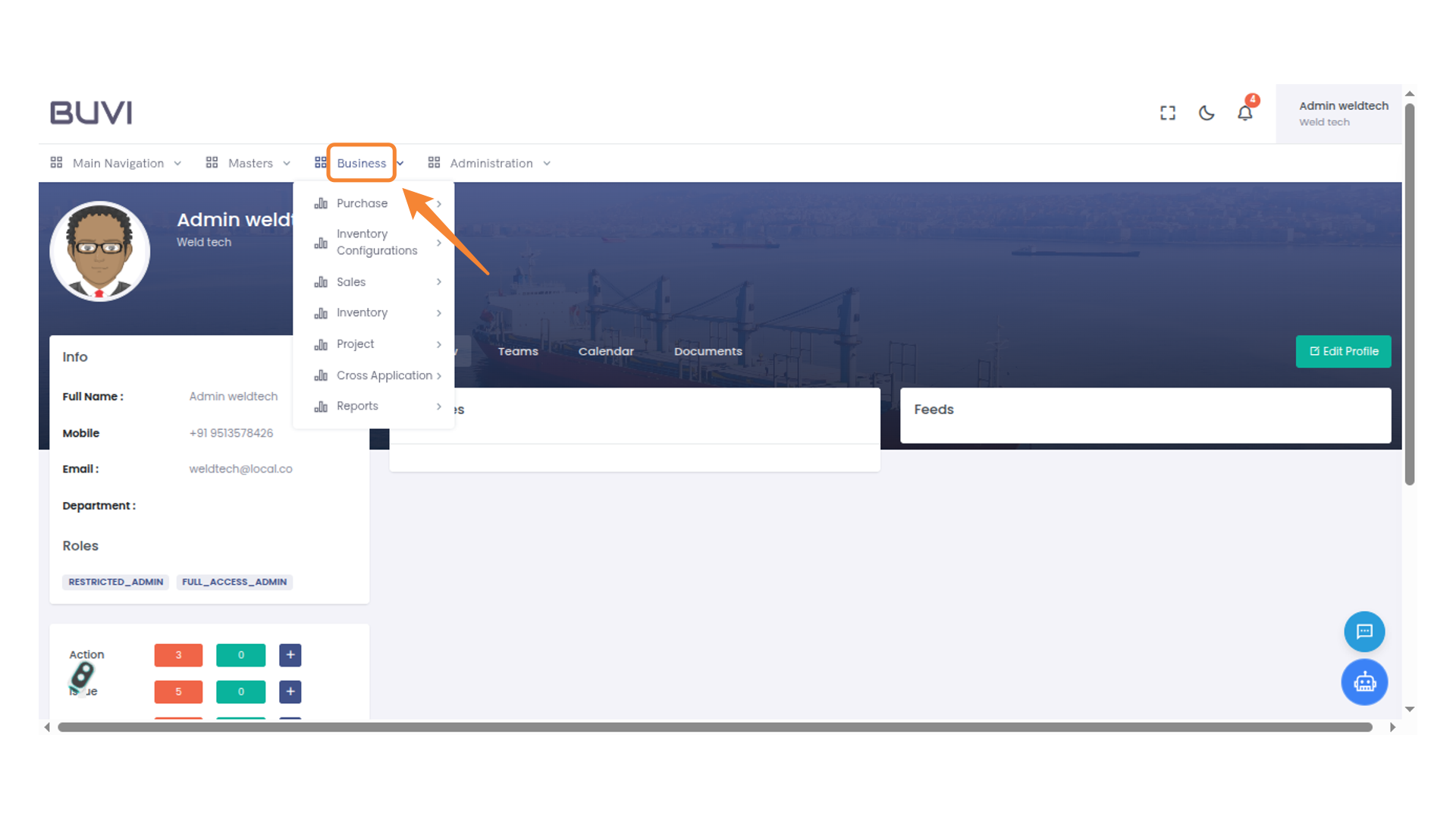
5. Business Menu Options
Click on Business menu
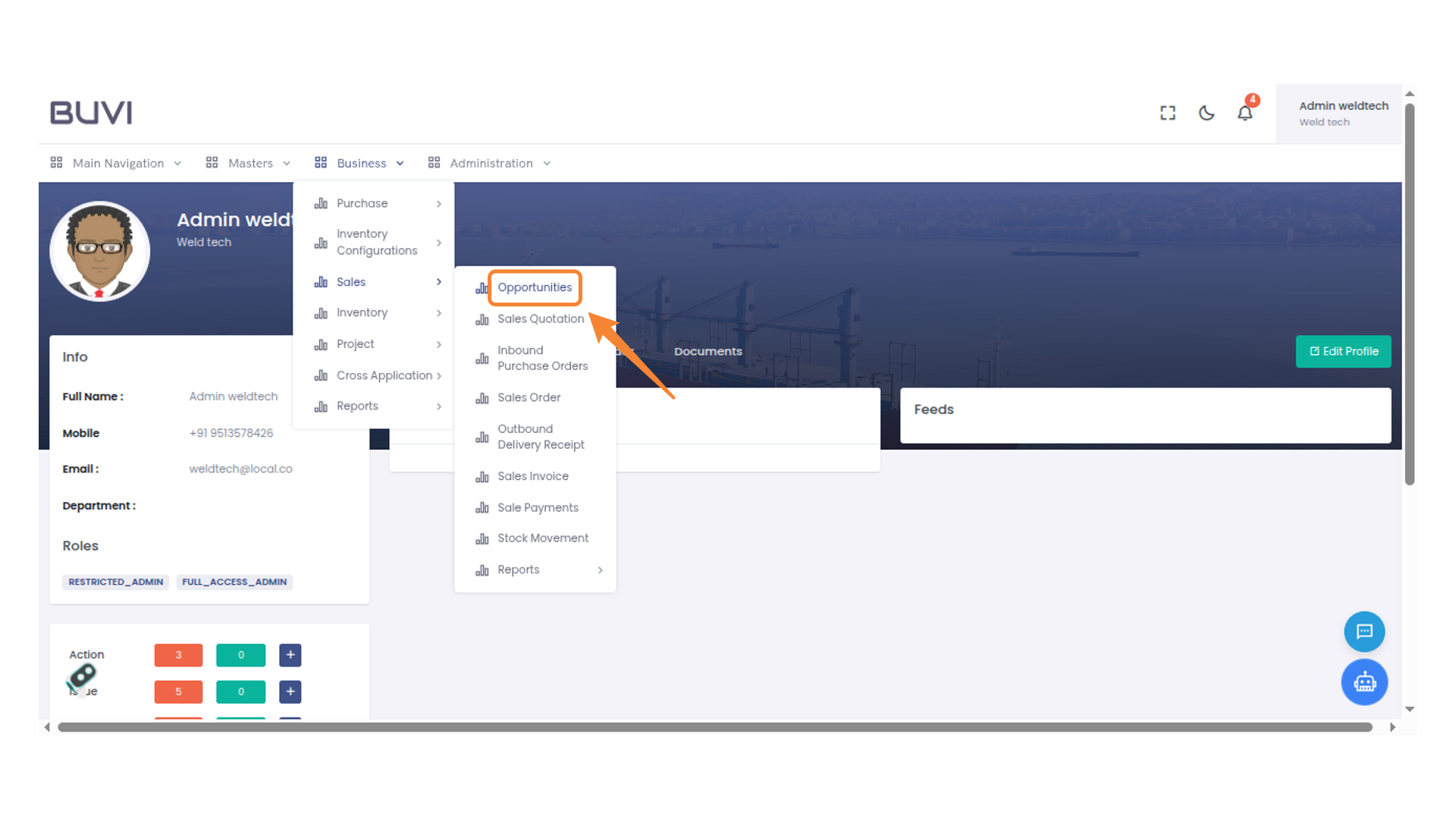
6. Opportunities Menu
click on opportunity menu
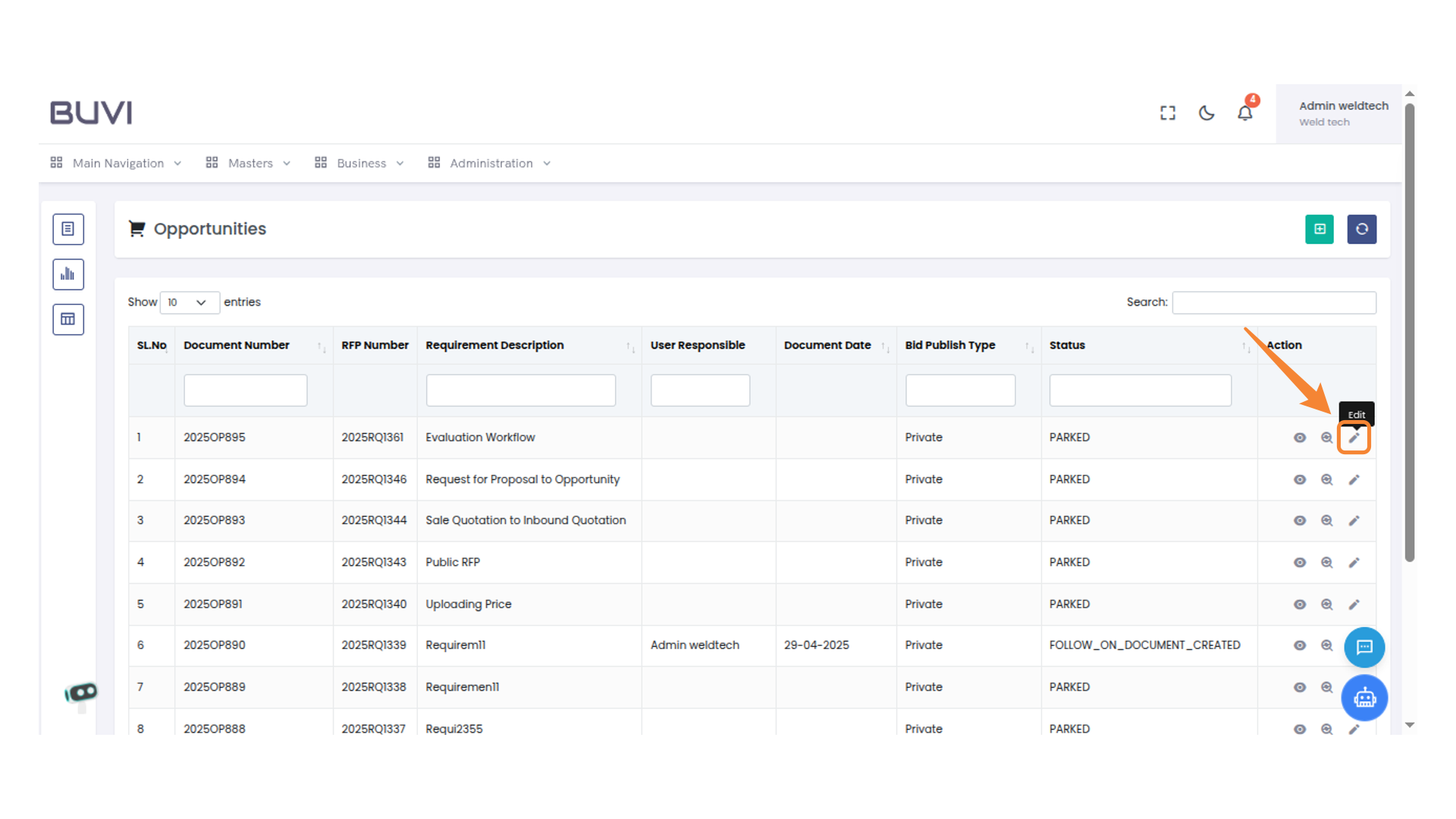
7. Edit Action Icon
Click to edit the selected document.
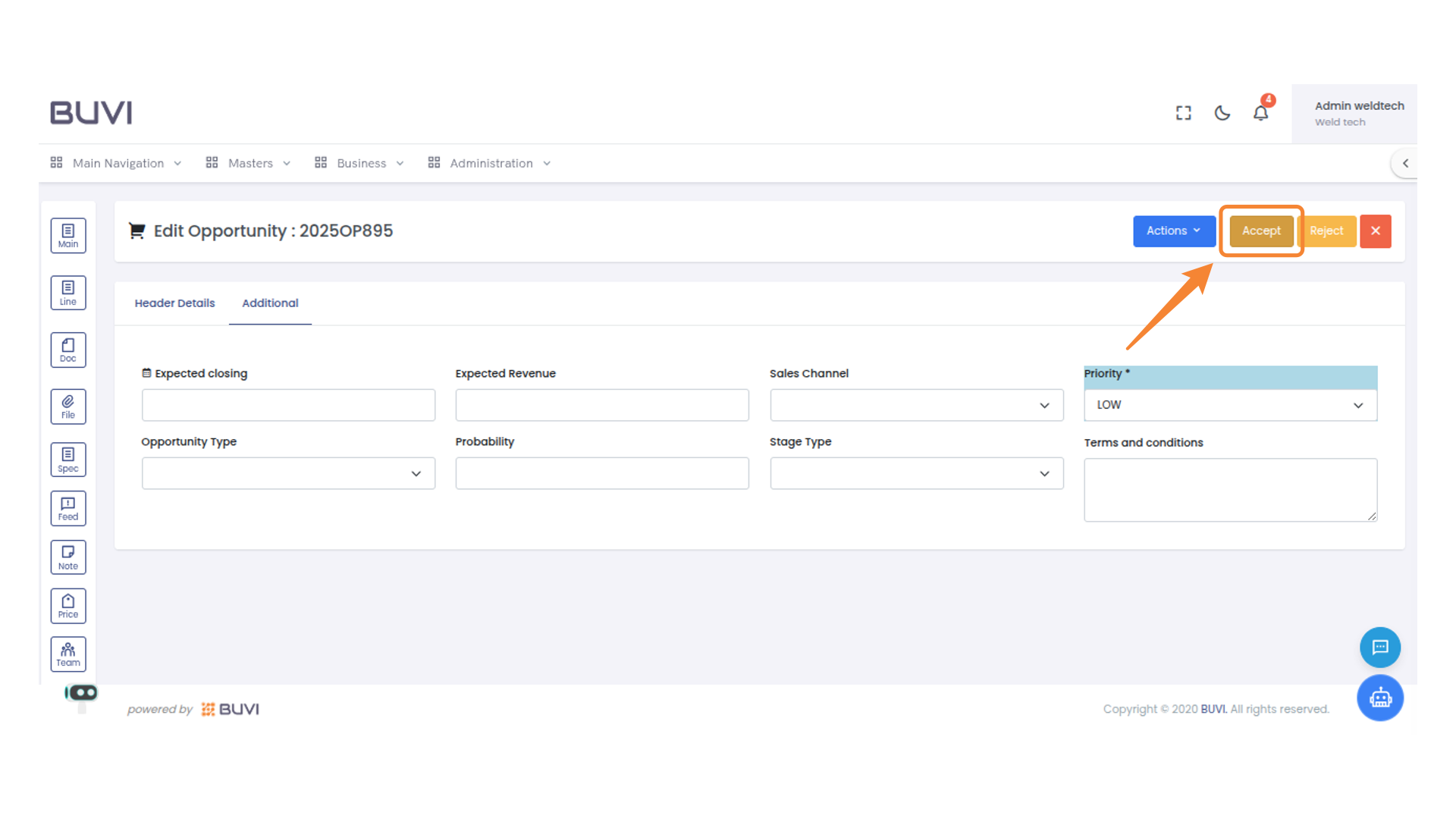
8. Accept Button Highlighted
Click the Accept button to confirm your selection or action.
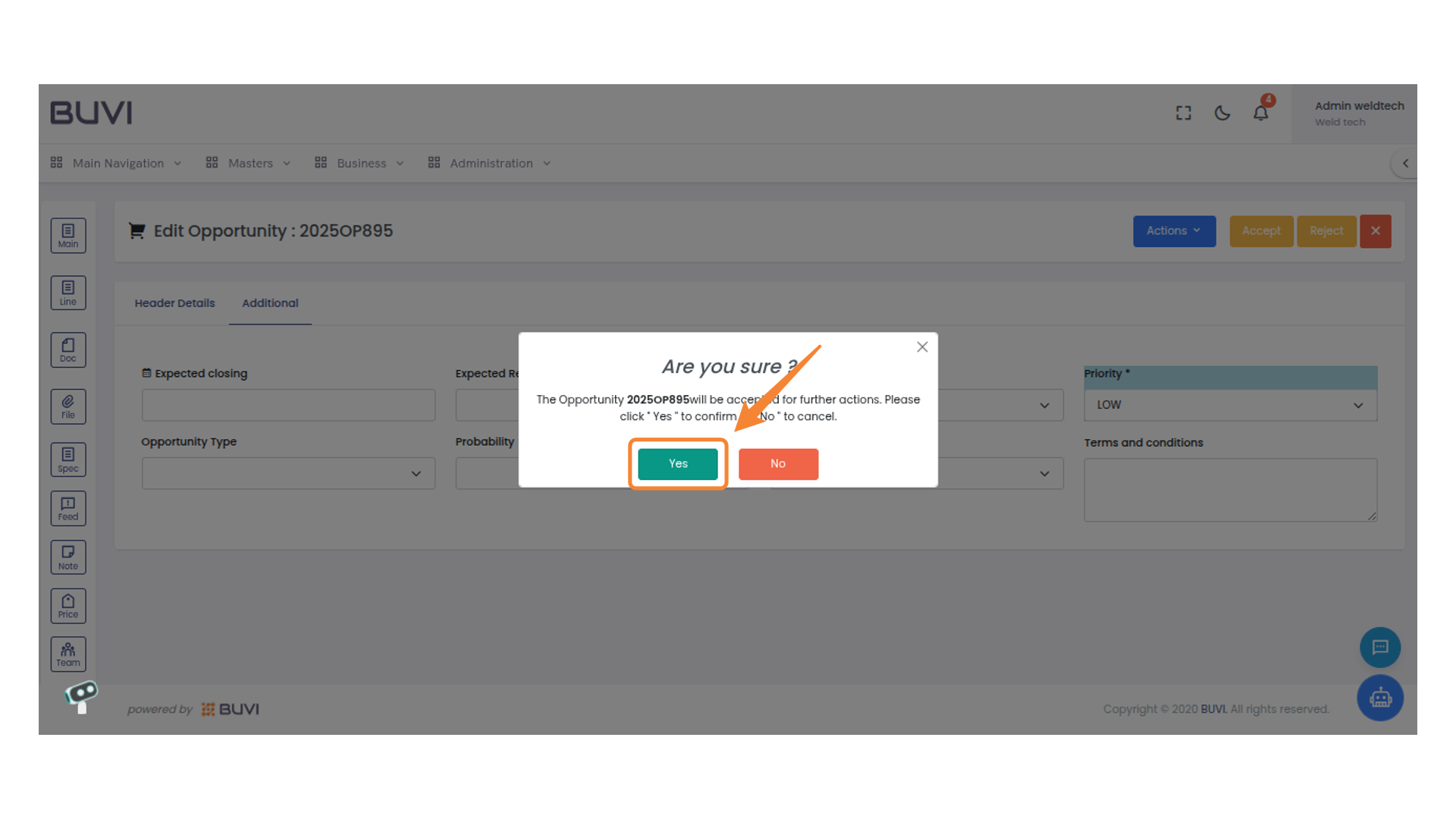
9. Confirmation Prompt Interaction
Click 'Yes' to proceed with the action.
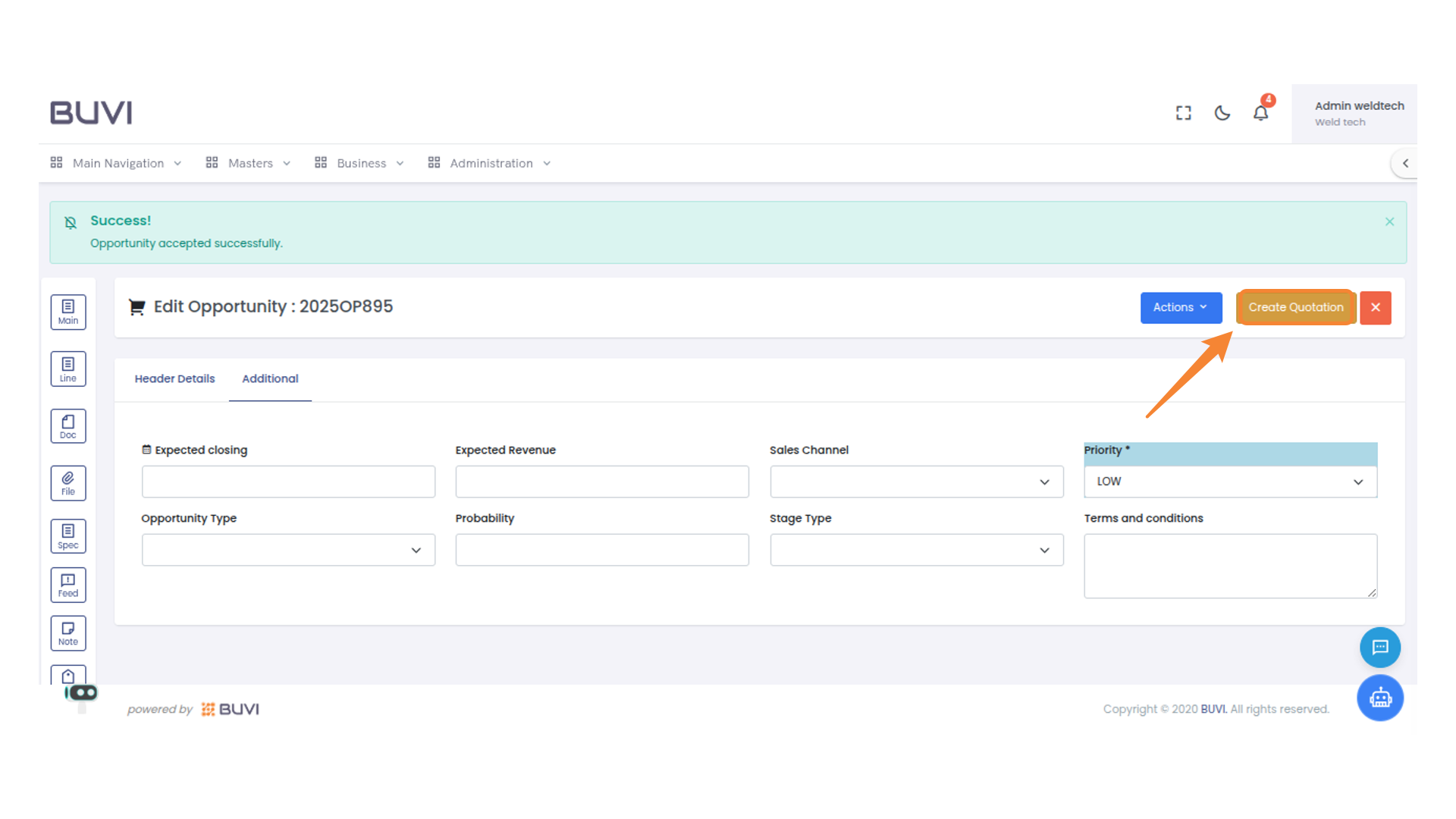
10. Quotation Creation Button
Click to initiate the creation of a new quotation.
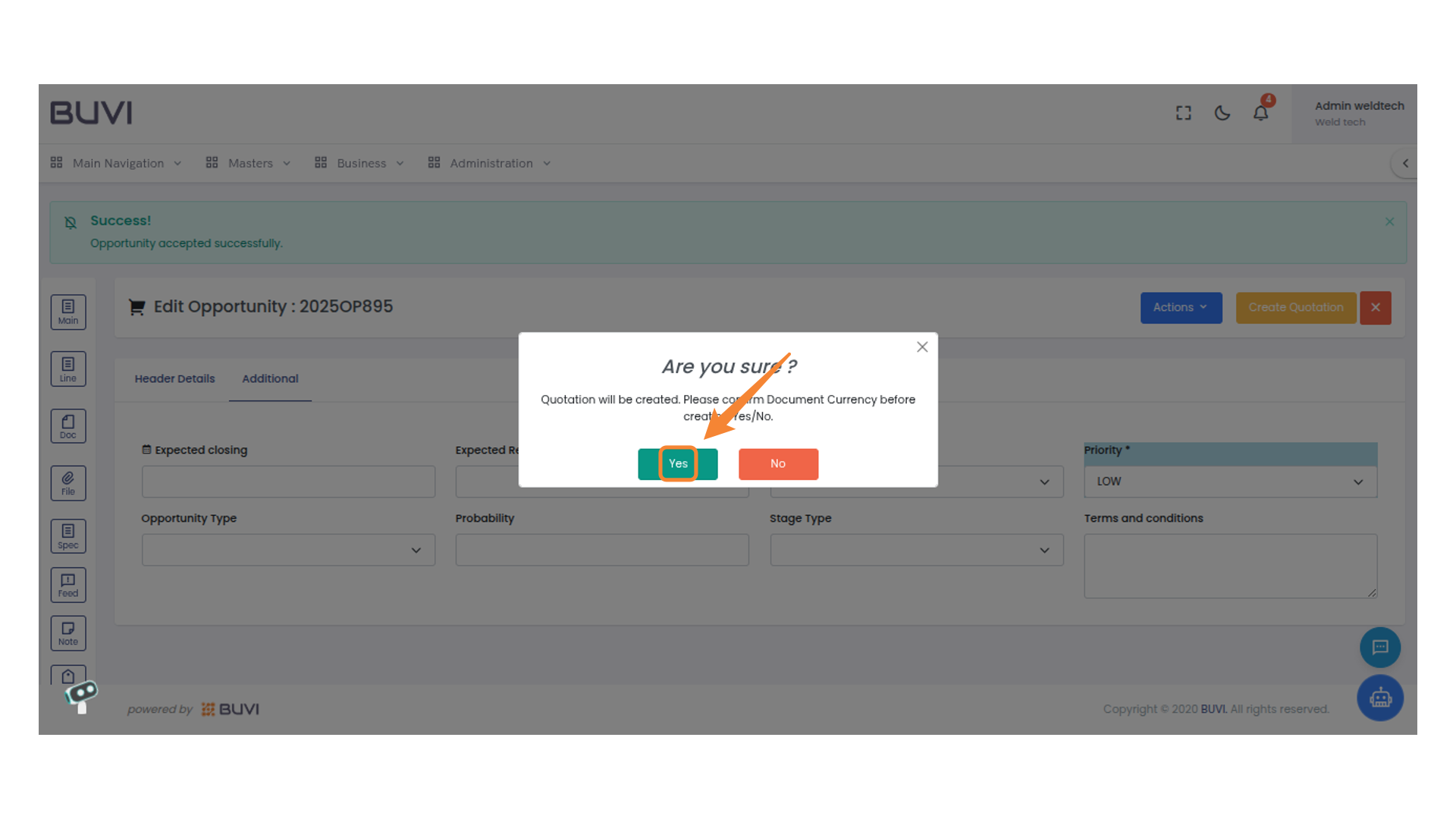
11. Confirmation Prompt
Select 'Yes' to confirm the action.
12. Navigation Icon
Select this icon to view line-related details or options.
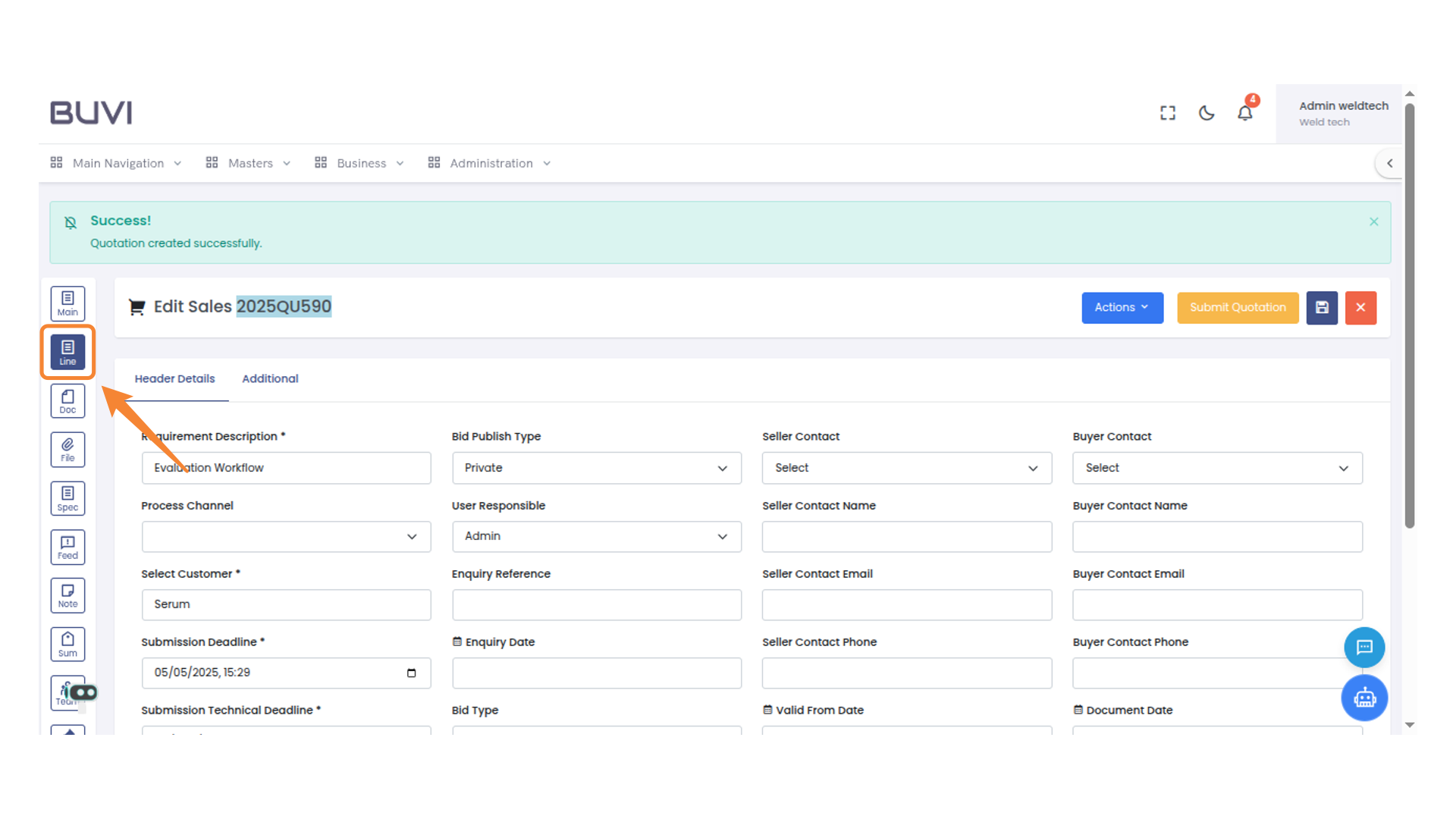
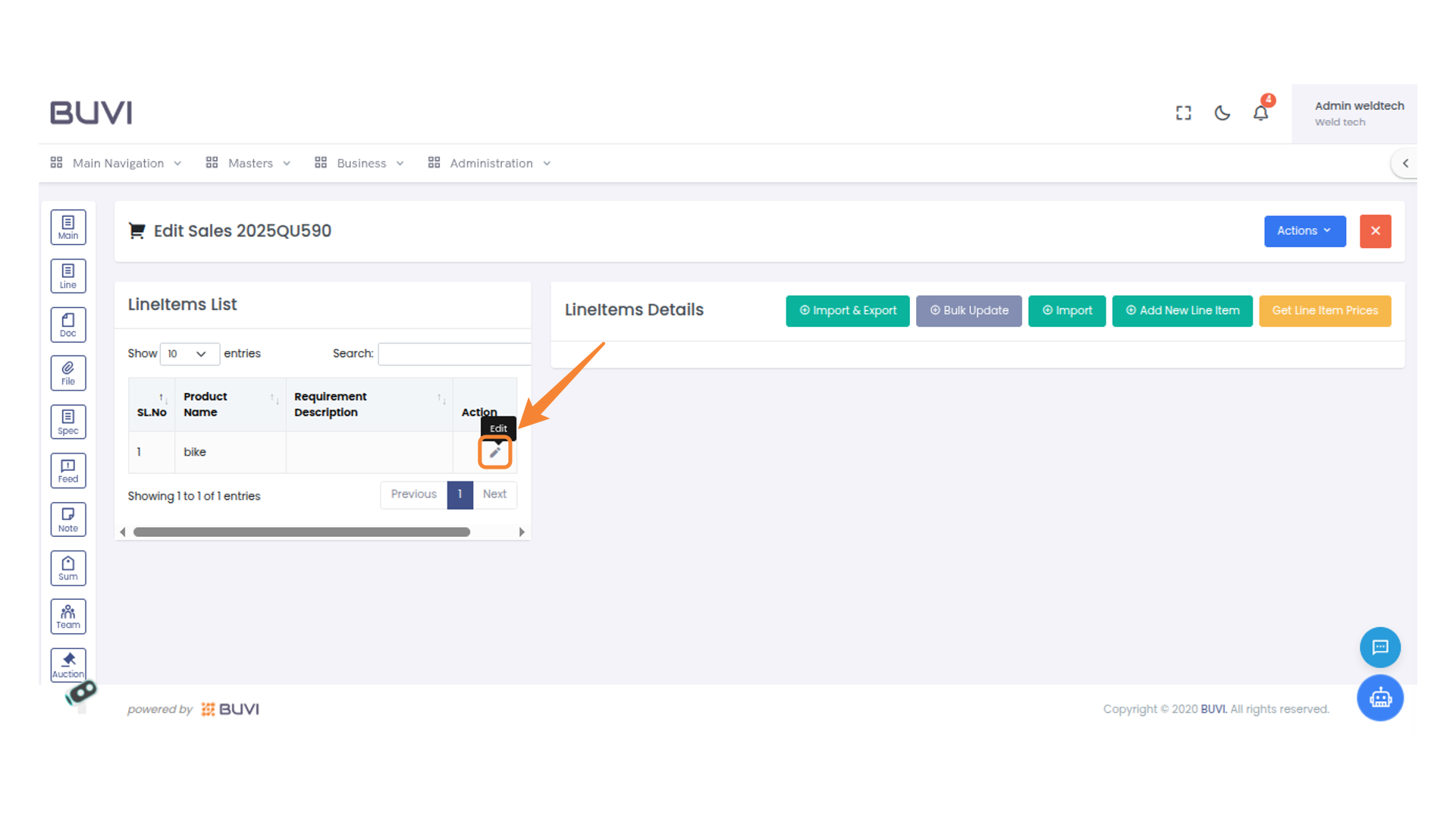
13. Edit Line Item
Click the pencil icon to edit the product details.
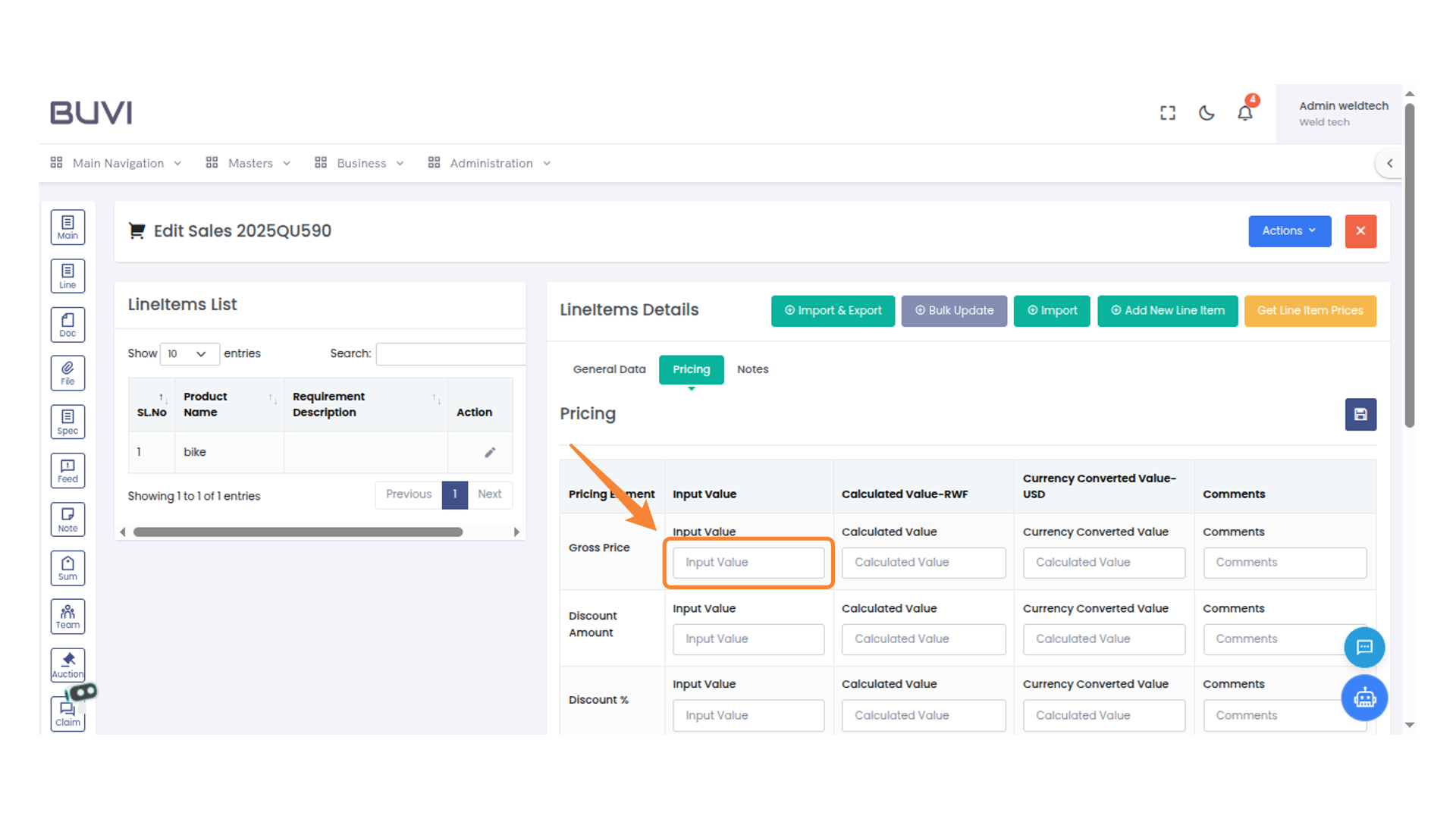
14. Gross Price Input Field
Enter price details
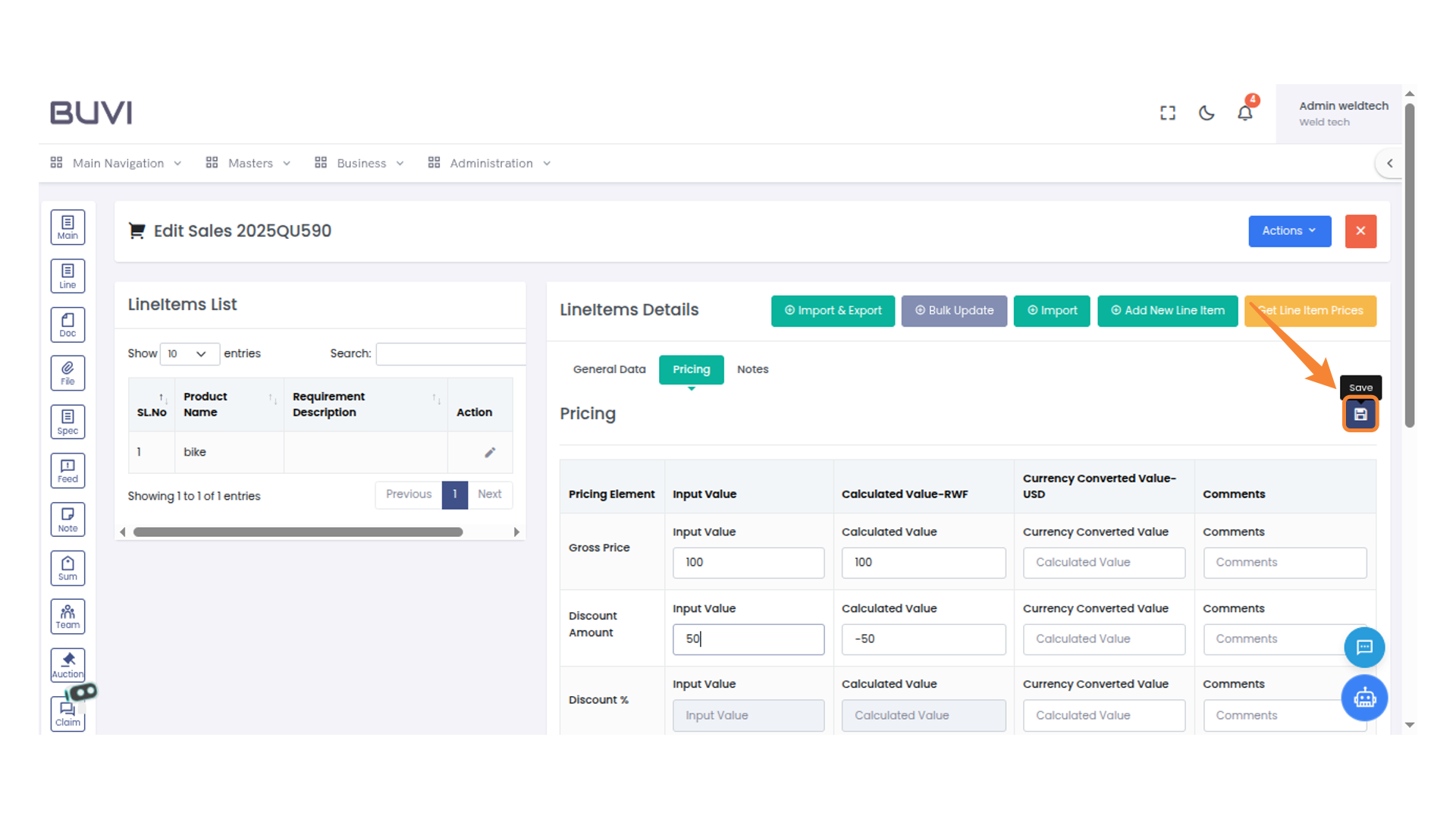
15. Save Button
Click to save your changes.
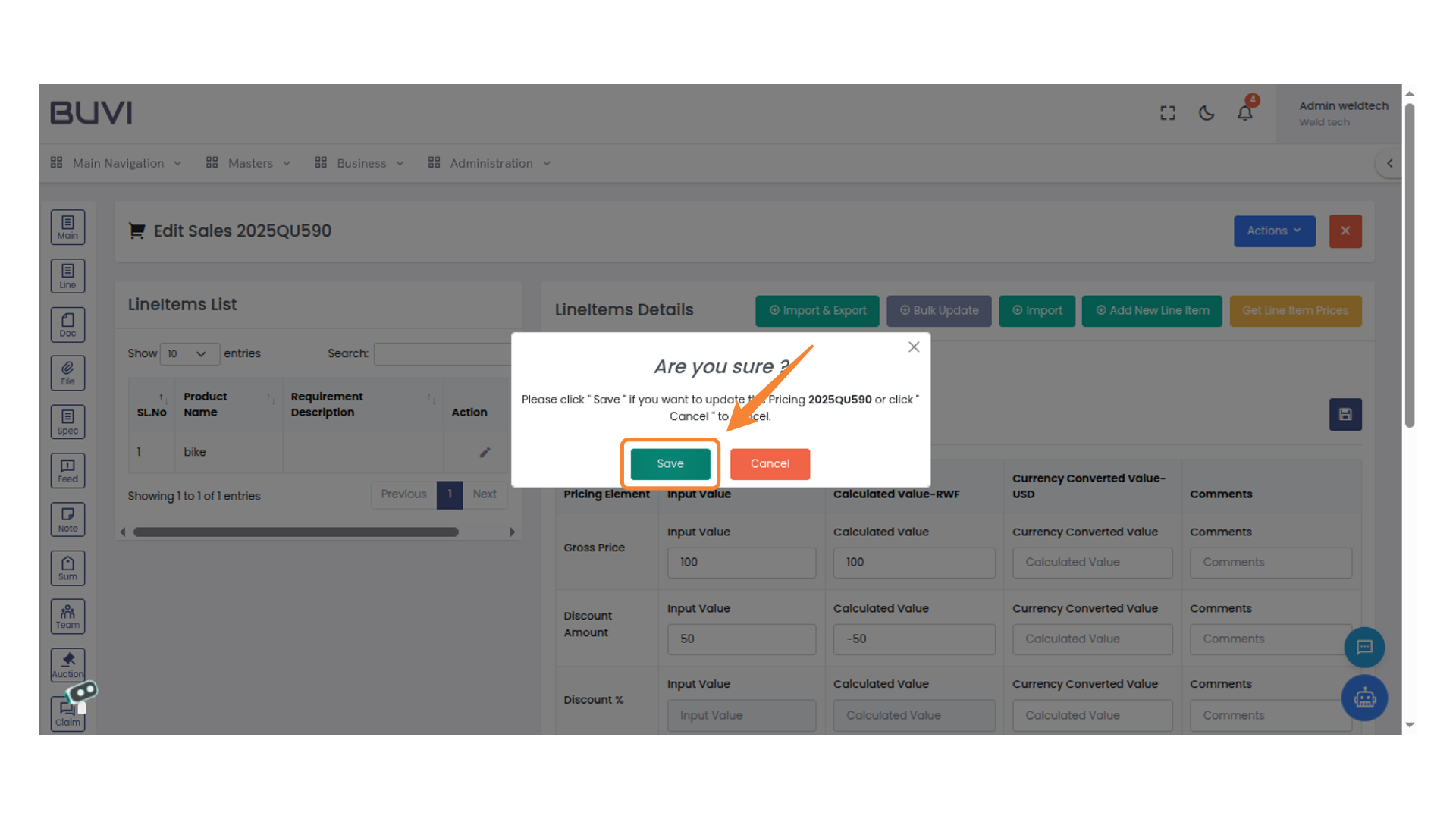
16. Confirmation Dialog Box
Click 'Save' to confirm your changes and update the pricing.
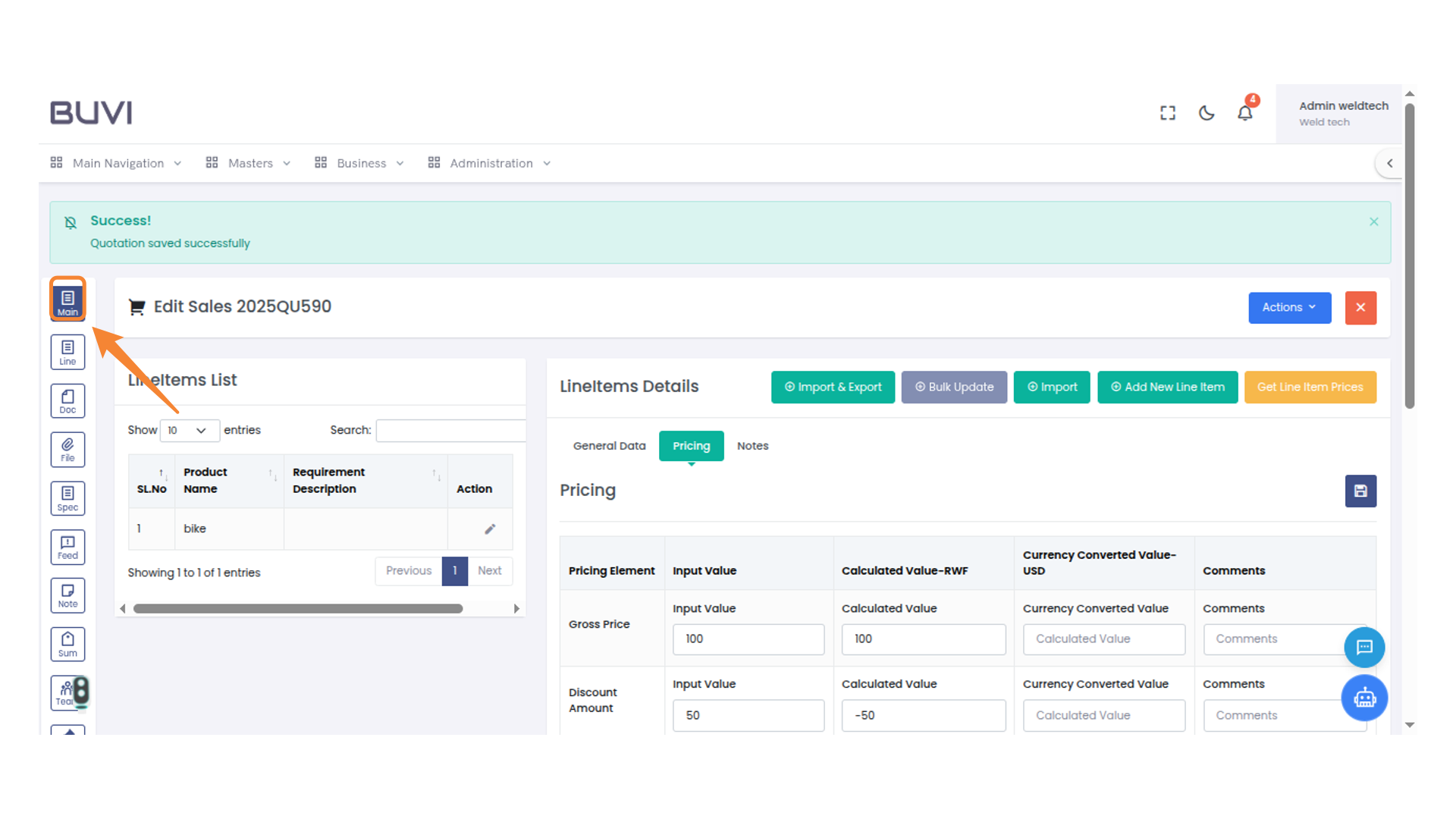
17. Main Menu Icon
Click on main menu
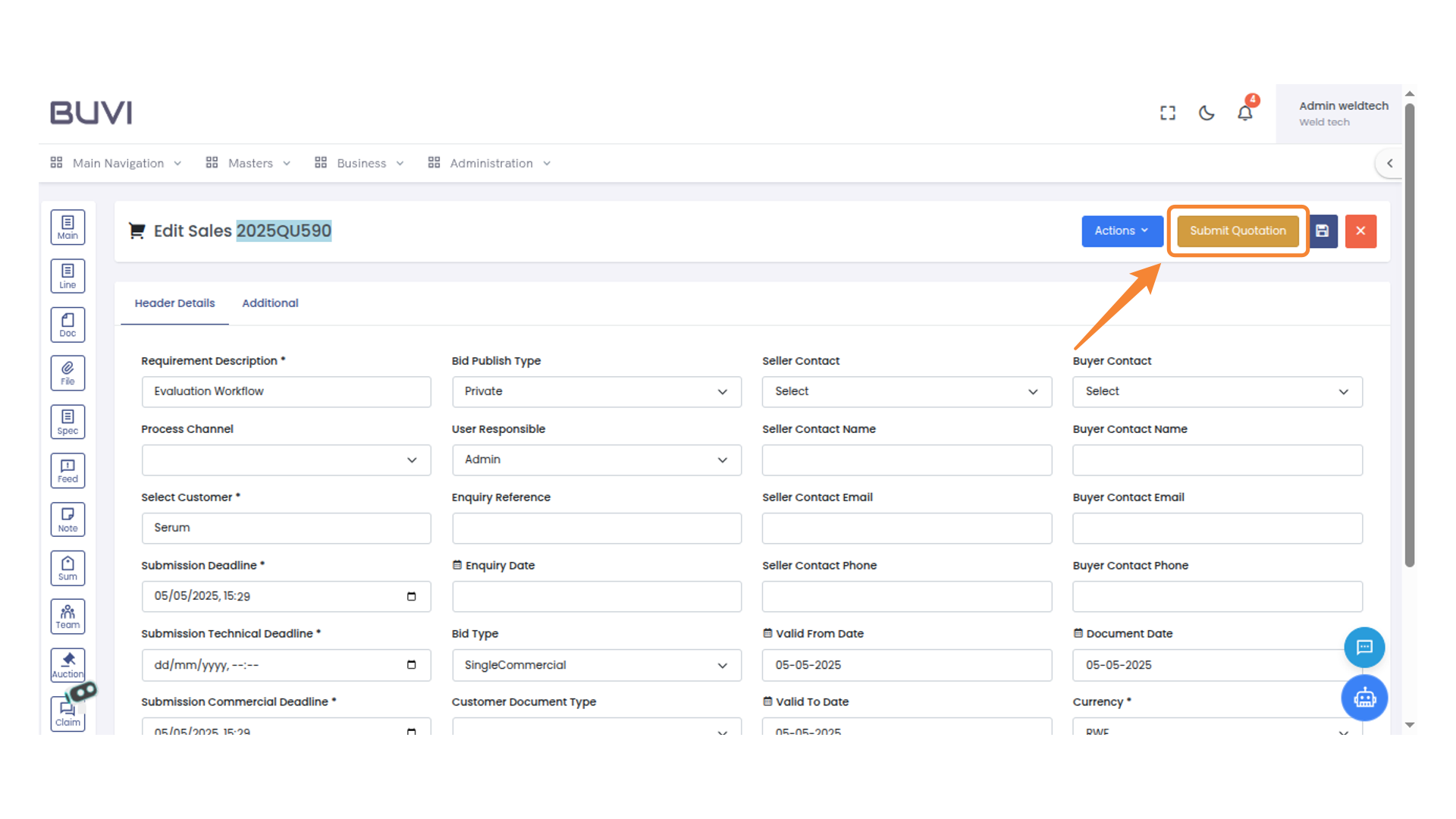
18. Submit Quotation Button
Click this button to submit the quotation form.
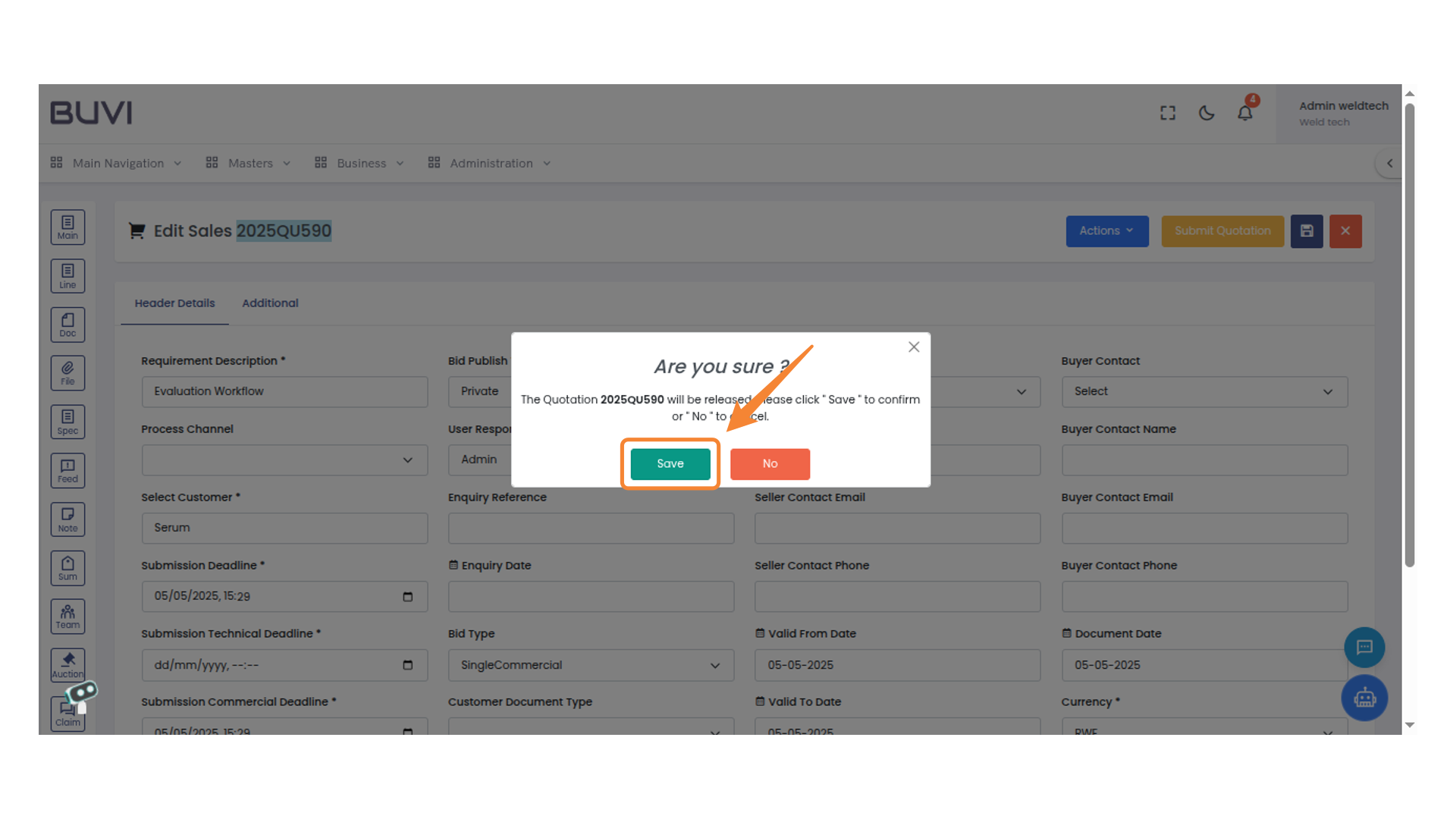
19. Confirmation Dialog
Click 'Save' to confirm your changes.
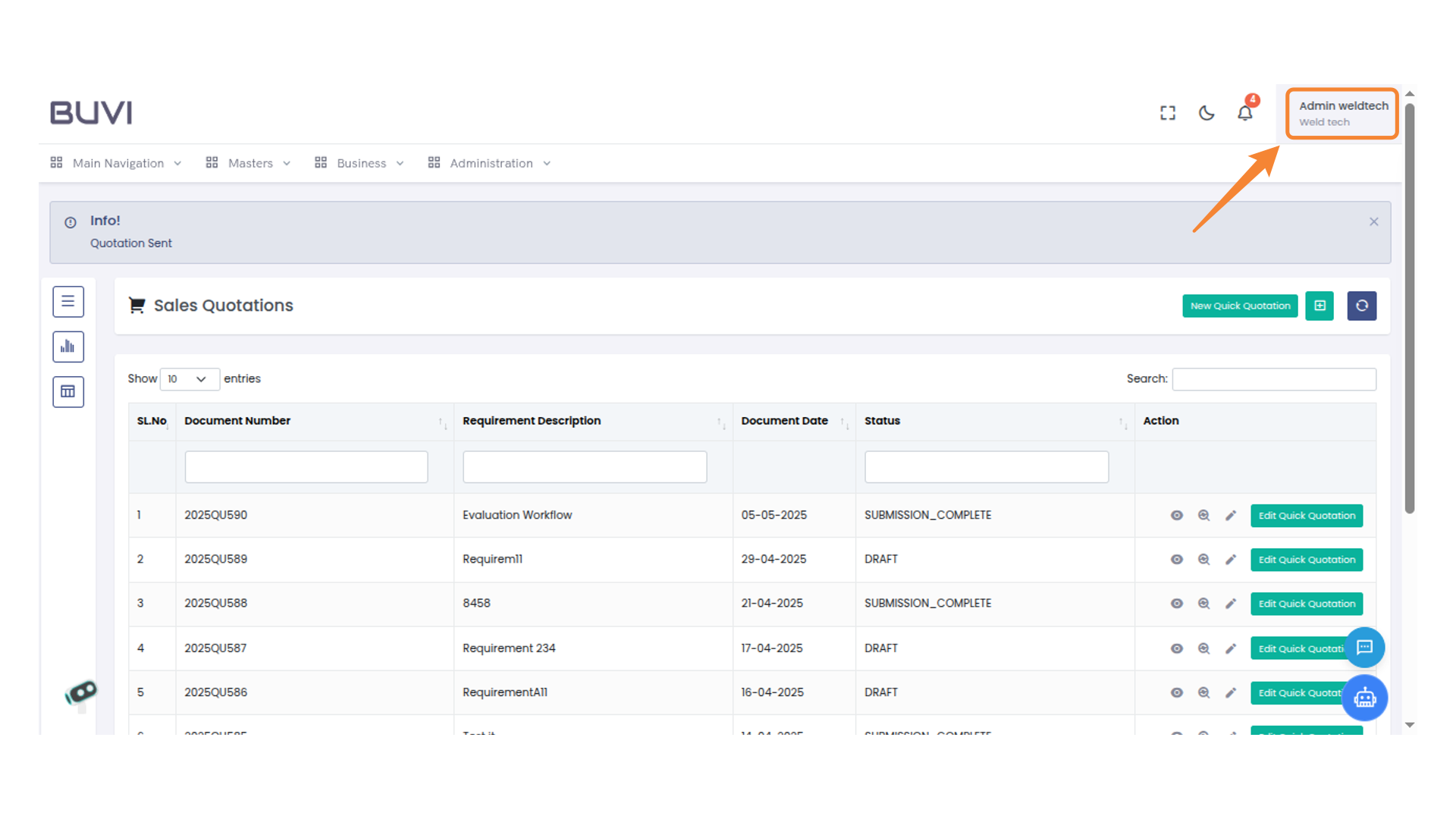
20. User Profile Access
Logout from the application
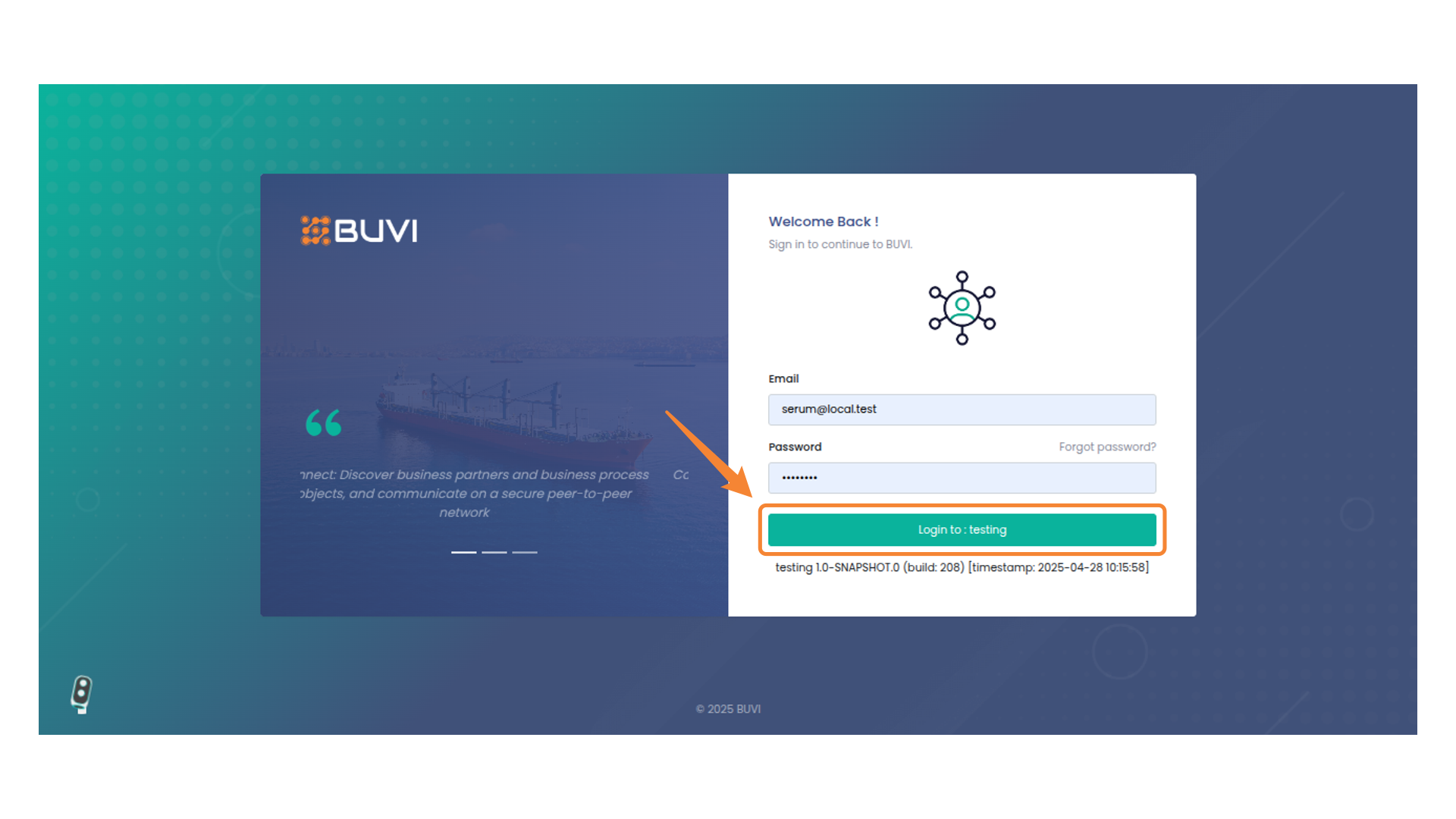
21. Login Button
Login to the application
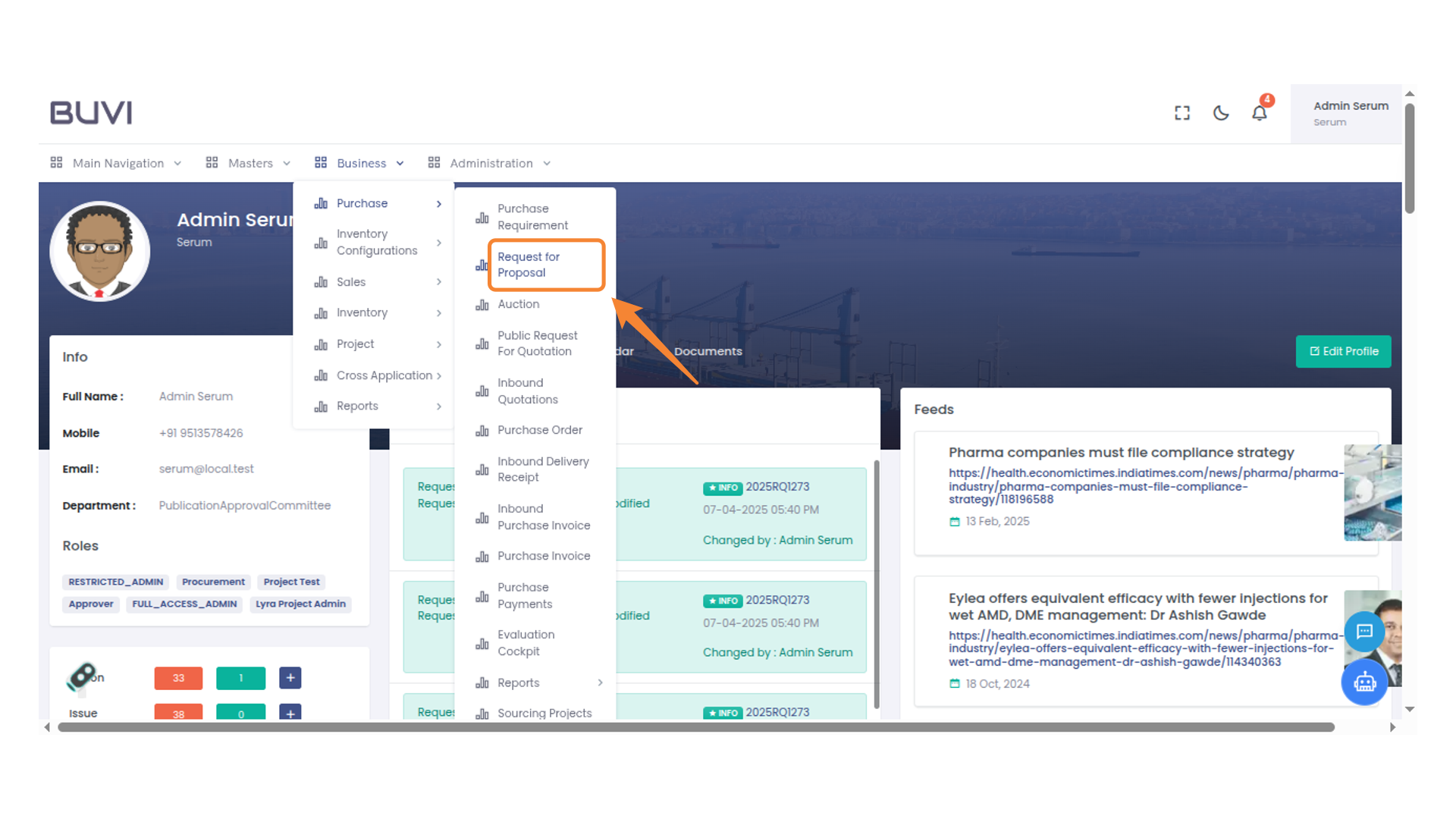
22. Request for Proposal Option
Go to request for proposal menu
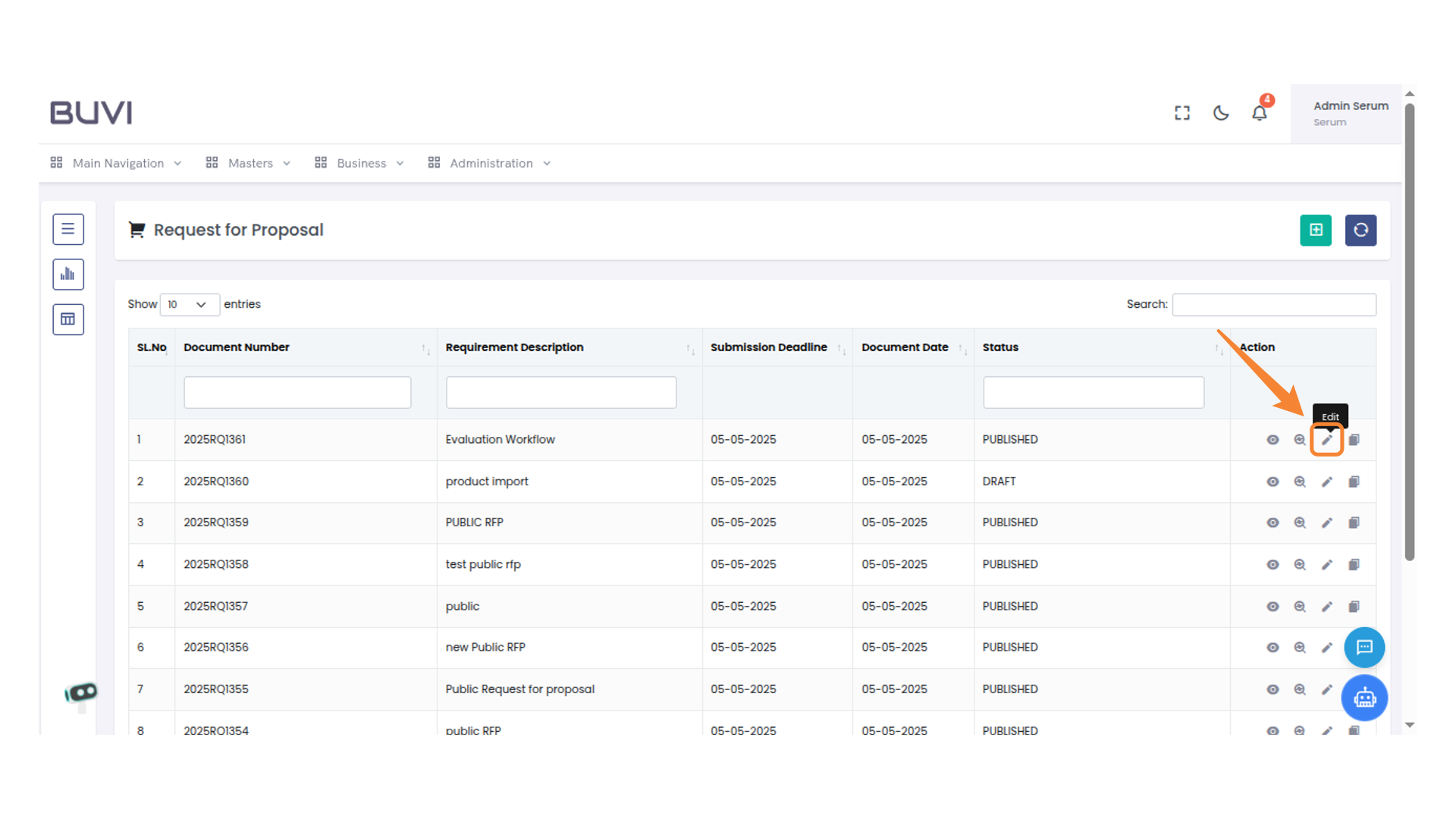
23. Edit Document Icon
Click to edit the document entry.
24. Navigation Menu Icon
Click on Open menu
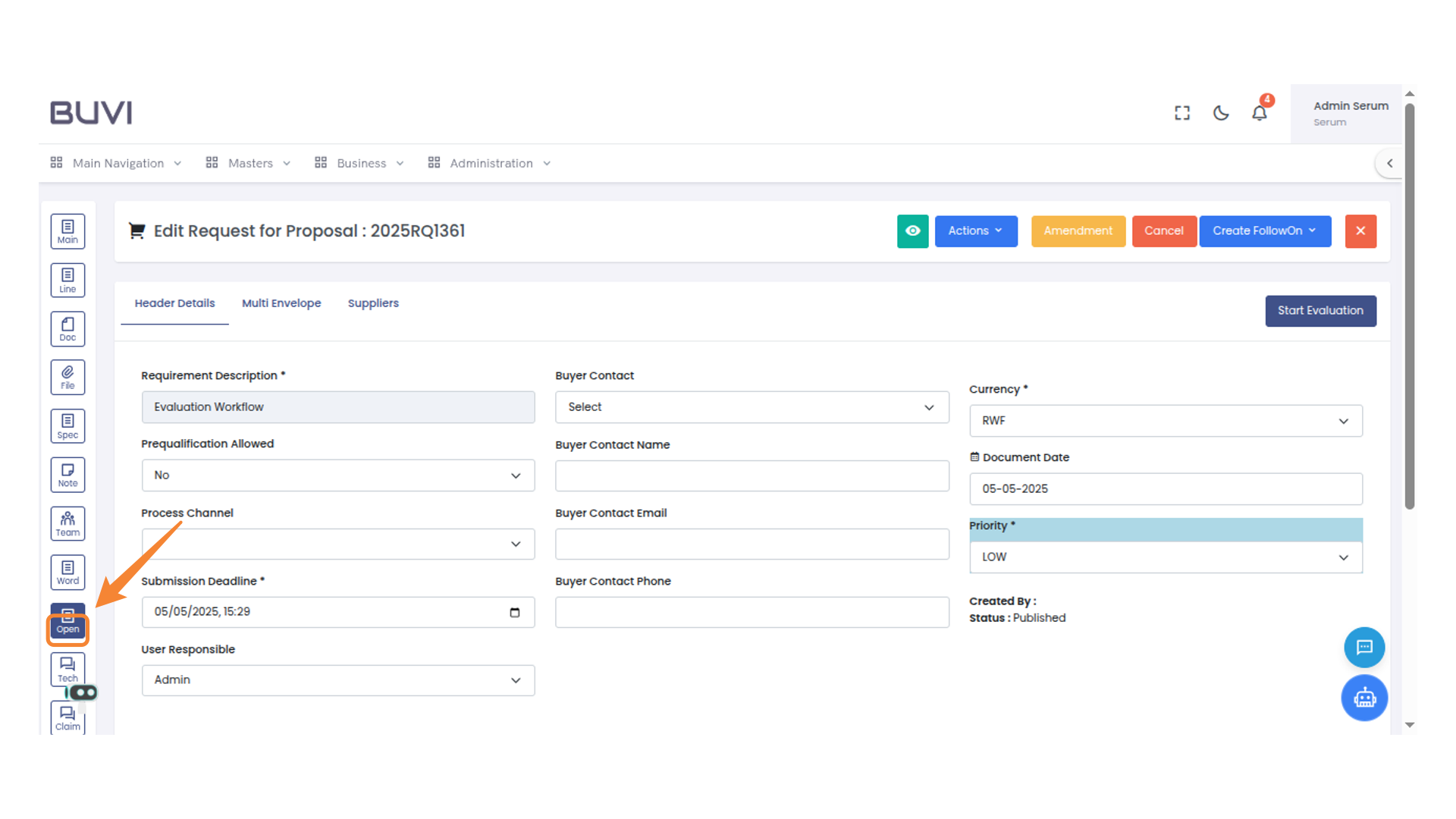
25. Open Bid Button
Click to initiate the bid opening process for the selected entry.
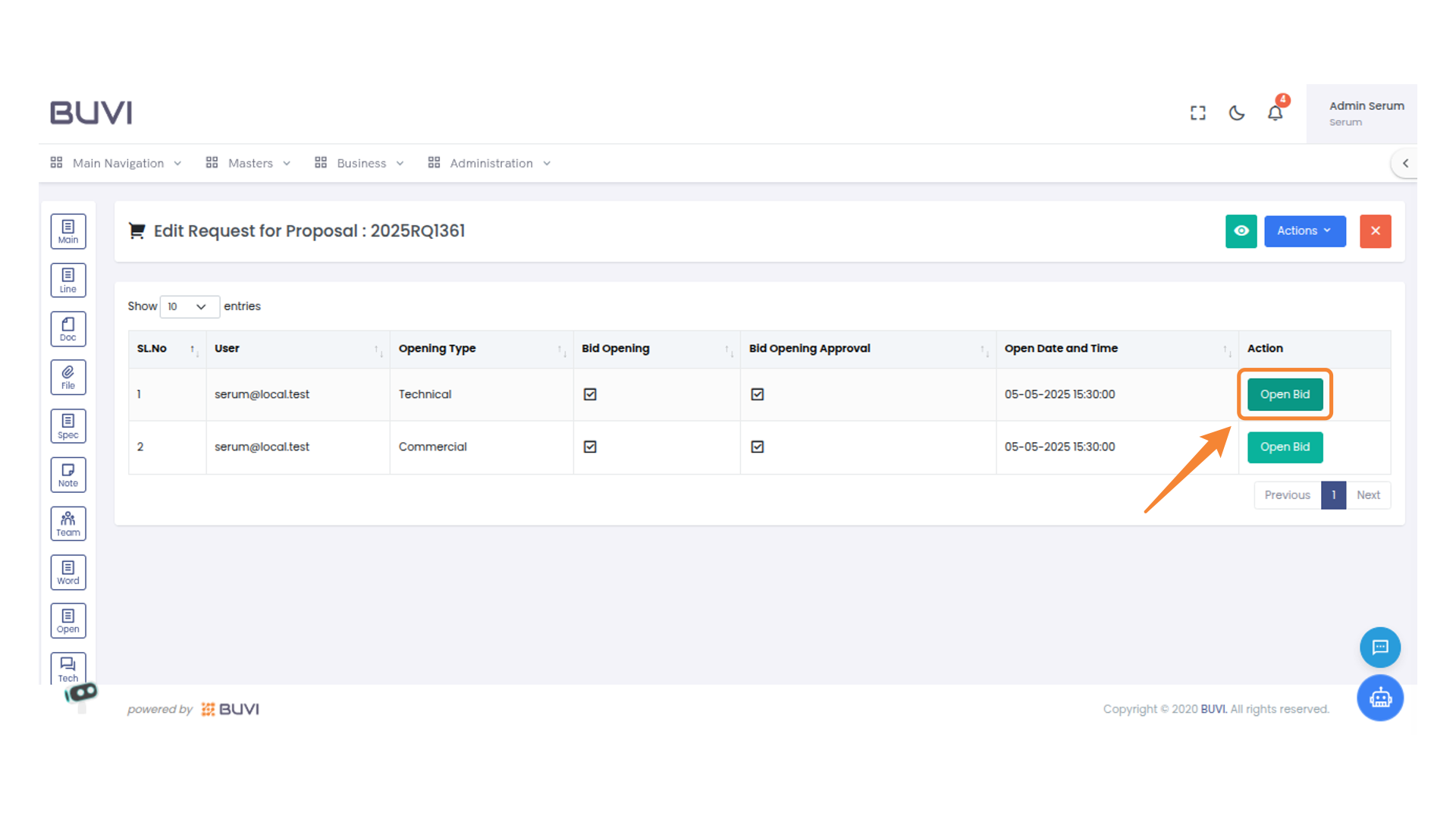
26. Approval Button
Click to approve the bid request.
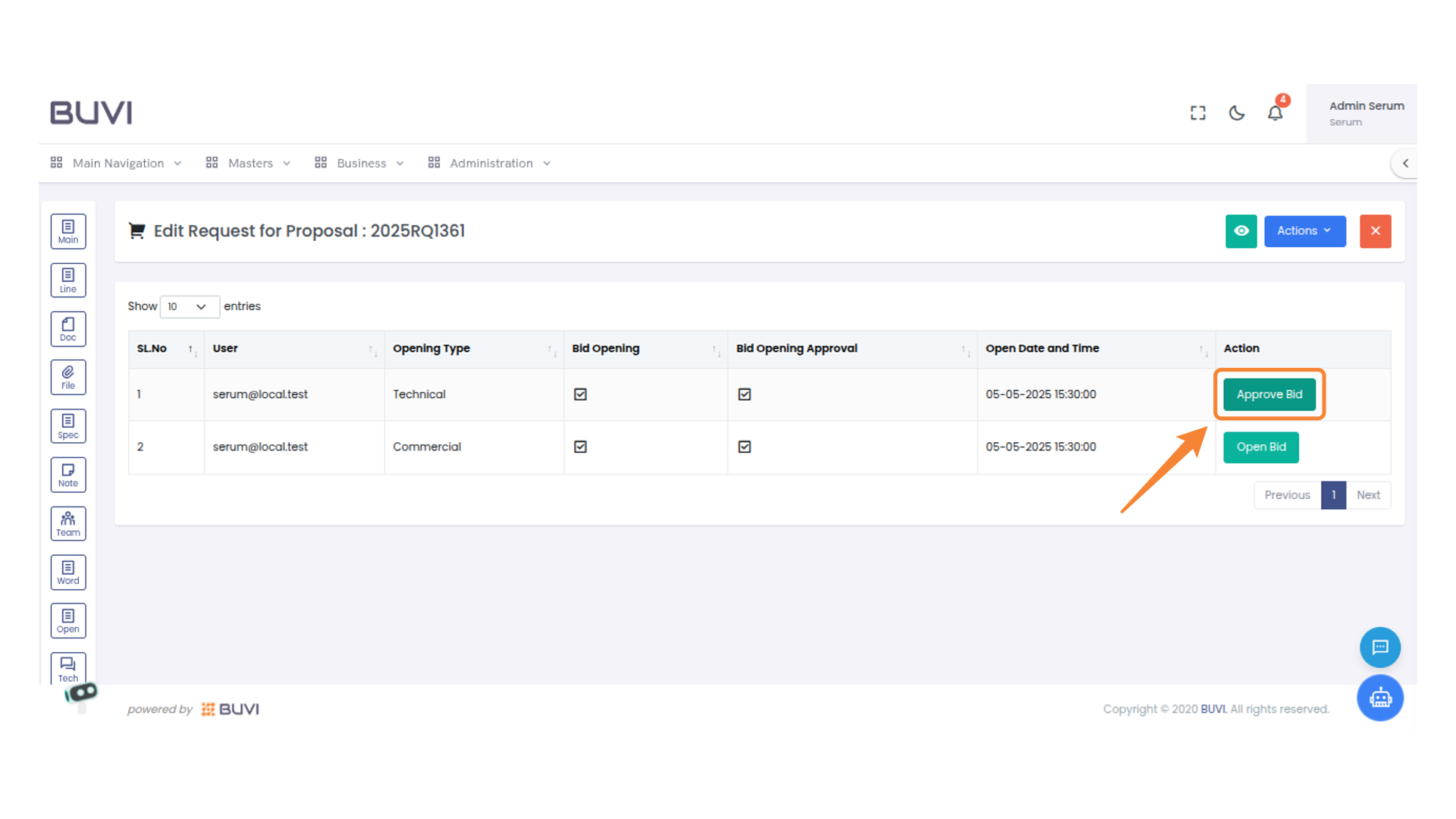
27. Bid Opening Action
Select the 'Open Bid' button to proceed with the bid opening process.
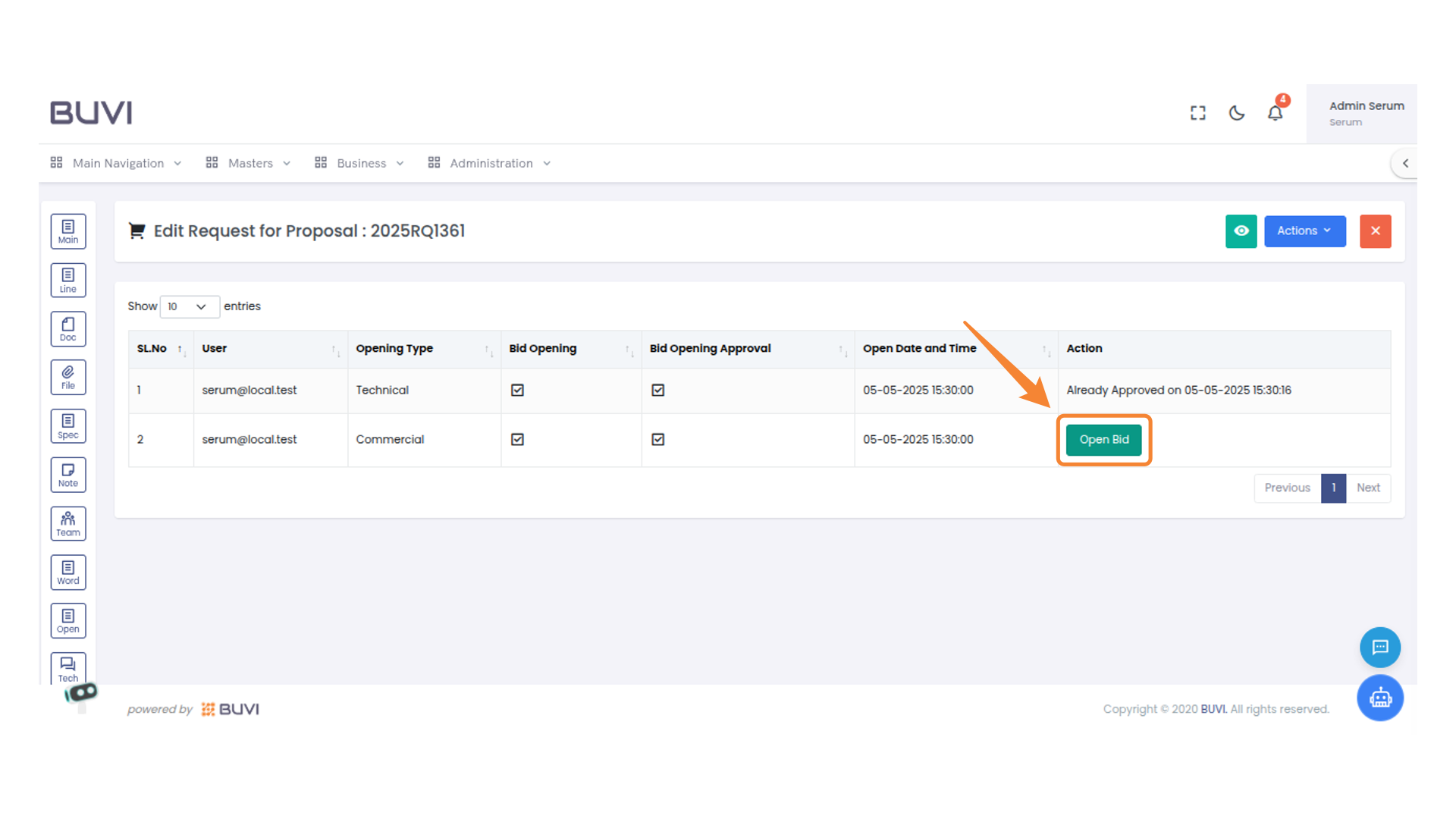
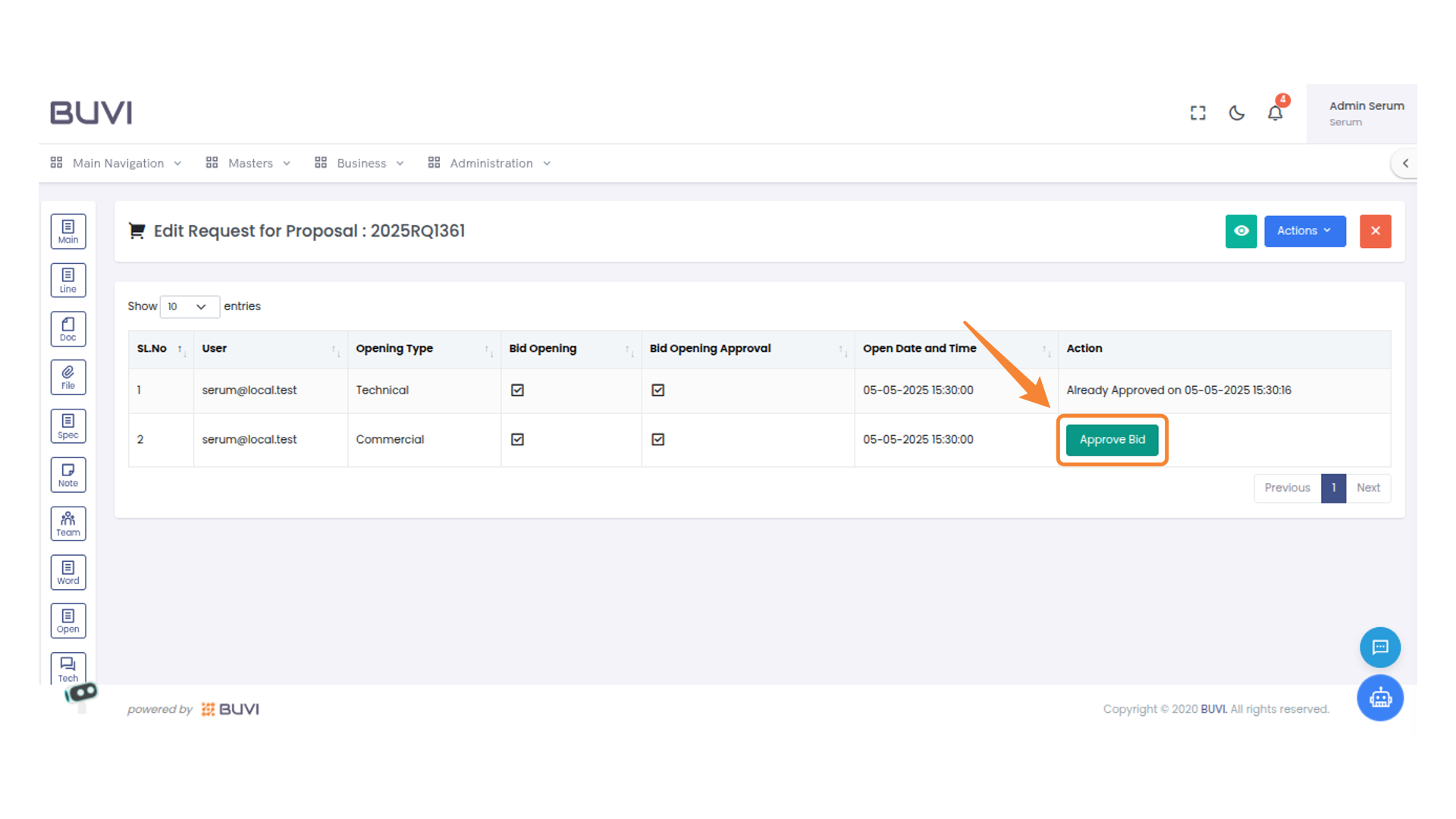
28. Bid Approval Button
Click to approve the bid for the selected entry.
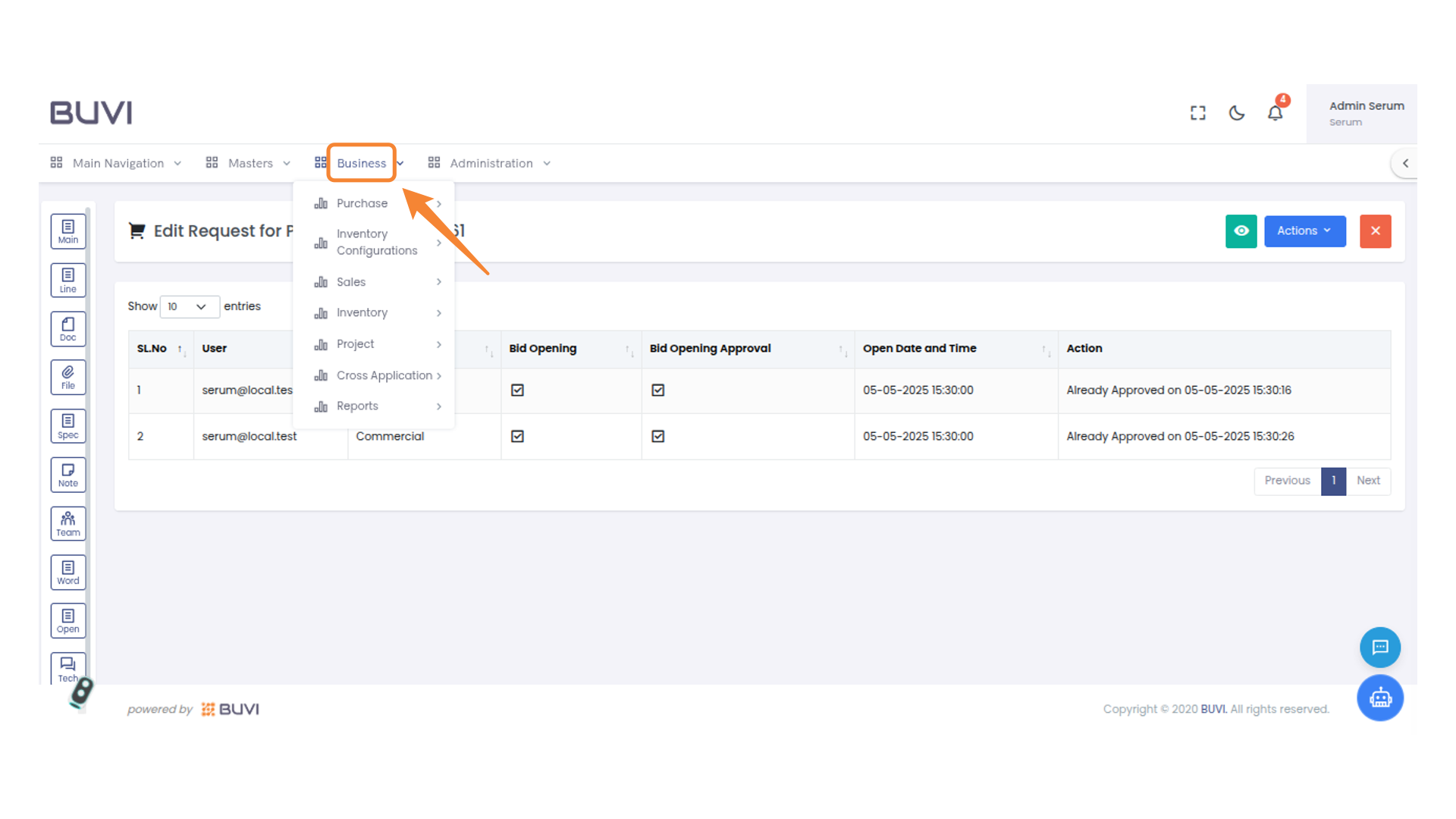
29. Business Menu Access
Click on Business menu
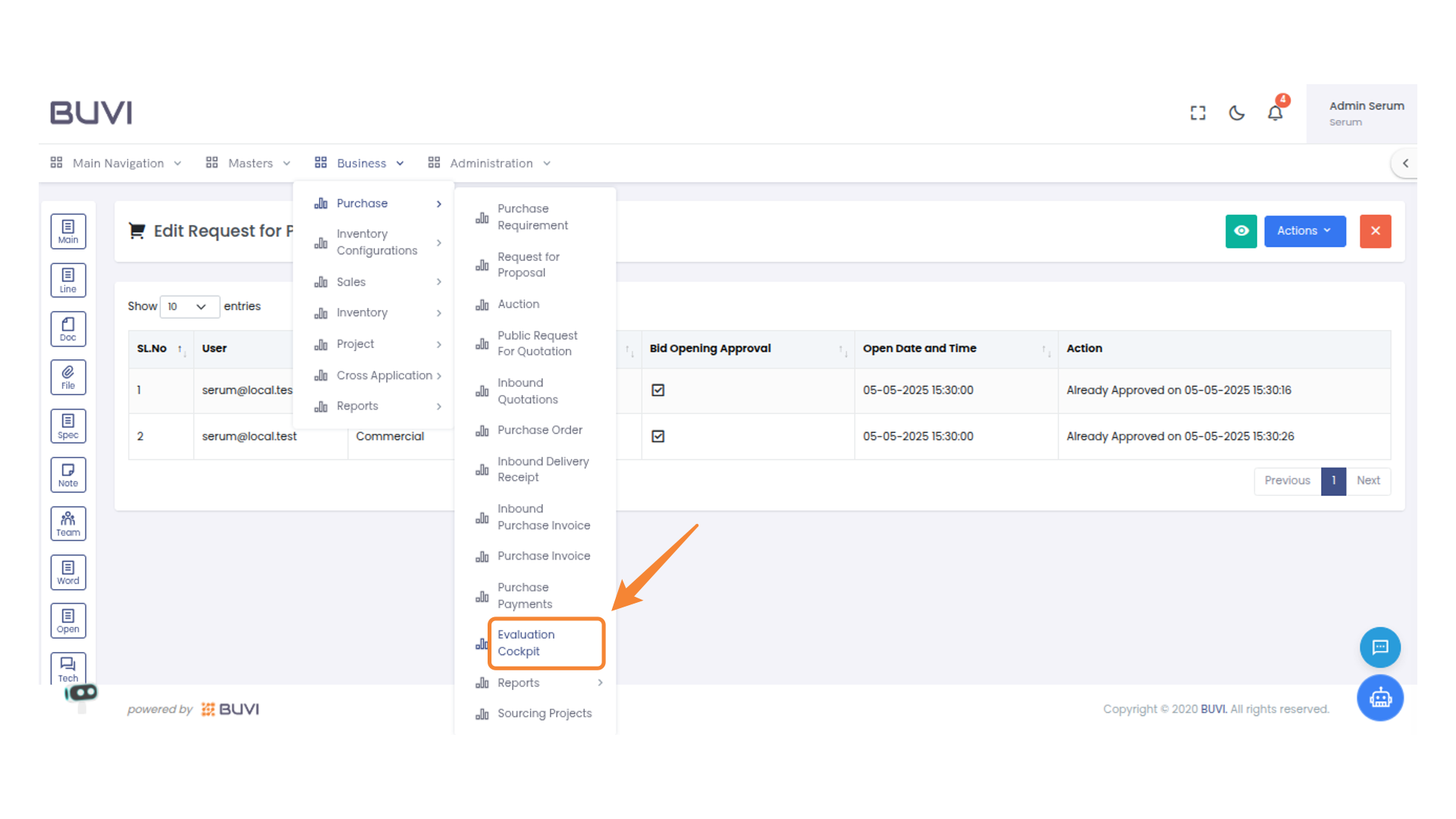
30. Evaluation Cockpit Menu Option
Click on Evaluation Cockpit Menu Option
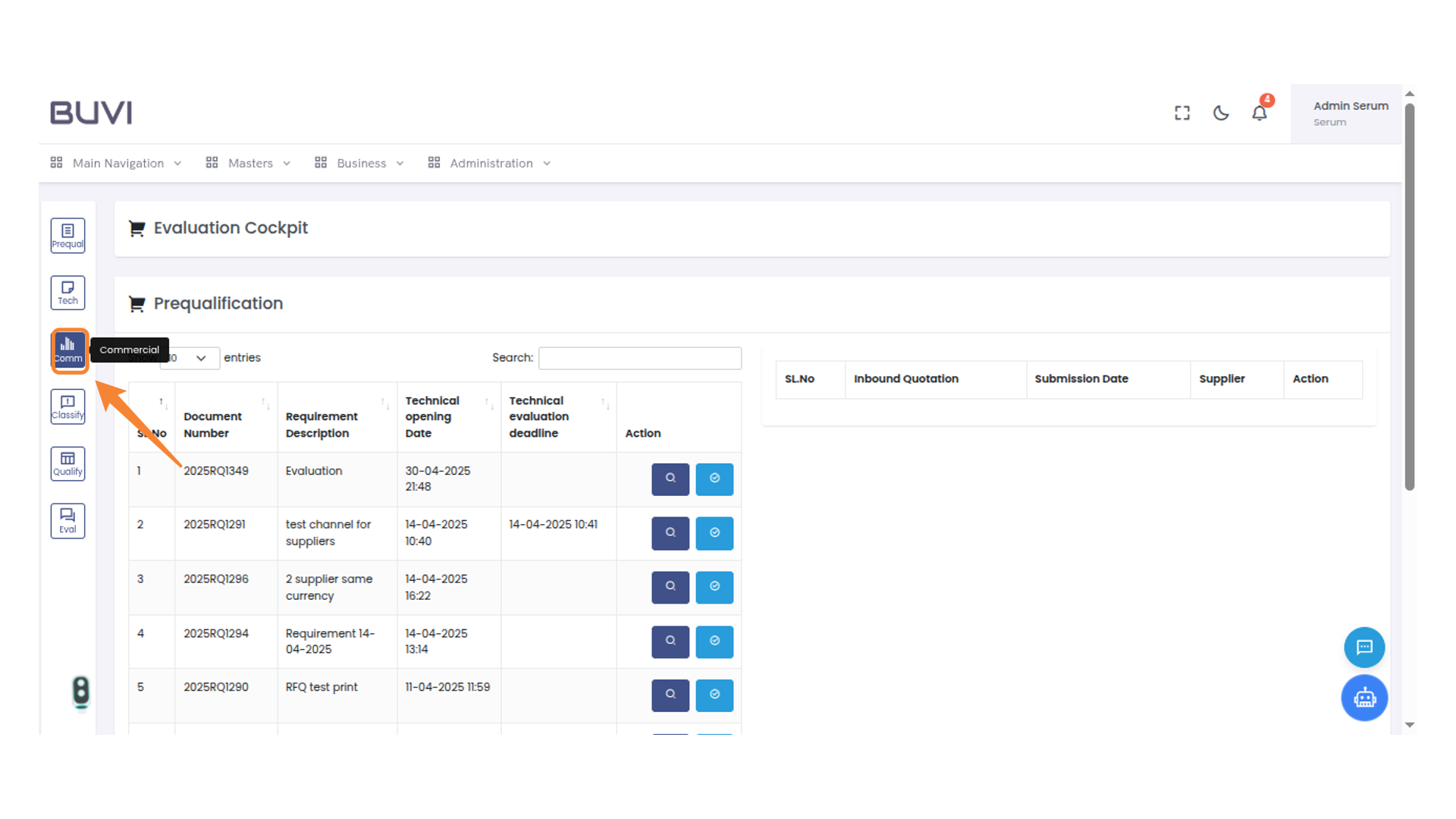
31. Commercial menu
Click on commercial menu
32. Action Button
Click to view details of the selected document.
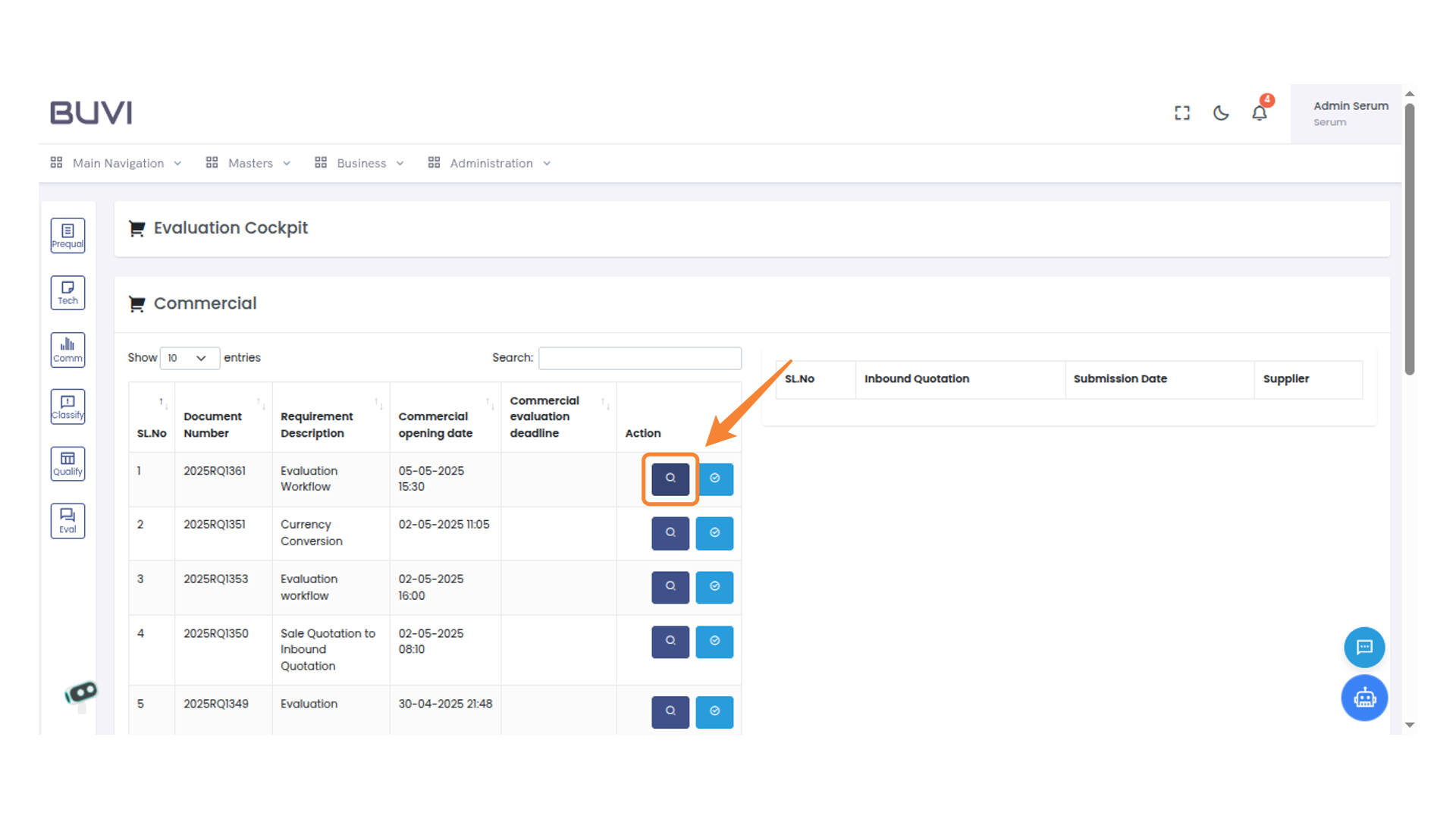
33. Score Button Interface
Click the button to display the scoring options.
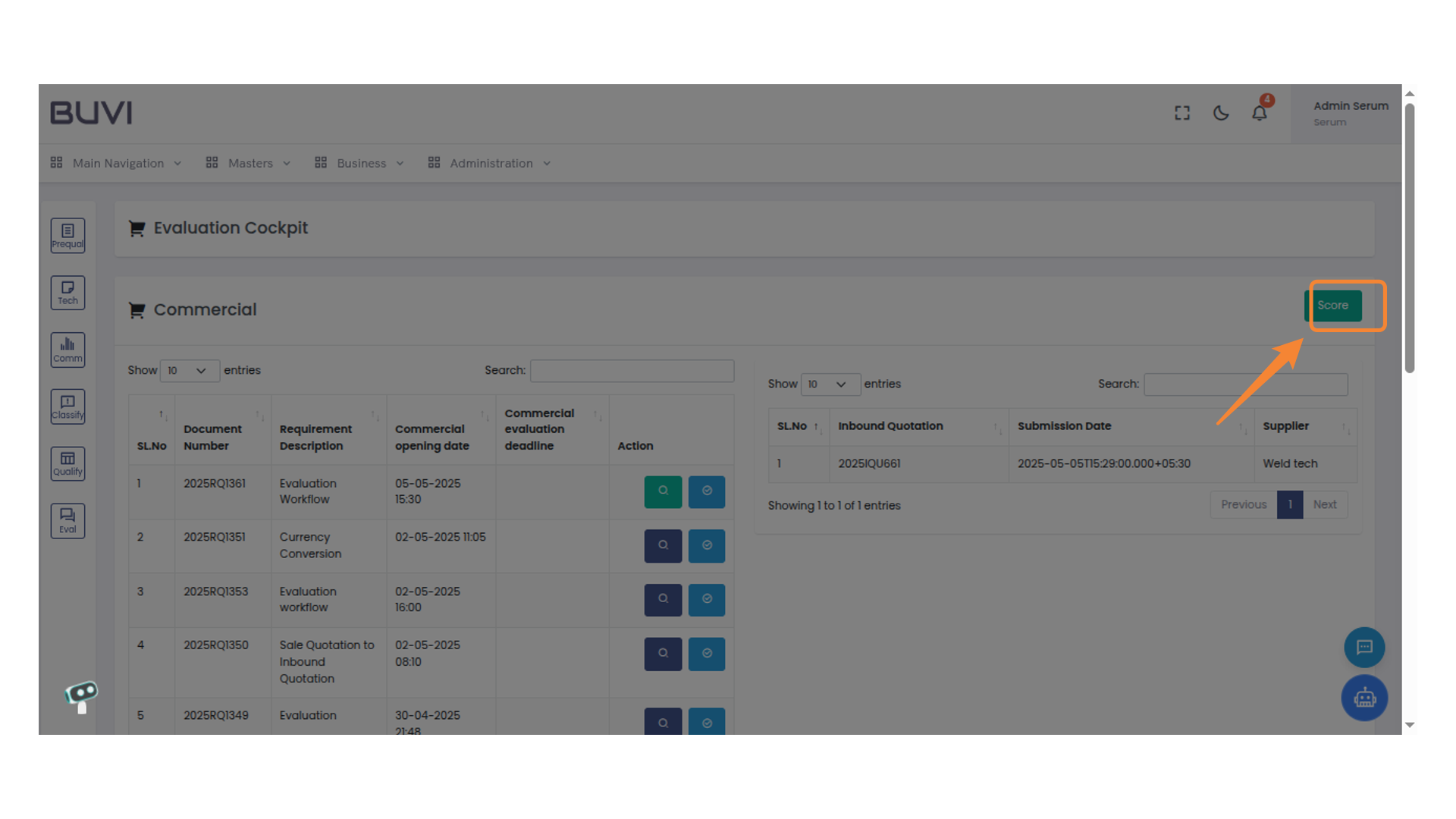
34. Evaluator Score Input Field
Enter the evaluator score here to update the record.

35. Save Button Interaction
Click the button to save your current changes and proceed.
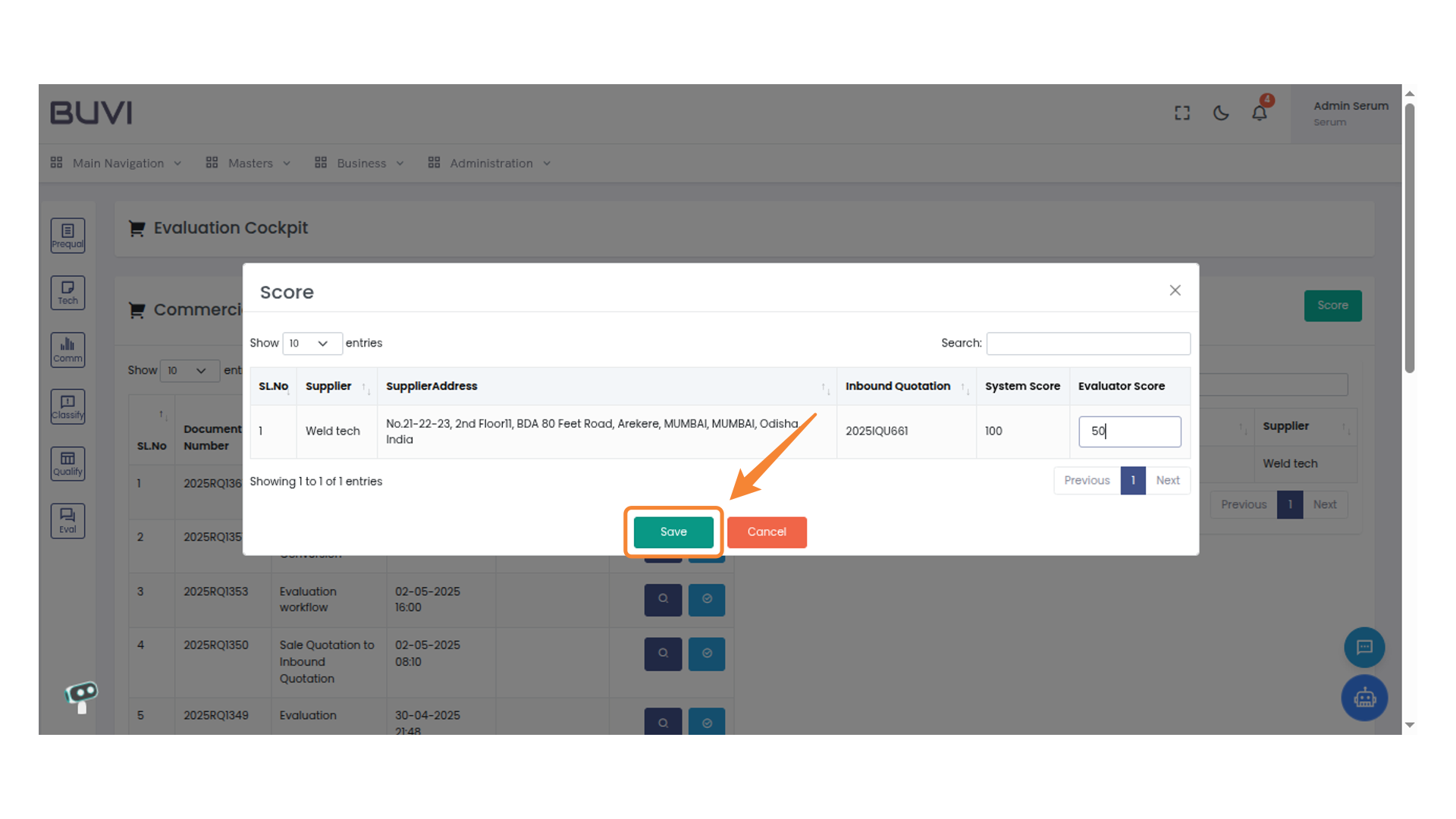
36. Purchase Option
Click on Purchase menu
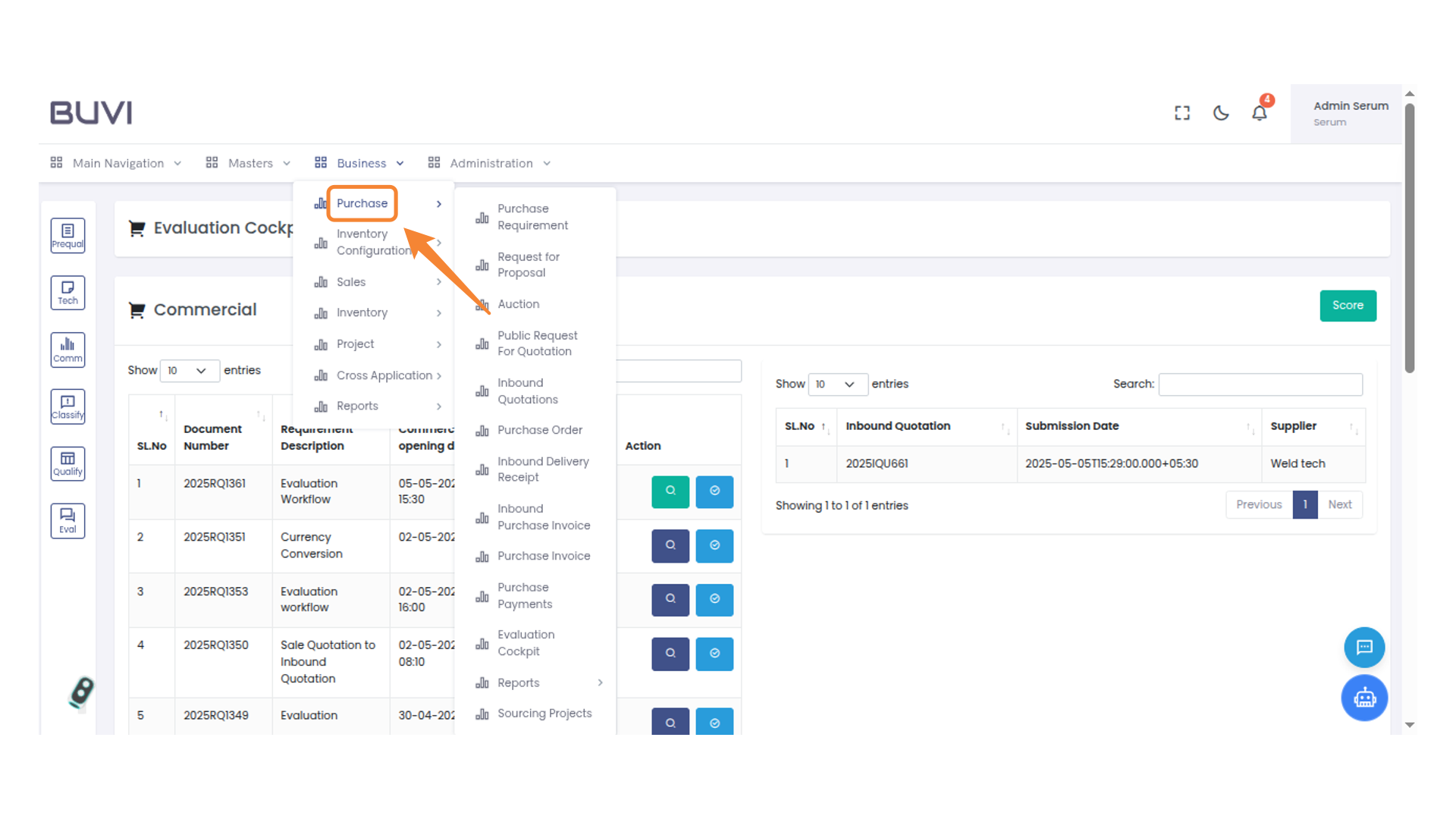
37. Request for Proposal Menu Option
Click on Request proposal menu
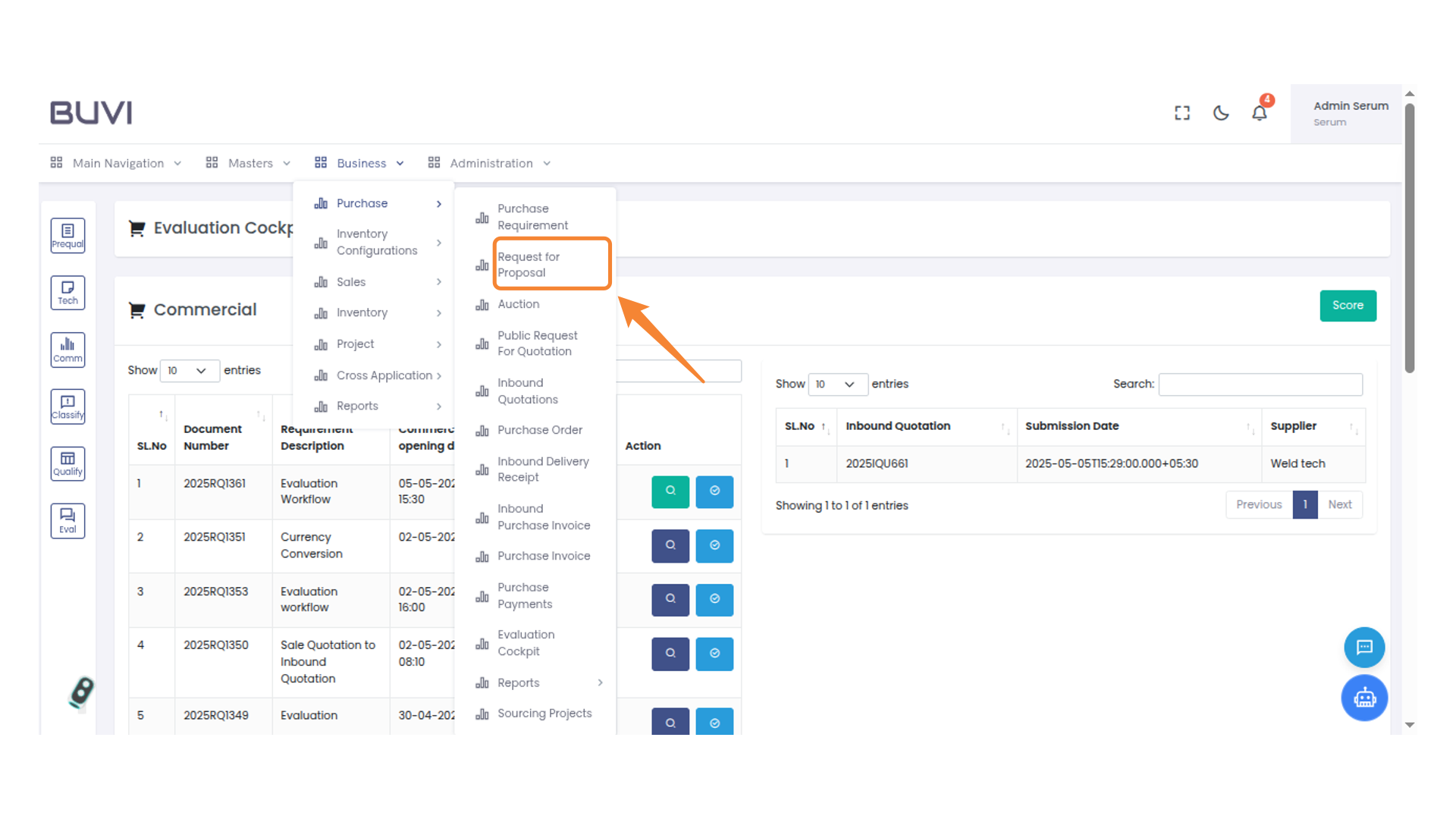
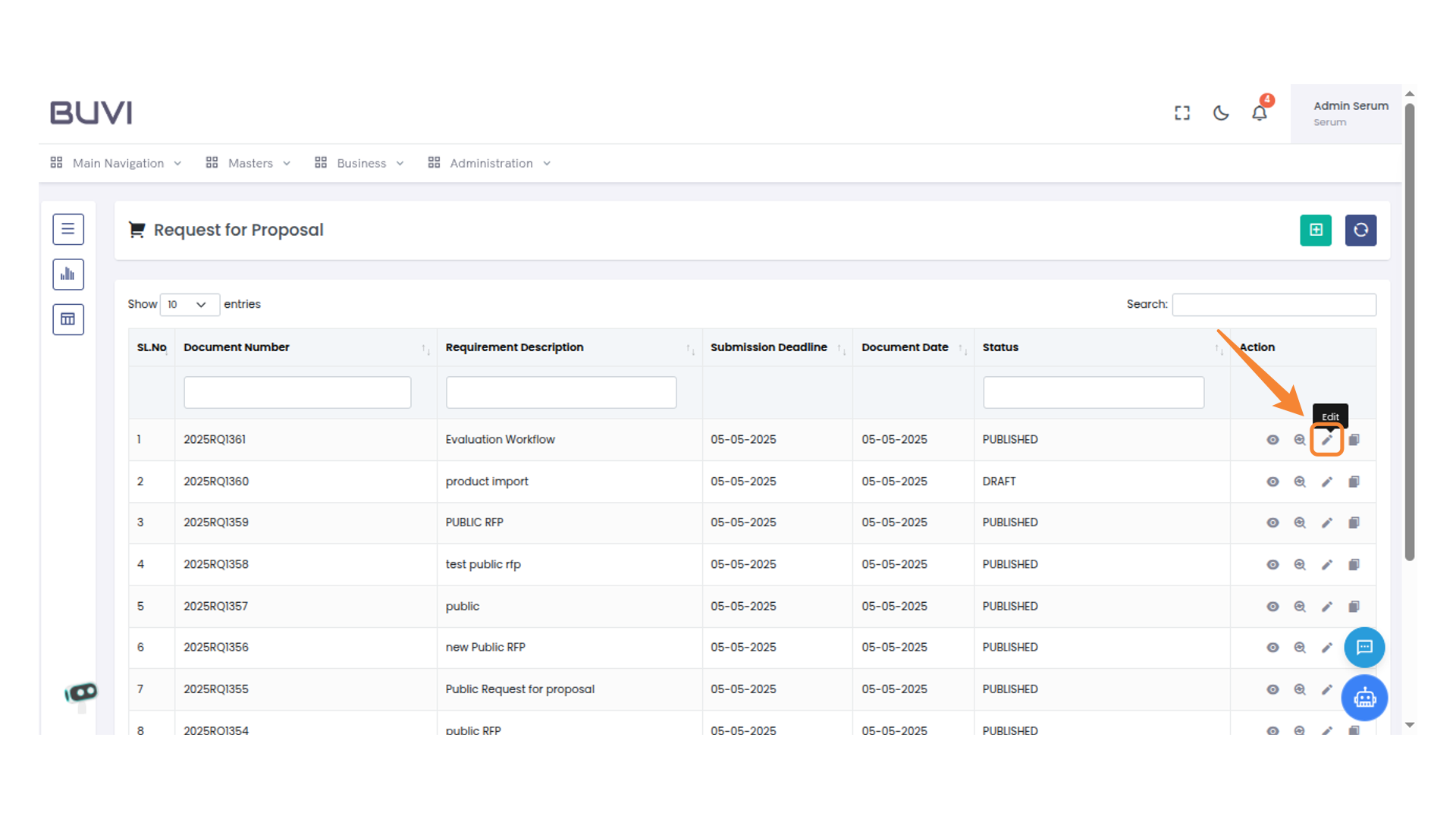
38. Edit Button
Click to modify the selected proposal.
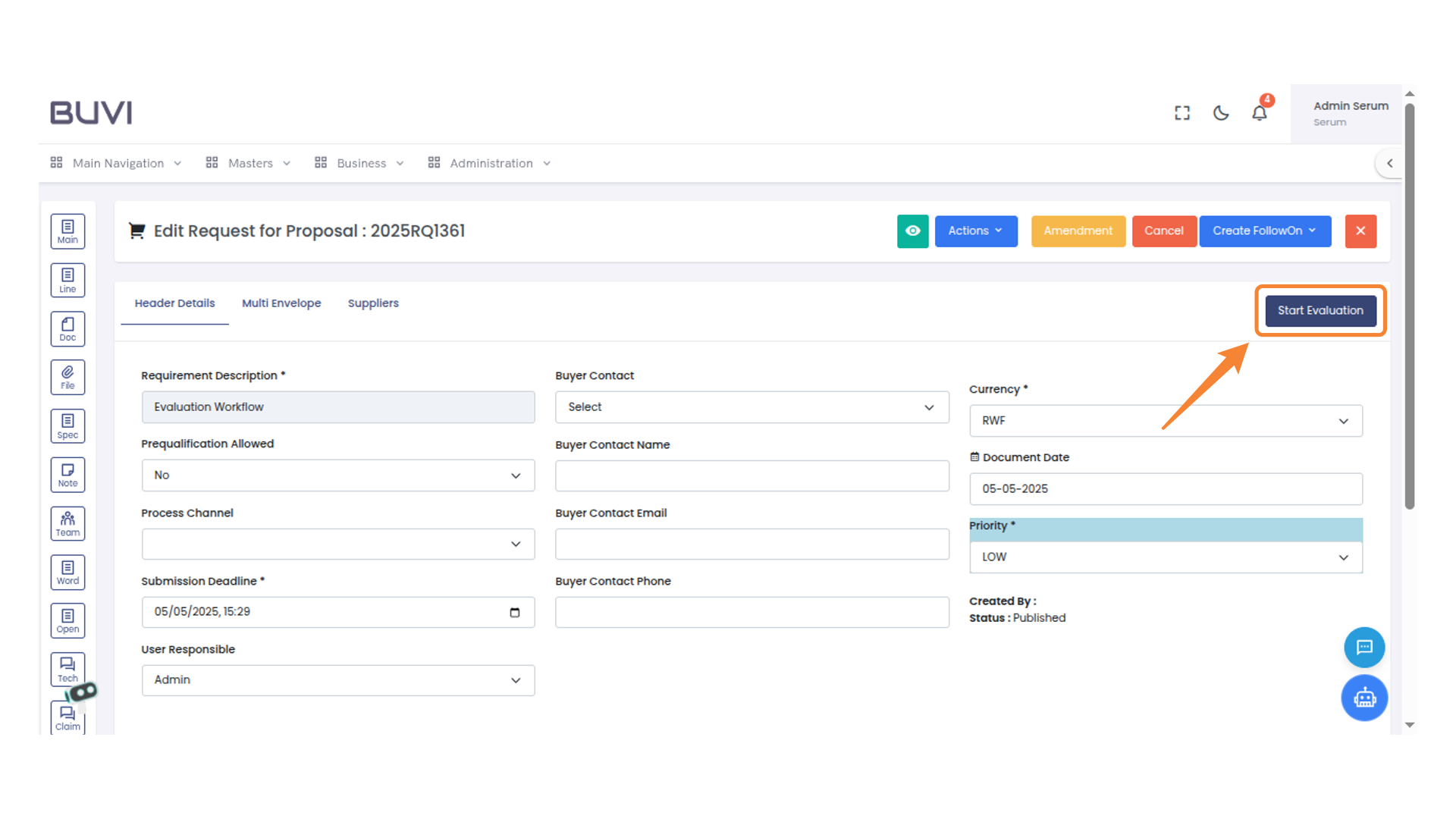
39. Start Evaluation Button
Click the button to initiate the evaluation process.
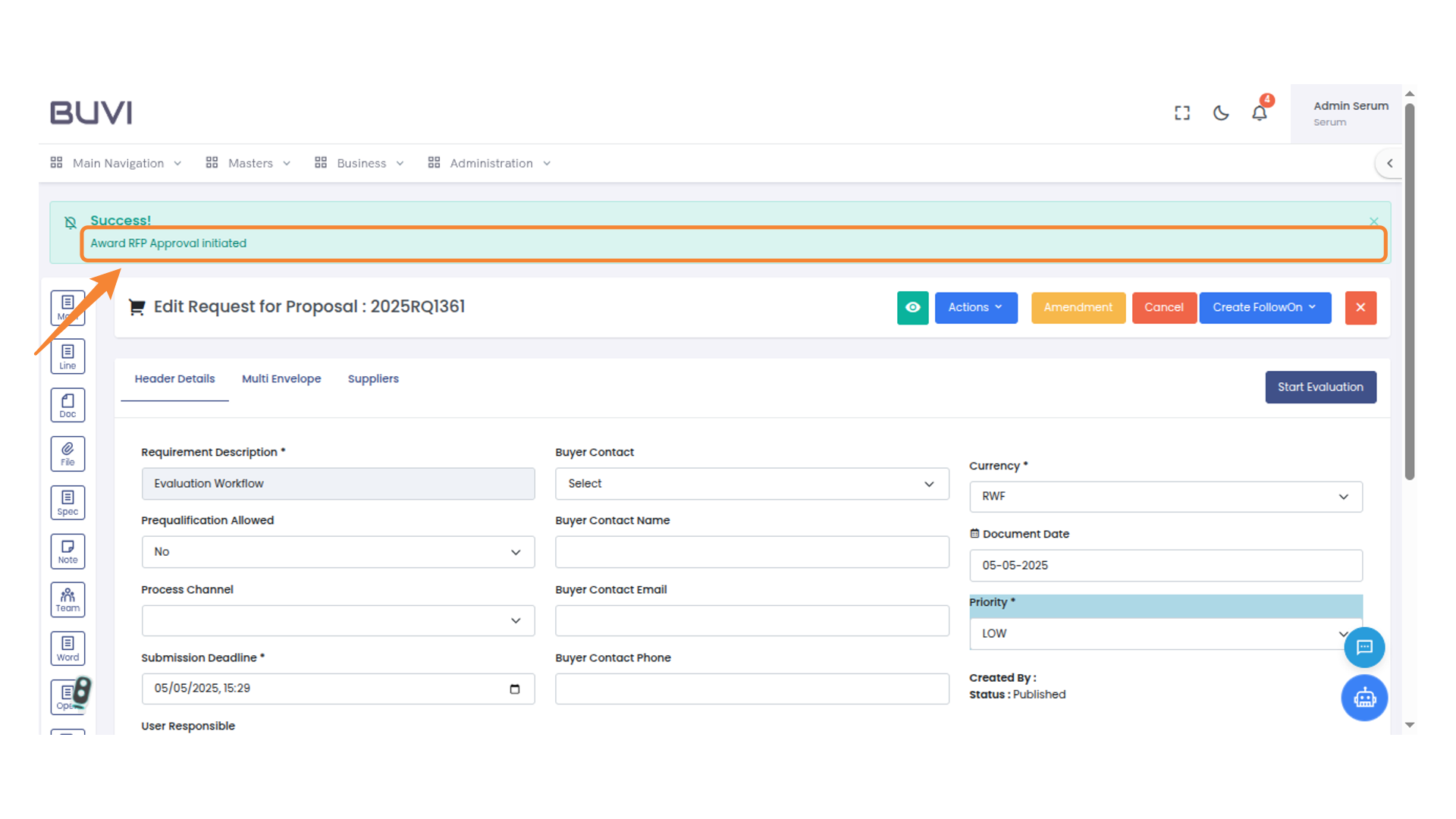
40. RFP Approval Notification
Approval workflow initiated successfully
41. Logout Button
Click to log out from the system.
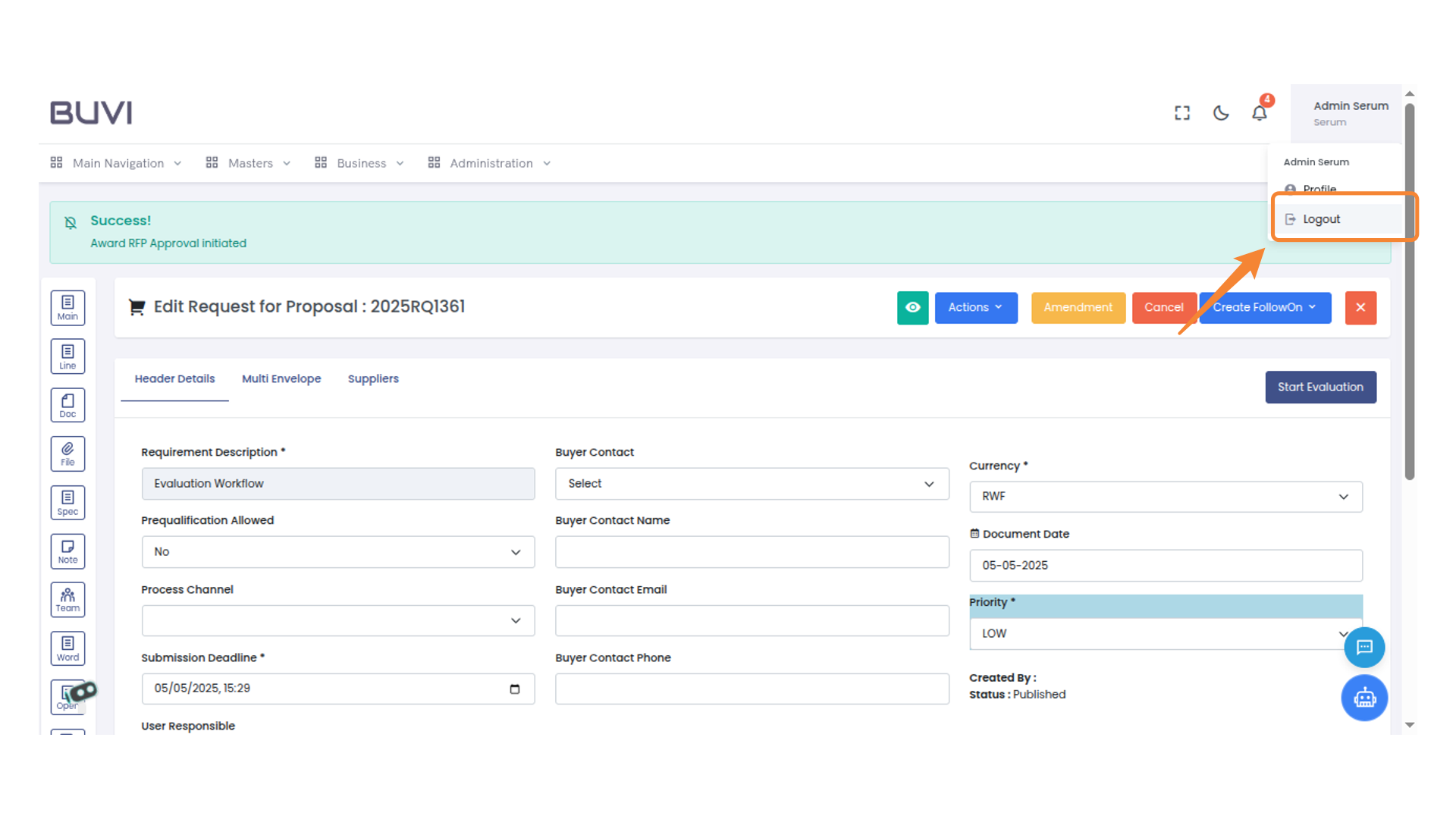
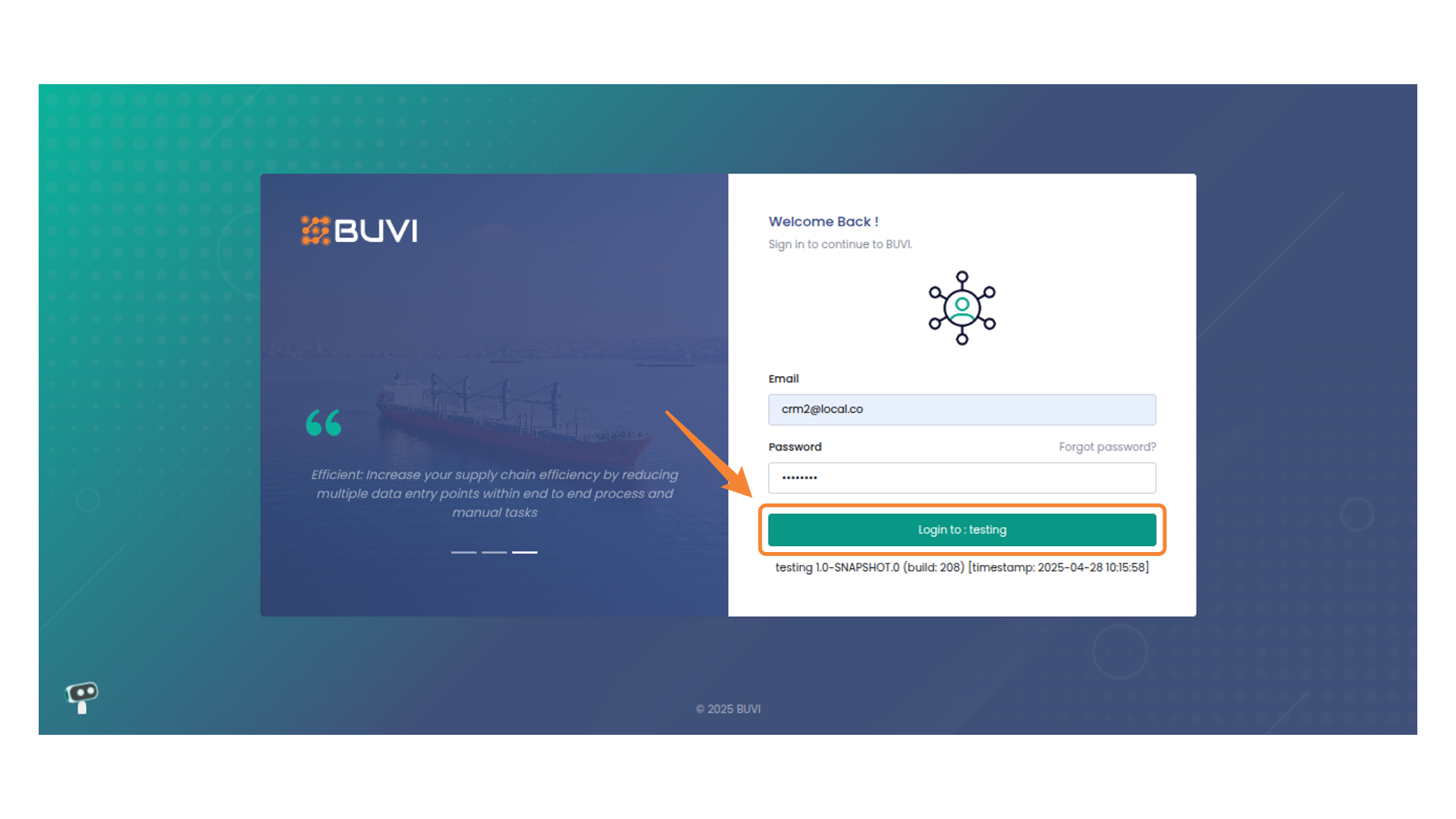
42. Login Button
Login to the application as Project manager
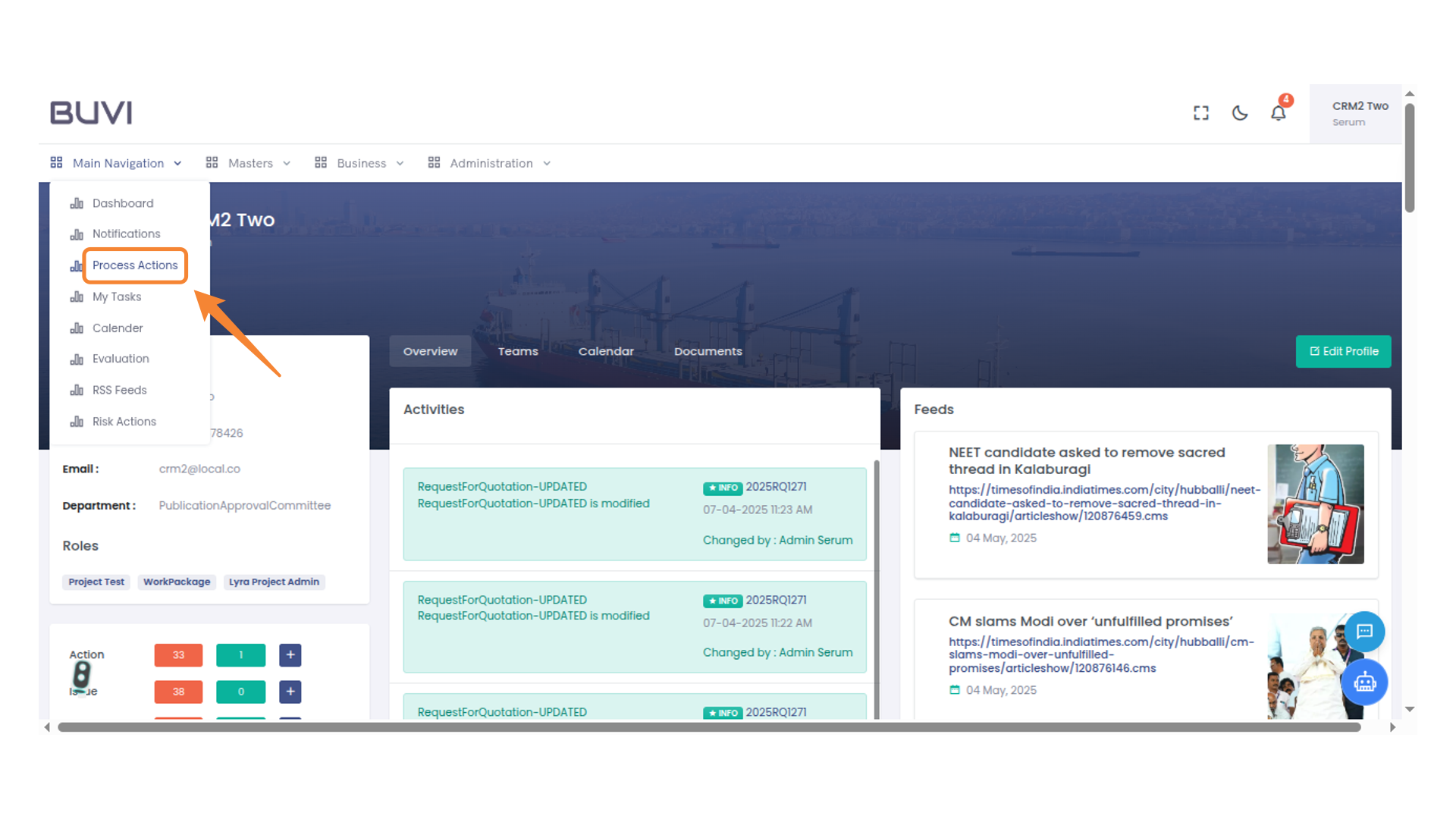
43. Process Actions Menu
Select this option to view and manage all process-related actions.
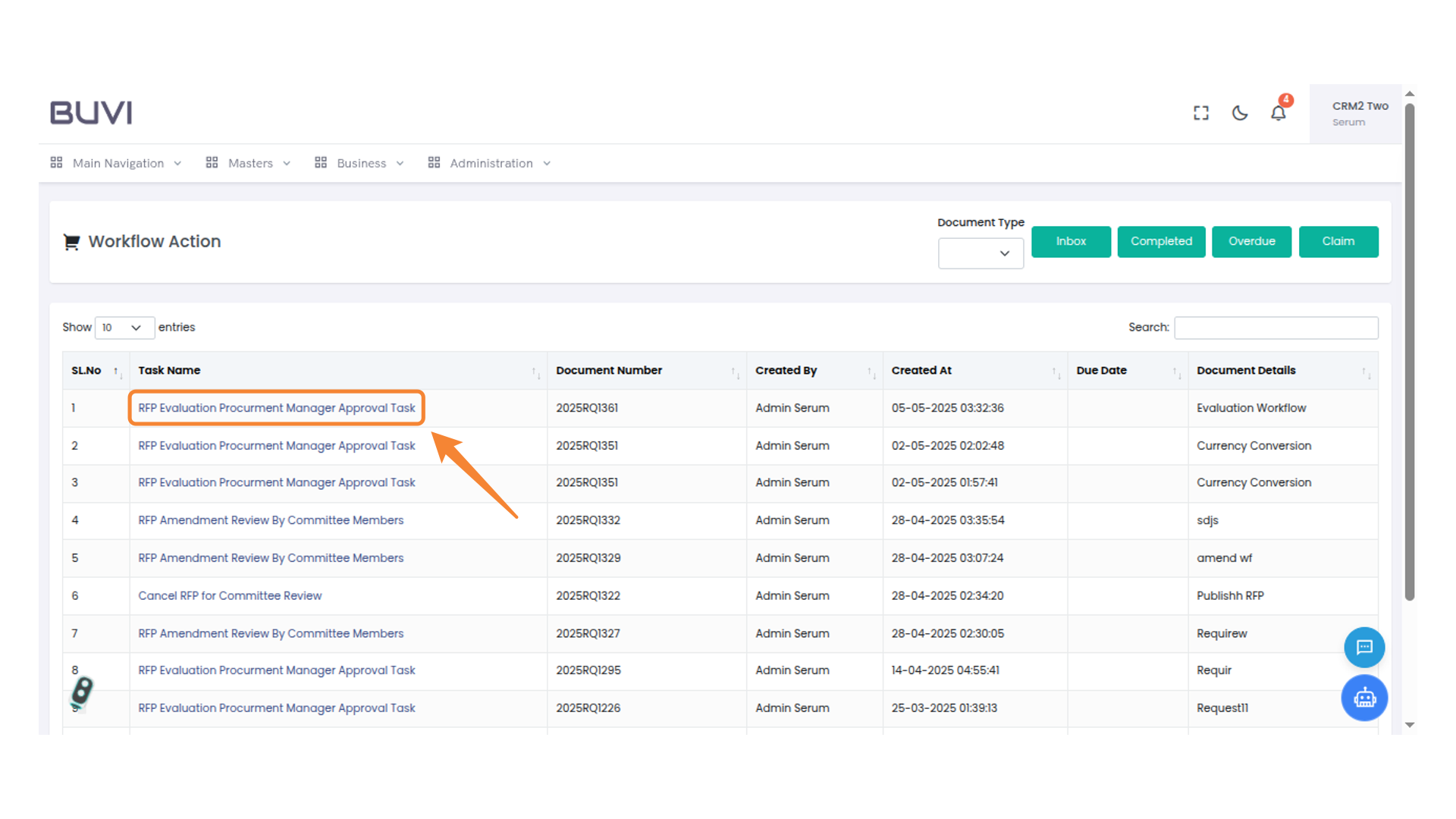
44. RFP Evaluation Task
Review and approve the procurement manager's task for RFP evaluation.
45. Next Actions Menu
Select from the available actions to proceed with the proposal.
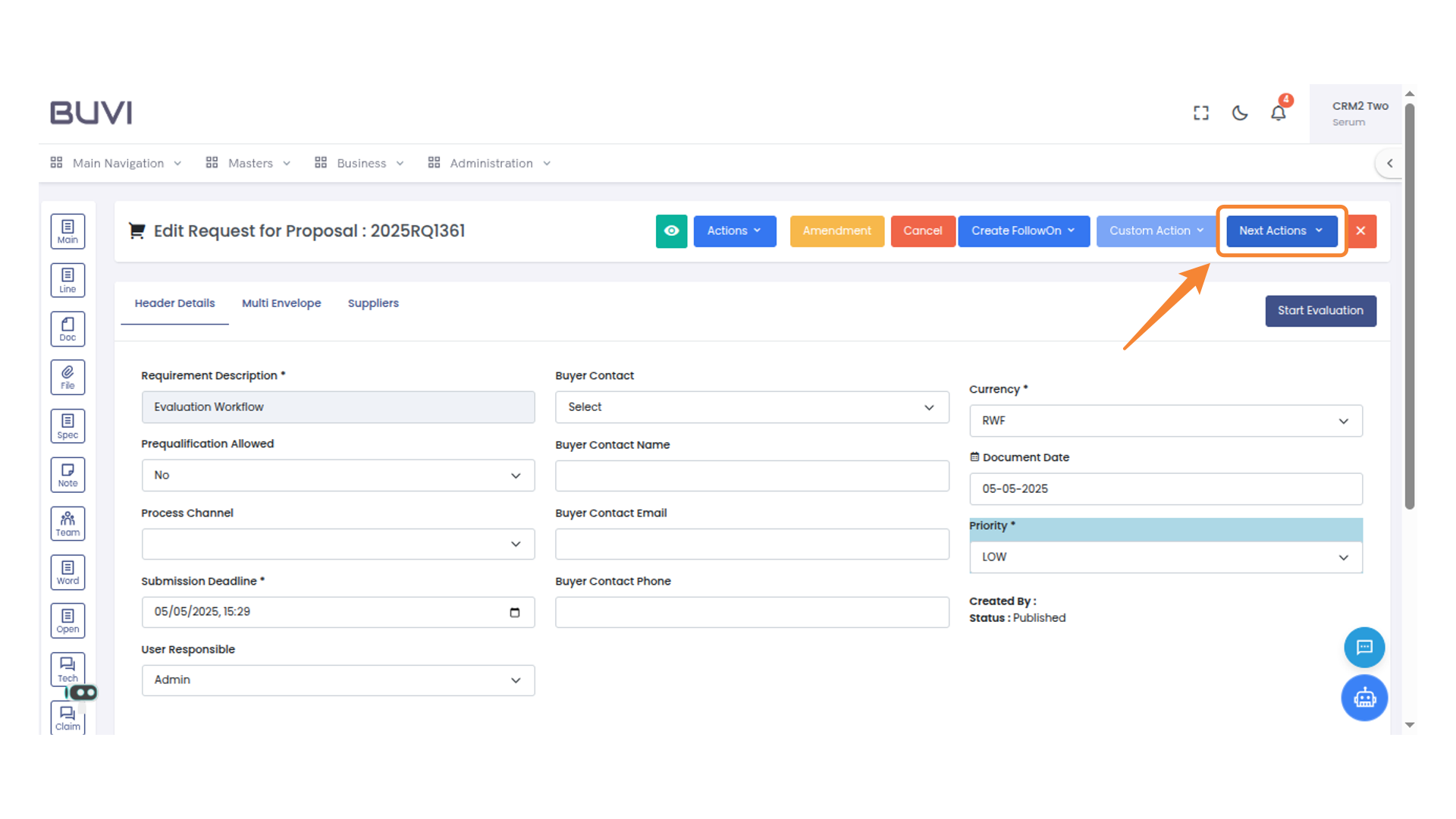
46. Approval Confirmation
Select the 'Approve' option to confirm the action.
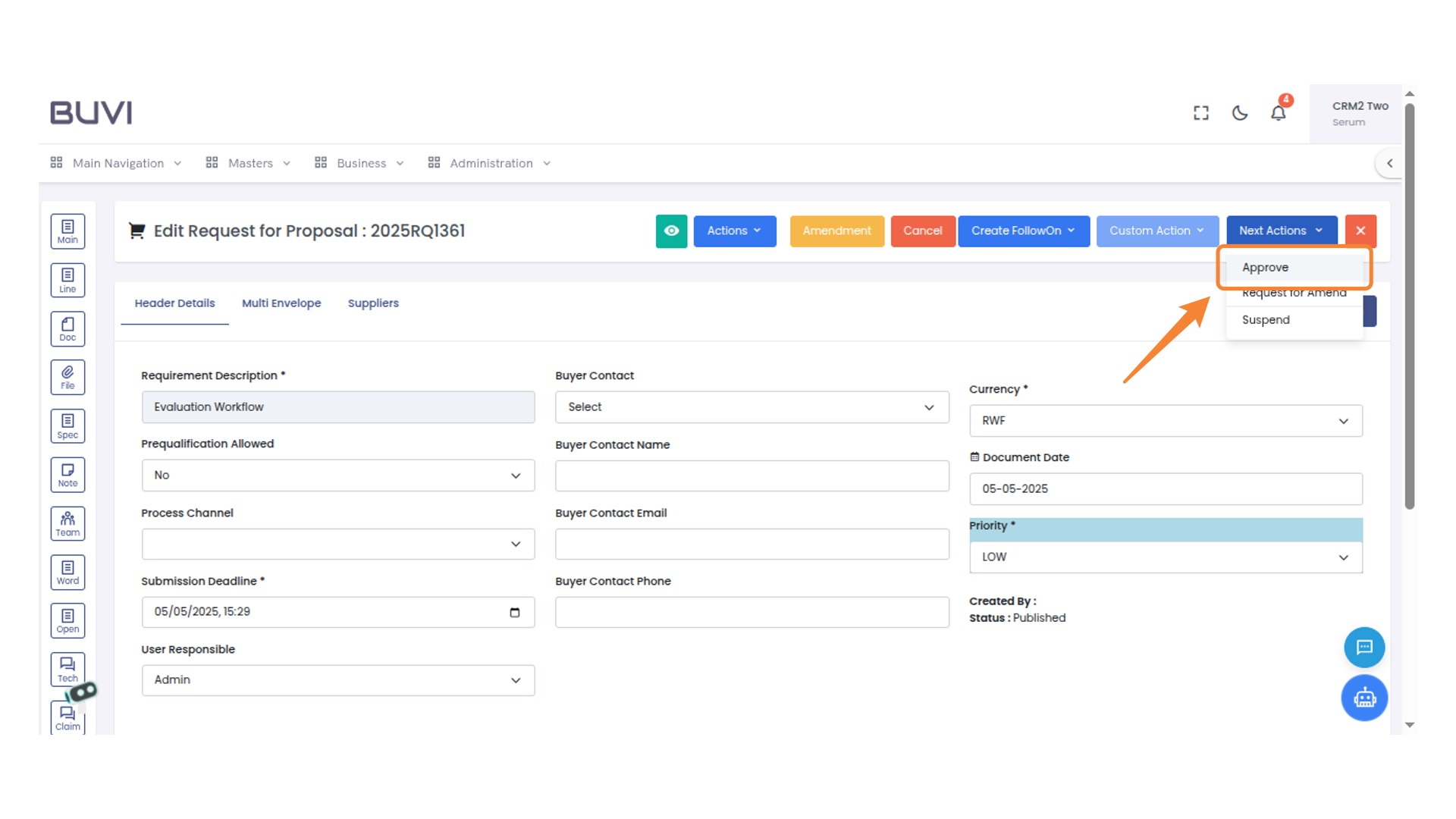
47. Comment Input Box
Enter your comment in the provided text area and then submit it using the available button.
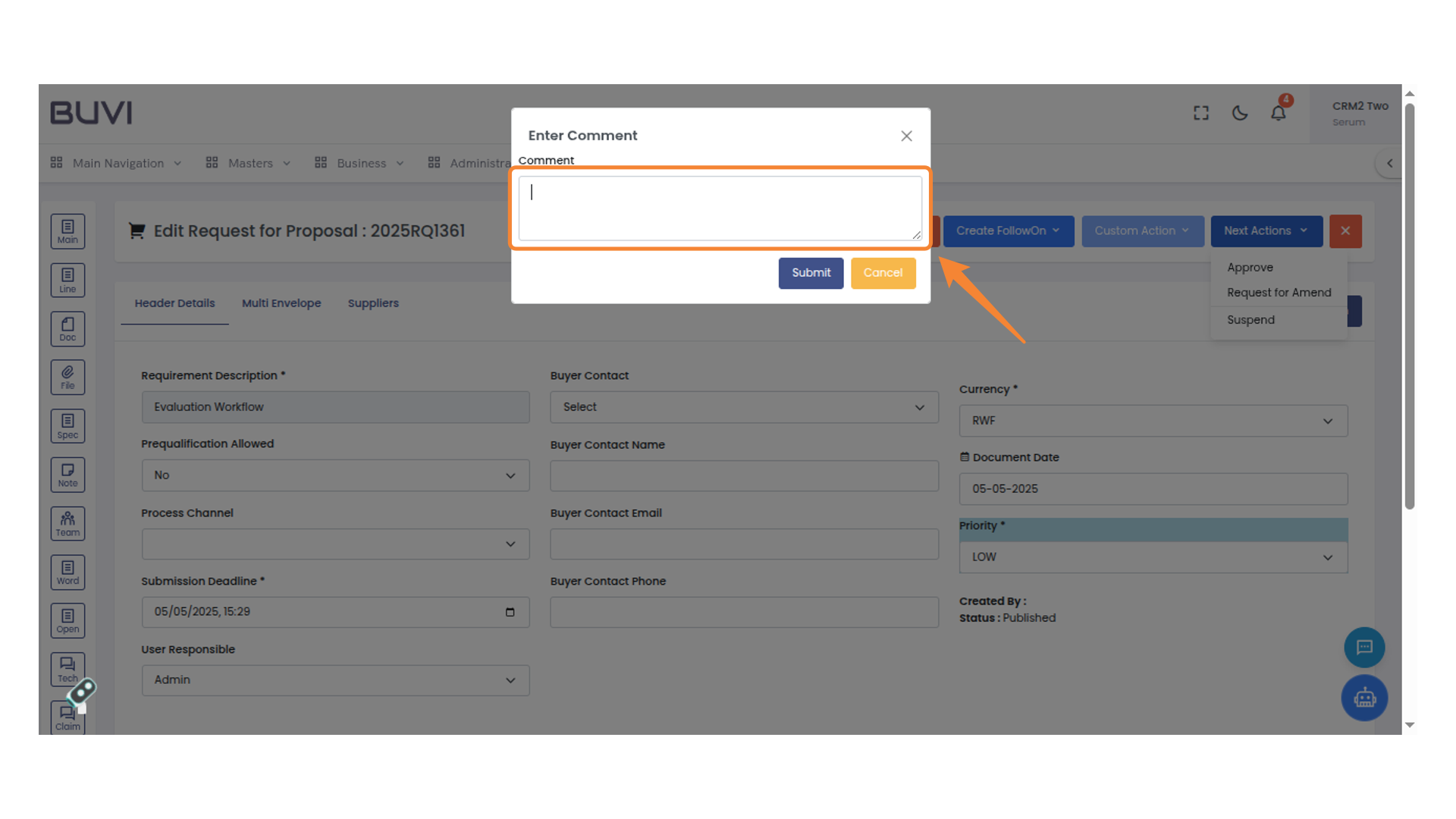
48. Submit Button in Comment Box
Click the button to submit your comment.
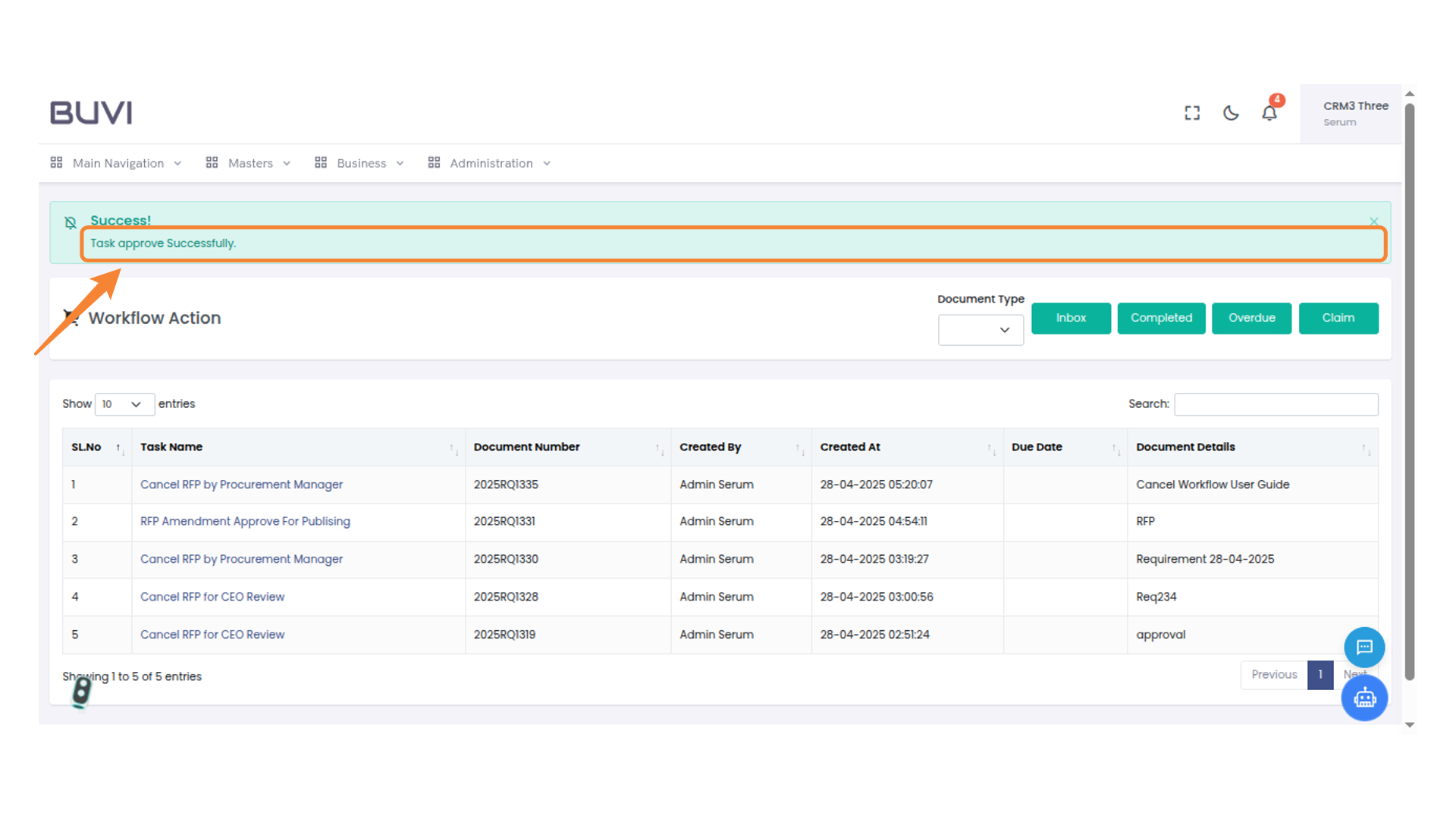
49. Task approve Successfully.
Task approved successfully
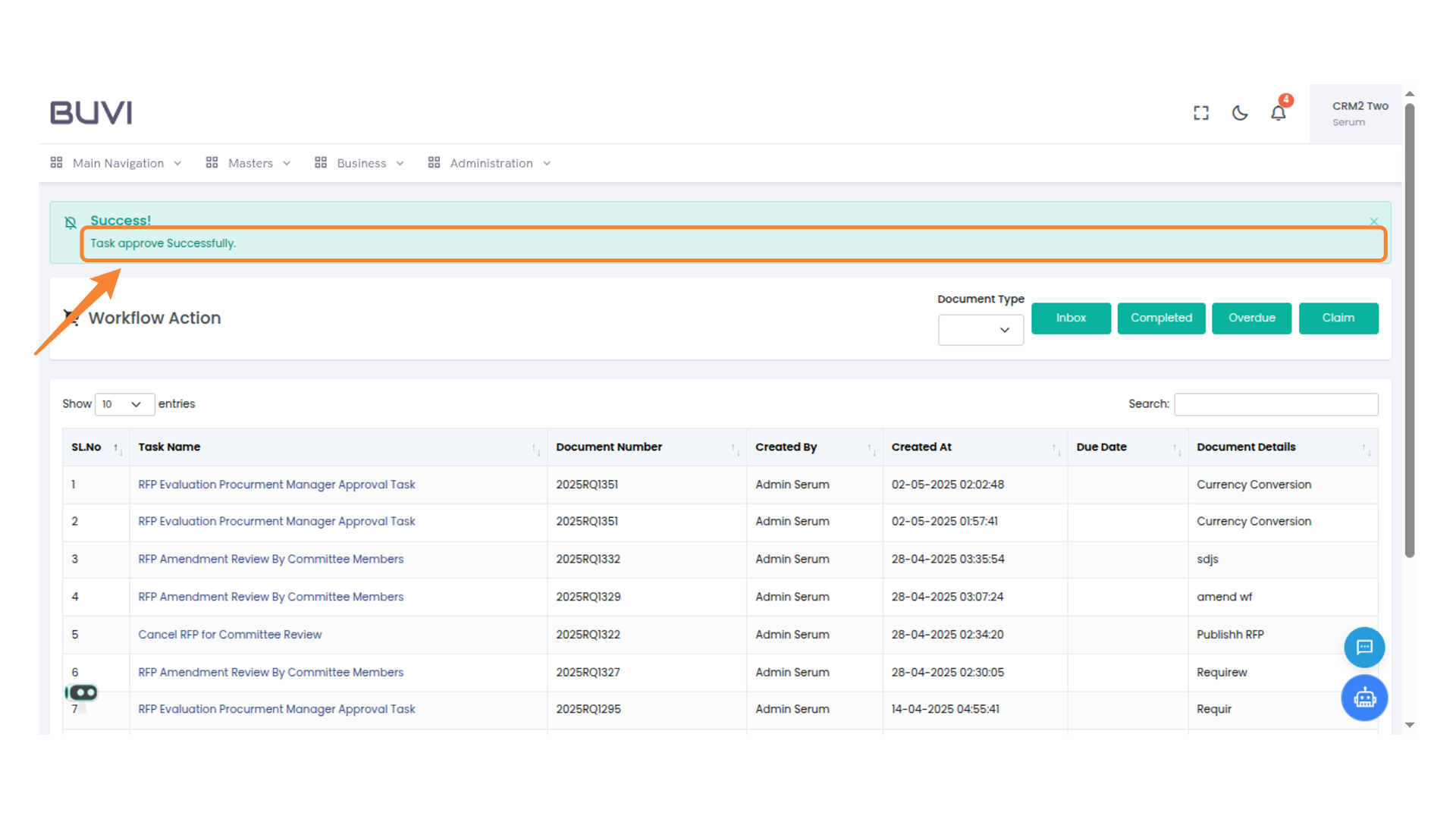
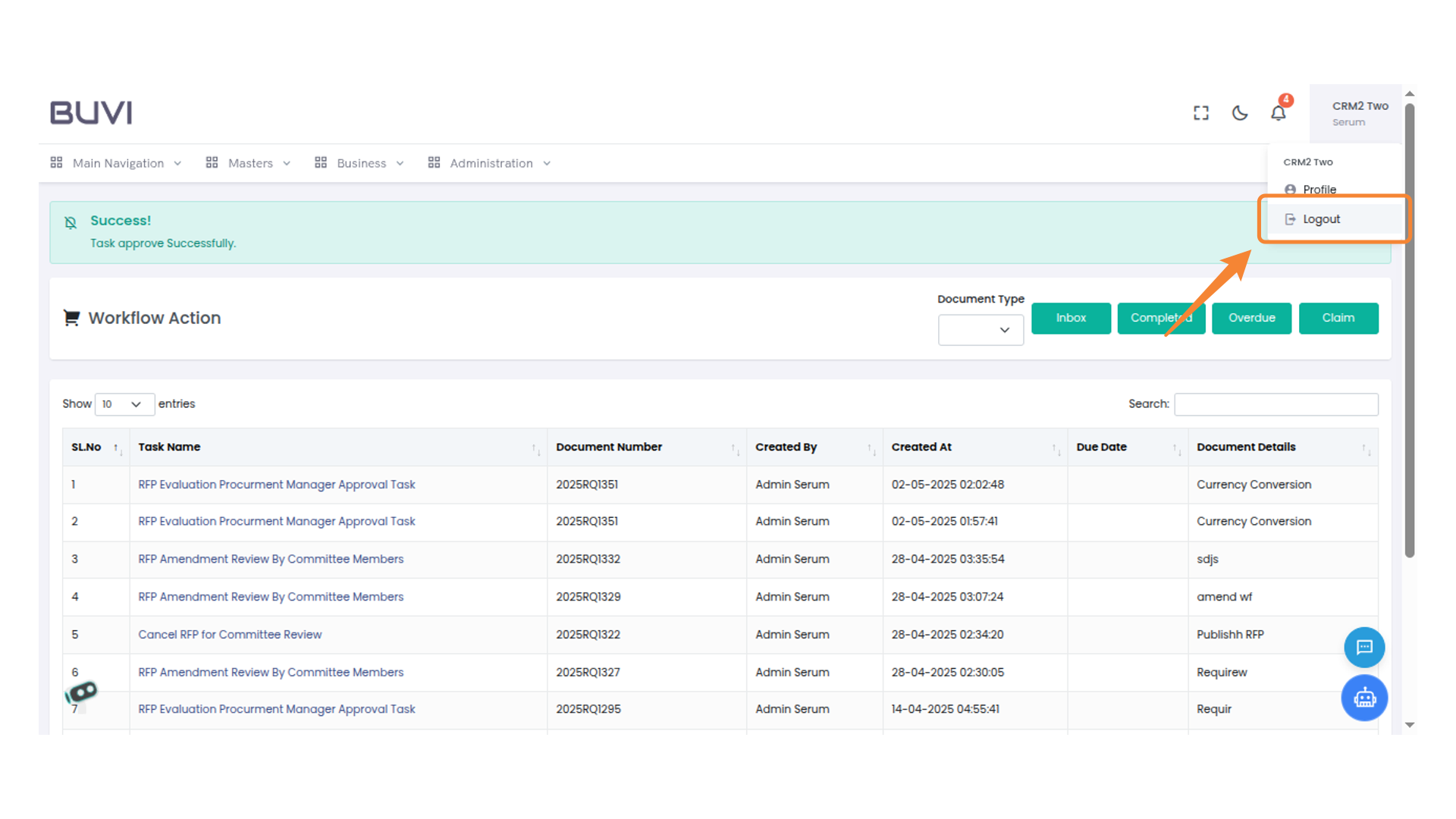
50. Logout Button
Click here to log out of your account.
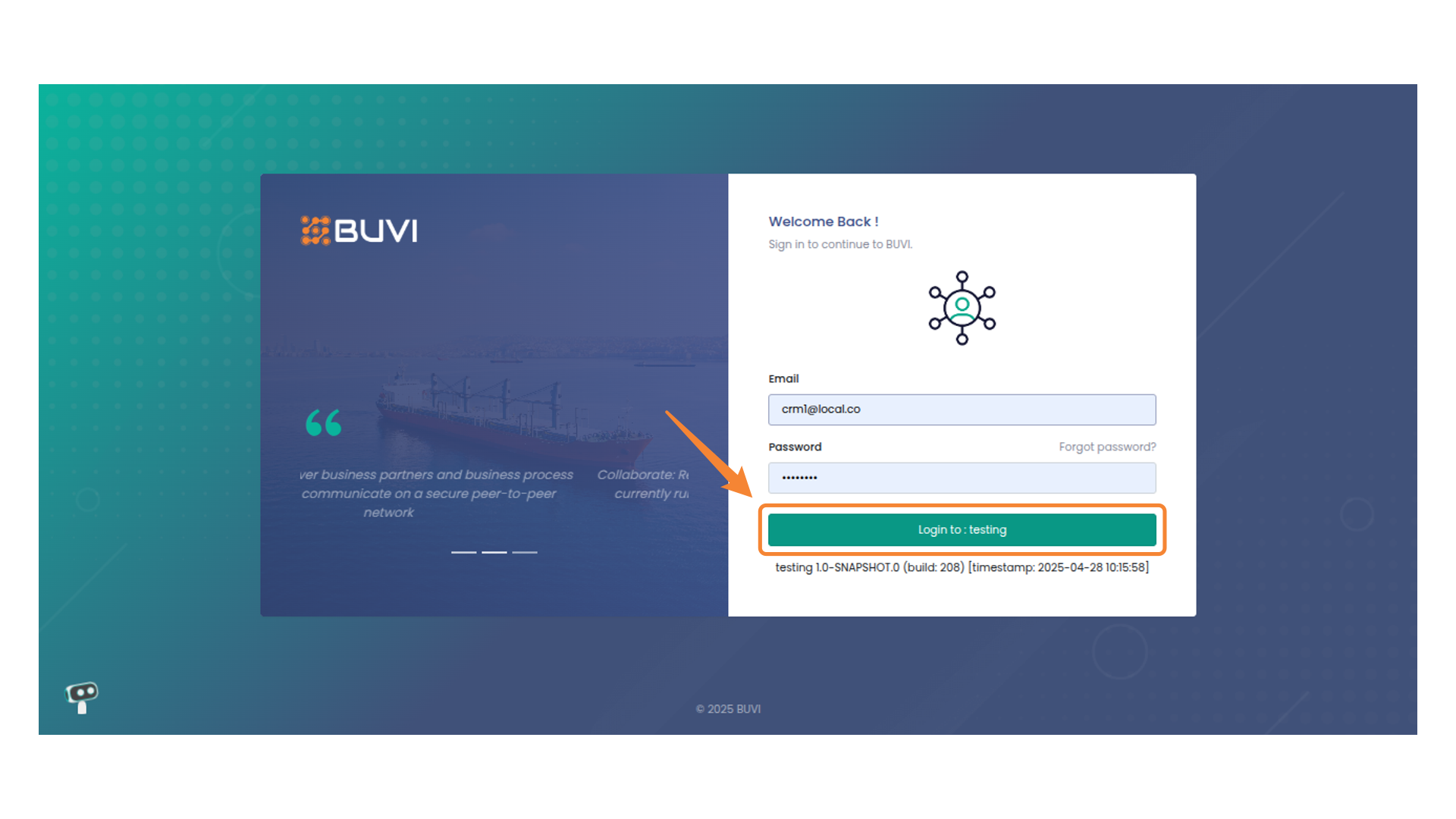
51. Login Button
Login to the application as HOD
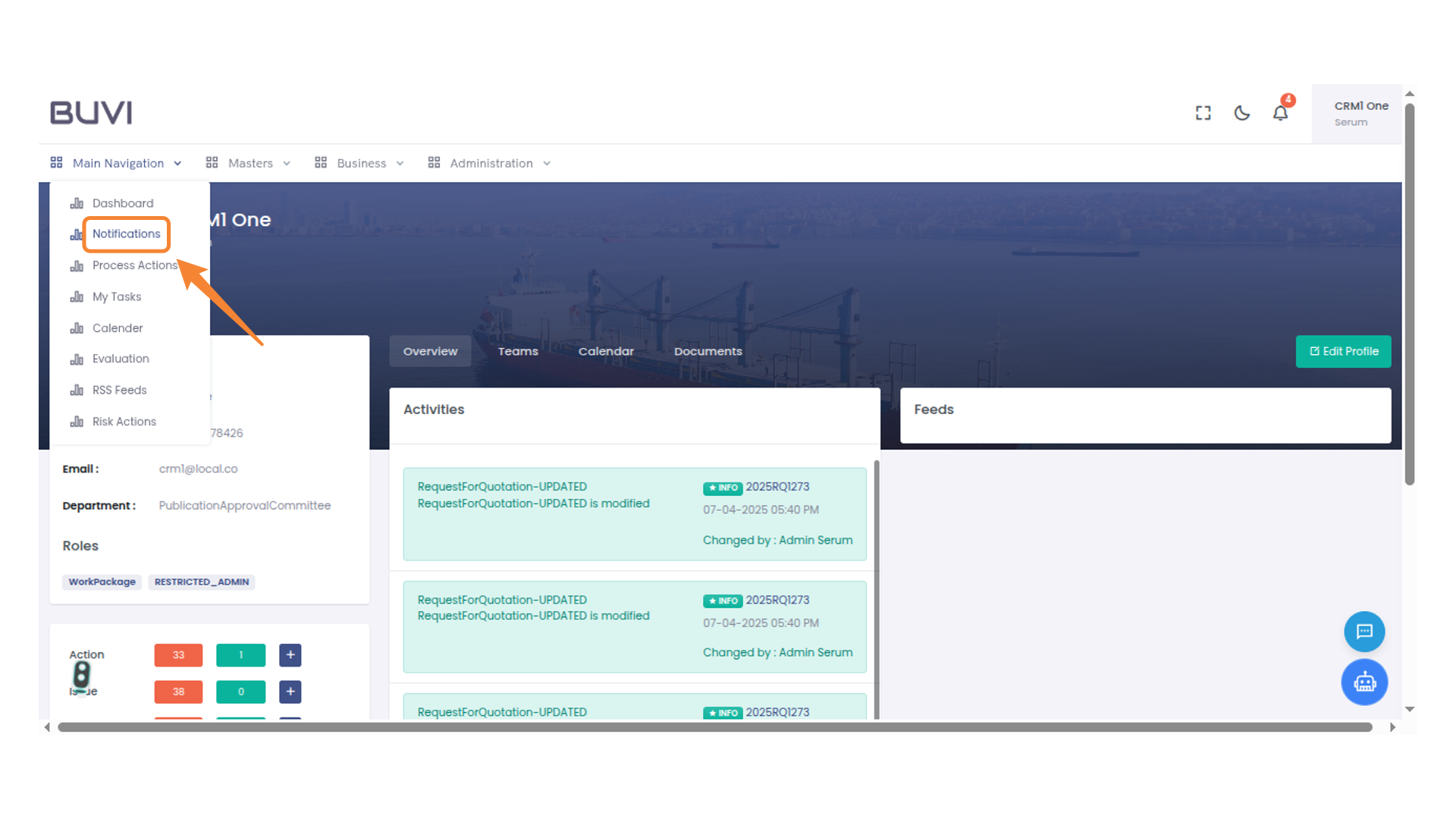
52. Access Notifications
Click on 'Notifications' to view recent alerts and updates.
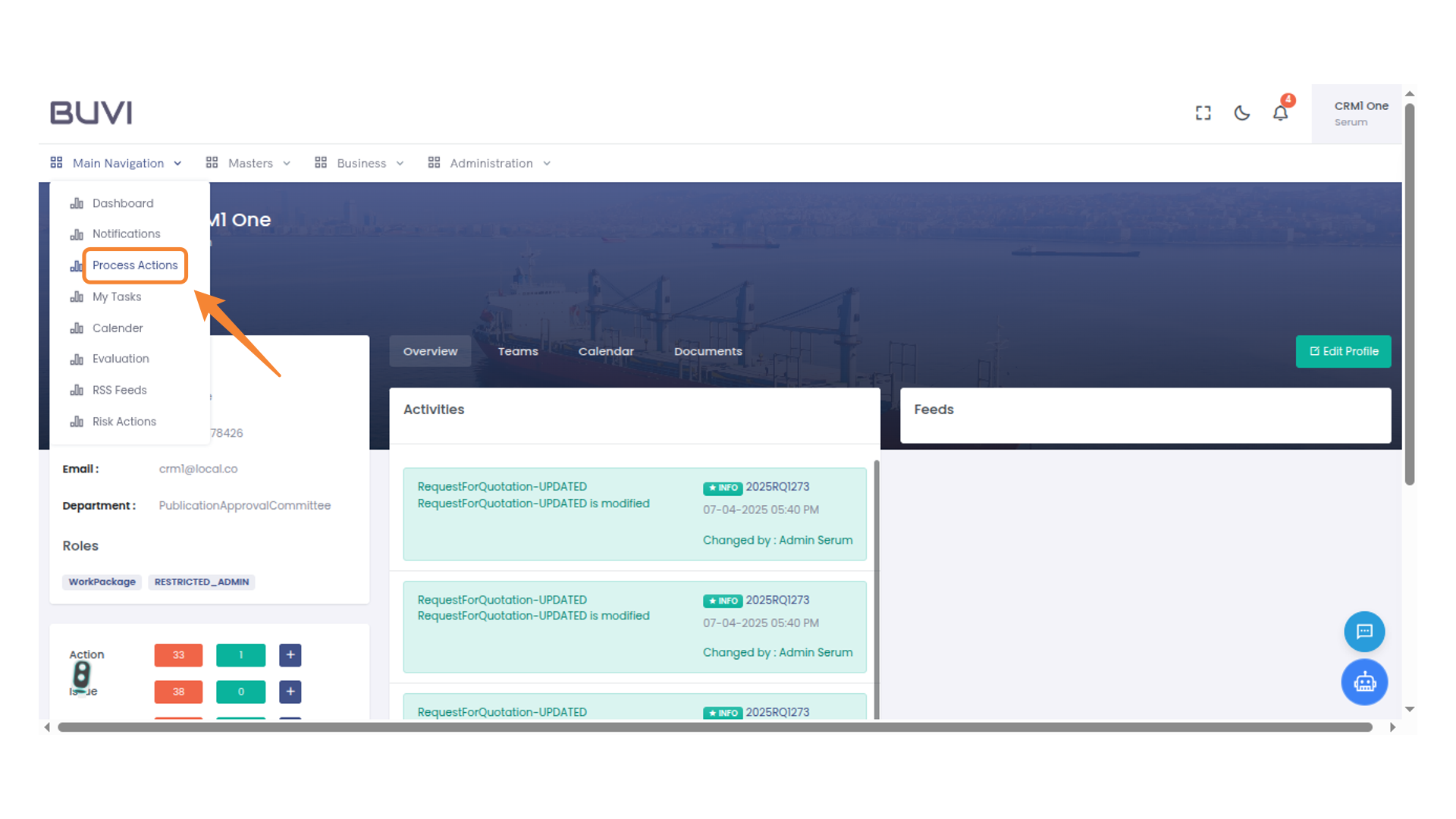
53. Process Actions Menu Option
Access this menu to manage and execute various process-related actions.
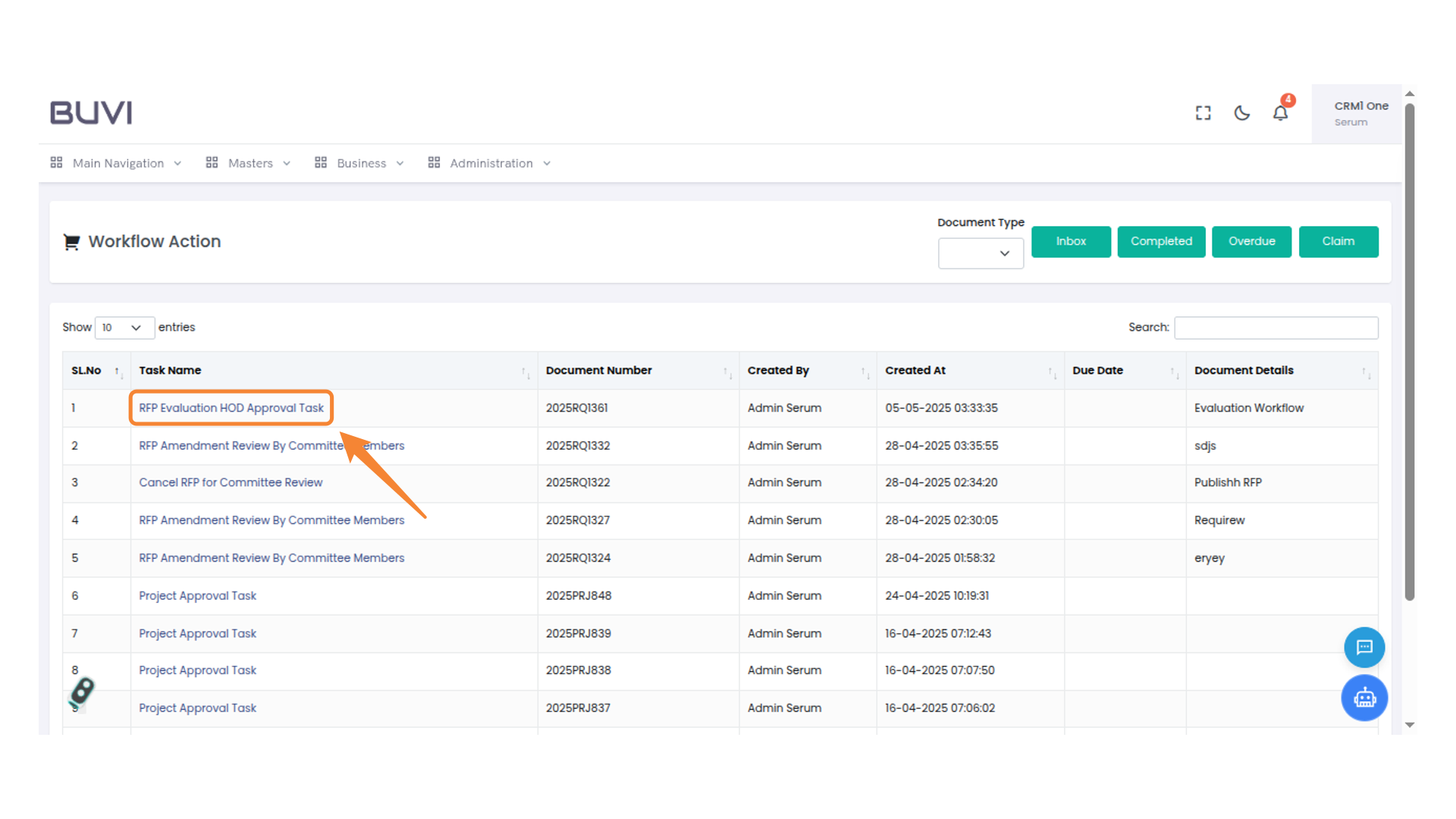
54. RFP Evaluation HOD Approval Task
Focus on the highlighted task for detailed processing and approval actions.
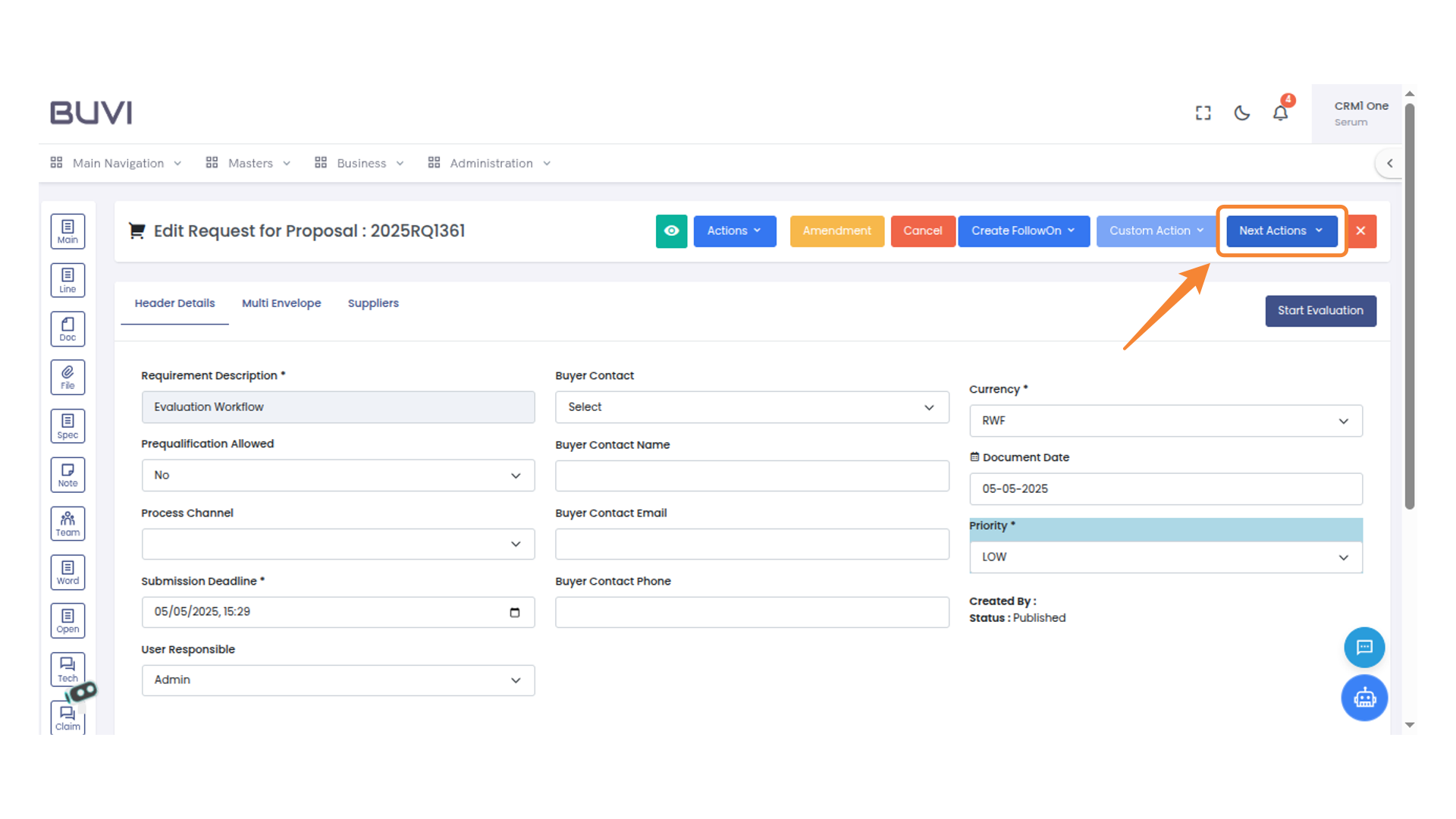
55. Next Actions Menu
Click on next action
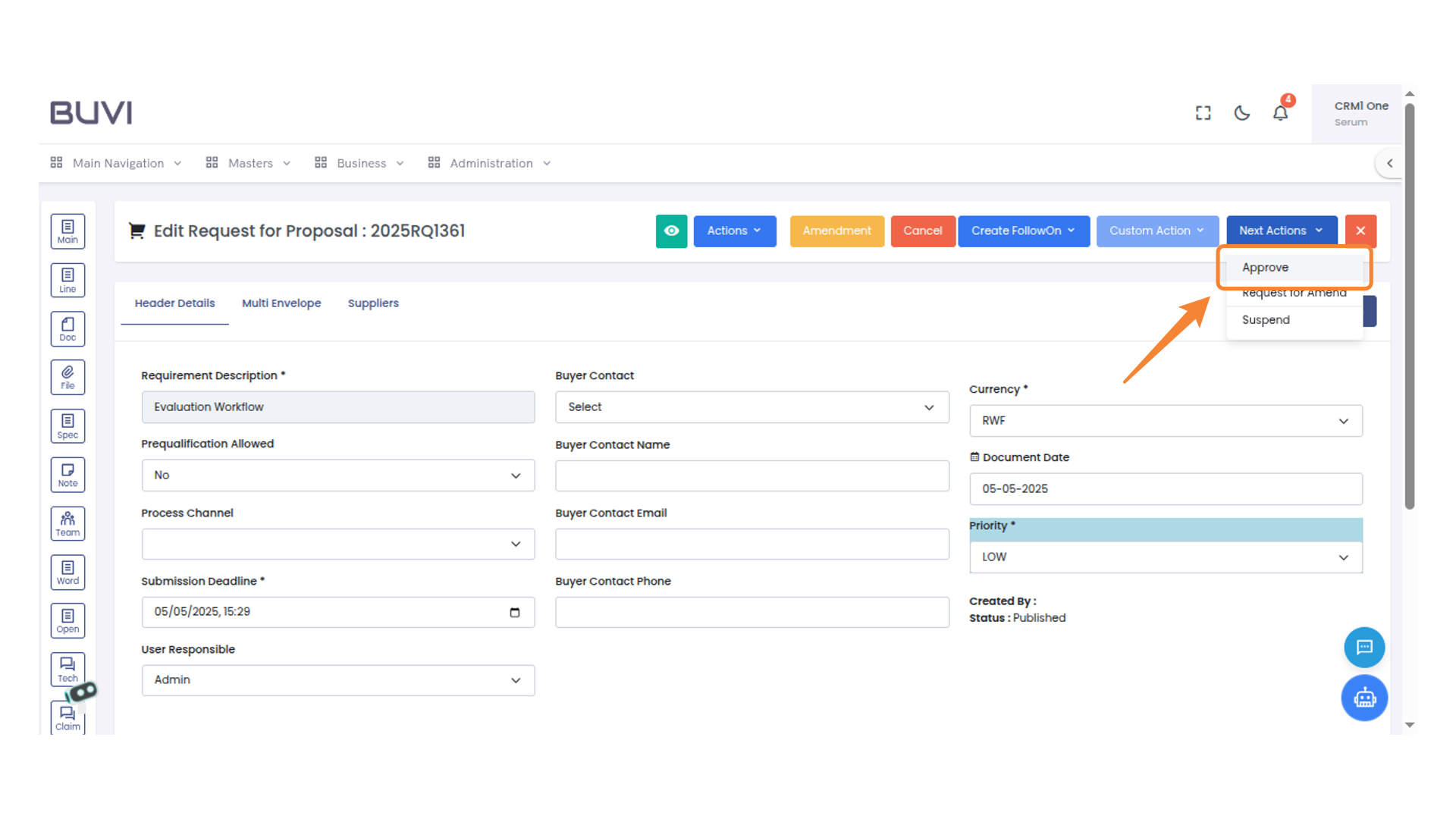
56. Approval Button
Click to approve the current proposal.
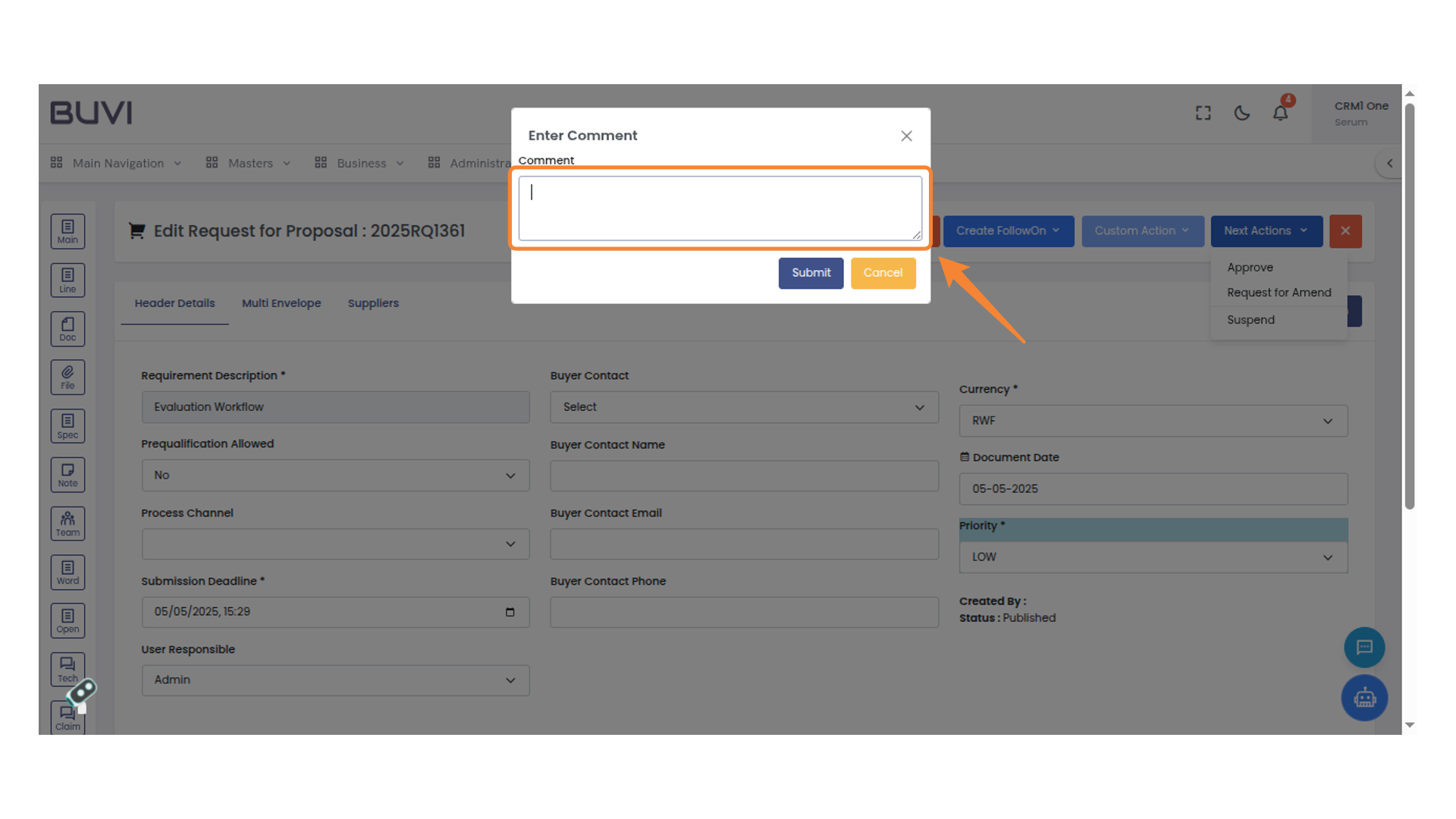
57. Comment Input Box
Enter your comment in the provided text box.
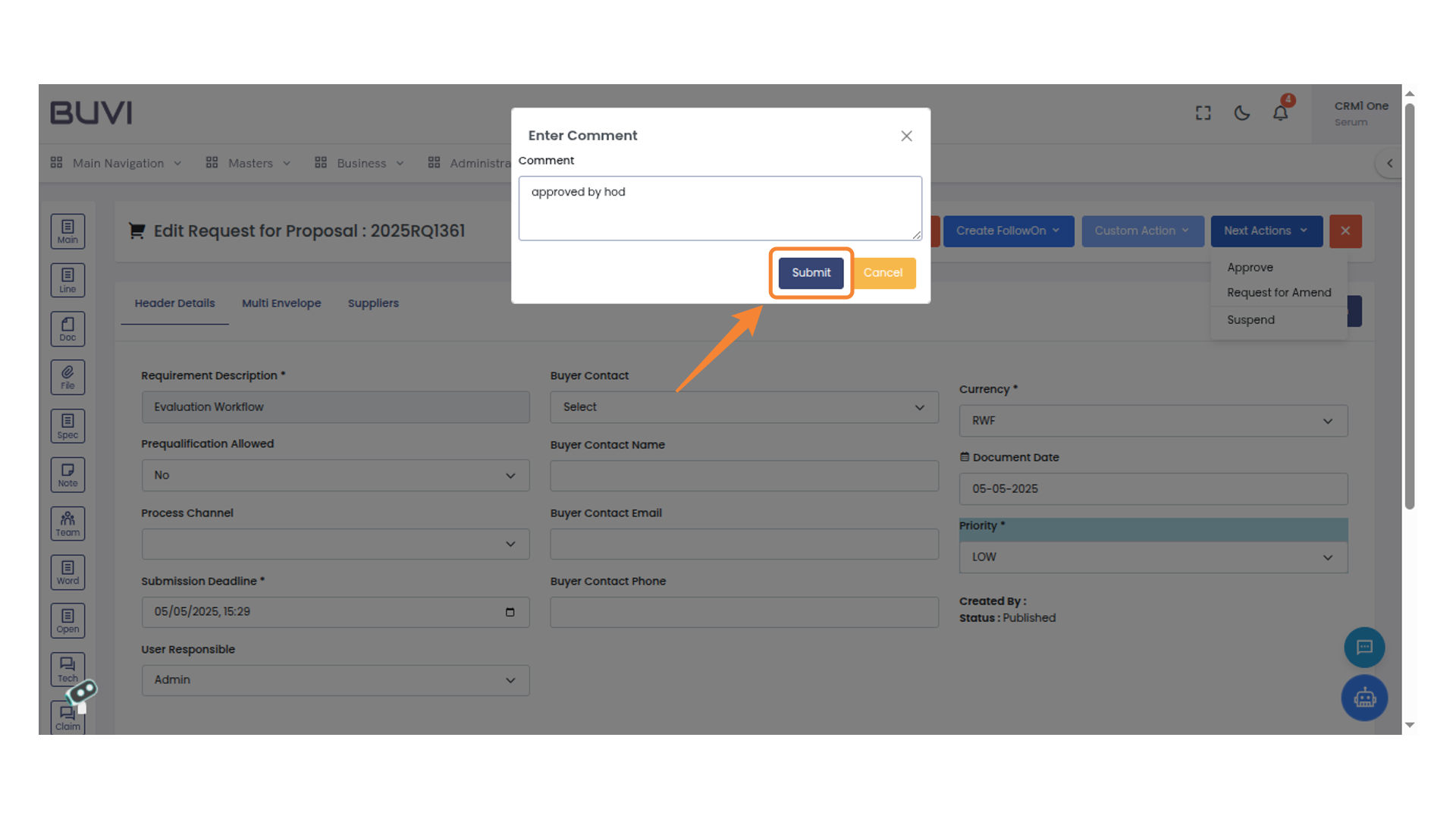
58. Submit Button
Click the button to finalize your input and submit the comment.
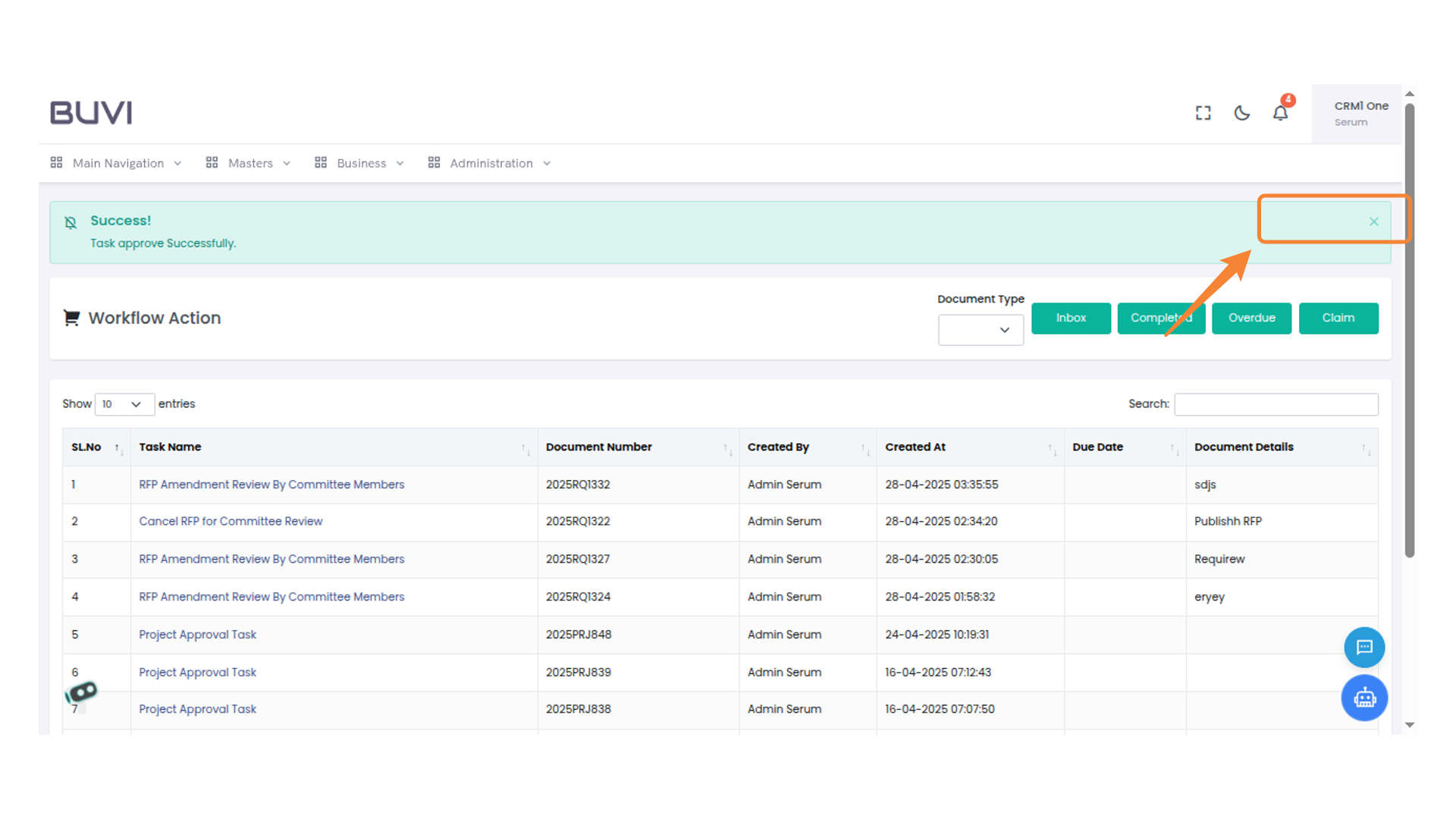
59. Log out
Log out from the application
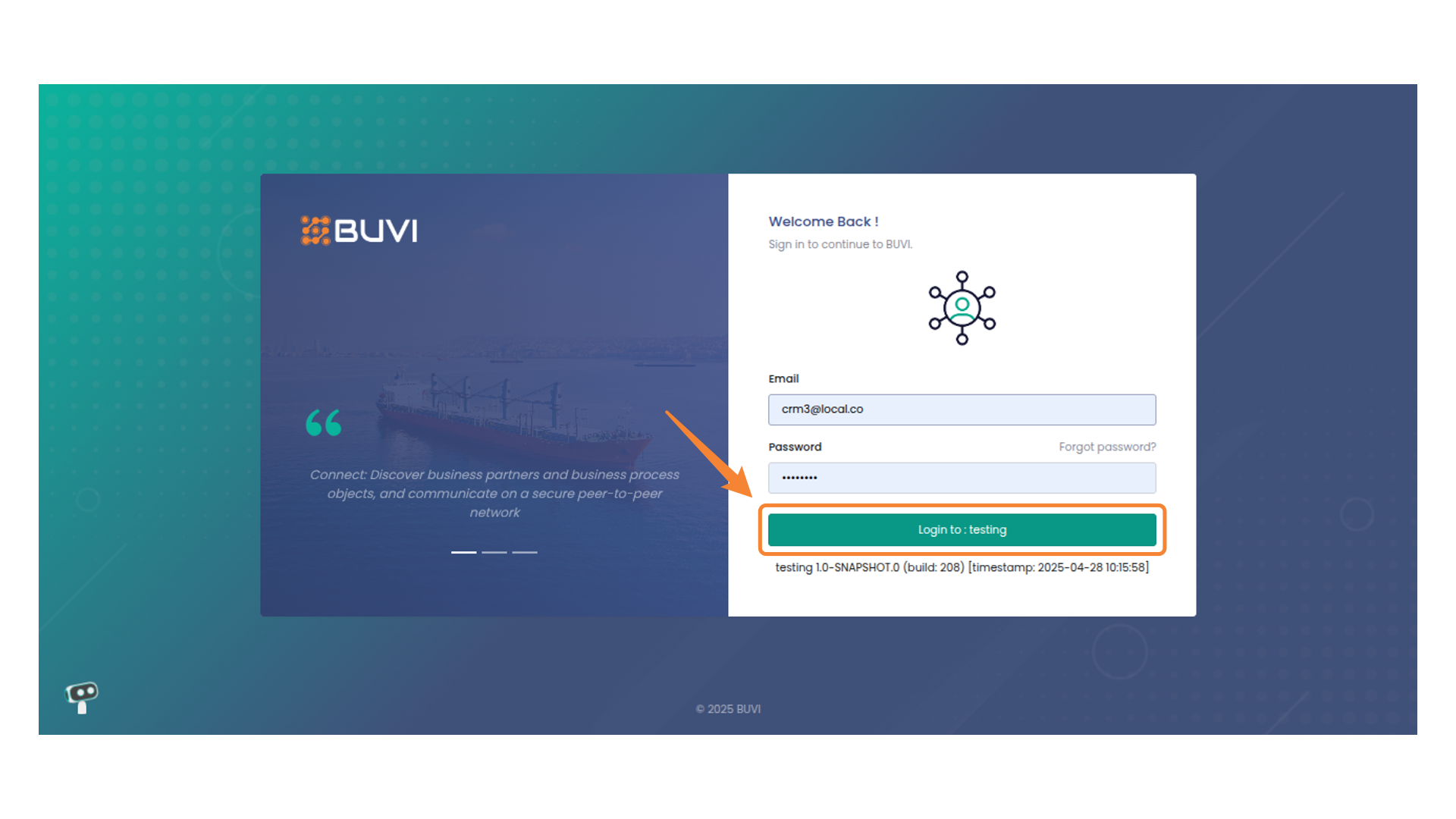
60. Login Button
Login to the application as deputy
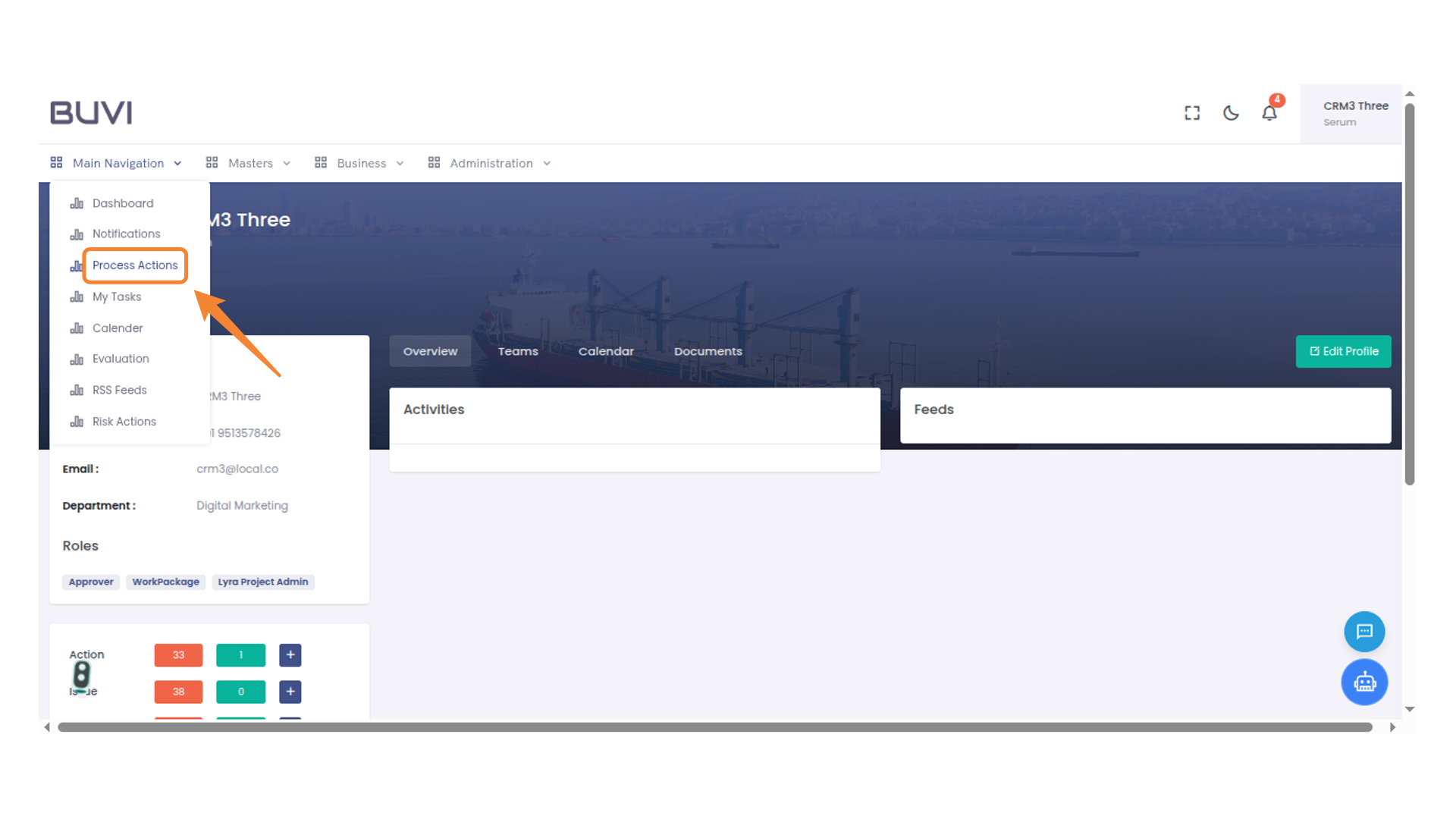
61. Process Actions Menu
Select this option to access and manage various process actions and workflows.
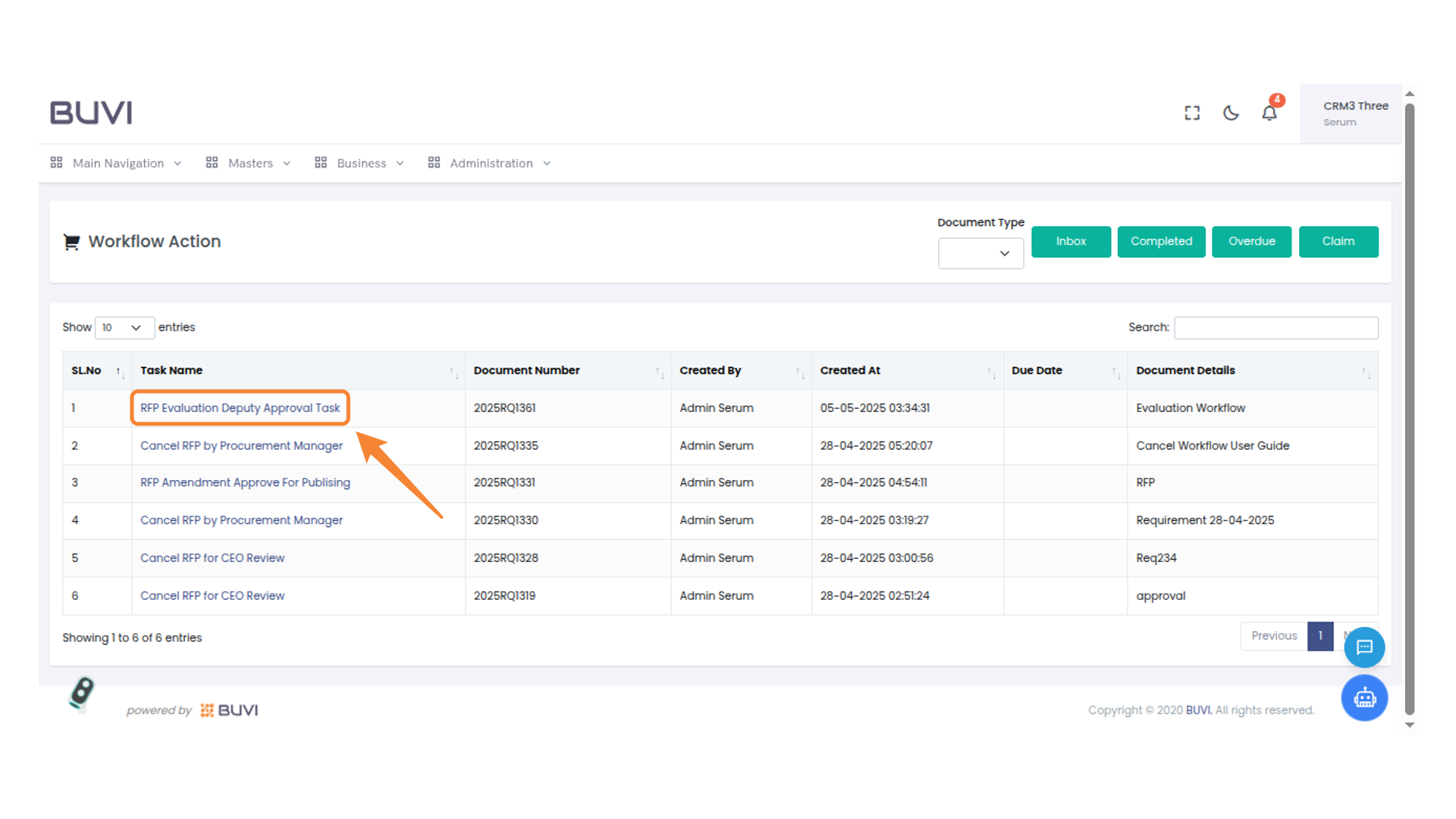
62. RFP Evaluation Deputy Approval Task
Review the task details for deputy approval in the workflow action table.
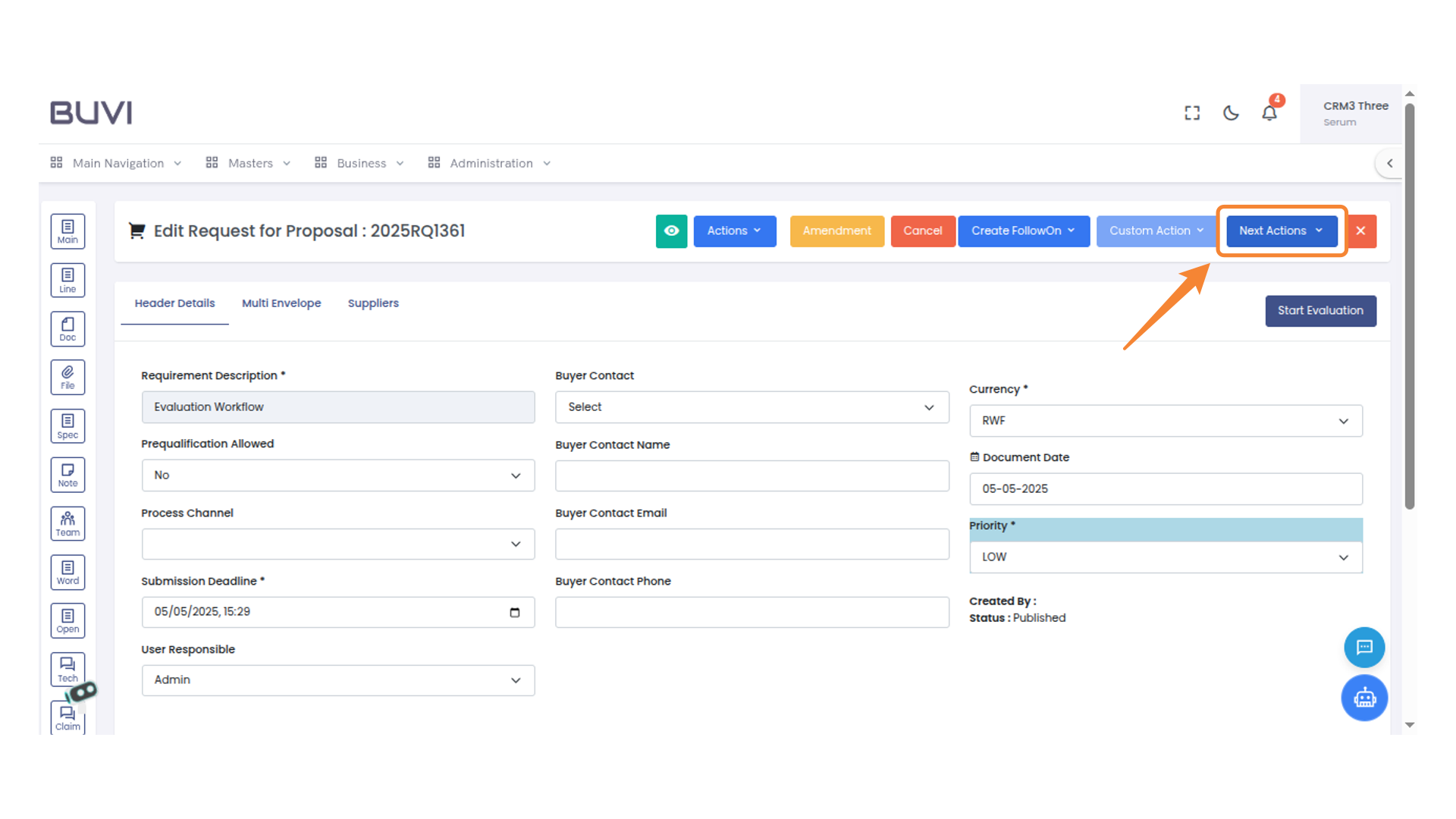
63. Next Actions Menu
Access additional options by clicking on the 'Next Actions' dropdown menu.
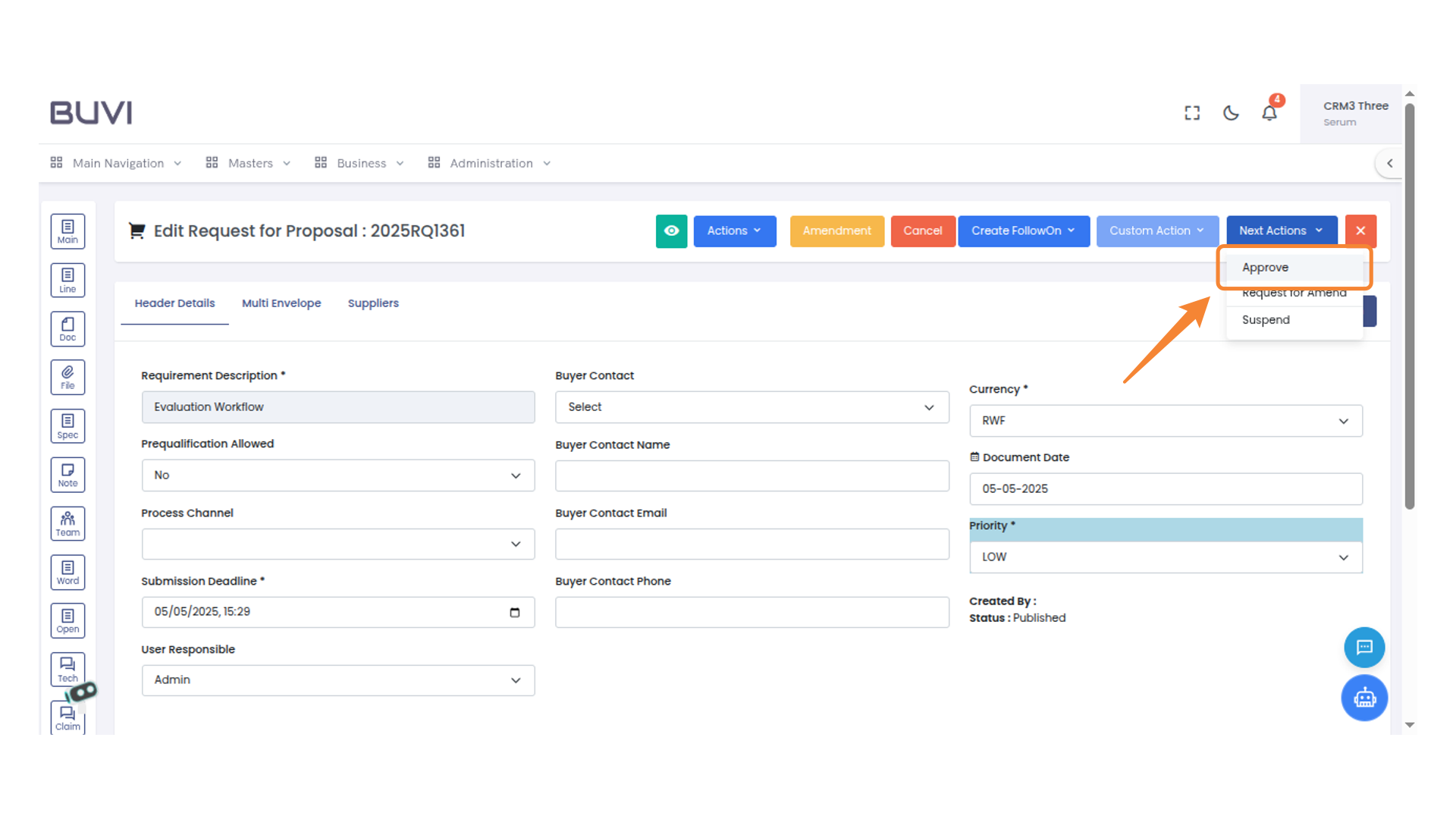
64. Approve Action Option
Select the 'Approve' option from the dropdown menu to proceed with the action.
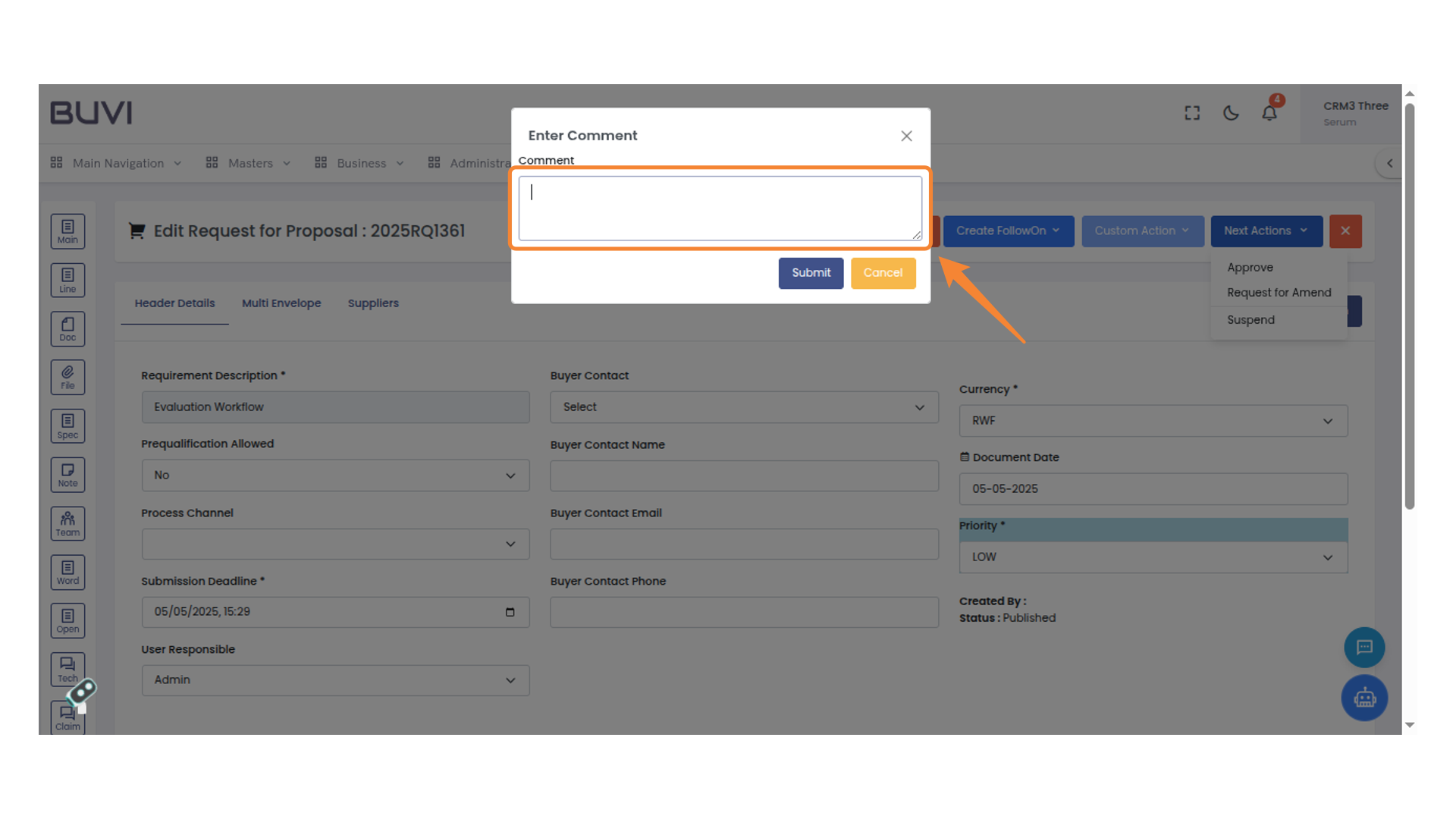
65. Enter Comment Section
Provide your comment in the text area before submitting.
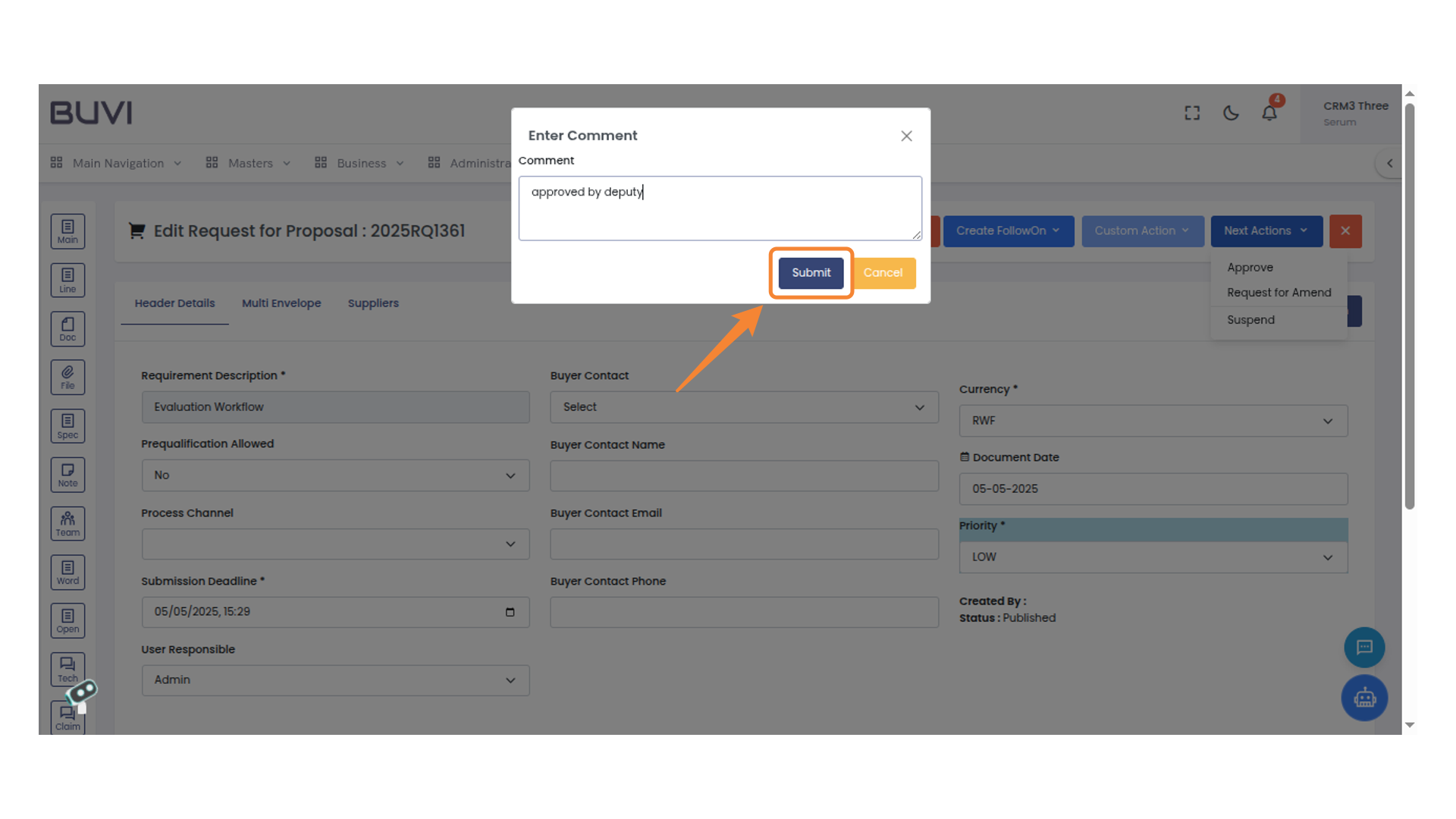
66. Comment Submission Button
Click to submit your comment.
67. Task Approval Notification
Acknowledge the successful approval of the task.