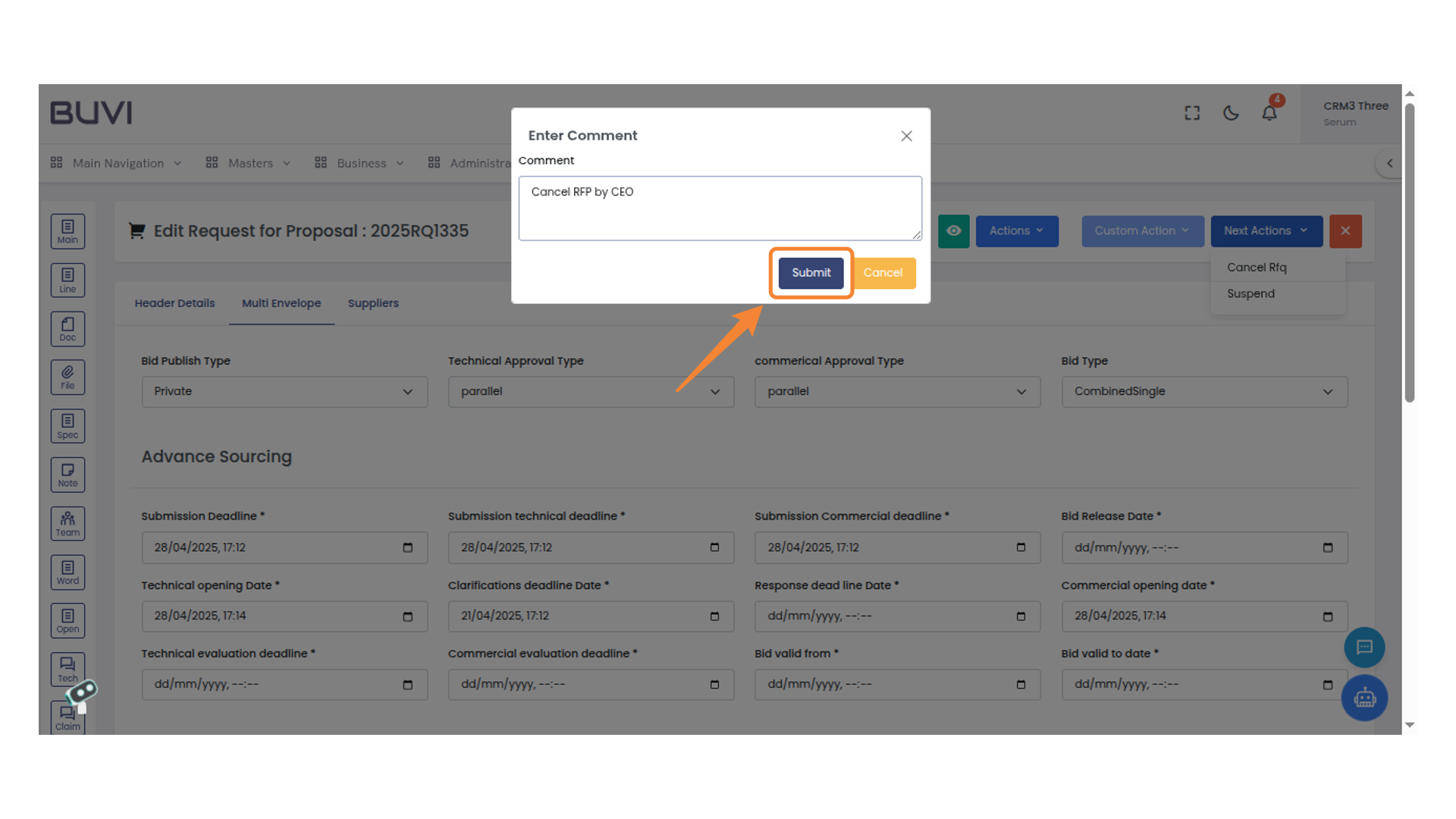
Cancel Workflow
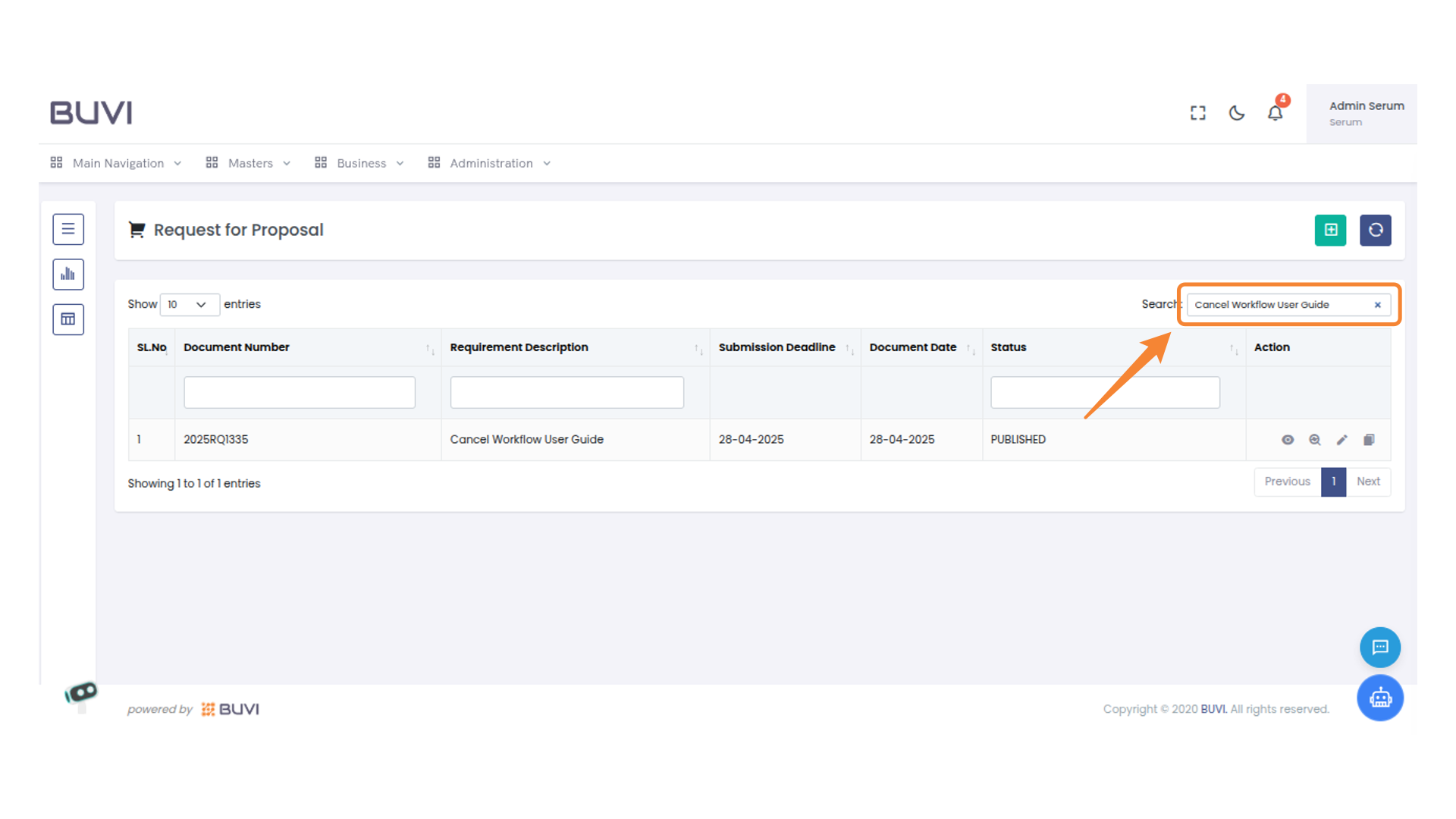
1. Search RFP
Search for the RFP in list page
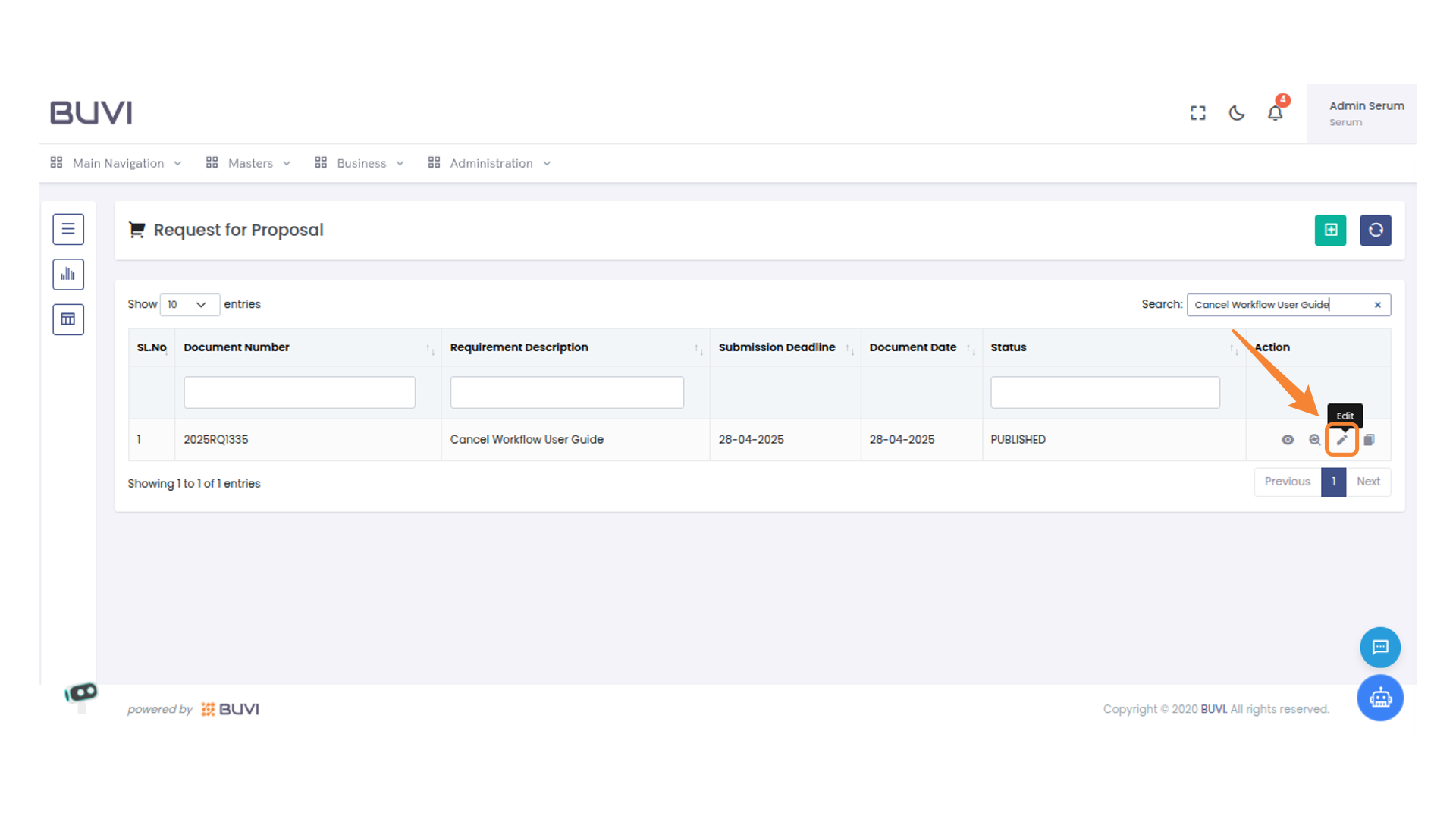
2. Edit Action Button
Click on edit button
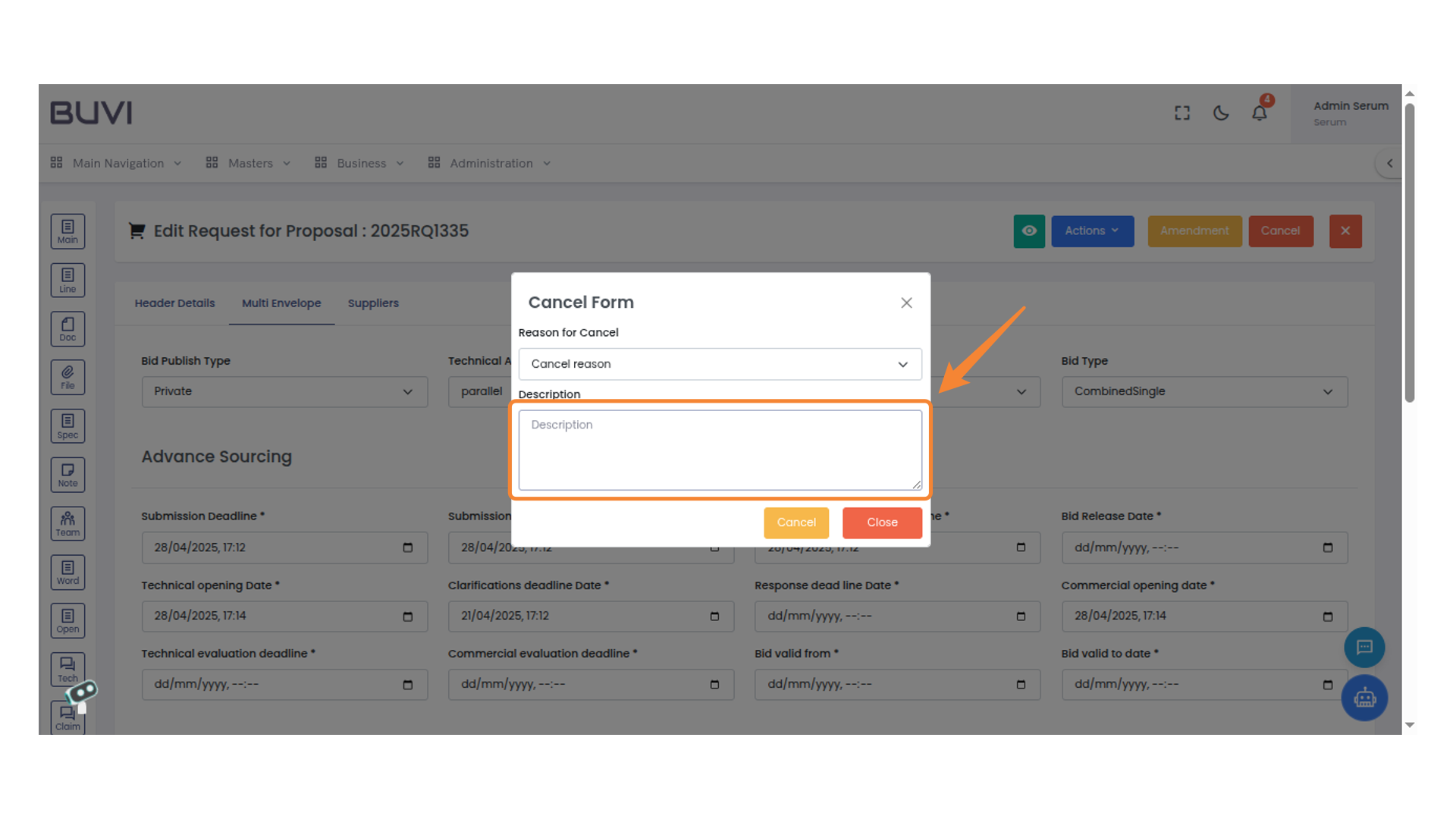
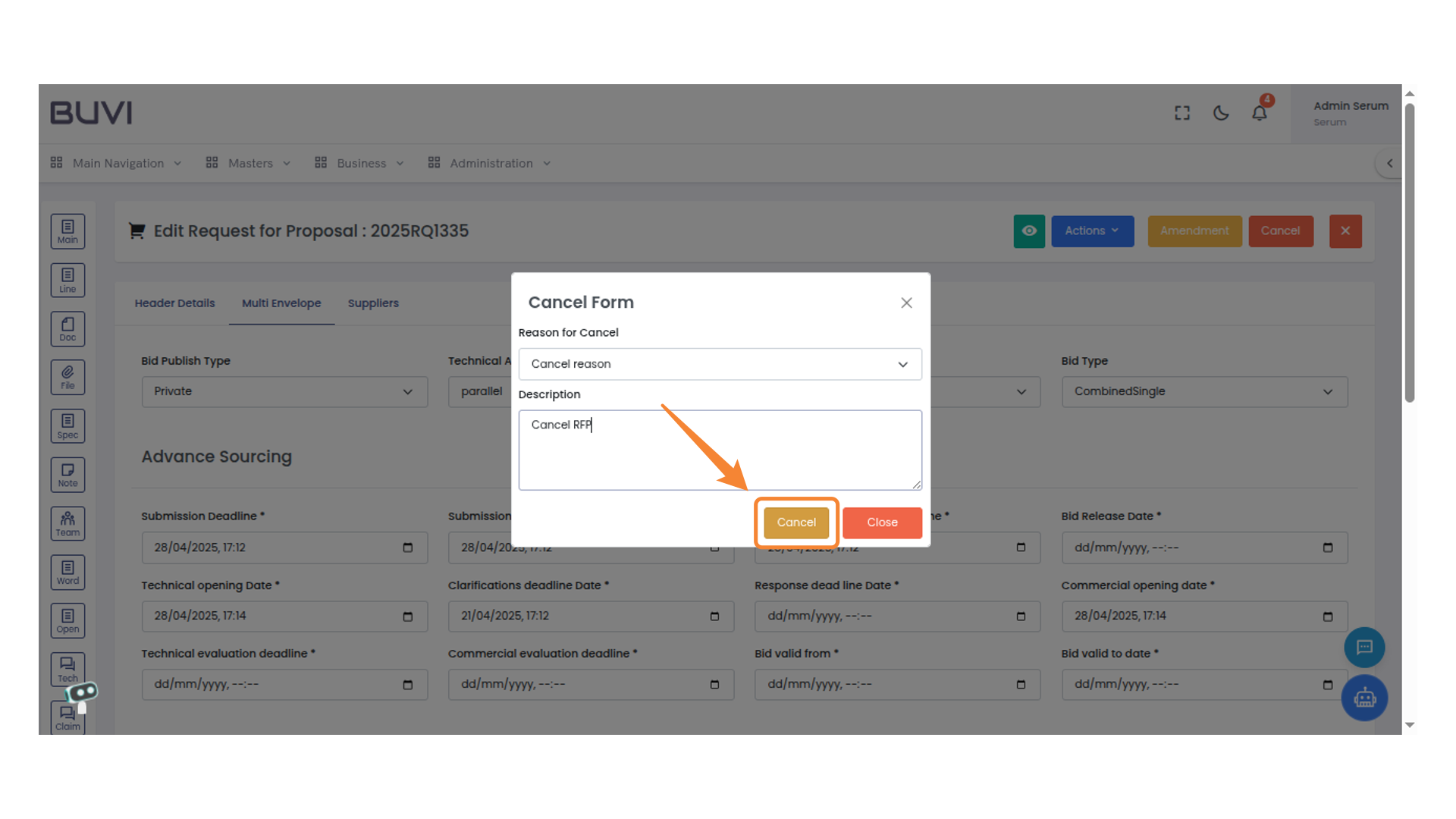
3. Cancel Form Description
Fill in the description for the cancellation reason.
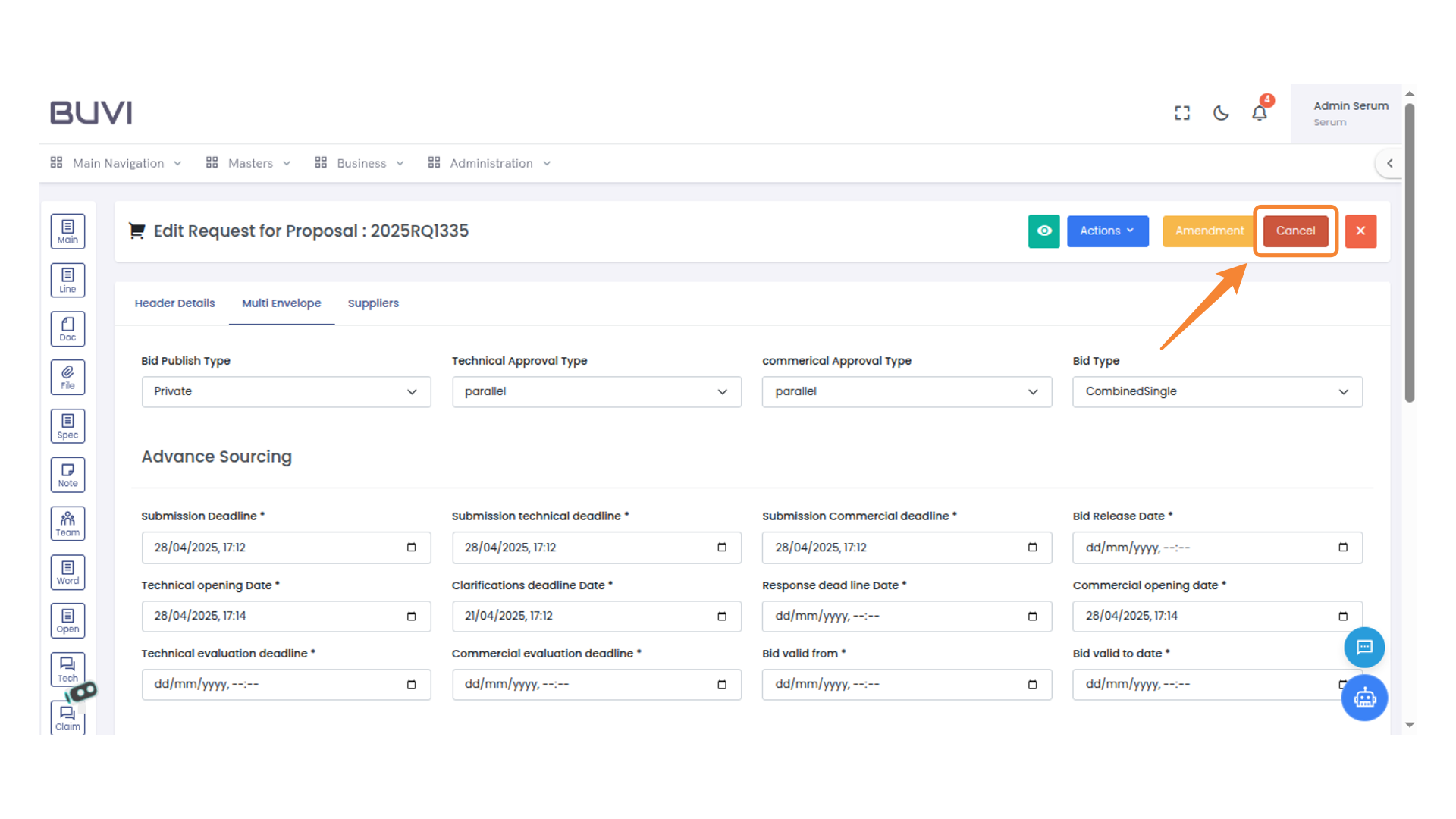
4. Cancel Button
Click this button to cancel the current operation.
5. Cancel Action Confirmation
Click to confirm the cancellation process.
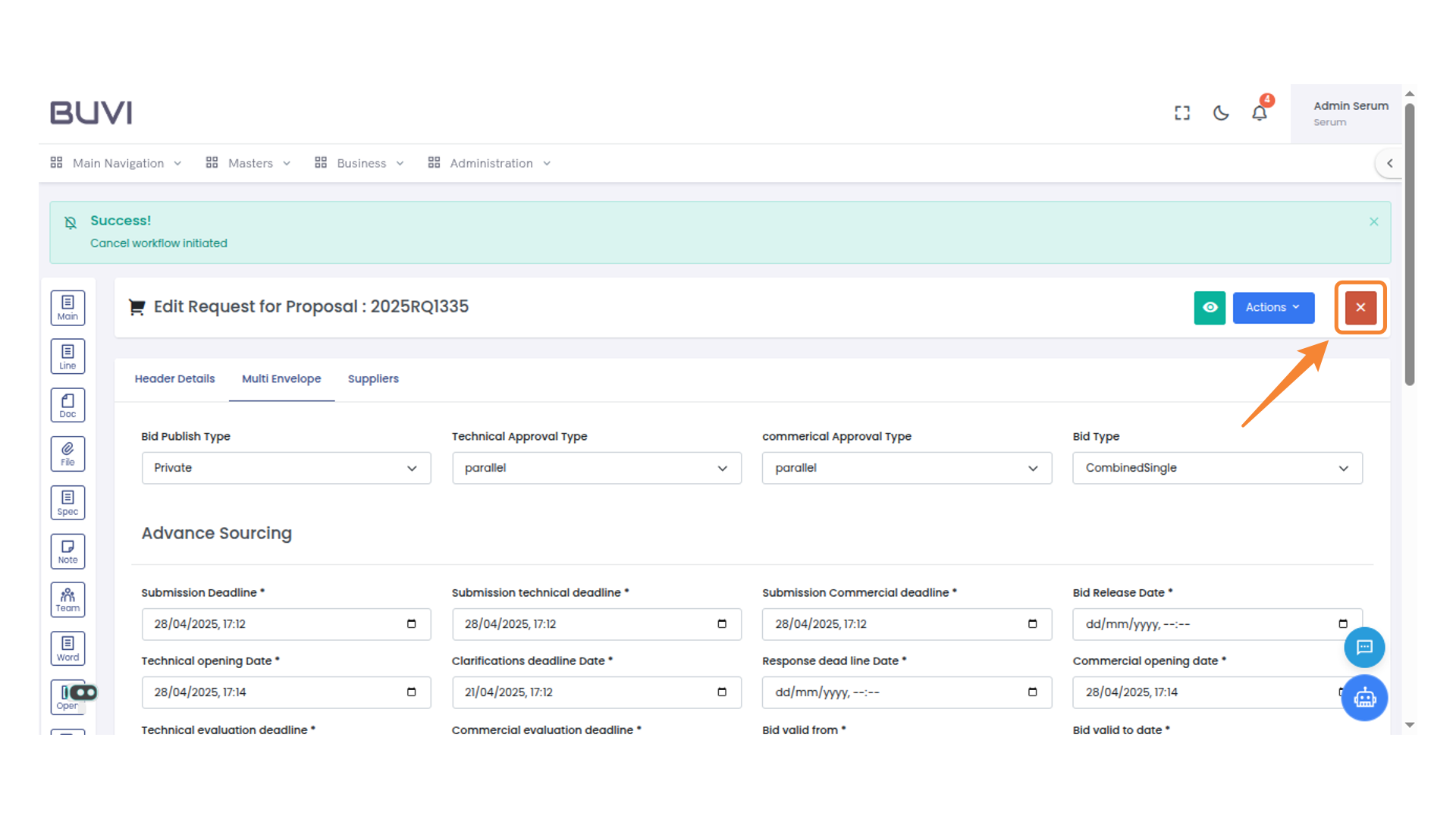
6. Close Button
Click to exit the current window or dialog.
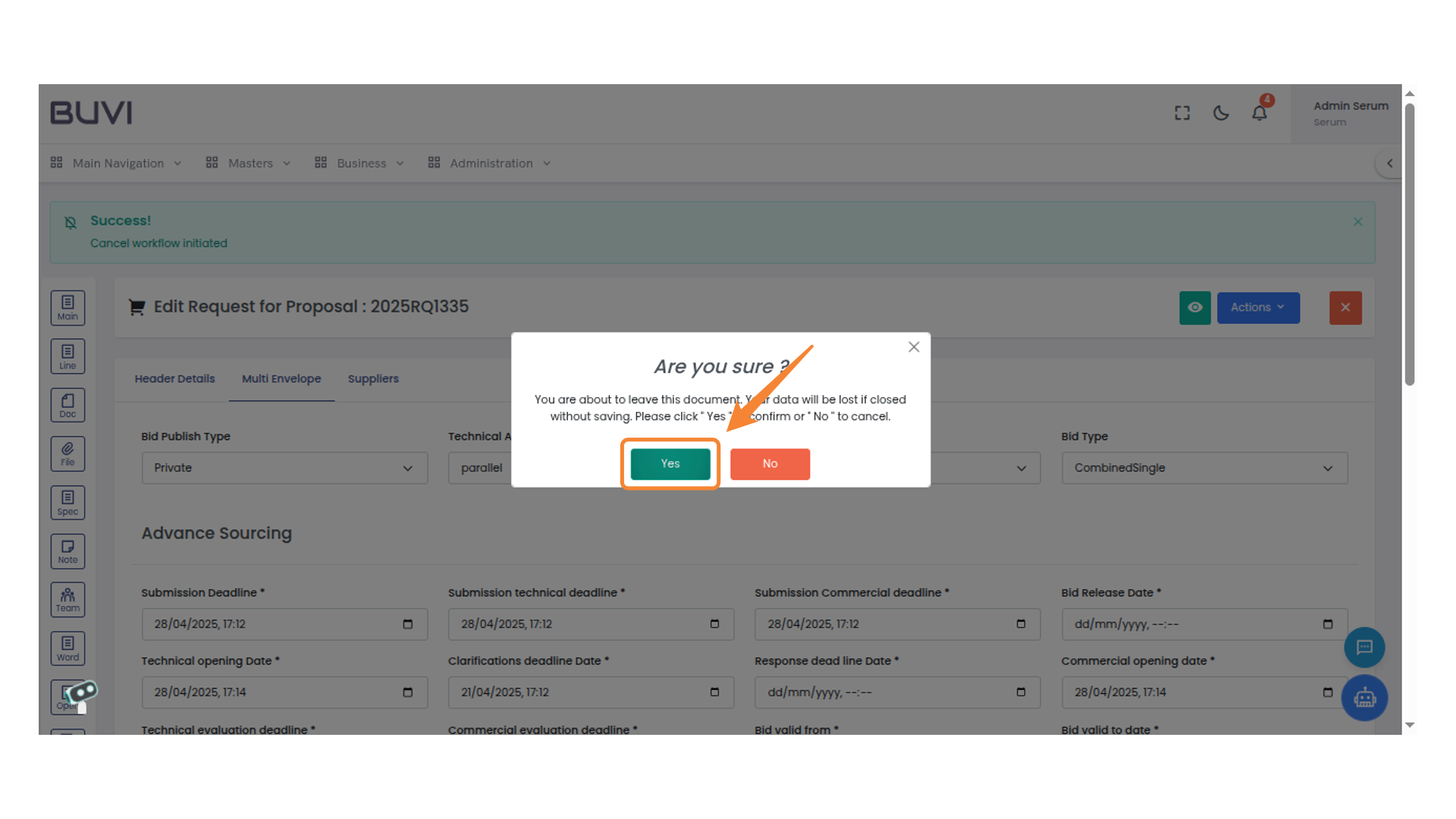
7. Confirmation Dialogue
Select 'Yes' to proceed without saving or 'No' to stay on the current page.
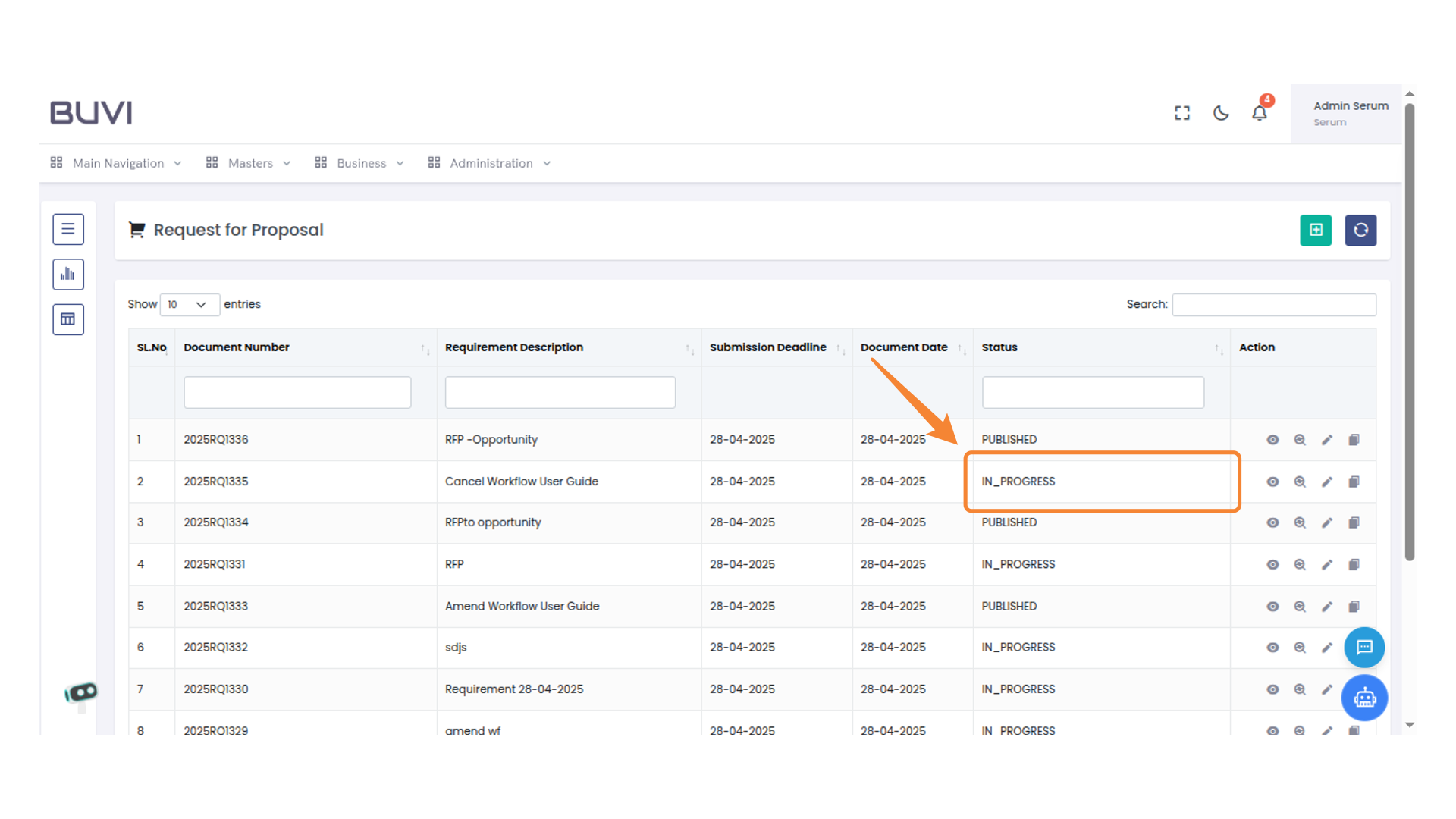
8. Status Of RFP Once Cancelled
Review the status of RFP
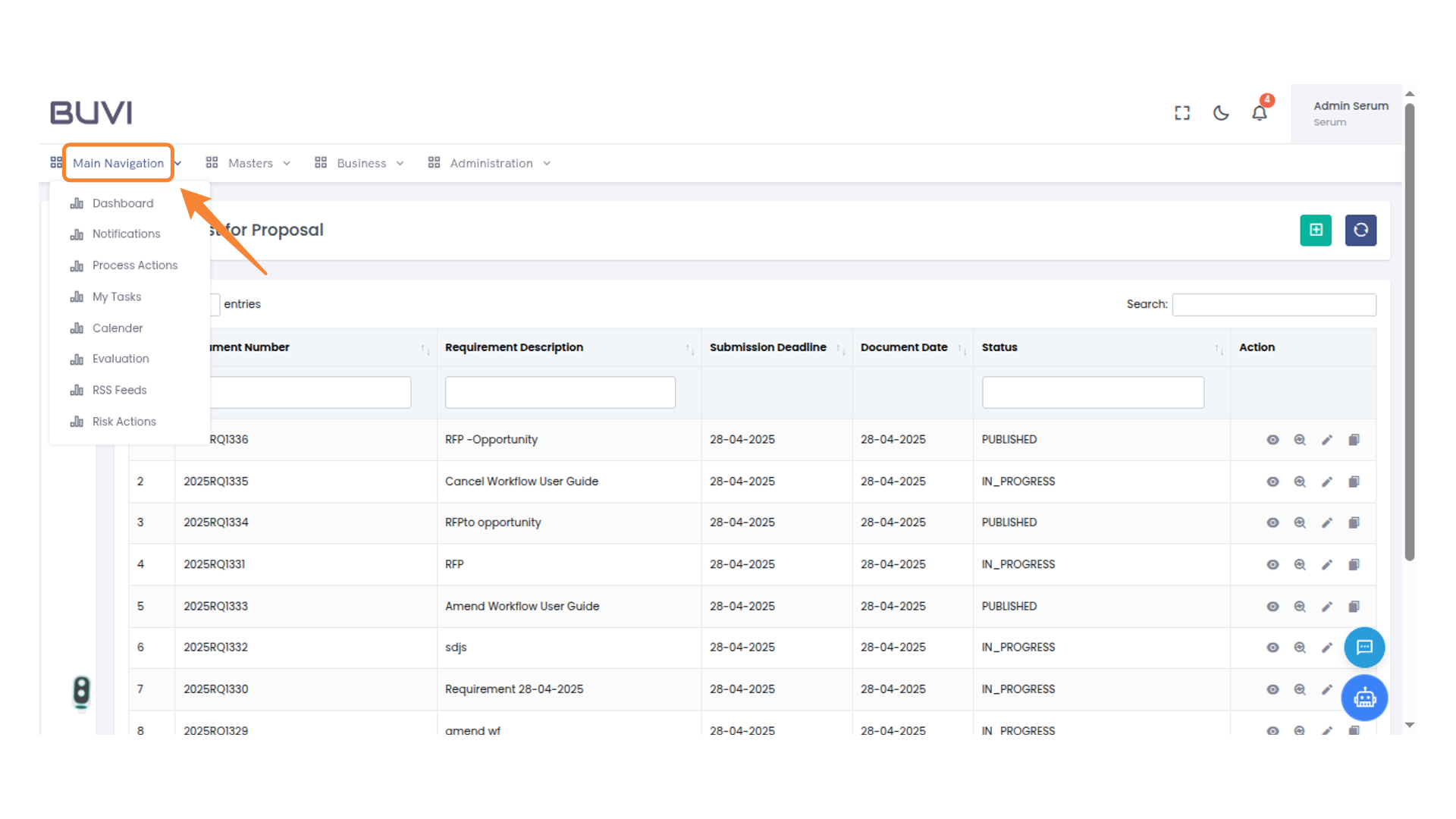
9. Main Navigation Menu
Access the Main navigation options
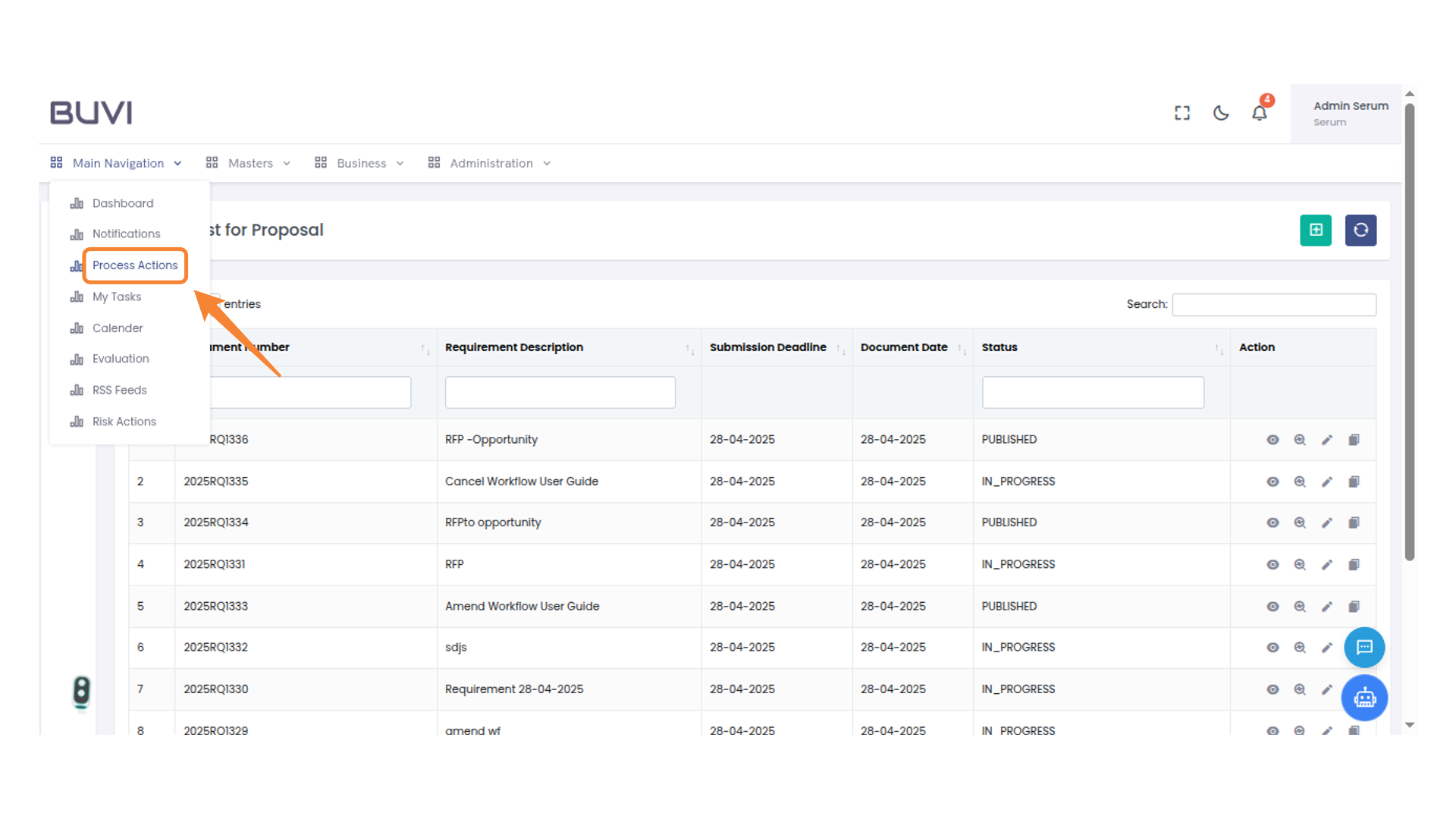
10. Main Navigation Menu
Click on Process Action
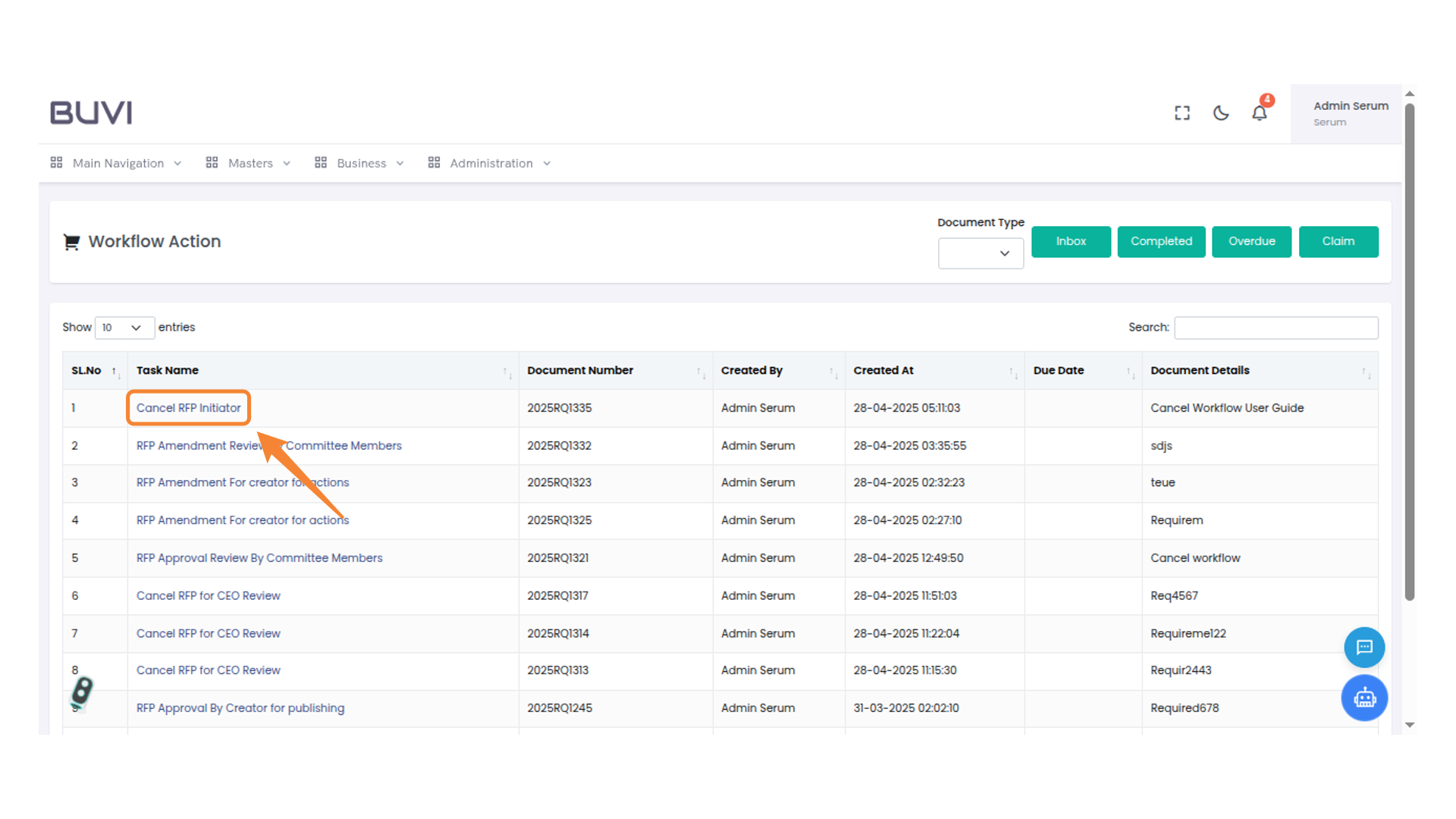
11. Cancel RFP Task Highlighted
Select and review the 'Cancel RFP Initiator' task for further actions.
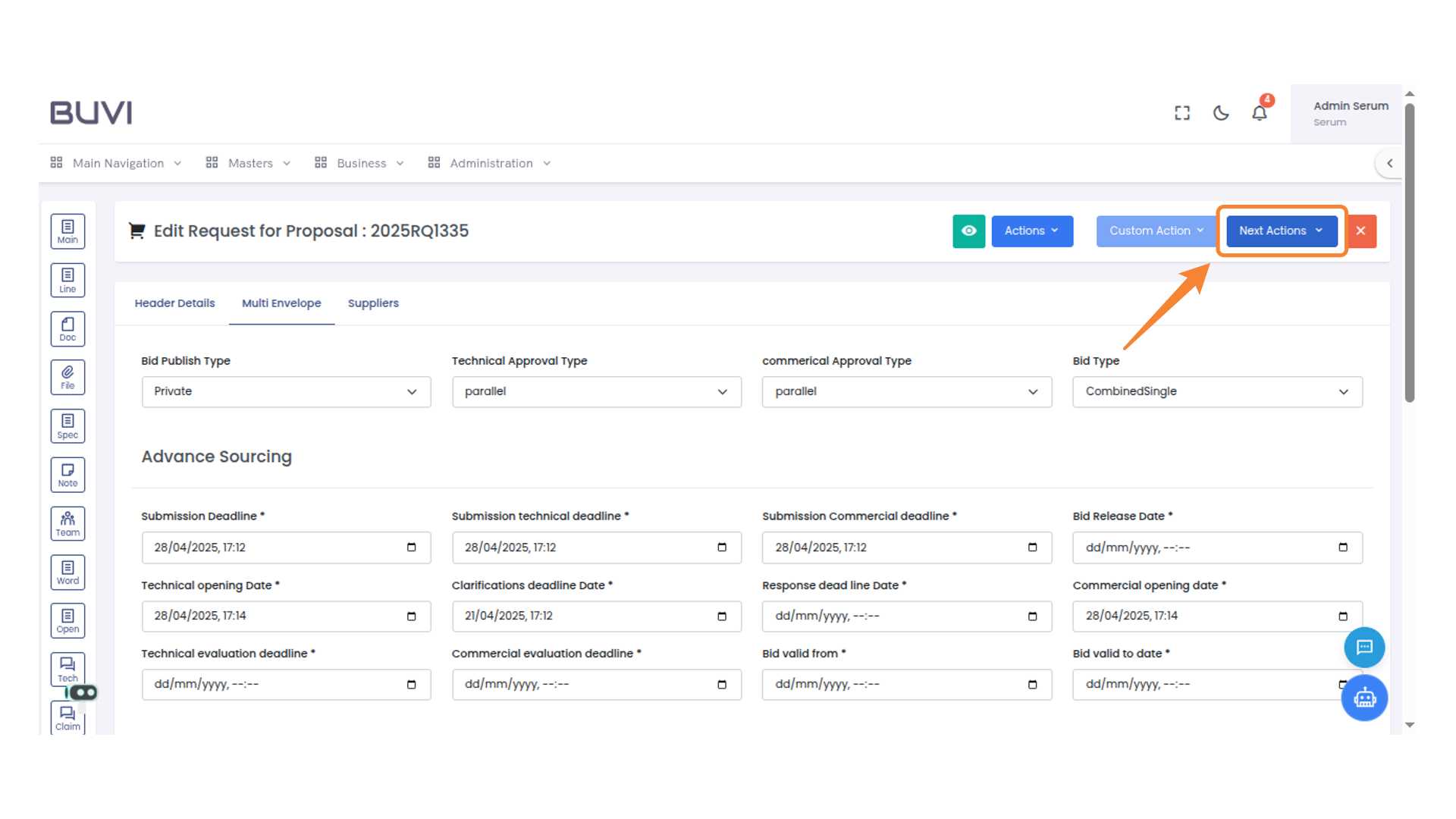
12. Next Action Button
Click on Next action
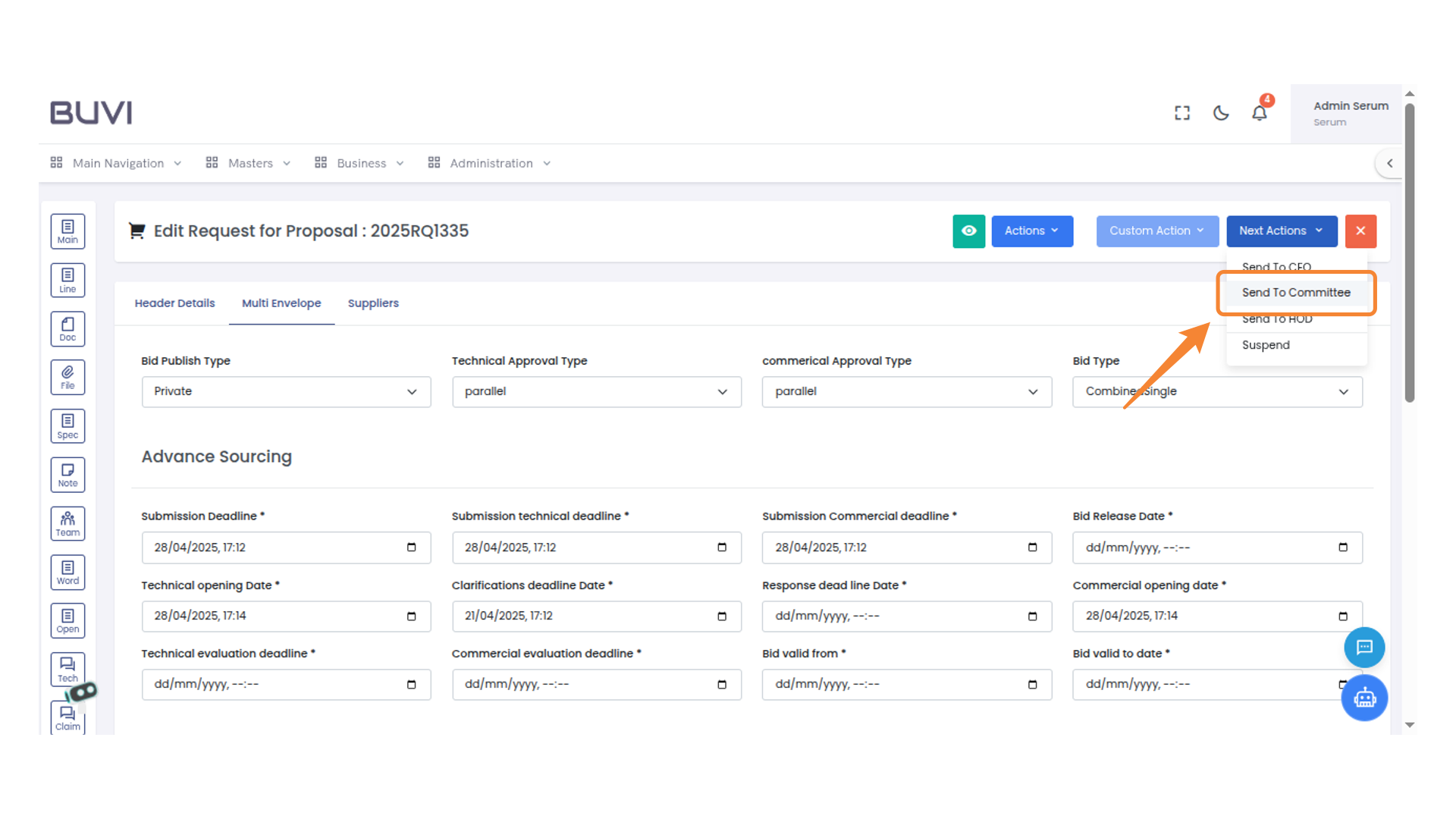
13. Next Actions Menu
Access the dropdown to select an action for the proposal.
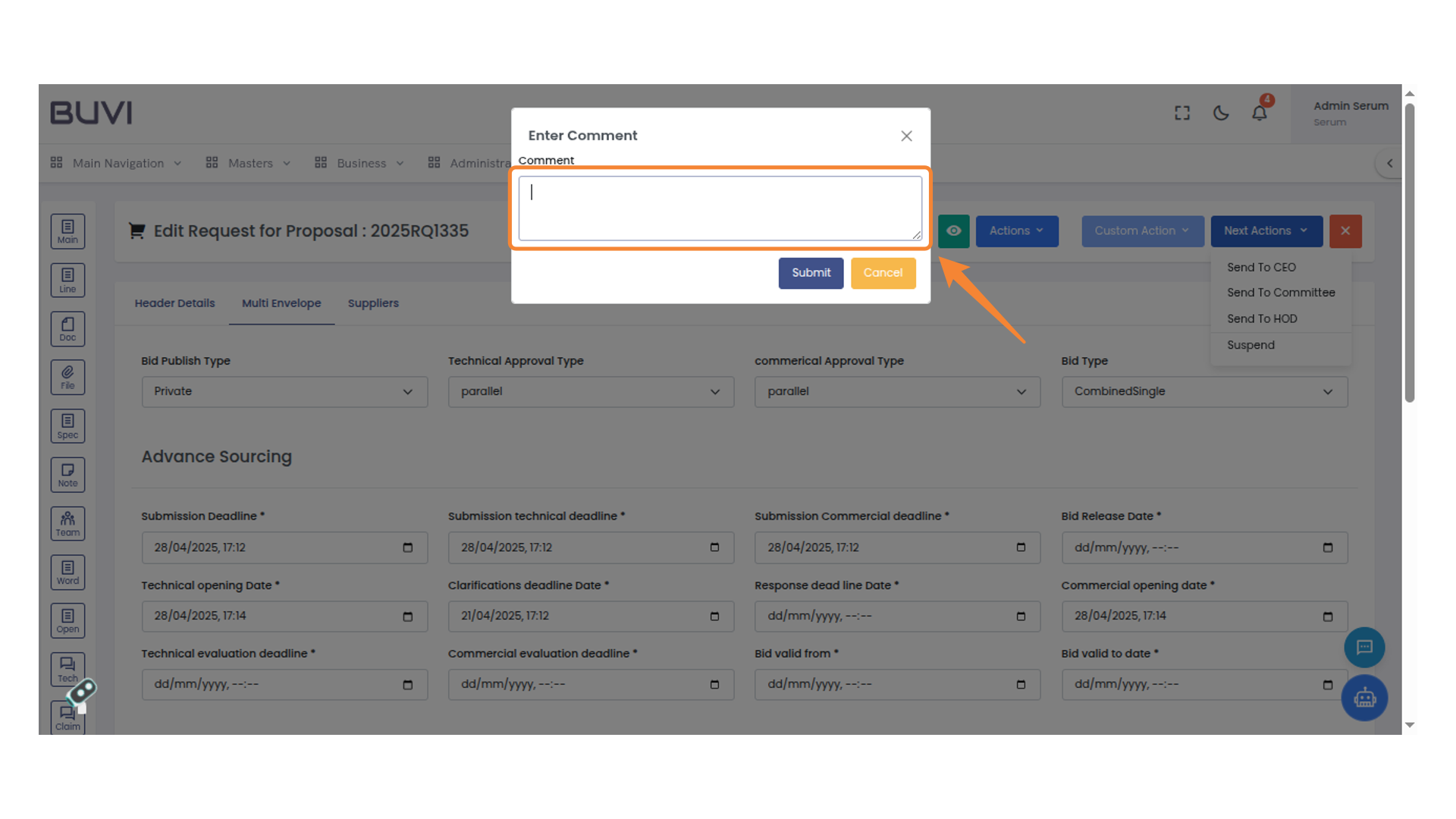
14. Comment Entry Dialog
Enter your comment in the provided field and click 'Submit' to proceed or 'Cancel' to discard.
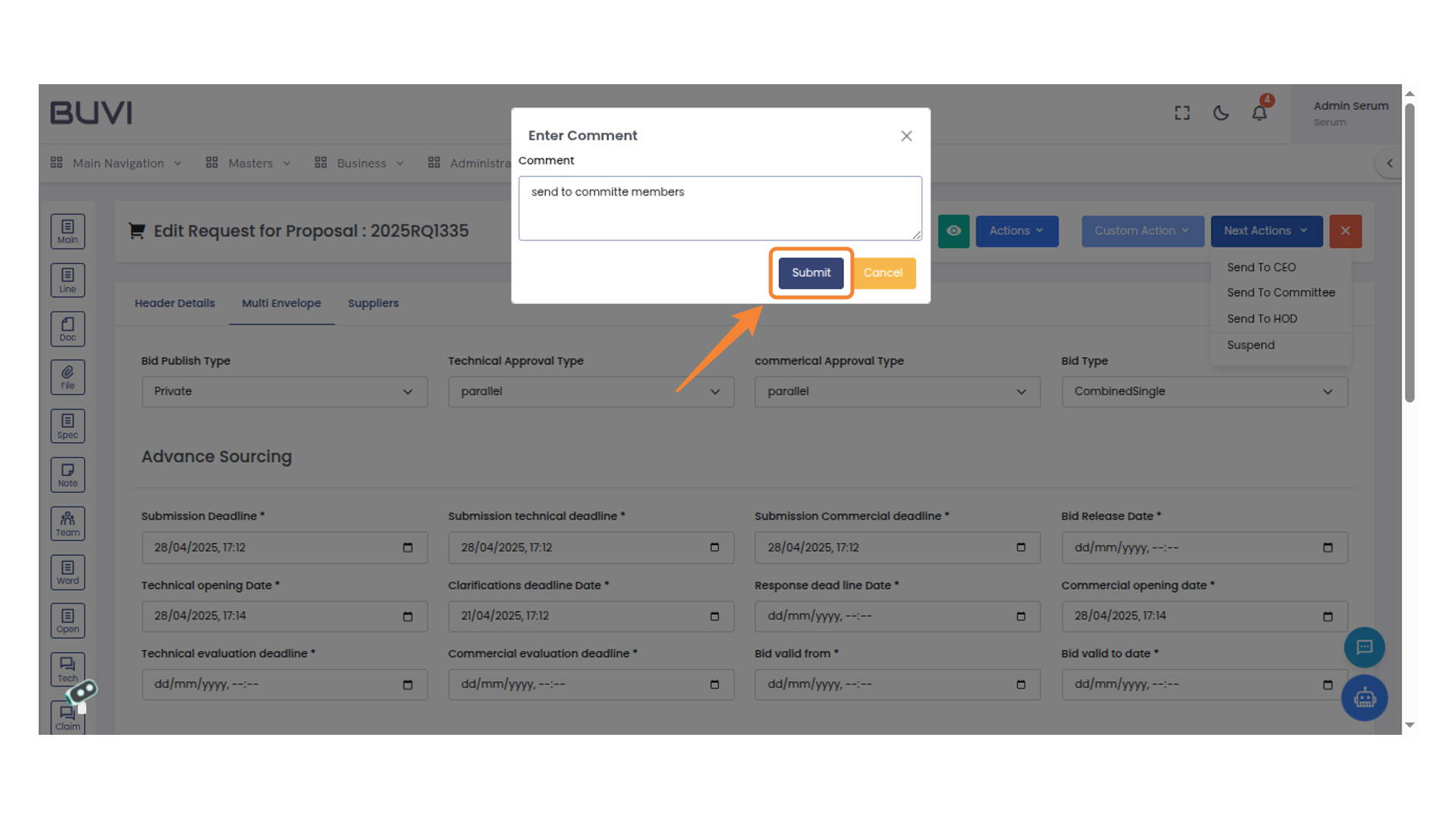
15. Submit Button
Click the button to submit your comment.
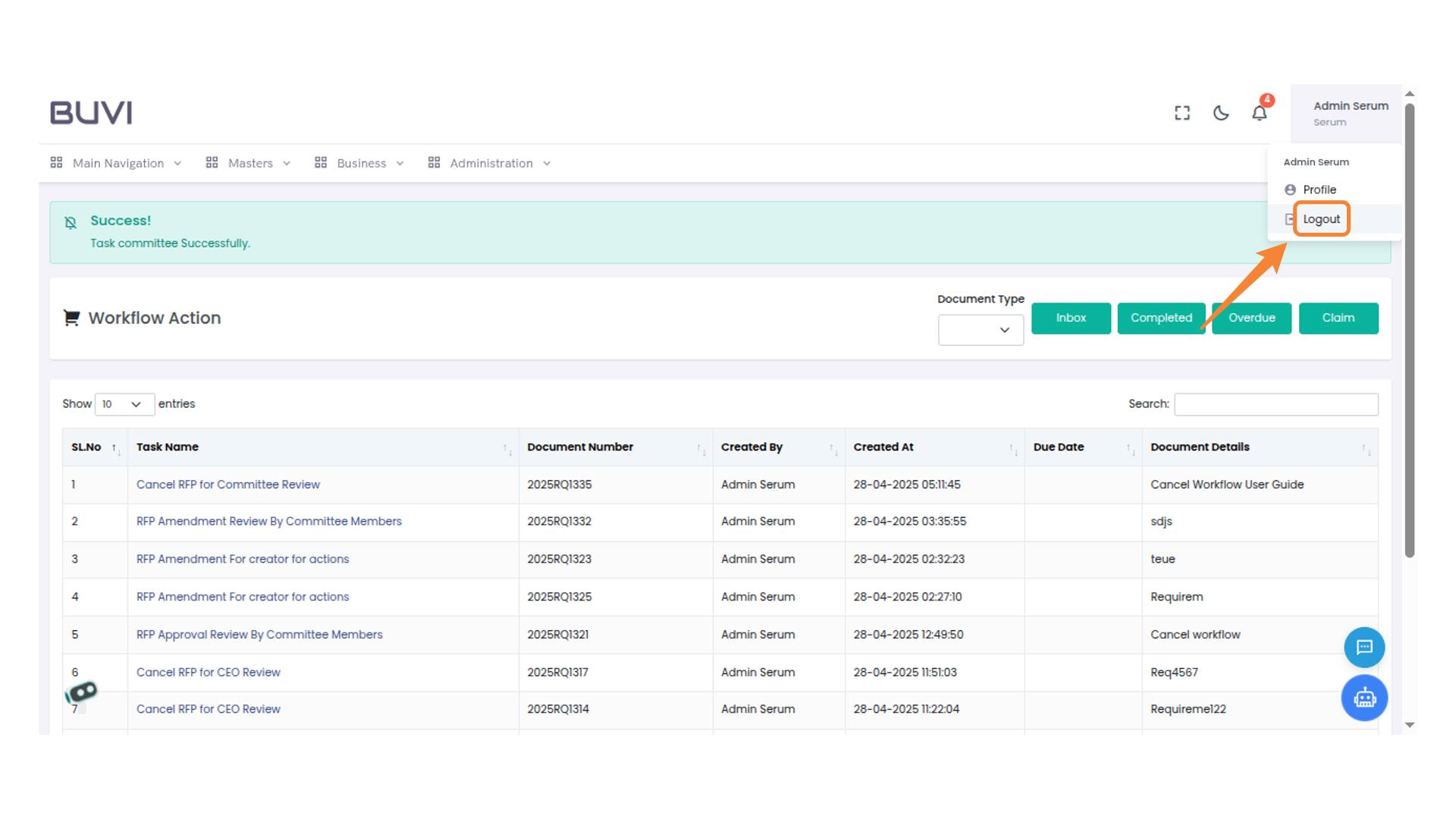
16. Loggout
Logout from the application
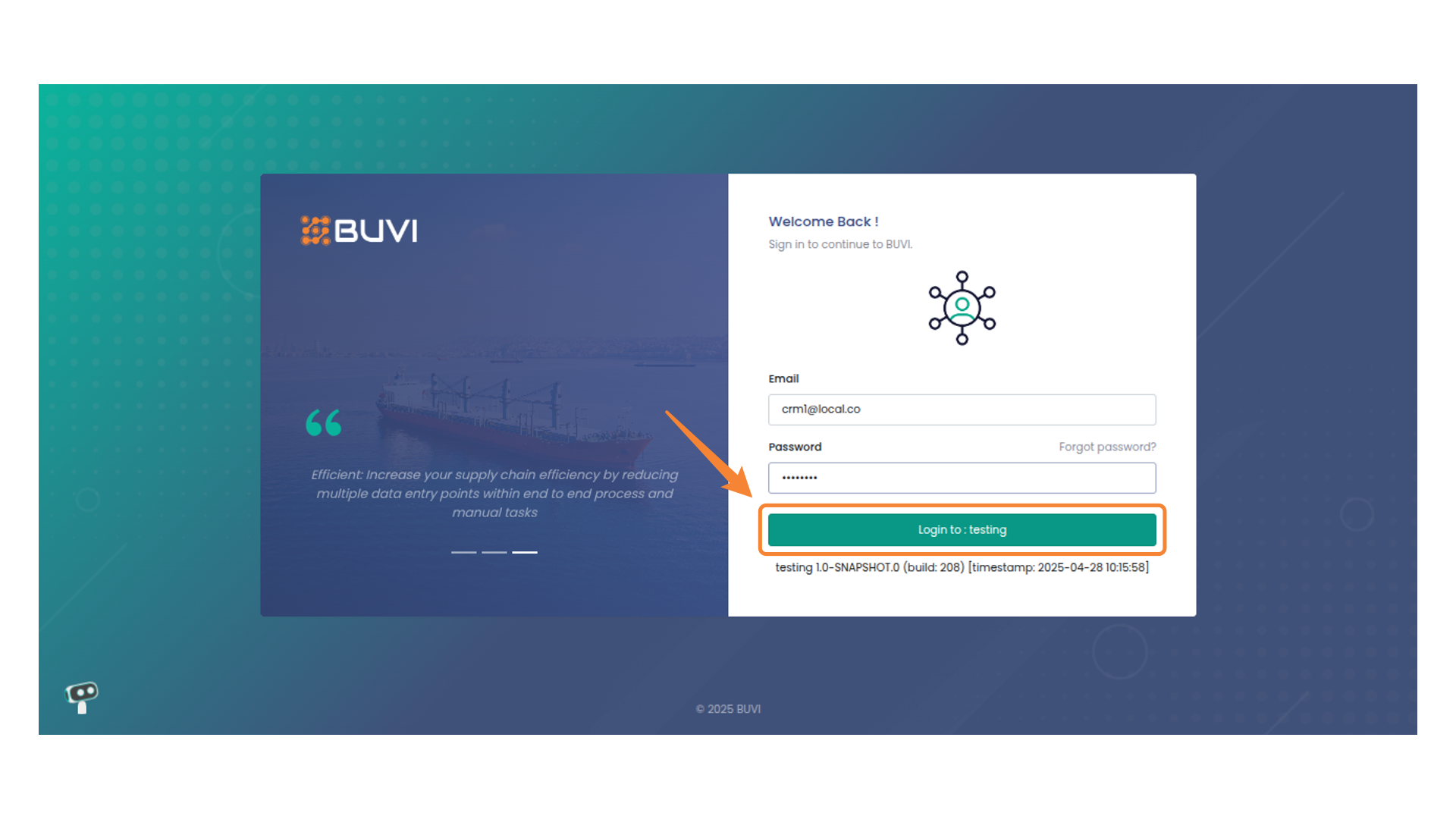
17. Login as Committe member
Click on Login
18. Navigation Menu Highlight
Explore the options within the navigation menu to manage and access various features.
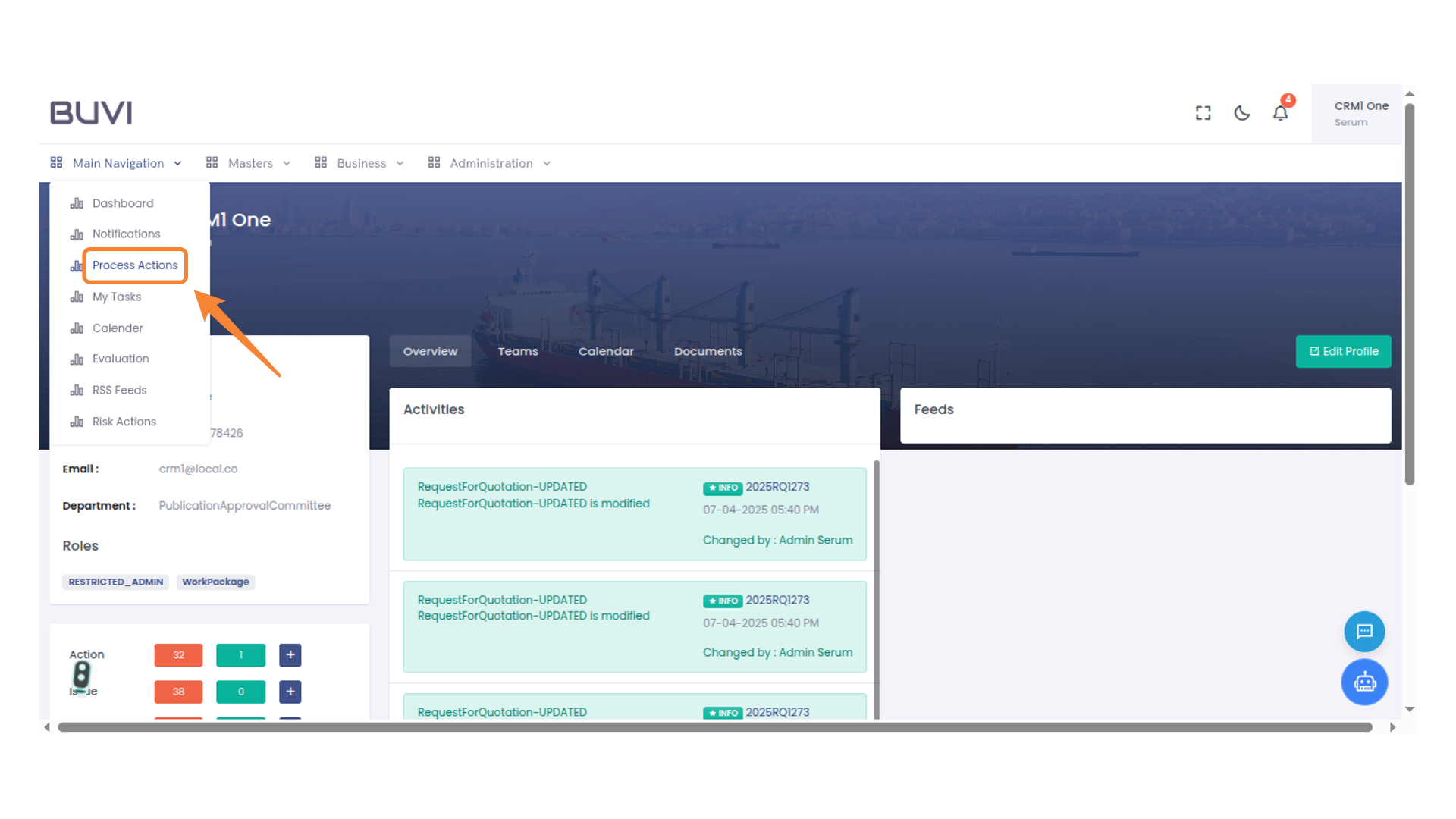
19. Navigation Menu
Click on Process action
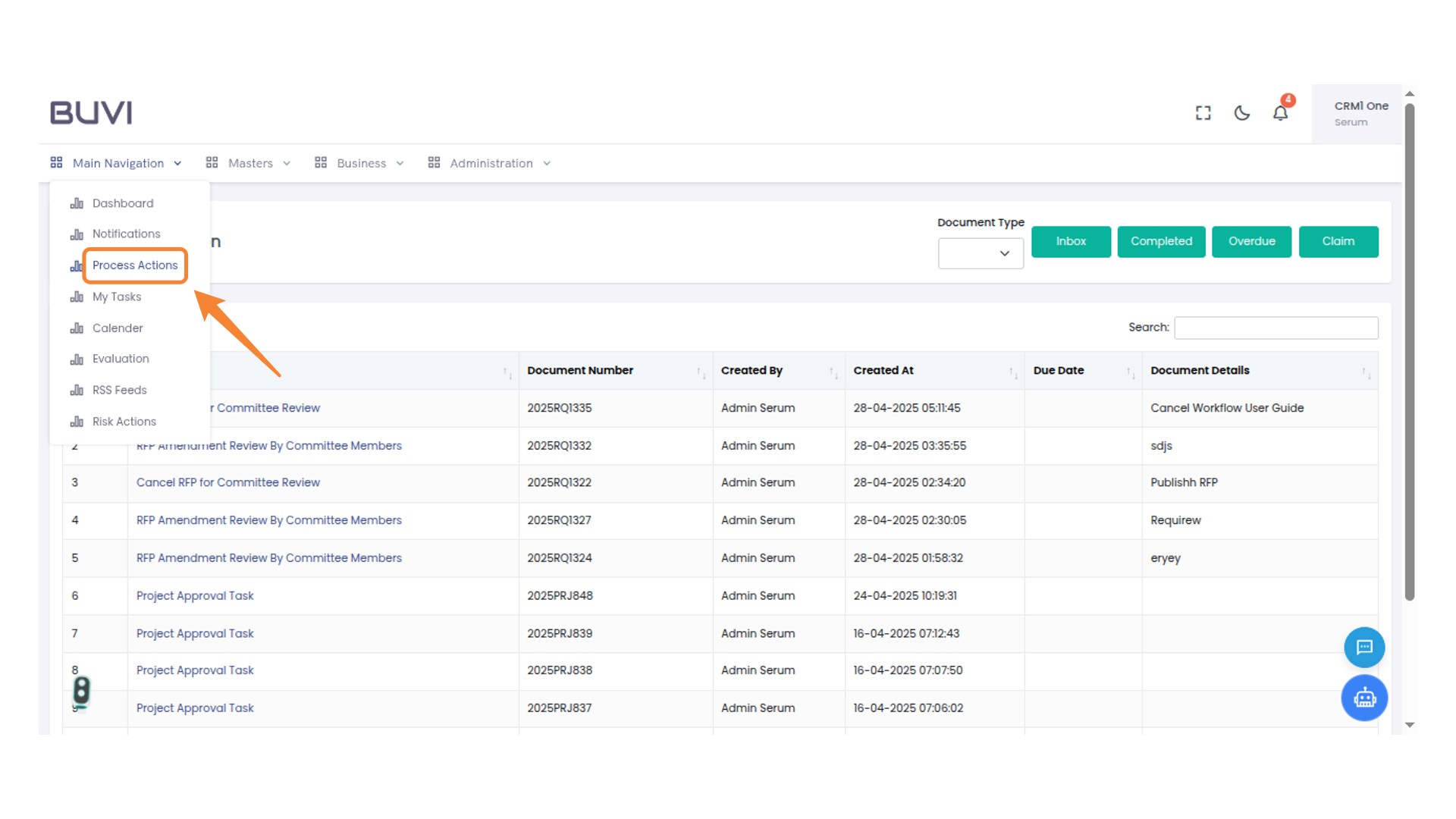
20. Task Name Highlight
Click on Task
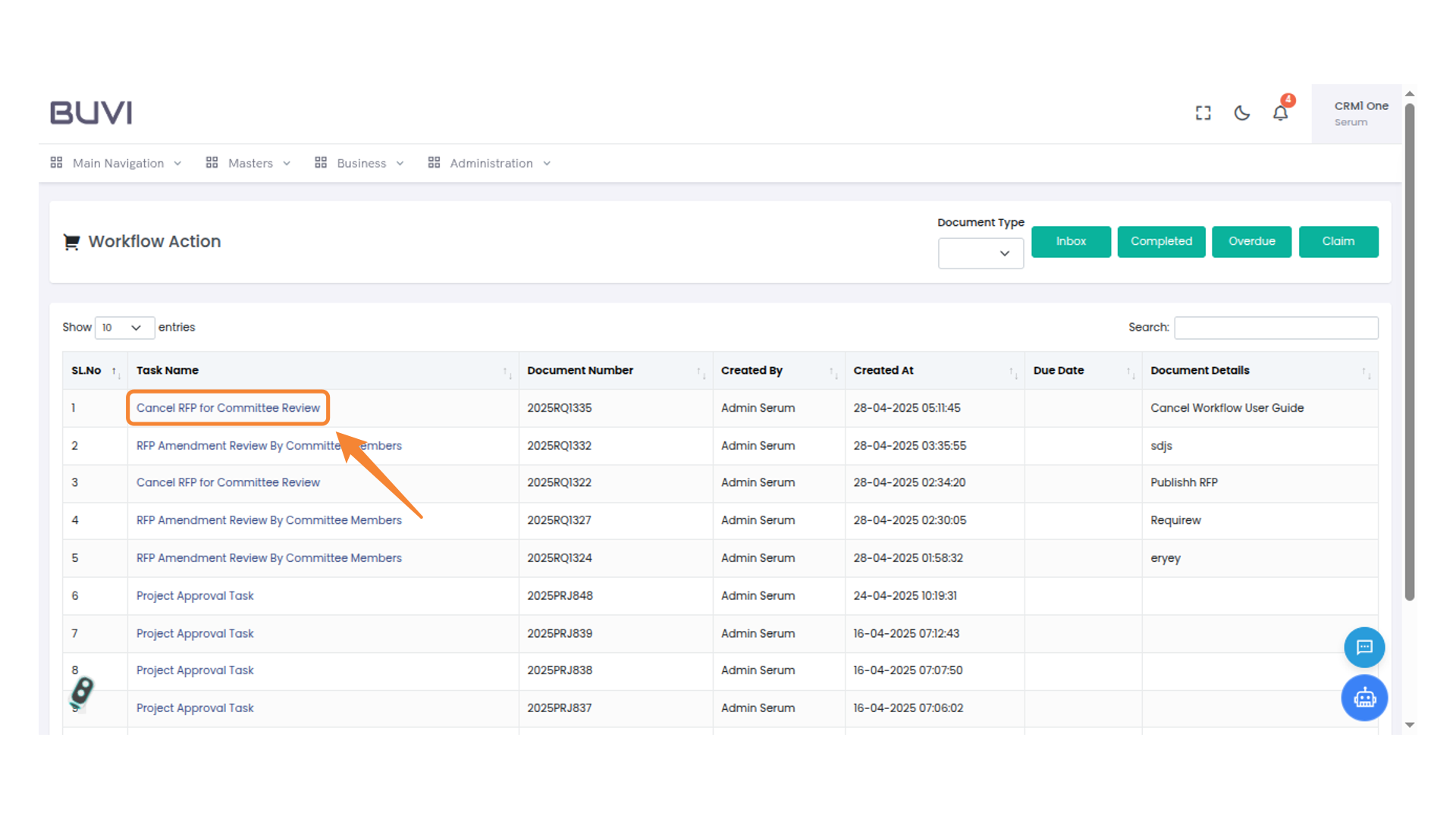
21. Next Action button
Click on Next action button
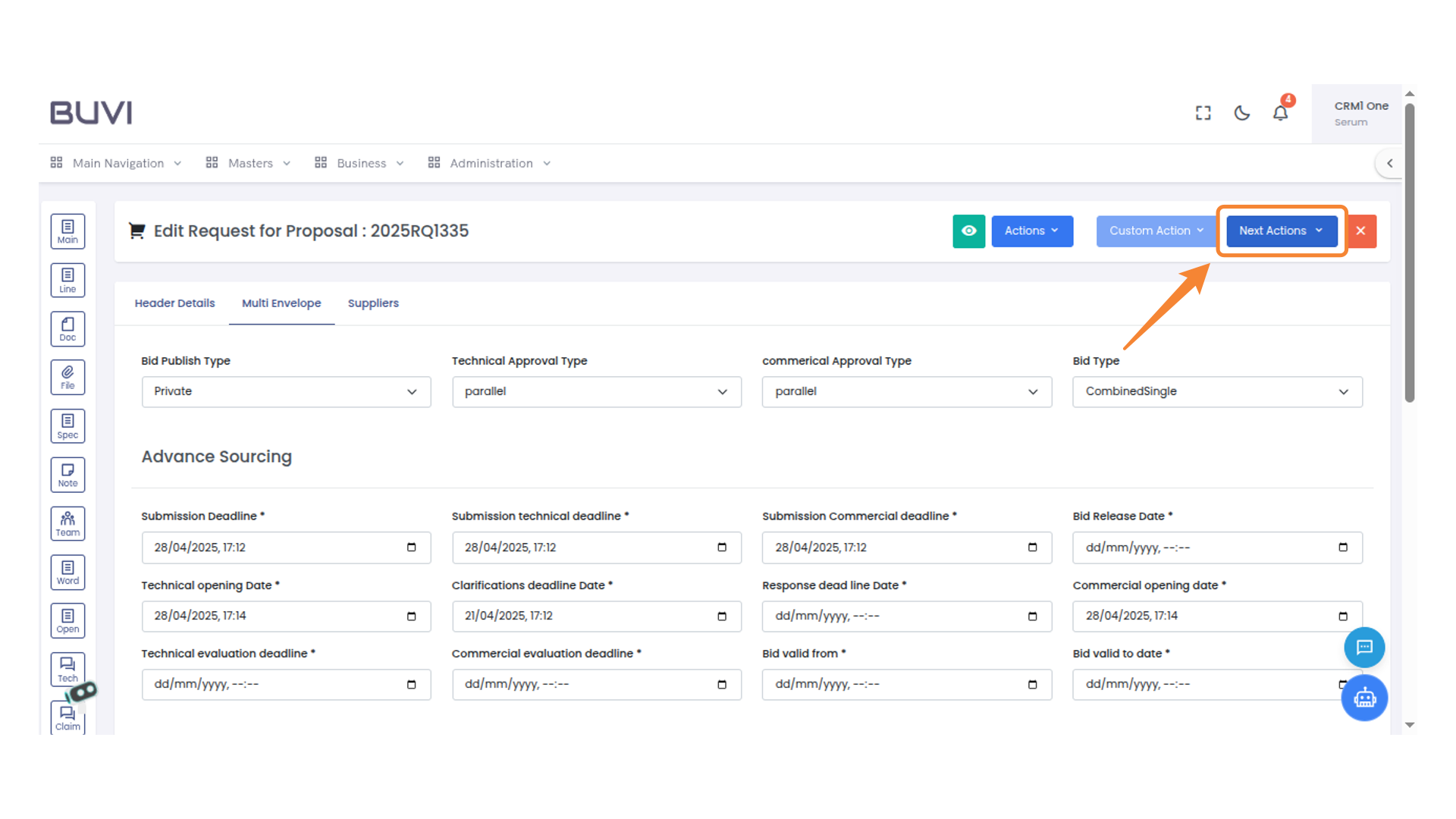
22. Next Actions Menu
Select an option from the dropdown menu to proceed with approval, rejection, or suspension.
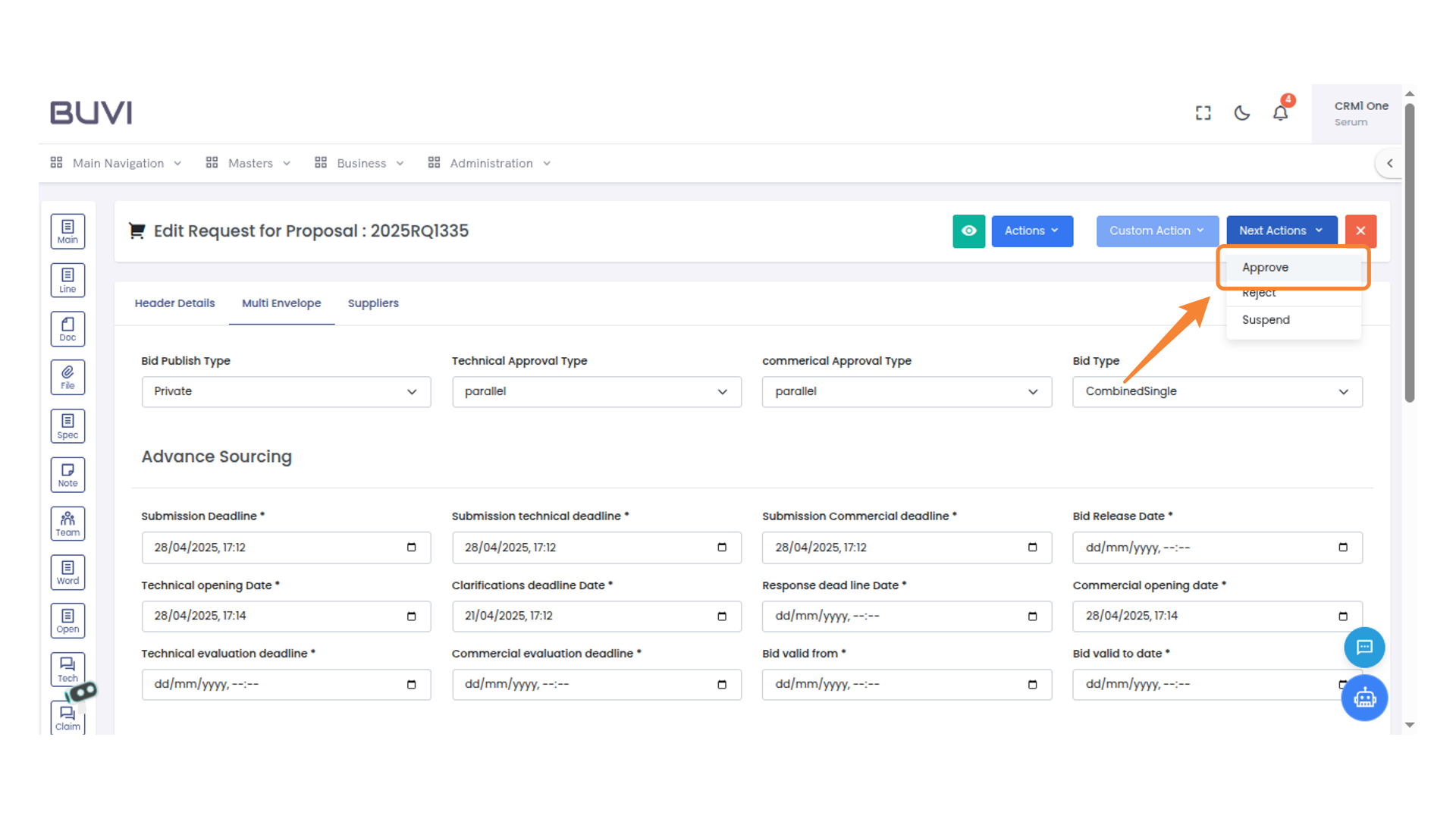
23. Submit Button
Click this button to submit your comment.
24. Loggout
Click here to loggout from the application
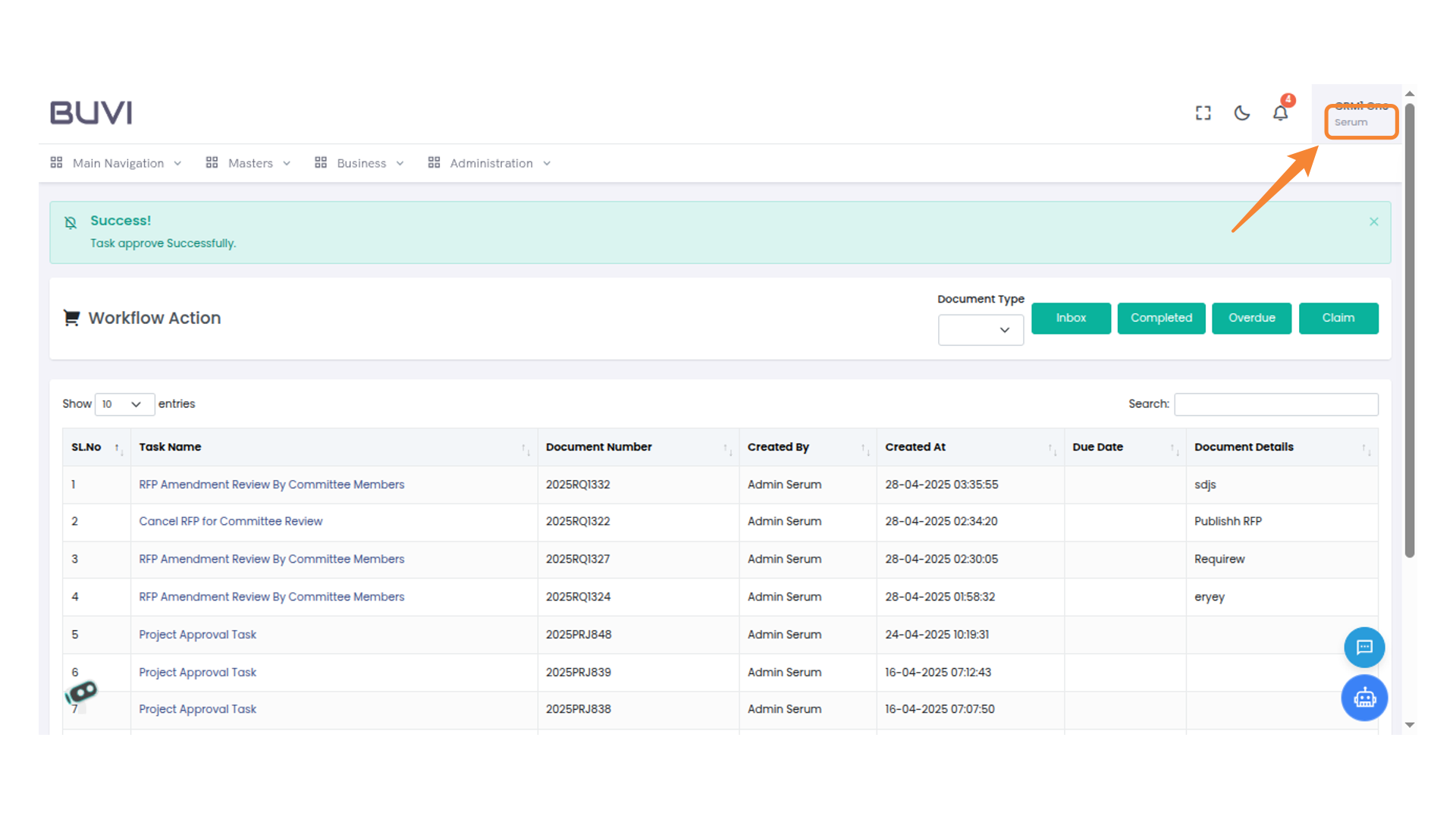
25. Login as Committe member
Click on Log in
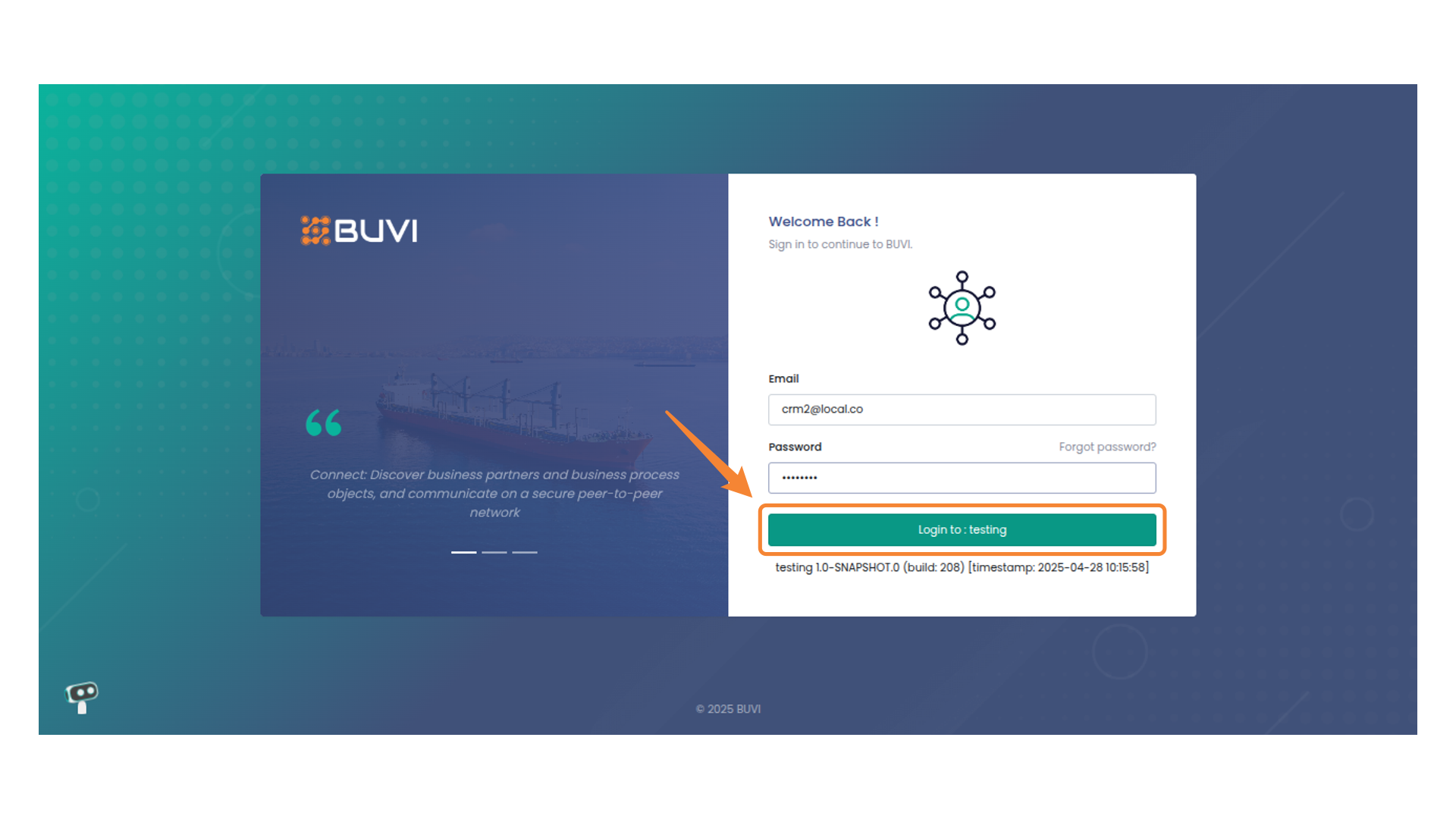
26. Navigation Menu
Click on Process action under Main Navigation
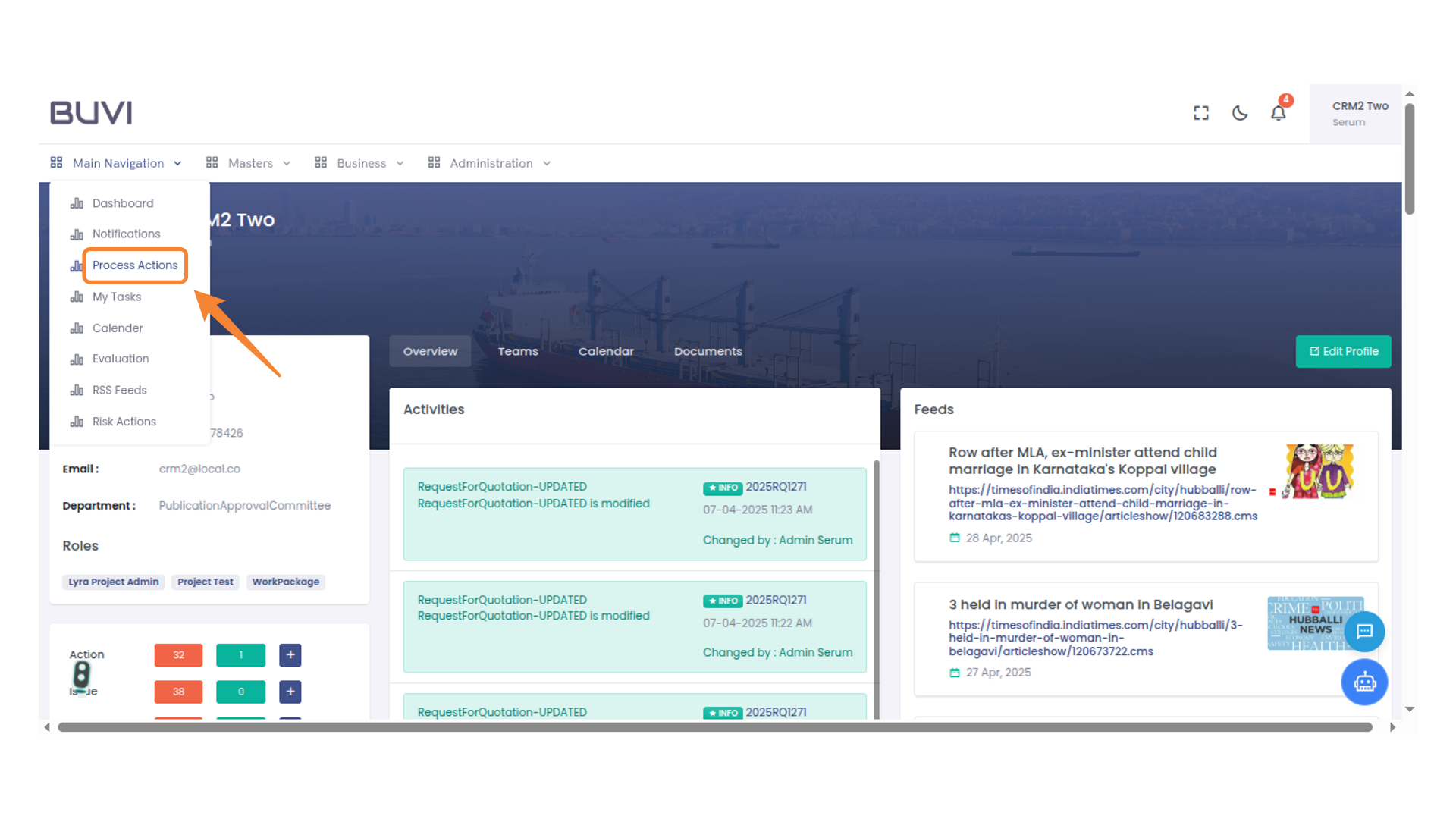
27. Cancel RFP for Committee Review
Click on Review and cancel the RFP pending for committee evaluation
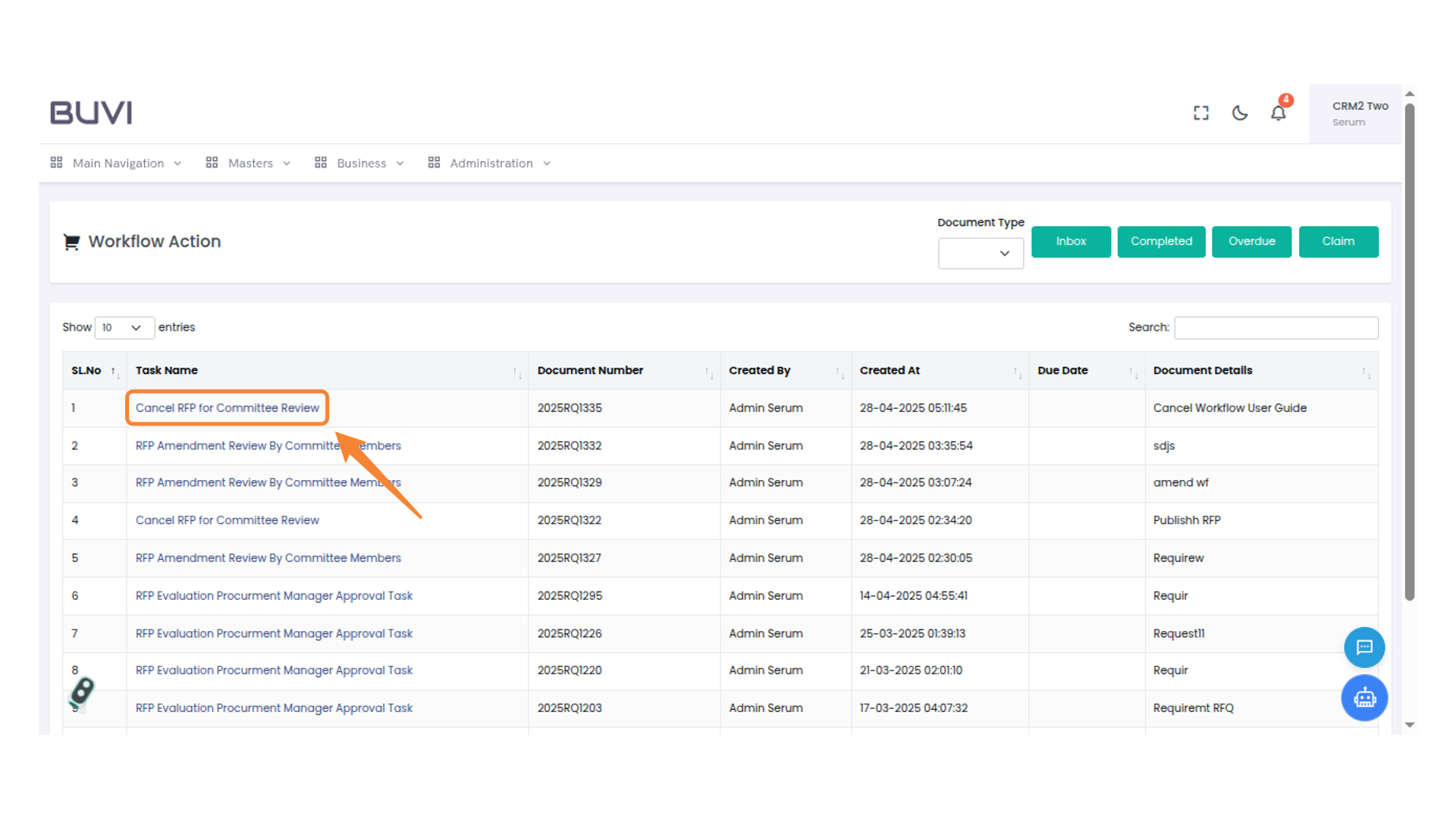
28. Next Action Button
Click on Next Action button
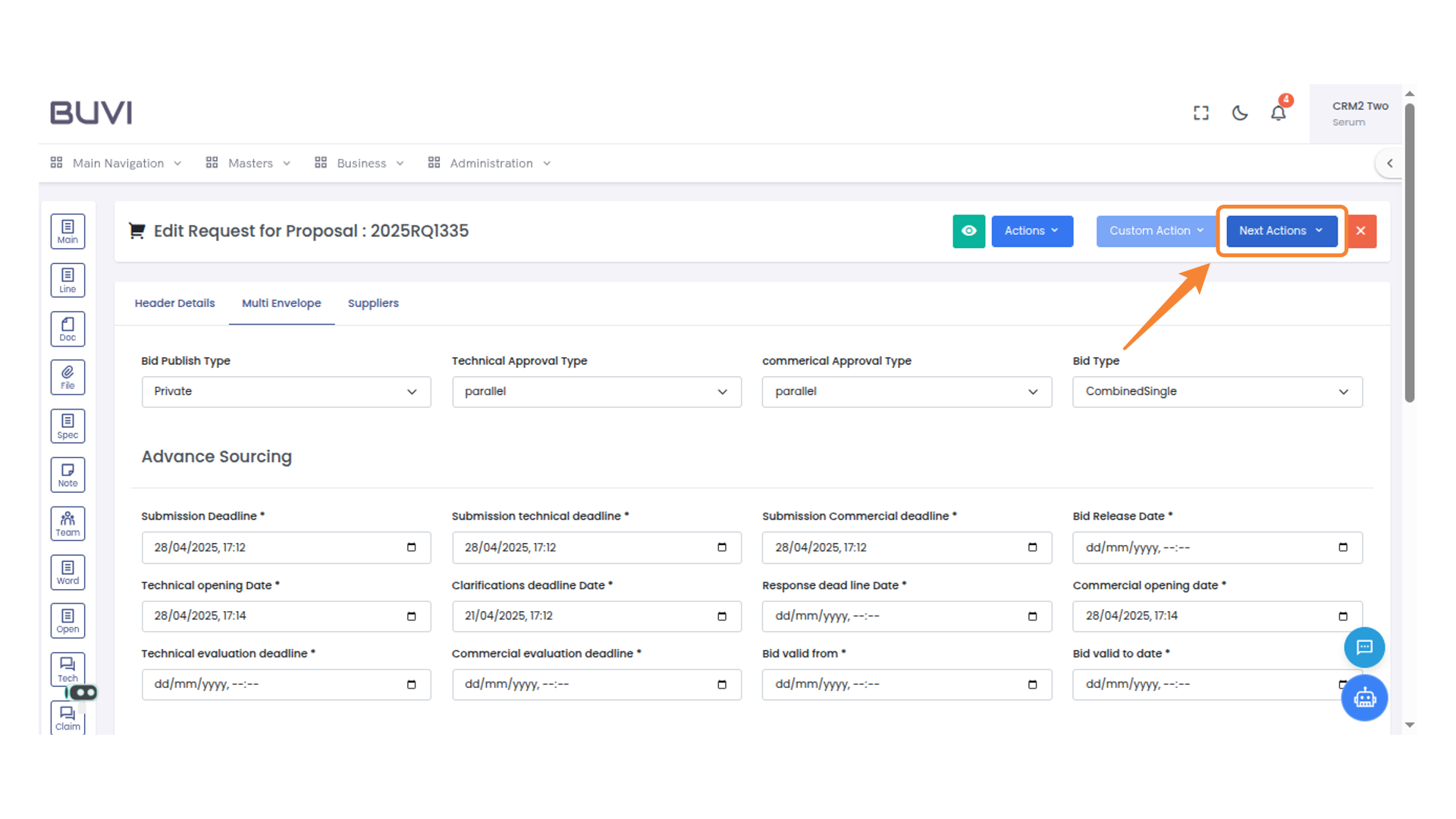
29. Comment Submission Box
Enter your comment in the text field and click 'Submit' to add it.
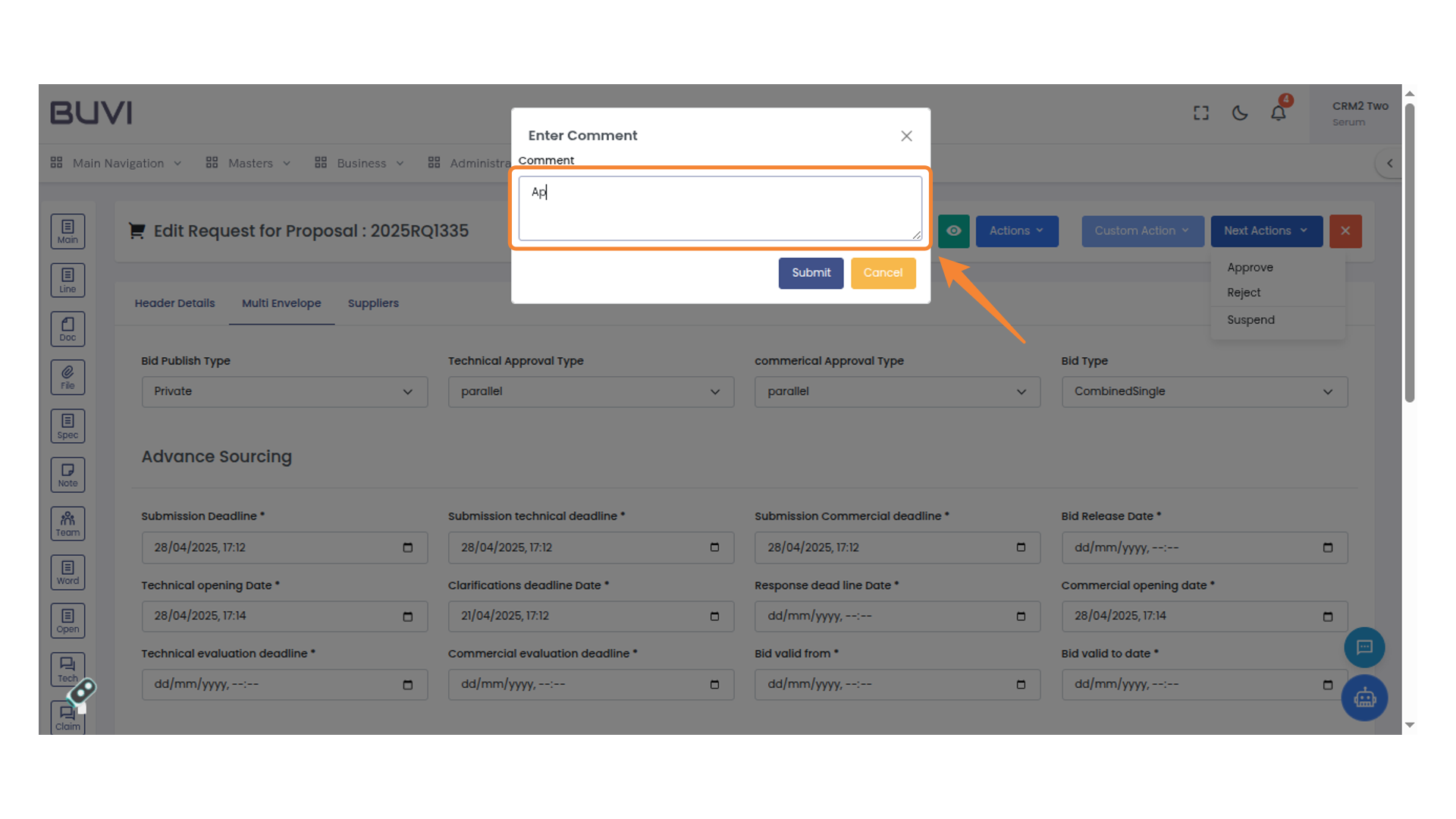
30. Submit Confirmation
Click to submit the form after verifying the comment.
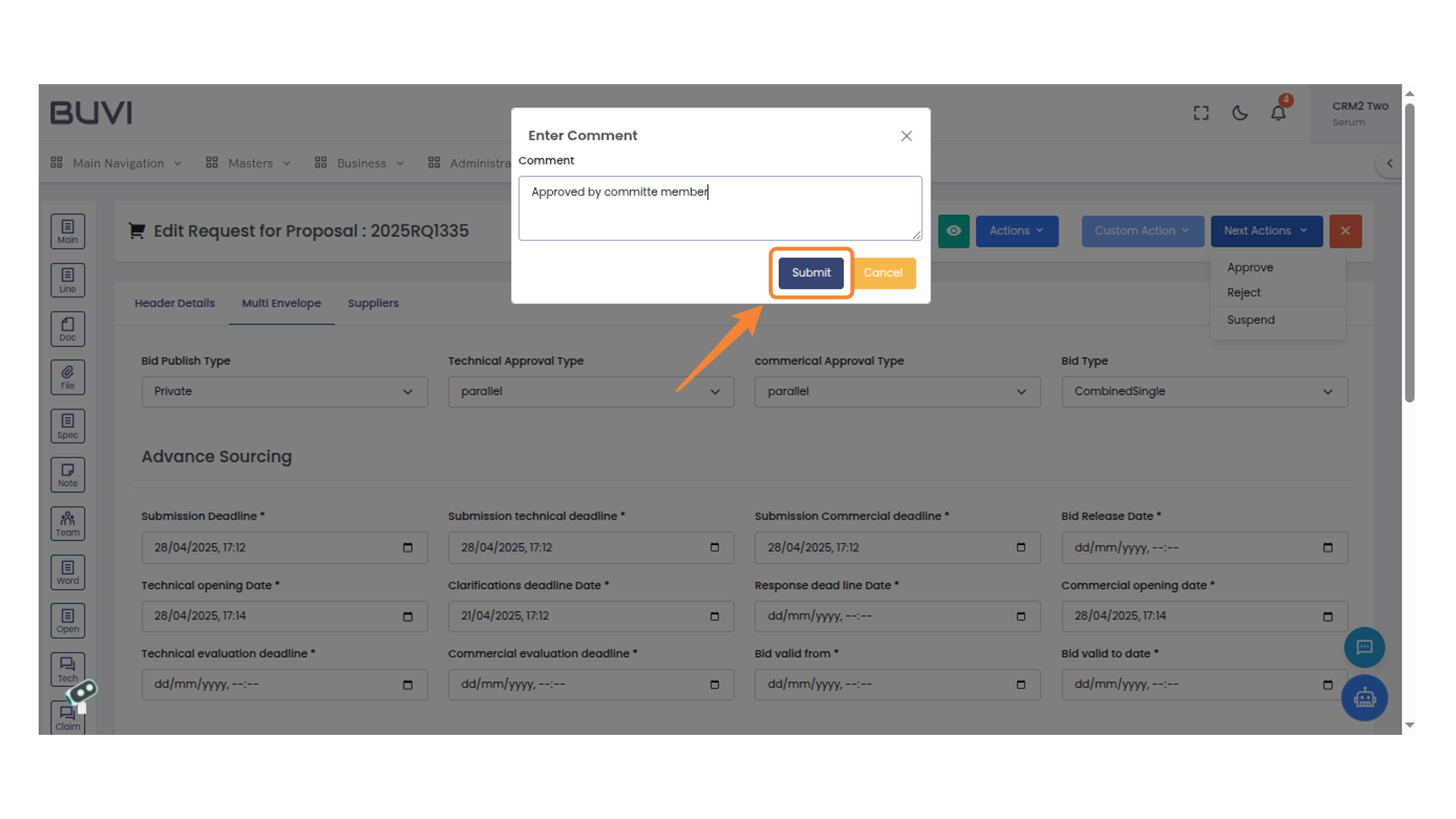
31. Loggout Button
Click the icon to access the user profile options.
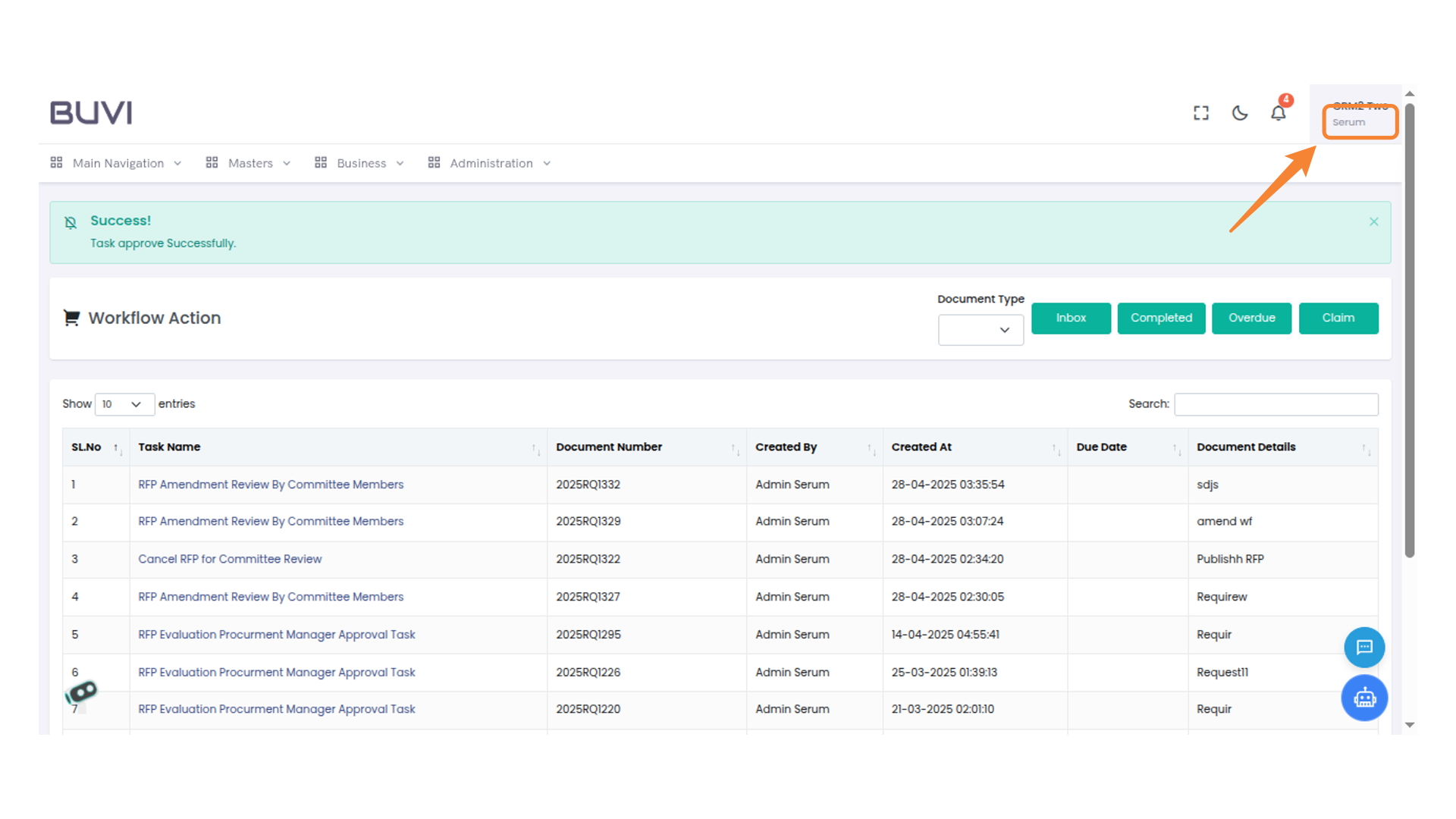
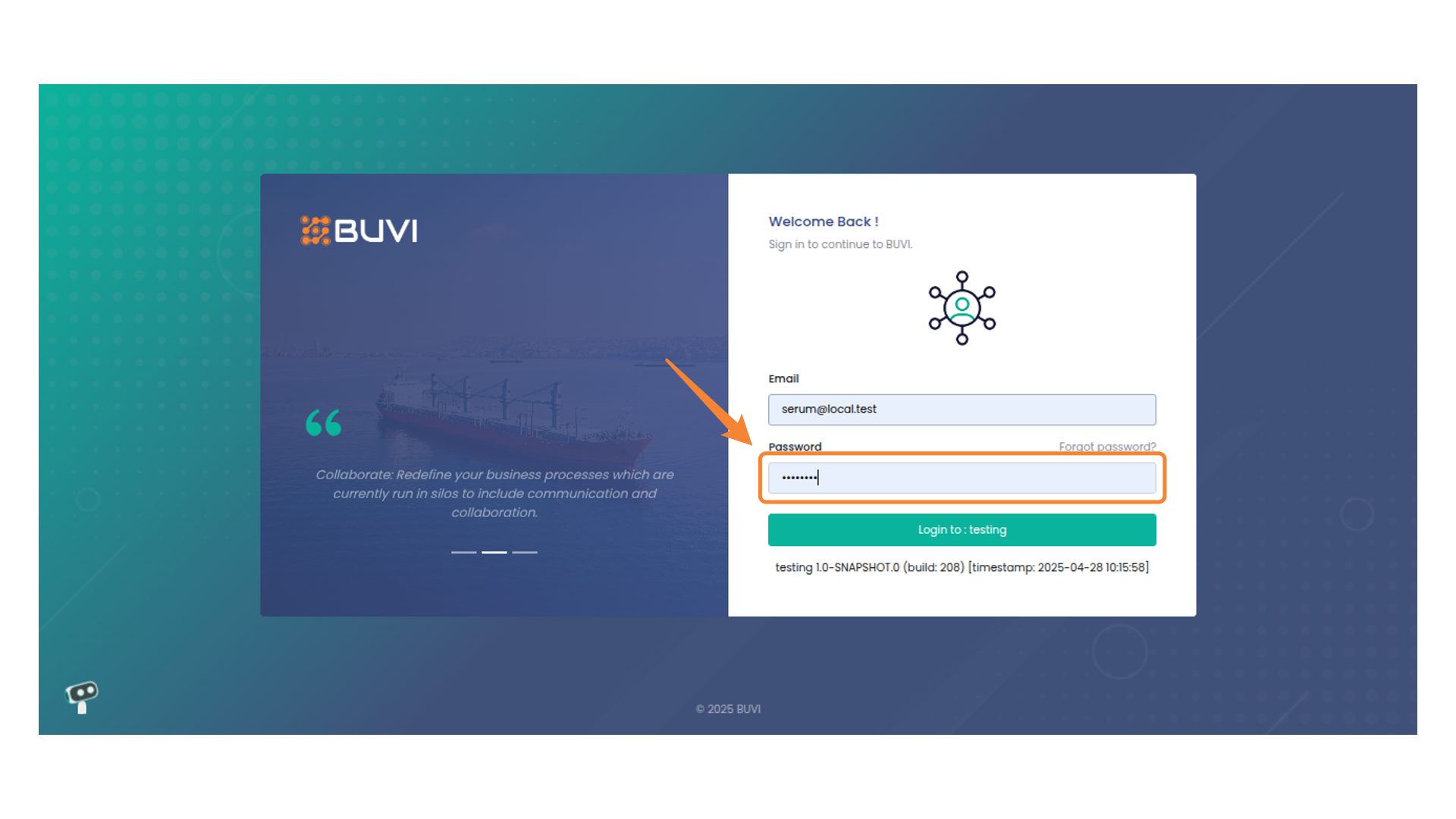
32. Login as Committe member
Click to access your account.
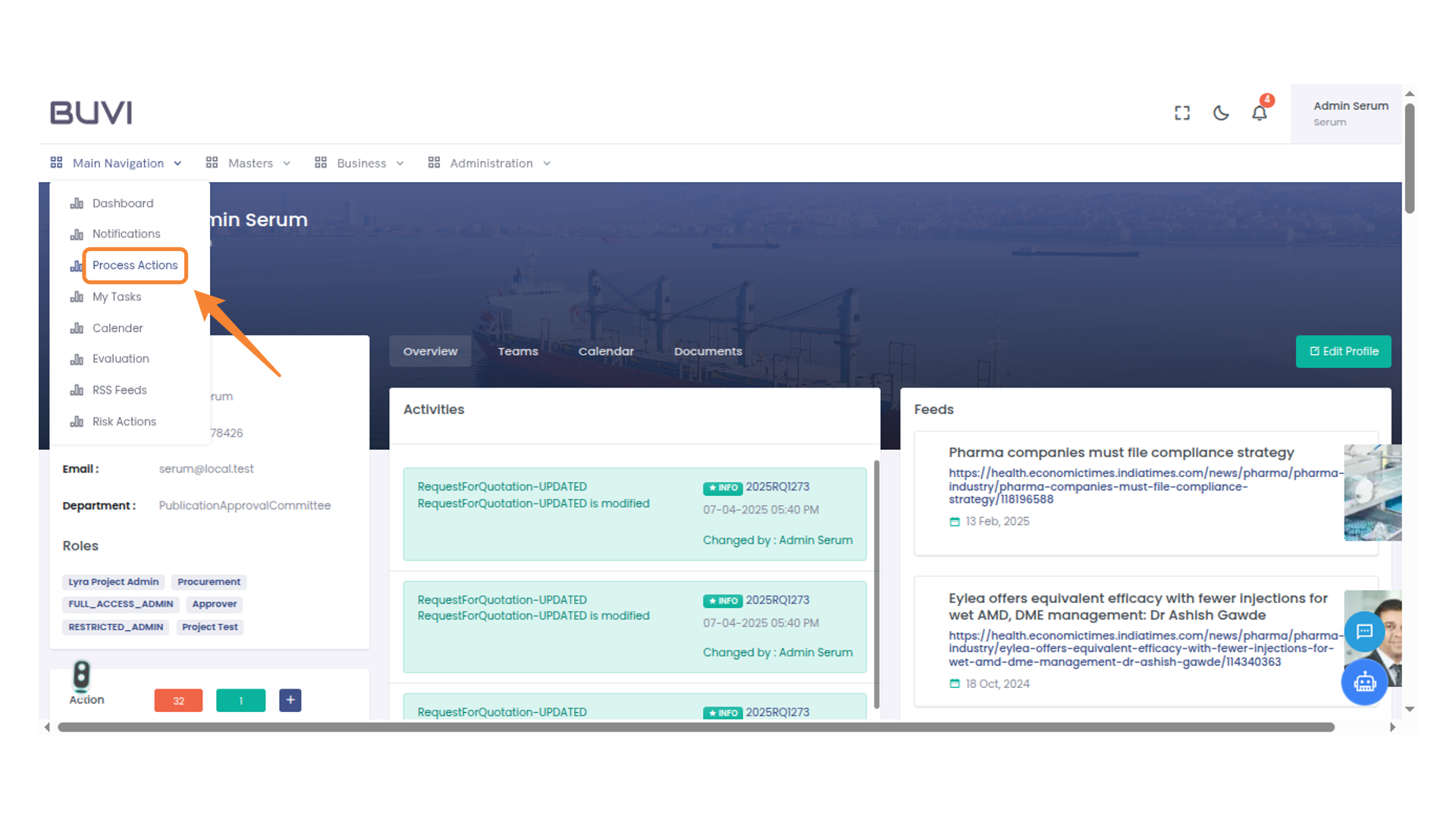
33. Navigation Menu
Click on Process Action
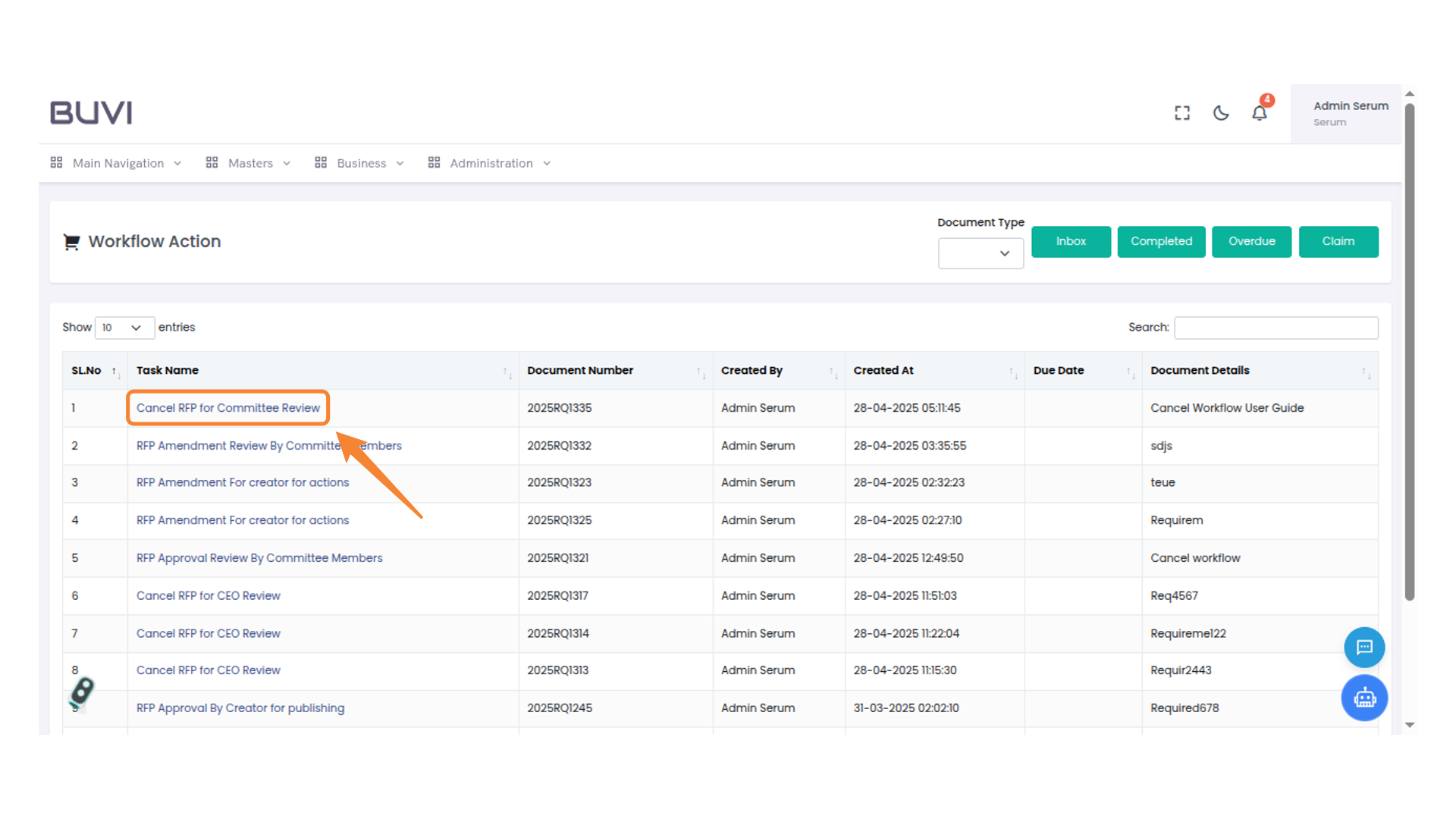
34. Cancel RFP for Committee Review
Select the 'Cancel RFP for Committee Review' option to initiate cancellation within the workflow table.
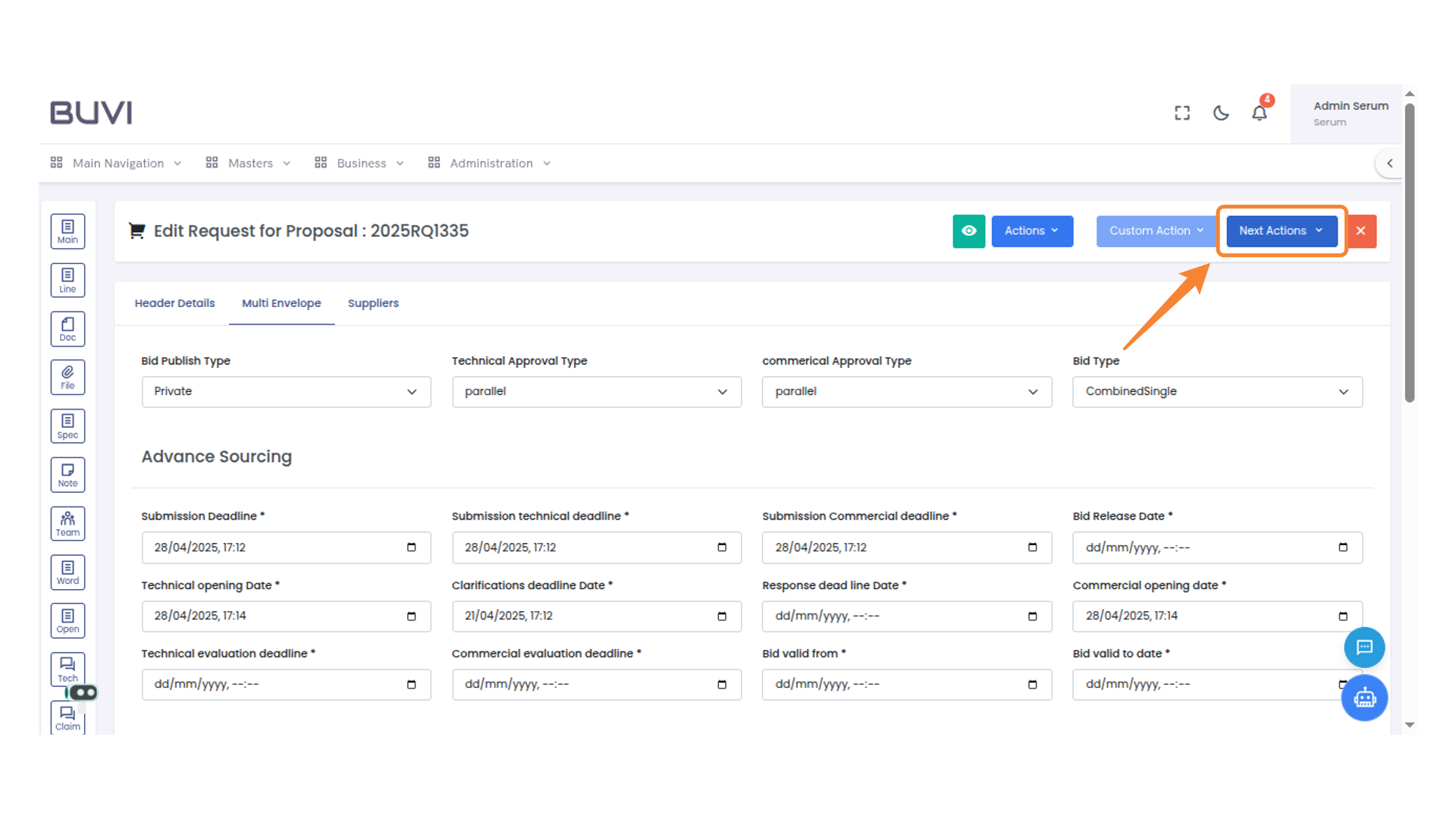
35. Next Action Button
Click on Next action button
36. Approval Button
Click to approve the request or action specified.
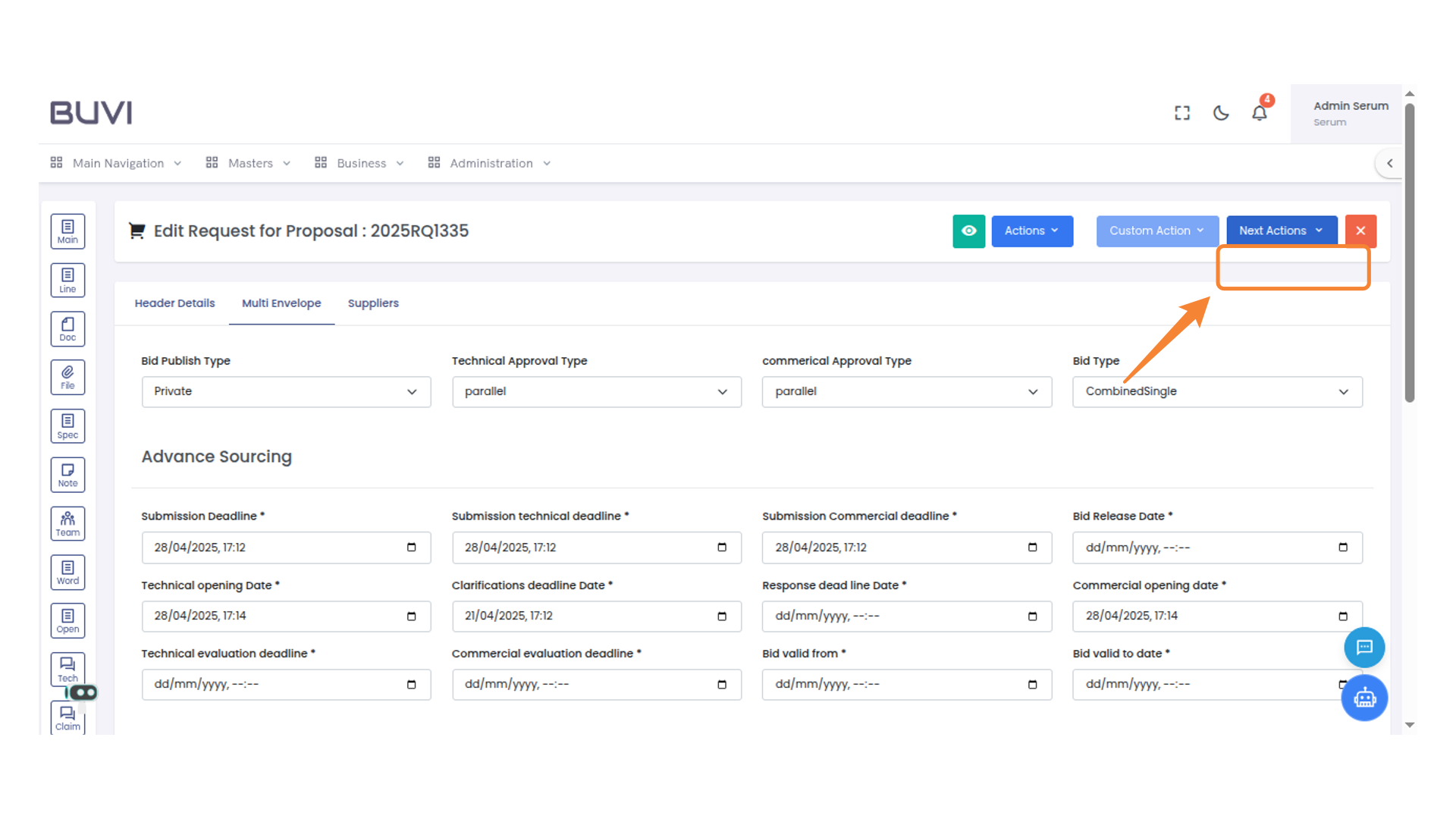
37. Submit Button Clicked
Press the Submit button to confirm your action.
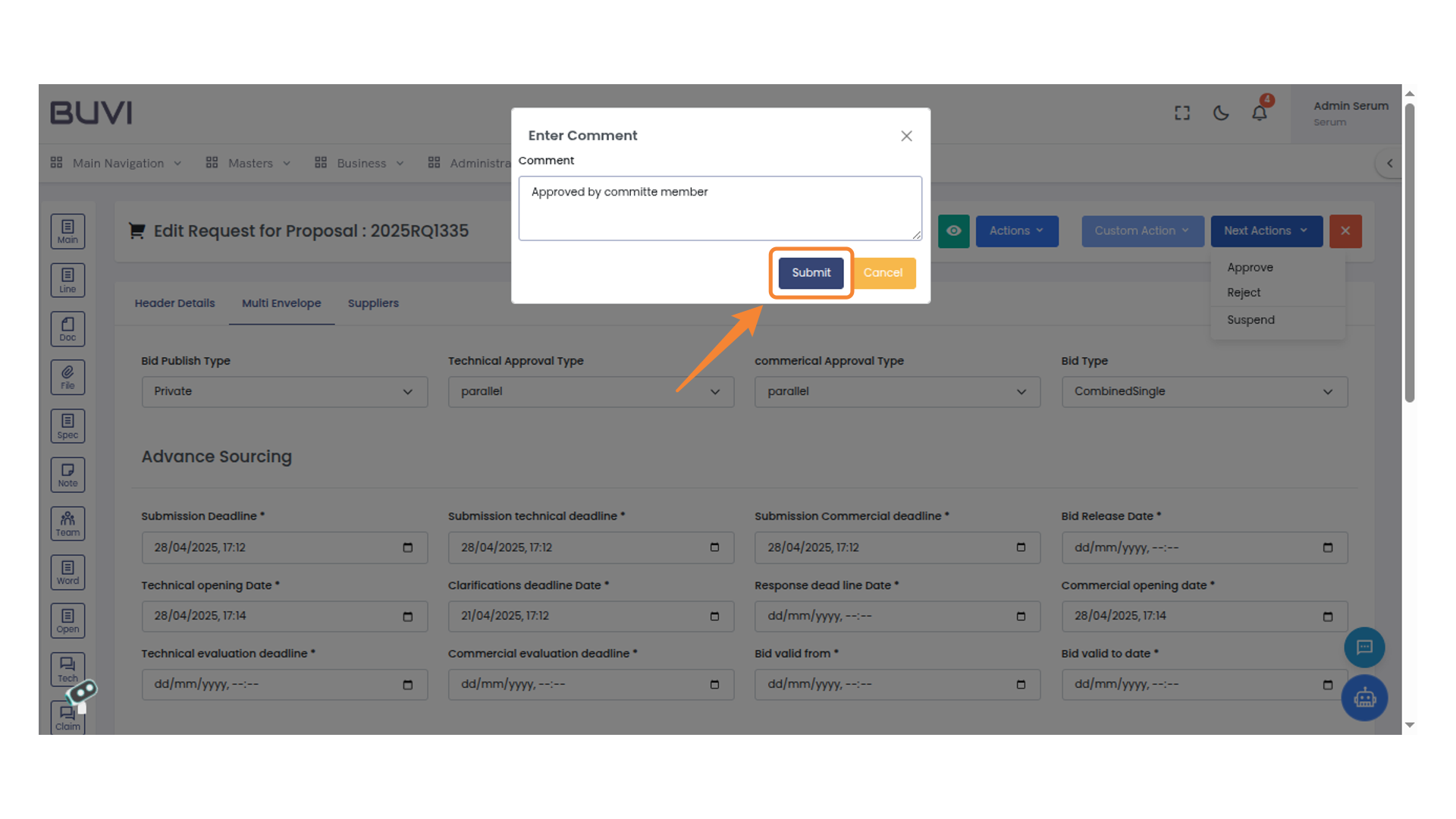
38. Loggout from the application
Loggout from the application
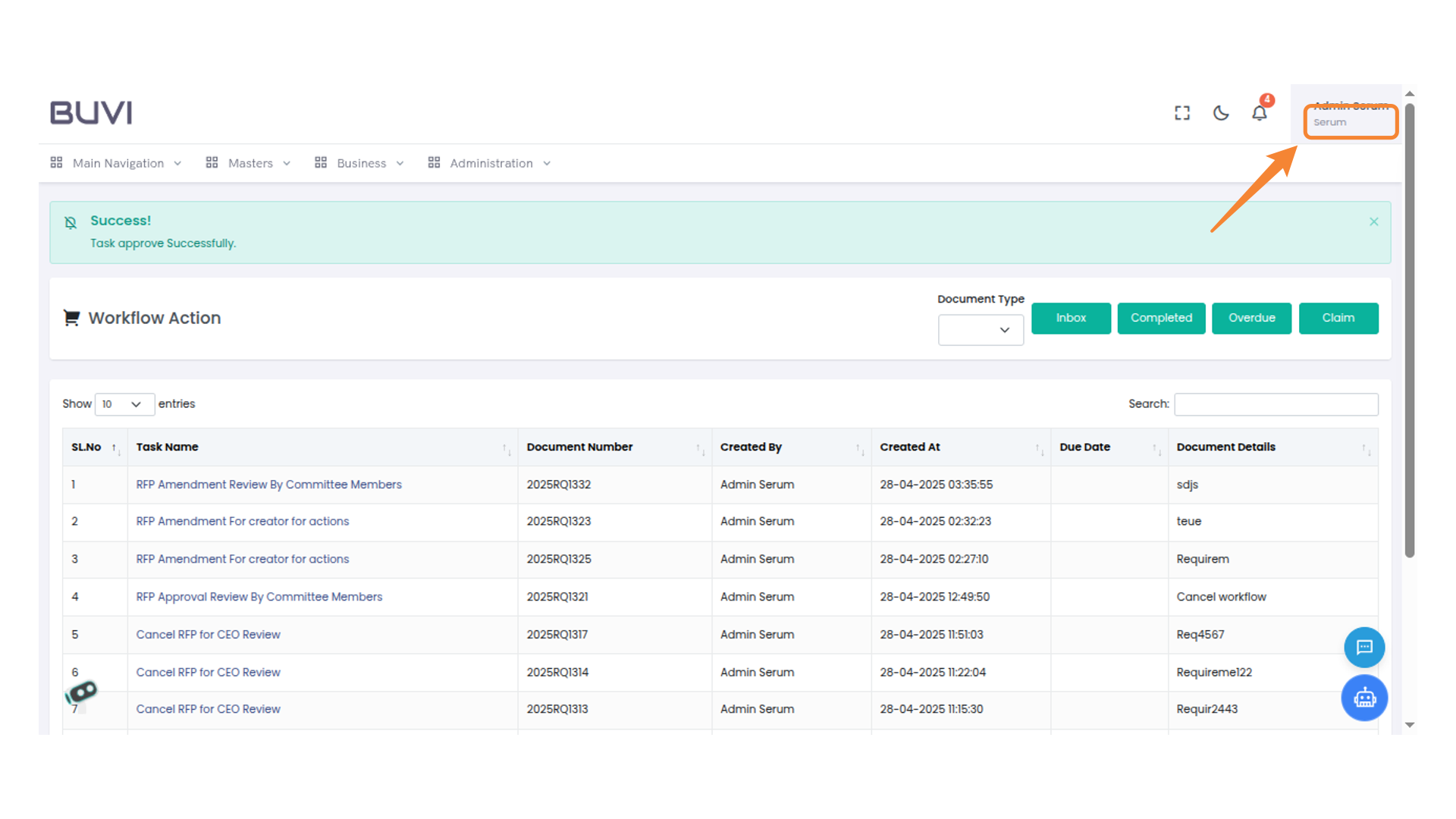
39. Login Confirmation as Committe Head
Proceed to log in to the testing environment.
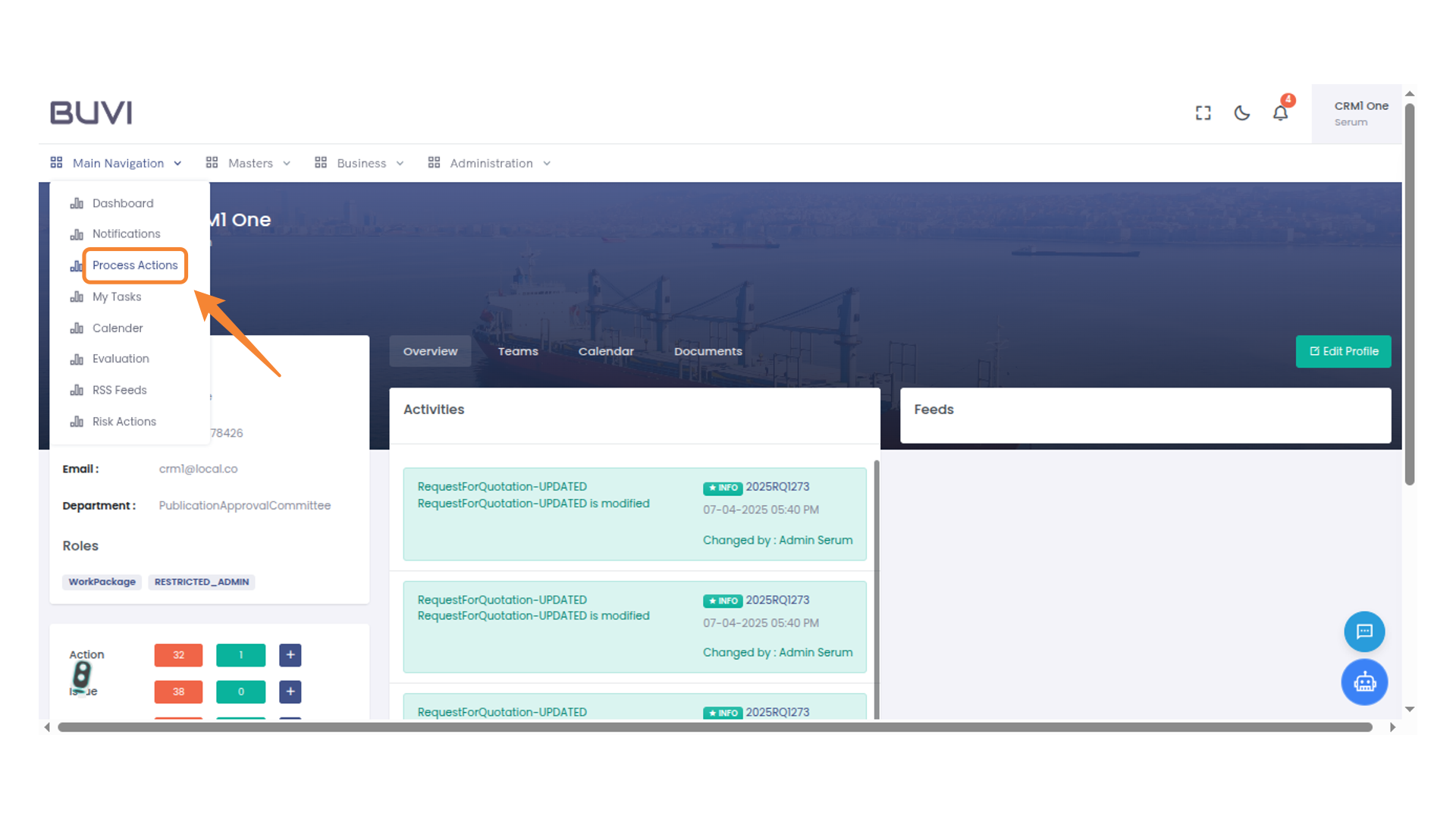
40. Navigation Menu
Click on Process Action menu under Main Navigation
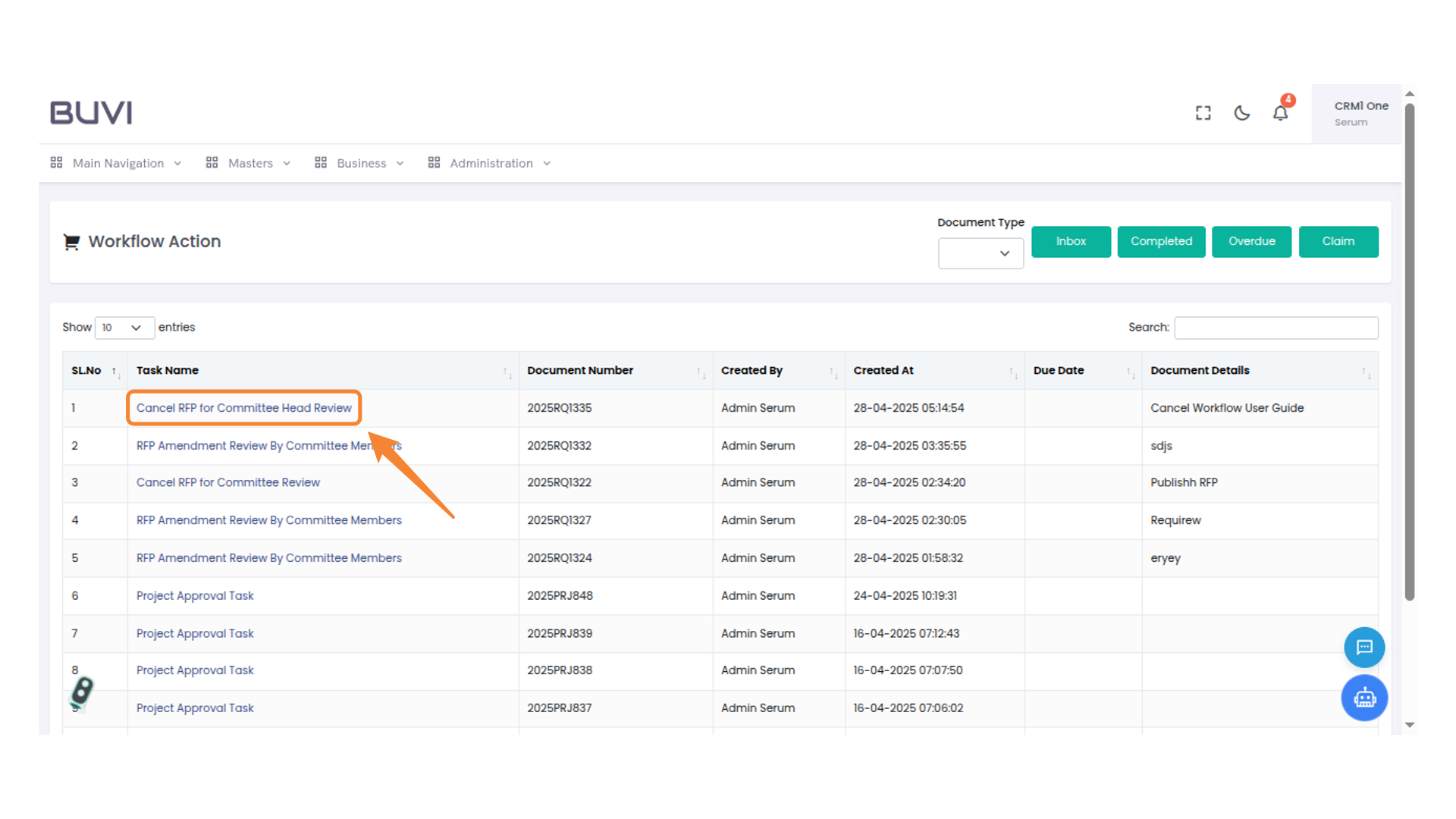
41. Cancel Request for Proposal
Initiate the process to cancel the request for committee head review.
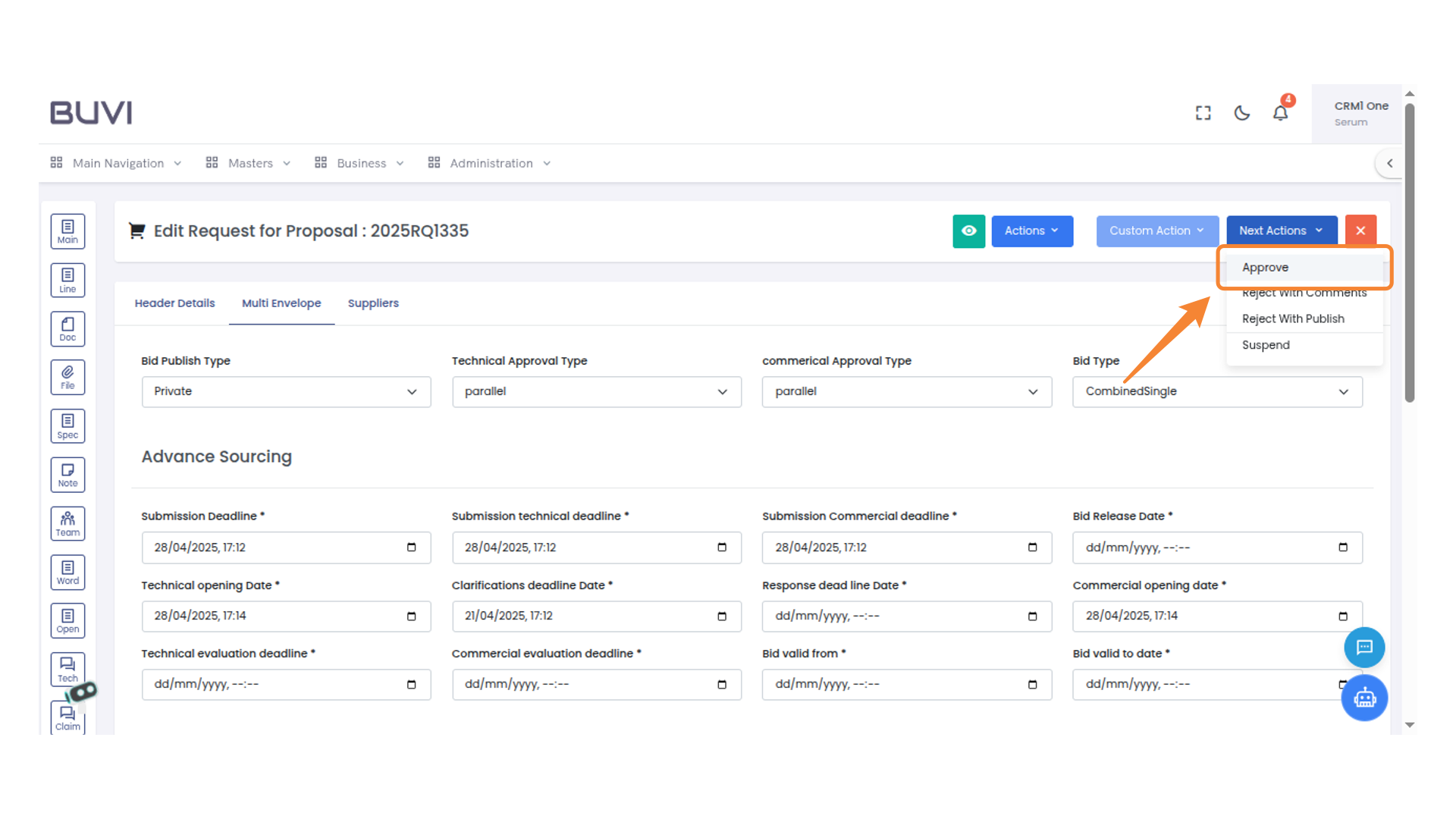
42. Next Actions Menu
Select an action from the dropdown to proceed with the proposal approval process.
43. Comment Entry Box
Enter your comment into the provided text field and click 'Submit' to proceed.
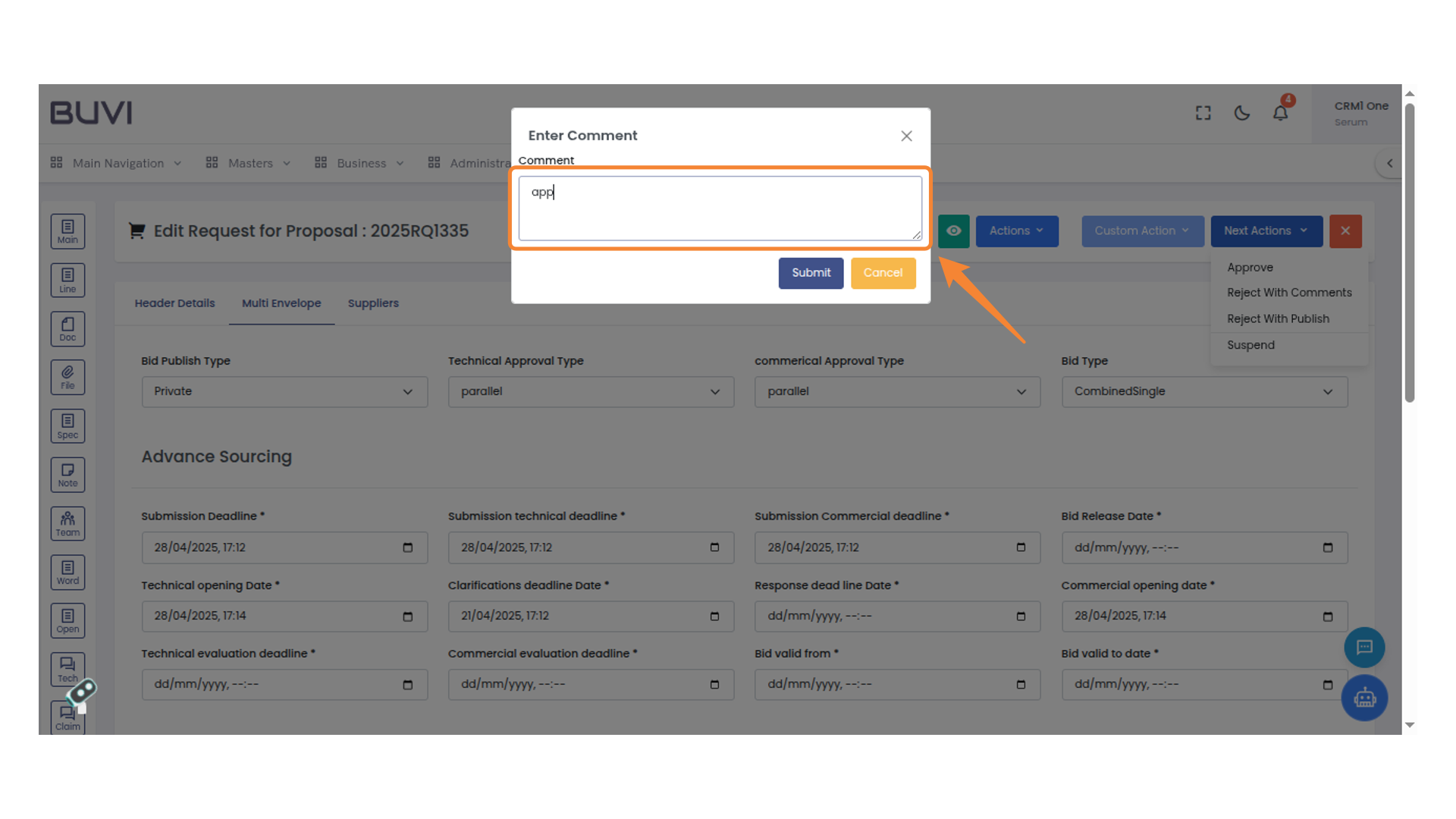
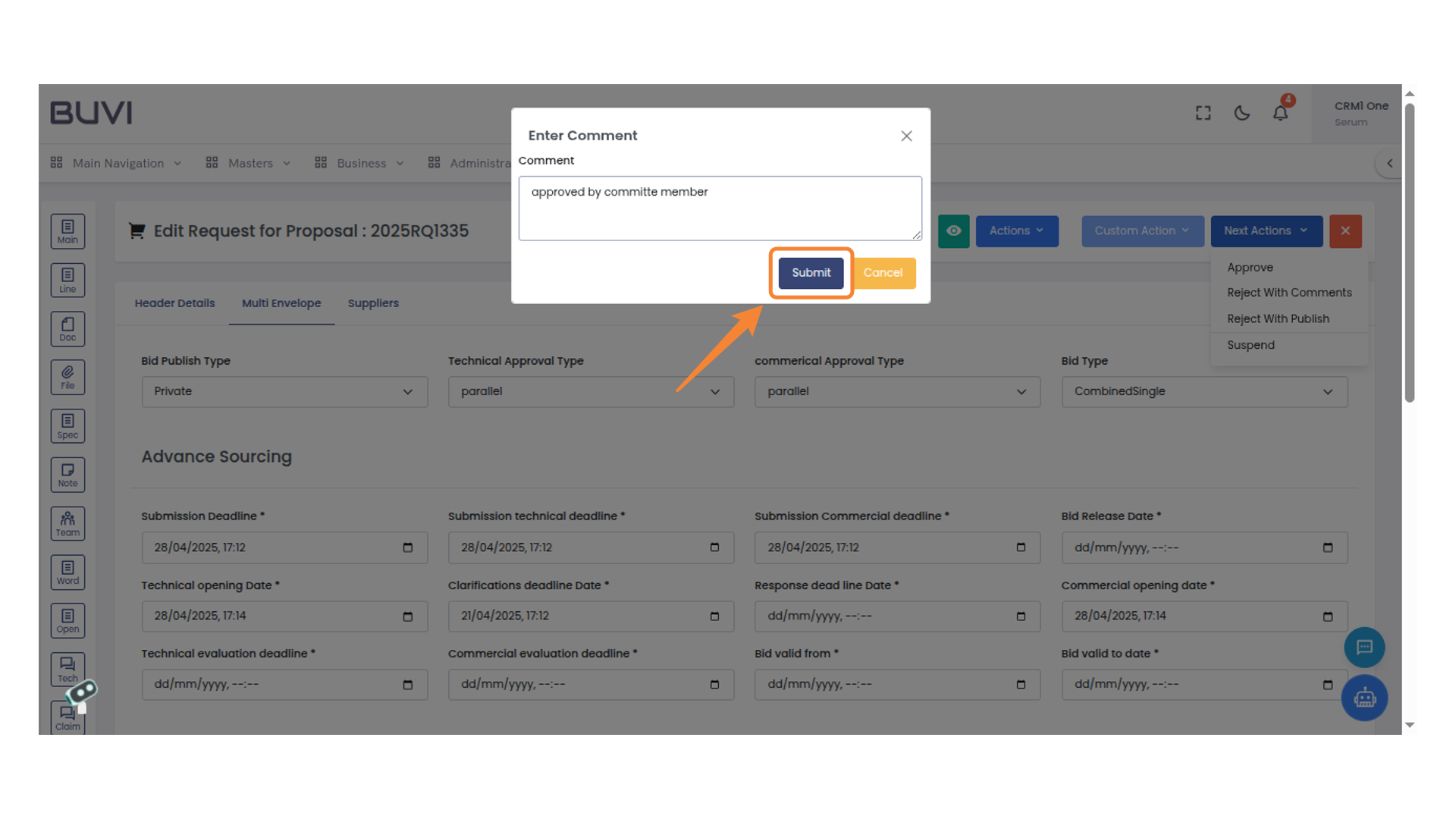
44. Submit Button Location
Click the submit button to proceed with your action.
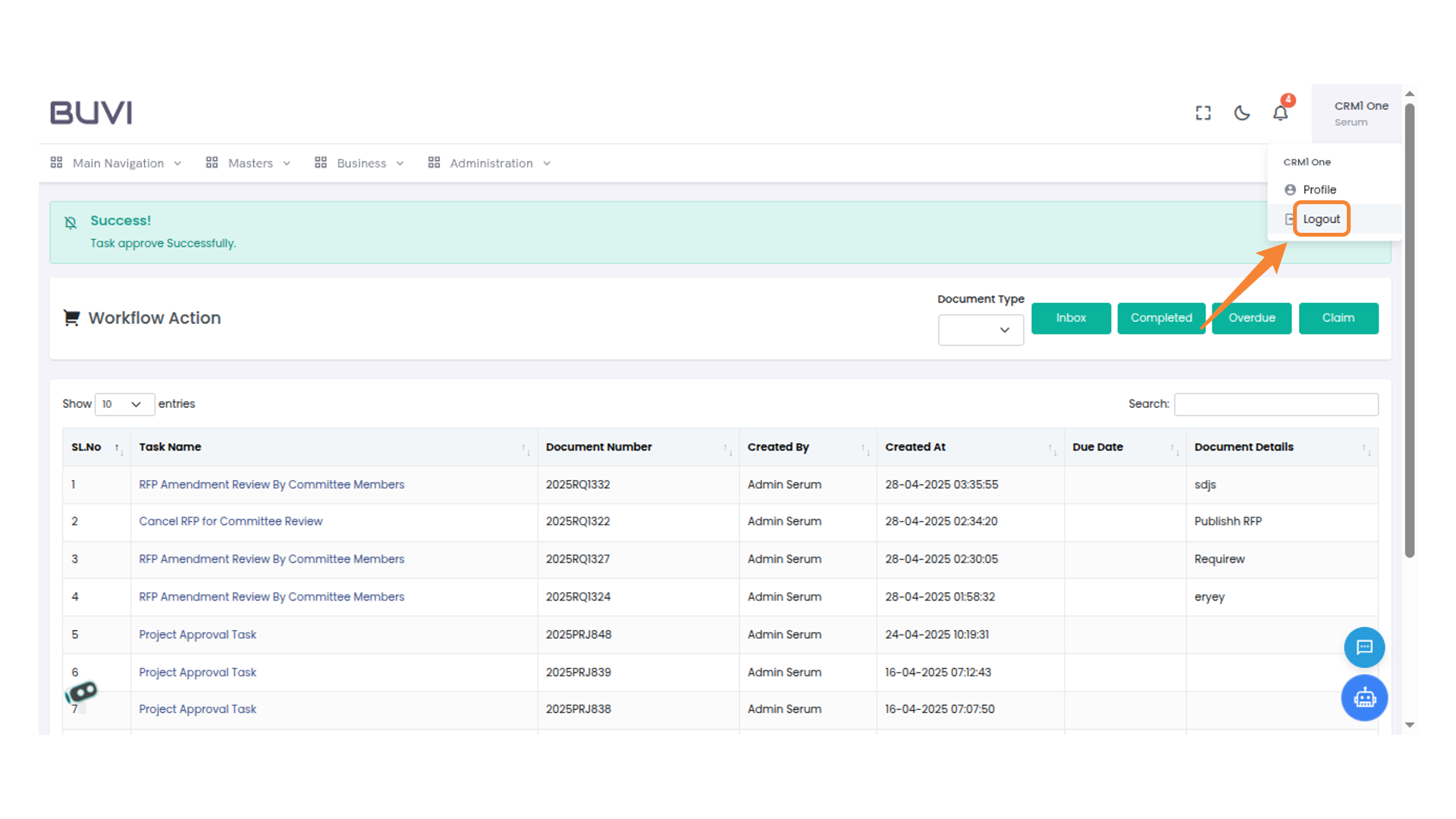
45. Loggout from the Application
Click to access profile options or logout from the application.
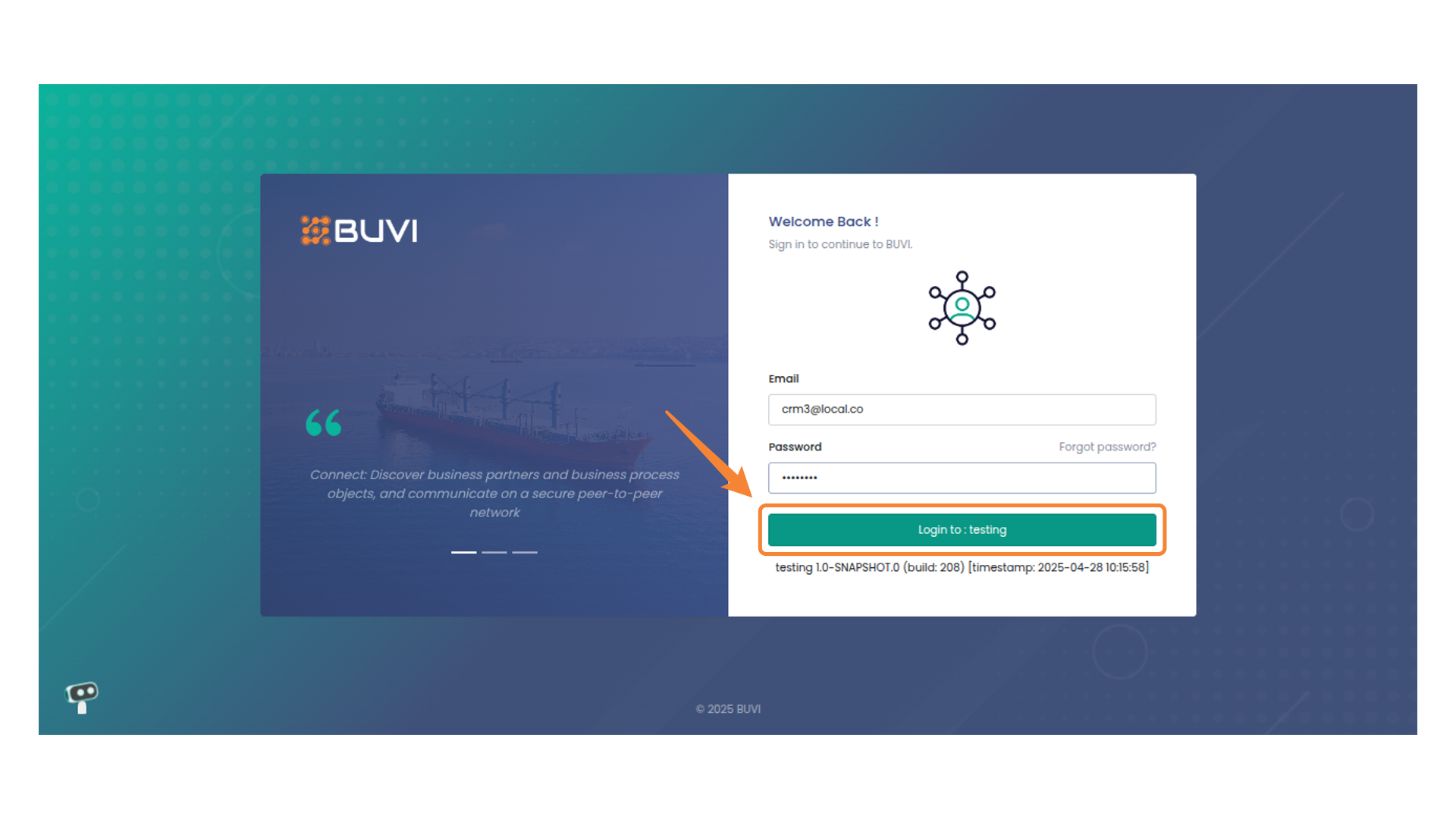
46. Login as
Check the current software version and build timestamp details.
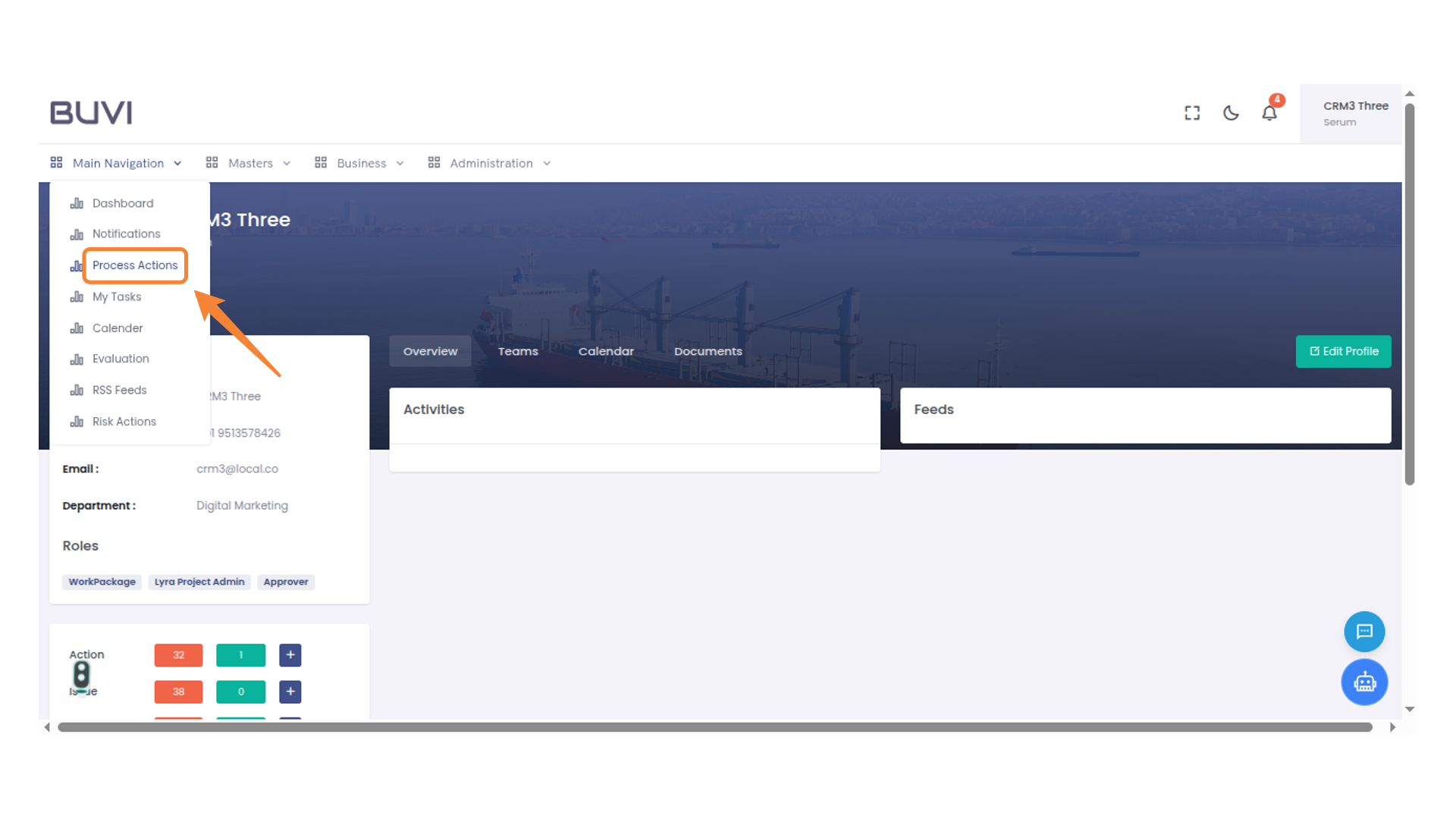
47. Navigation Menu
Access various sections like Dashboard, Process Actions, and My Tasks from this menu.
48. User Profile and Settings
Access your profile and account settings.
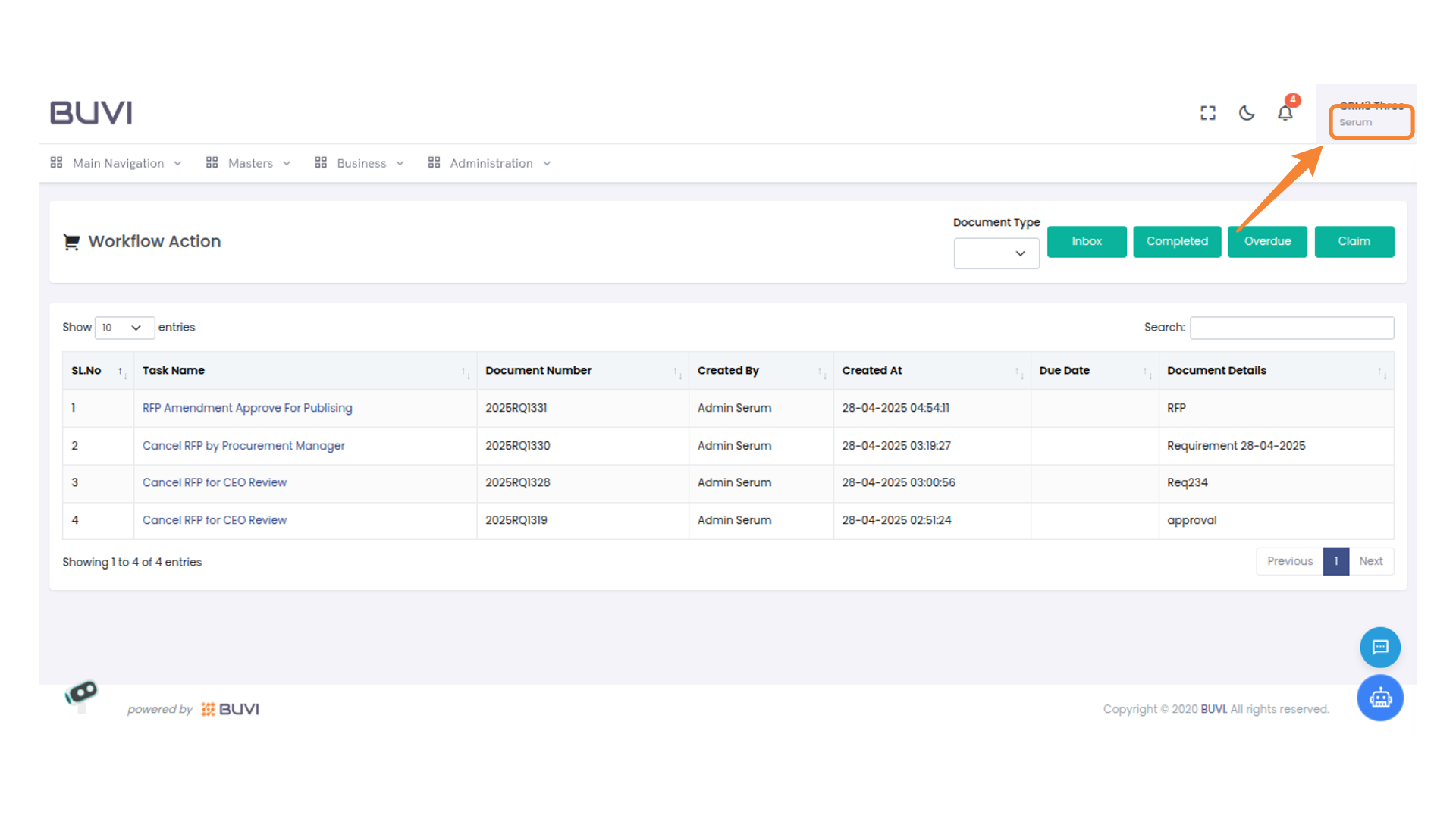
49. User Profile Access
Click to access user profile options.
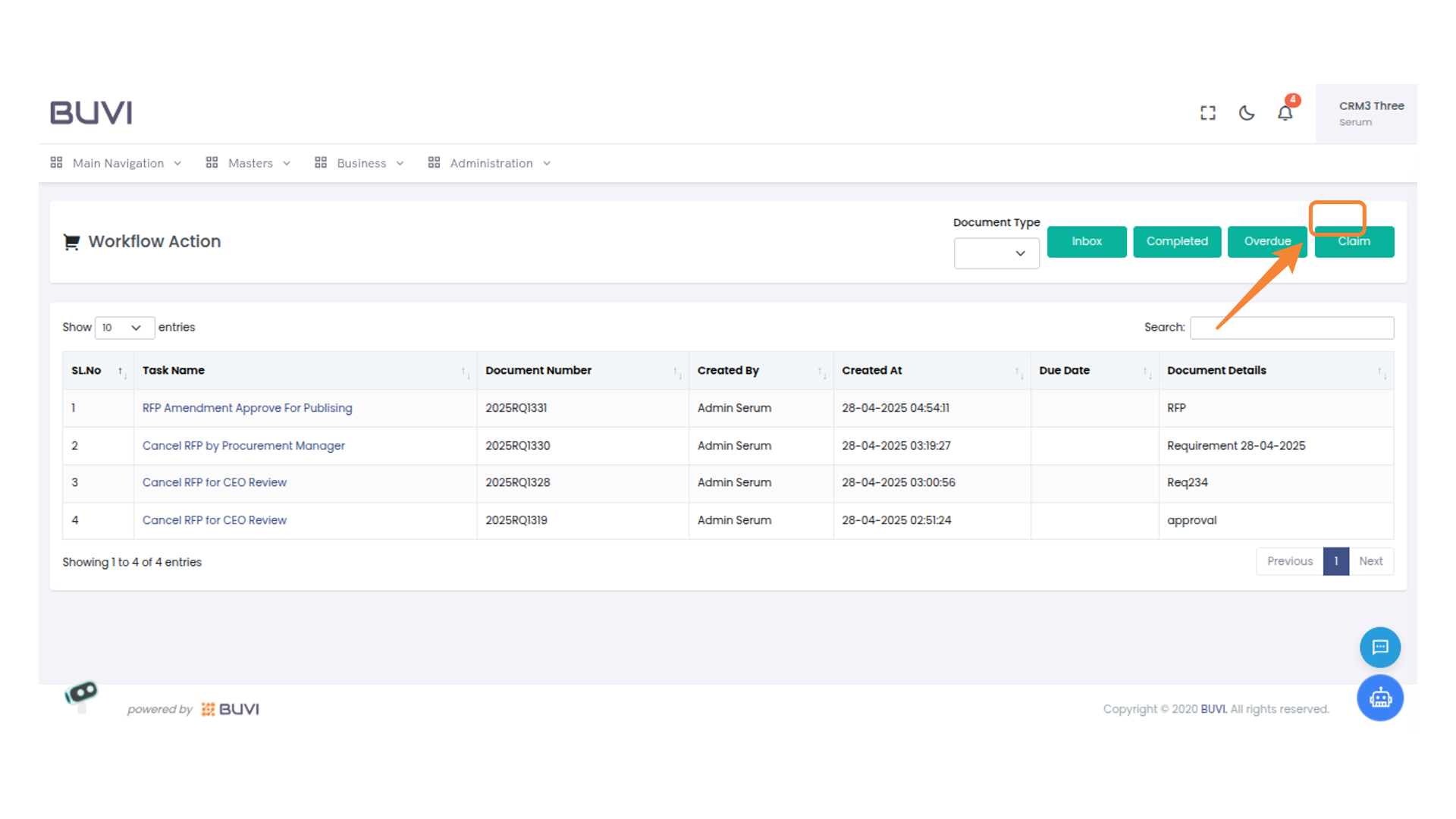
50. Login to the Application As HOD
Log in
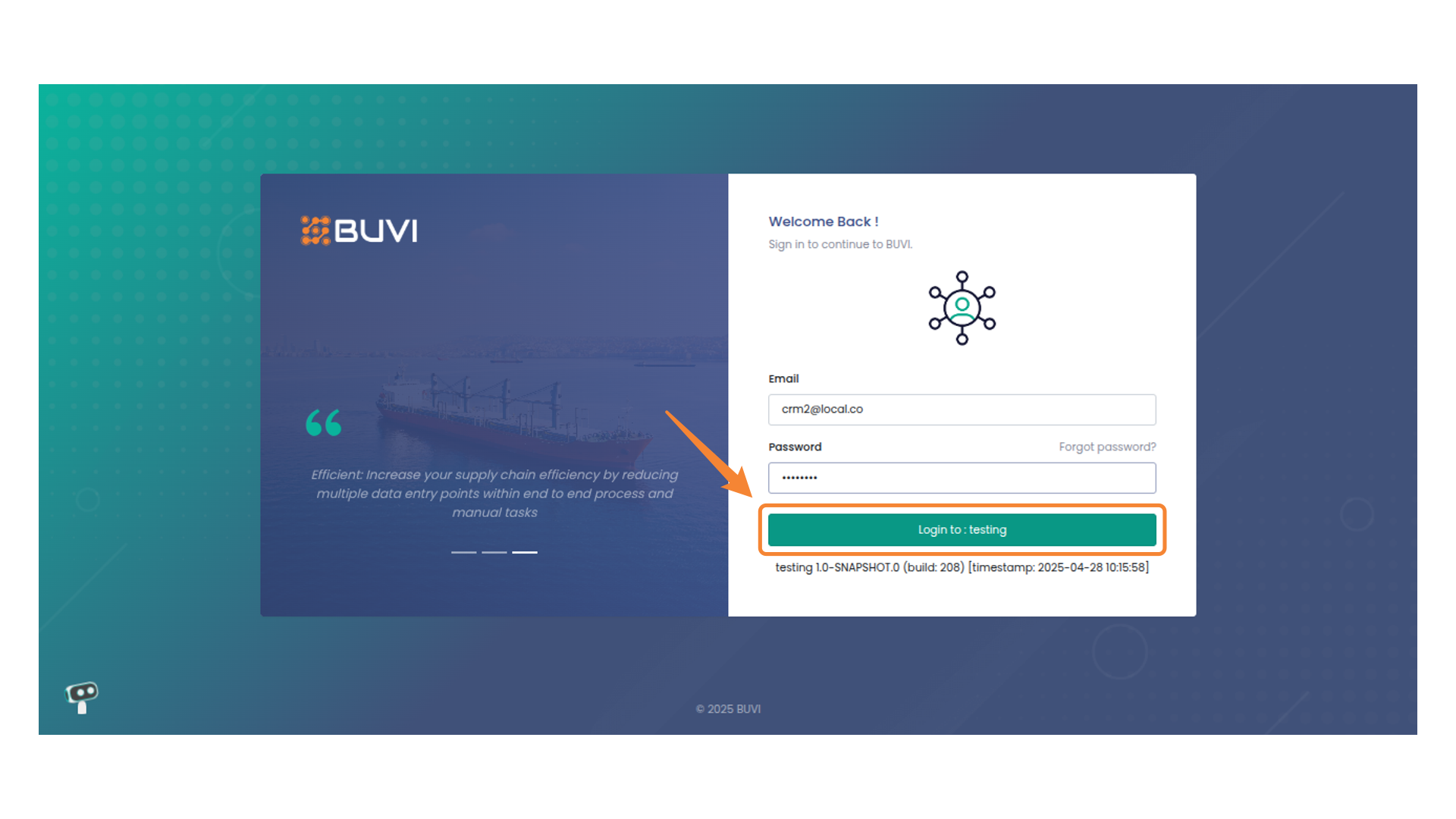
51. Navigation Menu
Click on Process action menu
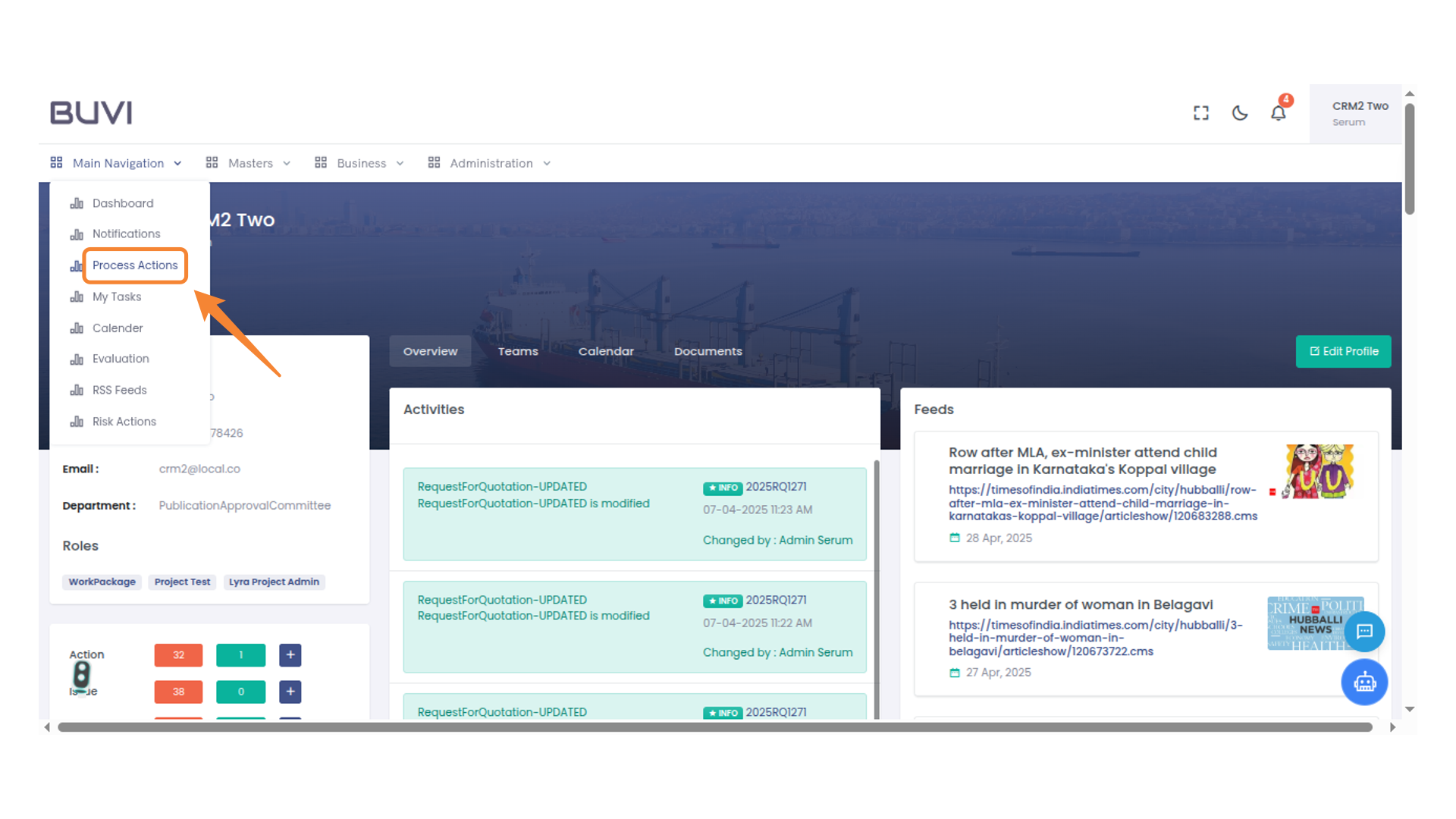
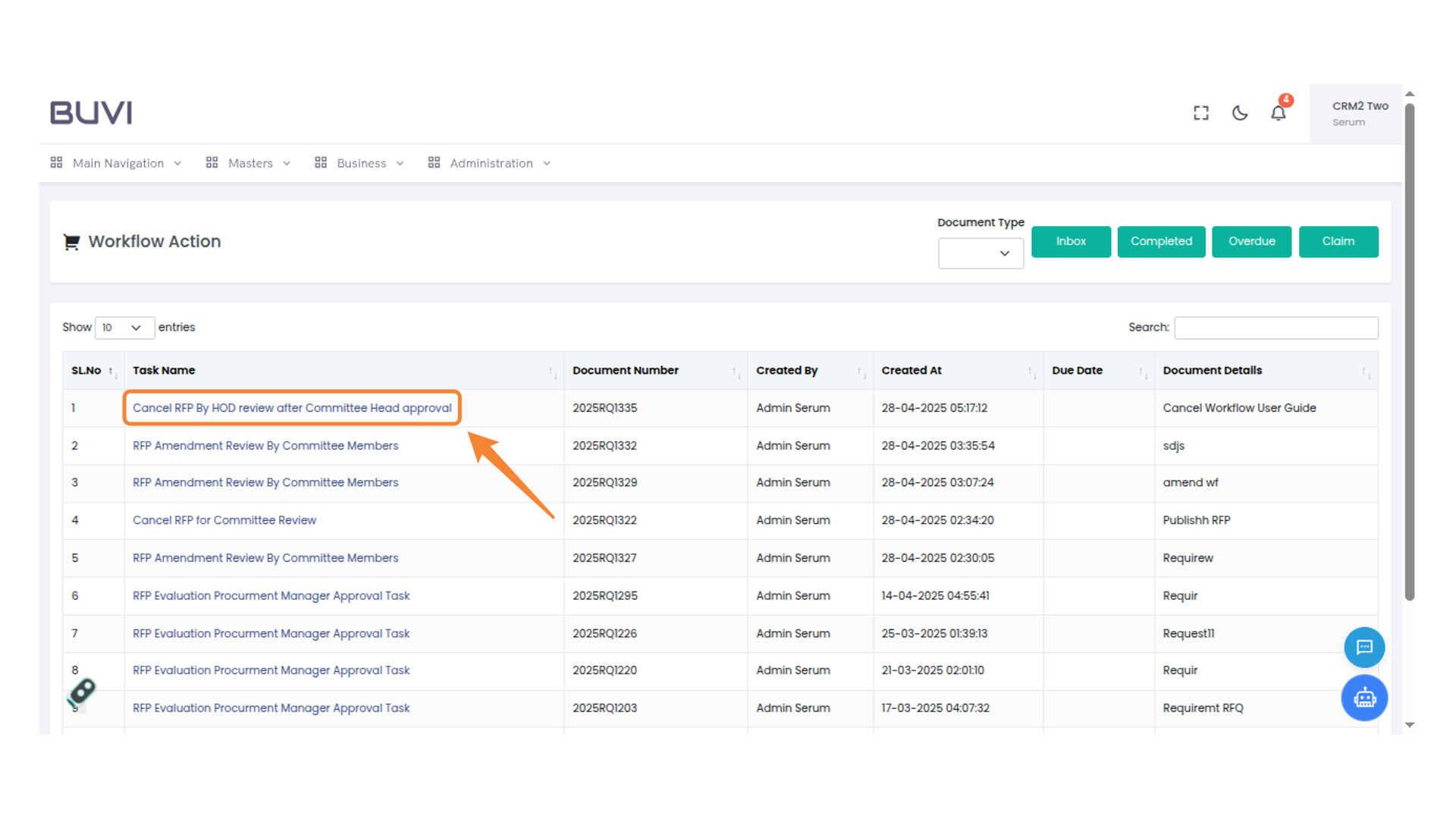
52. Task Cancellation Review
Click on Cancel RFP by HOD review once approved by the Committee Head.
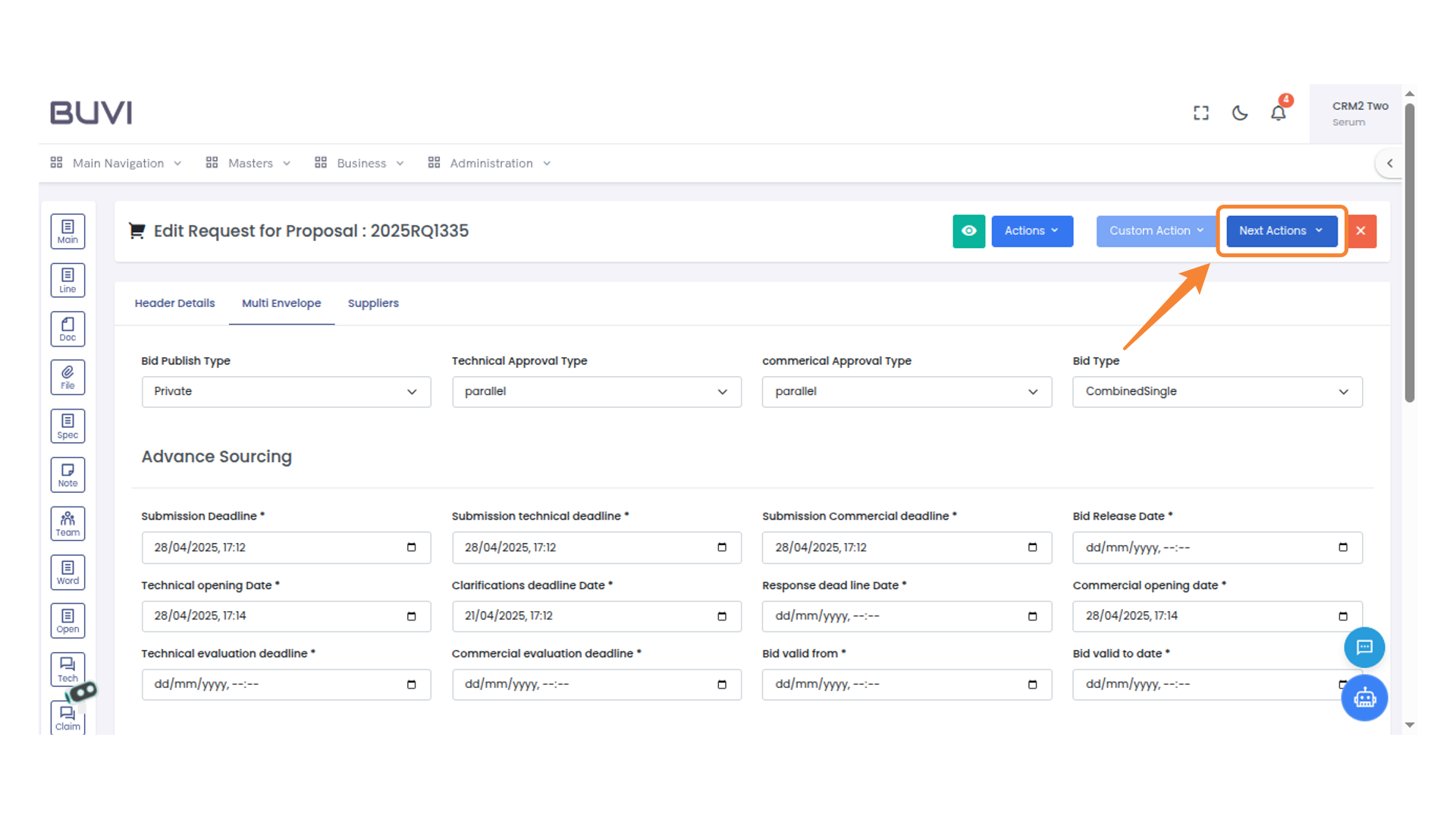
53. Click on Next action
Click on Nexta ction
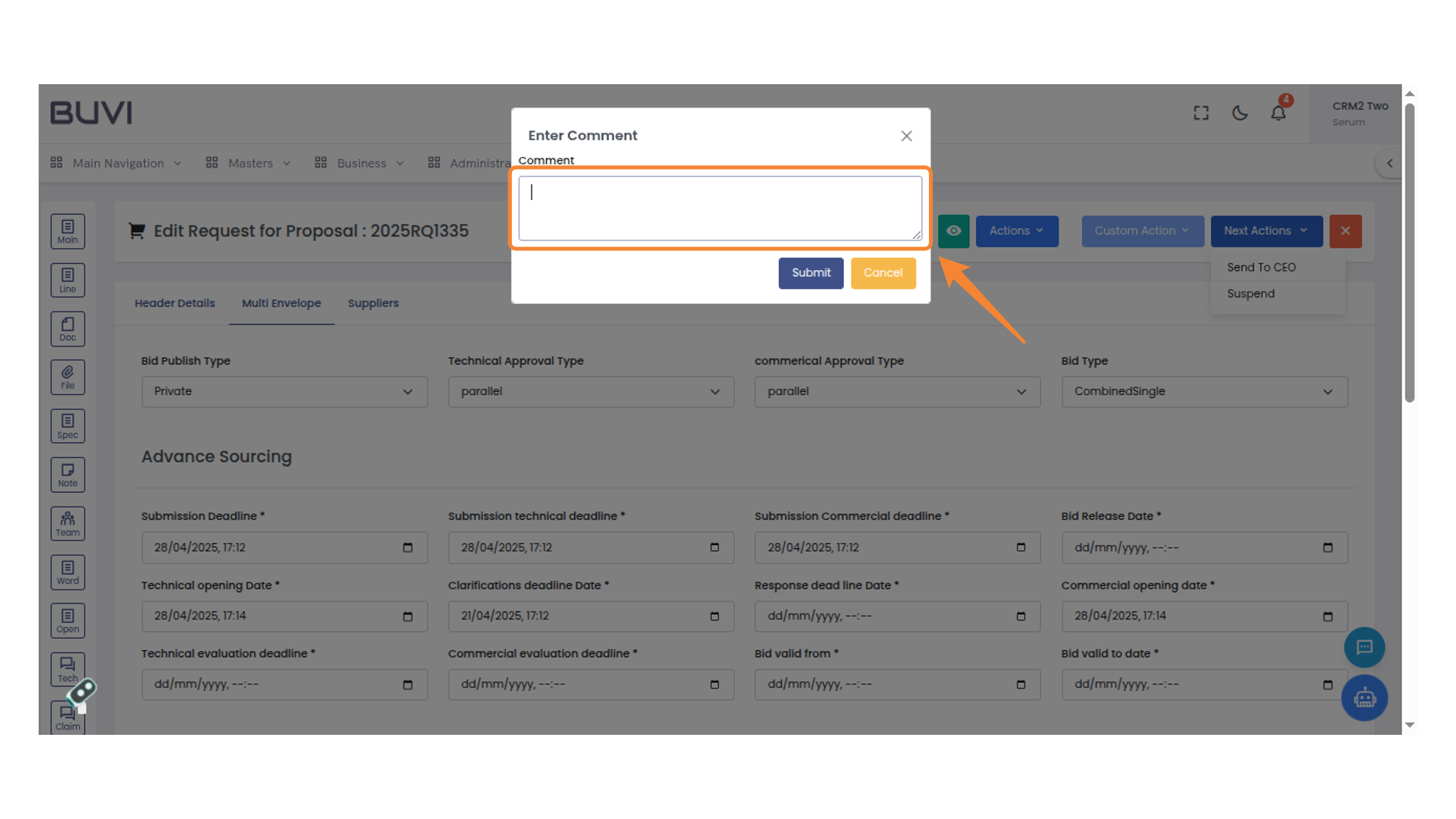
54. Comment Submission Box
Enter your comment in the text box and click 'Submit' to save, or 'Cancel' to discard.
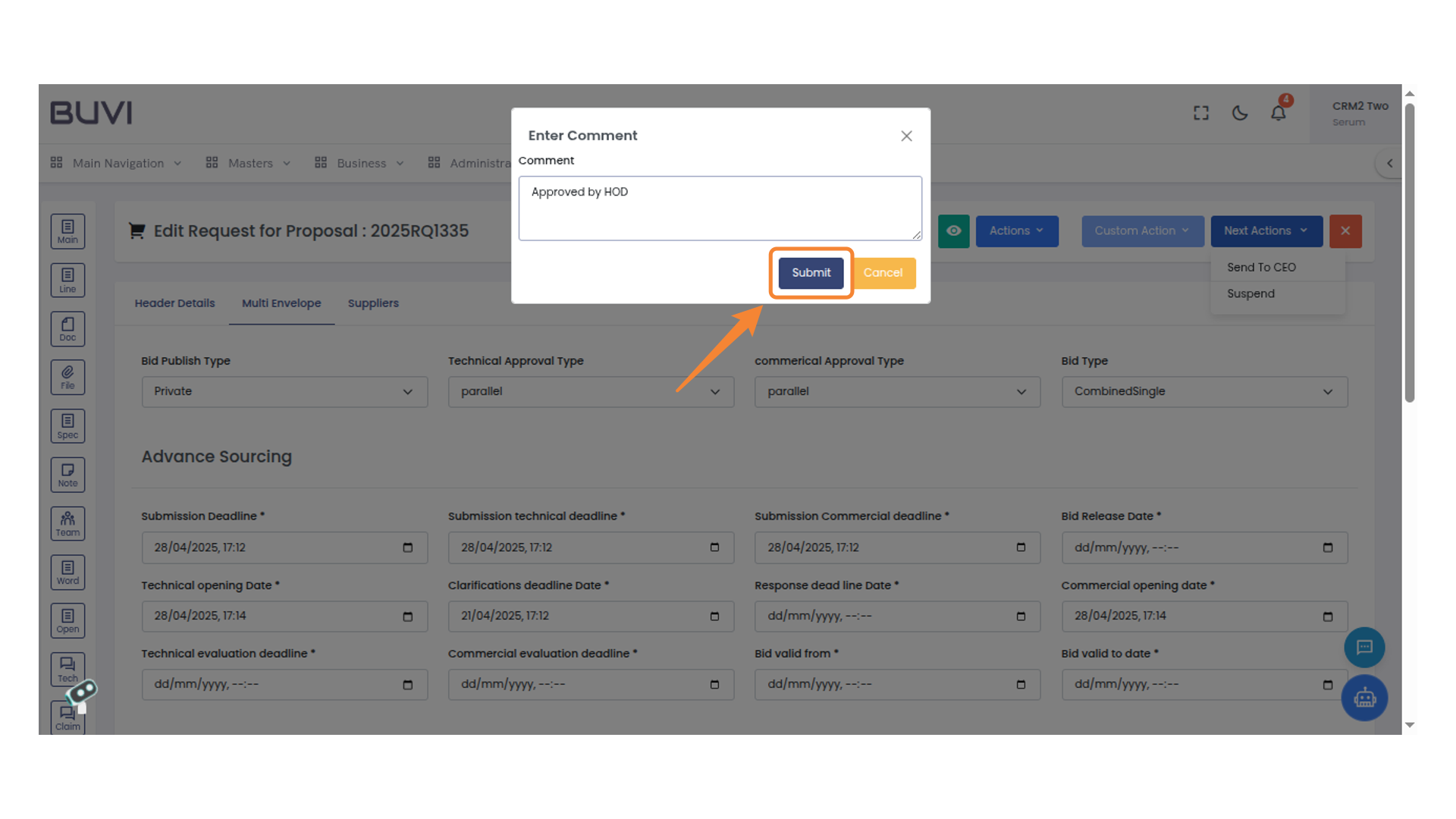
55. Comment Submission Confirmation
Enter your comment and click the submit button.
56. Loggout from the Application
Click on Loggout
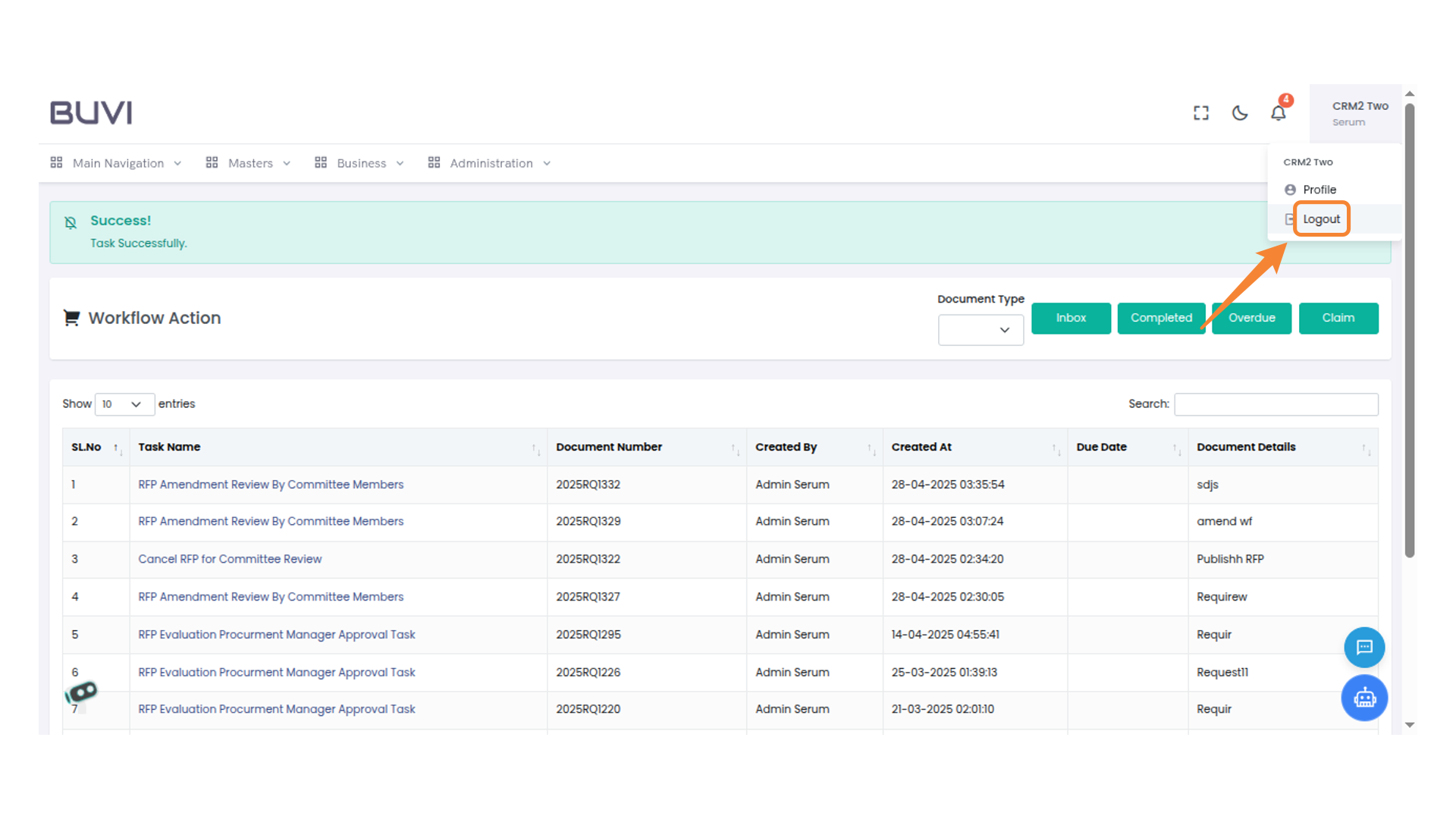
57. Login as CEO
Review the login details and ensure accuracy before proceeding.
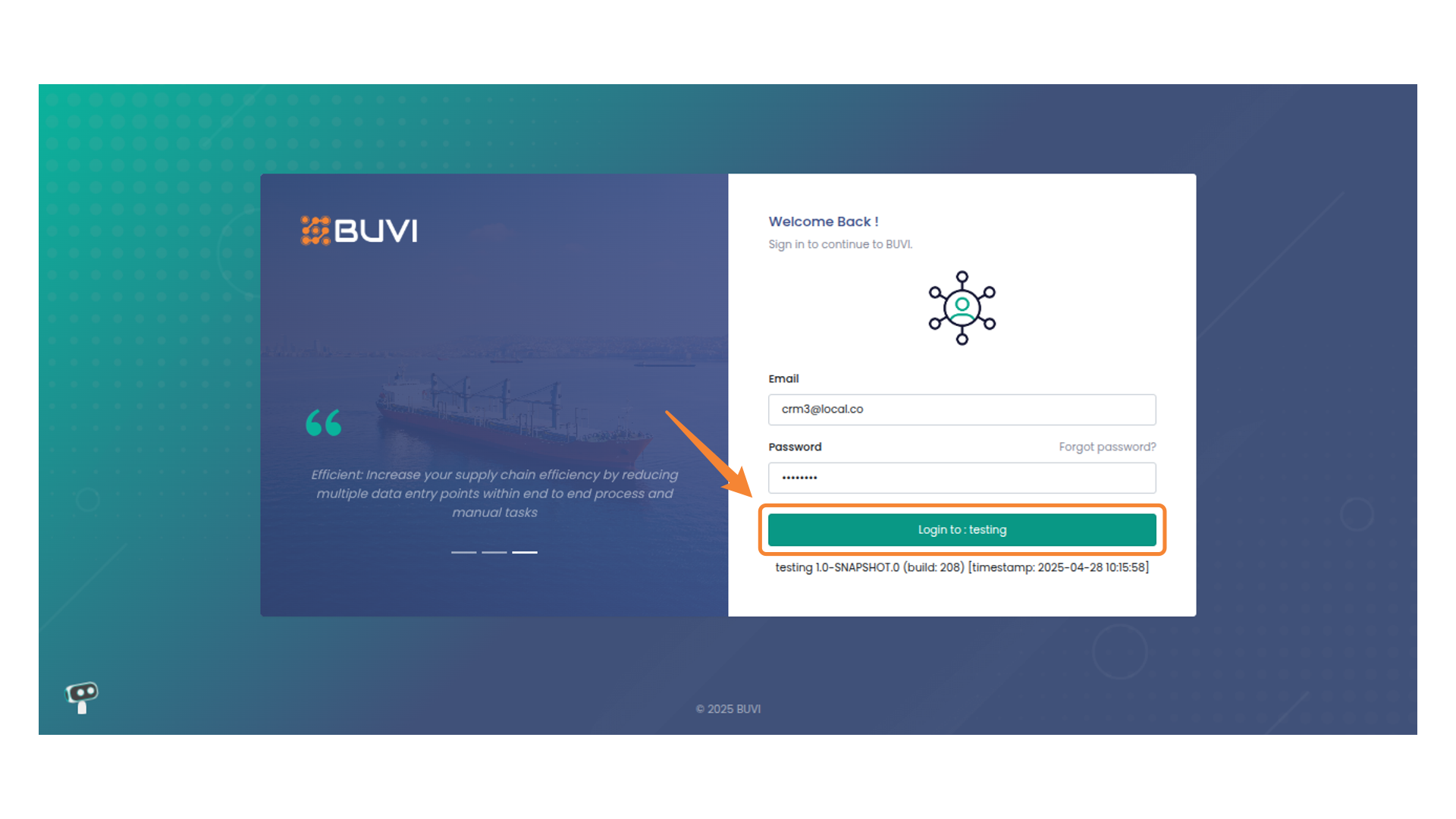
58. Navigation Menu
Click on Process Action menu
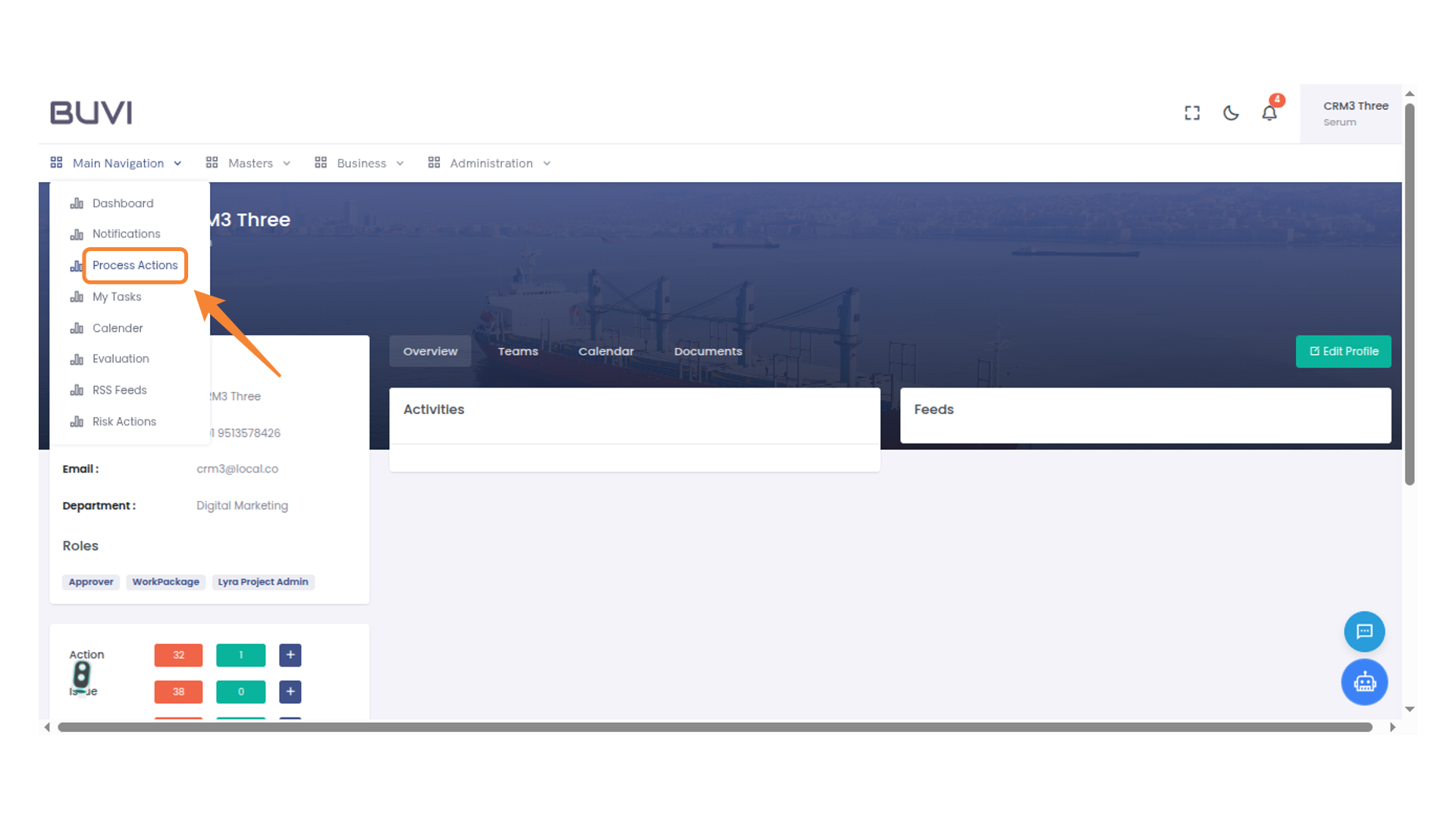
59. Task List Item Selected
Click on Cancel RFP by CEO Review
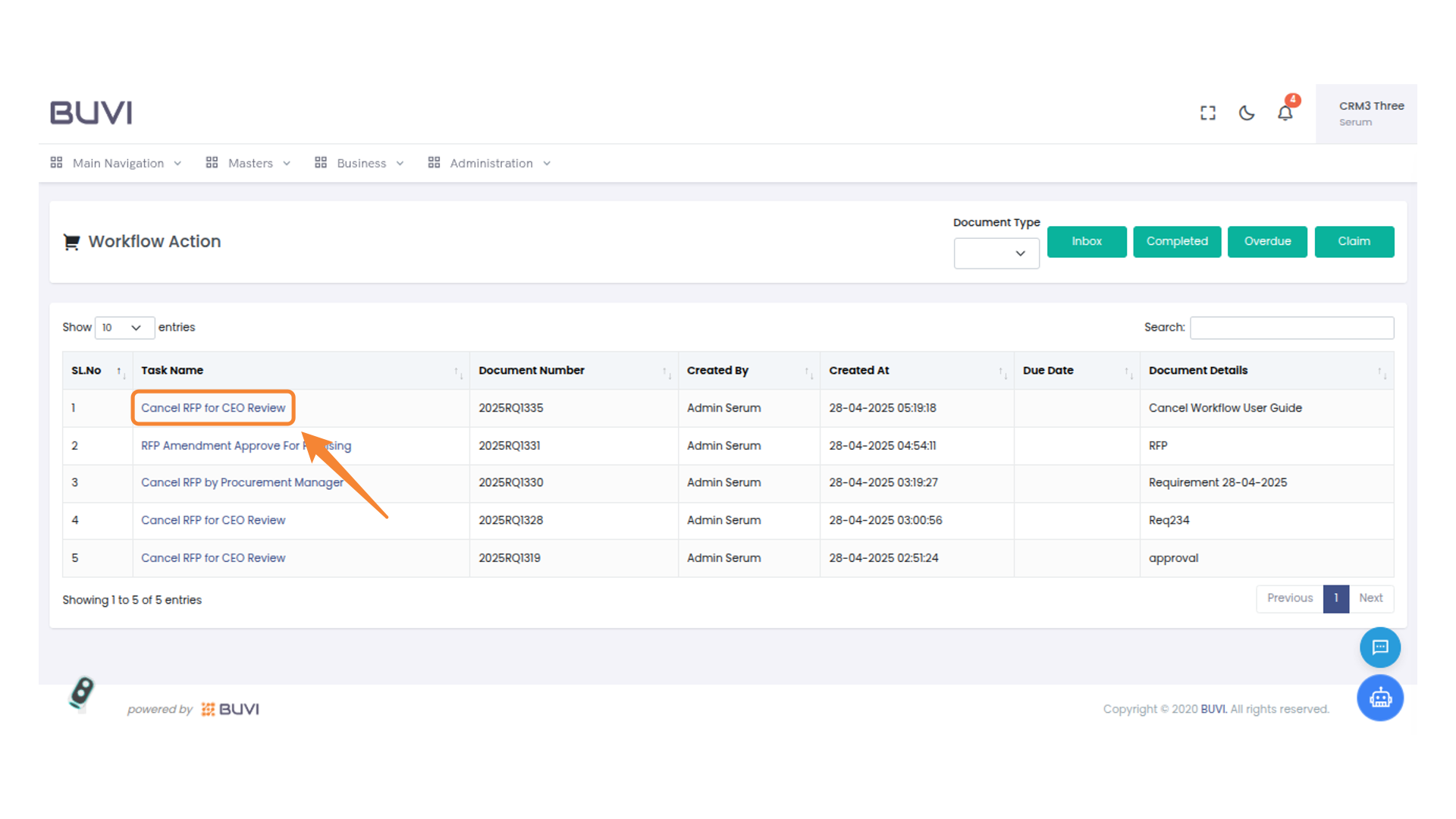
60. Click on Next Action
Click Next Action
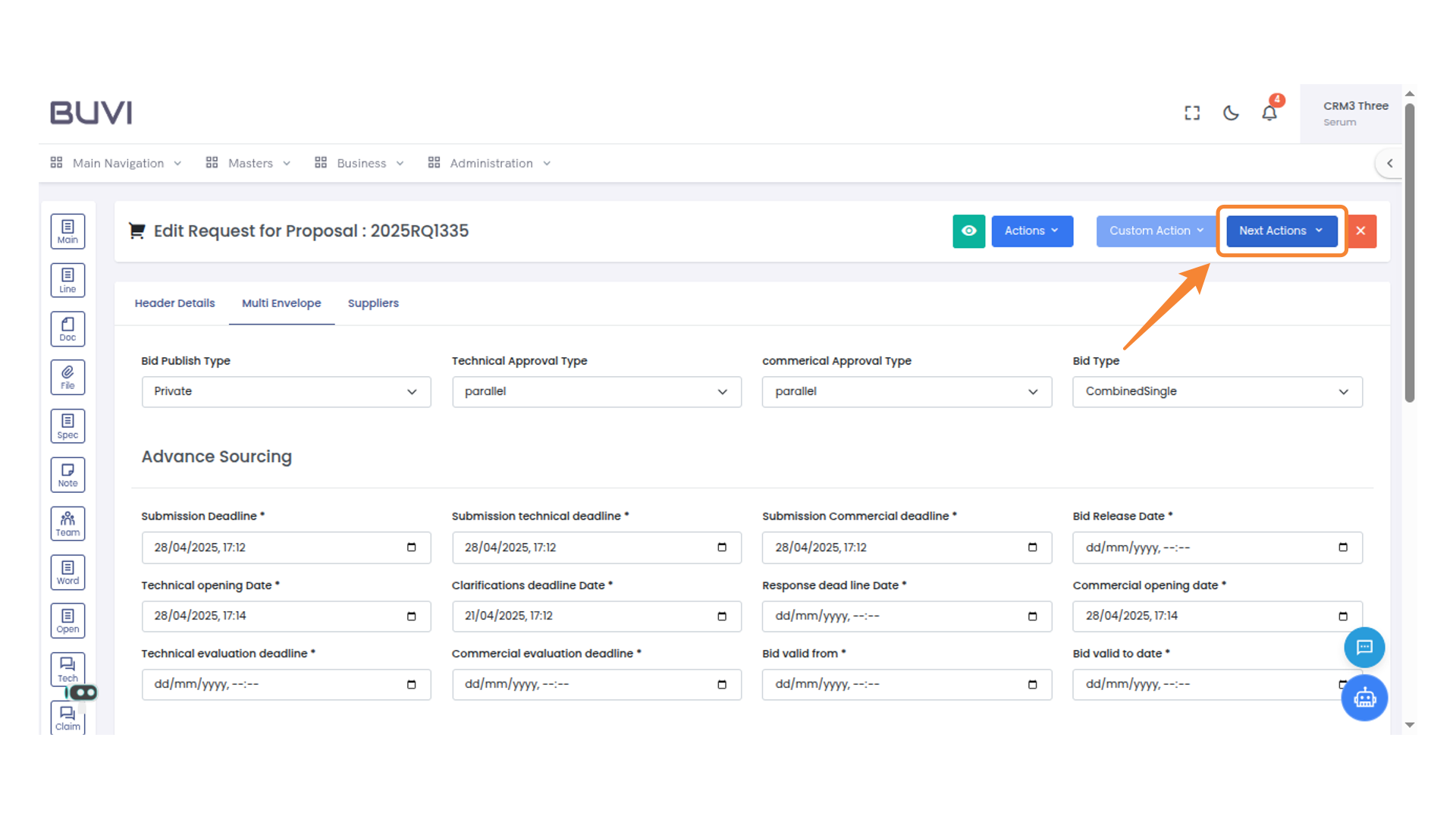
61. Comment Submission Box
Enter your comment in the provided field and click 'Submit' to proceed.
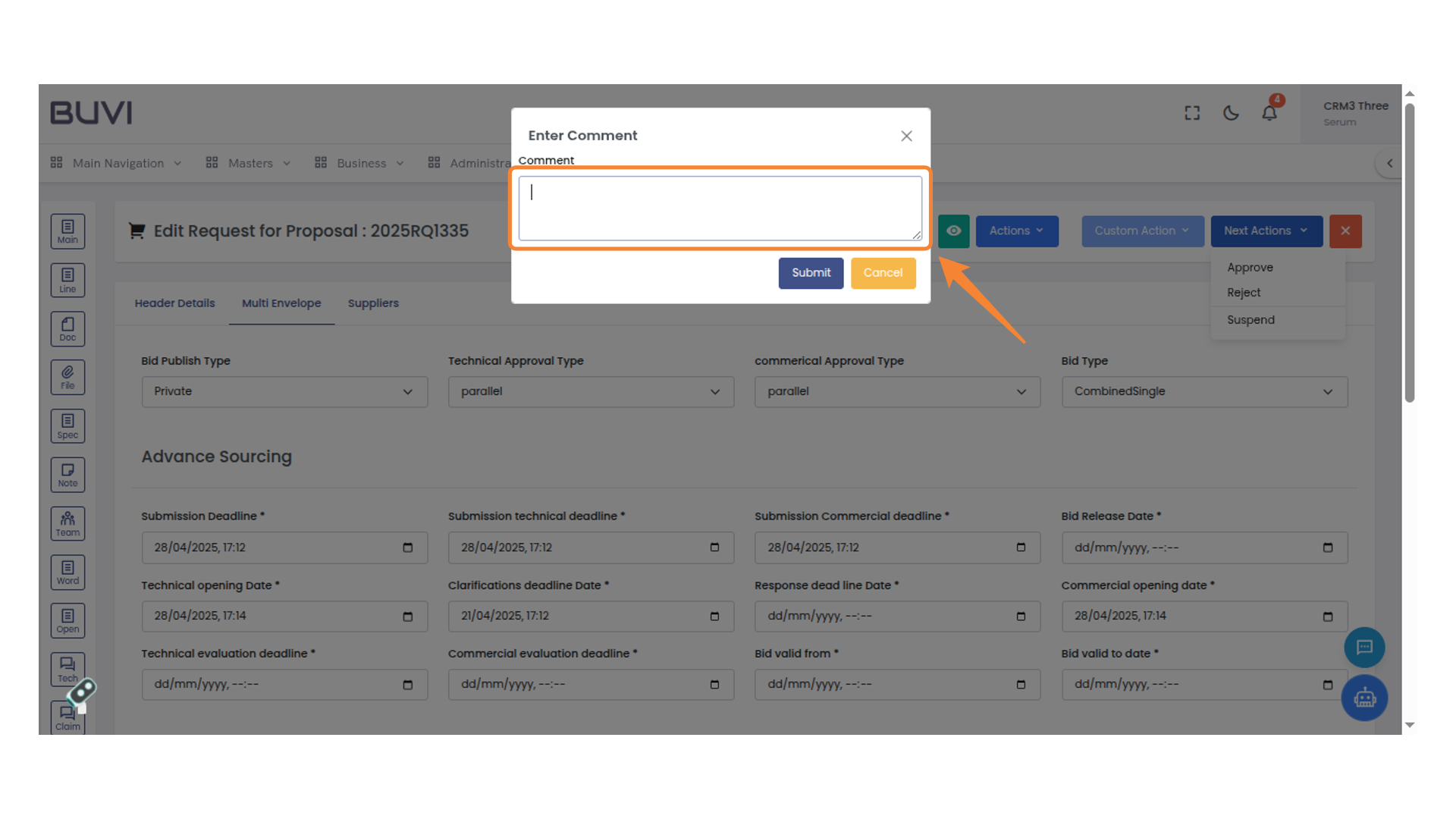
62. Submit Button in Comment Dialog
Click the 'Submit' button to confirm the comment.
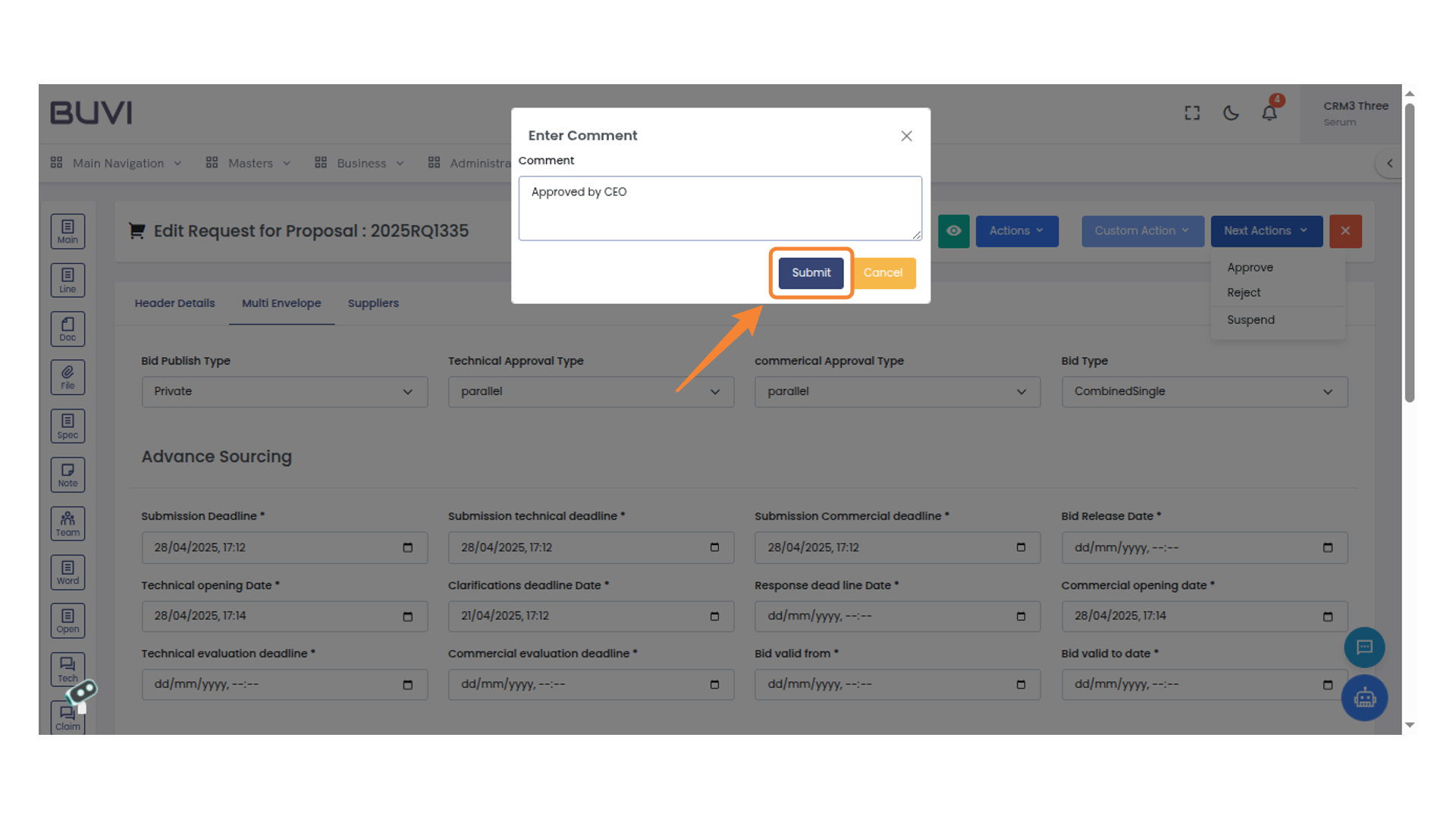
63. Cancel RFP Task Highlight
Focus on the 'Cancel RFP by Procurement Manager' task in the workflow action table.
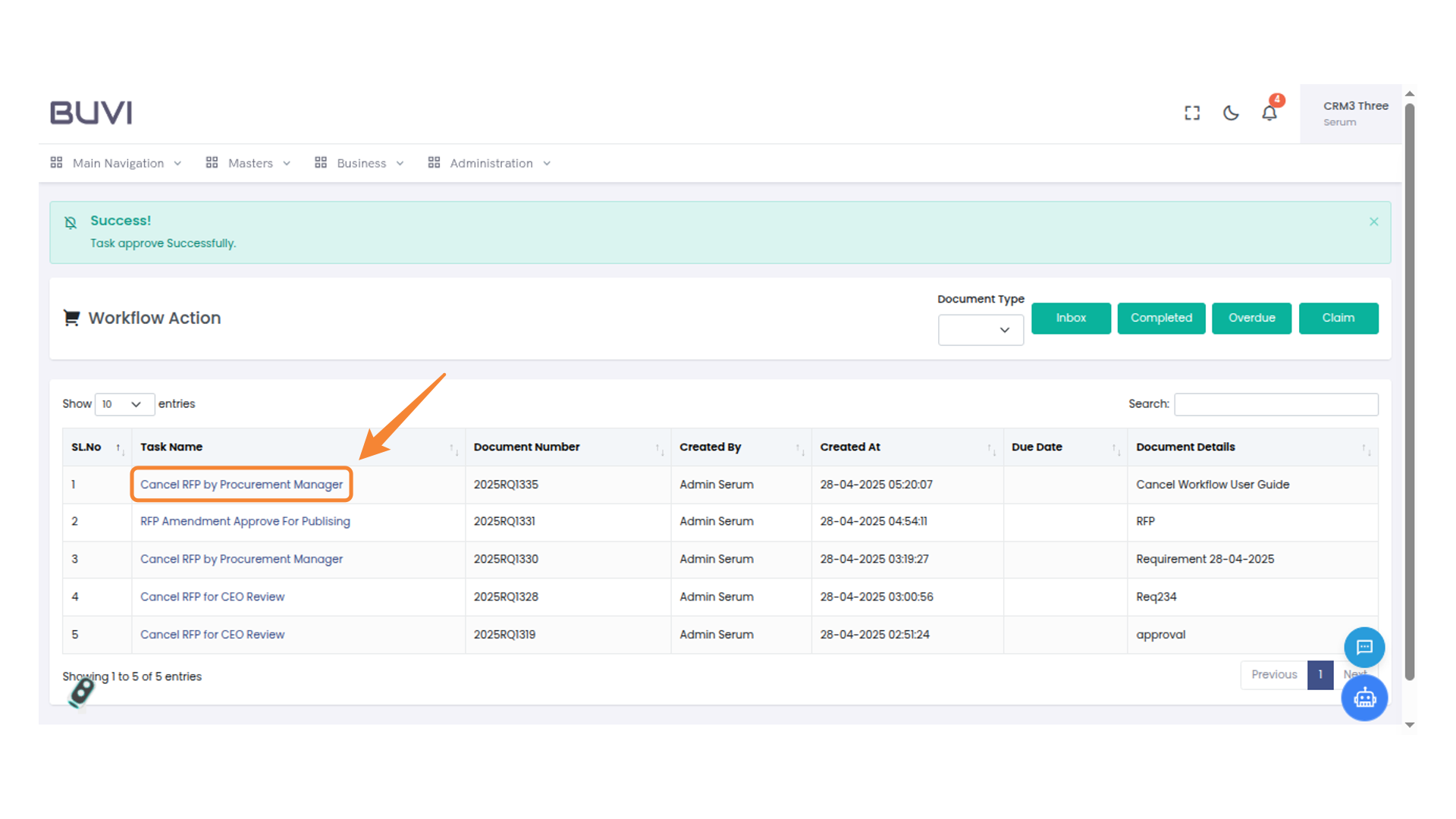
64. Click on Next Action
Click here to view notifications or access your user profile settings.
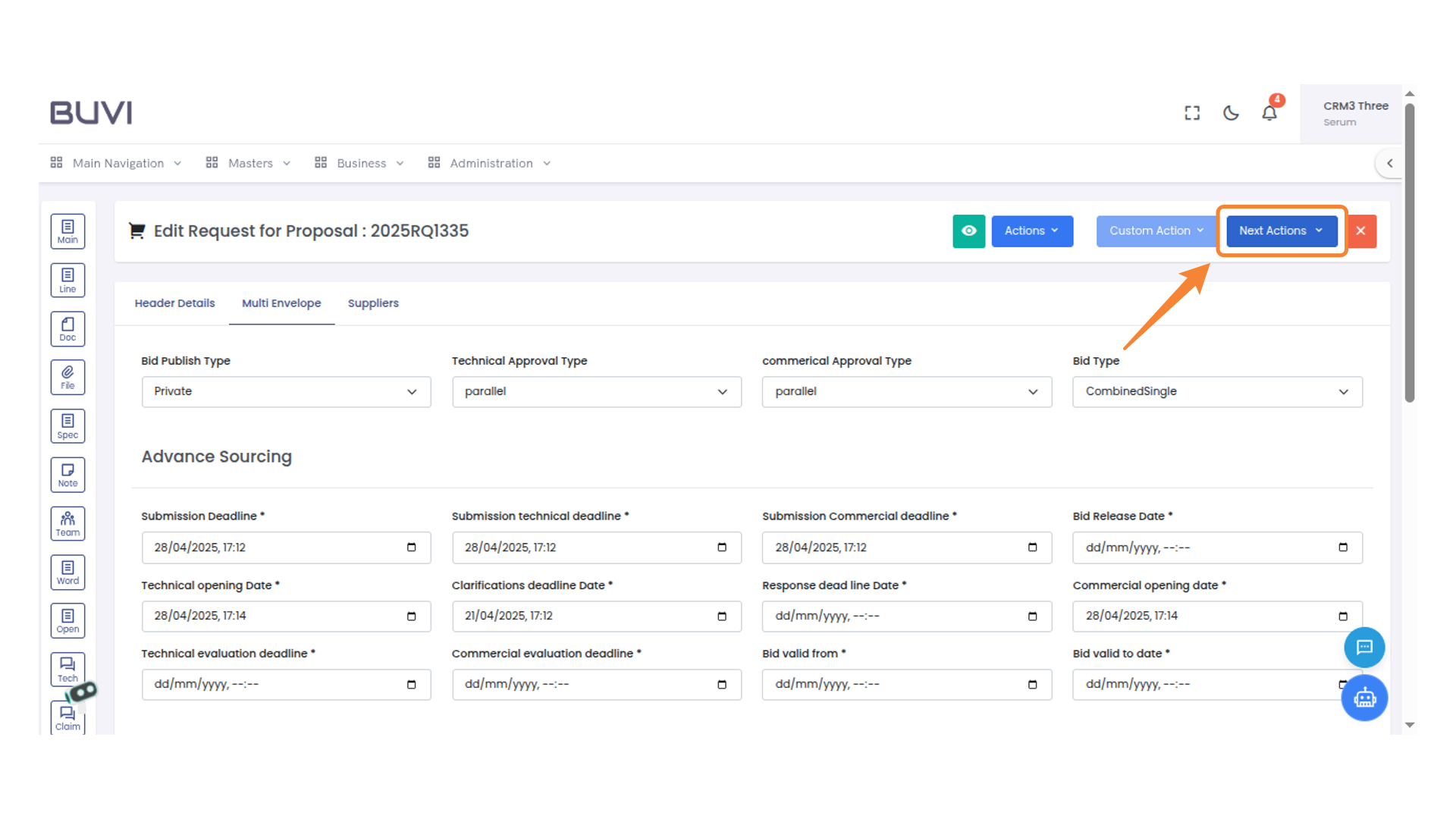
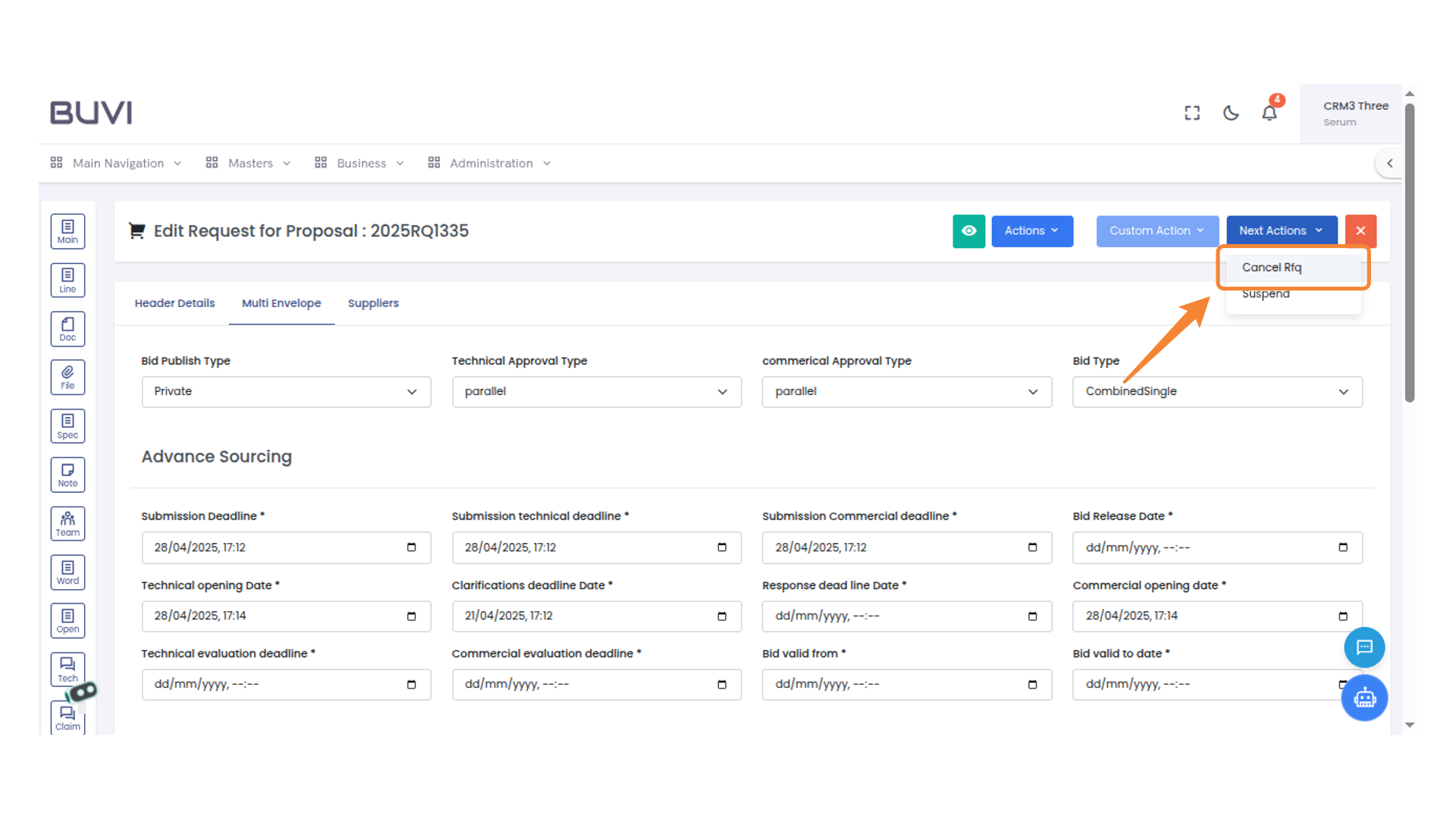
65. Click on Cancel RFP
Click on Cancel RFP
66. Submit Comment Confirmation
Press the 'Submit' button to confirm your comment and proceed with the action.