Amend Workflow
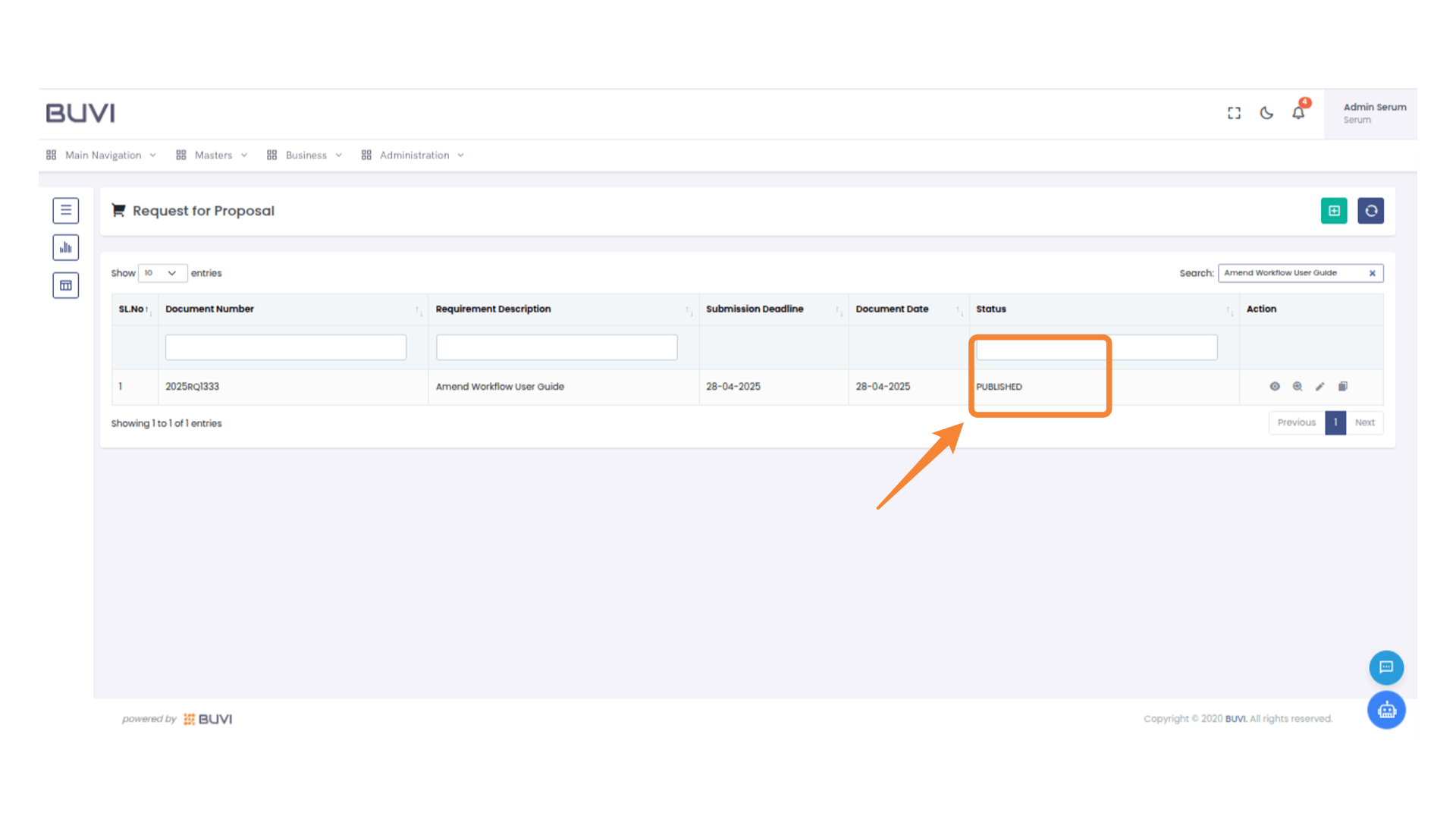
1. Search Functionality
Search for the Published RFP in list page
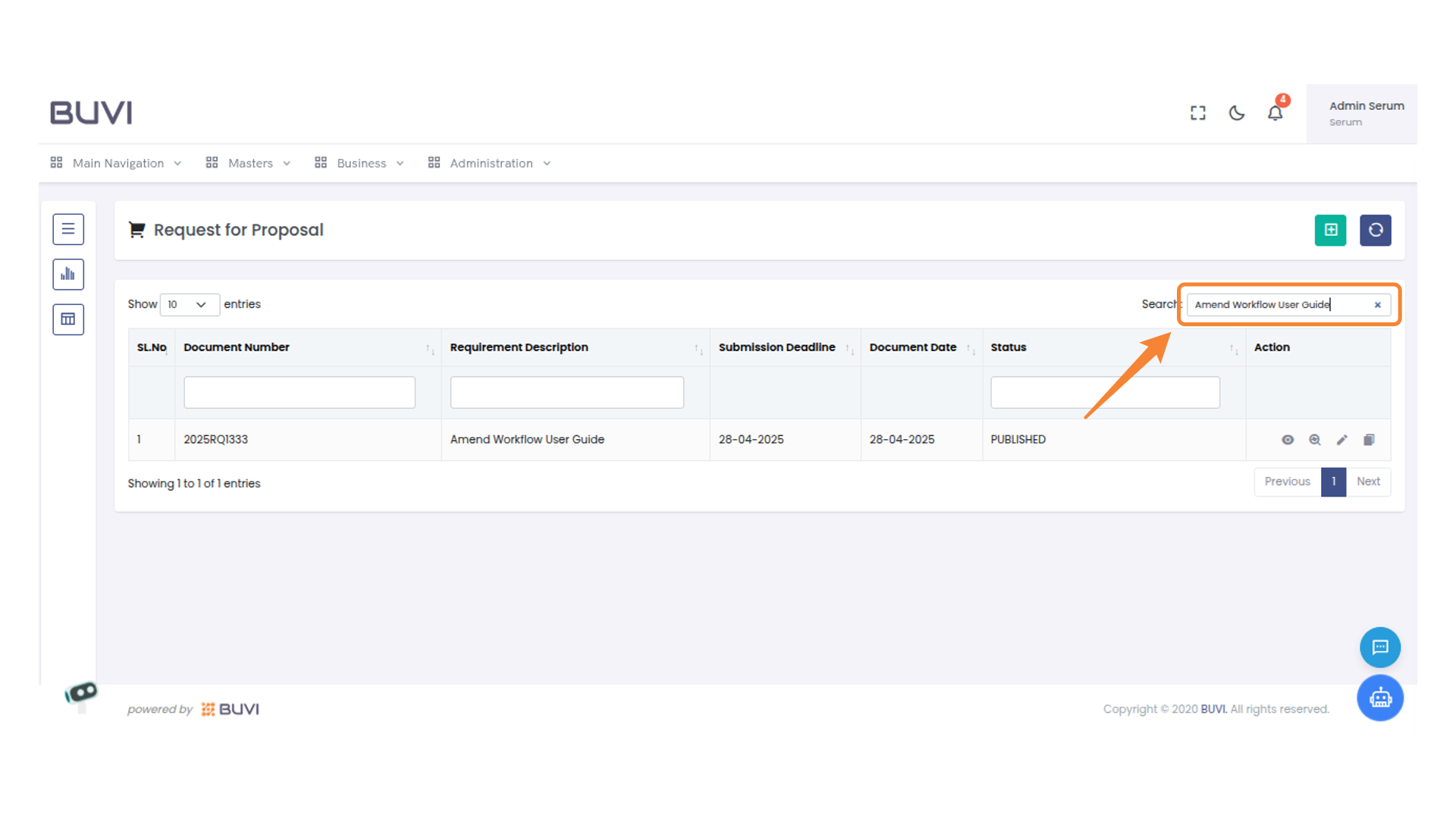
2. Edit Document Button
Click this button to modify the existing document entry.
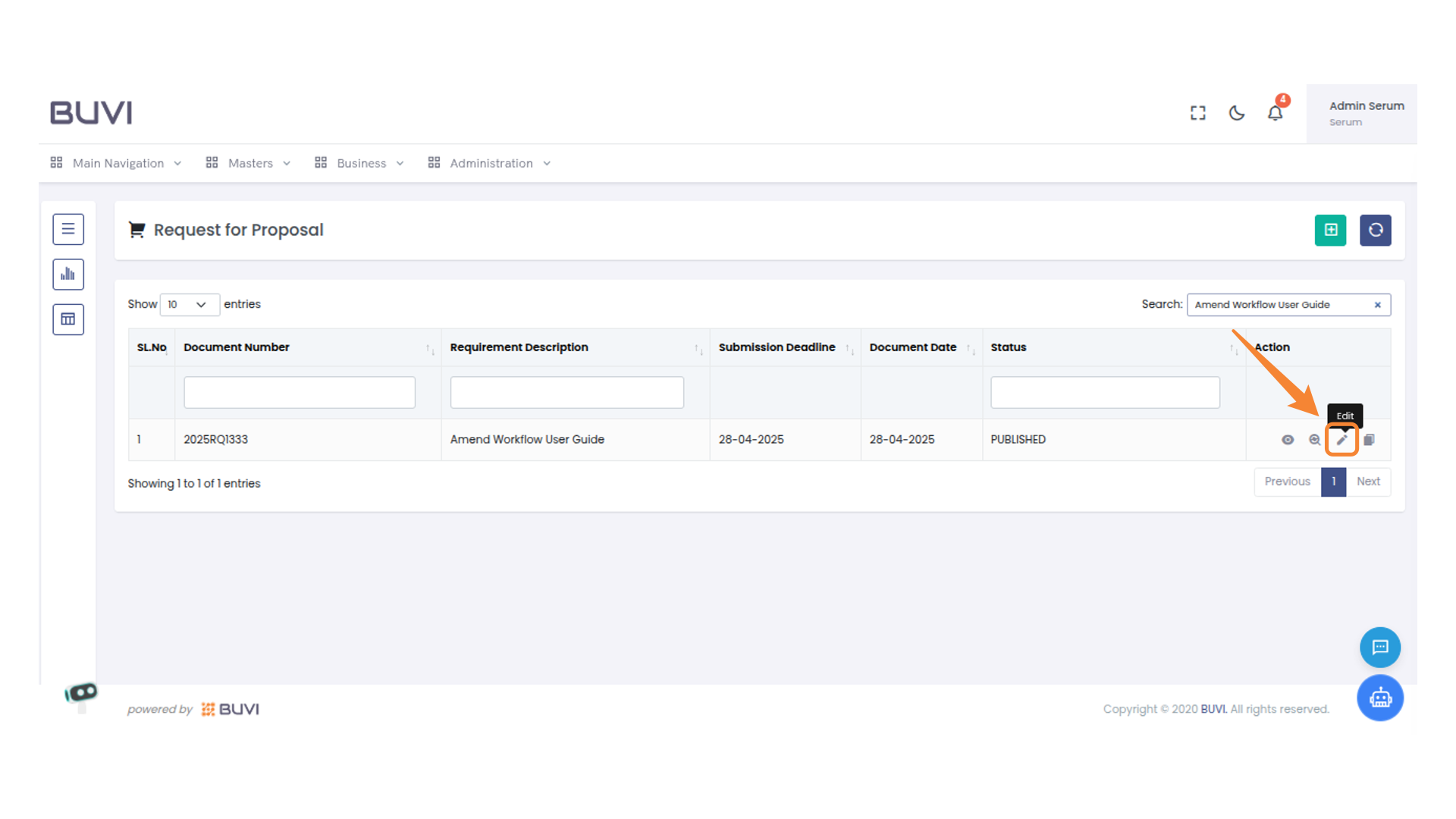
3. Amendment Button
Click to Amendment Button
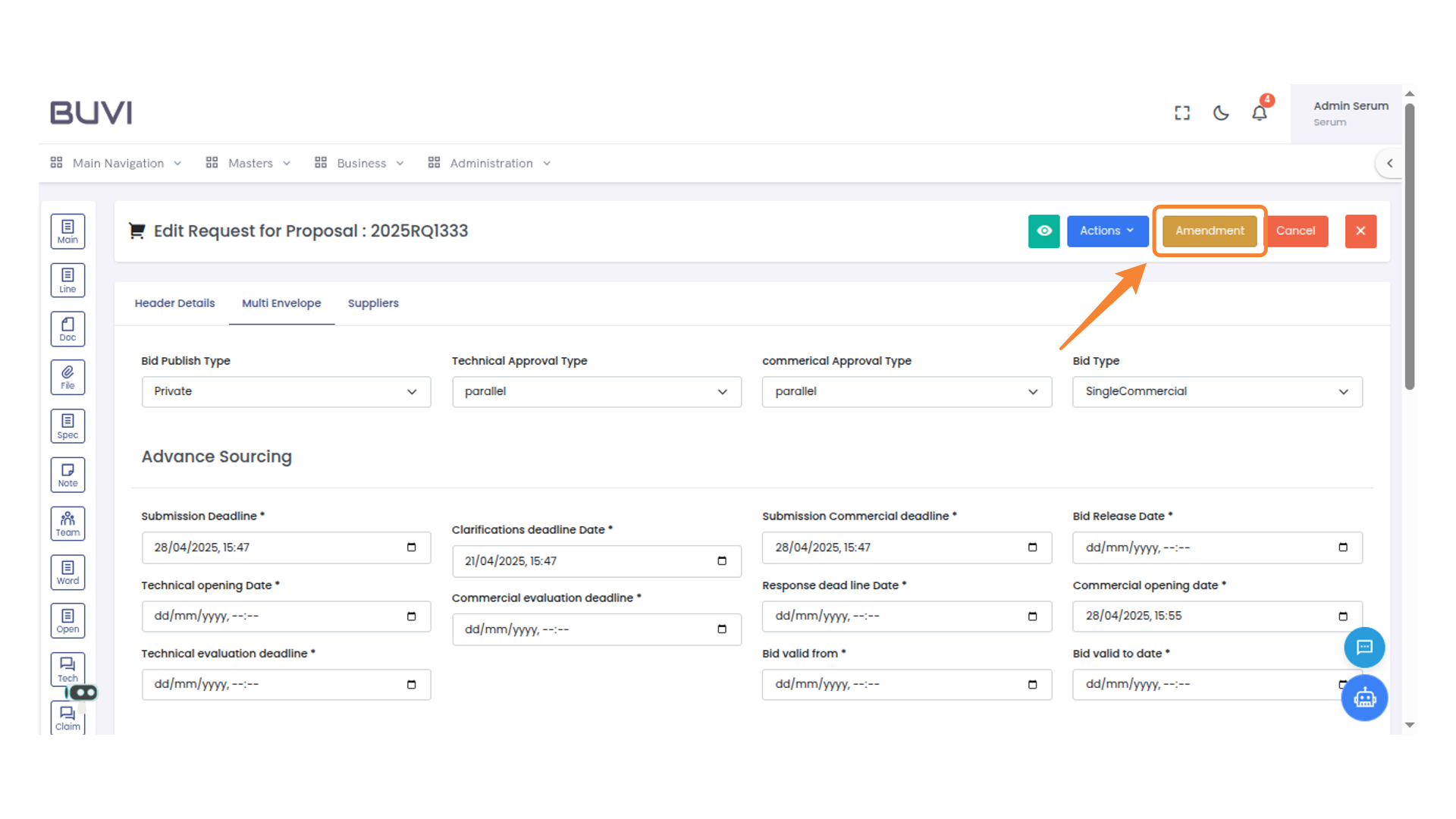
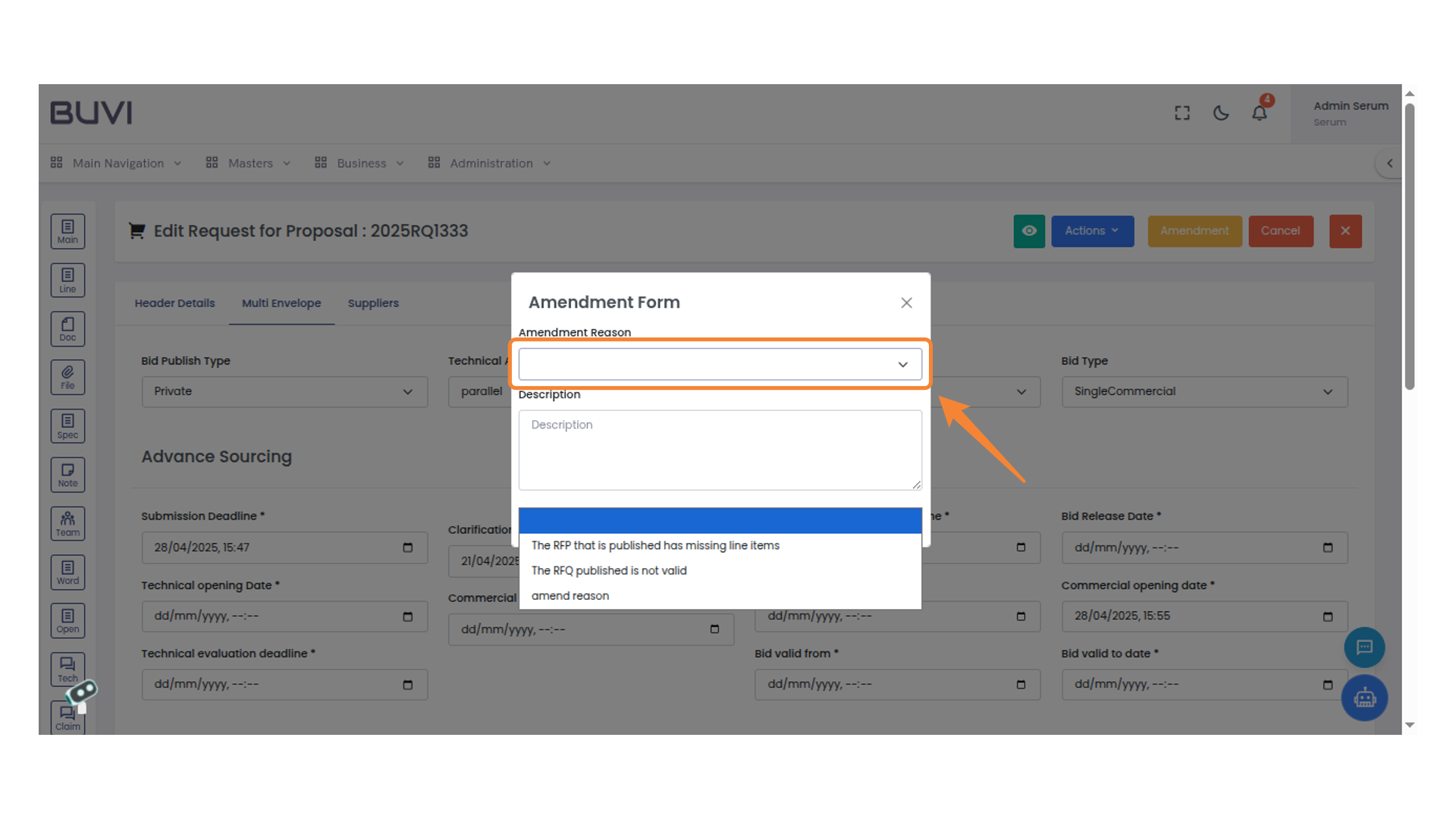
4. Amendment Reason Selection
Choose a reason for the amendment from the dropdown menu.
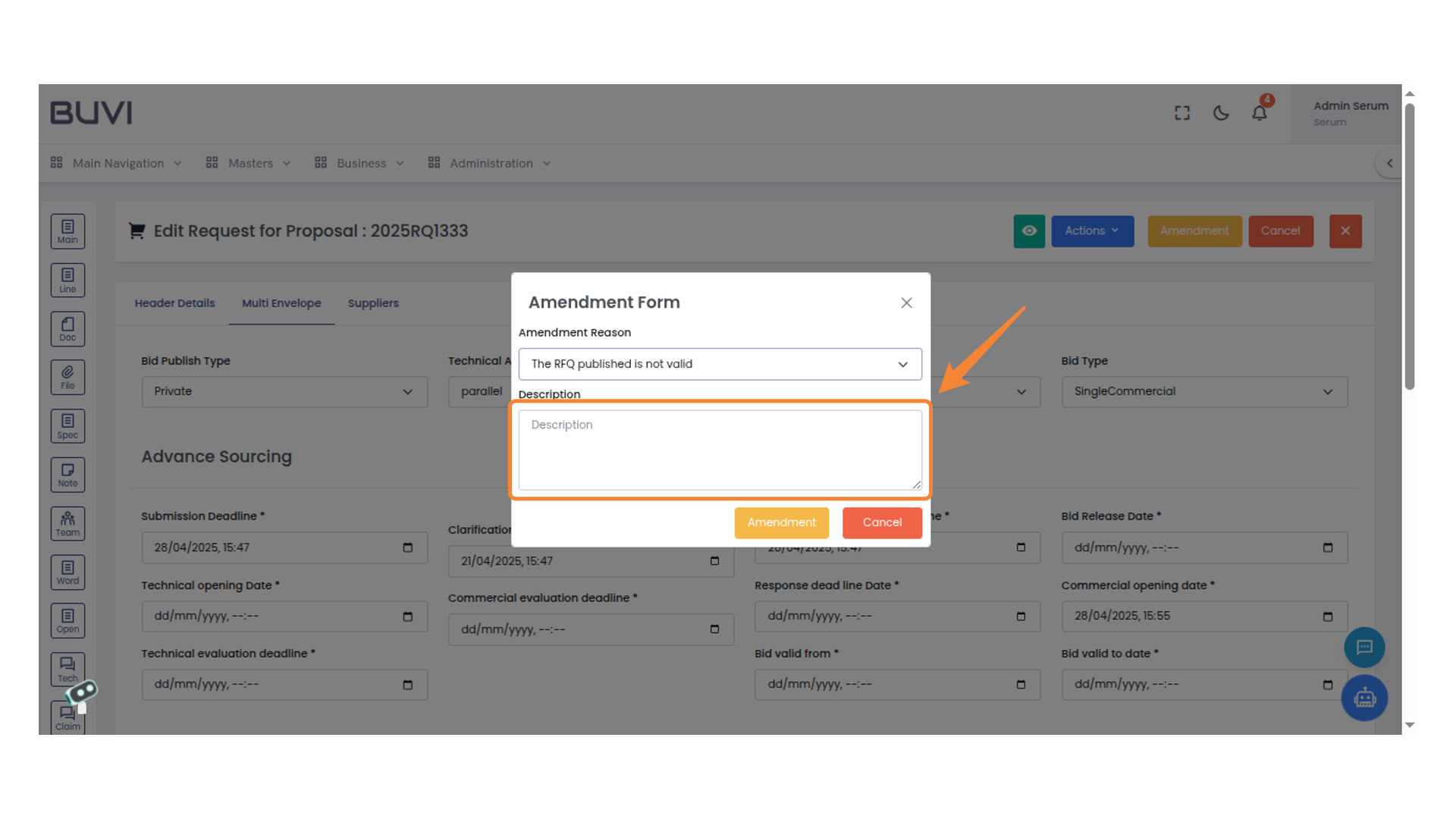
5. Description Entry Field
Enter your detailed amendment description here.
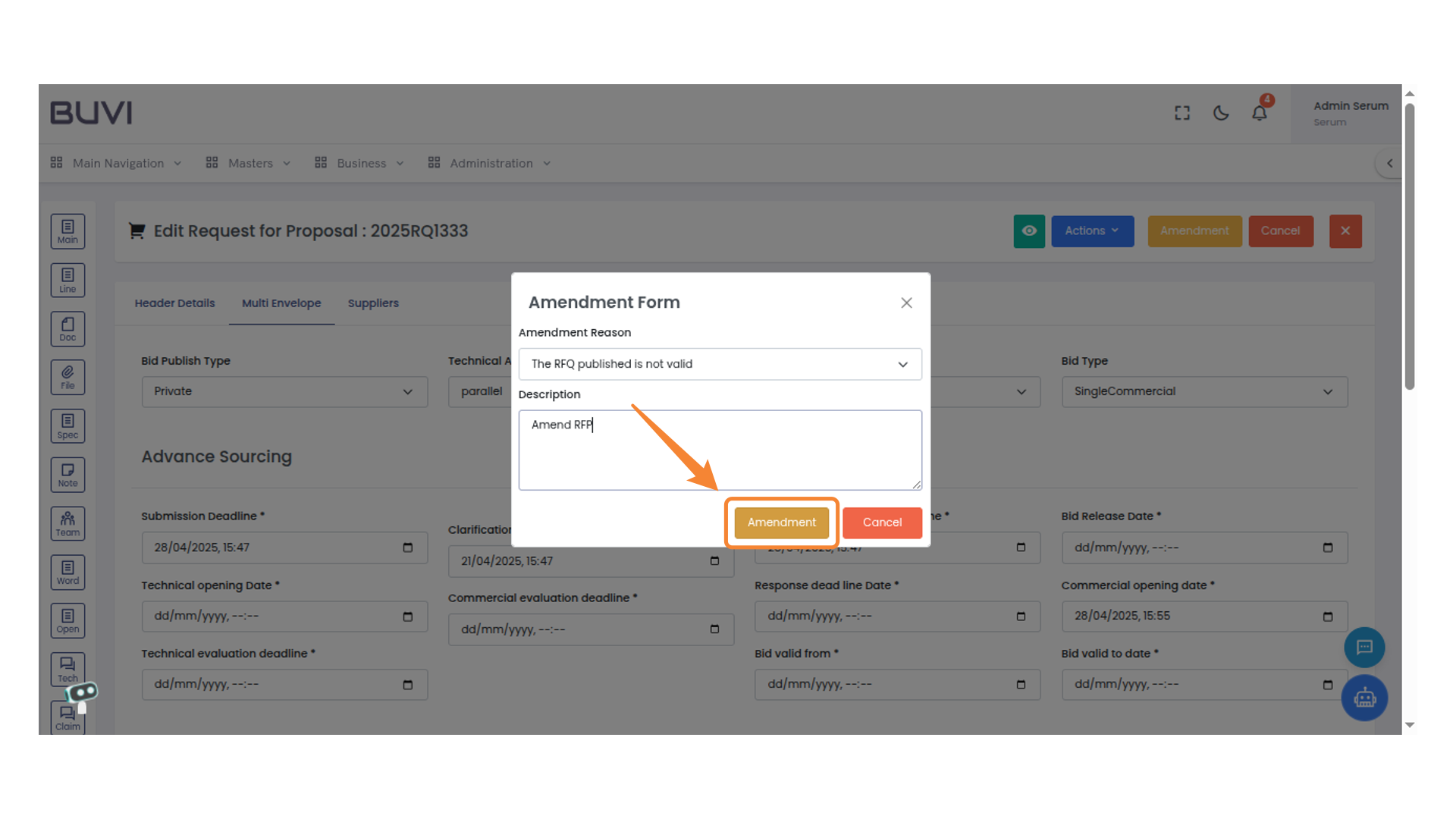
6. Amendment Button
Click the Amendment button to submit changes to the form.
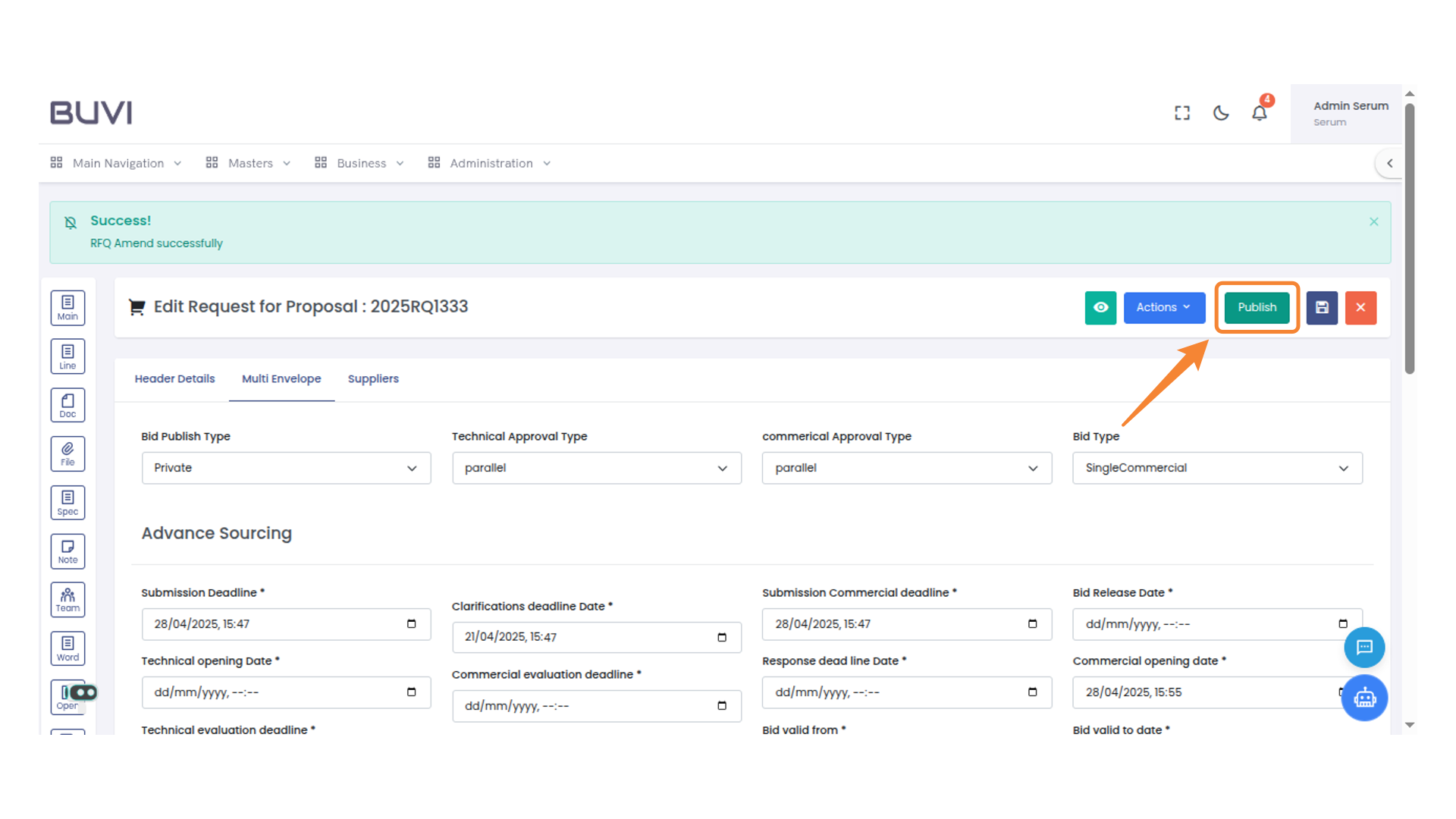
7. Publish Button Highlighted
Click the Publish button to finalize your changes.
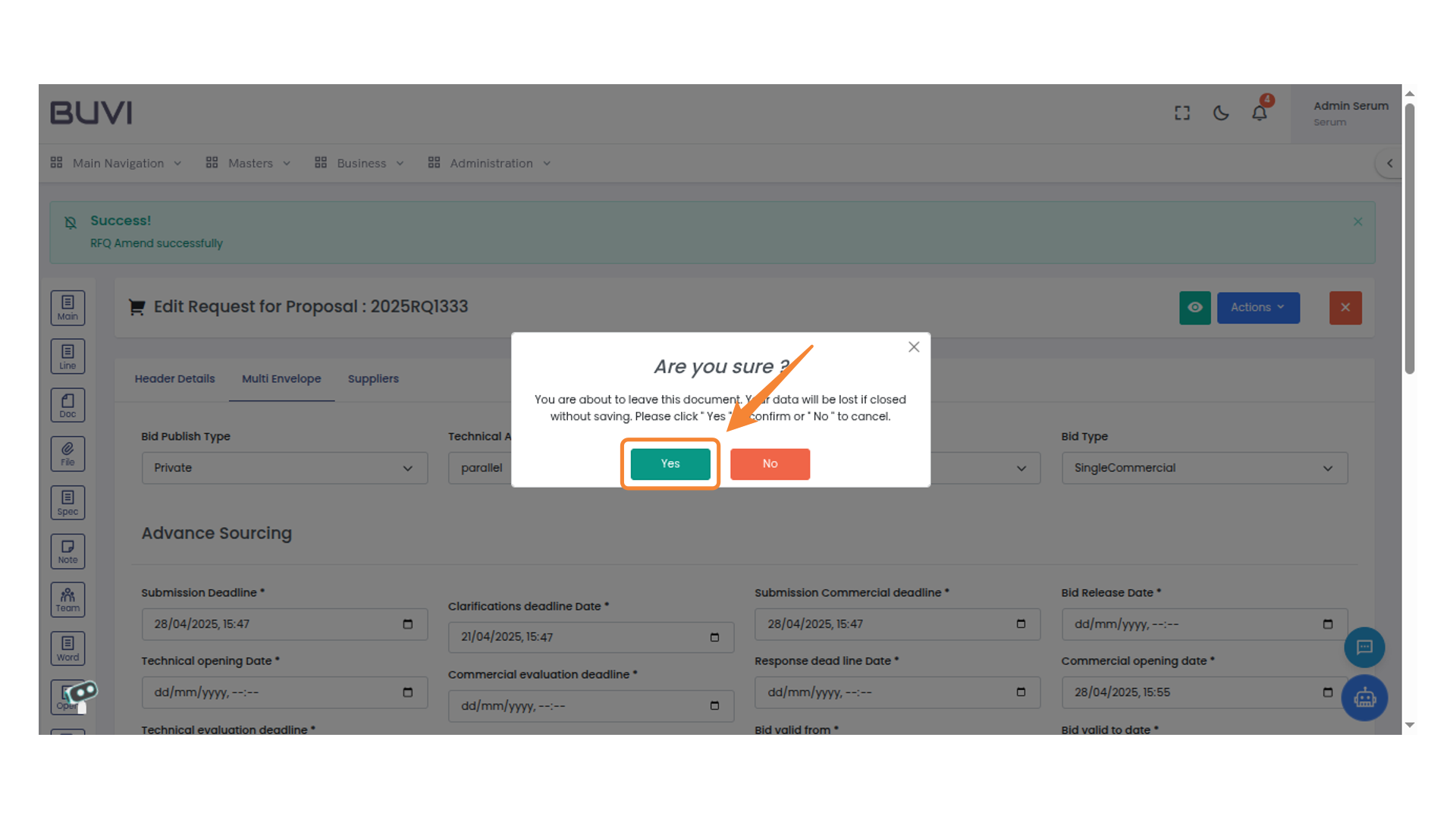
8. Confirmation Dialog Box
Select 'Yes' to proceed with the action.
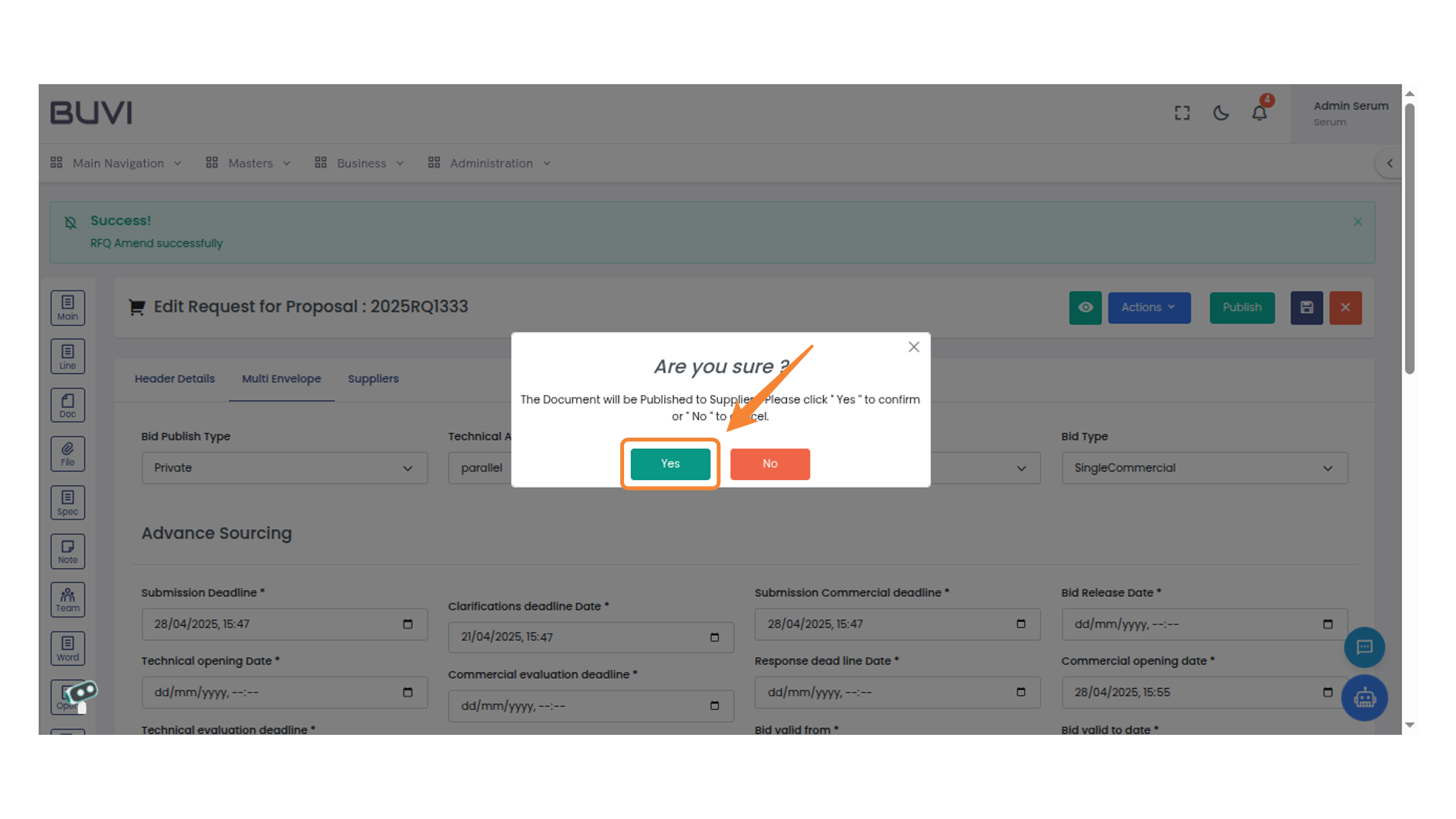
9. Confirmation Dialog
Proceed by clicking 'Yes' to confirm your action.
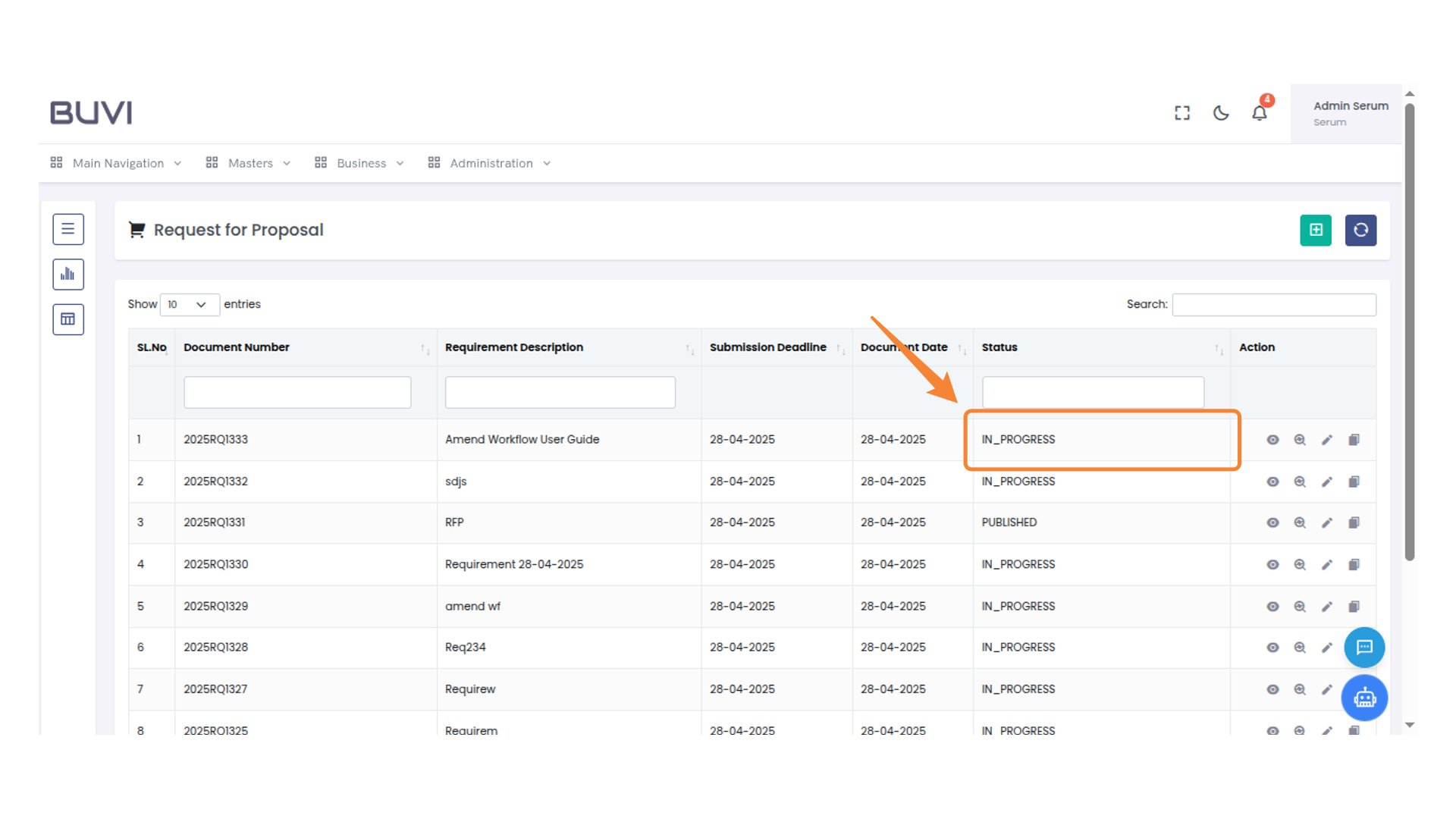
10. Status Indication
Observe the current status once the RFP is amend.
11. Logout Button Location
Click here to log out of the application.

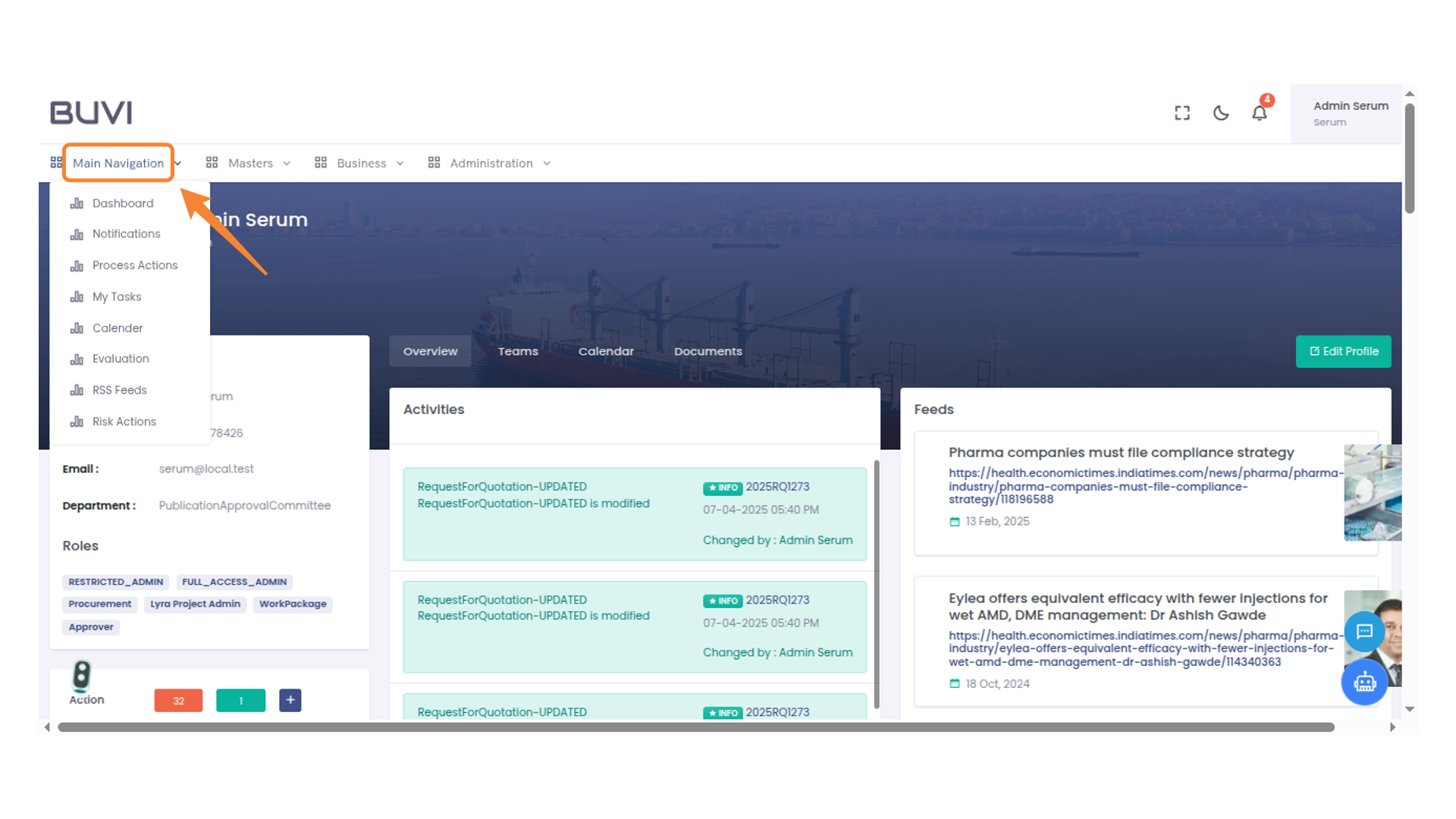
12. Main Navigation Menu
Clcik on main navigation menu
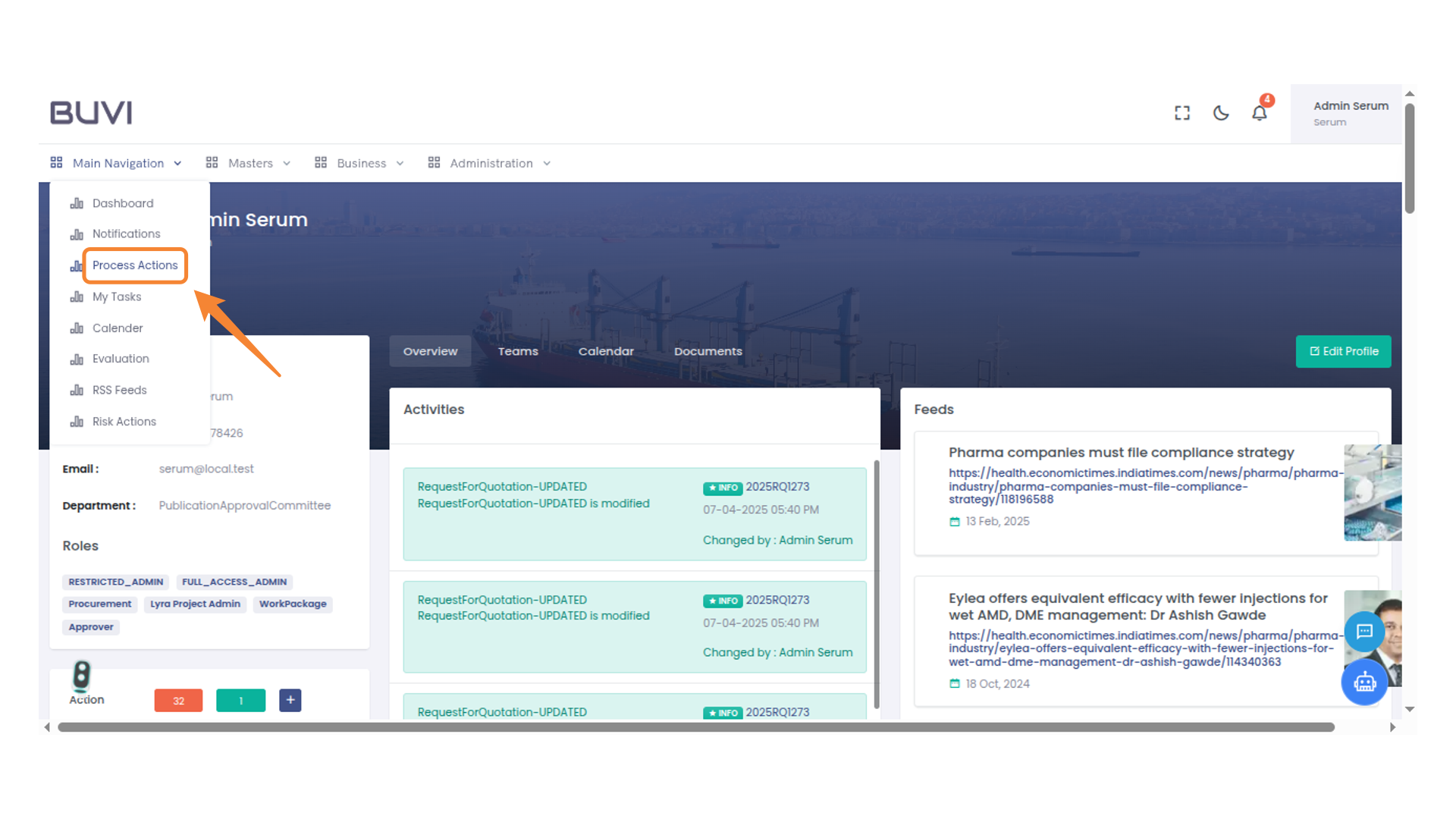
13. Process Actions Menu
Select this option to view and manage process-related actions.
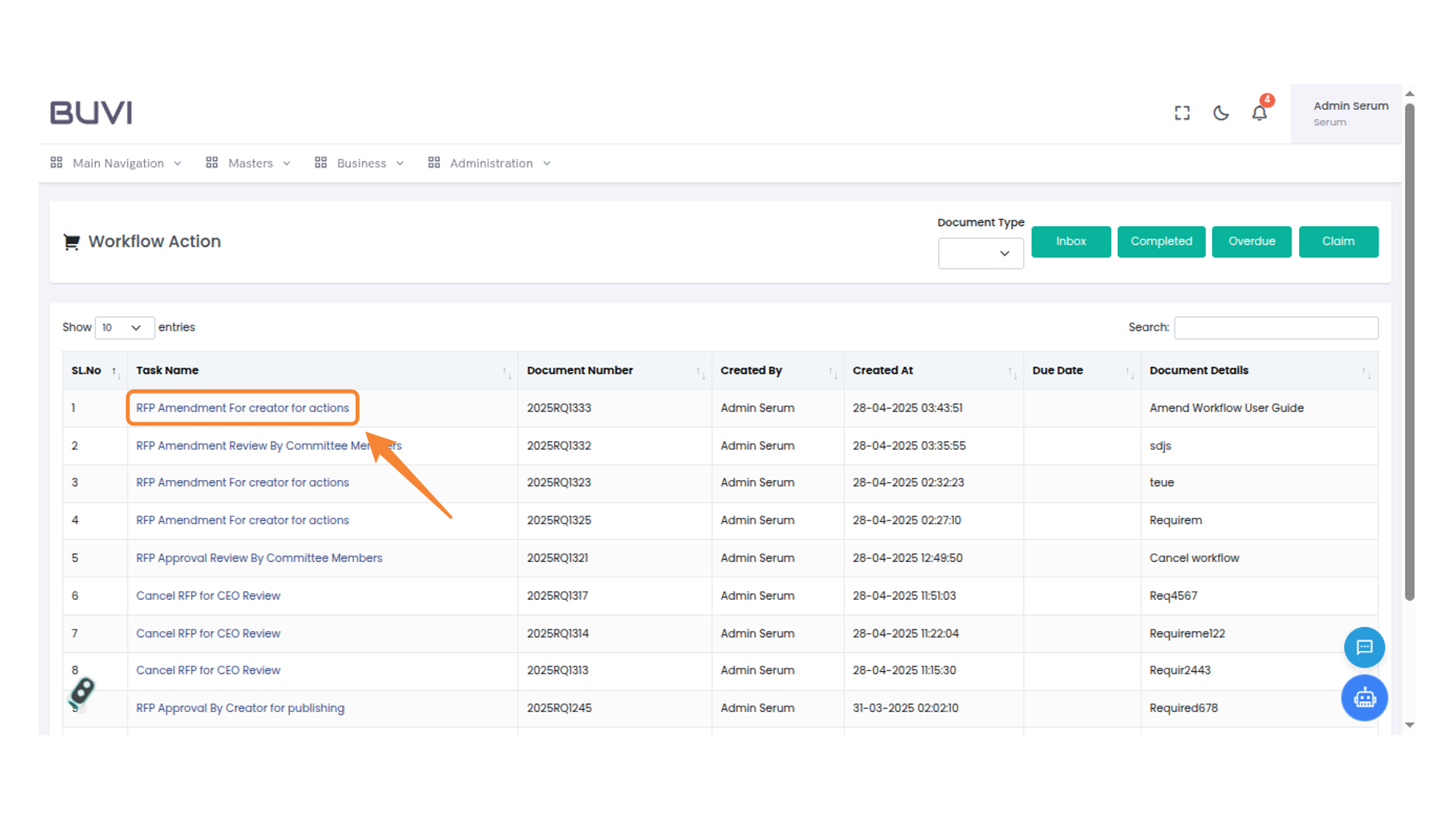
14. Task Name Highlight
Review the task name and click on it
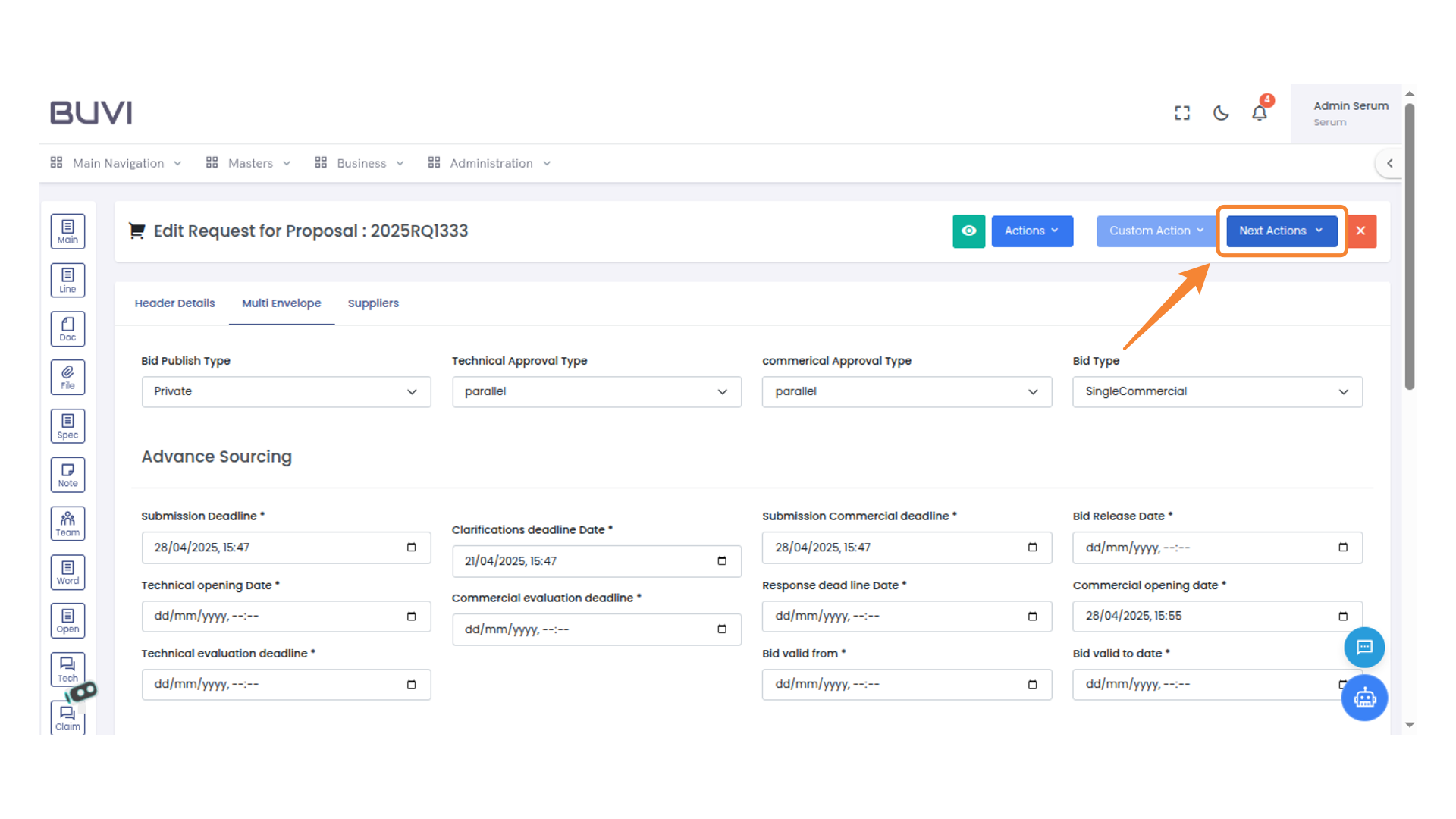
15. Next Actions Button
Select the 'Next Actions' dropdown to explore additional options for your proposal.
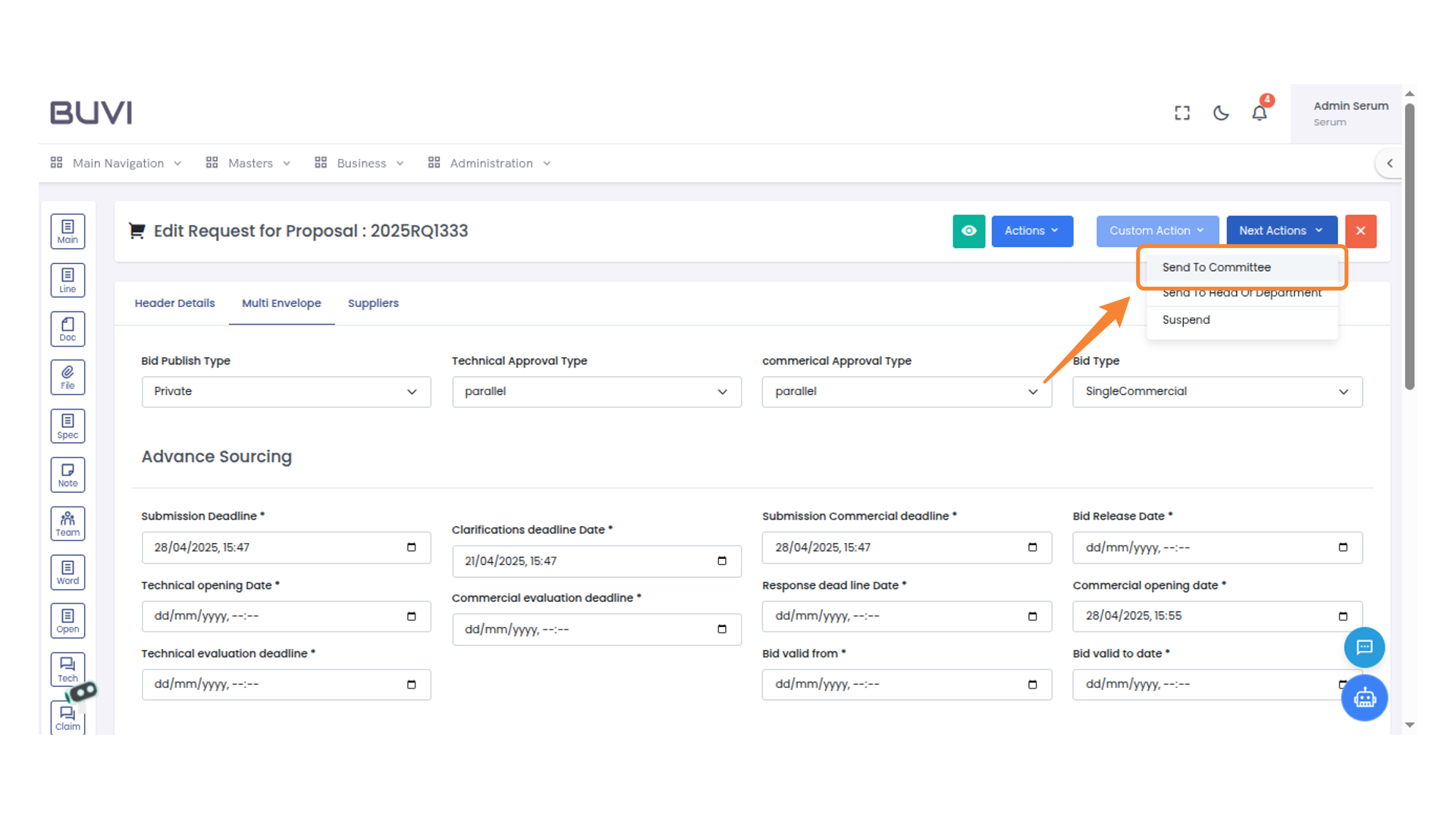
16. Send to Committee Option
Click on 'Send To Committee' to proceed with submitting the proposal for committee review.
17. Comment Entry Box
Input your comment in the field provided and choose either 'Submit' to save or 'Cancel' to discard your entry.
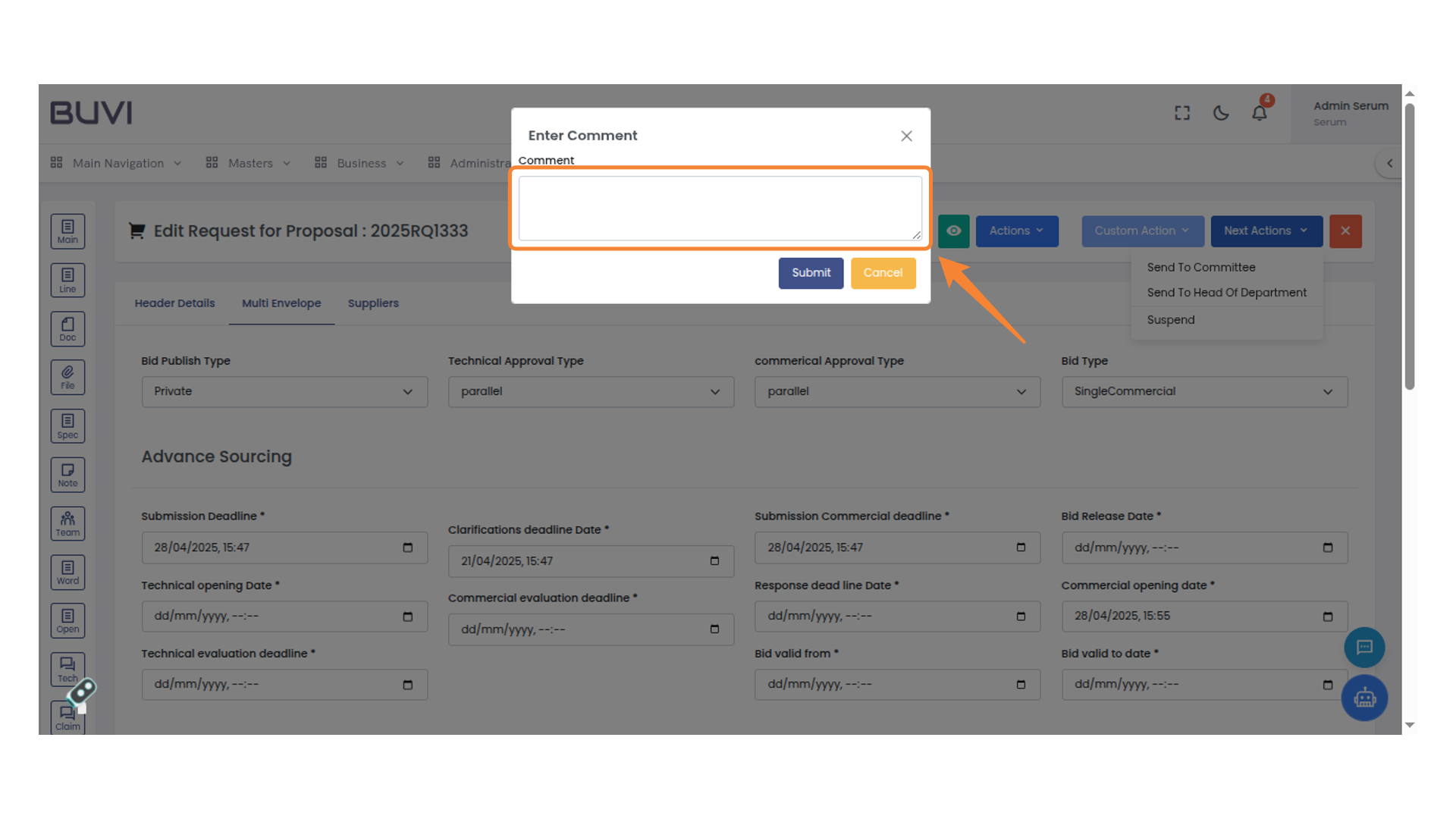
18. Submit Button Highlight
Click the button to submit your comment.
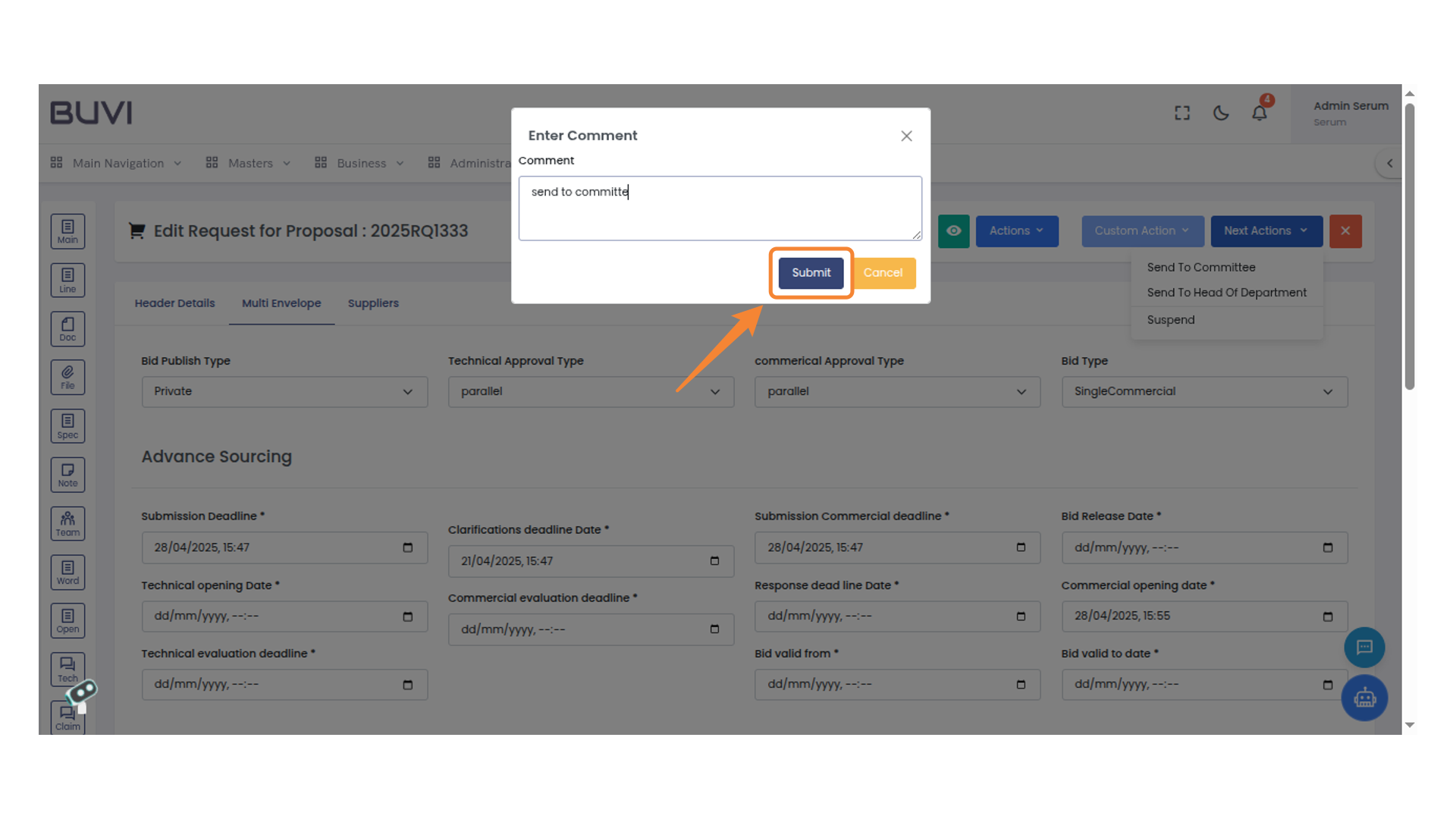
19. Logout Option
Click to log out of the account.
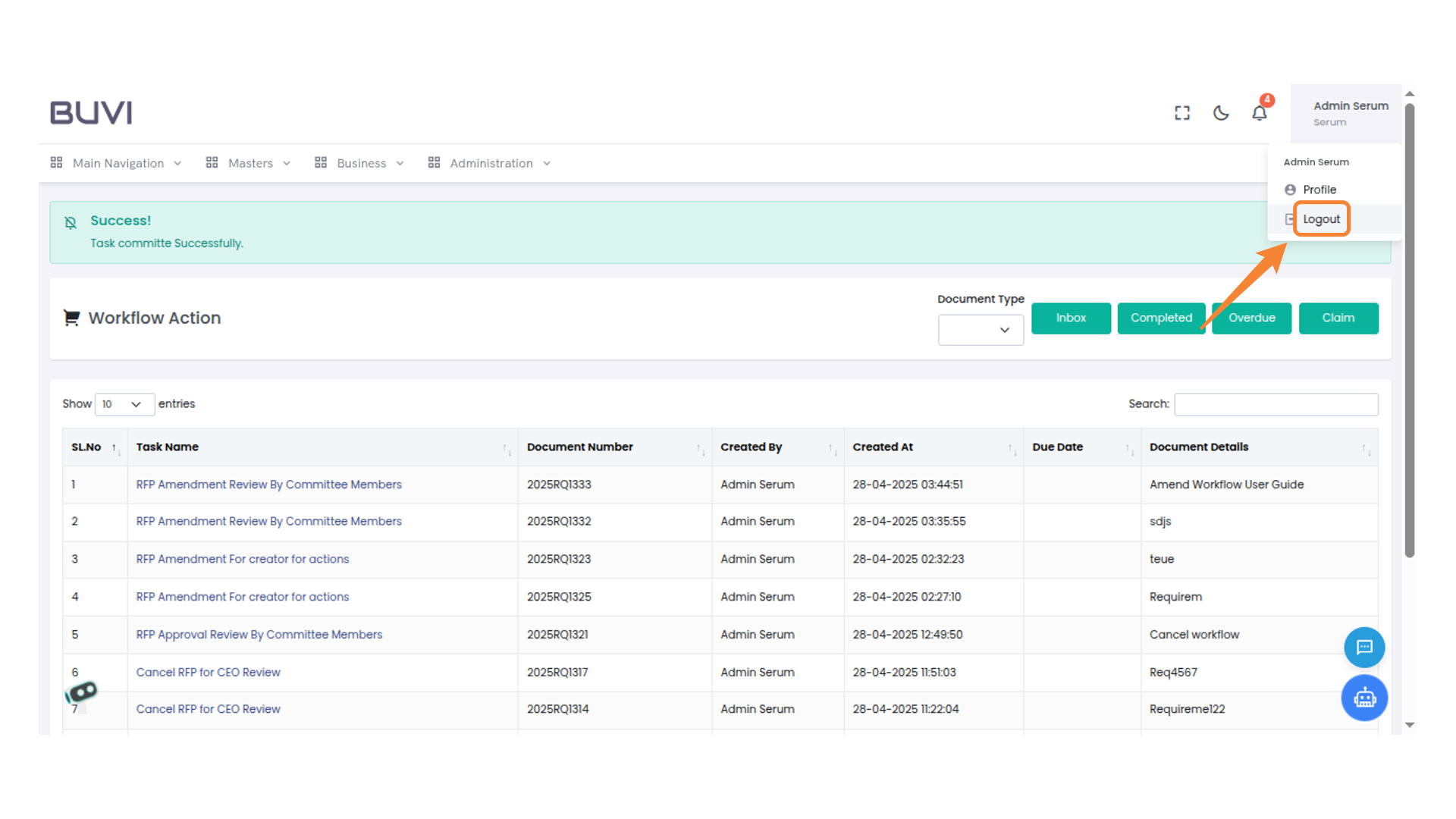
20. Login Button
Login with committe member credentials
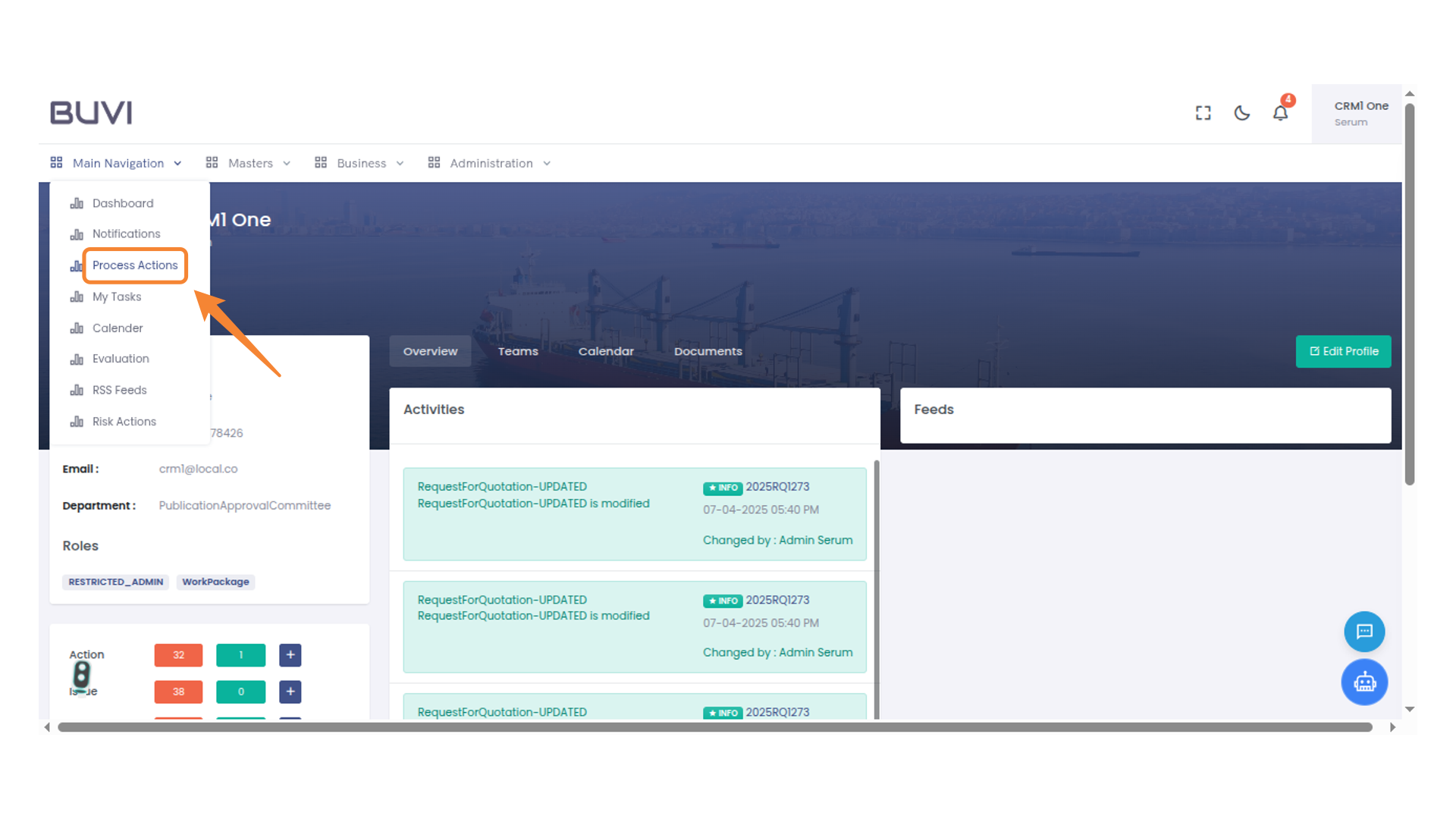
21. Process Actions Menu
Access the options to manage and execute various process-related tasks.
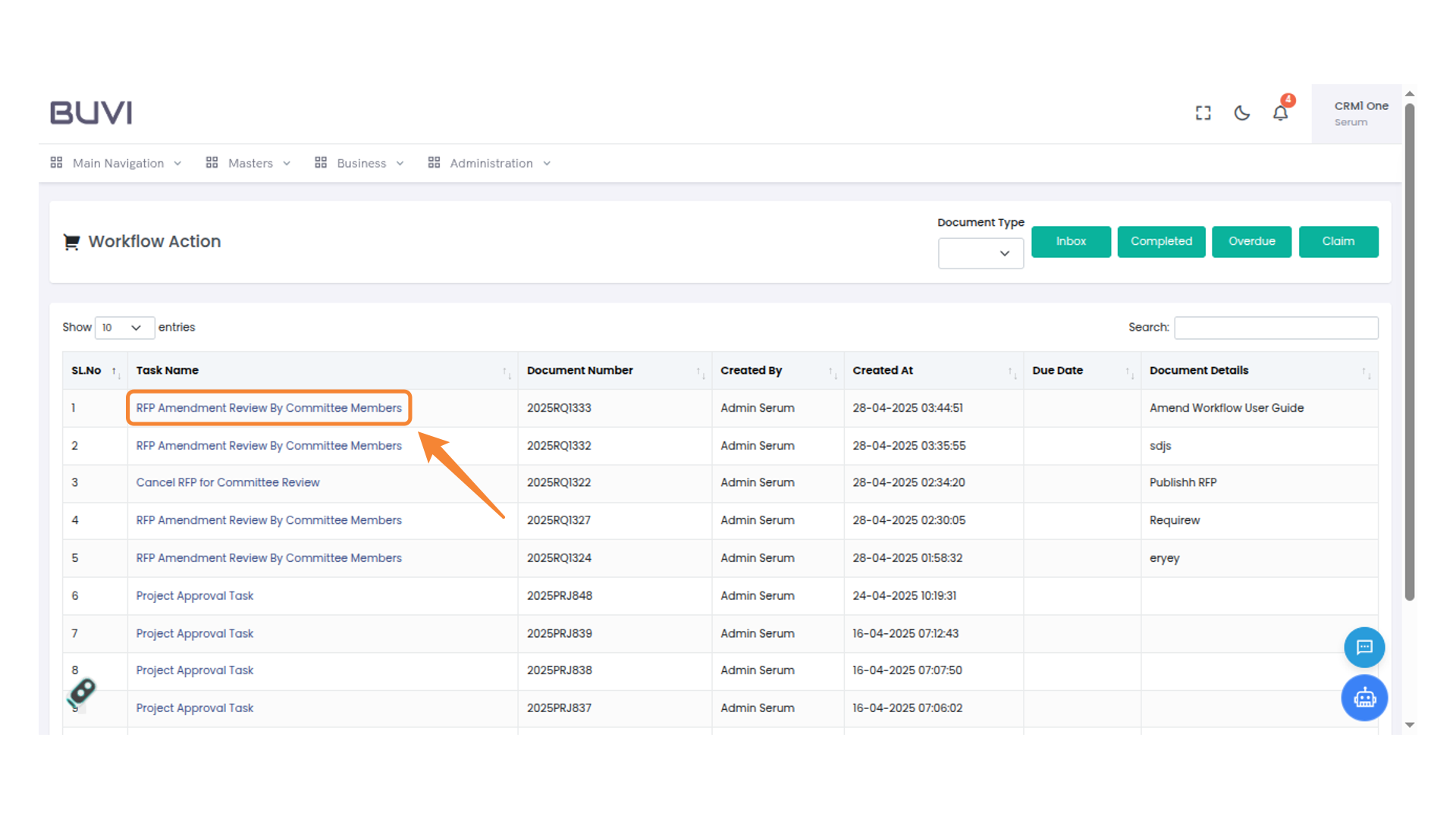
22. Task Name Highlighted
Click on the task
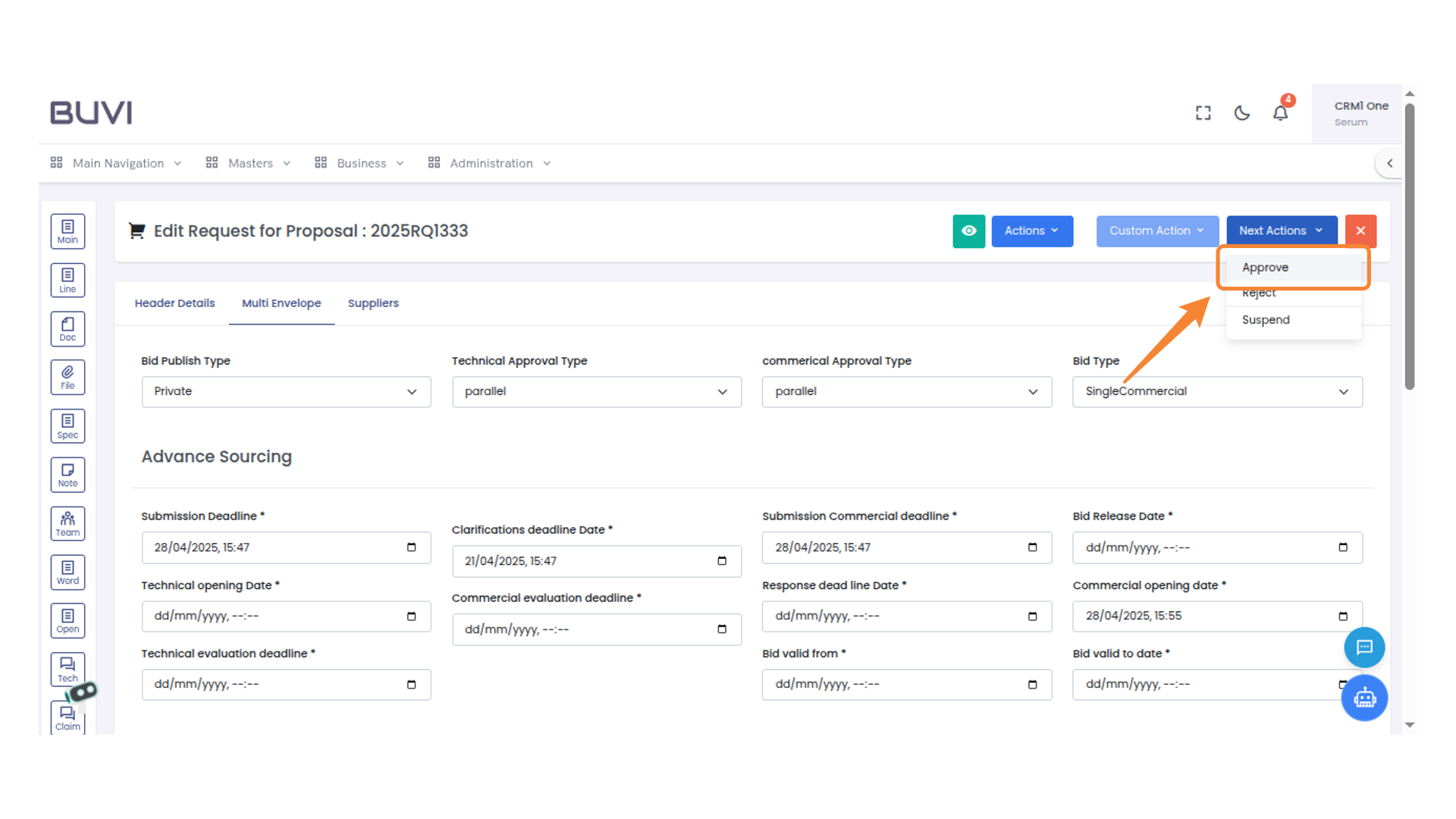
23. Next Actions Button
Click next section to select the option

24. Approve Option
Select this option to approve the request.
25. Enter Comment Dialog Box
Type your comment in the provided field and click 'Submit' to save or 'Cancel' to discard.
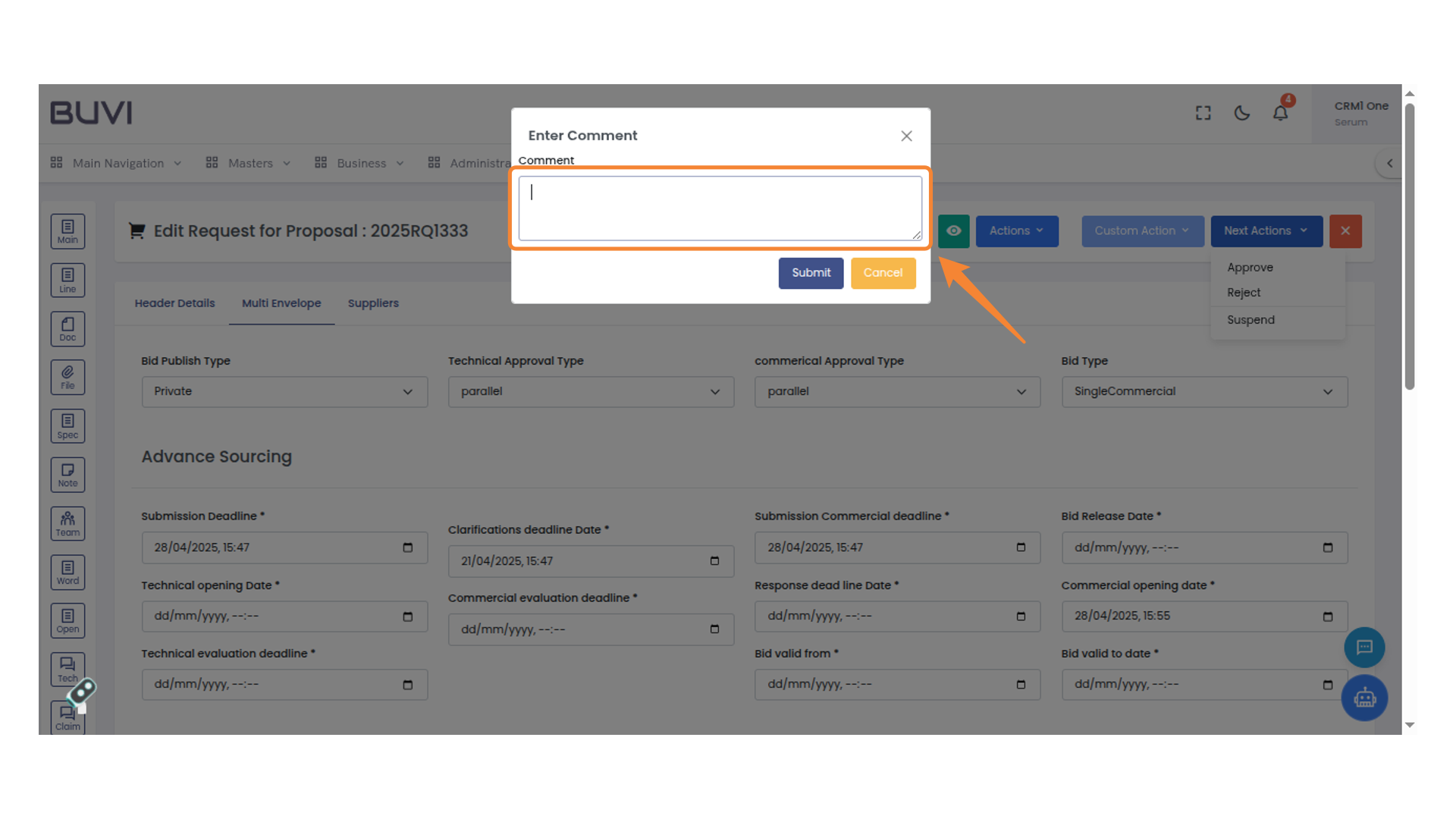
26. Submit Button in Comment Section
Click this button to submit your comment.
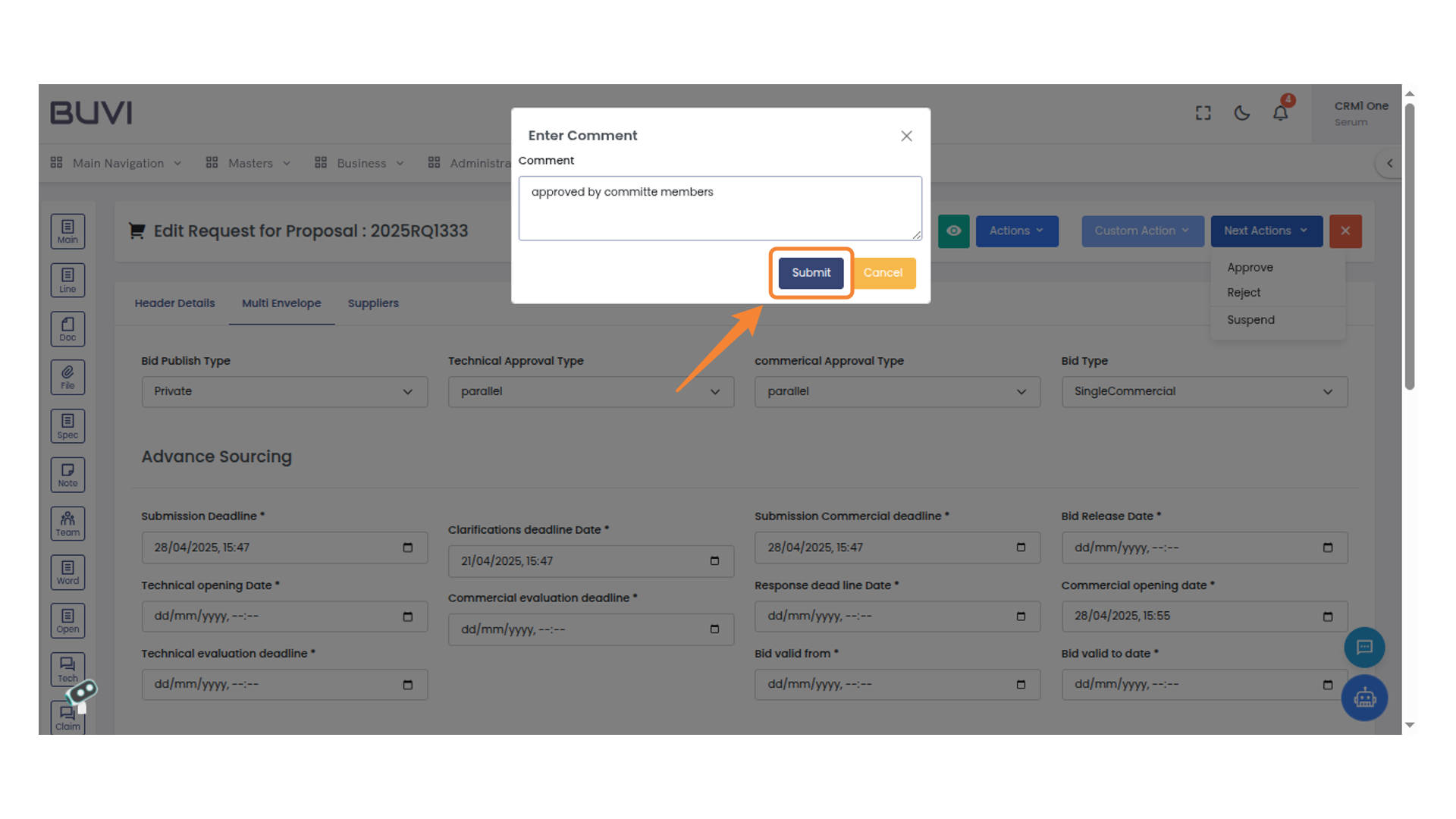
27. Login Button Highlighted
Login as committe member
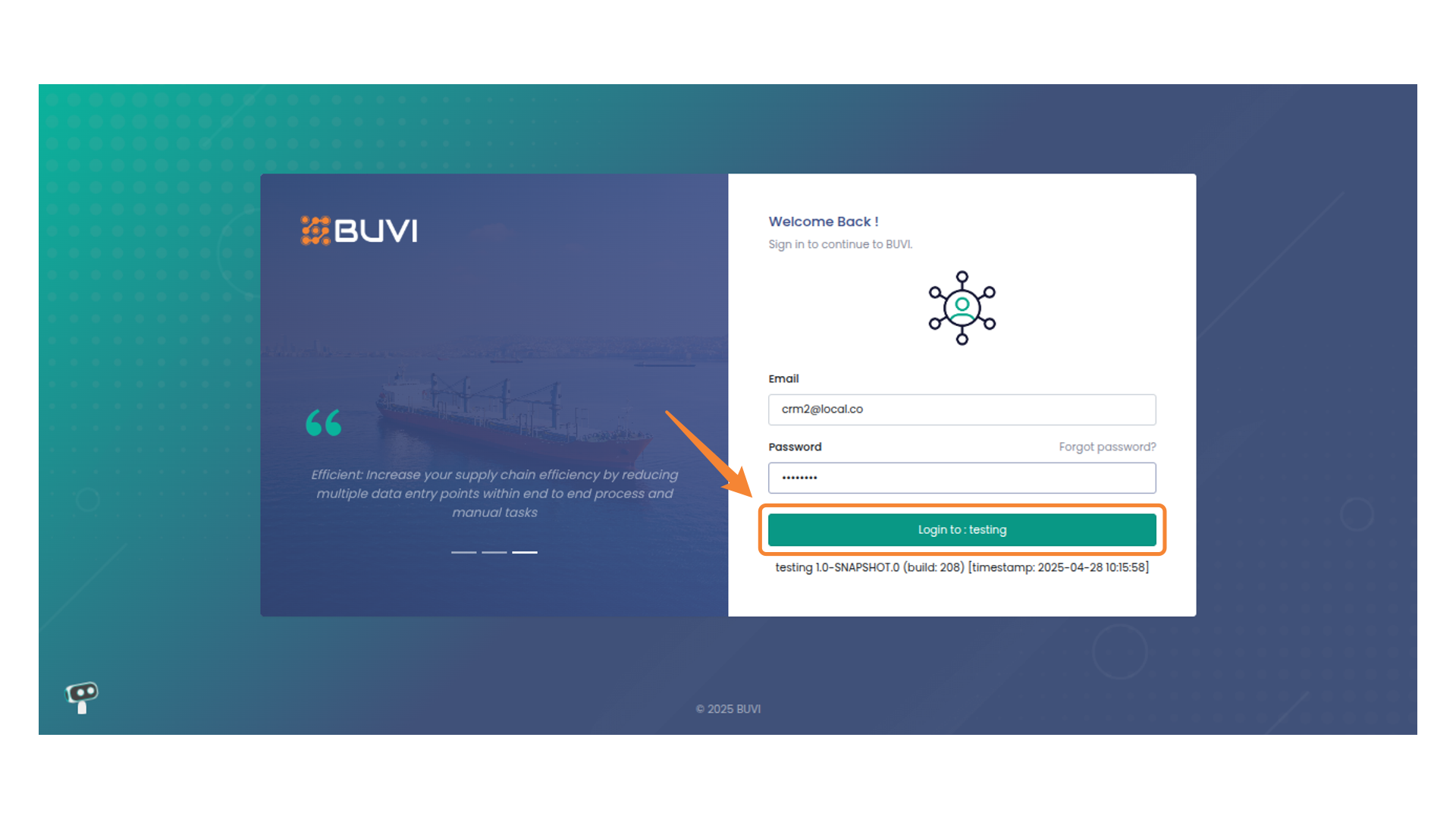
28. Navigate to Process Actions
Select 'Process Actions' from the main navigation menu to access related tasks and functionalities.
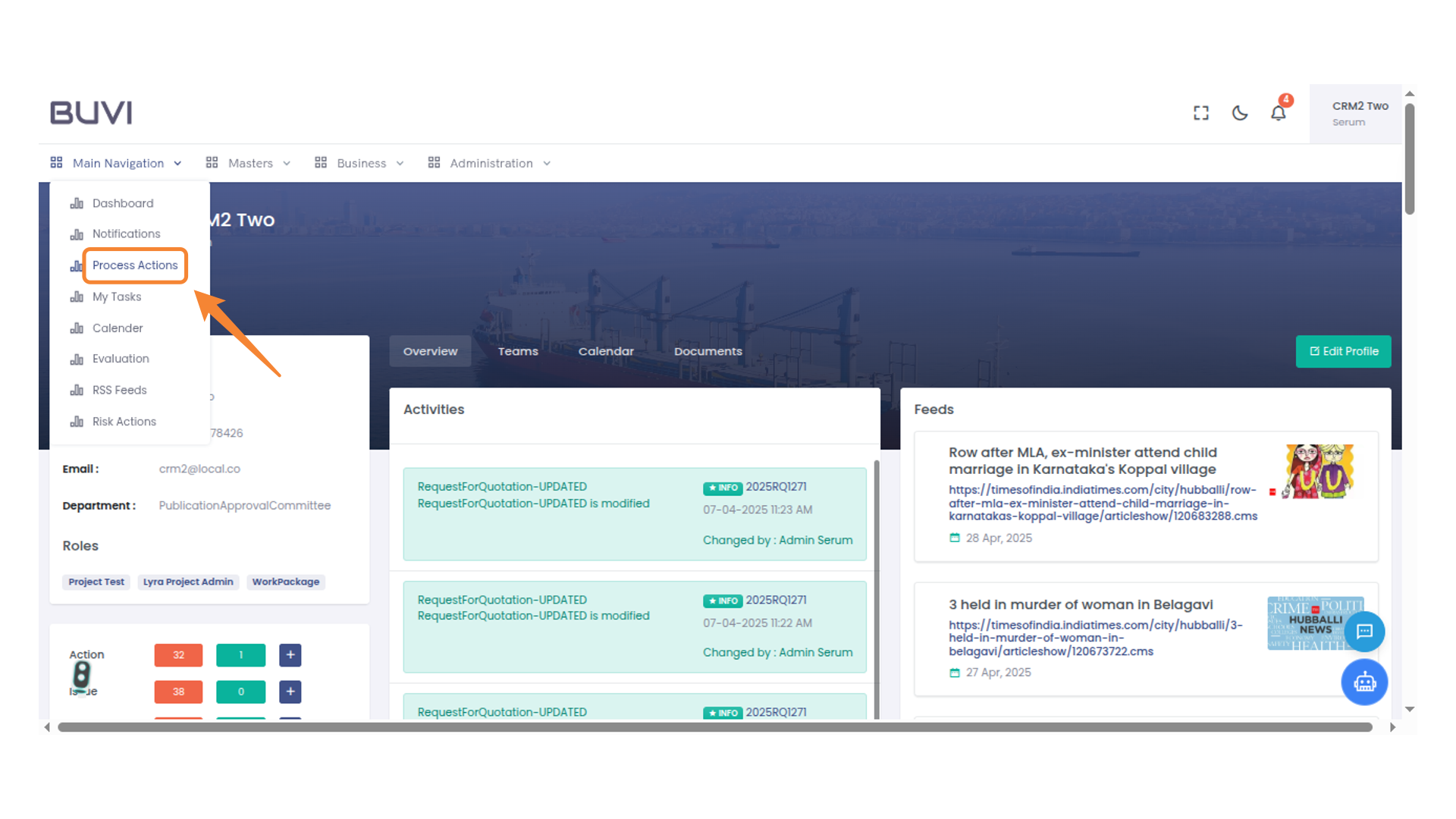
29. Review Task Highlighted
Examine the RFP amendment review task assigned to committee members for detailed insights.
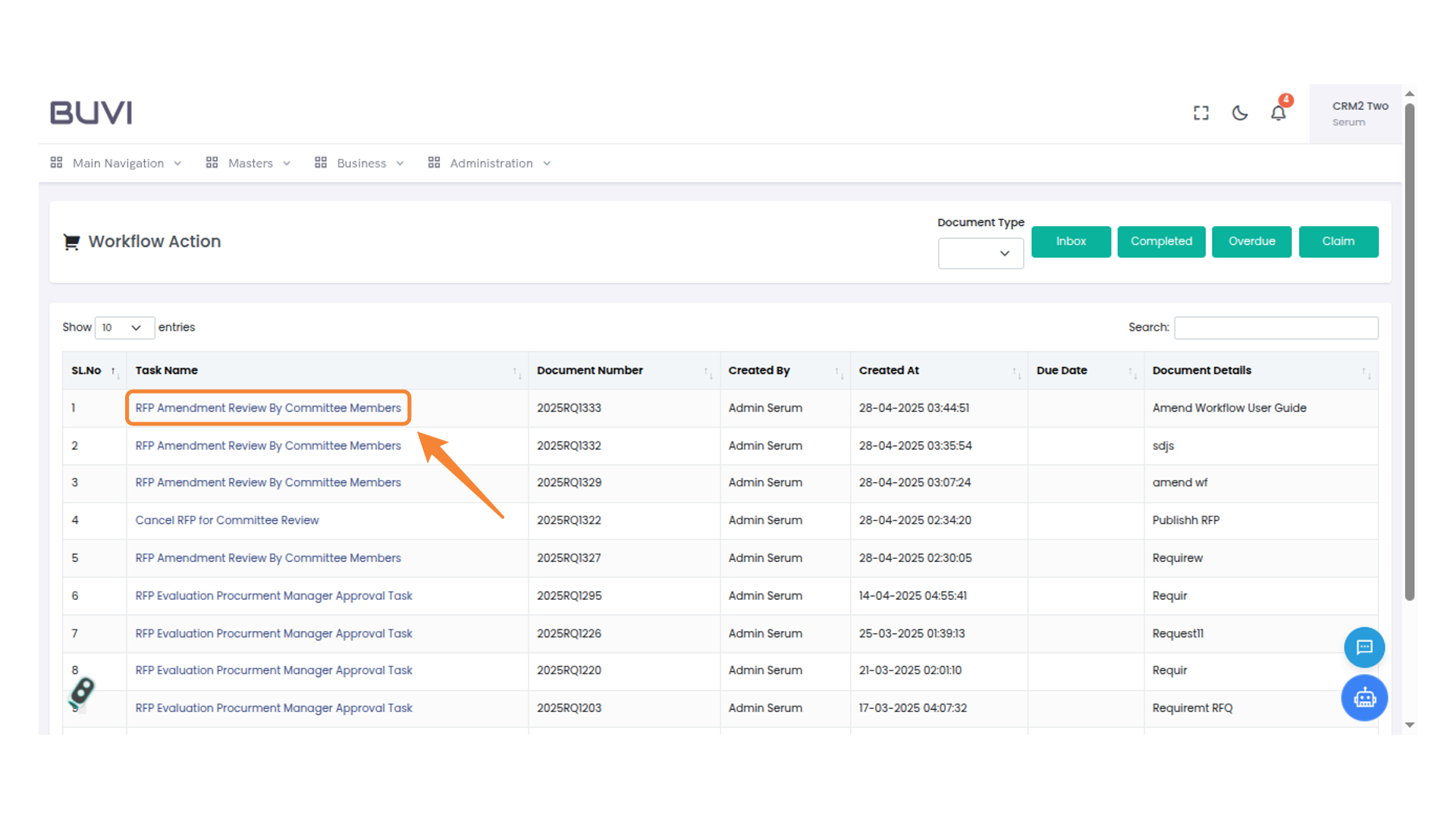
30. Next Actions Menu
Select this button to view and navigate additional actions available for this proposal.
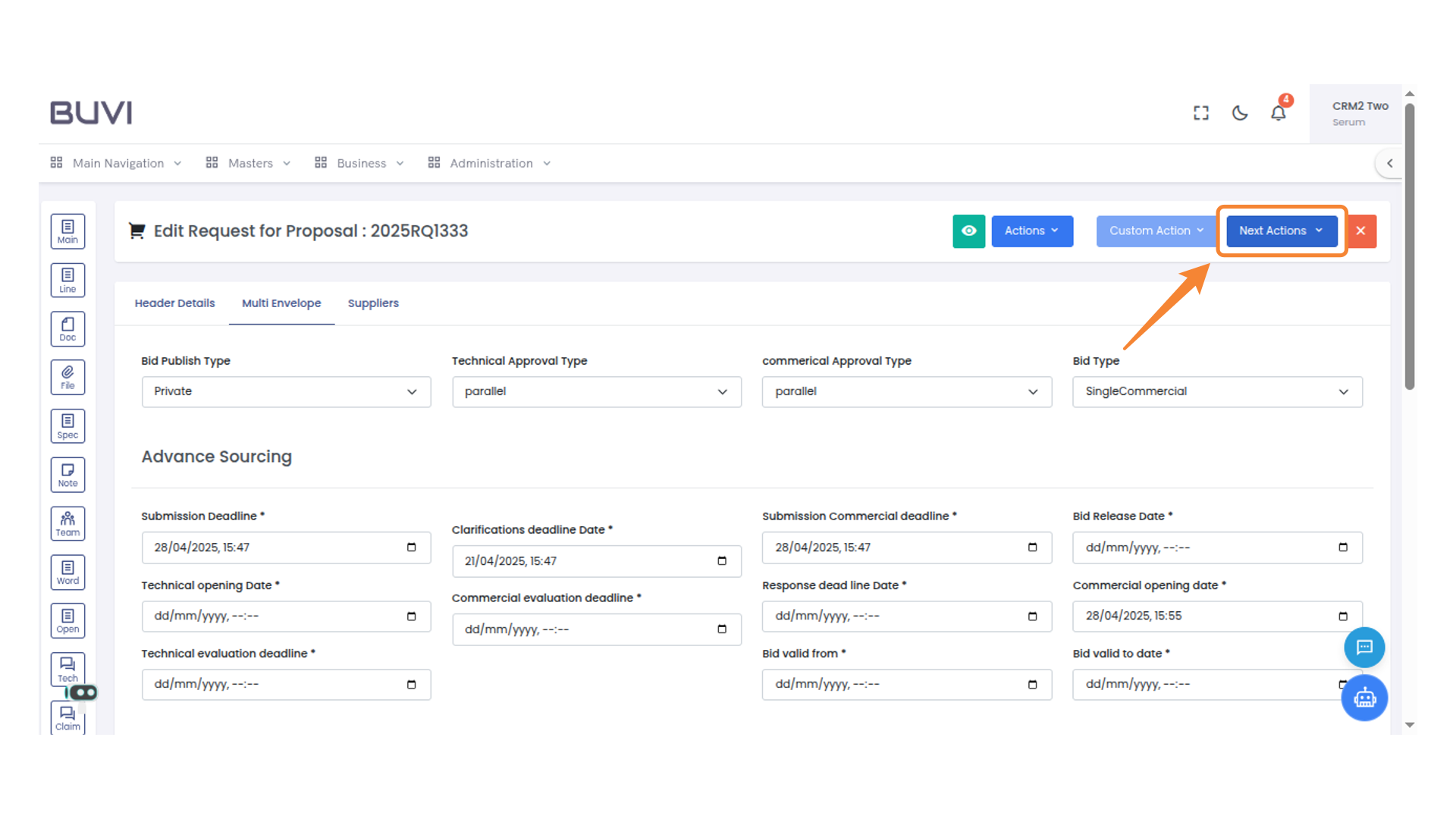
31. Approval Button in Proposal Form
Select 'Approve' to confirm the proposal submission.
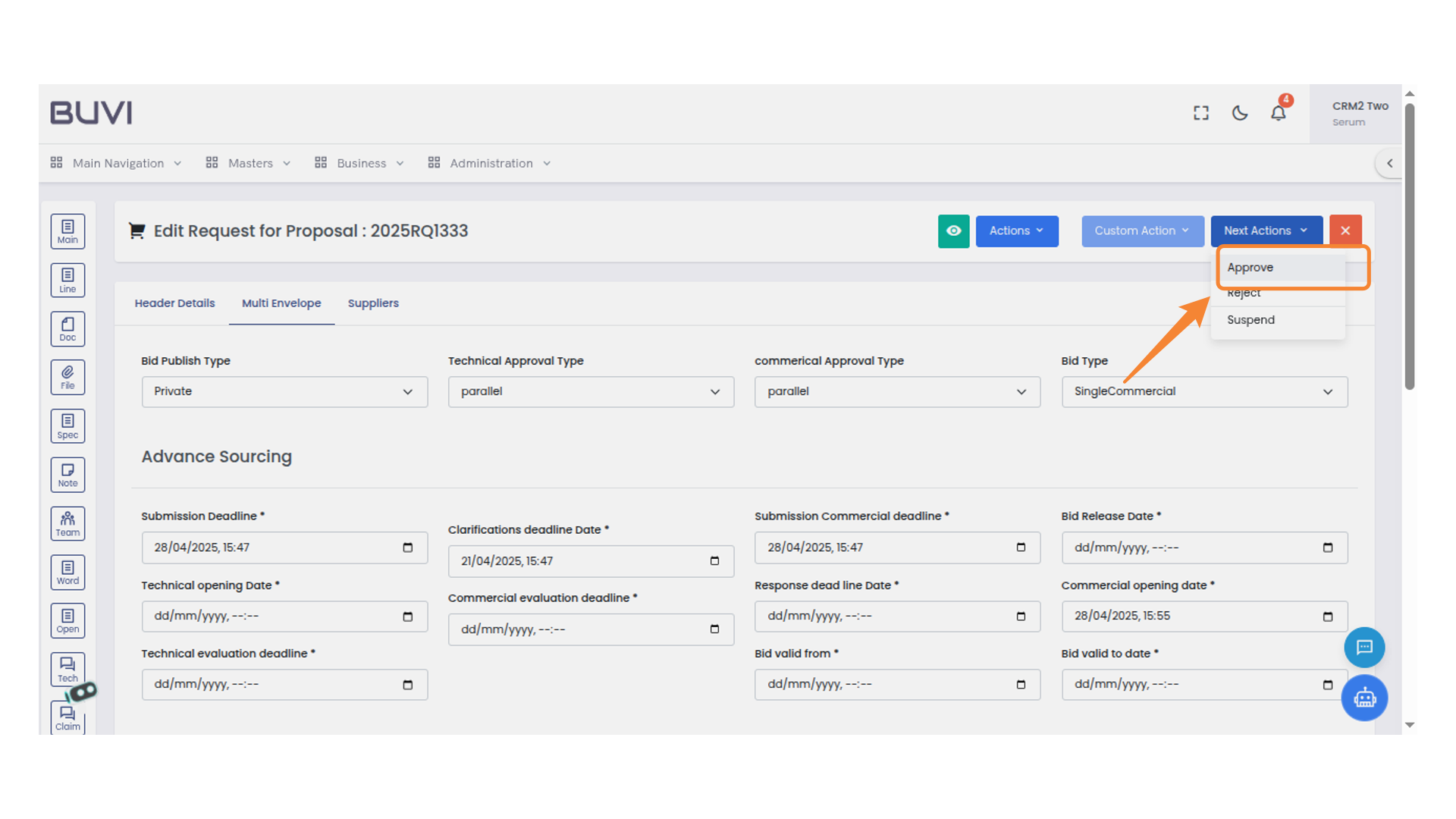
32. Comment Entry Box
Enter your comment in the provided text field. Click 'Submit' to confirm or 'Cancel' to discard.
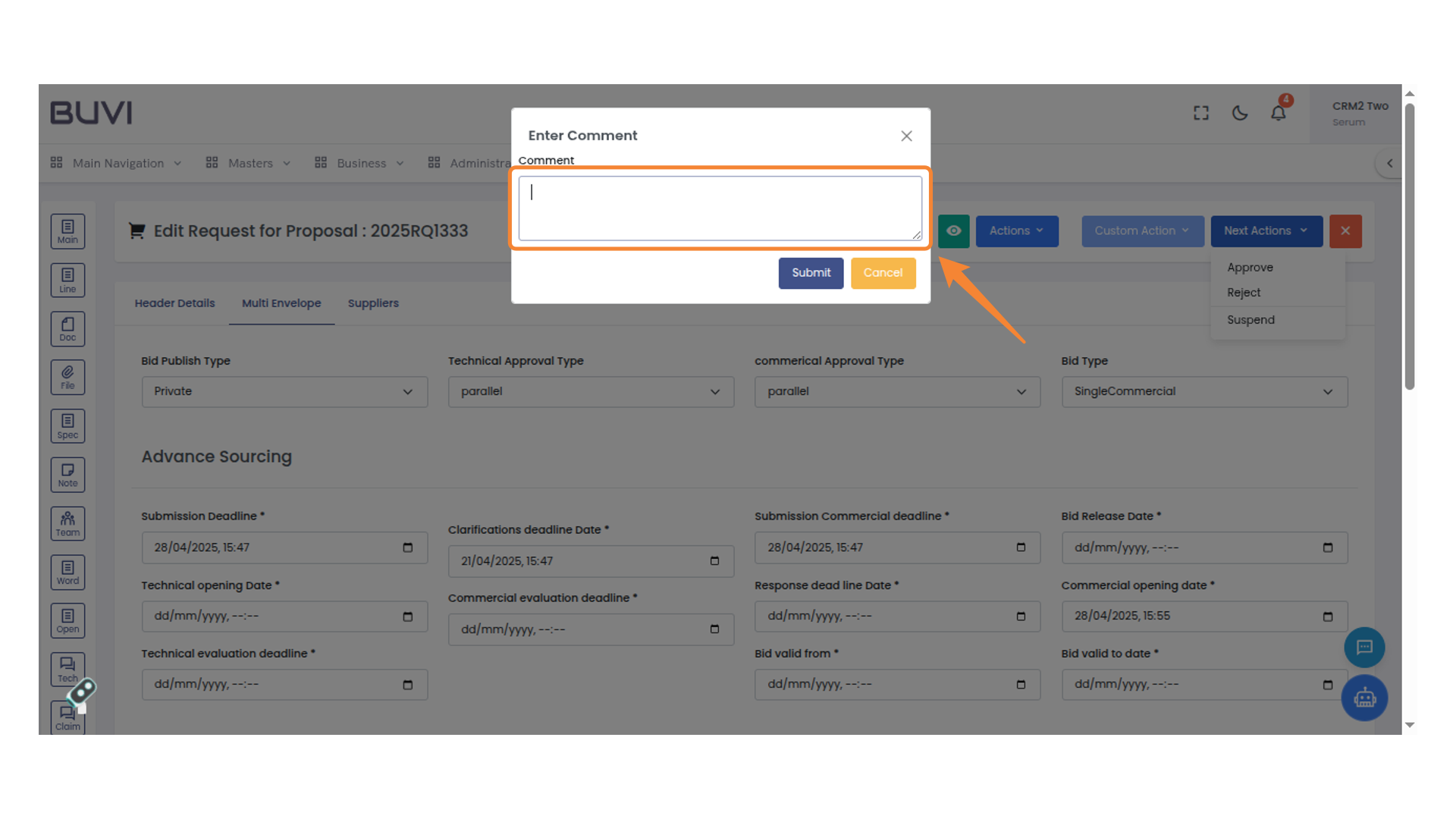
33. Submit Button in Comment Box
Click to submit your comment after typing in the provided text box.
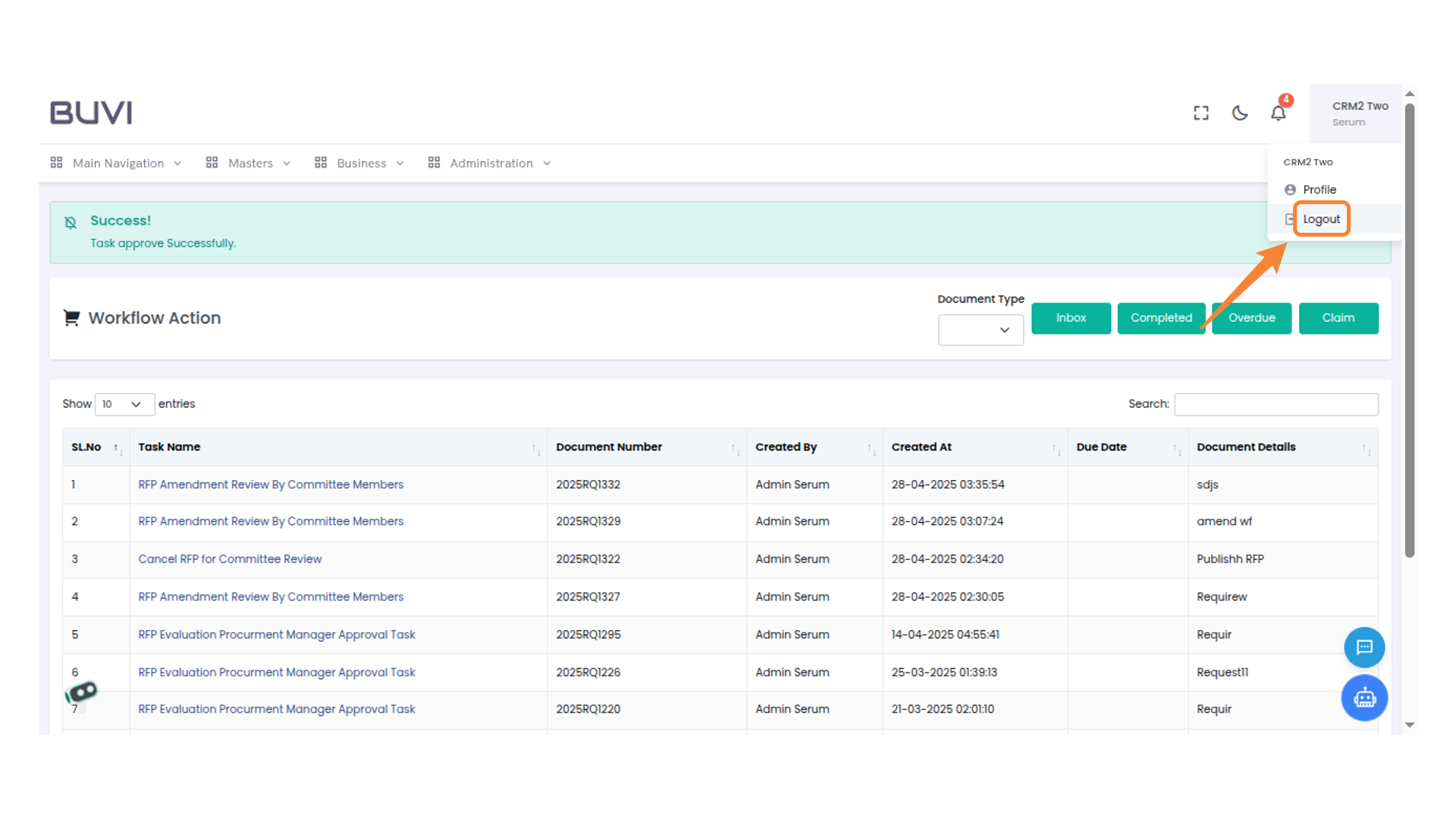
34. Logout Button
Click here to log out of your account.
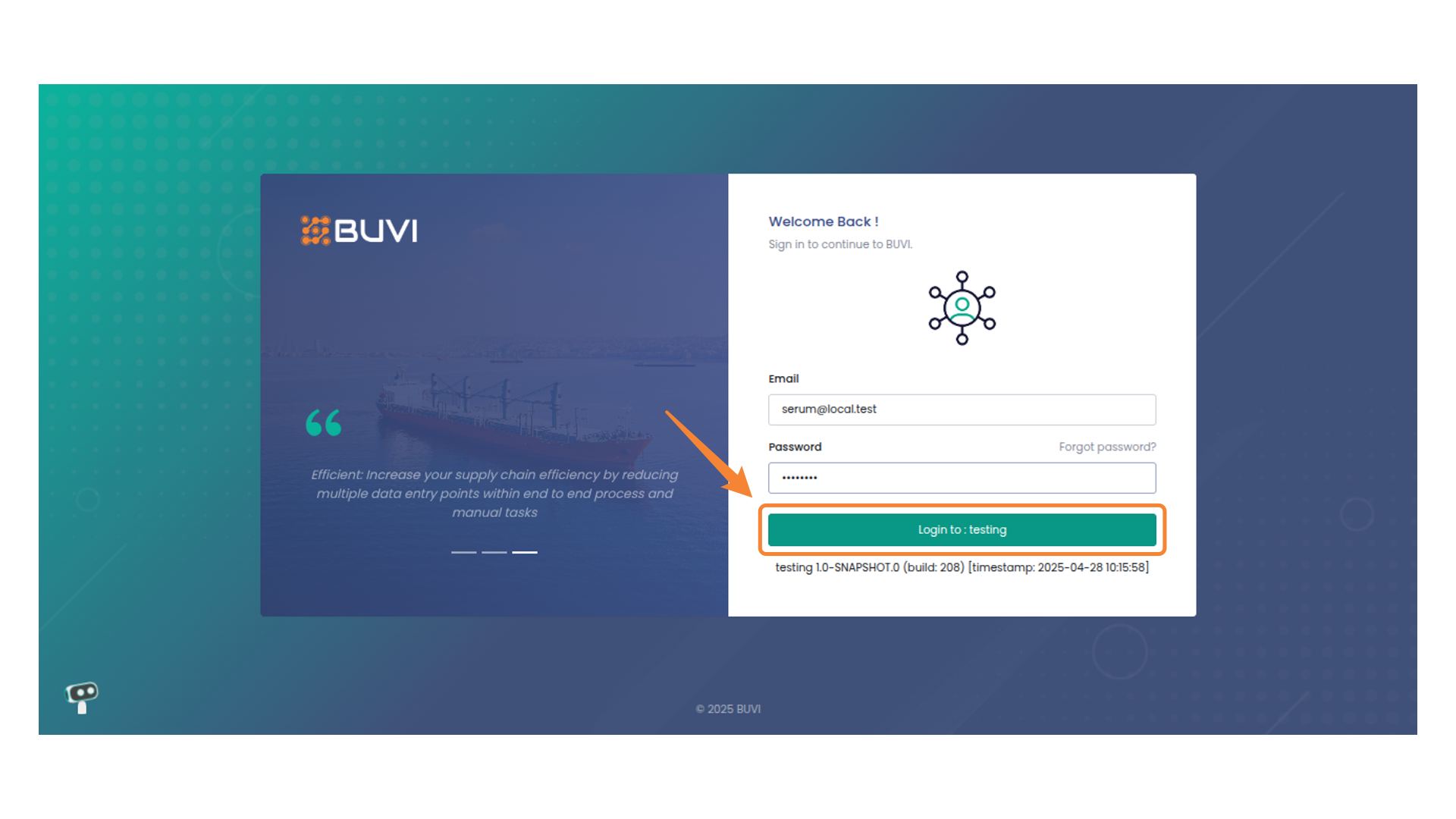
35. Login as Committe Member
Login to the account with committe member credentials.
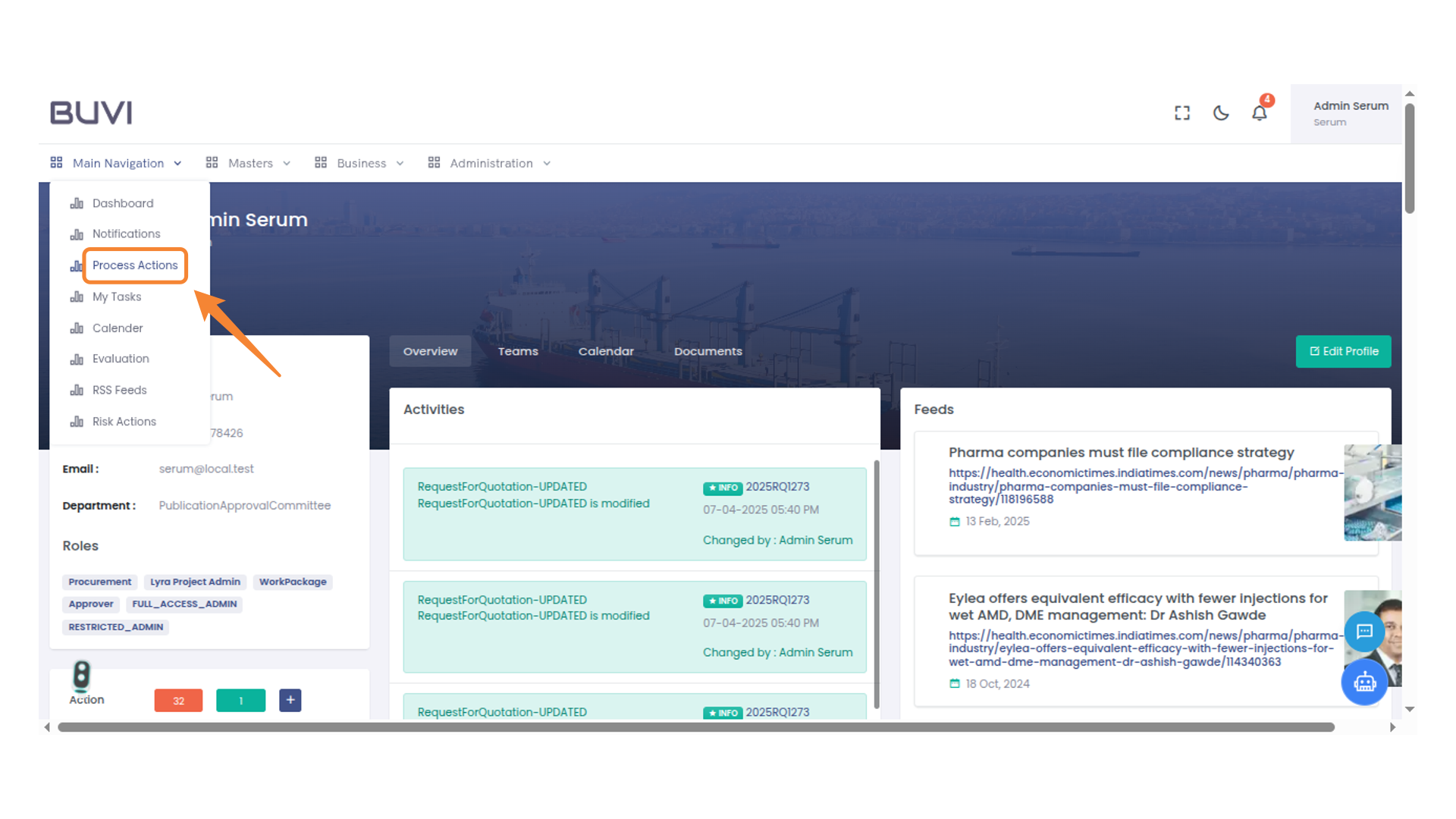
36. Process Actions Menu
Access the Process Actions section
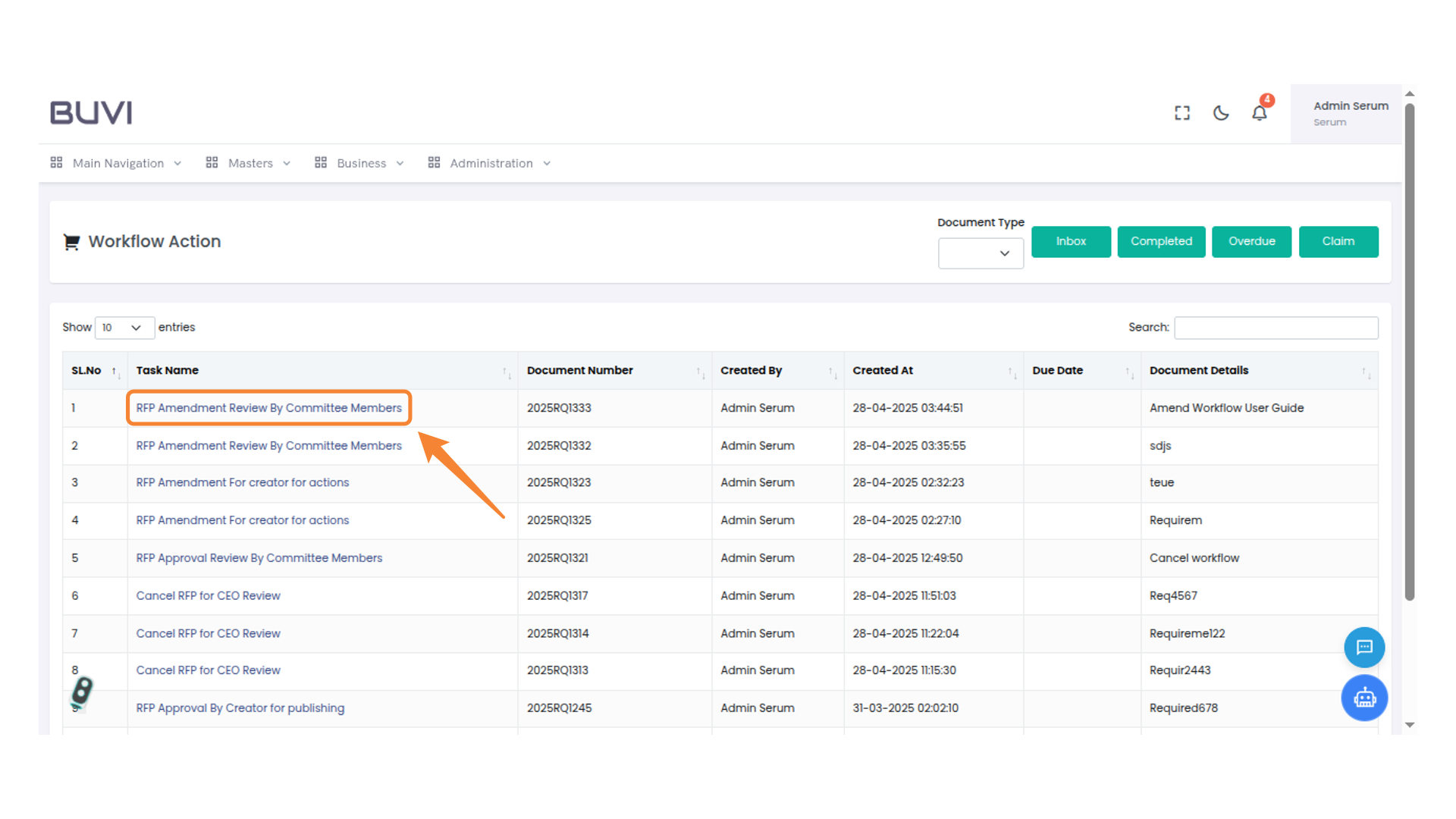
37. RFP Amendment Task
Review the RFP amendment by committee members.
38. Enter a Comment
Provide your comment in the text area and click Submit to proceed or Cancel to exit.
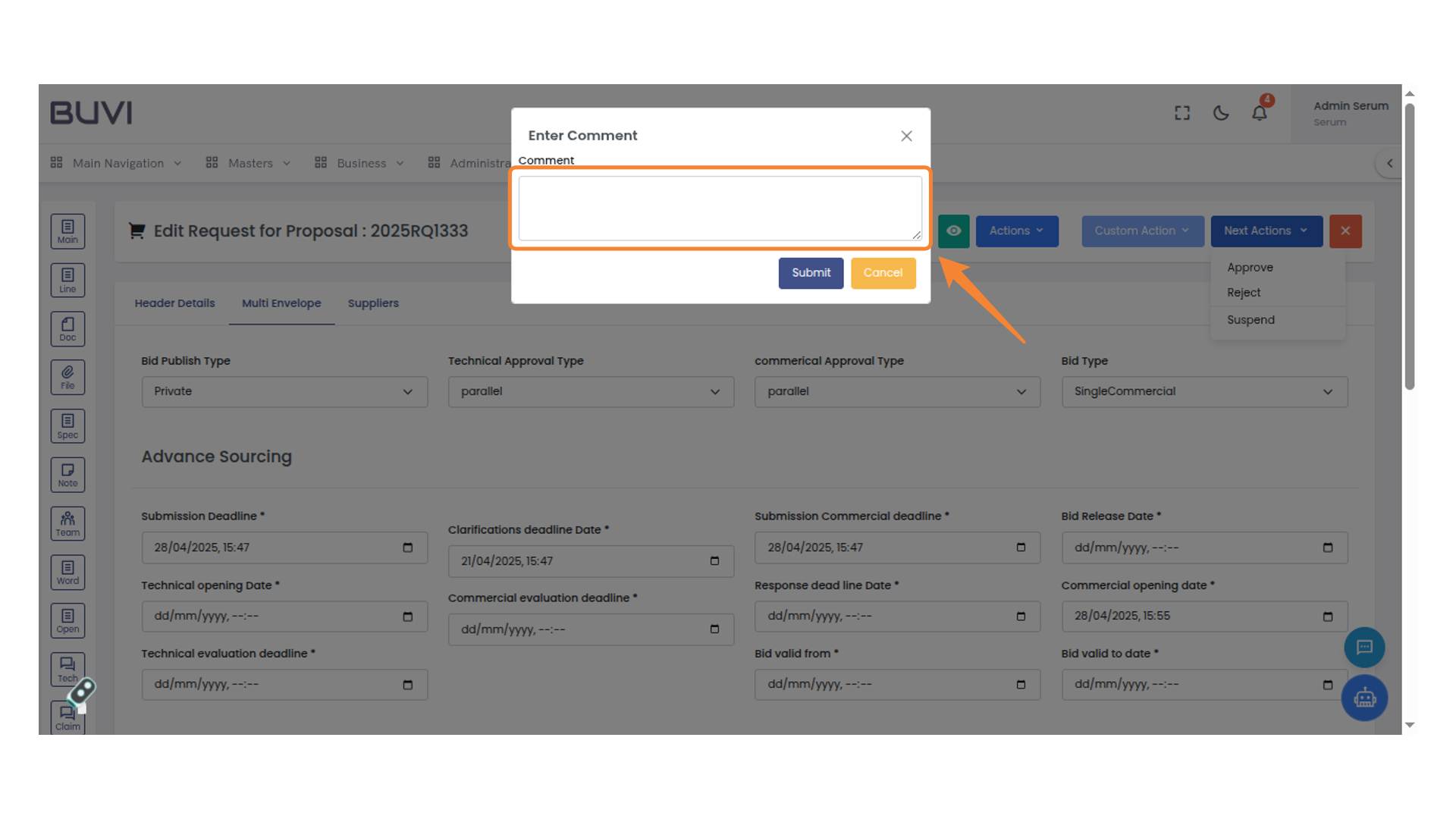
39. Submit Button in Comment Box
Click to submit your comment for approval.
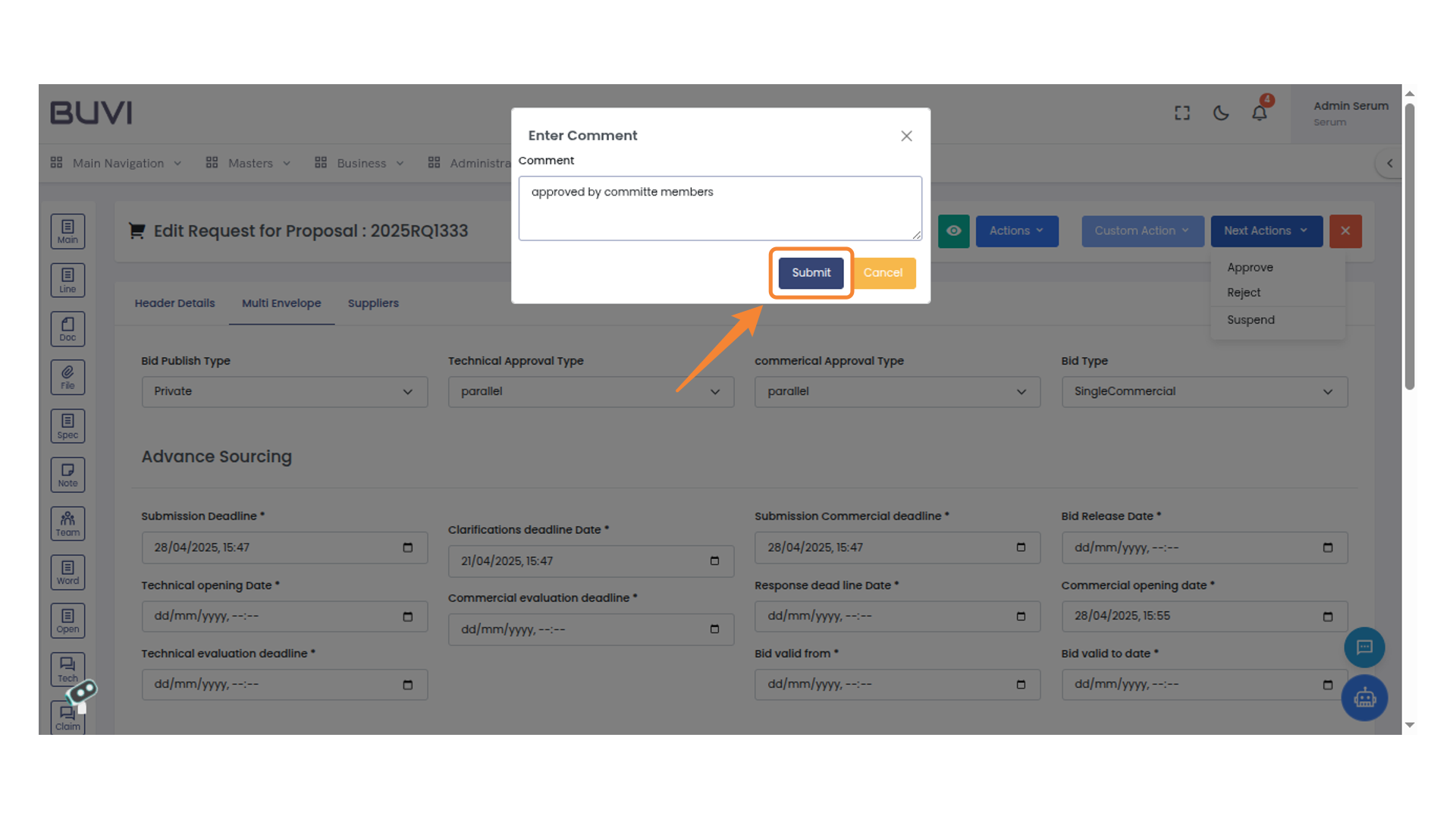
40. Logout Button
Click to log out of your account.
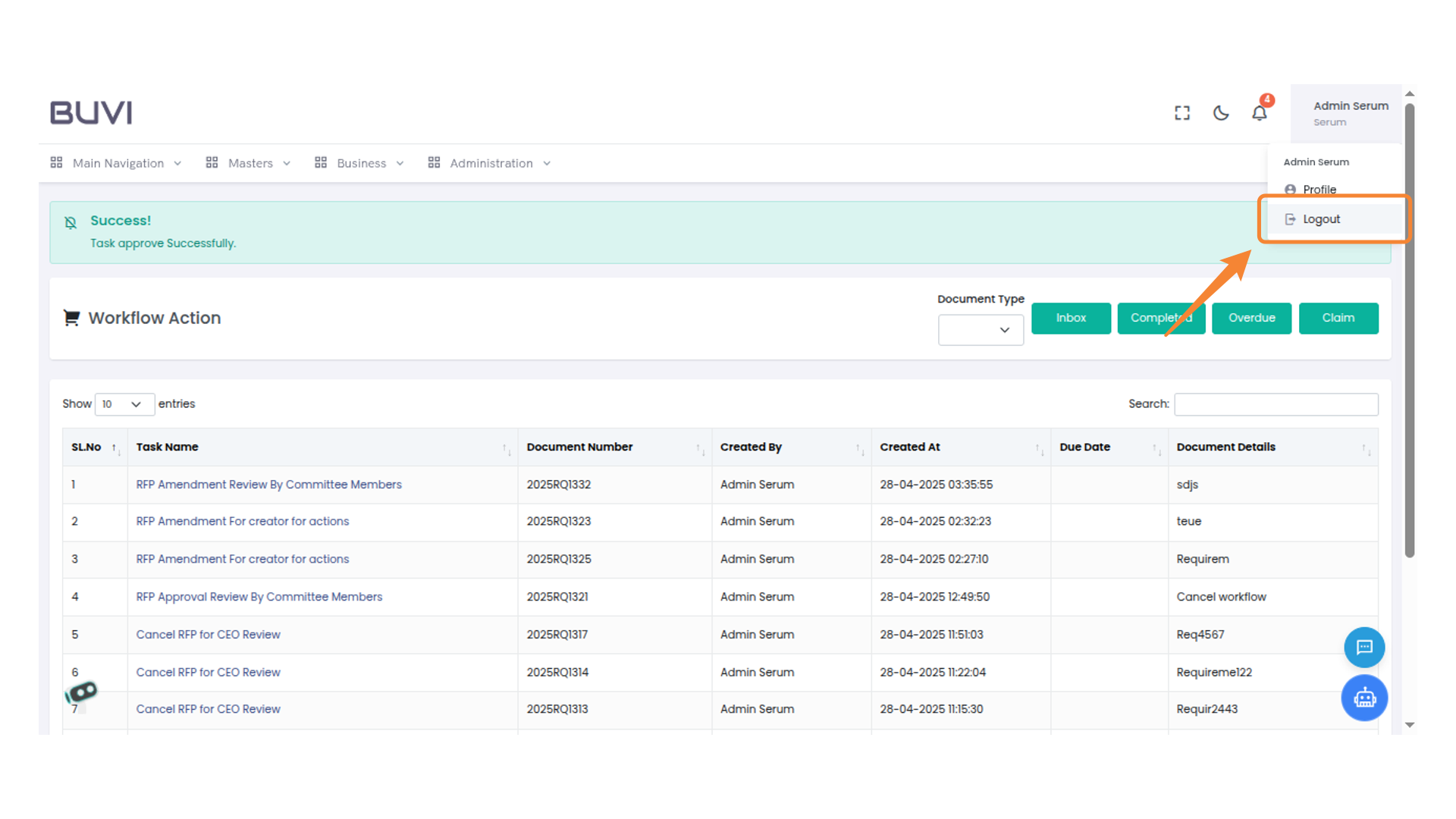
41. Login as Committe head
Click to proceed with logging in to your account.
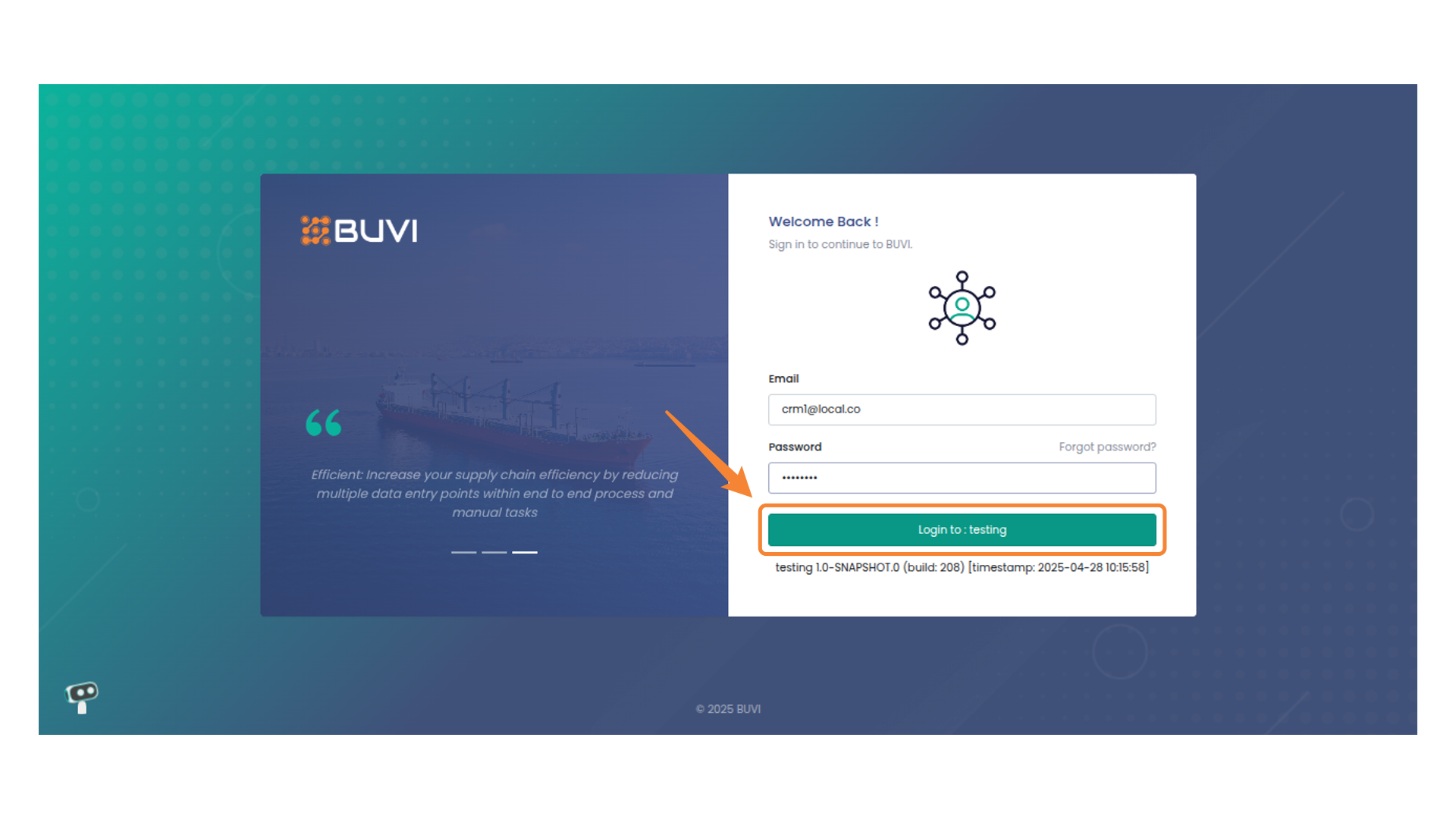
42. Process Actions Menu
Access and manage various process-related actions within the system.
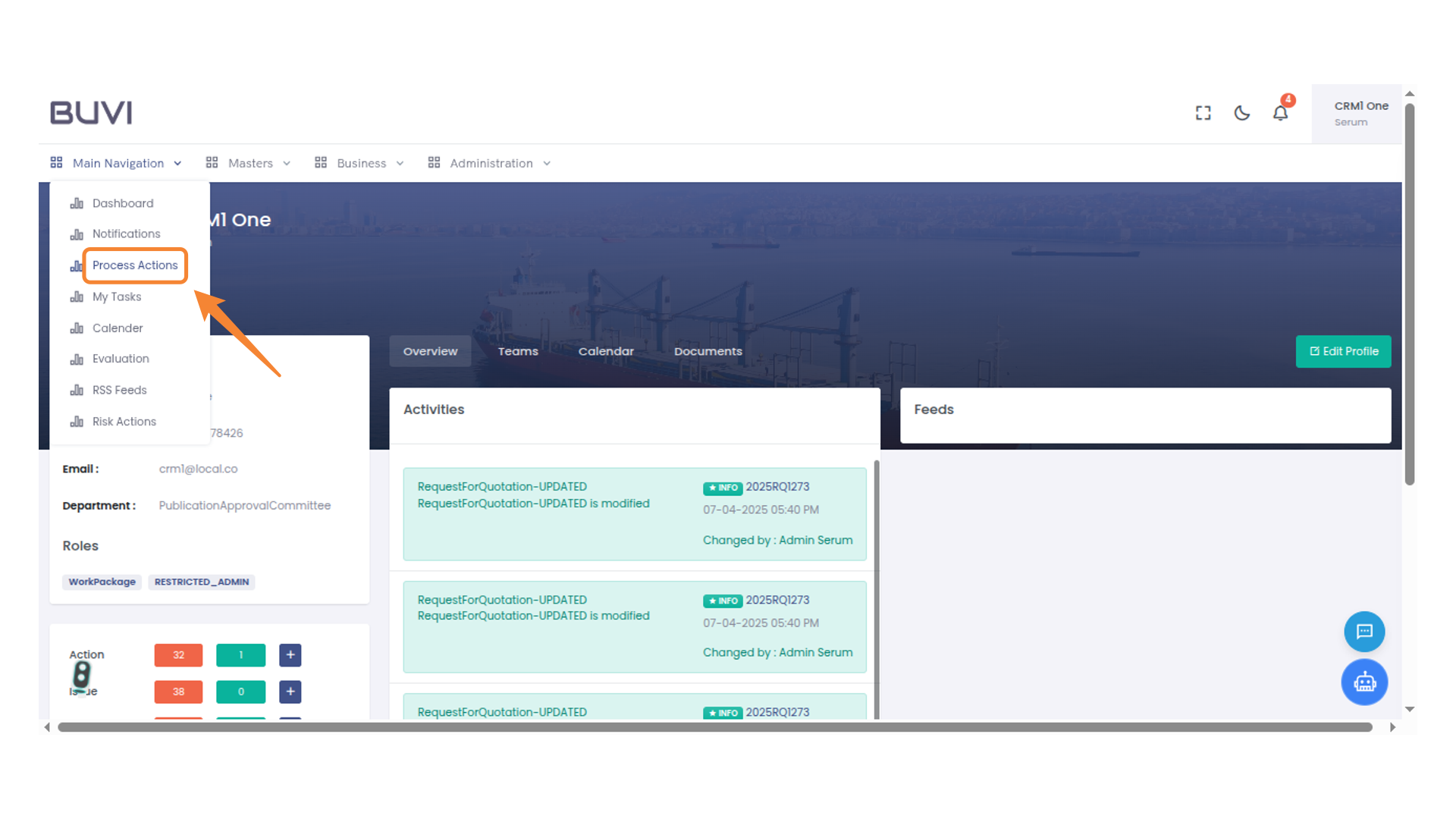
43. Task Name Highlight
Review and amend the RFP with the committee head.
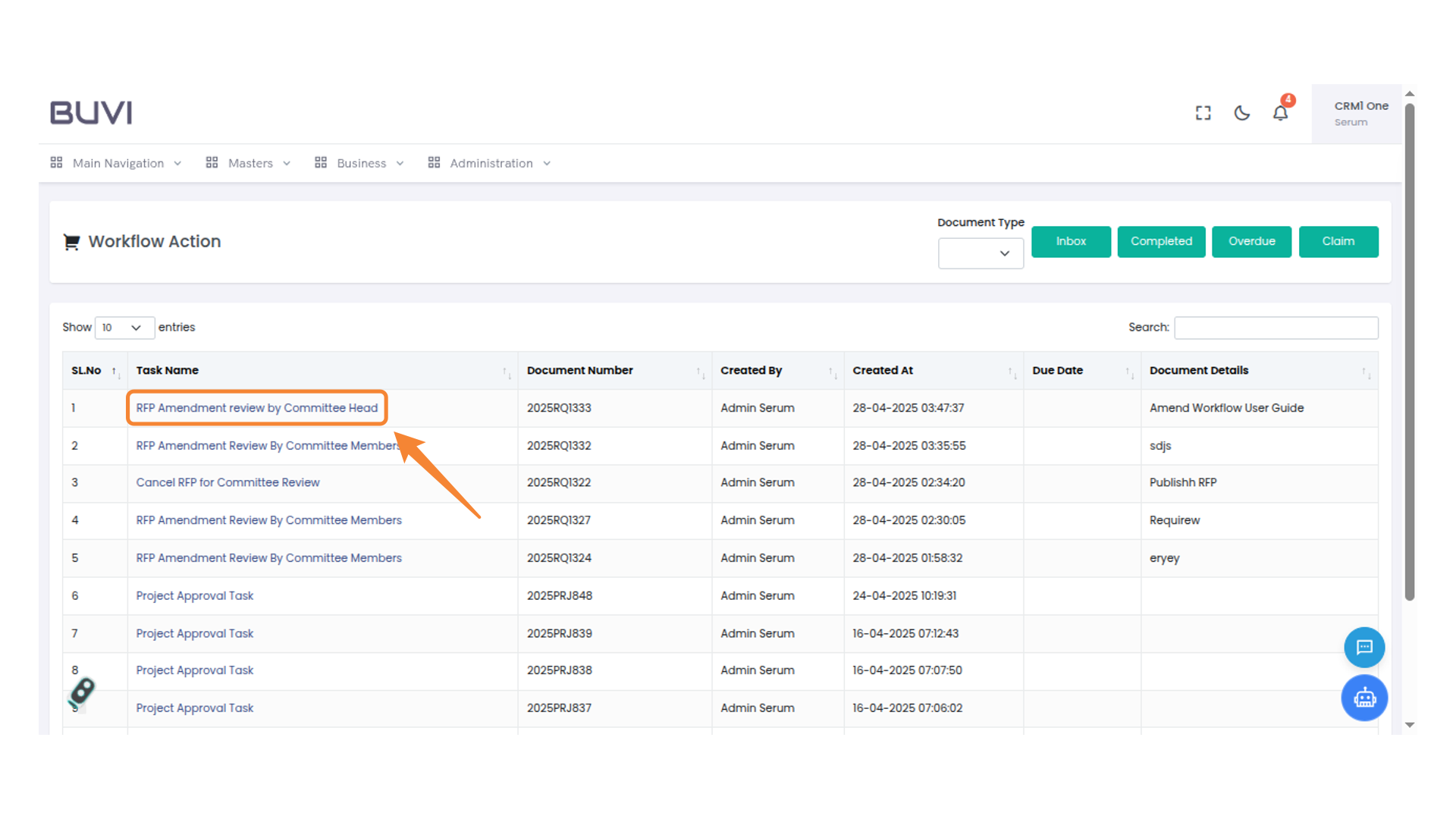
44. Next Actions Button
Select the 'Next Actions' button to proceed with additional options.
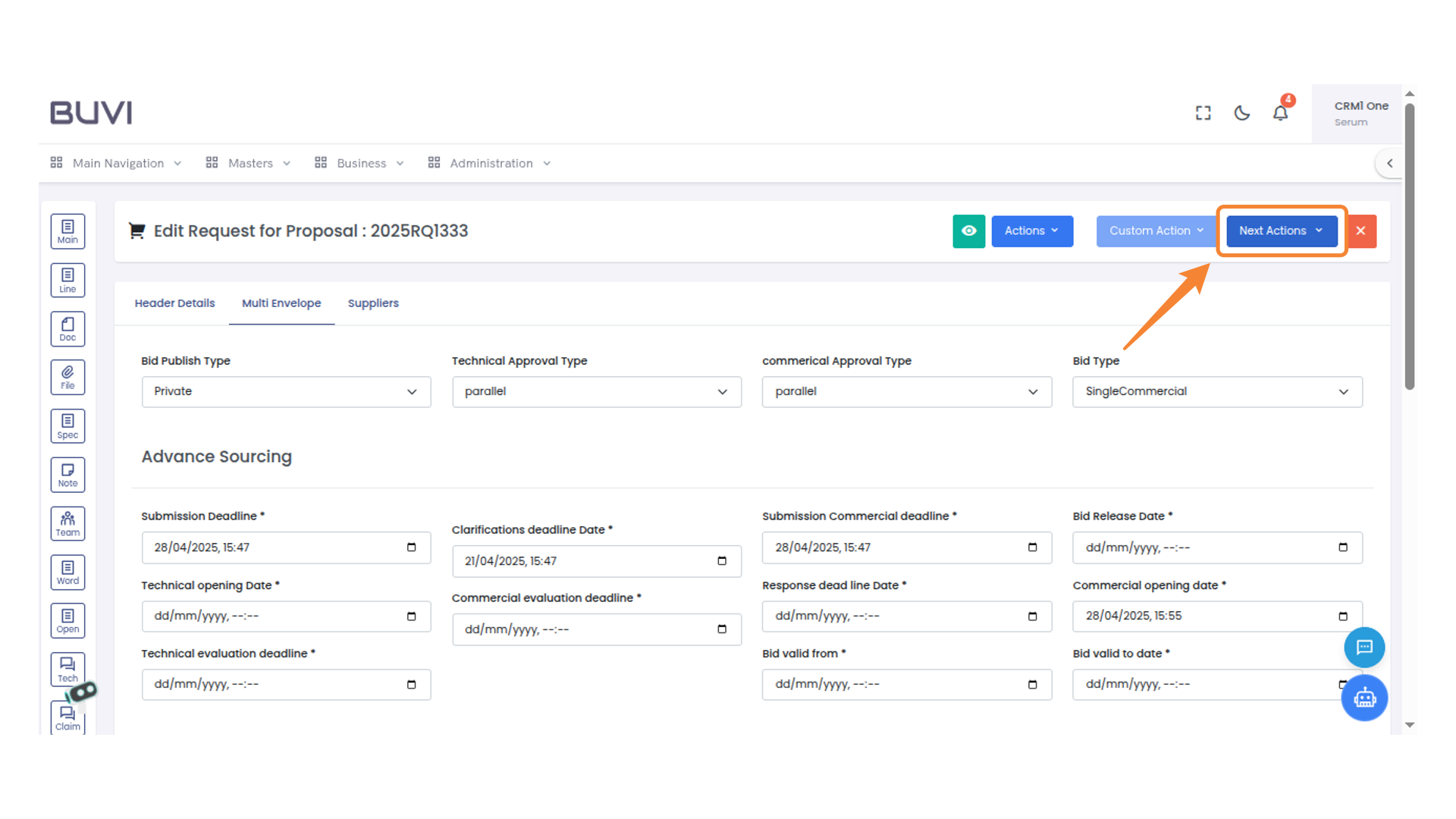
45. Approval Action
Select this option to approve the proposal request.
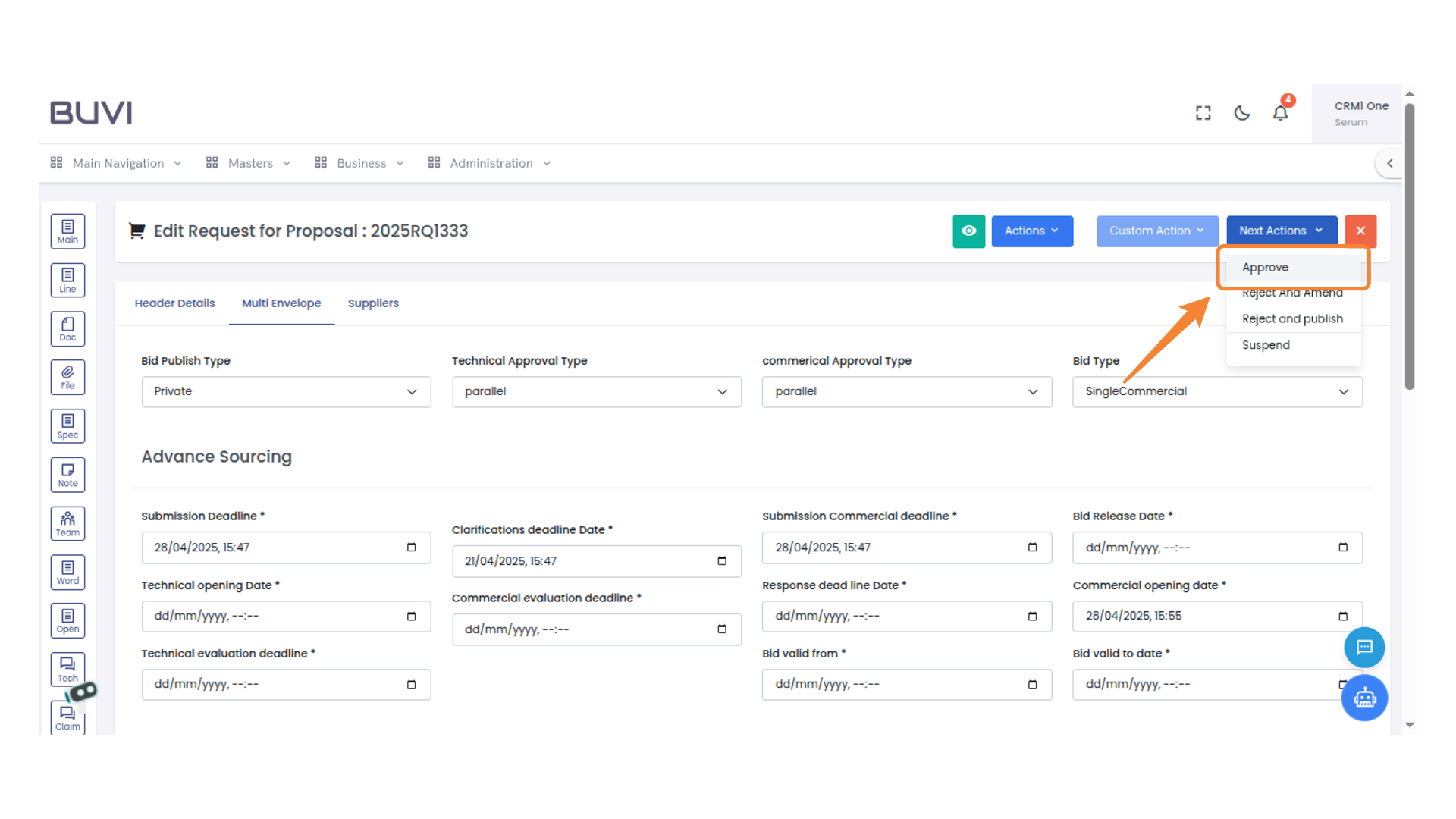
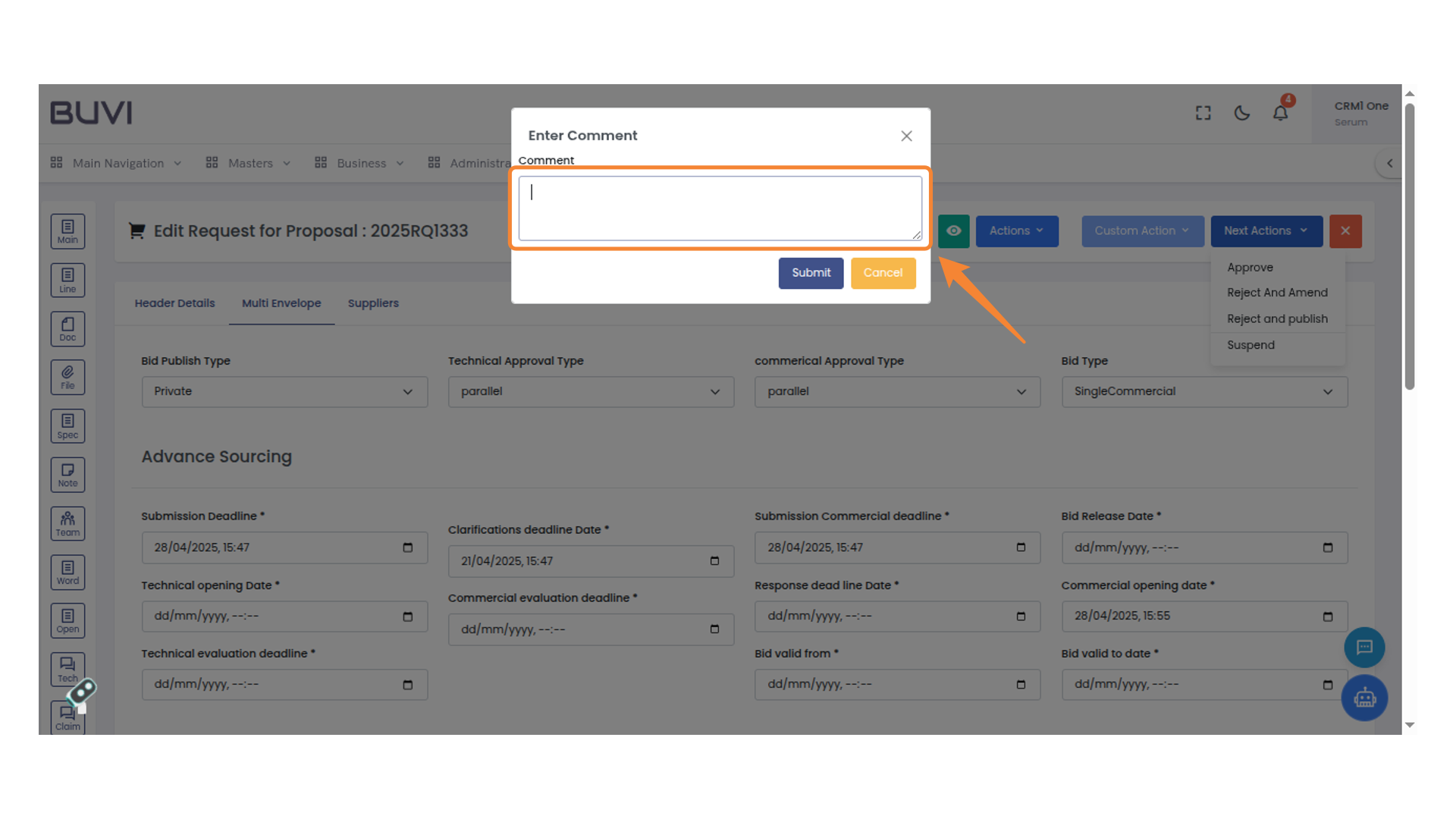
46. Enter Comment Box
Type your comment into the provided field and then click Submit to save or Cancel to dismiss.
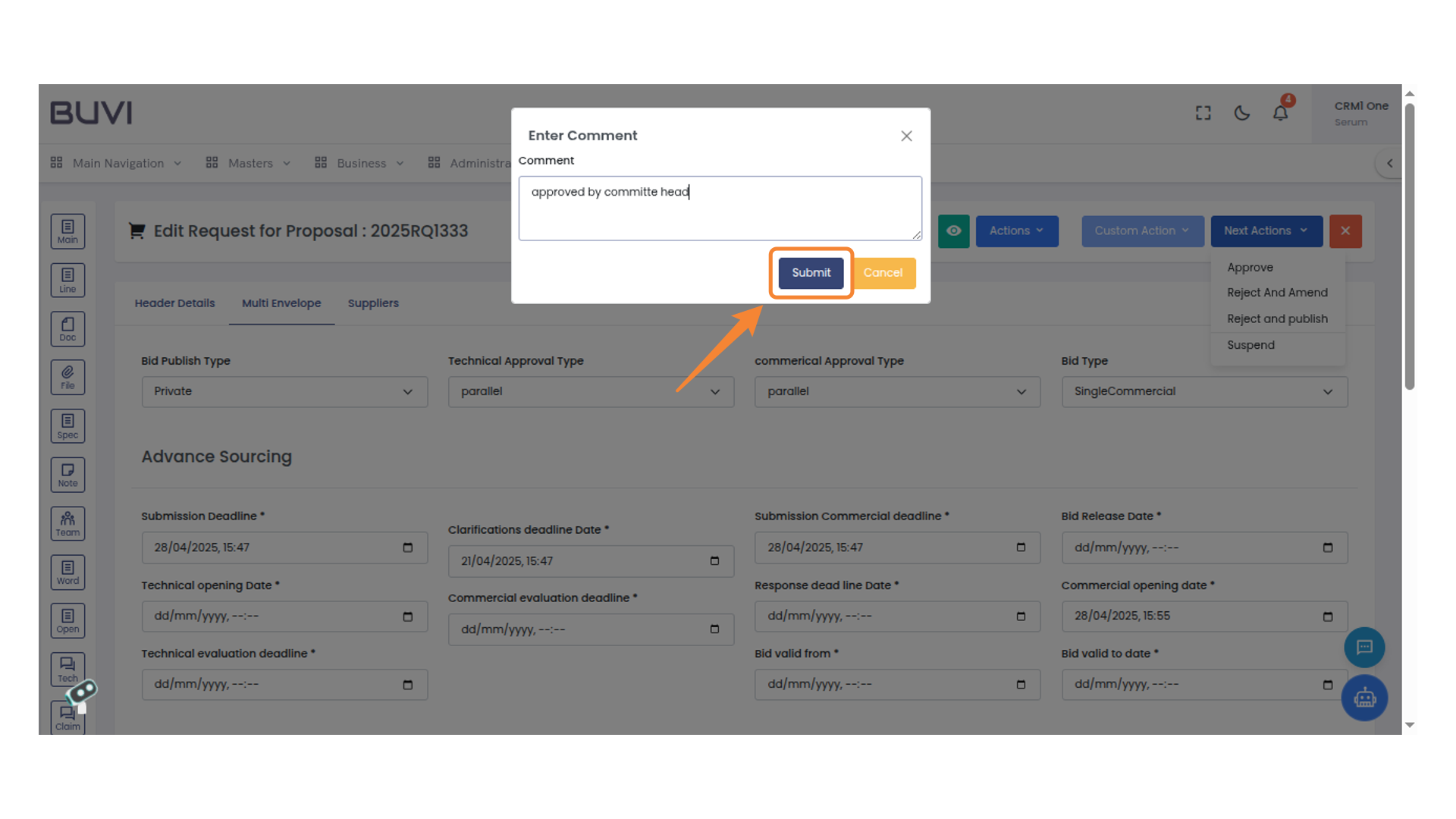
47. Submit Button
Click to finalize and submit your comment.
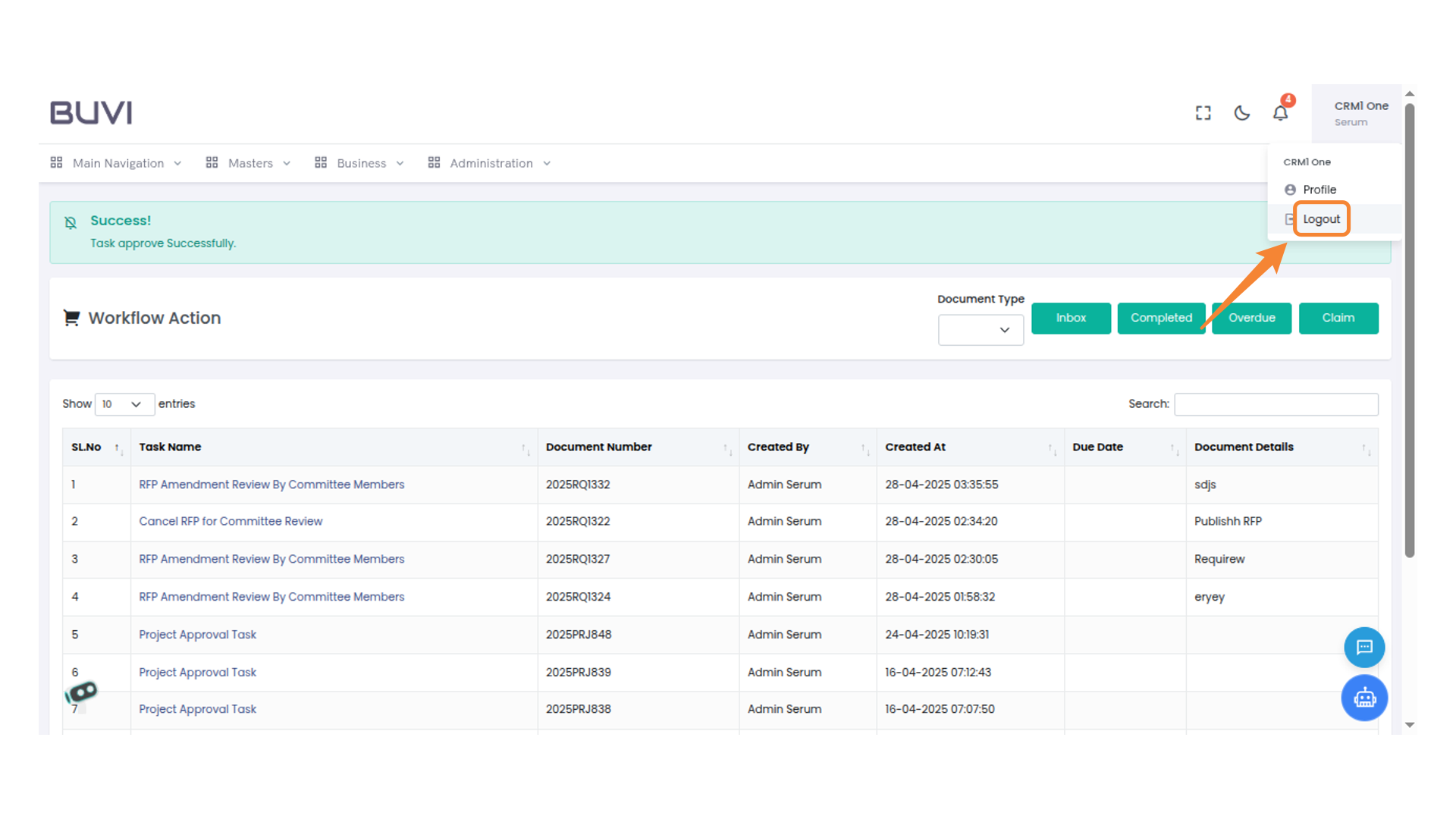
48. User Logout Option
Select this option to log out of your account.
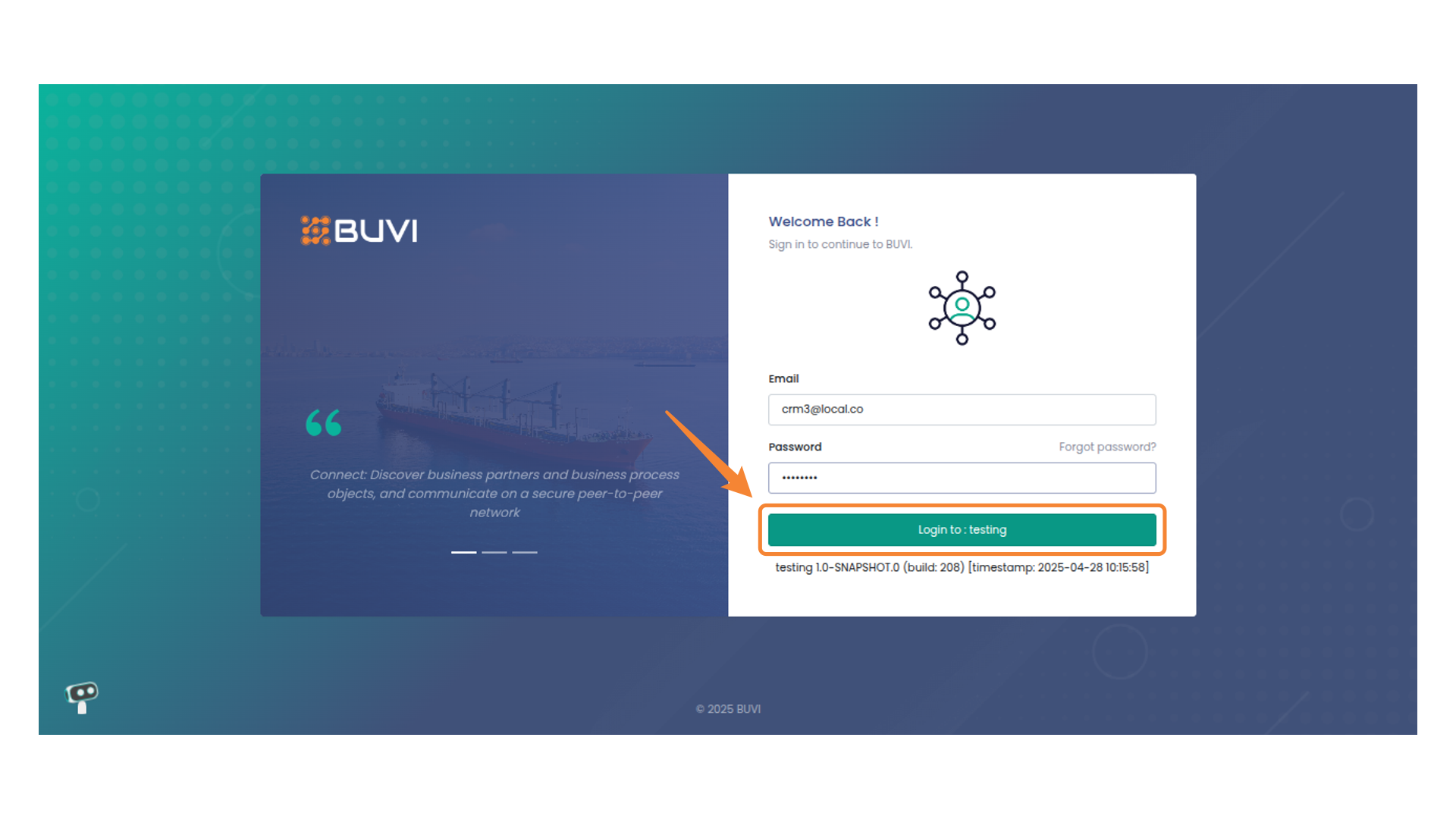
49. Login As Procurement Manager
Click to log in
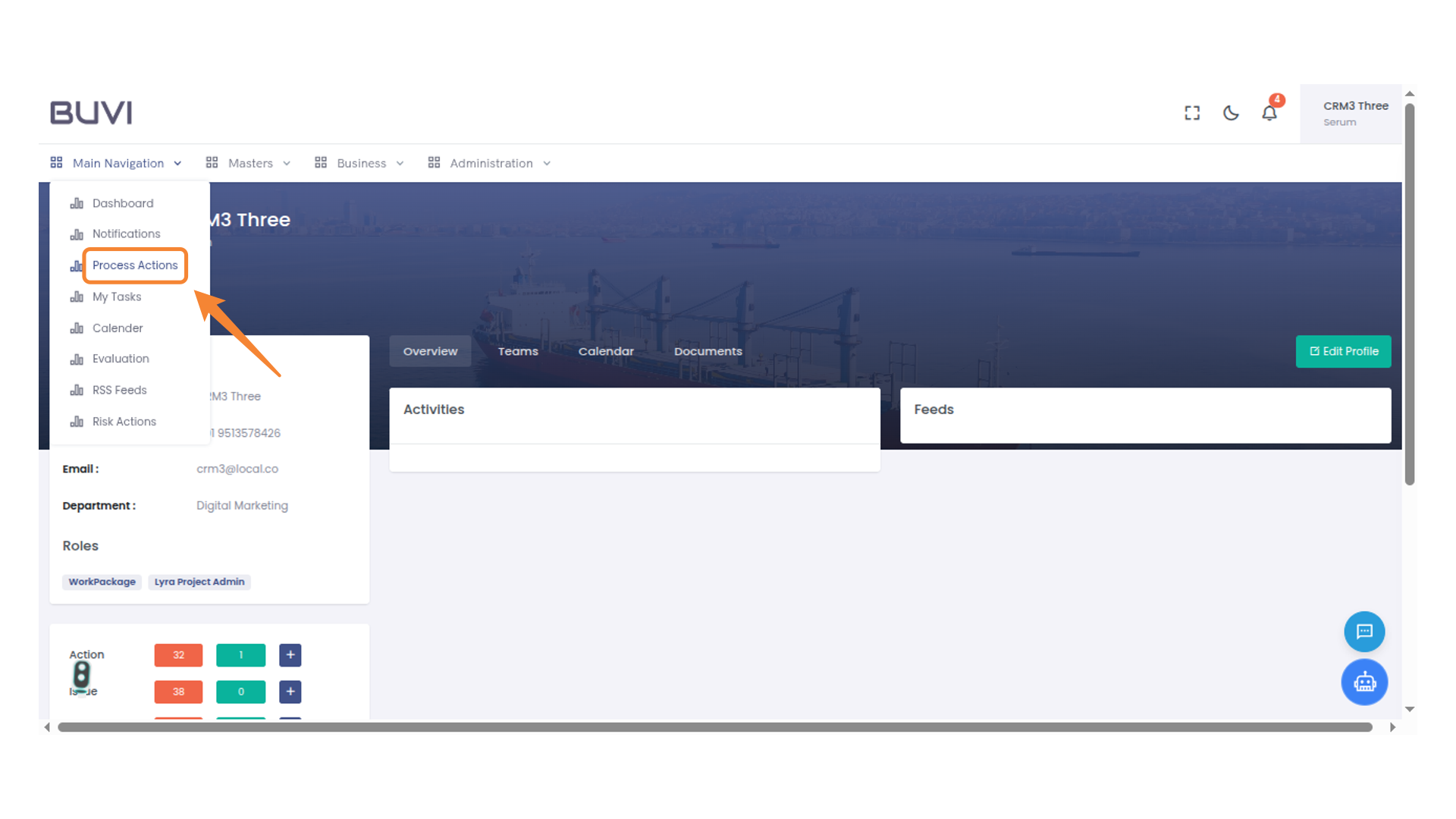
50. Process Actions Menu
Access and manage process-related actions efficiently.
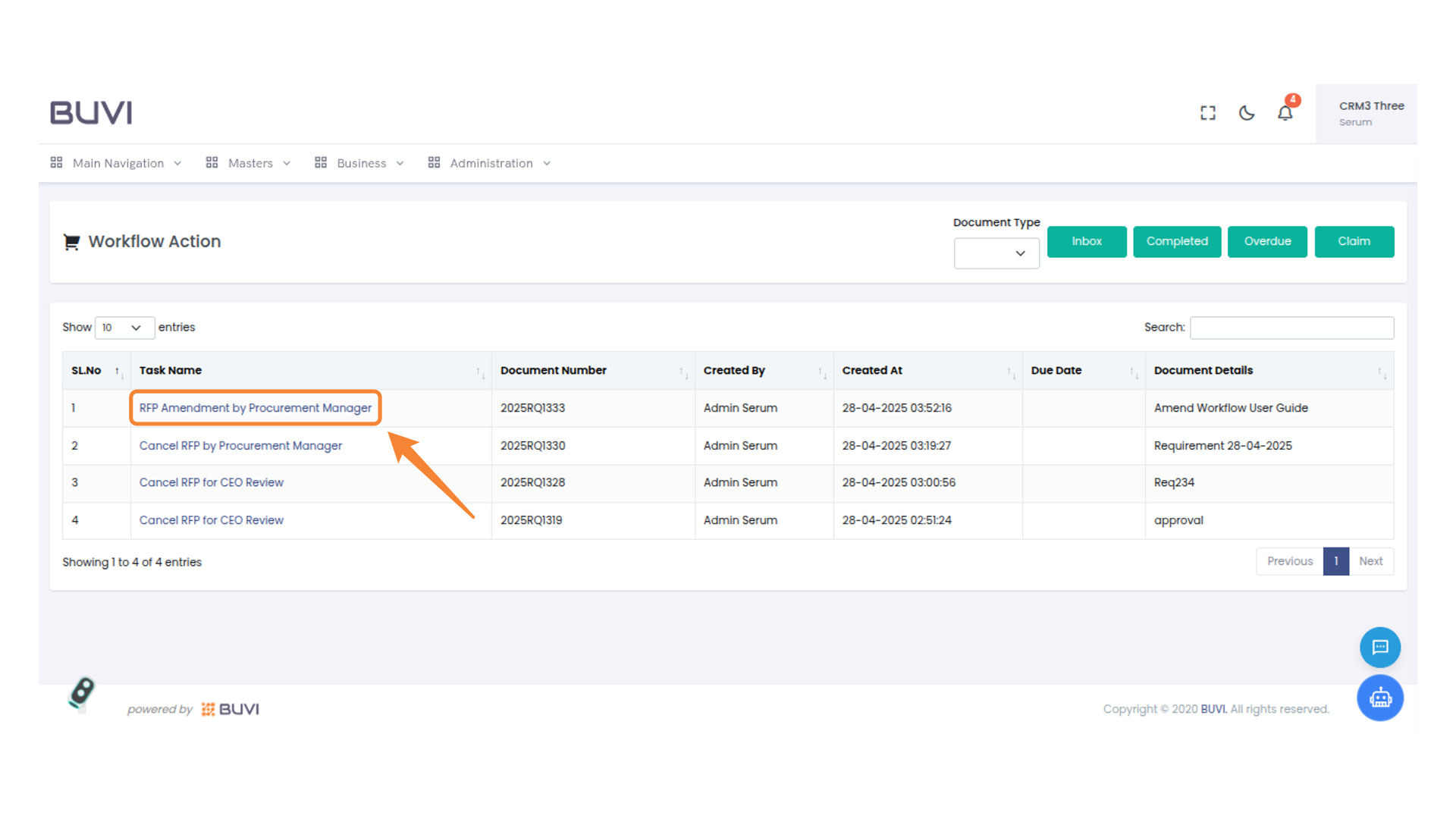
51. RFP Amendment Task
Click on RFP Amendment by Procurement Manager
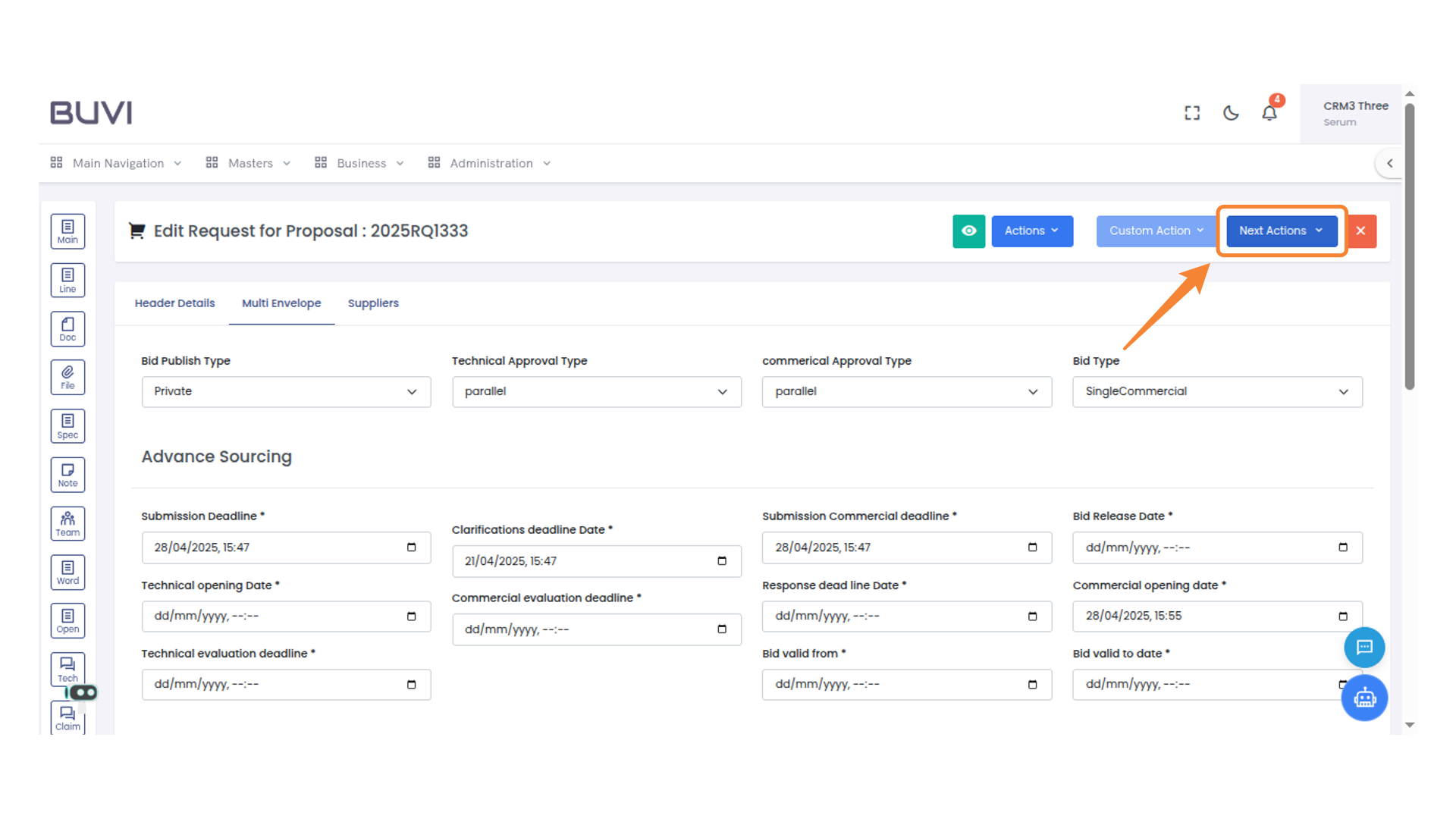
52. Next Actions Button
Click on this button to view or select the subsequent actions available.
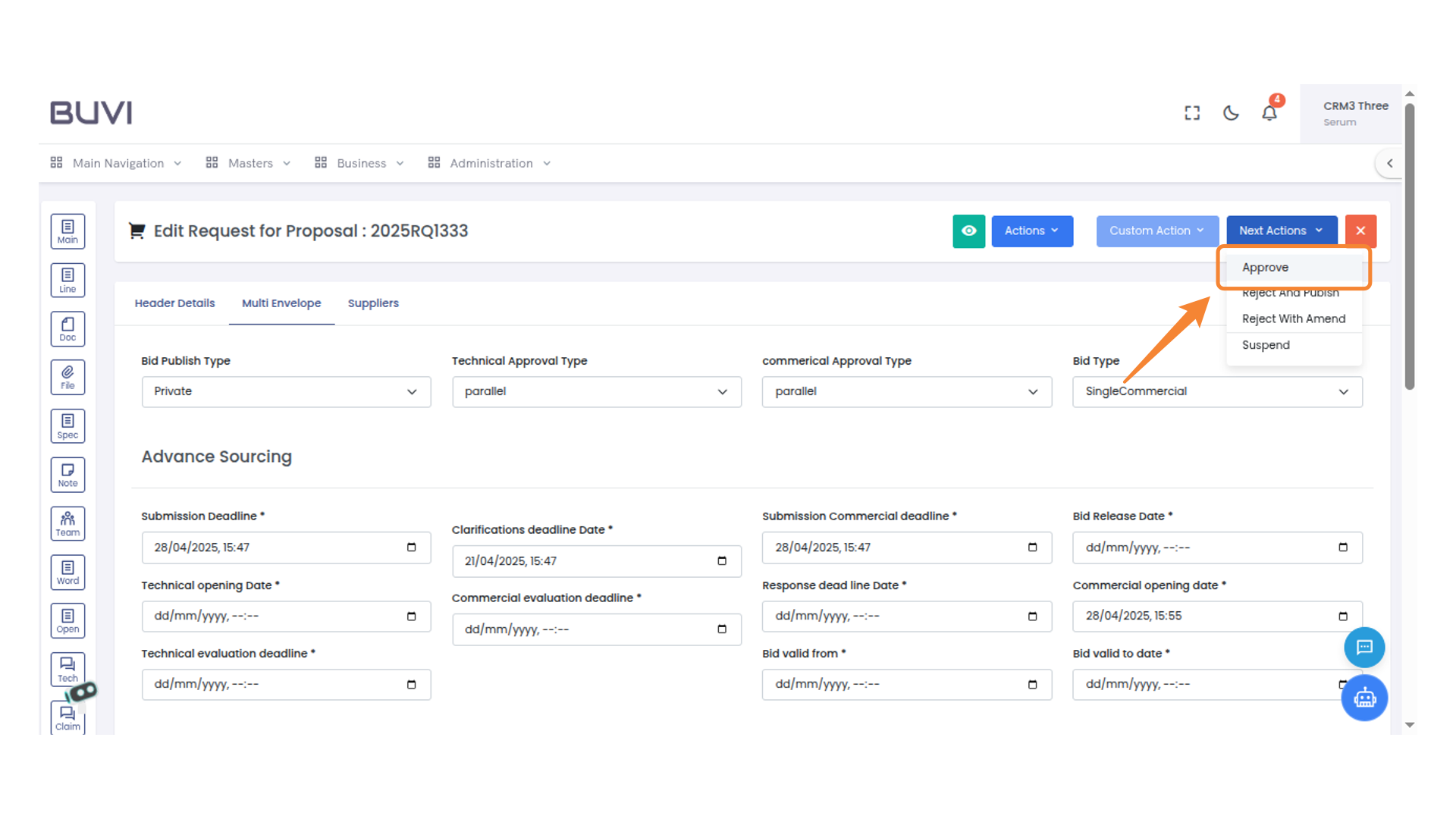
53. Approval Action
Select the option to approve the request.
54. Comment Entry Box
Enter your comment in the provided text field.
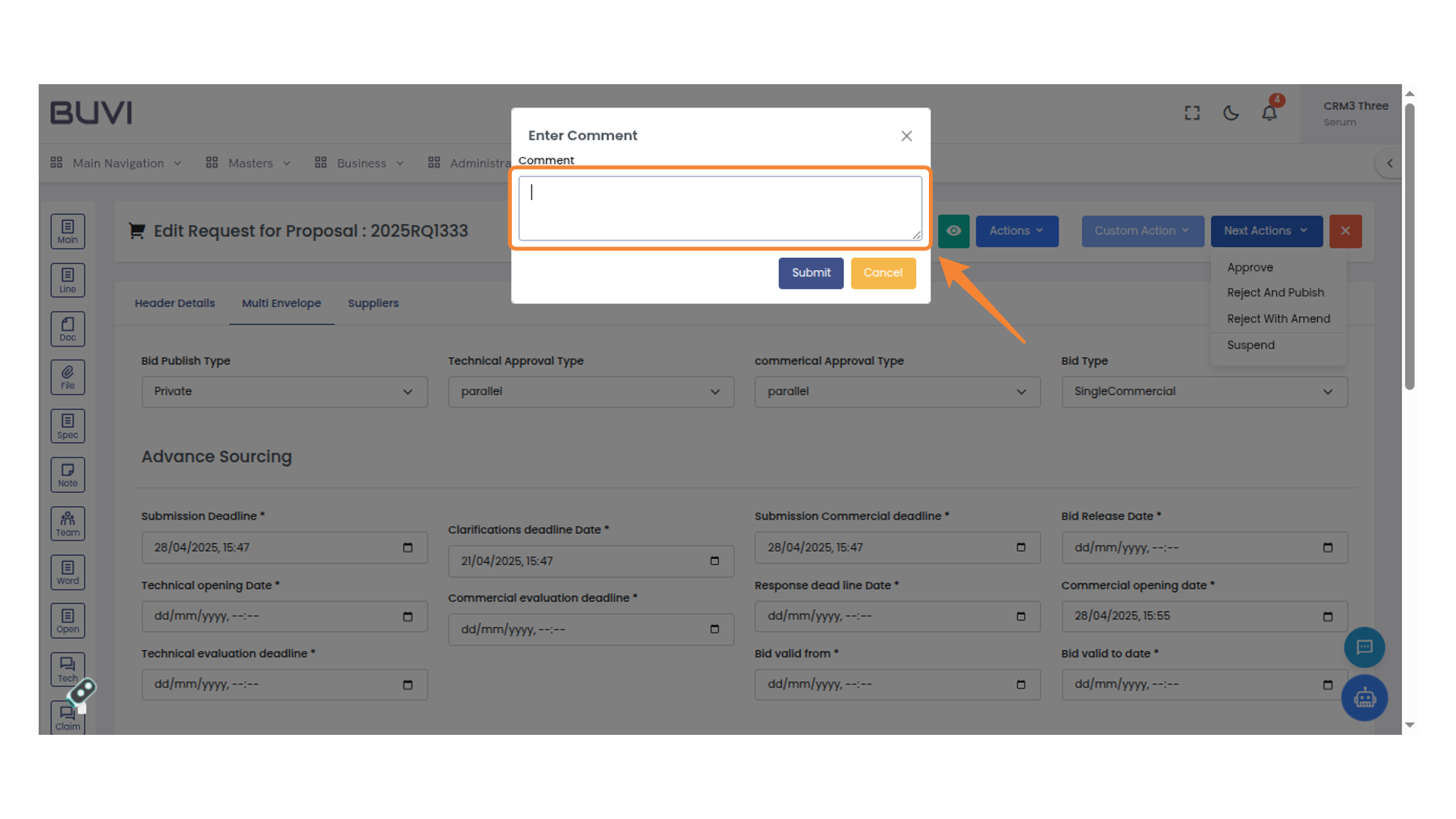
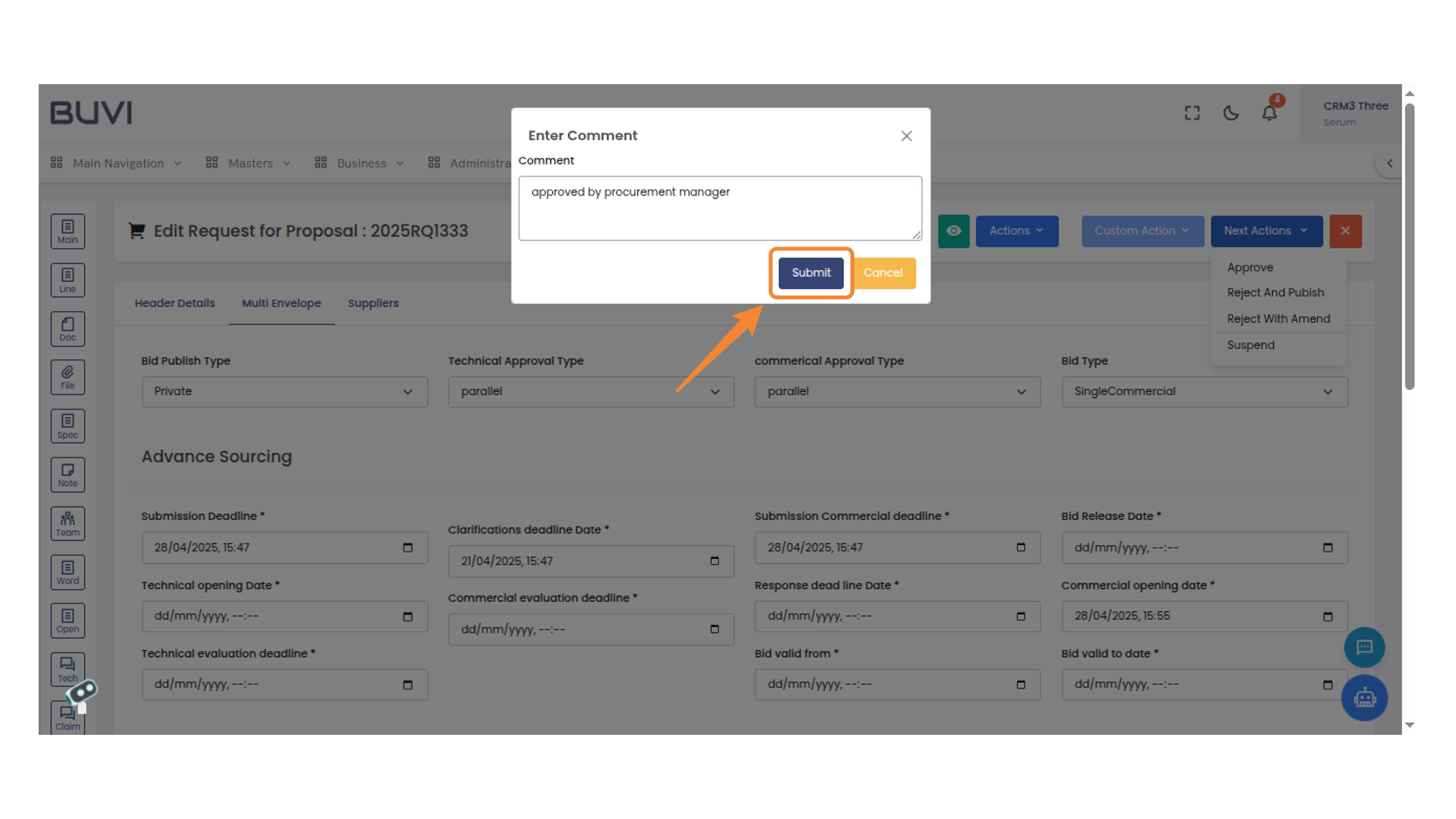
55. Submit Button Highlighted
Click the submit button to finalize your comment entry.
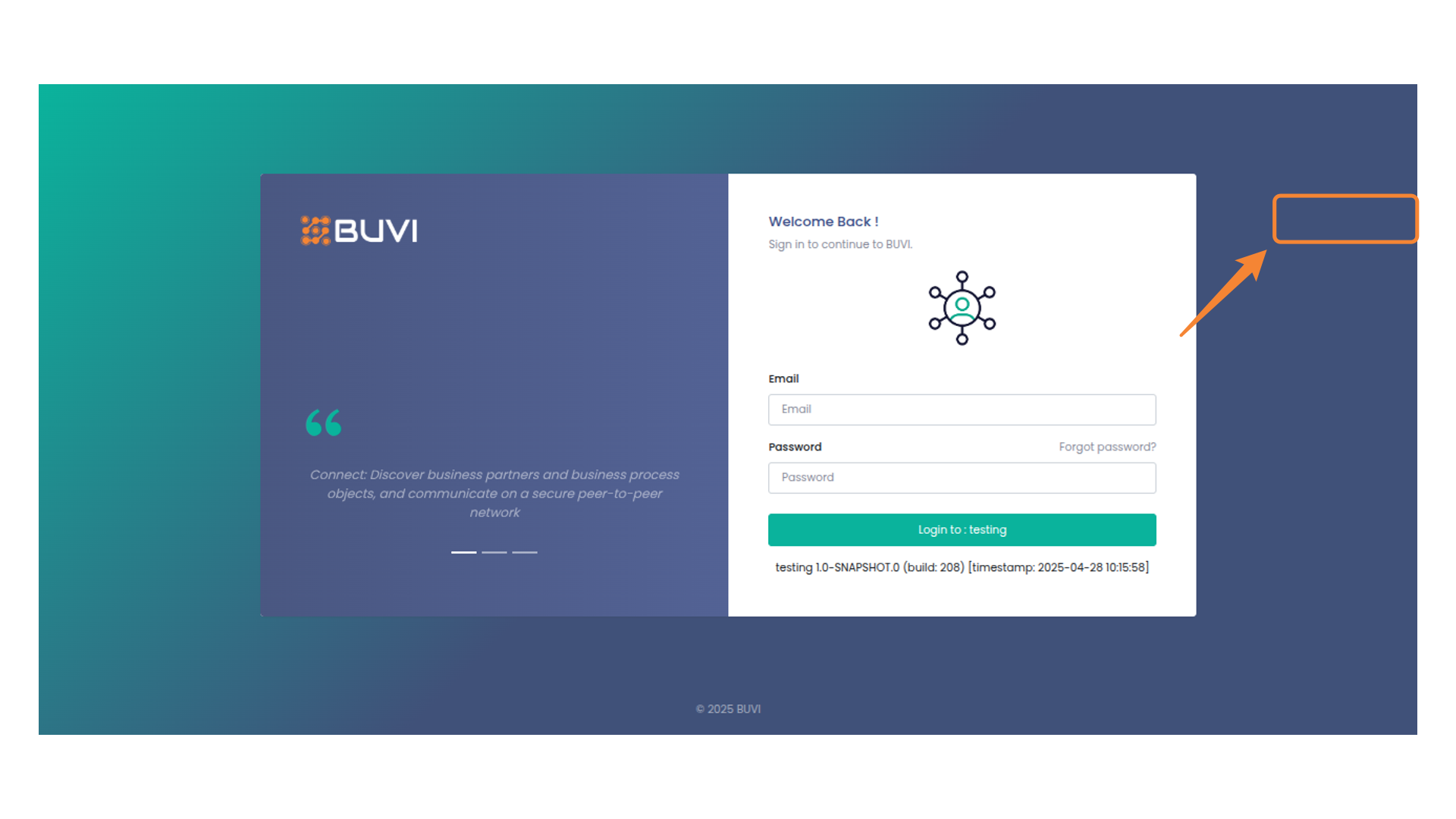
56. Logout Button
Click to log out of the current session.
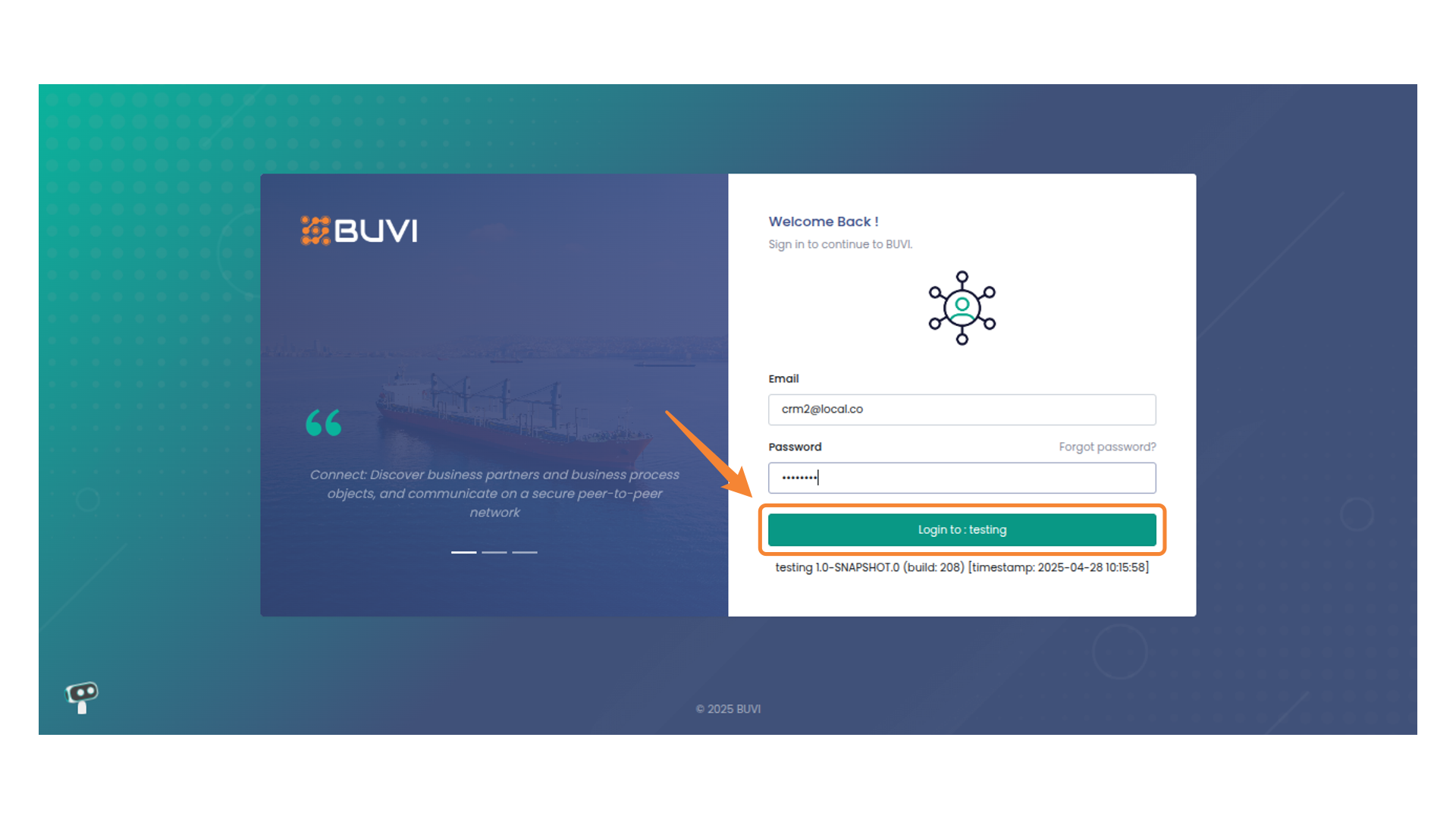
57. Login As HOD
Click on log in
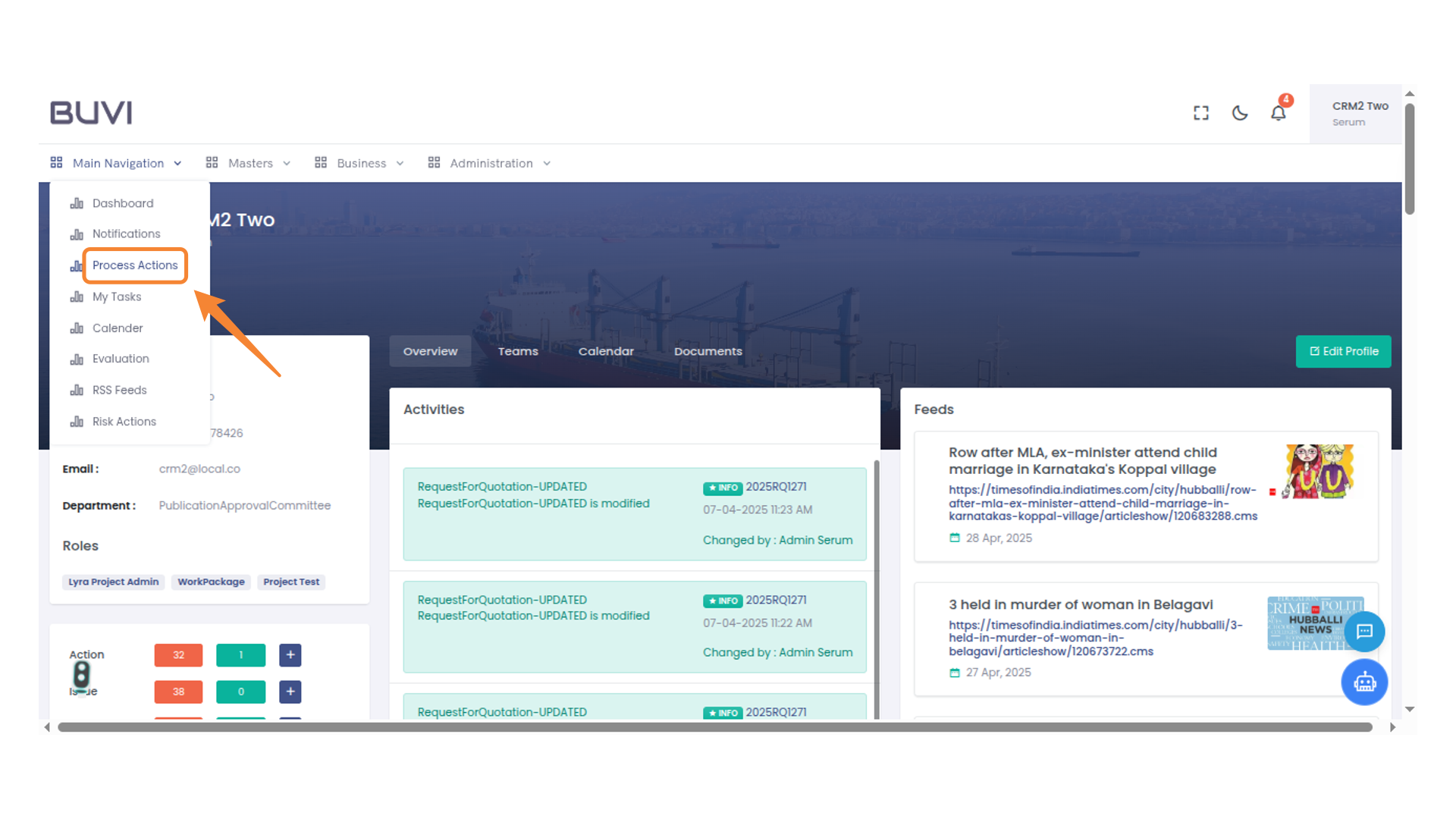
58. Navigating Process Actions
Access and manage workflow actions by selecting this menu item on the left.
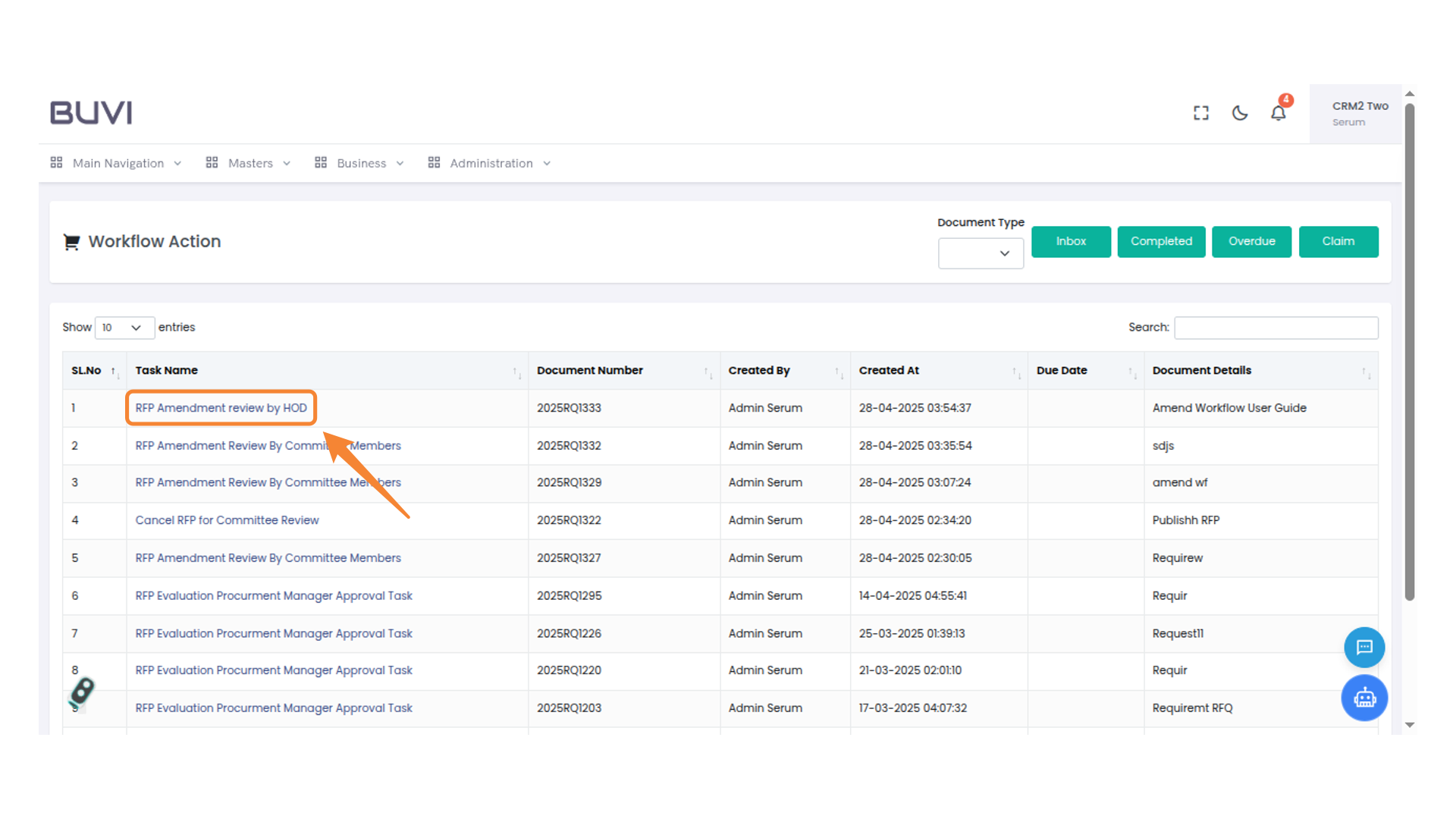
59. RFP Amendment Review Task
Review the RFP amendment task assigned to the Head of Department.
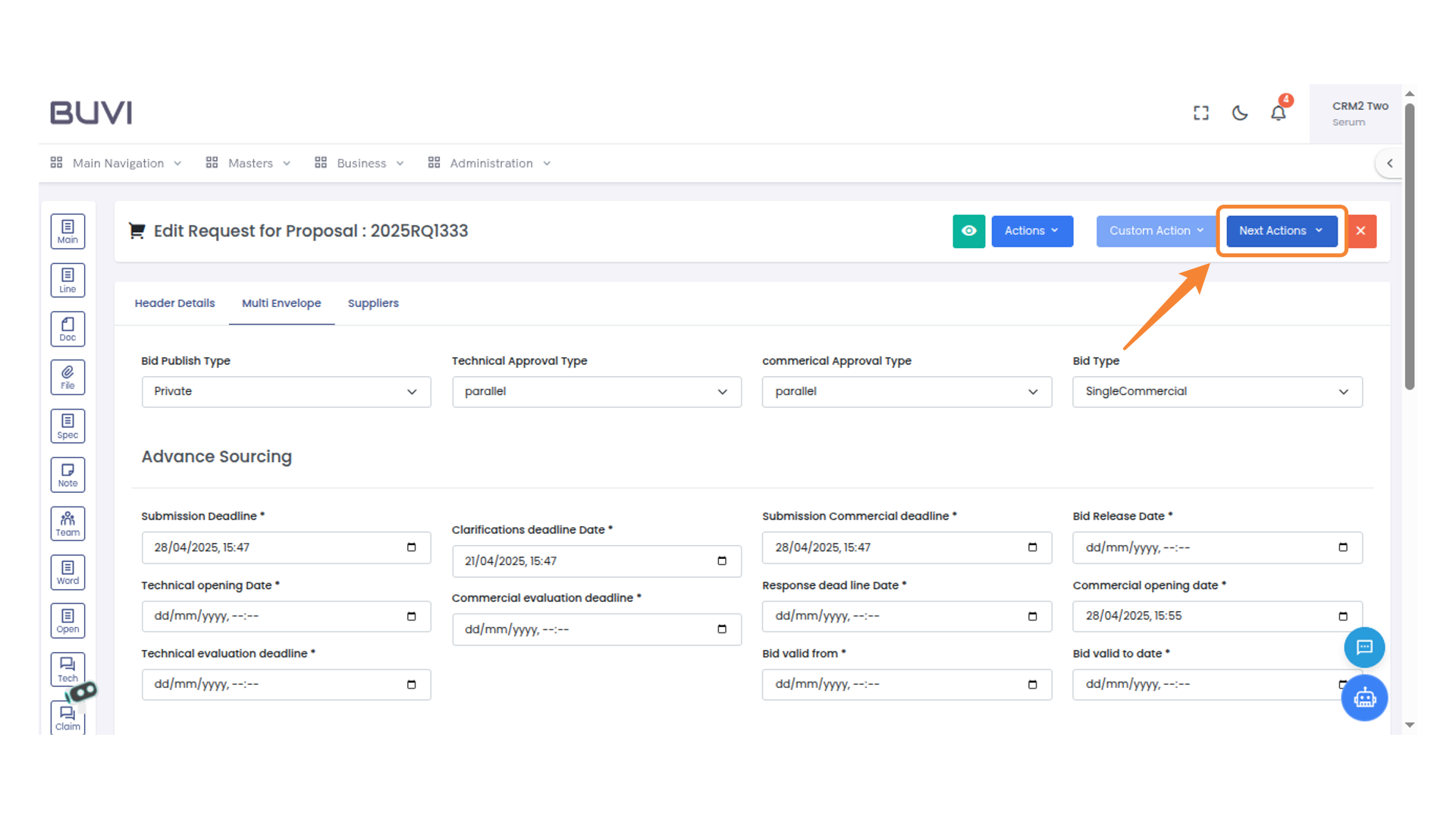
60. Next Actions Menu
Select the 'Next Actions' dropdown to view additional options.
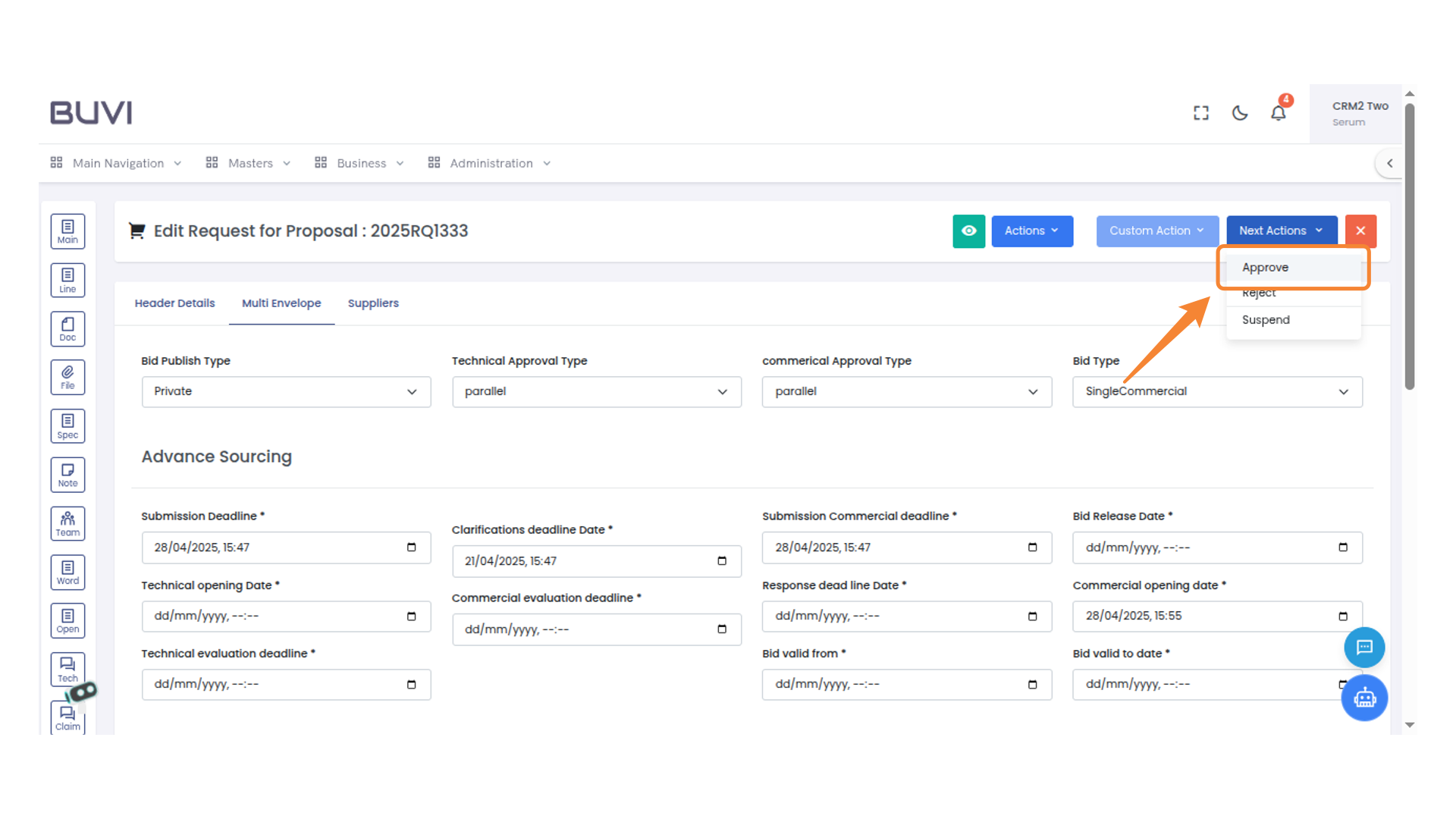
61. Approve Action Selection
Select 'Approve' to proceed with confirming the proposal.
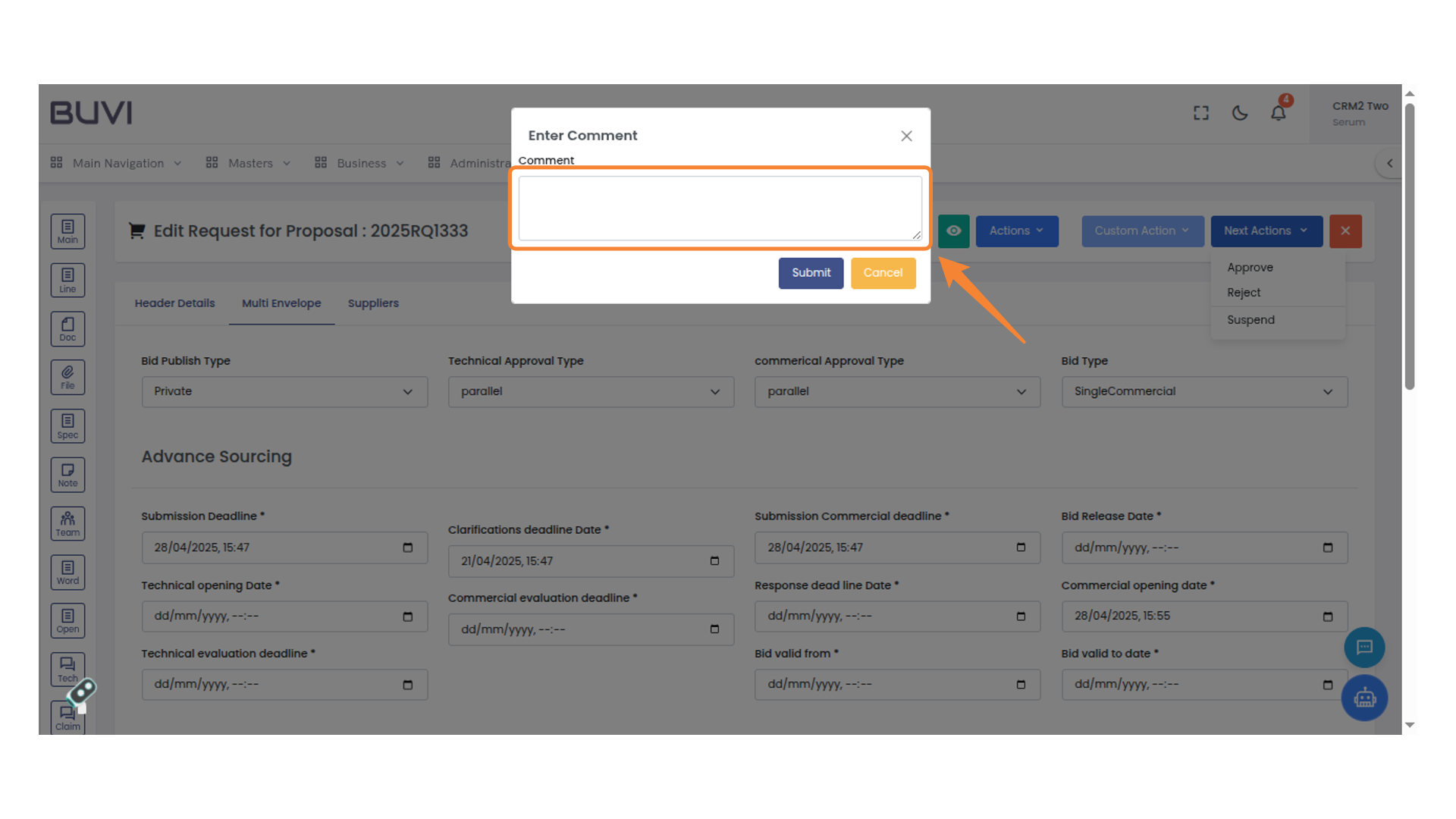
62. Comment Input Field
Enter your comment in the provided field and click 'Submit' to save or 'Cancel' to discard.
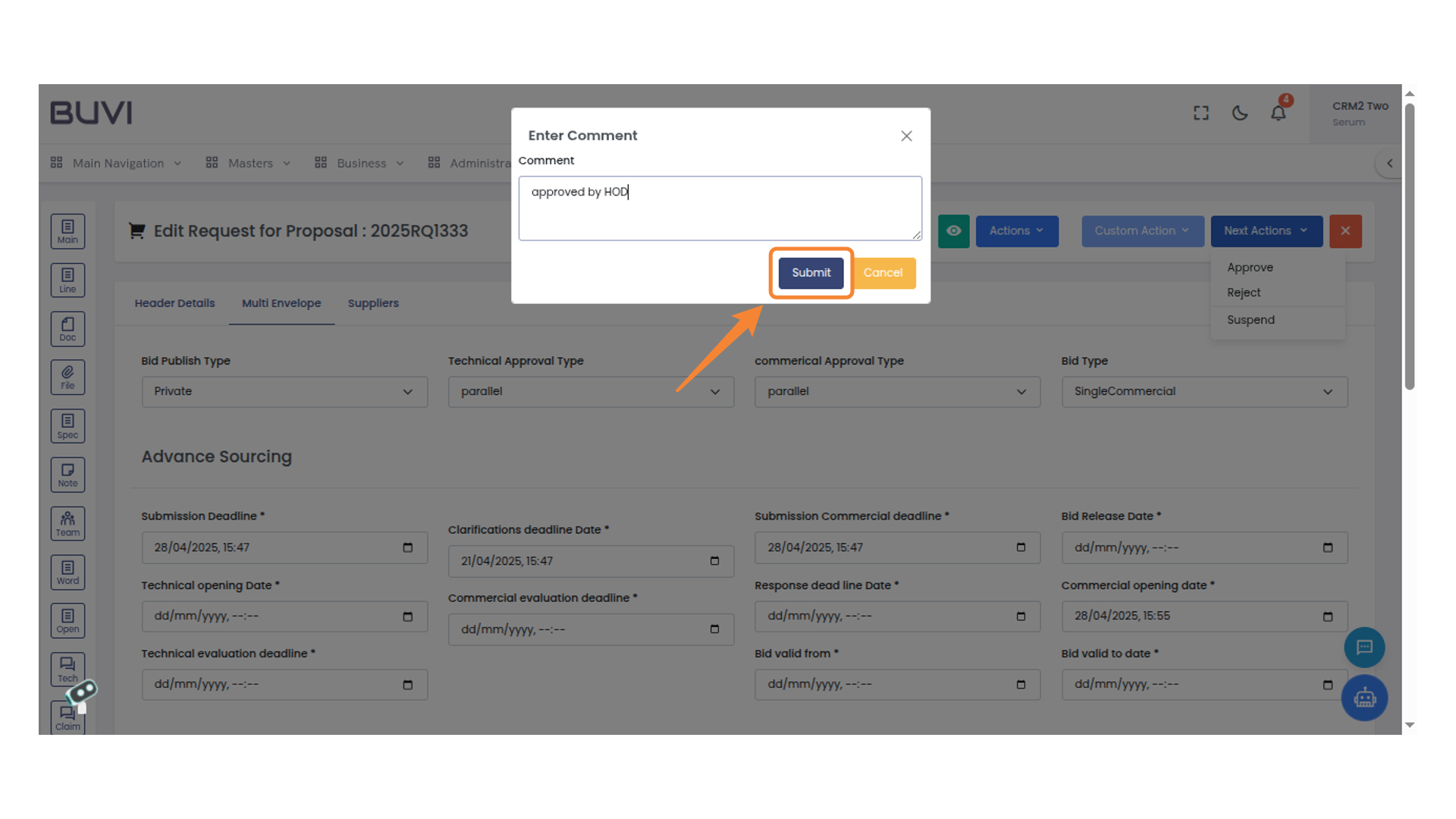
63. Submit Button
Click the button to submit your comment.
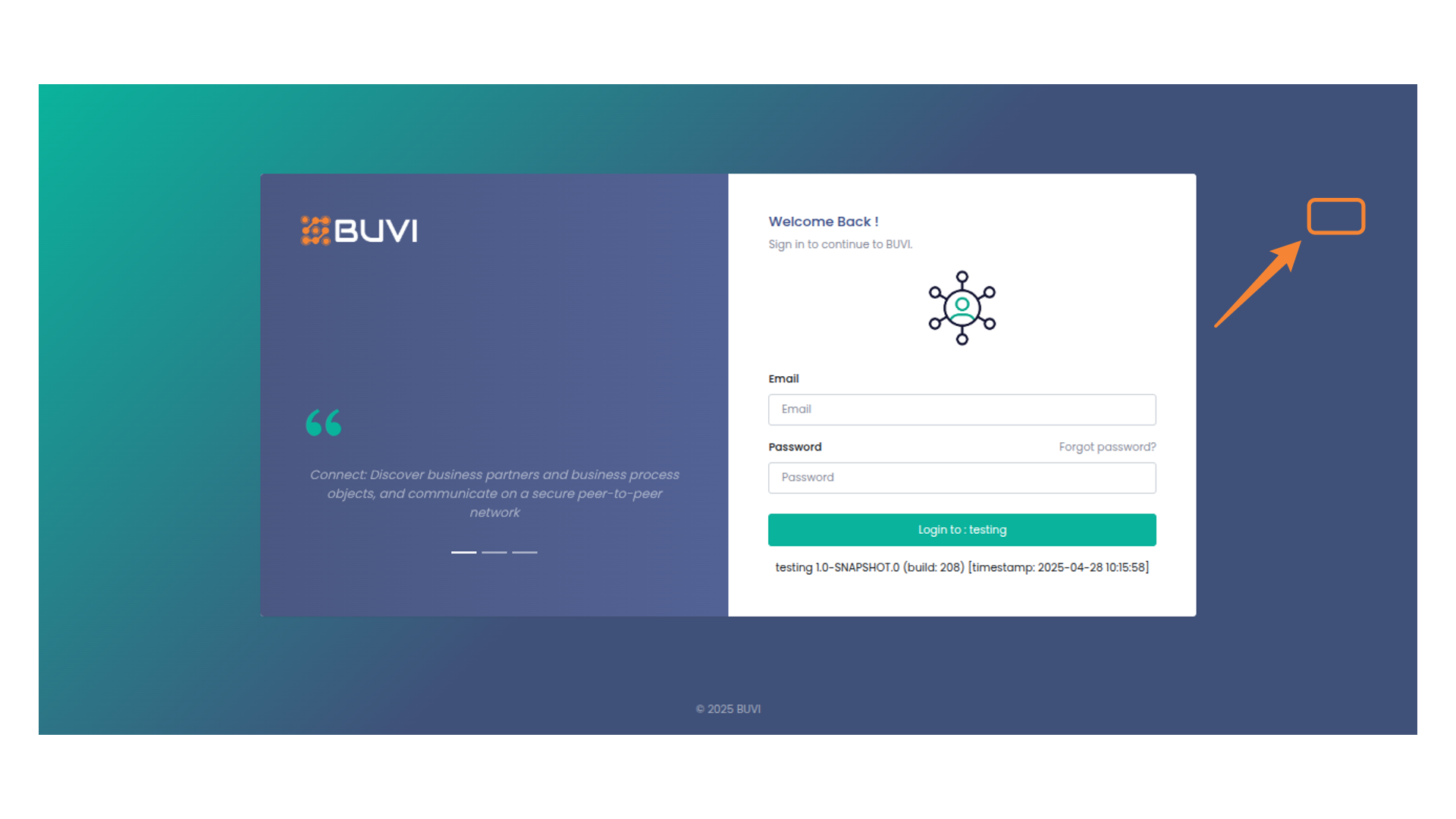
64. Logout Button Area
Click here to log out from your account.
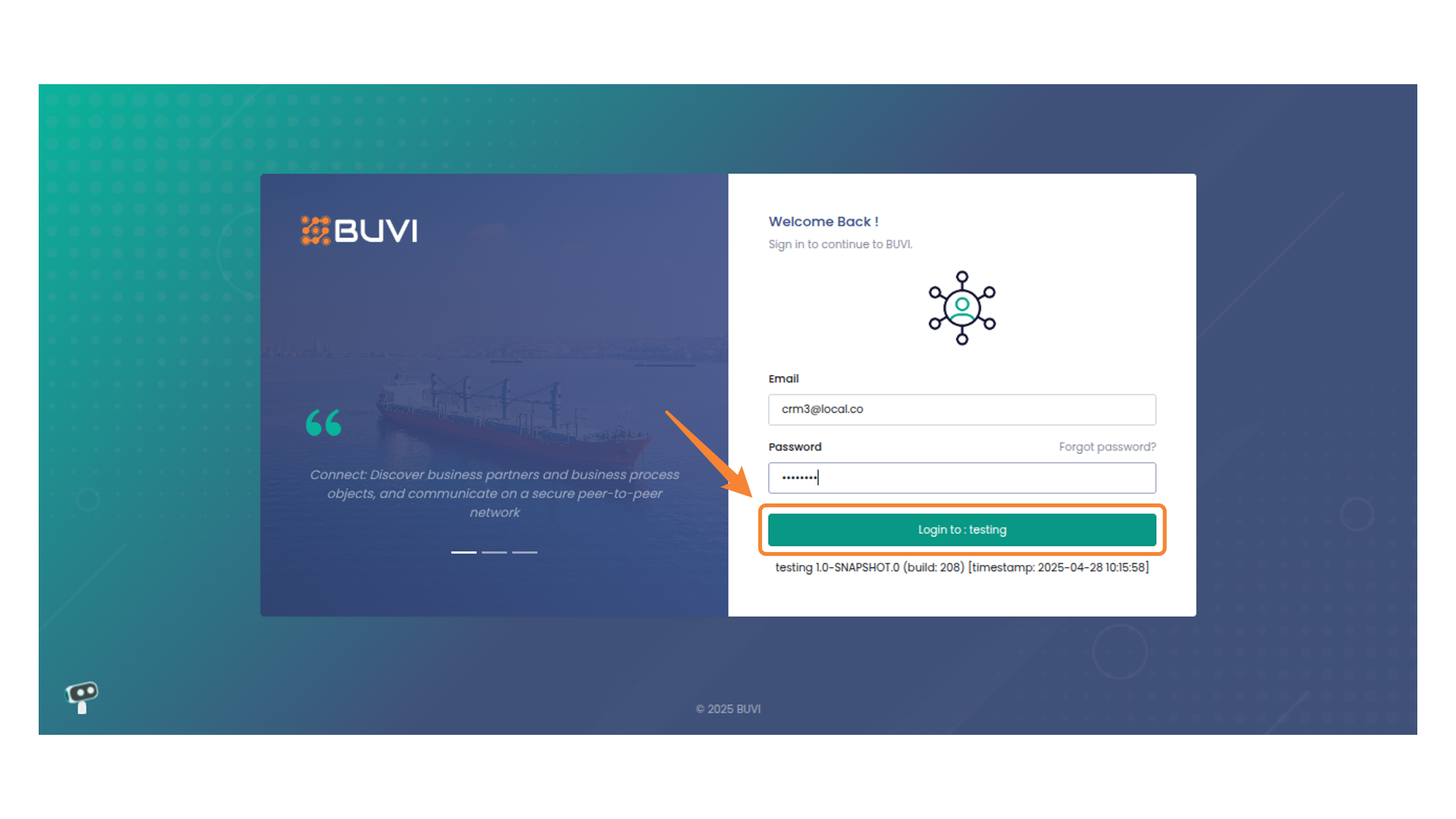
65. Login AS CEO
Click the login button
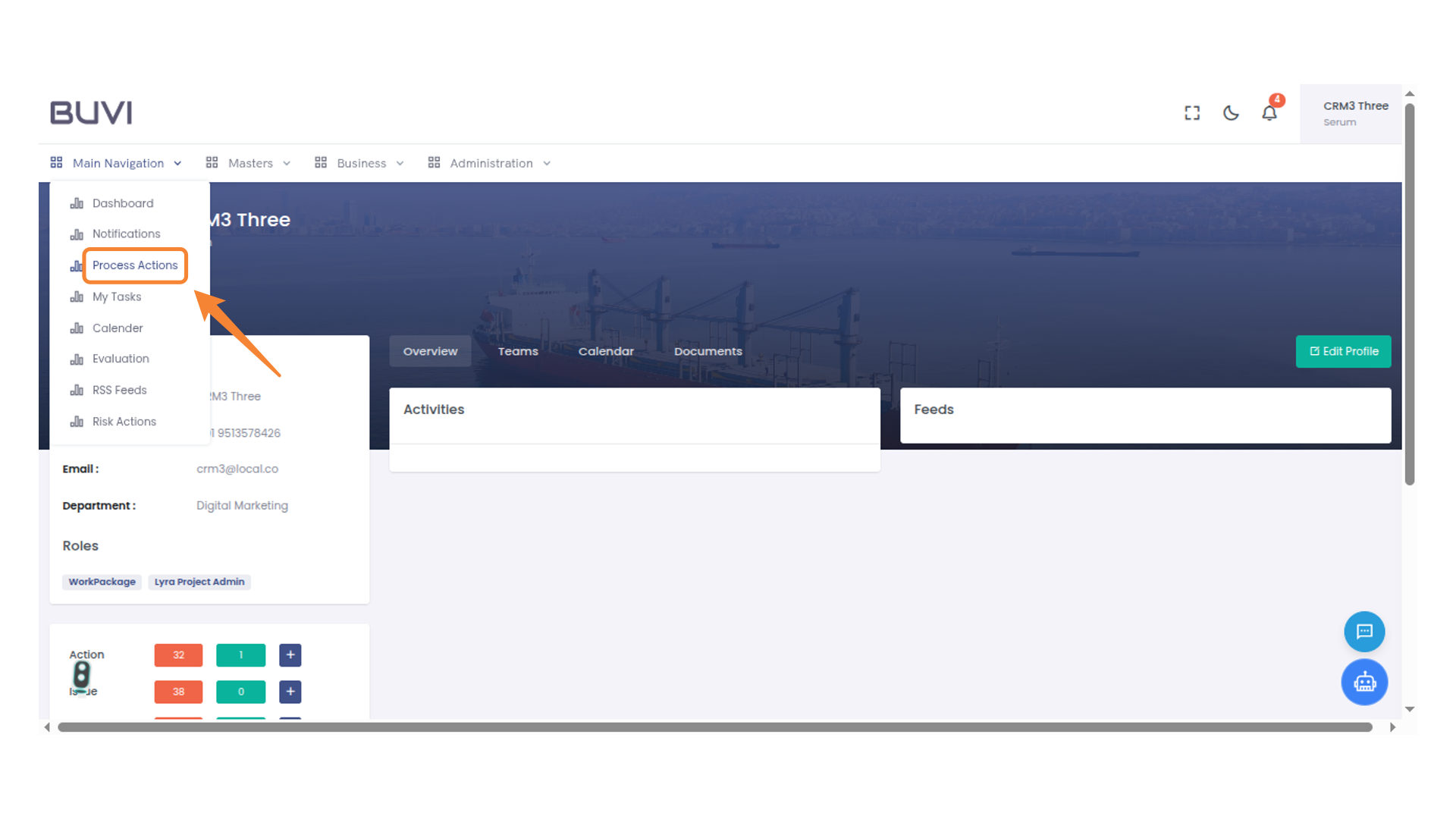
66. Process Actions Menu
Access and manage the available process actions from this menu option.
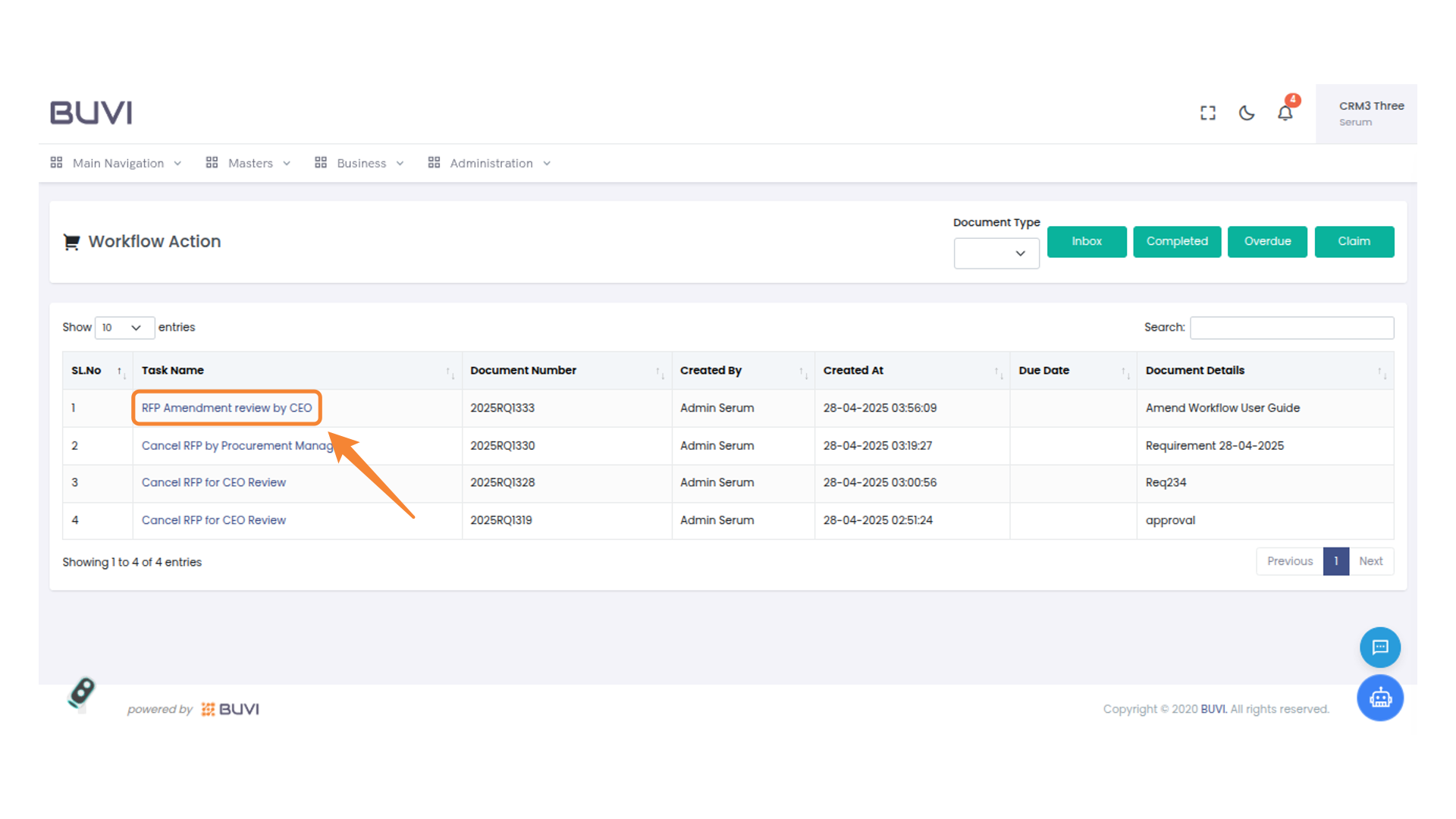
67. RFP Amendment Review Task
Examine the RFP amendment assigned for CEO review and ensure all details are accurate.
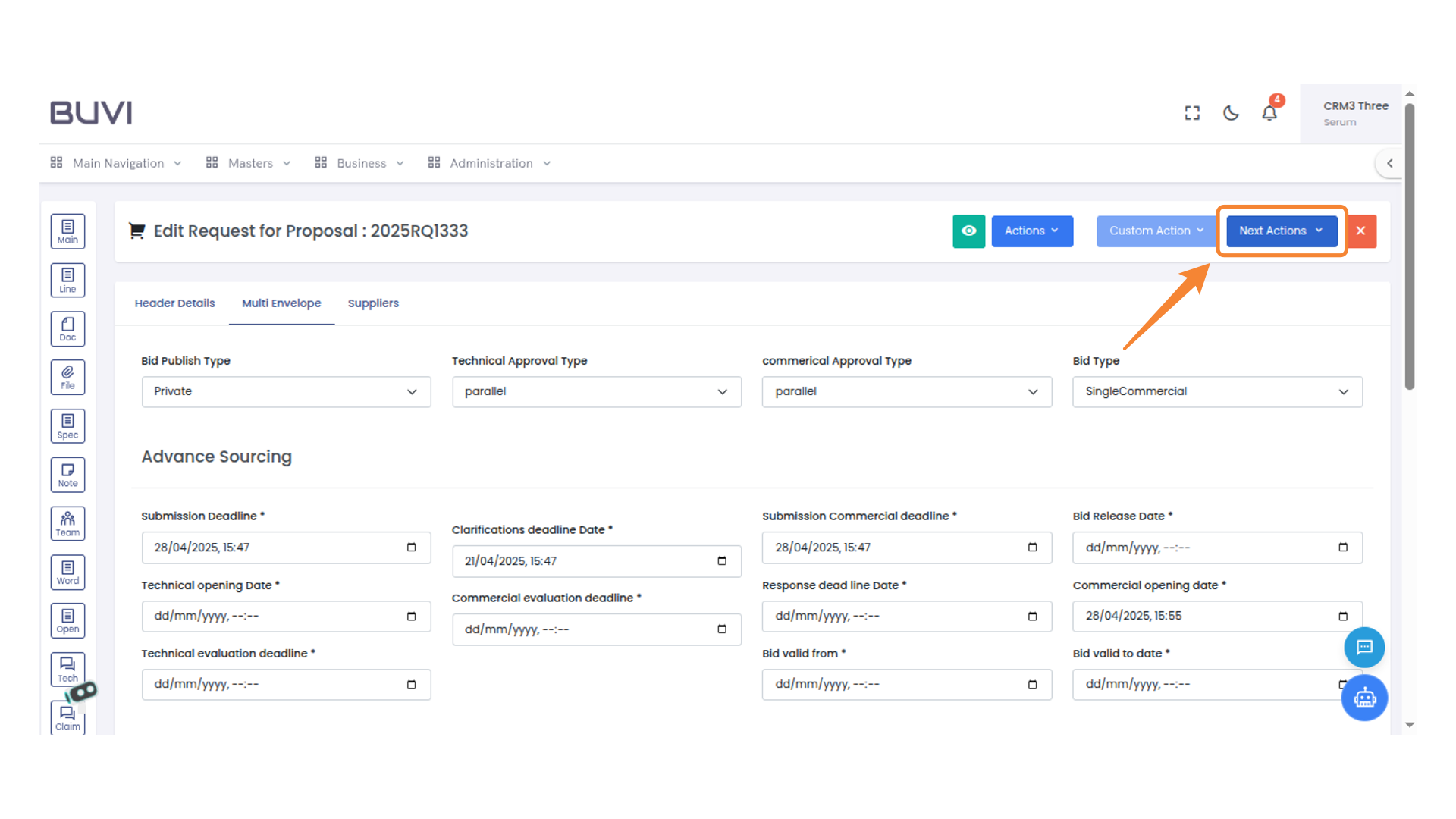
68. Next Actions Button
Click on the 'Next Actions' button to view further options.
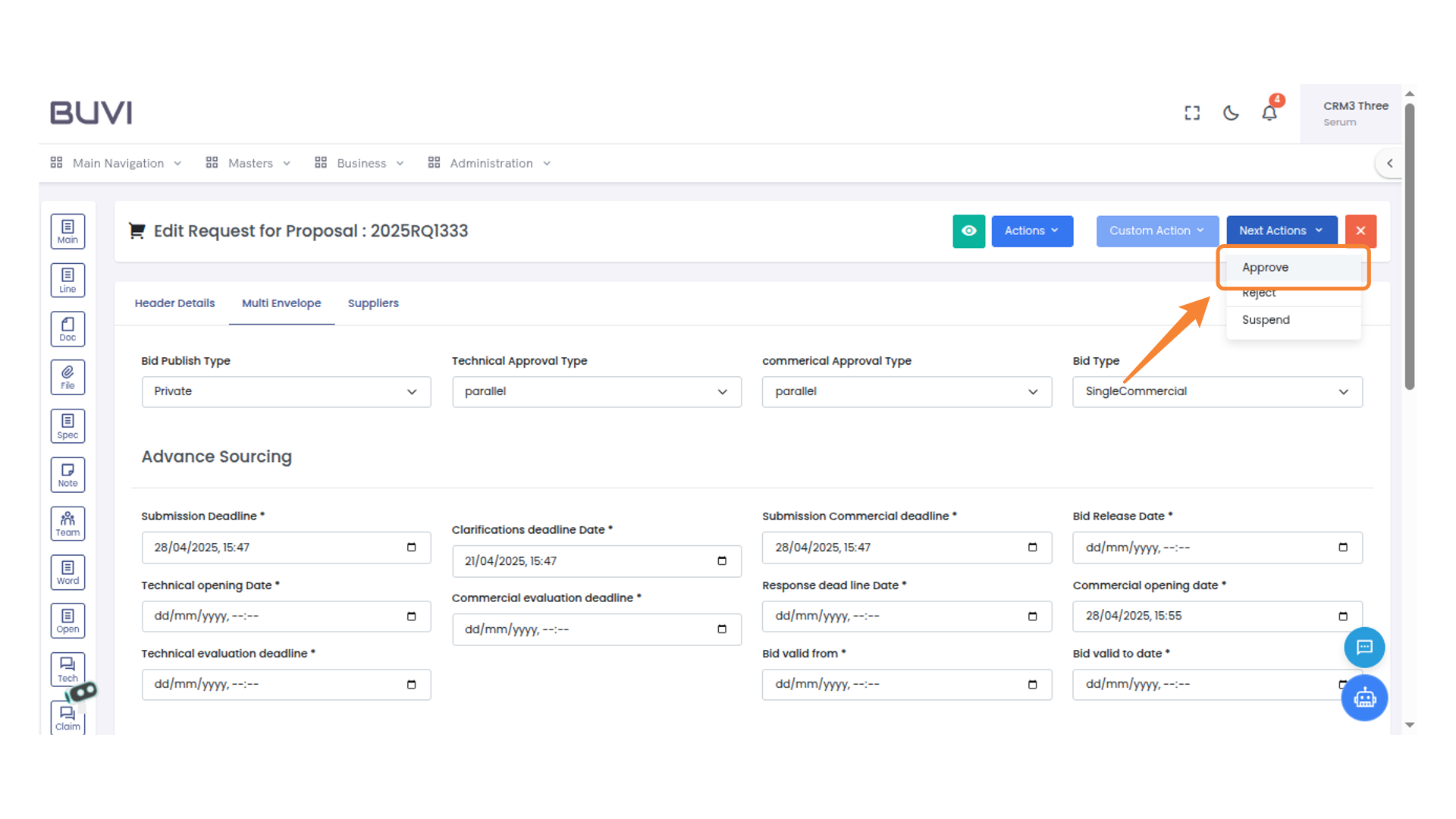
69. Approval Button in Action Menu
Select 'Approve' to confirm and proceed with the approval process.
70. Comment Entry Box
Provide your comment in the text box and click 'Submit' to save or 'Cancel' to discard.
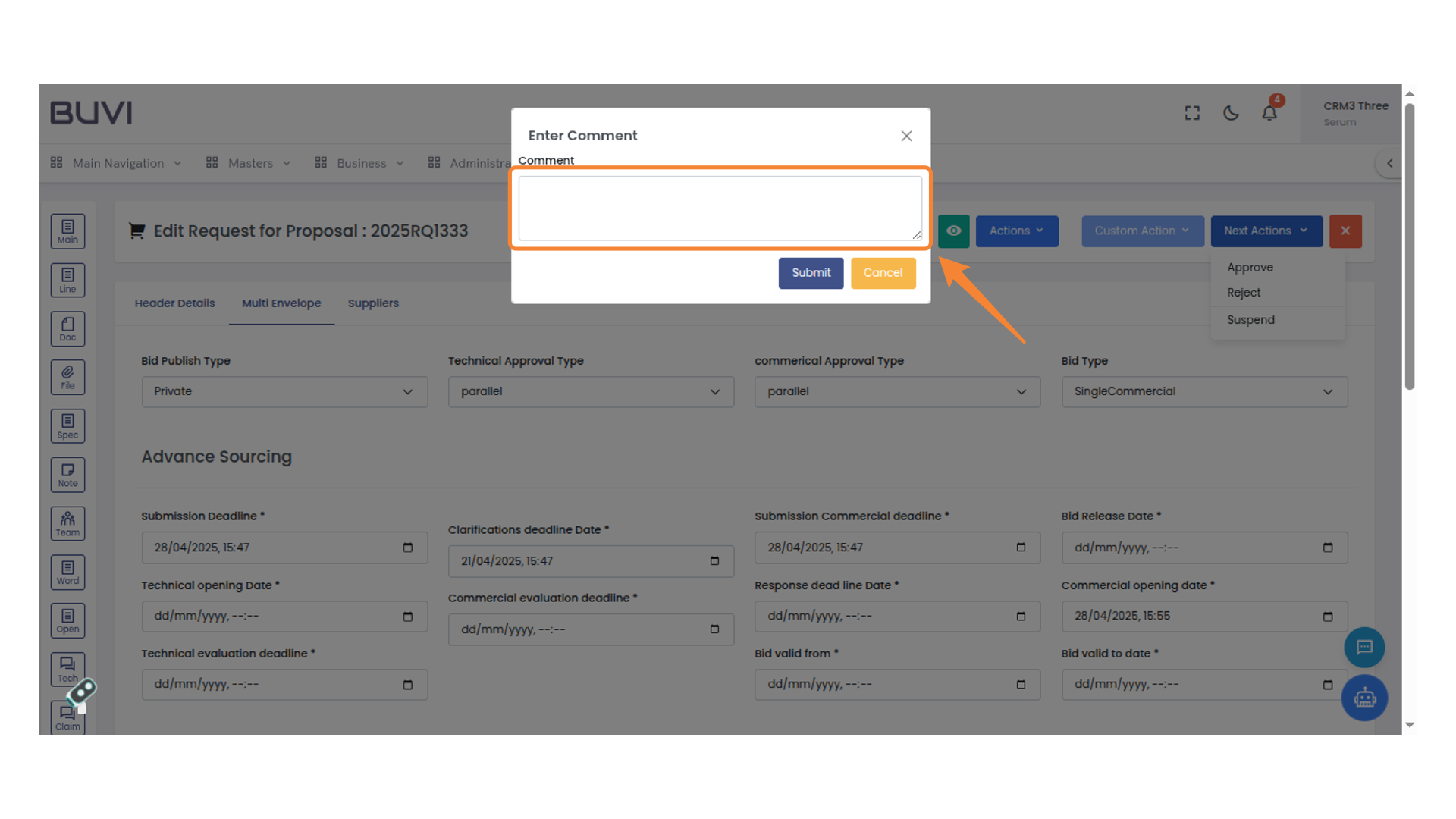
71. Submit Comment Button
Click to submit your comment or feedback.
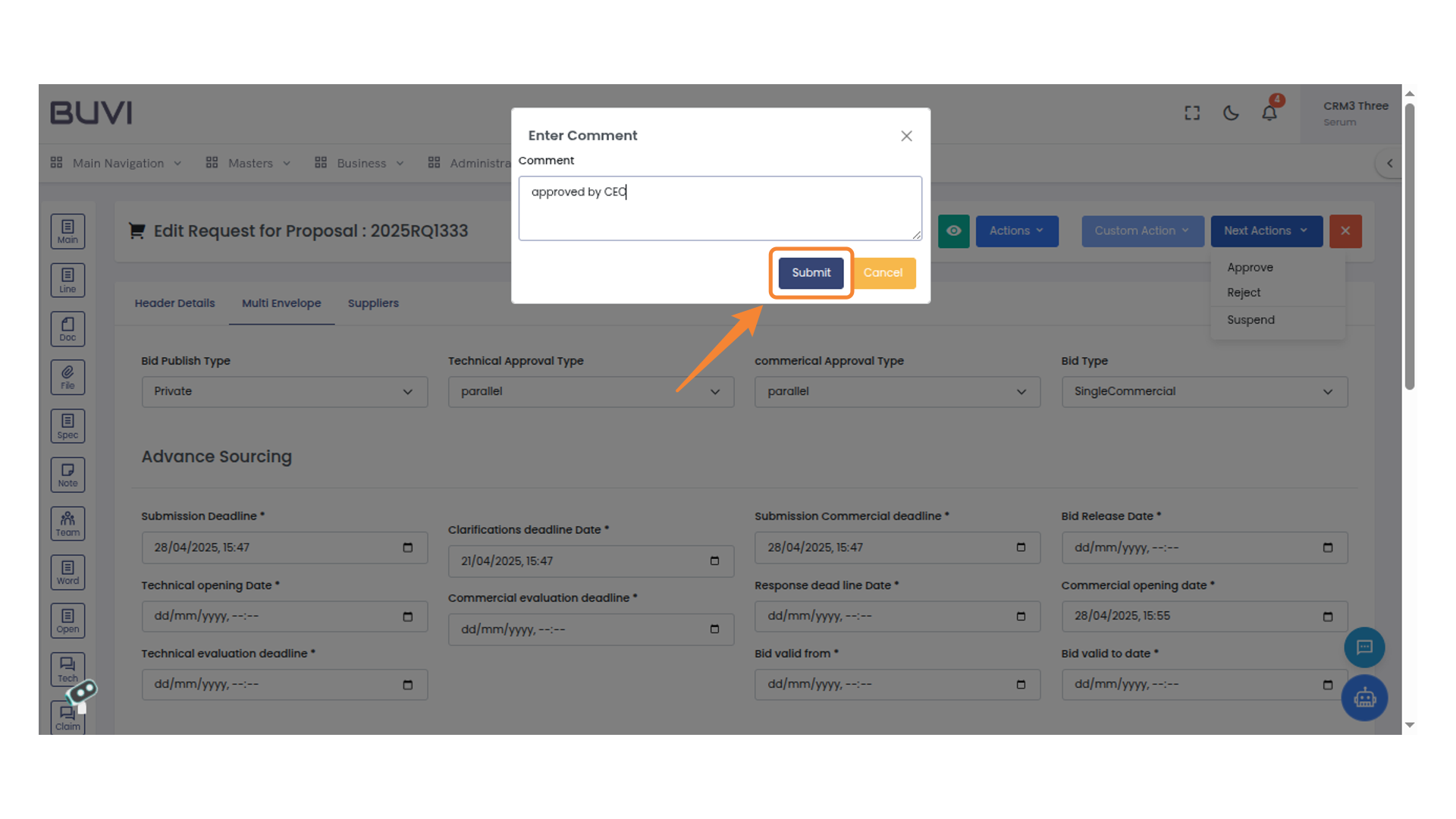
72. Task Approval Highlight
Click on RFP amendment for Publishing
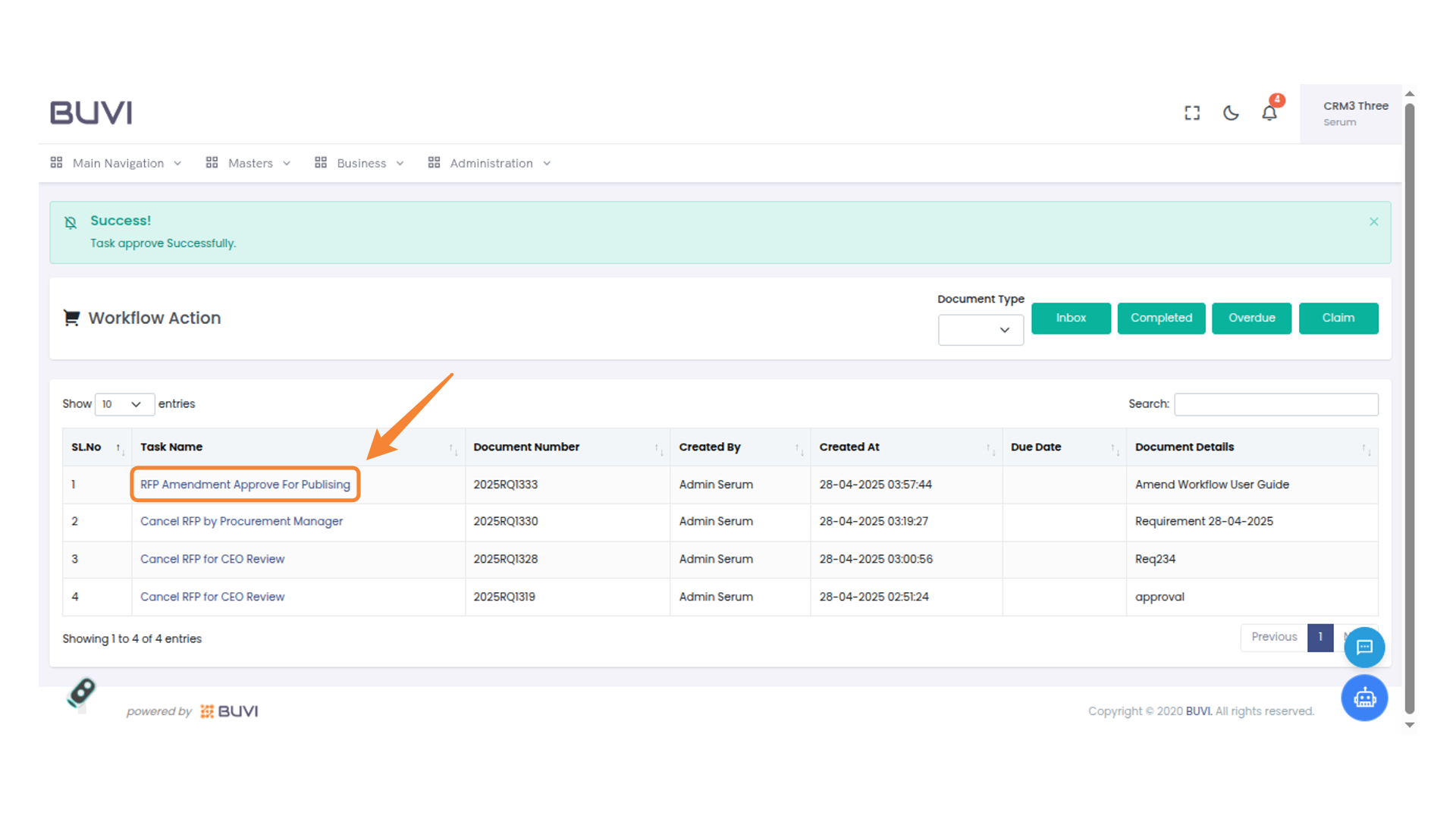
73. Next Actions Menu
Select the appropriate next action from the dropdown options.

74. Publish RFQ Action
Click to publish the request for quotation.
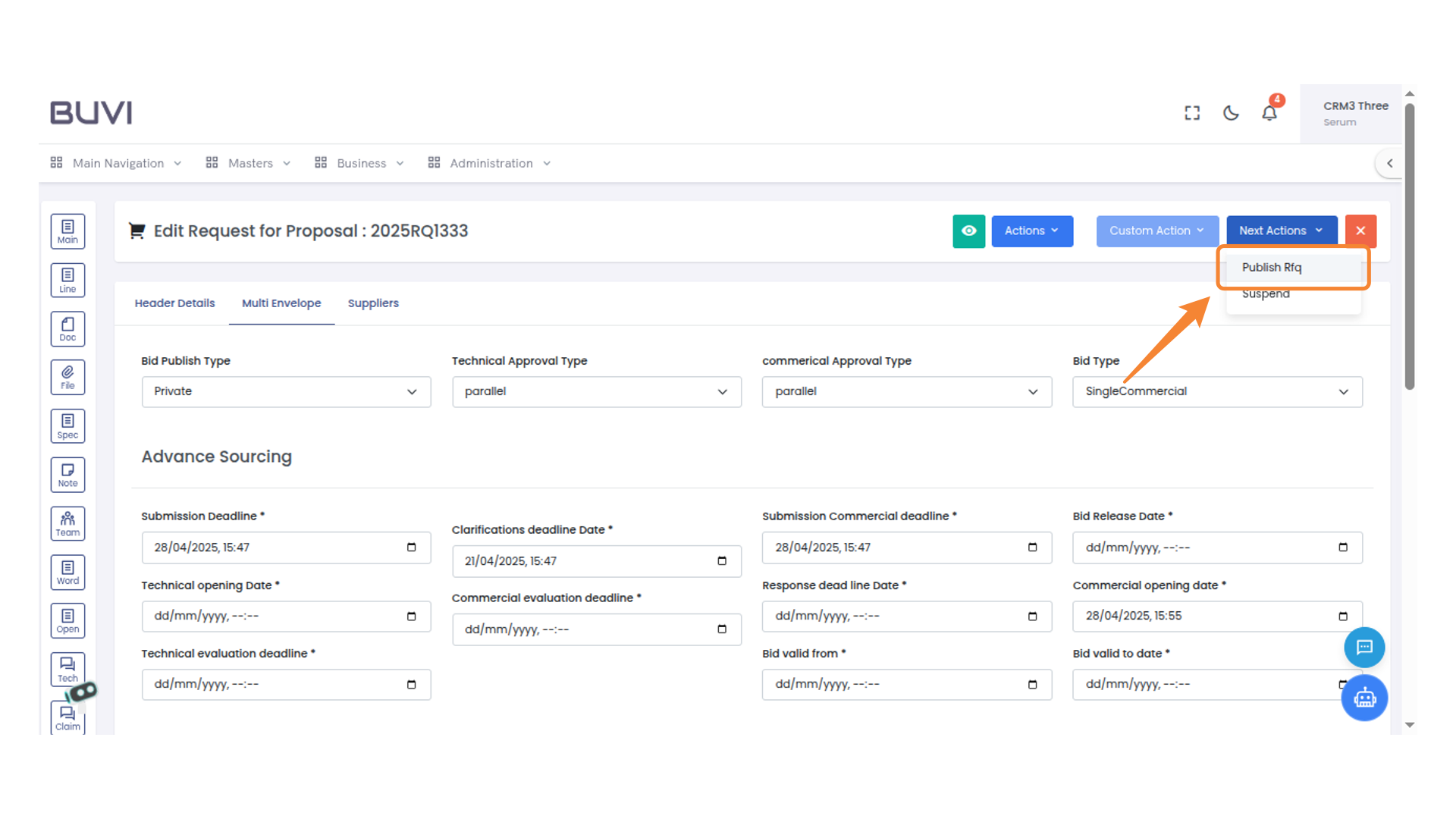
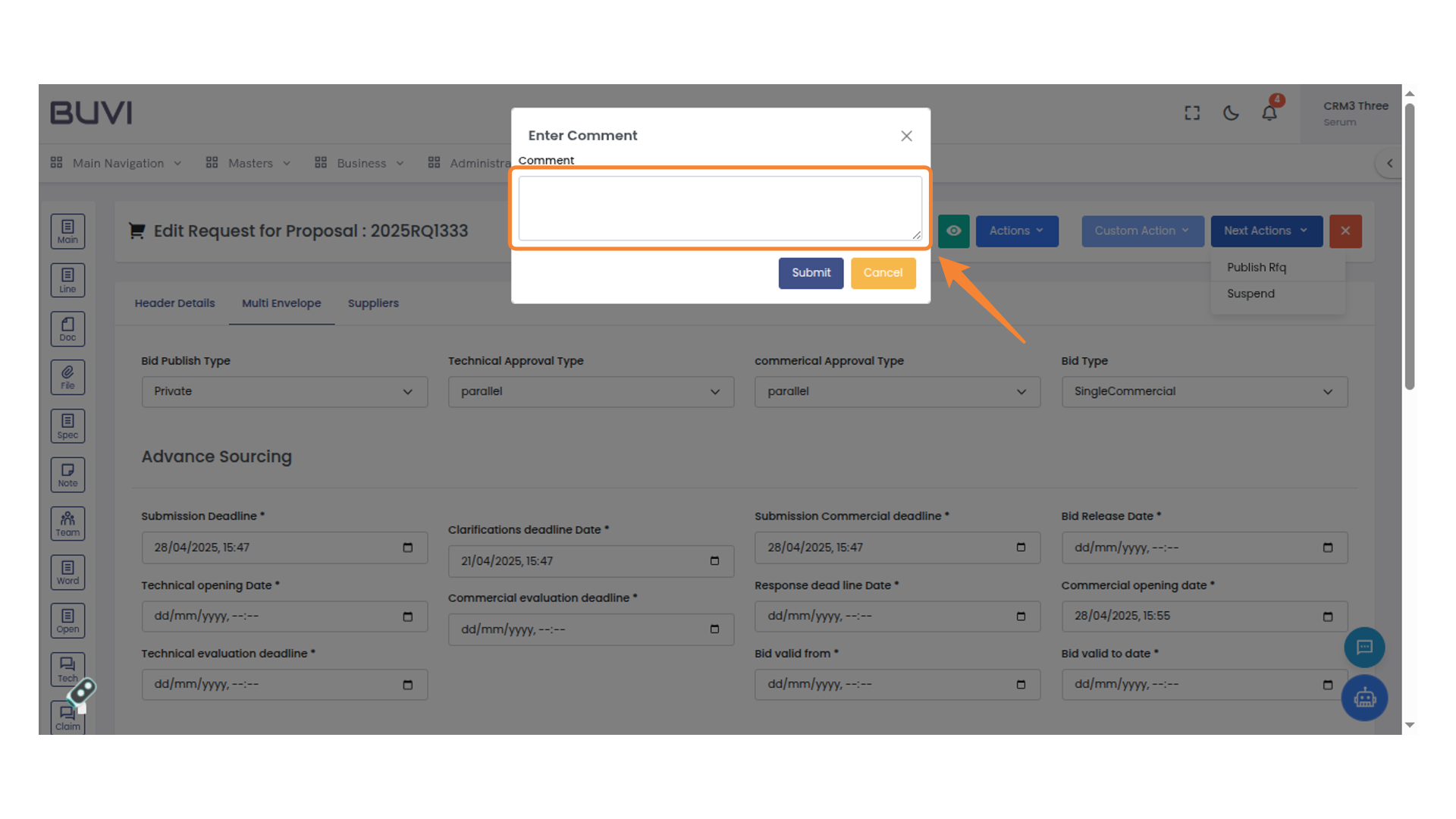
75. Enter Comment Section
Provide your comment in the text box and click Submit to proceed.
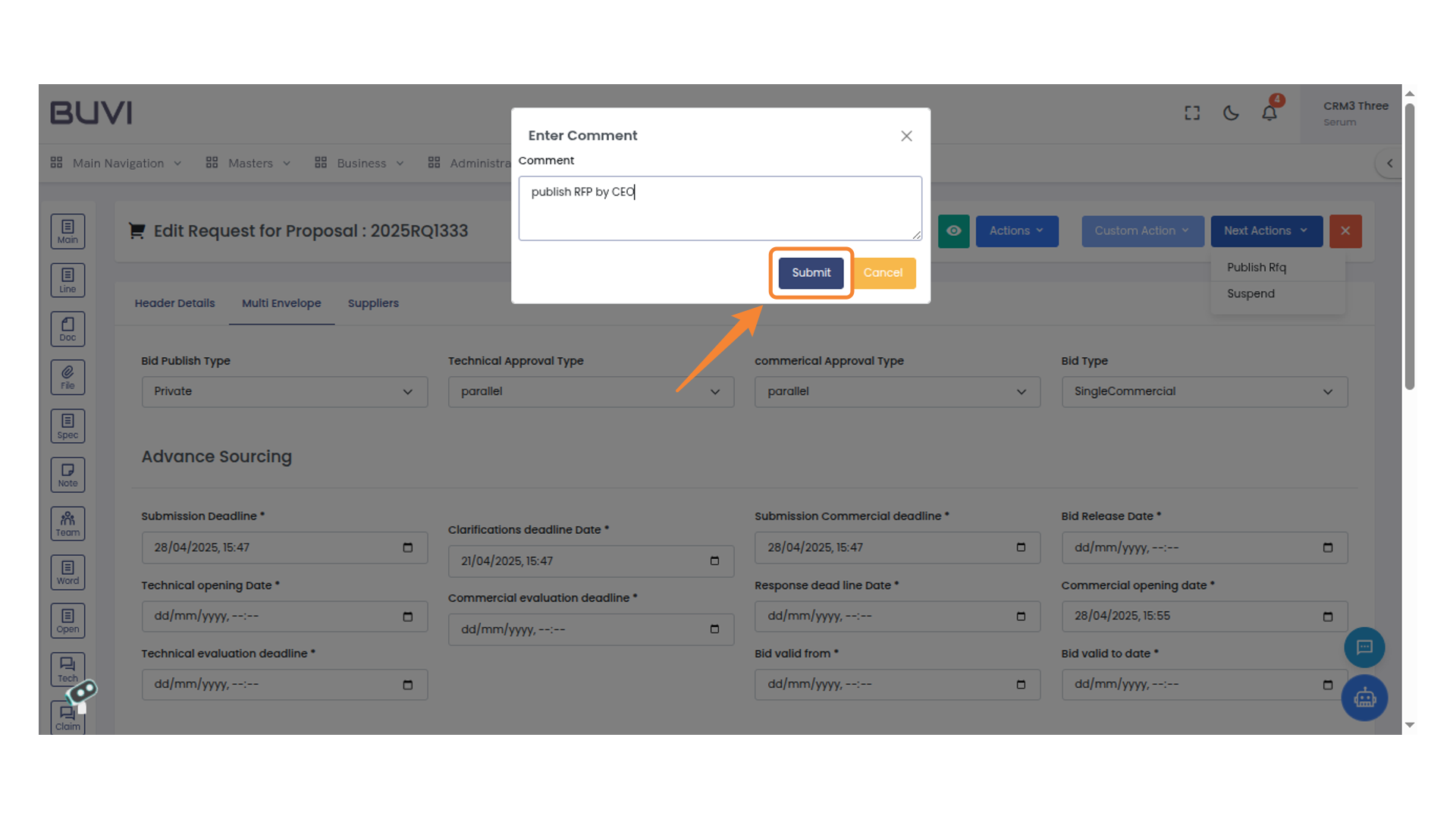
76. Submit Button for Proposal
Click the Submit button to finalize and send your comment.
77. Verify the Status Once the RFP is PUblished by CEO
Status of RFP must set to Published