RFP-Opportunity Creation
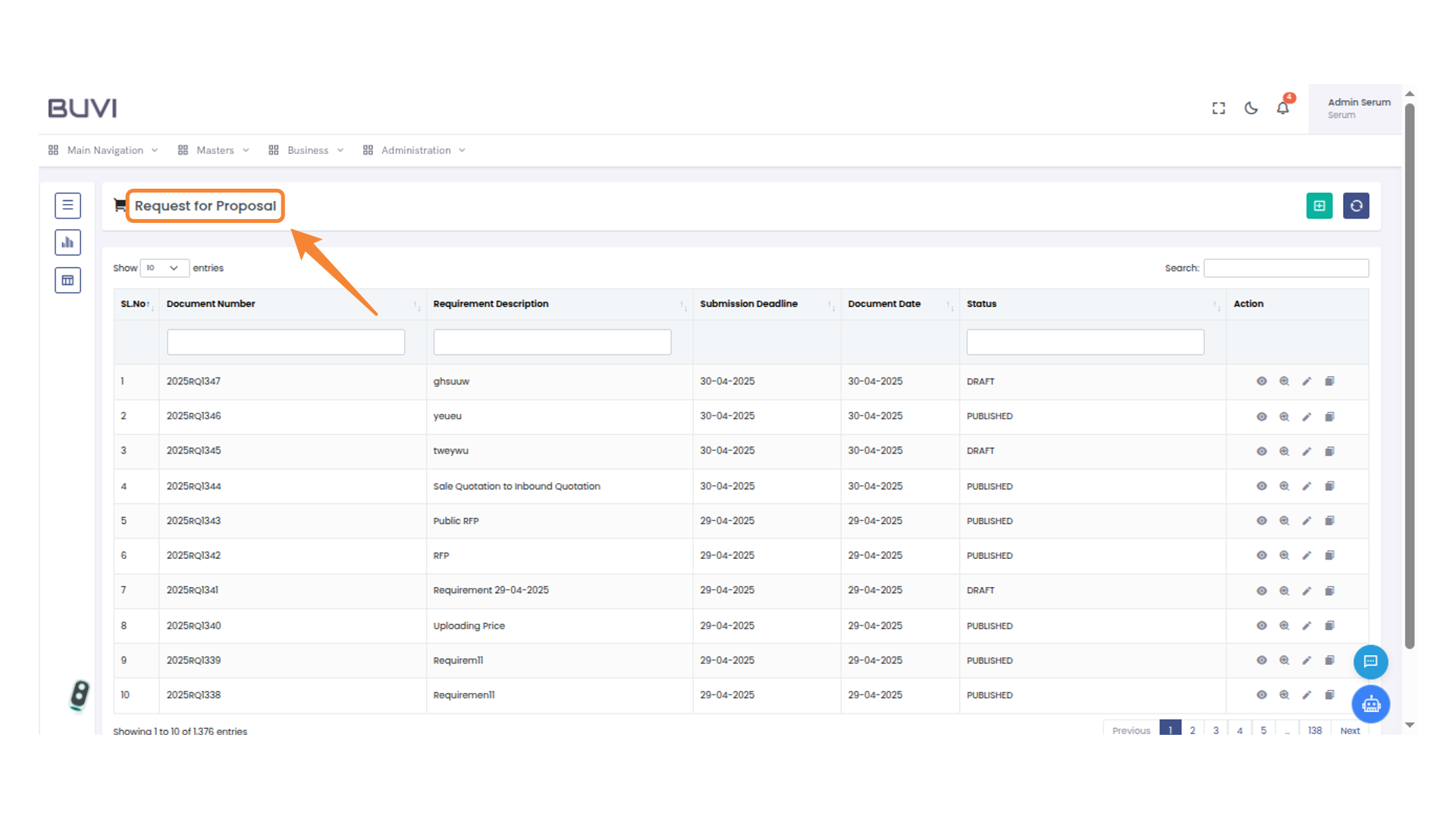
1. Request for Proposal
Go to Request for Proposal menu
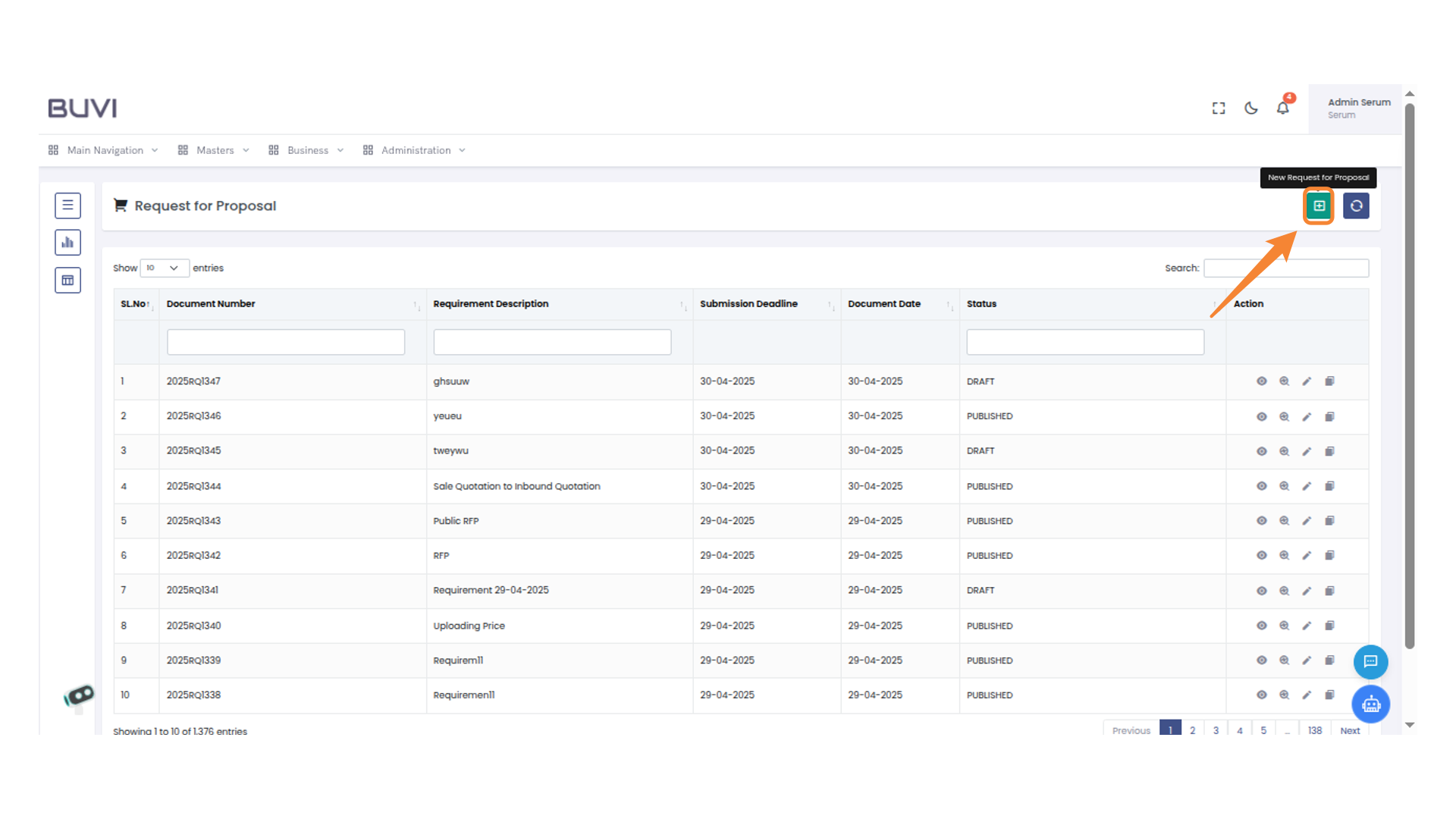
2. Create New Document
Click to create button
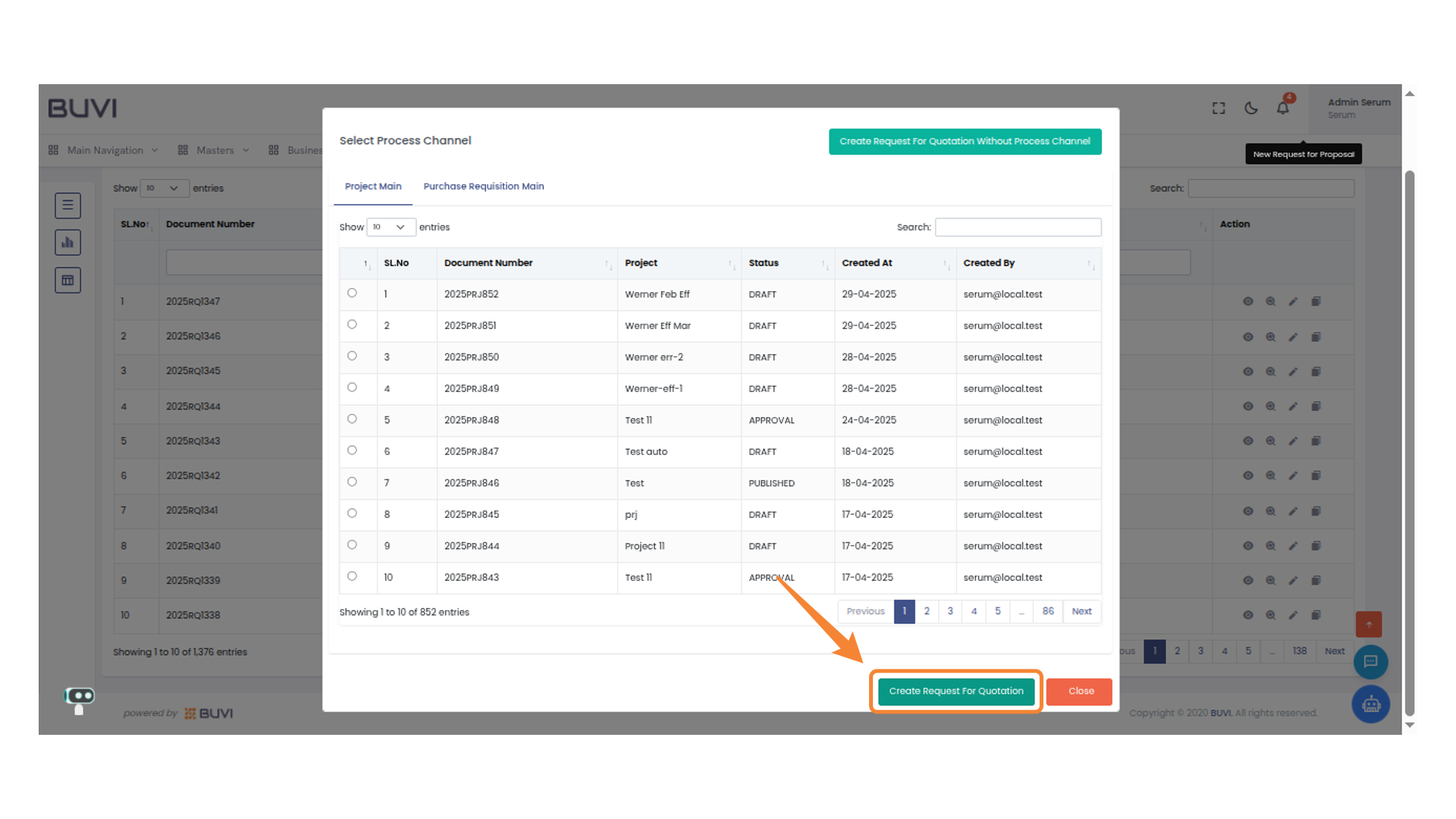
3. Create Request For Quotation
Click to initiate a new request for quotation.
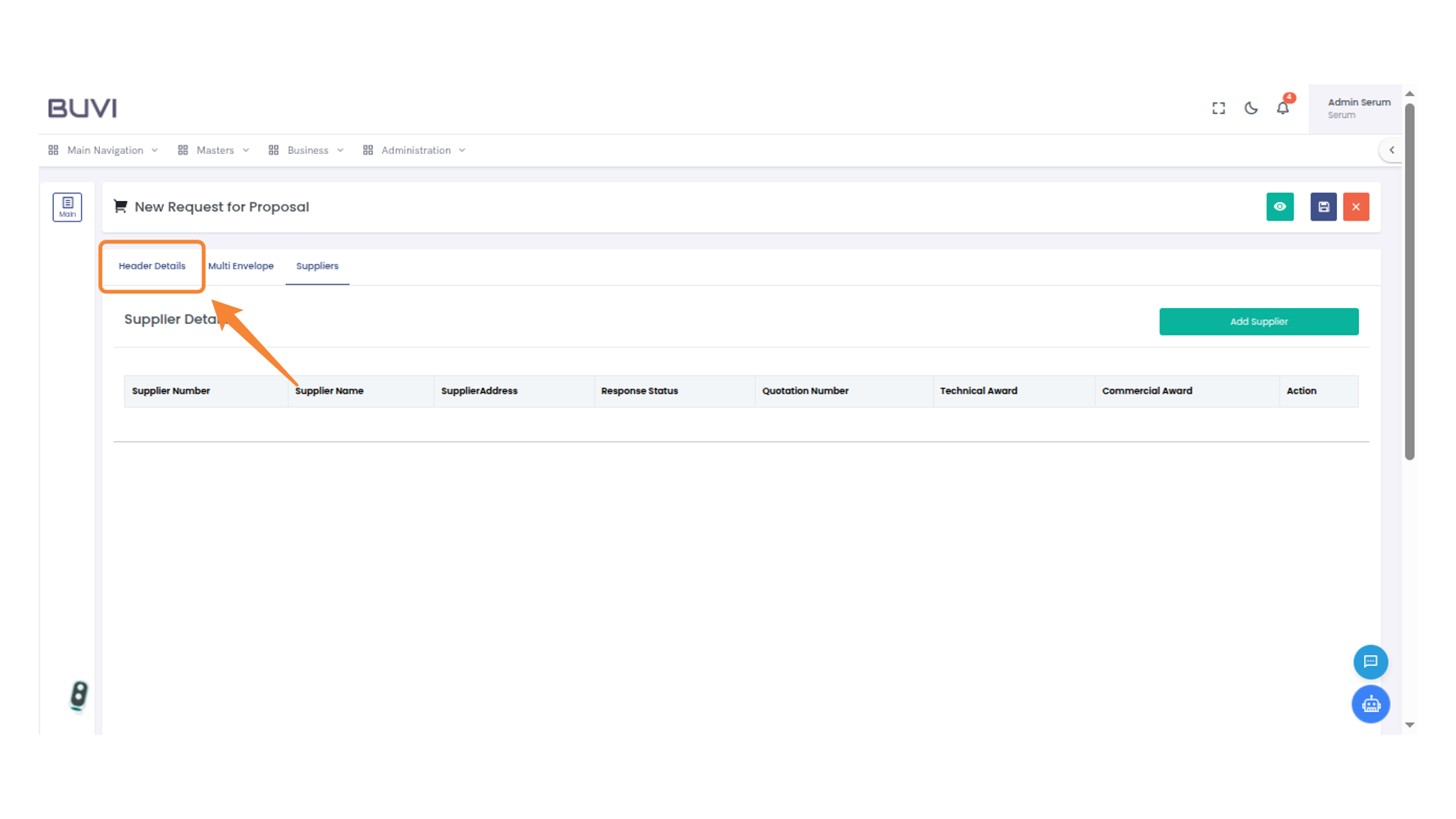
4. Header Details Section
Click on header tab
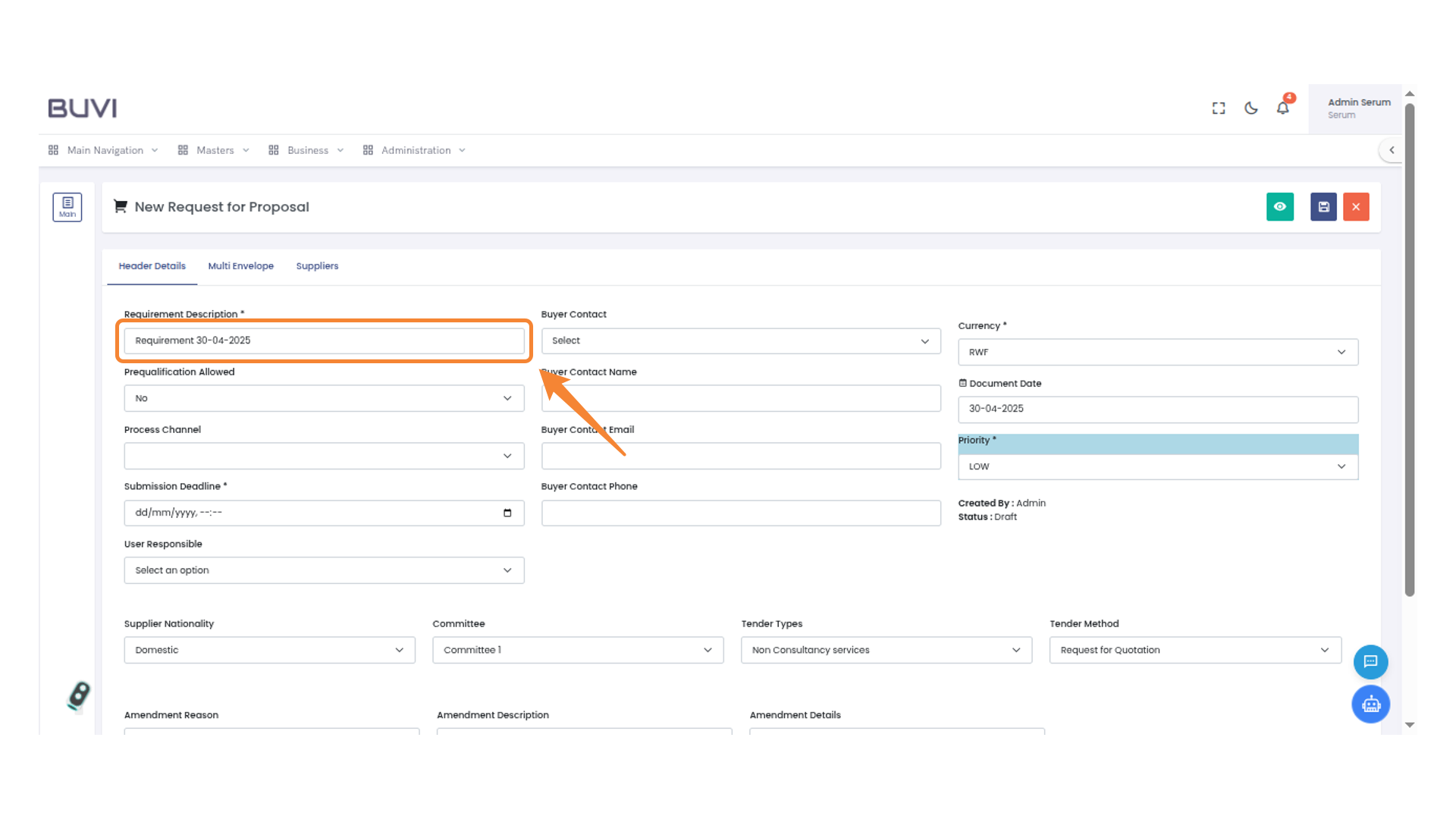
5. Requirement Description Field
Enter Requirement description
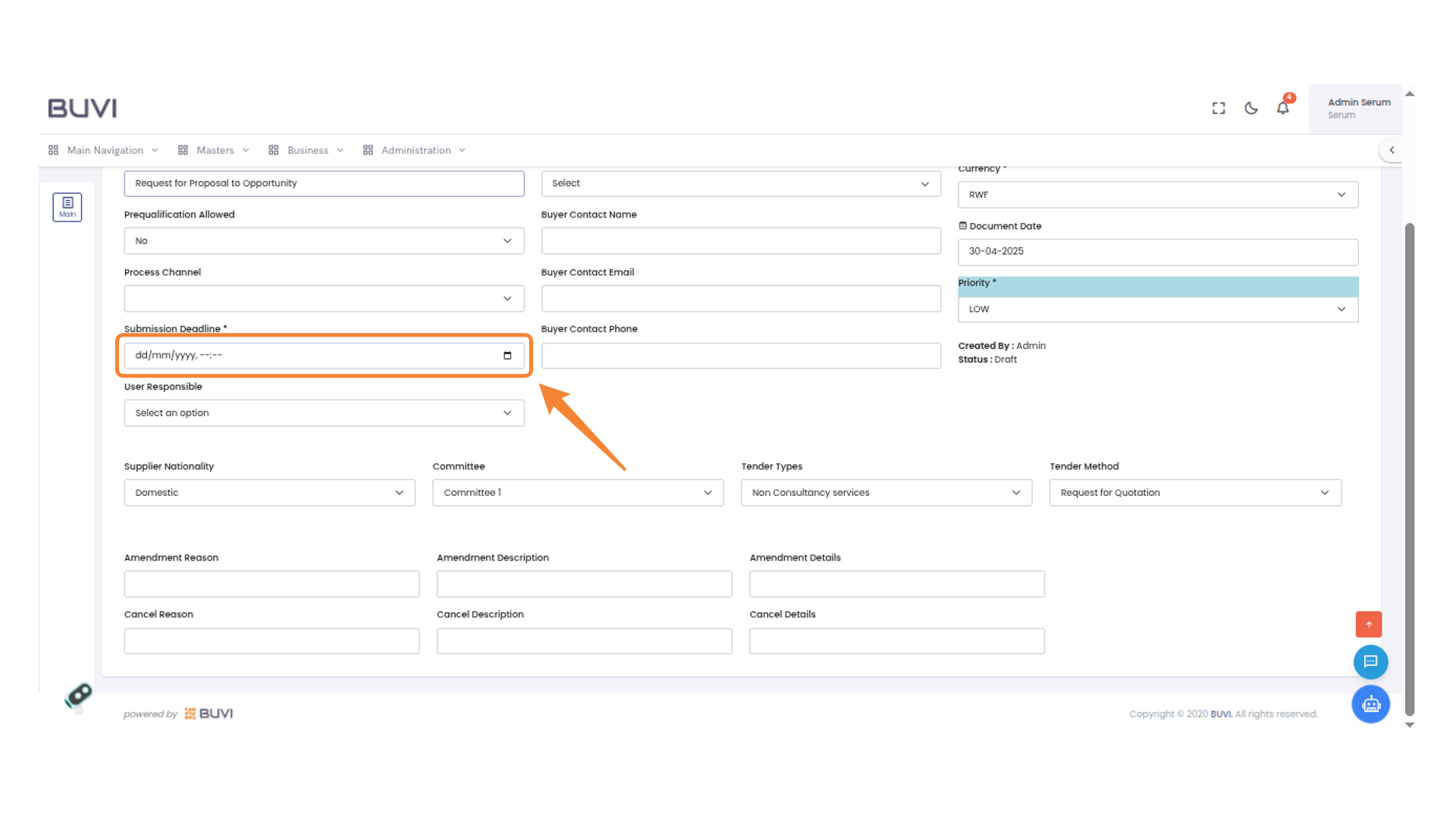
6. Submission Deadline Input Field
Enter submission deadline
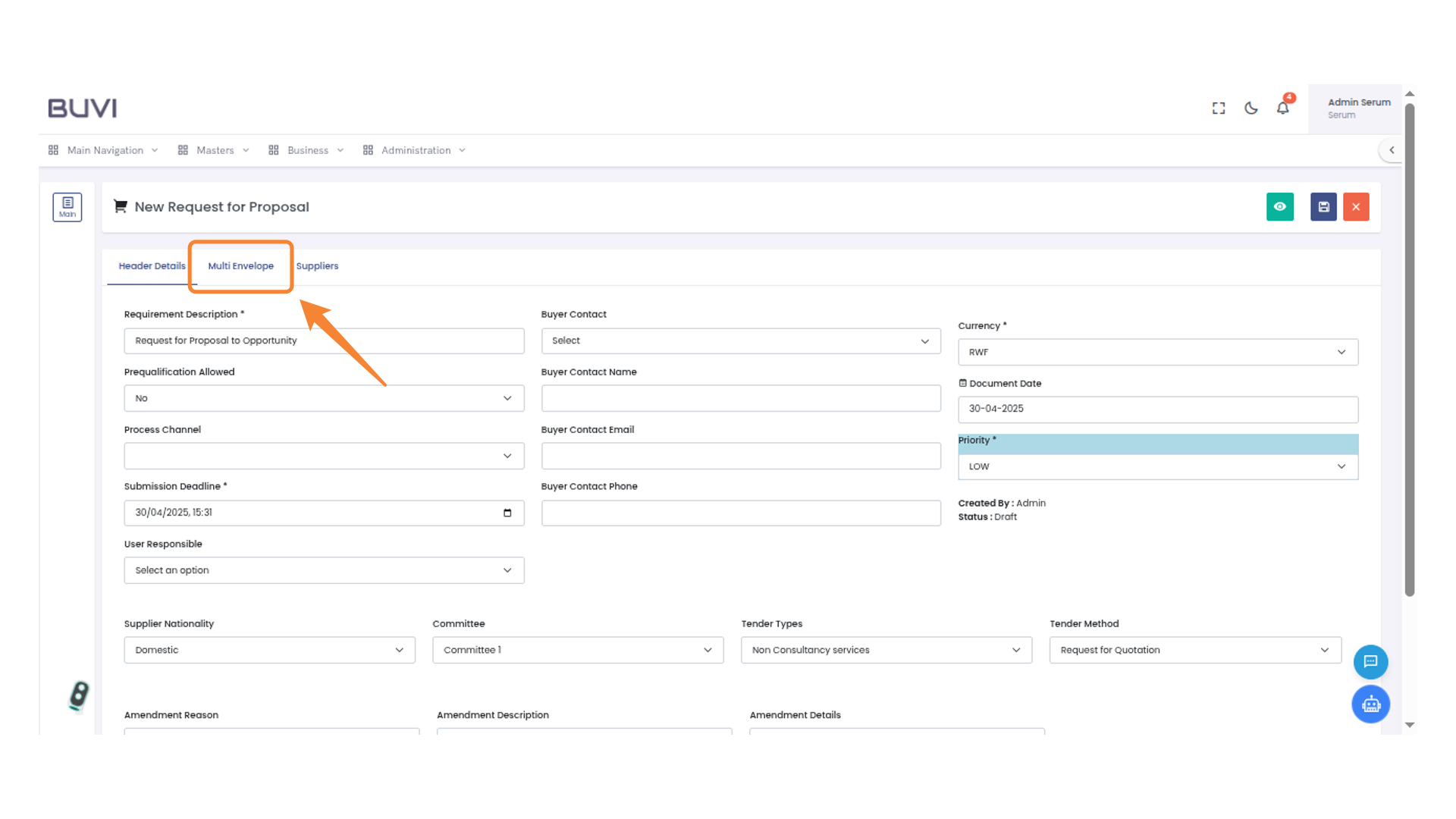
7. Multi Envelope Tab
Click on multienvelop tab
8. Select Bid Type
Select Bid Type
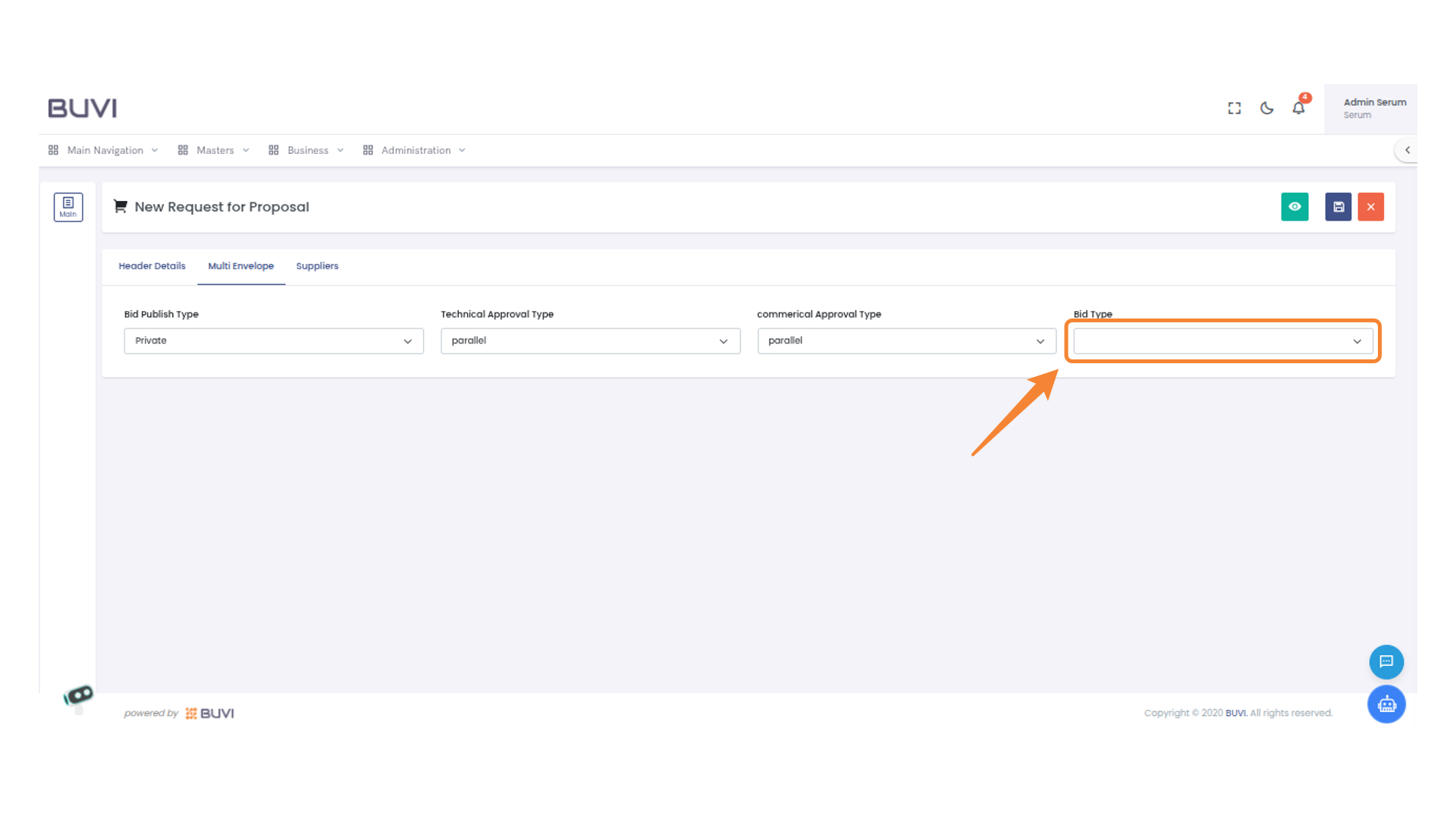
9. Suppliers Section
Click on supplier tab
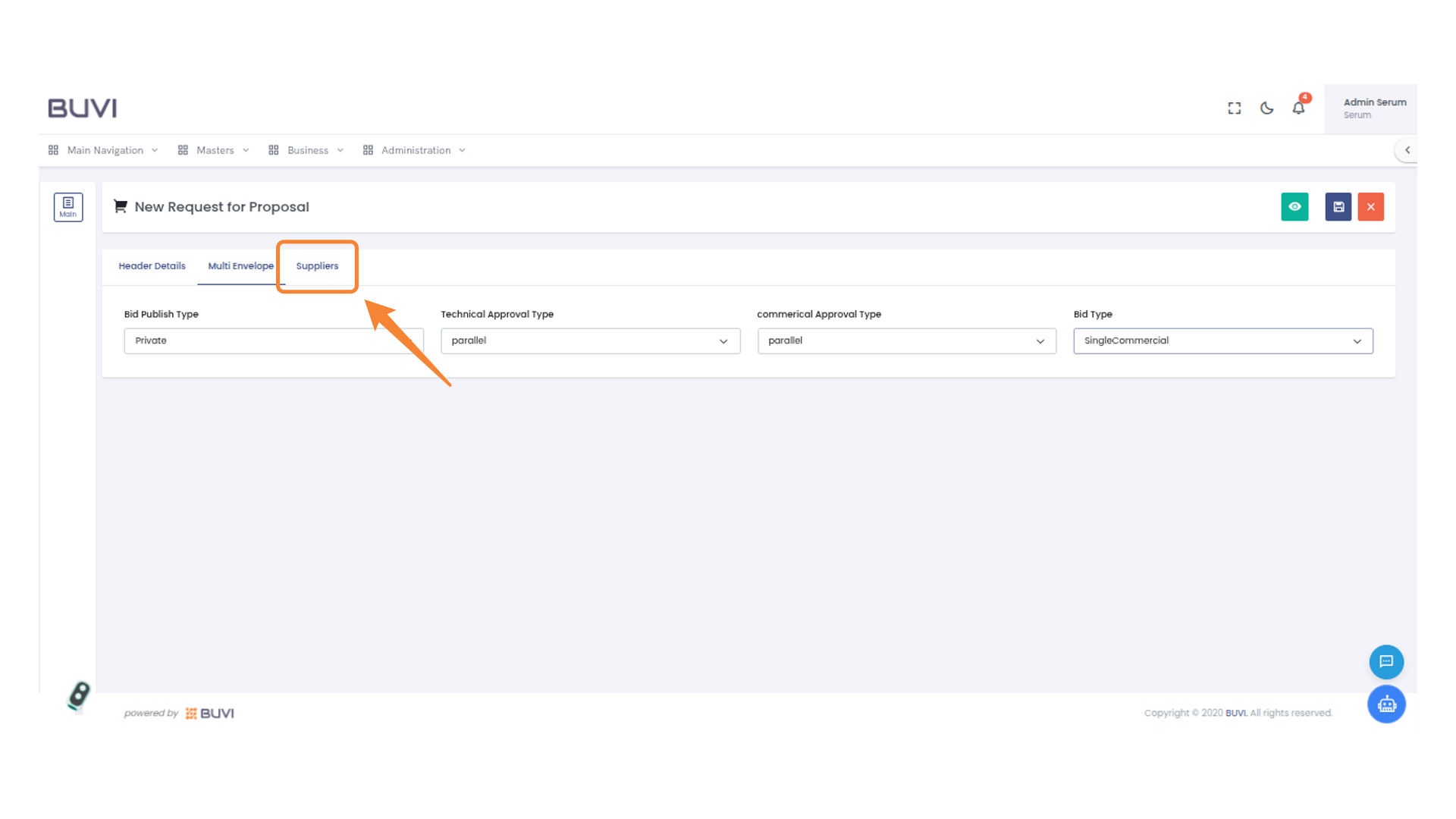
10. Add Supplier Button
Click to add a new supplier to the list.
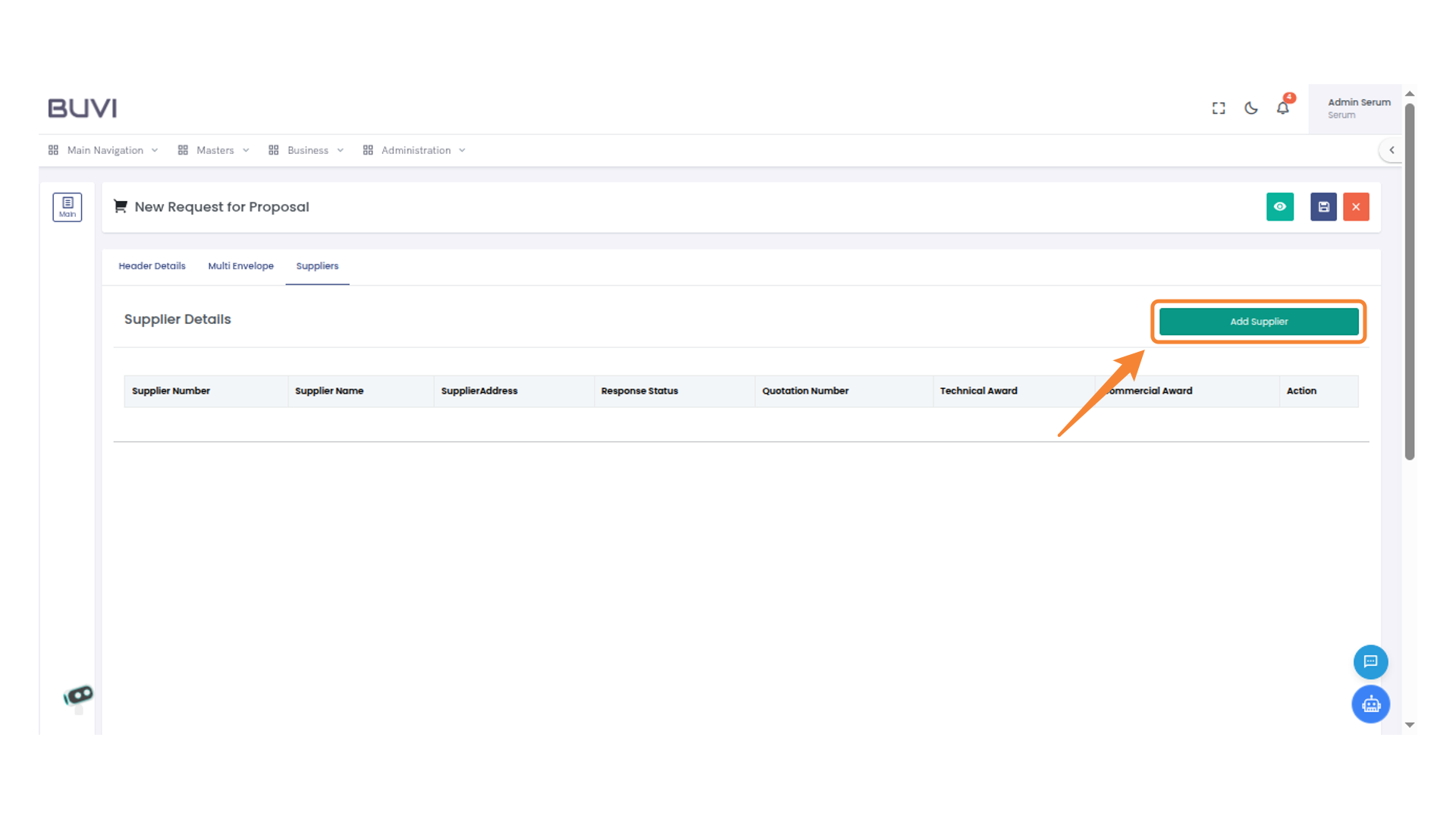
11. Select Supplier
Select supplier
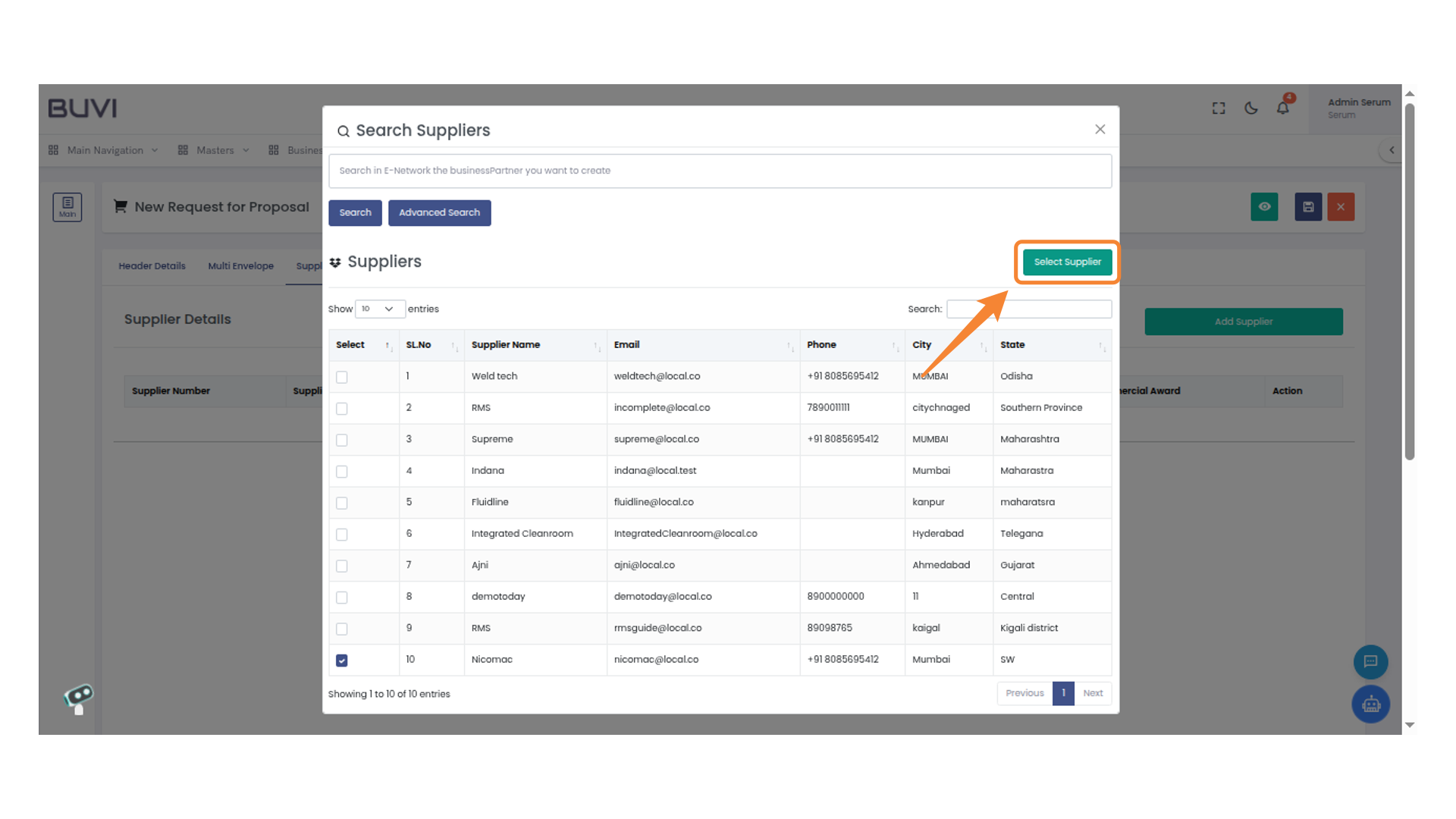
12. Save Button
Click on save button
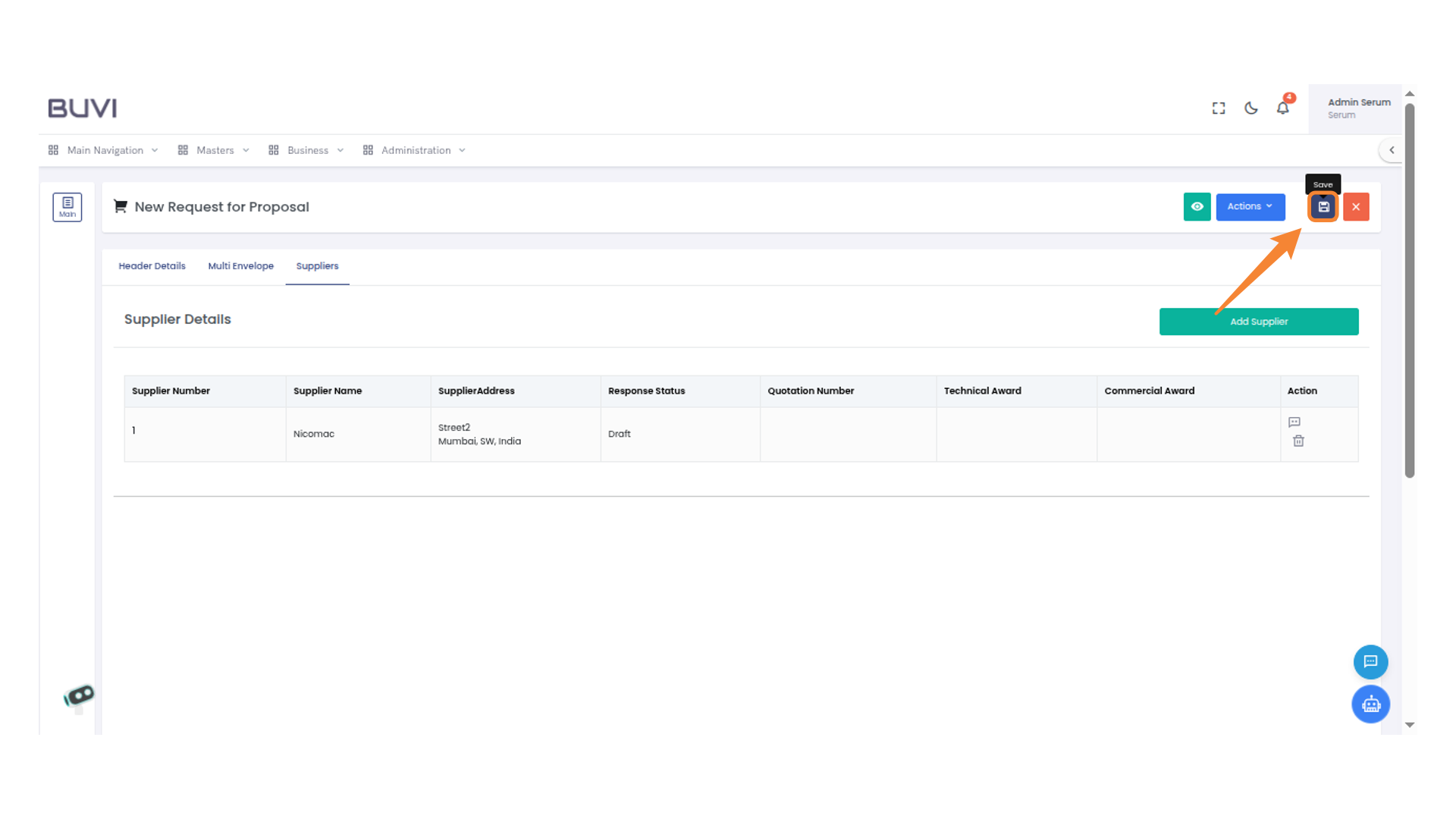
13. Confirmation Dialog
Click 'Save' to proceed with saving your changes.

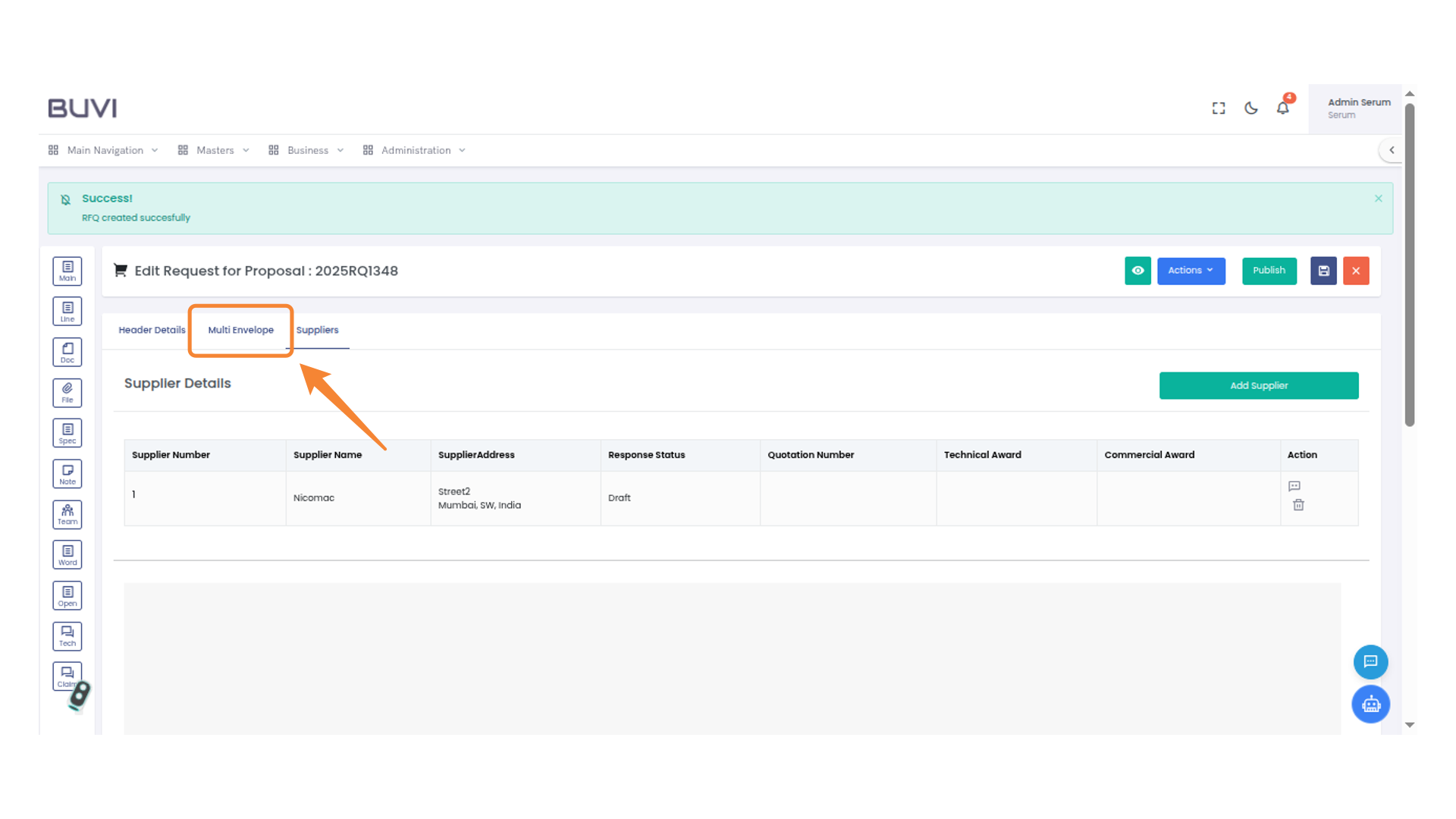
14. Multi Envelope Tab
Click on multienvelop tab
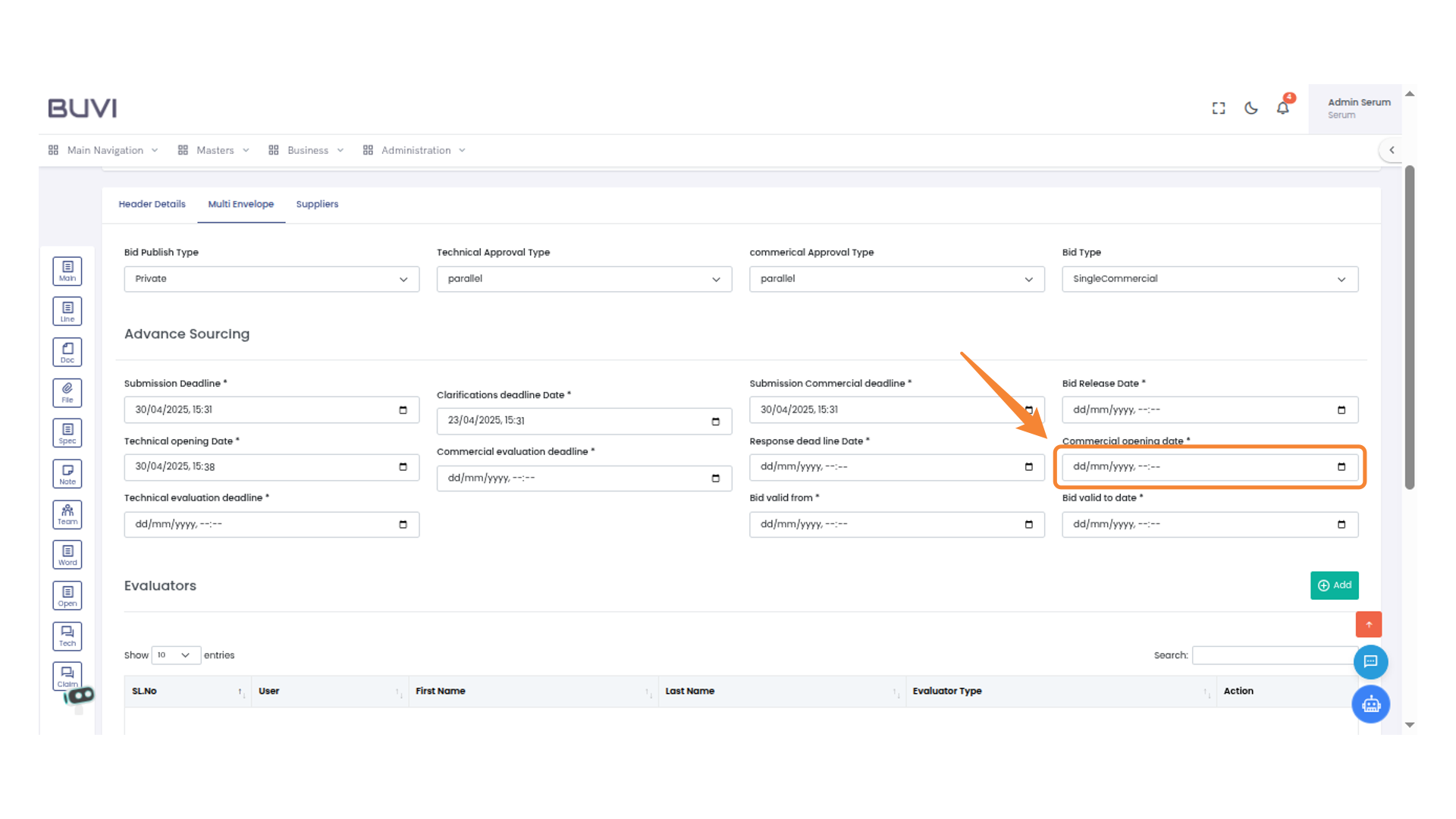
15. Commercial Opening Date Field
Enter the date for the commercial opening in the provided field.
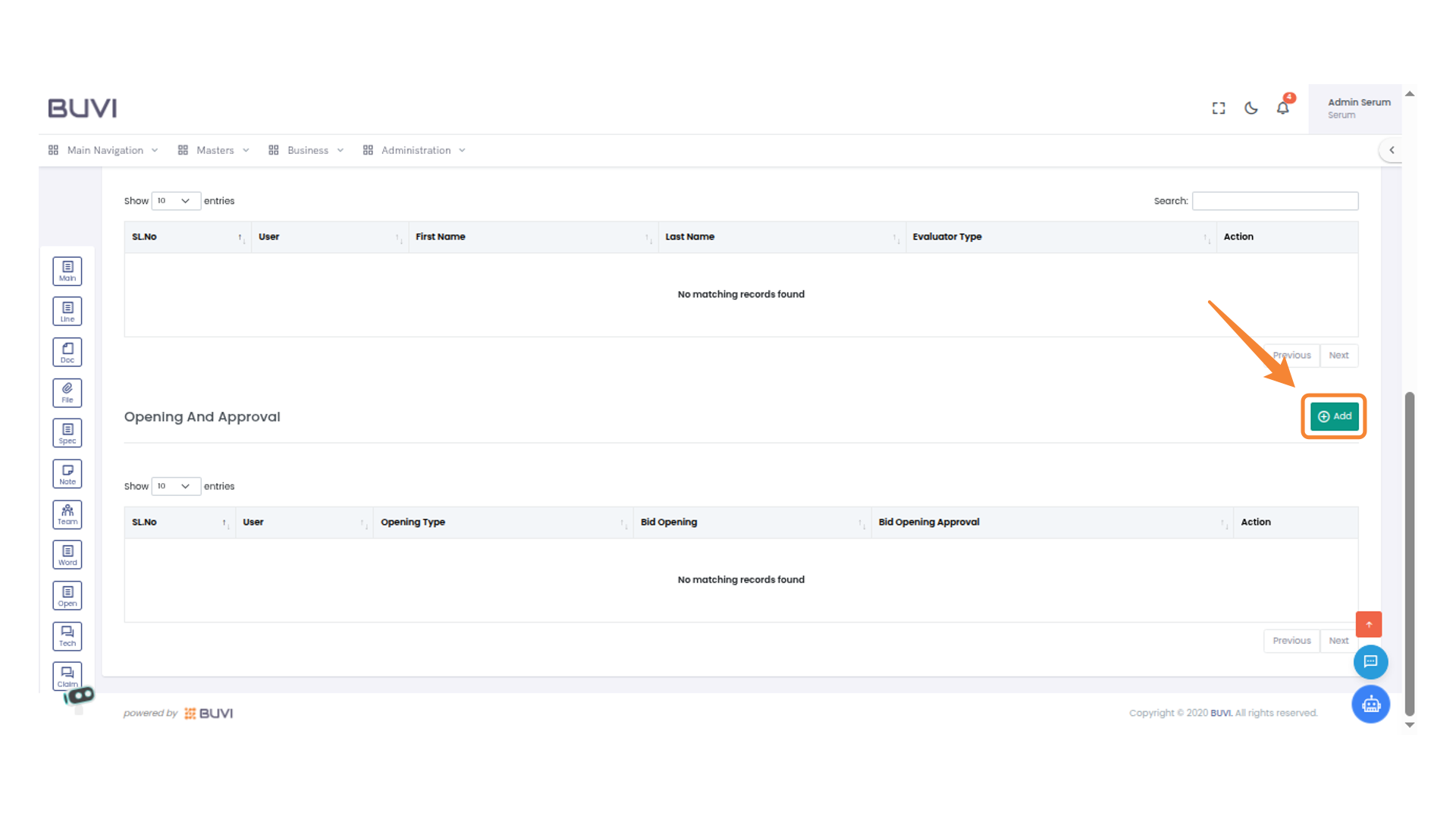
16. Add Button
Click this button to add a new entry to Opening and Approval
17. Opening Type Selection
Coose user and openiny type for bid open
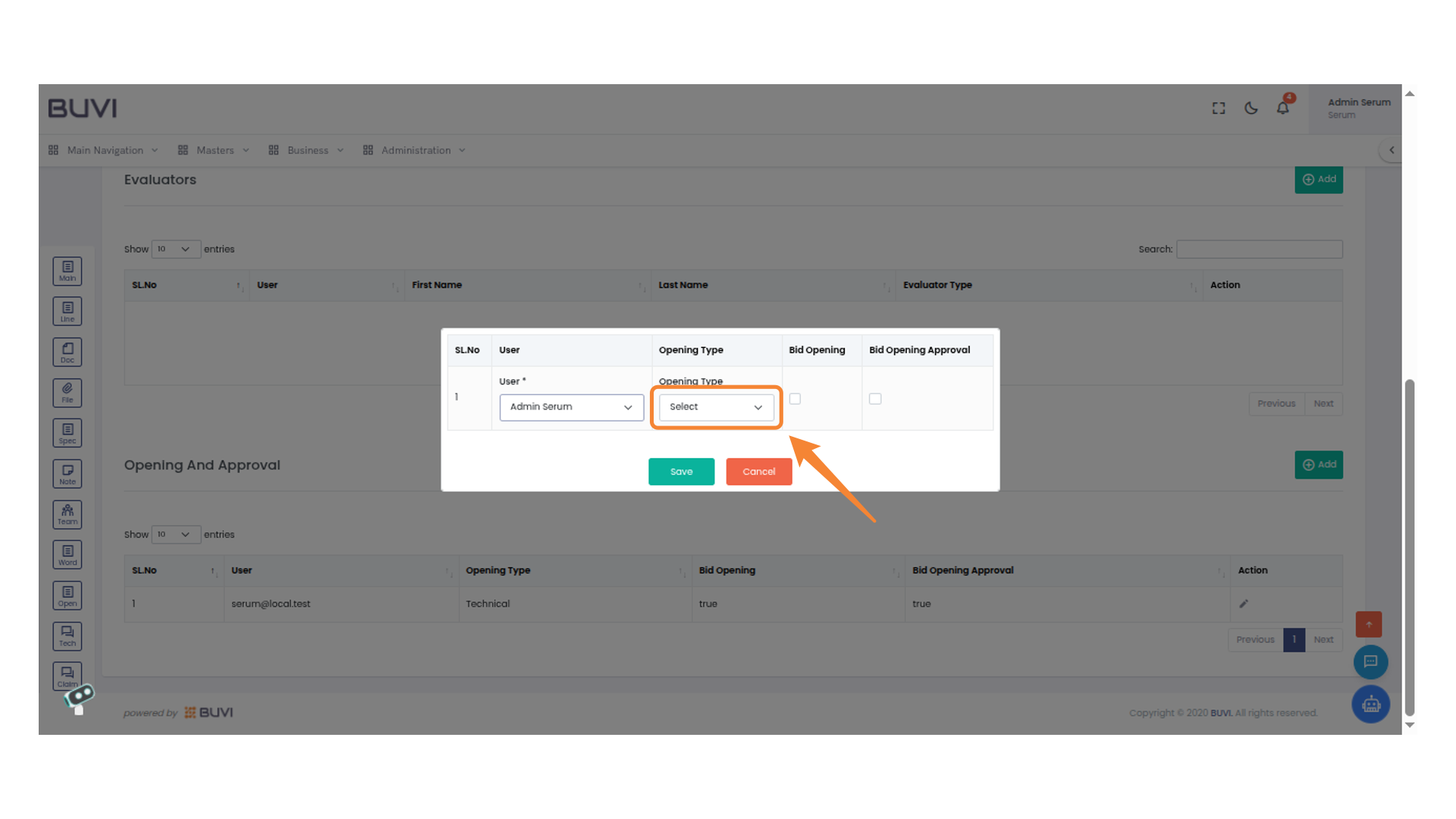
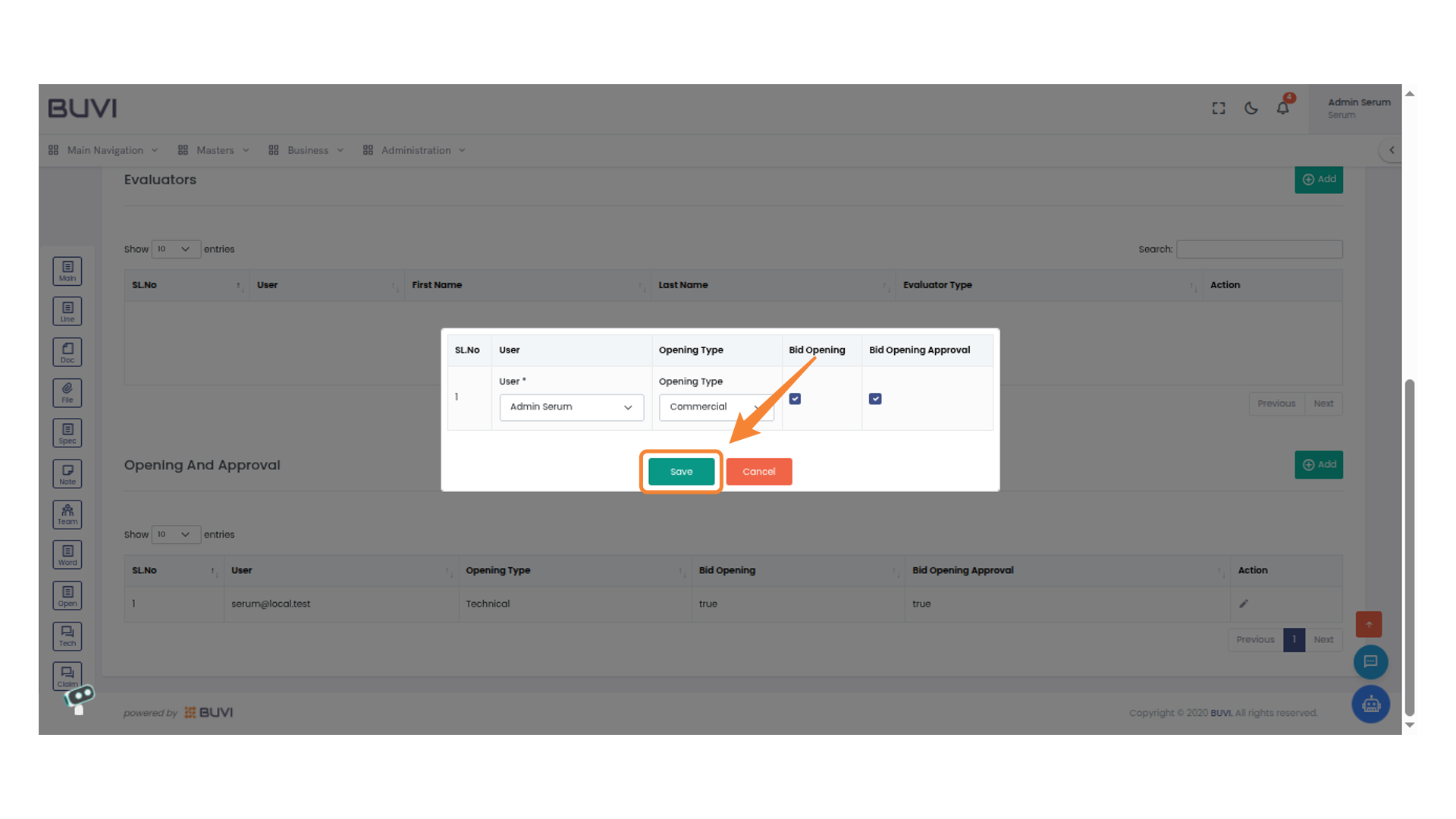
18. Save Button
Click to save your changes.
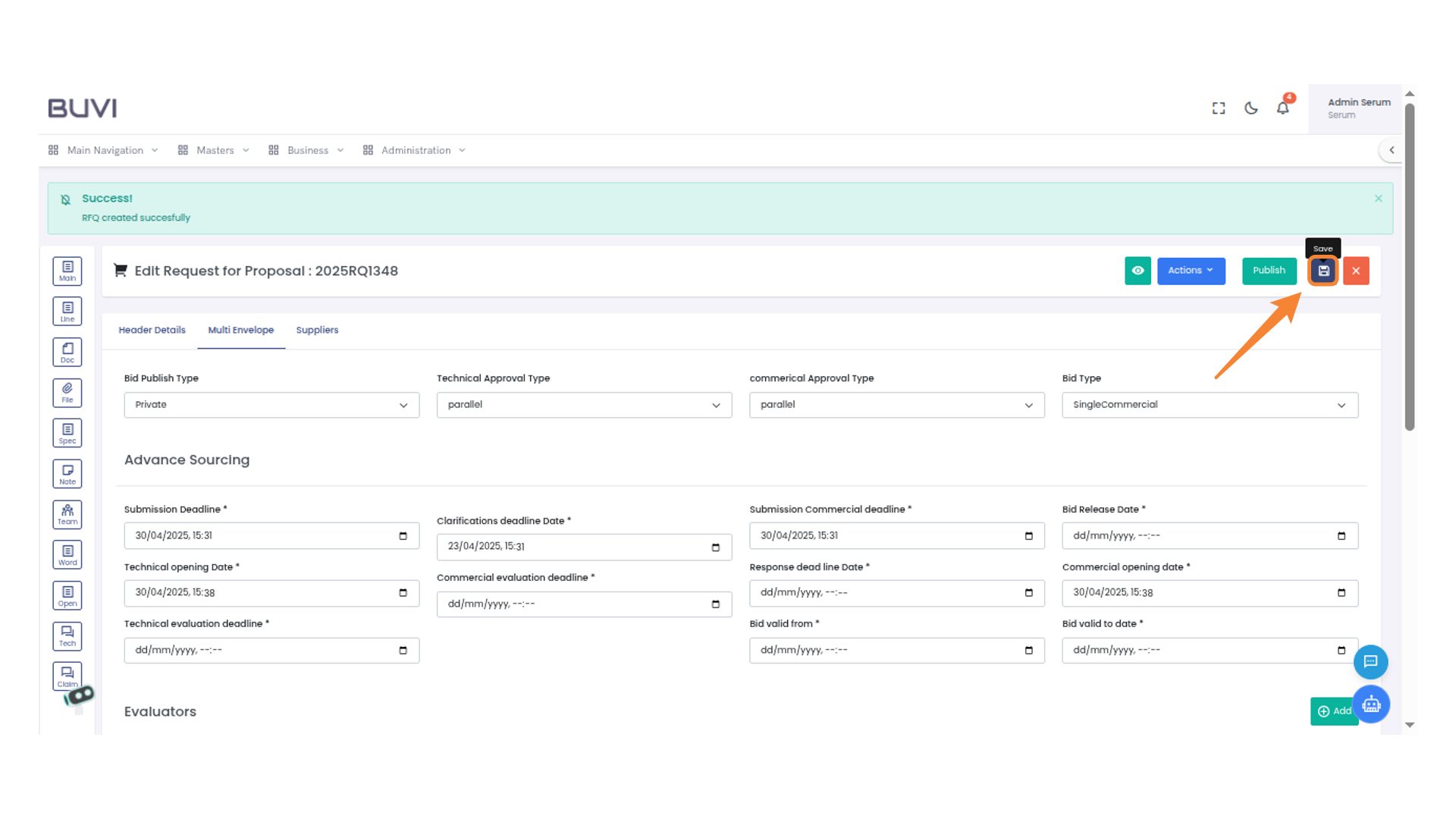
19. Save Button Icon
Press this button to save your changes.
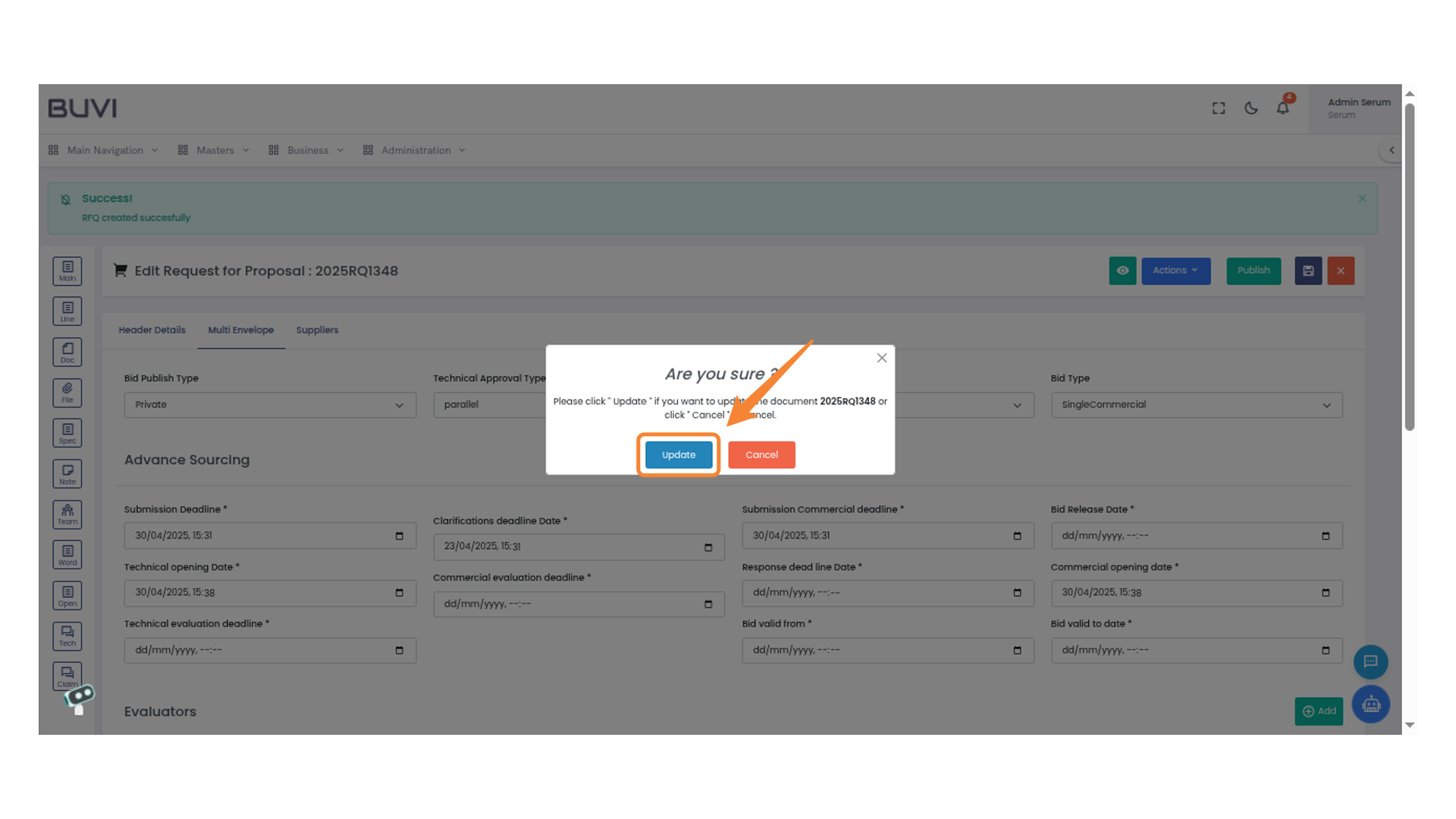
20. Confirmation Prompt
Click 'Update' to proceed with changes to the document.
21. Line Tab Icon
Select the line tab to view and manage line items.
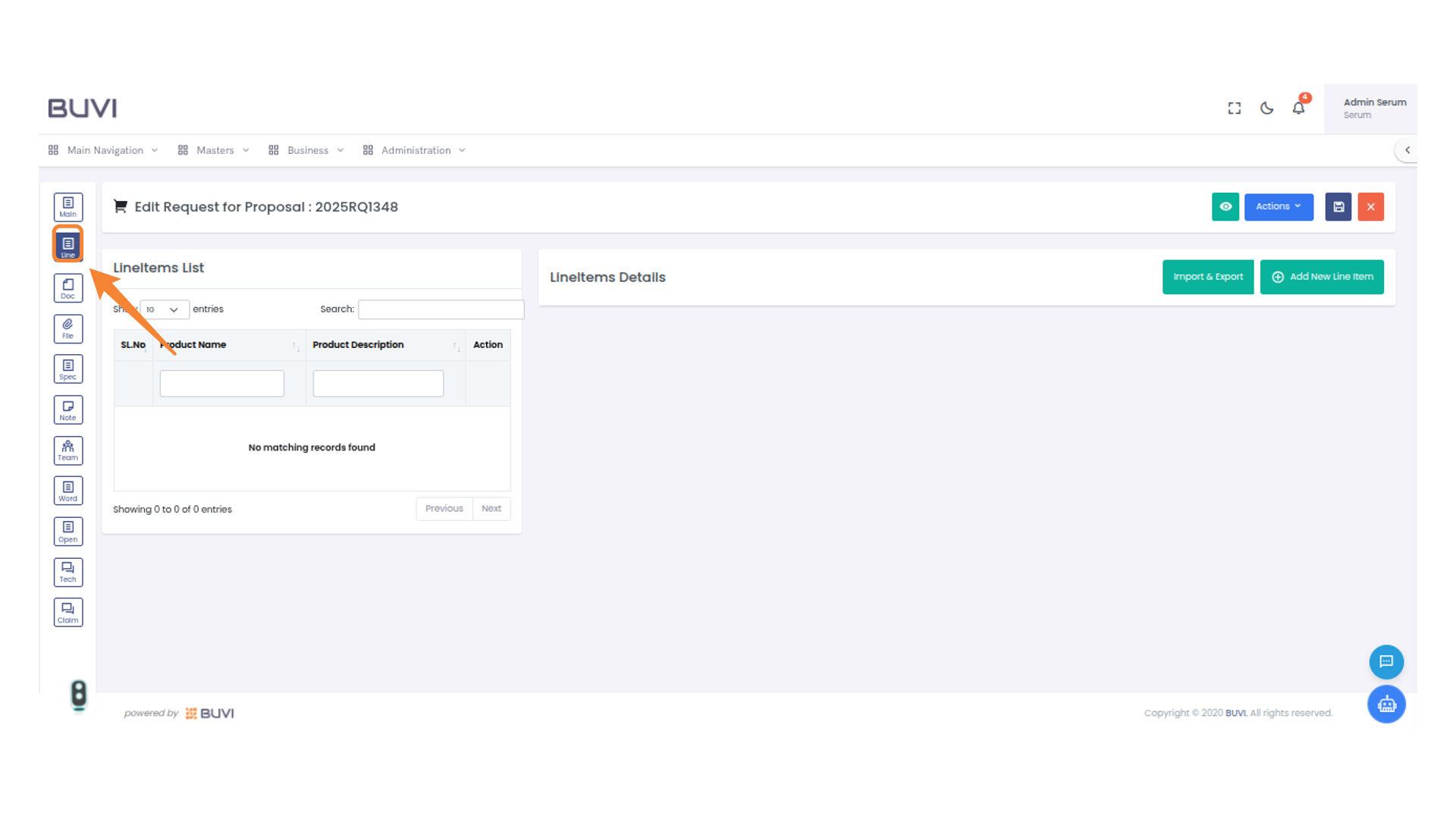
22. Add New Line Item Button
Click to add a new line item to the list.
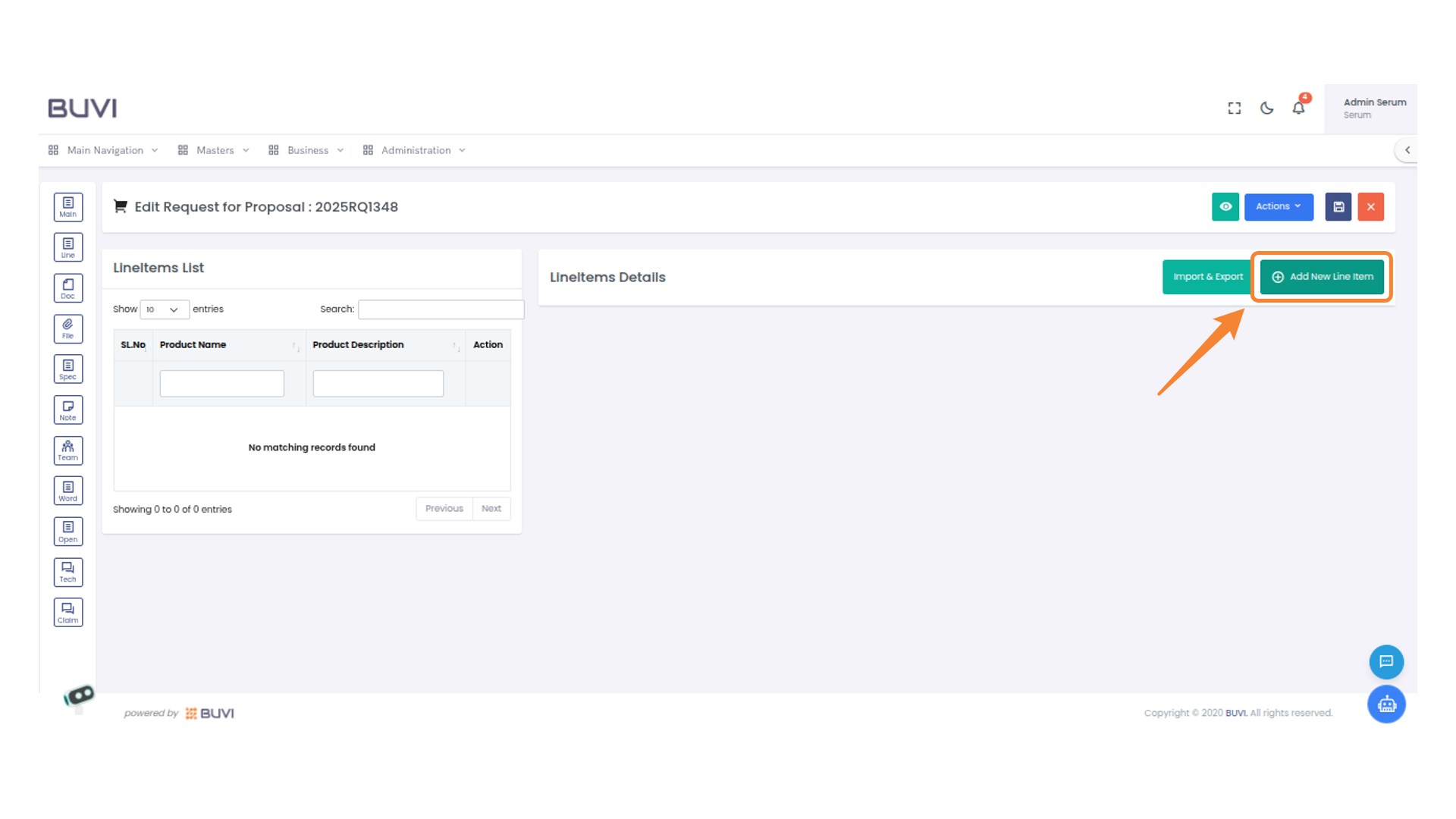
23. Line Item Name Input Field
Enter the name of the item in this input field.
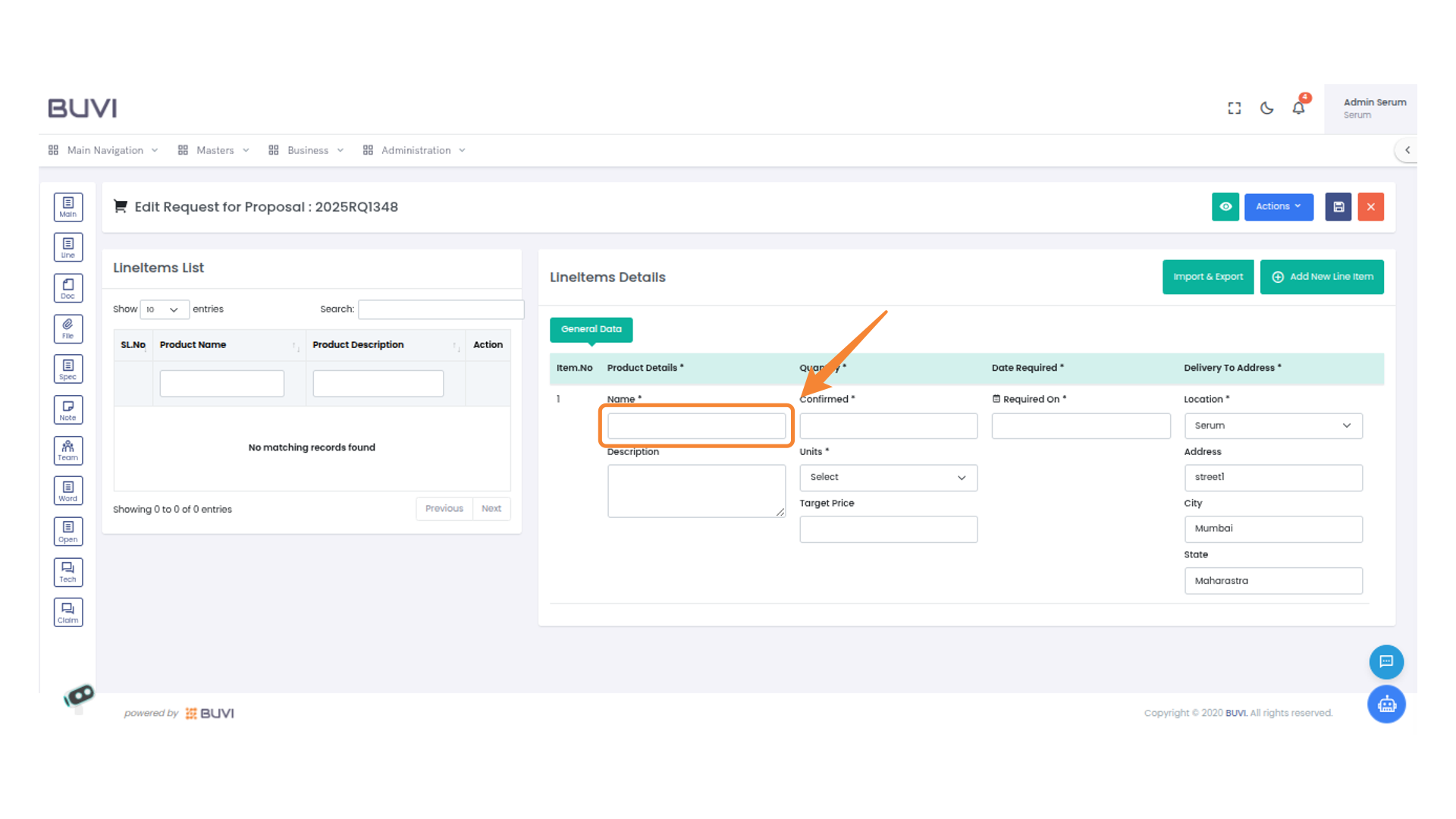
24. Search Box for Product Filter
Enter a keyword to filter the product list quickly.
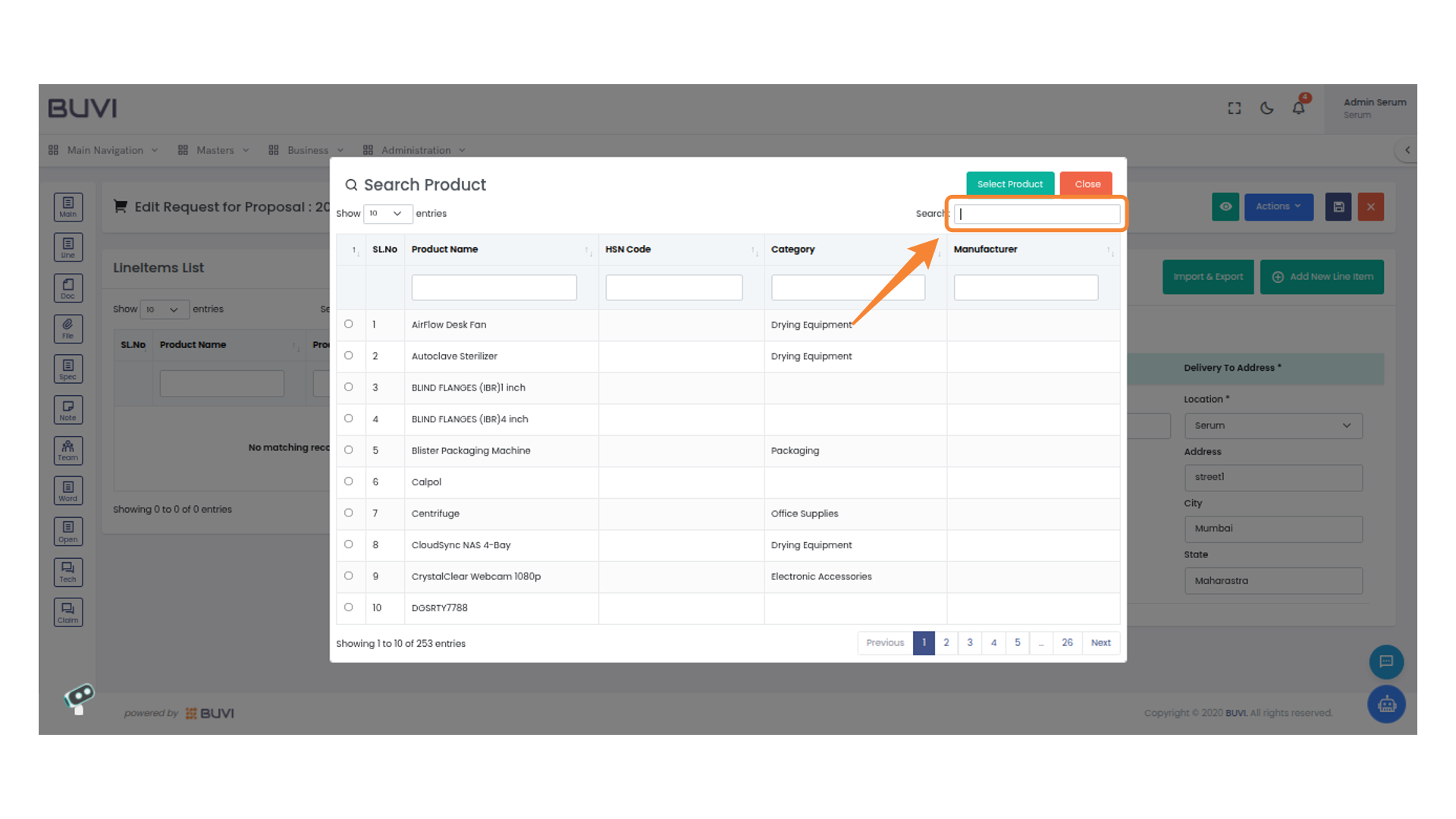
25. Product Selection
Select the product 'bike' from the search results to proceed.
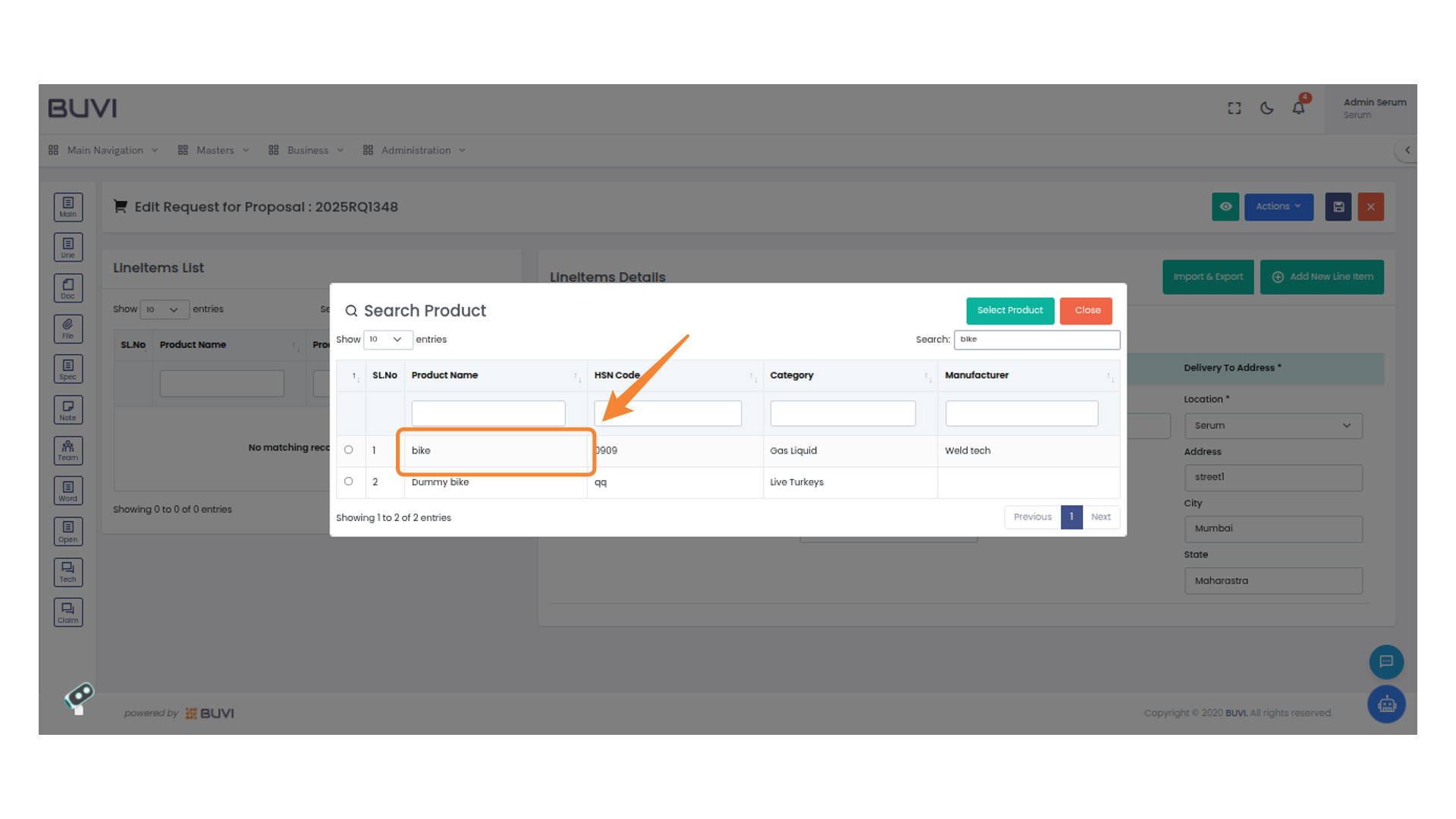
26. Product Selection Button
Click this button to select the highlighted product from the list.
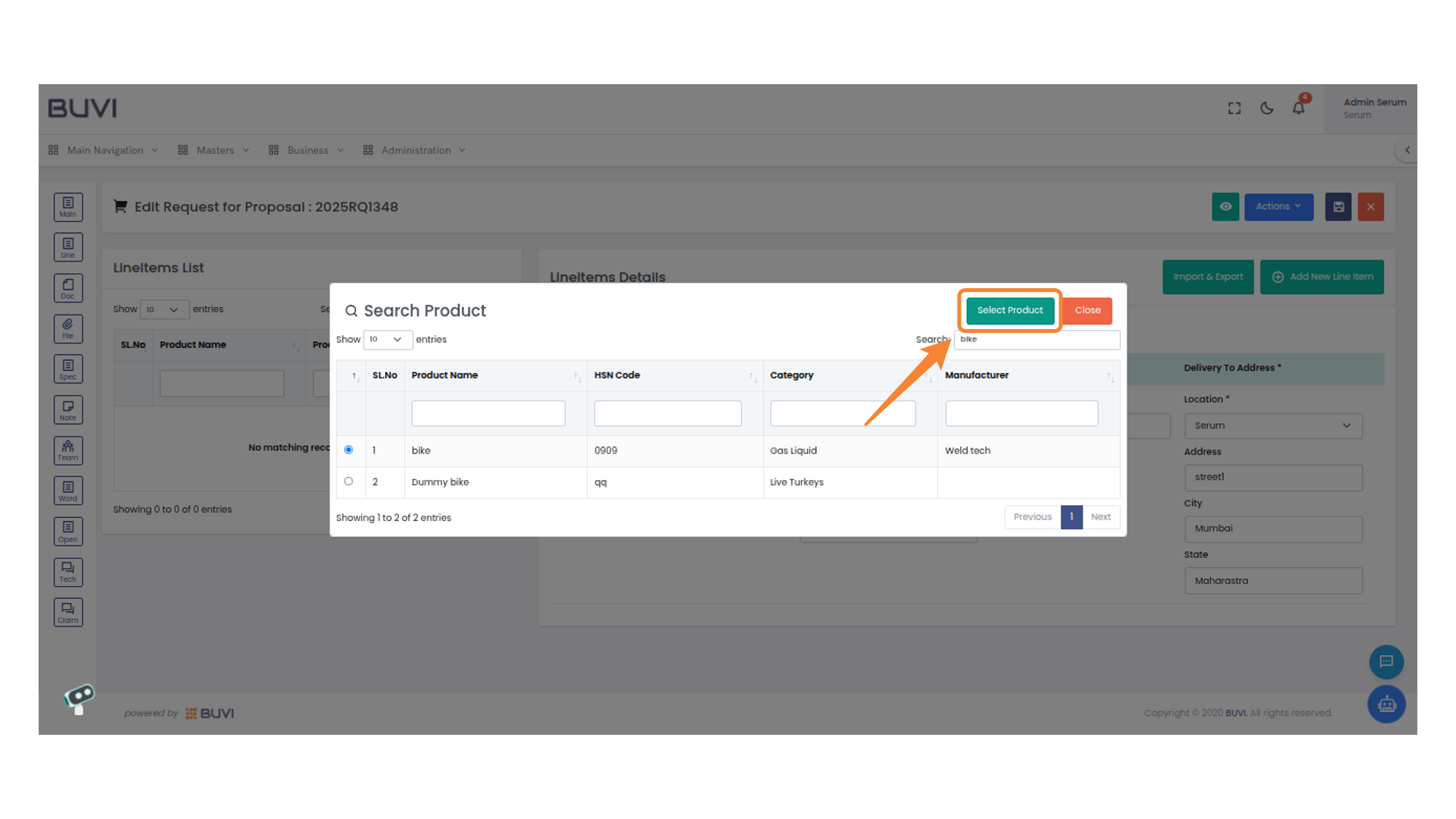
27. Confirmation Input Field
Enter the confirmation status for the product line item.
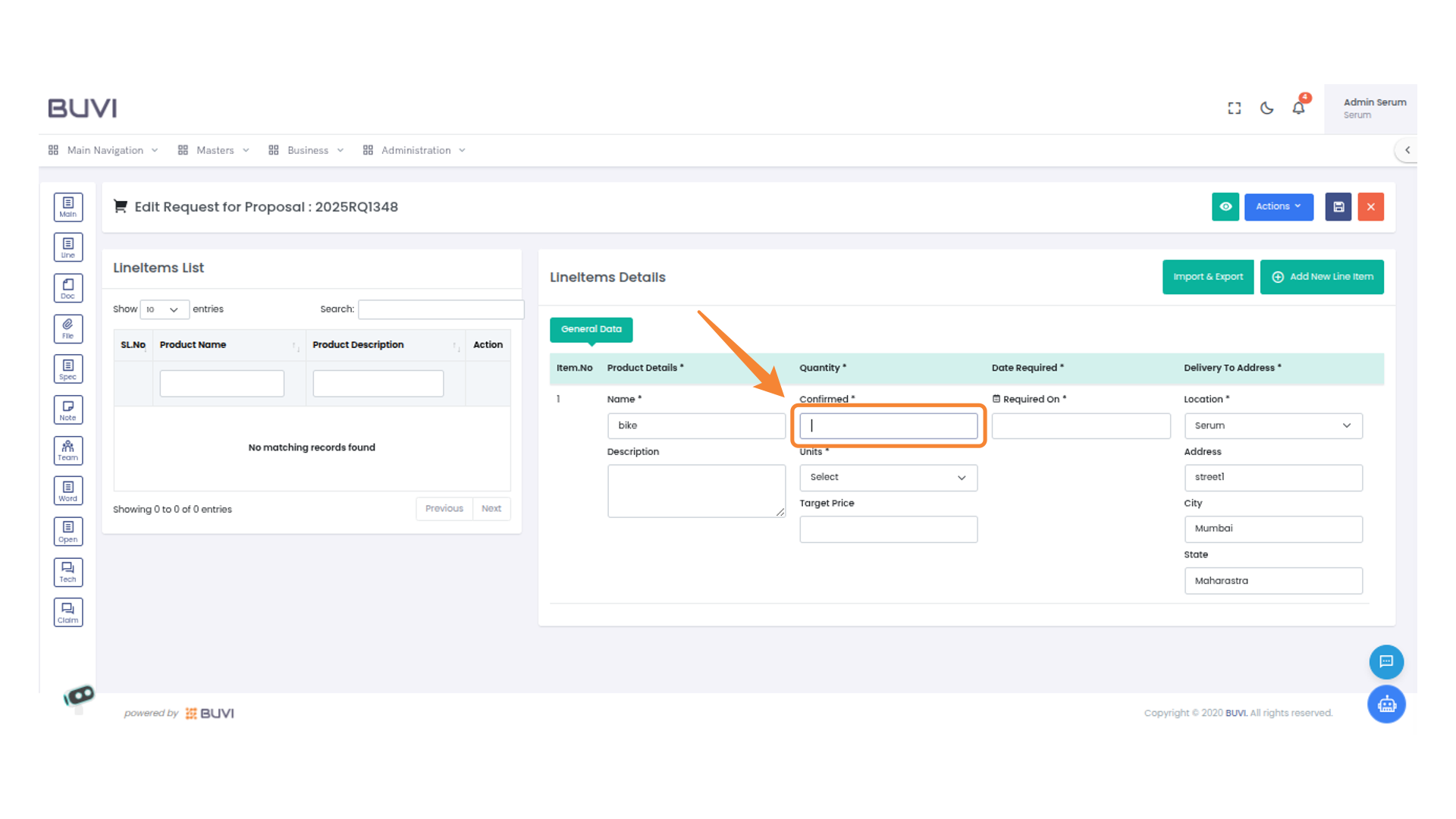
28. Unit Selection Dropdown
Choose the appropriate unit from the dropdown menu for the product details.
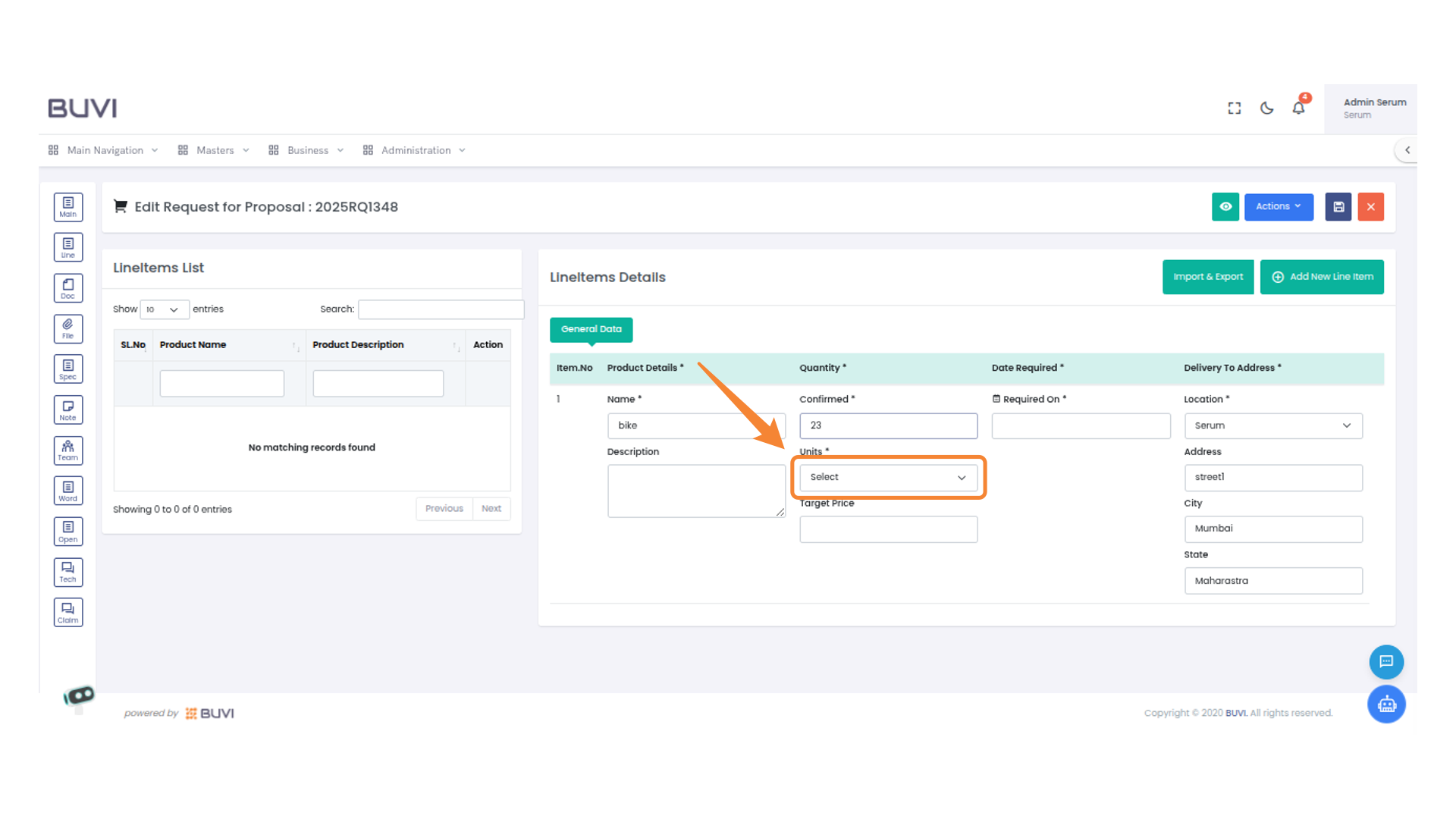
29. Date Required Field
Enter the date by which the item is needed.
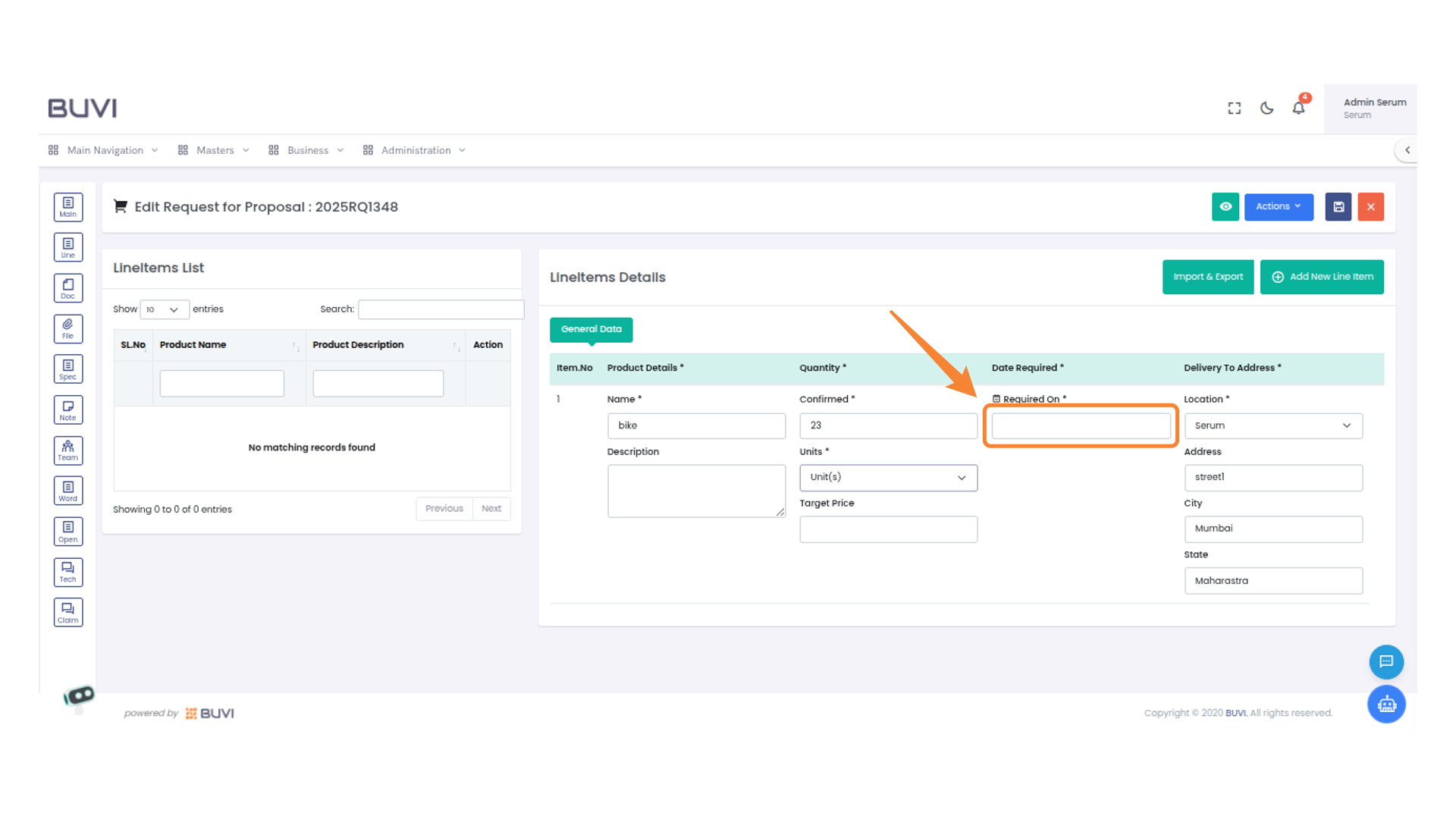
30. Save Line item
Press this button to save
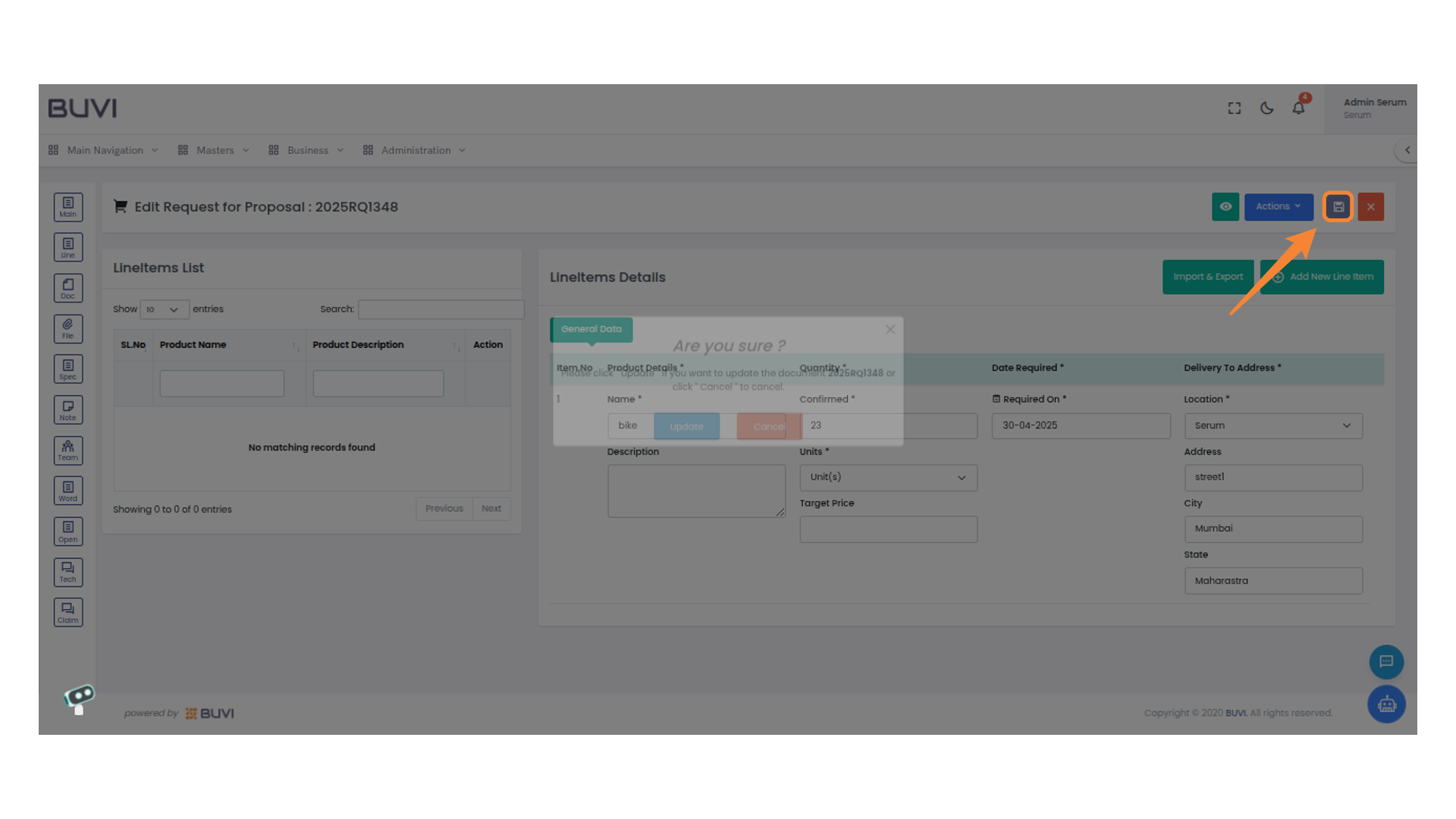
31. Confirmation Dialog
Press the 'Update' button to proceed with the changes.
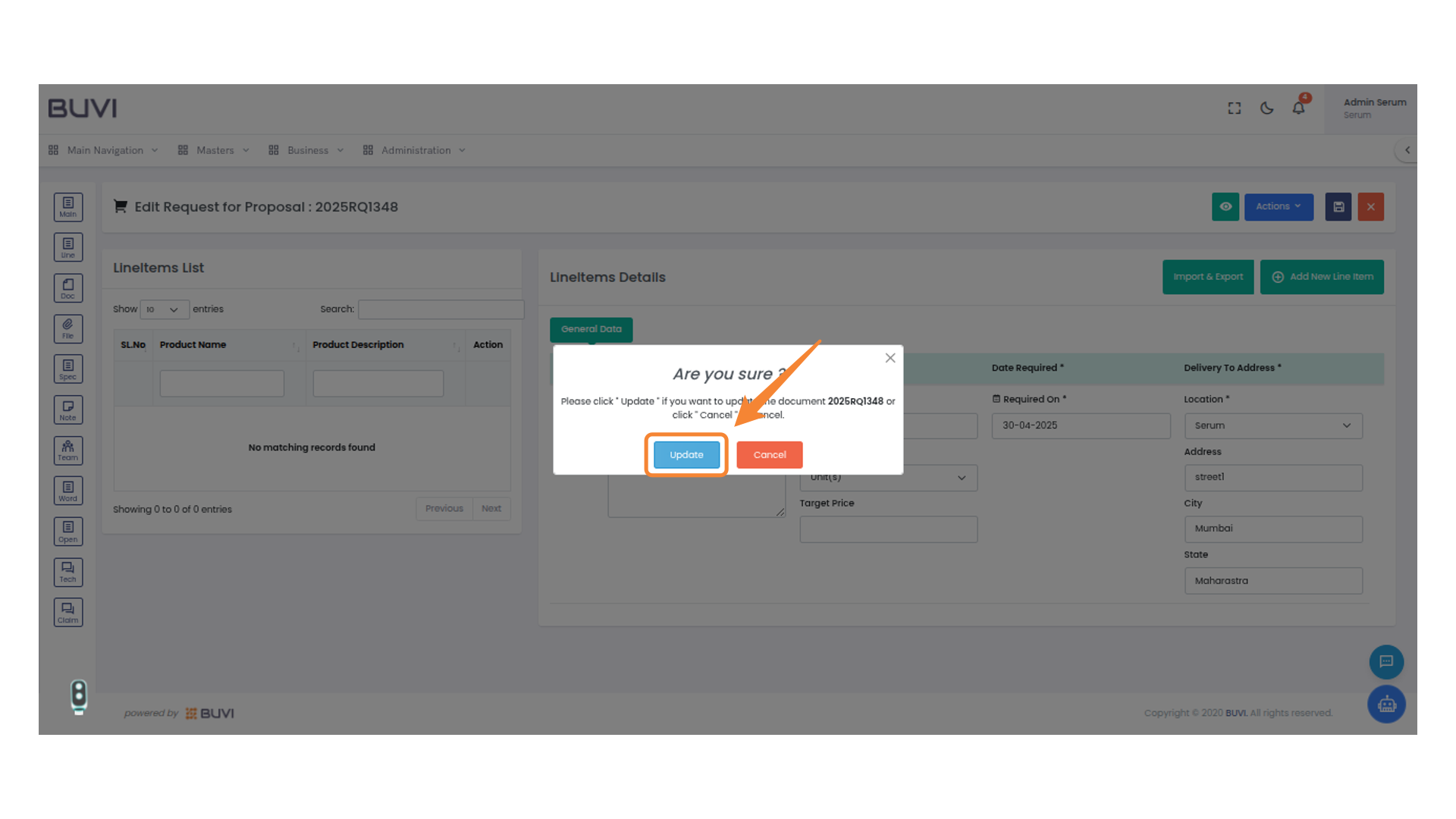
32. Main Menu Access
Select the 'Main' tab
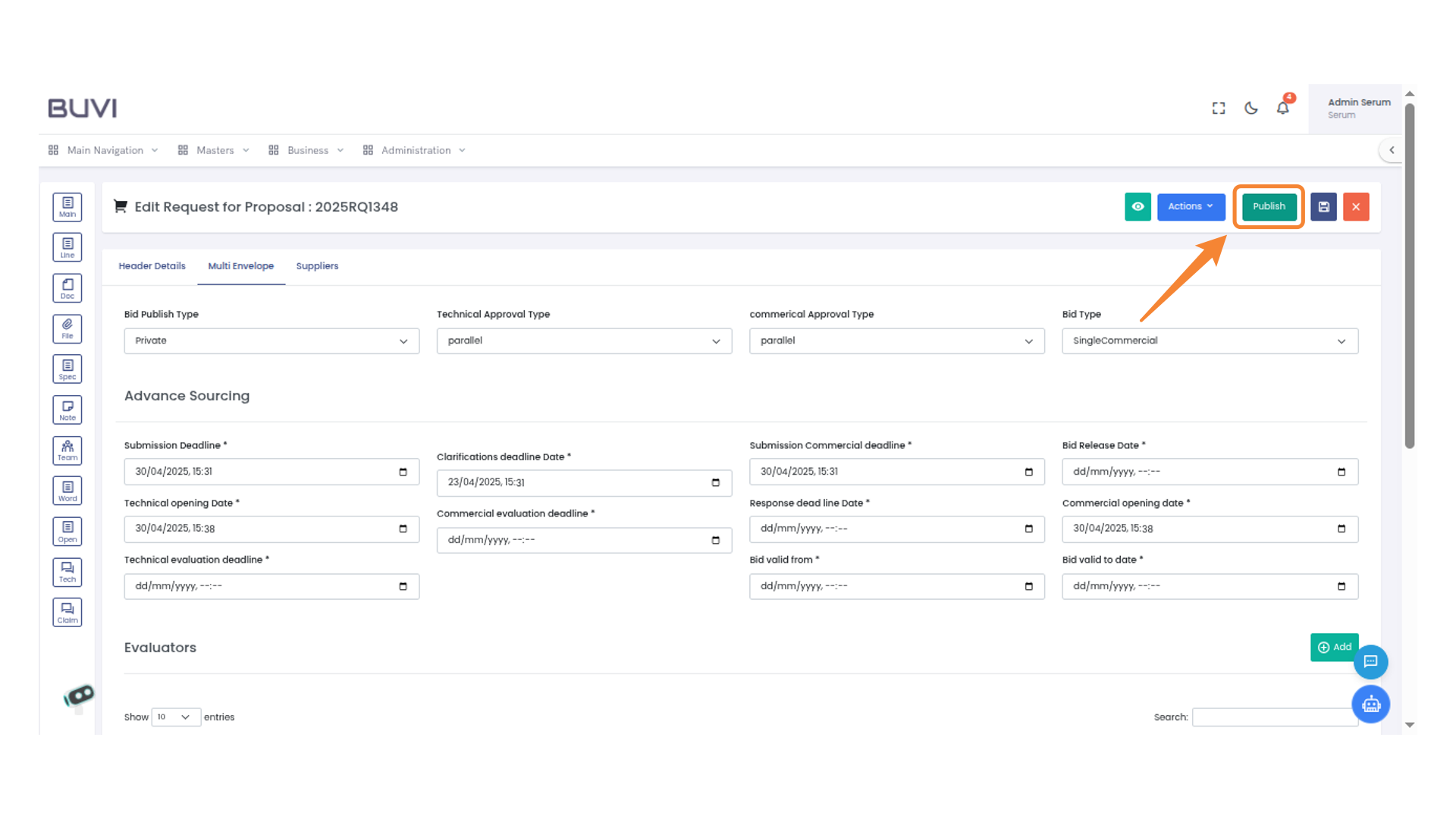
33. Publish Button
Click to publish the current proposal.
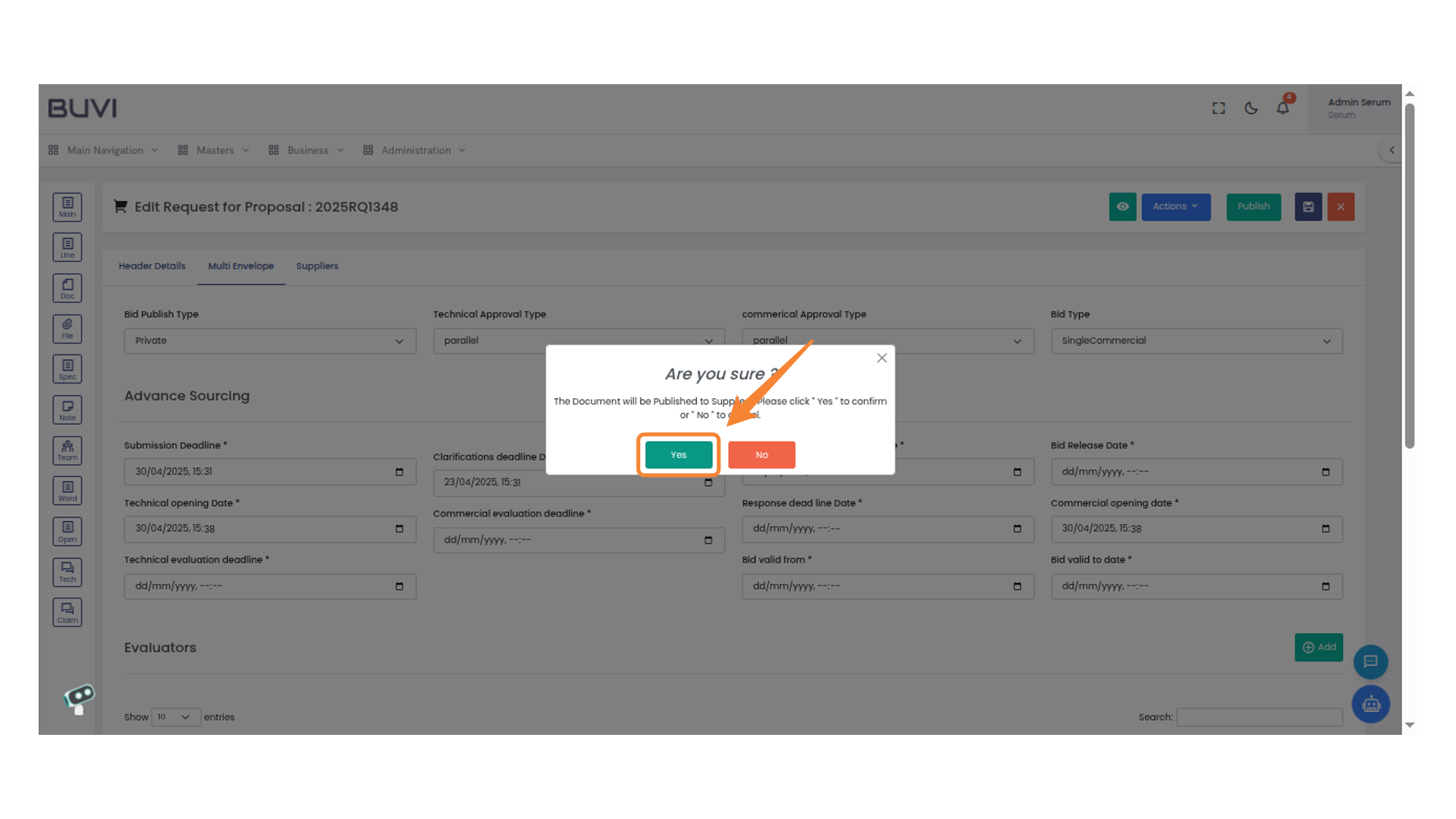
34. Confirmation Prompt
Click 'Yes' to proceed with publishing the document.
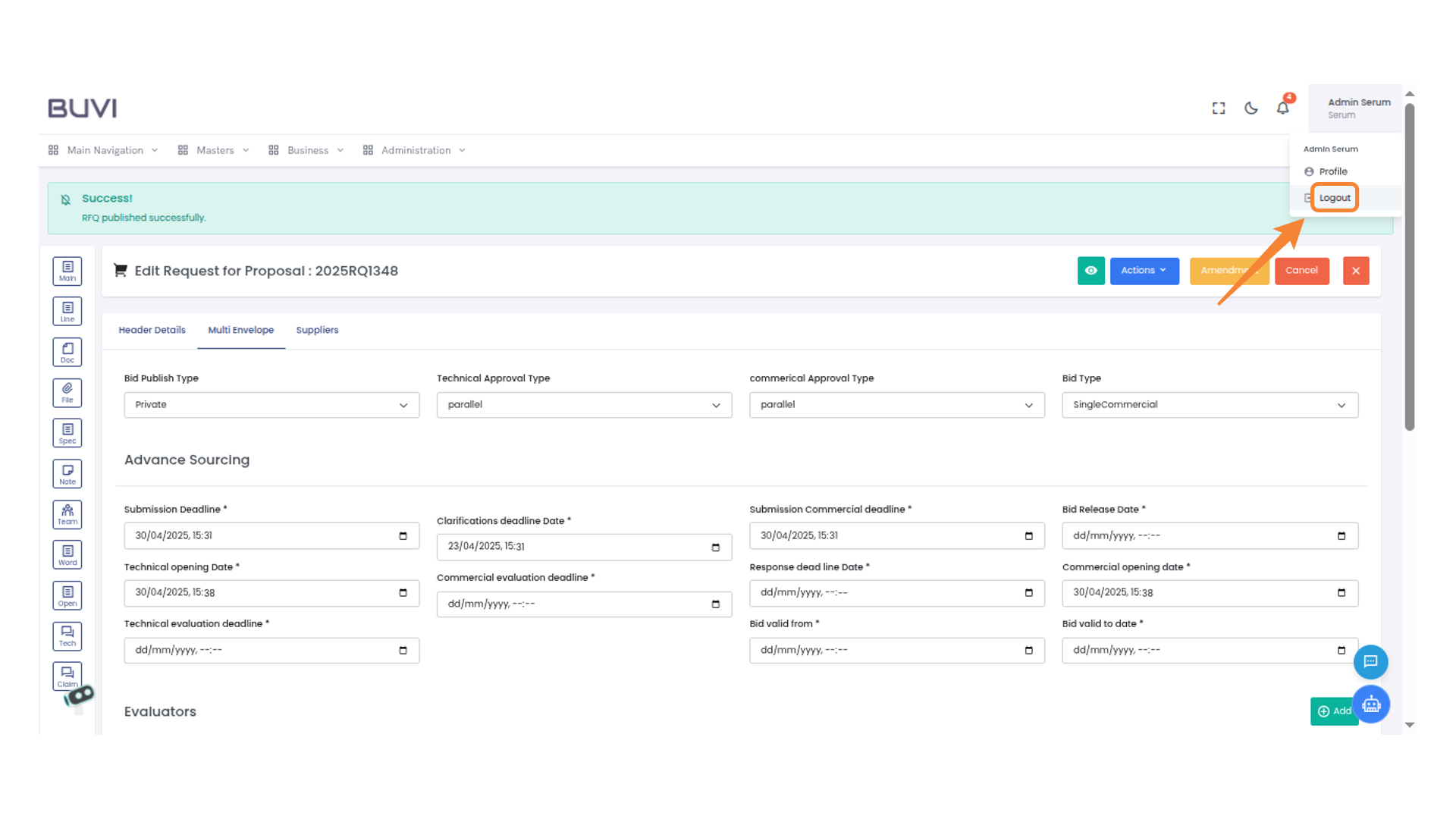
35. Logout Button
Click to log out of your account.
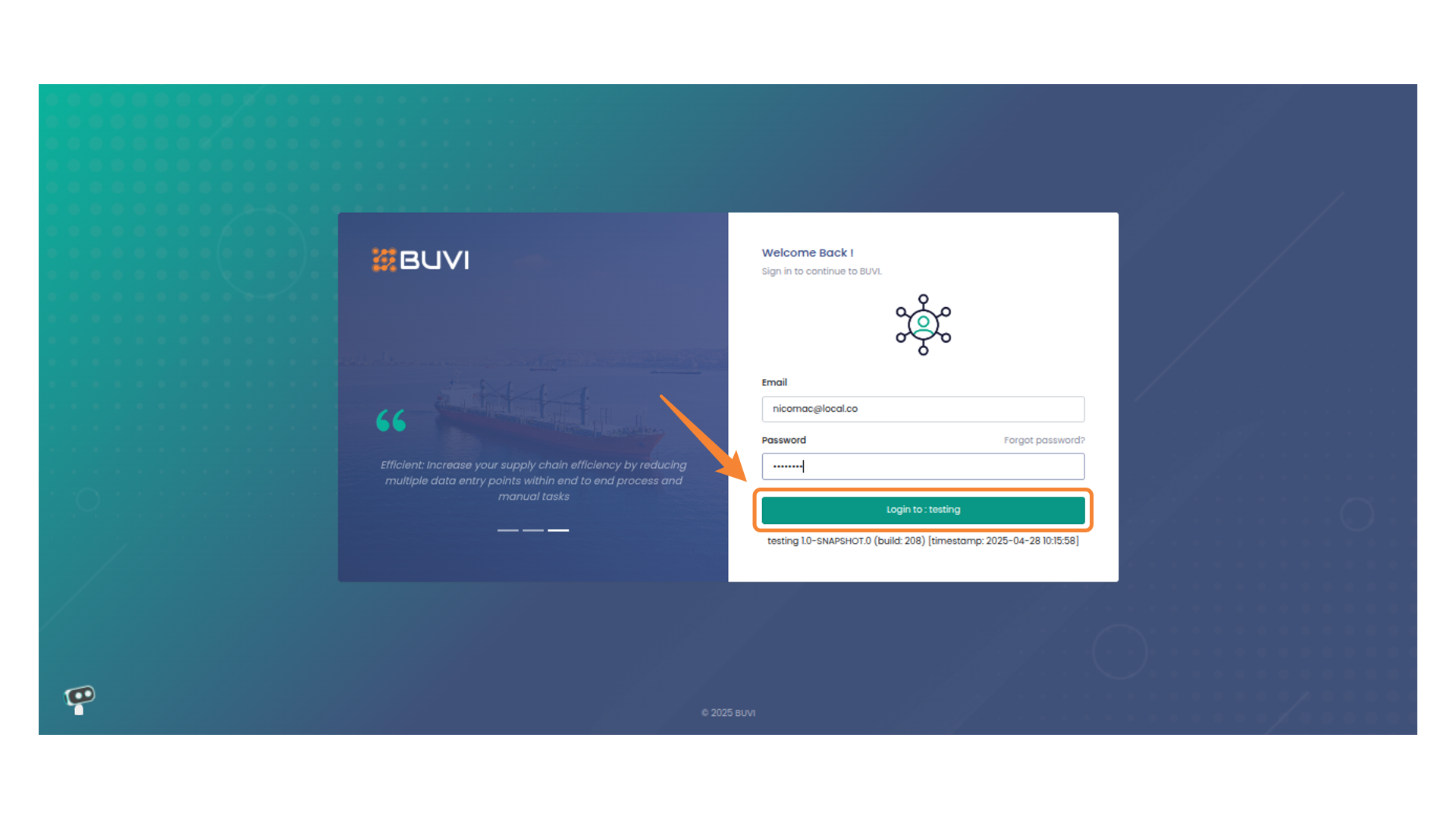
36. Login As Supplier
Click to proceed with loggin
37. Business Navigation Menu
Click on Business menu
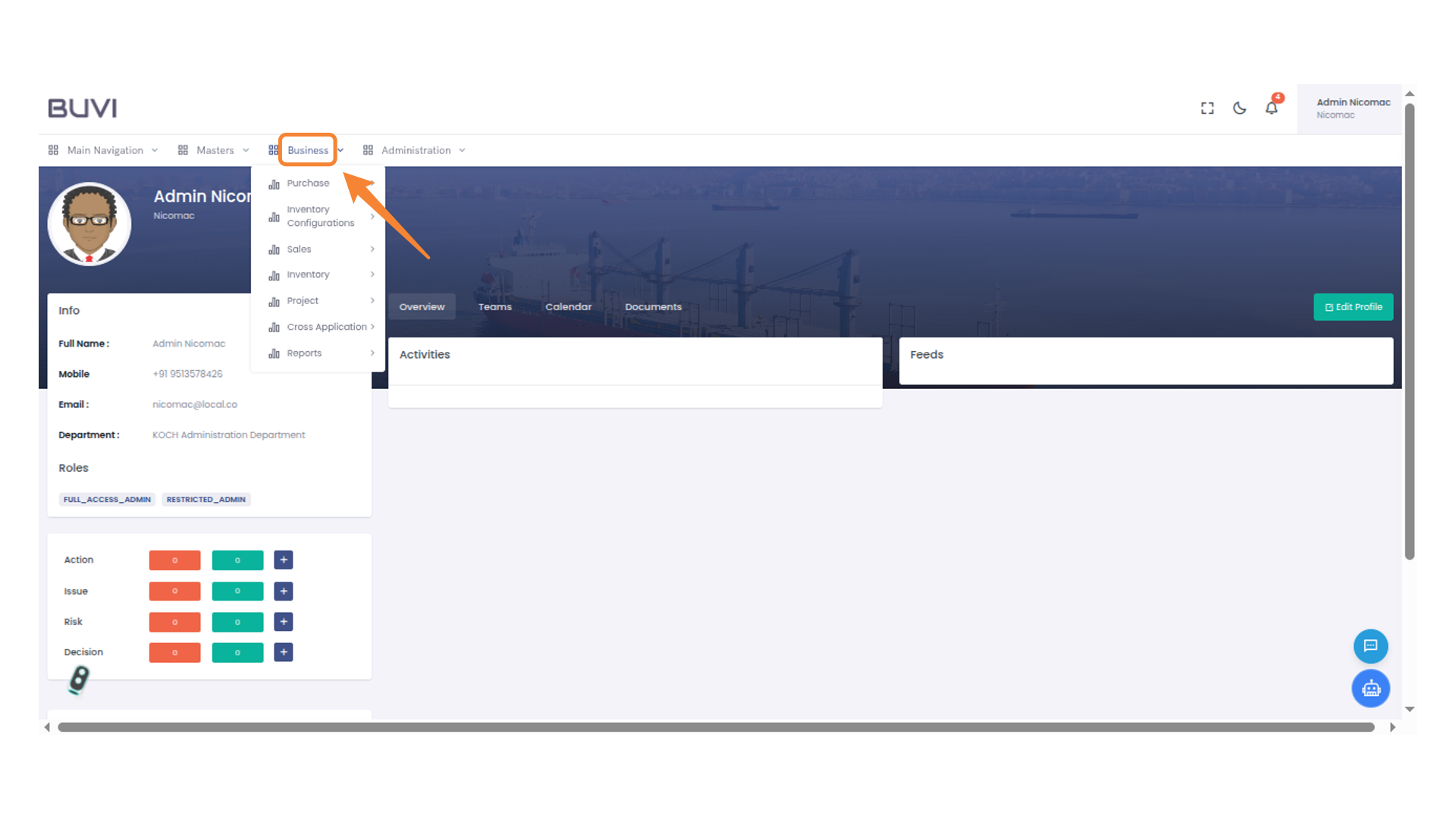
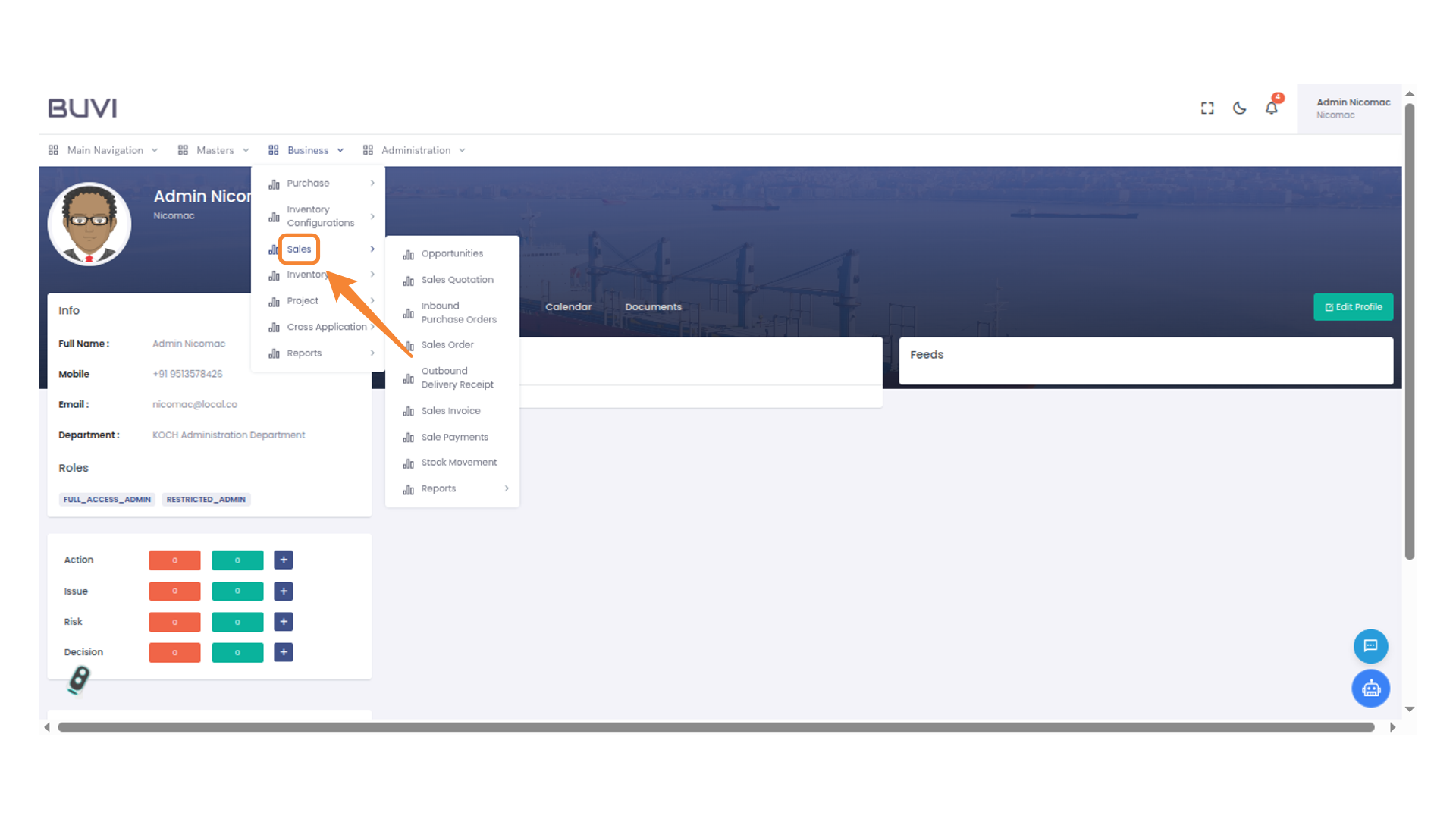
38. Sales Menu Highlight
Access the sales options by selecting this menu item.
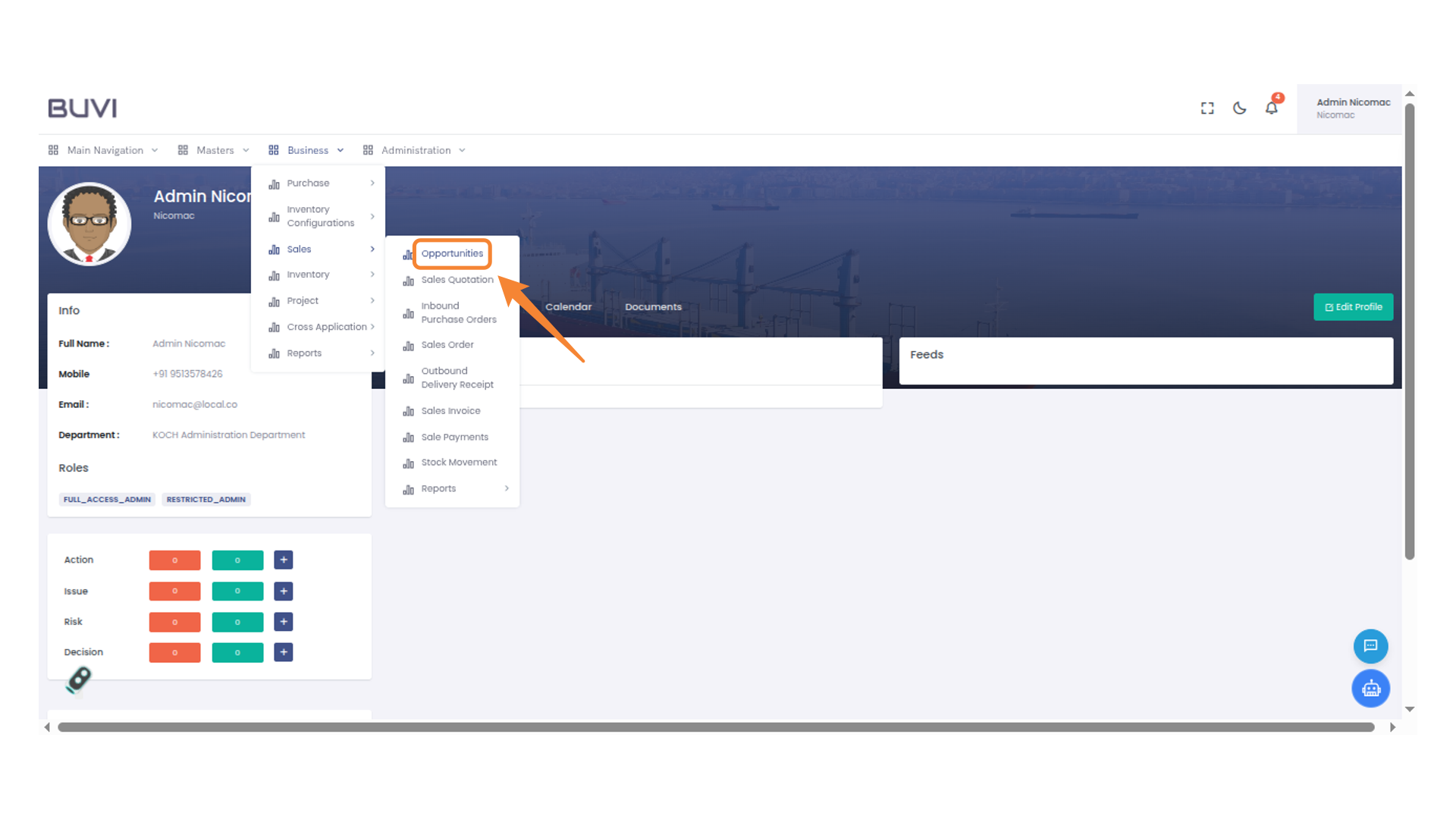
39. Access Opportunities Section
Click on Opportunity menu
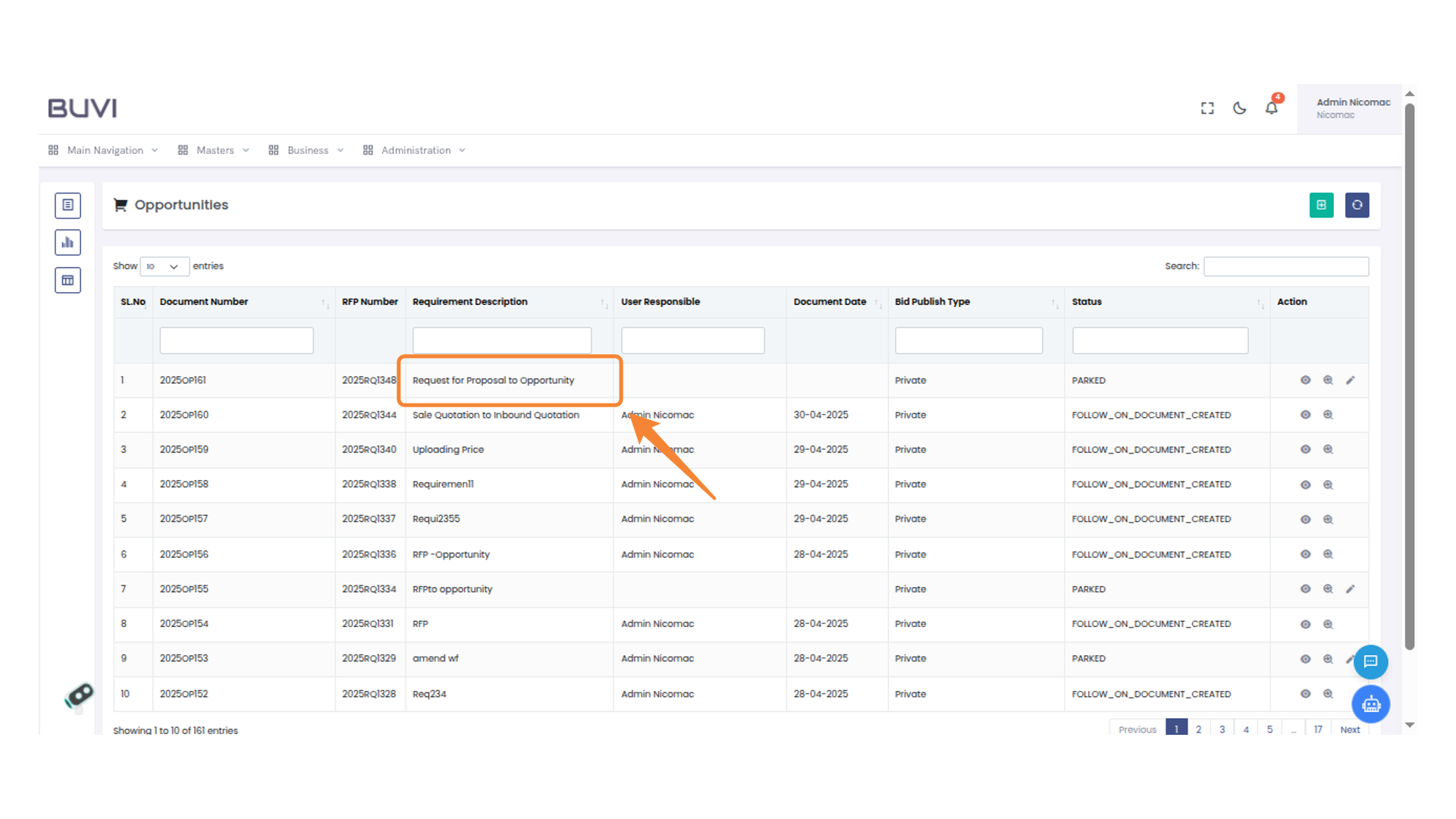
40. Opportunity Highlight
Check for the Opportunity created from RFP
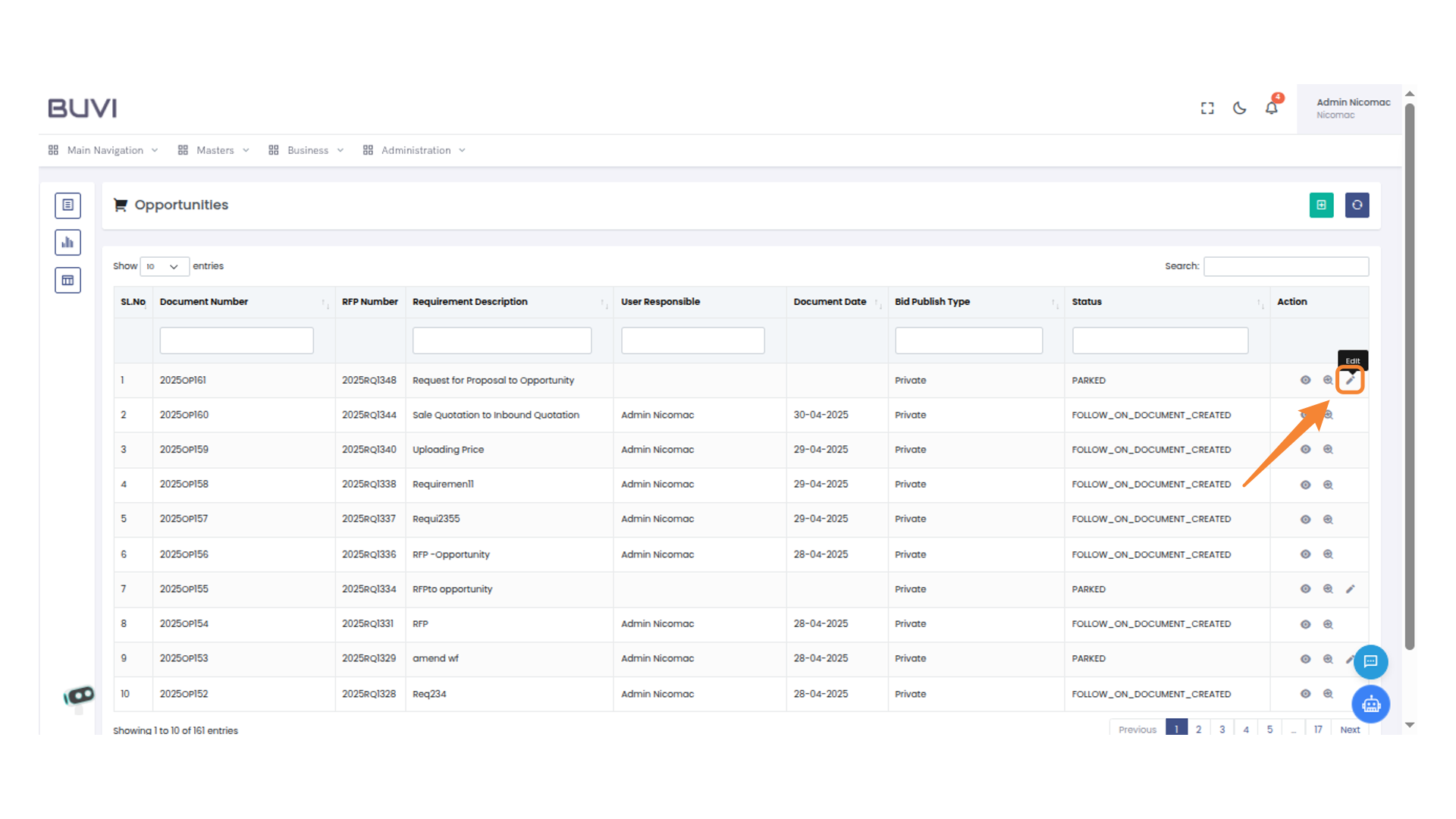
41. Edit Opportunity
click on view button
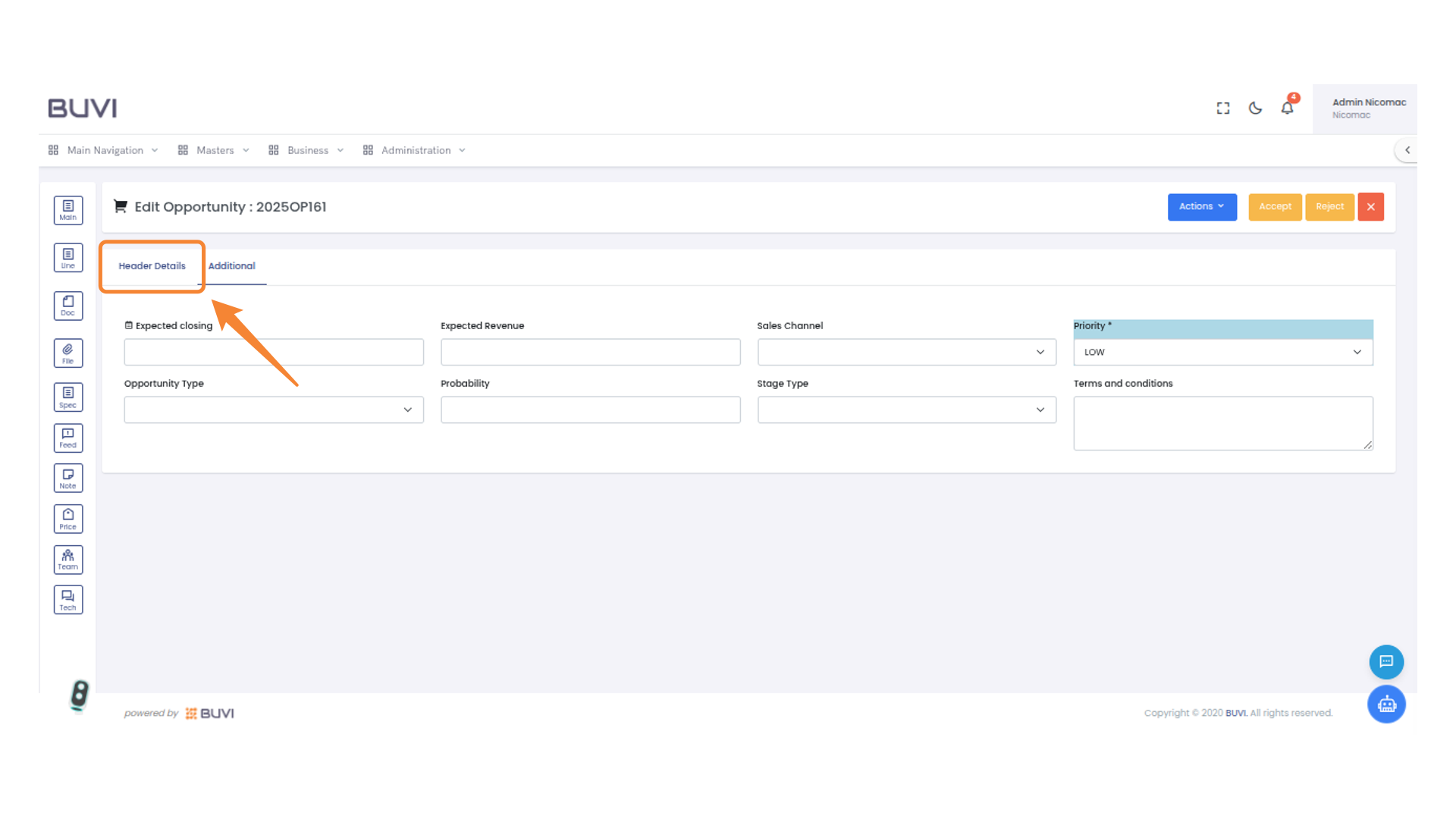
42. Header Details Tab
Review Header details
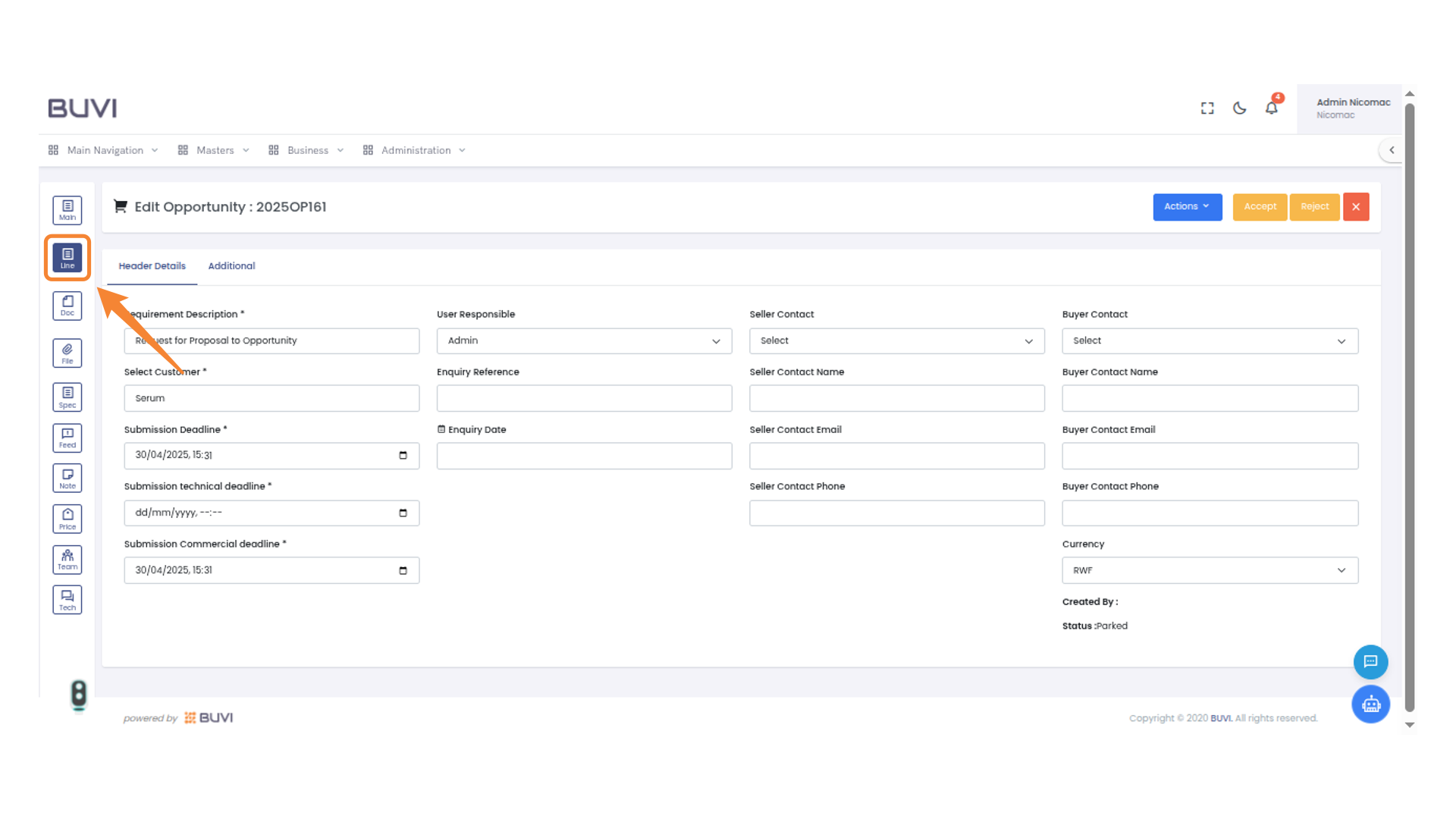
43. Line Icon Navigation
Select this icon to navigate to the line details section.
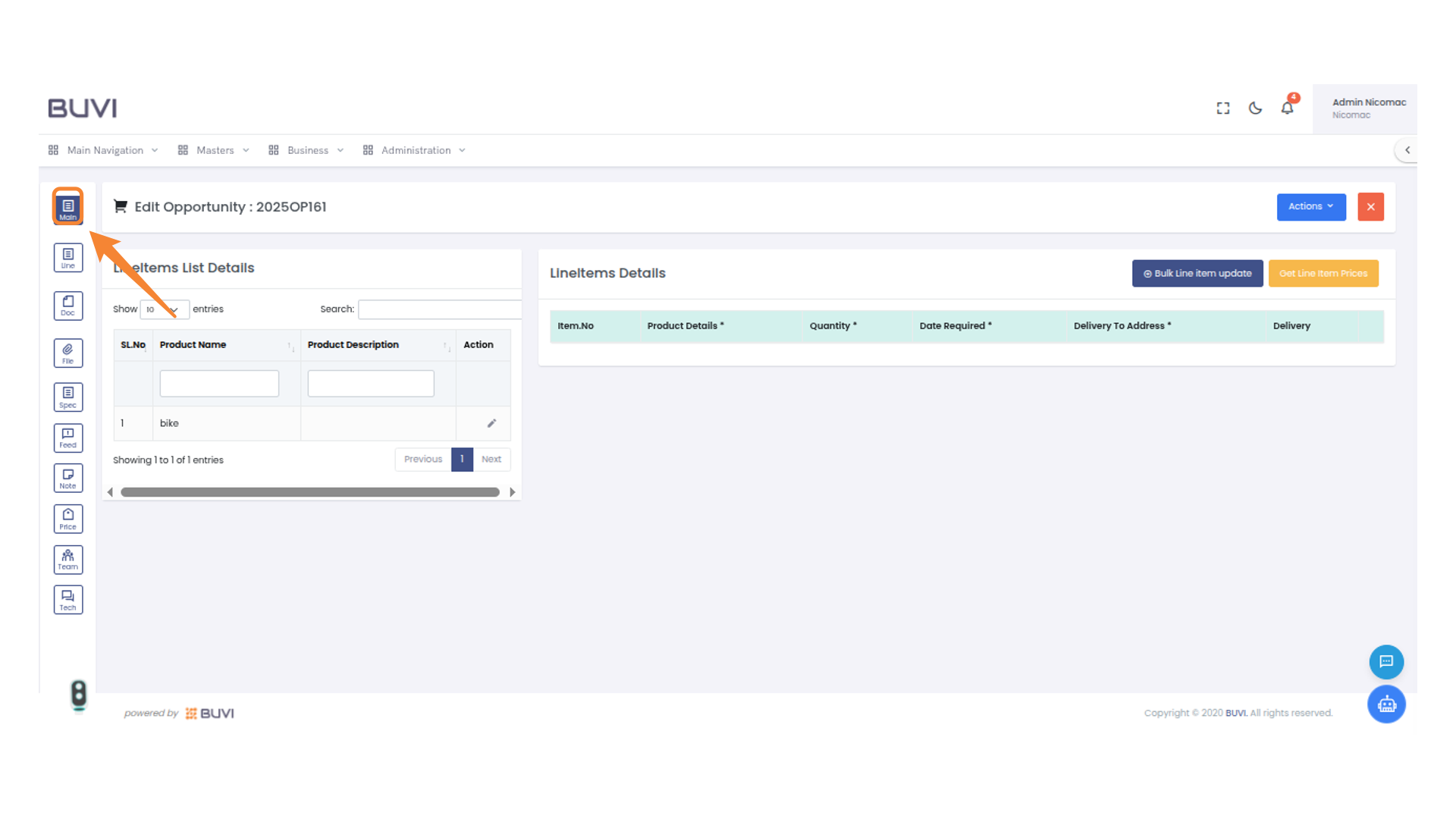
44. Main Menu Icon
Select this icon to access the main navigation options.
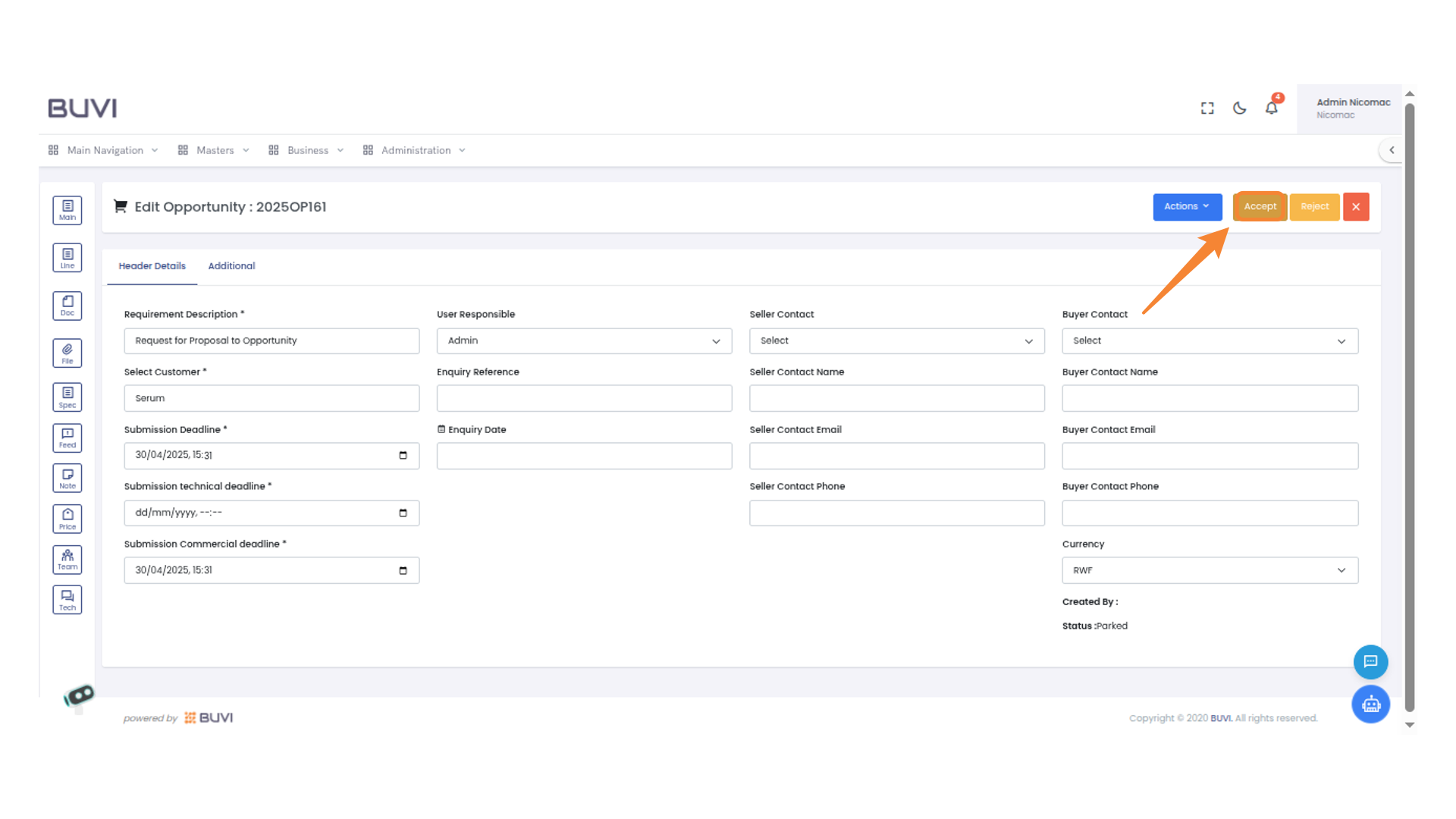
45. Accept Button
Click to confirm and proceed
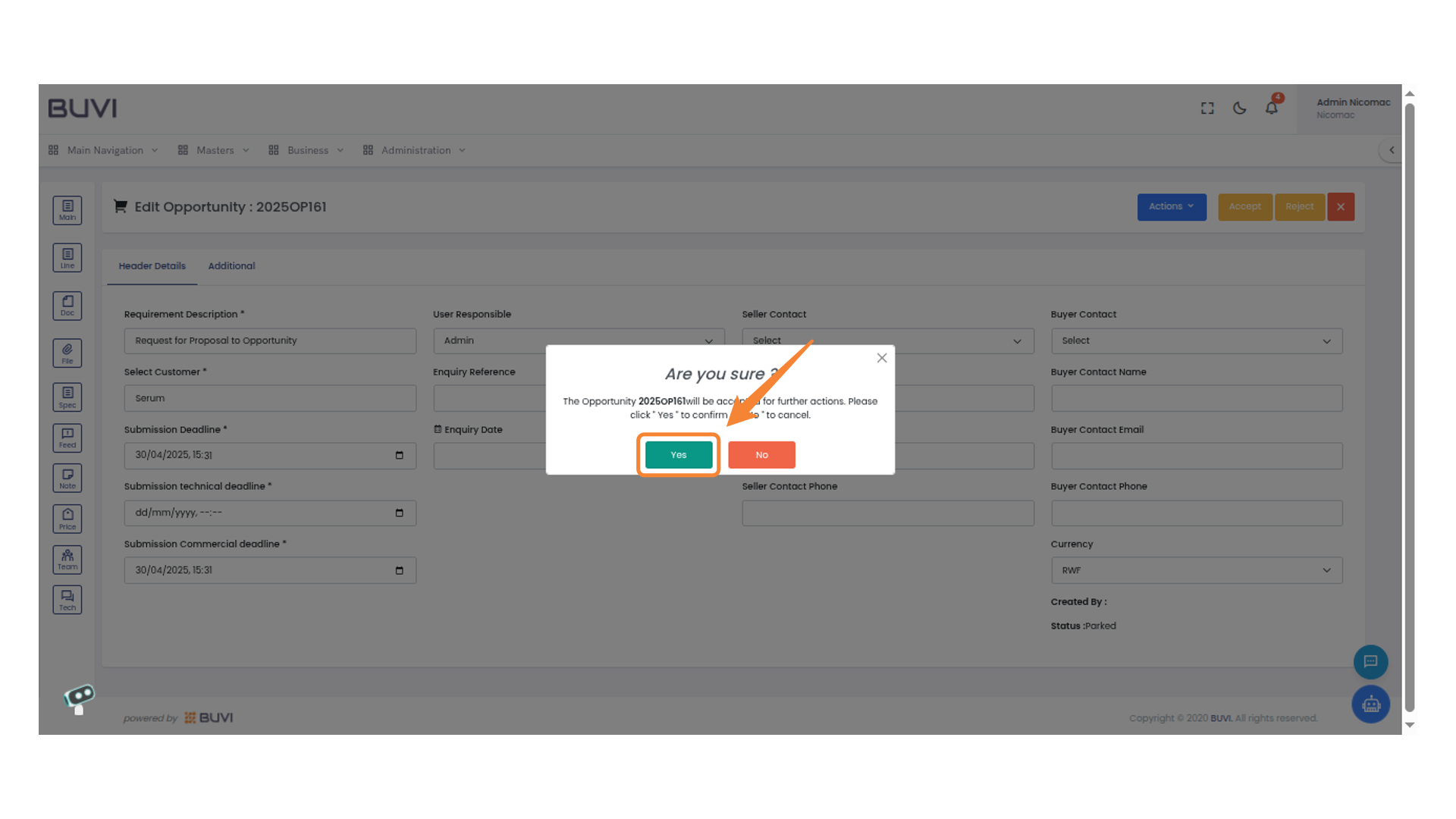
46. Confirmation Prompt
Click 'Yes' to proceed with the action or 'No' to cancel.