Prequalification, Technical, Commercial
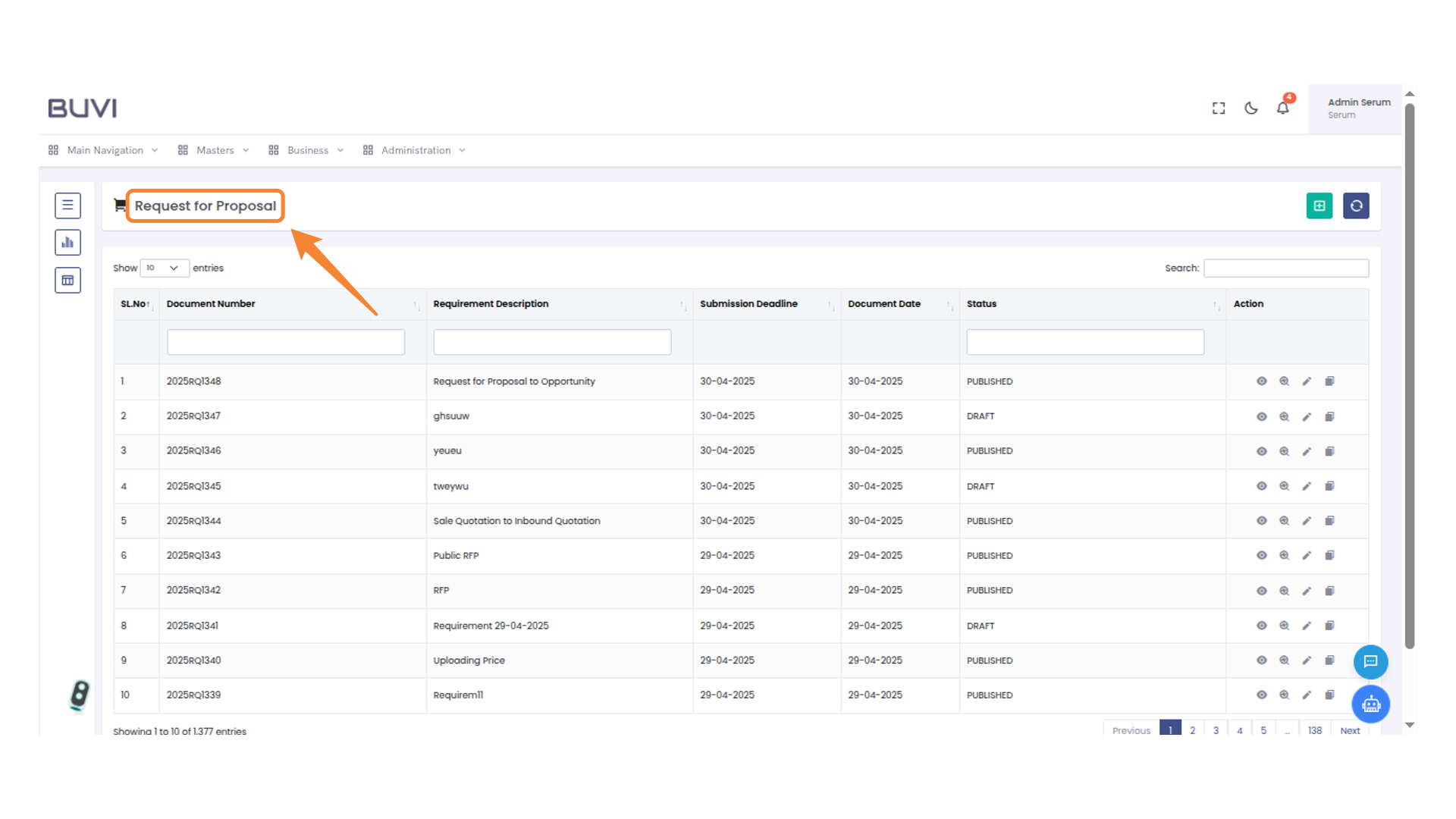
1. Request for Proposal
Go to RFP Menu
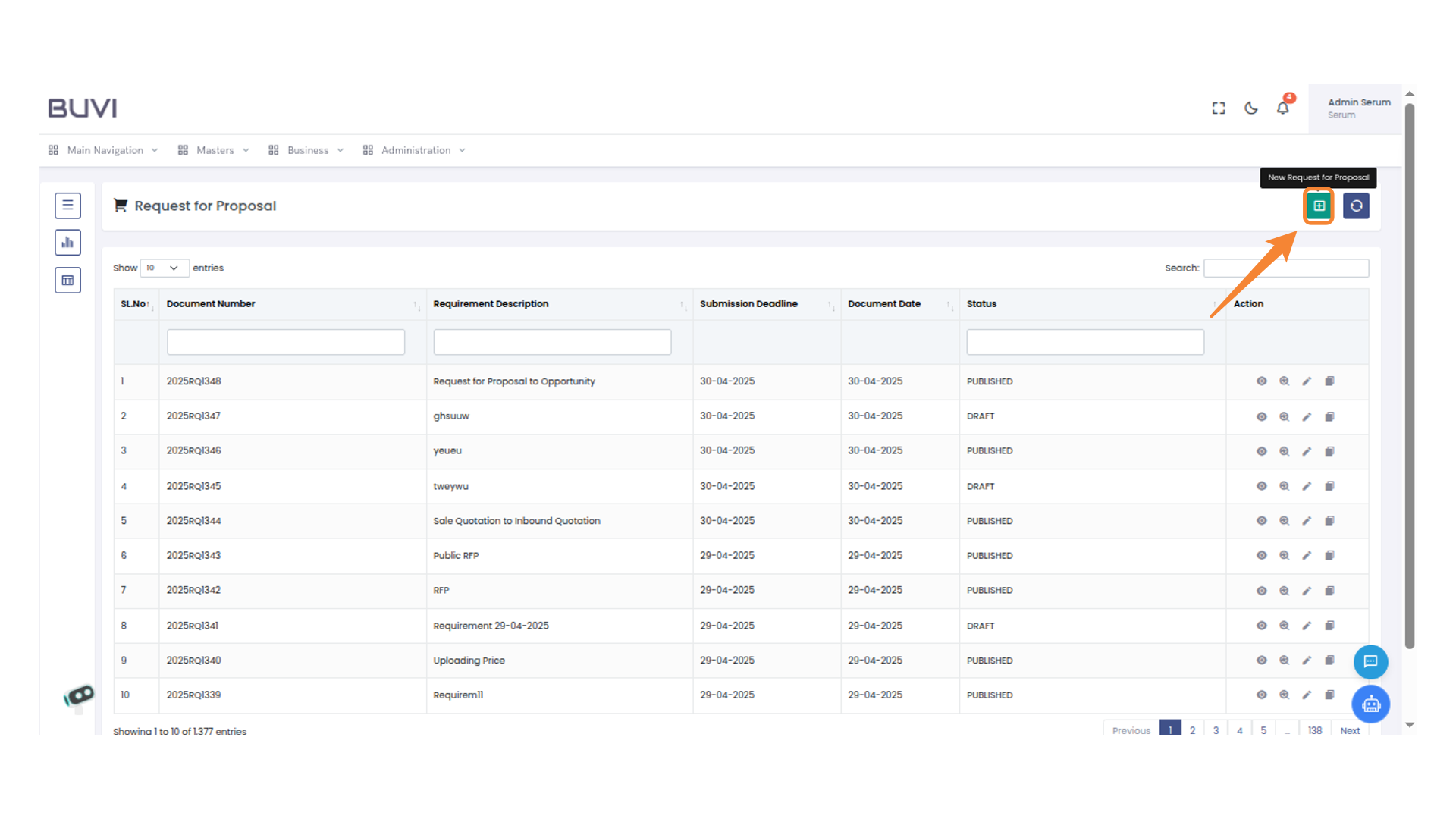
2. Create RFP
Create New RFP
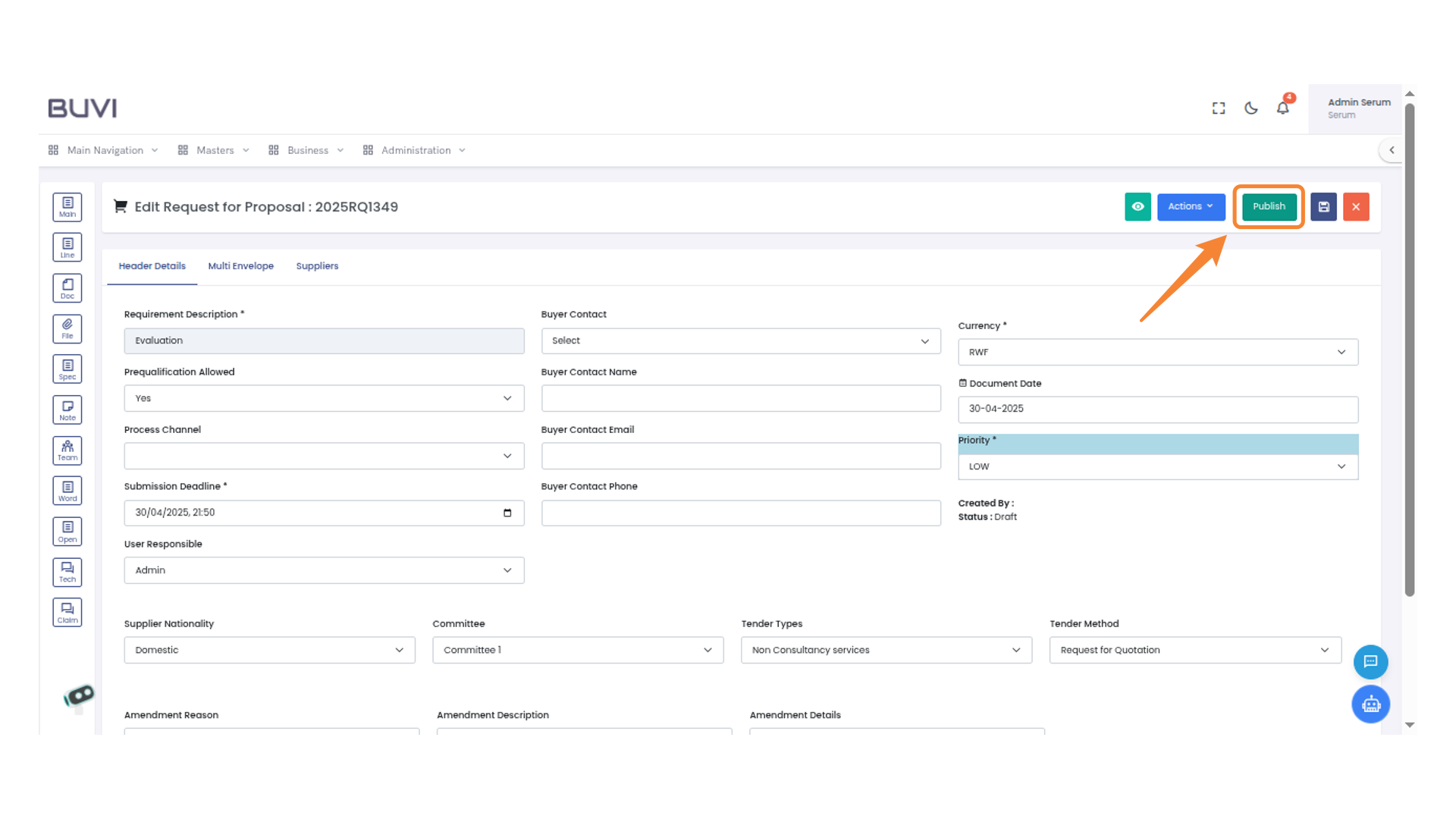
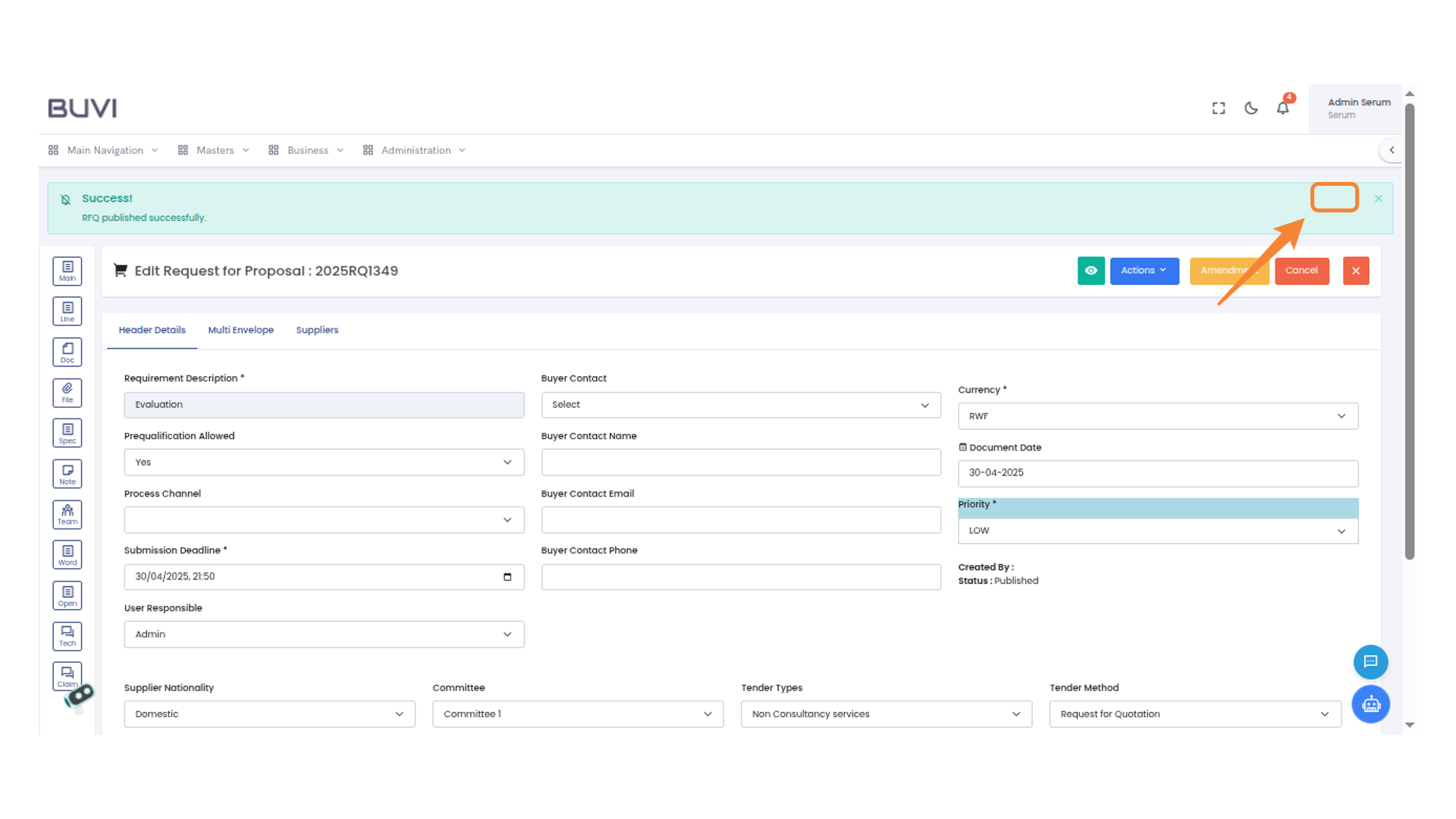
3. Publish Button
Publish RFP
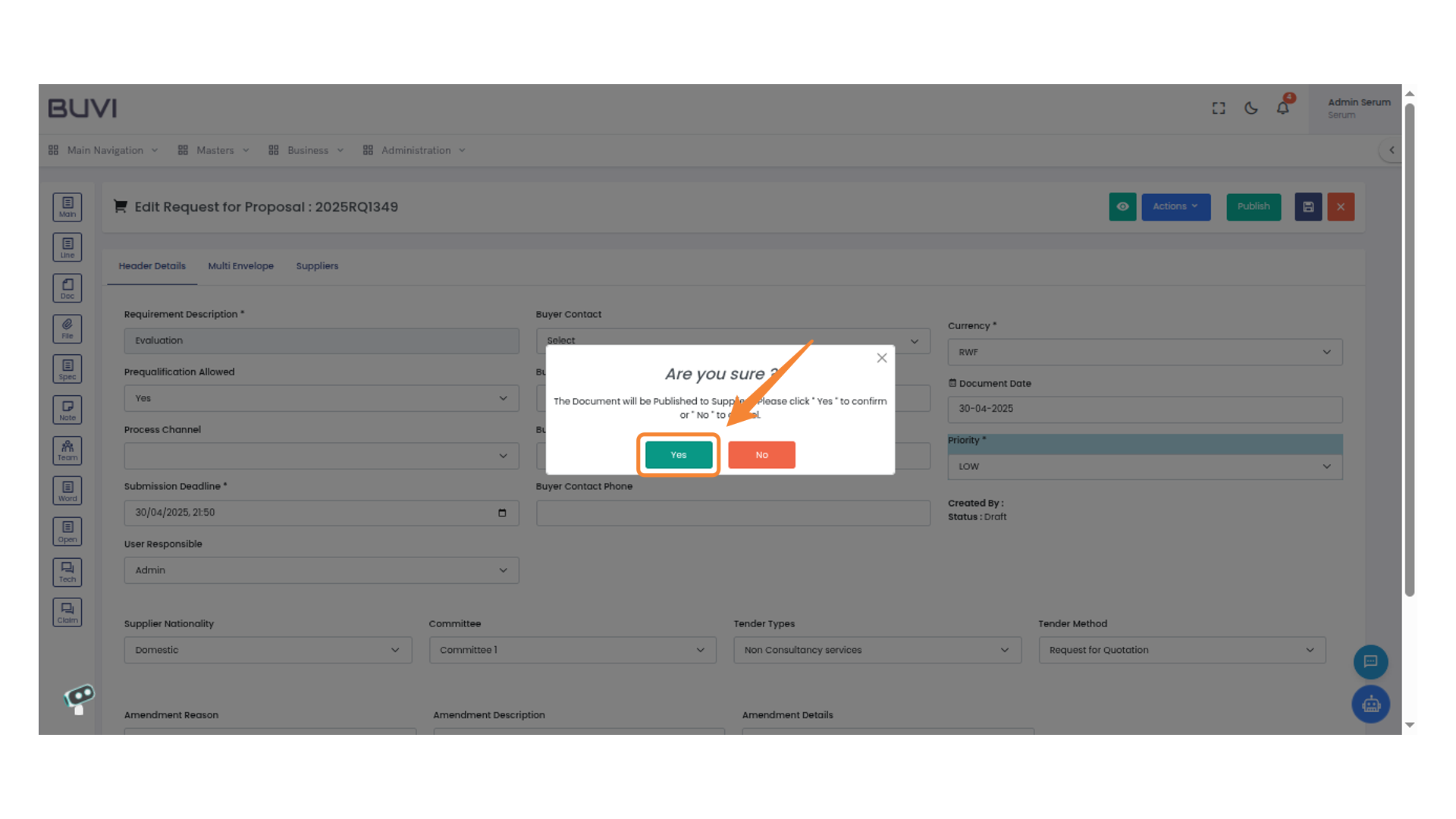
4. Confirmation Prompt
Select 'Yes' to confirm the publication of the document.
5. Logout
Log out from the application
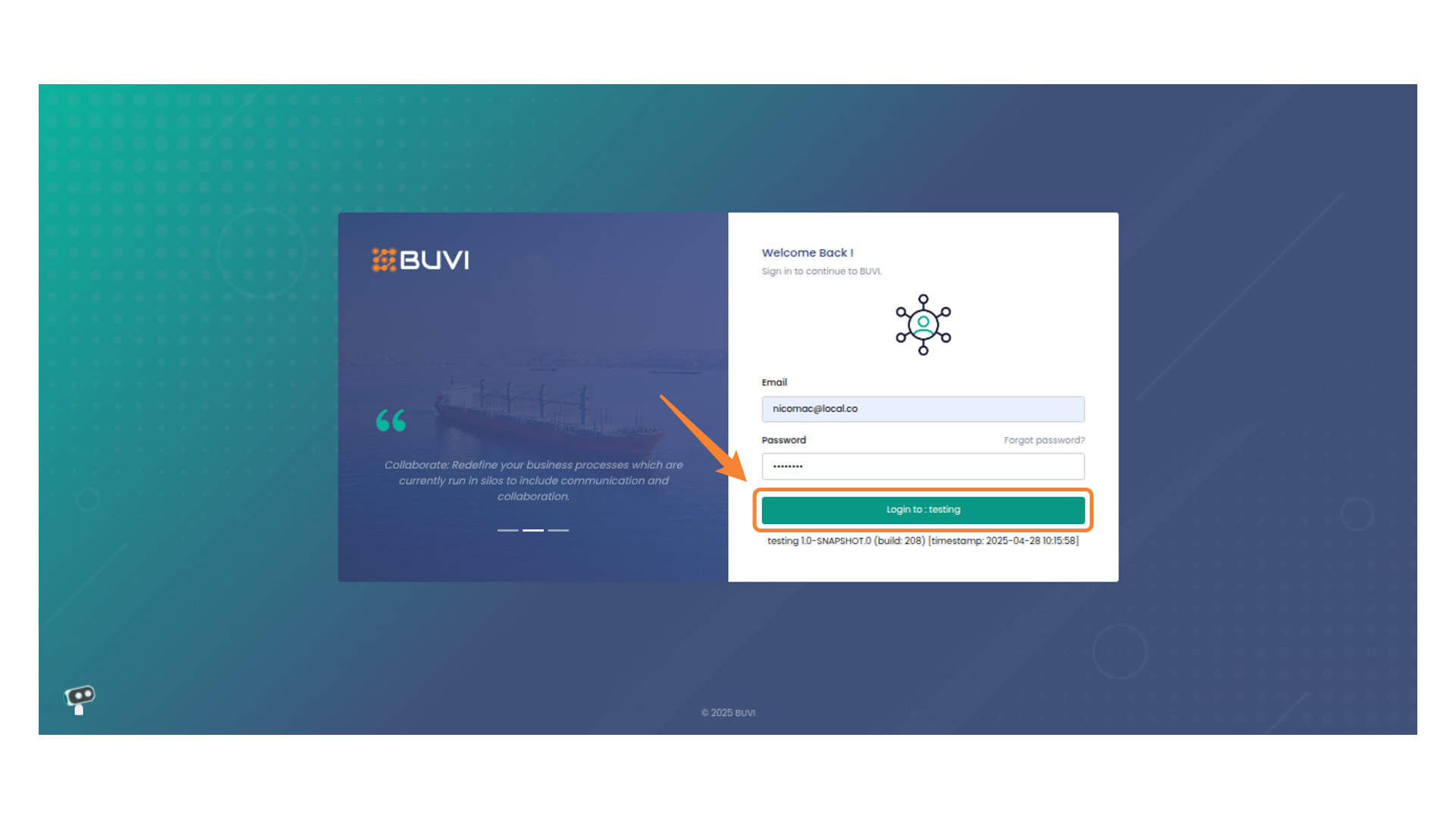
6. Login asSupplier
Click the button to proceed with logging in.
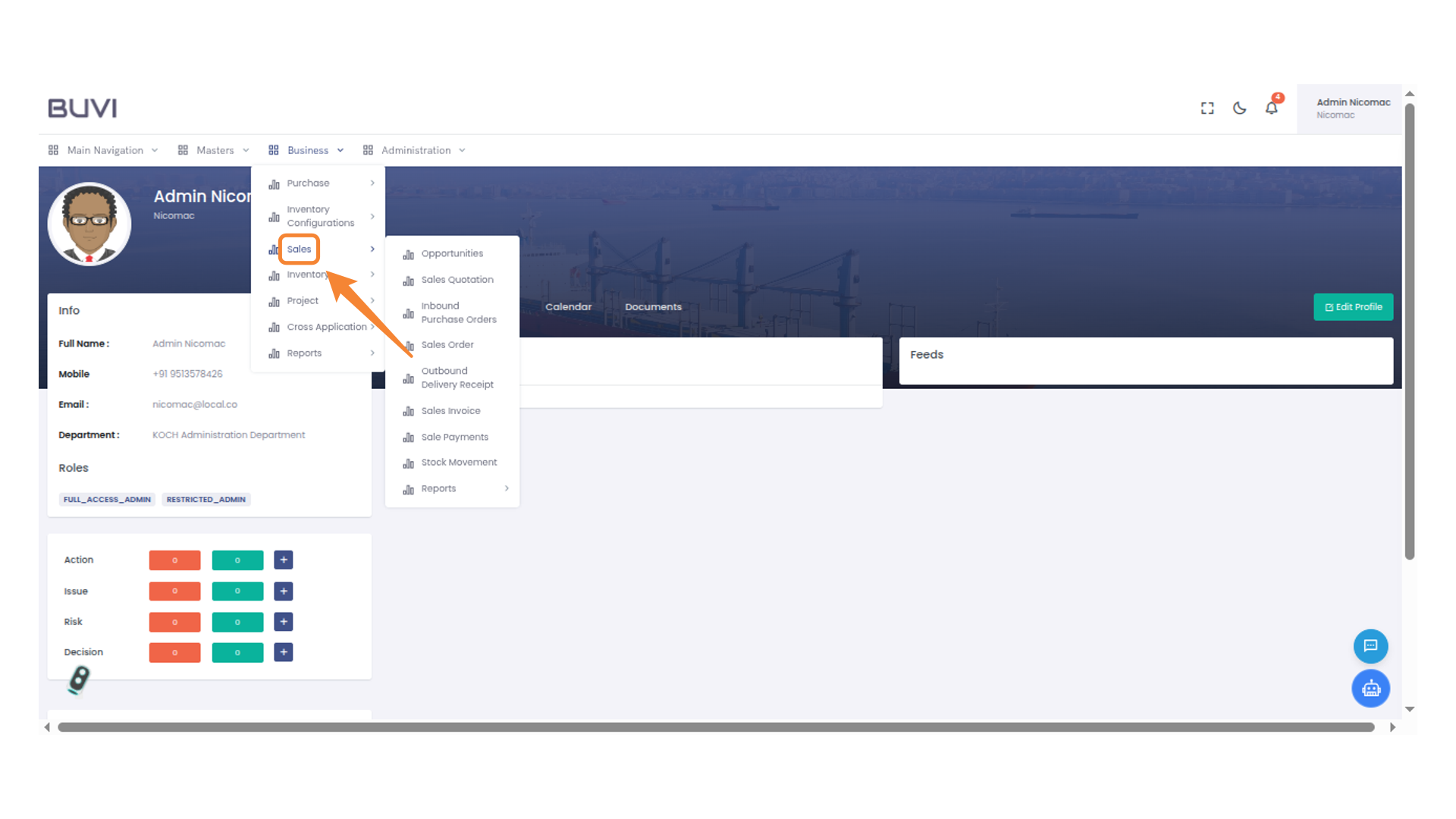
7. Sales Menu Item
Click on sales menu under Business
8. Opportunities Menu Section
Click on Opportunity

9. Edit Action Icon
Click to edit the selected opportunity.
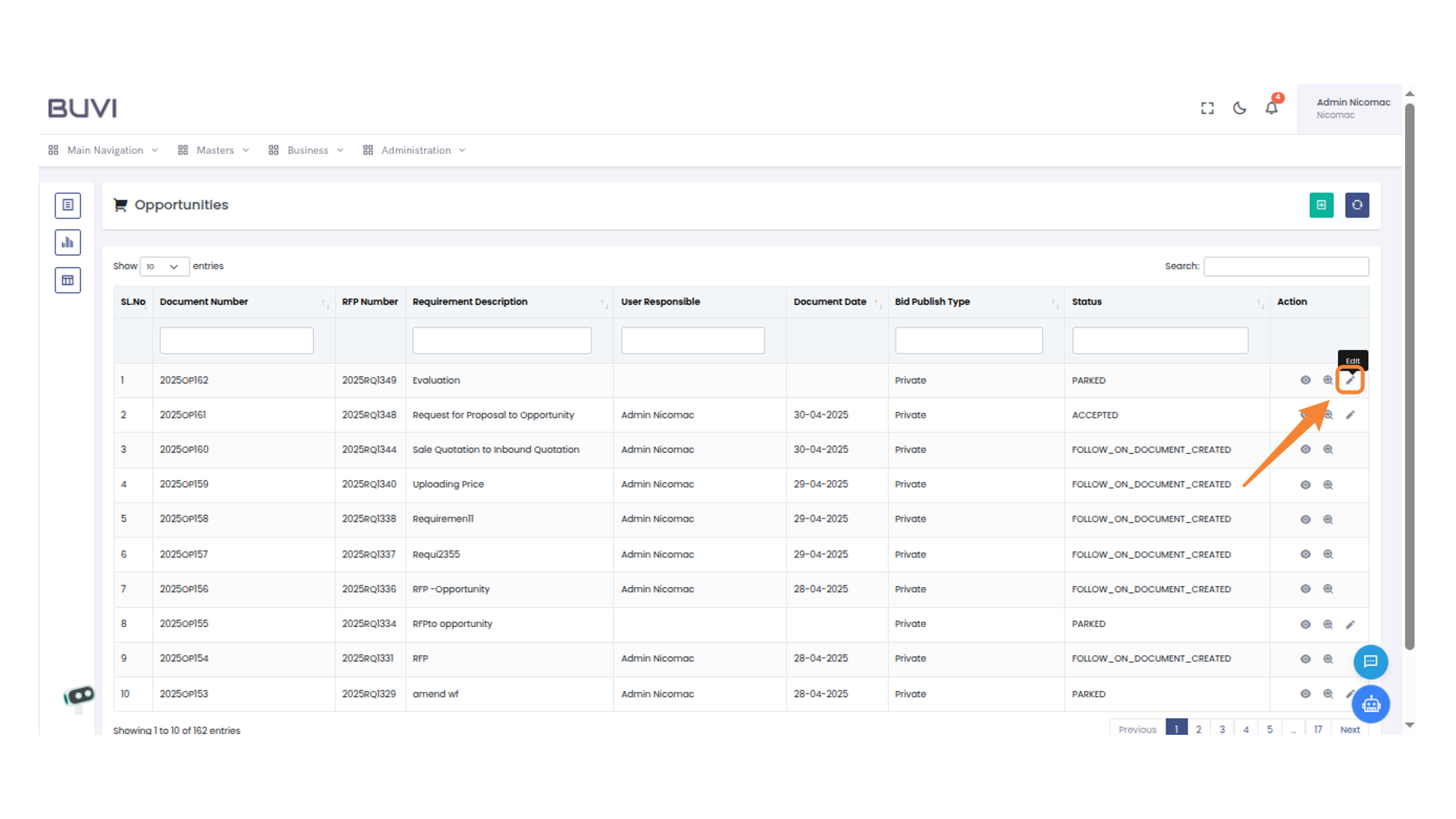
10. Confirmation Button
Click the button to confirm your action.
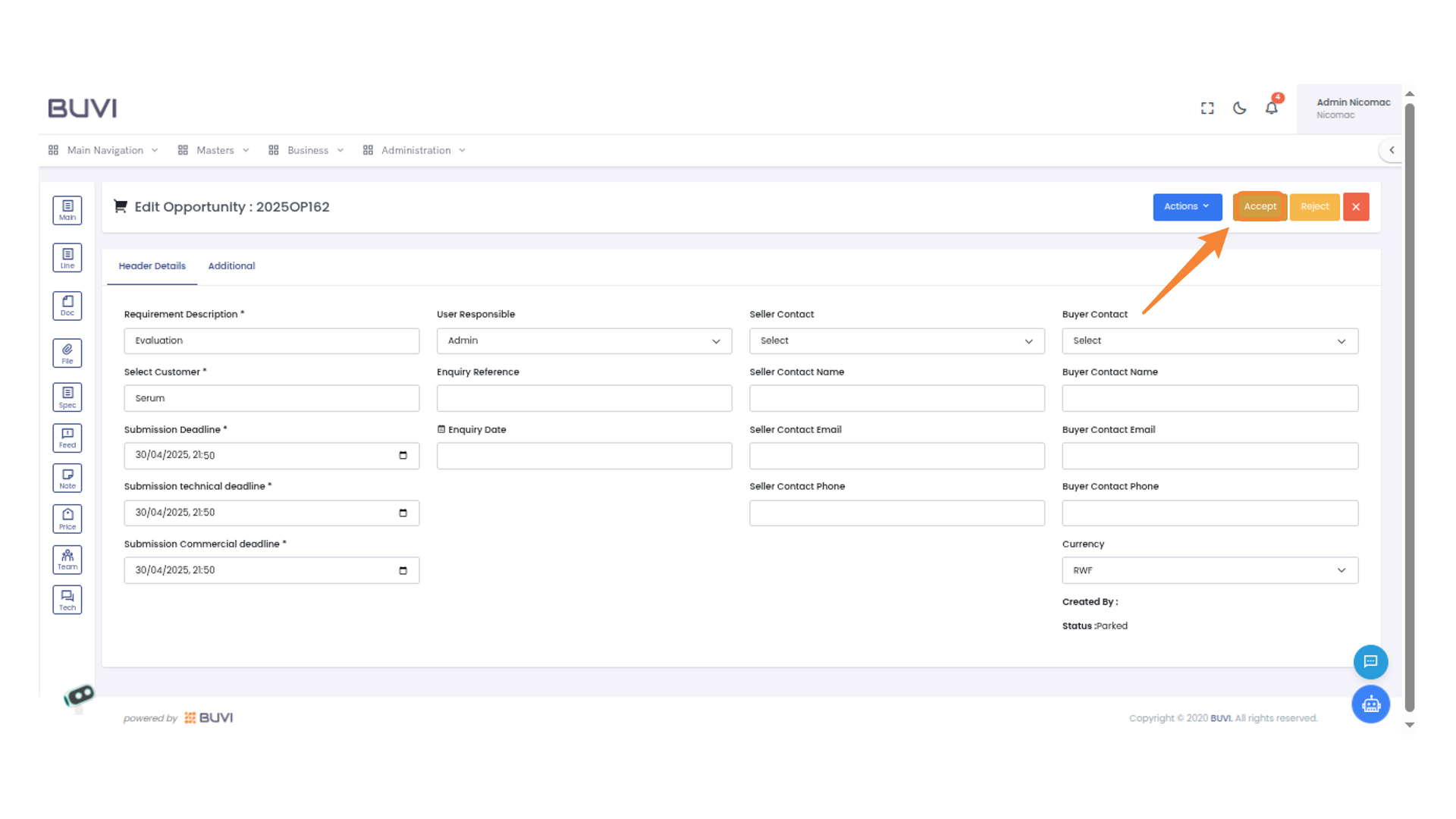
11. Confirmation Action Required
Press 'Yes' to proceed and accept the changes.
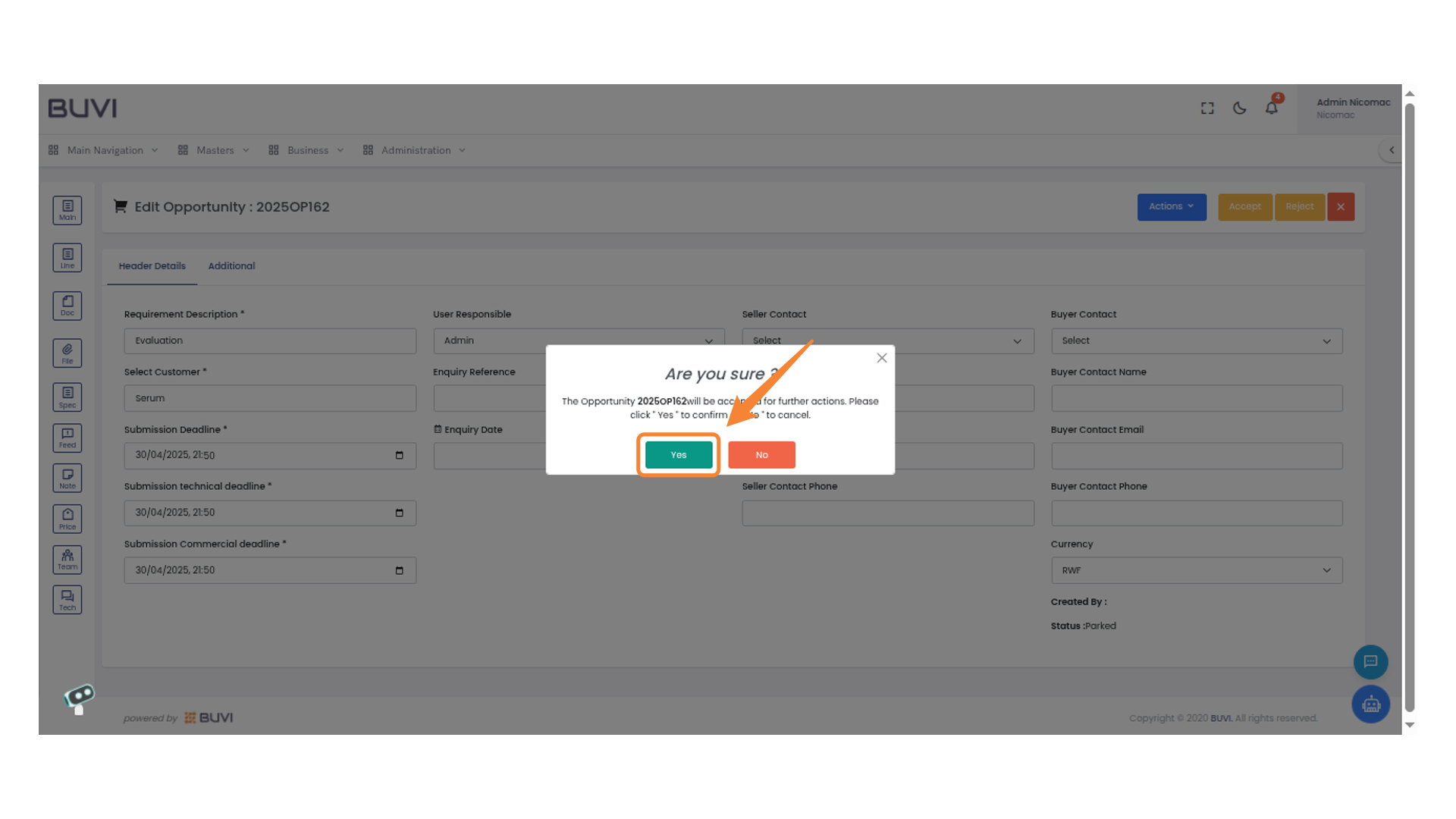
12. Create Quotation Button
Click the button to initiate the quotation creation process.
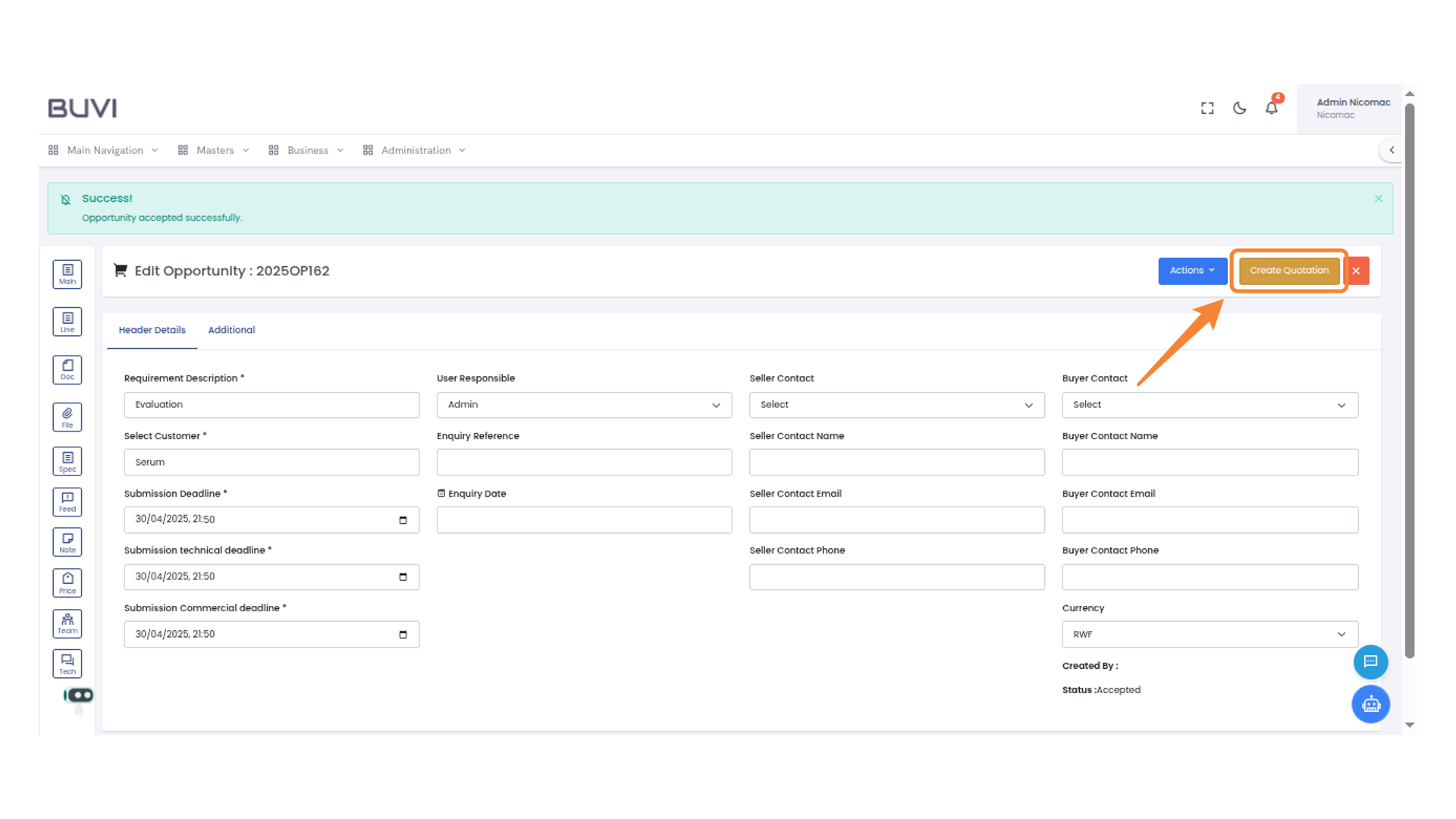
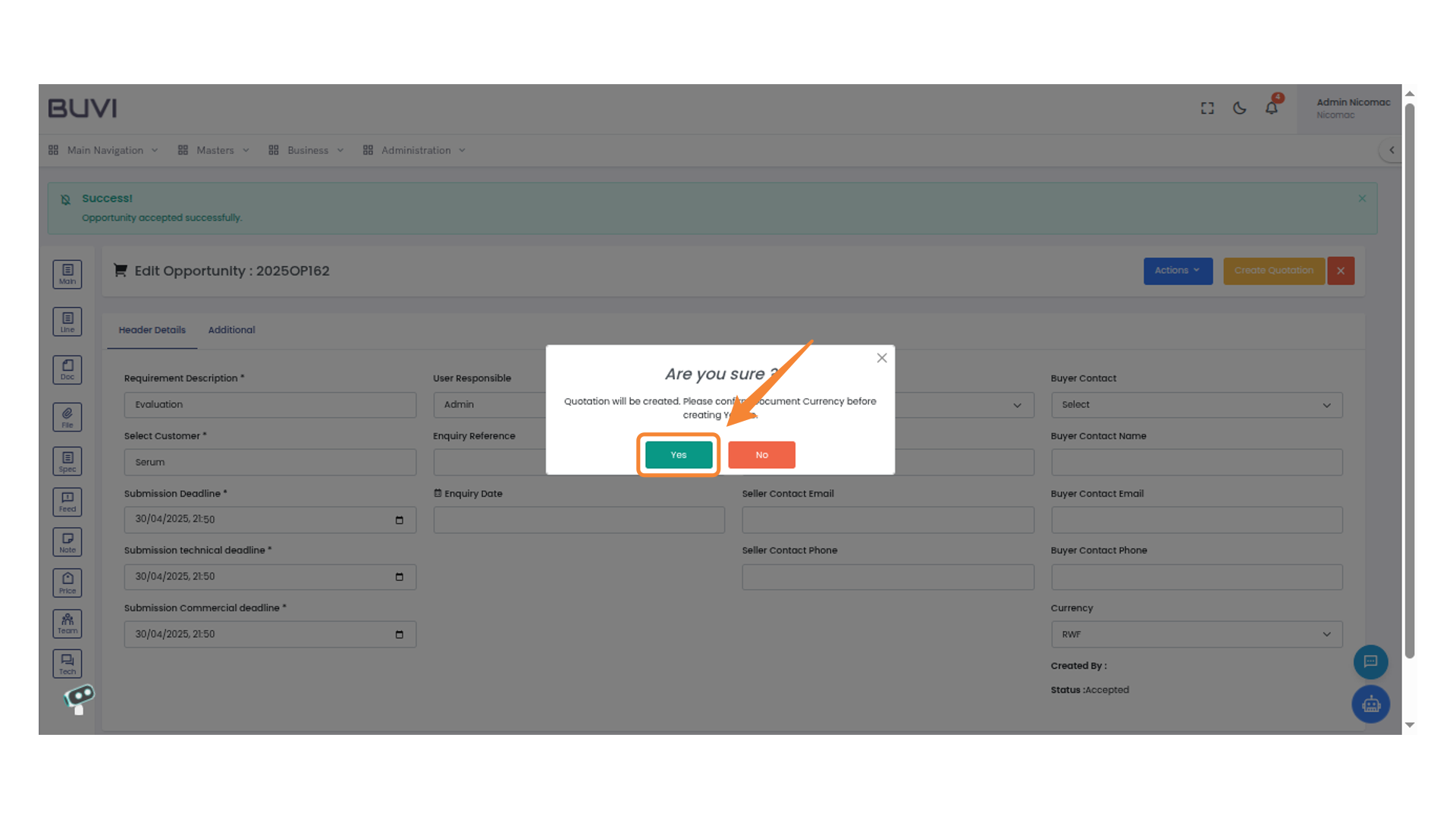
13. Confirmation Dialog
Select 'Yes' to proceed with the action.
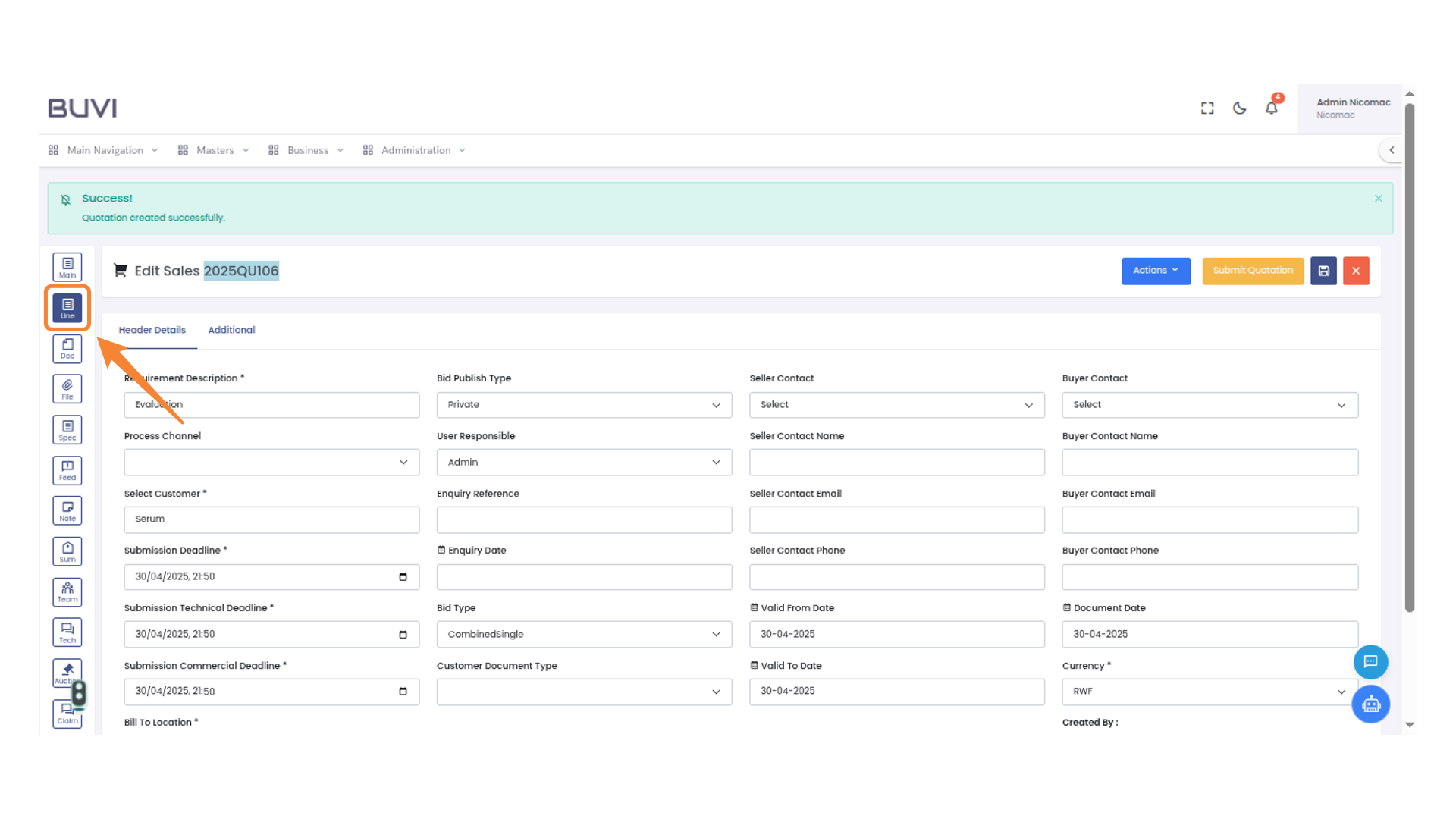
14. Line Icon Menu
Click on Line item tab
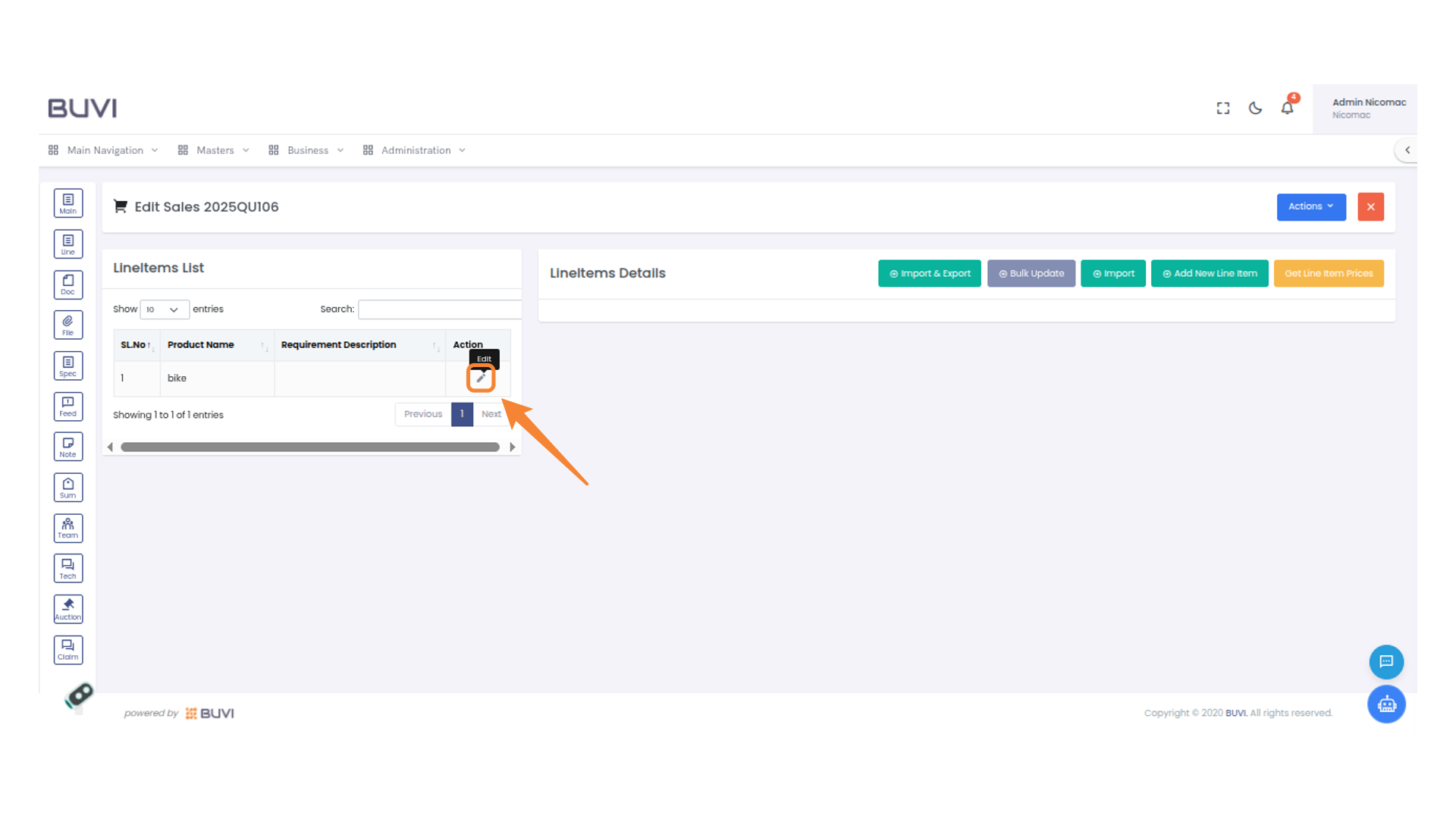
15. Edit Button in Action Column
Click to edit the selected line item in the sales list.
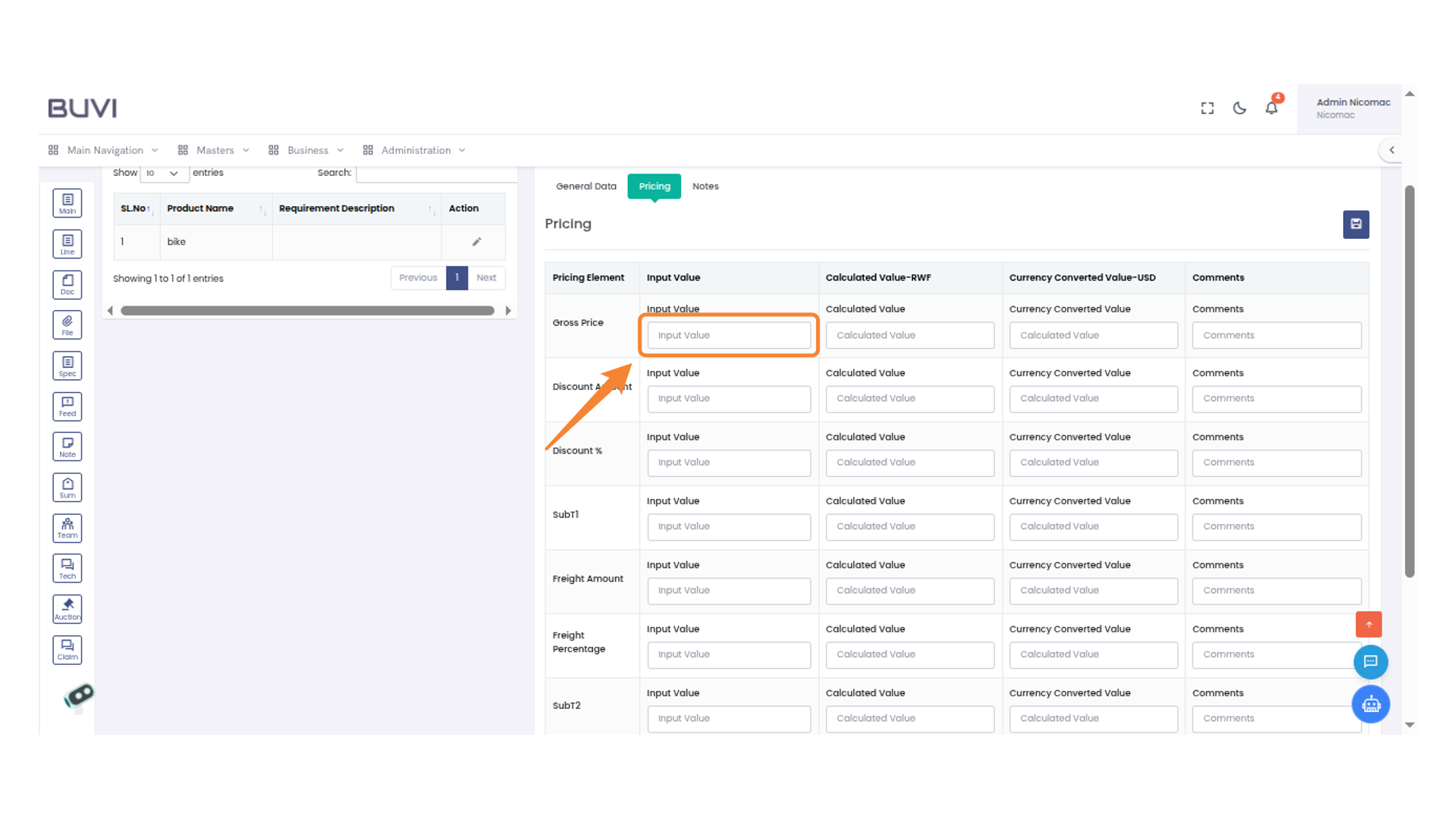
16. Gross Price Input Field
Add pricing details and required details for the line item
17. Save Button
Click here to save your changes.
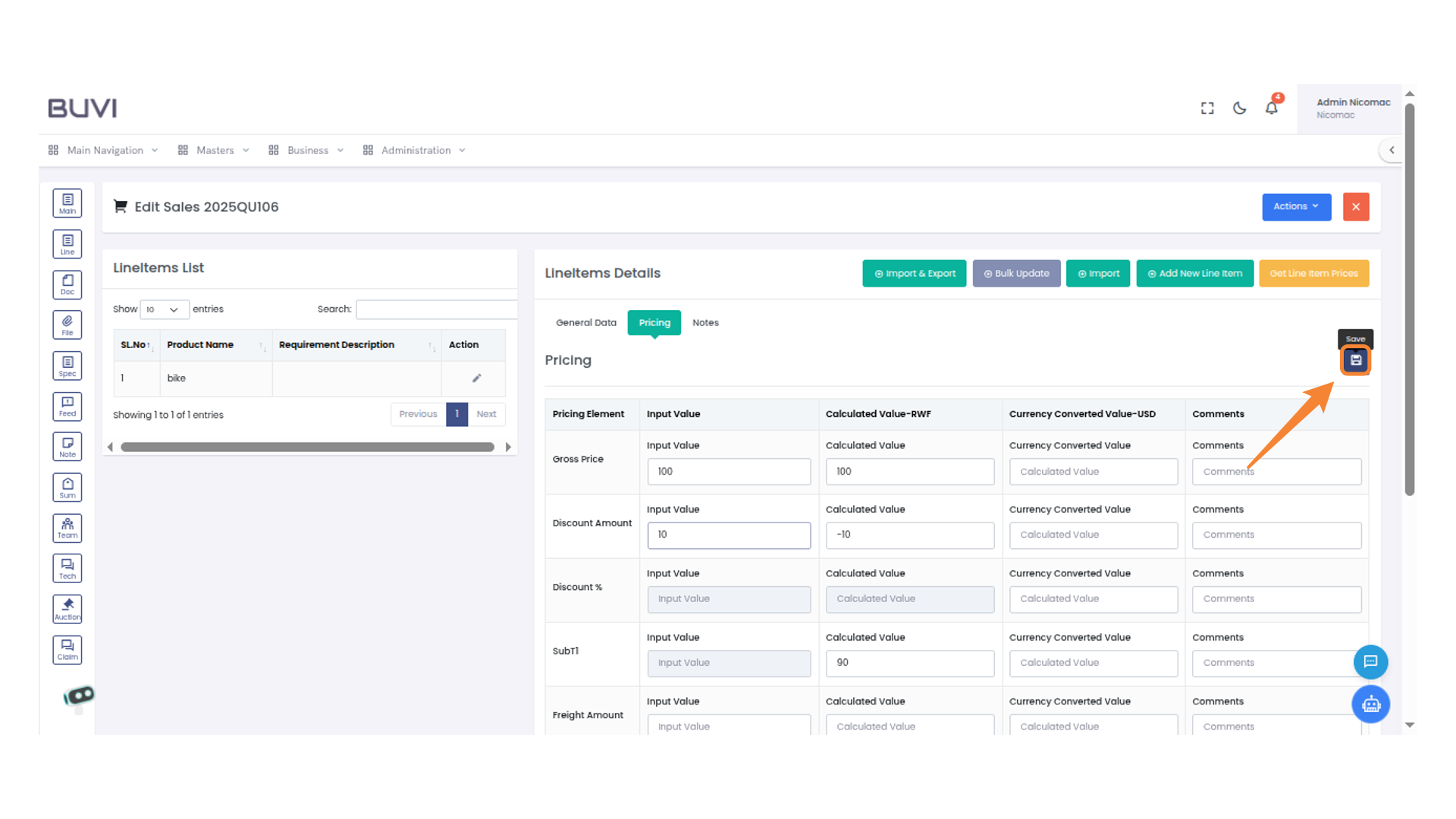
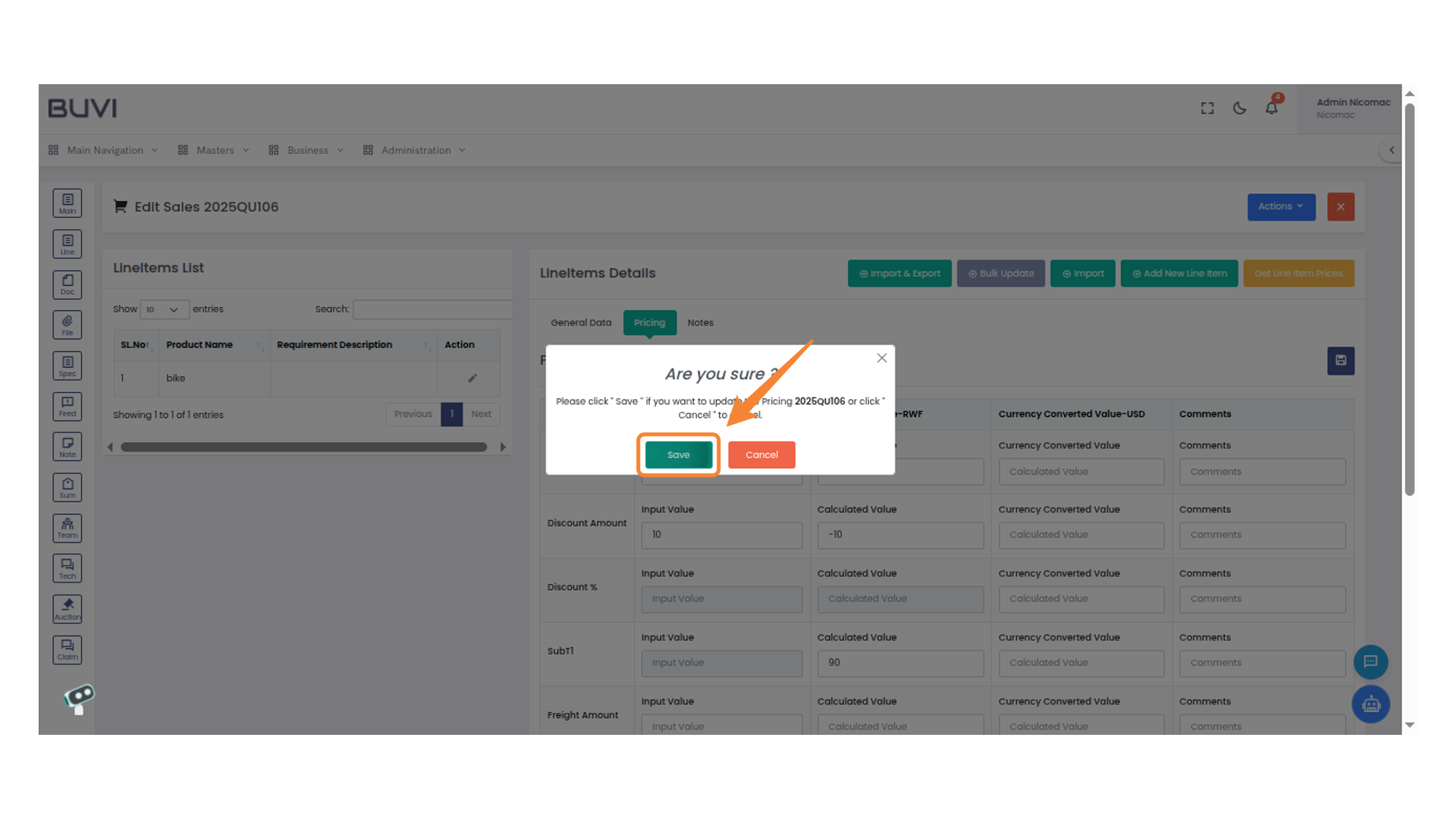
18. Confirmation Dialog Box
Click the 'Save' button to proceed with updating the changes.
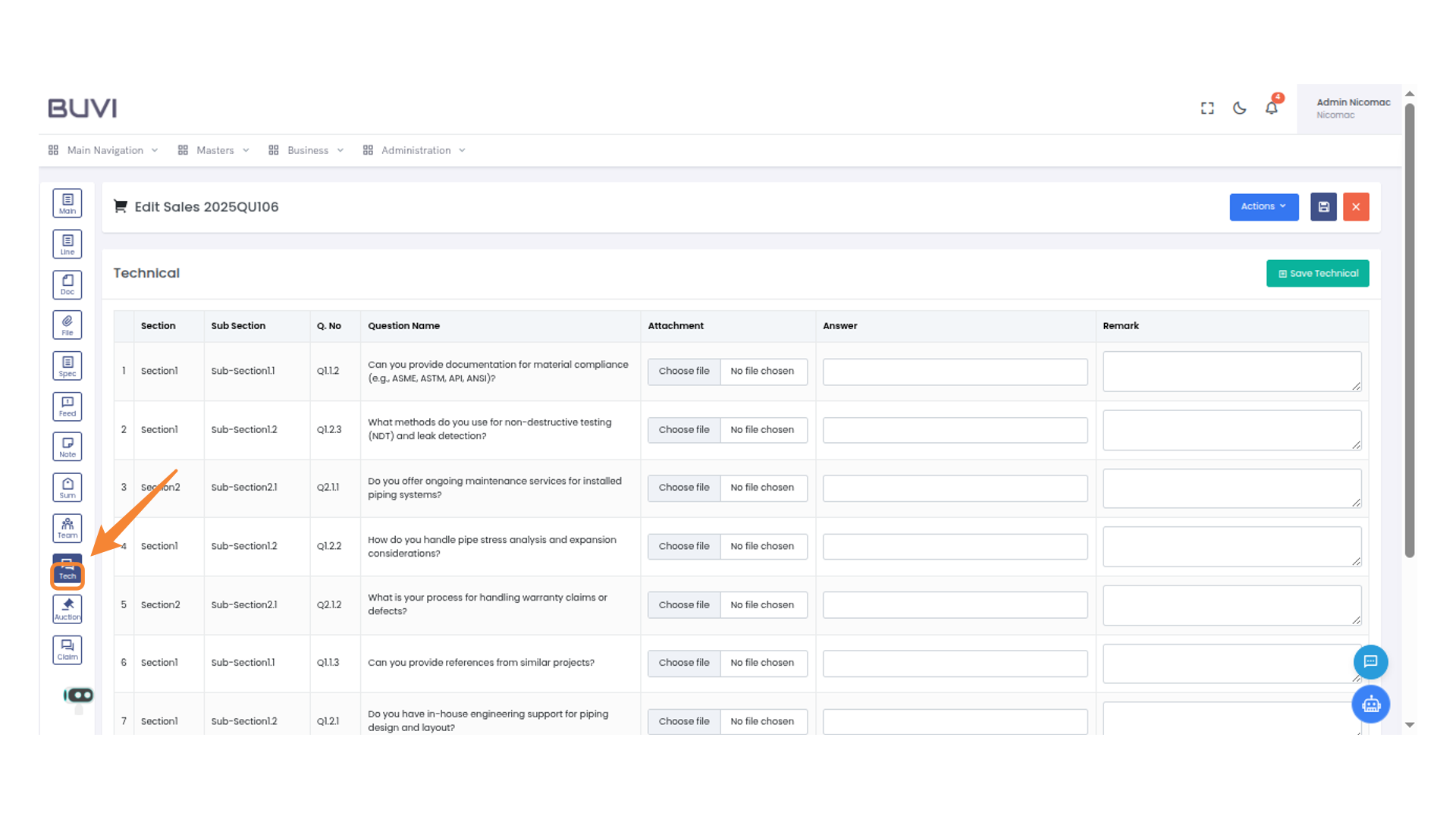
19. Tech Section Icon
Click on Tech tab
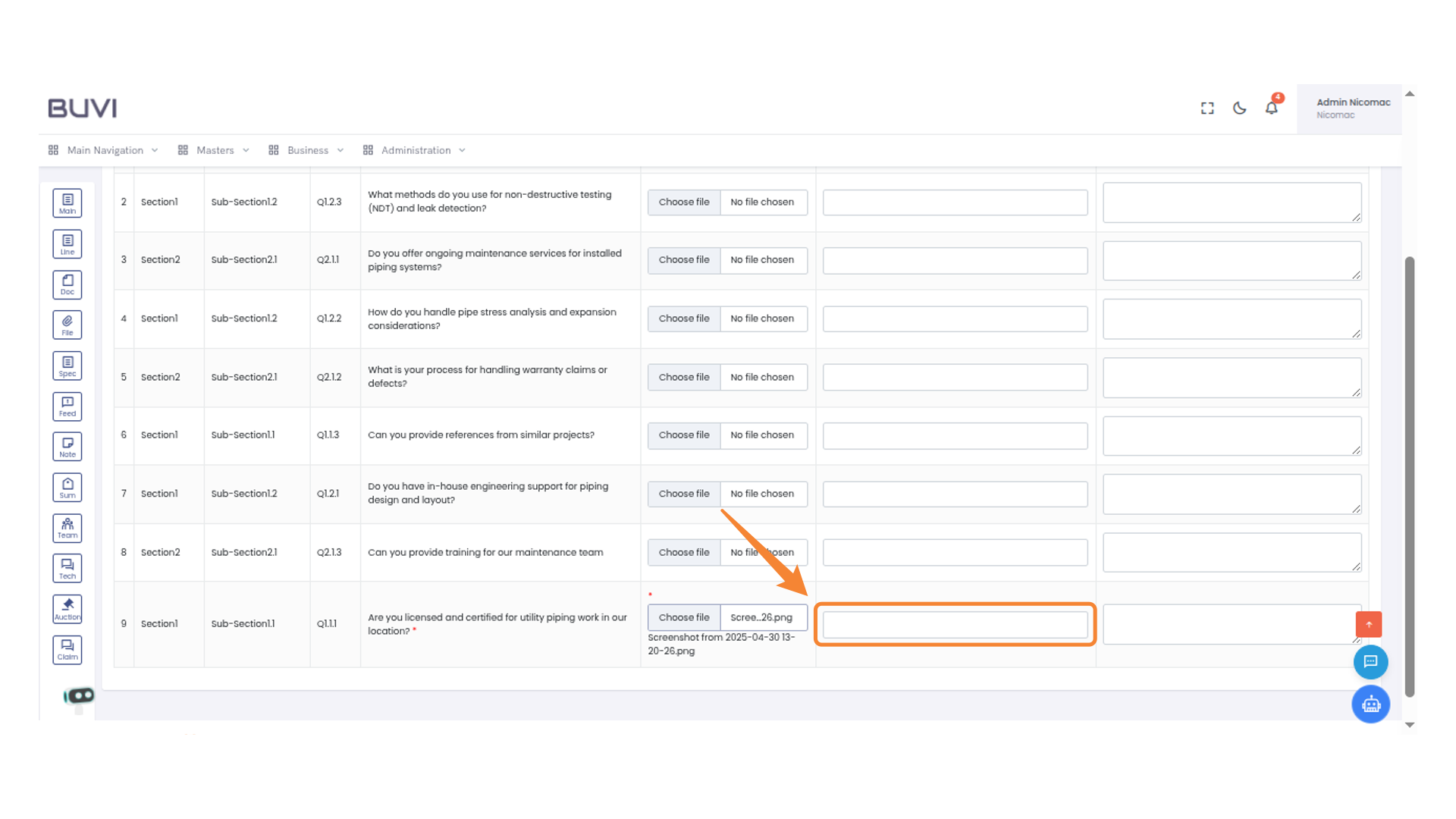
20. File Upload Section
Select a file to upload

21. File Selection and Upload
Select a file to upload using the 'Choose file' button to attach a document related to the question.
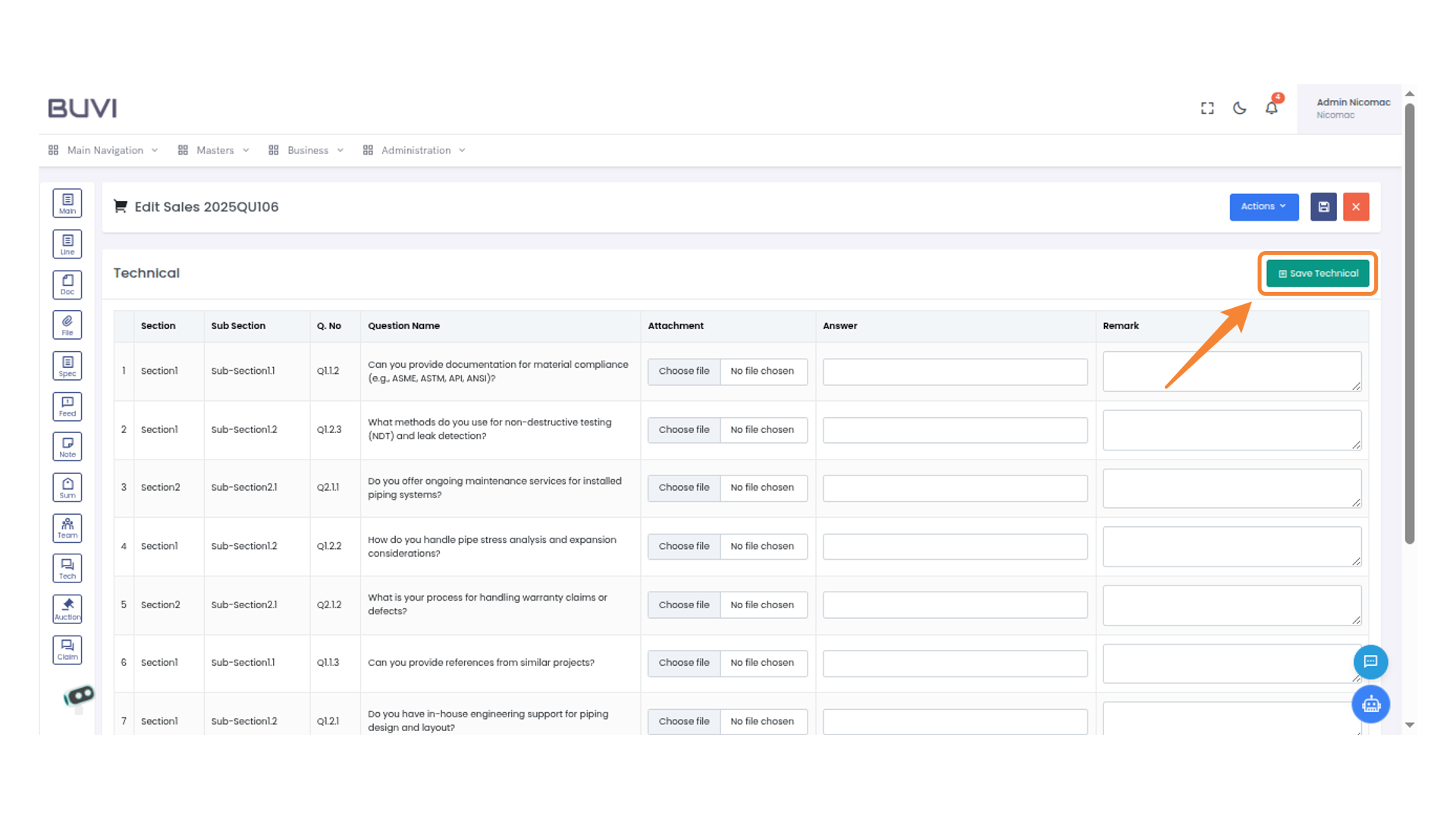
22. Save Technical Button
Click this button to save your technical data.
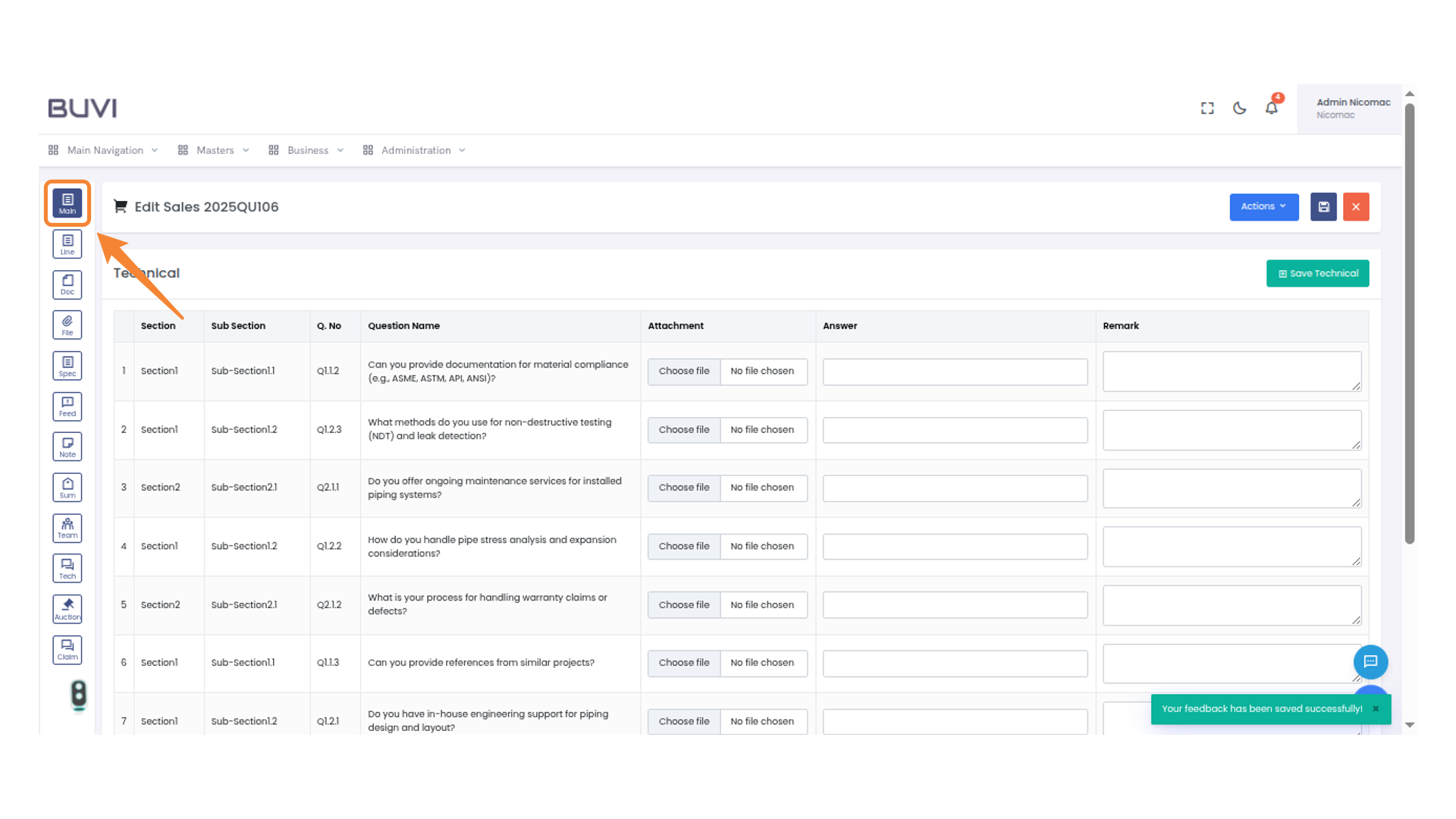
23. Navigation Menu Icon
Access the main navigation panel by clicking the menu icon.
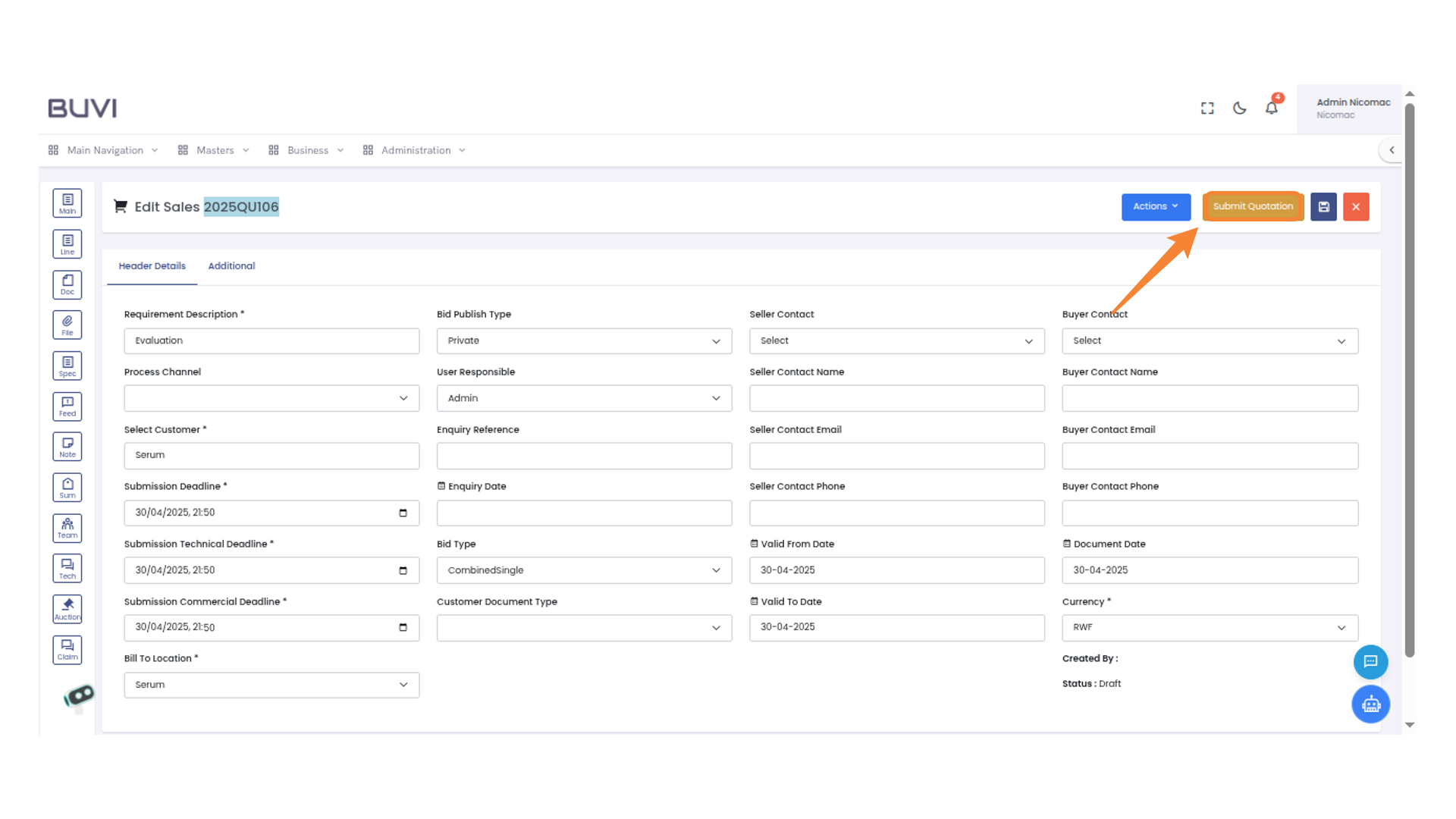
24. Quotation Submission Button
Click this button to submit the quotation for review.
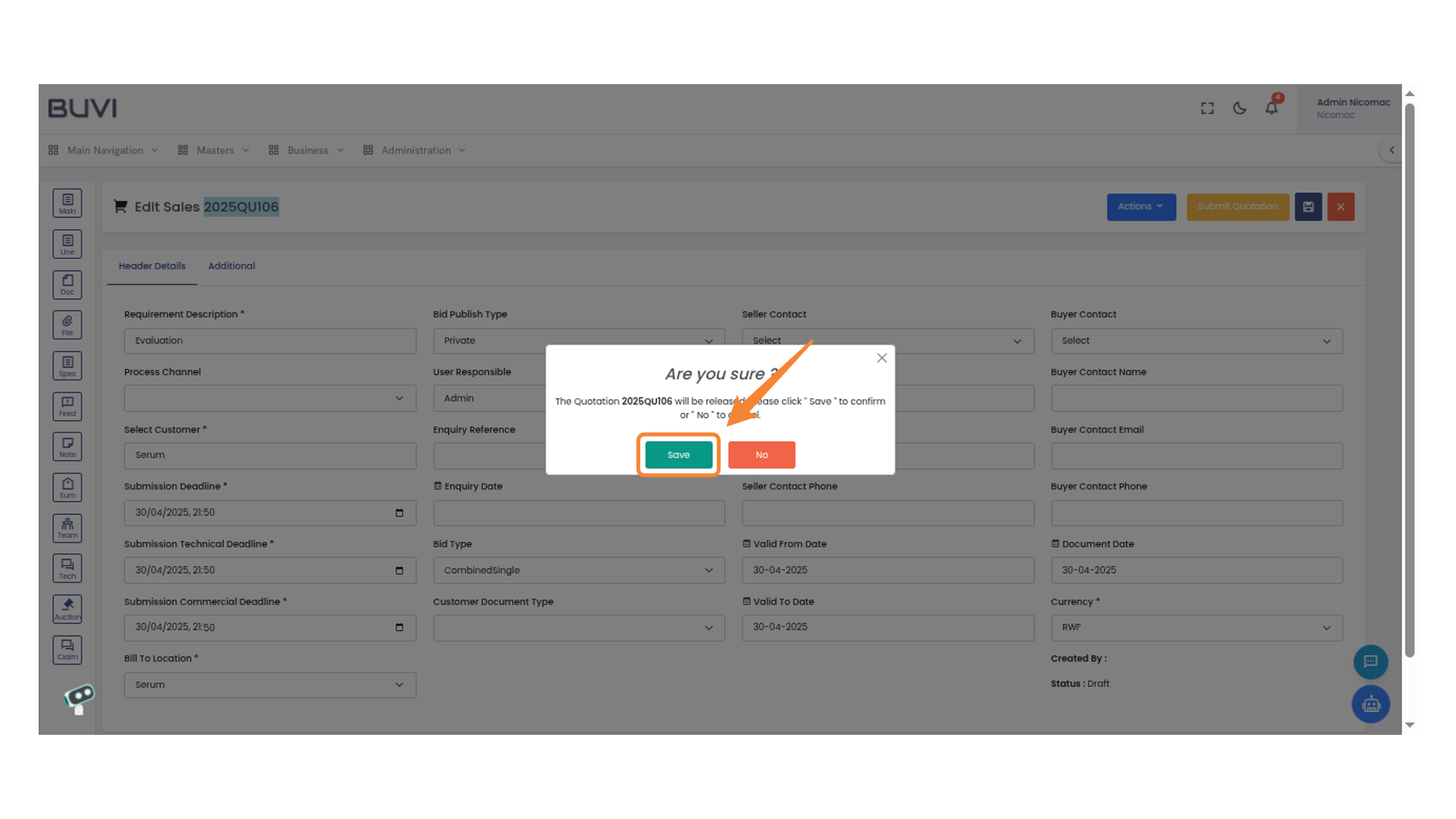
25. Confirmation Dialog
Press the 'Save' button to confirm your action.
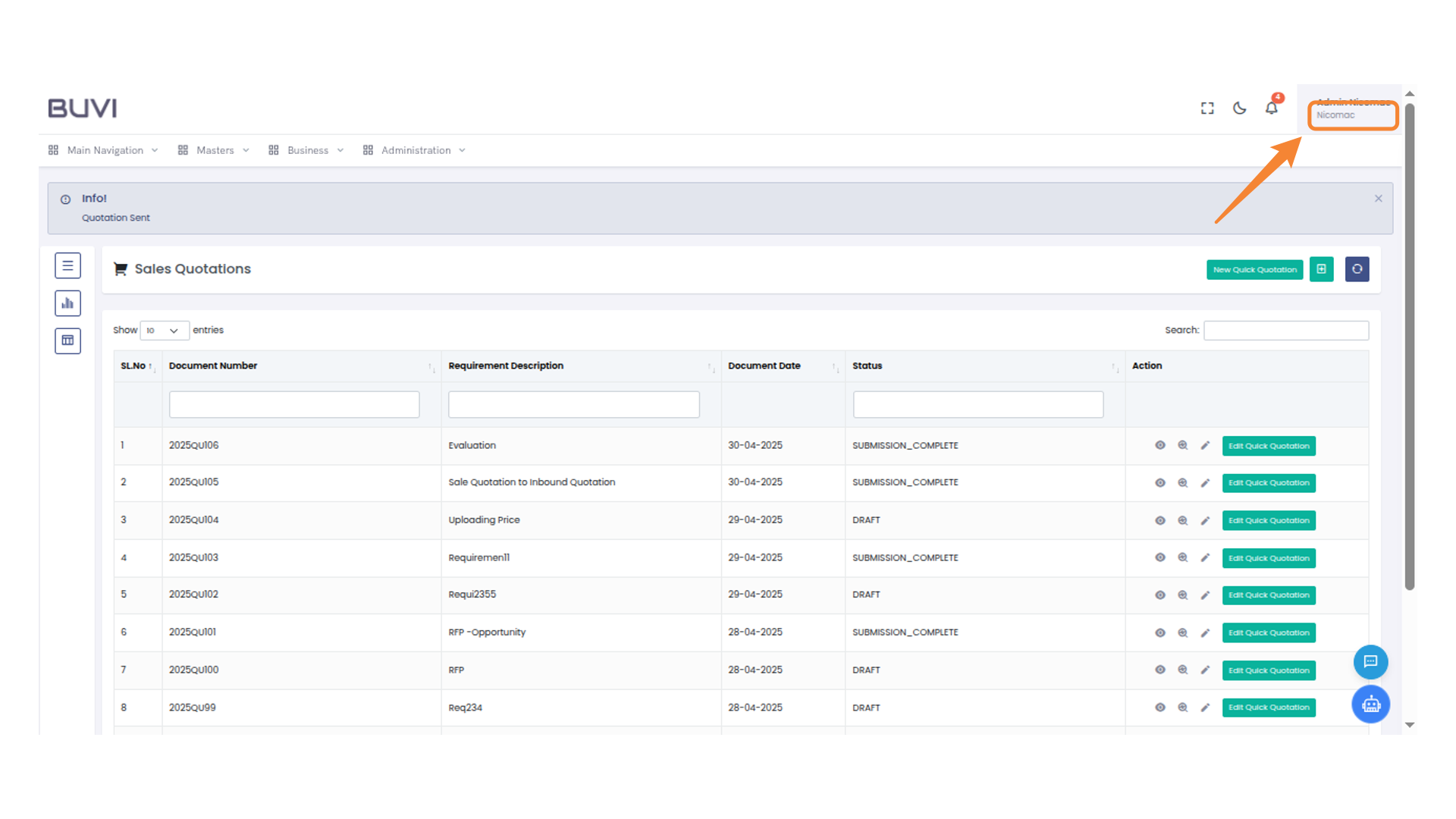
26. Profile Menu
Logout from the application
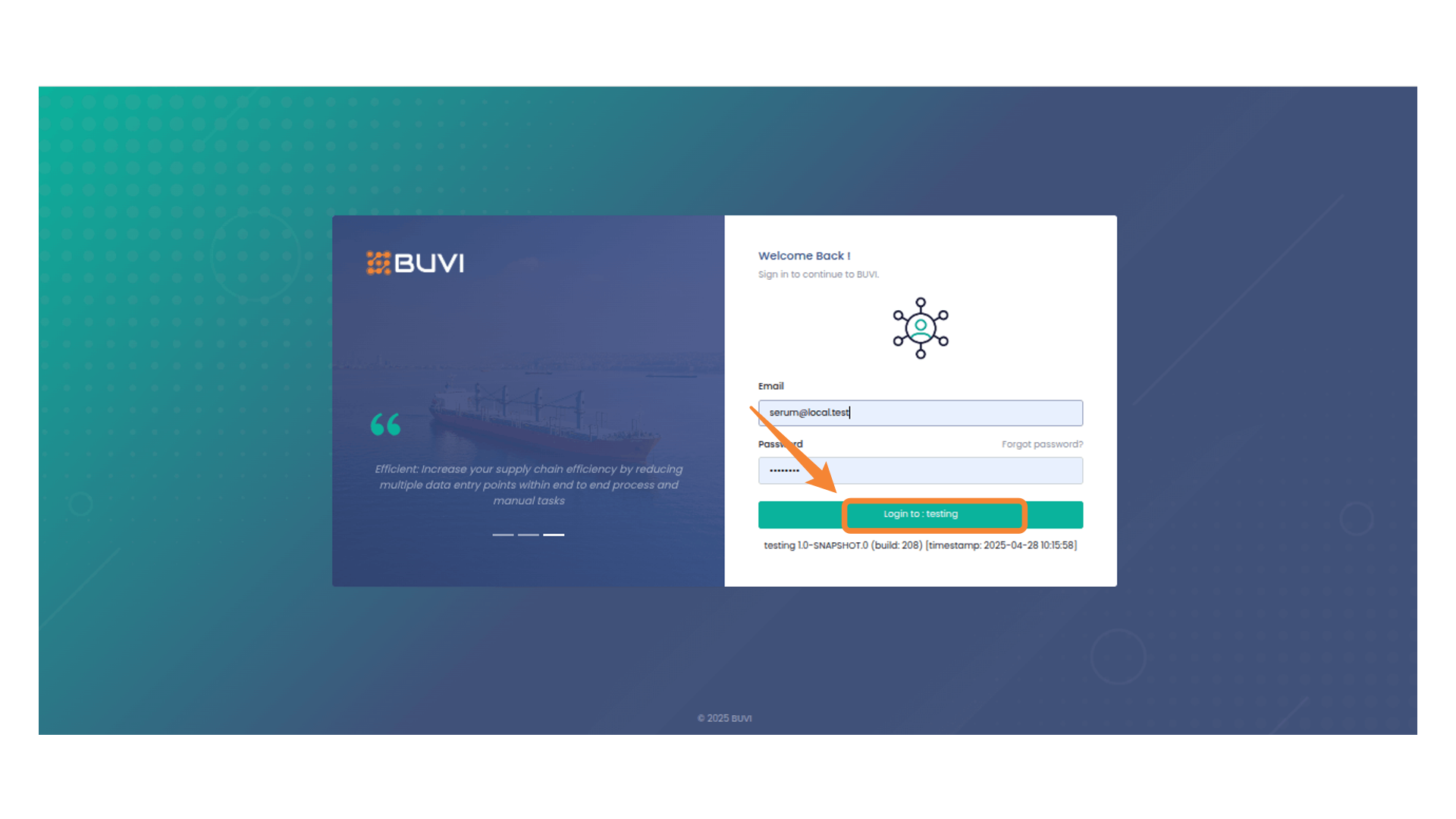
27. Login As Buyer
Login to the application
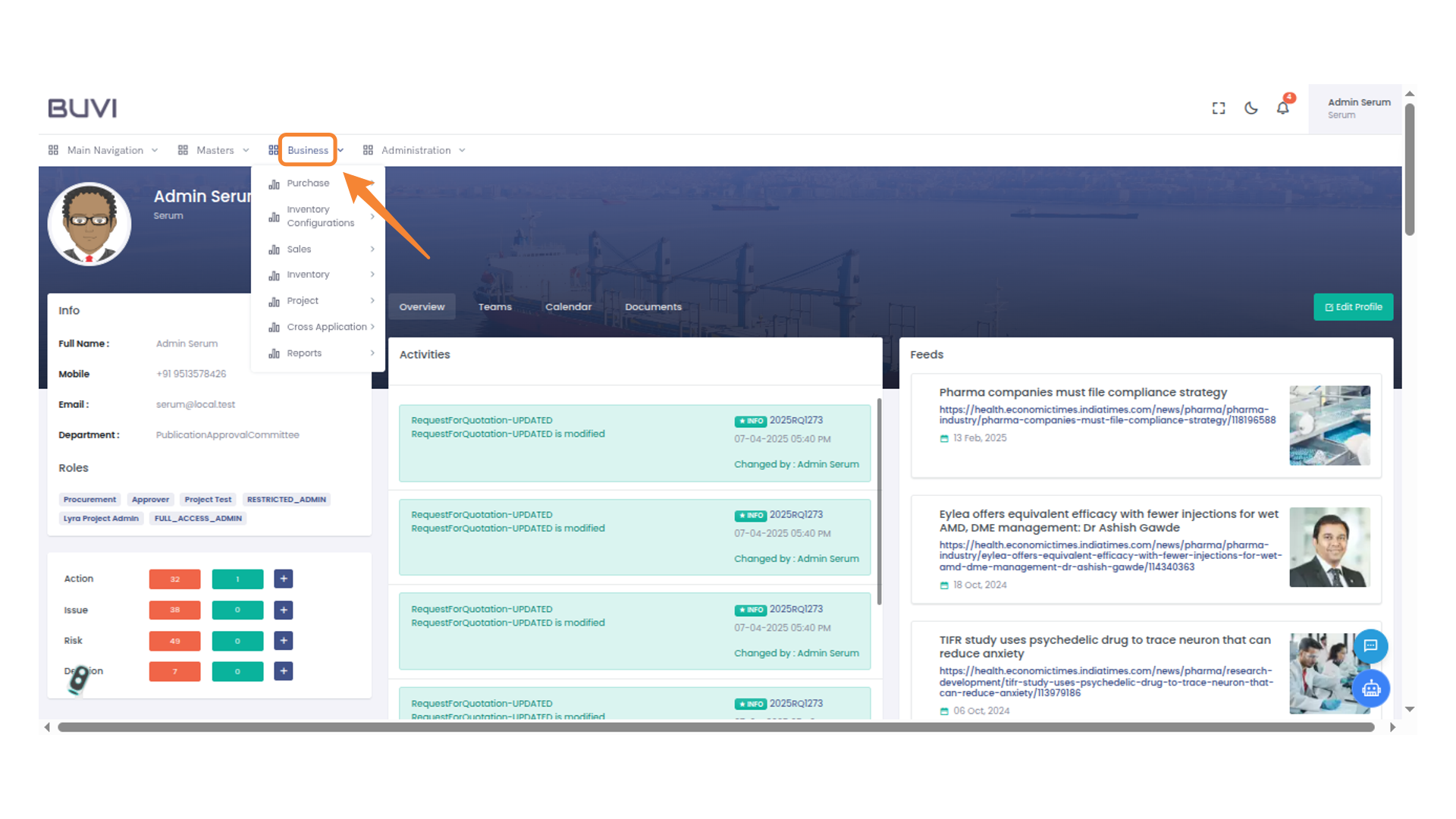
28. Business Menu
Click on Business Menu
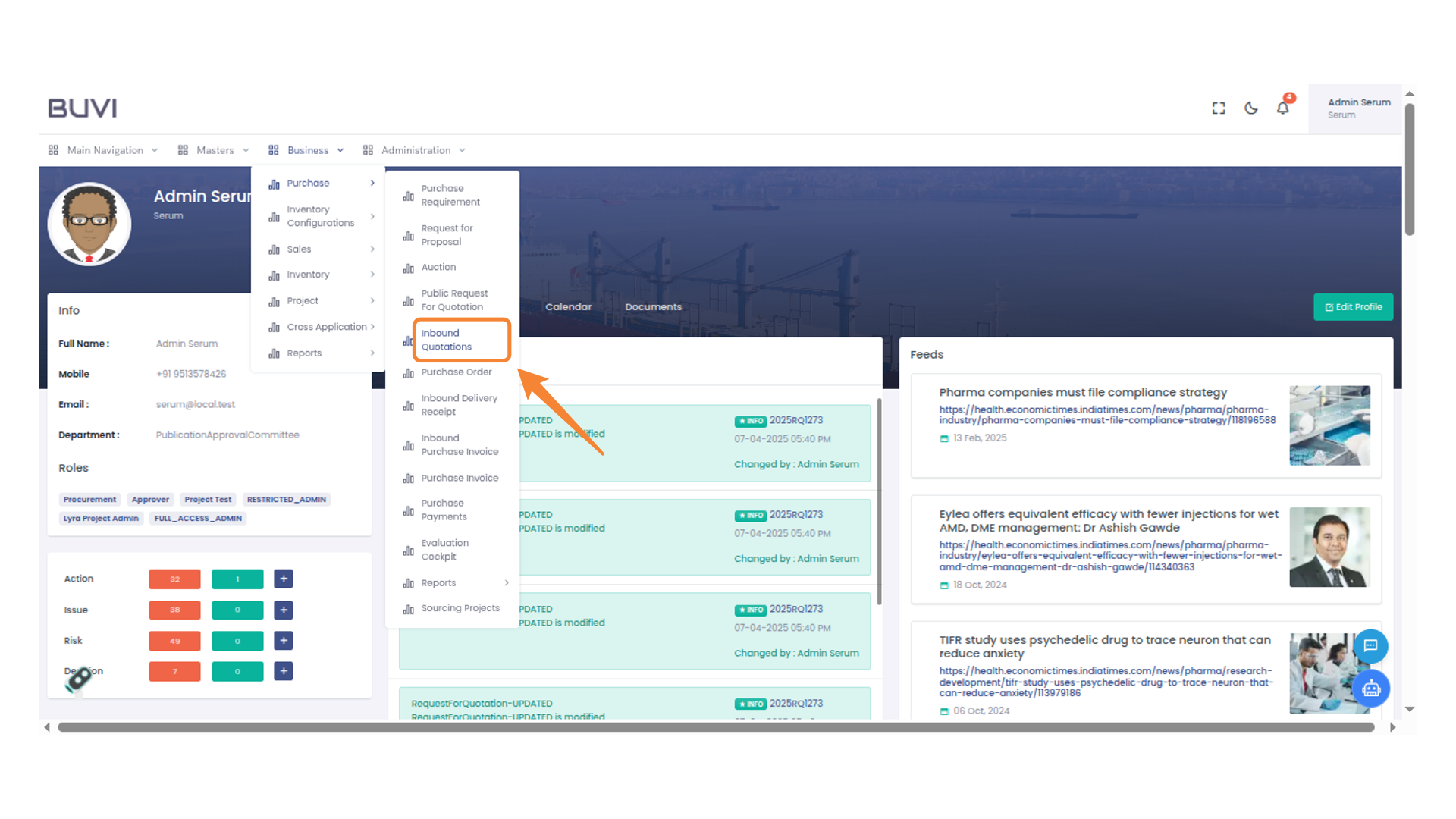
29. Inbound Quotations Menu Option
Click on Inbound Quotation
30. Evaluation Entry
Check for the Quotation
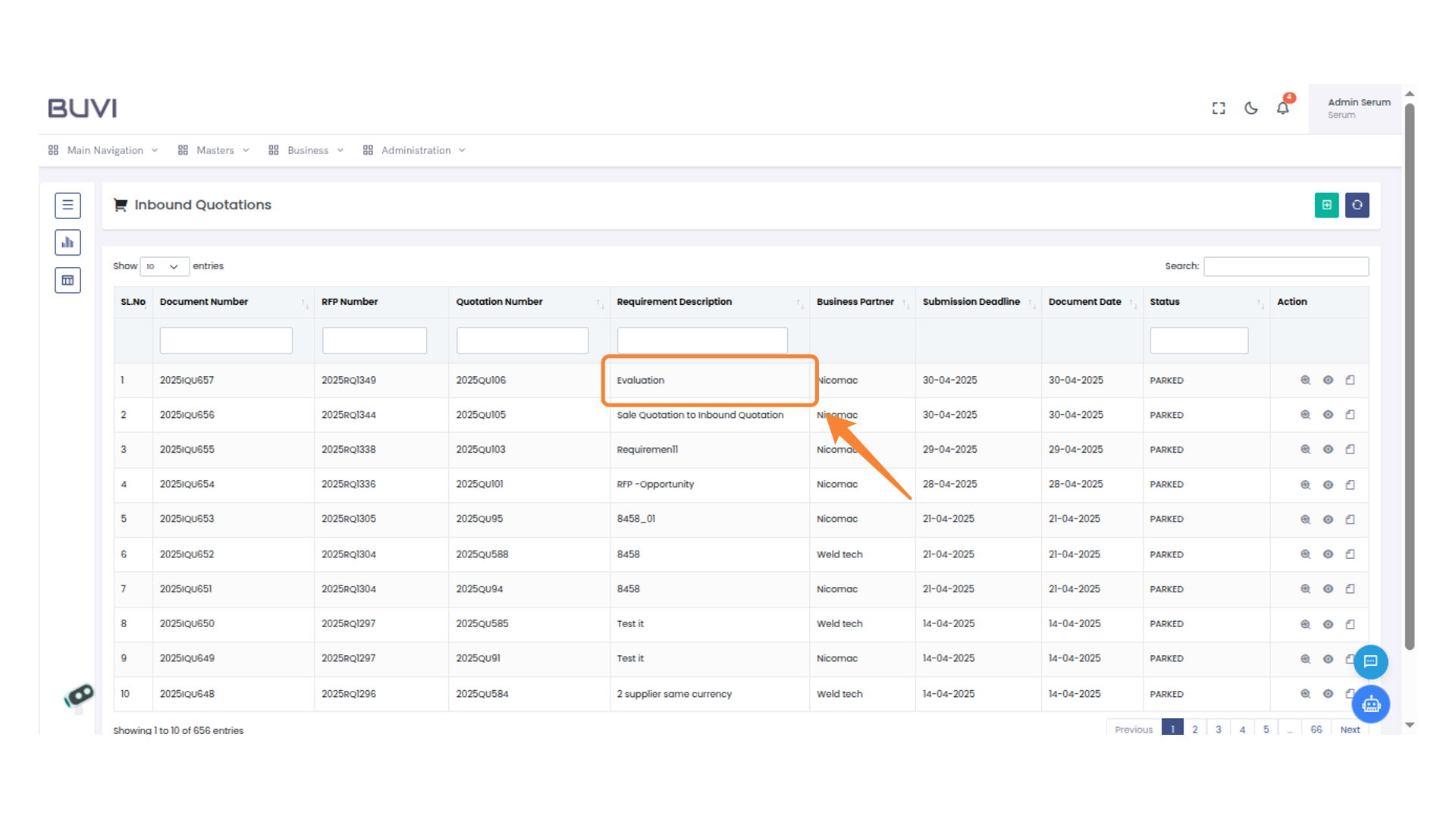
31. View Document Action Button
Click to view the document details for the selected row.
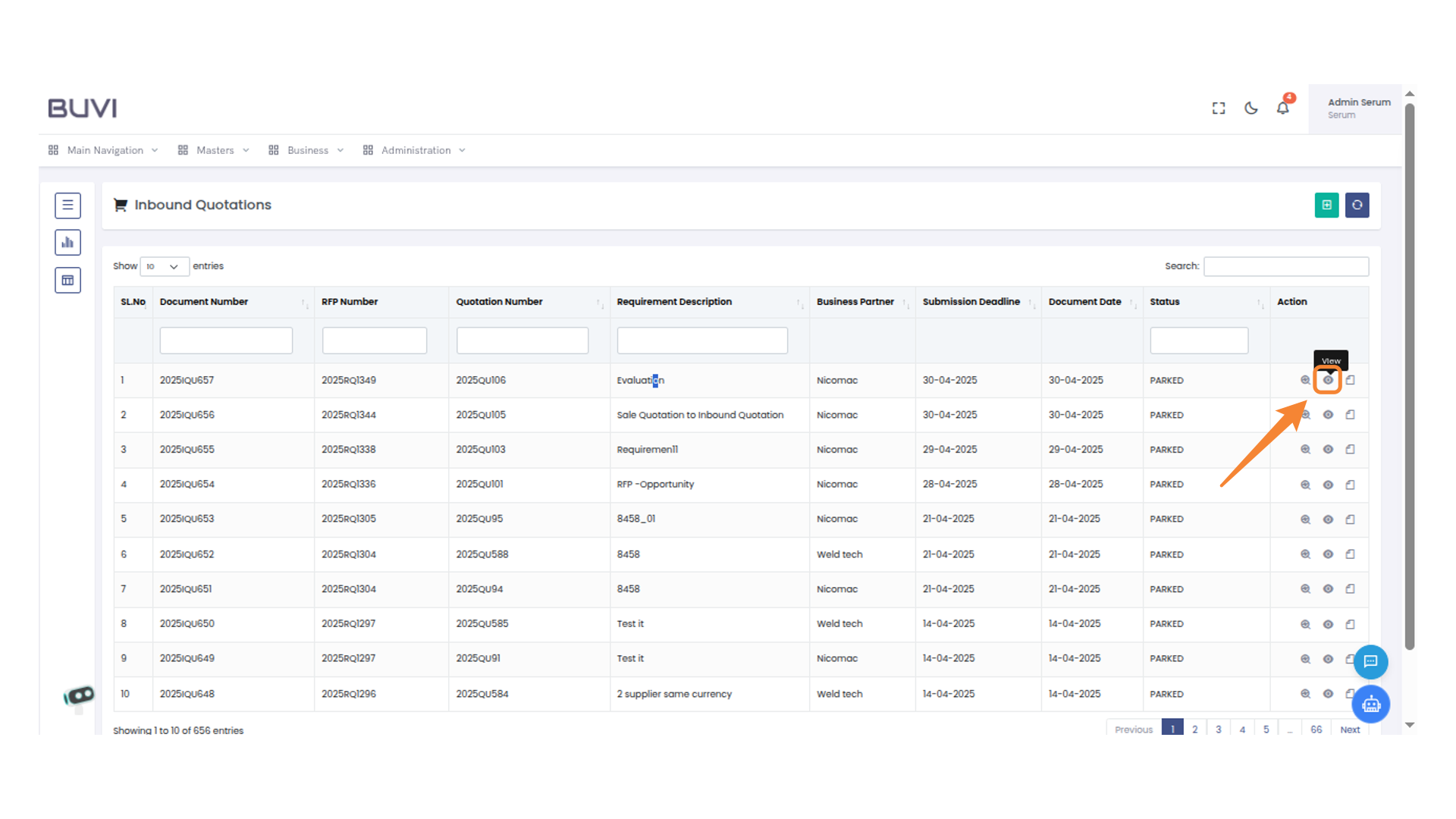
32. Verify Quotation Details
Vrerify the Quotation details
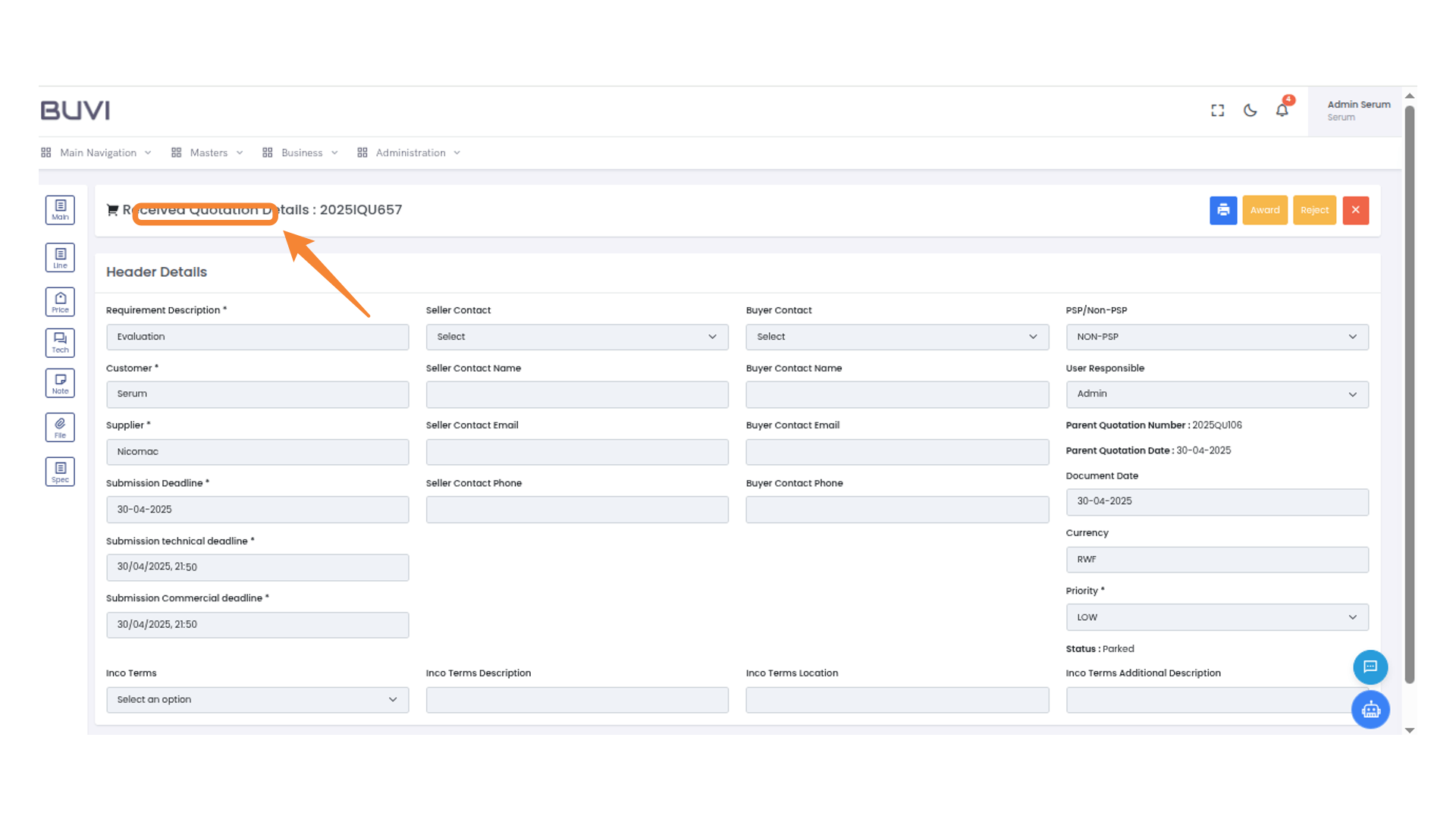
33. Request for Proposal Menu Option
Go to Request for Proposal menu
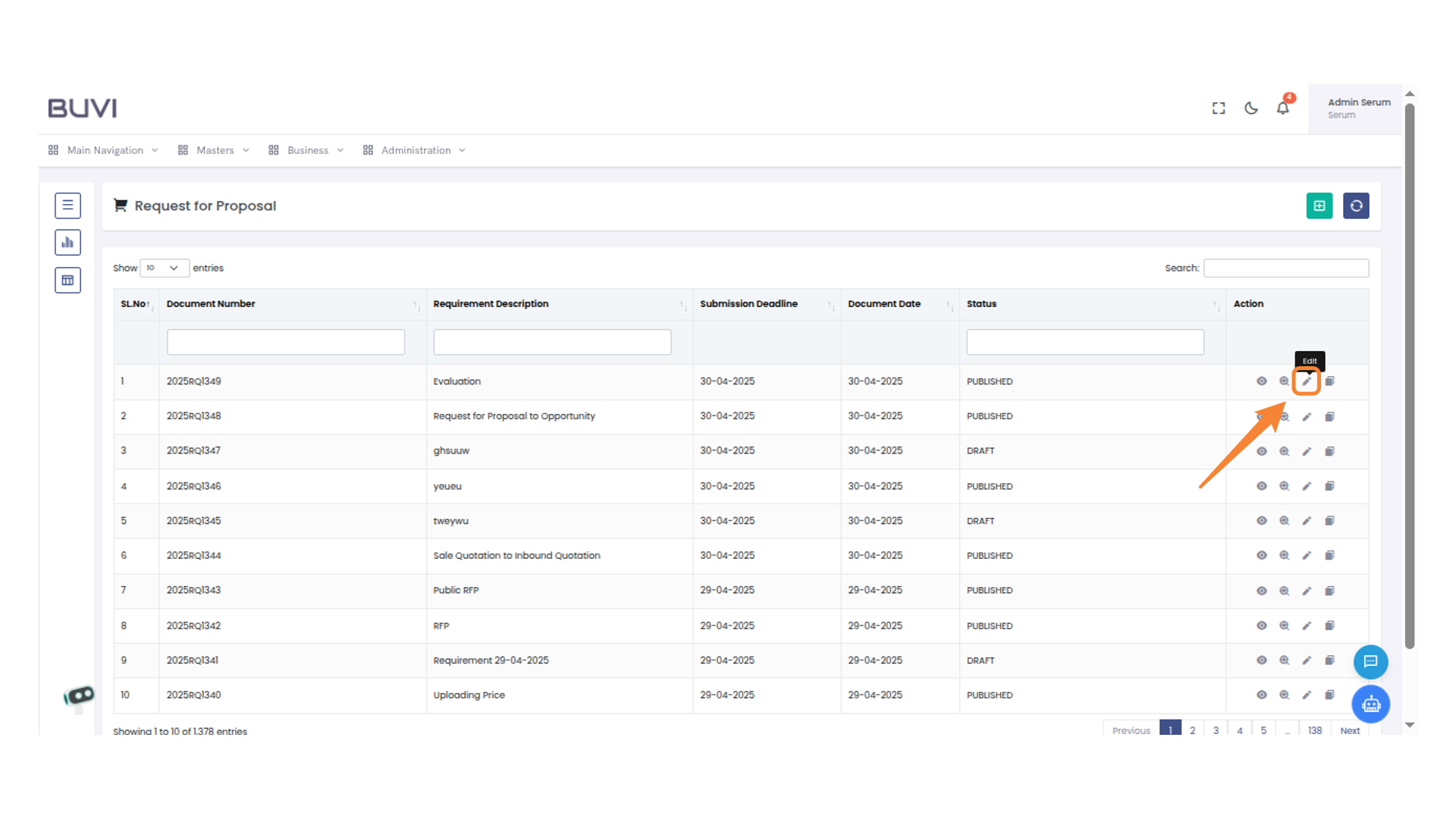
34. Edit Action
Click on edit
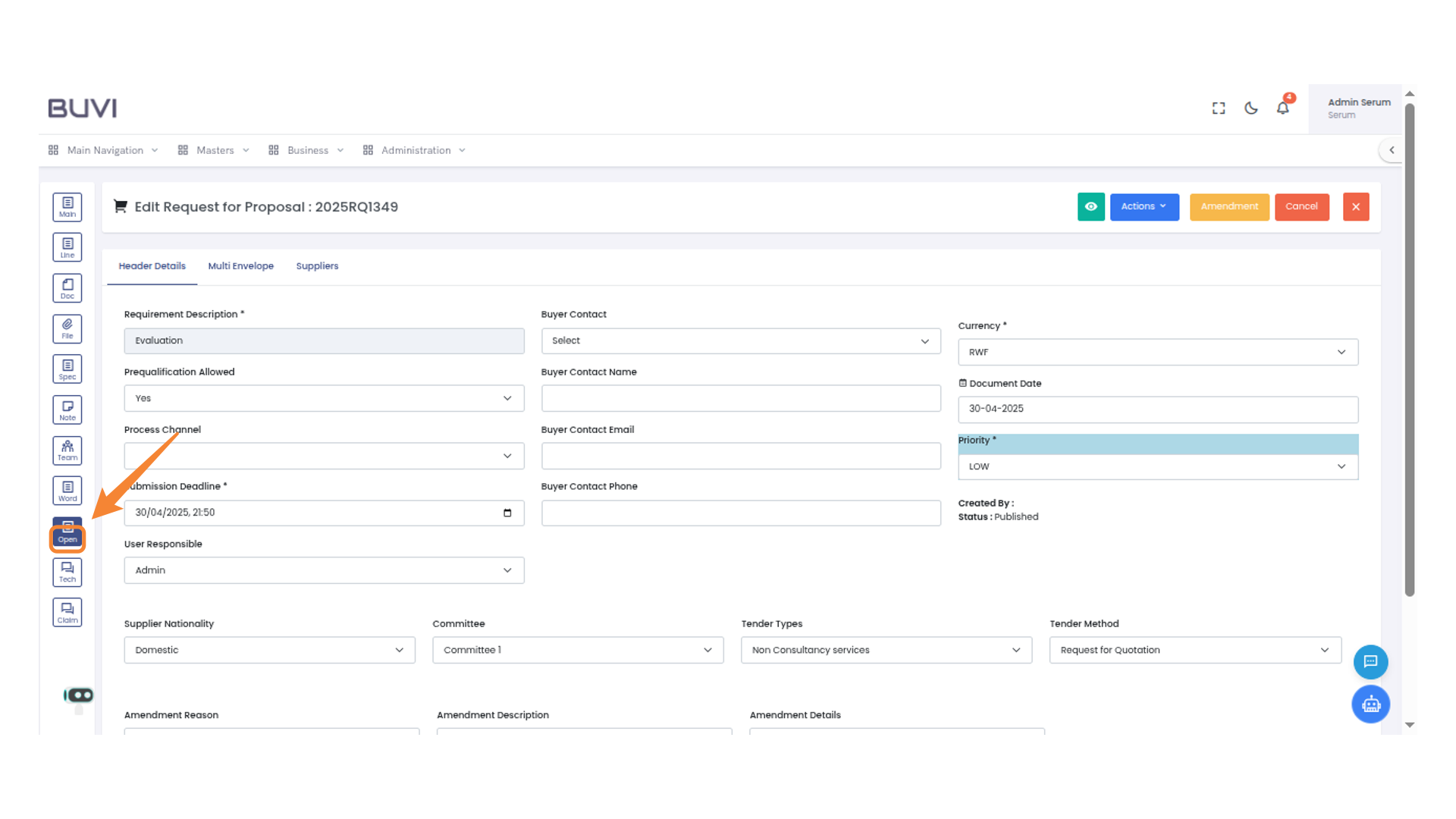
35. Open Button on Navigation Panel
Click on Open tab
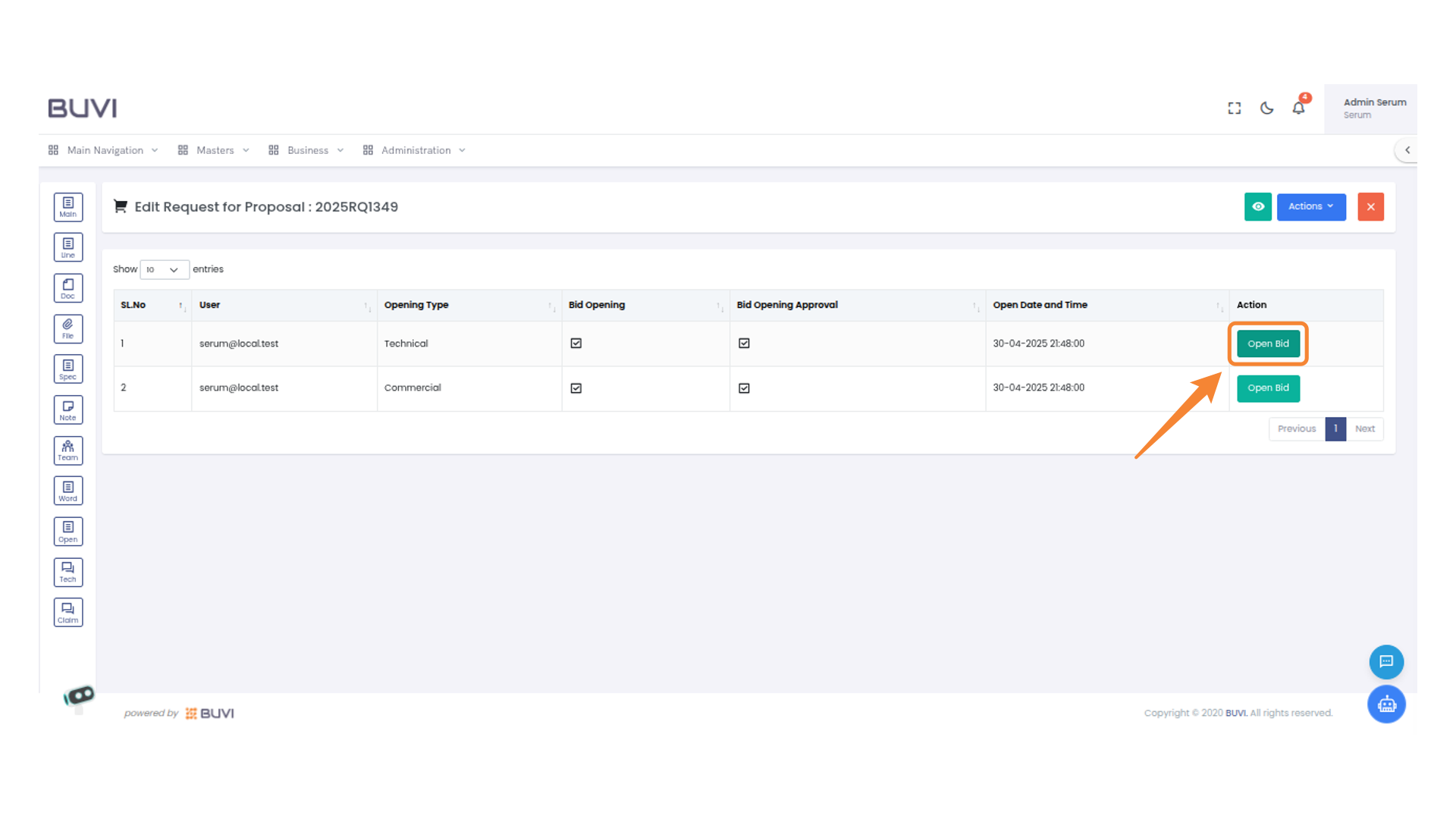
36. Open Bid Button
Open the Bid for Technical .
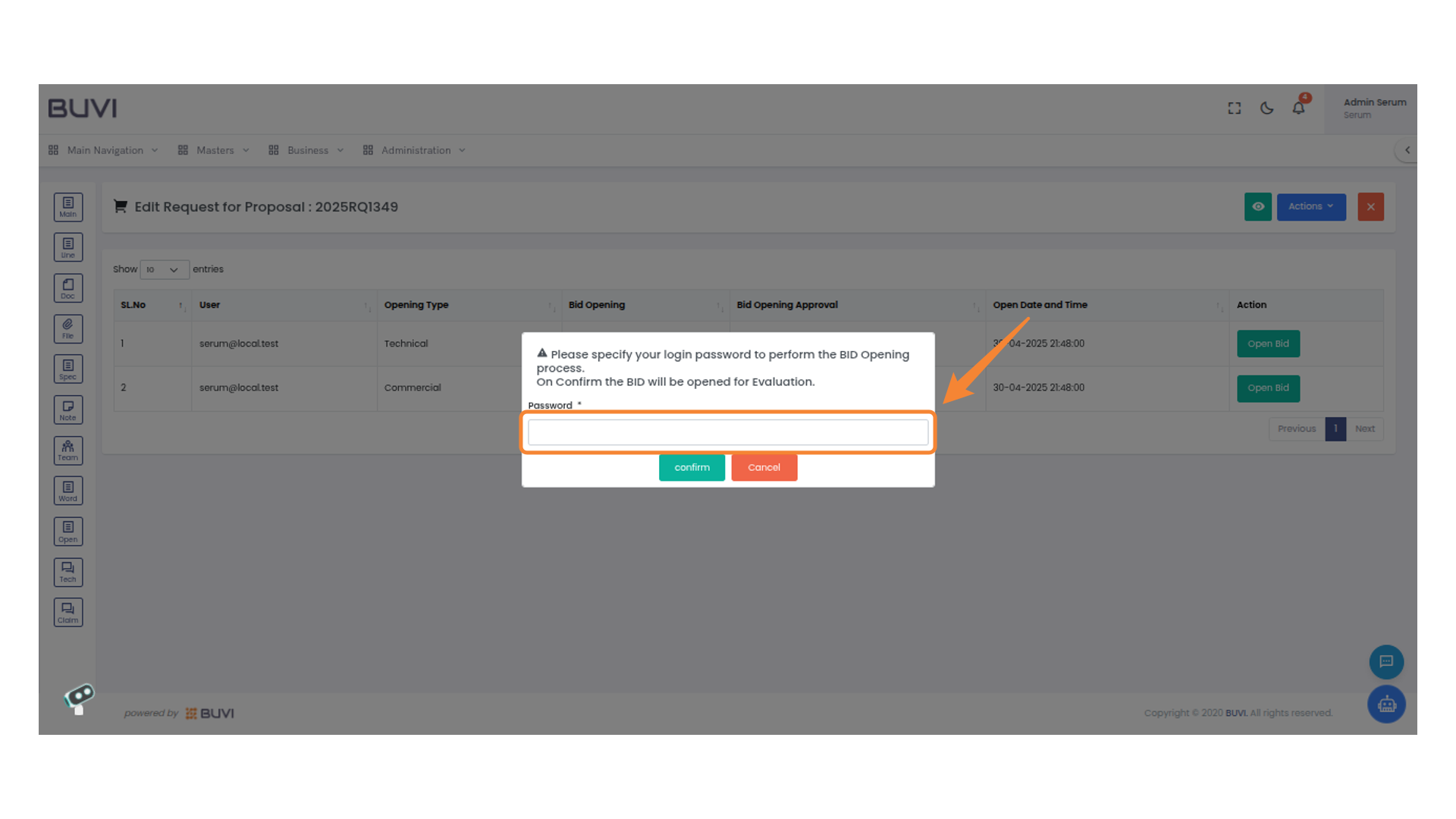
37. Password Entry for Bid Opening
Enter your login password to proceed with the bid evaluation process.
38. Confirm Button Activation
Click to proceed with the Bid Opening process.

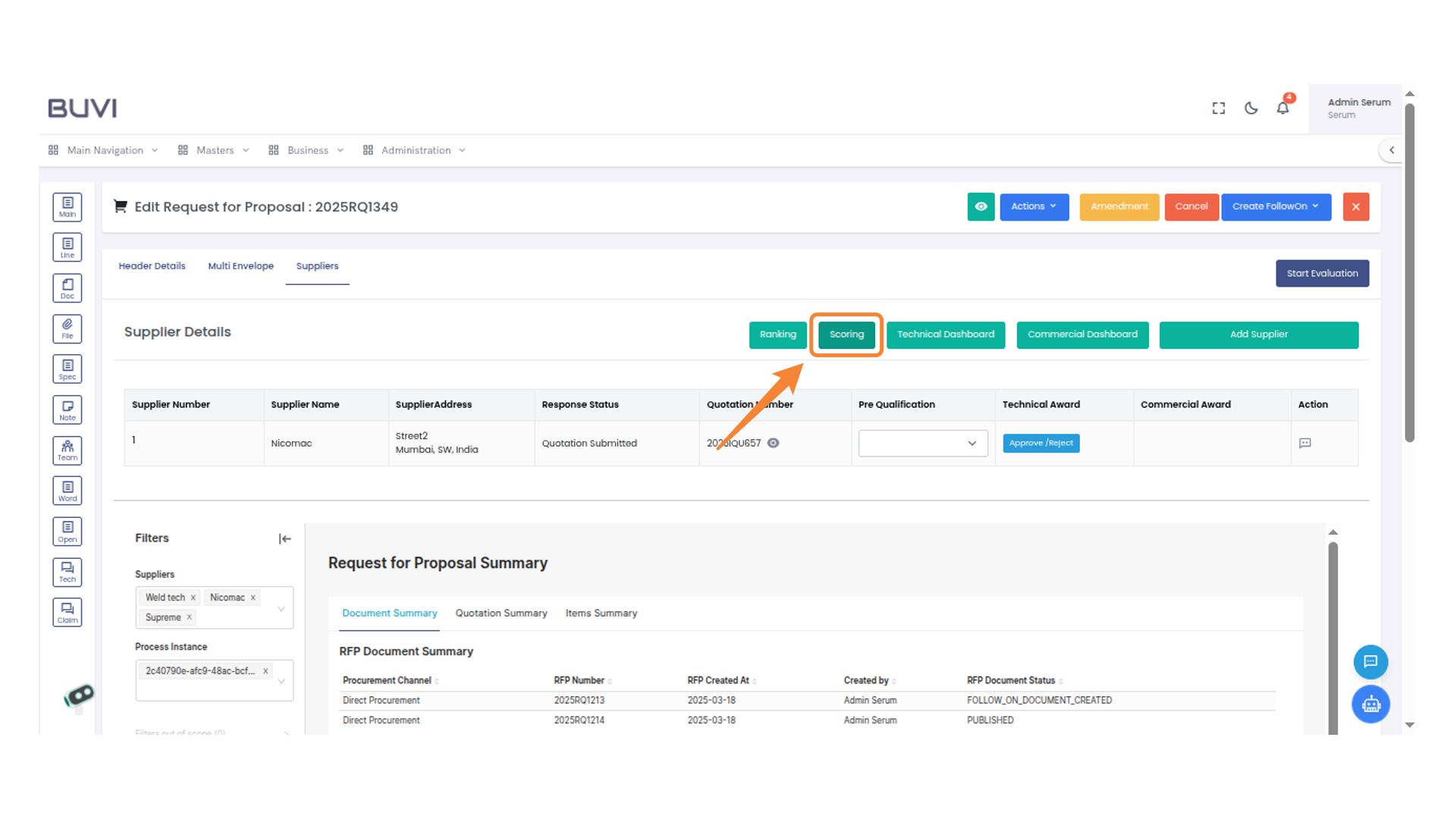
39. Bid Approval Button
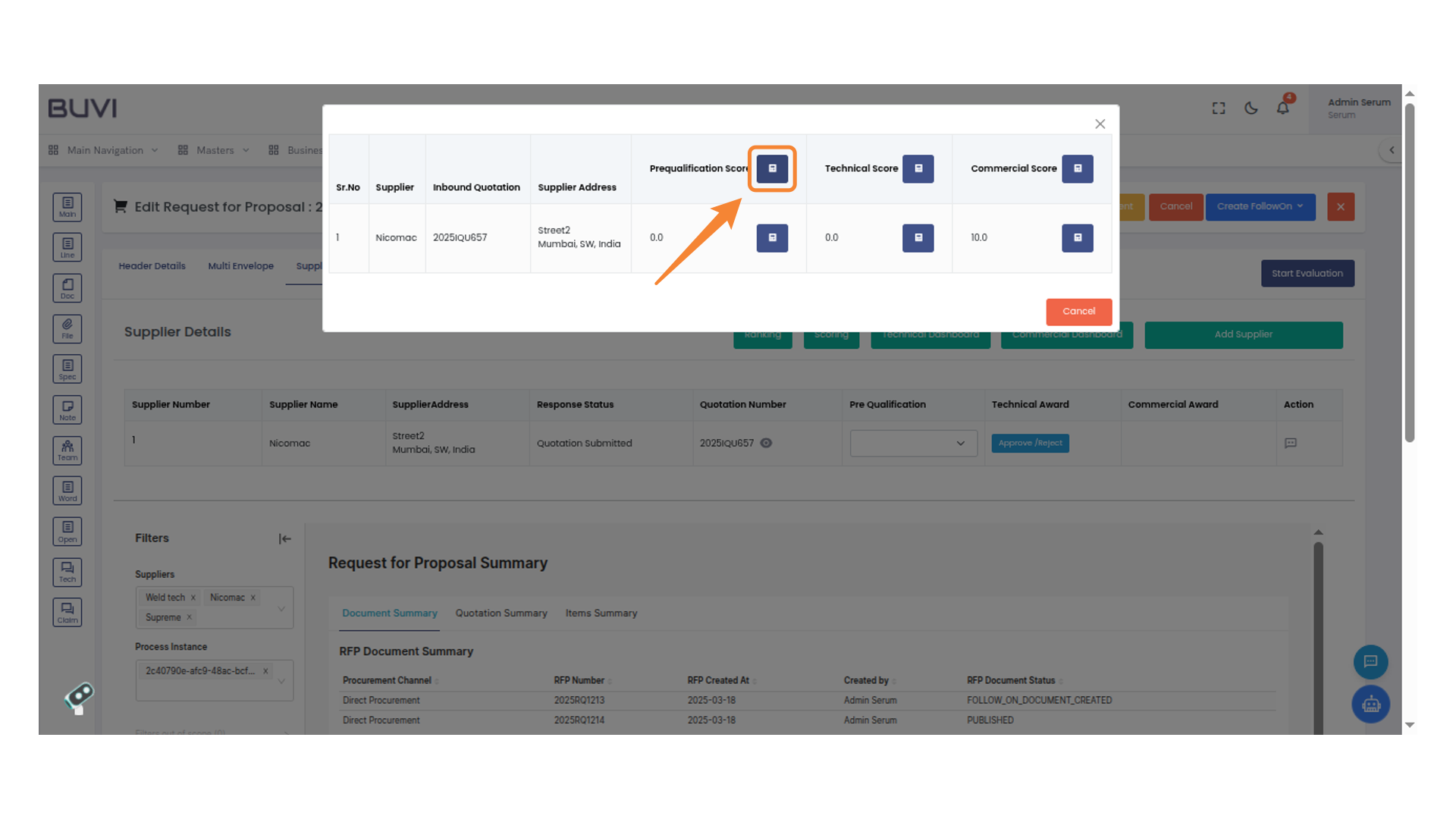
Click to approve the bid for Technical
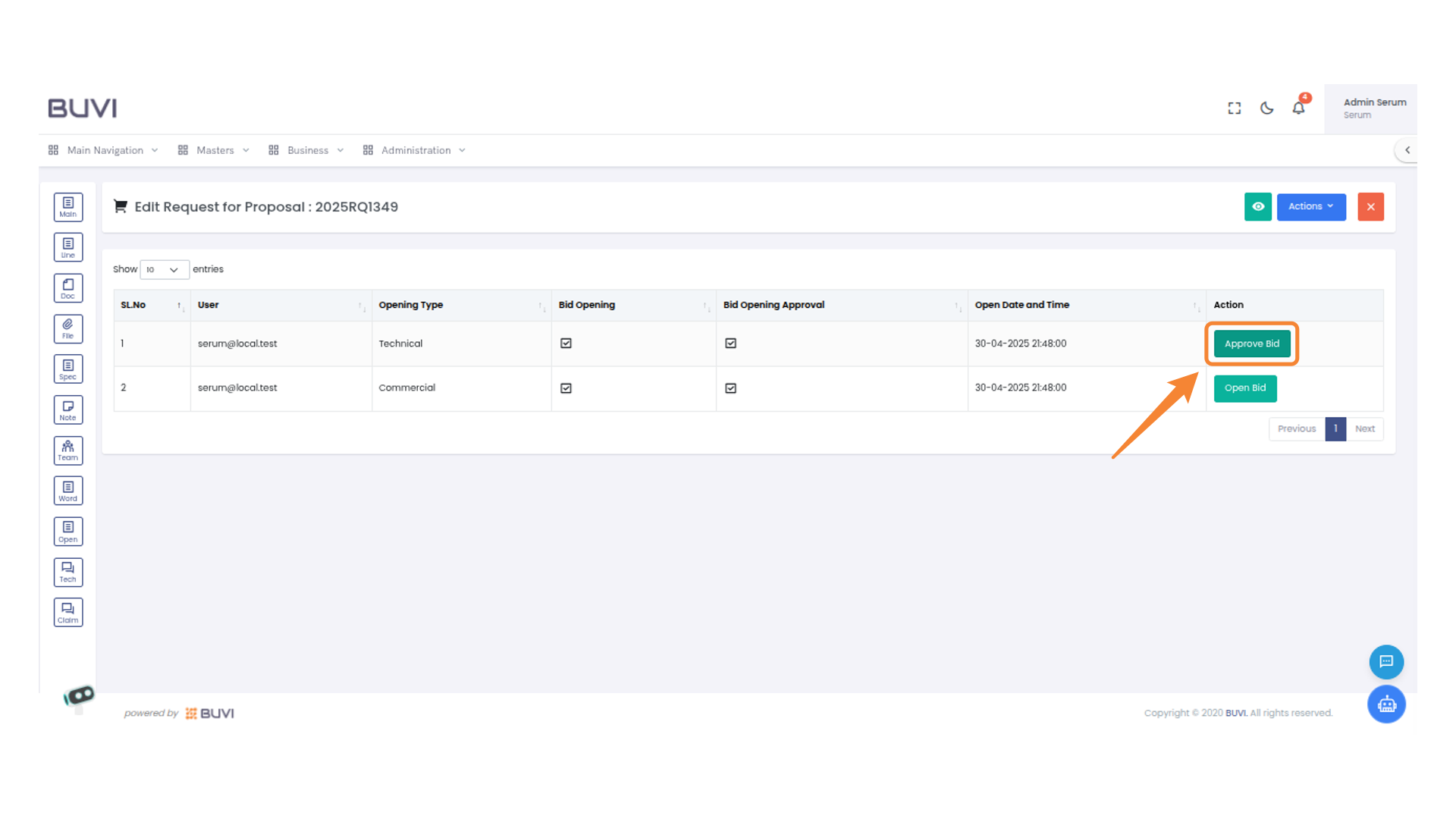
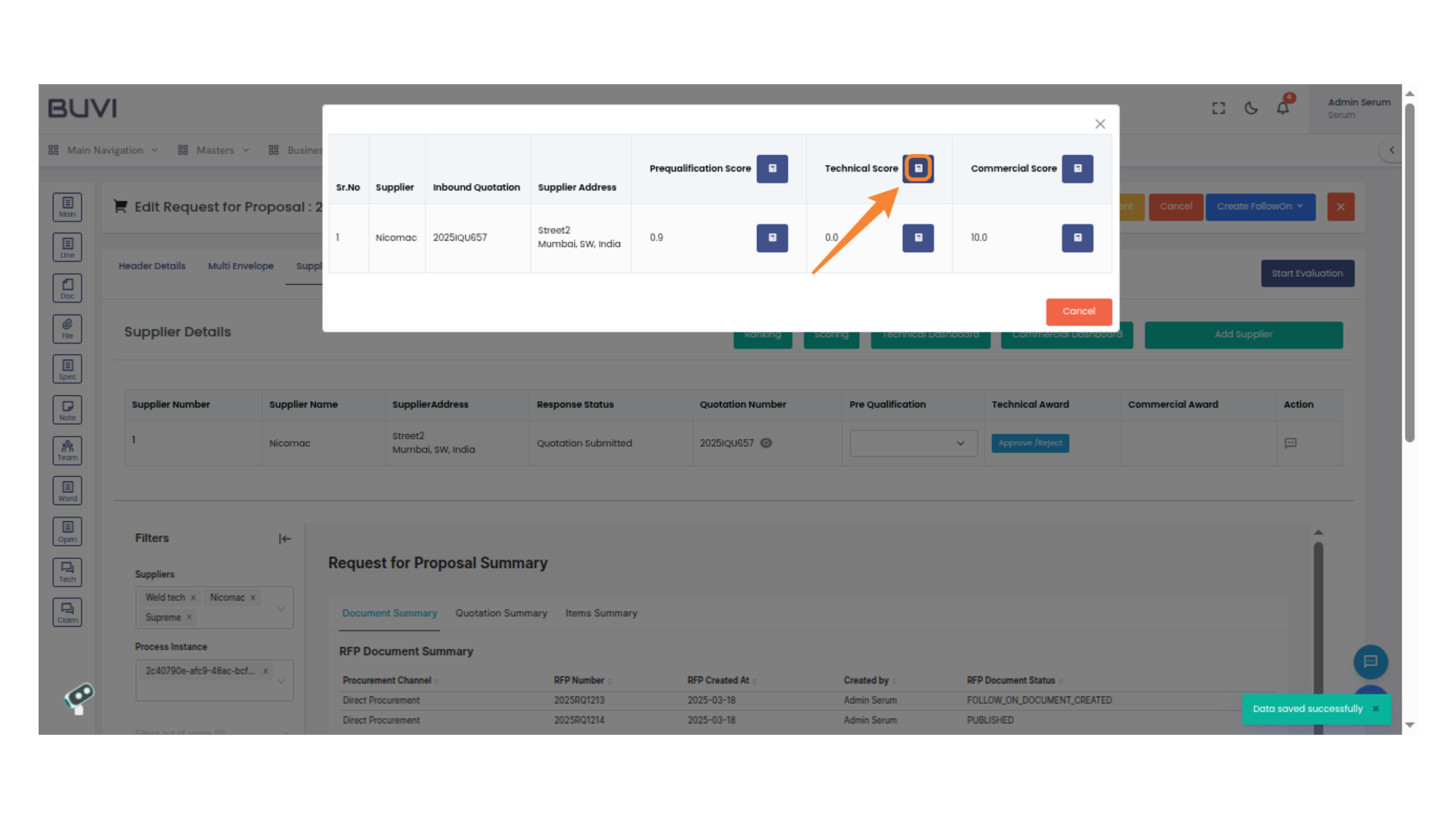
40. Password Input Field
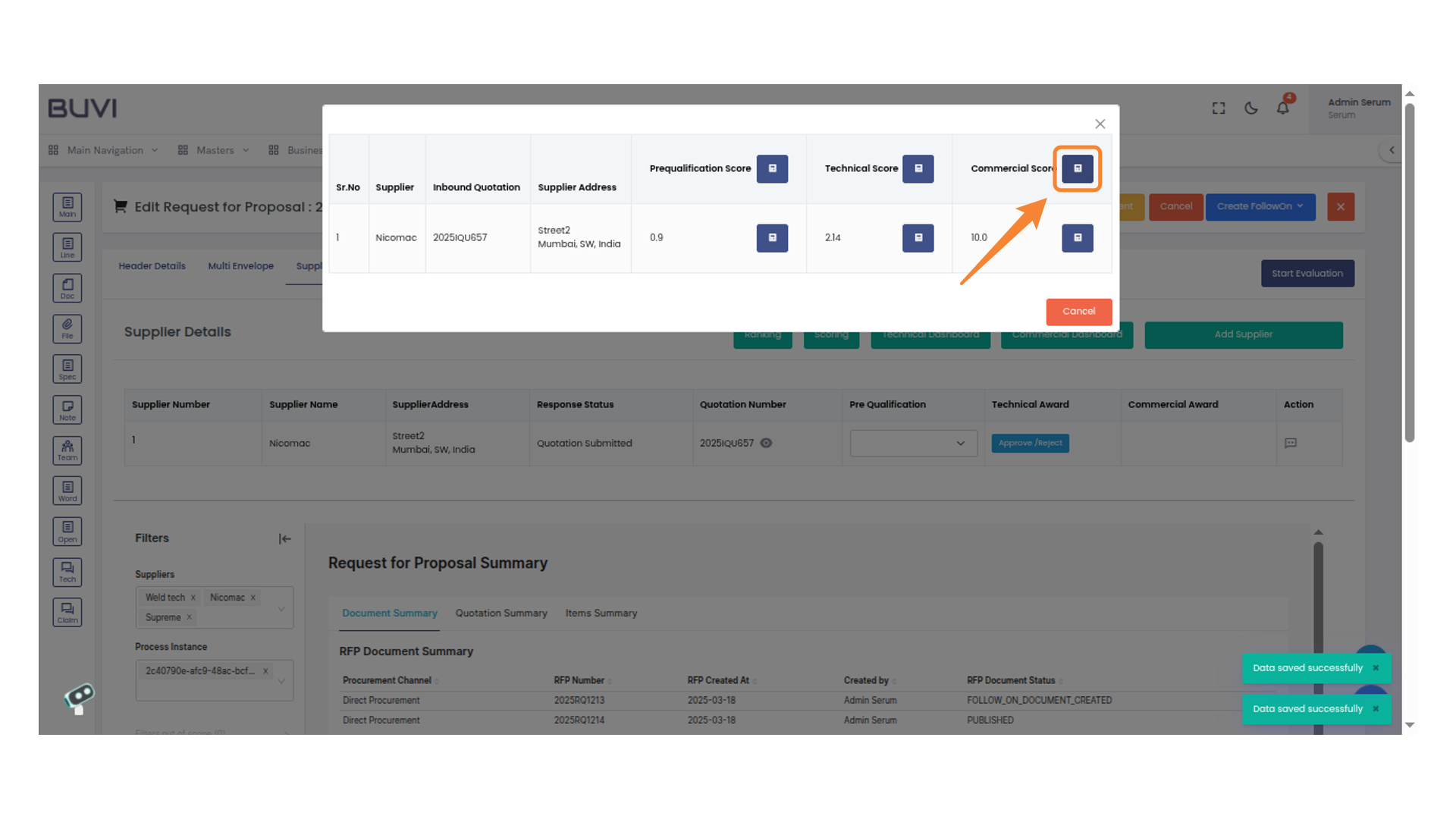
Enter your login password to proceed with the bid opening process.
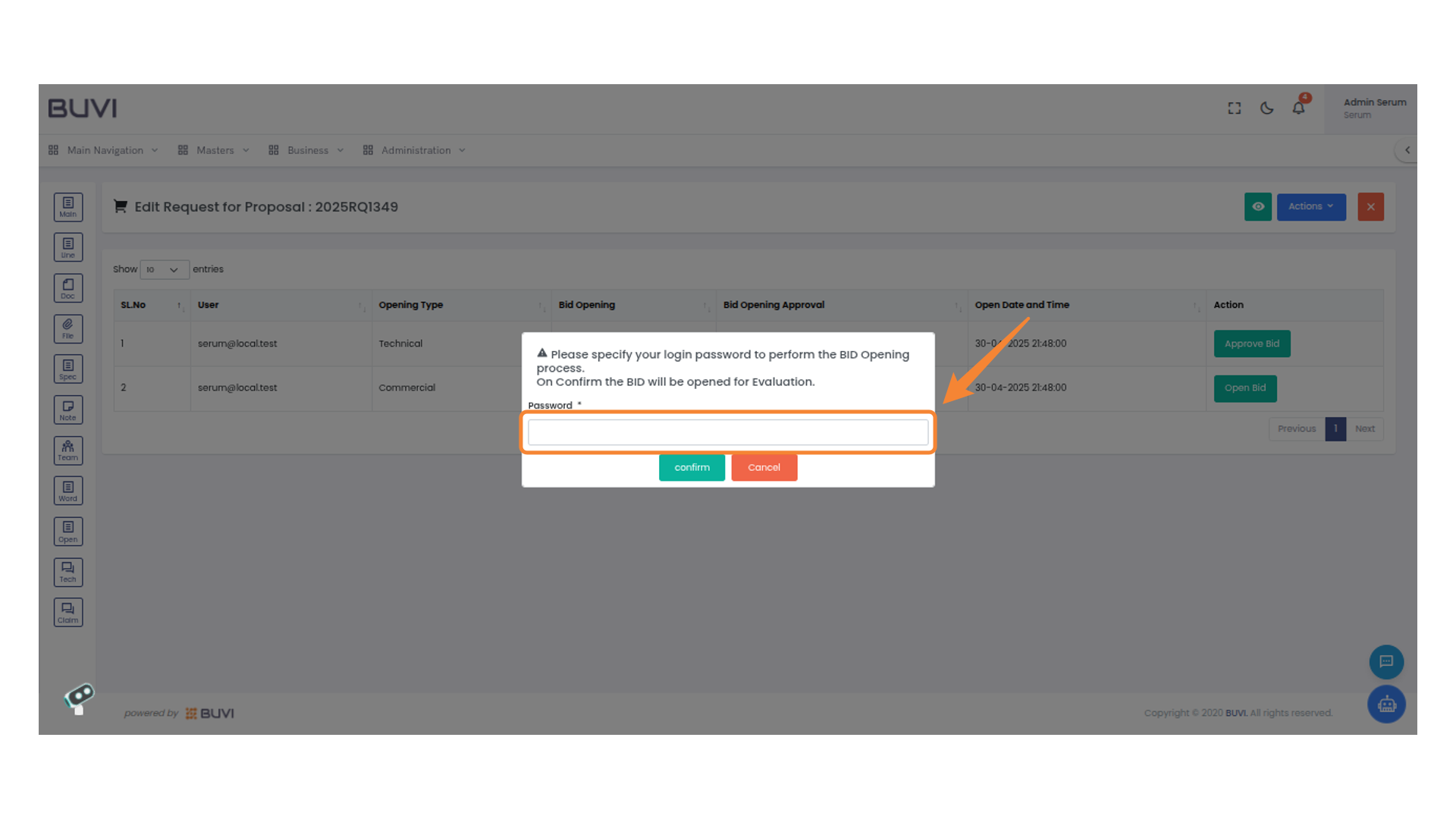
41. Confirm Button in Bid Opening
Click the confirm button to proceed with opening the bid for evaluation.
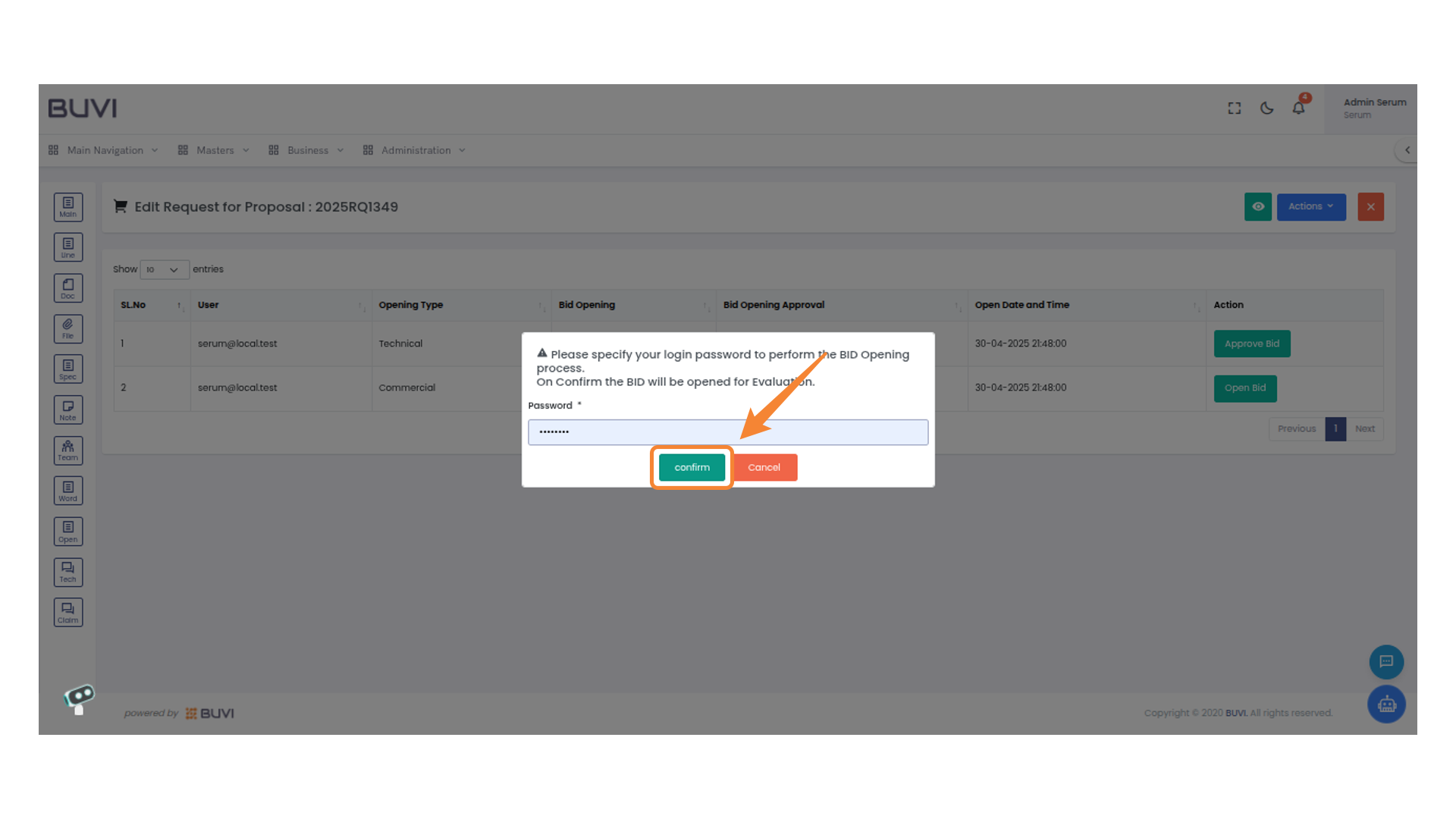
42. Bid Action Button
Click the 'Open Bid' button for Commercial
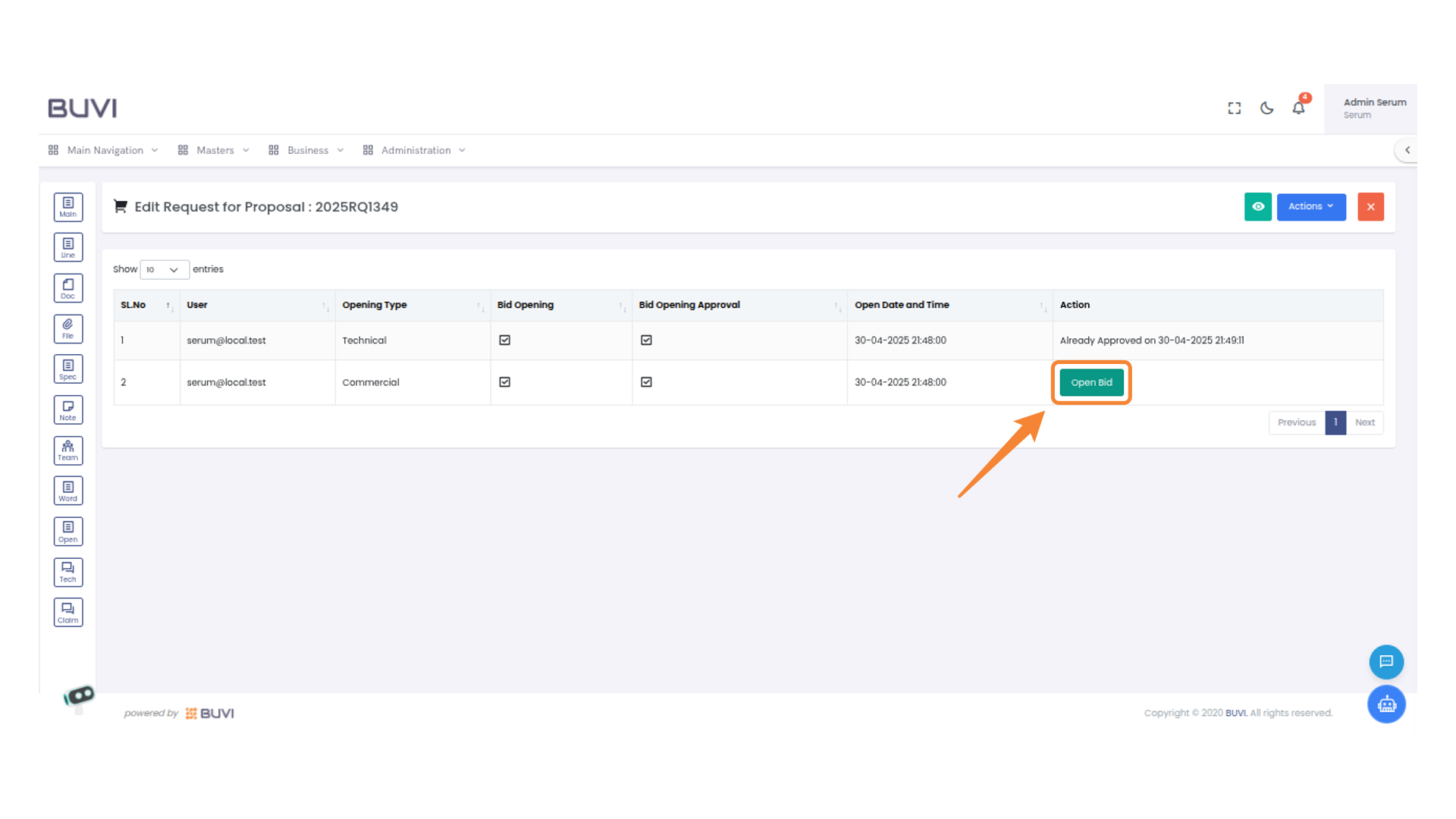
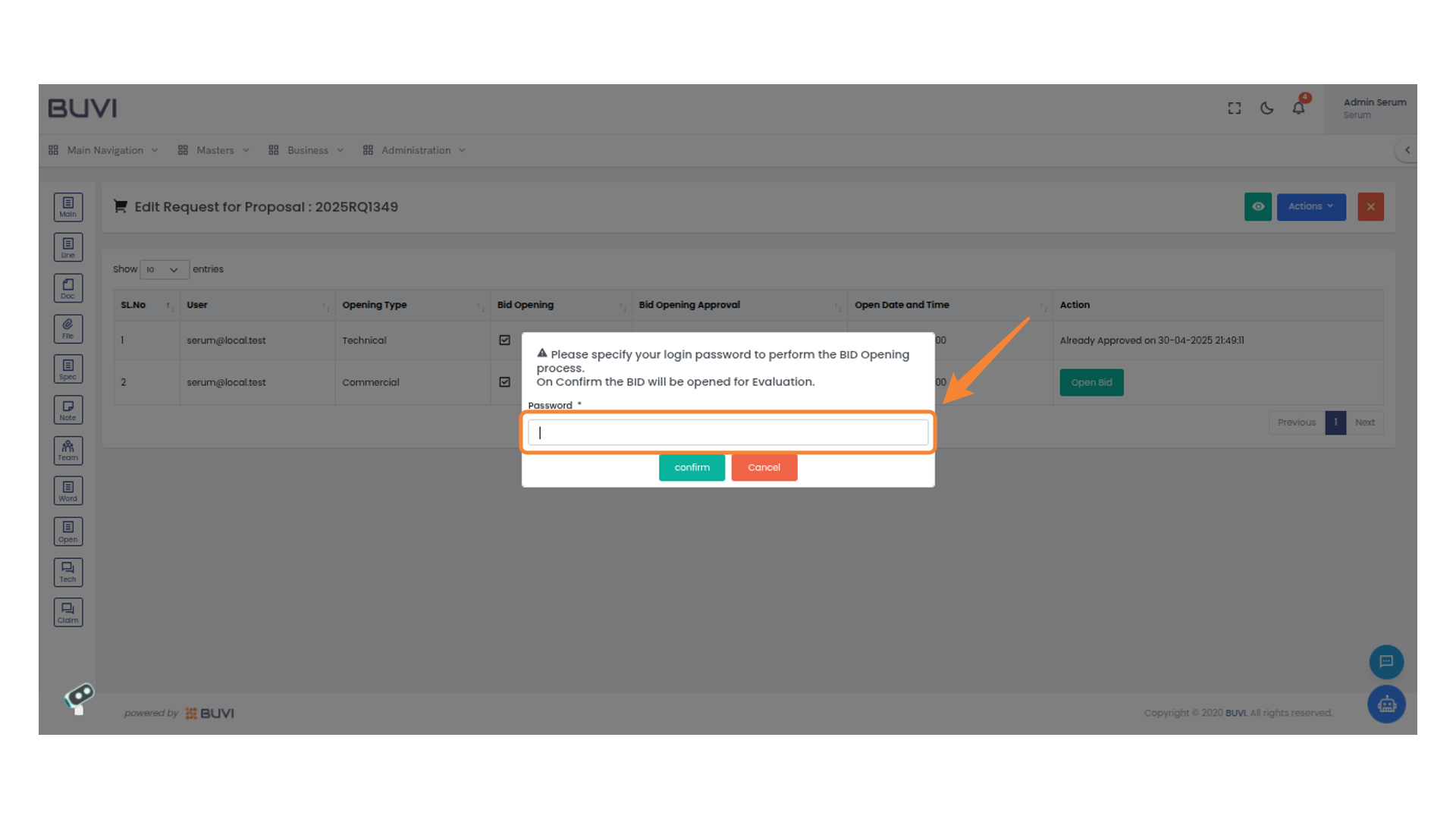
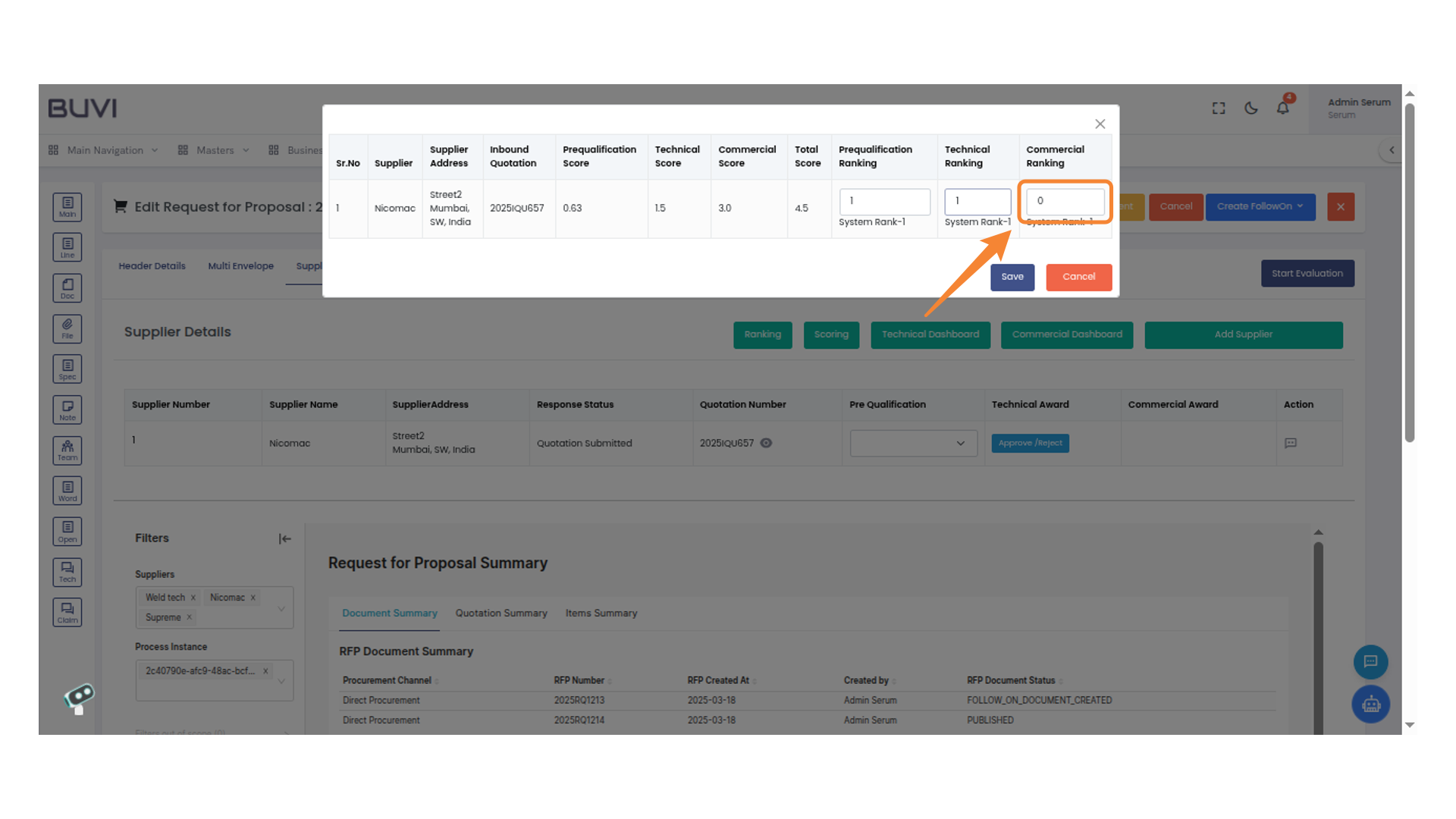
43. Password Confirmation
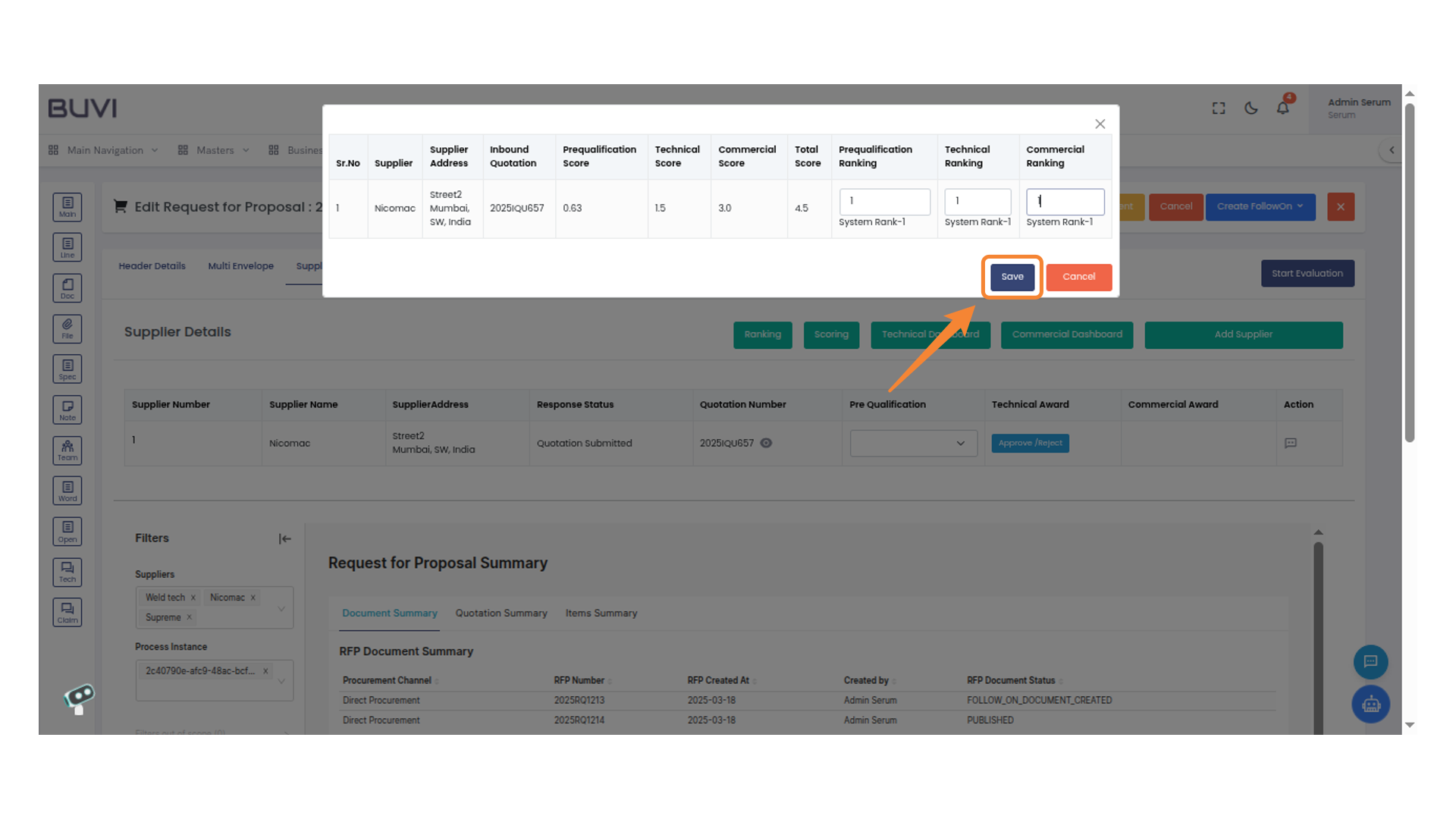
Enter your login password to proceed with the bid opening.
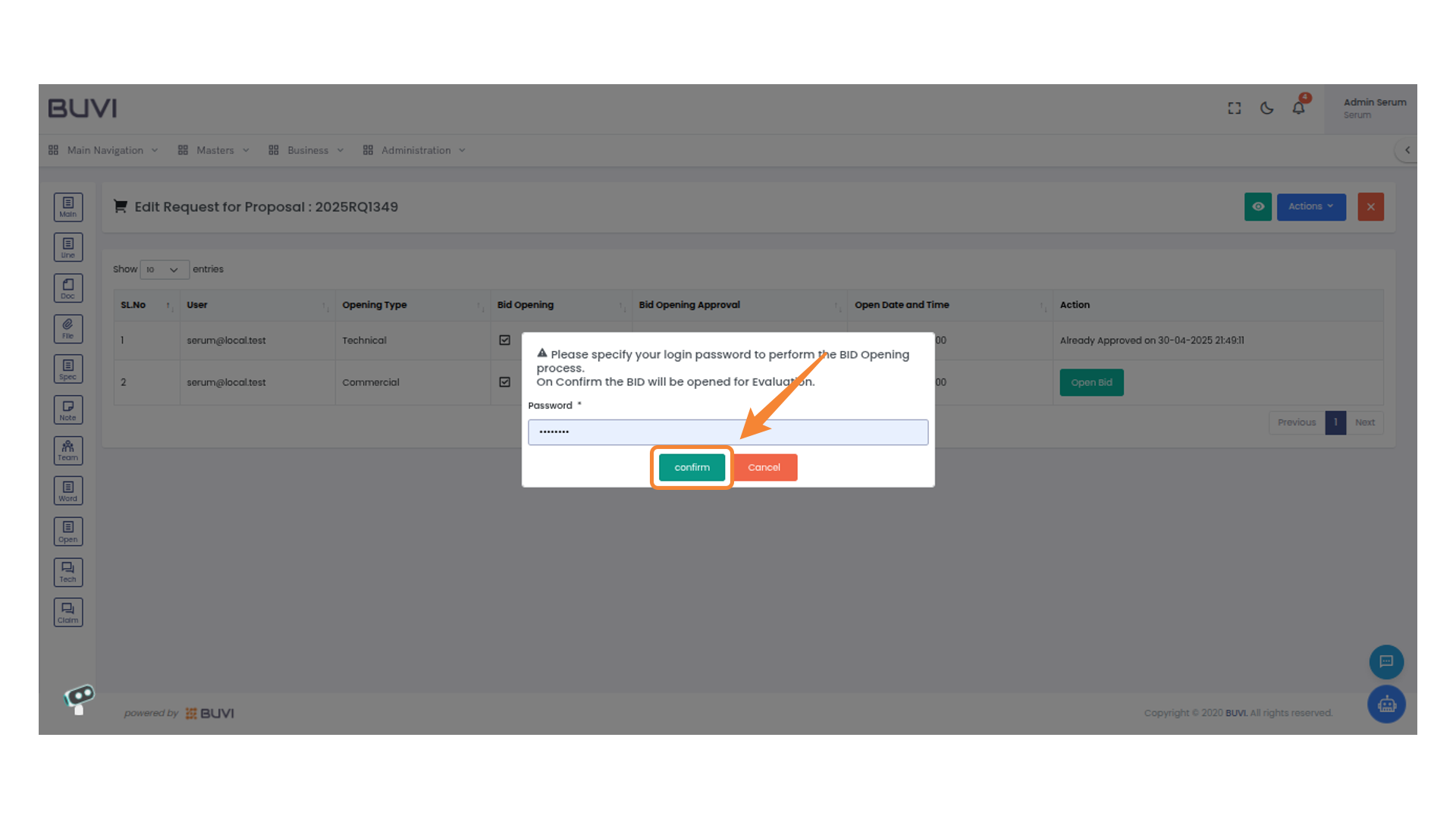
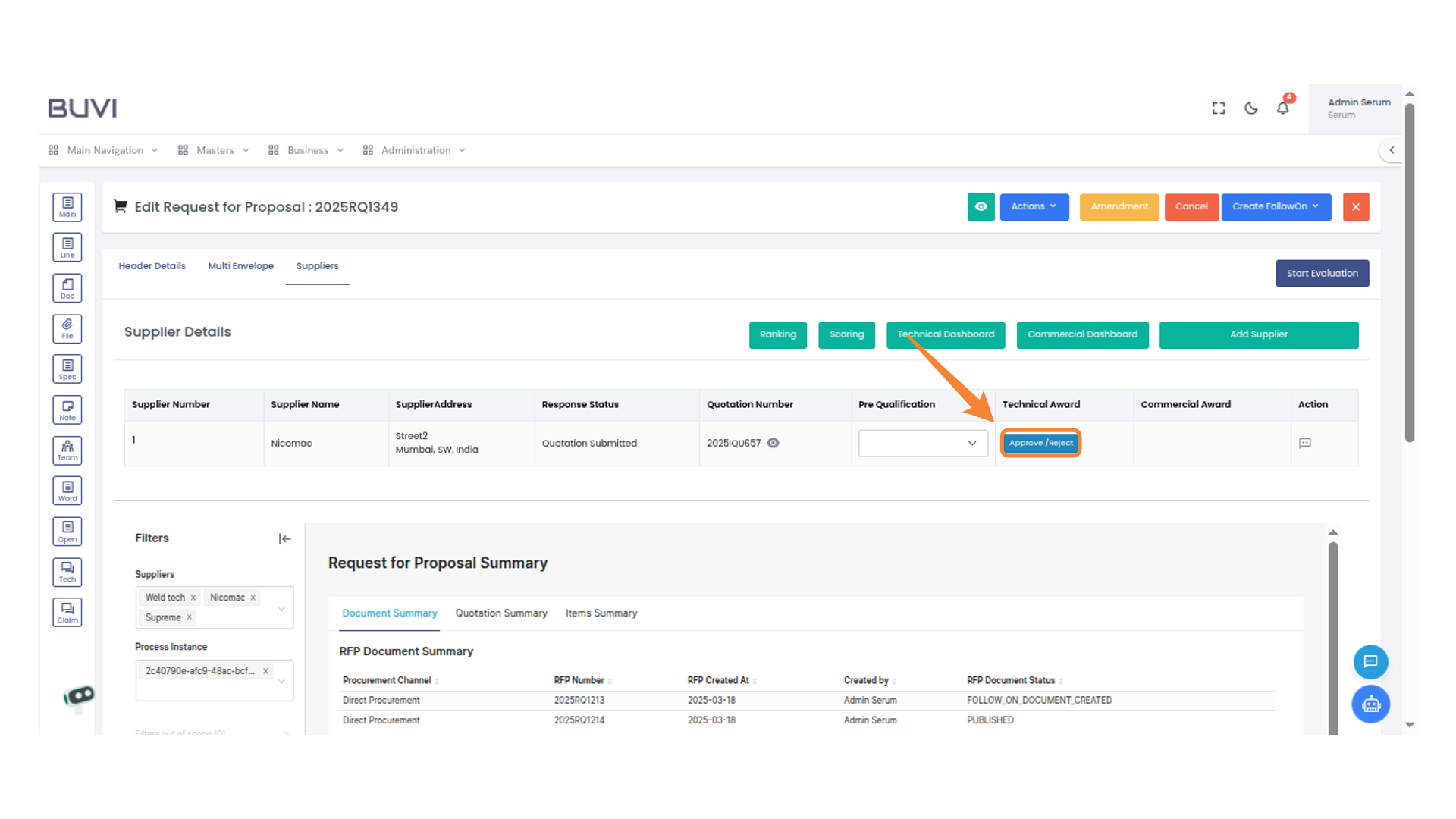
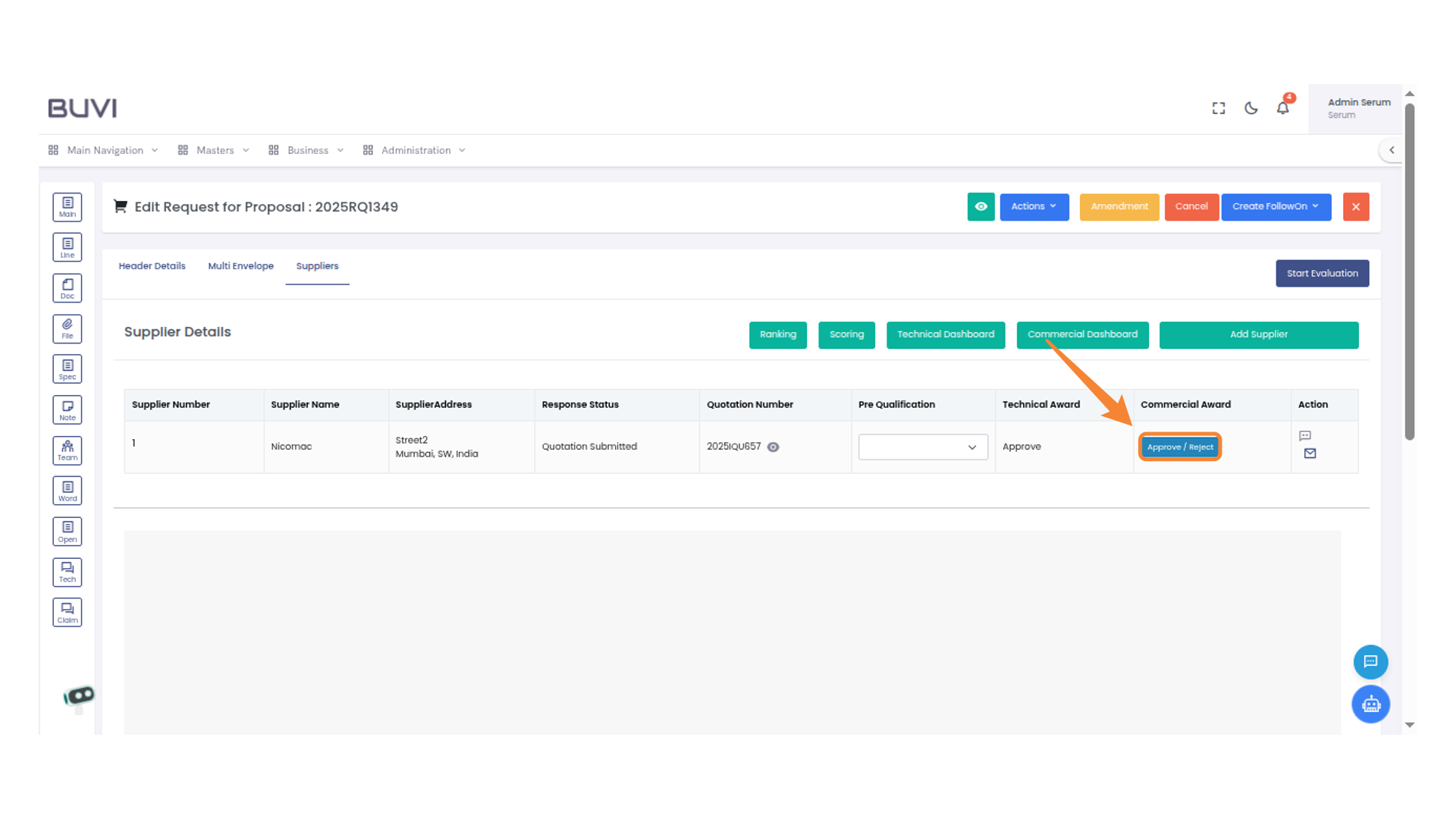
44. Confirm Button
Click the button to proceed with confirmation.
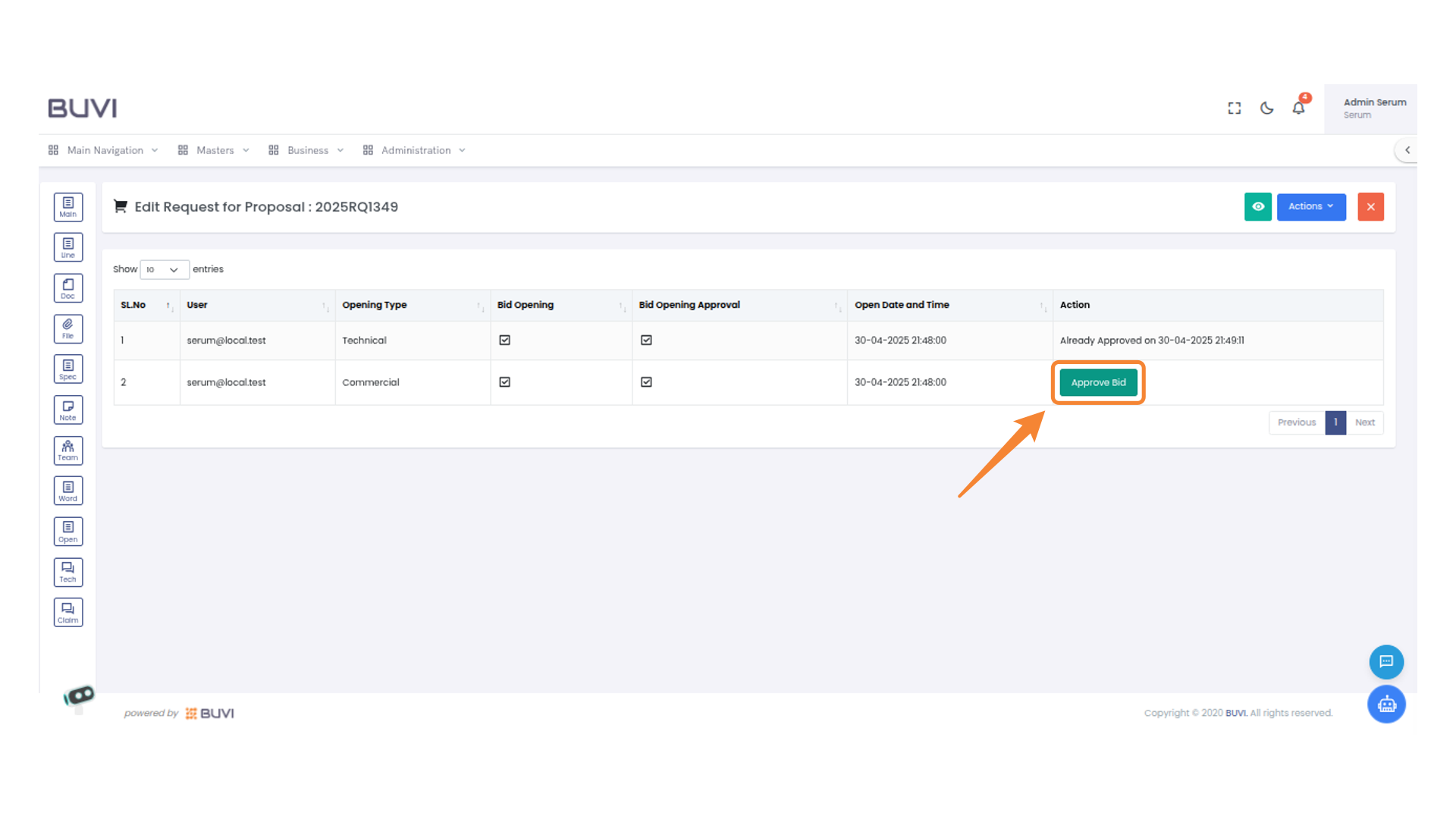
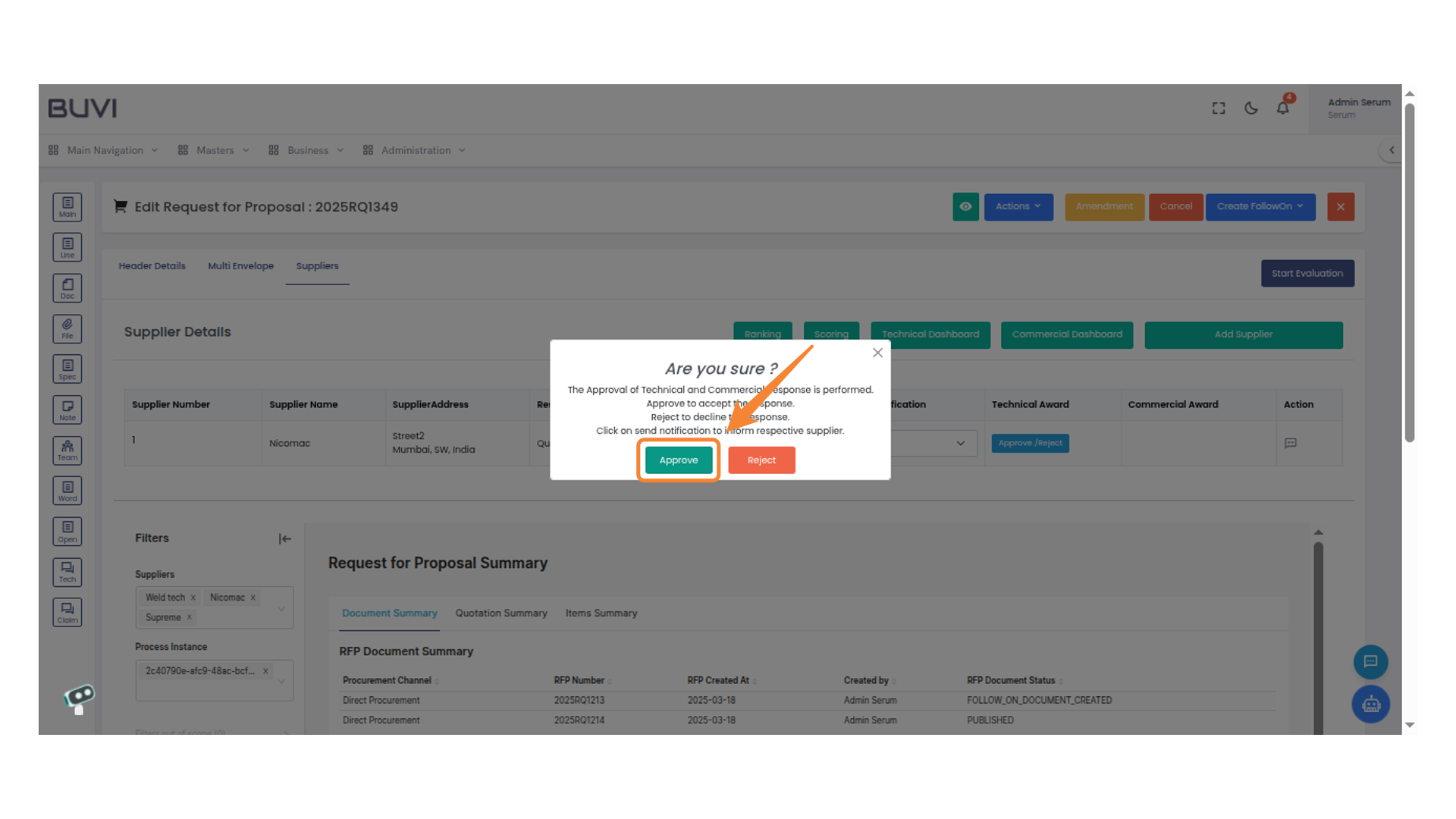
45. Bid Approval Button
Click the button to approve the bid.
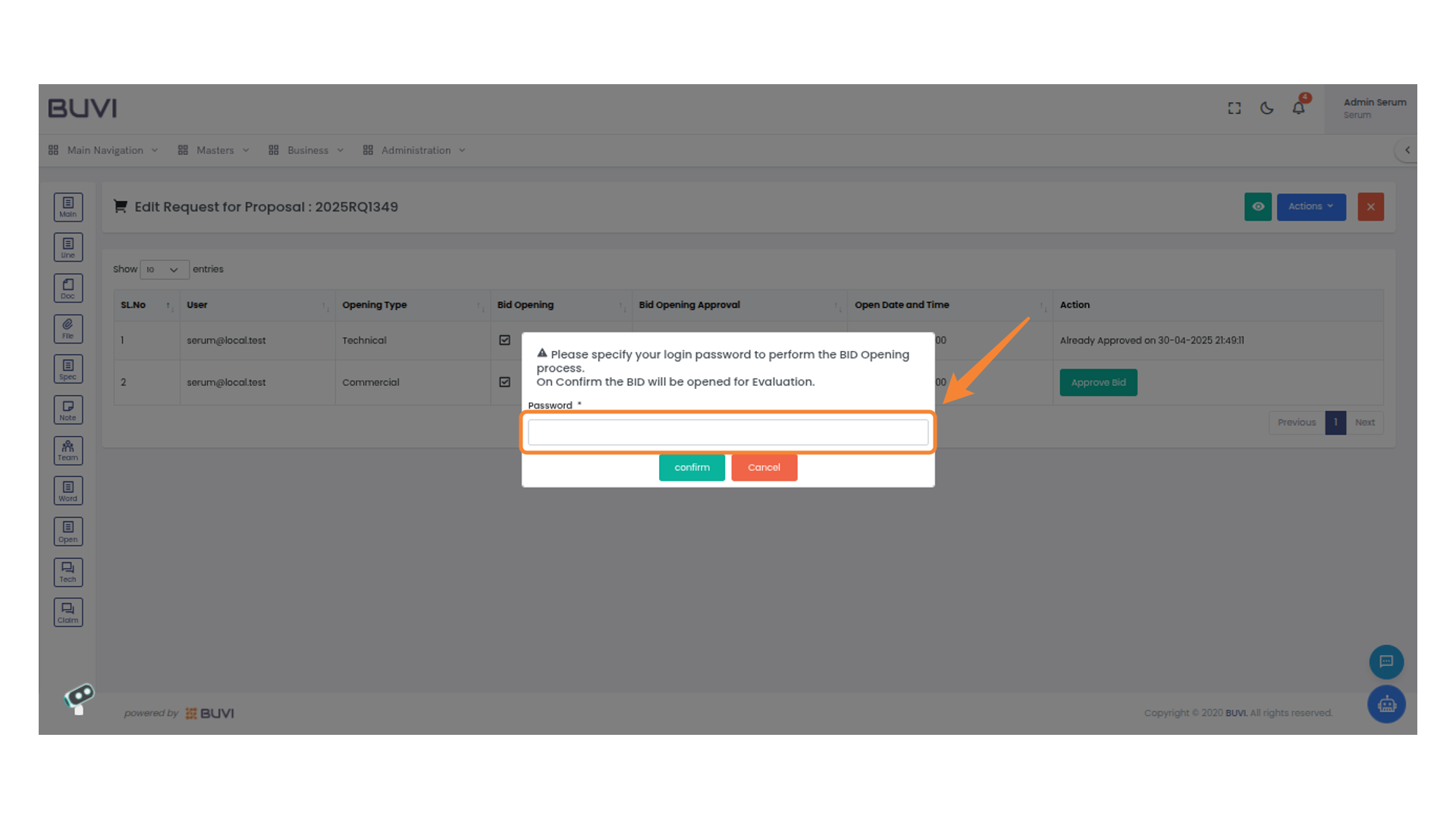
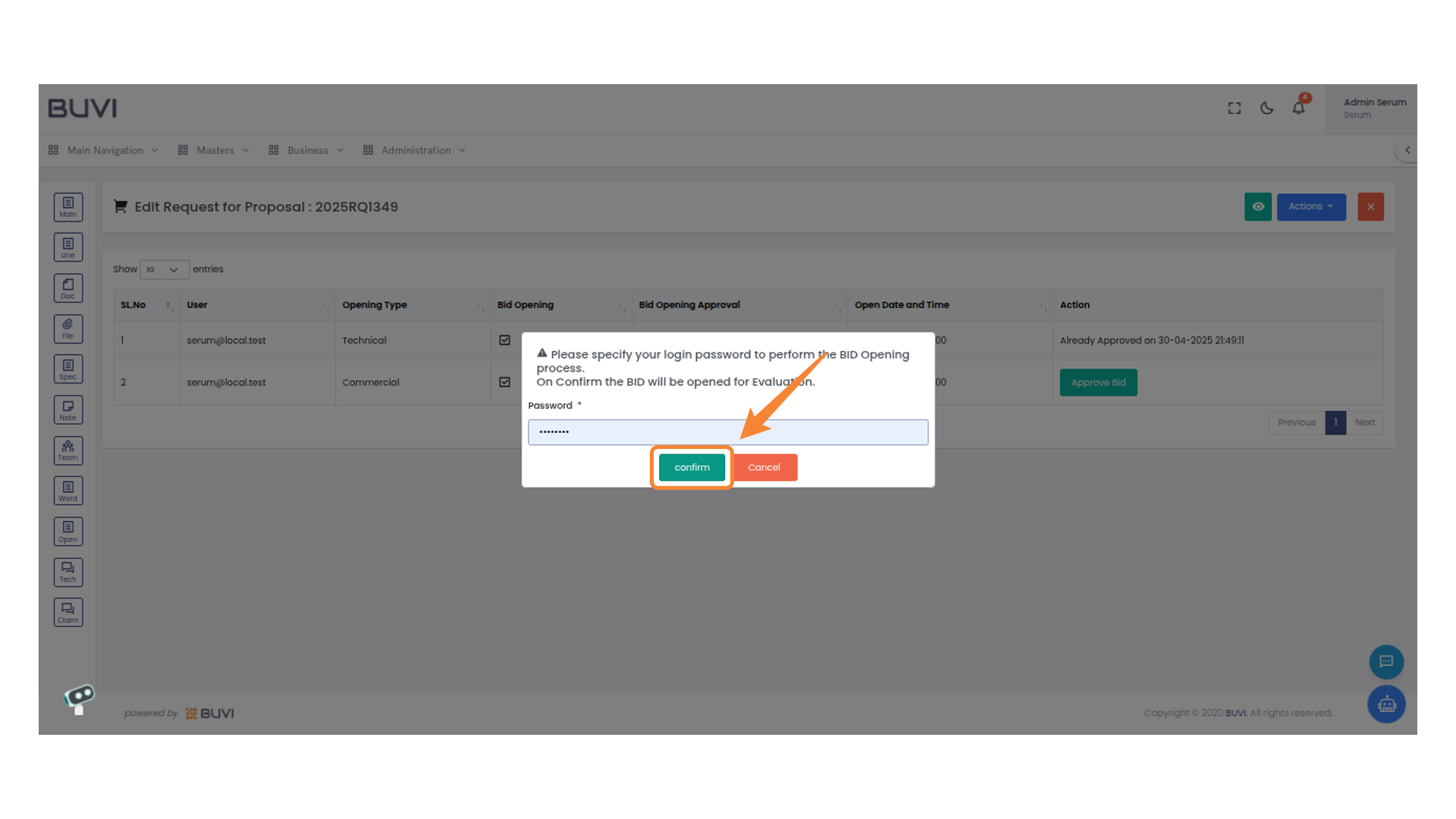
46. Password Entry Prompt
Enter your login password to proceed with the bid opening.
47. Confirm Button
Click the button to proceed with the bid evaluation.
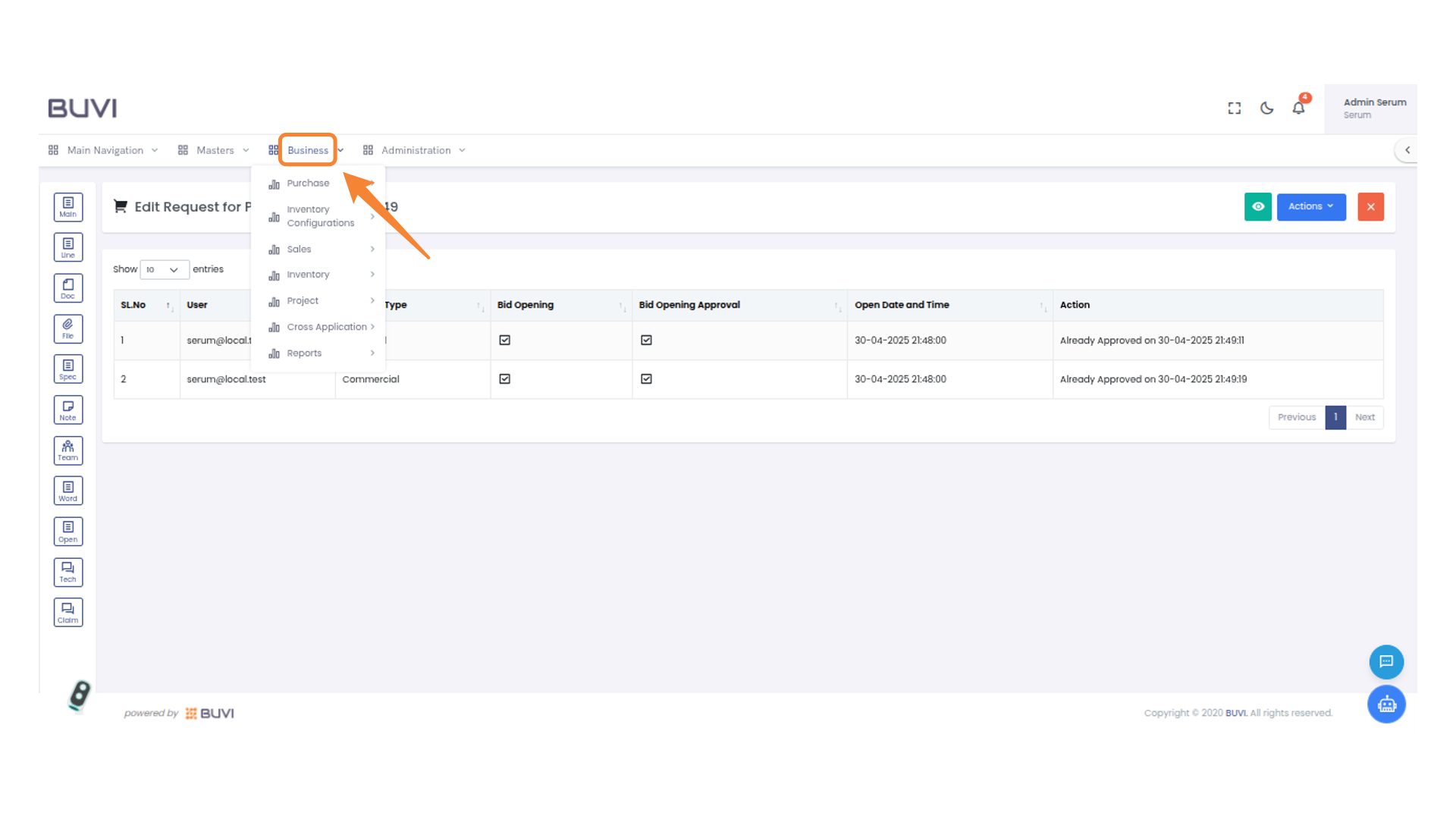
48. Business Menu Dropdown
Click on Business menu
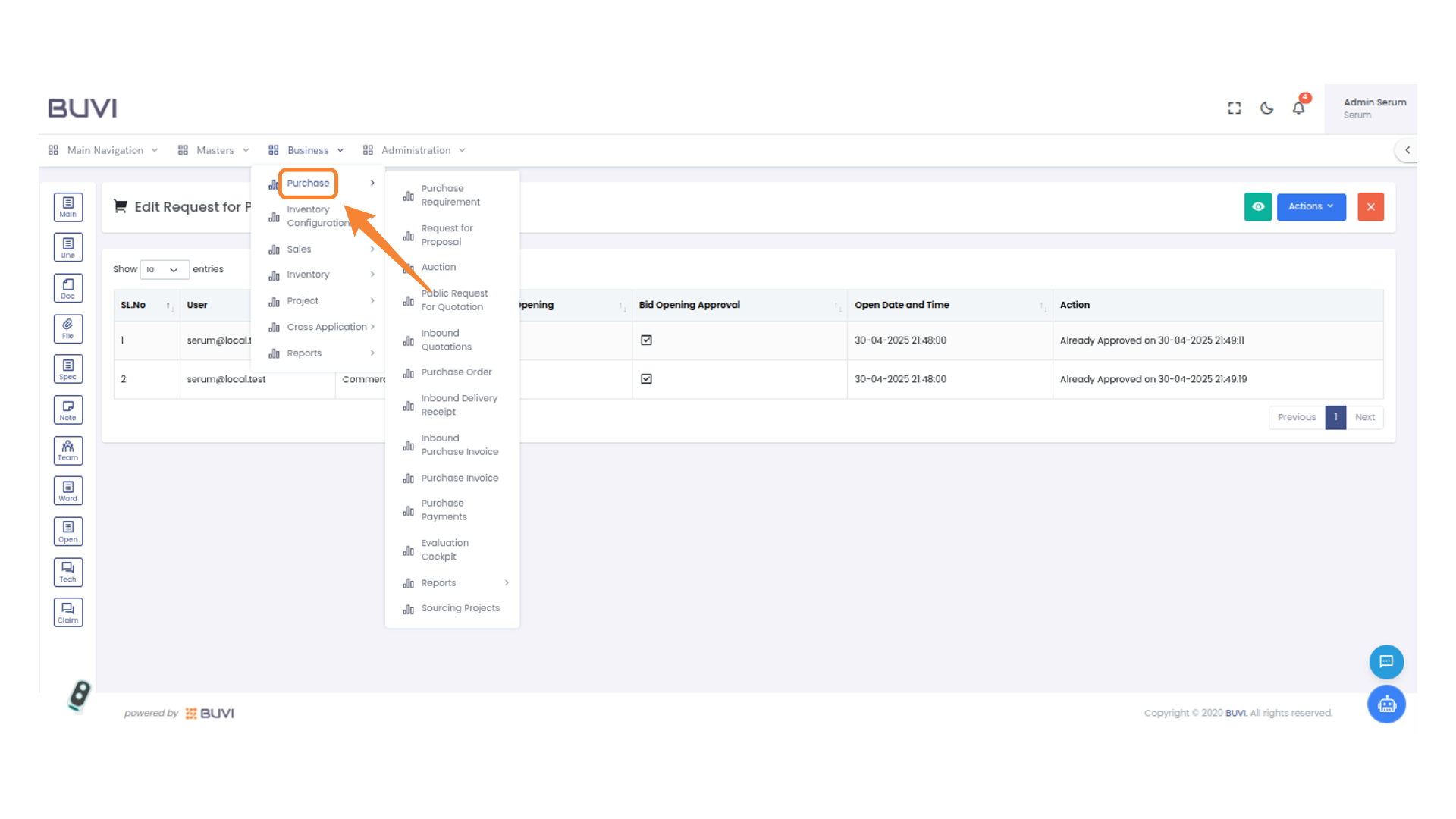
49. Purchase Menu Option
click on Purchase
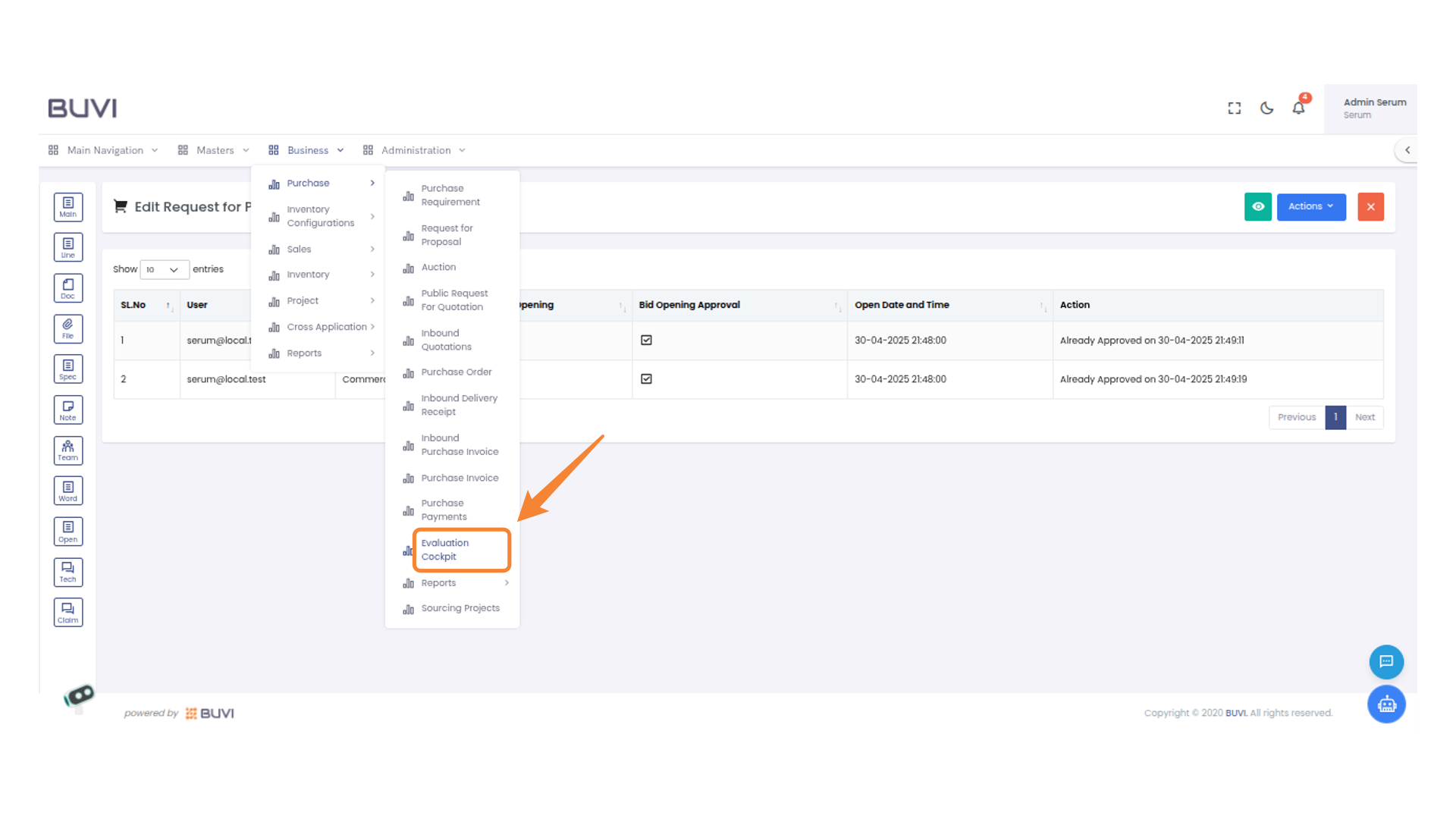
50. Evaluation Cockpit Menu Item
Click on Evaluation cockpit menu.
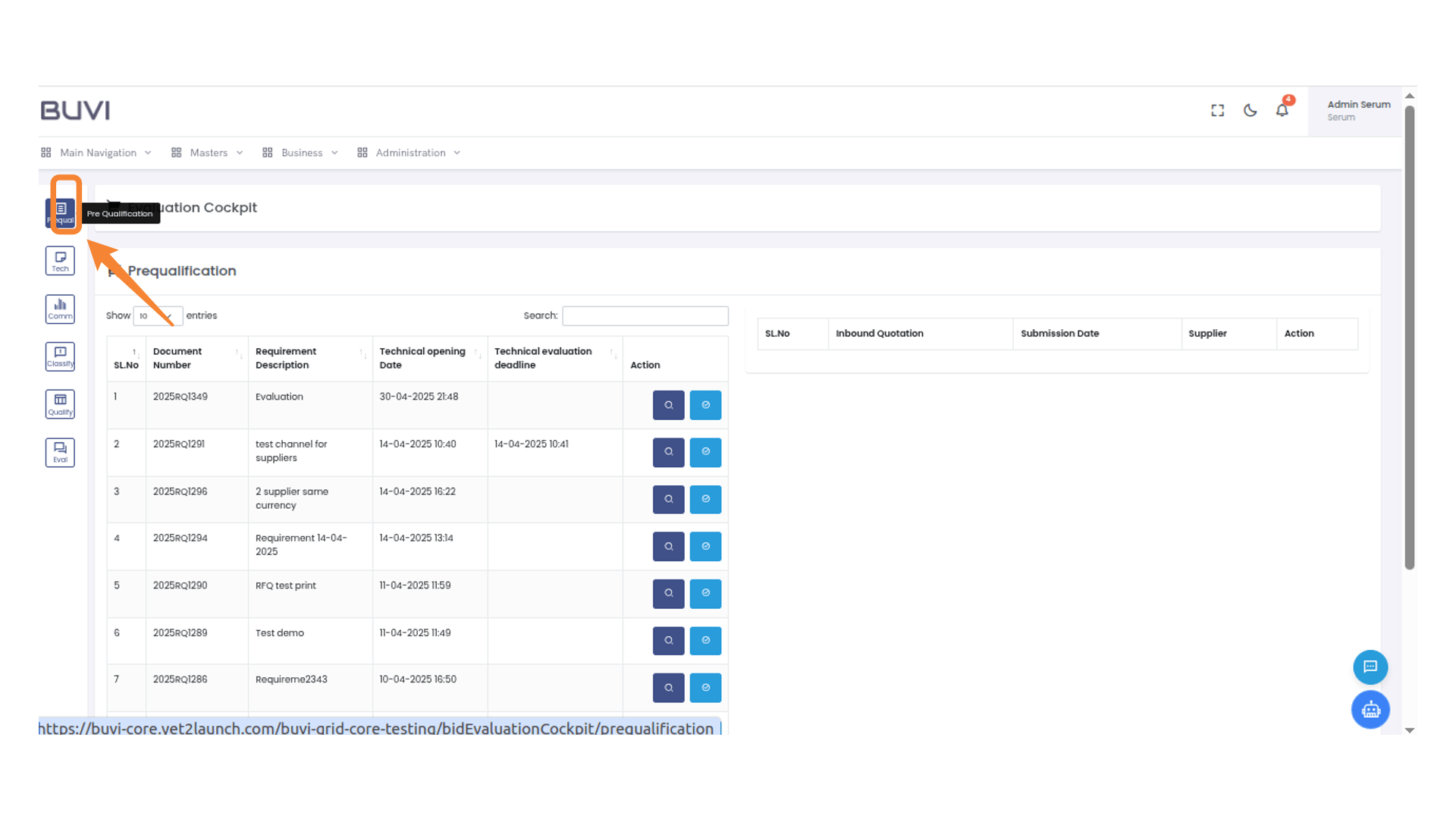
51. Prequalification Menu
Click On Prequalification menu
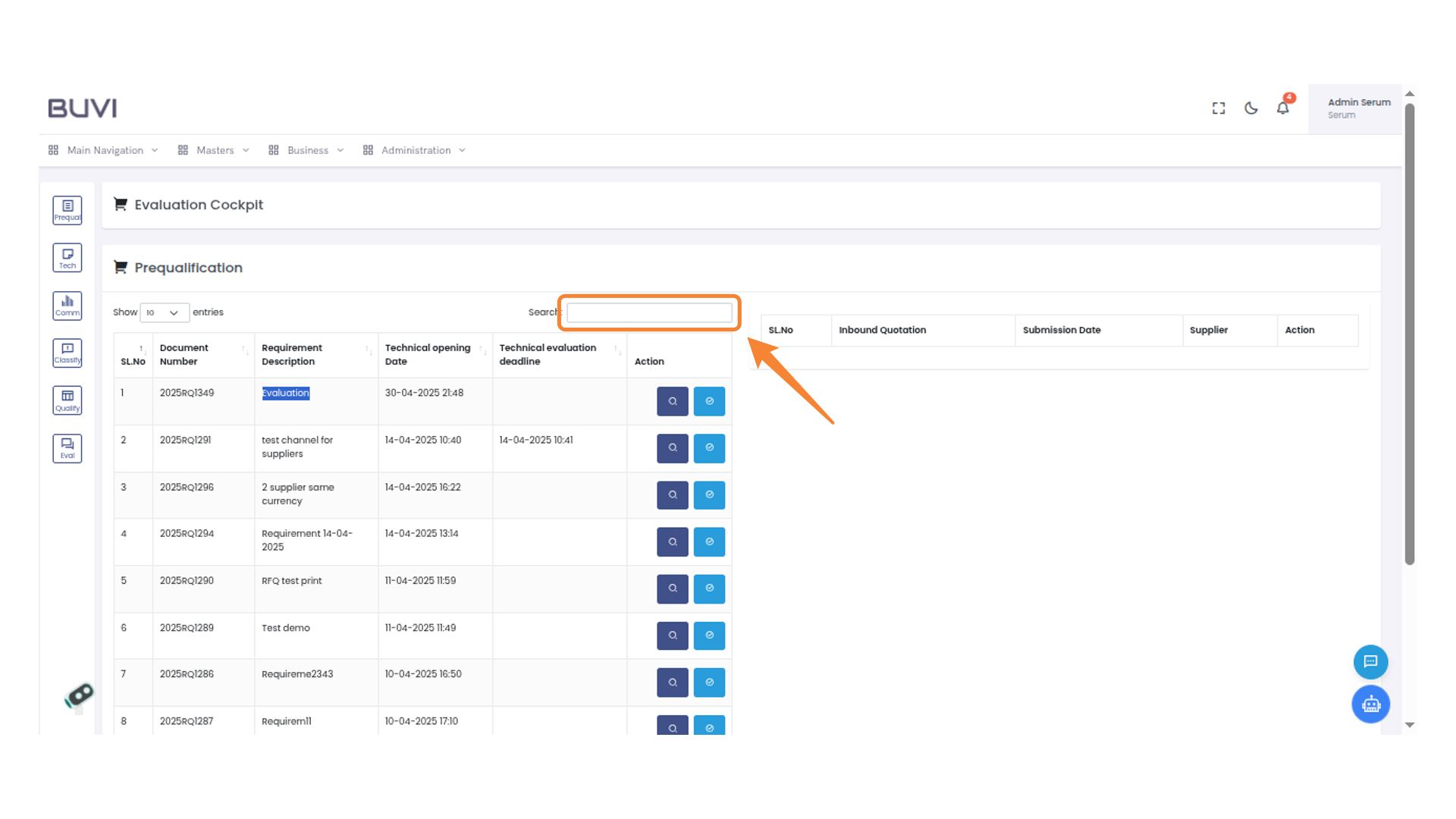
52. Search Bar
Search for the requirement
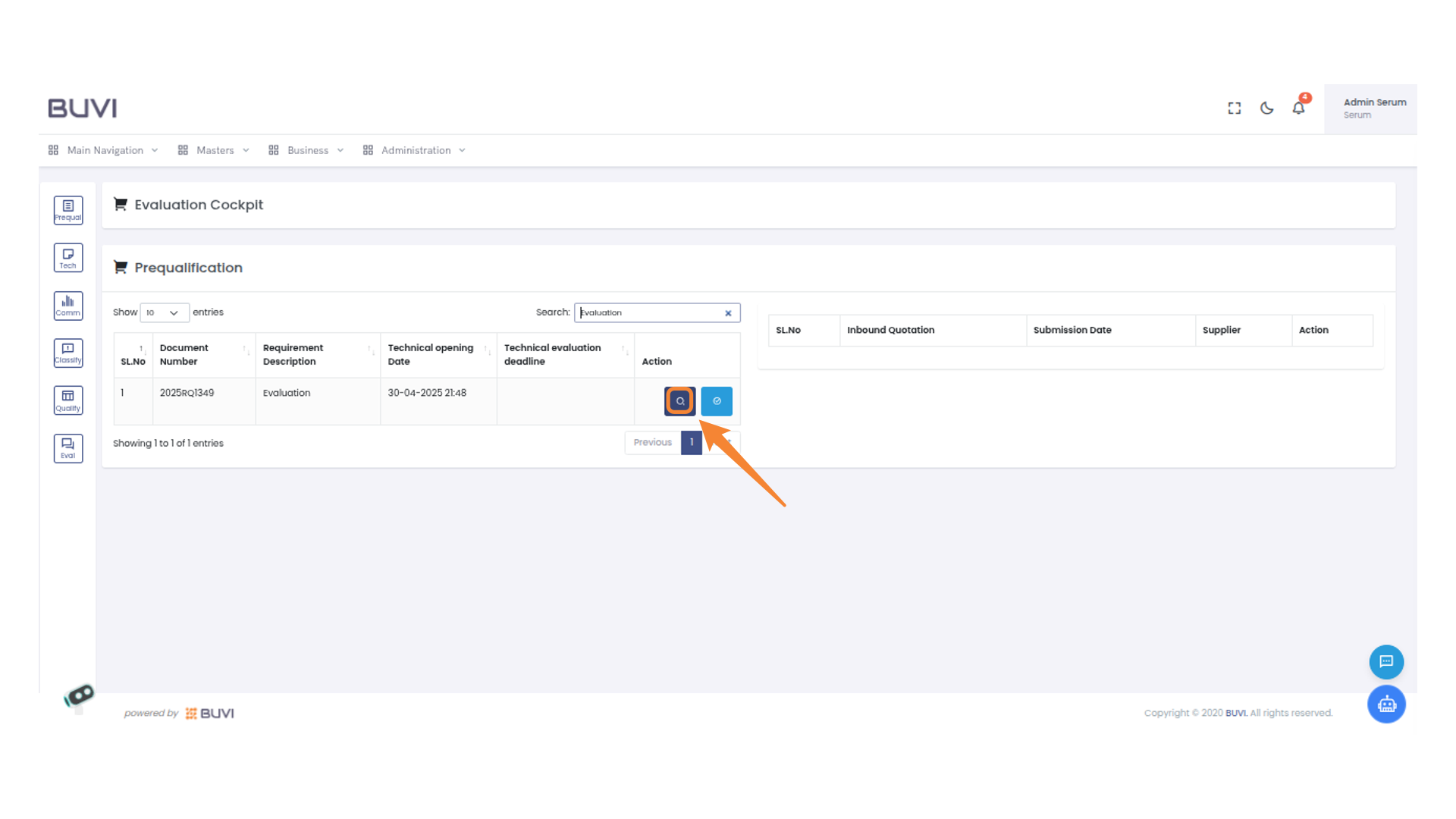
53. Search Icon in Action Column
Click on search icon
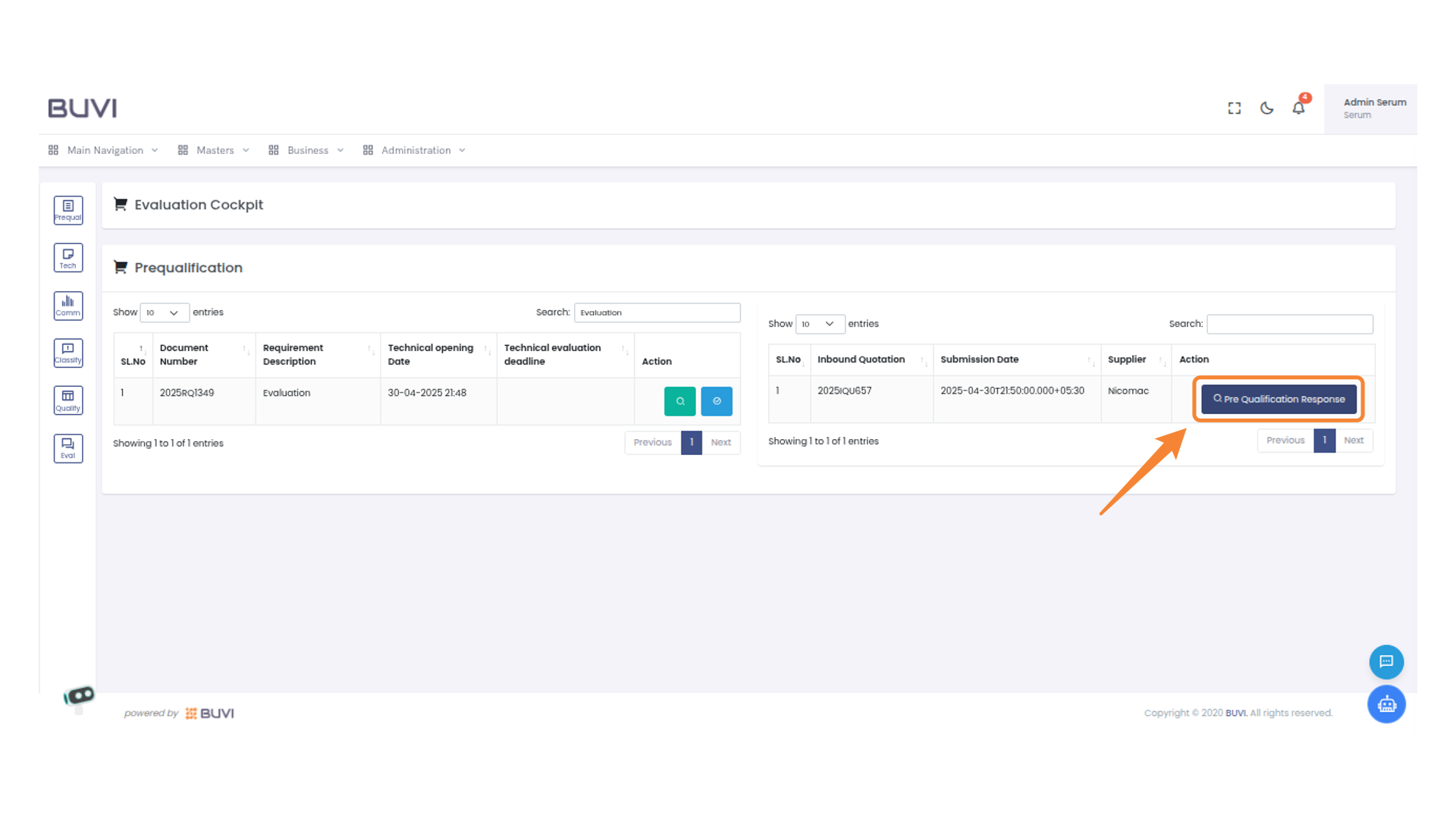
54. Pre Qualification Action
Click the button to view the pre qualification response.
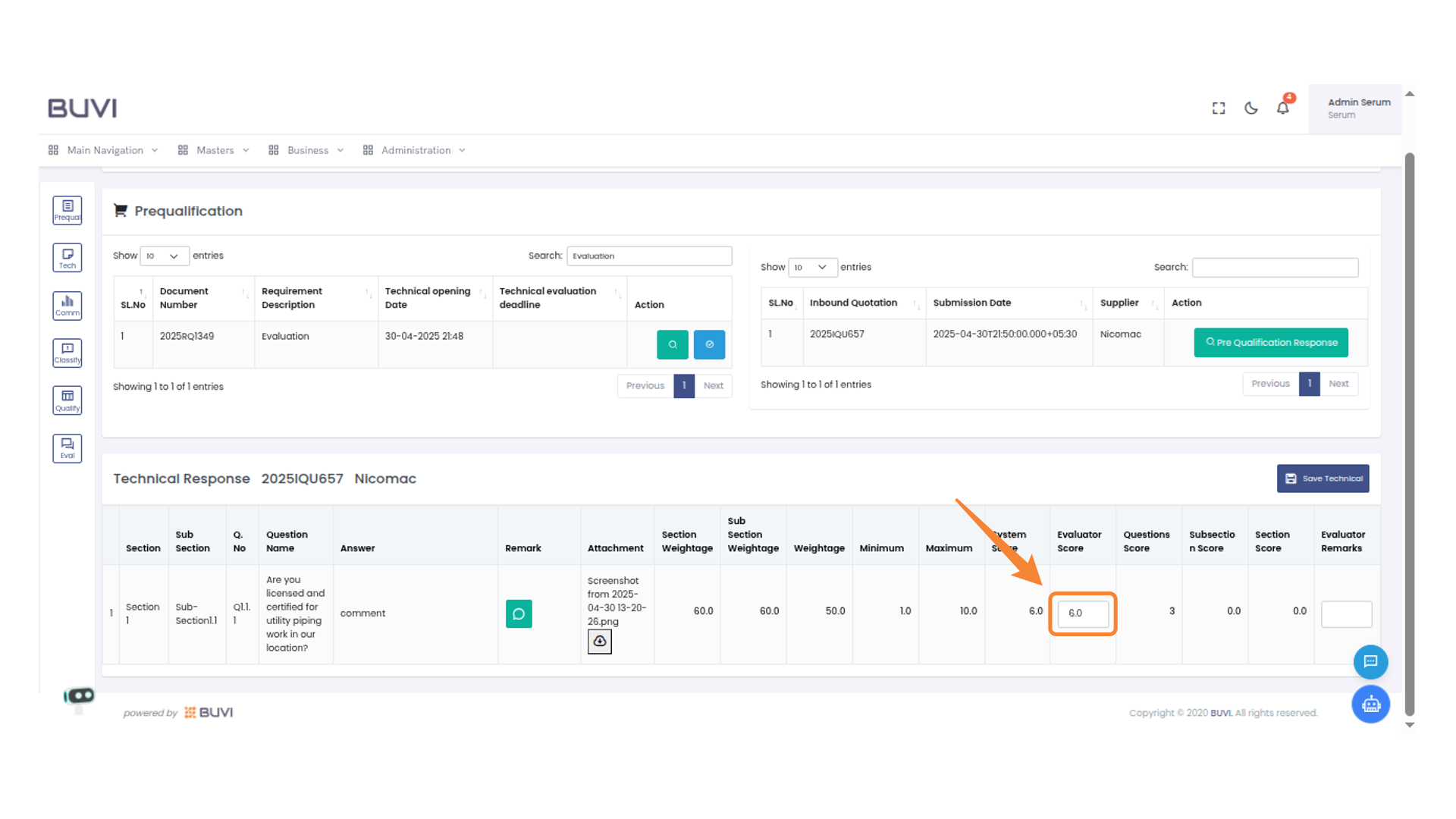
55. Evaluator Score Display
Give evaluator score
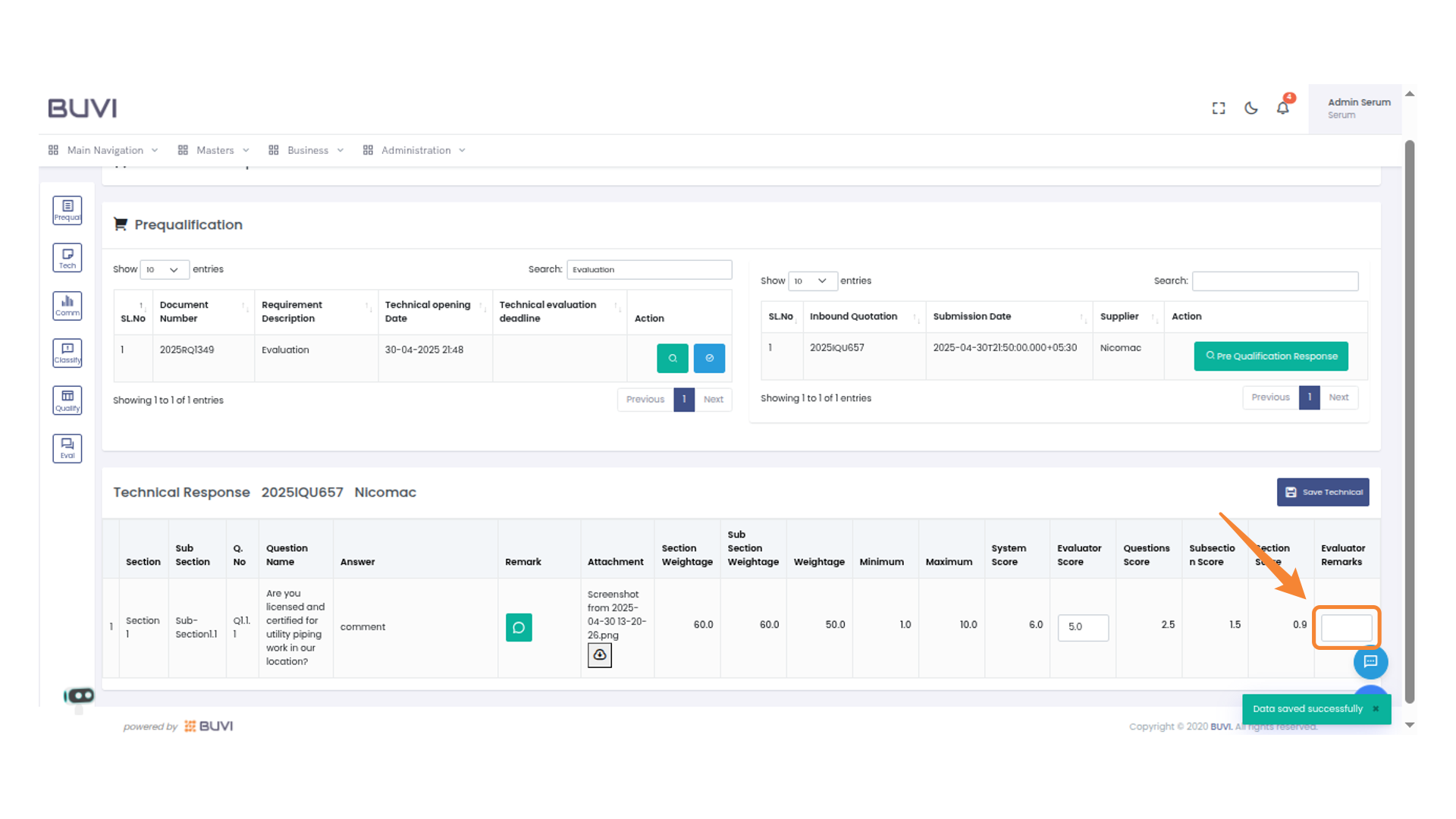
56. Evaluator Remarks Section
Enter remarks to finalize the evaluation process.
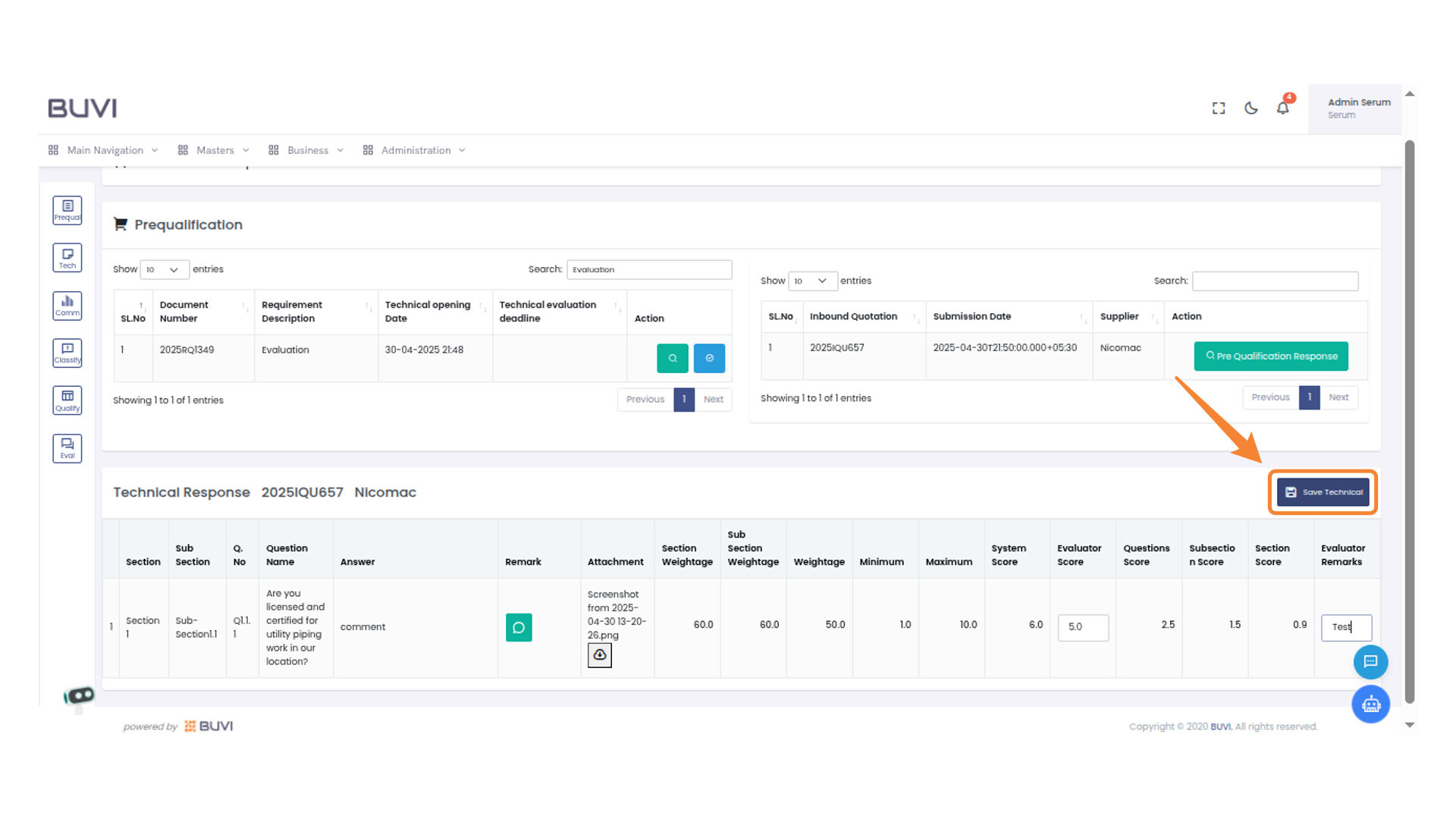
57. Save
Click to save your Score and Remarks
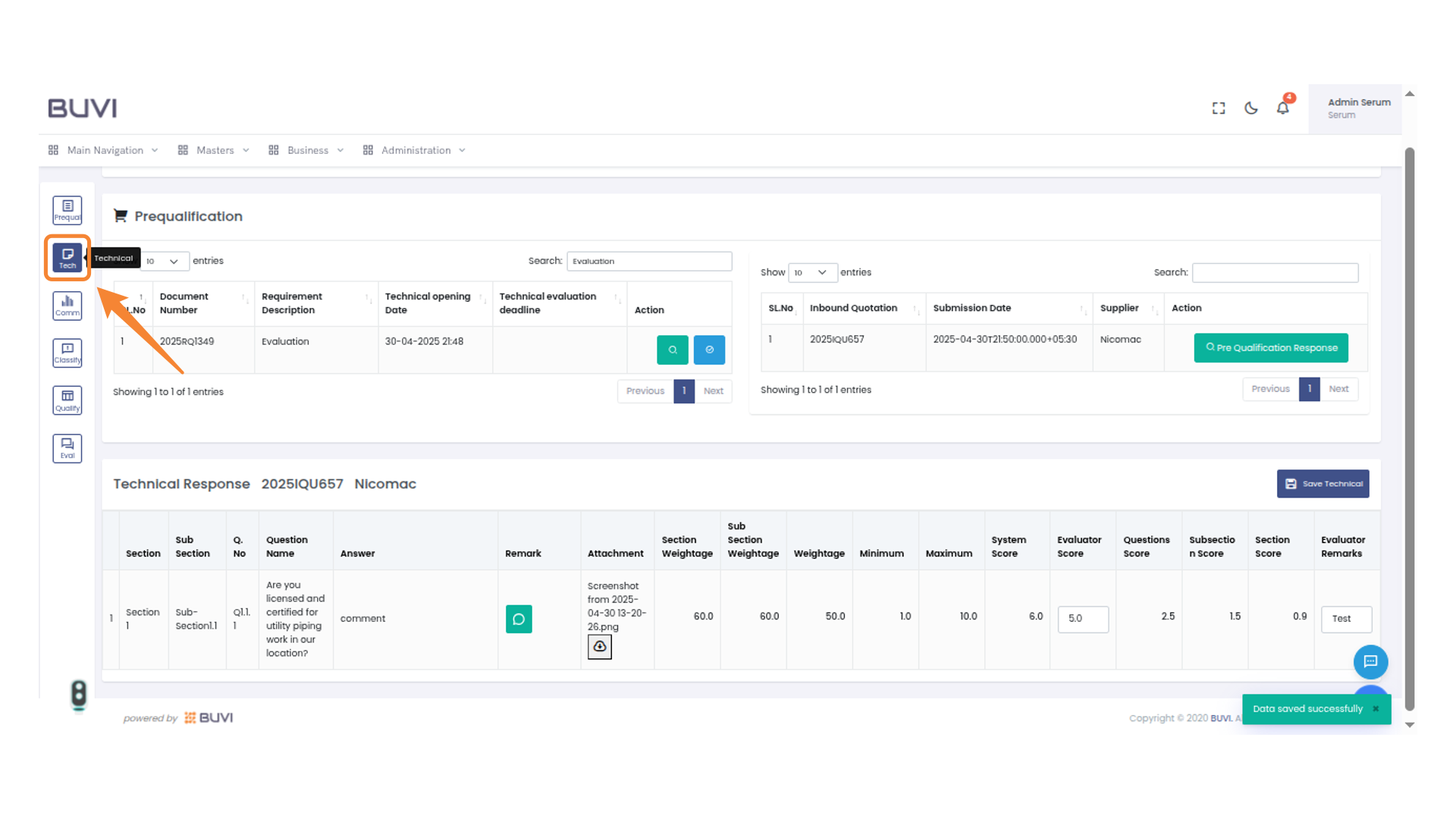
58. Confirmation Dialog
Click 'Save' to confirm and proceed with saving the evaluation scores.

59. Tech Section Tab
Access the technical evaluation section by clicking this tab.
60. Search Bar
Enter your search query to filter the table results.
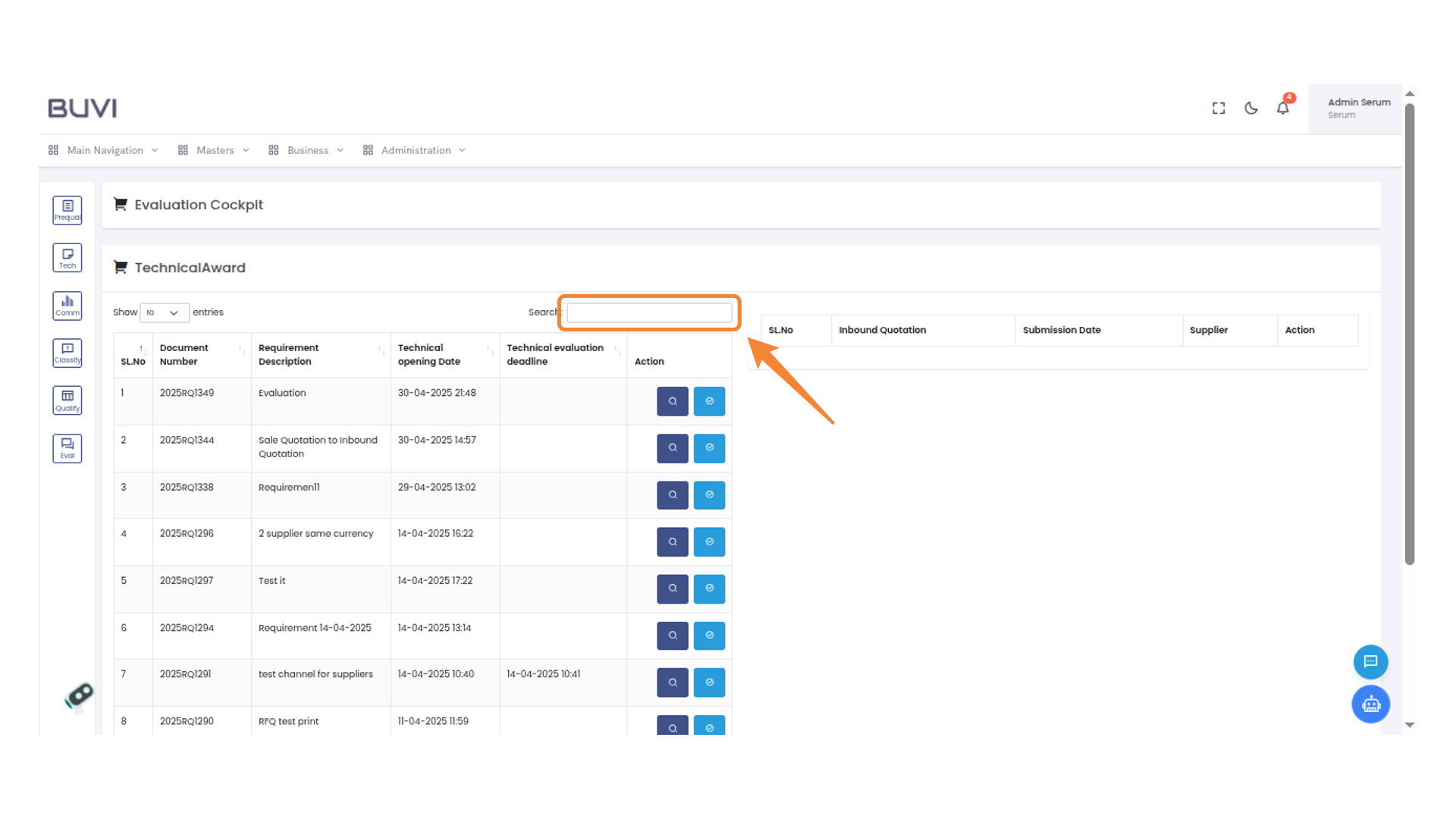
61. Search Button
Click to execute the search function.
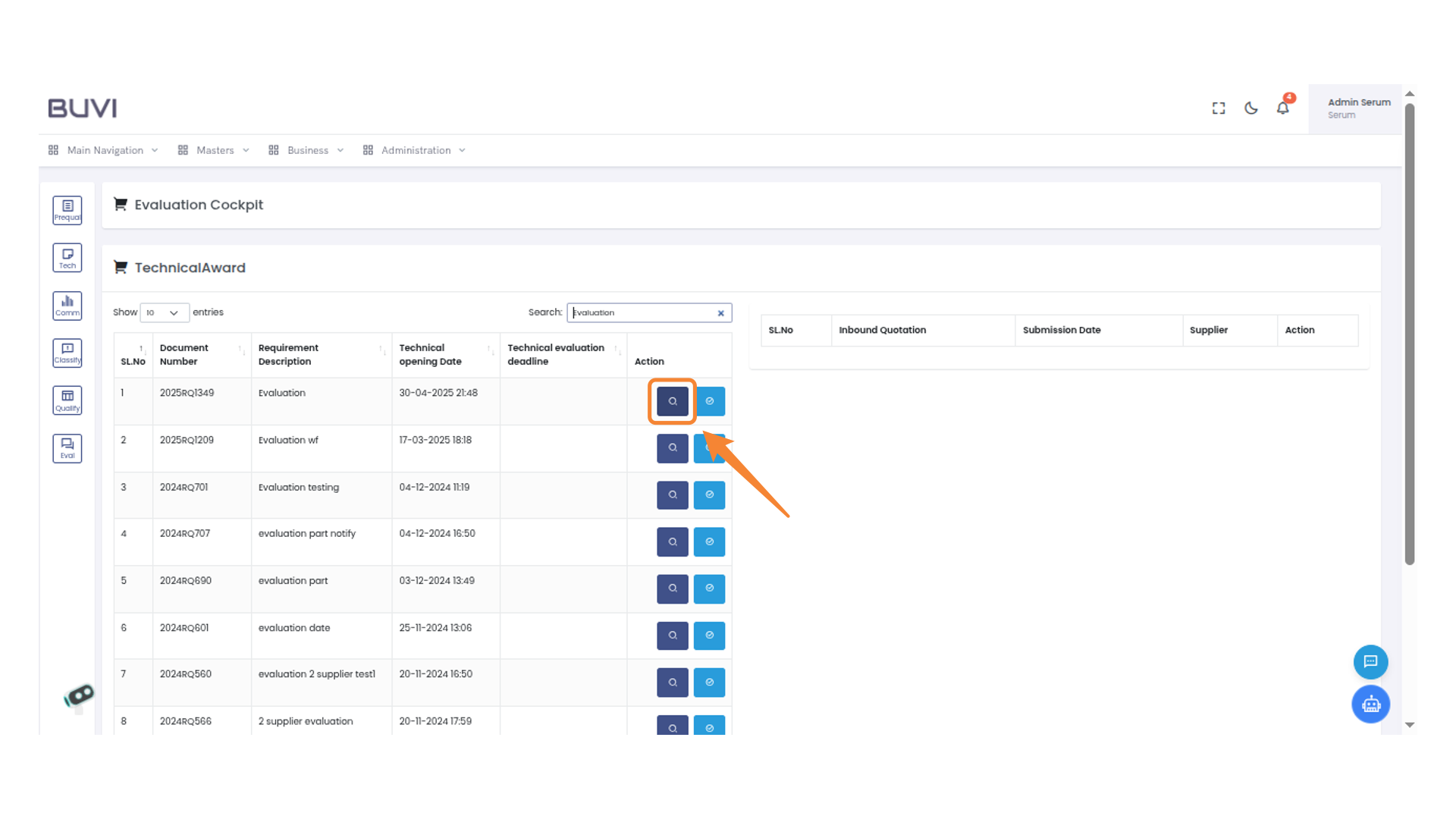
62. Technical Response Action
Select this button to view and access the technical response details.
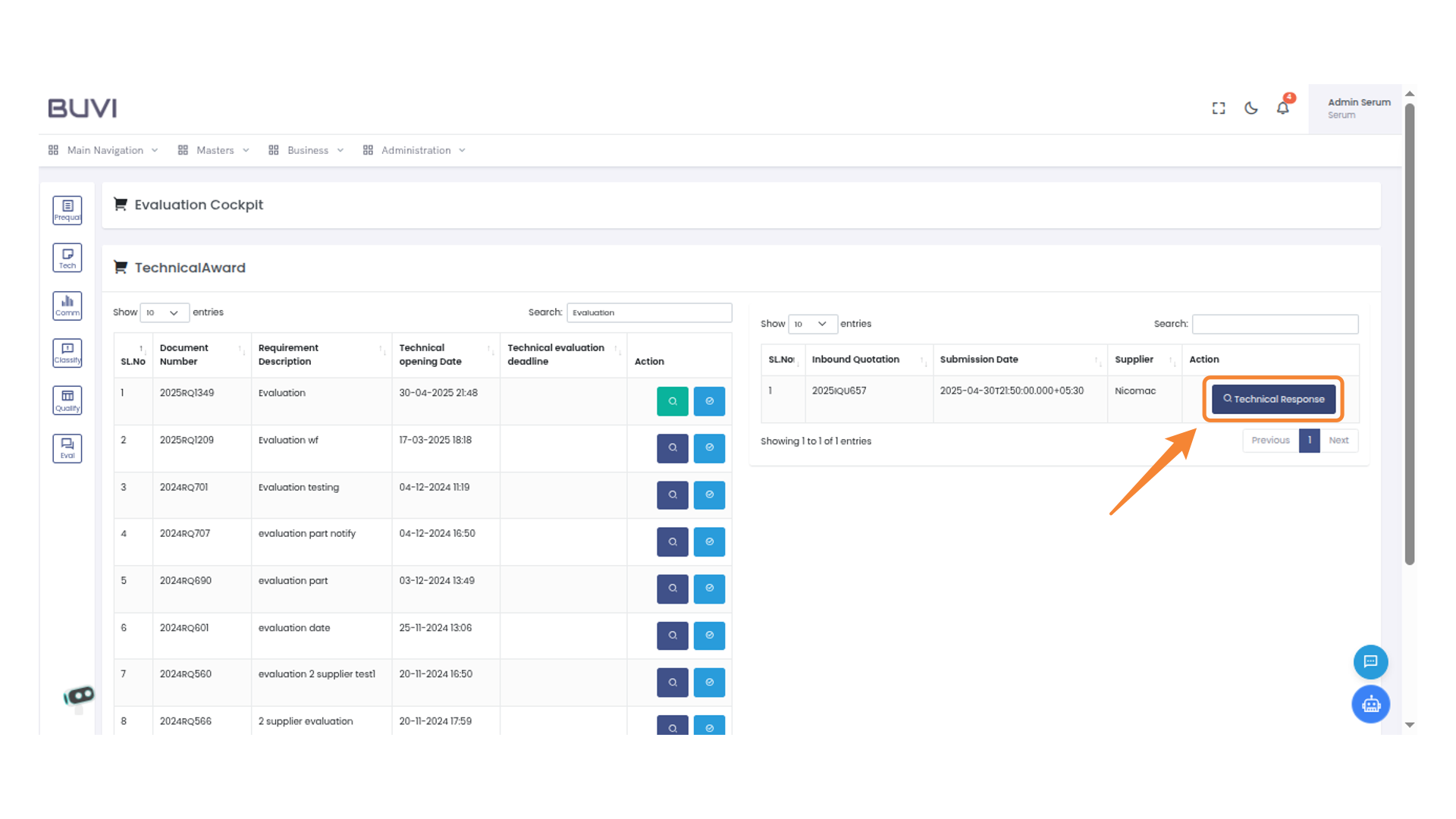
63. Score Display
Give Evaluator score
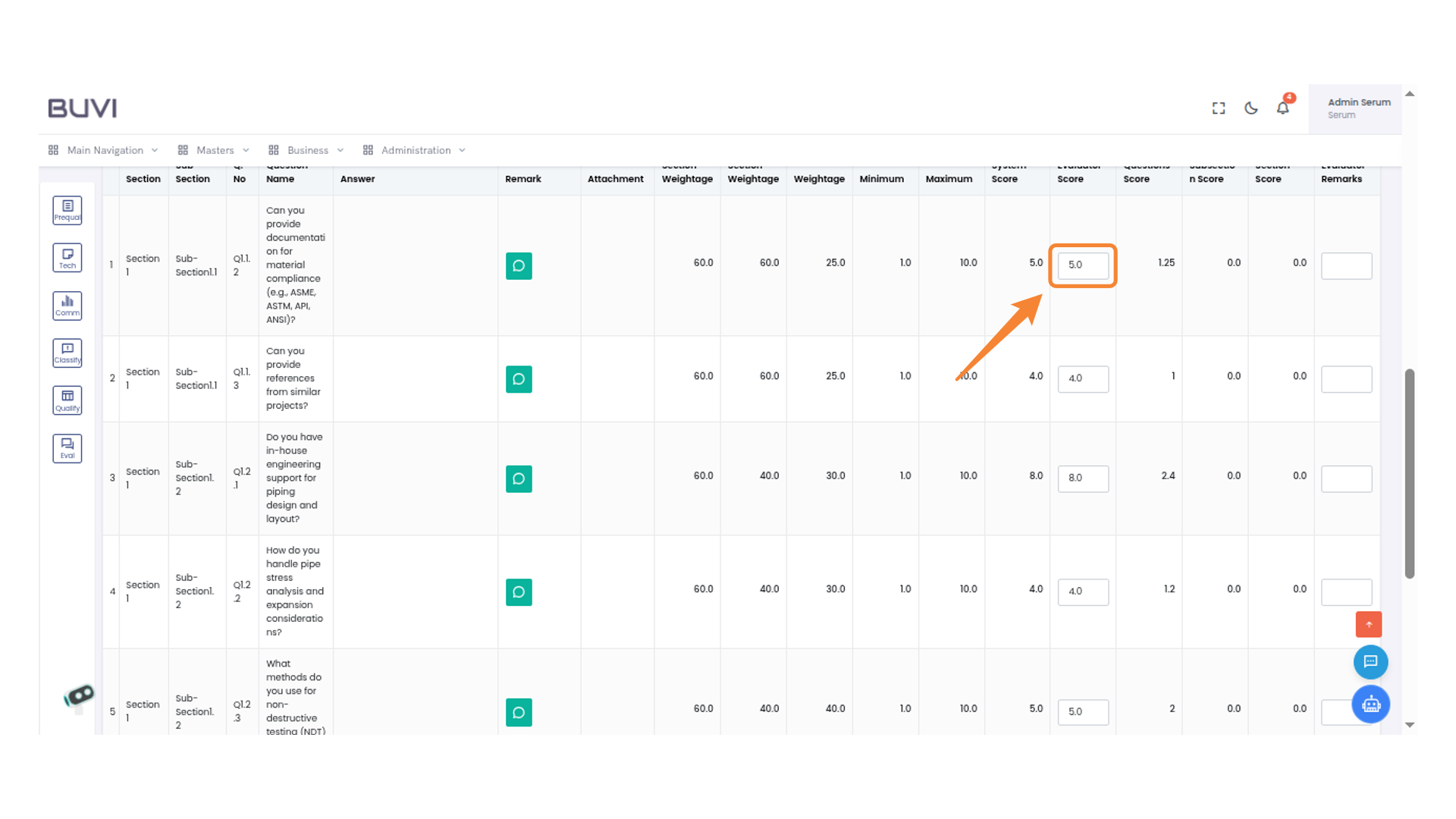
64. Add Evaluator Remarks
Add Remarks
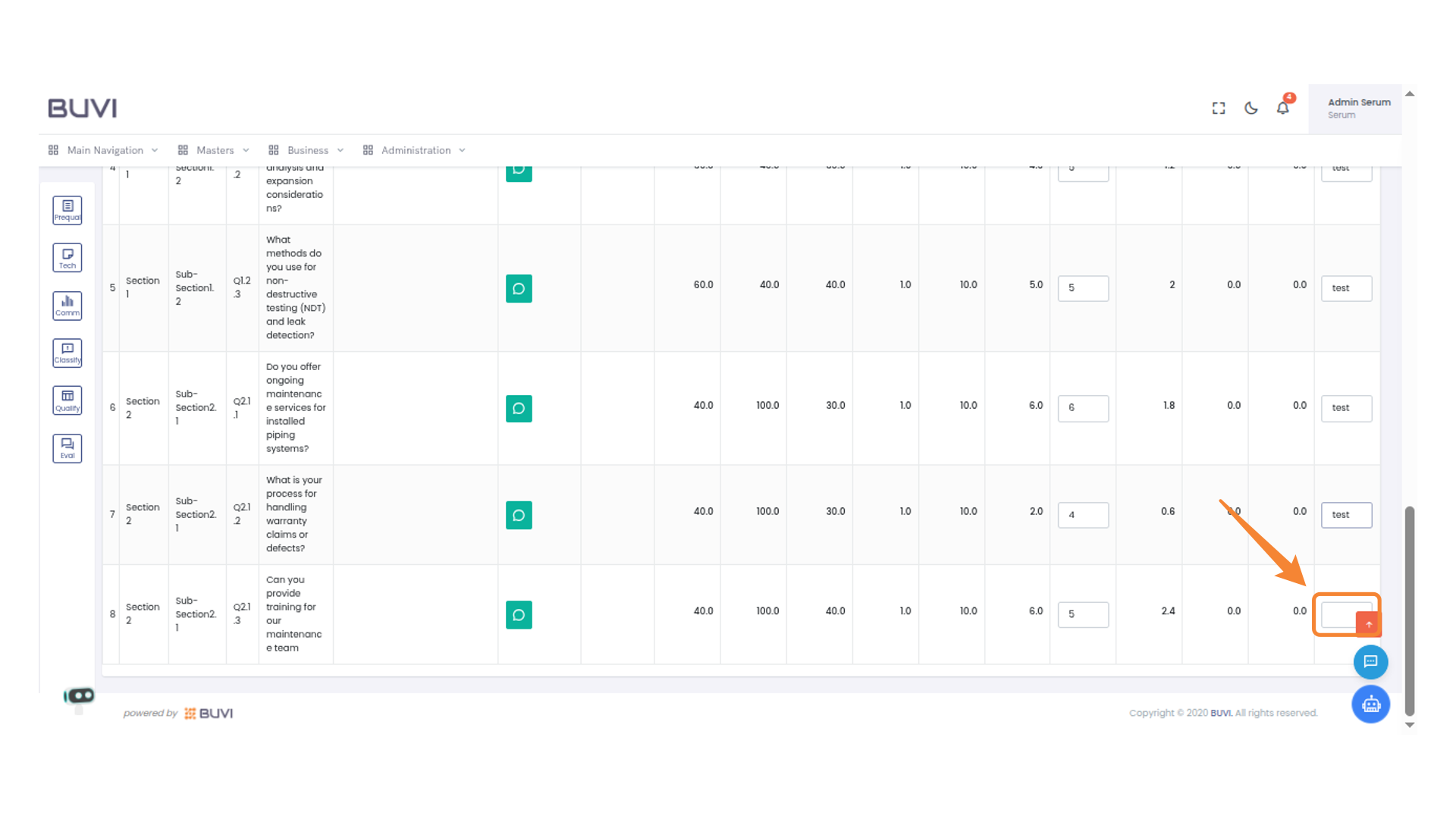
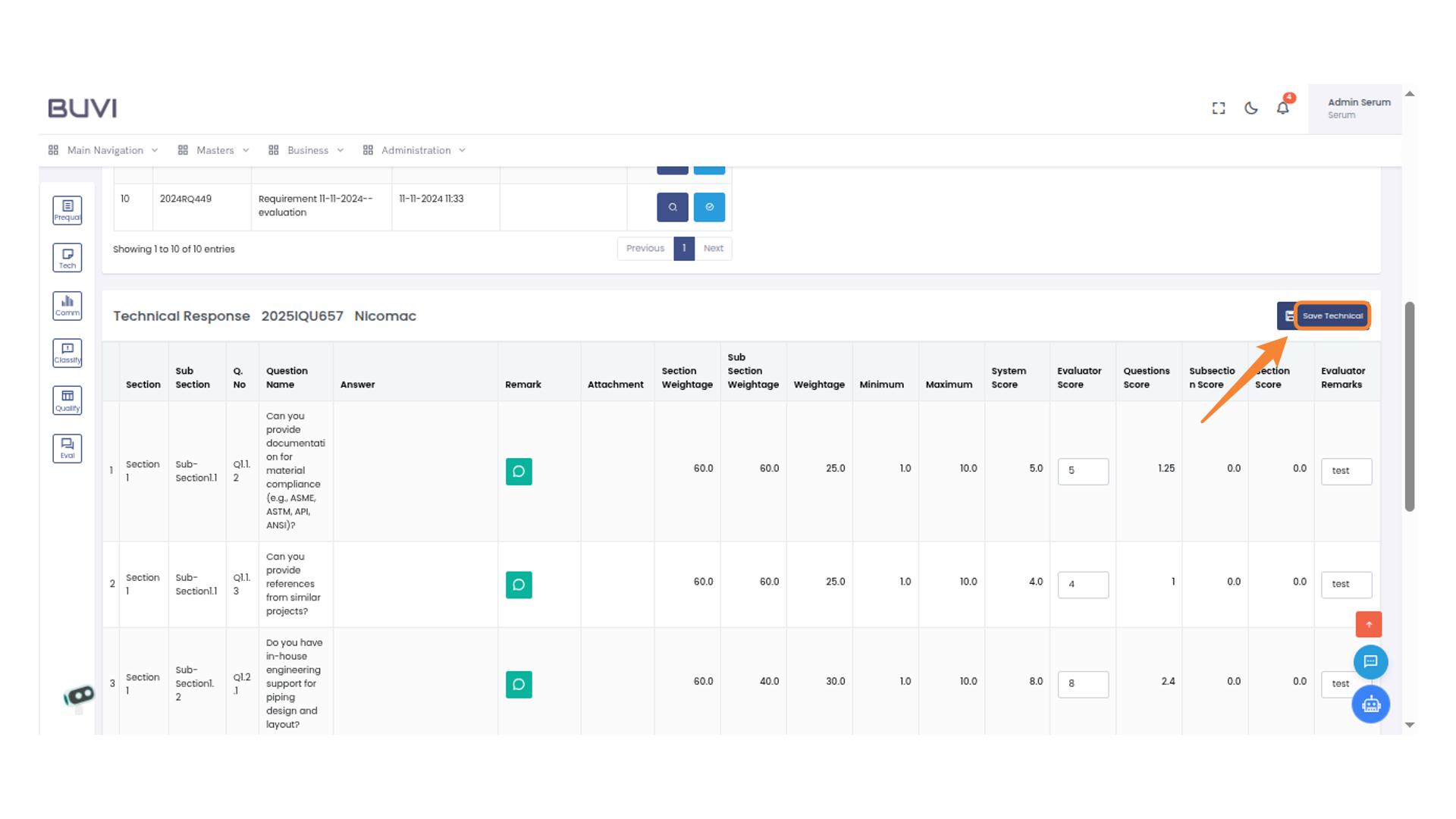
65. Save Technical
Click on Save
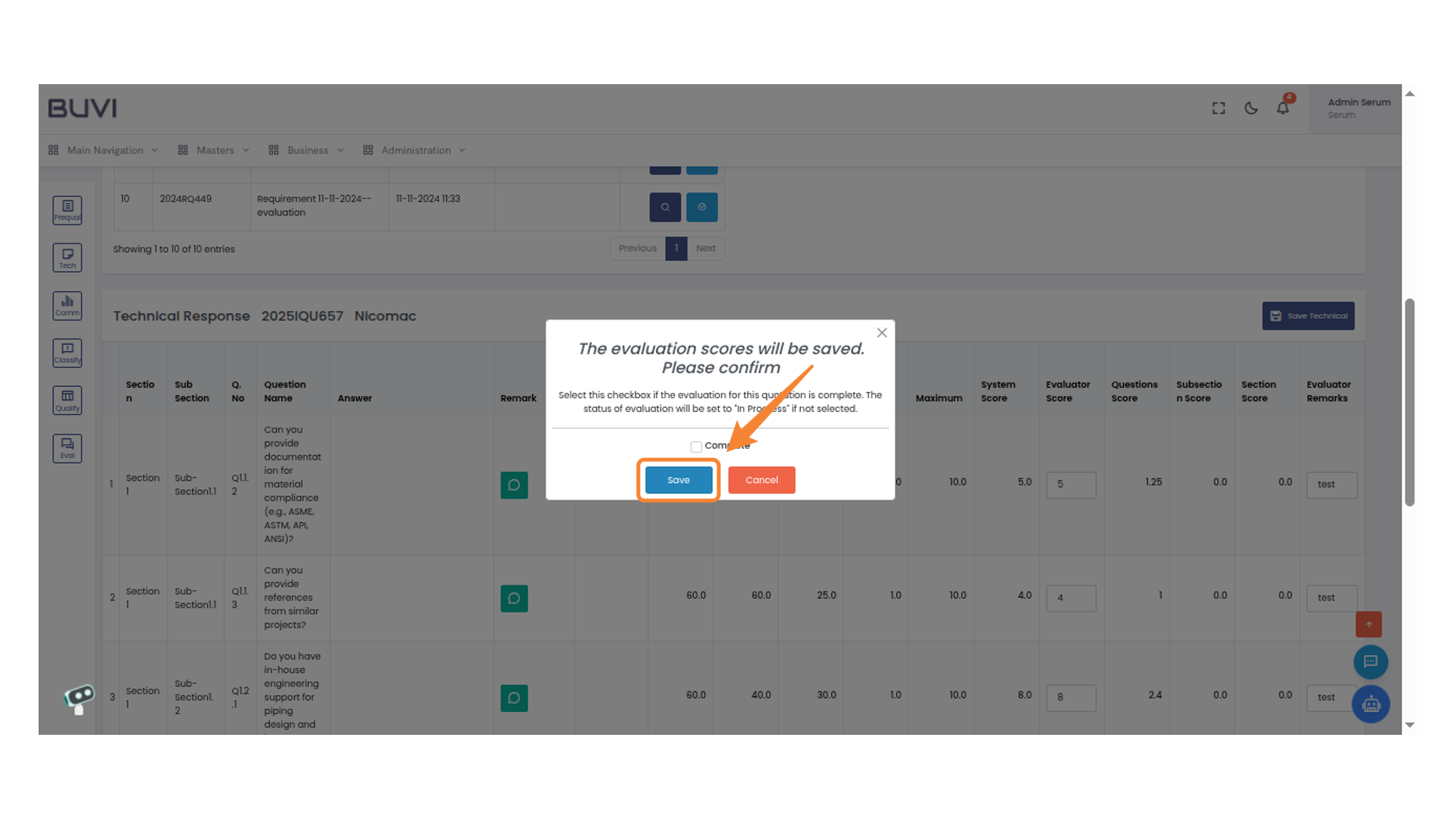
66. Save Confirmation
Click to confirm saving the evaluation scores.
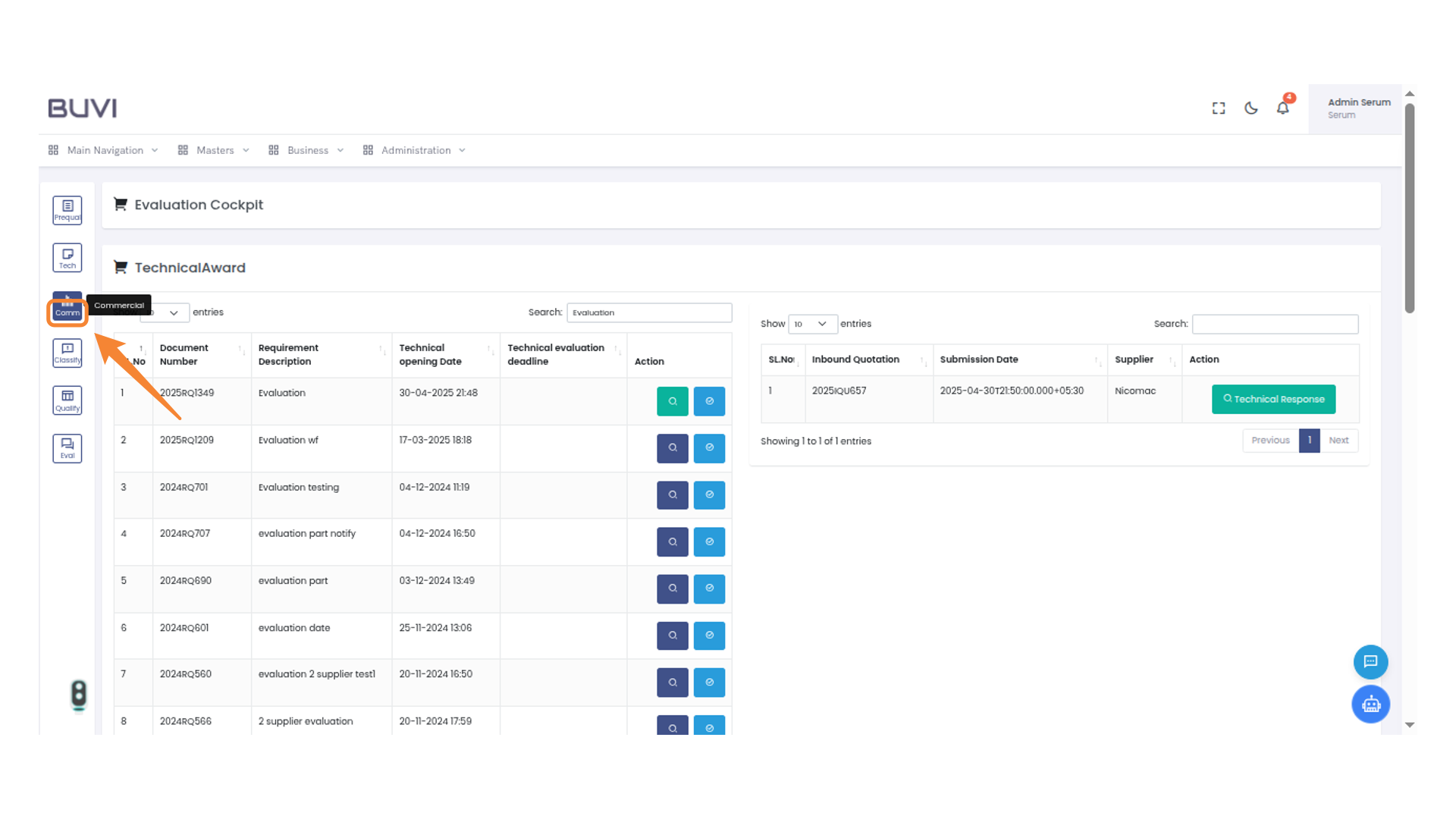
67. Commercial Section Button
Click to access the commercial section of the evaluation cockpit.
68. Search Bar
Enter a search term to filter the commercial records.
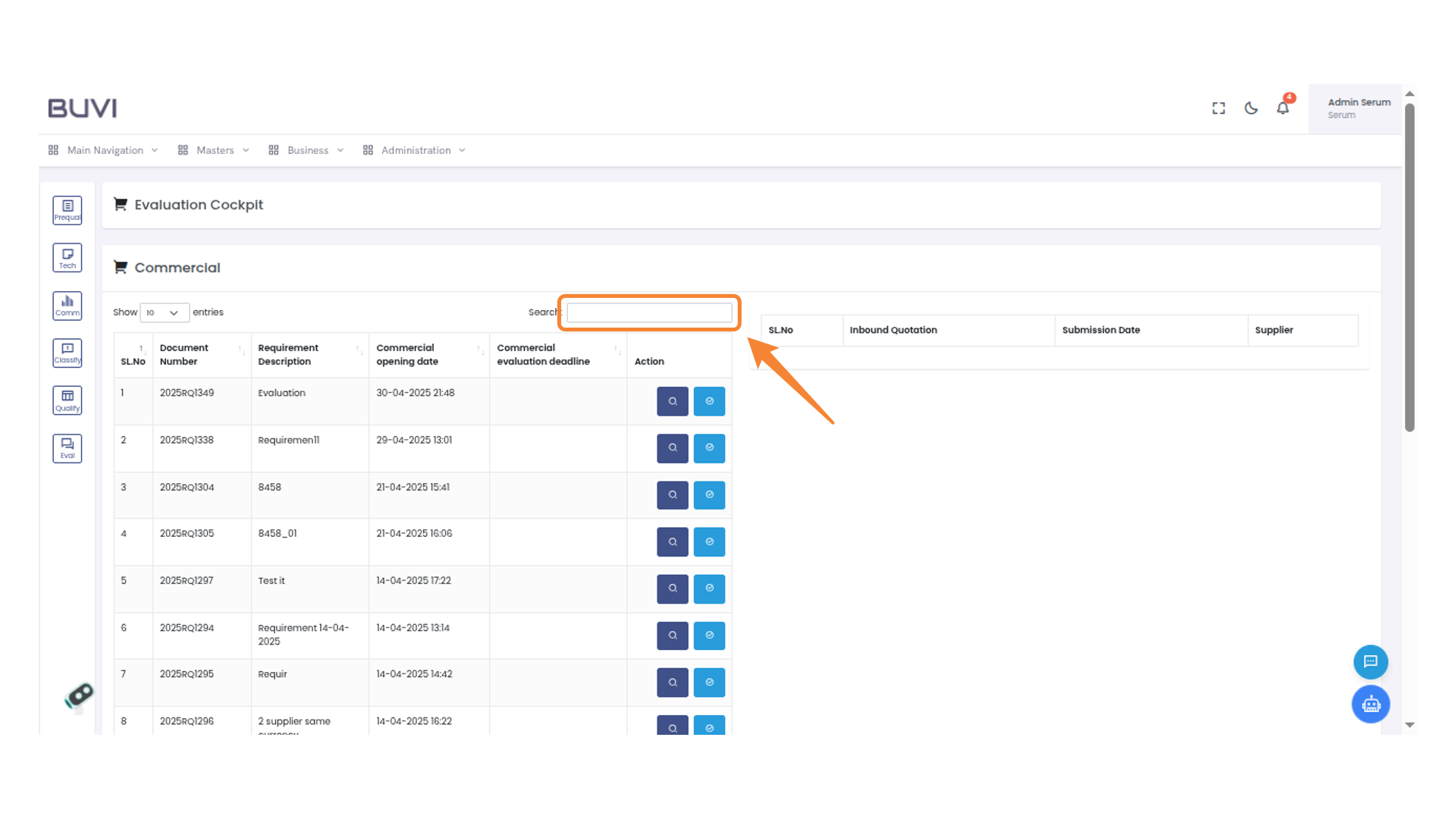
69. Action Button
Click to perform the selected action for this entry.
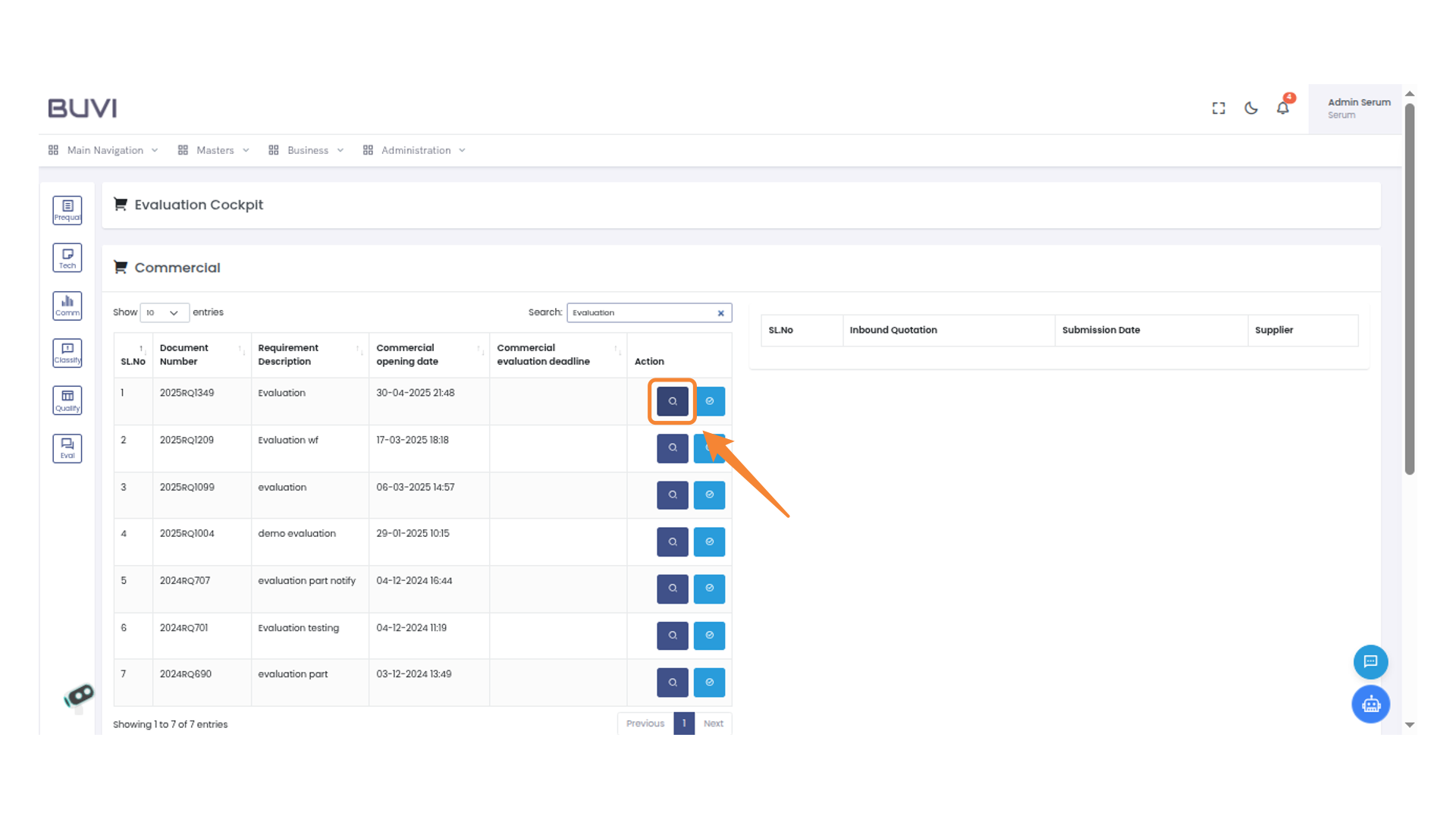
70. Score Button
Click the button to view the score details.
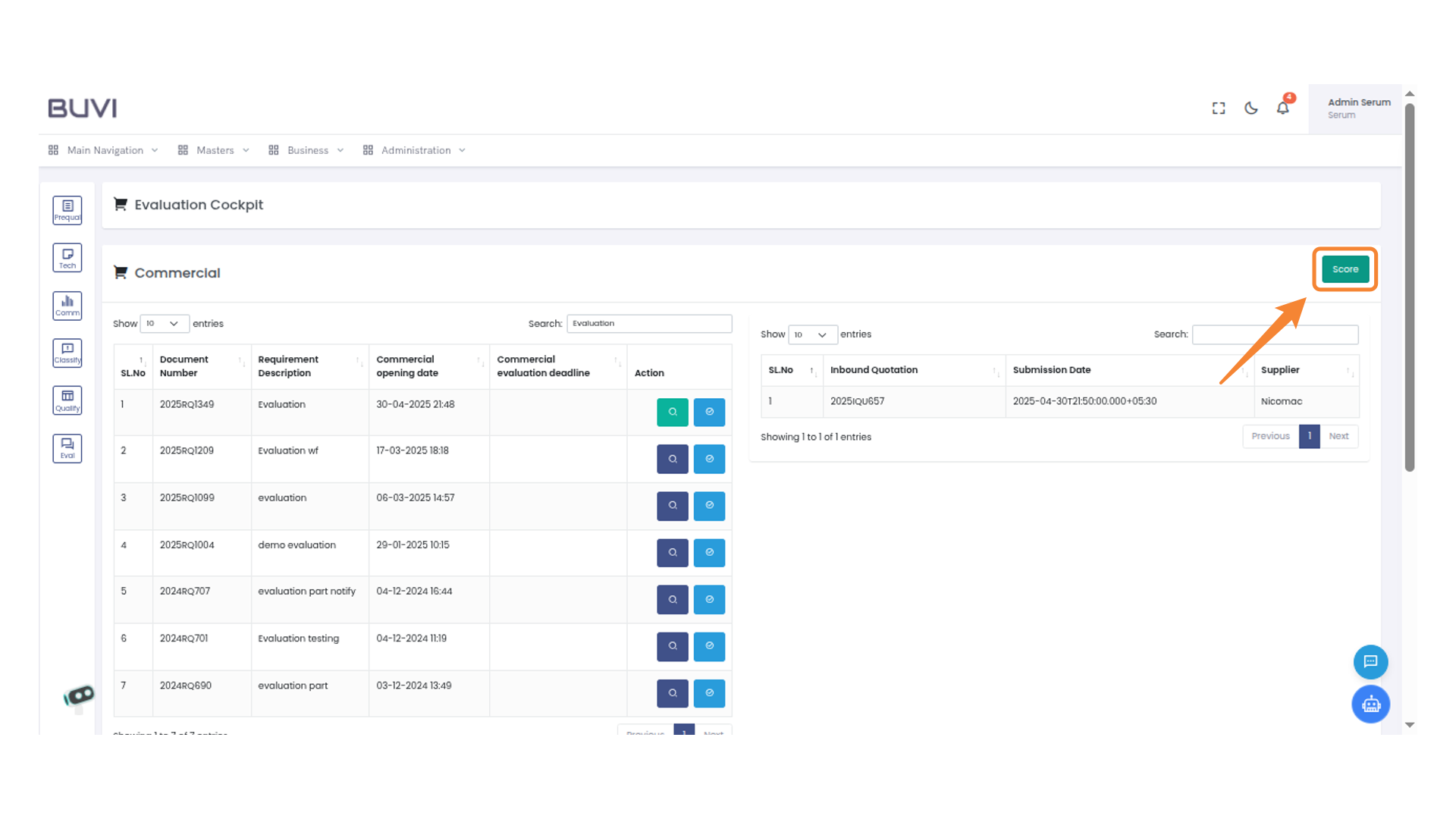
71. Evaluator Score Input
Give Evaluator score for Commercial
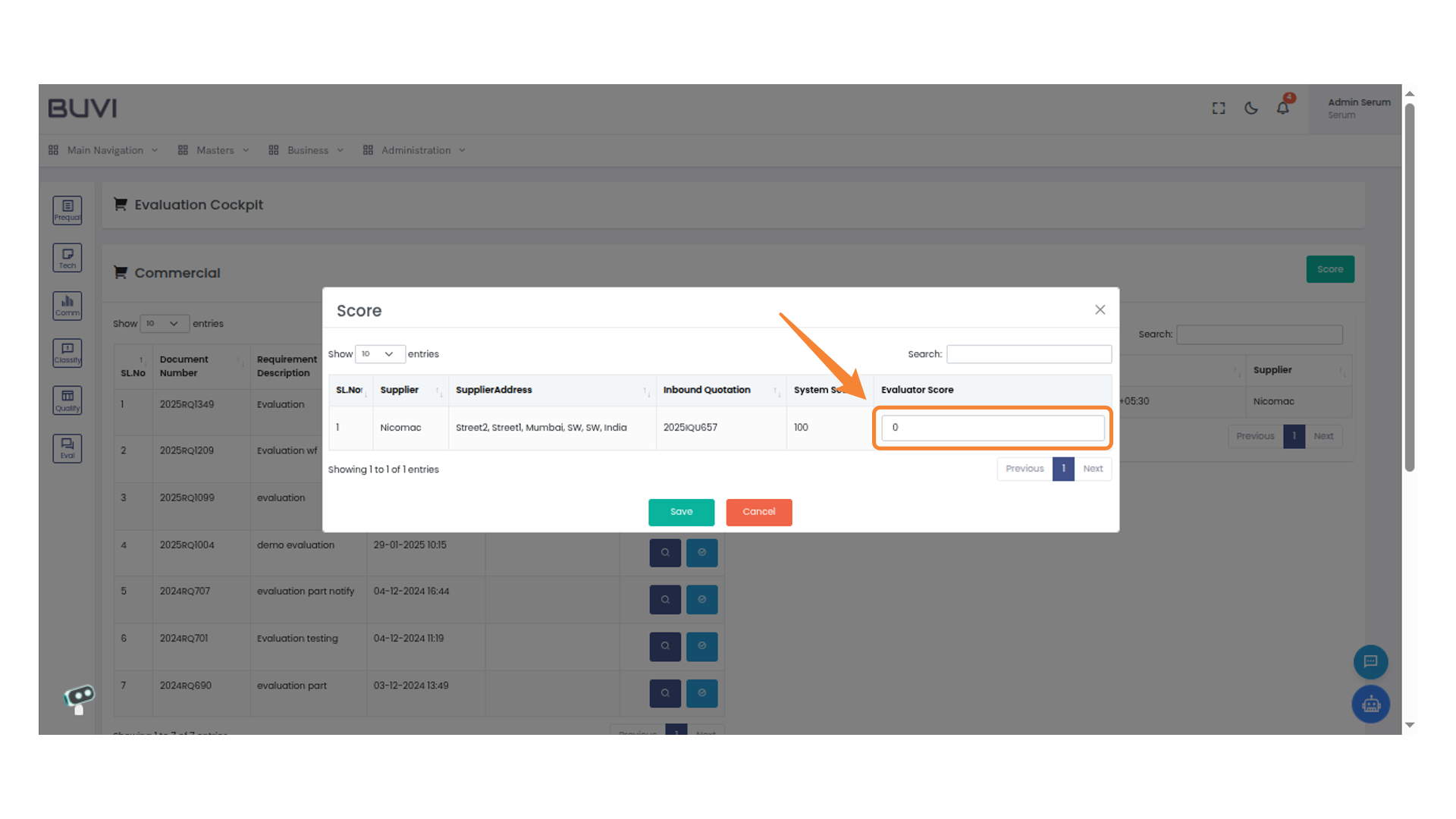
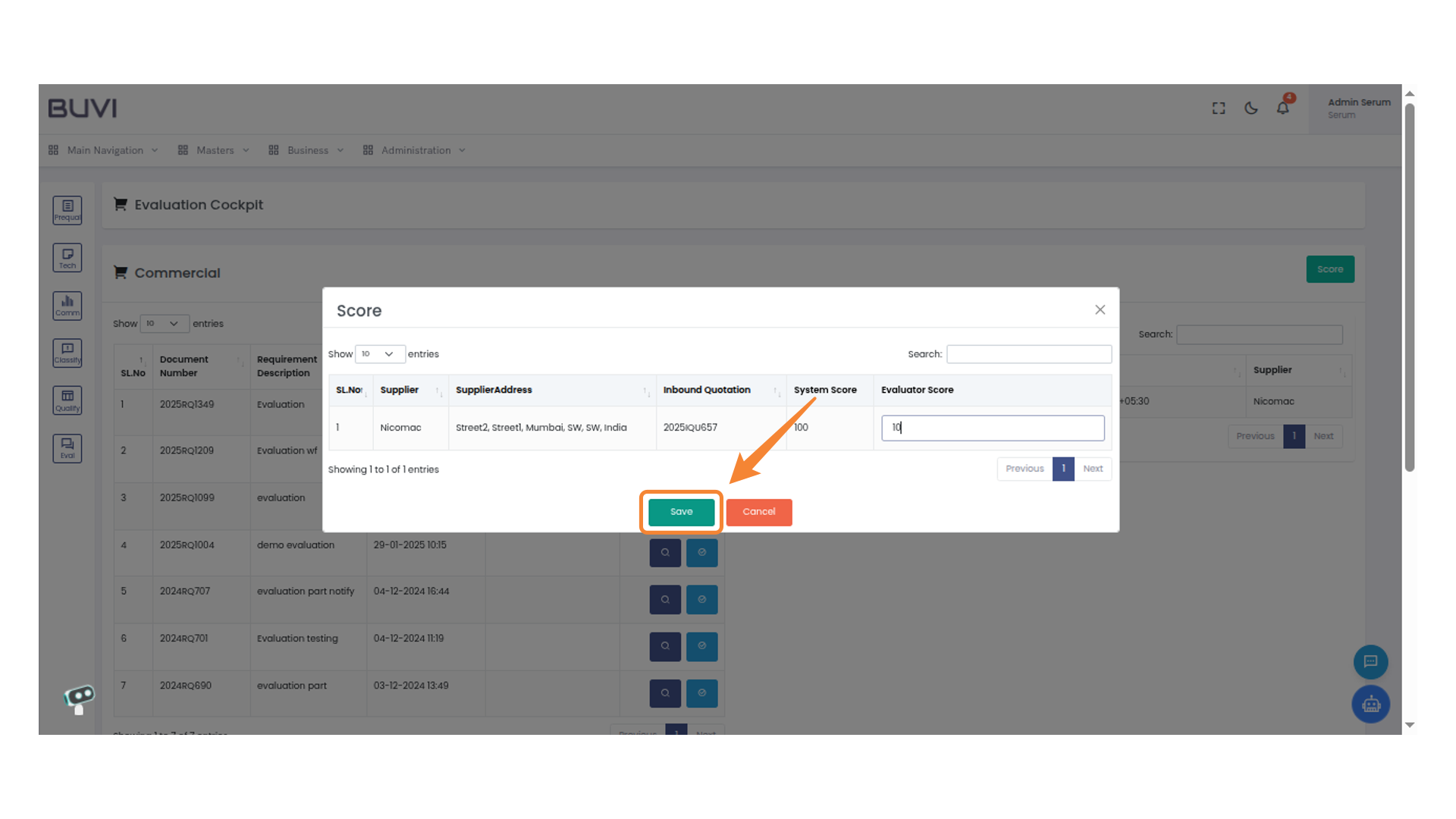
72. Save Button in Score Dialog
Click the save button to store the evaluator score and complete the scoring process.
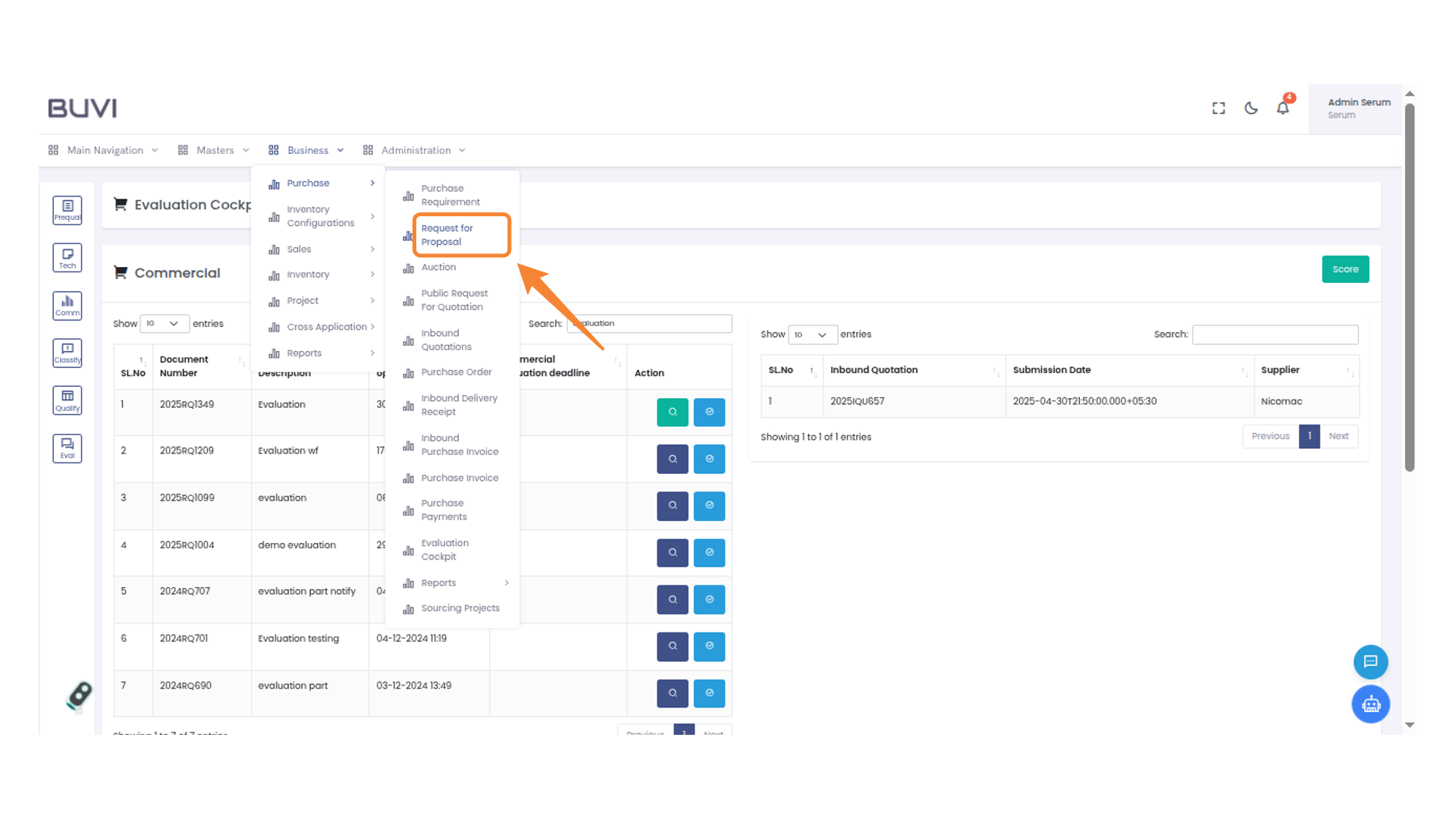
73. Business Menu Dropdown
Explore various business options

74. Request for Proposal
Select the 'Request for Proposal' option to initiate the proposal process.
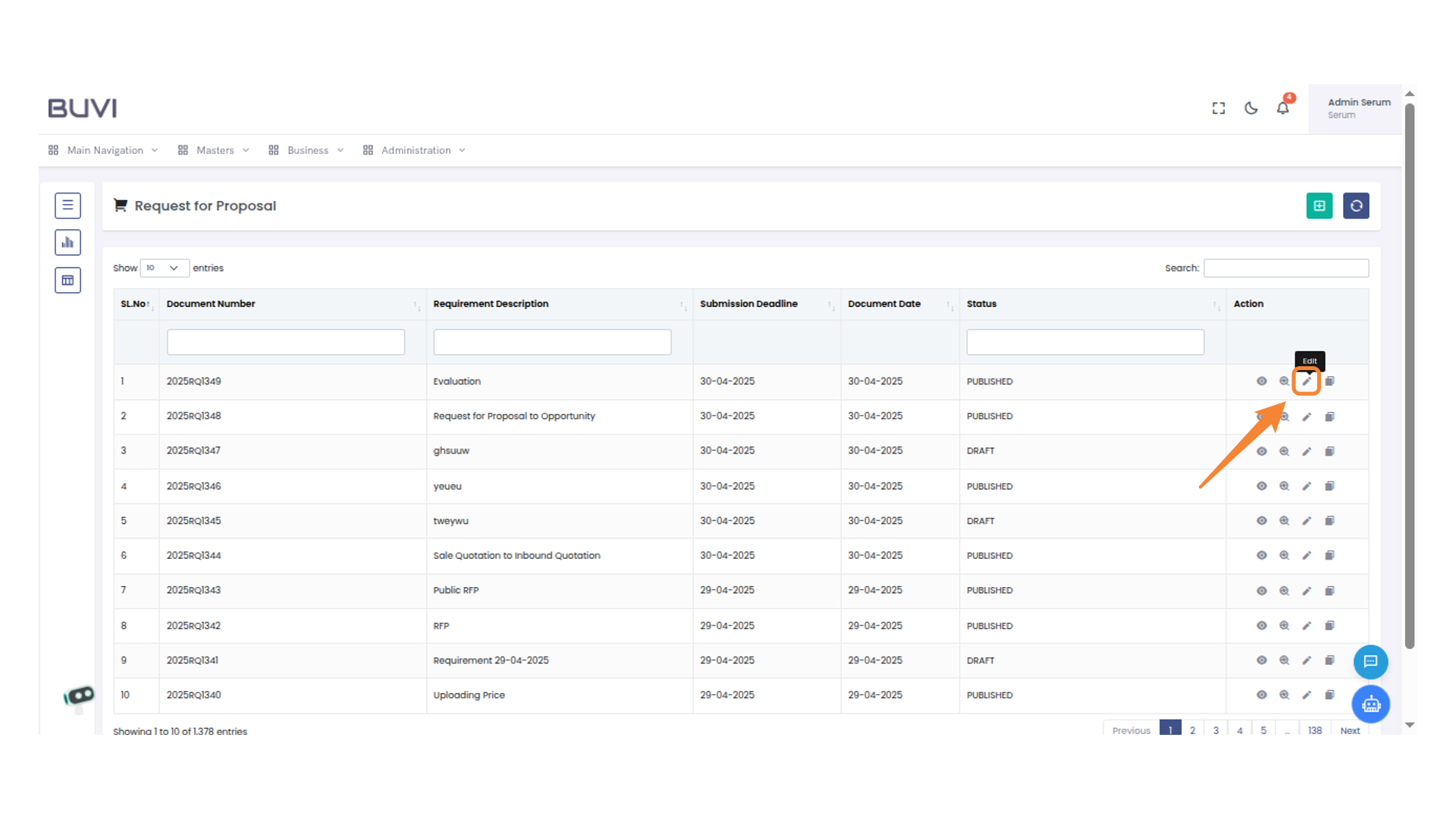
75. Edit Action Icon
Click the icon to edit the current document entry.
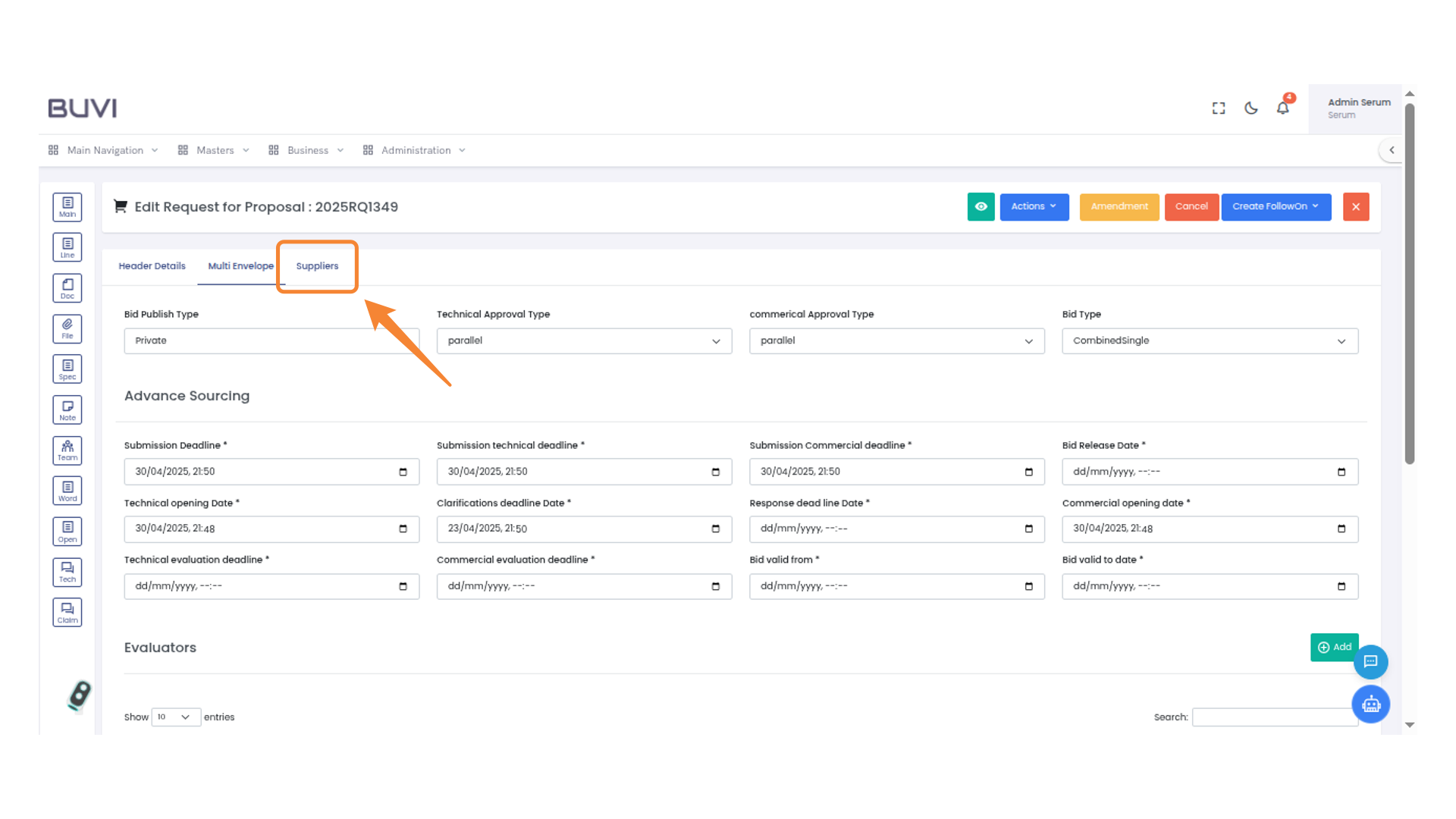
76. Suppliers
Click on supplier tab
77. Scoring Section
Select the 'Scoring' button to evaluate and score the proposal criteria.
78. Prequalification Score Input Field
Enter the prequalification score by clicking on the input box.
79. Technical Score Input
Input the technical score for the supplier here.
80. Commercial Score Input Field
Enter the commercial score for the supplier in this input field to update the evaluation.
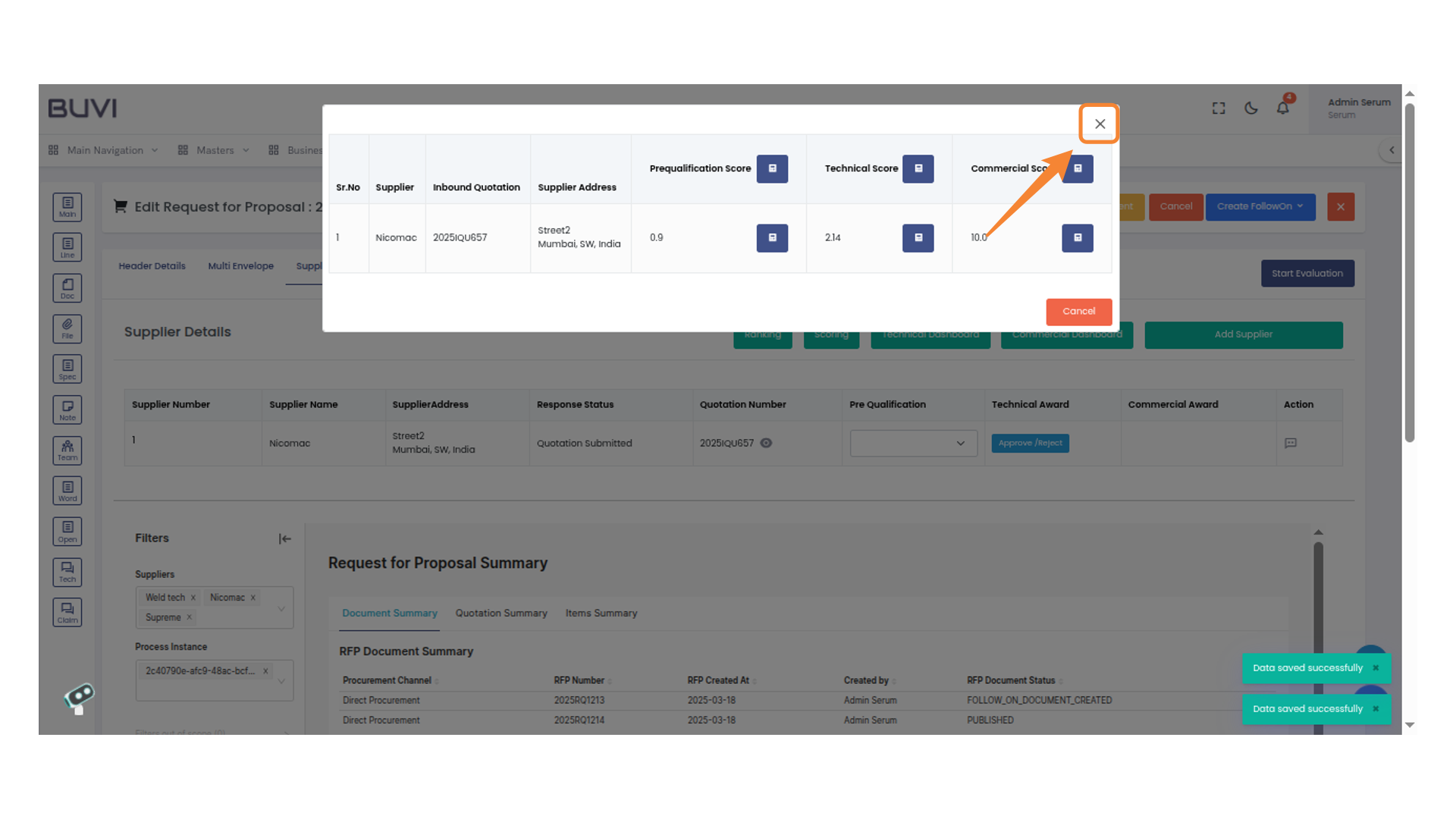
81. Close Button
Click the 'X' to close the dialog box.
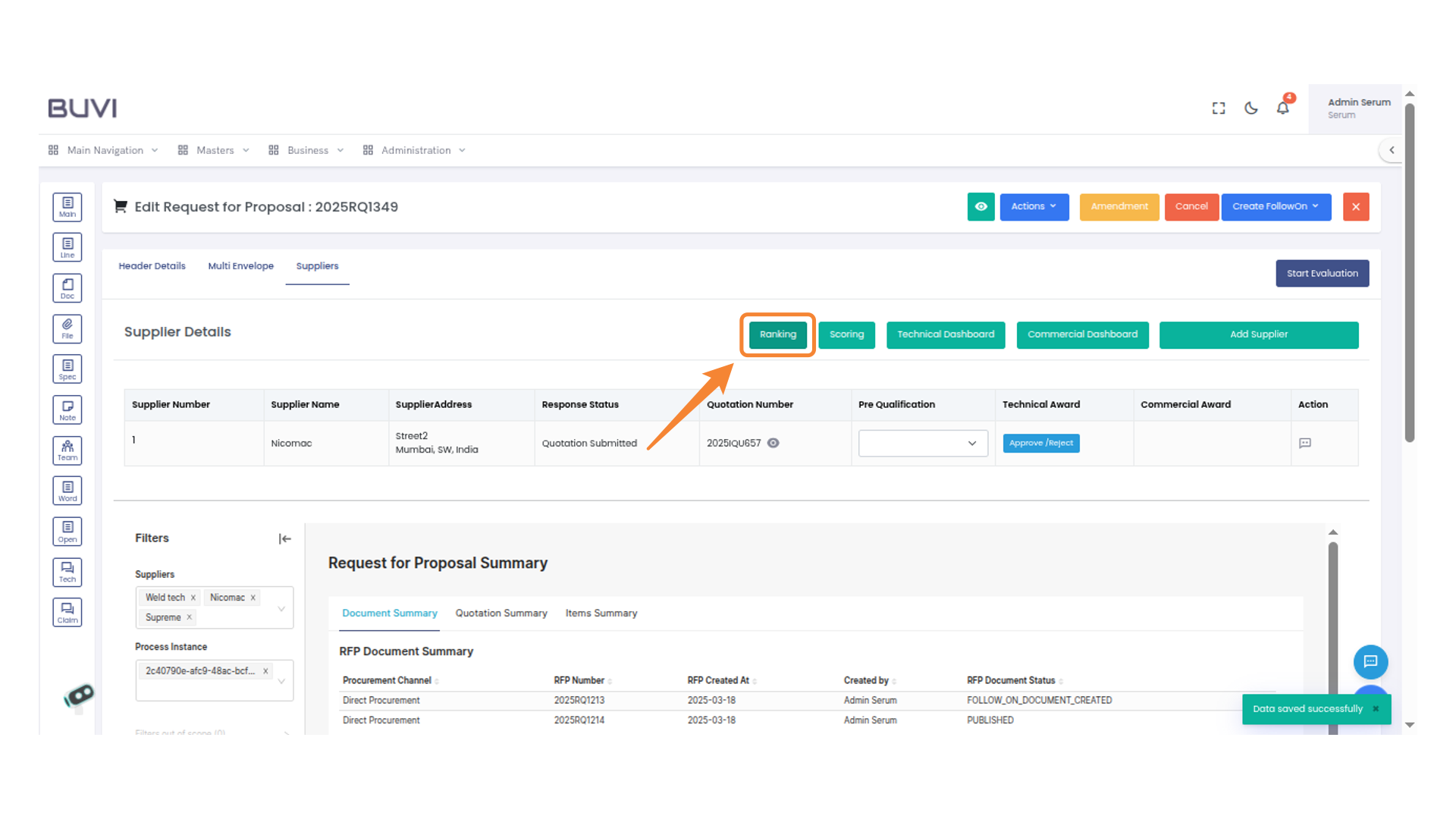
82. Ranking Section
Select this tab to view and evaluate supplier rankings.
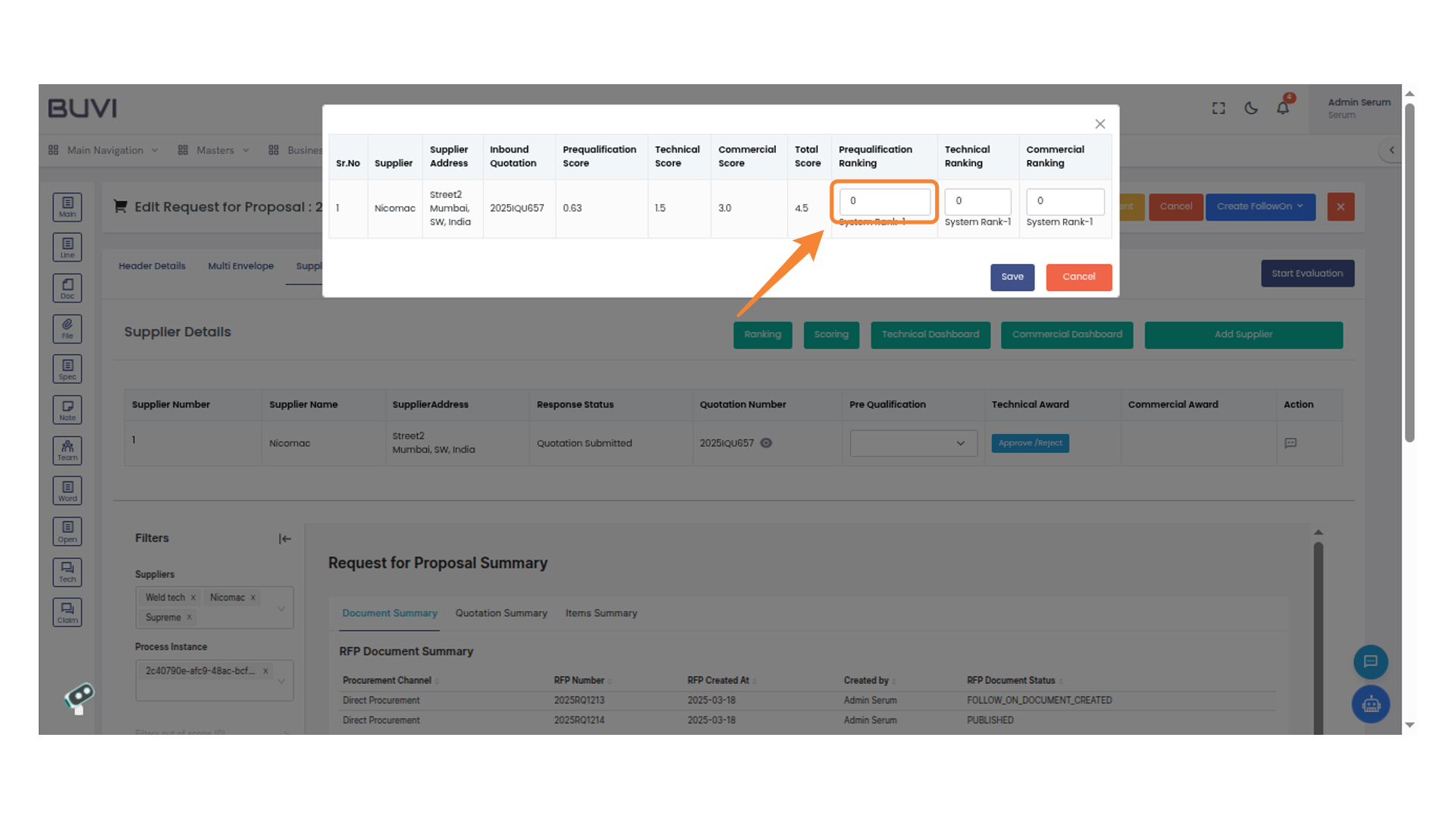
83. Prequalification Ranking Input
Enter the numeric value for the prequalification ranking to assess supplier qualifications.
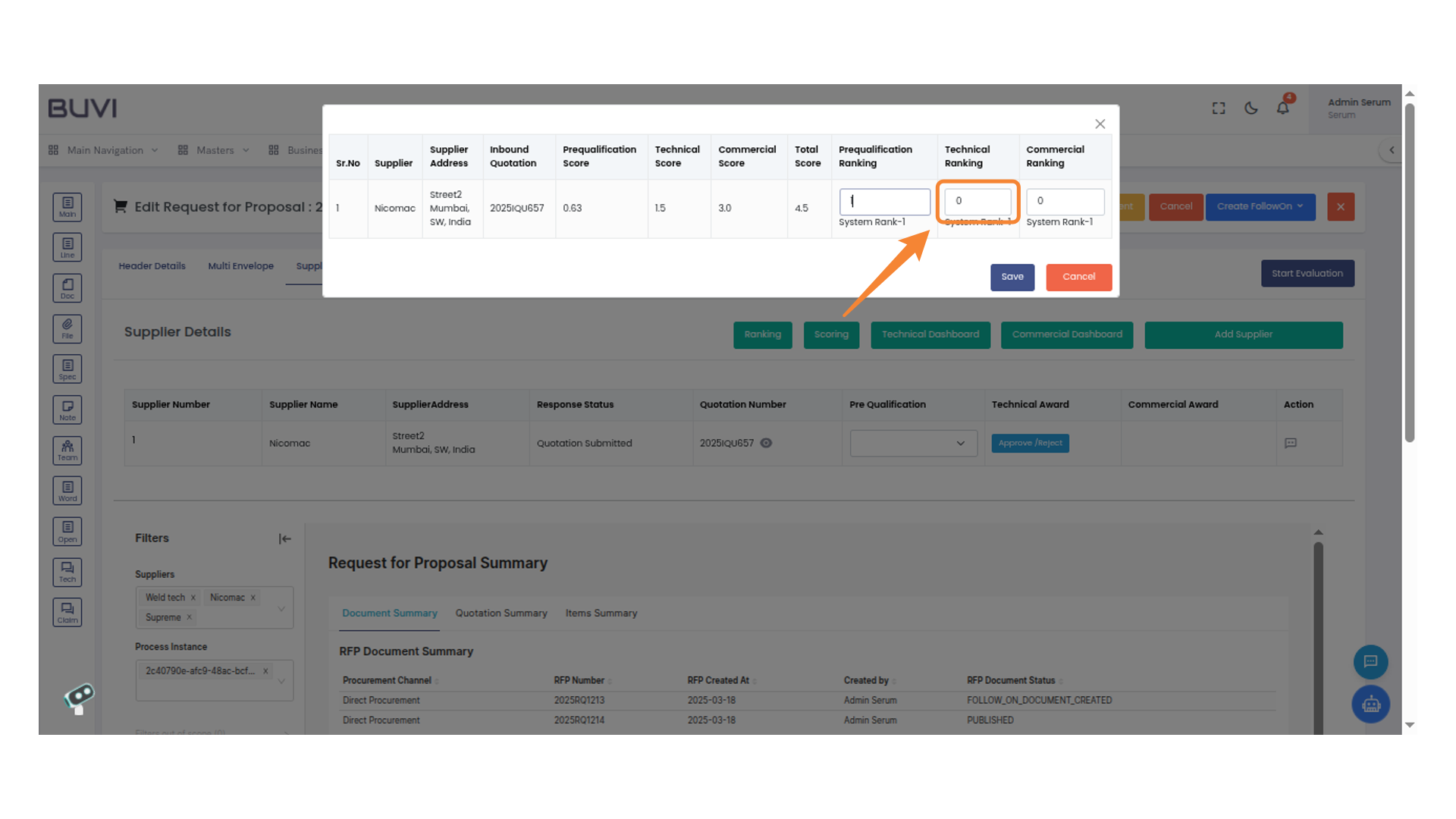
84. Technical Ranking Input
Enter or adjust the technical ranking score for the supplier.
85. Commercial Ranking Input Field
Enter the commercial ranking value in this input field.
86. Save Button
Click here to save your changes.
87. Approval Decision Button
Decide whether to approve or reject the Supplier.
88. Confirmation Prompt
Click 'Approve' to accept the proposal and proceed.
89. Approval Option
Select the 'Approve / Reject' button to make a decision on the commercial award.
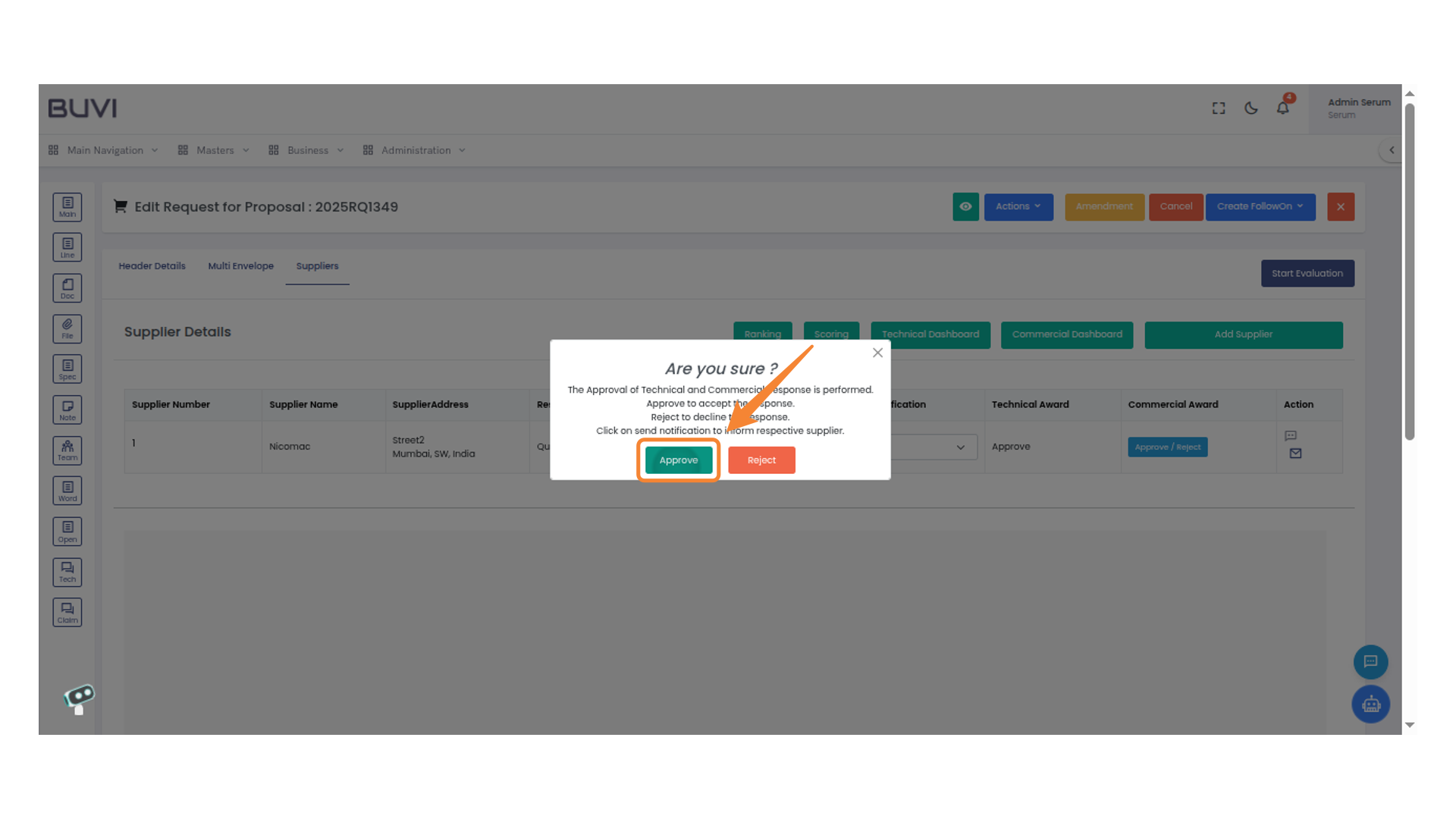
90. Approval Confirmation Dialog
Click 'Approve' to accept the response.