Importing of line item in RFP
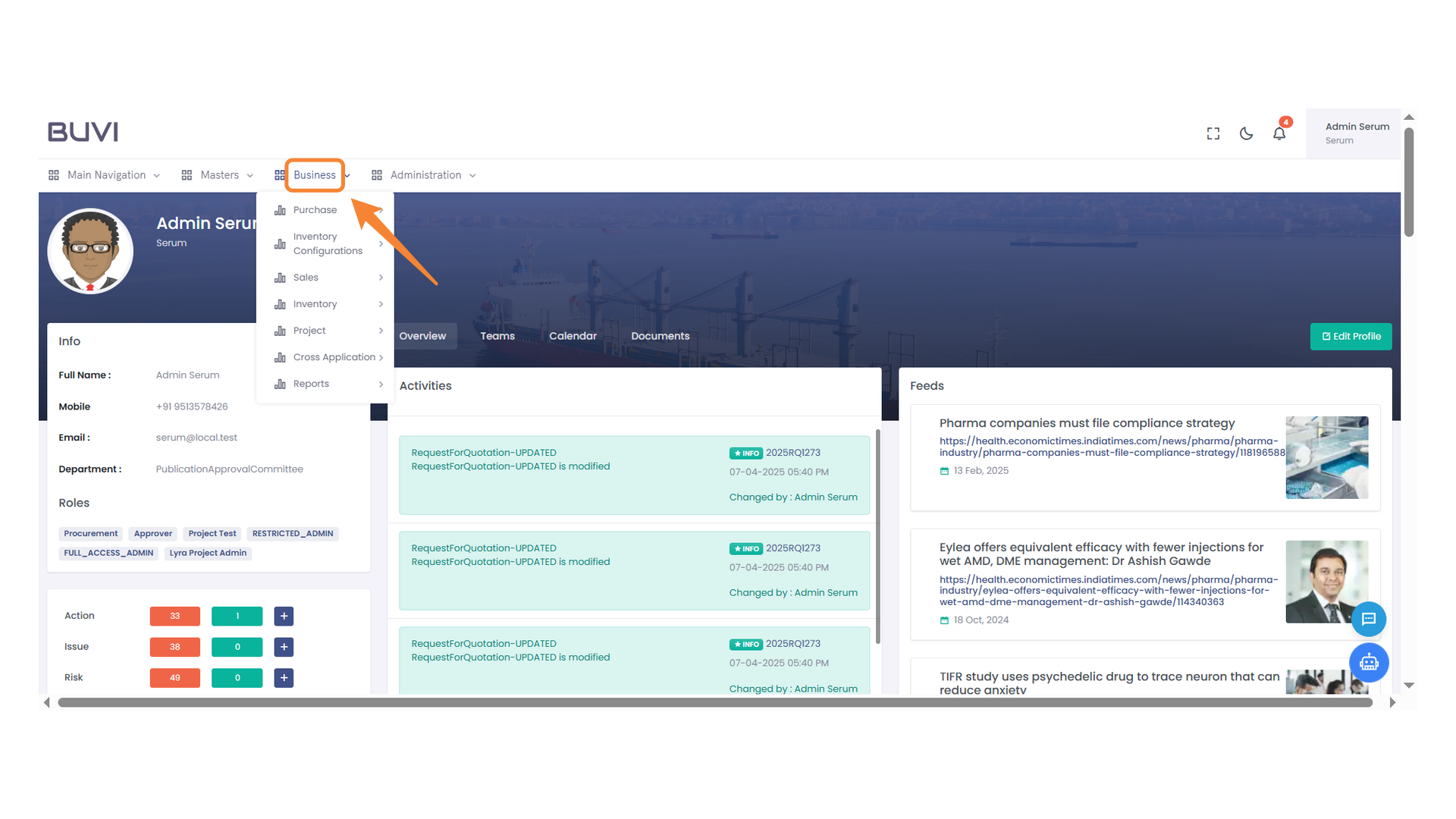
1. Business Menu Selection
Explore various business options available in the dropdown menu.
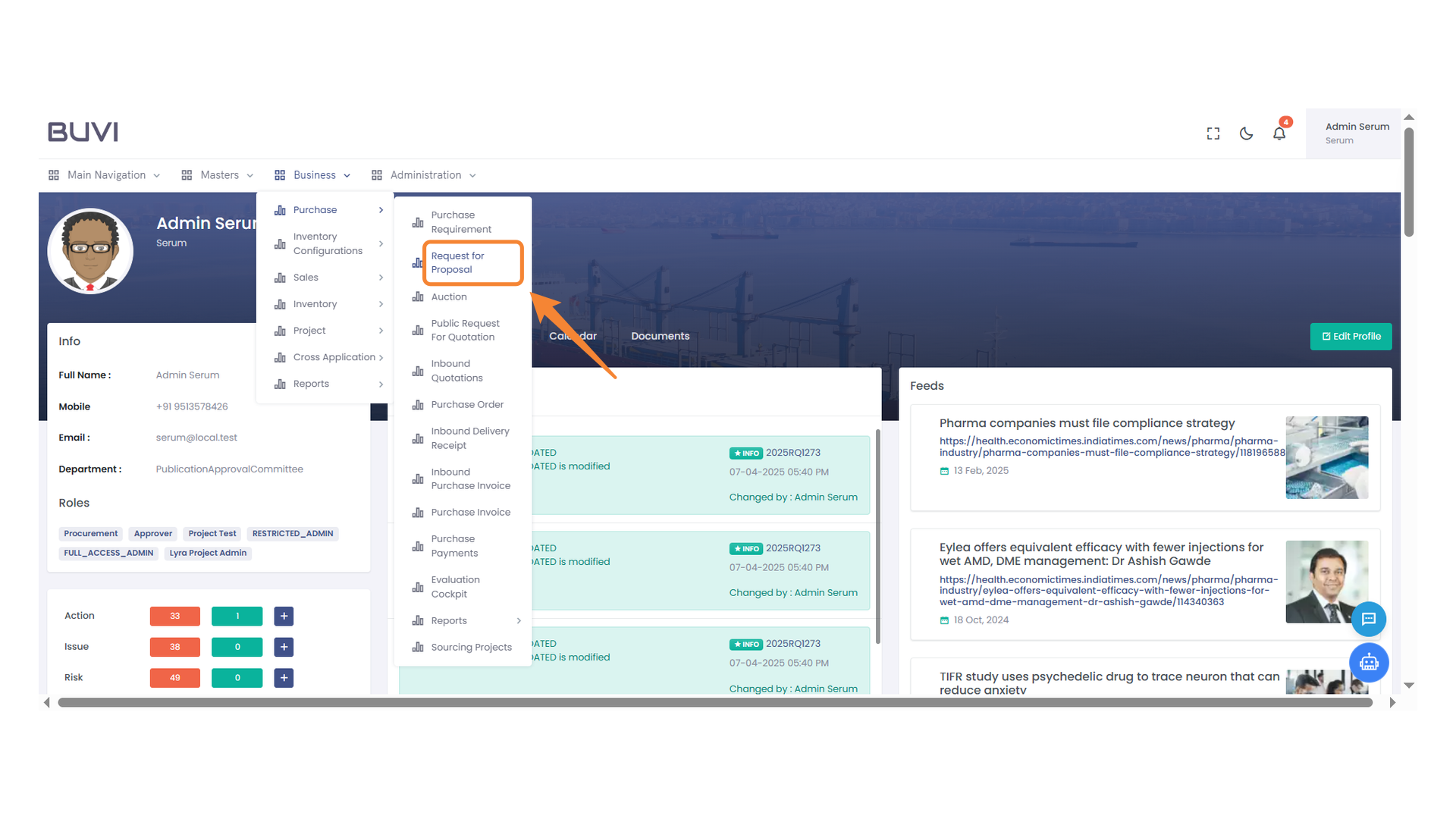
2. Request for Proposal Option
Select this option to create or manage requests for proposals within the business section.
3. New Request for Proposal
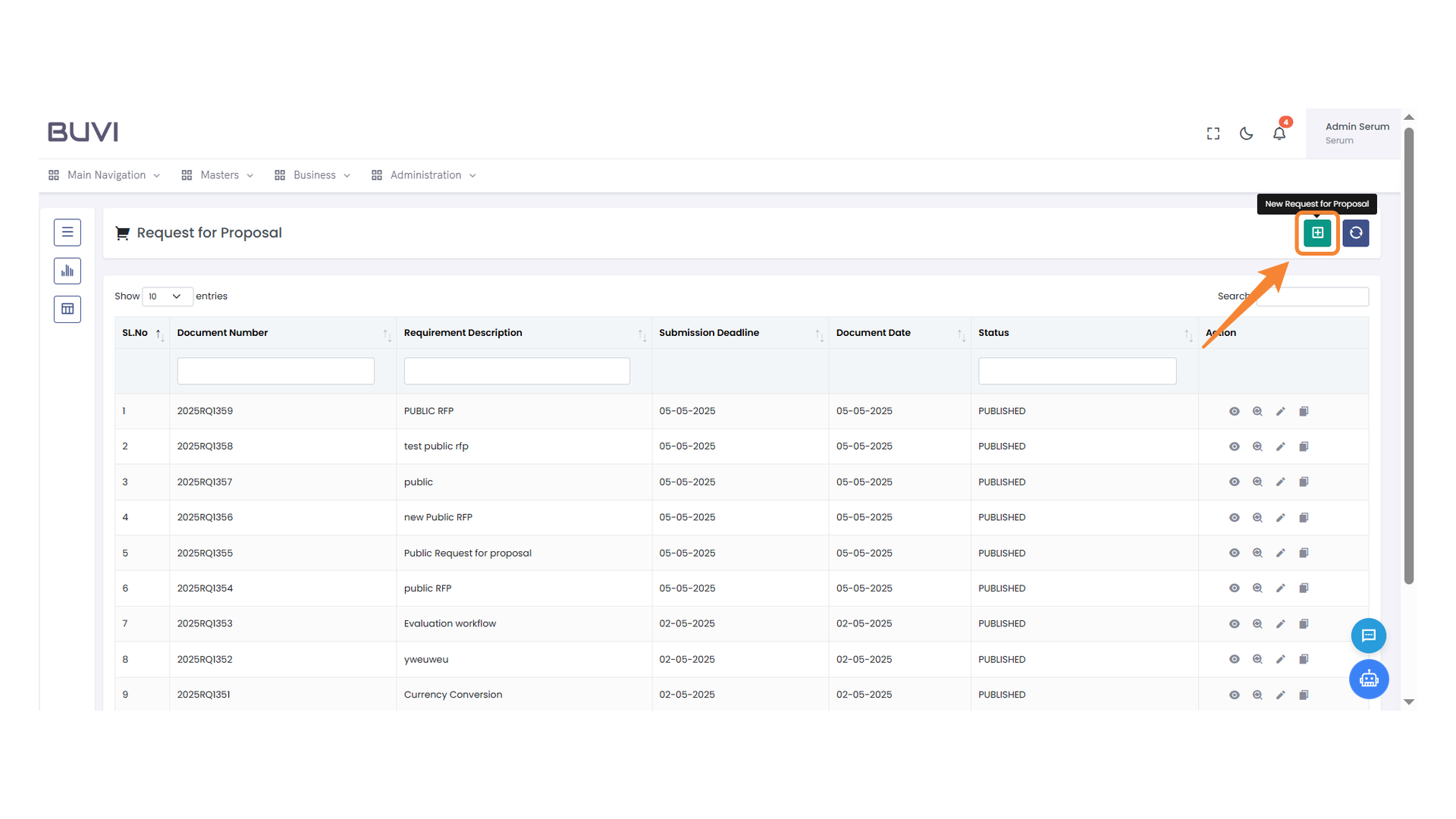
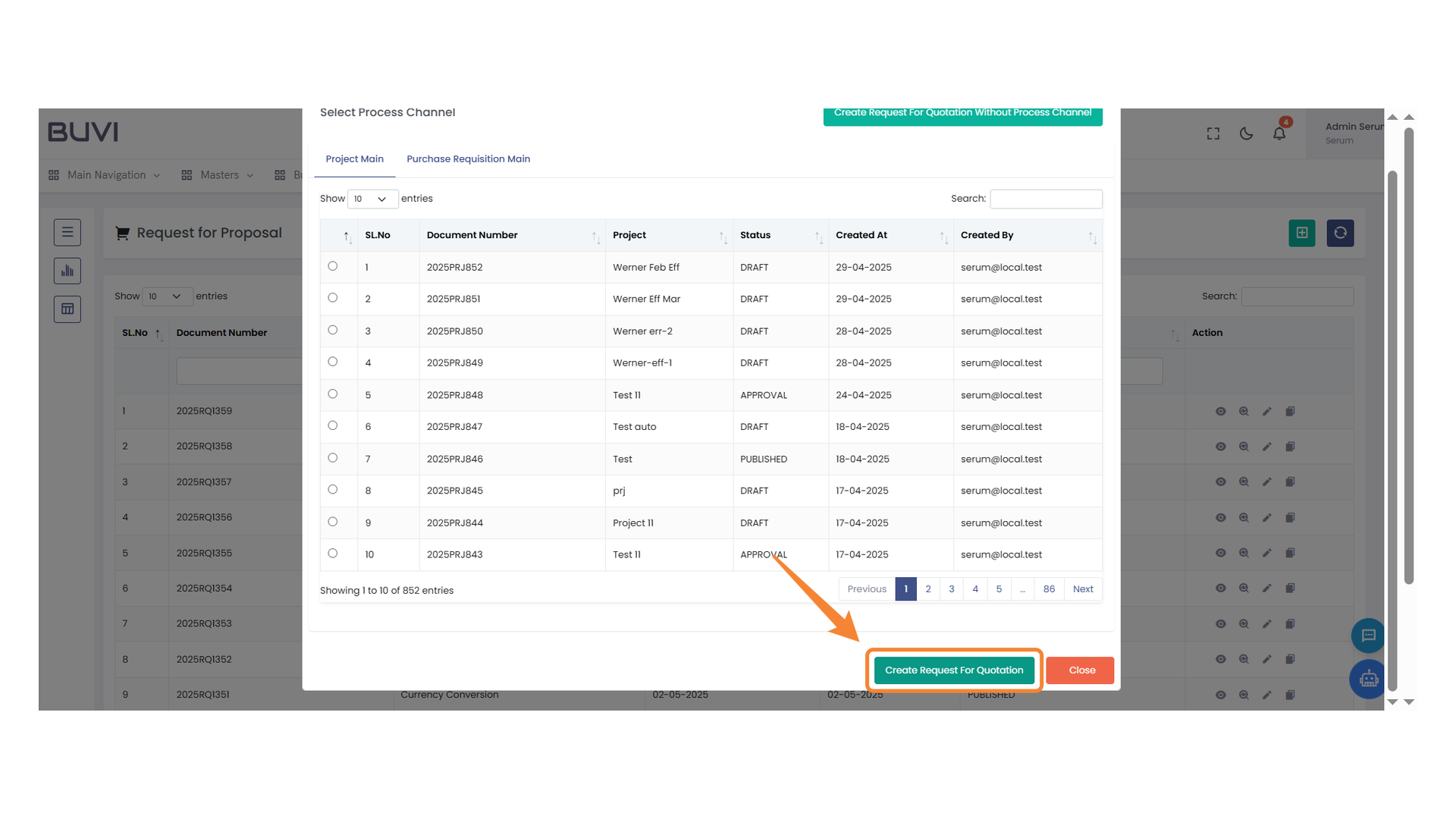
4. Create Request Button
Click the button to initiate a request for quotation.
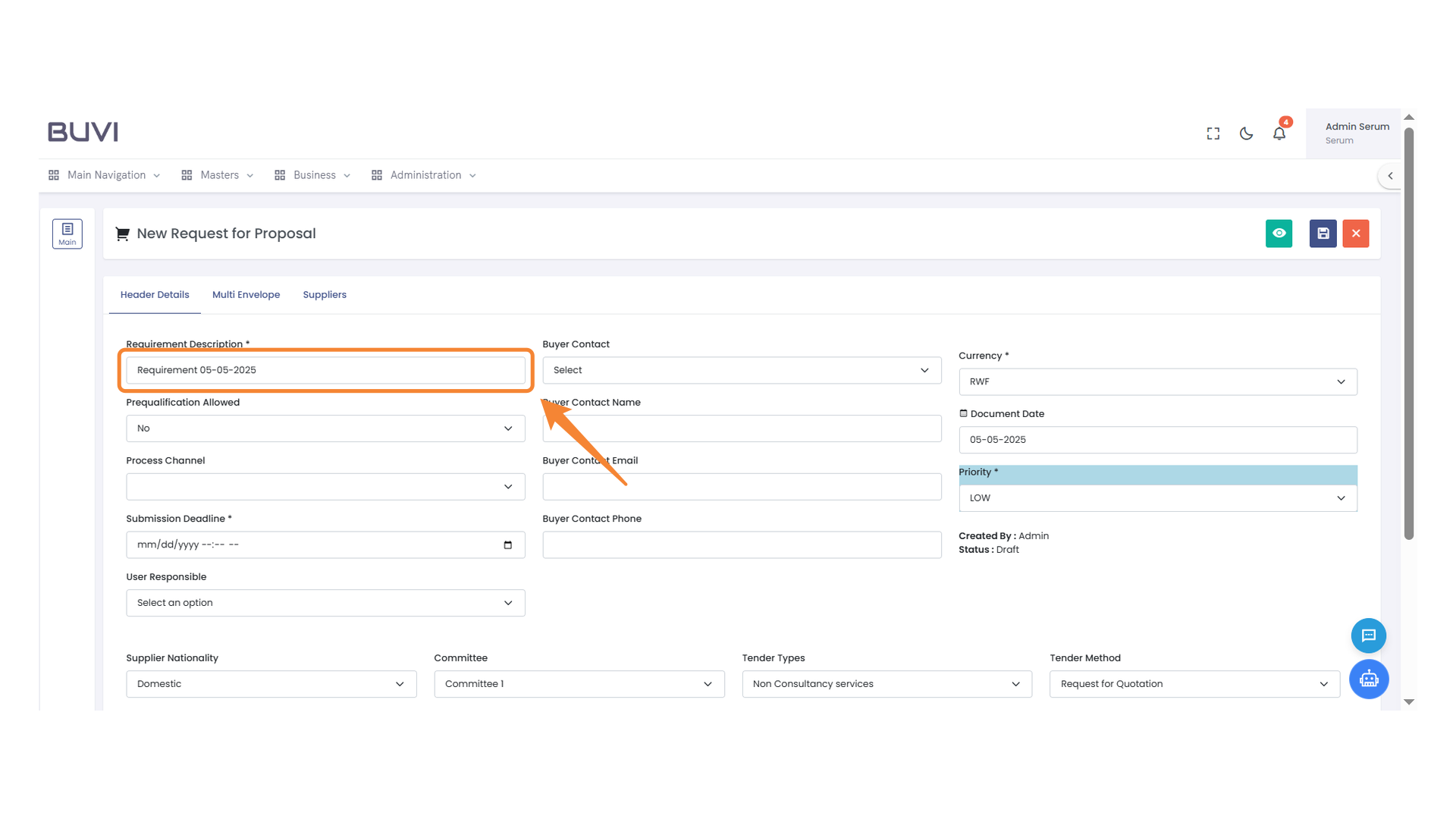
5. Requirement Description Field
Enter the requirement details in this text field.
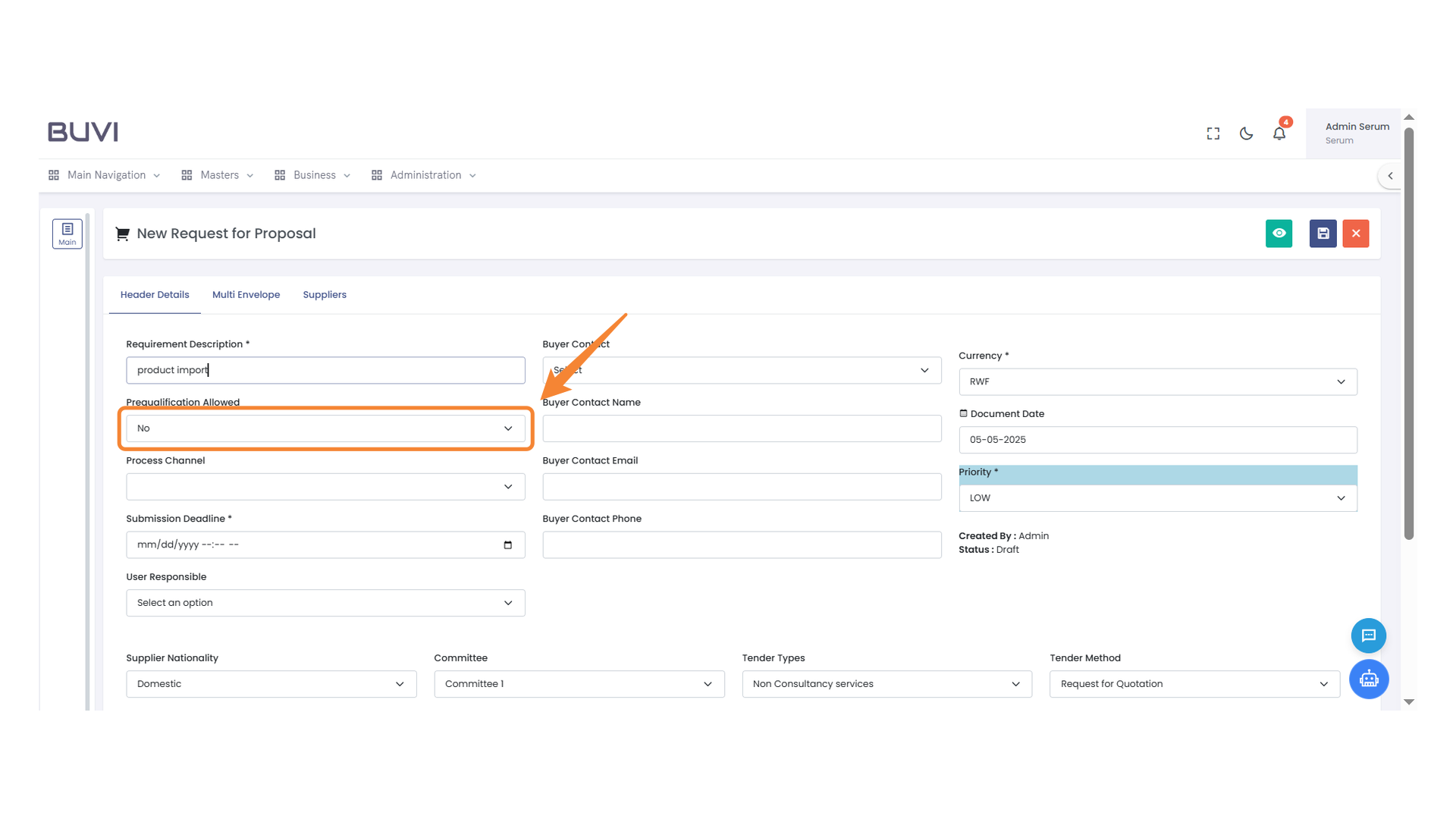
6. Prequalification Allowed Option
Select whether prequalification is permitted by choosing 'Yes' or 'No.'
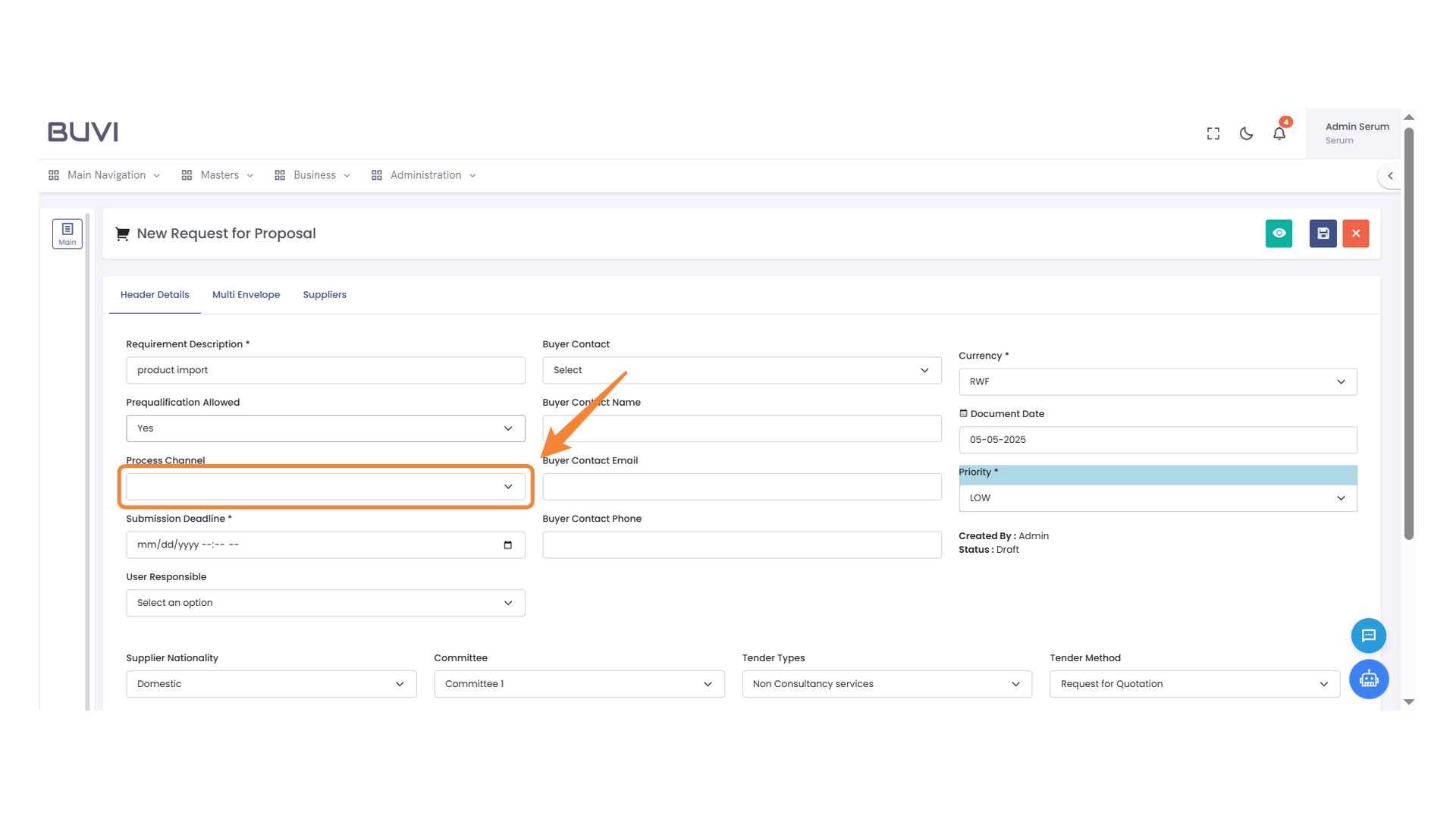
7. Process Channel Selection
Select the appropriate process channel from the dropdown menu to proceed with the proposal request.
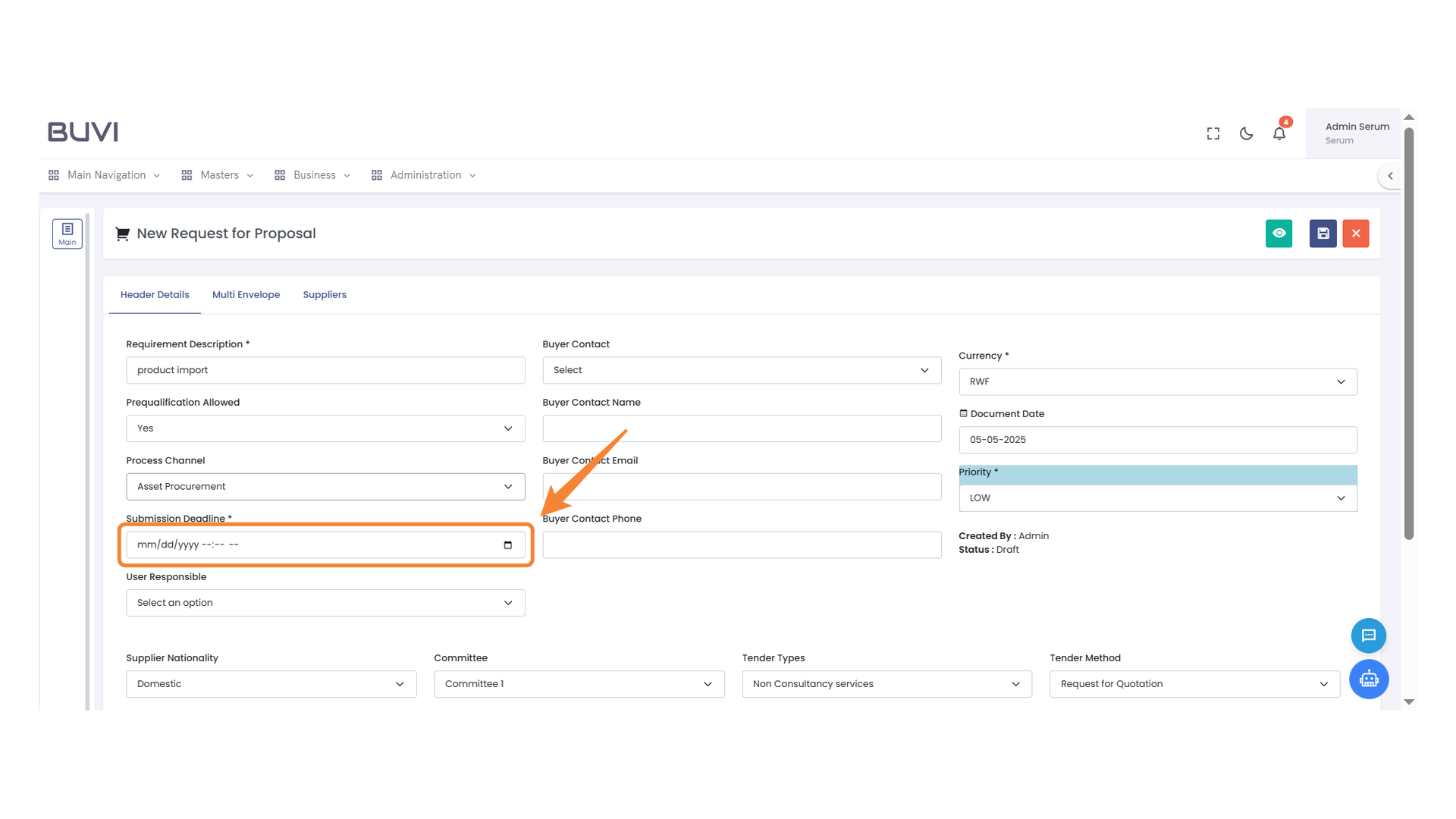
8. Submission Deadline Field
Specify the submission deadline date and time in the provided format.
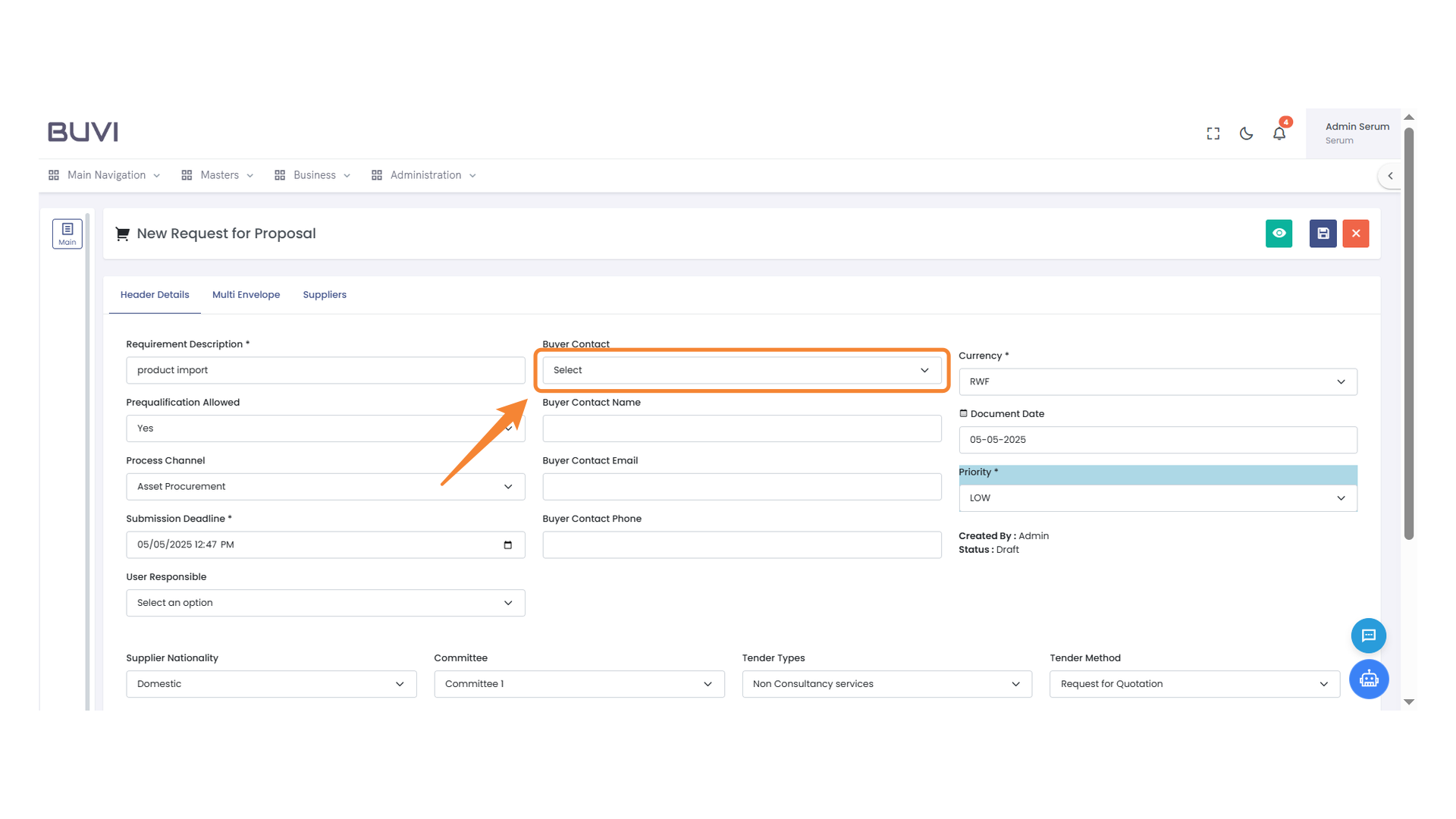
9. Buyer Contact Selection
Choose a buyer contact from the dropdown menu to proceed.
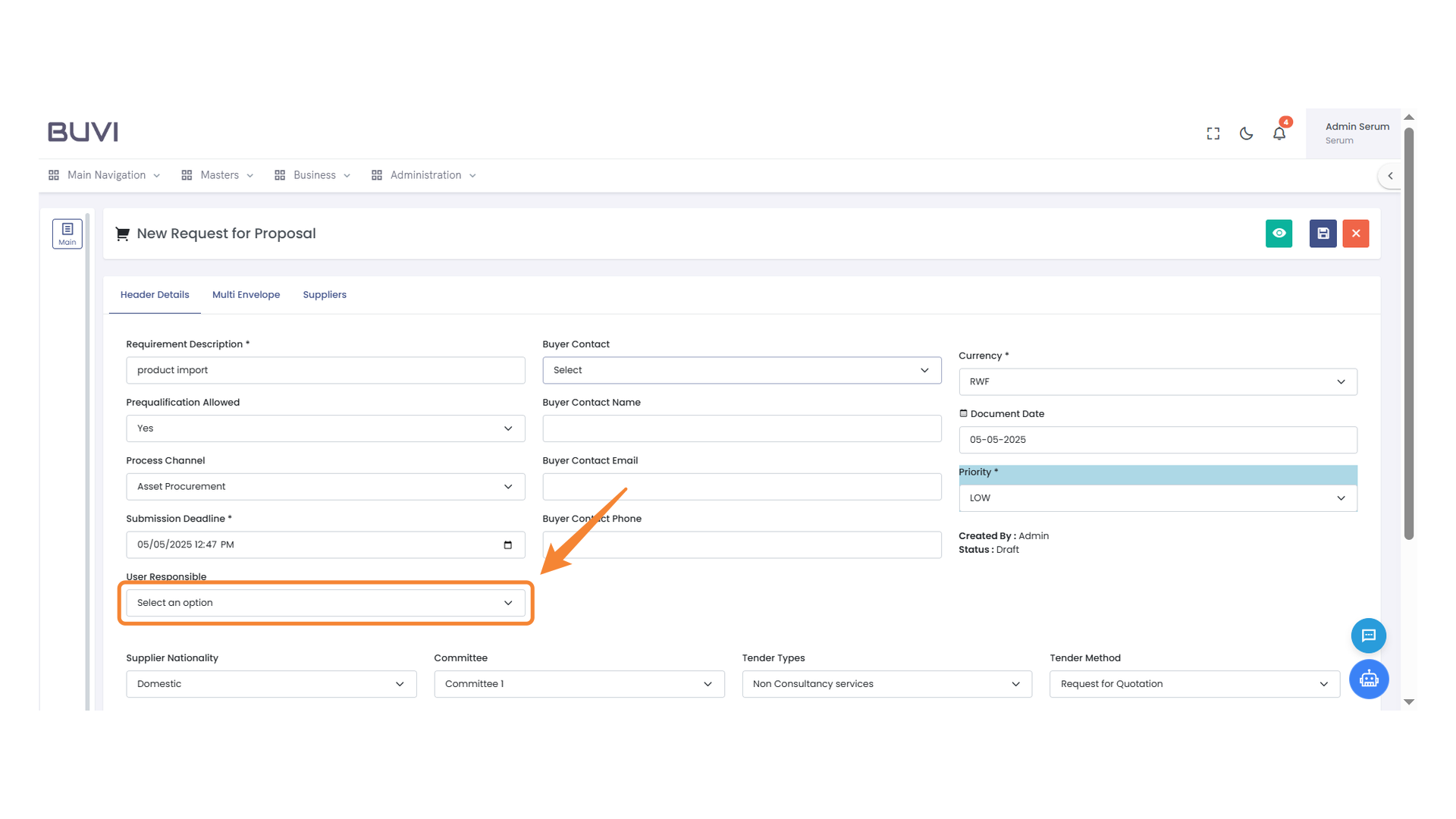
10. User Responsibility Selection
Select an option from the dropdown to assign user responsibility.
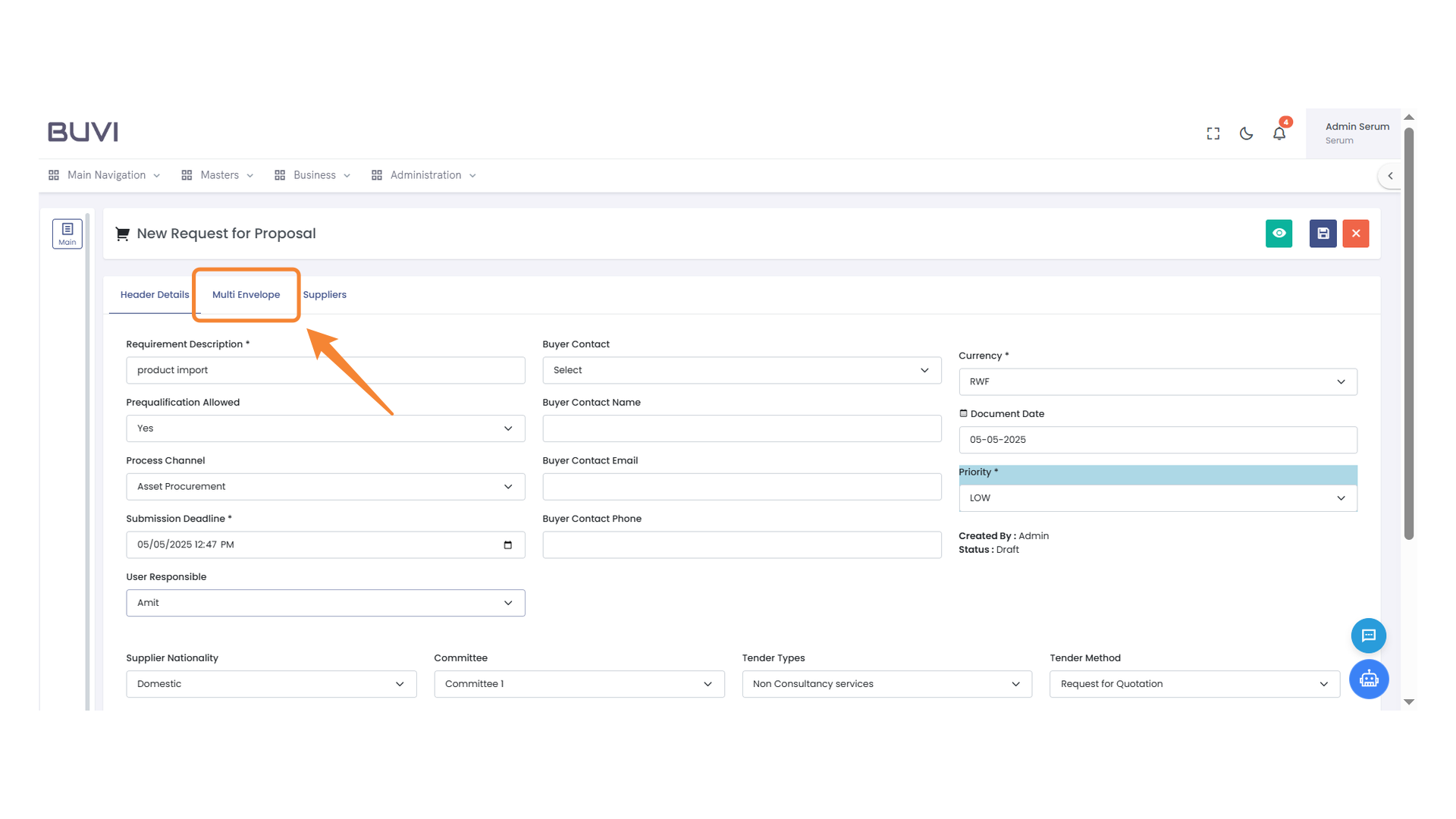
11. Multi Envelope Tab
Select this tab to access and manage multi-envelope options within the proposal request.
12. Bid Type Selection Dropdown
Select the appropriate bid type from the dropdown menu.
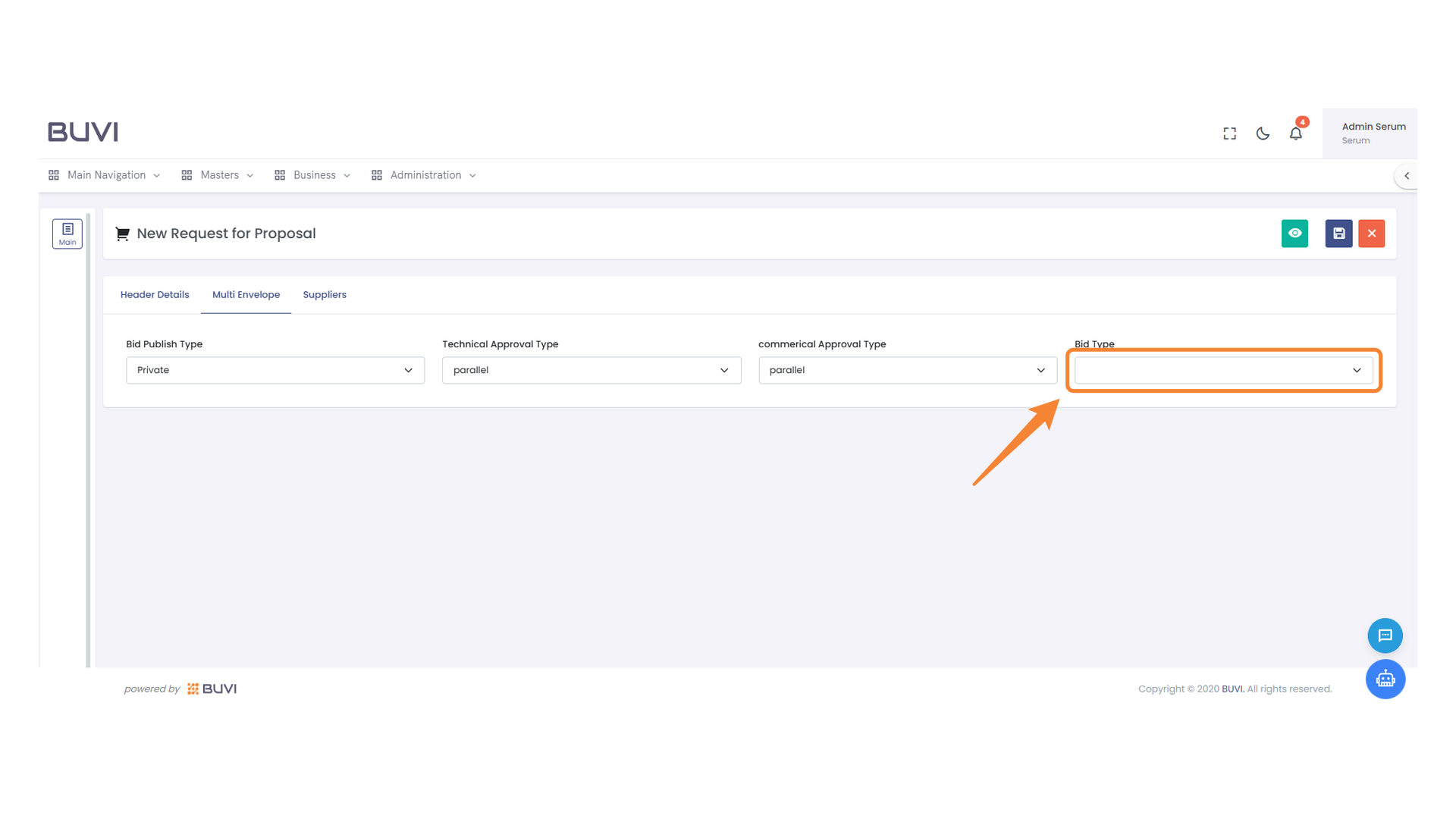
13. Suppliers Tab
Select this tab to manage supplier details and view related information.

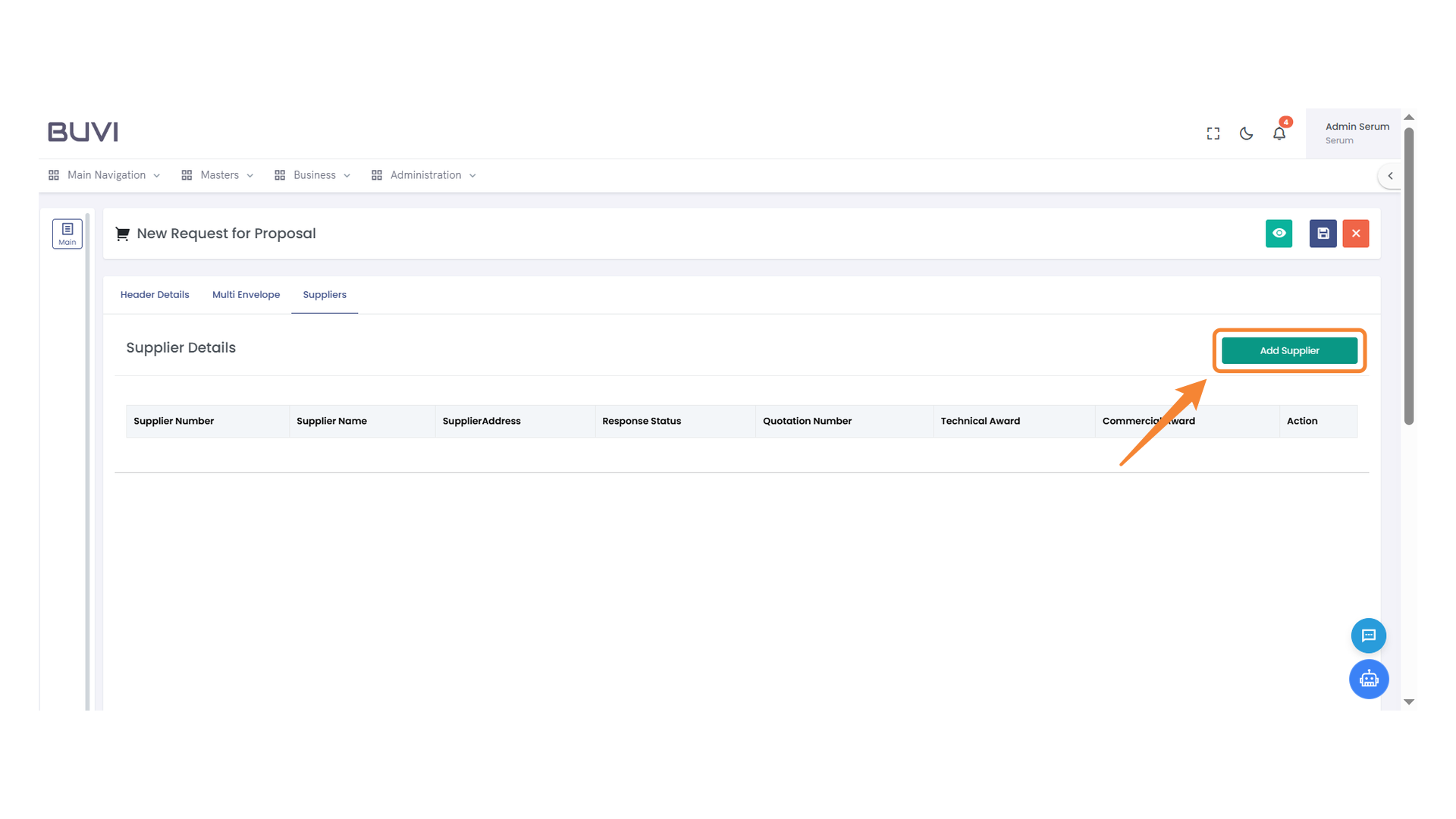
14. Add Supplier Button
Click the button to add a new supplier to the proposal.
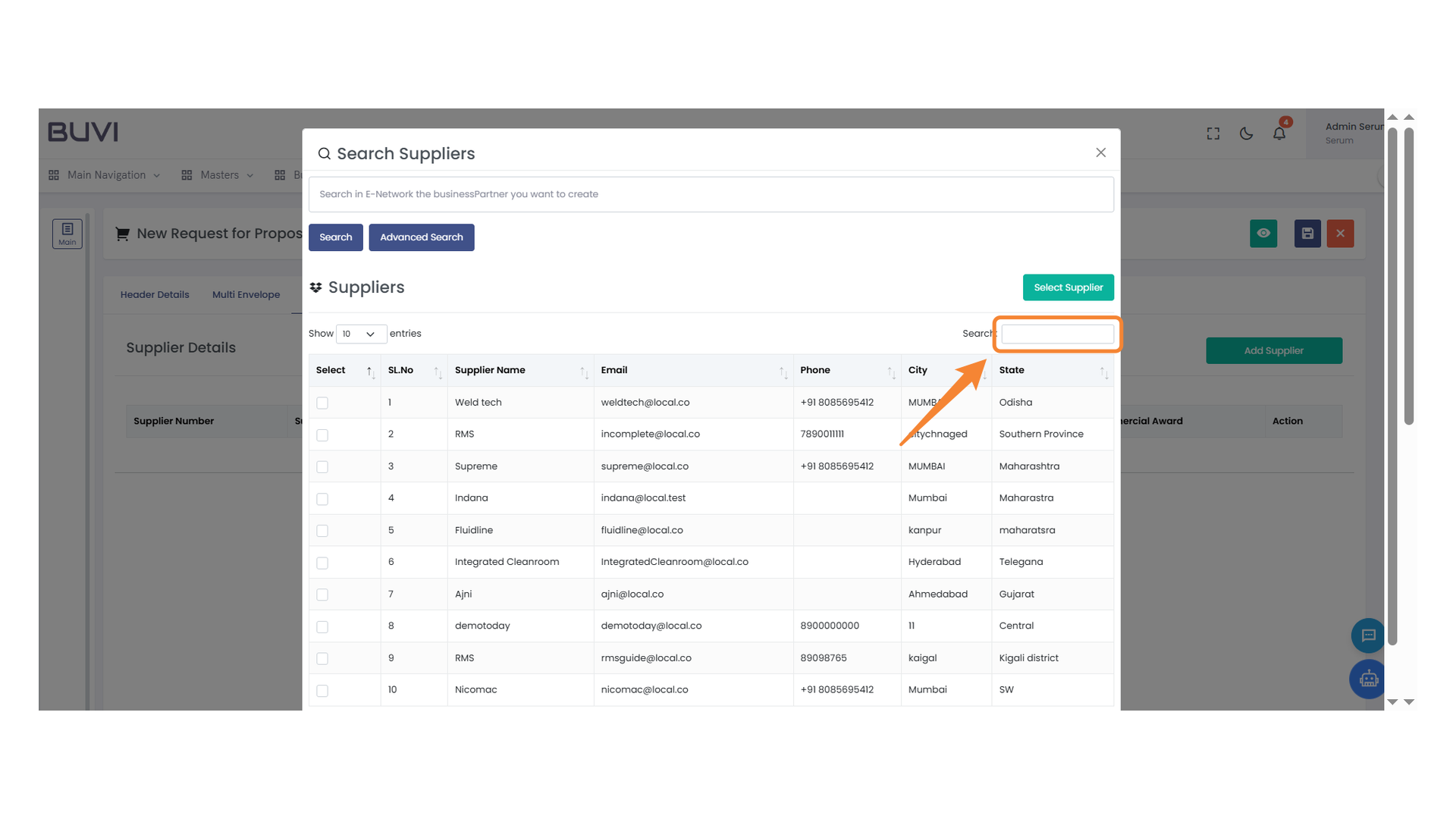
15. Search Bar
Enter your search query to find a specific supplier.
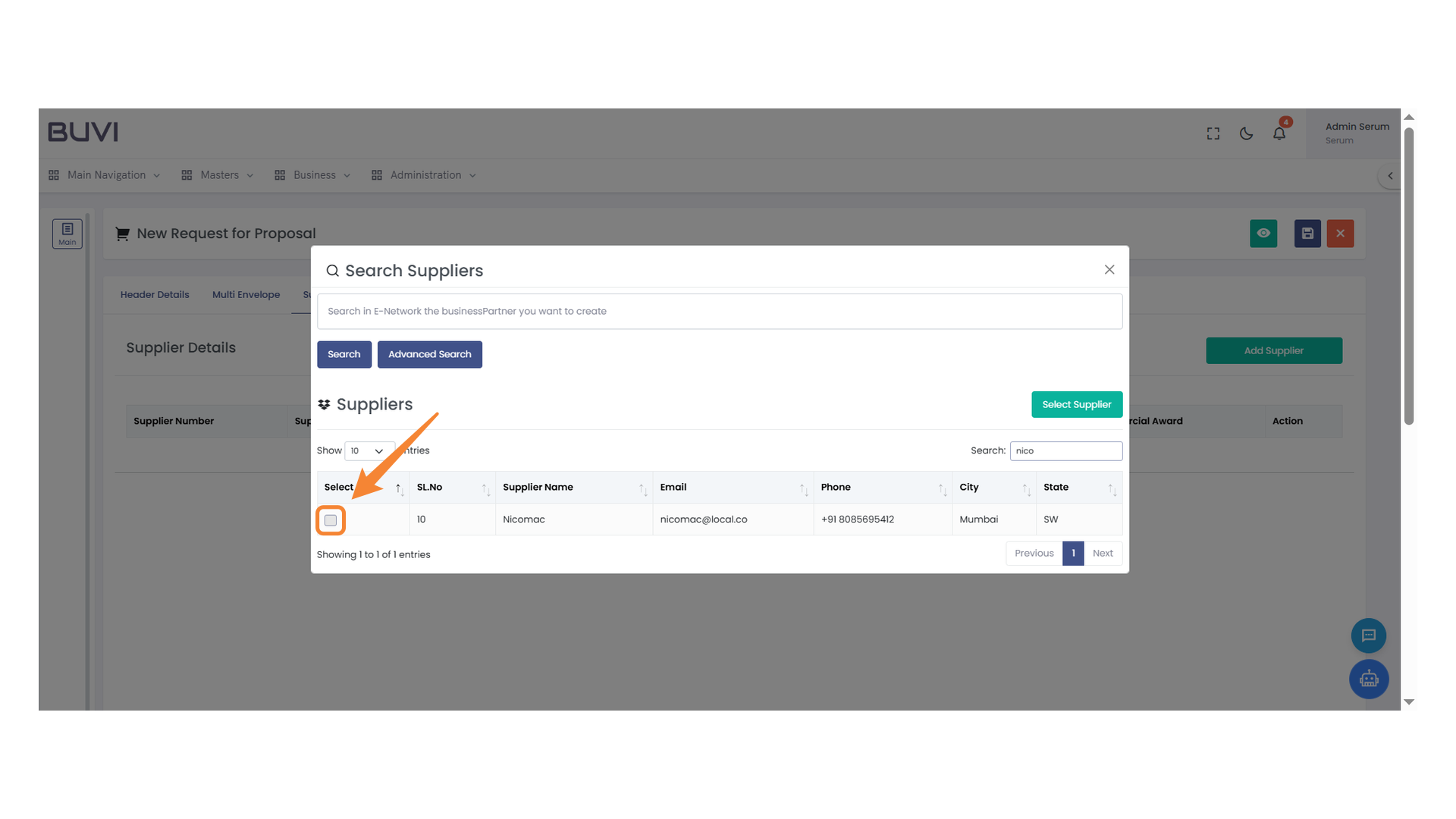
16. Supplier Selection Checkbox
Select this checkbox to choose the supplier for the proposal.
17. Supplier Selection Button
Click the button to select the supplier.

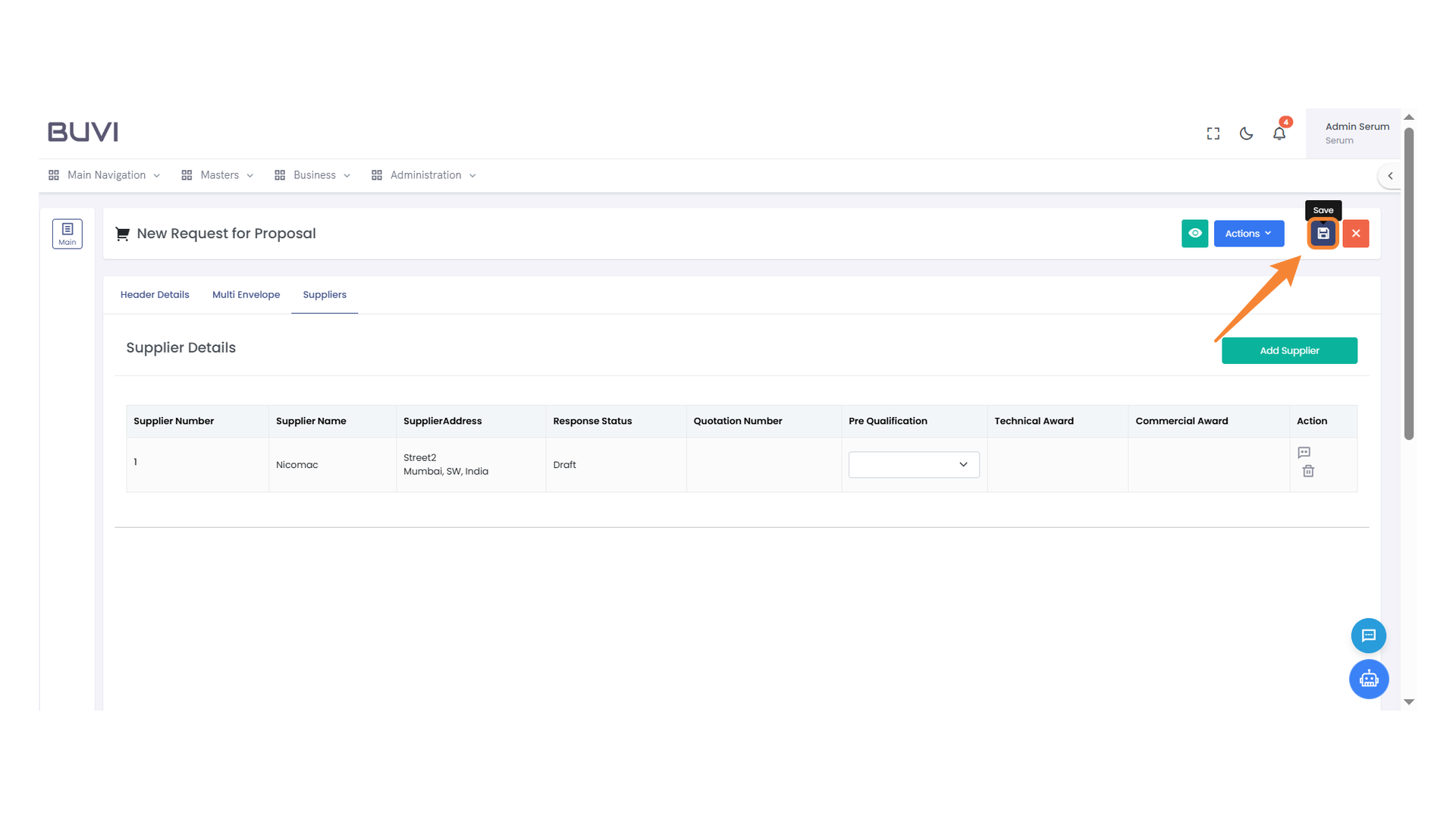
18. Save Button
Click to save your changes and update the request for proposal.
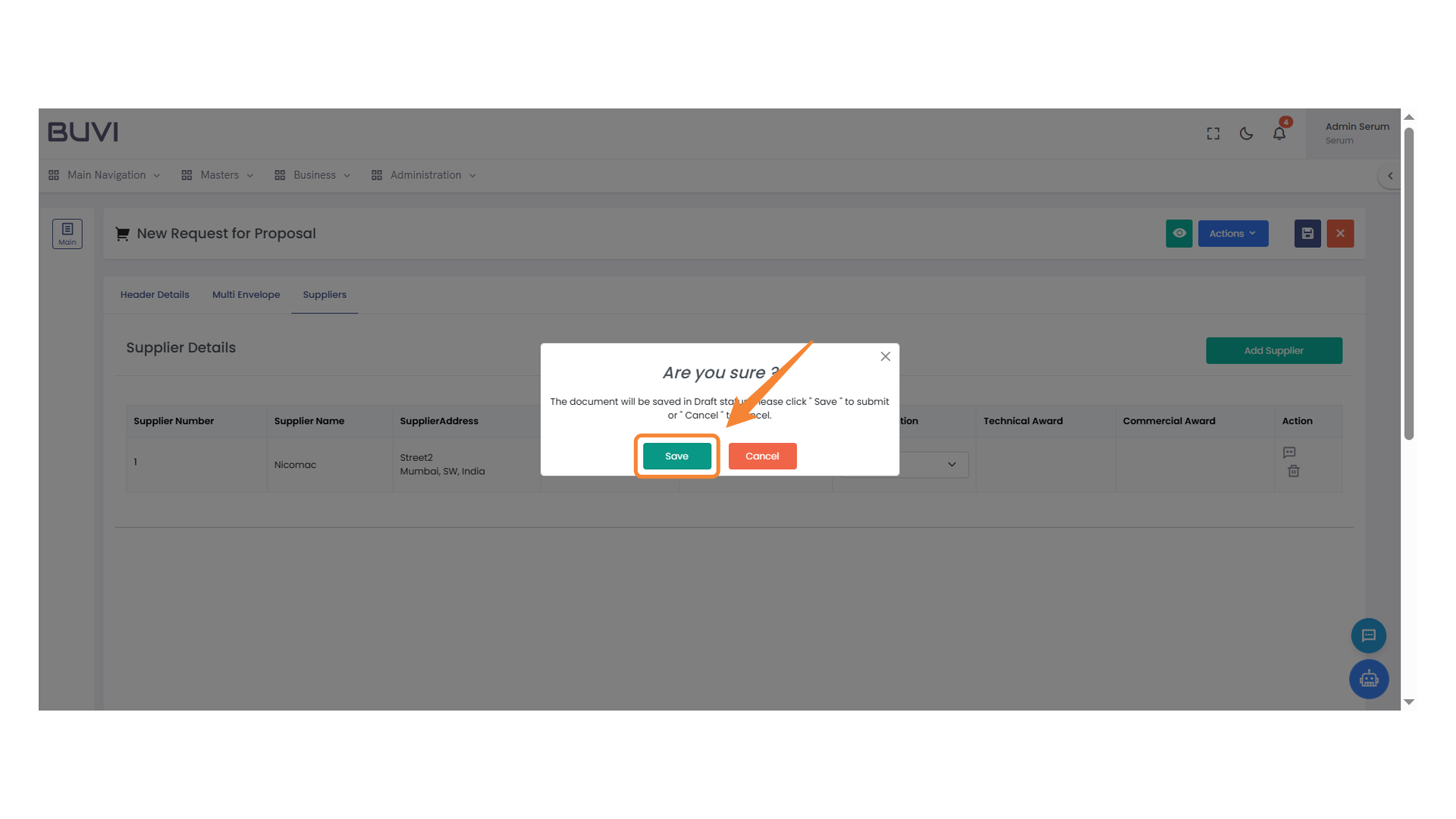
19. Confirmation Dialog Box
Click 'Save' to confirm your action and proceed.
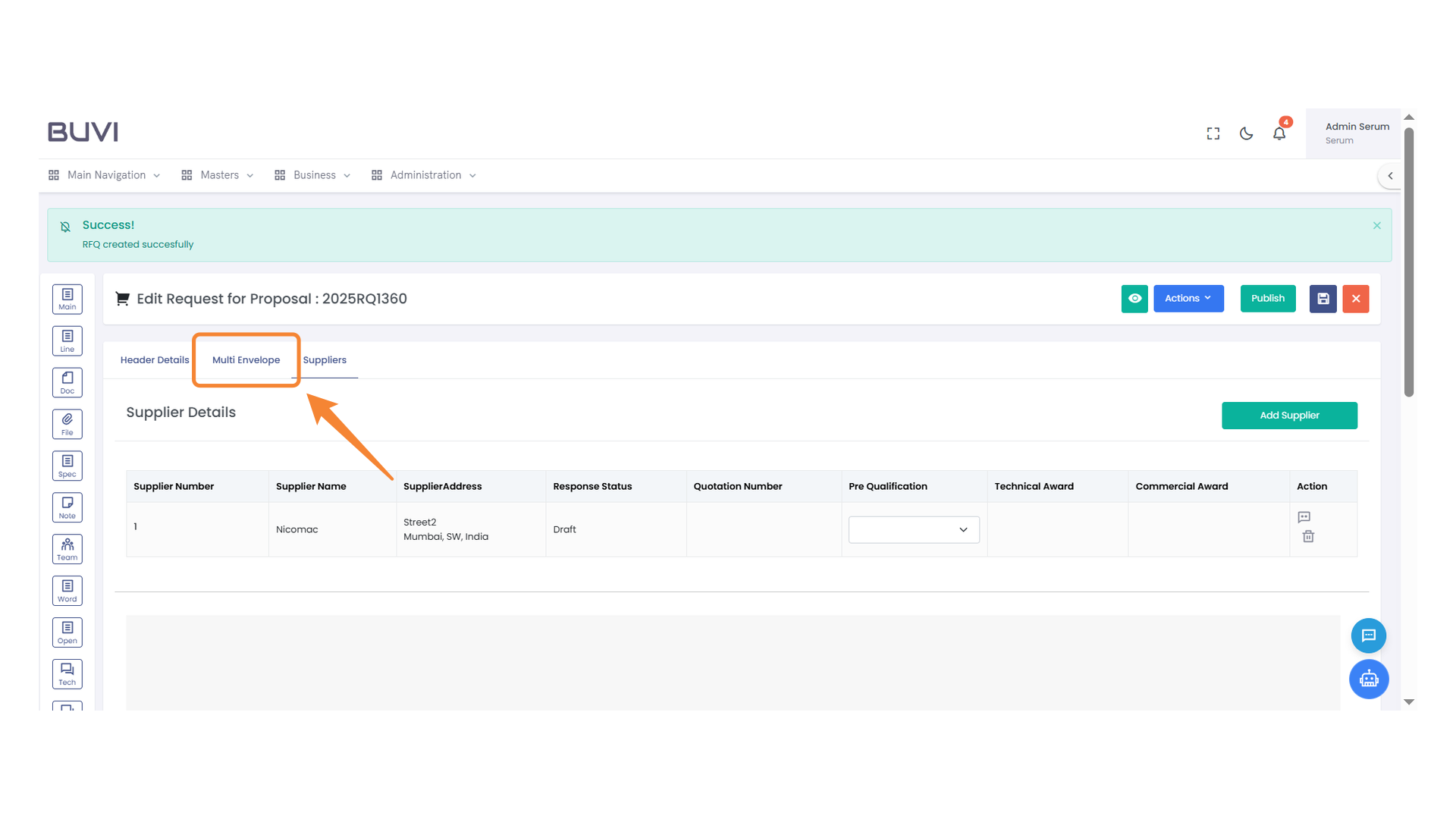
20. Multi Envelope Tab
Access the Multi Envelope section to manage proposal details.
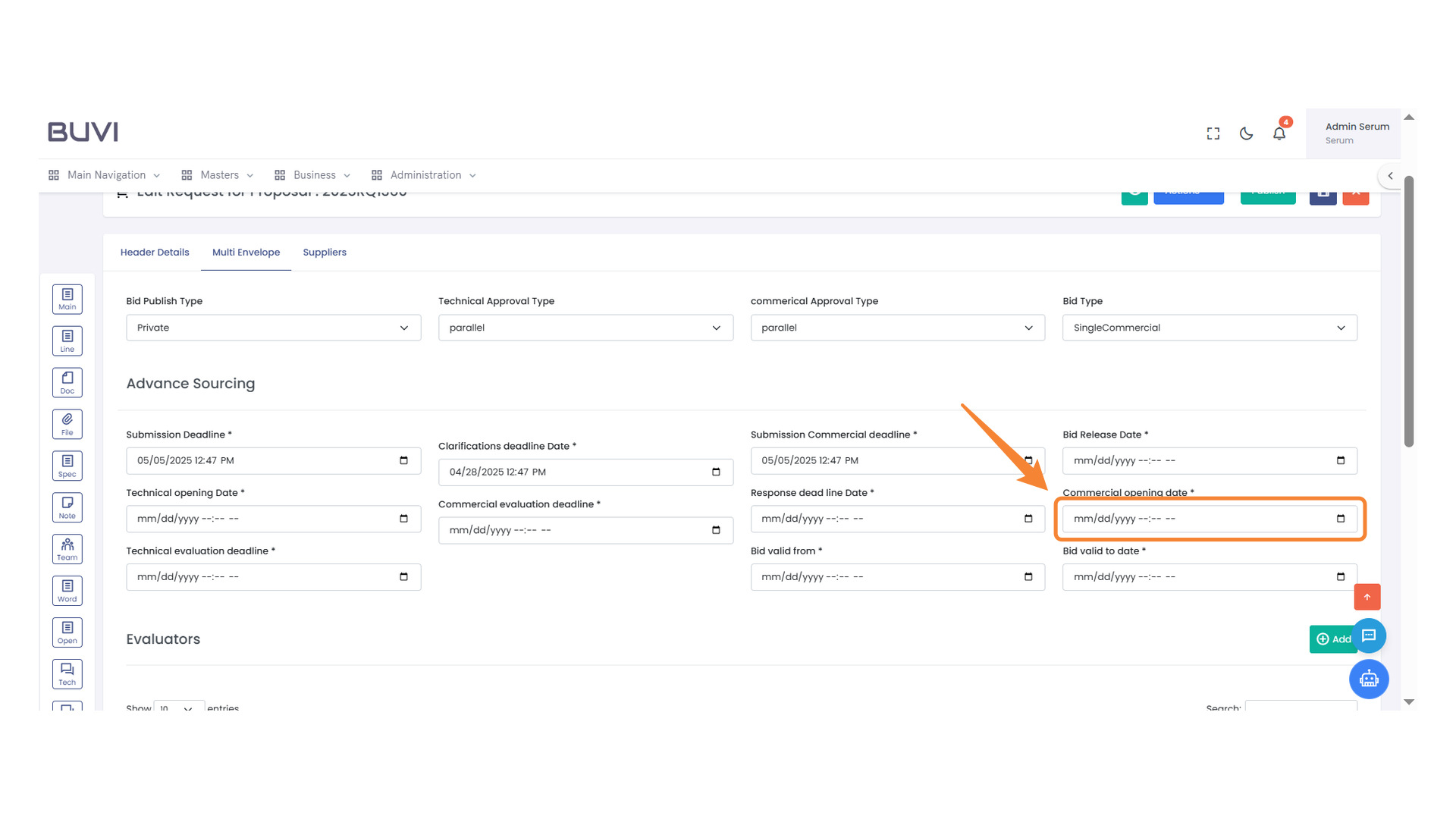
21. Commercial Opening Date Field
Enter the commercial opening date to schedule when the bids will be reviewed.
22. Save Changes Button
Click the button to save your changes.

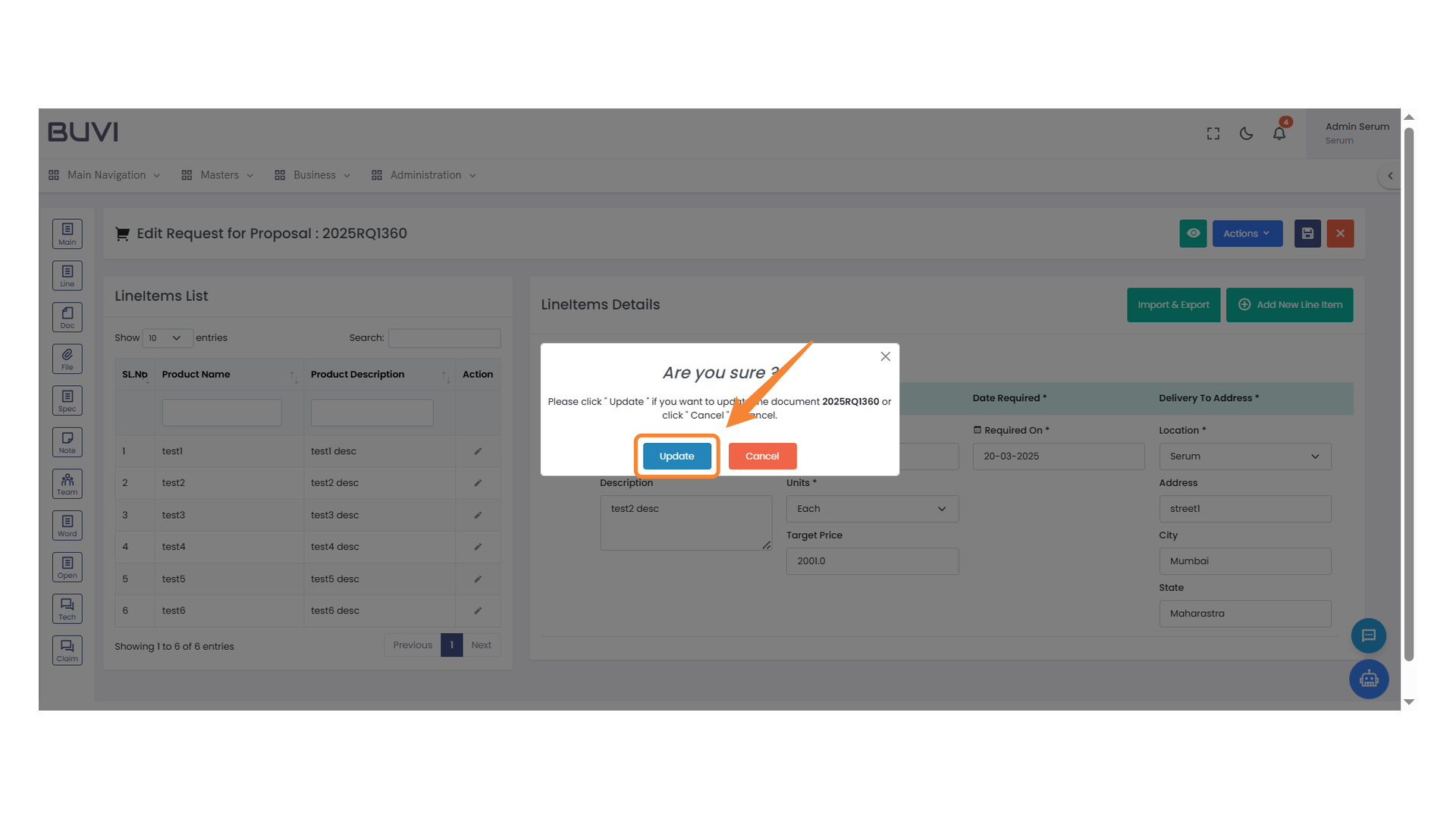
23. Confirmation for Document Update
Click 'Update' to finalize the changes to the proposal document.

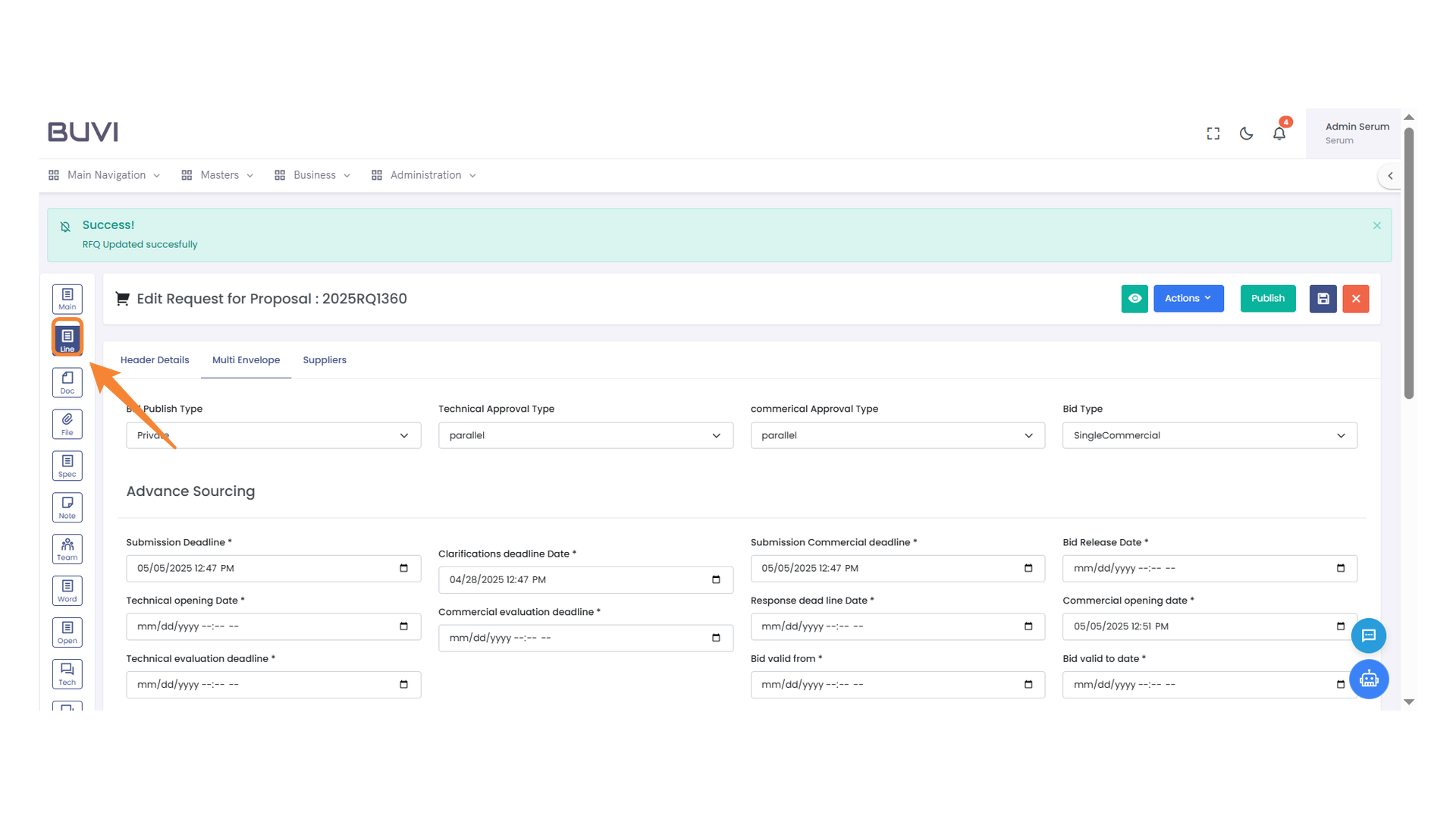
24. Line Section Icon
Select this icon to view or edit line items.
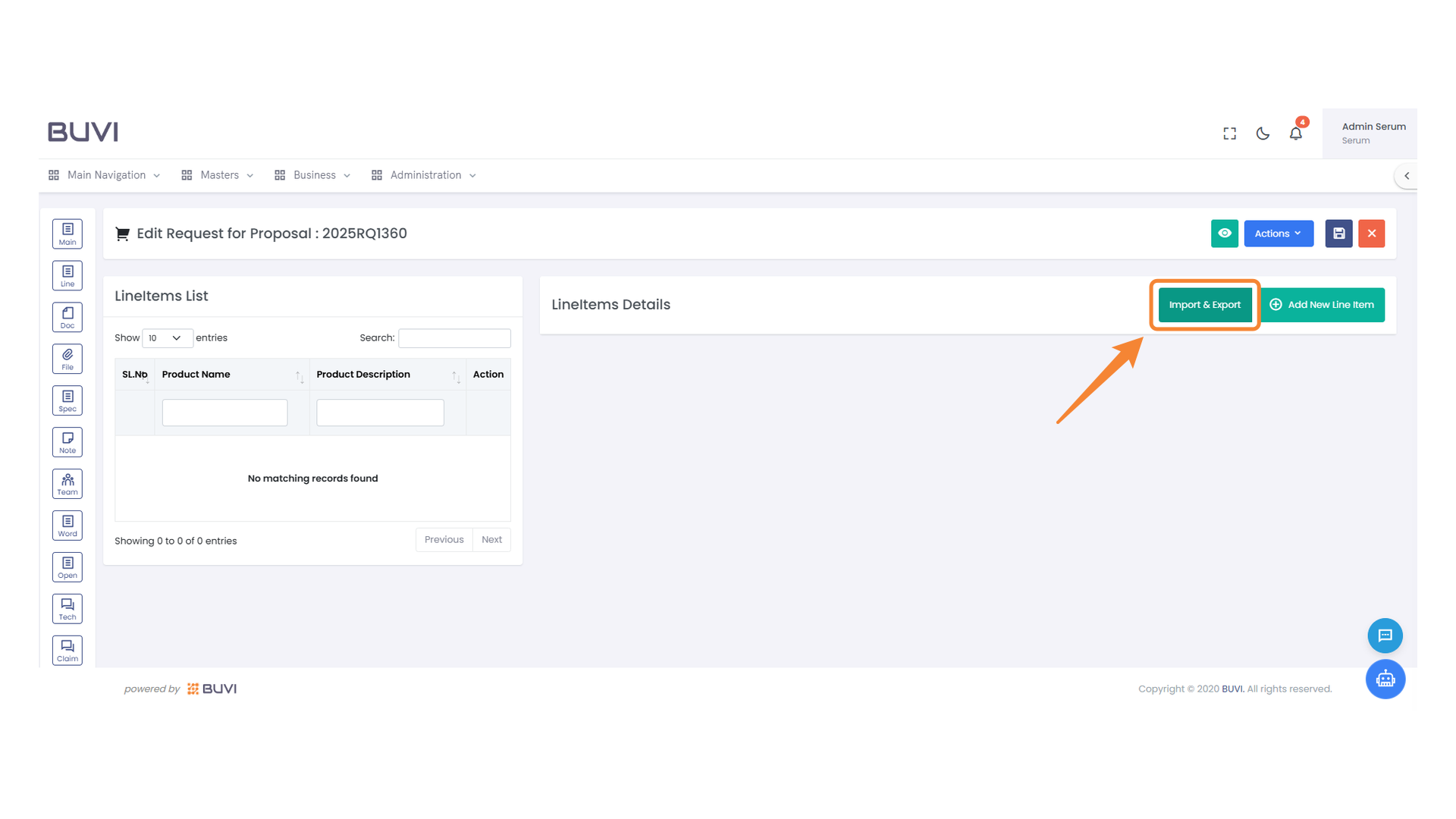
25. Import & Export Button
Click this button to manage import and export operations for line items.
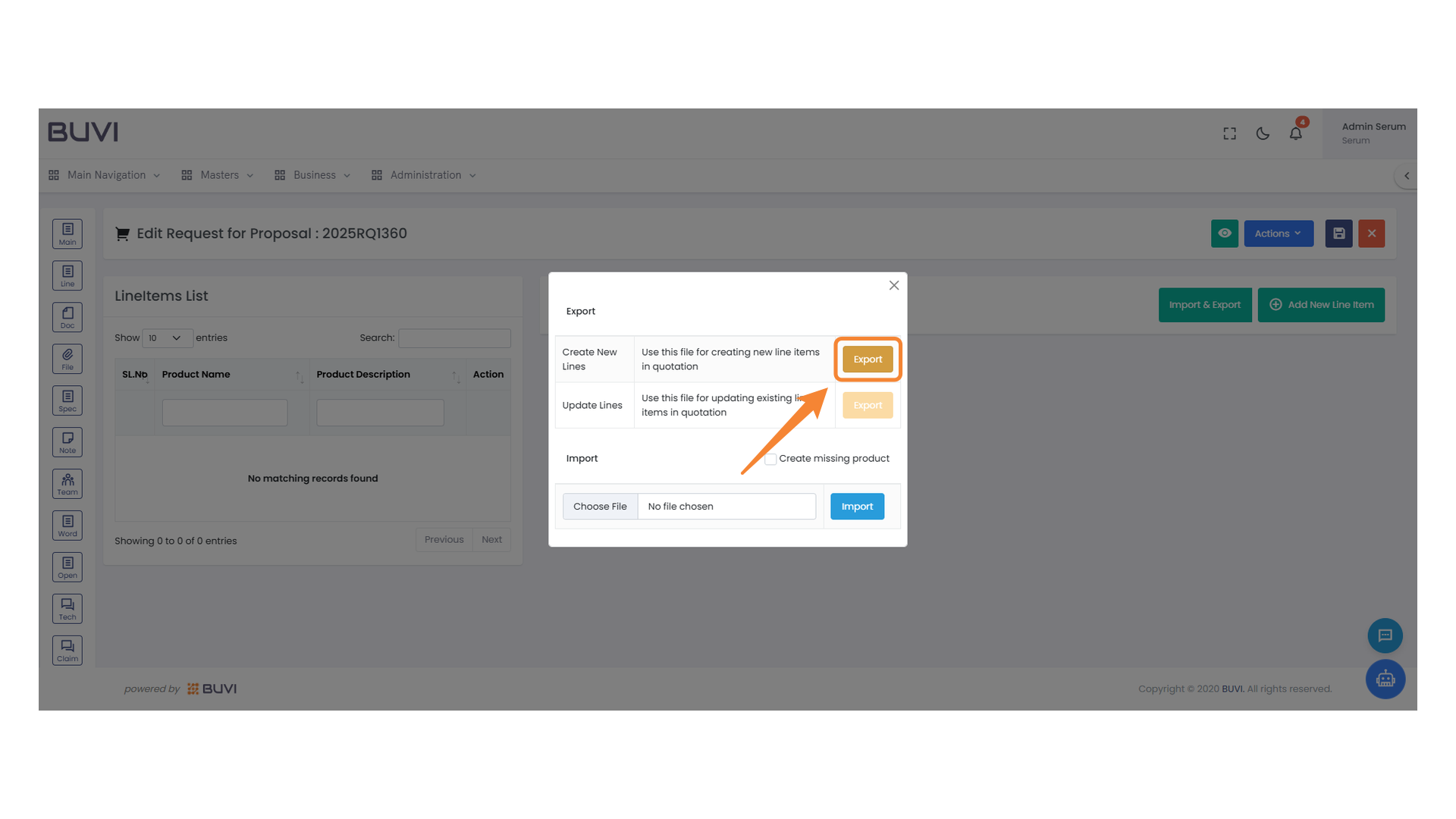
26. Export Button
Click to export the file for creating new line items in a quotation.
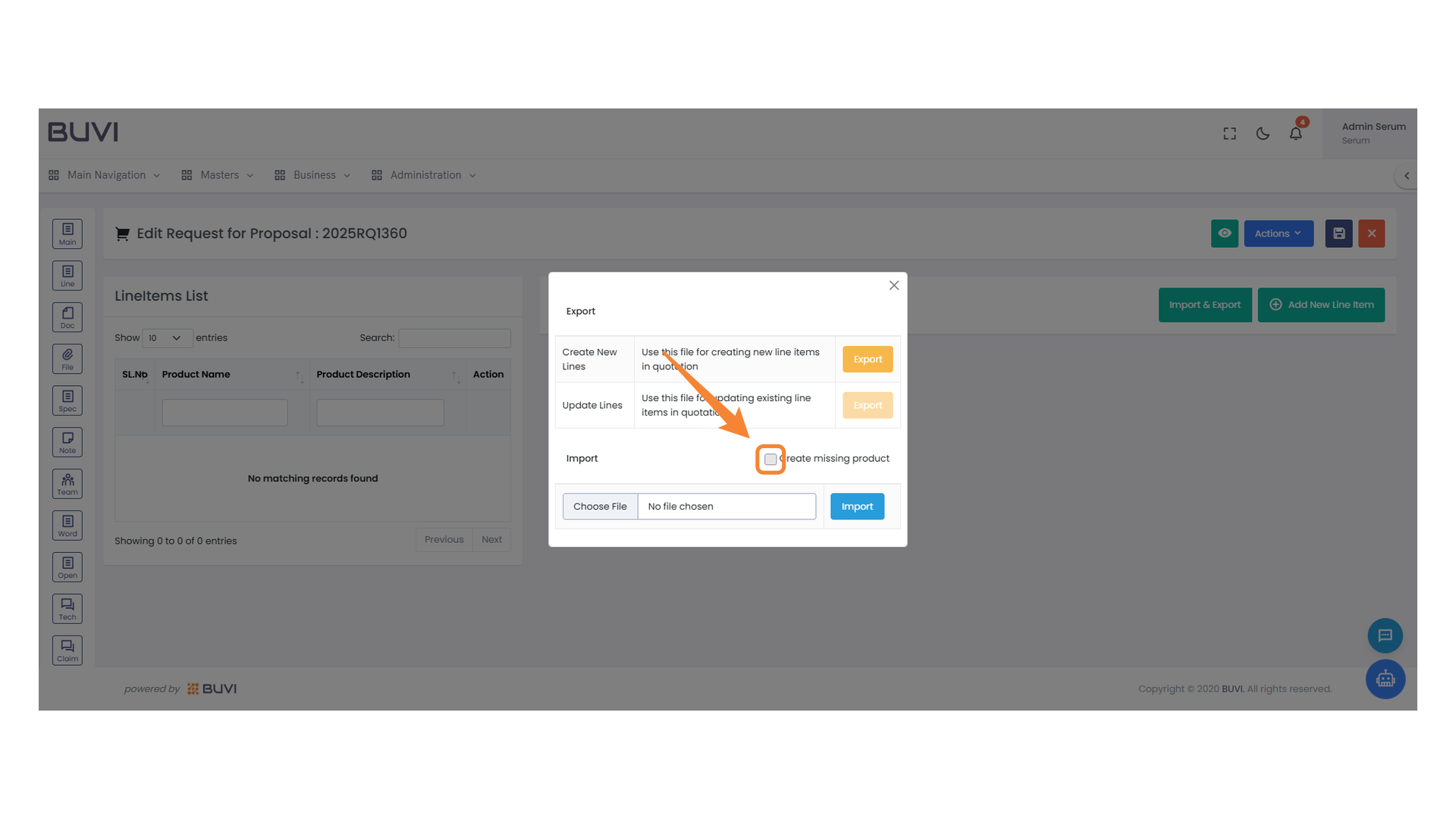
27. Create Missing Product Option
Select the checkbox to enable creating missing products during the import process.
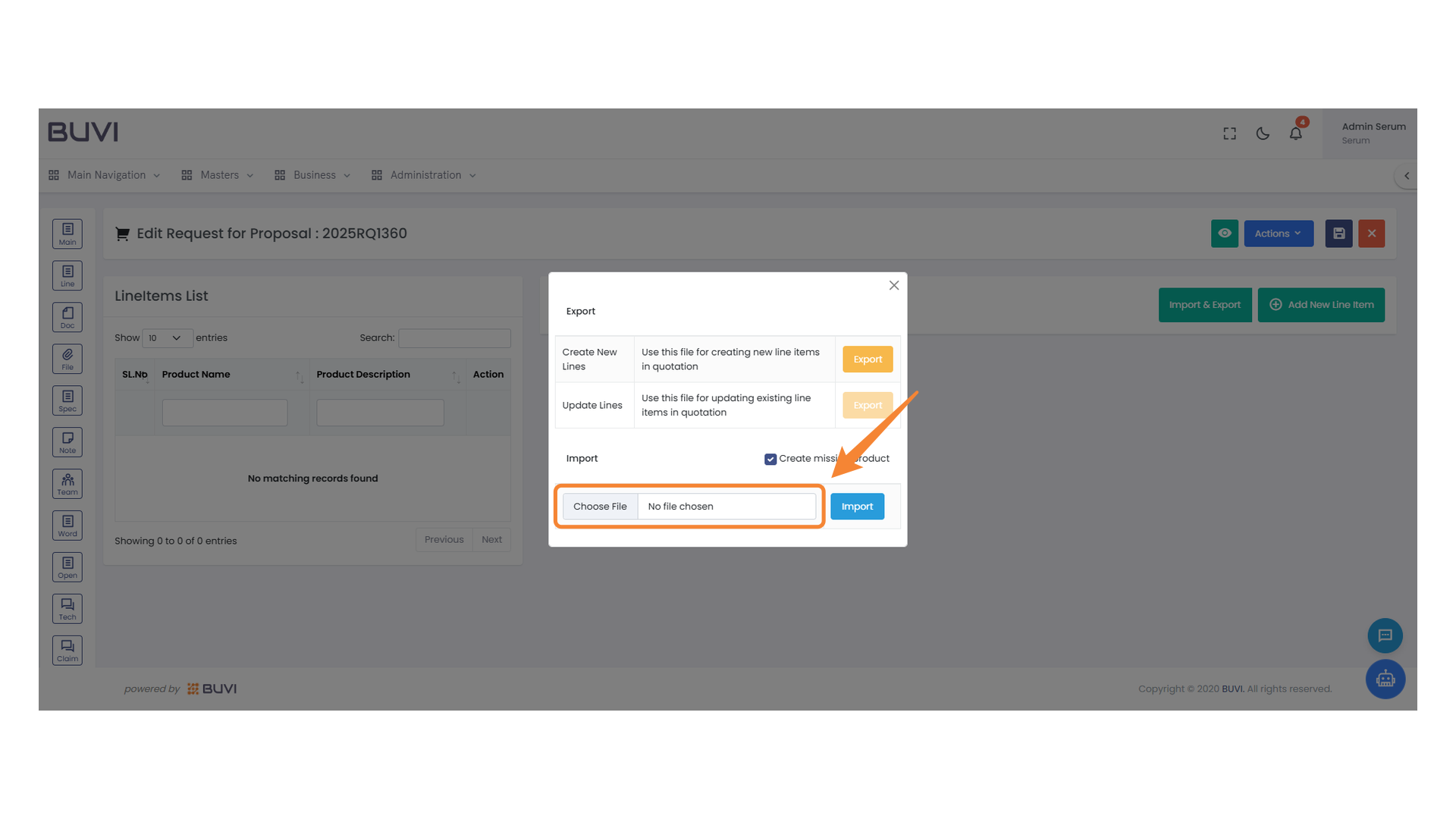
28. File Import Section
Select a file to import by clicking the 'Choose File' button.
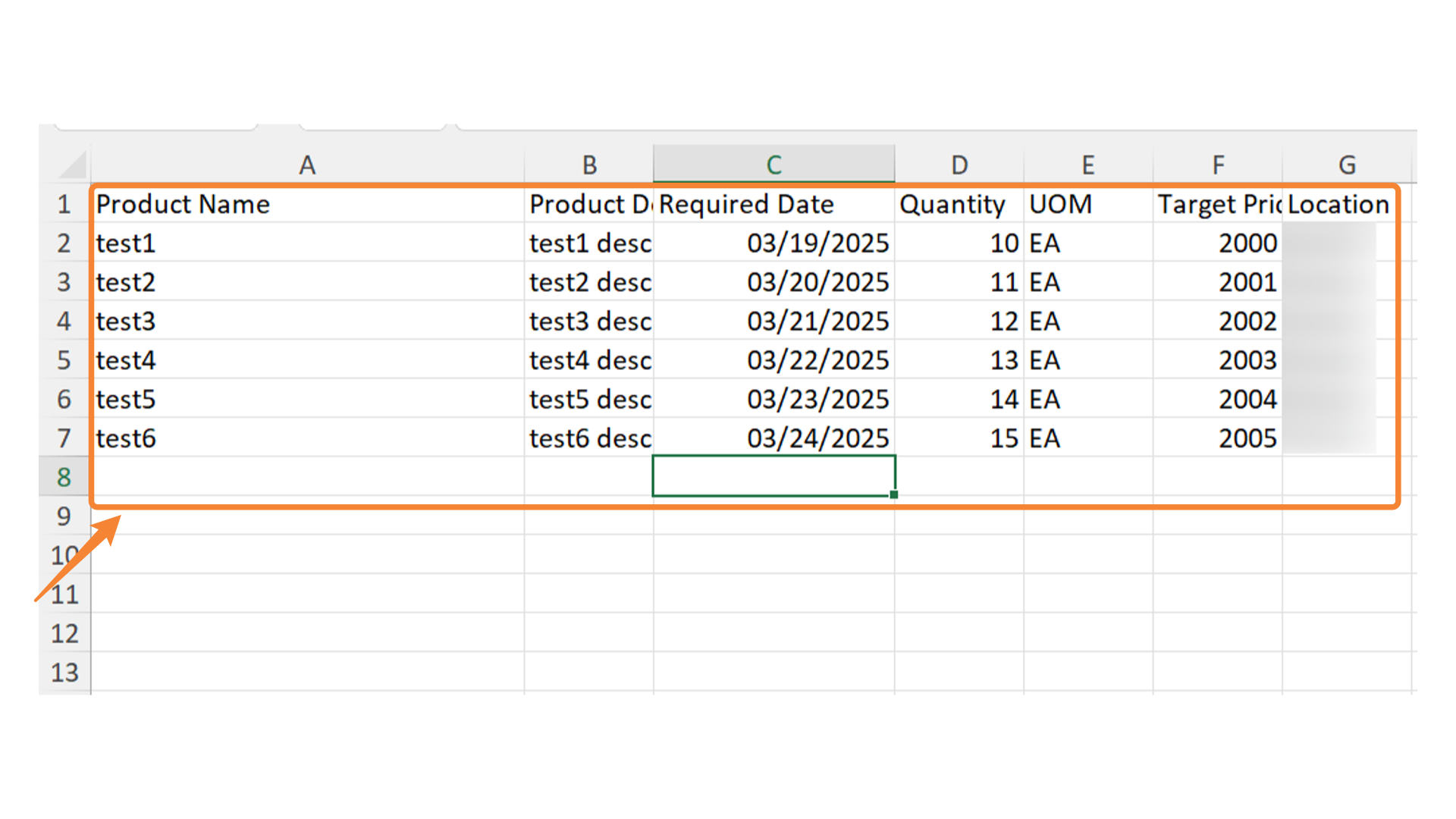
29. Export the file and Import it
On click on export in the above step the file will be downloaded need to add the data in the sheet and then Import it.
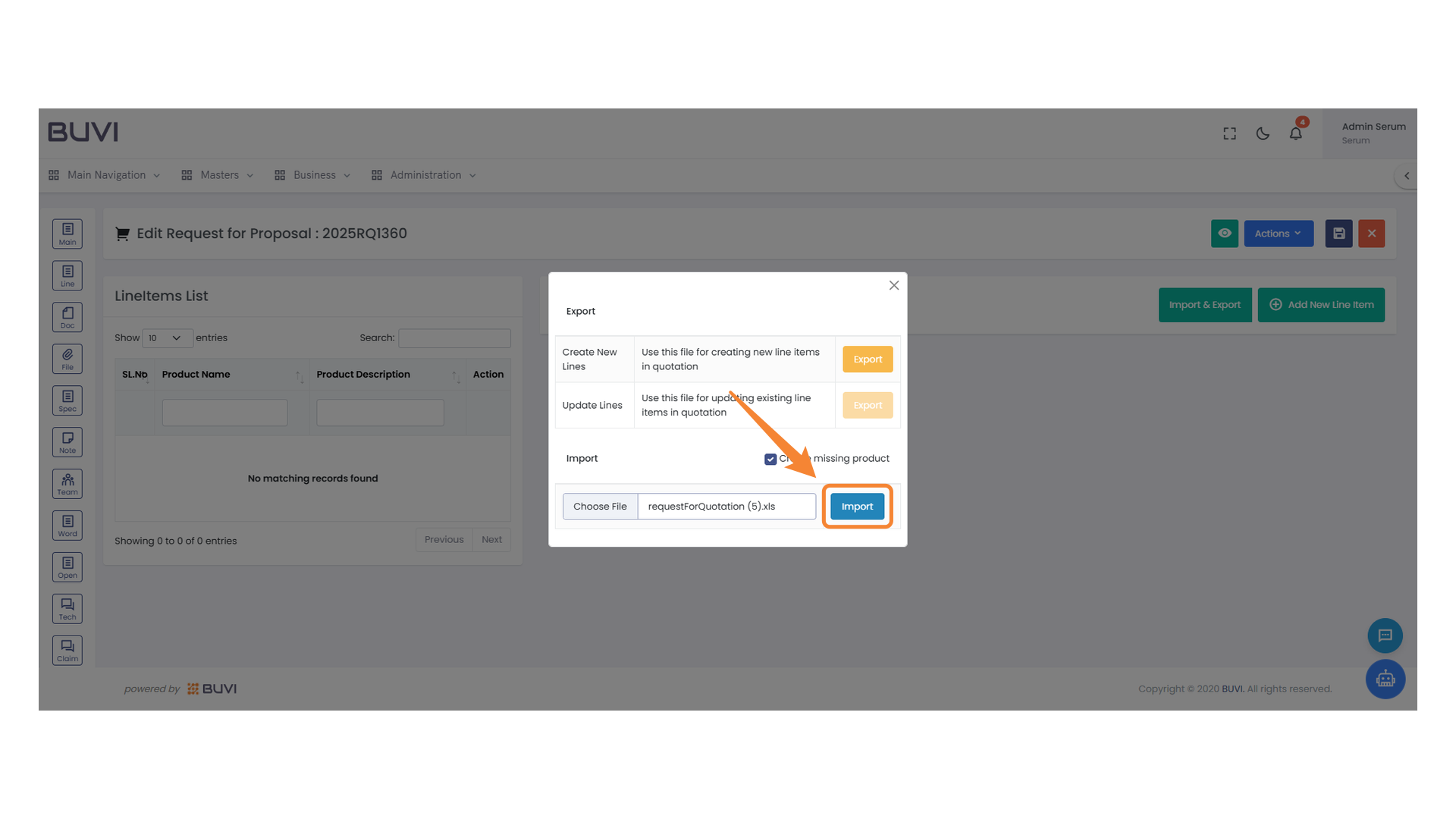
30. Import Button in Quotation Interface
Click the Import button to upload the selected file into the system.
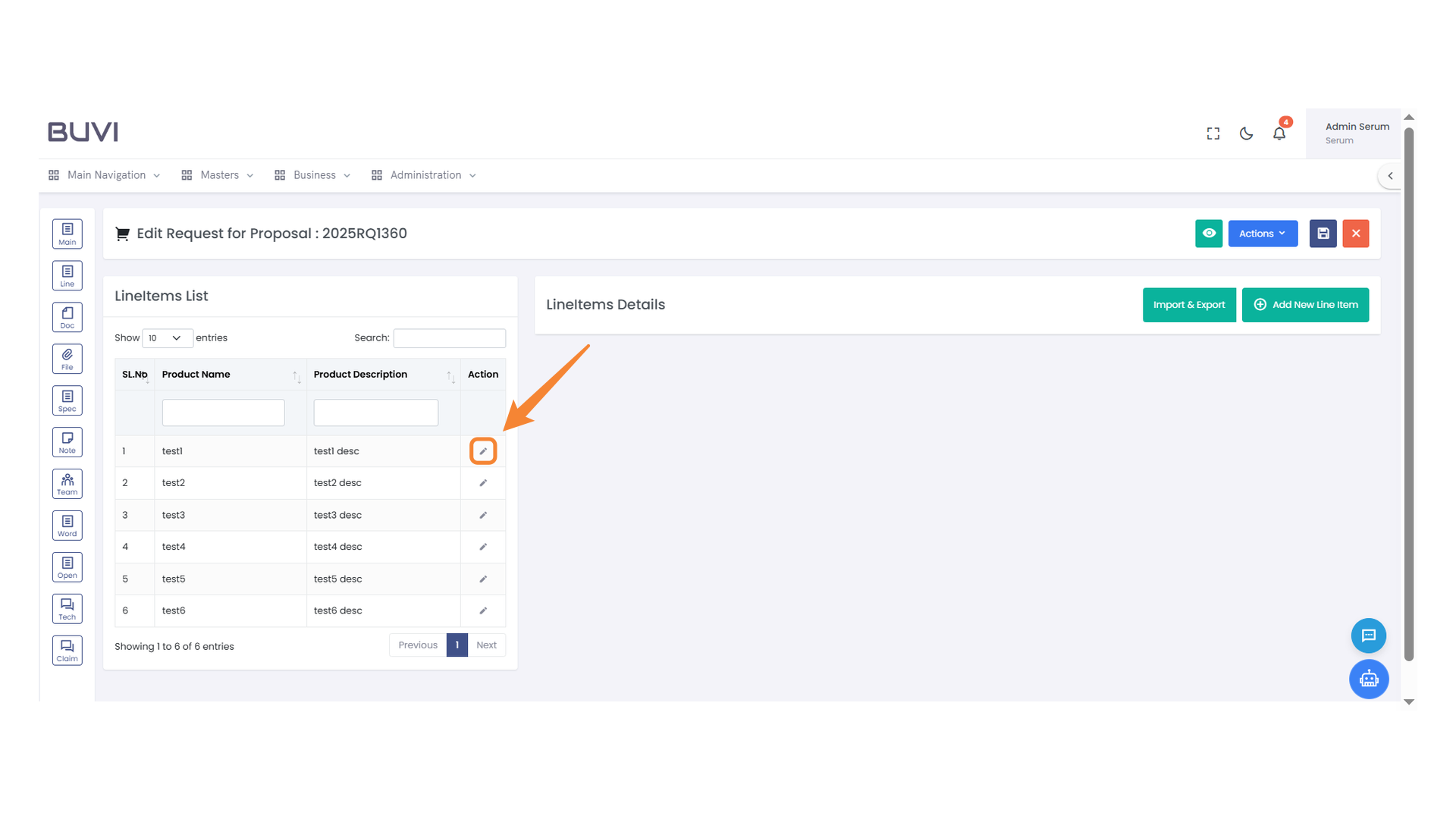
31. Edit Icon for Line Item
Click the pencil icon to modify details of the selected line item.
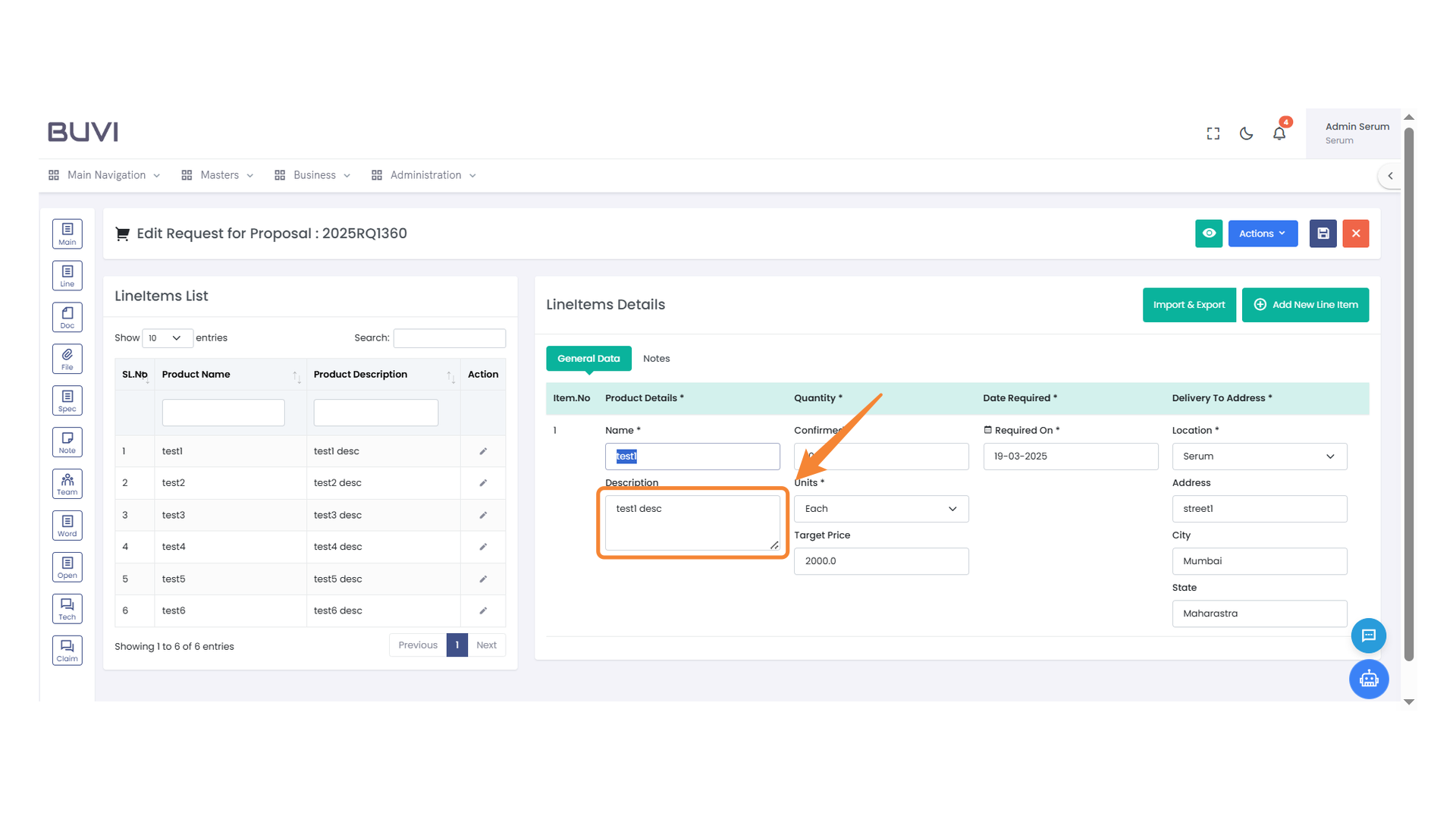
32. Product Description Input Field
Enter or edit the product description in the highlighted input field.
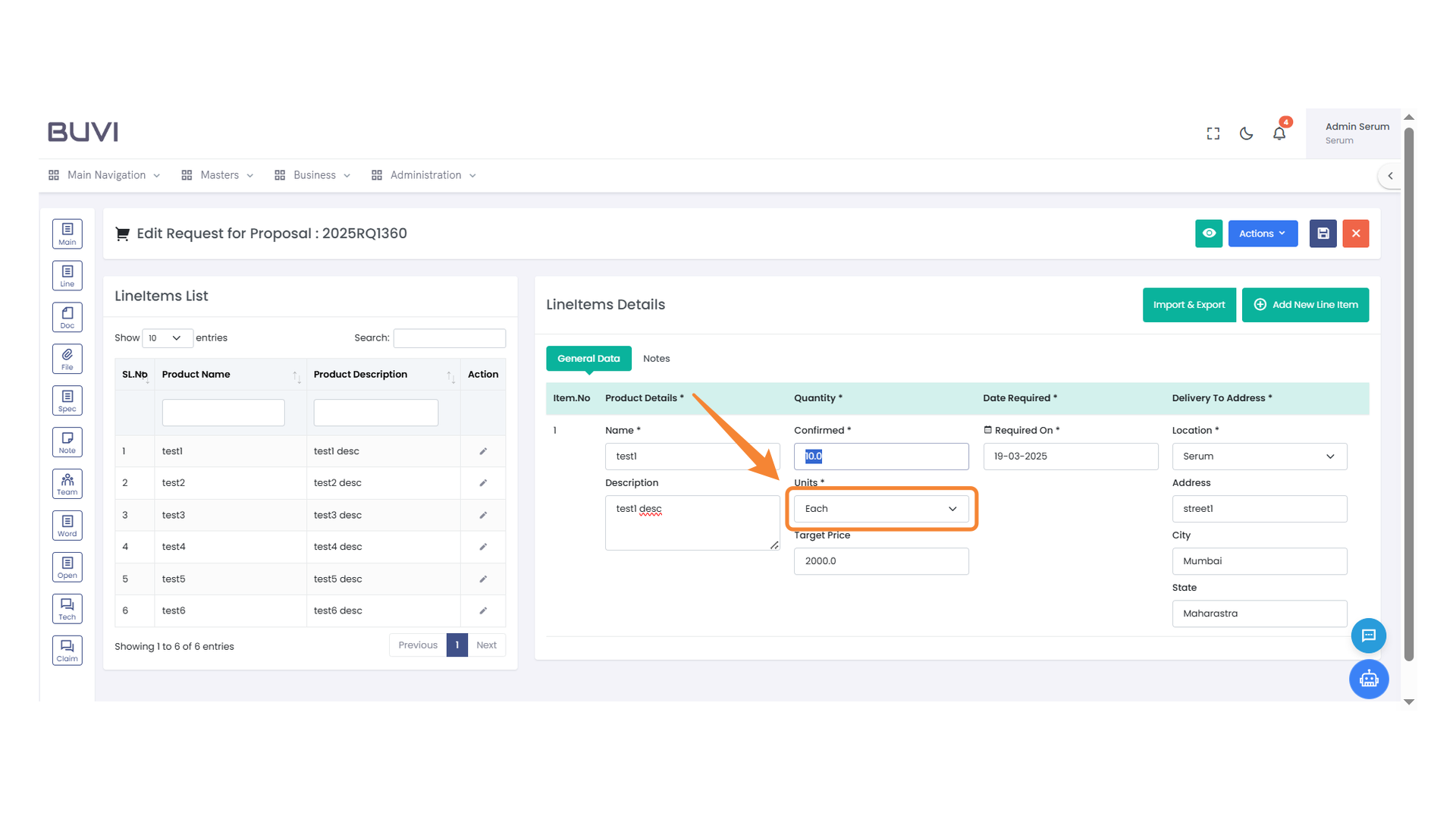
33. Unit Selection Dropdown
Select the appropriate unit from the dropdown list for your product.
34. Confirmed Quantity Field
Enter the quantity that has been confirmed for the product order.

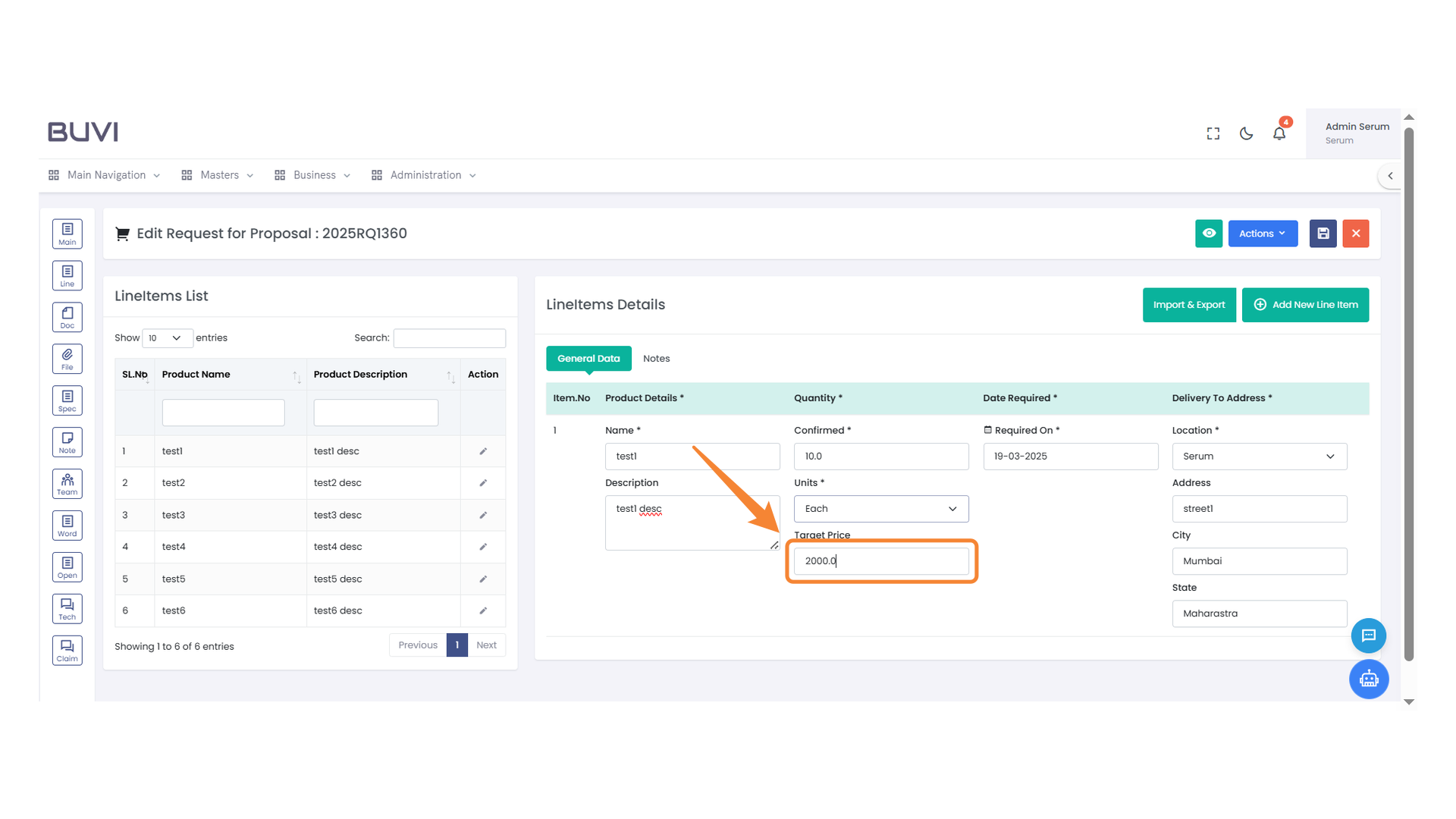
35. Target Price Input Field
Enter the desired target price for the product in this field.
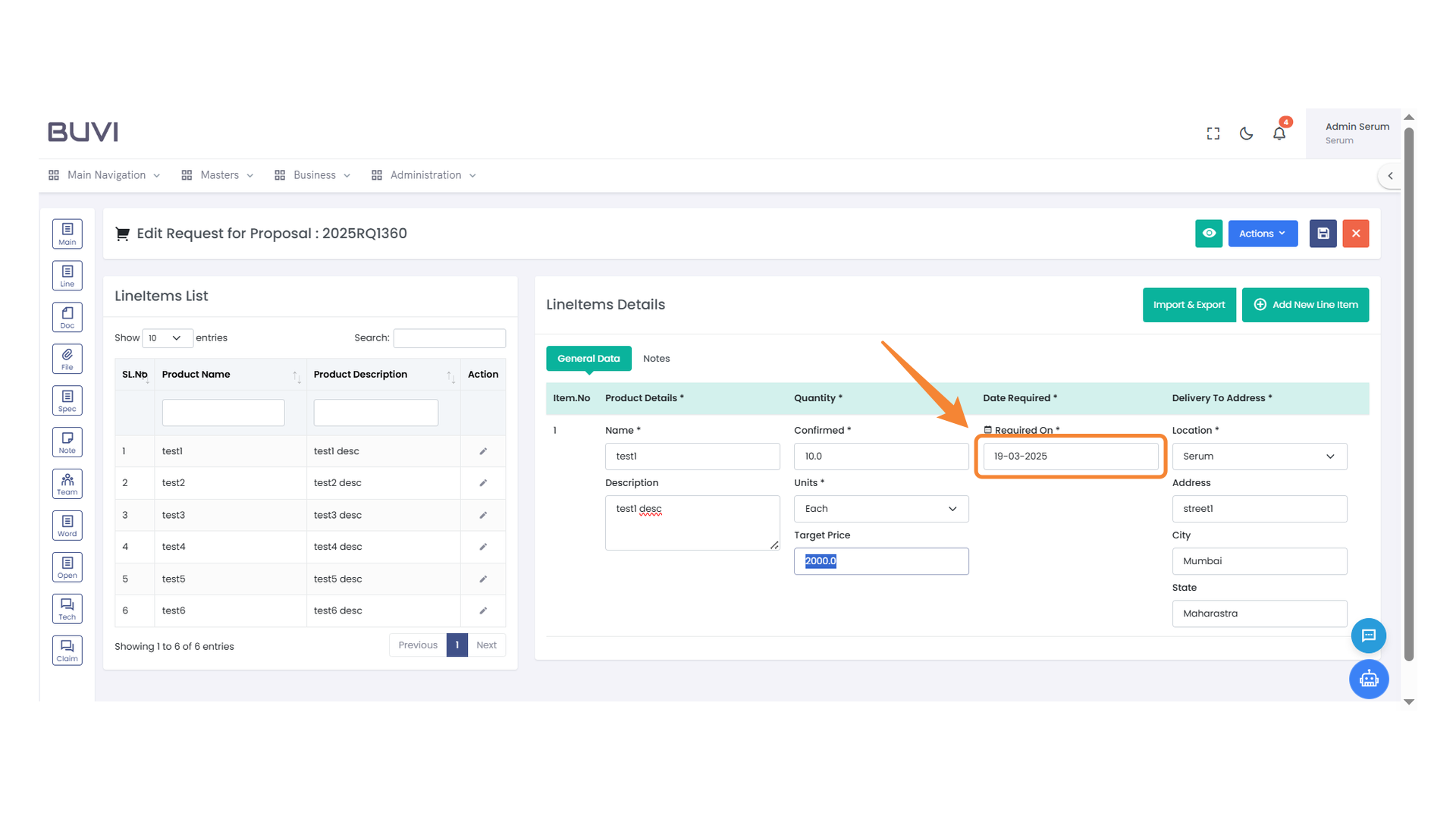
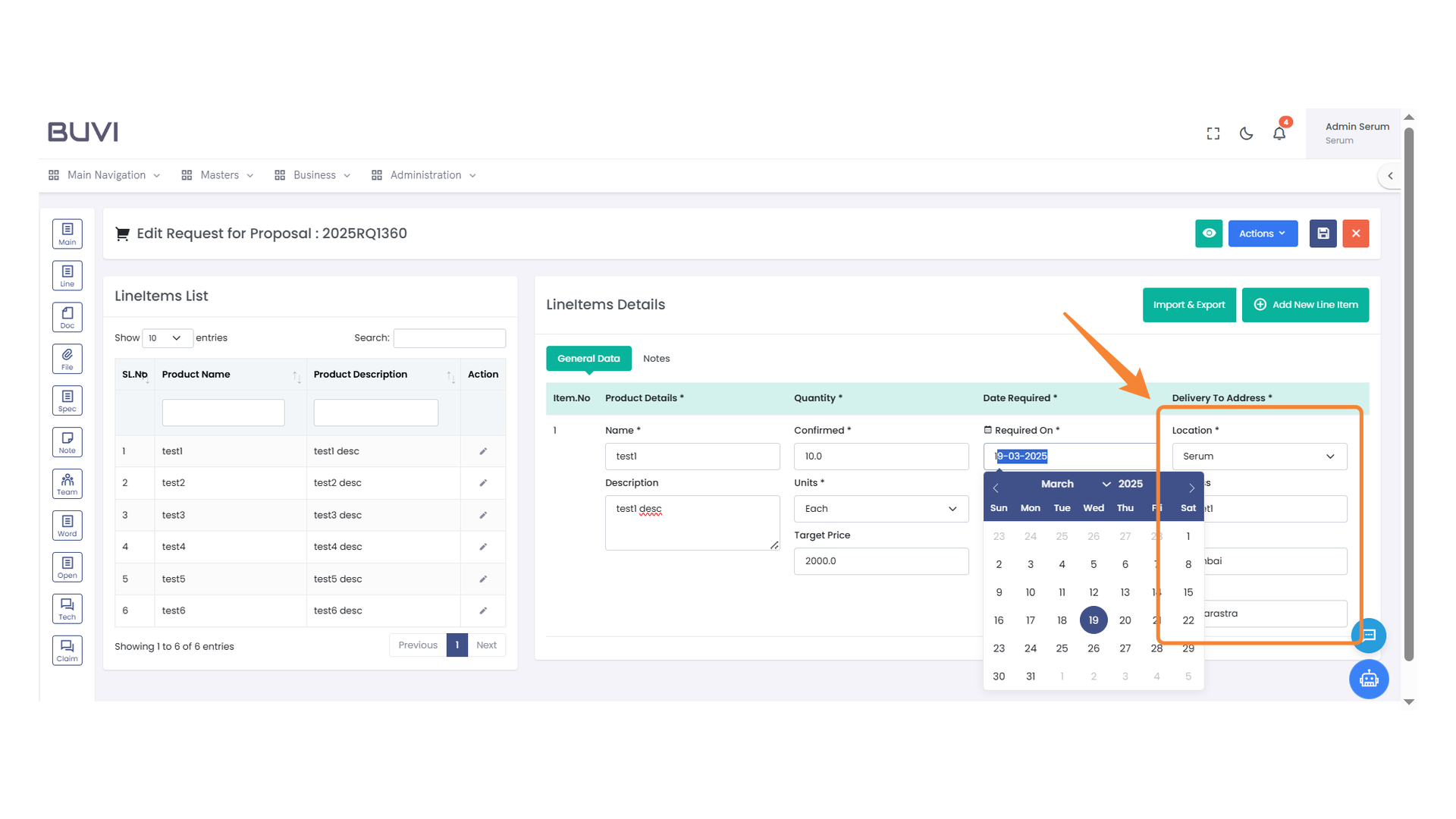
36. Date Required Field
Enter the required date for the item delivery.
37. Delivery Address Selection
Select the location, provide the address, and specify the city and state for the delivery address.
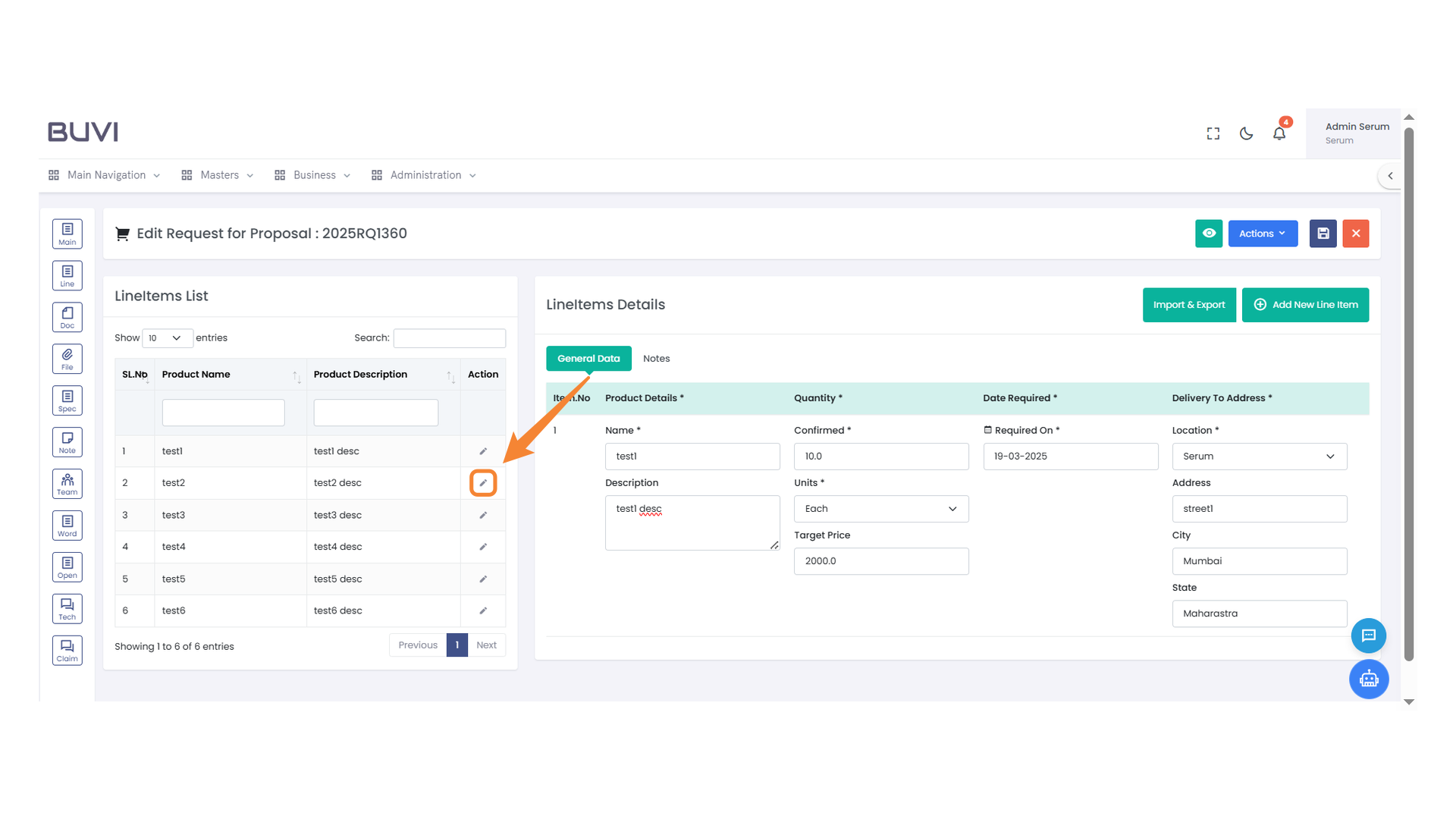
38. Edit Line Item
Click to edit the selected product's details.
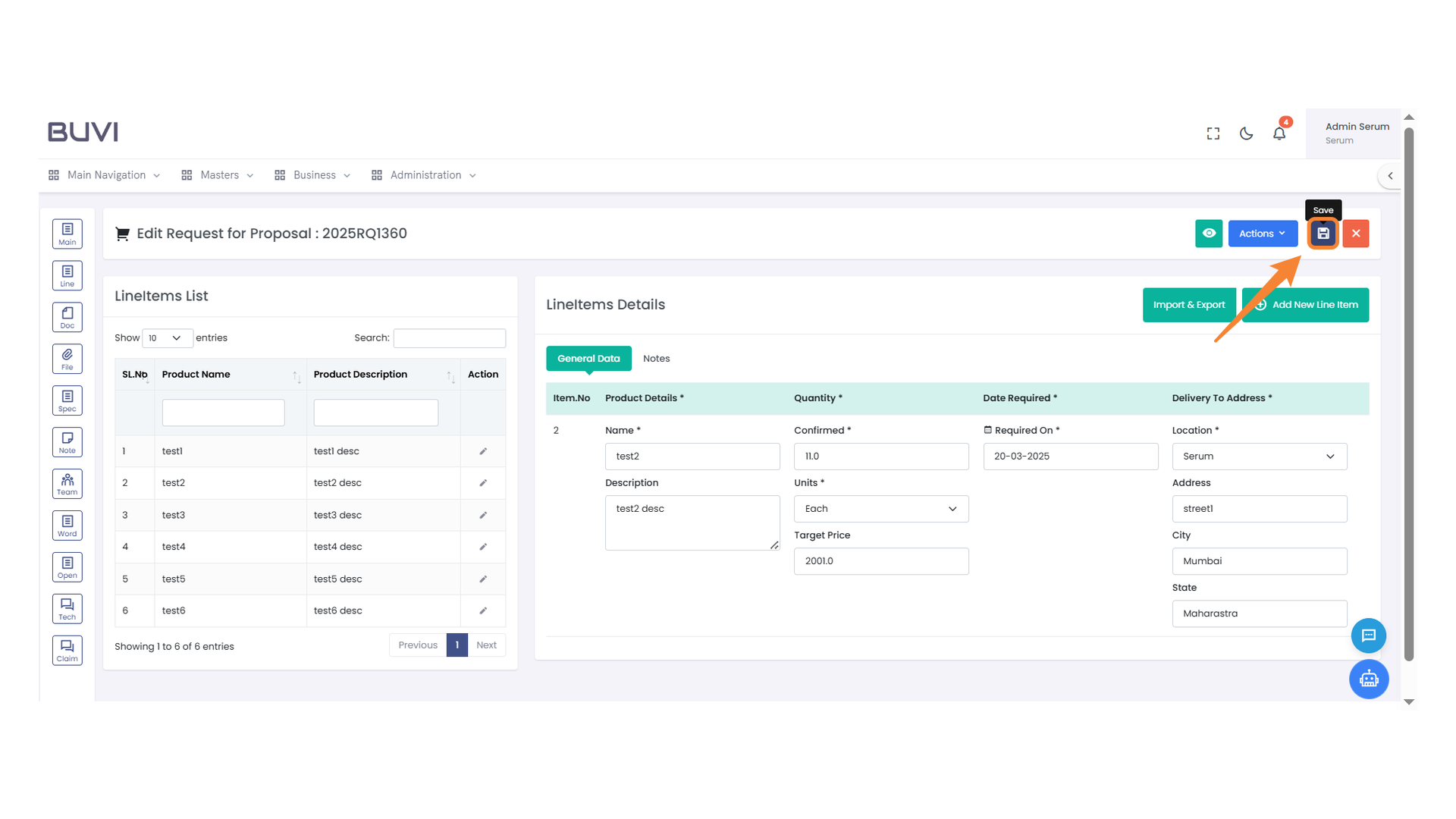
39. Save Button
Click this button to save your changes.
40. Confirmation Prompt
Click 'Update' to confirm your action on the document.